1
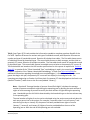
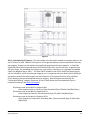
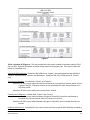
the right window using the right selection arrow.
3. Enter Start Date: The user should type in, or select from the calendar, the first day of the
reporting period/year.
4. Enter End Date PLUS 1 DAY: The user should type in, or select from the calendar, the day
immediately following the last day of the reporting period. For example, if the reporting period
is July 1 2009 - September 30 2010, then October 1, 2010 should be entered/selected.
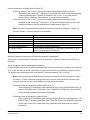
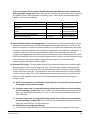
5. Select Entry Type: Click the “refresh list” icon and wait for the left window to refresh. Now
select the Entry Types to include, by highlighting them in the left window and moving them into
the right window using the right selection arrow.
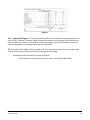
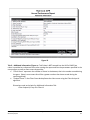
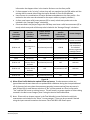
6. Enter Adult Age: Enter “18” in the input window.
7. EDA Provider: The user should select the EDA provider to run the report as, or leave it at the
default "-Default Provider-" if EDA mode is not desired.
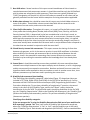
8. Enter effective date: The user should type in, or select from the calendar, the day immediately
following the last day of the reporting period.
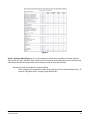
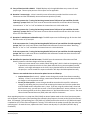
9. Is using the Receiving Income Source field part of your workflow for HUD reporting?: The user
should select the appropriate “Yes” or “No” value based upon if they use the “Receiving Income
Source” sub-assessment question in their data entry workflow for HUD. If “Yes” is not a
selection then type in “Yes” noting that case matters. Please see Technical Note #14 for more
information on how this prompt answer is used in the report.
10. Is using the Receiving Benefit field part of your workflow for HUD reporting?: The user should
select the appropriate “Yes” or “No” value based upon if they use the “Receiving Benefit” subassessment question in their data entry workflow for HUD. If “Yes” is not a selection then type
in “Yes” noting that case matters. Please see Technical Note #17 for more information on how
this prompt answer is used in the report.
11. Is using the Disability Determination field part of your workflow for HUD reporting?: The user
should select the appropriate “Yes” or “No” value based upon if they use the “Disability
Determination” sub-assessment question in their data entry workflow for HUD. If “Yes” is not a
selection then type in “Yes” noting that case matters. Please see Technical Note #12 for more
information on how this prompt answer is used in the report.
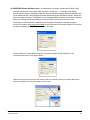
12. Is using Interim Reviews Part of your workflow for HUD reporting? The user should select the
appropriate “Yes” or “No” value based upon if they use the “Interim Reviews” in their data entry
workflow for HUD. If “Yes” is not a selection then type in “Yes” noting that case matters.
Please see Technical Note #18 for more information on how this prompt answer is used in the
report.
Bowman Systems
ART Gallery Report
Page 4 of 43
0625 – HUD CoC APR
v25