1
DATiX ThinServer User Manual
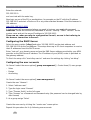
11.On a computer within the network start a browser and enter the following address:
http://<THINSERVER_IP_ADDRESS>:8081 an.
For above example in step 9, enter http://192.168.10.1:8081 .
12.Enter the user name root the password smartflex to log into the remote administration
desktop..
13.Follow these quick instructions to continue the server configuration:
14.First create a server certificate so you can use an encrypted channel to administer
the server. The entered certificate data, can be displayed with the browser by
clicking on the lock sign on the bottom of the browser window. Create the
certificate, after entering all relevant data, by clicking the Create button.
15.After you have finished the certificate reconnect to the server via the following
address: https://<THINSERVER_IP_ADRESSE>:8082. For above example in step
9, enter http://192.168.10.1:8082 .
16.Next you should change the root password. the new password should consist of
letters and numbers and it should not be a word in a dictionary.
17.First and most important you will need to permanently assign a valid network
address to the server. The address we set during the first boot is only valid until the
next reboot and must now be made permanent. The same is true for the netmask.
18.Next, define the settings for the DHCP-Server or, if not needed, disable it.
19.Now reboot the DATiX ThinServer by clicking the [shutdown] entry and then
restart from the menu. Define the time it takes before the shutdown should beginn
in the [minutes] field. Set a value of 0 if the reboot should occur immediately.
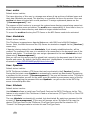
Select Server Type
T
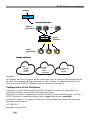
is section describes how the DATiX ThinServer can be integrated into a network and
what tasks it can perform.
From a PC within the network connect to the ThinServer via a browser as described above.
Login with user name root and your new password and select [ Server type ] from the
menu.
You are presented with four (4) selections, each one relating to a specific server function:
Dedicated File Server in a NT-Domain
S
elect the Authenticate against a NT Server entry, if this ThinServer is to become a
member in a NT-Domain. Provide the names of the NT-Domain and the Domain Server
(NetBIOS-Name, NOT the IP-Adresse).
With this setting, any valid user of an NT Domain can use this ThinServer as a File Server.
You an create shares that all users for example can access.
4