1
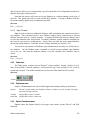
Standalone
5.4.7
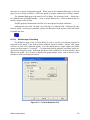
Selects standalone or networked modes. This disables networking, and the entire
acquisition system is expected to reside on the current computer.
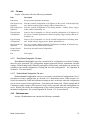
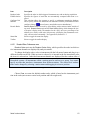
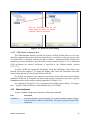
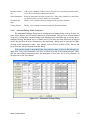
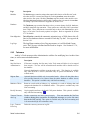
Data View Menu
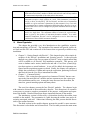
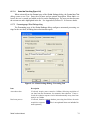
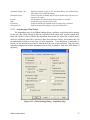
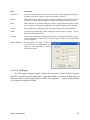
Archive’s Data View menu provides utilities for examining database records and selecting
viewing modes:
Item
Description
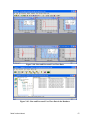
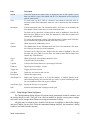
Database View
Switches the selected database window to Database view mode, which displays
Stations and Tests in the database.
Configuration View
Switches the selected database window to Configuration view mode, which displays Named Configurations in the database.
Waveform View
Switches the selected database window to Waveform view mode, which displays
Waveforms and Images in the database.
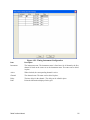
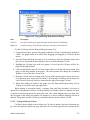
Table Info
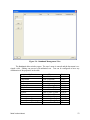
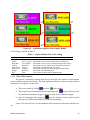
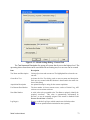
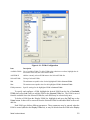
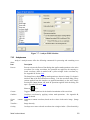
The Table Info option opens a dialog that lists the various database tables alphabetically. For each of the tables, the number of entries held by the currently active database is listed. See Appendix B, Section 2.2.13.
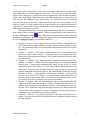
Raw Waveforms…
Activates the Select Raw Waveforms dialog, for viewing listings of the raw data
in the active database. See 3.4 for a general discussion.
Processed Waveforms...
Activates the Select Processed Waveforms dialog, for viewing listings of the
processed data in the active database. See 3.4 for a general discussion.
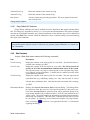
Error Log
Views the contents of the Error log file – error and warning messages generated
by all DAAAC modules.
State Log
Views the contents of the Acquisition State log file – sequence information and
performance metrics generated during the acquisition sequence.
NetCom Log
Views the contents of the NetCom log file – database related status and error
messages generated by the NetCom module.
Data Migration Log
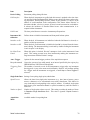
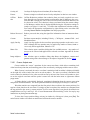
Views the contents of the Data Migration log file. The Data Migration Log lists
the dates on which data were migrated, the files the data were migrated to,
and which expired data have been deleted, along with any errors encountered during migration.
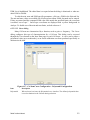
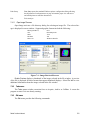
Registry Settings…
5.4.8
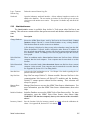
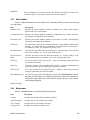
Window menu
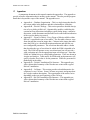
Archive’s Window menu provides the following functions:
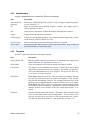
Item
Description
Cascade
Overlaps and cascades all open database windows.
Tile Horizontally
Arranges and sizes all windows horizontally.
Tile Vertically
Arranges and sizes all window vertically.
Arrange Icons
Arranges all minimized window icons.
DAAAC 4.0 User’s Manual
106