1
TARA Systems
Editor
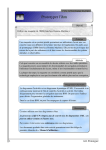
To edit an entry you can double click on it or press Return or F2 when an entry is
selected. When you select this command, a small inplace edit field appears, where
the name and the type of the parameter can be entered. To apply the changes and
to close the inplace edit field press the key Return.
When renaming a parameter, Embedded Wizard evaluates the body of the method
and the body of all derived methods in order to adapt all expressions, where the
parameter has been used. This, so called, ‘refactoring’ take in account the
inheritance of classes. To suppress the automatic refactoring, press the keys
Shift+Return instead of the key Return when closing the inplace edit field.
To add a new parameter, you can press Ins key or double click on one of the
parentheses ‘(‘ or ‘)’. Alternatively, you can drag the Argument template from the
Default folder of the Gallery to add a new parameter.
If you want to delete an argument, select it and press the Del key. If you delete the
return value of a method, the void return type is assumed.
Please note, that the declaration of a derived method cannot be changed. In this
case all editing commands are disabled. Only the origin definition of a method allows
the modification of the declaration. Derived methods do inherit this declaration only.
When clicking with the right mouse button on the Declaration Area, a context menu
appears. It provides the commands for ‘Undo & Redo’ for ‘Copy & Paste’, for
inserting a new argument and for restacking the arguments.
The reordering of parameters can also be done more comfortable with the mouse.
To do this select the affected parameter and drag&drop it to its new position.
Embedded Wizard
User Manual
© TARA Systems GmbH
www.embedded-wizard.de
Page 47