1
APPLICATION NOTE HOW TO GET
CONNECTED WITH
BLUETOOTH
VERSION 1.0.1
AUDIO DEVICES
$PFAL,Cnf.Set,DEVICE.BT.AUDIOGW=0013EF19C369,8888
// for BTE050 headset
Alternative configuration: $PFAL,Cnf.Set,DEVICE.BT.AUDIOGW=0,8888 // for BTE050 headset
$PFAL,Cnf.Set,DEVICE.BT.AUDIOGW=000D18A0C583,0000
Alternative configuration: $PFAL,Cnf.Set,DEVICE.BT.AUDIOGW=0,0000
2
// for BT-33A1 handsfree kit 2
// for BT-33A1 handsfree kit
This configuration resets the Bluetooth stack inside the MAMBO2 and also changes the
present Bluetooth pass-code used for serial data (default=0000). If you are sending and
receiving data with the MAMBO2 via Bluetooth, you will need to reconnect your MAMBO2
and enter the new pass-code when prompted and NOT the default one (e.g. enter 8888 - if
the configuration for the BTE050 headset has been sent to).
6.
Now, place the Bluetooth audio device into the “pairing” mode. Pairing is a process that is
intended to be done one time for a device. To set the Bluetooth audio device into the
“pairing” mode while the audio device is turned off, press and hold the call (action) button
on the Bluetooth audio device until the corresponding LED indicator flashes blue and red
alternately (Don't release the button when you will hear a tone and the LED indicator will flash
only blue, but when it flashes blue and red alternately). This process may be different from
device to device.
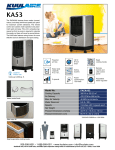
Figure 2:
7.
2
3
Call (action) button on the Bluetooth headset & handsfree kit.
During the Bluetooth audio device is in pairing mode, send the PFAL command
$PFAL,BT.Audio.Bound to the MAMBO2. It is also possible to create a user menu and
execute this command from the display - e.g. $PFAL,CNF.Set,DISP.MENU3=BT
Bound:BT.audio.bound. Pairing is completed when the LED indicator turns on for a second
and then flashes blue. After both devices are paired they enter automatically into the
connected state. To be able to answer any incoming voice call from the Bluetooth headset
or handsfreekit both devices should be switched into the "bound" state, which is done after
executing the PFAL command $PFAL,BT.Audio.Disconnect3.
To get the MAC address of the the audio headset, just connect it to a Bluetooth-enabled PC or Laptop, then go to the audio headset icon,
right click on it, and then start “Properties ....”. Copy the device address given on this dialog box (e.g. 00:13:EF:19:C3:69) and then enter it
in the configuration without colon“:”. The Mac address uses only Hexadecimal characters 0-9 and A-F).
Once the "bound" state is entered the event BT.Audio.eBound occurs. The command $PFAL,BT.Audio.Disconnect should be sent to the
MAMBO2 device only when connecting devices for the first time, after that the "bound" state is set automatically by the configuration given
in table above.
This confidential document is a property of FALCOM and may not be copied or circulated without previous permission.
Page 6 of 7