1
APPLICATION NOTE HOW TO GET
CONNECTED WITH
BLUETOOTH
AUDIO DEVICES
VERSION 1.0.1
To receive an incoming voice call on a Bluetooth headset or handsfree kit, send the
following configuration to the MAMBO2 device:
$PFAL,CNF.Set,AL25=BT.Audio.eConnected:GSM.Audio.AudioPath=2
If the call button on the Bluetooth audio device is pressed, the MAMBO2 switches the audio path to 2 and forwards the
received voice signals to the Bluetooth audio device through this path.
$PFAL,CNF.Set,AL26=BT.Audio.eConnected&GSM.VoiceCall.sRingCounter>0:GSM.VoiceCall.Accept
The MAMBO2 accepts an incoming voice call when the call button on the Bluetooth audio device is pressed. Pressing
that call button makes the MAMBO2 generate the events BT.Audio.eConnected or BT.Audio.eBound alternately.
$PFAL,CNF.Set,AL27=BT.Audio.eBound:GSM.Audio.AudioPath=1
The MAMBO2 switches the audio channel automatically for 2 to 1 (internal audio) once both devices get Bluetoothdisconnected ("bound" state).
$PFAL,CNF.Set,AL28=GSM.Voicecall.eHangup&BT.Audio.sConnected:BT.Audio.Disconnect
If the voice call is ended by the other party, the MAMBO2 disconnects that audio connection and sets itself into the
"bound" state.
$PFAL,CNF.Set,AL29=BT.Audio.eBound&GSM.VoiceCall.sInside:GSM.VoiceCall.Hangup
When you are inside a voice call and pressing the call button on the Bluetooth audio device, then the MAMBO2 device
ends that call. Pressing that call button makes the MAMBO2 generate the events BT.Audio.eConnected or
BT.Audio.eBound alternately.
Hint: To prevent overwriting of alarm indices from 25 to 29 that may already exist in your configuration, please
change these indices to unused ones before sending them to the MAMB2 device.
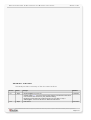
Table 1: Alarm configuration to be sent to the MAMBO2 device
After sending the above configuration to the MAMBO2 device, to answer (or end) an
incoming voice call, press the call button on the Bluetooth audio device. When answering
an incoming voice call, be sure that the Bluetooth audio connection is into the "bound"
state. Each time you press the call button on the Bluetooth audio device, the connection
state switches from "Bound" to "Connected" and vice versa. Both states are identifiable by
the events BT.Audio.eConnected and BT.Audio.eBound which occur when these states
are entered respectively.
Bluetooth devices get also disconnected when one of them is turned ‘off’ or moved out of
the designated Bluetooth operating range. For detailed information, please refer to the
user manual of the used Bluetooth audio device.
This confidential document is a property of FALCOM and may not be copied or circulated without previous permission.
Page 7 of 7