1
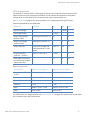
I/O sampling
Receiving data from Device Cloud
Transparent data is received from the Device Cloud using the Device Request interface if the module
is operating in transparent mode (ATAP 0) and the Device Cloud is enabled with DO bit 0. Only the raw
data will be seen on the serial interface and the target string to which the Device Cloud sent the data
will not be available. (API mode must be used to see the target string.) Also, in transparent mode, the
Device Cloud should not request a response because none will be given.
Soft AP mode
The XBee Wi-Fi module can operate in Soft AP mode, (aka Wi-Fi Direct). In this mode the XBee module
emulates an access point (AP) rather than a station (STA). This allows another Wi-Fi client device (STA)
to connect to the XBee module directly without requiring a separate AP. WPA2 security is available in
Soft AP mode, but not WPA or WEP security. By default, Soft AP operates with no security.
Enable Soft AP mode
The module operates in Soft AP mode in two different ways: provisioning mode and pass through
mode. These two Soft AP modes are enabled differently.
Pass through mode is enabled by setting CE to 1, which is not the default configuration. When CE is 1,
it overrides parameters for provisioning mode.
Provisioning mode is enabled by default. It may be disabled by clearing bit 1 of DO. The other
requirement to enable provisioning mode is that SSID must be NULL. Again, SSID is NULL by default
and it may be forced to NULL by issuing the NR command.
Use Soft AP mode
When the module is operating in Soft AP provisioning mode, it is waiting for a connection from a STA
device. ATAI will be 0x23 because the SSID is not configured. The STA device needs to support Wi-Fi
and it needs to have an HTTP browser operating on TCP port 80. Some examples of devices that
might connect to the module operating in Soft AP mode are smart phones, tablets, and laptop
computers.
The connecting STA device should scan for an AP. The XBee module will advertise an SSID of
‘xbee<MAC>’ where <MAC> is the 6 byte MAC address of the XBee module formatted as follows:
xbee-XXXXXXXXXXXX where each X represents a hex digit. The STA needs to connect to that SSID, and
then open a browser by entering 192.168.1.10 into the address bar.
This will bring up the web page from the XBee module to allow the module to be configured as
desired. The primary purpose of this feature is to configure the device to connect to the desired
access point with the desired security settings. The secondary purpose is to configure any other
parameters.
The current value of each configuration field is displayed on the web page. The user can enter the
desired parameters and then go to the bottom of the page and press the apply button. The selected
parameters will be written to the non-volatile memory on the module. However, the network access
parameters are only written if a valid set of parameters is entered. The module tests the validity of
those parameters by attempting to connect to the given access point. When the module is operating
in Soft AP pass through mode, HTTP on port 80 is not used and it operates the same as it would in
STA mode with a few exceptions:
•
Only one device may connect and the connecting device must be operating in STA mode.
•
A TCP listening socket on the port specified by C0 is open to accept connections, but no UDP
listening socket is available.
•
ID specifies the SSID sent by the module in the beacon, but if ID is NULL, it will advertise an SSID
based on the MAC address of the module. For details, see Soft AP mode on page 62.
XBee Wi-Fi RF Module S6B User Guide
62