1
Qosmio F40
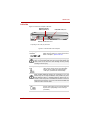
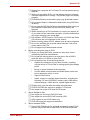
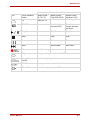
Power indicators
The Battery, DC IN and Power indicators on the system indicator panel
alert you to the computer’s operating capability and battery charge status.
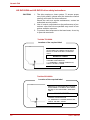
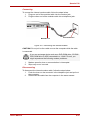
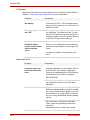
Battery indicator
Check the Battery indicator to determine the status of the battery.
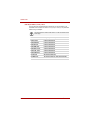
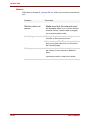
The following indicator lights indicate the battery status:
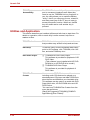
Flashing amber
The battery charge is low. The AC adaptor must be
connected to recharge the battery.
Amber
Indicates the AC adaptor is connected and charging the battery.
Blue
Indicates the AC adaptor is connected and the battery is fully charged.
No light
Under any other conditions, the indicator does not
light.
If the battery becomes too hot while it is being charged, the
charge will stop and the battery indicator will go out. When the
battery’s temperature falls to a normal range, charge will resume.
This event occurs regardless of whether the power to the computer is on or off.
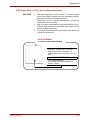
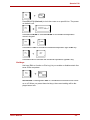
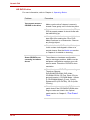
DC IN indicator
Check the DC IN indicator to determine the power status with the AC adaptor connected:
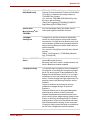
Blue
Indicates the AC adaptor is connected and supplying proper power to the computer.
Amber
Indicates a problem with the power supply. Plug the
AC adaptor into another outlet. If it still does not
operate properly, see your dealer.
No light
Under any other conditions, the indicator does not
light.
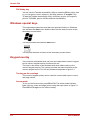
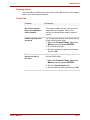
Power indicator
Check the Power indicator to determine the power status.
Blue
Indicates power is being supplied to the computer
and the computer is turned on.
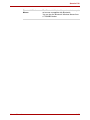
Blinking amber
Indicates the power was turned off while the computer was in Resume mode.
No light
Under any other conditions, the indicator does not
light.
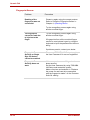
Battery types
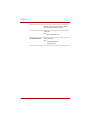
The computer has two types of batteries:
❑ Battery — 6 cell
User’s Manual
6-3