1
Finishing the product
remove the switch, the configuration notecard and the ext_config_control script
replace them with “ext_switch_control” in the same prim
touch for on/off
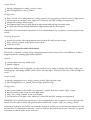
Communication with other scripts
The switch can both send and receive link messages.
Sending: create a custom menu bu on by entering a short text a@er “extBu on = ” in the notecard,
replacing “On/Off” in the menu. When the bu on is touched, it will send the number 10958 and the
bu on text in a link message. The message can be caught by another script within the same linkset. The
other script can call the main menu by sending the number 10957 and the word “menu”.
Receiving: other scripts can control the switch and menu by sending the number 10957 and a
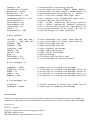
command. See “Configuration notecard” for all possible commands. Useful for plugins, of which two
examples are included: nightlight and proximity.
Intercepting existing messages: if you created a script and the need arises to perform some action
when the light is switched on/off, or parameters are changed, check for number -10957.
Plugin scripts
Regular plugins (nightlight, proximity) go in the same prim where the SWITCH is located.
Particle plugins (halo, starburst) go in the same prim where the LIGHT is located.
All plugins are compatible with both linkset and region scripts.
Particles
Rez the “Example: particle test” lamp and touch it. A small halo will appear around the bulb. To try out
other particle effects, remove “Particle:Halo” from the lamp and add another particle script by
dragging it from your inventory. Both adding and removing can be done with the light on or off. The
particle size can be changed in the particle menu or in the notecard. Please note that you have to set
particleMenu to YES in the notecard in order to use it. The “On/Off” bu on will be replaced by
“Particles”.
There can be no more than one particle script in any light prim at any given time.
Every particle effect has its own minimum and maximum size. The “Min” and “Max” bu ons in the
particle menu will resize the particles to the smallest and largest possible size for the current particle
effect.
Candle flames
Candle flames always need a transparent prim to work. The best way to accomplish this is using the
default transparent texture. Se ing both Alpha values to 0% in the notecard will work as well, but will
allow changing the transparency from the color menu.
The flame will default to white. You can either change this in the Color menu or in the notecard. Using
the notecard is the preferred method. An example with candle-specific se ings is included.
Textures