1
Chapter 5: Working with Maps
Map Layers
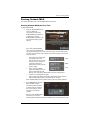
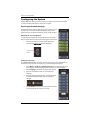
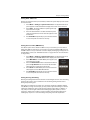
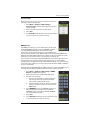
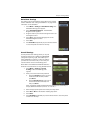
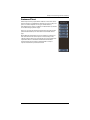
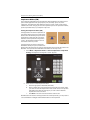
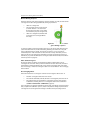
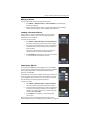
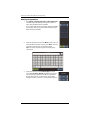
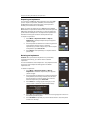
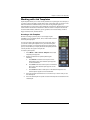
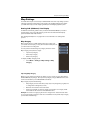
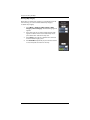
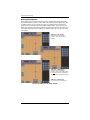
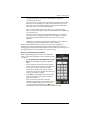
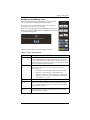
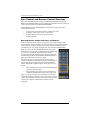
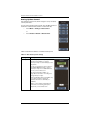
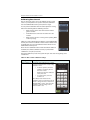
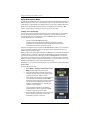
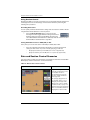
A map layer refers to a specific feature you can display on the
map screen—available map layers are map imagery, prescription
maps, and applied areas. You show or hide these features as well
as adjust the opacity (transparency) of imagery and prescription
maps via the Map Layers panel (shown at right).
Note: The Prescription and As Applied buttons only appear on
the Map Layers panel if you have the optional rate and section
control installed on your system and connected to Outback MAX.
For more information on selecting and working with imagery,
prescription maps, and applied areas:
•
See “Map Imagery” on page 85 of this chapter for more
information on map imagery
•
See “Using Prescription Maps” on page 130 for more
information on prescription maps
•
See “Rate Control and Section Control Overview” on
page 116 for more information on applied areas
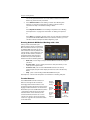
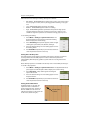
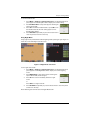
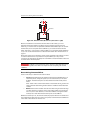
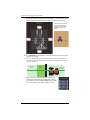
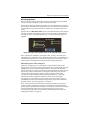
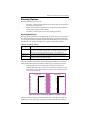
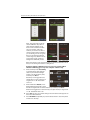
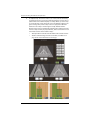
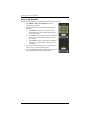
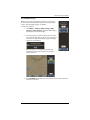
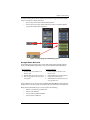
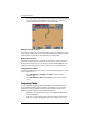
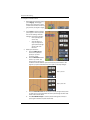
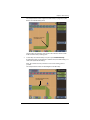
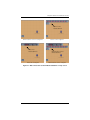
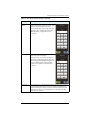
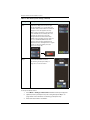
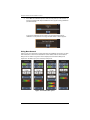
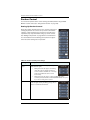
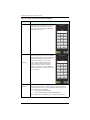
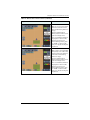
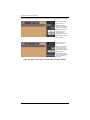
The screens below provide an example of showing/hiding map imagery:
Hide imagery
Show imagery
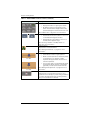
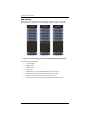
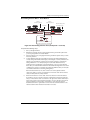
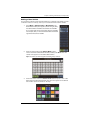
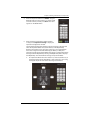
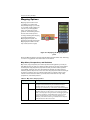
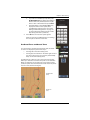
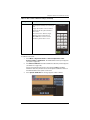
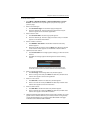
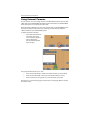
To adjust map layer options:
1.
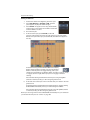
Press Mapping Options > Map Layers. The Map Layers panel appears
(see figure at top right of this page).
2.
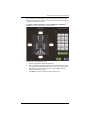
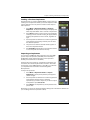
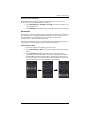
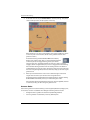
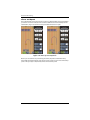
Press Imagery, Prescription, or As Applied to show/hide those options,
where:
•
Check mark shows the feature
•
No check mark hides the feature
Outback MAX User Guide
80
PN 875-0325-000 Rev A1