1
Contamination Reject Period
This parameter controls the actual sampling period for the rejection algorithm. A
large sampling period slows down the filter, resulting in a slower response to
environmental effects, such as rain and water. However, a large sampling period
results in a higher touch accuracy. A small sampling period speeds up the filter's
ability to react to contaminants, but reduces the accuracy of the system. The table
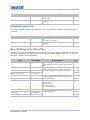
below describes some sample values and the associated time to reject 50% of the
signal.
Value
Calibration Time
Result
2 frames
18 seconds
Very fast rejection to environmental conditions such as water, ice, etc.
Ideal for public and outdoor kiosks.
50 frames
450 seconds
Provides an ideal trade-off between medium speed calibration and
resulting inaccuracies.
200 frames
1800 seconds
Very slow rejection. Required in situations where touch event persists for
long period of time.
Recovery Speed
This parameter controls the speed at which the calibration filter recovers when a
touch object has been removed from the screen. A high value results in a very fast
recovery, whereas a low value results in a recovery speed that is comparable to the
contamination reject period.
Touch Rejection Parameters
These parameters control the conditions under which the Interactivity Kit is able to
automatically reject various touch events. The Dashboard software is capable of
detecting the shape and area of the touch object contacting the screen. It is
possible to reject specific touches based on the surface area of the contact. This is
useful in situations with palm rejection and environmental debris rejection. Also, in
any application where a high confidence level that only a specific class\shape of
touch object was used to activate the screen is required.
The Reset and Apply options save, but do not apply any changes that have been
made. In order to apply changes to the Interactivity Kit select Optimize LEDs.
Touch Reject Enable
This parameter can enable and disable the touch rejection algorithm in the firmware. All touches
regardless of contact area are reported when this is disabled. When enabled, the parameters below
are used to determine when a touch is reported to the operating system.
Minimum Area
This controls the minimum contact area required before a touch is activated, in
square millimeters. The software checks to make sure that the minimum area is
smaller than the maximum area.
Interactivity Kit Setup Guide
020-100997-03 Rev. 1 (09-2014)
31