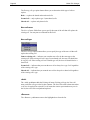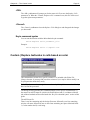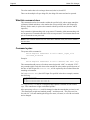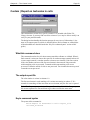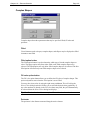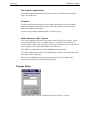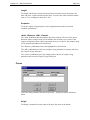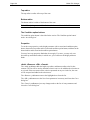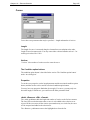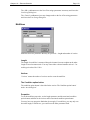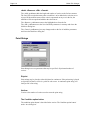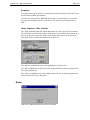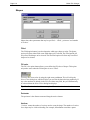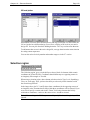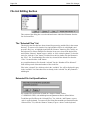
1
User’s Guide
Global File Changer™
Make unlimited changes to multiple design files
quickly and easily!
Version 3.3b (V7), 8.0b (V8)
Axiom International
1805 Drew Street
Clearwater, Florida 33765
+1-727-442-7774 voice
+1-727-442-8344 fax
[email protected]
www.axiomint.com
Page 2
Global File Changer
Copyright © 1993-2002 Axiom International.
All rights reserved.
This document was last modified on 15 May 2002 5:29 PM.
This software and manual are provided “as is” without warranty of any kind, either
expressed or implied, including, but not limited to the implied warranties of
merchantability and fitness for a particular purpose. The entire risk as to the quality and
performance of this program is with you. You are advised to test the program thoroughly
before you rely on it. Should the program prove defective, you (and not the seller nor
manufacturer) assume the entire cost of all necessary servicing, repair or correction. Any
liability of seller or manufacturer of this software will be limited exclusively to product
replacement or refund of the purchase price. Venue for the resolution of any dispute
related to this license or the use of this product shall be Pinellas County, Florida.
MicroStation® is a registered trademark of Bentley Systems, Incorporated.
Global File Changer and Design File Manager are trademarks of Axiom International.
c:\winnt\profiles\ddirprog\desktop\changer.doc
Table of Contents
Page 3
Table of Contents
Chapter 1 — Introduction -------------------------------------------------------------------- 11
Problem --------------------------------------------------------------------------------------------------- 11
Bad solution #1------------------------------------------------------------------------------------------ 11
Bad solution #2------------------------------------------------------------------------------------------ 11
Good solution-------------------------------------------------------------------------------------------- 11
Global File Changer’s element selection command takes off where MicroStation’s SelectBy
command leaves off ------------------------------------------------------------------------------------ 12
Sample uses of Global File Changer --------------------------------------------------------------- 12
Global File Changer picks up where EdG leaves off-------------------------------------------- 13
(Almost) Free custom programming ---------------------------------------------------------------- 13
Technical note ------------------------------------------------------------------------------------------- 14
Chapter 2 — Installation ---------------------------------------------------------------------- 15
Preparing for installation ------------------------------------------------------------------------------ 15
Installation from CD ----------------------------------------------------------------------------------- 15
Network installation from the server---------------------------------------------------------------- 17
Environment variable ---------------------------------------------------------------------------------- 17
Chapter 3 — Uninstalling--------------------------------------------------------------------- 18
Why you might uninstall an Axiom product------------------------------------------------------- 18
How to do it ---------------------------------------------------------------------------------------------- 18
Stop MicroStation from running an Axiom product --------------------------------------------- 18
Identifying your Axiom Base Directory ------------------------------------------------------------ 18
Removing products from the Axiom menu -------------------------------------------------------- 19
Removing the Axiom menu--------------------------------------------------------------------------- 20
Removing files from your hard-disk ---------------------------------------------------------------- 20
Axiom.cfg file and axiom_user.ucf file------------------------------------------------------------- 21
Chapter 4 — Quick Start ---------------------------------------------------------------------- 22
Open the design file “clock.dgn”. ------------------------------------------------------------- 22
Edit the key file. ---------------------------------------------------------------------------------- 22
Start Global File Changer. ---------------------------------------------------------------------- 22
Select the file to be processed. ----------------------------------------------------------------- 23
Select the key-in file. ---------------------------------------------------------------------------- 24
Create the selection set. ------------------------------------------------------------------------- 24
Select a report file. ------------------------------------------------------------------------------- 27
Process clock.dgn. -------------------------------------------------------------------------------- 27
Review the results. ------------------------------------------------------------------------------- 27
Demo Files ----------------------------------------------------------------------------------------------- 29
Using the sample key files ---------------------------------------------------------------------------- 30
Demo versions------------------------------------------------------------------------------------------- 30
Chapter 5 — Running Global File Changer -------------------------------------------- 31
Page 4
Global File Changer
Getting started with Global File Changer --------------------------------------------------------- 31
Starting Global File Changer ------------------------------------------------------------------------ 31
The ‘Help’ dialog box---------------------------------------------------------------------------------- 31
The main dialog box ----------------------------------------------------------------------------------- 32
The ‘File’ menu ----------------------------------------------------------------------------------------- 32
The ‘Options’ menu ------------------------------------------------------------------------------------ 32
The ‘Custom’ menu------------------------------------------------------------------------------------- 33
The ‘Selection’ menu----------------------------------------------------------------------------------- 33
Using selection criteria in a key file----------------------------------------------------------------- 35
Help | Contents ------------------------------------------------------------------------------------------ 35
Help | About---------------------------------------------------------------------------------------------- 35
Which design files do you want to process?------------------------------------------------------- 35
The default design file directory--------------------------------------------------------------- 36
Which file contains the keyin commands you want to execute? ------------------------------ 36
<Select> and <Edit> ----------------------------------------------------------------------------- 37
A simple example--------------------------------------------------------------------------------- 38
Running user commands ------------------------------------------------------------------------ 38
The default keyin command file directory--------------------------------------------------- 38
What should we call the output report file?-------------------------------------------------------- 38
<Start> ---------------------------------------------------------------------------------------------------- 38
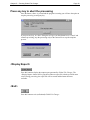
Press any key to abort the processing--------------------------------------------------------------- 39
<Display Report> --------------------------------------------------------------------------------------- 39
<Exit> ----------------------------------------------------------------------------------------------------- 39
Chapter 6 — The ‘Options’ menus -------------------------------------------------------- 40
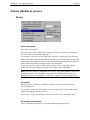
About settings ------------------------------------------------------------------------------------------- 40
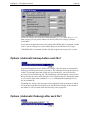
Options | Automatic backup before each file?----------------------------------------------------- 41
Options | Automatic filedesign after each file?---------------------------------------------------- 41
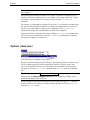
Options | Help level ------------------------------------------------------------------------------------ 42
Options | Models to process -------------------------------------------------------------------------- 43
V8 only --------------------------------------------------------------------------------------------- 43
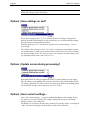
Options | Save settings on exit? ---------------------------------------------------------------------- 44
Options | Update screen during processing?------------------------------------------------------- 44
Options | Save current settings...--------------------------------------------------------------------- 44
Options | Load a settings file... ----------------------------------------------------------------------- 45
Chapter 7 — Tricks and techniques ------------------------------------------------------ 46
Global File Changer’s power is limited only by your imagination --------------------------- 46
Combining Global File Changer with the MicroStation Calculator-------------------------- 46
User commands that process elements one by one----------------------------------------------- 46
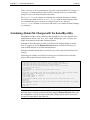
Combining Global File Changer with the SelectBy utility------------------------------------- 47
Chapter 8 — The ‘Custom’ menu ---------------------------------------------------------- 48
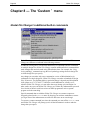
Global File Changer’s additional built-in commands ------------------------------------------- 48
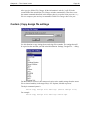
Custom | Copy design file settings ------------------------------------------------------------------ 49
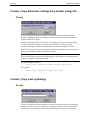
Custom | Copy dimension settings from another design file ----------------------------------- 50
V7 only --------------------------------------------------------------------------------------------- 50
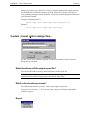
Custom | Copy level symbology --------------------------------------------------------------------- 50
V7 only --------------------------------------------------------------------------------------------- 50
Custom | Count cells in design files... -------------------------------------------------------------- 51
Table of Contents
What should we call the output report file? ------------------------------------------------- 51
Which cells should we process? --------------------------------------------------------------- 51
Report ----------------------------------------------------------------------------------------------- 51
Keyin command syntax-------------------------------------------------------------------------- 53
Custom | Merge in design files ----------------------------------------------------------------------- 53
How to merge one design file into a group of design files ------------------------------- 54
How to merge a group of design files into a single design file -------------------------- 54
How to merge a group of design files into a group of design files---------------------- 54
Keyin command syntax-------------------------------------------------------------------------- 54
Custom | Modify text----------------------------------------------------------------------------------- 55
Custom | Move global origin to center of displayable elements ------------------------------- 55
Custom | Replace cells --------------------------------------------------------------------------------- 56
The File pulldown menu ------------------------------------------------------------------------ 56
Which cell library should we use? ------------------------------------------------------------ 57
Replacement mode ------------------------------------------------------------------------------- 57
Copy enter data fields---------------------------------------------------------------------------- 57
Which cells should we replace with cells of the same name?---------------------------- 58
Which cells should we replace with cells of different names?--------------------------- 59
<OK> ----------------------------------------------------------------------------------------------- 61
<Cancel> ------------------------------------------------------------------------------------------- 61
Keyin command syntax-------------------------------------------------------------------------- 61
Custom | Replace textnodes in cells based on color---------------------------------------------- 61
What this command does ----------------------------------------------------------------------- 62
Command syntax --------------------------------------------------------------------------------- 62
Custom | Report on textnodes in cells -------------------------------------------------------------- 63
What this command does ----------------------------------------------------------------------- 63
The output report file ---------------------------------------------------------------------------- 63
Keyin command syntax-------------------------------------------------------------------------- 63
Custom | Report revision letter of design file ----------------------------------------------------- 64
V7 only --------------------------------------------------------------------------------------------- 64
How we find revision letters-------------------------------------------------------------------- 64
The revision report file -------------------------------------------------------------------------- 65
MSBATCH Example----------------------------------------------------------------------------- 65
Key-file command syntax----------------------------------------------------------------------- 65
Custom | Scale cells ------------------------------------------------------------------------------------ 66
Selecting which cells to scale ------------------------------------------------------------------ 66
Scaling operations -------------------------------------------------------------------------------- 66
Command syntax --------------------------------------------------------------------------------- 67
Chapter 9 — Custom | Modify Text ------------------------------------------------------- 68
Overview ------------------------------------------------------------------------------------------------- 68
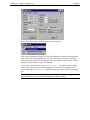
The main ‘Modify Text’ dialog box ----------------------------------------------------------------- 70
The File pulldown menu ------------------------------------------------------------------------ 70
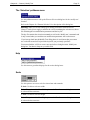
The ‘Parameters’ pulldown menu ------------------------------------------------------------- 70
The ‘Selection’ pulldown menu---------------------------------------------------------------- 71
Help ------------------------------------------------------------------------------------------------- 71
Scale------------------------------------------------------------------------------------------------- 71
Rotation angle ------------------------------------------------------------------------------------- 72
Level ------------------------------------------------------------------------------------------------ 72
Symbology ----------------------------------------------------------------------------------------- 72
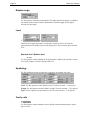
Text in cells ---------------------------------------------------------------------------------------- 72
Page 5
Page 6
Global File Changer
Element types-------------------------------------------------------------------------------------- 73
Modify about -------------------------------------------------------------------------------------- 73
<OK> ----------------------------------------------------------------------------------------------- 73
<Cancel> ------------------------------------------------------------------------------------------- 73
Parameters------------------------------------------------------------------------------------------------ 74
Text parameters dialog box --------------------------------------------------------------------------- 74
The ‘Parameters’ pulldown menu ------------------------------------------------------------- 74
Help | Help on text parameters ----------------------------------------------------------------- 74
Font-------------------------------------------------------------------------------------------------- 75
Text just--------------------------------------------------------------------------------------------- 75
Node just ------------------------------------------------------------------------------------------- 75
Fractions-------------------------------------------------------------------------------------------- 75
Text width ------------------------------------------------------------------------------------------ 75
Text height ----------------------------------------------------------------------------------------- 75
Line spacing --------------------------------------------------------------------------------------- 76
Line length ----------------------------------------------------------------------------------------- 76
<Match> -------------------------------------------------------------------------------------------- 76
<OK> ----------------------------------------------------------------------------------------------- 76
<Cancel> ------------------------------------------------------------------------------------------- 76
Extended text parameters dialog box --------------------------------------------------------------- 76
The ‘Parameters’ pulldown menu ------------------------------------------------------------- 77
Help | Help on extended text parameters----------------------------------------------------- 77
Case ------------------------------------------------------------------------------------------------- 77
Vertical text ---------------------------------------------------------------------------------------- 77
Underline spacing -------------------------------------------------------------------------------- 77
Character spacing--------------------------------------------------------------------------------- 78
Slant ------------------------------------------------------------------------------------------------- 78
<OK> ----------------------------------------------------------------------------------------------- 78
<Cancel> ------------------------------------------------------------------------------------------- 79
Replacement strings dialog box---------------------------------------------------------------------- 79
The Parameter pulldown menu ---------------------------------------------------------------- 79
Help | Help on replacement strings------------------------------------------------------------ 79
Search string --------------------------------------------------------------------------------------- 80
Replacement string ------------------------------------------------------------------------------- 80
String Format -------------------------------------------------------------------------------------- 81
<Add>----------------------------------------------------------------------------------------------- 81
<Update>------------------------------------------------------------------------------------------- 81
<Remove> ----------------------------------------------------------------------------------------- 81
<OK> ----------------------------------------------------------------------------------------------- 81
<Cancel> ------------------------------------------------------------------------------------------- 81
Keyin command syntax-------------------------------------------------------------------------------- 82
Text Parameter File Format--------------------------------------------------------------------- 82
X Scale---------------------------------------------------------------------------------------------- 82
Y Scale---------------------------------------------------------------------------------------------- 83
Angle------------------------------------------------------------------------------------------------ 83
Level ------------------------------------------------------------------------------------------------ 83
Cells ------------------------------------------------------------------------------------------------- 83
Element type--------------------------------------------------------------------------------------- 83
Modify about -------------------------------------------------------------------------------------- 83
Character space ----------------------------------------------------------------------------------- 84
Symbology ----------------------------------------------------------------------------------------- 84
Font-------------------------------------------------------------------------------------------------- 84
Table of Contents
Text justification ---------------------------------------------------------------------------------- 84
Textnode justification ---------------------------------------------------------------------------- 85
Linespace------------------------------------------------------------------------------------------- 85
Linelength------------------------------------------------------------------------------------------ 85
Fractions-------------------------------------------------------------------------------------------- 86
Case ------------------------------------------------------------------------------------------------- 86
Capitalization-------------------------------------------------------------------------------------- 86
Vertical Text --------------------------------------------------------------------------------------- 86
Underline ------------------------------------------------------------------------------------------- 86
Slant ------------------------------------------------------------------------------------------------- 87
Text replacement---------------------------------------------------------------------------------- 87
Chapter 10 — Element Selection ---------------------------------------------------------- 88
Element Selection — Introduction ------------------------------------------------------------------ 88
Element Selection — A simple example ----------------------------------------------------------- 88
Element Selection —Main Dialog Box------------------------------------------------------------- 90
The File menu ------------------------------------------------------------------------------------- 90
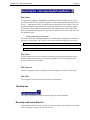
The Help box -------------------------------------------------------------------------------------- 91
Recently used select files list ------------------------------------------------------------------- 91
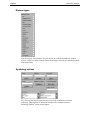
Element types-------------------------------------------------------------------------------------- 92
Symbology options ------------------------------------------------------------------------------- 92
Selection criteria ---------------------------------------------------------------------------------- 93
<OK> ----------------------------------------------------------------------------------------------- 93
<Cancel> ------------------------------------------------------------------------------------------- 93
Element Selection — Element Types --------------------------------------------------------------- 94
Arcs-------------------------------------------------------------------------------------------------- 95
B-Spline Curves----------------------------------------------------------------------------------- 96
B-Spline Surfaces--------------------------------------------------------------------------------- 98
Cells ------------------------------------------------------------------------------------------------- 99
Complex Shapes -------------------------------------------------------------------------------- 101
Complex String --------------------------------------------------------------------------------- 102
Cones---------------------------------------------------------------------------------------------- 103
Curves--------------------------------------------------------------------------------------------- 105
Dimension---------------------------------------------------------------------------------------- 106
Ellipses-------------------------------------------------------------------------------------------- 109
Lines -----------------------------------------------------------------------------------------------111
Line Strings -------------------------------------------------------------------------------------- 112
Multilines----------------------------------------------------------------------------------------- 113
Point Strings ------------------------------------------------------------------------------------- 114
Raster --------------------------------------------------------------------------------------------- 115
Shapes--------------------------------------------------------------------------------------------- 116
Shared Cells ------------------------------------------------------------------------------------- 117
Solid----------------------------------------------------------------------------------------------- 118
Surface -------------------------------------------------------------------------------------------- 119
Text ------------------------------------------------------------------------------------------------ 119
Text Nodes --------------------------------------------------------------------------------------- 122
Element Selection — Symbology Options------------------------------------------------------- 123
Colors --------------------------------------------------------------------------------------------- 124
Weights ------------------------------------------------------------------------------------------- 126
Line styles---------------------------------------------------------------------------------------- 127
Database linkages------------------------------------------------------------------------------- 128
Page 7
Page 8
Global File Changer
User data linkages ------------------------------------------------------------------------------ 130
Levels --------------------------------------------------------------------------------------------- 132
Selection region --------------------------------------------------------------------------------------- 133
Graphic groups ---------------------------------------------------------------------------------- 134
Properties----------------------------------------------------------------------------------------- 134
Class----------------------------------------------------------------------------------------------- 134
Saving Element Selection Criteria----------------------------------------------------------------- 135
Description name ------------------------------------------------------------------------------- 135
<Add>--------------------------------------------------------------------------------------------- 135
<Update>----------------------------------------------------------------------------------------- 136
<Remove> --------------------------------------------------------------------------------------- 136
<Apply> ------------------------------------------------------------------------------------------ 136
Descriptions list --------------------------------------------------------------------------------- 136
Chapter 11 — Wildcards and Regular Expressions------------------------------- 137
Options for finding and replacing text ------------------------------------------------------------ 137
Wildcard expressions--------------------------------------------------------------------------------- 137
String substitution with wildcards ----------------------------------------------------------- 138
Regular expressions ---------------------------------------------------------------------------------- 138
Special characters ------------------------------------------------------------------------------------- 138
Period (“.”)--------------------------------------------------------------------------------------- 139
Asterisk (“*”)------------------------------------------------------------------------------------ 139
Backslash (“”) ----------------------------------------------------------------------------------- 139
Caret (“^”) --------------------------------------------------------------------------------------- 139
Dollar sign (“$”) -------------------------------------------------------------------------------- 139
Character “sets” --------------------------------------------------------------------------------------- 140
Brackets (“[” and “]”)-------------------------------------------------------------------------- 140
Hyphens (“-”)------------------------------------------------------------------------------------ 140
Repetitions --------------------------------------------------------------------------------------------- 140
Segments ----------------------------------------------------------------------------------------------- 141
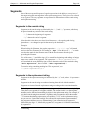
Segments in the search string ---------------------------------------------------------------- 141
Segments in the replacement string --------------------------------------------------------- 141
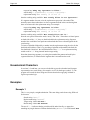
Hexadecimal Characters----------------------------------------------------------------------------- 142
Examples ----------------------------------------------------------------------------------------------- 142
Example 1 ---------------------------------------------------------------------------------------- 142
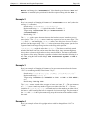
Example 2 ---------------------------------------------------------------------------------------- 143
Example 3 ---------------------------------------------------------------------------------------- 143
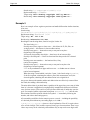
Example 4 ---------------------------------------------------------------------------------------- 143
Example 5 ---------------------------------------------------------------------------------------- 144
Example 6 ---------------------------------------------------------------------------------------- 145
Tips and tricks for wildcards and regular expressions ----------------------------------------- 145
Numbers ------------------------------------------------------------------------------------------ 146
Chapter 12 — Auxiliary Built-in Commands ----------------------------------------- 148
Auxiliary commands --------------------------------------------------------------------------------- 148
The ‘Axiom Delete’ command --------------------------------------------------------------------- 148
Command syntax ------------------------------------------------------------------------------- 148
The ‘~First’ command ------------------------------------------------------------------------------- 148
The ‘~Set parse on’ command---------------------------------------------------------------------- 149
The ‘~Set parse off’ command --------------------------------------------------------------------- 149
The ‘~Set Parse Toggle’ command ---------------------------------------------------------------- 149
Table of Contents
Chapter 13 — Batch Mode ----------------------------------------------------------------- 150
What do we mean by ‘Batch Mode’? ------------------------------------------------------------- 150
Batch mode is discouraged-------------------------------------------------------------------------- 150
When you should use batch mode ----------------------------------------------------------------- 150
How to Run Global File Changer in Batch Mode --------------------------------------------- 151
Chapter 14 — The Report File ------------------------------------------------------------ 152
Overview ----------------------------------------------------------------------------------------------- 152
Chapter 15 — Helpful Hints---------------------------------------------------------------- 154
Keeping your files safe ------------------------------------------------------------------------------ 154
Chapter 16 — File List Editor ------------------------------------------------------------- 155
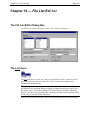
The File List Editor Dialog Box ------------------------------------------------------------------- 155
The List menu ----------------------------------------------------------------------------------------- 155
File list only (text) ------------------------------------------------------------------------------ 156
All data (binary) -------------------------------------------------------------------------------- 156
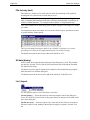
List | Import -------------------------------------------------------------------------------------- 156
List | Export-------------------------------------------------------------------------------------- 157
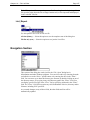
Navigation Section ----------------------------------------------------------------------------------- 157
File List Editing Section----------------------------------------------------------------------------- 158
The “Selected Files” list----------------------------------------------------------------------- 158
Extended File List Specifications ----------------------------------------------------------- 158
<OK>---------------------------------------------------------------------------------------------------- 160
<Cancel> ----------------------------------------------------------------------------------------------- 160
Select files by date range ---------------------------------------------------------------------------- 160
Earliest date-------------------------------------------------------------------------------------- 160
Latest date---------------------------------------------------------------------------------------- 161
Messages ----------------------------------------------------------------------------------------------- 161
“xxx” is not currently accessible.------------------------------------------------------------ 161
Problems installing or re-installing---------------------------------------------------------------- 161
Chapter 17 — We’ll Make (Almost) Any Enhancements You Want ---------- 163
We welcome your suggestions --------------------------------------------------------------------- 163
Chapter 18 — New Features and Fixes------------------------------------------------ 164
3.3b — 15 May 2002--------------------------------------------------------------------------------- 164
8.0b — 13 May 2002--------------------------------------------------------------------------------- 164
8.0a — 24 April 2002 -------------------------------------------------------------------------------- 164
3.3a — 13 March 2002 ------------------------------------------------------------------------------ 164
3.2a — 29 February 2000 --------------------------------------------------------------------------- 165
3.1e — 13 July 1999 --------------------------------------------------------------------------------- 166
3.1d — 18 June 1999--------------------------------------------------------------------------------- 166
3.1c — 17 March 1999 ------------------------------------------------------------------------------ 167
3.1b — 30 December 1998 ------------------------------------------------------------------------- 167
3.1a — 24 December 1998-------------------------------------------------------------------------- 167
3.0i — 3 November 1998 --------------------------------------------------------------------------- 168
3.0h — 12 November 1998 ------------------------------------------------------------------------- 168
3.0g — 10 September 1998 ------------------------------------------------------------------------- 169
Page 9
Page 10
Global File Changer
3.0f — 7 May 1998----------------------------------------------------------------------------------- 169
Chapter 1 — Introduction
Page 11
Chapter 1 — Introduction
Problem
The problem with most MicroStation sites is that they have more than one design file. If
each site had just one design file, making system-wide changes would be easy.
If you only had one design file and you wanted to start using a new cell library, all you
would have to do is bring up the design file with MicroStation and enter RC=newlib.
Your problem would quickly be solved.
But what if you want to change the cell library (or replace a certain cell, or replace text,
or re-scale all the yellow text on level 34 or…) for a project that consists of 85 design
files?
Bad solution #1
Theoretically you could do “nothing”. You could just tell your operators to wait until the
next time they got into each design file and enter RC=newlib.cel at that time. But
then for a period of time some of your design files would be pointing to one cell library
while other design files were pointing to another. Sooner or later at least one of your
operators would forget to switch to the new library, he’d modify and place cells from the
old one, and presto — you’d have a time consuming disaster to sort out.
There’s no getting around the following basic CAD management principle: trying to get
the same change made by different operators on different design files at different times is
unlikely to produce consistent results. The confusion and lost production from the
resulting errors and inconsistencies can be very expensive to repair.
Bad solution #2
Another thing you might do, in theory anyway, would be to spend an afternoon bringing
up each design file, one after the other and typing RC=newlib.cel for each one. That
would (eventually) solve the problem, but would require $100 to $200 worth of labor and
a considerable amount of patience to complete.
Good solution
Or (if you were wise) you would use Global File Changer to solve the whole problem in
just a few minutes.
Page 12
Global File Changer
Just tell Global File Changer which design files you want to change (*.dgn) and
which MicroStation command you want to execute on each one (RC=newlib.cel).
Without further human intervention all your design files will be changed just the way you
want.
In actual practice, the changes you’ll make using Global File Changer will probably be
much more complex than simply repeating a single command over a series of design
files. Whole series of MicroStation commands, even user commands and MDL programs
can quickly and easily be executed on design files all over your system. Plus Global File
Changer’s built-in commands give you the power to make all kinds of changes no
command that comes with MicroStation could ever accomplish.
Unless your site has only one design file, Global File Changer will probably pay for
itself the first week you own it.
Global File Changer’s element selection command takes off
where MicroStation’s SelectBy command leaves off
MicroStation’s SelectBy command is useful for selecting elements based on their color,
weight and other characteristics. It is limited though in the types of element attributes it
can use as its selection criteria.
The select command built in to Global File Changer has no such limitations. Virtually
any element attribute can be used to select elements in just one design file — or in
hundreds.
With Global File Changer’s selection tool, you will be able to define element-specific
properties. For example: with text, you may specify fonts, justifications, text heights and
widths, and the actual text string.
Sample uses of Global File Changer
Global File Changer can be used to make thousands of different types of changes. Any
command you can type at the MicroStation command prompt can be repeated on any
number of design files. Any non-interactive user command can be repeated on any set of
design files. The ways Global File Changer can help you are limited only by your
imagination.
Following is a list of just a few of the thousands of things you could do with Global File
Changer. You may never use Global File Changer to do any of these things. Most of the
things you will use Global File Changer for will be things you think of in the future, as
the need arises.
The important thing to remember about Global File Changer is that it will do what you
want it to. Any change that you can accomplish with a series of MicroStation key-ins on
a single file, Global File Changer can accomplish on all your design files. Any change
you can accomplish with a user command on one design file, Global File Changer can
accomplish on all your design files.
That said, here are some examples of what Global File Changer can do:
Chapter 1 — Introduction
Page 13
•
Scale a whole series of design files.
•
Change the master units of a series of design files from feet to meters.
•
Change the global origin of a series of design files.
•
Attach a different cell library to a series of design files.
•
Lock all the elements in a set of design files so that they cannot be changed.
•
Unlock those same elements.
•
Move all elements on level 2 to level 4 in a series of design files.
•
Replace text in a series of design files.
•
Turn on the display of line weights in a series of design files.
•
Scale each text element in a design file about its center or insertion point.
•
Scale each cell in a design file about its center or insertion point.
•
Lots, lots, lots more.
Remember, the power of Global File Changer is limited only by your imagination and
your ability to write simple (or not so simple) key-in commands or user commands to do
the things you want done.
Global File Changer picks up where EdG leaves off
EdG has some value if you’re a genius with hours and hours of time on your hands. In
addition, EdG suffers from the following disadvantages:
•
It can’t scale elements.
•
It can’t replace cells.
•
It can’t manipulate text attributes like underlining and slanting.
•
It can’t copy level symbology from design file to design file.
•
It can’t attach reference files.
•
There are lots of things that EdG can’t do.
Global File Changer can do all the above and lots more. Plus Global File Changer is
easy to use. Most changes, in fact, can be accomplished using simple, MDL-dialog boxes.
(Almost) Free custom programming
Once you own Global File Changer we can implement custom changes for you at a
fraction of what it would cost to have an MDL programmer write a separate program.
Page 14
Global File Changer
Just call 727-442-7774 and tell us what feature you’d like added. High priority changes
can frequently be implemented in just days.
Owning Global File Changer is like having a brilliant, yet low priced MDL programmer
on your staff at all times waiting to satisfy your custom programming needs. Except
instead of paying him year-round, you only pay for the few days each year when you
really need him.
Technical note
Despite its conceptual simplicity and ease of use, Global File Changer has been a very
time consuming program to develop. The primary reason is that the program is a hybrid
of two different programming techniques.
Event driven programming is a type of programming wherein the program responds to
various user actions (events) which can occur in any sequence.
Sequencing is a type of programming wherein the program executes instructions one after
the other — always in the same order.
Most MDL programs use event driven techniques. The MDL routines that support event
driven programming are very well tested and debugged.
MDL programming using sequencing is less common, and moderately less well tested.
Hybrid programs — those that use both techniques — are rare. Many MDL functions that
work properly when only one of these techniques is used fail, often in highly unexpected
and hard to debug ways, when used in a hybrid program like Global File Changer.
At this point in time Global File Changer has been thoroughly tested and debugged.
We’re confident you’ll enjoy 100% trouble-free use of Global File Changer.
Chapter 2 — Installation
Page 15
Chapter 2 — Installation
Preparing for installation
Installation of Axiom products is quick and easy.
Your computer must have MicroStation up and running.
You should have a license file for the product(s) you are about to install and know the
location of that file.
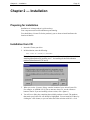
Installation from CD
1. Insert the CD into your drive.
2. In MicroStation, enter the following:
MDL LOAD X:\USTN\V?\INSTALL
Note: In these instructions, the question mark in “V?” must be replaced with ‘8’ for
installing MicroStation V8 products, and ‘7’ for installing all other MicroStation
products (MicroStation 95, SE and J).
3. When you see the ‘Licenses’ dialog, enter the location of your Axiom license file.
For example: A:\AXIOM.LIC (If you are not sure where it is, use the <Browse>
button to find it. If you are installing a demo version, click <Ignore>.)
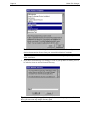
4. You will see a dialog box containing the available products to install. The products
that match your license file will already be highlighted. You can install all of these by
clicking the <OK> button, or you can make some other selection with Ctrl + click.
Page 16
Global File Changer
Note: You can install all of the products listed. For the ones not licensed, you can
obtain a demonstration license from your Axiom MicroStation Consultant.
Tip: A readme.txt file on the CD contains the answers to frequently asked questions
about installation.
5. If you have selected Design File Manager as one of your products to install, you will
be asked to select an Axiom Network Directory.
Tip: If you are installing Design File Manager for demonstration purposes on a local
drive, you can create any sample directory path.
Chapter 2 — Installation
Page 17
Network installation from the server
If you want to install Axiom products on a network, you can copy the CD onto a server
drive and let each user install from the server. Use the instructions for installing from CD,
but use the path to the directory on the server rather than your CD drive.
Environment variable
A MicroStation environment variable, MS_NOEOF_MSGFILE will be installed
automatically. When MicroStation encounters a corrupt design file a message will be
displayed, “MicroStation cannot open this damaged file. Open another file, then use
FileFixer to open and repair this damaged file.”
Page 18
Global File Changer
Chapter 3 — Uninstalling
Why you might uninstall an Axiom product
There are a few reasons you may want to uninstall an Axiom product:
1. You have run a demo and want to remove it from your computer.
2. You have moved the product to another computer and need to remove the product
from the original computer.
3. You have a site or corporate license and want your users to have access to only some
of the many Axiom products that you have already installed on their computers.
There may be other reasons.
How to do it
There are three basic stages to uninstalling an Axiom product:
1. Stopping MicroStation from trying to automatically run the Axiom product.
2. Removing the Axiom product from MicroStation’s Axiom menu or entirely
removing the Axiom menu from MicroStation’s menu bar.
3. Removing the Axiom files from your hard disk.
Stop MicroStation from running an Axiom product
Some Axiom products such as Version Manager and Microsoft Office Importer may be
set up to run automatically whenever MicroStation is started.
You can stop this from happening by going into MicroStation | Workspace |
Configuration and looking for the variable MS_DGNAPPS. Edit the value of this
variable and remove any references to the Axiom product that you no longer want to run
automatically, when running MicroStation. Exit MicroStation and re-start, then check
that the MS_DGNAPPS variable is clear of the Axiom product you no longer want to
start when MicroStation is started.
Identifying your Axiom Base Directory
You will need to identify where your Axiom Base Directory is.
Chapter 3 — Uninstalling
Page 19
Go into the into MicroStation | Workspace | Configuration dialog box and look for the
“AXI” configuration variable. The value of AXI will be your Axiom Base Directory. It is
usually something simple like “c:\win32app\axiom\”.
Removing products from the Axiom menu
This is an optional step. If you want to skip this step, go on to the “Removing the Axiom
menu” section.
This step is included here because some customers wanted to be able to “customize” their
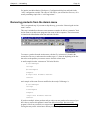
Axiom menu to exclude some programs from some of their computers. The Axiom menu
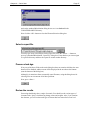
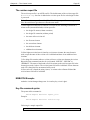
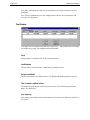
is found on the MicroStation menu bar and looks like this:
To remove a product from the Axiom menu, edit the file “aximenu.txt” (found in the
Axiom Base Directory) and remove the number sign (“#”) from the beginning of the line
that refers to the product you want to remove from the Axiom menu.
A small sample from the “aximenu.txt” file looks like this:
#~CellManager
cellmgr
#D~GnCompare
Compare
#~Duplicate Element Remover
remover
and a sample of the same file now modified to show only CellManager is:
#~CellManager
cellmgr
D~GnCompare
Compare
~Duplicate Element Remover
remover
If you have multiple Axiom products and you only want one product to be removed, you
don’t have to remove this product’s name from the Axiom menu. Just remove the
program’s files from your disk (see section titled “Removing files from your hard-disk”)
leaving the entry on the Axiom menu. When you select the program from the Axiom
Page 20
Global File Changer
menu, you will get a text-style dialog box, which will describe the product. You will not
get any errors or failures.
Removing the Axiom menu
If you intend to remove all Axiom products from your computer, you would want to do
this step.
The “Axiom menu” is actually a program that is run whenever MicroStation is started up.
You can stop this menu from appearing in MicroStation by going into MicroStation |
Workspace | Configuration and looking for the variable MS_DGNAPPS. Edit the value
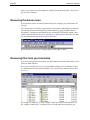
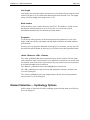
of this variable and remove the entry “aximenu.ma”. When you have done this, next time
you start MicroStation the menu bar will look like this:
Notice that the word “Axiom” no longer appears to the right of “Help”.
Removing files from your hard-disk
If you are removing an Axiom product, you’ll probably want to delete that product’s files
from your hard-disk drive.
Go to your Axiom Base Directory by using Windows Explorer or File Manager or DOS
or something similar. Each Axiom product is in its own directory under the Axiom Base
Directory.
For example, CellManager is in the “cellmgr” subdirectory, and Cell Randomizer is in
the “cellrand” subdirectory. To delete the files of an individual Axiom product, just
Chapter 3 — Uninstalling
Page 21
delete its specific subdirectory. To delete all the files of all Axiom products, delete the
entire Axiom Base Directory and all of its product subdirectories.
If you have other Axiom products but are removing one product, you don’t need to
remove this product’s name from the Axiom menu. If you remove that program’s
directory of files from your disk but leave the entry on the Axiom menu, and a user
selects that program from the Axiom menu, they will get a text-style dialog box which
will describe the product. You will not get any errors or failures.
Axiom.cfg file and axiom_user.ucf file
If you are removing all Axiom products from your computer, you should also delete the
file “axiom.cfg” from MicroStation’s ...\config\appl\ directory. This step will also delete
the MicroStation AXI configuration variable.
Check for the existence of an axiom_user.ucf file in the same directory and delete this file
also if it exists.
Page 22
Global File Changer
Chapter 4 — Quick Start
The following Quick Start steps will show you some of the basic features of Global File
Changer in just a few minutes.
During installation, the files clock.dgn, clock.sel and clock.key are copied into the
…axiom/changer/sample directory. This quick start section refers to those files.
•
Clock.dgn
is the master file that we are going to change. In this tutorial,
we will modify one design file, but you can select hundreds of files to modify.
•
Clock .sel
is a file that describes the four different kinds of elements
that we want to change.
•
Clock.key
contains the path to the clock.sel and the instructions for
changing the selected elements.
Open the design file “clock.dgn”.
Navigate to the folder containing the installed Global File Changer sample files to find
clock.dgn. The file will be in the CHANGER\SAMPLE sub-directory.
Edit the key file.
The first thing that needs to be done is to edit the clock.key file. You can use any text
editor, such as Notepad, to do this. Start your text editor and open clock.key, which is
also found in the CHANGER\SAMPLE directory.
The second line in the file looks something like this:
AXIOM SELECT OPEN c:\program files\axiom\V8\changer\sample\clock.sel
Change the file path to point to your ‘changer\sample\clock.sel file, and save the file.
If you look over the contents of the file, you will notice it is composed of mostly standard
MicroStation key-in commands, with a few specialized AXIOM commands (such as
“AXIOM SELECT OPEN”) at various points. The specialized AXIOM key-ins will be
described in full later in this document.
Start Global File Changer.
Load Global File Changer by selecting it from the “Axiom” pull-down menu in
MicroStation.
Chapter 4 — Quick Start
Page 23
Select the file to be processed.
The “Which design files do you want to process?” field will contain the name of the
active file when you loaded Global File Changer. If clock.dgn is not the active file,
Select it by clicking the <Select…> button.
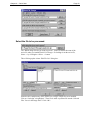
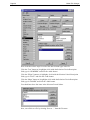
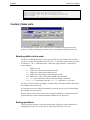
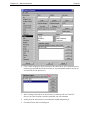
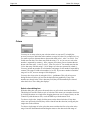
This will bring up the Axiom “Edit File List” dialog box:
Select the drive and directory where Global File Changer sample files were installed.
Click on “clock.dgn” to highlight it.” Then Click <Add> to put that file into the ‘Selected
Files’ list as in the image above. Click <OK>.
Page 24
Global File Changer
Select the key-in file.
The key file must be set up before running Global File Changer and contains the
commands to be executed. We will cover the construction of this file later in this guide.
In the meantime, select clock.key as the key-in file to be used for processing, by
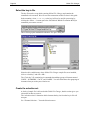
clicking the <Select…> button next to the field labeled “Which file contains the keyin
commands you want to execute?”
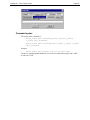
This will bring up the standard MicroStation ‘file open’ dialog box:
Select the drive and directory where Global File Changer sample files were installed,
click on “clock.key” and click <OK>.
The “Clock.key” file contains keyin commands that address groups of elements named
‘LINES’, ‘NUMBERS’, ‘FACE’, and ‘HANDS’. You will define these four groupings of
elements when you create your selection set.
Create the selection set.
A clock.sel sample file is delivered with Global File Changer, but this section gives you
a short drill on how to create it.
The “selection criteria” determine which elements the key-ins from the key-in file will
act upon.
Use “Element Selection…” from the Selection menu.
Chapter 4 — Quick Start
Page 25
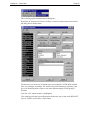
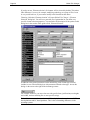
This will bring up the Element Selection Dialog box:
By default, all elements are selected. Click the <Clear All> button on the bottom left of
the dialog box to unselect them.
The next step is to create sets of element types to be modified. CLOCK.DGN contains
lines, text, an ellipse, and shapes. We want to select each element type separately, and
give it an identifying name so that we can make different changes to each group of
elements.
Click the “Line” button so that it is highlighted.
Click inside the Selection criteria Description field where you see the word ‘DEFAULT’.
Type in “LINES” and click the <Add> button.
Page 26
Global File Changer
Now do the above three steps for each of the other element types in the file:
Click the “Text” button so it highlights, click inside the Selection Criteria Description
field, type in “NUMBERS” and click the <Add> button.
Click the “Ellipse” button so it highlights, click inside the Selection Criteria Description
field, type in “FACE” and click the <Add> button.
Click the “Shape” button so it highlights, click inside the Selection Criteria Description
field, type in “HANDS” and click the <Add> button.
You should now have four items in the Selection Criteria listbox:
Now, save all this to a file by selecting “Save as…” from the File menu
Chapter 4 — Quick Start
Page 27
and use the standard MicroStation dialog box to save it as clock.sel in the
CHANGER\SAMPLE directory.
Now click the <OK> button to close the Element Selection dialog box.
Select a report file.
You may type in any valid filespec for the report file or use the <Select…> button to
open up a standard MicroStation “Open File” dialog box. From that box you can navigate
to a specific directory and have the report file written to that directory.
Process clock.dgn.
If any one of the three fields on the main dialog box does not contain valid data, the start
button will be disabled, and the reason will be displayed in the area above the buttons
(near the bottom of the dialog box).
Although it is sometimes faster to manually enter filenames, using the dialog boxes for
selecting files can circumvent all of these problems.
Next, press <Start>!
Review the results.
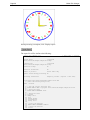
Processing should only take a couple of seconds. You should see the various types of
elements in the “plain” clock drawing change colors and weights. Also, if you examine
the elements, you will see that each type of element has been moved to its own level.
Page 28
Global File Changer
When processing is complete, click <Display report>.
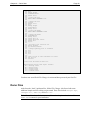
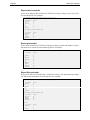
The report file will be similar to the following:
Global File Changer 8.0a
5 April 2002 -- 2:44 pm
Design files:
c:\program
files\axiom\v8\changer\sample\clock.dgn
Command file:
c:\program
files\axiom\v8\changer\sample\clock.key
Automatic backup?
No
Automatic filedesign?
No
Models to process:
Active model only
Update screen during processing? No
Licensing information:
Temporary license. (expires 3 June 2002).
c:\program files\axiom\v8\changer\sample\clock.dgn
*) (After initializing design file)
Model : Default
1) ; open the "clock" selection file
2) AXIOM SELECT OPEN c:\program files\axiom\v8\changer\sample\clock.sel
3)
4) ; select the lines
5) AXIOM SELECT ELEMENTS lines
6)
7) ; change the lines
8) co=green
9) change color
10) wt=2
11) change weight
12) lv=LinesLevel
13) change level
14)
15) ; select the numerals
16) AXIOM SELECT ELEMENTS numbers
17)
18) ; change the numerals
19) co=red
Chapter 4 — Quick Start
20)
21)
22)
23)
24)
25)
26)
27)
28)
29)
30)
31)
32)
33)
34)
35)
36)
37)
38)
39)
40)
41)
42)
43)
44)
45)
46)
47)
48)
49)
50)
51)
52)
53)
54)
55)
56)
57)
58)
59)
60)
Page 29
change color
wt=3
change weight
lv=NumbersLevel
change level
; select the face
AXIOM SELECT ELEMENTS face
; change the face
co=blue
change color
wt=5
change weight
lv=FaceLevel
change level
; select the hands
AXIOM SELECT ELEMENTS hands
; change the hands
lv=HandsLevel
change level
active fill on
active fillcolor yellow
change fill
xy=0,0
; de-select last selection set
choose element
xy=-2147000,2147000
; change symbology back to standard
lv=1
co=0
wt=0
lc=0
;turn on fill in view attributes for view 1
set fill on
selview 1
1 files were processed in this run.
Abbreviations used in this report include:
MS -- Message field
ER -- Error field
PR -- Prompt field
ST -- Status field
CF -- Command field
You have now seen Global File Changer in action and have processed your first file!
Demo Files
Aside from the “clock” quickstart files, Global File Changer is delivered with some
additional simple test files to help you get started. These files include changer.dgn,
changer.cel, demo.key and demo.sel.
Note: You will need to edit the demo.key file so that the path to the selection file
demo.sel is correct for your installation.
Page 30
Global File Changer
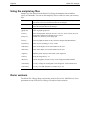
Using the sample key files
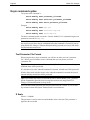
Sample .key files delivered with Global File Changer demonstrate how to handle a
variety of commands. You can use the sample key files as a basis to create your own key
files.
bylevel.key
demo.key
fit.key
ggroup.key
level.key
V8 only. Change color, weight, and style of selected elements to bylevel. It
uses demo.sel to select the elements that will be changed.
Change color, weight, and style of selected elements. It uses demo.sel to
select the elements that will be changed.
Applies ‘Fit View’ to views 1 to 8.
Turn on graphic group lock.
library.key
Move all displayable elements on level 1 to level 4. In V8 version, move all
displayable elements from default level to ‘nlevel’.
Attach new cell library to all design files
lock.key
Lock all graphic elements so they cannot be changed with MicroStation
lvlsymb.key
Turn on level symbology in views 1 and 5
nodeoff.key
Turn off the display of text node numbers in all views.
nodeon.key
Turn on the display of text node numbers in all views.
origin.key
Shift the global origin by 1000 UORs. Calls origin.ucm.
scale.key
Scale all design files by .75.
unlock.key
Unlock all graphic elements so they can be changed with MicroStation
workunit.key
V7 only. Change the working units of the design file. Calls workunit.ucm.
127level.key
V7 only. Uses MS calculator to extend levels to 127
Demo versions
The Global File Changer demo version only works on files of size 100 KB or less. Your
permanent version of Global File Changer will not have this restriction.
Chapter 5 — Running Global File Changer
Page 31
Chapter 5 — Running Glo b al File Changer
Getting started with Global File Changer
Global File Changer is a powerful program. Like any powerful program, care should be
exercised when using Global File Changer to change multiple design files. Axiom
International recommends that any sophisticated change you plan to make should be
tested on scratch copies of your design files before being tried on active, important design
files.
Starting Global File Changer
To start the program, select Global File Changer from the Axiom menu on the
MicroStation menu strip.
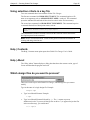
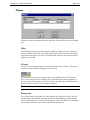
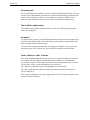
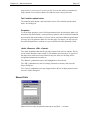
The ‘Help’ dialog box
When the ‘Help’ option is set to ‘Beginner’ mode, a ‘Help’ box appears at startup and
presents a brief overview of the product.
You can change the Help Level on the Options menu. to ‘Expert’, in order to bring
up the Global File Changer dialog box without the Help dialog box. After that, select the
‘Save current settings…’ command on the Options menu or have the ‘Save settings
on exit’ option ON.
Tip: The ‘Help’ menu on the main Global File Changer dialog box allows you to access
the full Users’ Guide.
Page 32
Global File Changer
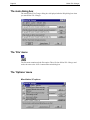
The main dialog box
The main Global File Changer dialog box is displayed after the Help dialog box when
you start Global File Changer.
The ‘File’ menu
The file menu contains only the Exit option. This will close Global File Changer and
works the same as the <Exit> button on the main dialog box.
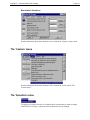
The ‘Options’ menu
MicroStation V7 options
Chapter 5 — Running Global File Changer
Page 33
MicroStation V8 options
Detailed information about these functions can be found in the ‘Options’ menu section.
The ‘Custom’ menu
Detailed information about these functions can be found in the section called “The
Custom Menu.”
The ‘Selection’ menu
The purpose of element selection is to identify those elements that you want to change
with Global File Changer, and protect other elements from being changed.
Page 34
Global File Changer
If you do not use ‘Element selection’ all elements will be selected by default. This makes
little difference if you are, for example, modifying symbology on a group of files. It can
be very useful however, if you want to modify some elements but not others.
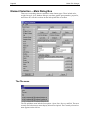
Choosing “Selection | Element selection” will open Global File Changer’s ‘Element
Selection’ dialog box. You will see a powerful set of options that let you define very
specific element selection properties. You can find a full description of the options in this
dialog box in the section of this guide called, ‘Element Selection’.
In addition to the general parameters on the main dialog, each element type selected
includes its own selection dialog box with parameters tailored to that type. Access this
dialog via the arrow to the right of the element type name.
For example: with text, you may select text with specific fonts, justifications, text heights
and widths, and text matching one or more specific strings.
Note: Selection sets can be moved across PC based platforms, but not between UNIX
based platforms and PC based platforms. This is due to formatting differences in the
operating systems.
Chapter 5 — Running Global File Changer
Page 35
Using selection criteria in a key file
Two new commands have been added to Global File Changer.
The first new command is AXIOM SELECT OPEN. This command requires a file
name as an argument, such as AXIOM SELECT OPEN c:\roads.sel. This command
opens the indicated file and loads all the selection criteria in the file into memory.
The second new command is AXIOM SELECT ELEMENTS. This command requires
a comma delimited list of description names, such as:
axiom select open c:\roads.sel
axiom select elements streets,stop signs,signals
delete
This command will create a selection set based on the selection criteria found in the
descriptions passed to the command.
Note: See the ‘Element Selection’ section of this guide for detailed information on
creating and using selection sets.
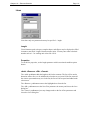
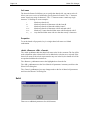
Help | Contents
The Help | Contents menu option opens the Global File Changer User’s Guide.
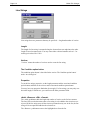
Help | About
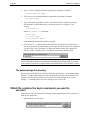
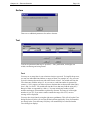
The “Help | About” button displays a dialog box that shows the current version, type of
license and date that the program was built.
Which design files do you want to process?
There are several ways to tell Global File Changer, which design files you want to
modify.
Type in the name of a single design file. Example:
sample.dgn
•
Type in a wildcard filename. Example:
*.dgn
•
Type in a wildcard filename followed by /s. The /s means to process
subdirectories also. To process all design files on drive C: (as opposed to just the files
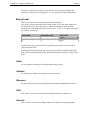
in the root directory), you would enter:
c:\*.dgn/s
Page 36
Global File Changer
•
Type in a series of design file names separated by semicolons. Example:
sample.dgn;test.dgn
•
Type in a series of wildcard filenames separated by semicolons. Examples:
a*.dgn;d*.dgn
•
Type in the name of an indirect list file. An indirect list file is a plain text file that
lists the names of all the design files you want to process. For example, if you
entered:
@filename.lis
and file filename.lis contained:
test1.dgn
d:\test\*.dgn
e:\project1\*.dgn/s
all the matching design files would be processed.
•
Click on the Select button and use the Edit File List dialog box to edit the list of
files to be processed. Use this dialog box to navigate directories, enter new wildcards,
“point & click”, enter a file name, etc. When you add or remove files from the list
and press [OK], “( edited file list )” will display in the design file name field.
Note: “(edited file list)” is not saved when “Options | Save current settings…” is
selected. Instead, the field is reset to the factory defaults before being saved. If you want
to save your list, use the List | Export feature as described in the ‘File List Editor’ section.
The default design file directory
When you first start Global File Changer, the design file directory is your current default
directory. To make another directory your default for the next time you start Global File
Changer, enter the file specification you want and select the “Options | Save current
settings…” command or have the “Save settings on exit” feature ON.
Which file contains the keyin commands you want to
execute?
There are two ways to tell Global File Changer what commands you want to execute on
each of your design files.
1. Enter the name of a key-in file.
Chapter 5 — Running Global File Changer
Page 37
A key-in file is a simple text file that contains the MicroStation key-in commands you
want Global File Changer to execute on each design file. Each line of the key-in file
contains one or more key-in commands that you want Global File Changer to execute.
You can put more than one command on a line, if you separate each command with a
semicolon. The following is an example of a key-in file called library.key. The purpose
of library.key is to attach a new cell library called changer.cel to a set of design files.
2. Enter a MicroStation key-in command directly.
To do so, enter a pound sign (“#”) followed by the MicroStation key-in command. Again,
you can enter multiple commands by separating them with a semicolon. Typing the
following in the key-in field is another way of attaching a new cell library to a series of
design files.
#rc=changer.cel; filedesign
Remember that the # is needed only when you enter a MicroStation
key-in within the Global File Changer main window. The # is not needed when
MicroStation key-ins are entered into a key-in file.
<Select> and <Edit>
Use the <Select> button to load an existing key file.
Use the <Edit> function to open the specified key file in a text editor. Then you can view
its contents and make any necessary modifications.
Page 38
Global File Changer
A simple example
You can try this simple keyin command on the sample demo file “clock.dgn” that comes
with Global File Changer.
#co=3;choose all; change color
Running user commands
The following command demonstrates the easiest way to run a user command on a series
of design files.
#uc=mine.ucm
You can specify almost any non-interactive user command. Global File Changer cannot
execute user commands that prompt the user for information.
To make it easier for you to run user commands that are stored in your Global File
Changer directory, Global File Changer automatically appends the Global File Changer
directory to your MS_UCM environment variable.
The default keyin command file directory
When you first start Global File Changer, if there are any .key files in your current
default directory, then that is the directory in which Global File Changer will search for
key-in files. If there are no .key files in your current directory Global File Changer will
set the key-in file directory to the directory in which changer.ma is stored. To make
another directory your default for the next time you start Global File Changer, enter the
file specification you want and select ’Save current settings…’ from the
Options menu or have the ‘Save settings on exit’ feature ON.
What should we call the output report file?
Global File Changer writes the results of each command it executes to a report file. Any
legal filename can be specified. If the file already exists, it will be overwritten.
The section entitled “The Report File” describes the report file in greater detail.
<Start>
Press the <Start> button to direct Global File Changer to begin processing your files.
Chapter 5 — Running Global File Changer
Page 39
Press any key to abort the processing
Once the button <Start> is pressed and the program is running you will have the option to
stop the process by pressing any key.
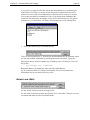
If you press any key, an ‘Alert’ dialog box will give you the alternatives to ‘Cancel’ and
continue processing, stop the processing only on the current file or stop the complete
process.
<Display Report>
Press this button to display the output report generated by Global File Changer. The
<Display Report> button will be grayed out when no report file with the specified name
exists. During processing, the report file will be created and the button becomes
available.
<Exit>
Press this button to exit (mdl unload) Global File Changer.
Page 40
Global File Changer
Chapter 6 — The ‘Options ’ menus
About settings
Most all of the settings that control the operation of Global File Changer are saved in a
resource file. Every time you start Global File Changer this file is loaded, restoring the
settings from the last time they were saved. To start with, this file contains the default
settings but depending upon choices made in the Options Menu, new values may be
saved and subsequently restored.
A common method of operation is to have “Save settings on exit?” set to ‘YES’ so that
Global File Changer looks the same when you start it as it did the last time you quit.
By default this file is “...\axiom\changer\changer.rsc”.
If you are on a network and want to have your own private settings file, go into
MicroStation | Workspace | Configuration and define the variable CHANGER_RSC. The
value of this variable overrides any part of the default file specification (as mentioned
above).
For instance, if you wanted to save your settings in “...\axiom\changer\wilbur.rsc” you
could define CHANGER_RSC as “wilbur.rsc”, it would then replace the default name
and extension with “wilbur” and “rsc”. Or you could just define it as “wilbur” and it
would only override the name part of the file specification (the results would be the
same).
On the other hand if you defined it as a path it would use “changer.rsc” in the specified
folder. For example, “d:\smith\” would override the path portion of the default file
specification, giving you “d:\smith\changer.rsc” as the working setting file. Because
CHANGER_RSC is defined as a User level variable no other MicroStation users will see
it and therefore will not use the same file.
The working settings file is where Global File Changer saves the application settings.
The “Save current settings” and “Load a settings file...” will change the working settings
file.
Chapter 6 — The ‘Options’ menus
Page 41
Global File Changer will work fine without using the Options menu. The Options
menu simply gives you greater control over the way Global File Changer performs
certain tasks.
If you remove the path and resource file, making CHANGER_RSC environment variable
“null” it will use Changer.rsc as your default when you reload Global File Changer.
CHANGER_RSC environment variable will only recognize one resource file at a time.
Options | Automatic backup before each file?
As protection against user error Global File Changer offers the option of automatically
backing up each design file before processing it. The advantage of turning this option on
is that if your changes don’t turn out the way you want them to, you can recover the
previous version of each design file. The disadvantage is that the backup version of each
design file takes up just as much disk space as the original design file. Setting this option
to “yes” has the same effect as adding a backup command to the beginning of every
key-in command file.
The backup file will have the same name as the original file with an extension of .bak. It
will be located in the directory defined by the MS_BACKUP variable. If this variable is
not defined, it will be located in the same directory as the original file.
Options | Automatic filedesign after each file?
Page 42
Global File Changer
Note: “Filedesign” is a MicroStation keyin command. The GUI version of this is “File |
Save settings”.
One of the powerful features of Global File Changer is its ability to change the active
parameters of dozens of design files at a time. Many of the settings Global File Changer
can change are the type that are saved only when you execute a filedesign
command.
For example, if you brought up a design file, keyed in LV=44 and then exited the design
file, the net result would be no change. You temporarily changed the active level to 44,
but since you exited without saving your active parameters with a filedesign
command, the change was not permanently recorded in the design file.
Setting this option to yes has the same effect as adding a filedesign command to the
end of every key-in command file. Since the filedesign command is so important,
this option was added as a convenience.
Options | Help level
Valid selections are “Beginner” and “Expert”.
When you first start using Global File Changer, each time the program is started a series
of help windows pops up to briefly explain how Global File Changer works. After
you’ve used Global File Changer for a little while you’ll probably want to turn these
messages off. Use the Help level command on the Options menu to accomplish
this.
Tip: Don’t forget to use the Save current settings... command to save your new help
setting or have the Save settings on exit feature ON. Global File Changer won’t
remember the change unless you do so.
When you want to review the help messages you can either select the Help command
on the main Global File Changer window or change the help level back to Beginner
using the Options menu.
Chapter 6 — The ‘Options’ menus
Page 43
Options | Models to process
V8 only
Active model only
This is the factory default.
When you select “Active model only”, Global File Changer will limit its processing to
the active model in all selected design files.
For example, if you select “Active model only” and select “sample.dgn” for processing,
then only the active model in sample.dgn will be processed. If sample.dgn is the currently
active design file (displayed on your screen), you can make any model within it the active
model and use this option to limit processing to just that model.
If you are processing “*.dgn” (multiple files) with the “Active model only” option,
Global File Changer will process only the active model in each selected file.
Note: The active model is a setting that can be saved. This setting should be saved when
you either do a File > Save Settings, or if you have Save Settings on Exit set in your
Workspace Preferences (Workspace > Preference > Operation > Save Settings on Exit).
All models
When you select ‘All models’, Global File Changer will process all models in all
selected design files.
For example, if you select "All models" and select "sample.dgn" for processing, then all
models in sample.dgn will be processed.
If you select "*.dgn", then all models will be processed in all files matching "*.dgn".
All models except sheets
Select “All models except sheets” to skip sheet models during processing.
Page 44
Global File Changer
Note: if you have any other requirements for the selection of models to be processed by
Global File Changer, please let us know.
Options | Save settings on exit?
When ‘Save settings on exit?” is ‘Yes’, all of the Global File Changer settings, these
options, the fields in the dialog boxes, the selected files, etc. are all stored in the settings
file each time you shut the application down.
With this option set to ‘No’, you must run “Options | Save current settings…” to save
your settings.
The “Options | Save settings on exit?” Yes or No, is a setting you save with the resource
file not necessarily a switch you use for that session. If the resource file you have loaded
has the save settings set for ‘Yes’ and you set it to ‘No’ and don’t save the settings, when
you reload that resource file it will revert to ‘Yes’.
Options | Update screen during processing?
By default Global File Changer updates the screen as it makes changes to your design
files. By turning screen updating off, you trade a bit of the visual excitement that Global
File Changer generates as it does its job for increased speed. With screen updating turned
off, Global File Changer can do many jobs over twice as fast!
Options | Save current settings...
Select ‘Save current settings…’ to open a standard MicroStation ‘Save settings’ dialog
box where you can select a Global File Changer settings file to overlay with current
settings or create a new settings file.
The default is to overlay the currently active settings file. Pressing <Enter> or clicking on
<OK> will cause the settings to be immediately saved to the selected file.
Chapter 6 — The ‘Options’ menus
Page 45
When the above “Save settings on exit?” option is activated Global File Changer saves
the settings in the currently active settings file.
Options | Load a settings file...
The ‘Load a settings file…’ option brings up a standard MicroStation ‘open file’ dialog
box from which you can specify a settings file to load. This operates much like “Save
current settings...”
Page 46
Global File Changer
Chapter 7 — Tricks and te c hniques
Global File Changer’s power is limited only by your
imagination
As we’ve said before, the power of Global File Changer is limited only by your
imagination. The purpose of this section is to describe a few of the tricks and techniques
you can use to make Global File Changer do all the things you need it to do.
Combining Global File Changer with the MicroStation
Calculator
Global File Changer combined with the MicroStation calculator forms a powerful tool
for making bulk changes to design files. A user with appropriately advanced skills can
directly modify the TCB and hence the type 9 and type 66 elements of any set of design
files.
Definition: TCB stands for Terminal Control Block. The TCB is an area of memory in
which MicroStation stores settings. The active color and active level are two examples of
the hundreds of settings stored in the TCB.
Sample files origin1.key and 127level.key contain examples of using the
MicroStation calculator with Global File Changer. Your MicroStation Customization
Guide and (if you have MDL installed) the file tcb.h contain detailed information
about the TCB variables you can modify with Global File Changer. The contents of file
127level.key are shown below:
; Enable extended levels. In this mode MicroStation has 127 levels.
mdl load calculate calc tcb->ext_locks.extendedLevels = 1
Note: Whenever possible, use MicroStation key-in commands to change MicroStation
settings. Use the calculator to modify the TCB directly only when MicroStation does not
provide key-ins to make the changes you want.
User commands that process elements one by one
Before MDL, most MicroStation programming was done using user commands.
Although MDL is the preferred language for highly trained professional programmers,
many systems managers and experienced operators prefer to develop simple, yet
powerful labor saving tools in user command language.
Chapter 7 — Tricks and techniques
Page 47
There is one type of user command that is especially useful with Global File Changer. A
scanning user command analyzes each element in a design file one by one and makes
changes to some or all of the elements it encounters.
File modele.ucm is an example of a scanning user command. Purchasers of Global
File Changer are authorized to use modele.ucm as a template for developing similar
user commands that process elements in a design file one by one. Just copy
modele.ucm to a filename of your choice and modify it so it makes the kind of changes
you need done.
Combining Global File Changer with the SelectBy utility
MicroStation includes a utility called SelectBy. SelectBy lets you select elements to be
modified based on their color, level, style, weight, element type, class, cell name, text
height, text content, font and other element properties.
Although the SelectBy utility provides a powerful tool for making changes to design
files, we suggest you use the Element Selection function of Global File Changer to
control which elements are selected and manipulated..
SelectBy commands should only be used from a key-in file when used with Global File
Changer.
Following is an example of a Global File Changer key-in file that uses the SelectBy
utility to fill all shape elements with the color violet.
; Change the fill color of all shape elements to violet.
; "selectby off" makes sure nothing is selected when we start.
; "selectby type none" says start off with no types being selected.
; "selectby type shape" says select all shape elements.
; "selectby on" says execute the select criteria we just described.
; Load the SelectBy utility.
mdl l selectby
; Make sure that no elements are selected when we start.
selectby off
; By default all element types are selected when we start. The following command
; makes sure that no element types are selected when we start.
selectby type none
; Select shape (type 6) elements.
selectby type shape
; The following command causes the selection criteria described above to be
; executed.
selectby on
; The following commands fill each of the selected elements with the color purple.
active fill on
active fillcolor violet
change fill
Note: The Element Selection utility of Global File Changer is very powerful, yet easily
definable. Once a selection set has been defined using the Element Selection utility, add
the commands to a key file. See the section called ‘Using selection criteria in a key file’
for specifics about using it with a Key file.
Page 48
Global File Changer
Chapter 8 — The ‘Custom ’ menu
Global File Changer’s additional built-in commands
Note: The custom commands included in the V7 and V8 versions of Global File
Changer are different as indicated in the following sections.
In addition to being able to execute MicroStation key-in commands and user commands
on multiple design files, Global File Changer contains additional built-in commands that
make changes that cannot be made using MicroStation alone. For example, the “Copy
level symbology” command can copy the level symbology settings from one design file
to all the design files you specify.
Any change you can make with a user command or a series of MicroStation key-in
commands to a single design file, Global File Changer can make on hundreds of design
files. If, however, you find that making a particular change is beyond your MicroStation
skills, phone us at +1-727-442-7774 and (for a small additional fee, usually) we’ll
enhance Global File Changer so it can make almost any change you can imagine. In
other words, once you own Global File Changer we’ll make any enhancements you need
for a fraction of what it would cost to have an MDL programmer write a separate
program to do the same thing.
Special commands that are added to Global File Changer on customer request are
frequently placed on the Custom menu. By keeping your software maintenance current
you’ll get most of the enhancements we make for other users at no extra charge!
To execute a custom command just select the command you want off the Custom menu
and Global File Changer will prompt you for all the information it needs to make the
change that you request.
Chapter 8 — The ‘Custom’ menu
Page 49
After you give Global File Changer all the information it asks for, it will fill in the
second field of the main Global File Changer window automatically. Therefore, to use
the custom commands described in this chapter, there is no need to write your own .key
file or to compose your own key-in command. Global File Changer does it for you!
Custom | Copy design file settings
Use this function to copy settings from one design file to another. The settings that will
be copied are the ones that you find in the MicroStation ‘Settings | Design File…’ dialog.
For MicroStation version 8, this custom tool copies active model settings from the source
file to selected model(s) in the target file(s). See ‘Options | Models to process.’
The keyin command syntax is:
Axiom Copy Design File Settings (source design file)
For example:
Axiom Copy Design File Settings source.dgn
Page 50
Global File Changer
Custom | Copy dimension settings from another design file
V7 only
It may be desirable for all the design files in a project to have the same dimension
settings. Changing the dimension settings of 1500 design files would be a tedious job
without Global File Changer.
Using this command, Global File Changer will prompt you for the name of the design
file whose dimension settings you want to copy. Global File Changer will then
automatically compose the key-in command that will make the changes you want.
Global File Changer will copy the dimension settings from the design file you specify to
all the design files that match your filename wildcard.
Tip: The “Options | Automatic filedesign after each file?” option must be turned ON in
order for your changes to get saved to the design file. If this option is not turned on, this
function will appear to have had no effect.
The keyin command syntax is:
Axiom Copy Dimension Params (source design file)
For example:
Axiom Copy Dimension Params source.dgn
Custom | Copy level symbology
V7 only
It may be desirable for all the design files in a project to have the same level symbology
settings. Select the “Copy level symbology” command from the Custom menu. Global
File Changer will prompt you for the name of the design file whose level symbology
Chapter 8 — The ‘Custom’ menu
Page 51
settings you want to copy. Global File Changer will then automatically compose the keyin command that will make the changes you want. Global File Changer will copy the
level symbology settings from the design file you specify to all the design files that match
your filename wildcard.
The keyin command syntax is:
Axiom Copy Level Symbology source_design_file
Example:
Axiom Copy Level Symbology source.dgn
Custom | Count cells in design files...
Use the ‘Count Cells’ function to generate a count of the number of cells in selected
design files by cell name.
What should we call the output report file?
You can use this field to specify a name and location for the report file.
Note: The ‘Count Cells’ report file and the Global File Changer report file are two
separate files. Be careful not to give these two files the same name.
Which cells should we process?
The ‘Which cells should we process?’ field accepts regular expressions.
To process all cells, enter ‘.*’. You can also enter a string of cell names separated by
commas or spaces.
Report
Page 52
Global File Changer
Report cells in each file
If you select ‘Report Cells in Each File', Global File Changer will give you a list of cells
for each design file. For example:
V:\DGNTest\Changer\Unchanged DGNs\changer.dgn
Cellname
ALBOR
C
DECID
F
H
NCELL
Count
2
1
1
1
1
1
V:\DGNTest\Changer\NXF2.DGN
Cellname
ESSVPI
NOTE
PRIKK
REVTAG
Count
63
4
18
1
Report grand totals
If you select 'Grand Totals', Global File Changer will give you the total number of times
that each cell is used in all processed design files. For example:
Total:
Cellname
ALBOR
C
DECID
ESSVPI
F
H
NCELL
NOTE
PRIKK
REVTAG
Count
2
2
1
1
63
1
1
1
4
16
1
Report files and totals
If you select ‘Report Files and Totals’, Global File Changer will output detail per design
file followed by grand totals for all design files. For example:
V:\DGNTest\Changer\Unchanged DGNs\changer.dgn
Cellname
ALBOR
C
DECID
F
H
NCELL
Count
2
1
1
1
1
1
V:\DGNTest\Changer\NXF2.DGN
Cellname
ESSVPI
NOTE
PRIKK
REVTAG
Count
63
4
18
1
Total:
Cellname
ALBOR
C
DECID
Count
2
1
1
Chapter 8 — The ‘Custom’ menu
ESSVPI
F
H
NCELL
NOTE
PRIKK
REVTAG
Page 53
63
1
1
1
4
18
1
Keyin command syntax
You can run this function with the MicroStation keyin command:
Axiom Report on Cells report-file cellname-wildcard
Report-type
Report type:
•
r1=‘Cells in Each file’.
•
r2=‘Grand Totals’
•
r3=‘Files and Totals’
For example:
"Axiom Report on Cells d:\CellCount.rep .* r1"
"Axiom Report on Cells d:\CellCountTotals.rep .* r2"
"Axiom Report on Cells d:\CellCountFull.rep .* r3"
Note: You can only use one 'Axiom Report on Cells' command, in a key-in file.
Custom | Merge in design files
The Merge command that comes with Global File Changer lets you manually merge
one design file into another design file. This command lets you automatically merge any
group of design files into any other group of design files.
V8 Tip: In Version 8 of MicroStation, the ‘Merge design files’ feature merges the active
model from the source file to selected model(s) in the target file(s).
Let's say you select "All models" and select merge "c:\sample.dgn" into "d:\*.dgn".
In that case, the active model from sample.dgn will be merged into all models in all files
matching "*.dgn".
Page 54
Global File Changer
How to merge one design file into a group of design files
Let’s say you want to merge the design file extra.dgn into all the design files in the
current default directory. Just select the “Merge in design files” command then specify
the name of the design file you want to merge into other design files. Then enter *.dgn
as the design filename wildcard on the main Global File Changer dialog box.
How to merge a group of design files into a single design file
Let’s say you want all the design files in directory \usr\extra to be added into design
file xyz.dgn. Select the “Custom | Merge in design files” command and then tell
Global File Changer that the design files you want to merge into other design files are
\usr\extra\*.dgn. Then enter xyz.dgn as the design filename wildcard on the
main Global File Changer dialog box.
How to merge a group of design files into a group of design files
Let’s say you want all the design files in directory \usr\extra to be added into design
files in directory \usr\mapping. Select the “ Custom | Merge in design files”
command and then tell Global File Changer that the design files you want to merge into
other design files are \usr\extra\*.dgn. Then enter \usr\mapping\*.dgn as the
design filename wildcard on the main Global File Changer dialog box.
Keyin command syntax
The syntax of the keyin command is:
Axiom Merge source_design_file
Example:
Axiom merge source.dgn
Chapter 8 — The ‘Custom’ menu
Page 55
Custom | Modify text
This command lets you control virtually any parameter of MicroStation text elements and
textnodes and is easy to use. All options can be set using standard MicroStation dialog
boxes. Like other Global File Changer commands, “Custom | Modify text” can operate
on just a single design file or on hundreds of design files at once. This functionality is
discussed in more detail in the Custom | Modify text chapter.
Custom | Move global origin to center of displayable
elements
This function moves the design file’s global origin to the center of the extent of all the
displayable elements in the design file. An element with a corrupt range could cause this
command to put the global origin in the wrong location. If this happens, repair the range
error with FileFixer and rerun this command. After running this function, the coordinate
(0, 0) will be right in the center of the elements in your design file.
The keyin command syntax has no parameters. Just enter:
#Axiom Center Global Origin
Warning: This command cannot be undone; it is recommended to use the “Automatic
backup…” option and revert to backup to restore original settings if necessary.
Page 56
Global File Changer
Custom | Replace cells
The “Custom | Replace cells” command replaces cells in a design file. The dialog box
helps you generate this command.
Note: The “Custom | Replace cells” command retains any attribute linkages attached to
the original cell.
The File pulldown menu
Use the ‘File’ pulldown menu to save and retrieve files that contain sets of cell
replacement parameters.
File | Open: Use this to open an existing parameter file. The parameters in the parameter
file will be used to populate the Replace Cells dialog boxes.
File | Save: Use this option to save the current dialog box settings to a parameter file. If a
file has previously been opened with the Open option, the current parameters will be
Chapter 8 — The ‘Custom’ menu
Page 57
written to that file. If no file has been previously opened, you will be prompted for the
parameter file name.
File | Save as: Use this option to save the current text settings to a parameter file with a
different name than the one you originally opened.
Which cell library should we use?
This option is used to define which cell library to use when replacing cells. If a cell
library is already attached to the current design file, this field will be automatically
populated with the attached cell library’s name. You may key-in a cell library, including
the full path, or you may use the <Select…> pushbutton to graphically select a cell
library.
Replacement mode
If the ‘Replacement Mode’ is “Absolute” the cell placement will be as it is stored in the
cell library.
If the ‘Replacement Mode’ is “Relative” the cell placement will be relative to the lowest
level of that cell that you will be replacing.
Copy enter data fields
The replace cell function will let you update ‘Enter Data Fields’ in the new cell with the
same data that was in the old cell. This enables you to change cell format yet preserve
your data.
EDFs will be replaced in sequence. If the replacing cell EDF is smaller than the original
cell, data will be truncated. If the replacing cell is larger, blanks will be added. Ideally,
both cells will have the same sequence of EDFs of approximately the same size.
You must select this option by putting a check in the associated box. The ‘Copy enter
data fields’ function is unselected by default.
If you select the option to ‘Modify shared cells’ from the pull down menu, all shared cells
with the same name will be changed, otherwise, the default is to change only normal
cells.
For example let’s say that you have a file with cells that contain ‘Enter Data Fields’ with
text, and you have to replace some of these cells, but you want to keep the text of the old
cells in your new cells. It is now possible with this new option.
Page 58
Global File Changer
Which cells should we replace with cells of the same name?
This section allows you to define cells to replace with cells of the same name. This option
could be used when your cell library has been updated and you want your design files to
reflect the changes in the cell library.
Existing cell name
The Existing cell name field allows you to specify which cells you want to replace. It
allows you to use a series of wildcards to specify cell names. The “*” character means
“match any string of characters”. The “?” character means “match any single character.”
Following are some examples:
*
B*
*F
H*E
H?E
A*
??
Match any cell.
Match any cell that starts with the letter B.
Match any cell that ends with the letter F.
Match any cell that starts with H and ends with E.
Match any 3 letter cell that starts with H and ends with E.
Any cell that starts with A.
Any cell that has exactly 2 characters.
Existing cell type
The Existing cell type option button allows you to determine which type of cells to
replace.
Both — replaces the shared and non-shared cells.
Normal cell — replaces type 2 (non-shared) cells.
Shared cell — replaces only shared cells.
New cell type
The New cell type option button allows you to specify the type of the new cell that will
replace the existing cell.
Same as existing cell — makes the new cell to be the same type as the existing cell. If
the existing cell was a type 2 (non-shared) cell, the new cell should also be a type 2 cell.
If the existing cell was a shared type cell, the new cell should also be a shared cell.
Chapter 8 — The ‘Custom’ menu
Page 59
Normal cell — the new cell should always be made a type 2 cell regardless of the
existing cell’s type.
Shared cell — the new cell should always be made a shared cell regardless of the
existing cell’s type.
<Add>
The <Add> pushbutton adds the Existing cell name, Existing cell type, and New cell type
to the list box contents. The list will be used to determine when a cell is to be replaced or
rejected. If a cell meets the criteria represented on any row in the list, the cell will be
accepted and replaced.
<Remove>
The <Remove> pushbutton removes the highlighted row from the list.
Tip: To replace all existing normal cells with shared cells, set the existing cell name to *.
Set the Existing cell type to Normal cell. Set the New cell type to Shared cell.
Which cells should we replace with cells of different names?
This section allows you to define cells to replace with cells of a different name.
Existing cell name
The Existing cell name field allows you to specify which cells you want to replace. You
may not use wildcards in this field.
Existing cell type
Page 60
Global File Changer
The Existing cell type option button allows you to determine which type of cells to
replace.
Both — replaces the shared and non-shared cells.
Normal cell — only replaces type 2 (non-shared) cells.
Shared cell — replaces only shared cells.
New cell name
The New cell name field allows you to specify the name of the cell that will replace the
existing cell. You may not use wildcards in this field.
New cell type
The New cell type option button allows you to specify the type of the new cell that will
replace the existing cell.
Same as existing cell — indicates you want the new cell to be the same type as the
existing cell. If the existing cell was a type 2 (non-shared) cell, the new cell should also
be a type 2 cell. If the existing cell was a shared type cell, the new cell should also be a
shared cell.
Normal cell — indicates that you want the new cell to always be a type 2 cell regardless
of the existing cell’s type.
Shared cell — indicates that you want the new cell to always be a shared cell regardless
of the existing cell’s type.
<Add>
The <Add> pushbutton adds the Existing cell name, Existing cell type, the New cell
name, and New cell type to the list box contents. The list will be used to determine when
a cell is to be replaced or rejected. If a cell meets the criteria represented on any row in
the list, the cell will be accepted and replaced.
<Remove>
The <Remove> pushbutton removes the highlighted row from the list.
Chapter 8 — The ‘Custom’ menu
Page 61
<OK>
The <OK> pushbutton will prompt you for the name of a file to save the Replace Cells
parameters in. When the “Custom | Replace cells” command is run, this file will be used
to get the replacement parameters.
<Cancel>
The <Cancel> pushbutton closes the Replace Cells dialog box and disregards the changes
you have made.
Keyin command syntax
You can run this function with the MicroStation keyin command:
Axiom Replace Cells parameter_file
Example:
Axiom Replace Cells c:\repcell.txt
Custom | Replace textnodes in cells based on color
This command was written for a specific customer. It is included with Global File
Changer because 1) you may find it useful as written or 2) we may be able to modify it to
fit your particular needs fairly easily.
Note: This feature works on single line textnodes only. Multiple line textnodes will only
have its first line processed.
The dialog box that generates this command prompts for two pieces of information: (1)
the name of an ASCII input file (which is described below) and (2) a cellname wildcard
(the wildcard methods are described under the “Key file command syntax” section of this
guide.
The ASCII text file
There is one line containing only the design file name, followed by one line containing
only the cell name, followed by one or more lines containing two space-delimited fields:
1) a color number and 2) a text string.
Page 62
Global File Changer
The color number has to be an integer between (inclusive) 0 and 255.
There can be multiple cells per design file; the design file name need not be repeated.
What this command does
This command searches for textnodes within the specified cells, whose names match the
cellname wildcard and whose color matches the color specified in the ASCII input file.
When it finds a match, it replaces the textnode with the specified text (from the ASCII
input file).
Only textnodes within matching cells are processed. Textnodes within non-matching cells
are not processed. Textnodes outside of cells are not processed. Text elements that are not
part of a textnode are not processed.
Note: If the textnode and the first line of text have different colors, the color to match is
the text color.
Command syntax
The syntax of this command is:
Axiom Replace Textnodes in Cells ASCII_input_file
cellname_wildcard
Example:
Axiom Replace Textnodes in Cells newtext.dat abc* *xyz
This command would process cells whose names begin with “ABC” or end with “XYZ”.
Any textnode within such cells whose color matches the color number specified on one of
the lines of ASCII input file newtext.dat, will be replaced by the text that follows the
matching color number.
Let’s say newtext.dat (the ASCII input file specified in the above example) contains
the following:
c:\design\test.dgn
ABC12
34 This is the new text for color 34.
66 This is the new text for color 66.
Let’s say cell ABC12 in the file c:\design\test.dgn contains a textnode of color 66 that
says, “This transformer weighs one hundred pounds.”
After processing, cell ABC12 would be changed so that the textnode that previously read,
“This transformer weighs one hundred pounds.” would now read, “This is the new text
for color 66.” Cells not matching the design file name, cell name, or cell wild card would
not be changed.
Chapter 8 — The ‘Custom’ menu
Page 63
Custom | Report on textnodes in cells
This command was written for a specific customer. It is included with Global File
Changer because 1) you may find it useful as written or 2) we may be able to modify it to
easily fit your particular needs.
The dialog box that handles this function prompts for two pieces of information: 1) the
name of an output report file (which is described below) and a cellname or wildcard (the
wildcard methods are described under the “Key file command syntax” section of this
guide.)
What this command does
This command searches for cells whose names match the cellname or wildcard. When it
finds a match, it writes one line to the report file for each non-empty textnode in that cell.
(A non-empty textnode is one that contains at least one text element.) Each line consists
of the color number and text of the first text element in the textnode. Only textnodes
within matching cells are processed. Textnodes within non-matching cells are not
processed. Textnodes outside of cells are not processed. Text elements that are not part of
a textnode are not processed.
The output report file
The color number is written in columns 1-9.
The first text element in each matching cell is written out starting in column 17. If a
textnode in a matching cell has more than one text element, only the first one is reported.
Note: The ‘Report on text nodes in cells’ report file and the Global File Changer report
file are two separate files. Be careful not to give these two files the same name.
Keyin command syntax
The syntax of this command is:
Axiom Report on Textnodes in Cells report_file
cellname_wildcard
Page 64
Global File Changer
Example:
Axiom Report on Textnodes in Cells textnode.rep abc*
*xyz
This command would process cells whose names begin with “ABC” or end with “XYZ”.
The first text element in each textnode within such cells would be listed on its own line.
Custom | Report revision letter of design file
V7 only
This command only runs is MSBATCH mode and was written for a specific customer. It
is included with Global File Changer because 1) you may find it useful as written or 2)
we may be able to modify it to fit your particular needs.
How we find revision letters
A revision letter is a letter that indicates the version of a design file.
This command scans each design file for revision cells and revision text elements that
contain a revision letter.
A revision cell is a non-shared (type 2) cell whose name begins with ‘REV’, whose
fourth character is a digit, whose last character is the letter “L” and which contains a text
element which consists of a single character Enter Data Field. For example, the cell
“REV3L” could be a revision cell. The cell “REV” could also be a revision cell. The
revision letter is extracted from the first text element in a revision cell that is composed of
a single character Enter Data Field.
A revision text element is a text element that consists of a single character Enter Data
Field that falls in the geographic range (master units) where x is between -30. and -5.625
and where y is between 0. and 2.375. The revision letter is the character stored in the
Enter Data Field.
This command reports only on the revision cell or revision text element that has the
highest revision letter in that design file.
Note: The revision letter is treated case sensitively, in ASCII order (A,B,…,Z,a,b,…,z),
meaning that a lowercase “a” would be treated as a higher revision than an uppercase
“B”.
Chapter 8 — The ‘Custom’ menu
Page 65
The revision report file
The revision report file is an ASCII text file. The default name of the revision report file
is revision.rep. One line is added to the revision report file for each design file that
is processed.
Note: The revision report file and the Global File Changer report file are two separate
files. Be careful not to give these two files the same name.
1) If the highest revision letter is found in a revision cell, the following information is
written to the (comma delimited) revision report file:
•
the design file name (without extension)
•
the design file extension (without period)
•
the name of the revision cell
•
the first text element
•
the second text element
•
the third text element
•
additional text elements...
2) If the highest revision letter is found in a revision text element, the same format is
used, except the name of the revision cell is left blank and there are no additional text
elements.
3) If a design file contains neither a revision cell nor a revision text element, the Axiom
Report Revision command searches for a cell named “ISSUED”, “ISSUEM” or
“REDRAW”. The name of the found cell will be written to the revision report file in the
format given under 1) above. The revision letter field will be left blank. If more than one
such cell is found, the first encountered will be used.
4) If no such cell is found, the string “(none)” is written to the cellname field and the
revision letter field will be left blank.
MSBATCH Example
msbatch c:\axiom\changer\changer.ma -k c:\test\key.key c:\test\*.dgn/s
Key-file command syntax
The syntax of this command is:
Axiom Report Revision report_file
Example:
Axiom Report Revision revision.rep
Following is a sample output file:
M10010,s00,REV2L,V,ECO# 22497 SD 11-JAN-01 ADD,STYLE P; ADD DIM .318-.315
Page 66
Global File Changer
M10778,s00,REV2L,H,ECO# 22676 02-FEB-01 JJS,ADDED A5
M12300,s01,ISSUED
M12325,s01,REV2L,A,ECO# 22200 KB 17-NOV-00,ADD NOTE 1
M14033,s01,REV2L,A,ECO# 21100 REVA 08-MAR-00,17.125 WAS 17.50
m14083,s01,REV2L,C,ECO# 20749 ADD .004 TOLERANCE,13-SEP-00 DMN
M9001,s01,ISSUED
M9261,s01,REV2L,A,ECO# 18002 REMOVE 200 AND CIRC,19-MAY-97 DSD
Custom | Scale cells
Use this dialog box to scales cells. Each cell can be scaled about its origin (insertion
point) or its center, multiplying its current scale or inserting new values for a new size.
Selecting which cells to scale
The Scale Cell dialog box allows you to specify which cells you want to scale. It allows
you to use a series of wildcards to select cells. The “*” character means “match any string
of characters”. The “?” character means, “match any single character”. Following are
some examples:
*
Match any cell.
B* Match any cell that starts with the letter B.
*F Match any cell that ends with the letter F.
H*E Match any cell that starts with H and ends with E.
H?E Match any 3 letter cell that starts with H and ends with E.
A*, ?? Any cell that starts with A or that has exactly 2 characters.
@cell.lis Read names from file cell.lis which has 1 cell per line.
If a fence is active when the command is executed, only cells within the fence that match
the wildcard will be processed.
If a selection set is active when the command is executed, only selected cells that match
the wildcard will be processed.
If both a fence and a selection set are active when the command is executed, the fence is
ignored and only selected cells that match the wildcard will be processed.
Scaling operations
Scaling operation features a pull down menu button, which gives you the alternative to
‘Multiply the current scale’ of the cells or ‘Insert new values’ for a new size.
Chapter 8 — The ‘Custom’ menu
Page 67
Command syntax
The syntax of the command is:
Axiom Scale Cell reference_point x_scale y_scale
z_scale cell_wildcard
Axiom Scale Cell Center|Origin x_scale y_scale z_scale
cell_wildcard
Example:
Axiom Scale Cell Origin 2.0 2.0 2.0 abc* xyz*
The above command would double the size of all cells whose names begin with “ABC”
or end with “XYZ”.
Page 68
Global File Changer
Chapter 9 — Custom | Mo d ify Text
Overview
The ‘Modify Text’ custom function lets you control virtually any parameter of
MicroStation text elements and textnodes and is easy to use. All options can be set using
standard MicroStation dialog boxes. Like other Global File Changer commands,
“Custom | Modify text” can operate on just a single design file or on hundreds of design
files at once.
You control which text and textnode elements to work on — all the text and textnodes in
each design file, ones within a fence, or just the ones that are selected. Used in
conjunction withAxiom’s powerful Element Selection feature, the “Custom | Modify
text” command gives you enormous power to control the text and textnodes in your
design files.
Use ‘Set text selection criteria…’ to pinpoint the elements that will be changed.
Then proceed to specify your changes in the ‘Modify Text’ dialogs.
Some of the text parameters you can control include color, level, weight, style, rotation,
height, width, scale, underline, slant, justification, use of stacked fractions, character
spacing, line spacing, font and case.
There are four dialog boxes associated with this command that are used to set text and
textnode parameters.
The main ‘Modify Text’ dialog box contains selections for modifying text scale, rotation,
level, symbology, and text in cells.
Chapter 9 — Custom | Modify Text
Page 69
Access additional options via the Parameters pull down menu.
In the ‘Set text parameters’ dialog, you will find additional text and textnode parameters
such as font, text size and justification. The ‘Set extended text parameters’ dialog box
contains underline, vertical and slant options. The last dialog box gives you the ability to
change the actual characters in the text elements.
To display the first dialog box, select Modify text... from the Custom pulldown
menu on the main Global File Changer dialog box. The other three dialog boxes are
accessed through the Parameters pulldown menu on the main ‘Modify Text’ dialog
box.
Note: A toggle button to its right controls each text parameter. When the toggle button is
depressed (turned on), the corresponding parameter will be modified.
Page 70
Global File Changer
The main ‘Modify Text’ dialog box
The File pulldown menu
Use the File pulldown menu to save and retrieve files that contain sets of text
parameters.
Note: See the section entitled,“Text parameter file format” for more information about
these parameter files.
File | Open: Use this to open an existing text parameter file. The parameters in the
parameter file will be used to populate the Modify Text dialog boxes.
File | Save: Use this option to save the current dialog box settings to a parameter file. If a
file has previously been opened with the Open option, the current parameters will be
written to that file. If no file has been previously opened, you will be prompted for the
parameter file name.
File | Save as: Use this option to save the current text settings to a parameter file with a
different name than the one you originally opened.
The ‘Parameters’ pulldown menu
Use this pulldown menu to access the other dialog boxes that control text and textnode
modification.
Chapter 9 — Custom | Modify Text
Page 71
The ‘Selection’ pulldown menu
Use this pulldown menu to call up the Element Selection dialog box for the ‘modify text’
function.
Refer to the Chapter for “Element Selection” for a description of this dialog box.
Warning: When you are first setting up to modify selected text with Global File
Changer, it asks you to supply a name for the .sel file containing the selection set, the txt
file containing the text modification parameters and the key file.
The key file contains the selection commands as well as the ‘Modify text’ commands and
is only created when you combine text modification parameters with a selection set.
If you later go back into the Modify Text dialog boxes it won’t know that you want to
use a selection set and will wipe out the keyin file you previously specified!
You must reload the .sel file or create a new one before closing the main ‘Modify text
dialog box. You have to keep an eye on this field.
Help
Use this menu to get online help tips for the various dialog boxes.
Scale
Use this option to set a new scale for selected text and textnodes.
X Scale: Use this to scale text width.
Note: This option and the Text Width option on the Text Parameters dialog box cannot
be selected at the same time.
Y Scale: Use this to scale text height.
Note: This option and the Text Height option on the Text Parameters dialog box cannot
be selected at the same time.
Page 72
Global File Changer
Rotation angle
Use this option to rotate text and textnodes. The angle specified (in degrees) is added to
the current rotation of each element. Remember to select the toggle on the right to
activate your new angle.
Level
V7
V8
Check the level toggle and enter a level number or name to select a level for the
replacement text. By default, all text in the design file will be rewritten on the selected
level.
Absolute level / Relative level
V7 only
Use this option to control whether the level parameter is added to the element’s current
level or the element is forced to the specified level.
Symbology
Use the symbology section to define new symbology for text that you select.
Color: Use this option to set the element’s color. V8 users can enter ‘-1’ for bylevel.
Weight: Use this option to set the element’s weight. V8 users can enter ‘-1’ for bylevel.
Style: Use this option to set the element’s style. V8 users can enter ‘-1’ for bylevel.
Text in cells
Use this option to control whether or not to modify text and textnodes that are part of
type two cells.
Chapter 9 — Custom | Modify Text
Page 73
Element types
Use this option to control which element types are modified.
Both: Accept both text and textnodes.
Text only: Accept only text elements.
Textnodes only: Accept textnode elements only.
Modify about
Use ’Modify About’ to control which point text elements are scaled or rotated around.
Insertion: Modify the text about the insertion (justification) point.
Center: Modify the text elements about the center of the element.
Note: This option relies on the range block of the element being correct. If the range
block of the element is wrong, the element may be scaled about the wrong point.
Lowerleft: Modify the text elements about the lower left corner of the element.
Note: Textnodes are always modified about the textnode origin.
<OK>
Press the <OK> pushbutton when you are finished selecting text settings.
This function saves all the current text settings to a text parameter (.txt) file. It then
sets up the main Global File Changer dialog box to execute a command that references
this file. If a text parameter file has not previously been opened with one of the File
pulldown menu options, you will be prompted for the name of a text parameter file to
which to save the current settings.
<Cancel>
Press <Cancel> to dismiss all Modify Text dialog boxes.
Page 74
Global File Changer
Parameters
Text parameters dialog box
The ‘Parameters’ pulldown menu
Use the ‘Parameters’ pulldown menu to bring up other Modify Text dialog boxes.
Set extended text parameters: Select this option to access the Extended Text
Parameters dialog box.
Set text replacement parameters: Select this option to access the Replace Text
Parameters dialog box.
Help | Help on text parameters
Note: When the help dialog box is displayed, you may get help for any specific
parameter by clicking on the dialog item related to the desired parameter.
Use this option to open the help dialog box and display the first page of help for the Text
Parameters dialog box.
Chapter 9 — Custom | Modify Text
Page 75
Font
Use this option to control text and textnode’s font. The option button is automatically
populated with the currently available fonts. Select the desired font from the option
button, or key in the desired font number in the text field.
Note: It’s okay to key-in a font number that is not on the list.
Text just
Use this option to set the justification to be applied to text elements.
Node just
Use this option to set the justification to be applied to textnodes. This parameter is
automatically applied to any text contained within textnodes.
Fractions
Definition: Fractions are defined by one or more numbers separated by a slash (/)
character. MicroStation supports most commonly used fractions as stackfractions. When
stackfractions are used, the entire fraction is replaced with a single character, which
displays as the defined fraction.
Example: The stacked fraction representation of “1/2” is “½”.
Use this option to control the use of stackfractions.
Use stackfractions: Any fraction within a text element that can be converted to single
character will be. The effect is the same as placing the text element in the design file with
the stackfractions preference turned on.
Remove stackfractions: Expands any single character fractions to be expanded to
individual characters. The effect is the same as placing the text element in the design file
with the stackfractions preference turned off.
Text width
Use this option to control text width.
Note: This option and the X Scale option on the Modify Text dialog box cannot both be
selected at the same time.
Text height
Use this option to control text height.
Page 76
Global File Changer
Note: This option and the Y Scale option on the Modify Text dialog box cannot both be
selected at the same time.
Line spacing
Use this option to control the line spacing parameter on textnodes.
Line length
Use this option to control the line length parameter on textnodes.
<Match>
Use this option to retrieve text and/or textnode parameters from an existing text or
textnode element. You will be prompted to select an element from the design file. Once
an element is selected, you will be prompted to accept the selected element. When the
element is accepted, the dialog boxes will be populated with the text or textnodes
parameters.
<OK>
Press the <OK> pushbutton to save the current parameters in the Text Parameters dialog
box and then dismiss the Text Parameters dialog box.
<Cancel>
Press <Cancel> to dismiss the Text Parameters dialog box along with any changes made
in the dialog box.
Extended text parameters dialog box
Chapter 9 — Custom | Modify Text
Page 77
The ‘Parameters’ pulldown menu
Use the ‘Parameters’ pulldown menu to bring up other Modify Text dialog boxes.
Set text parameters: Select this option to access the Text Parameters dialog box.
Set text replacement parameters: Select this option to access the Replace Text
Parameters dialog box.
Help | Help on extended text parameters
Note: When the help dialog box is displayed, you may get help for any specific
parameter by clicking on the dialog item related to the desired parameter.
Use this option to open the help dialog box and display the first page of help for the
Extended Text Parameters dialog box.
Case
Use this option to force the text to either all uppercase or all lowercase or to control the
case of the first letter of each word.
Uppercase: Force the text to all uppercase.
Lowercase: Force the text to all lowercase.
Capitalize first word only: Capitalize the first letter of the first word of the text element.
Force all other text to lowercase.
Capitalize all words: Capitalize the first letter of each word of the text element. Force all
other text to lowercase.
Note: Each text element in a textnode is considered to be a separate string.
Vertical text
Note: This option and the Underline Spacing option cannot be selected at the same time.
Use vertical text: Force text to display vertically.
Remove vertical text parameter: Remove the vertical text attribute from text elements
to force the text to display horizontally.
Underline spacing
Use this option to control the underline spacing.
Page 78
Global File Changer
Note: This parameter is a percentage of the text element’s height as opposed to a fixed
working unit value. “.20” means the underline character will be 20% of the text’s height
below the baseline.
Note: This option and the Vertical Text option cannot be selected at the same time.
Use underline parameter: Force text elements to display as underlined text.
Remove underline parameters: Remove the underline parameter from the text
elements.
Character spacing
Use this option to control the space between characters in text elements.
Note: This parameter is a percentage of the text element’s width as opposed to a fixed
working unit value. .20000 means the intercharacter spacing will be 20% of the text’s
width.
Use intercharacter spacing: The character spacing defines the distance between the end
of one character and the beginning of the next character. This results in proportionally
spaced text, such as the text in this paragraph, in which narrower characters take up less
(horizontal) space.
Use fixedwidth spacing: The character spacing defines the distance between the
beginning of one character and the beginning of the next character. This results in
monospaced text, such as that produced with a typewriter, in which all characters take up
the same (horizontal) space.
Remove character spacing parameter: Use this option to remove the character spacing
parameter from the text element.
Slant
Use this option to display text with a slant (poor man’s italics). Valid values are -85º to
85º.
Use slant parameter: This option forces the text elements to be displayed as slanted.
Remove slant parameter: This option removes the slant parameter from text elements.
<OK>
Press the <OK> pushbutton to save the parameters in the Extended Text Parameters
dialog box and then dismiss the dialog box.
Tip: If a fence is active when the “Custom | Modify Text” command is executed, only
text within the fence will be processed.
If a selection set is active when the command is executed, selected text will be processed.
Chapter 9 — Custom | Modify Text
Page 79
If both a fence and a selection set are active when the command is executed, the fence is
ignored and only selected text will be processed.
<Cancel>
Press the <Cancel> pushbutton to dismiss the Extended Text Parameters dialog box along
with any changes made to the dialog box.
Replacement strings dialog box
The Parameter pulldown menu
Use the Parameters pulldown menu to bring up other Modify Text dialog boxes.
Set text parameters: Select this option to access the Text Parameters dialog box.
Set extended text parameters: Select this option to access the Extended Text
Parameters dialog box.
Help | Help on replacement strings
Use this pulldown menu to access help on replacement strings parameters.
Note: When the help dialog box is displayed, you may get help for any specific
parameter by clicking on the dialog item related to the desired parameter.
Use this option to open the help dialog box and display the first page of help for the
Replacement Strings dialog box.
Page 80
Global File Changer
Search string
Use this option to define an existing text string in the design file. Wildcard characters and
regular expressions may be used. A later section in this guide explains the wildcard and
regular expression logic that the program uses in both ‘search’ and ‘replace’ functions.
We recommend studying this section before using the search and replace option.
Using wildcards
For Wildcard strings the “*” character means, “match any string of characters” and a “?”
means, “match any single character”.
Regular expressions are also allowed. Replacement of substrings is supported.
Warning: The built-in regular expression functions operate erratically in some DOS
versions of MicroStation. Test your search/replacement strings before running on
production files.
Note: Text matching is case sensitive.
Replacement string
When existing text matches the data in your ‘Search string’, the information in the
corresponding ‘Replacement string’ field comes into play.
Adding new lines to existing text and text nodes
To change a text element to a text node or to add lines to an existing text node, use “\n”.
This functionality is best used without wildcard and regular expression options.
For example, if you have the following line string:
“One thousand pixels are contained in this shape that is blue.”
And you want to convert this into two line strings. You would enter this into the ‘Search
string’ and you can enter the following into the ‘Replacement string’: This shape contains
one thousand pixels.\n This shape is blue. You would have the following outcome:
“This shape contains one thousand pixels”
“This shape is blue.”
Example:
Chapter 9 — Custom | Modify Text
Page 81
If you have a multi line text node, you can add a line at any point by replacing any
existing line with new lines including the “\n” line separator as in the example above.
String Format
There are two choices here: Regular Expression and Wildcard.
You can do a simple replacement of text using wildcard. The code in the image below
will change the word ‘in’ to the word ‘on’ without changing any other part of the
matching text string. With Wildcard, you can also use ‘*’ and ‘?’ to indicate any string or
any character respectively.
‘Regular Expression’ is the powerful string matching system that was developed in
conjunction with UNIX.
Wildcard and regular expression options are very powerful in search and replacement
fields. These are explained fully in the ‘Wildcard and regular expression’ section of this
guide.
<Add>
Use this option to add strings to the Replacement strings list box.
<Update>
Use this option to modify an existing replacement parameter.
<Remove>
Use this option to remove an existing replacement parameter highlighted from the list.
<OK>
Press <OK> to save the current replacement strings parameters in the list box.
<Cancel>
Press <Cancel> to remove any changes made to the replacement strings parameters.
Page 82
Global File Changer
Keyin command syntax
The syntax of the command is:
Axiom Modify Text parameter_filename
Axiom Modify Text Selection parameter_filename
Axiom Modify Text Fence parameter_filename
Example:
Axiom Modify Text map.txt
Axiom Modify Text Selection map.txt
Axiom Modify Text Fence map.txt
The above command would execute the “Custom | Modify Text” command using the text
parameters stored in file map.txt.
Note: With the “Select” or “Fence” modifiers with the Axiom Modify Text command
the selection set or fence must be established before the command is executed. If you are
using Global File Changer’s Element Selection facility you must use a key-in file which
first activates the selection set.
Text Parameter File Format
When using the above keyin commands, you will have to make your own “parameter
file”. Below you will find the various commands that you can put into your own
“parameter file”.
Tip: If a fence is active when the “Custom | Modify Text” function is executed, only text
within the fence will be processed.
If a selection set is active when the command is executed, selected text will be processed.
If both a fence and a selection set are active when the command is executed, the fence is
ignored and only selected text will be processed.
Tip: If you wish to use a fence or selection set with “Custom | Modify Text”, you must
put the commands to place the fence or create the selection set (using Global File
Changer’s Element Selection) in a key-in file.
Each text and textnode parameter has a keyword associated to it. Below is a list of each
keyword and a short description. Each keyword is case-insensitive.
X Scale
XScale = 2.000000
This parameter is used to scale text and textnodes in the x direction. This parameter is
applied to the text width.
Chapter 9 — Custom | Modify Text
Page 83
Y Scale
Yscale = 2.000000
This parameter is used to scale text and textnodes in the y direction. This parameter is
applied to the text height.
Angle
Angle = 10.000000
This parameter defines an angle in degrees to be added to the element’s current rotation.
Level
Level = 1
Absolute Level = Yes: The element is forced to the level defined by the Level parameter.
This is the default.
Absolute Level = No: The element will be forced to the sum of the element’s current
level and the number defined in the Level parameter.
Tip: If the above calculation exceeds 63, 64 is subtracted from the result.
Cells
Cells = No: Text and textnodes in type 2 cells will not be processed. This is the default
value.
Cells = Yes: Text and textnodes in type 2 cells will be processed.
Element type
Element = Both: Both text and textnodes will be processed.
Element = Text: Only text elements not contained within textnodes will be processed.
Element = Node: Only textnodes and text contained within textnodes will be processed.
Modify about
Modify = Insertion: Text elements will be modified about the insertion (justification)
point. This is the point that was used to place the element.
Modify = Center: Text elements will be modified about the center of the element.
Modify = Lowerleft: Text elements will be modified about the lower left corner of the
element. This point is the same as the insertion point when the text element is placed with
a lower left justification.
Page 84
Global File Changer
Note: Textnodes are always modified about the textnode origin.
Character space
Inter Character = 0.1000000: The distance from the right side of one character to the
left side of the next will be character width times the specified value.
Fixed Character = 0.2000000: The distance from the left side of one character to the left
side of the next will be the character width times the specified value.
Character Space = No: Remove character spacing from the text element.
Note: 0.100000 means 10% of character width.
Symbology
Color forces the element to the defined color number.
Weight forces the element to the defined weight number.
Style forces the element to the defined line style number.
Font
Font forces the element’s font to the font number defined.
Note: The advantages of Global File Changer over EdG are almost too numerous to
mention. One, however, is that the integrity of your design files are maintained because
changes made by Global File Changer are made using MicroStation itself.
For example, EdG can change a text element’s font. But when it does, it fails to adjust the
range of the text element as it should. It therefore introduces a range error every time it
changes a font. Global File Changer, using MicroStation itself, adjusts the text element’s
range when its font is changed.
This is just one of the many advantages of Global File Changer over EdG.
Text justification
This parameter forces the text element’s justification to the justification value defined.
There are nine valid text justification values:
•
LT left top.
•
LC left center.
•
LB left bottom.
•
CT center top.
•
CC center center.
•
CB center bottom.
Chapter 9 — Custom | Modify Text
•
RT right top.
•
RC right center.
•
RB right bottom.
Page 85
Textnode justification
This parameter forces the textnode element’s justification to the justification value
defined. There are fourteen valid text justification values:
•
LT left top.
•
LC left center.
•
LB left bottom.
•
LMT
left margin top.
•
LMC
left margin center.
•
LMB
left margin bottom.
•
CT center top.
•
CC center center.
•
CB center bottom.
•
RMT
right margin top.
•
RMC
right margin center.
•
RMB
right margin bottom.
•
RT right top.
•
RC right center.
•
RB right bottom.
Linespace
Linespace = 0:5:0
This parameter defines the linespacing value for textnodes. It is specified in working
units.
Linelength
Linelength = 255: This parameter defines the maximum number of characters, any text
element in a textnode may contain. If Modify Text encounters any textnodes with text
elements that are longer than the Linelength parameter, the text element will be split into
as much separate text elements as needed to meet the Linelength parameter. Enter-DataFields in text elements that had to be split will be removed.
Page 86
Global File Changer
Fractions
Fractions are defined by one or more numbers separated by a slash (/) character.
MicroStation supports most commonly used fractions as stackfractions. When
stackfractions are used, the entire fraction is replaced with a single character, which
displays as the defined fraction.
Example: The stacked fraction representation of “1/2” is “½”.
Fractions = Yes: Any fractions in the modified text elements will be forced to
stackfractions.
Fractions = No: Any fraction in the modified text elements will be expanded to the
individual characters that make up the fraction.
Case
Upper: All the text will be forced to upper case.
Lower: All text will be forced to lower case.
Capitalization
All Words: The entire text element will first be forced to lower case and then each
individual word will be capitalized. Words are defined as being delimited one or more
space character.
First Word: The entire text element will first be forced to lower case and then the first
word will be capitalized.
Vertical Text
Yes: The modified text will be displayed vertically.
No: Vertical text parameters will be stripped from text elements making the element
return to being regular horizontal text.
Underline
Underline = 0.200000: If this parameter is set to a numeric value, the text elements will
be displayed as underlined. A numeric value is a percentage of the modified text
element’s height. This allows you to modify text of differing sizes using the same
numeric value.
Underline = No: If this parameter is set to No, the underline attribute will be stripped
from text elements.
Chapter 9 — Custom | Modify Text
Page 87
Slant
Slant = 10.000000: If this parameter is set to a numeric value, this value will be used as
the number of degrees of slanting to apply to the text elements. Valid values are between
-85 to 85 degrees.
Slant = No: If this parameter is set to No, any slant attribute will be stripped from text
elements.
Text replacement
The Text Replacement section consists of three parts. The first line must be the string
“Replacement Parameters”. This indicates the beginning of the text replacement section.
Following the Replace Parameters line is the search string and replacement string, each
on their own lines. You may have multiple pairs of search and replacement strings. After
all the strings have been defined, the Text Replacement section is closed with a string of
“End Replacement Parameters”.
Example:
Replacement Parameters
Number 10?
Number 101
Initials: *
Initials: GFC
End Replacement Parameters
The line Number 10? is the search string, which will be replaced with Number 101.
The line Initials: * is the search string which will be replaced with Initials: GFC.
Page 88
Global File Changer
Chapter 10 — Element Sel e ction
Element Selection — Introduction
Axiom Element Selection is a very powerful function by Axiom International that is built
into Global File Changer, DgnCompare and Duplicate Element Remover for defining
and creating selection sets. With it you will be able select various element types such as
Lines, Line Strings, Ellipses, Text, Text Nodes and Complex Strings. You will be able to
further fine tune your selection set by including specific attributes of an element such as
Level, Color, Weight, Style, Line length, Sweep of an Arc and Fill Color. Also you will
be able to refine the selection based on attributes applicable to all elements such as
symbology, graphic group and level.
Element Selection — A simple example
In this example we create a selection set that causes the program to skip all elements
except for ellipses.
1. Select Ellipse on the main dialog box, and type a description of your selection into
the ‘Selection criteria’ field as shown in the image below.
Chapter 10 — Element Selection
Page 89
2. Click <Add> to add your ellipse selection to the selection set. (We could select more
element types and add them to the selection set. An element that matches any one of
our selections will be processed.)
3. After creating a selection set of one criterion, we must save the set. Click File |
SaveAs. Save the selection set under a name that you will remember.
4. At this point, the selection set is saved and also loaded and good to go.
5. Close the Element Selection dialog box.
Page 90
Global File Changer
Element Selection —Main Dialog Box
There are several things that are common to most element types. These include color,
weight, line style, level, database linkages, user data, graphic group numbers, properties,
and classes. We will take each one in turn and explain how to set them.
The File menu
The File pulldown menu includes four options - Open, Save, Save as, and Exit. The most
recently used selection set names display below these options. The Currently selected set
name appears on the title bar.
Chapter 10 — Element Selection
Page 91
File | Open
The open option displays a standard file open dialog box that will allow you to select a
previously saved file. The opened file must have been created with the either the Save or
Save as… menu options. Once a valid file has been selected, the Descriptions list will be
populated with all the descriptions found in the file. When a file is successfully opened,
the file name will be added to the bottom of the File pulldown menu. Selecting the file
name will automatically open the file. Up to ten file names will be saved to the end of the
File pulldown menu.
Using variable names in File | Open
The axiom select open command supports use of MicroStation configuration variables in
the form of “$(varname)”. So if $(var) is set to a path with a trailing slash, you can use:
axiom select open $(var)file.key
or, if $(var) is set to a full filespec, you can use:
axiom selection open $(var)
File | Save
The save option lets you save a selection set that was previously opened with the open
pulldown menu option. If there is no currently opened file, a Save as dialog box will
prompt you for the new file name.
File | Save as
The save as displays a Save as dialog box that will prompt you for the new file name.
File | Exit
The exit option closes the Axiom Element Selection dialog box.
The Help box
This option will display a dialog box that will give you some online help:
Recently used select files list
At the bottom of the File menu, you will see a list of recently used selection sets. A single
click on the name of any set will cause it to load.
Page 92
Global File Changer
Element types
Your first step in Axiom Element Selection will be to select the elements you want to
process, exclusive of other elements. These element type selections are described in detail
in the next section.
Symbology options
After selecting the element type, your next step will be to select the associated
symbology. These options are described in detail in the ‘Element Selection —
Symbology Options’ section of this chapter.
Chapter 10 — Element Selection
Page 93
Selection criteria
When you have finished specifying element types and all parameters the selection must
be added to the list and saved. After selecting your symbology, type in a meaningful
name (such as the element name) in the ‘Selection Criteria dialog box’ on the first line
under ‘Description’.
Note: Each selection will be overwritten if you don’t select ADD after entering the
element type name on the description line. If you add another element of the same type
but different symbology you must give it a unique name, e.g. line, line1, line2, etc.
When you are done selecting and adding to the list all elements you want to process,
select the File menu and save your selection criteria, press <OK>.
You may define several search criteria and save them to a file. This file may then be used
to select the same sets later. Each selection is given a descriptive name and then added to
a list of descriptions.
The ‘Selection Criteria’ section of this guide describes these functions in detail.
<OK>
Press this button to accept all of your selections and return with those selections to the
application that called Axiom Element Selection in the first place.
<Cancel>
Press this button to cancel all of the selections you may have made and return to the
application that called Axiom Element Selection.
Page 94
Global File Changer
Element Selection — Element Types
There are 21 element types that you can include in a selection set. To include an element
type in the search criteria, select the appropriate name in the Element types item. This
item uses the Windows style selection mode. This selection mode is described in the
‘Select Colors dialog box:’ section. You may select multiple element types.
Most of the element types have additional element specific parameters. To set element
specific parameters, click on the arrow to the right of the element type name. This will
call up a new dialog box with element specific properties.
Once you have set element specific parameters, the right arrow will be filled with black.
Also, when an element type is selected which has additional element specific data
defined, the element type name will be displayed in blue instead of black.
Note: When using a Selection set it is necessary to choose at least one element type in
order for the Selection set to be processed.
Chapter 10 — Element Selection
Page 95
Arcs
Arcs have three parameters that may be specified - sweep angle, primary axis, and
secondary axis.
Sweep angle
The sweep angle is the number of degrees from one end point of the arc to the other end
as calculated from the arc’s center point.
Primary axis
For circular arcs, the primary axis will be equal to the radius of the arc. For non-circular
arcs, MicroStation considers the first axis defined during placement of the arc as the
primary axis. Since it is not possible to visually tell which axis was defined first, the
larger of the two axes will be considered to be the primary axis.
Secondary axis
For circular arcs, the secondary axis will be equal to the radius of the arc. For noncircular arcs, MicroStation considers the second axis defined during placement of the arc
as the secondary axis. Since it is not possible to visually tell which axis was defined
second, the smaller of the two axes will be considered to be the secondary axis.
The Condition option button
This option button has five possible choices: less than, less than or equal, equal, not
equal, greater than or equal, and greater than. The selected option is applied to the
number in the data entry field to the right of the option button. If no value is present in
the data entry field, the option button is ignored.
Page 96
Global File Changer
Set arc properties
The sweep angle has a valid range of 0 to 360 degrees. Partial degrees are allowed in
decimal form, such as 44.45 or 95.625.
The primary and secondary axis values are expressed in master units. Partial master units
are allowed in decimal form such as 10.5 or 1.25.
You may leave any properties blank that do not apply. For arcs, you may only care about
the primary axis, in which case, you could leave the other two parameters blank.
<Add> <Remove> <OK> <Cancel>
The <Add> pushbutton adds the sweep angle, primary axis, and secondary axis to the list
box contents. The list will be used to determine when an arc is to be added to the
selection set or rejected. If the arc meets all the criteria represented on any row in the list,
the arc will be accepted and added to the selection set.
The <Remove> pushbutton removes the highlighted row from the list.
The <OK> pushbutton saves the list of arc parameters in memory and closes the Arcs
dialog box.
The <Cancel> pushbutton rejects any changes made to the list of arc parameters and
closes the Arcs dialog box.
Note: MicroStation seems to use 6 decimal places of accuracy when calculating element
values while Analyze only uses 4 decimal places. This could cause problems if you are
relying on the output of Analyze to determine a value such as the sweep angle or primary
axis of an arc. You may wish to allow some rounding tolerance, particularly when
dealing with curved elements such as arcs, ellipses, curves, and b-splines.
B-Spline Curves
B-spline curves have five parameters that may be specified: type, filled, fill color, length
and number of poles.
Chapter 10 — Element Selection
Page 97
Type
The Type option button allows you to specify between closed and open b-spline curves or
to accept both types.
Filled
The Filled option button is used to determine which type of closed b-spline curves to
select. The Ignore option will allow either filled or not filled b-spline curves to be
selected. The Filled option will only allow filled b-spline curves to be selected. The Not
filled option will allow only non-filled b-spline curves to be selected. This option only
makes sense when the Type option is set to Closed.
Fill color
The Fill color option allows you to define the fill colors of b-spline curves. This option
only makes sense when the Type option is set to Closed and the Filled option is set to
Filled.
You may also select colors by using the right arrow pushbutton. This will call up the
Select Colors dialog box that will allow you to select the desired colors graphically. If
any color numbers are already in the Fill colors data entry field, they will automatically
be selected when the Select Colors dialog box displays.
Tip: The fill color of a closed element may be different from the element’s color.
Length
The length of a b-spline curve is measured along the element from one endpoint to the
other. Length is based on master units. You may enter either a decimal number such as
1.5 or working unit values like 1:50:0.
Number of poles
The number of poles is essentially the number of vertices used to create the b-spline
curve.
Page 98
Global File Changer
The Condition option button
The condition option button is described in the ‘ The Condition option button’ section
under ‘Arcs’ dialog box.
Properties
To set the b-spline curve properties, set the length parameter and the associated condition
option button and then set the number of poles and its associated condition option button.
You may leave any properties blank that do not apply. For b-spline curve, you may only
care about the length, in which case, you could leave the other parameters blank.
<Add> <Remove> <OK> <Cancel>
The <Add> pushbutton adds the length and number of poles to the list box contents. The
list will be used to determine when a b-spline curve is to be added to the selection set or
rejected. If the b-spline curve meets all the criteria represented on any row in the list, the
b-spline curve will be accepted and added to the selection set.
The <Remove> pushbutton removes the highlighted row from the list.
The <OK> pushbutton saves the list of b-spline curve parameters in memory and closes
the B-Spline Curves dialog box.
The <Cancel> pushbutton rejects any changes made to the list of b-spline curve
parameters and closes the B-Spline Curves dialog box.
B-Spline Surfaces
There are no additional parameters for b-spline surfaces.
Chapter 10 — Element Selection
Page 99
Cells
Cells have two parameters that may be specified: cell type and cell name. Selection of
cells by level may be further controlled insisting that all the component elements must be
on selected levels as opposed to only requiring that some be on the specified levels.
The Cell type option button
The Cell type option button is used to determine which type of cells to select. The ignore
option will allow either graphic or point cells to be selected. The Graphic cell option will
only allow graphic cells to be selected. The Point cell option will allow only point cells to
be selected.
Cell name
The Cell name field allows you to specify which cells you want to select. It allows you to
use a series of wildcards to specify cell names. The “*” character means “match any
string of characters”. The “?” character means “match any single character”. Following
are some examples:
*
B*
*F
H*E
H?E
A*, ??
Match any cell.
Match any cell that starts with the letter B.
Match any cell that ends with the letter F.
Match any cell that starts with H and ends with E.
Match any 3 letter cell that starts with H and ends with E.
Any cell that starts with A or that has exactly 2 characters.
Blank cell name
To select cells with no name, click the <Add> button with the name field blank.
Page 100
Global File Changer
Properties
To set the cell properties, set the cell type option button to the desired option (Ignore will
normally be the desired mode), and then key in a single cell name or wildcard
combination.
<Add> <Remove>
The <Add> pushbutton adds the cell type and cell name to the list box contents. The list
will be used to determine when a cell is to be added to the selection set or rejected. If the
cell meets all the criteria represented on any row in the list, the cell will be accepted and
added to the selection set.
The <Remove> pushbutton removes the highlighted row from the list.
All components must be on selected levels
When this is checked all the elements that make up a cell must be on one of the selected
levels (on the main Axiom Element Selection dialog box) for that cell to be selected. If it
is not checked at least one element must be on one of the selected levels for the cell to be
considered. If there are no levels specified on the main Axiom Element Selection dialog
box then this option is ignored.
<OK> <Cancel>
The <OK> pushbutton saves the list of cell parameters in memory and closes the Cells
dialog box.
The <Cancel> pushbutton rejects any changes made to the list of cell parameters and
closes the Cells dialog box.
Chapter 10 — Element Selection
Page 101
Complex Shapes
Complex shapes have three parameters that may be specified: filled, fill color and
perimeter.
Filled
Closed elements such as shapes, complex shapes, and ellipses may be displayed as filled
elements or not filled.
Filled option button
The Filled option button is used to determine which type of closed complex shapes to
select. The Ignore option will allow either filled or not filled complex shapes to be
selected. The Filled option will only allow filled complex shapes to be selected. The Not
filled option will allow only non filled complex shapes to be selected.
Fill color option button
The Fill color option button allows you to define the fill colors of complex shapes. This
option only makes sense when the Filled option is set to Filled.
You may also select colors by using the right arrow pushbutton. This will call up the
Select Colors dialog box that will allow you to select the desired colors graphically. If
any color numbers are already in the Fill colors data entry field, they will automatically
be selected when the Select Colors dialog box displays.
Tip: The fill color of a closed element may be different from the element’s color.
Perimeter
The perimeter is the distance measured along the entire element.
Page 102
Global File Changer
The Condition option button
The condition option button is described in the section ‘The Condition option button’
under ‘Arcs dialog box’.
Properties
To set the complex shape properties, set the filled option button to the desired option
(Ignore will normally be the desired mode), and set the perimeter parameter with its
associated condition option button.
You may leave perimeter parameter blank if it does not apply.
<Add> <Remove> <OK> <Cancel>
The <Add> pushbutton adds the fill type and perimeter to the list box contents. The list
will be used to determine when a complex shape is to be added to the selection set or
rejected. If the complex shape meets all the criteria represented on any row in the list, the
complex shape will be accepted and added to the selection set.
The <Remove> pushbutton removes the highlighted row from the list.
The <OK> pushbutton saves the list of complex shape parameters in memory and closes
the Complex Shapes dialog box.
The <Cancel> pushbutton rejects any changes made to the list of complex shape
parameters and closes the Complex Shapes dialog box.
Complex String
Complex strings have only one parameter that may be specified — length.
Chapter 10 — Element Selection
Page 103
Length
The length is the distance measured along the entire element from one end point to the
other end point. Length is based on master units. You may enter either a decimal number
such as 1.5 or working unit values like 1:50:0.
Properties
To set the complex string properties, set the length parameter with its associated
condition option button.
<Add> <Remove> <OK> <Cancel>
The <Add> pushbutton adds the length to the list box contents. The list will be used to
determine when a complex string is to be added to the selection set or rejected. If the
complex string meets all the criteria represented on any row in the list, the complex string
will be accepted and added to the selection set.
The <Remove> pushbutton removes the highlighted row from the list.
The <OK> pushbutton saves the list of complex string parameters in memory and closes
the Complex Strings dialog box.
The <Cancel> pushbutton rejects any changes made to the list of complex string
parameters and closes the Complex Strings dialog box.
Cones
Cones have three parameters that may be specified — height, top radius, and bottom
radius.
Height
The height is measured from the center of the top to the center of the bottom.
Page 104
Global File Changer
Top radius
The top radius is radius of the top of the cone.
Bottom radius
The bottom radius is radius of the bottom of the cone.
Note: When placing a cone in MicroStation, the bottom radius is defined first.
The Condition option buttons
The condition option button is described in the section ‘The Condition option button’
under ‘Arcs dialog box’.
Properties
To set the cone properties, set the height parameter with its associated condition option
button, then set the top radius and its associated condition option button, and then set the
bottom radius and its associated condition option button.
You may leave any properties blank that do not apply. For cones, you may only care
about the top and bottom radius, in which case, you could leave the height parameter
blank.
<Add> <Remove> <OK> <Cancel>
The <Add> pushbutton adds the height, top radius, and bottom radius to the list box
contents. The list will be used to determine when a cone is to be added to the selection set
or rejected. If the cone meets all the criteria represented on any row in the list, the cone
will be accepted and added to the selection set.
The <Remove> pushbutton removes the highlighted row from the list.
The <OK> pushbutton saves the list of cone parameters in memory and closes the Cones
dialog box.
The <Cancel> pushbutton rejects any changes made to the list of cone parameters and
closes the Cones dialog box.
Chapter 10 — Element Selection
Page 105
Curves
Curves have two parameters that may be specified — length and number of vertices.
Length
The length of a curve is measured along the element from one endpoint to the other.
Length is based on master units. You may enter either a decimal number such as 1.5 or
working unit values like 1:50:0.
Vertices
‘Vertices’ is the number of vertices used to create the curve.
The Condition option buttons
The condition option button is described in the section ‘The Condition option button’
under ‘Arcs dialog box.’
Properties
To set the curve properties, set the length parameter and the associated condition option
button, and then set the vertices and its associated condition option button.
You may leave any properties blank that do not apply. For curves, you may only care
about the length, in which case, you could leave the other parameter blank.
<Add> <Remove> <OK> <Cancel>
The <Add> pushbutton adds the length and number of vertices to the list box contents.
The list will be used to determine when a curve is to be added to the selection set or
rejected. If the curve meets all the criteria represented on any row in the list, the curve
will be accepted and added to the selection set.
The <Remove> pushbutton removes the highlighted row from the list.
Page 106
Global File Changer
The <OK> pushbutton saves the list of curve parameters in memory and closes the
Curves dialog box.
The <Cancel> pushbutton rejects any changes made to the list of curve parameters and
closes the Curves dialog box.
Dimension
Dimensions have two main areas: Dimension type and Dimension text. Clicking either
right arrow buttons will display a dialog box specific to the selected parameter. If you
select either Dimension type or Dimension text as a selection criterion, you must also
define the criteria specific to the selected parameter.
Dimension Types
There are 22 different dimension types. Each type corresponds to the MicroStation
command used to place the dimension element. You may use this dialog box to select
which dimension type to include in the selection criteria.
The Dimension Types dialog box uses the same selection mode as the Select Colors
dialog box. Refer to the ‘ Select Colors dialog box:’ for an explanation on making
selections graphically.
Chapter 10 — Element Selection
Page 107
Dimension Text
The Dimension Text dialog box will allow you to set specific parameters about the
dimension text. These include: color, weight, font, text width, and text height.
Colors
You may set as many colors in your selection criteria as you need. To simplify the
process, you may use individual color numbers or ranges of colors. For example, let’s say
you want to process elements that are drawn with either color 1, color 7 or color 9. You
would enter into the Colors data entry field the string 1,7,9. As you can see, each color
number is separated by comma (,). Now, suppose you want to process elements that are
drawn with either color 1, color 2, color 3, color 8 or color 10. You would enter into the
Colors data entry field the string 1-3,8,10. Ranges of colors are separated by a dash (-).
You may include any number of color numbers and ranges of color numbers separated by
commas. The range of valid color numbers is 0 to 255. If you enter a number outside the
range of 0 to 255, an error message will be displayed.
You may also select colors by using the right arrow pushbutton. This will call up the
Select Colors dialog box that will allow you to select the desired colors graphically. If
any color numbers are already in the Colors data entry field, they will automatically be
selected when the Select Colors dialog box displays.
Weights
You may set as many weights in your selection criteria as you need. To simplify the
process, you may use individual weight numbers or ranges of weights. For example, let’s
say you want to process elements that are drawn with either weight 0 or weight 2. You
would enter into the Weights data entry field the string 0,2. As you can see, each weight
number is separated by comma (,). Now, suppose you want to process elements that are
drawn with either weight 0, weight 1, weight 2, or weight 5. You would enter into the
Weights data entry field the string 0-2,5. Ranges of weights are separated by a dash (-).
You may include any number of weight numbers and ranges of weight numbers separated
by commas. The range of valid weight numbers is 0 to 31. If you enter a number outside
the range of 0 to 31, an error message will be displayed.
You may also select weights by using the right arrow pushbutton. This will call up the
Select Weights dialog box that will allow you to select the desired weights graphically. If
any weight numbers are already in the Weights data entry field, they will automatically be
selected when the Select Weights dialog box displays.
Page 108
Global File Changer
Fonts
You may set as many fonts in your selection criteria as you need. To simplify the process,
you may use individual font numbers or ranges of fonts. For example, let’s say you want
to process elements that are drawn with either font 0 or font 2. You would enter into the
Fonts data entry field the string 0,2. As you can see, each font number is separated by
comma (,). Now, suppose you want to process elements that are drawn with either font 0,
font 1, font 2, or font 5. You would enter into the Fonts data entry field the string 0-2,5.
Ranges of fonts are separated by a dash (-). You may include any number of font
numbers and ranges of font numbers separated by commas. The range of valid weight
numbers is 0 to 255. If you enter a number outside the range of 0 to 255, an error
message will be displayed.
You may also select fonts by using the right arrow pushbutton. This will call up the Fonts
dialog box that will allow you to select the desired fonts graphically. If any font numbers
are already in the Fonts data entry field, they will automatically be selected when the
Fonts dialog box displays.
The Fonts dialog box
The Fonts dialog box displays a list of all the currently available fonts. This dialog box
uses the Windows style selection mode. This selection mode is described in the section,
‘Select Colors dialog box:’
Width and Height
Width and height represent the dimension text element’s size in master units.
The Condition option button
The condition option button is described in the section ‘The Condition option button’
under ‘Arcs dialog box.’
Properties
To set the dimension text properties, set the color, weight, and font parameters as well as
the width and height and their associated condition option button.
You may leave any properties blank that do not apply. For dimension text, you may only
care about the color and height, in which case, you could leave the other parameters
blank.
<Add> <Remove> <OK> <Cancel>
The <Add> pushbutton adds the dimension text parameters to the list box contents. The
list will be used to determine when a dimension is to be added to the selection set or
rejected. If the dimension meets all the criteria represented on any row in the list, the
dimension will be accepted and added to the selection set, provided it also meets the
dimension type criteria.
The <Remove> pushbutton removes the highlighted row from the list.
The <OK> pushbutton saves the list of dimension text parameters in memory and closes
the Dimension Text dialog box.
The <Cancel> pushbutton rejects any changes made to the list of dimension text
parameters and closes the Dimension Text dialog box.
Chapter 10 — Element Selection
Page 109
Ellipses
Ellipses have three parameters that may be specified - filled, primary axis and secondary
axis.
Filled
The Filled option button is used to determine which type ellipses to select. The Ignore
option will allow either filled or not filled ellipses to be selected. The Filled option will
only allow filled ellipses to be selected. The Not filled option will allow only non filled
ellipses to be selected.
Fill color
The Fill color option button allows you to define the fill colors of ellipses. This option
only makes sense when the Filled option is set to Filled.
You may also select colors by using the right arrow pushbutton. This will call up the
Select Colors dialog box that will allow you to select the desired colors graphically. If
any color numbers are already in the Fill colors data entry field, they will automatically
be selected when the Select Colors dialog box displays.
Tip: The fill color of a closed element may be different from the element’s color.
Primary axis
For circular ellipses, the primary axis will be equal to the radius of the ellipse. For noncircular ellipses, MicroStation considers the first axis defined during placement of the
ellipse as the primary axis. Since it is not possible to visually tell which axis was defined
first, the larger of the two axes will be considered the primary axis.
Page 110
Global File Changer
Secondary axis
For circular ellipses, the secondary axis will be equal to the radius of the ellipse. For noncircular ellipses, MicroStation considers the second axis defined during placement of the
ellipse as the secondary axis. Since it is not possible to visually tell which axis was
defined second, the smaller of the two axes will be considered the secondary axis.
The Condition option button
The condition option button is described in the section ‘The Condition option button’
under ‘Arcs dialog box.’
Properties
To set the ellipse properties, set the filled option button to the desired option (Ignore will
normally be the desired mode), and set the primary and secondary axis parameters with
their associated condition option buttons.
You may leave any properties blank that do not apply. For ellipses, you may only care
about the primary axis, in which case, you could leave the other parameters blank.
<Add> <Remove> <OK> <Cancel>
The <Add> pushbutton adds the fill type, primary axis, and the secondary axis to the list
box contents. The list will be used to determine when a ellipse is to be added to the
selection set or rejected. If the ellipse meets all the criteria represented on any row in the
list, the ellipse will be accepted and added to the selection set.
The <Remove> pushbutton removes the highlighted row from the list.
The <OK> pushbutton saves the list of ellipse parameters in memory and closes the
Ellipses dialog box.
The <Cancel> pushbutton rejects any changes made to the list of ellipse parameters and
closes the Ellipses dialog box.
Chapter 10 — Element Selection
Page 111
Lines
Lines have only one parameter that may be specified — length.
Length
Closed elements such as shapes, complex shapes, and ellipses may be displayed as filled
elements or not filled. Length is based on master units. You may enter either a decimal
number such as 1.5 or working unit values like 1:50:0.
Properties
To set the line properties, set the length parameter with its associated condition option
button.
<Add> <Remove> <OK> <Cancel>
The <Add> pushbutton adds the length to the list box contents. The list will be used to
determine when a line is to be added to the selection set or rejected. If the line meets all
the criteria represented on any row in the list, the line will be accepted and added to the
selection set.
The <Remove> pushbutton removes the highlighted row from the list.
The <OK> pushbutton saves the list of line parameters in memory and closes the Lines
dialog box.
The <Cancel> pushbutton rejects any changes made to the list of line parameters and
closes the Lines dialog box.
Page 112
Global File Changer
Line Strings
Line strings have two parameters that may be specified — length and number of vertices.
Length
The length of a line string is measured along the element from one endpoint to the other.
Length is based on master units. You may enter either a decimal number such as 1.5 or
working unit values like 1:50:0.
Vertices
‘Vertices’ means the number of vertices used to create the line string.
The Condition option button
The condition option button is described in the section ‘The Condition option button’
under ‘Arcs dialog box.’
Properties
To set the line strings properties, set the length parameter and the associated condition
option button, and then set the vertices and its associated condition option button.
You may leave any properties blank that do not apply. For line strings, you may only care
about the length, in which case, you could leave the other parameter blank.
<Add> <Remove> <OK> <Cancel>
The <Add> pushbutton adds the length and number of vertices to the list box contents.
The list will be used to determine when a line string is to be added to the selection set or
rejected. If the line string meets all the criteria represented on any row in the list, the line
string will be accepted and added to the selection set.
The <Remove> pushbutton removes the highlighted row from the list.
Chapter 10 — Element Selection
Page 113
The <OK> pushbutton saves the list of line strings parameters in memory and closes the
Line Strings dialog box.
The <Cancel> pushbutton rejects any changes made to the list of line string parameters
and closes the Line Strings dialog box.
Multilines
Multilines have two parameters that may be specified — length and number of vertices.
Length
The length of a multiline is measured along the element from one endpoint to the other.
Length is based on master units. You may enter either a decimal number such as 1.5 or
working unit values like 1:50:0.
Vertices
‘Vertices’ means the number of vertices used to create the multiline.
The Condition option button
The condition option button is described in the section ‘The Condition option button’
under ‘Arcs dialog box.’
Properties
To set the multilines properties, set the length parameter and the associated condition
option button, and then set the vertices and its associated condition option button.
You may leave any properties blank that do not apply. For multilines, you may only care
about the length, in which case, you could leave the other parameter blank.
Page 114
Global File Changer
<Add> <Remove> <OK> <Cancel>
The <Add> pushbutton adds the length and number of vertices to the list box contents.
The list will be used to determine when a multiline is to be added to the selection set or
rejected. If the multiline meets all the criteria represented on any row in the list, the
multiline will be accepted and added to the selection set.
The <Remove> pushbutton removes the highlighted row from the list.
The <OK> pushbutton saves the list of multiline parameters in memory and closes the
Multilines dialog box.
The <Cancel> pushbutton rejects any changes made to the list of multiline parameters
and closes the Multilines dialog box.
Point Strings
Point Strings have two parameters that may be specified - disjoint and number of
vertices.
Disjoint
Point strings may be placed as either disjointed or continuous. If the point string is placed
as disjointed, all that is visible is a point for each vertex. A continuous point string will
look just like a line string.
Vertices
Vertices is the number of vertices used to create the point string.
The Condition option button
The condition option button is described in the section ‘The Condition option button’
under ‘Arcs dialog box.’
Chapter 10 — Element Selection
Page 115
Properties
To set the point strings properties, set the disjoint parameter and then set the vertices and
its associated condition option button.
You may leave any properties blank that do not apply. For point strings, you may only
care about the disjoint parameter, in which case, you could leave the other parameter
blank.
<Add> <Remove> <OK> <Cancel>
The <Add> pushbutton adds the disjoint and number of vertices to the list box contents.
The list will be used to determine when a point string is to be added to the selection set or
rejected. If the point string meets all the criteria represented on any row in the list, the
point string will be accepted and added to the selection set.
The <Remove> pushbutton removes the highlighted row from the list.
The <OK> pushbutton saves the list of point string parameters in memory and closes the
Point Strings dialog box.
The <Cancel> pushbutton rejects any changes made to the list of point string parameters
and closes the Point Strings dialog box.
Raster
There are no additional parameters for raster elements.
Page 116
Global File Changer
Shapes
Shapes have three parameters that may be specified — ‘filled’, ‘perimeter’ and ‘number
of vertices.’
Filled
The Filled option button is used to determine which type shapes to select. The Ignore
option will allow either filled or not filled shapes to be selected. The Filled option will
only allow filled shapes to be selected. The Not filled option will allow only non-filled
shapes to be selected.
Fill color
The Fill color option button allows you to define the fill colors of shapes. This option
only makes sense when the Filled option is set to ‘Filled’.
You may also select colors by using the right arrow pushbutton. This will call up the
Select Colors dialog box, which will allow you to select the desired colors graphically. If
any color numbers are already in the Fill colors data entry field, they will automatically
be selected when the Select Colors dialog box displays.
Tip: The fill color of a closed element may be different from the element’s color.
Perimeter
The perimeter is the distance measured along the entire element.
Vertices
‘Vertices’ means the number of vertices used to create the shape. The number of vertices
for a shape may be a little misleading. For example, MicroStation considers a square
Chapter 10 — Element Selection
Page 117
shape to have 5 vertices, not 4. You can see this if you use the Analyze command on a
shape element. You will notice that the first and last vertex is always the same.
The Condition option button
The condition option button is described in the section ‘The Condition option button’
under ‘Arcs dialog box.’
Properties
To set the shape properties, set the filled option button to the desired option (Ignore will
normally be the desired mode), set the perimeter parameter with its associated condition
option button, and set the number of vertices with its associated condition option button.
You may leave any parameter blank if it does not apply. For shapes, you may only care
about the filled parameter, in which case, you could leave the other parameters blank.
<Add> <Remove> <OK> <Cancel>
The <Add> pushbutton adds the fill type and perimeter to the list box contents. The list
will be used to determine when a shape is to be added to the selection set or rejected. If
the shape meets all the criteria represented on any row in the list, the shape will be
accepted and added to the selection set.
The <Remove> pushbutton removes the highlighted row from the list.
The <OK> pushbutton saves the list of shape parameters in memory and closes the
Shapes dialog box.
The <Cancel> pushbutton rejects any changes made to the list of shape parameters and
closes the Shapes dialog box.
Shared Cells
Shared Cells have only one parameter that may be specified — cell name.
Page 118
Global File Changer
Cell name
The shared cell name field allows you to specify that shared cells you want to select. It
allows you to use a series of wildcards to specify shared cell names. The “*” character
means “match any string of characters”. The “?” character means “match any single
character”. Following are some examples:
*
B*
*F
H*E
H?E
A*, ??
Match any shared cell.
Match any shared cell that starts with the letter B.
Match any shared cell that ends with the letter F.
Match any shared cell that starts with H and ends with E.
Match any 3 letter shared cell that starts with H and ends with E.
Any shared cell that starts with A or that has exactly 2 characters.
Properties
To set the shared cell properties, key in a single shared cell name or wildcard
combination.
<Add> <Remove> <OK> <Cancel>
The <Add> pushbutton adds the shared cell name to the list box contents. The list will be
used to determine when a shared cell is to be added to the selection set or rejected. If the
shared cell meets all the criteria represented on any row in the list, the shared cell will be
accepted and added to the selection set.
The <Remove> pushbutton removes the highlighted row from the list.
The <OK> pushbutton saves the list of shared cell parameters in memory and closes the
Shared Cells dialog box.
The <Cancel> pushbutton rejects any changes made to the list of shared cell parameters
and closes the Shared Cells dialog box.
Solid
There are no additional parameters for solid elements.
Chapter 10 — Element Selection
Page 119
Surface
There are no additional parameters for surface elements.
Text
Text has six parameters that may be specified — font, justification, text height, text
width, search-string and string format.
Font
You may set as many fonts in your selection criteria as you need. To simplify the process,
you may use individual font numbers or ranges of fonts. For example, let’s say you want
to process elements that are drawn with either font 0 or font 2. You would enter into the
Fonts data entry field the string 0,2. As you can see, each font number is separated by
comma (,). Now, suppose you want to process elements that are drawn with either font 0,
font 1, font 2, or font 5. You would enter into the Fonts data entry field the string 0-2,5.
Ranges of fonts are separated by a dash (-). You may include any number of font
numbers and ranges of font numbers separated by commas. The range of valid weight
numbers is 0 to 255. If you enter a number outside the range of 0 to 255, an error
message will be displayed.
You may also select fonts by using the right arrow pushbutton. This will call up the Fonts
dialog box that will allow you to select the desired fonts graphically. If any font numbers
are already in the Fonts data entry field, they will automatically be selected when the
Fonts dialog box displays.
Page 120
Global File Changer
The Fonts dialog box
The Fonts dialog box displays a list of all the currently available fonts. This dialog box
uses the Windows style selection mode. This selection mode is described in the ‘Select
Colors dialog box:’ section.
Justification
You may set as many justifications in your selection criteria as you need. For example,
let’s say you want to process elements that are drawn with either lower left or upper left
justification. You would enter into the Justification data entry field the string LB,LT. As
you can see, each justification is separated by comma (,). You may include any number
justifications separated by commas.
There are 15 valid justifications:
RMT
right margin top
RMC
right margin center
RMB
right margin bottom
LT
left top
LC
left center
LB
left bottom
CT
center top
CC
center center
CB
center bottom
RT
right top
RC
right center
RB
right bottom
RMT
right margin top
RMC
right margin center
RMB
right margin bottom
You may also select justifications by using the right arrow pushbutton. This will call up
the Justifications dialog box that will allow you to select the desired justifications
graphically. If any justifications are already in the Justification data entry field, they will
automatically be selected when the Justifications dialog box displays.
The Justifications dialog box
The Justifications dialog box displays a list of all valid justifications. This dialog box
uses the Windows style selection mode. This selection mode is described in the ‘Select
Colors dialog box:’ section.
Chapter 10 — Element Selection
Page 121
Height and Width
Height and width represent the text element’s size in master units.
The Condition option button
The condition option button is described in the section ‘The Condition option button’
under ‘Arcs dialog box.’
Search-String
The Search-String parameter allows you to include in the search criteria a string of
characters or a regular expression that matches the text string. Suppose you had three data
entry fields in a design file: “Man hole”, “Street name”, and “Signal”. A wildcard searchstring of “*na*” would return “Street name” and “Signal”.
String Format
You have two choices here: Regular Expression and Wildcard.
The Regular Expression is the powerful string matching system that was developed in
conjunction with UNIX.
The Wildcard is like Regular expressions with two exceptions. For people not familiar
with regular expressions, Axiom Element Selection allows ‘?’ to represent any single
character. The normal regular expression to represent this is to use a period. The other
exception concerns the ‘*’ character. For people not familiar with regular expressions,
Axiom Element Selection allows ‘*’ to represent any combination of characters. The
normal regular expression to represent this is to use a “.*” combination. Because Axiom
programs automatically replace each ‘*’ character in the substring with a “.*”
combination, you should not use the “.*” regular expression in the substring data entry
field in Wildcard mode.
Properties
To set the text properties, set the font and justification parameters as well as the height
and width and their associated condition option buttons and the substring.
You may leave any properties blank that do not apply. For text, you may only care about
the substring, in which case, you could leave the other parameters blank.
<Add> <Remove> <OK> <Cancel>
The <Add> pushbutton adds the text parameters to the list box contents. The list will be
used to determine when a text element is to be added to the selection set or rejected. If the
text element meets all the criteria represented on any row in the list, the text element will
be accepted and added to the selection set.
The <Remove> pushbutton removes the highlighted row from the list.
Page 122
Global File Changer
The <OK> pushbutton saves the list of text parameters in memory and closes the Text
dialog box.
The <Cancel> pushbutton rejects any changes made to the list of text parameters and
closes the Text dialog box.
Text Nodes
Text nodes have seven parameters that may be specified — font, justification, text height,
text width, line spacing, line length and text node number.
Font
This parameter is identical to the ‘Font’ parameter for text.
Justification
This parameter is identical to the ‘Justification’ parameter for text.
Height and Width
These two parameters are identical to the ‘Text Height and Width’ parameters for text.
The Condition option button
The condition option button is described in the section ‘The Condition option button’
under ‘Arcs dialog box.’
Line spacing
Line spacing is the distance between the bottom of one line of text and the top of the next
line of text.
Chapter 10 — Element Selection
Page 123
Line length
Line length is the maximum number of characters per line allowed in any single text item
within a text node. It is set with the MicroStation main menu Element | Text ‘line length’
setting. Valid line length values range from 1 to 255.
Node number
Each text node is given a number between 0 and 65535. This number is visible in views
that have the text node attribute set to on. Every time a new text node is placed,
MicroStation automatically increments the text node number.
Properties
To set the text node properties, set the font and justification parameters as well as the
height, width, line spacing, line length, and node number and their associated condition
option buttons.
You may leave any properties blank that do not apply. For text nodes, you may only care
about the font and text height, in which case, you could leave the other parameters blank.
<Add> <Remove> <OK> <Cancel>
The <Add> pushbutton adds the text parameters to the list box contents. The list will be
used to determine when a text element is to be added to the selection set or rejected. If the
text element meets all the criteria represented on any row in the list, the text element will
be accepted and added to the selection set.
The <Remove> pushbutton removes the highlighted row from the list.
The <OK> pushbutton saves the list of text node parameters in memory and closes the
Text Nodes dialog box.
The <Cancel> pushbutton rejects any changes made to the list of text node parameters
and closes the Text Nodes dialog box.
Element Selection — Symbology Options
In this section we’ll describe all of the symbology options from the main Axiom Element
Selection dialog box:
Page 124
Global File Changer
Colors
You may set as many colors in your selection criteria as you need. To simplify the
process you may use individual color numbers or ranges of colors. For example, let’s say
you want to process elements that are drawn with either color 1, color 7 or color 9. You
would enter into the Colors data entry field the string 1,7,9. As you can see, each color
number is separated by comma (,). Now, suppose you want to process elements that are
drawn with either color 1, color 2, color 3, color 8 or color 10. You would enter into the
Colors data entry field the string 1-3,8,10. Ranges of colors are separated by a dash (-).
You may include any number of color numbers and ranges of color numbers separated by
commas. The range of valid color numbers is 0 to 255. If you enter a number outside the
range of 0 to 255, an error message will be displayed.
You may also select colors by using the Colors... pushbutton. This will call up a new
dialog box that will allow you to select the desired colors graphically. If any color
numbers are already in the Colors data entry field, they will automatically be selected
when the Select Colors dialog box displays.
Select colors dialog box
With this dialog box you can see the actual colors as well as their associated numbers.
This dialog box uses the Windows style of selection. This means you can make selections
by clicking the mouse on a single item, dragging the mouse over a range of items, use the
Control key with the mouse click, or use the Shift key with the mouse click.
To select a single color, simply click the mouse on the desired selection. If any other
colors were previously selected, they will be cleared from the selection, leaving only the
single color in the selection.
To select a single range of colors, place the mouse on either the first or last color in the
range. Press the data button down and drag the mouse to the other end of the range of
Chapter 10 — Element Selection
Page 125
desired colors. If any other colors were previously selected, they will be cleared from the
selection, leaving only the range that was just selected. An alternate way to select a range
of colors is to first click on either the first or last color in the range. Then move the mouse
to the other end of the range of colors and hold down the Shift key while you click the
mouse again. Here is an example of selecting colors 10 to 20. First move the mouse to
color number 10 and click the data button. Next move the mouse to color number 20 and
click data button again. You should see a black box appear around each color from color
10 to color 20. None of the other color numbers will have a black box around them.
To toggle a single color without disturbing any other previous selections, move the
mouse to the desired color. Next, hold down the Control key and click the mouse. If the
color was not selected before, it should now be selected. If the color was already selected,
it should now no longer have the black box around it. The Control button is used to
change a selection without disturbing the rest of the selections. Here is an example of
using the Control key to de-select color number 15 from a the range of colors 10 to 20.
First move the mouse to color number 10 and click the data button. You will see color 10
is now the only selected color. Next, move the mouse to color number 20 and, while
holding down the Shift key, click on it. You should now have colors 10 to 20 selected.
Now position the mouse on color number 15. Hold down the Control key and click the
data button. You should see color 15 is no longer selected. The Control key cannot be
used in conjunction with the mouse dragging selection method, however it may be
combined with the Shift key.
To select a range of colors without disturbing any other previous selections, you will first
need use the Control click method described above to select either the first or last color
number in the range. Next, move the mouse to the other end of the range. While holding
down both the Control key and the Shift key, click the data button. Here is an example of
using Both the Control and Shift keys to select a range of color numbers. First, lets select
a range of colors from 1 to 10. Place the mouse on color 1 and click the data button. Next,
hold down the shift key and click the data button on color number 10. Colors 1 through
10 should be now the only colors selected. Next place the mouse on color 20. Hold down
the Control key and click the data button. Now colors 1 through 10 and color 20 should
be selected. Next, move the mouse to color 30. While holding down both the Control and
Shift keys, click the data button. Now you should see colors 1 through 10 and colors 20
through 30 selected.
When the OK button is pressed, the Select Colors dialog box will be dismissed and the
Colors data entry field on the Axiom Element Selection dialog box will be automatically
populated with the selected colors. If no colors are selected, the Colors data entry field
will be blank.
When the Cancel button is pressed, the Select Colors dialog box will be dismissed. The
value of the Colors data entry field will remain unchanged.
V8 only
V8 users can select ‘bylevel’ from the ‘Select Color’ dialog box or type it in if desired.
Page 126
Global File Changer
Weights
You may set as many weights in your selection criteria as you need. To simplify the
process, you may use individual weight numbers or ranges of weights. For example, let’s
say you want to process elements that are drawn with either weight 0 or weight 2. You
would enter into the Weights data entry field the string 0,2. As you can see, each weight
number is separated by comma (,). Now, suppose you want to process elements that are
drawn with either weight 0, weight 1, weight 2, or weight 5. You would enter into the
Weights data entry field the string 0-2,5. Ranges of weights are separated by a dash (-).
You may include any number of weight numbers and ranges of weight numbers separated
by commas. The range of valid weight numbers is 0 to 31. If you enter a number outside
the range of 0 to 31, an error message will be displayed.
You may also select weights by using the Weights... pushbutton. This will call up a new
dialog box that will allow you to select the desired weights graphically. If any weight
numbers are already in the Weights data entry field, they will automatically be selected
when the Select Weights dialog box displays.
V8 only
V8 users can select ‘bylevel’ from the ‘Select Weights’ dialog box or type it in if desired.
Select weights dialog box
With this dialog box you can see the weights as well as their associated numbers. This
dialog box uses the Windows style of selection. This means you can make selections by
clicking the mouse on a single item, dragging the mouse over a range of items, use the
Control key with the mouse click, or use the Shift key with the mouse click.
The Select Weights dialog box uses the same selection mode as the Select Colors dialog
box. Refer to the section ‘Select Colors dialog box:’ for an explanation on making
selections graphically.
When the OK button is pressed, the Select Weights dialog box will be dismissed and the
Weights data entry field on the Axiom Element Selection dialog box will be automatically
populated with the selected styles. If no styles are selected, the Styles data entry field will
be blank.
When the Cancel button is pressed, the Select Weights dialog box will be dismissed. The
value of the Weights data entry field will remain unchanged.
Chapter 10 — Element Selection
Page 127
Line styles
You may set as many line styles in your selection criteria as you need. To simplify the
process, you may use individual line style numbers or ranges of line styles. For example,
let’s say you want to process elements that are drawn with either style 0 or style 2. You
would enter into the Line styles data entry field the string 0,2. As you can see, each line
style number is separated by comma (,).
Now, suppose you want to process elements that are drawn with either style 0, style 1,
style 2, style 3, or style 5. You would enter into the Line styles data entry field the string
0-3,5.
Ranges of line styles are separated by a dash (-). You may include any number of line
style numbers and ranges of line style numbers separated by commas. The range of valid
line style numbers is 0 to 7. If you enter a number outside the range of 0 to 31, an error
message will be displayed. In addition, you may also include custom line styles in the list.
Custom line style names are also delimited by commas and may be included with line
style numbers.
You may also select line styles by using the Styles... pushbutton. This will call up a new
dialog box that will allow you to select the desired line styles graphically. If any line style
numbers or custom line style names are already in the Styles data entry field, they will
automatically be selected when the Select Line Styles dialog box displays.
V8 only
V8 users can select ‘bylevel’ from the ‘Select Line Styles’ dialog box or type it in if
desired.
Select line styles dialog box
With this dialog box you can see the actual line styles as well as their associated
numbers. This dialog box uses the Windows style of selection. This means you can make
selections by clicking the mouse on a single item, dragging the mouse over a range of
items, use the Control key with the mouse click, or use the Shift key with the mouse
click.
The Select Line Styles dialog box uses the same selection mode as the Select Colors
dialog box. Refer to the section ‘Select Colors dialog box:’ for an explanation on making
selections graphically.
Page 128
Global File Changer
Custom line styles
The custom line styles list box also uses the Windows style of selection. Refer to the
section ‘Select Colors dialog box:’ for an explanation on making selections graphically.
When the OK button is pressed, the Select Line Styles dialog box will be dismissed and
the Line styles data entry field on the Axiom Element Selection dialog box will be
automatically populated with the selected styles. If no styles are selected, the Styles data
entry field will be blank.
When the Cancel button is pressed, the Select Line Styles dialog box will be dismissed.
The value of the Line styles data entry field will remain unchanged.
Database linkages
You can select elements based on attribute linkages, although you must select all element
types. Attribute linkages are placed on MicroStation elements to give intelligence to the
elements by associating database records to the elements. You may set the attribute
linkage values by using the Database... pushbutton. This will call up a new dialog box
that will allow you to select the desired linkage values.
Select database dialog box
This dialog box is divided into two sections. One for DMRS linkages and one for all
other database linkage types.
Database linkages types
The valid non-DMRS database linkage types are Oracle, DBase, Informix, and RIS. The
toggle buttons are used to define which linkage types to search for. You may use any
combination of linkage types.
Chapter 10 — Element Selection
Page 129
Database overrides
There are four override options that are common to all linkages. These overrides are
normally not changed. The only override MicroStation uses is User which should never
be set for DMRS linkages and always set for all other linkage types. If you are not
familiar with the overrides, the toggle buttons should not be set.
Database class
Class is defined by the application that puts the attribute linkage on the element. It is a
number from 0 to 23. You may define multiple classes separated by commas. Ranges of
classes are also allowed. For example, if you wanted to define classes 1, 3, 4, 5, and 23
you enter the string 1,3-5,23 in the Class data entry field. If you are not familiar with the
class property in attribute linkages, you should leave this field blank.
Words to follow
MicroStation uses a field called Words to follow to indicate how much data is included in
the attribute linkage. By default, non-DMRS attribute linkages have 8 words of data. The
number of words in any attribute linkage must always be evenly divisible by 4.
Based on the above description, one would most likely assume that the normal value for
non-DMRS attribute linkages Words to follow, would be 8. This, however, is not the
case. The actual value is 7. This is because the first word is never counted as part of the
Words to follow. Therefore, valid values for Words to follow are 7, 11,15, 19, 23, ..., 139.
If you are not familiar with the Words to follow property, you should leave this field
blank.
Database entity
The entity value in a database linkage indicates which database table this linkage points
to. Each table name is given a numeric value from 0 to 65535. These numbers are defined
in the MSCATALOG table. You may define multiple entities separated by commas.
Ranges of entities are also allowed. For example, if you wanted to define entities 1, 3, 4,
5, and 23 you enter the string 1,3-5,23 in the Entity data entry field. If you are not
familiar with the entity property in attribute linkages, you should leave this field blank.
Mslink
The mslink value in a database linkage indicates which row in the database table this
linkage points to. Mslink a numeric value from 0 to 4294967295. This number is not a
specific row number but rather a unique number in a specific column named MSLINK in
the database table. MicroStation requires all database tables to have this MSLINK
column and each row to have a unique value in this column. You may define multiple
mslink values separated by commas. Ranges of mslink values are also allowed. For
example, if you wanted to define mslinks 1 to 100 and 200 to 300 you enter the string 1100, 200-300 in the Mslink data entry field. If you are not familiar with the mslink
property in attribute linkages, you should leave this field blank.
Page 130
Global File Changer
DMRS overrides
The DMRS overrides are identical to the database linkage overrides. Refer to the ‘Set
database overrides’ section for a description.
DMRS Class
The DMRS class is identical to the database linkage class. Refer to the ‘Set database
Class’ section for a description.
Type
Type is defined by the application that puts the attribute linkage on the element. It is a
number from 0 to 23. You may define multiple types separated by commas. Ranges of
types are also allowed. For example, if you wanted to define types 1, 3, 4, 5, and 23 you
enter the string 1,3-5,23 in the Type data entry field. If you are not familiar with the type
property in DMRS linkages, you should leave this field blank.
Entity
The DMRS entity is identical to the database linkage entity. Refer to the ‘Set database
Entity’ for a description.
Occurrence
The DMRS occurrence is identical to the database mslink property with one exception the range of valid values is 0 to 16777215. Refer to the ‘Set database Mslink’ section for
a description.
User data linkages
You may select elements based on user data linkages. User data linkages are placed on
MicroStation elements by applications to provide additional information. One example of
this is when MicroStation places a graphic element with a custom line style. MicroStation
places user data on the element to store the custom line style name.
You may set the user data linkage values by using the User data... pushbutton. This will
call up a new dialog box that will allow you to select the desired linkage values.
Chapter 10 — Element Selection
Page 131
Data overrides
There are four override options that are common to all linkages. These overrides are
normally not changed. The only override MicroStation uses is User, which should always
be set for all user data linkages. If you are not familiar with the overrides, the toggle
buttons should not be set.
Class
This field is identical to the database linkage Class field. Refer to the ‘Set database Class’
section for a description.
Words to follow
This field is identical to the database linkage Words to follow field. Refer to the ‘Set
database Words to follow’ section for a description.
Word 1-10
The size of user data linkages are limited only by the maximum size of a MicroStation
element. Most user data linkages consist of 8 words of data, however some applications
may use up to 140 words. All the data after the first word is user defined. Each word can
have a numeric value in the range of 0 to 65535. You may define multiple values
separated by commas. Ranges of values are also allowed.
Page 132
Global File Changer
Levels
The level picker for MicroStation V7 versions differs from the V8 level picker. Both are
described below.
level picker
You may set as many levels in your selection criteria as you need. To simplify the
process, you may use individual level numbers or ranges of levels. For example, let’s say
you want to process elements which are drawn on level 1 or level 23 You would enter
into the Levels data entry field the string 1,23. As you can see, each level number is
separated by comma (,).
Now, suppose you want to process elements that are drawn on level 1, level 2, level 3, or
level 5. You would enter into the Levels data entry field the string 1-3,5.
Ranges of levels are separated by a dash (-). You may include any number of level
numbers and ranges of level numbers separated by commas. The range of valid level
numbers is 1 to 63 If you enter a number outside the range of 1 to 63, an error message
will be displayed.
You may also select levels by using the Levels... pushbutton. This will call up a new
dialog box that will allow you to select the desired levels graphically. If any level
numbers are already in the Levels data entry field, they will automatically be selected
when the Levels dialog box displays.
Select levels dialog box
With this dialog box you can see the level numbers. This dialog box uses the Windows
style of selection. This means you can make selections by clicking the mouse on a single
item, dragging the mouse over a range of items, use the Control key with the mouse click,
or use the Shift key with the mouse click.
The Select Levels dialog box uses the same selection mode as the Select Colors dialog
box. Refer to the section ‘Select Colors dialog box:’ for an explanation on making
selections graphically.
When the OK button is pressed, the Select Levels dialog box will be dismissed and the
Levels data entry field on the Axiom Element Selection dialog box will be automatically
populated with the selected levels. If no levels are selected, the Levels data entry field
will be blank.
When the Cancel button is pressed, the Select Levels dialog box will be dismissed. The
value of the Levels data entry field will remain unchanged.
Chapter 10 — Element Selection
Page 133
V8 level picker
MicroStation version 8 allows unlimited levels and long level names. For this reason, the
V8 level picker has a different design. You will see a display of all levels in your active
design file. You can pick from these holding down the ‘Ctrl’ key to select more than one.
To add names that are not in the active design file, can type them in on the main selection
box using comma separators.
You can also select levels by number and number ranges as in the V7 version.
Selection region
The ‘Selection region’ gives you the ability to select a block of elements within certain
coordinates in 2D and 3D files. Coordinates should define any two opposing corners in
an imaginary 2D rectangle or 3D solid.
When using a selection region, other element selection criteria (Type, Level, Symbology,
Class, etc.) still apply. Thus, you have the ability to select only certain elements within
the selection region itself.
In the image above, the X, Y and Z values show coordinates for the opposing corners of
an imaginary cube. Elements that fit fully within these coordinates will be selected. If you
were also to specify a certain color in the “Colors” field, only elements that fit fully
within those coordinates—and were the correct color—would be selected.
Note: When working with 2D files, you must still specify Z values, although they will be
ignored.
Page 134
Global File Changer
Graphic groups
You may set as many graphic group numbers in your selection criteria as you need. To
simplify the process, you may use individual graphic group numbers or ranges of graphic
group numbers. For example, let’s say you want to process elements which are have
graphic group numbers of 1 or 15 You would enter into the Graph groups data entry field
the string 1,15.
As you can see, each graphic group number is separated by comma (,). Now, suppose you
want to process elements that have graphic group numbers of 1, 2, 3, or 5. You would
enter into the Graph groups data entry field the string 1-3,5.
Ranges of graphic groups numbers are separated by a dash (-). You may include any
number of graphic group numbers and ranges of graphic group numbers separated by
commas. The range of valid graphic group numbers is 0 to 65535 If you enter a number
outside the range of 0 to 65535, an error message will be displayed. A graphic group
number of 0 indicates no graphic group. Using the number 0 in the Graphic groups data
entry field will select all elements that are not graphically grouped to any other elements.
Properties
All MicroStation elements have 8 properties: locked, new, modified, attributes, view
independent, planer, snappable, and solid. Each property may be either set or not set. For
example, an element may be either locked or not locked or an element may be either view
independent or view dependent. If both options for a particular property are selected
(such as locked and not locked), the selection for this property will be ignored. Element
properties are described in the MicroStation Development and Support Guide or the
Intergraph Standard File Format document under the heading of ‘Properties indicator.’
The Properties list box uses the Windows style of selection. This means you can make
selections by clicking the mouse on a single item, dragging the mouse over a range of
items, use the Control key with the mouse click, or use the Shift key with the mouse
click.
Class
Chapter 10 — Element Selection
Page 135
MicroStation has seven possible classes of elements: primary, pattern component,
construction, dimension, primary rule, linear pattern, and construction rule. Normally,
you will not be aware of the class of an element because MicroStation automatically sets
the class as the element is placed. The most commonly used classes are primary,
dimension, and construction.
The Class list box uses the Windows style of selection. This means you can make
selections by clicking the mouse on a single item, dragging the mouse over a range of
items, use the Control key with the mouse click, or use the Shift key with the mouse
click.
Saving Element Selection Criteria
You may define several search criteria and save them to a file. This file may then be used
to make selection sets later. Each selection is given a descriptive name and then added to
a list of descriptions.
Description name
Each selection criteria must be given a name. This is done in the Description data entry
field. Up to 128 characters are allowed in the Description field. Spaces are allowed
although leading and trailing spaces will be stripped from the name before adding it to
the list.
<Add>
The <Add> pushbutton adds the name currently displayed in the Description data entry
field to the list of descriptions.
Page 136
Global File Changer
<Update>
The Update pushbutton updates the data for the currently highlighted name in the
Description list with the information currently displayed in the Axiom Element Selection
dialog box.
<Remove>
The <Remove> pushbutton removes the highlighted name from the list.
<Apply>
The <Apply> pushbutton causes all those elements matching the highlighted selection
criteria to be immediately selected in the design. Using the <Apply> button, you can
immediately see which elements will be selected by the highlighted test.
Descriptions list
The Description list contains all of the names of saved search criteria. When you save this
list as a selection set, that saved set will select elements that meet any one of the saved
criteria.
When a description name is highlighted, the Axiom Element Selection dialog box is
automatically populated with the saved values. You may then review the saved selection
criteria or modify some of its values.
Suppose you find that the levels in the ROADS search criteria is not set correctly. First
you would select ROADS from the description list. Next you would set the levels field to
the correct levels. You would then select the <Remove> pushbutton to remove saved
ROADS selection criteria. Lastly, you would select the <Add> pushbutton to add the
corrected ROADS selection criteria to the list.
Chapter 11 — Wildcards and Regular Expressions
Page 137
Chapter 11 — Wildcards a n d Regular
Expressions
Options for finding and replacing text
Both wildcards and regular expressions are coding systems that allow users to match
specific combinations of text that are similar in some regular way or are an exact match.
Regular expression coding gives you far more control and precision than wildcards.
Depending on the purpose of the program, wildcards and regular expressions can be used
for simply finding specific text combinations or they can be used to find and replace or
rename the text or names found.
Wildcard expressions
Wildcards use two special characters. The “*” which is used to represent any number,
including zero, of unspecified characters in a string. The other special character is the
“?”. This means exactly one instance of any character in a string. All other characters are
treated literally. The only exception to this is a “\” (backslash) followed immediately by
either the “*” or the “?”, another backslash or a hexadecimal number. To be processed
literally, the following characters must be preceded by a backslash.
backslash \
asterisk *
question mark ?
In versions 3.3 and later, you can also use a backslash to precede a hexadecimal character
representation (for example, use \F8 for the degree symbol ‘°’) The program will search
for these strings and convert them before applying wildcard or regular expression logic.
Wildcards are case insensitive. The “*” in the wildcard system would mean the same as
“.*” in regular expressions. The “?” would have the same meaning as the “.” in regular
expressions.
Examples:
??-???-1234.dgn as a wildcard search string would find any two characters followed by a
hyphen, followed by any three other characters, another hyphen and then 1234.dgn. It
would find “AR-ref-1234.dgn”. I would also match AR-ref-1234.DGN since wildcards
are case insensitive. It would not match “A-Rref-1234.dgn”. A regular expression which
would find the exact same strings would be ..\-...\-1234\.[Dd][Gg][Nn]
The wildcard search string “*my*is Jim*” would match any string that contained
somewhere within it “my” followed by “is Jim” anywhere later in the string. Because
there is an “*” at the beginning and end of this search string it would include everything
Page 138
Global File Changer
before and after these characters as well. The above search string would match; “I always
wondered why my name is Jim and not James.” It would also match, “Have you ever
wondered why Mythology is JIMAL’S worst subject.” Even though that may not be what
was intended. The regular expression equivalent to the above wildcard string would be
“.*[Mm][Yy].*[Ii][Ss][ ][Jj][Ii][Mm].*”
String substitution with wildcards
If you are doing string substitution using wildcards remember that everything found by
your search string will be replaced with exactly what is in the replacement section.
If you for instance used a wildcard search string like “*Jim*” and had the replacement set
as “Joe” for our examples immediately above, the result would be both complete
sentences being replaced by the one word “Joe” only.
If we just used “Jim” as our wildcard search string with the same replacement of “Joe”
the results of the two sentences would be; “I always wondered why my name is Joe and
not James.” and “Have you ever wondered why Mythology is JoeAL’S worst subject.”
The first replacement might be what we want but the second one almost certainly would
not be.
Regular expressions
In the context of the “normal world” (as opposed to the arcane computerese world) the
term “Regular Expression” has very little relevance to the meaning of the word “regular”
as used in normal English conversation. It is just a name that had some meaning within
the academic computer society several decades ago, and has been carried over from then.
Regular expressions are a very powerful tool for finding and replacing text strings that
have similar characteristics. Using regular expressions, you can literally pick a text string
apart into as many pieces as you want, then reassemble them in any order you want,
while adding any new pieces you need in the process.
A regular expression is made up of special characters and literals.
A special character is defined as “a single character that has special meaning when used
in a regular expression.” The period (.) is a special character.
A “literal” is defined as “anything that is not a special character.” The letter ‘A’ would be
a literal.
The verb “to match” is used extensively in this chapter. It means “to accept as equivalent
to.” Thus, the period (‘.’) is “accepted as equivalent to any alphanumeric character.”
Special characters
Special characters are single characters that have special meaning when used in a regular
expression.
Chapter 11 — Wildcards and Regular Expressions
Page 139
Period (“.”)
Matches any alphanumeric character. Thus “a..” matches “act”, “art”, “ash”,
“arc”, “ate”, and so on.
Asterisk (“*”)
Matches any number of repetitions of the immediately preceding character or pattern,
including zero repetitions. For example, “tell*” matches “tel” followed by any number
of l’s or no l’s. Thus, it would find matches within the strings “the tel. number”, “to tell
the truth”, and “answer the telephone”.
Backslash (“\”)
Reverses the “special” meaning of a character. For example, “\.” matches a period,
“\*” matches an asterisk, and “\\” matches a backslash. There are some cases where the
backslash changes the meaning of a character from literal to special. These cases are
defined later. If used before a character that is not a special character, or that would have
no meaning as a special character, the backslash is simply ignored.
Caret (“^”)
Matches the beginning of a string. “^Once upon a time” will find a match within
“Once upon a time there were three bears”, but not within “The story began once
upon a time.”
With a single exception, if the caret occurs anywhere except the beginning of a regular
expression, it is interpreted as a literal. (The single exception to this is defined later.)
To match a line starting with a caret sign, you must specify a “special character” caret
followed by a “literal” carat. Thus “^\^.” would match the first two characters of any
string whose first character was a caret.
Dollar sign (“$”)
Matches the end of a string. “the end$” will find a match within “He reached the
end”, but not within “He reached the end of the road.” Note that it would not find a
match within “He reached the end.” because of the period at the end of the string.
If a dollar sign occurs anywhere but at the end of a regular expression, it is interpreted as
a literal character. Thus “$100” will match only “$100”, treating the dollar sign as a
literal.
To match a string ending with a dollar sign, you must specify a “literal” dollar sign,
followed by a “special character” dollar sign. “.\$$” would match the last two characters
of any string whose last character was a dollar sign.
Page 140
Global File Changer
Character “sets”
Brackets (“[” and “]”)
Brackets are used to delimit a “set” of characters, any one of which may match a single
character in the search string. Thus, “[Aa]” will match any occurrence of the letter a,
either upper or lower case, and “[0123456789]” will match any single digit.
When the caret is used as the first character after a left square bracket, it reverses the
meaning of the search. “[^0123456789]” will match any character except a digit. And
“^[^0123456789]” will match the first character of a string as long as it is not a
number. Note that in this case, the caret is used in with both its special meanings.
Hyphens (“-”)
The hyphen (“-”) has special meaning when used within brackets. It indicates a range of
characters and must have a character on each side of it to be valid. “[A-Z]” will match
any upper case letter), “[a-z]” will match any lower case letter, or “[0-9]” will
match any digit. “[a-zA-Z]” will match any letter, either upper or lower case.
When found outside of brackets, the hyphen is interpreted as a literal character.
To include the hyphen in a set of characters to search for, precede it by a backslash. Thus
“[+\-]” matches either a plus or minus sign, whereas “[+-]” would be an
invalid regular expression.
Repetitions
The repetition codes are used to allow the same pattern to be matched multiple times.
The strict technical definition of a regular expression pattern is “a sequence of one or
more special characters and/or literals that will match zero or more occurrences of a
single character or set of characters.” Now that’s quite a mouthful, so it’s easiest to think
of it from the other direction. Essentially it is “a matched string of characters”
The formats are:
“p\{x\}” matches exactly x repetitions of pattern p.
“p\{x,\}” matches at least x repetitions of pattern p.
“p\{x,y\}” matches any number of repetitions of pattern p, from x to y, inclusive.
(Note that this is one of the cases where literal characters — the opening and closing
braces — are changed to special characters by the backslash.)
x and y must be non-negative integers less than 256.
Whenever a choice exists, as many occurrences of the pattern as possible will be
matched.
Probably the most common usage of the repetition codes is in matching numbers, as in
“[0-9]\{1,\}”, which will match “1”, “33”, and “23496187” alike.
Chapter 11 — Wildcards and Regular Expressions
Page 141
Segments
One of the more powerful aspects of regular expressions is the ability to save pieces of
the target string and rearrange them in the replacement process. These pieces are referred
to as segments. The way segments are represented is different between the search string
and replacement string.
Segments in the search string
Segments in the search string are delimited by the “\(” and “\)” operators, which may
be placed around any section of the search string.
“\(” denotes the beginning of a segment.
“\)” denotes the end of a segment.
(Note that this is the other case where literal characters — the opening and closing
parentheses — are changed to special characters by the backslash.)
Example:
When looking for filenames, the regular expression “[ ]\(.*\)\.dgn” will match
and save the base filenames for files ending in “.dgn.” Note the use of “[ ]” to make
sure that the match for the filename starts with the next character after the space
preceding the filename.
Use of the caret (‘^’) and dollar sign (‘$’) to match line beginnings and endings of strings
must occur outside of any segments. The expression “\(^This expression$\)”
will treat both the caret and dollar sign as literal characters and will not match the string
“This expression”, but will match: “^This expression$.”
To match a string containing nothing but “This expression”, use:
“^\(This expression\)$.”
Segments in the replacement string
Segments in the replacement string are indicated by the “\#” code, where ‘#’ represents a
number.
Segments in the search string are numbered starting from the left with the number 1.
Segments are inserted into the replacement string according to their associated number.
Note: Segment numbers in the replacement string are only allowed to have a single digit.
Thus, there is no segment 10 or higher available. The reason for this is so that segment
numbers can be followed immediately by digits in the replacement string. For example, if
you had a search string that extracted 2 segments, and you wanted to insert the number
“1” between them during replacement, you could use “\11\2” as the replacement string.
As you can see, if more that one digit were allowed for replacement segment numbers,
the program would have no way of determining if you wanted to insert segment #1,
followed by the digit “1”, followed by segment #2, or segment #11 followed immediately
by segment #2
Considering
Page 142
Global File Changer
target string: “They say ignorance is bliss.”
search string: “\(ignorance\).*\(is\).*\(bliss\)”
replacement string: “But surely \3 \2 not \1”
then the resulting string would be: “But surely bliss is not ignorance.”
If a segment number does not exist, the replacement expression is discarded. This
normally comes about when there are fewer segments defined in the search string than
there are referenced in the replacement string. For example:
target string: They say ignorance is bliss.
search string: “\(ingnorance\).*\(is\).*\(bliss\)”
replacement string: “But surely \4 \3 not \2”
then the resulting string would be “But surely bliss not is.”
Note the two spaces between the words “surely” and “bliss.” Since there are literal spaces
on both sides of the “/4”, they are both included in the replacement string. Segment
number four would have been put between them had there been a fourth segment in the
search string.
To insert a backslash followed by a number into the replacement string, the rules for the
backslash still hold true. That is, by preceding a backslash with another backslash, the
first backslash “literalizes” the second backslash. Thus, “\\1” in a replacement string
would result in “\1” being inserted into the target string.
Note that when using segments, everything that matched the pattern enclosed by the
segment delimiters, is included in the segment that is inserted into the result.
Hexadecimal Characters
In versions 3.3a and later, you can use a backslash to precede a hexadecimal character
representation in a search string. (for example, use \F8 for the degree symbol ‘°’) The
program will search for these strings and convert them before applying wildcard or
regular expression logic.
Examples
Example 1
This is a very simple, straight substitution. This same thing can be done using Wildcard
Substitution.
Search string: “Ave\.”
Replacement string: “Avenue”
Target string: “123 4th Ave.”
Result string: “123 4th Avenue”
The use of “\.” indicates that the period should be taken literally, as opposed to
matching any single character. Without the backslash, (as “Ave.”) it would match “Ave
Chapter 11 — Wildcards and Regular Expressions
Page 143
Maria” and change it to “AvenueMaria.” (Note that the space between “Ave” and
“Maria” is matched by the period and is therefore replaced along with the “Ave.”)
Example 2
Here is an example of changing all instances of “Interstate n” to “In” (where the
trailing ‘n’ is a number):
Search string: “Interstate[ ]*\([0-9]*\)”
Replacement string: “I \1” (space between the ‘I’ and the ‘\’)
Target string: “Interstate 95” (or “Interstate95” or
“Interstate95”)
Result string: I 95
The “[ ]*” (with a space character between the brackets) means “match any zero or
more spaces.” The “[0-9]*” means “match any sequence of zero or more digits.” The
“\(” and “\)” surrounding the “[0-9]*” means “save this piece of text so it can be
put back into the target string.” The “\1” in the replacement string means “put the first
segment found in the target string into the result string at this position.”
“[0-9]\{1,3\}” might be safer than “[0-9]*.” The former would only match
numbers that had a least one, and no more than three digits, since interstate highways
always have at least one digit and never have more than three. The latter would match
any instance of the string “Interstate, regardless whether it had a number following it or
not. Thus, using the latter would change “The Interstate System” to “The I
system.”
Example 3
Here is an example of changing all instances of an area measurement from the format
“2X3” (or something similar) to the format “3 by 2”:
Search string: “\([0-9]\{1,\}\)[ ]*[Xx][ ]*\([0-9]\{1,\}\)”
Replacement string: “\2 by \1”
Target string: “100x200” (or “100X200” or “100 x 200” or “100 X200”,
etc.)
Result string: “200 by 100”
The “[Xx]” means “match either an upper or lower case letter ‘X’.” The two instances
of “[ ]*” mean “match any number of spaces on either side of the ‘X’.” The two
instances of “\([0-9]\{1,\}\)” will match and save the numbers on either side of
the letter x, while ensuring that each is composed of at least one digit. The placement of
the “\2” and “\1” in the replacement string swap the locations of the numbers within
the result.
Example 4
Here is an example of how all copyright notices could be changed from “1997” to
“1998”:
Page 144
Global File Changer
Search string: “\(.*copyright.*\)1997\(.*\)”
Replacement string: “\11998\2”
Target string: “This drawing copyright 1997 by ABC Co.”
Result string: “This drawing copyright 1998 by ABC Co.”
Example 5
Here is an example of how regular expressions can handle different but similar situations,
all at once.
Search string:
“El[A-Za-z]*\.[]*\([0-9]\{1,\}\.*[0-9]*\)[ ]*\([fF][tT]\)”
Replacement string: “Elevation \1\2”
Target string: “El. 100.3 FT”
Result string: “Elevation 100.3FT”
Breaking the search string down, from left to right, it looks for:
The literal string “El”
Possibly more letters, upper or lower case — this allows for El, Ele, Elev, etc.
A single period — this narrows it down to abbreviations
Possibly some spaces — because there may or may not be any here
(beginning of first segment)
At least one, but possibly more digits — there has to be at least one digit
Possibly a decimal point — if there are fractional feet then provide for a decimal
point
Possibly some more numbers — the fractional feet, if any
(end of first segment)
Possibly some spaces — because there may or may not be any here also
(beginning of second segment)
“FT” in any combination of upper and lower case — to further narrow it down.
(end of second segment)
When the string is reassembled, it only has 3 parts: 1) the literal string Elevation,
2) the first segment, containing the numeric part of the measurement, and 3) the
second segment, containing the units abbreviation in its original form.
Any spaces between the number and the unit abbreviation are effectively removed from
the result, thus adding a little uniformity.
The units abbreviation is put back intact, regardless of the upper/lower case state of either
letter in it, because it might have been purposefully intended to be different in different
cases for some reason. (This could very easily be done differently if uniformity were the
goal. For example, had the replacement string been “Elevation /1•”, then all units
abbreviations would be replaced with the foot symbol ‘•’ immediately following the
number, and with no intervening spaces).
All reasonable possibilities for the numeric part are covered — including the possibility
of a decimal point without any succeeding digits, as in “123.”
“[0-9]\{1,\}\.*[0-9]*” deserves a bit of explanation. First off, it requires there
to be at least one digit. This would be expected in any type of measurement. Then it says
“there may or may not be a decimal point and there may or may not be more digits after
Chapter 11 — Wildcards and Regular Expressions
Page 145
the decimal point.” Now in the case of a whole number without a decimal point (e.g.
“100ft”) the “[0-9]\{1,\}” will catch all the digits. Then the “\.*” will see no
subsequent decimal point and thus will match the zero occurrences. And after that, the
“[0-9]*” will see no more digits because they were already all matched by the
“[0-9]\{1,\}” and thus will match the zero or more occurrences of more digits.
Example 6
Here is how the problem posed at the end of the Wildcard Substitution chapter can be
solved using regular expressions.
Suppose all the streets on a map were named using the format “<direction>
<number><street>”, as in “North 51st Street” or “West 33rd Avenue.” But they should
have been done in the format “<number><street><direction>” as in “51st Street North”
or “33rd Avenue West.”
Search string:
“[ ]\([NSEW]..[t].*\)[ ]\([0-9]\{1,\}[snrt][tdh][ ]\)\([A-Z][a-z]\{1,\}\.*\)[ ]”
Replacement string: “ \2 \3 \1 ”
Let’s break this down:
- a space
- (start of first segment - <direction>)
- the <direction>, which must start with a capital ‘N’, ‘S’, ‘E’, or ‘W’, the fourth
letter must be a lower case ‘T’ and it may have more than four letters. This covers
“North”, “South”, “East” and “West”
- (end of <direction> segment)
- a space
- (start of second segment - <number>)
- at least one digit following by two lower case letters, the first of which must be
either ‘s’, ‘n’, ‘r’ or ‘t’ and the second of which must be either ‘t’, ‘d’, or ‘h’. This
covers “1st”, “2nd”, “3rd” and “nth” for the street numbers.
- (end of <number> segment)
- a space
- (start of third segment - <street>)
- a capital letter, followed by at least one lower case letter, possibly followed by a
period. This effectively covers any one word or abbreviation, such as “St.”,
“Avenue”, “Blvd.”, “Lane”, etc.
- (end of <street> segment)
- a space
Even this is not absolutely foolproof, but it does narrow it down well enough to handle
pretty much any reasonable combination.
Tips and tricks for wildcards and regular expressions
The wildcard character ‘*’ can hand out some surprises if one is not careful. The two
things to remember are: 1) it does not work alone — it always applies to the character or
pattern immediately preceding it, and 2) it will match regardless of whether the
Page 146
Global File Changer
preceding pattern exists. This is the only code that will actually match the absence of
something.
Likewise the ‘[’ and ‘]’ codes can be tricky. The thing to remember is that the entire
pattern, from the opening through the closing brackets, represents just one character.
Combine those two tips, “[ ]*” (with a space between the brackets) is a useful
construct when you’re not sure if there will be a space between two characters in a string,
such as “100ft” and “100 ft.”
The use of “ .*” may seem useless at first, because it will match anything. But it can
sometimes be used in “formula” type strings to good effect. Consider the following:
Search string: “The \(.*\) for \(.*\) is \(.*)\.”
Replacement string: “The correct \1 for \2 is \3.”
This would provide for correctly handling all of these strings:
“The tolerance for this part is +- .001”
“The grade for this road is 1/20.”
“The color to be used for that wall is red.”
“The rate for the job is $40/hr”,
“The time for action is now.”
Numbers
Matching numbers can be frustrating because of the great variation in formats. So here
are some examples of some common formats:
“[0-9]\{1,\}” — match whole numbers
This will match any contiguous sequence of one or more digits.
“[0-9][0-9,]\{3,\}” — match whole numbers greater than 1,000, with or
without comma separators
This will match “1,000”, “1000” and “999,999,999,999”
It will also match “1,2,3,4,5”, “1,” and “123,,,”
It will not match “10”, “999.” “100” or “100,”
“[0-9][0-9,]\{1,\}\.[0-9]\{1,\}” — match only numbers having
decimal fractions, with or without comma separators
This will match “1.0”, “100.001” and “1,234.567”
It will also match “1,2,3.4”, “1,.0” and “0,,,.0”
It will not match “123”, “123.” or .”001”
“[0-9]\{1,\}[ ][0-9]\{1,\}/[0-9]\{1,\}” — match only mixed
numbers, without comma separators
This will match “3 1/2”, “8 7/16” and “2271 17/22”
It will not match “1,000 1/2” or “3/4”
“[0-9]\{1,\}^[ ]*[0-9]\{1,\}’[ ]*[0-9]\{1,\}”” — match
degree/minute/second bearings
Chapter 11 — Wildcards and Regular Expressions
Page 147
This will match “10^ 17' 33˝” (with spaces) and “10˚17΄33˝” (without spaces)
It will not match “10^ 17΄” or “17΄ 33˝”
“[\+\-][0-9]\{1,\}” — match only whole numbers, without comma
separators, that are directly preceded by a plus or minus sign
This will match “-1”, “+1000” and “-100000”
It will not match “-1,000” or “1000”
“[xX]*[0-9A-Fa-f]\{2,\}” — match hexadecimal numbers of two or more
digits optionally preceded by an upper or lower case “X.”
This will match “xF0”, “x00ff”, “8010”, “abc” and “0123456789aBcDeF”
It will not match “F”, “0” or “xyz”
Although might seem tempting to use “[0-9,]\{1,\}” to match comma separated
numbers, it is actually not of much use because it will match any comma, plus other
things that are not valid numbers:
“,”
“1,2,3,4,5”
“101,,,101,,,101,,,”
“,,,,,,,,,”
“,1”
Page 148
Global File Changer
Chapter 12 — Auxiliary Bu i lt-in Commands
Auxiliary commands
The commands described in “The Custom Menu Chapter”, all perform major functions
that are useful all by themselves.
The auxiliary commands described in this chapter don’t perform major functions by
themselves. Rather, their purpose is to enhance or modify other commands or to control
how Global File Changer does its job.
The auxiliary commands described in this chapter can be used in combination with
regular MicroStation key-in commands or with the built-in Global File Changer
commands described in The Custom Menu chapter.
The ‘Axiom Delete’ command
The ‘Axiom Delete’ command is used to delete the specified file.
Command syntax
The syntax of the command is:
Axiom Delete filename
Example:
Axiom Delete abc.dat
The ‘~First’ command
The ‘~First’ command tells Global File Changer that the rest of the command line should
be executed only while the first design file in a batch is being processed. For all other
files, the rest of that command line is ignored.
For example, let’s say you will be processing five design files. The command you will be
running on each design file is the ‘Axiom Report Revision’ command which writes one
line to a special report file for each design file it processes. You want to make sure that
each time you run Global File Changer that you start with an empty report file. To do
this, the .key file:
~First Axiom Delete report.rep
Axiom Report Revision report.rep
would cause Global File Changer to delete the file report.rep (but only while
processing the first of the five design files). By deleting the report.rep file before we
Chapter 12 — Auxiliary Built-in Commands
Page 149
start, we assure that report.rep contains only information from this run of Global
File Changer, not information from yesterday, last week or last month.
The ‘~Set parse on’ command
This command sets the MicroStation parse mode to on.
The ‘~Set parse off’ command
This command sets the MicroStation parse mode to off.
The ‘~Set Parse Toggle’ command
The Set Parse Toggle command toggles the MicroStation parse mode.
Page 150
Global File Changer
Chapter 13 — Batch Mode
What do we mean by ‘Batch Mode’?
In this chapter, ‘batch mode’ means starting Global File Changer directly from the
operating system command line (instead of from within graphics). When you use the
DOS MSBATCH command, Global File Changer will run in batch mode using the
settings that were in effect the last time you executed Global File Changer’s “Options |
Save current settings…” command.
Batch mode is discouraged
There are several reasons for not running Global File Changer directly from the command
line. These include:
1. MicroStation’s key-in command parser is not loaded when MicroStation is
running in batch mode. Therefore Global File Changer cannot execute
MicroStation key-in commands in batch mode. Therefore only Global File
Changer’s built-in commands can be used in batch mode.
2. The MicroStation message fields, the contents of which Global File Changer
usually writes to its report file, do not exist when MicroStation is running in
batch mode. Therefore the Global File Changer report file contains far less
useful information when Global File Changer is run in batch mode.
3. It’s much less convenient to run Global File Changer in batch mode than in
graphics mode.
When you should use batch mode
The only time we recommend running Global File Changer in batch mode is when you
have all of the following:
1. You have a server that contains a large number of design files and it would be
inconvenient to move them to a graphics workstation for processing.
2. Your server is not accessible via NFS (Network File System), which allows you
access to disks on other computer systems as if they were your local disk drive.
3. Your server has MicroStation loaded on it despite having no graphics terminal.
Chapter 13 — Batch Mode
Page 151
How to Run Global File Changer in Batch Mode
To run Global File Changer in batch mode follow these steps:
1. Run Global File Changer in graphics mode on a workstation that has a graphics
screen.
2. Set up the three fields on Global File Changer’s main screen exactly how you
want them to run in batch mode. Tell Global File Changer which design
filename wildcard you want to run on, the name of your .key file, and the name
of your report file.
Note: You’ll be able to override the design filename wildcard and the name of
the .key file on the operating system command line when you start Global File
Changer in batch mode.
1. Execute the “Options | Save current settings…” command. Your current settings
are saved in the resource file specified.
2. Copy your changer.ma file to the server that lacks graphics capabilities. Put
changer.ma in the main mdl applications directory, such as
“c:\Bentley\Program\MicroStation\mdlapps\”.
3. Run MicroStation in batch mode. The syntax of the command you enter (on one
line) at the DOS command prompt is:
msbatch changer.ma -k key_file design_file_wildcard/s
Note that -k must precede the .key filename and that there must be a space
between the -k and the filename. Example:
/usr/ip32/mstation/msbatch.sh changer.ma -k fit.key
/usr/maps/*.dgn
You may need to specify the full path of some of the files.
Use ‘/s’ after the filename wildcard if you want to process files in subdirectories.
Page 152
Global File Changer
Chapter 14 — The Report F i le
Overview
Global File Changer generates a report as it works so that you can tell what changes it
made and any problems it encountered while doing its job. If it wasn’t for this report, you
wouldn’t know whether Global File Changer made all the changes you requested.
Following is a sample Global File Changer report:
Global File Changer 8.0a
12 April 2002 -- 7:02 pm
Design files:
c:\microstation\msj\axiom\changer\sample\changer.dgn
Command file:
c:\MicroStation\MSJ\Axiom\changer\sample\library.key
Automatic backup?
Yes
Automatic filedesign?
No
Update screen during processing? Yes
Licensing information:
Corporate license -- Axiom International.
c:\microstation\msj\axiom\changer\sample\changer.dgn
*) (After initializing design file)
MS) Display complete
*) (After automatic backup command)
MS) Saved to c:\microstation\msj\axiom\changer\sample\changer.bak
1) ; Attach new cell library to all design files
2) rc=$
3) rc=sample.cel
MS) Lib not found: sample.cel
4) filedesign
ST) > Settings Saved
1 files were processed in this run.
Abbreviations used in this report include:
MS -- Message field
ER -- Error field
PR -- Prompt field
ST -- Status field
CF -- Command field
Notice that for each design file, you see the following:
1. The name of the design file.
2. A line that starts with *)
3. A report of what messages were displayed in the MicroStation command window
immediately after this design file was opened, but before Global File Changer
executed any commands. The two character abbreviation at the start of each line
indicates in which of the five MicroStation message fields this message was
displayed. The abbreviations are described at the end of the report file.
4. The first line of the key-in file. In the example above, the first line of the key-in
file is a comment (starts with a semicolon). Comments are for your convenience
only. No MicroStation command is executed for comment lines.
Chapter 14 — The Report File
Page 153
5. The second line of the key-in file. In the example above this is rc=. This
command tells MicroStation to display the name of the current cell library.
Notice that before this run of Global File Changer, design files test1.dgn and
test2.dgn had no cell libraries attached, but test3.dgn had
obsolete.cel attached as its cell library.
6. Each additional line of the key-in file. After each line of the key-in file is printed,
Global File Changer prints out any changes MicroStation made to its message
fields as a result of Global File Changer executing that line.
Page 154
Global File Changer
Chapter 15 — Helpful Hints
Keeping your files safe
•
Always test a new key-in command file on design files in a scratch directory before
trying it out on real live design files.
•
Make the first command in each of your key-in files a backup command. Global
File Changer will run slower, but you’ll have a backup copy of your files in case you
made an error in creating your key-in file. Alternatively, set Automatic backup in the
Options menu.
•
The sample user commands and key-in files are not formally part of the Global File
Changer product. You should test these files thoroughly before relying on them.
•
If you write a key-in file or a user command that effectively demonstrates a valuable
use of Global File Changer, we’ll be happy to include it on our distribution diskette.
We’ll ensure you got full credit for your creation. If it’s really good, we might even
offer you a bit of cash for the right to include it.
•
All dialog boxes and palettes should be turned off before running Global File
Changer. Failing to turn off certain dialog boxes will cause a large number of error
messages to be displayed to the screen while Global File Changer is running. These
messages will slow down Global File Changer by a factor of 50 to 100.
•
Global File Changer writes numerous temporary files to the directory defined by
environment variable MS_TMP. To avoid problems, make sure you have write access
to this directory.
•
If you encounter errors not covered in this manual, send a detailed email to
[email protected]. Please include as much information about your operating
system, the problem that you are experiencing and exactly what you did when this
problem occurred. Also make sure to include the version number of MicroStation and
Global File Changer that you are running.
Chapter 16 — File List Editor
Page 155
Chapter 16 — File List Edi t or
The File List Editor Dialog Box
Use the File List Editor dialog box to create a list of files to be processed.
The List menu
The List menu lets you create, save, and re-use different lists of files. There are several
applications that can make use of these lists of files. So lists can be imported and
exported between applications.
Tip: Although there are some similarities between this menu and a standard “File” menu,
the differences are significant. When you Import or Export from this menu, the files do
not remain “open”, you are not “editing a file”, and no files are “updated”. Effectively,
these are “one shot copy” operations where an entire set of data is copied from the dialog
box to a file, or from a file to the dialog box.
There are two possible file formats, each having different advantages and disadvantages.
Page 156
Global File Changer
File list only (text)
This format is a simple text file, with each line in the file containing a fully qualified,
unambiguous file specification. No other data is saved.
Definition: “fully qualified, unambiguous file specification” means “including a drive
letter, a complete path starting from the root, a filename, and optionally an extension, all
with no wildcard characters.” An example of this would be “c:\temp\tempfile.tmp”.
Files of this format can be edited using any text editor. Notepad is an example of a simple
text editor.
The image below shows an example of a list saved with the ‘Export’ option that can later
re-opened with the ‘Import option:
This format is handy for using as a basis for an “@listfile” (see below). Or even for
generating a list of files for any application that uses a list of files for input.
The default extension for this format is .lst, which stands for “list”.
All data (binary)
In this format, all the important data displayed in the dialog box is saved. This includes
not only the “selected” files list, but the earliest and latest date fields and the Extended
File Specification string.
The data is saved in a specific format which cannot be safely modified by any program
other than the File List Editor dialog box.
The default extension for this format is .efl, which stands for “Edited File List”.
List | Import
Use this option to restore a list of files from a saved file.
All data (binary) — Select this option to restore the complete state of the dialog box
from a file. If the file selected is not of the proper format, no changes will be made to the
state of the dialog box.
File list only (text) — Select this option if you want only the list of files to be restored.
When this option is used, nothing in the dialog box changes except the “selected” files
list.
Chapter 16 — File List Editor
Page 157
Note: This option will attempt to import any file. Everything from the beginning of the
file up to the point where the file no longer contains text, will be imported and displayed
in the “selected” files list.
List | Export
Use this option to save a list of files to a file.
All data (binary) — Select this option to save the complete state of the dialog box.
File list only (text) — Select this option to save just the list of files.
Navigation Section
This section of the dialog box works just like the “File | Open” dialog box in
MicroStation and other Windows programs. You can select a drive by choosing from the
available drives on the “Drive:” option button, or by entering the drive in the “Filter:”
field. You can move up or down the directory tree structure by double clicking on one of
the directory names, or by typing in any valid directory path in the “Filter:” field. You
can display specific file types in the “Files:” list by specifying wildcards in the “Filter:”
field. The “Filter:” field will recognize any valid combination of device, directory and/or
filename, including UNC specifiers.
As you make changes to any of these fields, the other fields and lists will be
automatically updated.
Page 158
Global File Changer
File List Editing Section
This section of the dialog box is used to add and remove individual filenames from the
list of selected files.
The “Selected Files” list
This displays the files that have been selected for processing, and the files in the current
directory. To remove a file from the list, simply double-click on it, or highlight it and
press the <Del> key, or highlight it and click the “Remove” button or press <Alt-R> on
the keyboard. To remove multiple files from the list at once, select all the desired files,
and click the “Remove” button or press <Alt-R> or <Del> on the keyboard. To clear the
entire list, click the “Clear” button. To add a file to the list, double click the filename in
the “Files:” list. To add multiple files to the list, selected all the desired files from the
“Files:” list and click the “Add” button.
As you add and remove files from the “selected” list, the “Number of Files Selected:”
field will keep track of the total number of tiles in the list.
Files in the “selected” list, which are also in the “available” list, will be displayed in gray
in the “available” list. Since these files are already in the “selected” list, they cannot be
added again.
Extended File List Specifications
An extended file specification is based on a simple wildcard, such as
“C:\DESIGNS\*.DGN, with added options and parameters that are defined below.
To add the specified files to the “Selected Files:” list, click the “Add” button, or press
<Alt-d> on the keyboard. To remove all files fitting the extended specification from the
“Selected Files:” list, click the “Remove” button, or press <Alt-m> on the keyboard.
Chapter 16 — File List Editor
Page 159
/s – include sub directories
“/s” includes all matching files in all subdirectories of the one specified in the preceding
file specification.
c:\dgnfiles\*.dgn /s
/fedate – earliest date
“/fe1-1-1992” includes files with dates that fall in a range beginning on January 1, 1992
/fldate – latest date
“/fl12-31-2002” includes files with dates that fall in a range ending on December 31,
2002
/fodate – on date
“/fo1-1-2002” includes only files modified on January 1t, 2002.
/ft – today
“/ft” includes only files with dates matching the current system date.
Note: Since the forward slash is used to indicate an option, and the backward slash is
used to separate directory names, neither can be used for separating month, day and year
in dates. Use either periods (12.31.92) or dashes (12-31-92) instead of slashes.
Tip: “/fldate” and “/fedate” may be combined to restrict file dates to a specific range, as
in “c:\dgnfiles\*.dgn /fe7-1-1997 /fl8-1-2002 /s”
semicolon
Multiple extended file specifications may be strung together by separating them with
semicolons “ ; ”. For example:
c:\dgnfiles\*.dgn /s; d:\dgnfiles\*.dgn /s
@
‘@’ prefixed to a file specification indicates a list file. A “list file” is a flat text file
containing lines composed of file specifications as defined above. That is, each line can
be a simple file specification, a wildcard file specification, a list file specification, a
single extended file specification, or multiple file specifications of any of theses types,
separated by semicolons. The contents of a list file might look something like this:
e:\reffiles\border.dgn
e:\reffiles\ref1.dgn
e:\reffiles\ref2.dgn
Page 160
Global File Changer
e:\reffiles\ref3.dgn
e:\reffiles\ref4.dgn
e:\reffiles\ref5.dgn
c:\dgnfiles\*.dgn /s /ft
d:\dgnfiles\*.cel /s /ft
@c:\filelists\project1.lst
@c:\filelists\project2.lst
<OK>
Use this pushbutton to save the list in the “selected” files listbox and exit the dialog box.
<Cancel>
Use this pushbutton to cancel any changes made to the list in the “selected” files listbox
and exit the dialog box.
Select files by date range
To add the files from the “Files:” list to the “Selected Files:” list, which fall within the
date range specified , click the “Add” button. To delete the files in the “Selected Files:”
list which fall within the date range specified , click the “Remove” button.
Earliest date
Use this field to enter a beginning “cutoff” date for a range of files to be added to the
“selected” files listbox. Files whose last modification date is before this date will not be
added to the “selected” files listbox when the <Add by dates> pushbutton is clicked or
removed from the “selected” files listbox when the <Remove by dates> pushbutton is
clicked.
Chapter 16 — File List Editor
Page 161
Latest date
Use this field to enter an ending “cutoff” date for a range of files to be added to the
“selected” files listbox. Files whose last modification date is after this date will not be
added to the “selected” files listbox when the <Add by dates> pushbutton is clicked or
removed from the “selected” files listbox when the <Remove by dates> pushbutton is
clicked.
Note: The “Filter:” is combined with the dates when adding files to the “selected” files
list. In other words, only those files which fall within the specified date range, and which
are displayed in the “available” files list, are added to the “selected” files list when the
“Add” button is clicked.
Messages
“xxx” is not currently accessible.
This message indicates one of two things:
1. A file specification was entered into the “Files:” field, but it does not correspond to
any resource accessible to the system. This usually just ends up being a mis-typed or
mis-remembered directory name or UNC path.
2. A resource is truly not accessible to your system. Some likely reasons for this are: a)
you do not have, or no longer have, access permissions for the resource, b) the
resource’s name has changed, c) a resource is down, offline, or inaccessible for some
other “mechanical” reason, d) drive letter mappings have been changed on your
computer, e) a directory has been deleted or moved.
If you get this message and have checked your entry, contact your systems administrator
to determine why the resource is not accessible.
Note: The term “resource” is borrowed from the UNC definition "\\<servername>\<resource-name>\". In our context we mean “a specified device/directory
combination in either DOS or UNC format”. This specifically excludes the filename and
extension. Examples of this might be “c:\dgn_files\” and “\\server\drive_c\dgn_files\”.
Problems installing or re-installing
There are a few things that you can check if you have problems with installation. Our
installation program looks for a file named AXIOM.CFG which is usually found in your
MicroStation directory …\CONFIG\APPL. This file should at the very least contain the
following:
#------ Axiom base directory.
AXI < C:/WIN32APP/axiom/
------#
#------ Axiom installed variable
------#
Page 162
Global File Changer
MS_DGNAPPS < $(AXI)aximenu.ma
#------ Axiom installed variable
MS_MDL < $(AXI)
------#
There may be additional entries, but each entry should be unique.
Chapter 17 — We’ll Make (Almost) Any Enhancements You Want
Page 163
Chapter 17 — We’ll Make ( A lmost) Any
Enhancements You Want
We welcome your suggestions
Global File Changer is already a powerful program. Nonetheless, we realize that you, a
skilled and creative MicroStation user, will think of ways in which it can be improved.
We invite you to tell us your ideas.
Axiom International didn’t become the number one MicroStation third party overnight.
For years we’ve listened to you, the skilled MicroStation professional, and have
implemented the features you’ve requested. Every widely acclaimed product we’ve ever
developed, including FileFixer, evolved in this manner.
We’d like to make Global File Changer perform every function you could ever imagine
such a product being able to do. We intend to make you such a satisfied Global File
Changer customer that you can’t wait for the next user group meeting so you can tell
your friends and associates how much you like Global File Changer and how strongly
you recommend it.
Your suggestions on how to improve Global File Changer are most welcome.
Page 164
Global File Changer
Chapter 18 — New Feature s and Fixes
3.3b — 15 May 2002
Version 3.3b handles some problems that occurred in the 3.3a release for MicroStation
95/SE/J.
The custom function to copy level symbology was failing on some donor files. This was
fixed.
The custom tool to merge files was failing on some large files. This was fixed.
The custom tool to copy dimension settings was sometimes failing. This was fixed.
A difficulty with selecting text nodes by font was handled.
8.0b — 13 May 2002
This enhancement to the MicroStation Version 8 Global File Changer, focuses on
bylevel and level selection improvements.
We added a new V8 level picker to the Element Selection dialog box to allow easy
selection based on levels that exist in the active design file. Current level selection by
number and number range is still supported.
We activated a color picker including a bylevel selection to Element Selection as well as
bylevel selections for style and weight.
The ‘Modify text’ custom tool now accepts a –1 for bylevel color selection and contains
bylevel choices for line style and weight.
8.0a — 24 April 2002
Global File Changer version 8.0a works with MicroStation version 8.
3.3a — 13 March 2002
Global File Changer now has the ability to convert a single text element into a text node
when doing text replacement. This is done by using ‘\n’ (“newline”) in the “Replacement
string” field of the “Replacement Strings” dialog box.
The Global File Changer User’s Guide is now available in Windows Help format. It is
accessible via “Help | Contents” from the main Global File Changer dialog box.
Chapter 18 — New Features and Fixes
Page 165
Now, Global File Changer also features the ability to have a ‘Relative’ or ‘Absolute’
replacement of cells, normal and shared. You can also scale these cells by entering new
values for new sizes.
The ‘Custom | Copy design file settings from another design file’ command will now also
copy level names (if they exist) from the source design file to the target design file(s).
The ‘Custom | Modify text function now allows searching for special characters using
their hexadecimal representation.
We expanded the documentation on using wildcards and regular expressions in text
replacement.
Now, if you press any key while Global File Changer is running, you will be given the
choice to skip processing the current file or stop processing entirely.
Added a new Custom command named “Count cells in design files.”
Element Selection for Global File Changer now features the ability to select a block of
elements within coordinates for 2D and 3D files. You will be able to do things with this
that you are not able to do with ‘Fence’ commands.
We experienced a problem when using Element Selection in Global File Changer to
select text by height. Text of certain heights would not always be selected. This has been
handled.
We made subtle enhancements to the operation of the Element Selection box.
There were problems with selecting shared cells in some specific levels on the element
selection. These were fixed.
When selecting dimension elements to process, users would sometimes get an MDL abort
in seldimty.mc at line 204. This has been handled.
Elements of certain custom linestyles could not be selected. This has been handled.
Converting strings with special characters was causing an abort when using regular
expressions. This has been handled.
After processing Global File Changer on a list of design files, it leaves the user in the last
design file it processed. Now, Global File Changer returns to the original design file
when it is done processing.
“Custom | Report revision letter on each design file” was not creating a report file. Now it
does.
3.2a — 29 February 2000
Now, whenever <Start> is not activated (when it is “grayed out”), the most important
reason that it is grayed out (there can be multiple reasons) is displayed near the bottom of
the main dialog box.
No cells were being processed when using the “Center” option in the “Scale Cells”
custom feature. This has been handled.
Page 166
Global File Changer
On Global File Changer’s main dialog box, <Alt-S> was the hot key for both “Selection”
and the <Start> button. This was handled by making <Alt-T> the hot key for the <Start>
button.
Added a File menu with Open…, Save, and Save As… options in the Replace Cells
dialog box. Now you can save your “Replace Cells” settings and reuse them in the future!
When running Global File Changer via MSBATCH.BAT, it wouldn’t accept filespecs as
command line parameters, it would always use the last value saved in the “Which design
files do you want to process?” field of the main dialog box. This has been handled so that
now you can tell Global File Changer which design files to process from the command
line.
If you specified multiple filespecs in the “Which design files do you want to process?”
field, then brought up the “Edit File List” box (by pressing the corresponding <Select…>
button), Global File Changer used to complain about not being able to access what it
considered was an invalid path. Plus, the “Filter” field was likely to have invalid data in
it. This has been handled.
Global File Changer is now compatible with Design File Manager. Specifically, when
Design File Manager is running, system administrator permission is required to run
Global File Changer.
3.1e — 13 July 1999
The option to speed up processing by not refreshing the screen for each new drawing was
interfering with regular use outside the program. This only happened on some platforms.
Now the option only affects screen refreshes within Global File Changer.
Using wildcard search strings in the Custom | Modify Text | Parameters | Set Text
Replacement Parameters function would cause bad results some times. Now all forms of
input will work properly.
3.1d — 18 June 1999
Corrected a problem with normal wildcard search/replace strings being treated as regular
expressions in some situations. This was affecting the Custom | Modify Text | Parameters
| Set Text Replacement Parameters function. Additionally, wildcard search strings are no
longer case sensitive. Regular expression strings remain case sensitive.
Corrected a problem in Custom | Scale Cells when scaling around Center. Now scaling
around Center works as reliably as Center.
The user interface was overwriting user input with the previously entered string for the
“Which file contains...” field. Now the user input is left alone.
With more than one search/replacement string set in the list in Custom | Modify Text |
Parameters | Set Text Replacement Parameters window Removing one would access
memory illegally. This has been corrected.
Chapter 18 — New Features and Fixes
Page 167
The whole processing of selecting elements by named levels has been cleaned up.
Previously user input was only being accepted if the level name was in quotes, now it
will work with or without quotes. The name wasn’t being completely processed so
selection by named levels wasn’t successful.
Within Selection | Element Selection | Text | Text Attributes, leaving the justification
field empty wasn’t being handled properly. Tabbing through the fields was enough to
cause problems. Now all contents are handled properly.
The title for the “Copy Design File Settings” had a period, which is non-standard, so it
was removed.
The title for the Custom | Scale Cells dialog box was previously showing as “Define Cell
Names”, it was corrected to “Scale Cells”.
The Custom | Replace Cells dialog box hadn’t been insisting that a cell library be
specified; now it does. In investigating problems in this area it was noted that
MicroStation can not save a cell library if it has a long file name. The name gets
truncated at nine characters.
A tricky situation is created when running Custom | Modify Text with Selection; if you
go back into Modify Text it won’t know that you want it to operate only on selected
elements, it modifies all text elements. Further explanations and notes have been added to
this User Manual.
3.1c — 17 March 1999
Corrected a problem with recognizing February 29, 2000 as a valid date.
3.1b — 30 December 1998
To increase compatibility with all platforms and all systems and all document viewers the
use of tabs in the reports was completely eliminated and replaced with simple spaces.
Tabs in the source code were also replaced with spaces making it uniform throughout,
this streamlines future maintenance of the program.
3.1a — 24 December 1998
The standard Axiom method for saving and loading application settings was implemented
in Global File Changer. The standard system was enhanced to give the ability to tell
Global File Changer to use a specific settings file via the MicroStation environment
variable of CHANGER_RSC. Then to make things even better the ability to load and
save settings to a user selectable file was added.
Global File Changer was trimming the extra white spaces from each line of a key-in file
as it processed it, this action was interfering with commands that rely on extra spaces
such as "CT= " so the white space trimming was disabled.
Page 168
Global File Changer
The standard Axiom routine for displaying a report file to a window was put into use
making Global File Changer overall operation simpler.
Enhancements have been made to the Axiom File List Entry and Editing modules. These
updated routines were incorporated in Global File Changer giving you a smoother, more
flexible and more powerful interface.
The Axiom Element Selector has been worked over making it more intuitive to use.
The standard Axiom “About” dialog box was hooked into Global File Changer giving
users the ability to easily get information about the version of their copy of Global File
Changer.
If, in processing a list of files, Global File Changer encounters a file that can not be
opened (or isn't a proper design file) a message to that affect will be entered in the report
file.
An error was found and fixed regarding the formatting of the CPUID in a message you
might get if running an old and invalid license.
3.0i — 3 November 1998
Due to changes in only distantly related parts of a library module The Copy Dimension
Parameters feature stopped working. The errant module was rectified without causing any
negative effect so the Copy Dimension Parameters feature once again is working.
Given specific settings the Axiom Element Selection module would fail. This situation
was safeguarded against making this module very robust.
3.0h — 12 November 1998
A change in a low-level function of “Copy Dimension Parameters” prevented it from
actually doing the job of Copying Dimension Parameters. This custom feature was
reworked so that it performs as expected.
Under certain specific conditions with specific .SEL files, Global File Changer would
MDL abort in selscan.mc line 2168. The error in the Axiom Element Selection Module
was tracked down and fixed.
New – “Apply” button in Selection Dialog Box. All elements in the active design file
which match a selection criteria can be immediately selected simply by clicking this
button.
New – Regular Expression Text Replacement. Text search and replacement can now be
done using either simple wildcard substitution, or with regular expressions. Regular
expressions are an extremely powerful and versatile tool for manipulating text.
New – “Save settings on exit” menu selection. You can now tell Global File Changer to
save all your settings automatically when the application exits, instead of having to
remember do it manually each time you want the settings saved.
Chapter 18 — New Features and Fixes
Page 169
Fix – Replace Cells custom command. In some cases, the settings saved from a previous
“Replace Cells” command would not be correctly retrieved from the settings file. This
has been fixed.
3.0g — 10 September 1998
An option was added to the menu to allow all the current settings to be immediately
saved as the defaults
An “Apply” button was added to the selection dialog box to allow all the elements that
meet the currently selection criteria to be selected in the design.
The parameters for the #Axiom Replace Cells command were not always being
saved and restored correctly. This sometimes caused the command to fail and has been
fixed in this version.
3.0f — 7 May 1998
The standard Axiom Edit File List dialog box for selecting files to be processed was
added.