1
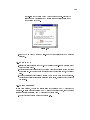
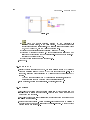
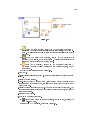
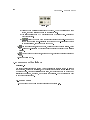
LabVIEW Graphical Programming Course
Collection edited by:
National Instruments
LabVIEW Graphical Programming Course
Collection edited by:
National Instruments
By:
National Instruments
Malan Shiralkar
(Authors listed in the order their modules appear)
Online:
<http://cnx.org/content/col10241/1.4/ >
C O N N E X I O N S
Rice University, Houston, Texas
©2007 National Instruments
This selection and arrangement of content is licensed under the Creative Commons Attribution License:
http://creativecommons.org/licenses/by/1.0
Table of Contents
1
Student Guide
1.1
LabVIEW Course Exercise Code . . . . . . . . . . . . . . . . . . . . . . . . . . . . . . . . . . . . . . . . . . . . . . . . . . . . .1
2
Introduction
3
Modular Programming
4
5
6
2.1 LabVIEW . . . . . . . . . . . . . . . . . . . . . . . . . . . . . . . . . . . . . . . . . . . . . . . . . . . . . . . . . . . . . . . . . . . . . . . . . . . 5
2.2 LabVIEW Environment . . . . . . . . . . . . . . . . . . . . . . . . . . . . . . . . . . . . . . . . . . . . . . . . . . . . . . . . . . . . . 5
2.3 Front Panel . . . . . . . . . . . . . . . . . . . . . . . . . . . . . . . . . . . . . . . . . . . . . . . . . . . . . . . . . . . . . . . . . . . . . . . . 19
2.4 Block Diagram . . . . . . . . . . . . . . . . . . . . . . . . . . . . . . . . . . . . . . . . . . . . . . . . . . . . . . . . . . . . . . . . . . . . . 22
2.5 Acquiring a Signal VI . . . . . . . . . . . . . . . . . . . . . . . . . . . . . . . . . . . . . . . . . . . . . . . . . . . . . . . . . . . . . . 27
2.6 Dataow Programming . . . . . . . . . . . . . . . . . . . . . . . . . . . . . . . . . . . . . . . . . . . . . . . . . . . . . . . . . . . . . 37
2.7 Express Filter VI . . . . . . . . . . . . . . . . . . . . . . . . . . . . . . . . . . . . . . . . . . . . . . . . . . . . . . . . . . . . . . . . . . . 38
2.8 LabVIEW Documentation Resources . . . . . . . . . . . . . . . . . . . . . . . . . . . . . . . . . . . . . . . . . . . . . . . 39
2.9 Reduce Samples VI . . . . . . . . . . . . . . . . . . . . . . . . . . . . . . . . . . . . . . . . . . . . . . . . . . . . . . . . . . . . . . . . . 42
2.10 Debugging Techniques . . . . . . . . . . . . . . . . . . . . . . . . . . . . . . . . . . . . . . . . . . . . . . . . . . . . . . . . . . . . 48
2.11 Debug Exercise (Main) VI . . . . . . . . . . . . . . . . . . . . . . . . . . . . . . . . . . . . . . . . . . . . . . . . . . . . . . . . 49
2.12 Summary, Tips, and Tricks on Introduction to LabVIEW . . . . . . . . . . . . . . . . . . . . . . . . . . 52
3.1
3.2
3.3
3.4
3.5
3.6
3.7
Modular Programming . . . . . . . . . . . . . . . . . . . . . . . . . . . . . . . . . . . . . . . . . . . . . . . . . . . . . . . . . . . . . 57
Icons and Connector Panes . . . . . . . . . . . . . . . . . . . . . . . . . . . . . . . . . . . . . . . . . . . . . . . . . . . . . . . . . 59
Convert C to F VI . . . . . . . . . . . . . . . . . . . . . . . . . . . . . . . . . . . . . . . . . . . . . . . . . . . . . . . . . . . . . . . . . 63
Using SubVIs . . . . . . . . . . . . . . . . . . . . . . . . . . . . . . . . . . . . . . . . . . . . . . . . . . . . . . . . . . . . . . . . . . . . . . 66
Thermometer VI . . . . . . . . . . . . . . . . . . . . . . . . . . . . . . . . . . . . . . . . . . . . . . . . . . . . . . . . . . . . . . . . . . . 67
Creating a SubVI from Sections of a VI . . . . . . . . . . . . . . . . . . . . . . . . . . . . . . . . . . . . . . . . . . . . 71
Summary, Tips, and Tricks on Modular Programming . . . . . . . . . . . . . . . . . . . . . . . . . . . . . . 72
Repetition and Loops
4.1
4.2
4.3
4.4
4.5
4.6
4.7
While Loops . . . . . . . . . . . . . . . . . . . . . . . . . . . . . . . . . . . . . . . . . . . . . . . . . . . . . . . . . . . . . . . . . . . . . . . 73
Auto Match VI . . . . . . . . . . . . . . . . . . . . . . . . . . . . . . . . . . . . . . . . . . . . . . . . . . . . . . . . . . . . . . . . . . . . . 75
For Loops . . . . . . . . . . . . . . . . . . . . . . . . . . . . . . . . . . . . . . . . . . . . . . . . . . . . . . . . . . . . . . . . . . . . . . . . . . 79
Timed Temperature VI . . . . . . . . . . . . . . . . . . . . . . . . . . . . . . . . . . . . . . . . . . . . . . . . . . . . . . . . . . . . . 81
Accessing Previous Loop Data . . . . . . . . . . . . . . . . . . . . . . . . . . . . . . . . . . . . . . . . . . . . . . . . . . . . . . 83
Accessing Previous Data VI . . . . . . . . . . . . . . . . . . . . . . . . . . . . . . . . . . . . . . . . . . . . . . . . . . . . . . . . 85
Summary, Tips, and Tricks on Repetition and Loops . . . . . . . . . . . . . . . . . . . . . . . . . . . . . . . .88
Arrays
5.1
5.2
5.3
5.4
5.5
5.6
5.7
Arrays . . . . . . . . . . . . . . . . . . . . . . . . . . . . . . . . . . . . . . . . . . . . . . . . . . . . . . . . . . . . . . . . . . . . . . . . . . . . . 91
Auto-Indexing . . . . . . . . . . . . . . . . . . . . . . . . . . . . . . . . . . . . . . . . . . . . . . . . . . . . . . . . . . . . . . . . . . . . . . 93
Array Functions . . . . . . . . . . . . . . . . . . . . . . . . . . . . . . . . . . . . . . . . . . . . . . . . . . . . . . . . . . . . . . . . . . . . 94
Polymorphism . . . . . . . . . . . . . . . . . . . . . . . . . . . . . . . . . . . . . . . . . . . . . . . . . . . . . . . . . . . . . . . . . . . . . . 96
Array Exercise VI . . . . . . . . . . . . . . . . . . . . . . . . . . . . . . . . . . . . . . . . . . . . . . . . . . . . . . . . . . . . . . . . . . 97
Summary, Tips, and Tricks on Arrays . . . . . . . . . . . . . . . . . . . . . . . . . . . . . . . . . . . . . . . . . . . . . . 98
Additional Exercises for Arrays . . . . . . . . . . . . . . . . . . . . . . . . . . . . . . . . . . . . . . . . . . . . . . . . . . . . . 99
Clusters
6.1
6.2
6.3
6.4
6.5
Clusters . . . . . . . . . . . . . . . . . . . . . . . . . . . . . . . . . . . . . . . . . . . . . . . . . . . . . . . . . . . . . . . . . . . . . . . . . . . 101
Cluster Functions . . . . . . . . . . . . . . . . . . . . . . . . . . . . . . . . . . . . . . . . . . . . . . . . . . . . . . . . . . . . . . . . . 103
Cluster Exercise VI . . . . . . . . . . . . . . . . . . . . . . . . . . . . . . . . . . . . . . . . . . . . . . . . . . . . . . . . . . . . . . . 105
Cluster Scaling VI . . . . . . . . . . . . . . . . . . . . . . . . . . . . . . . . . . . . . . . . . . . . . . . . . . . . . . . . . . . . . . . . .108
Error Clusters . . . . . . . . . . . . . . . . . . . . . . . . . . . . . . . . . . . . . . . . . . . . . . . . . . . . . . . . . . . . . . . . . . . . . 109
iv
6.6
Summary, Tips, and Tricks on Clusters . . . . . . . . . . . . . . . . . . . . . . . . . . . . . . . . . . . . . . . . . . . . 111
7
Plotting Data
8
Making Decisions in a VI
9
10
7.1 Waveform Charts . . . . . . . . . . . . . . . . . . . . . . . . . . . . . . . . . . . . . . . . . . . . . . . . . . . . . . . . . . . . . . . . . 113
7.2 Temperature Monitor VI . . . . . . . . . . . . . . . . . . . . . . . . . . . . . . . . . . . . . . . . . . . . . . . . . . . . . . . . . . 115
7.3 Temperature Running Average VI . . . . . . . . . . . . . . . . . . . . . . . . . . . . . . . . . . . . . . . . . . . . . . . . . 121
7.4 Waveform and XY Graphs . . . . . . . . . . . . . . . . . . . . . . . . . . . . . . . . . . . . . . . . . . . . . . . . . . . . . . . . 125
7.5 Graph Waveform Array VI . . . . . . . . . . . . . . . . . . . . . . . . . . . . . . . . . . . . . . . . . . . . . . . . . . . . . . . . 127
7.6 Temperature Analysis VI . . . . . . . . . . . . . . . . . . . . . . . . . . . . . . . . . . . . . . . . . . . . . . . . . . . . . . . . . . 132
7.7 Graph Circle VI . . . . . . . . . . . . . . . . . . . . . . . . . . . . . . . . . . . . . . . . . . . . . . . . . . . . . . . . . . . . . . . . . . . 135
7.8 Intensity Plots . . . . . . . . . . . . . . . . . . . . . . . . . . . . . . . . . . . . . . . . . . . . . . . . . . . . . . . . . . . . . . . . . . . . 137
7.9 Intensity Graph Example VI . . . . . . . . . . . . . . . . . . . . . . . . . . . . . . . . . . . . . . . . . . . . . . . . . . . . . . 138
7.10 Summary, Tips, and Tricks on Plotting Data . . . . . . . . . . . . . . . . . . . . . . . . . . . . . . . . . . . . . 139
7.11 Additional Exercises for Plotting Data . . . . . . . . . . . . . . . . . . . . . . . . . . . . . . . . . . . . . . . . . . . 140
8.1
8.2
8.3
8.4
8.5
8.6
8.7
8.8
Making Decisions with the Select Function . . . . . . . . . . . . . . . . . . . . . . . . . . . . . . . . . . . . . . . . 143
Case Structures . . . . . . . . . . . . . . . . . . . . . . . . . . . . . . . . . . . . . . . . . . . . . . . . . . . . . . . . . . . . . . . . . . . 144
Square Root VI . . . . . . . . . . . . . . . . . . . . . . . . . . . . . . . . . . . . . . . . . . . . . . . . . . . . . . . . . . . . . . . . . . . 148
Temperature Control VI . . . . . . . . . . . . . . . . . . . . . . . . . . . . . . . . . . . . . . . . . . . . . . . . . . . . . . . . . . .150
Formula Node . . . . . . . . . . . . . . . . . . . . . . . . . . . . . . . . . . . . . . . . . . . . . . . . . . . . . . . . . . . . . . . . . . . . . 153
Formula Node Exercise VI . . . . . . . . . . . . . . . . . . . . . . . . . . . . . . . . . . . . . . . . . . . . . . . . . . . . . . . . .154
Summary, Tips, and Tricks on Making Decisions in a VI . . . . . . . . . . . . . . . . . . . . . . . . . . . 155
Additional Exercises for Making Decisions in a VI . . . . . . . . . . . . . . . . . . . . . . . . . . . . . . . . . 156
Strings and File I/O
9.1 Strings . . . . . . . . . . . . . . . . . . . . . . . . . . . . . . . . . . . . . . . . . . . . . . . . . . . . . . . . . . . . . . . . . . . . . . . . . . . . 157
9.2 String Functions . . . . . . . . . . . . . . . . . . . . . . . . . . . . . . . . . . . . . . . . . . . . . . . . . . . . . . . . . . . . . . . . . . 159
9.3 Create String VI . . . . . . . . . . . . . . . . . . . . . . . . . . . . . . . . . . . . . . . . . . . . . . . . . . . . . . . . . . . . . . . . . . 162
9.4 File I/O VIs and Functions . . . . . . . . . . . . . . . . . . . . . . . . . . . . . . . . . . . . . . . . . . . . . . . . . . . . . . . . 165
9.5 High-Level File I/O VIs . . . . . . . . . . . . . . . . . . . . . . . . . . . . . . . . . . . . . . . . . . . . . . . . . . . . . . . . . . . 167
9.6 Spreadsheet Example VI . . . . . . . . . . . . . . . . . . . . . . . . . . . . . . . . . . . . . . . . . . . . . . . . . . . . . . . . . . 168
9.7 Low-Level File I/O VI and Functions . . . . . . . . . . . . . . . . . . . . . . . . . . . . . . . . . . . . . . . . . . . . . . 171
9.8 File Writer VI . . . . . . . . . . . . . . . . . . . . . . . . . . . . . . . . . . . . . . . . . . . . . . . . . . . . . . . . . . . . . . . . . . . . . 173
9.9 File Reader VI . . . . . . . . . . . . . . . . . . . . . . . . . . . . . . . . . . . . . . . . . . . . . . . . . . . . . . . . . . . . . . . . . . . . 175
9.10 Formatting Spreadsheet Strings . . . . . . . . . . . . . . . . . . . . . . . . . . . . . . . . . . . . . . . . . . . . . . . . . . 177
9.11 Temperature Logger VI . . . . . . . . . . . . . . . . . . . . . . . . . . . . . . . . . . . . . . . . . . . . . . . . . . . . . . . . . . 180
9.12 Temperature Application VI . . . . . . . . . . . . . . . . . . . . . . . . . . . . . . . . . . . . . . . . . . . . . . . . . . . . . 184
9.13 Summary, Tips, and Tricks on Strings and File I/O . . . . . . . . . . . . . . . . . . . . . . . . . . . . . . 185
9.14 Additional Exercises for Strings and FileI/O . . . . . . . . . . . . . . . . . . . . . . . . . . . . . . . . . . . . . 186
Data Acquisition and Waveforms
10.1 Overview and Conguration of DAQ Devices . . . . . . . . . . . . . . . . . . . . . . . . . . . . . . . . . . . . . 187
10.2 Measurement & Automation Explorer (Windows Only) . . . . . . . . . . . . . . . . . . . . . . 191
10.3 Data Acquisition in LabVIEW . . . . . . . . . . . . . . . . . . . . . . . . . . . . . . . . . . . . . . . . . . . . . . . . . . . 194
10.4 Analog Input . . . . . . . . . . . . . . . . . . . . . . . . . . . . . . . . . . . . . . . . . . . . . . . . . . . . . . . . . . . . . . . . . . . . 195
10.5 Voltmeter VI . . . . . . . . . . . . . . . . . . . . . . . . . . . . . . . . . . . . . . . . . . . . . . . . . . . . . . . . . . . . . . . . . . . . 197
10.6 Measurement Averaging VI . . . . . . . . . . . . . . . . . . . . . . . . . . . . . . . . . . . . . . . . . . . . . . . . . . . . . . 199
10.7 Data Logging . . . . . . . . . . . . . . . . . . . . . . . . . . . . . . . . . . . . . . . . . . . . . . . . . . . . . . . . . . . . . . . . . . . . 200
10.8 Simple Data Logger VI . . . . . . . . . . . . . . . . . . . . . . . . . . . . . . . . . . . . . . . . . . . . . . . . . . . . . . . . . . 201
10.9 Analog Output . . . . . . . . . . . . . . . . . . . . . . . . . . . . . . . . . . . . . . . . . . . . . . . . . . . . . . . . . . . . . . . . . . 204
10.10 Voltage Output VI . . . . . . . . . . . . . . . . . . . . . . . . . . . . . . . . . . . . . . . . . . . . . . . . . . . . . . . . . . . . . 205
10.11 Counters . . . . . . . . . . . . . . . . . . . . . . . . . . . . . . . . . . . . . . . . . . . . . . . . . . . . . . . . . . . . . . . . . . . . . . . 208
v
10.12
10.13
10.14
10.15
10.16
Simple Event Counting VI . . . . . . . . . . . . . . . . . . . . . . . . . . . . . . . . . . . . . . . . . . . . . . . . . . . . . . 209
Digital I/O . . . . . . . . . . . . . . . . . . . . . . . . . . . . . . . . . . . . . . . . . . . . . . . . . . . . . . . . . . . . . . . . . . . . . 210
Digital Example VI . . . . . . . . . . . . . . . . . . . . . . . . . . . . . . . . . . . . . . . . . . . . . . . . . . . . . . . . . . . . . 210
Summary, Tips, and Tricks on Data Acquisition and Waveforms . . . . . . . . . . . . . . . . 211
Additional Exercises for Data Acquisition and Waveforms . . . . . . . . . . . . . . . . . . . . . . . 212
11
Instrument Control
12
Customizing VIs
13
11.1 Instrument Control Overview . . . . . . . . . . . . . . . . . . . . . . . . . . . . . . . . . . . . . . . . . . . . . . . . . . . . 213
11.2 GPIB Communication and Conguration . . . . . . . . . . . . . . . . . . . . . . . . . . . . . . . . . . . . . . . . .213
11.3 GPIB Conguration with MAX (Windows Only) . . . . . . . . . . . . . . . . . . . . . . . . . . . . . . . . . 216
11.4 Using the Instrument I/O Assistant . . . . . . . . . . . . . . . . . . . . . . . . . . . . . . . . . . . . . . . . . . . . . . 218
11.5 Using the Instrument I/O Assistant Exercise . . . . . . . . . . . . . . . . . . . . . . . . . . . . . . . . . . . . . 219
11.6 VISA . . . . . . . . . . . . . . . . . . . . . . . . . . . . . . . . . . . . . . . . . . . . . . . . . . . . . . . . . . . . . . . . . . . . . . . . . . . . 220
11.7 Programming with VISA . . . . . . . . . . . . . . . . . . . . . . . . . . . . . . . . . . . . . . . . . . . . . . . . . . . . . . . . . 222
11.8 About Instrument Drivers . . . . . . . . . . . . . . . . . . . . . . . . . . . . . . . . . . . . . . . . . . . . . . . . . . . . . . . .224
11.9 Using Instrument Driver VIs . . . . . . . . . . . . . . . . . . . . . . . . . . . . . . . . . . . . . . . . . . . . . . . . . . . . . 224
11.10 Voltage Monitor VI . . . . . . . . . . . . . . . . . . . . . . . . . . . . . . . . . . . . . . . . . . . . . . . . . . . . . . . . . . . . . 227
11.11 Serial Port Communication . . . . . . . . . . . . . . . . . . . . . . . . . . . . . . . . . . . . . . . . . . . . . . . . . . . . . 229
11.12 Serial Write & Read VI . . . . . . . . . . . . . . . . . . . . . . . . . . . . . . . . . . . . . . . . . . . . . . . . . . . . 234
11.13 Waveform Transfers . . . . . . . . . . . . . . . . . . . . . . . . . . . . . . . . . . . . . . . . . . . . . . . . . . . . . . . . . . . . 237
11.14 Waveform Example VI . . . . . . . . . . . . . . . . . . . . . . . . . . . . . . . . . . . . . . . . . . . . . . . . . . . . . . . . . .240
11.15 Summary, Tips, and Tricks on Instrument Control . . . . . . . . . . . . . . . . . . . . . . . . . . . . . . 243
11.16 Additional Exercises for Instrument Control . . . . . . . . . . . . . . . . . . . . . . . . . . . . . . . . . . . . 243
12.1
12.2
12.3
12.4
12.5
12.6
12.7
12.8
12.9
Conguring the Appearance of Front Panels . . . . . . . . . . . . . . . . . . . . . . . . . . . . . . . . . . . . . . 245
Opening SubVI Front Panels when a VI Runs . . . . . . . . . . . . . . . . . . . . . . . . . . . . . . . . . . . . 247
Pop-up Graph VI and Use Pop-up Graph VI . . . . . . . . . . . . . . . . . . . . . . . . . . . . . . . . . . . . . 247
Keyboard Shortcuts for Controls . . . . . . . . . . . . . . . . . . . . . . . . . . . . . . . . . . . . . . . . . . . . . . . . . 250
Temperature System VI . . . . . . . . . . . . . . . . . . . . . . . . . . . . . . . . . . . . . . . . . . . . . . . . . . . . . . . . . . 250
Editing VI Properties . . . . . . . . . . . . . . . . . . . . . . . . . . . . . . . . . . . . . . . . . . . . . . . . . . . . . . . . . . . . 252
Edit Me VI . . . . . . . . . . . . . . . . . . . . . . . . . . . . . . . . . . . . . . . . . . . . . . . . . . . . . . . . . . . . . . . . . . . . . . 253
Customizing the Controls and Functions Palettes . . . . . . . . . . . . . . . . . . . . . . . . . . . . . . . . . 254
Summary, Tips, and Tricks on Customizing VIs . . . . . . . . . . . . . . . . . . . . . . . . . . . . . . . . . . 254
Appendix
13.1
Appendix . . . . . . . . . . . . . . . . . . . . . . . . . . . . . . . . . . . . . . . . . . . . . . . . . . . . . . . . . . . . . . . . . . . . . . . . 257
Attributions . . . . . . . . . . . . . . . . . . . . . . . . . . . . . . . . . . . . . . . . . . . . . . . . . . . . . . . . . . . . . . . . . . . . . . . . . . . . . . 265
vi
Chapter 1
Student Guide
1.1 LabVIEW Course Exercise Code
1.1.1 A. About This Course
This course teaches you how to use LabVIEW to develop test and measurement, data acquisition,
instrument control, datalogging, measurement analysis, and report generation applications. This
course assumes that you are familiar with Windows, Mac OS, or UNIX and that you have experience
writing algorithms in the form of owcharts or block diagrams.
The course is divided into lessons, each covering a topic or a set of topics. Each lesson consists
of the following:
• An introduction that describes the purpose of the lesson and what you will learn
• A description of the topics in the lesson
• A set of exercises to reinforce those topics. Some lessons include optional and challenge exercise
sections or a set of additional exercises to complete if time permits.
• A summary that outlines important concepts and skills taught in the lesson
Several exercises in this manual use one of the following National Instruments hardware products:
• A plug-in multifunction data acquisition (DAQ) device connected to a DAQ Signal Accessory
containing a temperature sensor, function generator, and LEDs
• A GPIB interface connected to an NI Instrument Simulator
If you do not have this hardware, you still can complete most of the exercises. Be sure to use the
demo versions of the VIs when you are working through exercises. Exercises that explicitly require
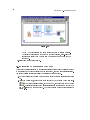
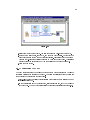
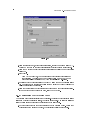
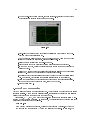
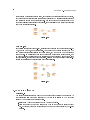
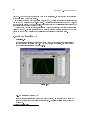
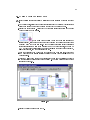
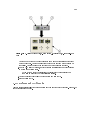
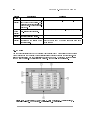
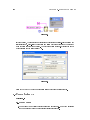
hardware are indicated with an icon, shown in Figure 1. You also can substitute other hardware
for those previously mentioned. For example, you can use a GPIB instrument in place of the NI
Instrument Simulator, or another National Instruments DAQ device connected to a signal source,
such as a function generator.
1
CHAPTER 1. STUDENT GUIDE
2
1.1.2 B. What You Need to Get Started
Before you use this course manual, ensure you have all the following items:
• (Windows) Windows 98 or later installed on your computer; (Mac OS) System 10.2 or later for
Mac OS X, System 9.1 or later for OS 9.x or earlier; (UNIX) Sun workstation running Solaris
2.5.1 or later and X Window System server, such as OpenWindows, CDE, or X11R6, or a PC
running Linux kernel 2.0.x or later for Intel x86 processors
• (Windows) Multifunction DAQ device congured as device 1 using Measurement & Automation Explorer (MAX)
• DAQ Signal Accessory, wires, and cable
• GPIB interface
• NI Instrument Simulator and power supply
• LabVIEW Full or Professional Development System 7.0 or later.
This course assumes you are using the default installation of LabVIEW. If you have changed
the palette views from the default settings, some palette paths described in the course may not
match your settings. To reset palette views to LabVIEW defaults, select ToolsOptions and select
Controls/Functions Palettes from the top pull-down menu. Set Palette View to Express and set
Format to Standard. Click the OK button to apply the changes and close the dialog box.
• A serial cable
• A GPIB cable
• (Optional) A word processing application such as Notepad or WordPad
• The following les provided
Filename
Exercises1
nidevsim.zip
Solutions2
Description
Folder for saving VIs created during the course and for completing certain
course exercises; also includes subVIs necessary for some exercises
Zip le containing the LabVIEW instrument driver for the NI Instrument
Simulator (Contained in Exercises.zip)
Folder containing the solutions to all the course exercises
1.1.3 C. Installing the Course Software
Complete the following steps to install the course software.
1. Copy the contents of the nidevsim directory to the labview\instr.lib directory. After you start
LabVIEW, the NI DevSim instrument driver is located on the FunctionsInputInstrument
Drivers palette.
2. Copy the Exercises directory3 to the top level of the C: directory.
3. Copy the Solutions directory4 to the top level of the C: directory.
3 http://cnx.org/content/m14634/latest/Exercises.zip
4 http://cnx.org/content/m14634/latest/Solutions.zip
3
1.1.4 D. Course Goals and Non-Goals
This course prepares you to do the following:
• Understand front panels, block diagrams, icons, and connector panes
• Use the programming structures and data types that exist in LabVIEW
• Use various editing and debugging techniques
• Create and save VIs so you can use them as subVIs
• Display and log data
• Create applications that use plug-in DAQ devices
• Create applications that use serial port and GPIB instruments
This course does not describe any of the following:
• Every built-in VI, function, or object; refer to the LabVIEW Help for more information about
LabVIEW features not described in this course
• Analog-to-digital (A/D) theory
• Operation of the serial port
• Operation of the GPIB bus
• Developing an instrument driver
• Developing a complete application for any student in the class; refer to the NI Example Finder,
available by selecting HelpFind Examples, for example VIs you can use and incorporate into
VIs you create
If you need assistance beyond that provided in this course, you can post a message
to the National Instruments discussion forums at: http://forums.ni.com/
Note:
4
CHAPTER 1. STUDENT GUIDE
Chapter 2
Introduction
2.1 LabVIEW
LabVIEW programs are called virtual instruments, or VIs, because their appearance and operation imitate physical instruments, such as oscilloscopes and multimeters. LabVIEW contains a
comprehensive set of tools for acquiring analyzing, displaying, and storing data, as well as tools to
help you troubleshoot your code.
LabVIEW VIs contain three components-the front panel, the block diagram, and the icon
and connector pane. This lesson describes the front panel and the block diagram; refer to Modular
Programming (Section 3.1) for more information about the icon and the connector pane.
In LabVIEW, you build a user interface, or front panel, with controls and indicators. Controls
are knobs, push buttons, dials, and other input devices. Indicators are graphs, LEDs, and other
displays. After you build the user interface, you add code using VIs and structures to control
the front panel objects. The block diagram contains this code. In some ways, the block diagram
resembles a owchart.
Use LabVIEW to communicate with hardware such as data acquisition, vision, and motion
control devices, and GPIB, PXI, VXI, RS-232, and RS-484 devices. LabVIEW also has built-in
features for connecting your application to the Web using the LabVIEW Web Server and software
standards such as TCP/IP networking and ActiveX.
Using LabVIEW, you can create test and measurement, data acquisitions, instrument control,
datalogging, measurement analysis, and report generation applications. You also can create standalone executables and shared libraries, like DLLs, because LabVIEW is a true 32-bit compiler.
2.2 LabVIEW Environment
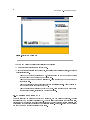
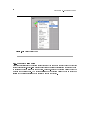
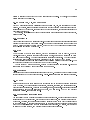
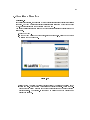
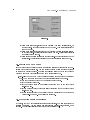
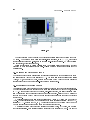
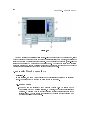
When you launch LabVIEW, the navigation dialog box (Figure 2.1) appears that includes introductory material and common commands.
5
CHAPTER 2. INTRODUCTION
6
Figure 2.1:
LabVIEW Dialog Box
The LabVIEW dialog box includes the following components:
• A menu with standard items such as FileExit.
• A set of buttons for creating and opening VIs, conguring data acquisition devices, and nding
helpful information.
· Click the New button to create a new VI. Click the arrow on the New button to choose
to open a blank VI or to open the New dialog box.
· Click the Open button to open an existing VI. Click the arrow on the Open button to
open recent les.
· Click the Congure button to congure your data acquisition devices. Click the arrow on
the Congure button to congure LabVIEW.
· Click the Help button to launch the LabVIEW Help. Click the arrow on the Help button
for other Help options, including the NI Example Finder.
2.2.1 Creating and Saving a VI
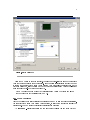
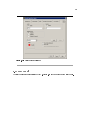
When you click the New button in the LabVIEW dialog box, the New dialog box appears. You also
can select FileNew to display this dialog box. When you select a template in the Create new list,
previews of the VI appear in the Front panel preview and the Block diagram preview sections, and
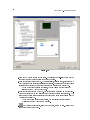
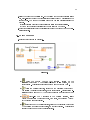
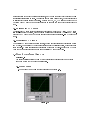
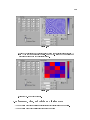
a description of the template appears in the Description section. Figure 2.2 shows the New dialog
box and the SubVI with Error Handling VI template.
7
Figure 2.2:
New Dialog Box
Click the OK button to open the template. You also can double-click the name of the template
VI in the Create new list to open the template. If no template is available for the task you want
to create, you can start with a blank VI and create a VI to accomplish the specic task. In the
LabVIEW dialog box, click the arrow on the New button and select Blank VI from the shortcut
menu or press the Ctrl-N keys to open a blank VI.
You also can open a blank VI by selecting Blank VI from the Create new list in
the New dialog box or by selecting FileNew VI.
note:
2.2.1.1 Open/Templates
Use the New dialog box to create dierent components in LabVIEW to help you build an application.
You can start with a blank VI to write a VI from scratch, or start with a template to simplify the
programming. The New dialog box includes the following components:
•
Create new
- Displays templates you can use to start building VIs and other LabVIEW
CHAPTER 2. INTRODUCTION
8
documents. Select from the following templates and click the OK button to start building a
VI or other LabVIEW document.
·
·
Blank VI - Opens a blank front panel and blank block diagram.
VI from Template - Opens a front panel and block diagram with components you need
to build dierent types of VIs.
Other Document Types - Opens the tools you use to build other LabVIEW objects.
Browse for Template - Displays the Browse dialog box so you can navigate to a VI, control,
·
•
or template. If you previously have browsed for and selected a template from this dialog box,
use the pull-down menu of the Browse button to select a template to reopen it.
•
Front panel preview
Create new list.
•
- Displays the front panel for the VI template you selected in the
Block diagram preview - Displays the block diagram for the VI template you selected in
the Create new list.
•
Description - Displays a description of the template you selected in the Create new list if the
template includes a description.
2.2.1.2 Opening an Existing VI
You load a VI into memory by selecting FileOpen. In the Choose the VI to open dialog box that
appears, navigate to the VI you want to open.
The VIs you edit in this course are located in the C:\Exercises\LabVIEW Basics I directory.
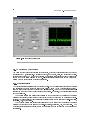
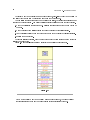
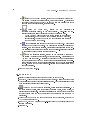
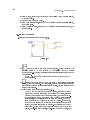
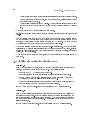
As the VI loads, a status dialog box similar to Figure 2.3 might appear.
Figure 2.3
The Loading section lists the subVIs of the VI as they are loaded into memory. Number Loaded
is the number of subVIs loaded into memory so far. You can cancel the load at any time by clicking
the Stop button.
If LabVIEW cannot immediately locate a subVI, it begins searching through all directories
specied by the VI Search Path. You can edit the VI Search Path by selecting ToolsOptions
9
and selecting Paths from the top pull-down menu. The Searching section lists directories or VIs as
LabVIEW searches through them. You can have LabVIEW ignore a subVI by clicking the Ignore
SubVI button, or you can click the Browse button to search for the missing subVI.
2.2.1.3 Saving VIs
Select Save, Save As, Save All, or Save with Options from the File menu to save VIs as individual
les or group several VIs together and save them in a VI library. VI library les end with the
extension .llb. National Instruments recommends that you save VIs as individual les, organized in
directories, especially if multiple developers are working on the same project.
LabVIEW uses the native le dialog boxes so they act similar to other applications on the
computer. You can disable this feature by selecting ToolsOptions and selecting Miscellaneous
from the top pull-down menu. If you disable native le dialogs, LabVIEW uses its own platformindependent le dialog boxes with some convenient features, such as providing a list of recent paths
and reducing the steps necessary to save VIs in VI libraries.
2.2.1.4 Moving VIs Across Platforms
You can transfer VIs from one platform to another, such as from Mac OS to Windows. LabVIEW
automatically translates and recompiles the VIs on the new platform.
Because VIs are les, you can use any le transfer method or utility to move VIs between
platforms. You can port VIs over networks using FTP, Z or XModem protocols, or similar utilities.
Such network transfers eliminate the need for additional le translation software. If you port VIs
using magnetic media, such as oppy disks or a moveable external hard drive, you need a generic
le transfer utility program, such as the following:
• (Windows ) MacDisk and TransferPro transfer Mac OS les to the PC format and vice versa.
• (Mac OS ) DOS Mounter, MacLink, and Apple File Exchange convert PC les to the Mac OS
format and vice versa.
• (Sun) PC File System (PCFS) converts PC les to the Sun format and vice versa.
Certain operating system-specic VIs are not portable between platforms, such as
DDE (Dynamic Data Exchange) VIs, ActiveX VIs, and AppleEvents.
note:
Refer to the Porting and Localizing LabVIEW VIs Application Note, available by selecting
HelpSearch the LabVIEW Bookshelf, for more information about porting VIs.
2.2.2 Menus
The menus at the top of a VI window contain items common to other applications, such as Open,
Save, Copy, and Paste, and other items specic to LabVIEW. Some menu items also list shortcut
key combinations.
(Mac OS ) The menus appear at the top of the screen.
(Windows and UNIX ) The menus display only the most recently used items by default. Click
the arrows at the bottom of a menu to display all items. You can display all menu items by default
by selecting ToolsOptions and selecting Miscellaneous from the top pull-down menu.
note:
Some menu items are unavailable while a VI is in run mode.
• The File menu contains items used for basic le operations, such as opening, closing, saving,
and printing les.
CHAPTER 2. INTRODUCTION
10
• The Edit menu contains items that allow you to search for and modify LabVIEW les and
their components.
• The Operate menu contains items you use to control the operation of VIs.
• The Tools menu contains items for conguring LabVIEW, your projects, and your VIs.
• The Browse menu contains items that allow you to view aspects of the current VI and its
hierarchy.
• The Window menu contains items that allow you to congure the appearance of the current
windows and palettes. You also can access the Error List window and view the contents of the
clipboard.
• The Help menu contains items to explain and dene LabVIEW features and other components,
provide full LabVIEW documentation, and access National Instruments technical support.
2.2.3 Front Panel and Block Diagram Windows
When you open a blank VI, an untitled front panel window appears. This window displays the front
panel and is one of the two LabVIEW windows you use to build a VI. The other window contains
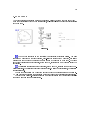
the block diagram. The illustration in Figure 2.4 shows a front panel and its corresponding block
diagram with front panel and block diagram components.
11
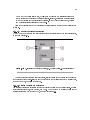
1. Toolbar, 2. Owned Label, 3. Numeric Control, 4. Free Label, 5. Numeric
Control Terminal, 6. Knob Terminal, 7. Numeric Constant, 8. Multiply Function, 9. Icon, 10.
Knob Control, 11. Plot Legend, 12. XY Graph, 13. Wire Data Path, 14. XY Graph Terminal,
15. Bundle Function, 16. SubVI, 17. For Loop Structure
Figure 2.4:
2.2.4 Front Panel Toolbar
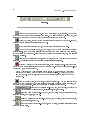
Use the toolbar buttons to run and edit a VI. The toolbar in Figure 2.5 appears on the front panel.
CHAPTER 2. INTRODUCTION
12
Figure 2.5
Click the Run button to run a VI. LabVIEW compiles the VI, if necessary. You can run
a VI if the Run button appears as a solid white arrow. The solid white arrow, shown above, also
indicates you can use the VI as a subVI if you create a connector pane for the VI.
While the VI runs, the Run button appears as shown at left if the VI is a top-level VI,
meaning it has no callers and therefore is not a subVI.
If the VI that is running is a subVI, the Run button appears as shown at left.
The Run button appears broken, shown at left, when the VI you are creating or editing
contains errors. If the Run button still appears broken after you nish wiring the block diagram,
the VI is broken and cannot run. Click this button to display the Error list window, which lists all
errors and warnings.
Click the Run Continuously button, shown at left, to run the VI until you abort or pause
execution. You also can click the button again to disable continuous running.
While the VI runs, the Abort Execution button, shown at left, appears. Click this button
to stop the VI immediately if there is no other way to stop the VI. If more than one running top-level
VI uses the VI, the button is dimmed.
Avoid using the Abort Execution button to stop a VI. Either let the VI complete
its data ow or design a method to stop the VI programmatically. By doing so, the VI is
at a known state. For example, place a button on the front panel that stops the VI when
you click it.
note:
Click the Pause button, shown at left, to pause a running VI. When you click the Pause
button, LabVIEW highlights on the block diagram the location where you paused execution, and
the Pause button appears red. Click the button again to continue running the VI.
Select the Text Settings pull-down menu, shown at left, to change the
font settings for the selected portions of the VI, including size, style, and color.
Select the Align Objects pull-down menu, shown at left, to align objects along axes,
including vertical, top edge, left, and so on.
Select the Distribute Objects pull-down menu, shown at left, to space objects evenly,
including gaps, compression, and so on.
Select the Resize Objects pull-down menu, shown at left, to resize multiple front panel
objects to the same size.
13
Select the Reorder pull-down menu, shown at left, when you have objects that overlap
each other and you want to dene which one is in front or back of another. Select one of the objects
with the Positioning tool and then select from Move Forward, Move Backward, Move To Front, and
Move To Back.
Select the Show Context Help Window button, shown at left, to toggle the display of the
Context Help window.
Type appears to remind you that a new value is available to replace an old value. The
Enter button disappears when you click it, press the Enter key, or click the front panel or block
diagram workspace.
2.2.5 Block Diagram Toolbar
When you run a VI, buttons appear on the block diagram toolbar that you can use to debug the
VI. The toolbar in Figure 2.6 appears on the block diagram.
Figure 2.6
Click the Highlight Execution button, shown at left, to display an animation of the block
diagram execution when you click the Run button. see the ow of data through the block diagram.
Click the button again to disable execution highlighting.
Click the Step Into button, shown at left, to open a node and pause. When you click the
Step Into button again, it executes the rst action and pauses at the next action of the subVI or
structure. You also can press the Ctrl and down arrow keys. Single-stepping through a VI steps
through the VI node by node. Each node blinks to denote when it is ready to execute. By stepping
into the node, you are ready to single-step inside the node.
Click the Step Over button, shown at left, to execute a node and pause at the next node.
You also can press the Ctrl and right arrow keys. By stepping over the node, you execute the node
without single-stepping through the node.
Click the Step Out button, shown at left, to nish executing the current node and pause.
When the VI nishes executing, the Step Out button becomes dimmed. You also can press the Ctrl
and up arrow keys. By stepping out of a node, you complete single-stepping through the node and
go to the next node.
The Warning button, shown at left, appears if a VI includes a warning and you placed a
checkmark in the Show Warnings checkbox in the Error List window. A warning indicates there is
a potential problem with the block diagram, but it does not stop the VI from running.
CHAPTER 2. INTRODUCTION
14
2.2.6 Palettes
LabVIEW has graphical, oating palettes to help you create and run VIs. The three palettes include
the Tools, Controls, and Functions palettes. You can place these palettes anywhere on the screen.
2.2.6.1 Tools Palette
You can create, modify, and debug VIs using the tools located on the oating Tools (Figure 2.7)
palette. The Tools palette is available on both the front panel and the block diagram. A tool is a
special operating mode of the mouse cursor. The cursor corresponds to the icon of the tool selected
in the Tools palette. Use the tools to operate and modify front panel and block diagram objects.
Select WindowShow Tools Palette to display the Tools palette.
Press the Shift key and right-click to display a temporary version of the Tools
palette at the location of the cursor.
note:
Figure 2.7:
Tools Palette
If automatic tool selection is enabled and you move the cursor over objects on the front panel or
block diagram, LabVIEW automatically selects the corresponding tool from the Tools palette. You
can disable automatic tool selection and select a tool manually by clicking the tool you want on the
Tools palette.
If you want to use the Tab key to cycle through the four most common tools on
the Tools palette, click the Automatic Tool Selection button, shown at left, on the Tools palette
to disable automatic tool selection. Press the Shift-Tab keys or click the Automatic Tool Selection
button to enable automatic tool selection again. You also can manually select a tool on the Tools
palette to disable automatic tool selection. Press the Tab or Shift-Tab keys or click the Automatic
Tool Selection button on the Tools palette to enable automatic tool selection again. If automatic
tool selection is disabled, you can press the spacebar to switch to the next most useful tool.
Use the Operating tool, shown at left, to change the values of a control or select the
text within a control. The Operating tool changes to the icon shown at left when it moves over a
text control, such as a numeric or string control.
Use the Positioning tool, shown at left, to select, move, or resize objects. The Positioning
tool changes to resizing handles when it moves over the edge of a resizable object.
15
Use the Labeling tool, shown at left, to edit text and create free labels. The Labeling
tool changes to the following icon when you create free labels.
Use the Wiring tool, shown at left, to wire objects together on the block diagram.
Use the Object Shortcut Menu, shown at left, tool to access an object shortcut menu with
the left mouse button.
Use the Scrolling tool, shown at left, to scroll through windows without using scrollbars.
Use the Breakpoint tool, shown at left, to set breakpoints on VIs, functions, nodes, wires,
and structures to pause execution at that location.
Use the Probe tool, shown at left, to create probes on wires on the block diagram. Use the
Probe tool to check intermediate values in a VI that produces questionable or unexpected results.
Use the Color Copy tool, shown at left, to copy colors for pasting with the Coloring tool.
Use the Coloring tool, shown at left, to color an object. It also displays the
current foreground and background color settings.
2.2.6.2 Controls and Functions Palettes
The Controls and Functions palettes contain subpalettes of objects you can use to create a VI.
When you click a subpalette icon, the entire palette changes to the subpalette you selected. To use
an object on the palettes, click the object and place it on the front panel or block diagram.
The Controls palette, shown in Figure 2.8, is available only on the front panel. The Controls
palette contains the controls and indicators you use to build the front panel. Refer to the Front Panel
(Section 2.3) section for more information about the using the Controls palette on the front panel.
The controls and indicators located on the Controls palette depend on the palette view currently
selected.
Figure 2.8:
Controls Palette
CHAPTER 2. INTRODUCTION
16
The Functions palette, shown in the Figure 2.9, is available only on the block diagram. The
Functions palette contains the VIs and functions you use to build the block diagram. Refer to the
Block Diagram (Section 2.4) section of this lesson for more information about using the Functions
palette on the block diagram. The VIs and functions located on the Functions palette depend on
the palette view currently selected. The VIs and functions are located on subpalettes based on the
types of VIs and functions.
Figure 2.9:
Functions Palette
2.2.6.3 Changing Palette Views
Use the Options button on the Controls or Functions palette toolbar to change to another palette
view or format:
1.
Click the Options button, shown at left, on the Controls or Functions palette toolbar
to display the Controls/Functions Palettes page of the Options dialog box.
2. Select a palette view from the Palette View pull-down menu.
3. Select a format from the Format pull-down menu, such as Standard, All Icons, All Text, or
Icons and Text.
4. Click the OK button. The Controls and Functions palettes change to the palette view and
format you selected.
2.2.6.4 Searching for Controls, VIs, and Functions
Use the following navigation buttons on the Controls and Functions palettes to navigate and search
for controls, VIs, and functions:
•
Up to Owning Palette -
•
Search -
Navigates up one level in the palette hierarchy.
Changes the palette to search mode. In search mode, you can perform textbased searches to locate controls, VIs, or functions on the palettes. For example, if you want
to nd the Random Number function, click the Search button on the Functions palette toolbar
17
and start typing Random Number in the text box at the top of the palette. LabVIEW lists
all matching items that either start with or contain the text you typed. You can click one of
the search results and drag it to the block diagram, as shown in Figure 2.10.
Figure 2.10
Double-click the search result to highlight its location on the palette. You then can click the Up
to Owning Palette button to view the hierarchy of where the object resides.
2.2.7 Shortcut Menus
The most often-used menu is the object shortcut menu. All LabVIEW objects and empty space on
the front panel and block diagram have associated shortcut menus. Use the shortcut menu items to
change the look or behavior of front panel and block diagram objects. To access the shortcut menu,
right-click the object, front panel, or block diagram. The shortcut menu for a meter is shown in
Figure 2.11.
CHAPTER 2. INTRODUCTION
18
Figure 2.11:
Meter Shortcut Menu
2.2.7.1 Property Dialog Boxes
Front panel objects also have property dialog boxes that you can use to change the look or behavior
of front panel objects. Right-click a front panel object and select Properties from the shortcut menu
to access the property dialog box for an object. Figure 2.12 shows the property dialog box for the
meter in the previous gure. The options available on the property dialog box for an object are
similar to the options available on the shortcut menu for that object.
19
Figure 2.12:
Meter Property Dialog Box
2.3 Front Panel
The front panel is the user interface of the VI. Figure 2.13 shows an example of a front panel.
CHAPTER 2. INTRODUCTION
20
Figure 2.13:
Example of a Front Panel
2.3.1 Controls and Indicators
You build the front panel with controls and indicators, which are the interactive input and output
terminals of the VI, respectively. Controls are knobs, push buttons, dials, and other input devices.
Indicators are graphs, LEDs, and other displays. Controls simulate instrument input devices and
supply data to the block diagram of the VI. Indicators simulate instrument output devices and
display data the block diagram acquires or generates.
2.3.1.1 Controls Palette
The Controls palette is available only on the front panel. The Controls palette contains the controls
and indicators you use to create the front panel. Select WindowShow Controls Palette or rightclick the front panel workspace to display the Controls palette. Tack down the Controls palette by
clicking the thumbtack on the top left corner of the palette. By default, the Controls palette starts
in the Express view.
The Express palette view includes subpalettes on the top level of the Controls and Functions
palettes that contain Express VIs and other objects you need to build common measurement applications. The All Controls and All Functions subpalettes contain the complete set of built-in controls,
indicators, VIs, and functions.
The Advanced palette view includes subpalettes on the top level of the Controls and Functions
palettes that contain the complete set of built-in controls, indicators, VIs, and functions. The
Express subpalettes contain Express VIs and other objects you need to build common measurement
applications.
21
In the Express palette view, toolsets and modules do not install subpalettes on
the top level of the Controls and Functions palettes. Instead, toolsets and modules install
on the All Controls and All Functions subpalettes. In the Advanced palette view, toolsets
and modules install subpalettes on the top level.
note:
Click the Options button on the Controls or Functions palette to change to another palette view
or format.
2.3.1.1.1 Numeric Controls and Indicators
The two most commonly used numeric objects are the numeric control and the numeric indicator,
as shown in Figure 2.14.
Figure 2.14:
1. Increment and Decrement Buttons, 2. Numeric Control, 3. Numeric Indicator
To enter or change values in a numeric control, click the increment and decrement buttons with
the Operating tool or double-click the number with either the Labeling tool or the Operating tool,
type a new number, and press the Enter key.
2.3.1.1.2 Boolean Controls and Indicators
Use Boolean controls and indicators to enter and display Boolean (True or False) values. Boolean
objects simulate switches, push buttons, and LEDs. The most common Boolean objects are the
vertical toggle switch and the round LED, as shown in Figure 2.15.
CHAPTER 2. INTRODUCTION
22
Figure 2.15
2.4 Block Diagram
After you build the front panel, you add code using graphical representations of functions to control
the front panel objects. The block diagram contains this graphical source code. Front panel objects appear as terminals, on the block diagram. Block diagram objects include terminals, subVIs,
functions, constants, structures, and wires, which transfer data among other block diagram objects.
The VI in Figure 2.16 shows several primary block diagram objects-nodes, terminals, and wires.
Figure 2.16:
1. Nodes, 2. Indicator Terminals, 3. Wires, 4. Control Terminals
2.4.1 Functions Palette
The Functions palette is available only on the block diagram. The Functions palette contains the
VIs and functions you use to build the block diagram. Select WindowShow Functions Palette or
right-click the block diagram workspace to display the Functions palette. Tack down the Functions
23
palette by clicking the thumbtack on the top left corner of the palette. By default, the Functions
palette starts in the Express view.
2.4.2 Express VIs, VIs, and Functions
LabVIEW uses colored icons to distinguish between Express VIs, VIs, and functions on the block
diagram. By default, icons for Express VIs appear on the block diagram as expandable nodes with
icons surrounded by a blue eld. Icons for VIs have white backgrounds, and icons for functions have
pale yellow backgrounds.
By default, most functions and VIs on the block diagram appear as icons that are not expandable,
unlike Express VIs.
2.4.2.1 Express VIs
Use Express VIs for common measurement tasks. Express VIs are nodes that require minimal wiring
because you congure them with dialog boxes. You can save the conguration of an Express VI as
a subVI. Refer to Building the Block Diagram, of the LabVIEW User Manual for more information
about creating subVIs from Express VIs.
2.4.2.2 VIs
When you place a VI on the block diagram, LabVIEW considers the VI to be a subVI. When you
double-click a subVI, its front panel and block diagram appear, rather than a dialog box in which
you can congure options. The front panel includes controls and indicators. The block diagram
includes wires, front panel icons, functions, possibly subVIs, and other LabVIEW objects.
The upper right corner of the front panel and block diagram displays the icon for the VI. This
is the icon that appears when you place the VI on the block diagram.
You can create a VI to use as a subVI. Refer to Modular Programming (Section 3.1) for more
information about creating VIs and conguring them as subVIs.
2.4.2.3 Functions
Functions are the fundamental operating elements of LabVIEW. Functions do not have front panels
or block diagrams but do have connector panes. Double-clicking a function only selects the function.
2.4.3 Nodes
Nodes are objects on the block diagram that have inputs and/or outputs and perform operations
when a VI runs. They are analogous to statements, operators, functions, and subroutines in textbased programming languages. Nodes can be functions, subVIs, or structures. Structures are process
control elements, such as Case structures, For Loops, or While Loops. The Add and Subtract
functions in Figure 2.16 are function nodes.
2.4.3.1 Expandable Nodes versus Icons
You can display VIs and Express VIs as icons or as expandable nodes. Expandable nodes appear as
icons surrounded by a colored eld. SubVIs appear with a yellow eld, and Express VIs appear with
a blue eld. Use icons, such as the Basic Function Generator VI icon if you want to conserve space
on the block diagram. Use expandable nodes, such as the Basic Function Generator VI expandable
node to make wiring easier and to aid in documenting block diagrams. By default, subVIs appear
as icons on the block diagram, and Express VIs appear as expandable nodes.
CHAPTER 2. INTRODUCTION
24
To display a subVI or Express VI as an expandable node, right-click the subVI or Express VI
and select View As Icon from the shortcut menu to remove the checkmark.
You can resize the expandable node to make wiring even easier, but it also takes a large amount
of space on the block diagram. Complete the following steps to resize a node on the block diagram.
1. Move the Positioning tool over the node. Resizing handles appear at the top and bottom of
the node.
2. Move the cursor over a resizing handle to change the cursor to the resizing cursor.
3. Use the resizing cursor to drag the border of the node down to display additional terminals.
4. Release the mouse button.
To cancel a resizing operation, drag the node border past the block diagram window before you
release the mouse button.
Figure 2.17 shows the Basic Function Generator VI as a resized expandable node.
Figure 2.17
If you display a subVI or Express VI as an expandable node, you cannot display
the terminals for that node and you cannot enable database access for that node.
note:
25
2.4.3.2 Terminals
Front panel objects appear as terminals on the block diagram. The terminals represent the data type of the control or indicator. You can congure front panel controls or indicators
to appear as icon or data type terminals on the block diagram. By default, front panel objects
appear as icon terminals. For example, a knob icon terminal, shown at left, represents a knob on
the front panel. The DBL at the bottom of the terminal represents a data type of double-precision,
oating-point numeric. To display a terminal as a data type on the block diagram, right-click the
terminal and select View As Icon from the shortcut menu to remove the checkmark. A DBL data
type terminal, shown above at left, represents a double-precision, oating-point numeric control or
indicator.
Terminals are entry and exit ports that exchange information between the front panel and
block diagram. Terminals are analogous to parameters and constants in text-based programming
languages. Types of terminals include control or indicator terminals and node terminals. Control
and indicator terminals belong to front panel controls and indicators. Data you enter into the front
panel controls (a and b in Figure 2.16) enter the block diagram through the control terminals. The
data then enter the Add and Subtract functions. When the Add and Subtract functions complete
their internal calculations, they produce new data values. The data ow to the indicator terminals,
where they exit the block diagram, reenter the front panel, and appear in front panel indicators (
a + b and a − b in Figure 2.16). The terminals in Figure 2.16 belong to four front panel controls and
indicators. The connector panes of the Add and Subtract functions, shown in pg 25, have three node
terminals. To display the terminals of the function on the block diagram, right-click the function
node and select Visible ItemsTerminals from the shortcut menu.
2.4.3.3 Wires
You transfer data among block diagram objects through wires. Wires are analogous to variables in
text-based programming languages. In Figure 2.16, wires connect the control and indicator terminals
to the Add and Subtract functions. Each wire has a single data source, but you can wire it to many
VIs and functions that read the data. Wires are dierent colors, styles, and thicknesses, depending
on their data types. A broken wire appears as a dashed black line with a red X in the middle. The
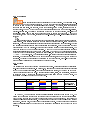
examples in pg 25 are the most common wire types.
Wire Type
Numeric
Boolean
String
Scalar
1D Array
2D Array
Color
Orange
(oating-point),
Blue (integer)
Green
Pink
In LabVIEW, you use wires to connect multiple terminals together to pass data in a VI. The
wires must be connected to inputs and outputs that are compatible with the data that is transferred
with the wire. For example, you cannot wire an array output to a numeric input. In addition the
direction of the wires must be correct. The wires must be connected to only one input and at least
one output. For example, you cannot wire two indicators together. The components that determine
wiring compatibility include the data type of the control and/or indicator and the data type of the
terminal.
26
CHAPTER 2. INTRODUCTION
2.4.3.3.1 Data Types
Data types indicate what objects, inputs, and outputs you can wire together. For example, a switch
has a green border so you can wire a switch to any input with a green label on an Express VI. A
knob has an orange border so you can wire a knob to any input with an orange label. However, you
cannot wire an orange knob to an input with a green label. Notice the wires are the same color as
the terminal.
The dynamic data type stores the information generated or acquired by an Express VI.
The dynamic data type appears as a dark blue terminal, shown at left. Most Express VIs accept
and/or return the dynamic data type. You can wire the dynamic data type to any indicator or input
that accepts numeric, waveform, or Boolean data. Wire the dynamic data type to an indicator that
can best present the data. Indicators include a graph, chart, or numeric indicator.
Most other VIs and functions in LabVIEW do not accept the dynamic data type. To use a
built-in VI or function to analyze or process the data the dynamic data type includes, you must
convert the dynamic data type.
Use the Convert from Dynamic Data Express VI, shown at left, to convert the dynamic
data type to numeric, Boolean, waveform, and array data types for use with other VIs and functions.
When you place the Convert from Dynamic Data Express VI on the block diagram, the Congure
Convert from Dynamic Data dialog box appears. The Congure Convert from Dynamic Data dialog
box displays options that let you specify how you want to format the data that the Convert from
Dynamic Data Express VI returns.
When you wire a dynamic data type to an array indicator, LabVIEW automatically places the
Convert from Dynamic Data Express VI on the block diagram. Double-click the Convert from
Dynamic Data Express VI to open the Congure Convert from Dynamic Data dialog box to control
how the data appears in the array.
Use the Convert to Dynamic Data Express VI to convert numeric, Boolean, waveform, and array
data types to the dynamic data type for use with Express VIs. When you place the Convert to
Dynamic Data Express VI on the block diagram, the Congure Convert to Dynamic Data dialog
box appears. Use this dialog box to select the kind of data to convert to the dynamic data type.
2.4.3.3.2 Automatically Wiring Objects
LabVIEW automatically wires objects as you place them on the block diagram. You also can
automatically wire objects already on the block diagram. LabVIEW connects the terminals that
best match and leaves terminals that do not match unconnected.
As you move a selected object close to other objects on the block diagram, LabVIEW draws
temporary wires to show you valid connections. When you release the mouse button to place the
object on the block diagram, LabVIEW automatically connects the wires.
Toggle automatic wiring by pressing the spacebar while you move an object using the Positioning
tool. You can adjust the automatic wiring settings by selecting ToolsOptions and selecting Block
Diagram from the top pull-down menu.
2.4.3.3.3 Manually Wiring Objects
When you pass the Wiring tool over a terminal, a tip strip appears with the name of the terminal.
In addition, the terminal blinks in the Context Help window and on the icon to help you verify that
you are wiring to the correct terminal.
27
2.5 Acquiring a Signal VI
Exercise 2.1:
In the following exercise, you will build a VI that generates a signal and displays that signal
in a graph. LabVIEW provides templates containing information from which you can build
a VI. These templates help you get started with LabVIEW.
Complete the following steps to create a VI that generates a signal and displays it on the
front panel.
1.Launch LabVIEW.
2.In the LabVIEW dialog box that appears, shown in Figure 2.18, click the New button
to display the New dialog box.
Figure 2.18
3.Select VI from TemplateTutorial (Getting Started)Generate and Display in the
Create new list. This template VI generates and displays a signal. Notice that previews of the template VI appear in the Front panel preview and the Block diagram
preview sections. The Figure 2.19 shows the New dialog box and the Generate and
Display template VI.
CHAPTER 2. INTRODUCTION
28
Figure 2.19
4.Click the OK button to open the template. You also can double-click the name of the
template VI in the Create new list to open the template.
5.Examine the front panel of the VI. The user interface, or front panel, appears with a
gray background and includes controls and indicators. The title bar of the front panel
indicates that this window is the front panel for the Generate and Display VI.
If the front panel is not visible, you can display the front panel by
selecting WindowShow Front Panel.
note:
6.Examine the block diagram of the VI. The block diagram appears with a white background and includes VIs and structures that control the front panel objects. The
title bar of the block diagram indicates that this window is the block diagram for the
Generate and Display VI.
If the block diagram is not visible, you can display the block diagram
by selecting WindowShow Block Diagram.
note:
7.
On the front panel toolbar, click the Run button, shown at left. Notice that a
sine wave appears on the graph.
29
8.
panel.
Stop the VI by clicking the Stop button, shown at left, on the front
2.5.1 Adding a Control to the Front Panel
Controls on the front panel simulate the input devices on a physical instrument and supply
data to the block diagram of the VI. Many physical instruments have knobs you can turn
to change an input value. Complete the following steps to add a knob control to the front
panel.
Throughout these exercises, you can undo recent edits by selecting
EditUndo or pressing the Ctrl-Z keys.
tip:
1.If the Controls palette is not visible on the front panel, select WindowShow Controls
Palette to display it.
2.Move the cursor over the icons on the Controls palette to locate the Numeric Controls
palette. Notice that when you move the cursor over icons on the Controls palette, the
name of that subpalette appears in the gray space above all the icons on the palette.
When you idle the cursor over any icon on any palette, the full name of the subpalette,
control, or indicator appears.
3.Click the Numeric Controls icon to access the Numeric Controls palette.
4.Select the knob control on the Numeric Controls palette and place it on the front
panel to the left of the waveform graph. You will use this knob in a later exercise to
control the amplitude of a signal.
5.Select FileSave As and save this VI as Acquiring a Signal.vi in the
C:\Exercises\LabVIEW Basics I directory.
Save all the VIs you edit or create in this course in the
C:\Exercises\LabVIEW Basics I directory.
note:
2.5.2 Changing the Signal Type
The block diagram has a blue icon labeled Simulate Signal. This icon represents the
Simulate Signal Express VI. The Simulate Signal Express VI simulates a sine wave by
default. Complete the following steps to change this signal to a sawtooth wave.
1.Display the block diagram by selecting WindowShow Block Diagram or by clicking
the block diagram.
Notice the Simulate Signal Express VI, shown in pg
29. An Express VI is a component of the block diagram that you can congure to
perform common measurement tasks. The Simulate Signal Express VI simulates a
signal based on the conguration that you specify.
2.Right-click the Simulate Signal Express VI and select Properties from the shortcut
menu to display the Congure Simulate Signal dialog box.
CHAPTER 2. INTRODUCTION
30
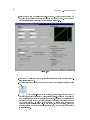
3.Select Sawtooth from the Signal type pull-down menu. Notice that the waveform on
the graph in the Result Preview section changes to a sawtooth wave. The Congure
Simulate Signal dialog box should appear similar to Figure 2.20.
Figure 2.20
4.Click the OK button to apply the current conguration and close the Congure Simulate Signal dialog box.
5.Move the cursor over the down arrows at the bottom of the Simulate Signal Express
VI.
6.
When a double-headed arrow appears, shown at left, click and drag the
border of the Express VI until the Amplitude input appears. Notice how you expanded
the Simulate Signal Express VI to display a new input. Because the Amplitude input
appears on the block diagram, you can congure the amplitude of the sawtooth wave
on the block diagram. In Figure 2.20, notice how Amplitude is an option in the
Congure Simulate Signal dialog box. When inputs, such as Amplitude, appear on
the block diagram and in the conguration dialog box, you can congure the inputs
in either location.
31
2.5.3 Wiring Objects on the Block Diagram
To use the knob control to change the amplitude of the signal, you must connect the
two objects on the block diagram. Complete the following steps to wire the knob to the
Amplitude input on the Simulate Signal Express VI.
1.
Move the cursor over the Knob terminal, shown at left, until the Positioning
Notice how the cursor becomes an arrow, or the Positioning tool,
tool appears.
shown in pg 31. Use the Positioning tool to select, position, and resize objects.
2.
Click the Knob terminal to select it, then drag the terminal to the
left of the Simulate Signal Express VI. Make sure the Knob terminal is inside the
loop, shown in pg 31. The terminals are representations of front panel controls and
indicators. Terminals are entry and exit ports that exchange information between the
front panel and block diagram.
3.Deselect the Knob terminal by clicking a blank space on the block diagram.
4.
Move the cursor over the arrow of the Knob terminal, shown in pg 31.
Notice how the cursor becomes a wire spool, or the Wiring tool, shown at left. Use
the Wiring tool to wire objects together on the block diagram.
note:
5.
The cursor does not switch to another tool while an object is selected.
When the Wiring tool appears, click the arrow and then click the
Amplitude input of the Simulate Signal Express VI, shown in pg 31, to wire the two
objects together. Notice that a wire appears and connects the two objects. Data ows
along this wire from the terminal to the Express VI.
6.Select FileSave to save this VI.
2.5.4 Running the VI
Running a VI executes your solution. Complete the following steps to run the Acquiring a
Signal VI.
1.Display the front panel by selecting WindowShow Front Panel or by clicking the
front panel.
tip:
Press the Ctrl-E keys to switch from the front panel to the block
diagram or from the block diagram to the front panel.
2.Click the Run button.
CHAPTER 2. INTRODUCTION
32
3.Move the cursor over the knob control.
Notice how the cursor becomes a hand,
or the Operating tool, shown at left. Use the Operating tool to change the value of a
control or select the text within a control.
4.Using the Operating tool, turn the knob to adjust the amplitude of the sawtooth wave.
Notice how the amplitude of the sawtooth wave changes as you turn the knob. Also
notice that the y-axis on the graph autoscales to account for the change in amplitude.
To indicate that the VI is running, the Run button changes to a darkened arrow,
shown at left. You cannot edit the front panel or block diagram while the VI runs.
5.
Click the Stop button, shown at left, to stop the VI.
Although Abort Execution button looks like a stop button, the Abort
Execution button does not always properly close the VI. National Instruments
recommends stopping your VIs using the Stop button on the front panel. Use
the Abort Execution button only when errors prevent you from terminating the
application using the Stop button.
note:
2.5.5 Modifying the Signal
Complete the following steps to add scaling to the signal and display the results in the
graph on the front panel.
1.
On the block diagram, use the Positioning tool to double-click the
wire that connects the Simulate Signal Express VI to the Waveform Graph terminal
shown in pg 32.
2.Press the Delete key to delete this wire.
3.If the Functions palette is not visible on the block diagram, select WindowShow
Functions Palette to display it.
4.
Select the Scaling and Mapping Express VI, shown at left, on the Arithmetic & Comparison palette and place it on the block diagram inside the loop between
the Simulate Signal Express VI and the Waveform Graph terminal. If there is no room
between the Express VI and the terminal, move the Waveform Graph terminal to the
right. Notice that the Congure Scaling and Mapping dialog box automatically opens
when you place the Express VI on the block diagram.
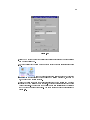
5.Dene the value of the scaling factor by entering 10 in the Slope (m) text box. The
Congure Scaling and Mapping dialog box should appear similar to Figure 2.21.
33
Figure 2.21
6.Click the OK button to apply the current conguration and close the Congure Scaling
and Mapping dialog box.
7.Move the cursor over the arrow on the Sawtooth output of the Simulate Signal Express
VI.
8.
When the Wiring tool appears, click the arrow and then click
the arrow on the Signals input of the Scaling and Mapping Express VI, shown in pg
33, to wire the two objects together.
9.Using the Wiring tool, wire the Scaled Signals output of the Scaling and Mapping
Express VI to the Waveform Graph terminal. Notice the wires connecting the Express
VIs and terminals. The arrows on the Express VIs and terminals indicate the direction
that the data ows along these wires. The block diagram should appear similar to
Figure 2.22.
CHAPTER 2. INTRODUCTION
34
Figure 2.22
The terminals in the block diagram are set to display as icons.
To display a terminal as a data type on the block diagram, right-click the
terminal and select View As Icon from the shortcut menu to remove the
checkmark.
note:
10.Select FileSave to save this VI.
2.5.6 Displaying Two Signals on the Graph
To compare the signal generated by the Simulate Signal Express VI and the signal modied
by the Scaling and Mapping Express VI on the same graph, use the Merge Signals function.
Complete the following steps to display two signals on the same graph.
1.Move the cursor over the arrow on the Sawtooth output of the Simulate Signal Express
VI.
2.Using the Wiring tool, wire the Sawtooth output to the Waveform Graph terminal.
The Merge Signals function, shown in pg 34, appears where the two wires
connect. This function takes the two separate signals and combines them so that both
can be displayed on the same graph. The block diagram should appear similar to
Figure 2.23.
35
Figure 2.23
3.Select FileSave to save this VI. You also can press the Ctrl-S keys to save a VI.
4.Return to the front panel, run the VI, and turn the knob control. Notice that the
graph plots the sawtooth wave and the scaled signal. Also notice that the maximum
value on the y-axis automatically changes to be 10 times the knob value. This scaling
occurs because you set the slope to 10 in the Scaling and Mapping Express VI.
5.Click the Stop button.
2.5.7 Customizing the Knob
The knob control changes the amplitude of the sawtooth wave so labeling it Amplitude
accurately describes the function of the knob. Complete the following steps to customize
the appearance of a control on the front panel.
1.Right-click the knob and select Properties from the shortcut menu to display the Knob
Properties dialog box.
2.In the Label section on the Appearance tab, delete the label Knob, and type Amplitude
in the text box. The Knob Properties dialog box should appear similar to Figure 2.24.
CHAPTER 2. INTRODUCTION
36
Figure 2.24
3.Click the Scale tab and, in the Scale Range section, change the maximum value to 5.0.
Notice how the knob on the front panel instantly updates to reect these changes.
4.Click the OK button to apply the current conguration and close the Knob Properties
dialog box.
5.Save this VI.
As you build VIs, you can experiment with dierent properties and
congurations. You also can add and delete objects. Remember, you can
undo recent edits by selecting EditUndo or pressing the Ctrl-Z keys.
tip:
6.Experiment with other properties of the knob by using the Knob Properties dialog
box. For example, try changing the colors for the Marker Text Color by clicking the
color box located on the Scale tab.
7.Click the Cancel button to avoid applying the changes you made while experimenting.
If you want to keep the changes you made, click the OK button.
2.5.8 Customizing the Waveform Graph
The waveform graph indicator displays the two signals. To indicate which plot is the scaled
signal and which is the simulated signal, you customize the plots. Complete the following
steps to customize the appearance of an indicator on the front panel.
1.Move the cursor over the top of the plot legend on the waveform graph. Notice that
while there are two plots on the graph, the plot legend displays only one plot.
37
2.When a double-headed arrow appears, shown in Figure 2.25, click and drag the border
of the plot legend until the second plot name appears.
Figure 2.25
3.Right-click the waveform graph and select Properties from the shortcut menu to display the Graph Properties dialog box.
4.On the Plots tab, select Sawtooth from the pull-down menu. Click the Line Color
color box to display the color picker. Select a new line color.
5.Select Sawtooth (Scaled) from the pull-down menu.
6.Place a checkmark in the Don't use waveform names for plot names checkbox.
7.In the Name text box, delete the current label and change the name of this plot to
Scaled Sawtooth.
8.Click the OK button to apply the current conguration and close the Graph Properties
dialog box. Notice how the plot color on the front panel changes.
9.Experiment with other properties of the graph by using the Graph Properties dialog
box. For example, try disabling the autoscale feature located on the Scales tab.
10.Click the Cancel button to avoid applying the changes you made while experimenting.
If you want to keep the changes you made, click the OK button.
11.Save and close this VI.
2.6 Dataow Programming
LabVIEW follows a dataow model for running VIs. A block diagram node executes when all its
inputs are available. When a node completes execution, it supplies data to its output terminals and
passes the output data to the next node in the dataow path.
Visual Basic, C++, JAVA, and most other text-based programming languages follow a control ow model of program execution. In control ow, the sequential order of program elements
determines the execution order of a program.
Example 2.1:
For a dataow programming example, consider a block diagram (Figure 2.26) that adds
two numbers and then subtracts 50.00 from the result of the addition. In this case, the
CHAPTER 2. INTRODUCTION
38
block diagram executes from left to right, not because the objects are placed in that order,
but because the Subtract function cannot execute until the Add function nishes executing
and passes the data to the Subtract function. Remember that a node executes only when
data are available at all of its input terminals, and it supplies data to its output terminals
only when it nishes execution.
Figure 2.26
Example 2.2:
In the following example (Figure 2.27), consider which code segment would execute rst-the
Add, Random Number, or Divide function. You cannot know because inputs to the Add
and Divide functions are available at the same time, and the Random Number function
has no inputs. In a situation where one code segment must execute before another, and
no data dependency exists between the functions, use other programming methods, such
as error clusters, to force the order of execution. Refer to the Error Handling (Section 6.5)
section of Clusters for more information about error clusters.
Figure 2.27
2.7 Express Filter VI
Exercise 2.2:
Complete the following steps to use the NI Example Finder to search for an example VI
that generates a sine wave with a frequency of 10Hz and an amplitude of 10V with white
noise of 1V of amplitude and applies a lter.
1.Select HelpFind Examples to open the NI Example Finder.
2.Click the Search tab and type lter in the Type in the word(s) to search for text
box. Notice that this word choice reects what you want this Express VI to do-lter
a signal.
39
3.Select lter to display the example VIs that include lter in the title.
4.Find the example VI called Express Filter.vi and double-click to open it.
5.Open the block diagram of the VI, shown in Figure 2.28.
Figure 2.28
6.Click the Highlight Execution button, shown at left, on the toolbar to slow down the
execution of the program so you can observe the execution order on the block diagram.
7.Click the Run button
8.Observe the block diagram. Notice the ow of data on the block diagram. For example,
notice that the Tone Measurements2 Express VI cannot output data until it receives
data from the Filter Express VI.
9.Close the VI when nished. Do not save changes.
2.8 LabVIEW Documentation Resources
2.8.1 LabVIEW Documentation Resources
Use the Context Help window, the LabVIEW Help, and the NI Example Finder to help you build
and edit VIs. Refer to the LabVIEW Help and manuals for more information about LabVIEW.
CHAPTER 2. INTRODUCTION
40
2.8.1.1 Context Help Window
The Context Help window displays basic information about LabVIEW objects when you move
the cursor over each object. The Context Help window is visible by default. To toggle display of the
Context Help window, select HelpShow Context Help, press the Ctrl-H keys, or click the Show
Context Help Window button, shown in pg 40, on the toolbar.
When you move the cursor over front panel and block diagram objects, the Context Help window
displays the icon for subVIs, functions, constants, controls, and indicators, with wires attached to
each terminal. When you move the cursor over dialog box options, the Context Help window
displays descriptions of those options. In the window, required connections are bold, recommended
connections are plain text, and optional connections are dimmed or do not appear. Figure 2.29
shows an example Context Help window.
Figure 2.29:
Context Help Window
Click the Hide Optional Terminals and Full Path button located on the lower left corner of
the Context Help window to display the optional terminals of a connector pane and to display the
full path to a VI. Optional terminals are shown by wire stubs, informing you that other connections
exist. The detailed mode displays all terminals, as shown in Figure 2.30.
41
Figure 2.30:
Detailed Context Help Window
Click the Lock Context Help button to lock the current contents of the Context Help window.
When the contents are locked, moving the cursor over another object does not change the contents
of the window. To unlock the window, click the button again. You also can access this option from
the Help menu.
If a corresponding LabVIEW Help topic exists for an object the Context Help window
describes, a blue Click here for more help. link appears in the Context Help window. Also, the More
Help button, shown at left, is enabled. Click the link or the button to display the LabVIEW Help
for more information about the object.
2.8.1.2 LabVIEW Help
You can access the LabVIEW Help either by clicking the More Help button in the Context Help
window, selecting HelpVI, Function, & How-To Help, or clicking the blue Click here for more help.
link in the Context Help window.
The LabVIEW Help contains detailed descriptions of most palettes, menus, tools, VIs, and
functions. The LabVIEW Help also includes step-by-step instructions for using LabVIEW features.
The LabVIEW Help includes links to the following resources:
• LabVIEW Bookshelf, which includes PDF versions of all the LabVIEW manuals and Application Notes.
• Technical support resources on the National Instruments Web site1 , such as the NI Developer
Zone2 , the Knowledge Base3 , and the Product Manuals Library4 .
2.8.1.3 NI Example Finder
The New dialog box contains many LabVIEW template VIs that you can use to start building
VIs. However, these template VIs are only a subset of the hundreds of example VIs included with
1 http://ni.com
2 http://zone.ni.com/zone/jsp/zone.jsp
3 http://digital.ni.com/public.nsf/MainPage?OpenForm&node=133020_US
4 http://digital.ni.com/manuals.nsf/MainPage?ReadForm&node=132020_US
CHAPTER 2. INTRODUCTION
42
LabVIEW. You can modify any example VI to t an application, or you can copy and paste from
an example into a VI that you create.
In addition to the example VIs that ship with LabVIEW, you also can access hundreds of example
VIs on the NI Developer Zone at ni.com/zone5 . To search all examples using LabVIEW VIs, use
the NI Example Finder. The NI Example Finder is the gateway to all installed examples and the
examples located on the NI Developer Zone.
To launch the NI Example Finder, select HelpFind Examples from the front panel or block
diagram menu bar. You also can launch the NI Example Finder by clicking the arrow on the Open
button on the LabVIEW dialog box and selecting Examples from the shortcut menu.
2.9 Reduce Samples VI
Exercise 2.3:
In the following exercises, you will open a blank VI and add Express VIs and structures to
the block diagram to build a new VI. When you complete the exercise, the front panel of
the VI will appear similar to the Figure 2.31.
Figure 2.31
2.9.1 Opening a Blank VI
If no template is available for the task you want to create, you can start with a blank VI
and add Express VIs to accomplish the specic task. Complete the following steps to open
a blank VI.
5 http://www.ni.com/zone
43
1.In the LabVIEW dialog box, click the arrow on the New button and select Blank VI
from the shortcut menu or press the Ctrl-N keys to open a blank VI. Notice that a
blank front panel and block diagram appear.
2.
If the Functions palette is not visible, right-click any blank space on the block
diagram to display the Functions palette. Click the thumbtack, shown in pg 43, in
the upper left corner of the Functions palette to place the palette on the screen.
You can right-click a blank space on the block diagram or the front panel
to display the Functions or Controls palettes.
note:
2.9.2 Adding an Express VI that Simulates a Signal
Complete the following steps to nd the Express VI you want to use and then add it to
the block diagram.
1.
If the Context Help window is not visible, press the Ctrl-H keys to open the
Context Help window. You also can press the Show Context Help Window button,
shown in pg 43, to open the Context Help window.
2.Select the Input palette on the Functions palette and move the cursor over the Express
VIs on the Input palette. Notice that the Context Help window displays information
about the function of each Express VI.
3.From the information provided in the Context Help window, nd the Express VI that
can simulate a sine wave signal.
4.Select the Express VI and place it on the block diagram. The Congure Simulate
Signal dialog box appears.
5.Idle the cursor over the various options in the Congure Simulate Signal dialog box,
such as Frequency (Hz), Amplitude, and Samples per second (Hz). Read the information that appears in the Context Help window.
6.Congure the Simulate Signal Express VI to generate a sine wave with a frequency of
10.7 and amplitude of 2.
7.Notice how the signal displayed in the Result Preview window changes to reect the
congured sine wave.
8.Close the Congure Simulate Signal dialog box by clicking the OK button.
9.Move the cursor over the Simulate Signal Express VI and read the information that
appears in the Context Help window. Notice that the Context Help window now
displays the conguration of the Simulate Signal Express VI.
10.Save this VI as Reduce Samples.vi in the C:\Exercises\LabVIEW Basics I directory.
2.9.3 Modifying the Signal
Complete the following steps to use the LabVIEW Help to search for the Express VI that
reduces the number of samples in a signal.
1.Select HelpVI, Function, & How-To Help to open the LabVIEW Help.
CHAPTER 2. INTRODUCTION
44
2.Click the Search tab and type sample compression in the Type in the word(s) to search
for text box. Notice that this word choice reects what you want this Express VI to
do-compress, or reduce, the number of samples in a signal.
3.To begin the search, press the Enter key or click the List Topics button.
4.Double-click the Sample Compression topic to display the topic that describes the
Sample Compression Express VI.
5.After you read the description of the Express VI, click the Place on the block diagram
button to select the Express VI.
6.Move the cursor to the block diagram. Notice how LabVIEW attaches the Sample
Compression Express VI to the cursor.
7.Place the Sample Compression Express VI on the block diagram to the right of the
Simulate Signal Express VI.
8.Congure the Sample Compression Express VI to reduce the signal by a factor of 25
using the mean of these values.
9.Close the Congure Sample Compression dialog box.
10.Using the Wiring tool, wire the Sine output in the Simulate Signal Express VI to the
Signals input in the Sample Compression Express VI.
2.9.4 Customizing the Front Panel
In a previous exercise (Section 2.5), you added controls and indicators to the front panel
using the Controls palette. You also can add controls and indicators from the block diagram.
Complete the following steps to create controls and indicators as shown in Figure 2.32.
Figure 2.32
1.Right-click the Mean output in the Sample Compression Express VI and select
CreateNumeric Indicator from the shortcut menu to create a numeric indicator.
45
2.Right-click the Mean output of the Sample Compression Express VI and select Insert
Input/Output from the shortcut menu to insert the Enable input.
3.Right-click the Enable input and select CreateControl from the shortcut menu to
create the Enableswitch.
4.Right-click the wire linking the Sine output in the Simulate Signal Express VI to
the Signals input in the Signal Compression Express VI and select CreateGraph
Indicator from the shortcut menu. Notice that you can create controls and indicators
from the block diagram. When you create controls and indicators using this method,
LabVIEW automatically creates terminals that are labeled and formatted correctly.
5.Using the Wiring tool, wire the Mean output in the Sample Compression Express VI
to the Sine graph indicator terminal created in the previous step. Notice that the
Merge Signals function appears.
6.Arrange the objects on the block diagram so that they appear similar to Figure 2.32.
You can right-click any wire and select Clean Up Wire from the
shortcut menu to automatically route an existing wire.
tip:
7.Display the front panel. Notice that the controls and indicators you added automatically appear on the front panel with labels that correspond to their function.
8.Save this VI.
2.9.5 Conguring the VI to Run Continuously Until the User Stops
It
In the current state, the VI runs once, generates one signal, then stops executing. To run
the VI until a condition is met, you can add a While Loop to the block diagram. Complete
the following steps to add a While Loop.
1.Display the front panel and run the VI. Notice how the VI runs once and then stops.
Also notice how there is no Stop button.
2.Display the block diagram and select the While Loop on the FunctionsExecution
Control palette.
3.Move the cursor to the upper left corner of the block diagram. Place the top left
corner of the While Loop here.
4.Click and drag the cursor diagonally to enclose all the Express VIs and wires, as shown
in Figure 2.33.
CHAPTER 2. INTRODUCTION
46
Figure 2.33
Notice that the While Loop, shown in pg 46, appears with a Stop
button wired to the condition terminal. This While Loop is congured to stop when
the user clicks the Stop button.
5.Display the front panel and run the VI. Notice that the VI now runs until you click the
Stop button. A While Loop executes the functions inside the loop until the user presses
the Stop button. Refer to Repetition and Loops (Section 4.1) for more information
about While Loops.
2.9.6 Controlling the Speed of Execution
To plot the points on the waveform graph more slowly, you can add a time delay to the
block diagram. Complete the following steps to control the speed at which the VI executes.
1.On the block diagram, select the Time Delay Express VI on the FunctionsExecution
Control palette and place it inside the loop.
2.Type .250 in the Time delay (seconds) text box. This time delay species how fast
the loop runs. With a .250 second time delay, the loop iterates once every quarter of
a second.
3.Close the Congure Time Delay dialog box.
4.Save this VI.
5.Display the front panel and run the VI.
6.Click the Enable switch and notice the change on the graph. Notice how if the Enable
switch is on, the graph displays the reduced signal. If the Enable switch is o, the
graph does not display the reduced signal.
7.Click the Stop button to stop the VI.
47
2.9.7 Using a Table to Display Data
Complete the following steps to display a collection of mean values in a table on the front
panel.
1.On the front panel, select the Express Table indicator on the ControlsText Indicators
palette and place it on the front panel to the right of the waveform graph.
2.Display the block diagram. Notice that the Table terminal appears wired to the Build
Table Express VI automatically.
3.
If the Build Table Express VI and the Table terminal are not
selected already, click an open space on the block diagram to the left of the Build Table
Express VI and the Table terminal. Drag the cursor diagonally until the selection
rectangle encloses the Build Table Express VI and the Table terminal, shown in pg
47. A moving dashed outline called a marquee highlights the Build Table Express VI,
the Table terminal, and the wire joining the two.
4.Drag the objects into the While Loop to the right of the Mean terminal. Notice that
the While Loop automatically resizes to enclose the Build Table Express VI and the
Table terminal.
5.Using the Wiring tool, wire the Mean terminal of the Sample Compression Express VI
to the Signals input of the Build Table Express VI. The block diagram should appear
similar to Figure 2.34.
Figure 2.34
6.Display the front panel and run the VI.
CHAPTER 2. INTRODUCTION
48
7.Click the Enable switch. The table displays the mean values of every 25 samples of
the sine wave. Notice if the Enable switch is o, the table does not record the mean
values.
8.Stop the VI.
9.Experiment with properties of the table by using the Table Properties dialog box. For
example, try changing the number of columns to one.
10.Save and close this VI.
2.10 Debugging Techniques
If a VI does not run, it is a broken, or nonexecutable, VI. The Run button often appears
broken, shown at left, when you create or edit a VI. If it is still broken when you nish wiring the
block diagram, the VI is broken and will not run. Generally, this means that a required input is not
wired, or a wire is broken.
2.10.1 Finding Errors
Click the broken Run button or select WindowsShow Error List to display the Error list window,
which lists all the errors. Double-click an error description to display the relevant block diagram or
front panel and highlight the object that contains the error.
2.10.2 Execution Highlighting
View an animation of the execution of the block diagram by clicking the Highlight Execution
button, shown in pg 48. Execution highlighting shows the ow of data on the block diagram from one
node to another using bubbles that move along the wires. Use execution highlighting in conjunction
with single-stepping to see how data move from node to node through a VI.
note:
Execution highlighting greatly reduces the speed at which the VI runs.
2.10.3 Single-Stepping
Single-step through a VI to view each action of the VI on the block diagram as the VI runs. The
single-stepping buttons aect execution only in a VI or subVI in single-step mode. Enter single-step
mode by clicking the Step Over or Step Into button. Move the cursor over the Step Over, Step Into,
or Step Out button to view a tip strip that describes the next step if you click that button. You
can single-step through subVIs or run them normally.
If you single-step through a VI with execution highlighting on, an execution glyph, shown
in pg 48, appears on the icons of the subVIs that are currently running.
2.10.4 Probes
Use the Probe tool, shown in pg 48, to check intermediate values on a wire as a VFI runs.
When execution pauses at a node because of single-stepping or a breakpoint, you also can probe the
wire that just executed to see the value that owed through that wire.
49
You also can create a custom probe to specify which indicator you use to view the probed data.
For example, if you are viewing numeric data, you can choose to see that data in a chart within
the probe. To create a custom probe, right-click a wire and select Custom ProbeNew from the
shortcut menu.
2.10.5 Breakpoints
Use the Breakpoint tool, shown in pg 49, to place a breakpoint on a VI, node, or wire
on the block diagram and pause execution at that locatiFon. When you set a breakpoint on a
wire, execution pauses after data pass through the wire. Place a breakpoint on the block diagram
workspace to pause execution after all nodes on the block diagram execute. When a VI pauses at
a breakpoint, LabVIEW brings the block diagram to the front and uses a marquee to highlight the
node or wire that contains the breakpoint. LabVIEW highlights breakpoints with red borders for
nodes and block diagrams and red bullets for wires. When you move the cursor over an existing
breakpoint, the black area of the Breakpoint tool cursor appears white. Use the Breakpoint tool to
click an existing breakpoint to remove it.
2.11 Debug Exercise (Main) VI
Exercise 2.4:
Complete the following steps to load a broken VI and correct the error. Use single-stepping
and execution highlighting to step through the VI.
2.11.1 Front Panel
1.Select FileOpen and navigate to C:\Exercises\LabVIEW Basics I to open the Debug
Exercise (Main) VI. The front panel shown in Figure 2.35 appears.
Figure 2.35
Notice the Run button on the toolbar appears broken, shown in pg 49, indicating
that the VI is broken and cannot run.
2.11.2 Block Diagram
1.Select WindowShow Block Diagram to display the block diagram shown in Figure 2.36.
CHAPTER 2. INTRODUCTION
50
Figure 2.36
The Random Number (0-1) function, located on the FunctionsArithmetic
& ComparisonExpress Numeric palette, produces a random number between 0
and 1.
The Multiply function, located on the FunctionsArithmetic &
ComparisonExpress Numeric palette, multiplies the random number by 10.0.
The numeric constant, located on the FunctionsArithmetic & ComparisonExpress
Numeric palette, is the number to multiply by the random number.
The Debug Exercise (Sub) VI, located in the C:\Exercises\ LabVIEW Basics I directory, adds
100.0 and calculates the square root of the value.
2.Find and x each error.
(a)Click the broken Run button to display the Error list window, which lists all the
errors.
(b)Select an error description in the Error list window. The Details section describes
the error and in some cases recommends how to correct the error.
(c)Click the Help button to display a topic in the LabVIEW Help that describes the
error in detail and includes step-by-step instructions for correcting the error.
(d)Click the Show Error button or double-click the error description to highlight the
area on the block diagram that contains the error.
(e)Use the Error list window to x each error.
3.Select FileSave to save the VI.
4.Display the front panel by clicking it or by selecting WindowShow Front Panel.
2.11.3 Run the VI
1.Click the Run button to run the VI several times.
2.Select WindowShow Block Diagram to display the block diagram.
3.Animate the ow of data through the block diagram.
(a)
Click the Highlight Execution button, shown in pg 50, on the toolbar to
enable execution highlighting.
51
(b)
Click the Step Into button, shown in pg 51, to start single-stepping. Execution highlighting shows the movement of data on the block diagram from one
node to another using bubbles that move along the wires. Nodes blink to indicate
they are ready to execute.
(c)
Click the Step Over button, shown in pg 51, after each node to step through
the entire block diagram. Each time you click the Step Over button, the current
node executes and pauses at the next node. Data appear on the front panel as
you step through the VI. The VI generates a random number and multiplies it by
10.0. The subVI adds 100.0 and takes the square root of the result.
(d)
When a blinking border surrounds the entire block diagram, click the Step
Out button, shown in pg 51, to stop single-stepping through the Debug Exercise
(Main) VI.
4.Single-step through the VI and its subVI.
(a)Click the Step Into button to start single-stepping.
(b)
When the Debug Exercise (Sub) VI blinks, click the Step Into button. Notice
the run button on the subVI.
Display the Debug Exercise (Main) VI block diagram by clicking it. A
(c)
green glyph, shown in pg 51, appears on the subVI icon on the Debug Exercise
(Main) VI block diagram, indicating that the subVI is running.
(d)Display the Debug Exercise (Sub) VI block diagram by clicking it.
(e)Click the Step Out button twice to nish single-stepping through the subVI block
diagram. The Debug Exercise (Main) VI block diagram is active.
(f)Click the Step Out button to stop single-stepping.
5.Use a probe to check intermediate values on a wire as a VI runs.
(a)
Use the Probe tool, shown pg 51, to click any wire. A window similar to
Figure 2.37 appears.
Figure 2.37
LabVIEW numbers the Probe window automatically and displays the same number in a glyph on the wire you clicked.
(b)Single-step through the VI again. The Probe window displays data passed along
the wire.
6.Place breakpoints on the block diagram to pause execution at that location.
CHAPTER 2. INTRODUCTION
52
(a)
Use the Breakpoint tool, shown in pg 52, to click nodes or wires. Place a
breakpoint on the block diagram to pause execution after all nodes on the block
diagram execute.
(b)Click the Run button to run the VI. When you reach a breakpoint during execution, the VI pauses and the Pause button on the toolbar appears red.
(c)
Click the Continue button, shown pg 52, to continue running to the next
breakpoint or until the VI nishes running.
(d)Use the Breakpoint tool to click the breakpoints you set and remove them.
7.Click the Highlight Execution button to disable execution highlighting.
8.Select FileClose to close the VI and all open windows.
2.12 Summary, Tips, and Tricks on Introduction to LabVIEW
2.12.1 Summary
• Virtual instruments (VIs) contain three main components-the front panel, the block diagram,
and the icon and connector pane.
• The front panel is the user interface of a VI and species the inputs and displays the outputs
of the VI.
• The block diagram contains the graphical source code composed of nodes, terminals, and wires.
• Use the Tools palette to create, modify, and debug VIs. Press the Shift key and right-click to
display a temporary version of the Tools palette at the location of the cursor.
• Use the Controls palette to place controls and indicators on the front panel. Right-click an
open space on the front panel to display the Controls palette.
• Use the Functions palette to place VIs and functions on the block diagram. Right-click an
open space on the block diagram to display the Functions palette.
• Use the Search button on the Controls and Functions palettes to search for controls, VIs, and
functions.
• All LabVIEW objects and empty space on the front panel and block diagram have associated
shortcut menus, which you access by right-clicking an object, the front panel, or the block
diagram.
• Use the Help menu to display the Context Help window and the LabVIEW Help, which
describes most palettes, menus, tools, VIs, functions, and features.
• Select HelpSearch the LabVIEW Bookshelf to display the LabVIEW Bookshelf, which you
can use to search PDF versions of all the LabVIEW manuals and Application Notes.
• You build the front panel with controls and indicators, which are the interactive input and
output terminals of the VI, respectively.
• Control terminals have a thicker border than indicator terminals. To change a control to an
indicator or to change an indicator to a control, right-click the object and select Change to
Indicator or Change to Control from the shortcut menu.
53
• The block diagram is composed of nodes, terminals, and wires.
• The broken Run button appears on the toolbar to indicate the VI is broken. Click the broken
Run button to display the Error list window, which lists all the errors.
• Use execution highlighting, single-stepping, probes, and breakpoints to debug VIs by animating
the ow of data through the block diagram.
2.12.2 Tips and Tricks
2.12.2.1 Operating
• Frequently used menu options have equivalent keyboard shortcuts. For example, to save a VI,
you can select FileSave or press the Ctrl-S keys. Common keyboard shortcuts include the
following:
•
•
•
•
•
Ctrl-R - Runs a VI.
Ctrl-E - Toggles between the front panel and block diagram.
Ctrl-H - Toggles display of the Context Help window.
Ctrl-B - Removes all broken wires.
Ctrl-F - Finds VIs, globals, functions, text, or other objects loaded in memory or in a specied
list of VIs.
• To increment or decrement numeric controls faster, use the Operating or Labeling tools to
place the cursor in the control and press the Shift key while pressing the up or down arrow
keys.
• You can disable the debugging tools to reduce memory requirements and to increase performance slightly. Select FileVI Properties, select Execution from the top pull-down menu, and
remove the checkmark from the Allow Debugging checkbox.
2.12.2.2 Wiring
• Click the Show Context Help Window button on the toolbar to display the Context Help
window. Use the Context Help window to determine which terminals are required. Required
terminals are bold, recommended connections are plain text, and optional connections are
dimmed.
• Press the spacebar to toggle the wire direction.
• To move objects one pixel, press the arrow keys. To move objects several pixels, press the
Shift key while you press the arrow keys.
• To cancel a wire you started, press the Esc key, right-click, or click the terminal where you
started the wire.
• Use the tip strips that appear as you move the Wiring tool over terminals.
• Display the connector pane by right-clicking the node and selecting Visible ItemsTerminals
from the shortcut menu.
CHAPTER 2. INTRODUCTION
54
• You can bend a wire by clicking to tack the wire down and moving the cursor in a perpendicular
direction. To tack down a wire and break it, double-click.
Figure 2.38:
1. Tack Down a Wire by Clicking, 2. Tack and Break the Wire by Double-clicking
2.12.2.3 Editing
• Use the following shortcuts to create constants, controls, and indicators:
· Right-click a function terminal and select CreateConstant, CreateControl, or
CreateIndicator from the shortcut menu.
· Drag controls and indicators from the front panel to the block diagram to create a constant.
· Drag constants from the block diagram to the front panel to create a control.
• To duplicate an object, press the Ctrl key while using the Positioning tool to click and drag a
selection.
• To restrict an object's direction of movement horizontally or vertically, use the Positioning
tool to select the object and press the Shift key while you move the object.
• To keep an object proportional to its original size as you resize it, press the Shift key while
you drag the resizing handles or circles.
• To resize an object as you place it on the front panel, press the Ctrl key while you click to
place the object and drag the resizing handles or circles.
• To replace nodes, right-click the node and select Replace from the shortcut menu.
• To display the block diagram of a subVI from the calling VI, press the Ctrl key and use the
Operating or Positioning tool to double-click the subVI on the block diagram.
• To display the front panel of a subVI from the calling VI, use the Operating or Positioning
tool to double-click the subVI on the block diagram. You also can select BrowseThis VI's
SubVIs.
• After you type a label, press the Enter key to end text entry.
55
• To add items quickly to ring controls and Case structures, press the Shift-Enter keys after each
item. Pressing Shift-Enter accepts the item and positions the cursor to add the next item.
Refer to Making Decisions in a VI (Section 8.2) for more information about Case structures.
• To copy the color of one object and transfer it to a second object without using a color picker,
use the Color Copy tool to click the object whose color you want to copy. Use the Coloring
tool to click the object to which you want to apply the color. You also can copy the color of
one object by using the Coloring tool and pressing the Ctrl key.
• Select EditUndo if you make a mistake.
• To create more blank space on the block diagram, press the Ctrl key while you use the Positioning tool to draw a rectangle on the block diagram.
2.12.2.4 Debugging
• When single-stepping, use the following keyboard shortcuts:
•
•
•
Ctrl-down arrow - Steps into a node.
Ctrl-right arrow - Steps over a node.
Ctrl-up arrow - Steps out of a node.
56
CHAPTER 2. INTRODUCTION
Chapter 3
Modular Programming
3.1 Modular Programming
The power of LabVIEW lies in the hierarchical nature of the VI. After you create a VI, you can use
it on the block diagram of another VI. There is no limit on the number of layers in the hierarchy.
Using modular programming helps you manage changes and debug the block diagram quickly.
A VI within another VI is called a subVI. A subVI corresponds to a subroutine in text-based
programming languages. When you double-click a subVI, a front panel and block diagram appear,
rather than a dialog box in which you can congure options. The front panel includes controls and
indicators that might look familiar. The block diagram includes wires, front panel icons, functions,
possibly subVIs, and other LabVIEW objects that also might look familiar.
The upper right corner of the front panel and block diagram displays the icon for the VI. This
icon is the same as the icon that appears when you place the VI on the block diagram.
3.1.1 Icon and Connector Pane
After you build a front panel and block diagram, build the icon and the connector pane so you
can use the VI as a subVI. Every VI displays an icon, such as the one shown in pg 57, in the upper
right corner of the front panel and block diagram windows. An icon is a graphical representation of
a VI. It can contain text, images, or a combination of both. If you use a VI as a subVI, the icon
identies the subVI on the block diagram of the VI. You can double-click the icon to customize or
edit it.
You also need to build a connector pane, shown in pg 57, to use the VI as a subVI. The
connector pane is a set of terminals that correspond to the controls and indicators of that VI, similar
to the parameter list of a function call in text-based programming languages. The connector pane
denes the inputs and outputs you can wire to the VI so you can use it as a subVI. A connector
pane receives data at its input terminals and passes the data to the block diagram code through the
front panel controls and receives the results at its output terminals from the front panel indicators.
As you create VIs, you might nd that you perform a certain operation frequently. Consider
using subVIs or loops to perform that operation repetitively. For example, the block diagram in
Figure 3.1 contains two identical operations.
57
58
CHAPTER 3. MODULAR PROGRAMMING
Figure 3.1
You can create a subVI that performs that operation and call the subVI twice. The example in
Figure 3.2 calls the Temperature VI as a subVI twice on its block diagram and functions the same
as the previous block diagram.You also can reuse the subVI in other VIs. Refer to Repetition and
Loops (Section 4.1) for more information about using loops to combine common operations.
Figure 3.2
Refer to the LabVIEW Basics II: Development Course Manual for more information about application development. The following pseudo-code and block diagrams demonstrate the analogy
between subVIs and subroutines.
59
Function Code
main
{
average (point1, point2,
pointavg)
}
SubVI Block Diagram
Calling Program Code
function average (in1,
in2, out)
{
out = (in1 + in2)/2.0;
}
CallingVI Block Diagram
3.2 Icons and Connector Panes
After you build a VI front panel and block diagram, build the icon and the connector pane so you
can use the VI as a subVI.
3.2.1 Creating an Icon
Every VI displays an icon, shown in pg 59, in the upper right corner of the front panel and
block diagram windows. An icon is a graphical representation of a VI. It can contain text, images,
or a combination of both. If you use a VI as a subVI, the icon identies the subVI on the block
diagram of the VI.
The default icon contains a number that indicates how many new VIs you have opened since
launching LabVIEW. Create custom icons to replace the default icon by right-clicking the icon in
the upper right corner of the front panel or block diagram and selecting Edit Icon from the shortcut
menu or double-clicking the icon in the upper right corner of the front panel. You also can edit icons
by selecting FileVI Properties selecting General from the Category pull-down menu, and clicking
the Edit Icon button.
Use the tools on the left side of the Icon Editor dialog box to create the icon design in the editing
area. The normal size image of the icon appears in the appropriate box to the right of the editing
area, as shown in the dialog box in Figure 3.3.
CHAPTER 3. MODULAR PROGRAMMING
60
Figure 3.3
Depending on the type of monitor you use, you can design a separate icon for monochrome,
16-color, and 256-color mode. LabVIEW uses the monochrome icon for printing unless you have a
color printer.
Use the Edit menu to cut, copy, and paste images from and to the icon. When you select a
portion of the icon and paste an image, LabVIEW resizes the image to t into the selection area.
You also can drag a graphic from anywhere in your le system and drop it in the upper right corner
of the front panel or block diagram. LabVIEW converts the graphic to a 32 × 32 pixel icon.
Use the Copy from option on the right side of the Icon Editor dialog box to copy from a color
icon to a black-and-white icon and vice versa. After you select a Copy from option, click the OK
button to complete the change.
If you do not draw a complete border around a VI icon, the icon background
appears transparent. When you select the icon on the block diagram, a selection marquee
appears around each individual graphic element in the icon.
Note:
Use the tools on the left side of the Icon Editor dialog box to create the icon design in the editing
area. The normal size image of the icon appears in the appropriate box to the right of the editing
area. The following tasks can be performed with these tools:
•
•
•
•
•
Use the Pencil tool to draw and erase pixel by pixel.
Use the Line tool to draw straight lines. To draw horizontal, vertical, and diagonal lines,
press the <Shift> key while you use this tool to drag the cursor.
Use the Color Copy tool to copy the foreground color from an element in the icon.
Use the Fill tool to ll an outlined area with the foreground color.
Use the Rectangle tool to draw a rectangular border in the foreground color. Double-click
this tool to frame the icon in the foreground color.
61
•
Use the Filled Rectangle tool to draw a rectangle with a foreground color frame and lled
with the background color. Double-click this tool to frame the icon in the foreground color
and ll it with the background color.
•
Use the Select tool to select an area of the icon to cut, copy, move, or make other changes.
Double-click this tool and press the <Delete> key to delete the entire icon.
•
Use the Text tool to enter text into the icon. Double-click this tool to select a dierent
font. (Windows) The Small Fonts option works well in icons.
•
Use the Foreground/Background tool to display the current foreground and background colors. Click each rectangle to display a color palette from which you can select new
colors.
• Use the options on the right side of the editing area to perform the following tasks:
·
·
·
Show Terminals - Displays the terminal pattern of the connector pane.
OK - Saves the drawing as the icon and returns to the front panel.
Cancel - Returns to the front panel without saving any changes.
• The menu bar in the Icon Editor dialog box contains more editing options such as Undo, Redo,
Cut, Copy, Paste , and Clear .
3.2.2 Setting Up the Connector Pane
To use a VI as a subVI, you need to build a connector pane, shown in pg 61. The connector
pane is a set of terminals that corresponds to the controls and indicators of that VI, similar to the
parameter list of a function call in text-based programming languages. The connector pane denes
the inputs and outputs you can wire to the VI so you can use it as a subVI.
Dene connections by assigning a front panel control or indicator to each of the connector pane
terminals. To dene a connector pane, right-click the icon in the upper right corner of the front
panel window and select Show Connector from the shortcut menu. The connector pane replaces
the icon. Each rectangle on the connector pane represents a terminal. Use the rectangles to assign
inputs and outputs. The number of terminals LabVIEW displays on the connector pane depends
on the number of controls and indicators on the front panel. The following front panel has four
controls and one indicator, so LabVIEW displays four input terminals and one output terminal on
the connector pane.
CHAPTER 3. MODULAR PROGRAMMING
62
Figure 3.4
3.2.3 Selecting and Modifying Terminal Patterns
Select a dierent terminal pattern for a VI by right-clicking the connector pane and selecting Patterns
from the shortcut menu. Select a connector pane pattern with extra terminals. You can leave the
extra terminals unconnected until you need them. This exibility enables you to make changes with
minimal eect on the hierarchy of the VIs. You also can have more front panel controls or indicators
than terminals.
A solid border highlights the pattern currently associated with the icon. The maximum number
of terminals available for a subVI is 28.
The most commonly used pattern is shown in pg 62. This pattern is used as a standard to
assist in simplifying wiring. The top inputs and outputs are commonly used for passing references
and the bottom inputs and outputs are used for error handling. Refer to the section on Clusters
(Section 6.5) for more information about error handling.
Try not to assign more than 16 terminals to a VI. Too many terminals can reduce
the readability and usability of the VI.
Note:
To change the spatial arrangement of the connector pane patterns, right-click the connector pane
and select Flip Horizontal, Flip Vertical, or Rotate 90 Degrees from the shortcut menu.
3.2.4 Assigning Terminals to Controls and Indicators
After you select a pattern to use for the connector pane, you must dene connections by assigning
a front panel control or indicator to each of the connector pane terminals. When you link controls
and indicators to the connector pane, place inputs on the left and outputs on the right to prevent
complicated, unclear wiring patterns in your VIs.
To assign a terminal to a front panel control or indicator, click a terminal of the connector pane,
then click the front panel control or indicator you want to assign to that terminal. Click an open
space on the front panel. The terminal changes to the data type color of the control to indicate that
you connected the terminal.
You also can select the control or indicator rst and then select the terminal.
63
Although you use the Wiring tool to assign terminals on the connector pane to
front panel controls and indicators, no wires are drawn between the connector pane and
these controls and indicators.
Note:
3.3 Convert C to F VI
Exercise 3.1:
Complete the following steps to create a VI that takes a number representing degrees
Celsius and converts it to a number representing degrees Fahrenheit.
3.3.1 Front Panel
1.Open a blank VI and begin building the following front panel.
Figure 3.5
2.(Optional) Select WindowTile Left and Right to display the front panel and block
diagram side by side or WindowTile Up and Down to display the front panel and
block diagram stacked.
3.Create a numeric control. You will use this control to enter the value for degrees
Celsius.
(a)Select ControlsNumeric Controls to display the Numeric Controls palette. If
the Controls palette is not visible, right-click an open space on the front panel
workspace to display it.
(b)
Select the Numeric Control. Move the control to the front panel and click
to place the control.
(c)
Type deg C in the label of the control and press the <Enter> key or click
the Enter button, shown in pg 63, on the toolbar. If you do not type the name
immediately, LabVIEW uses a default label.
You can edit a label at any time by double-clicking the label, using
the Labeling tool, or right-clicking and selecting Properties from the shortcut
menu to display the property dialog box.
Note:
4.Create a numeric indicator. You will use this indicator to display the value for degrees
Fahrenheit.
(a)
Select the Numeric Indicator located on the ControlsNumeric Indicators
palette.
(b)Move the indicator to the front panel and click to place the indicator.
(c)Type deg F in the label and press the <Enter> key or click the Enter button.
CHAPTER 3. MODULAR PROGRAMMING
64
3.3.2 Block Diagram
1.Display the block diagram by clicking it or by selecting Window Show Block Diagram. LabVIEW creates corresponding control and indicator terminal icons on the
block diagram when you place controls and indicators on the front panel. The terminals represent the data type of the control or indicator. You should see two doubleprecision, oating-point terminals on the block diagram, one indicator, and one control.
Note:
Control terminals have a thicker border than indicator terminals.
2.
Place the Multiply function, located on the FunctionsArithmetic &
ComparisonExpress Numeric palette, on the block diagram to the right of the deg
C indicator. If the Functions palette is not visible, right-click an open space on the
block diagram workspace to display it.
3.
Place the Add function, located on the FunctionsArithmetic &
ComparisonExpress Numeric palette, on the block diagram to the right of the Multiply function.
4.
Place a Numeric Constant, located on the FunctionsArithmetic &
ComparisonExpress Numeric palette, to the lower left of the Multiply function.
Type 1.80 in the constant. When you rst place a numeric constant, it is highlighted
so you can type a value. If the constant is no longer highlighted, double-click the
constant to activate the Labeling tool.
5.
Place a Numeric Constant, located on the FunctionsArithmetic &
ComparisonExpress Numeric palette, to the left of the Add function. Type 32.0
in the constant.
6.
Use the Wiring tool, shown in pg 64, to wire the icons as shown in Figure 3.6.
Figure 3.6
• To wire from one terminal to another, use the Wiring tool to click the rst terminal, move the tool to the second terminal, and click the second terminal. You
can start wiring at either terminal.
• You can bend a wire by clicking to tack down the wire and moving the cursor in
a perpendicular direction. Press the spacebar to toggle the wire direction.
• To identify terminals on the nodes, right-click the Multiply and Add functions and
select Visible ItemsTerminals from the shortcut menu to display the connector
pane on the block diagram. Return to the icons after wiring by right-clicking
the functions and selecting Visible ItemsTerminals from the shortcut menu to
remove the checkmark.
65
• When you move the Wiring tool over a terminal, the terminal area blinks, indicating that clicking will connect the wire to that terminal and a tip strip appears,
displaying the name of the terminal. If the Context Help window is open, the
terminal area also blinks in the Context Help window.
• To cancel a wire you started, press the <Esc> key, right-click, or click the terminal
where you started the wire.
7.Display the front panel by clicking it or by selecting WindowShow Front Panel.
8.Save the VI as Convert C to F.vi in the C:\Exercises\LabVIEW Basics I directory.
3.3.3 Run the VI
1.Enter a number in the numeric control and run the VI.
(a)
Use the Operating tool, shown in pg 65, or the Labeling tool to double-click
the numeric control and type a new number.
Click the Run button, shown at left, to run the VI.
(b)
(c)Try several dierent numbers and run the VI again.
3.3.4 Icon and Connector Pane
1.Right-click the icon in the upper right corner of the front panel window and select
Edit Icon from the shortcut menu. The Icon Editor dialog box appears.
2.
Double-click the Select tool, shown in pg 65, on the left side of the Icon Editor
dialog box to select the default icon.
3.Press the <Delete> key to remove the default icon.
4.
Double-click the Rectangle tool, shown in pg 65, to redraw the border.
5.Create the icon in Figure 3.7.
Figure 3.7
CHAPTER 3. MODULAR PROGRAMMING
66
Double-click the Text tool, shown in pg 66, and change the font to Small
(a)
Fonts .
(b)Use the Text tool to click the editing area where you will begin typing.
(c)Type C and F. While the text is active, you can move the text by pressing the
arrow keys.
Use the Pencil tool, shown in pg 66, to create the arrow.
To draw horizontal or vertical straight lines, press the <Shift>
key while you use the Pencil tool to drag the cursor.
(e)Use the Select tool and the arrow keys to move the text and arrow you created.
(f)Select the B & W icon and click the 256 Colors button in the Copy from section
to create a black and white icon, which LabVIEW uses for printing unless you
have a color printer.
(g)Select the 16 Colors icon and click the 256 Colors button in the Copy from section.
(h)When you complete the icon, click the OK button to close the Icon Editor dialog
box. The icon appears in the upper right corner of the front panel and block
diagram.
(d)
Note:
6.
Right-click the icon on the front panel and select Show Connector from the
shortcut menu to dene the connector pane terminal pattern. LabVIEW selects a
default connector pane pattern based on the number of controls and indicators on the
front panel. For example, this front panel has two terminals, deg C and deg F , so
LabVIEW selects a connector pane pattern with two terminals, shown in pg 66.
7.Assign the terminals to the numeric control and numeric indicator.
(a)Select HelpShow Context Help to display the Context Help window.
(b)Click the left terminal in the connector pane. The tool automatically changes to
the Wiring tool, and the terminal turns black.
(c)Click the deg C control. A marquee highlights the control on the front panel.
(d)Click an open space on the front panel. The marquee disappears, and the terminal
changes to the data type color of the control to indicate that you connected the
terminal.
(e)Click the right terminal in the connector pane, and click the deg F indicator.
(f)Click an open space on the front panel. Both terminals of the connector pane are
orange.
(g)Move the cursor over the connector pane. The Context Help window shows that
both terminals are connected to double-precision, oating-point values.
8.Save and close the VI. You will use this VI later in the course.
3.4 Using SubVIs
After you build a VI and create its icon and connector pane, you can use the VI as a subVI. To
place a subVI on the block diagram, select FunctionsAll FunctionsSelect a VI . Navigate to the
VI you want to use as a subVI and and double-click to place it on the block diagram.
You also can place an open VI on the block diagram of another open VI. Use the Positioning
tool to click the icon in the upper right corner of the front panel or block diagram of the VI you
want to use as a subVI and drag the icon to the block diagram of the other VI.
67
3.4.1 Opening and Editing SubVIs
To display the front panel of a subVI from the calling VI, use the Operating or Positioning tool
to double-click the subVI on the block diagram. You also can select BrowseThis VI's SubVIs.
To display the block diagram of a subVI from the calling VI, press the <Ctrl> key and use the
Operating or Positioning tool to double-click the subVI on the block diagram.
Any changes you make to a subVI aect only the current instance of the subVI until you save
the subVI. When you save the subVI, the changes aect all calls to the subVI, not just the current
instance.
3.4.2 Setting Required, Recommended, and Optional Inputs and Outputs
In the Context Help window, which you can access by selecting HelpShow Context Help required
terminals appear bold, recommended terminals appear as plain text, and optional terminals appear
dimmed. The labels of optional terminals do not appear if you click the Hide Optional Terminals
and Full Path button in the Context Help window.
You can designate which inputs and outputs are required, recommended, and optional to prevent
users from forgetting to wire subVI terminals.
Right-click a terminal in the connector pane and select This Connection Is from the shortcut
menu. A checkmark indicates the terminal setting. Select Required, Recommended, or Optional .
For terminal inputs, required means that the block diagram on which you placed the subVI will
be broken if you do not wire the required inputs. Required is not available for terminal outputs.
For terminal inputs and outputs, recommended or optional means that the block diagram on which
you placed the subVI can execute if you do not wire the recommended or optional terminals. If you
do not wire the terminals, the VI does not generate any warnings.
LabVIEW sets inputs and outputs of VIs you create to Recommended by default. Set a terminal
setting to required only if the VI must have the input or output to run properly. Refer to the Read
File function located on the FunctionsAll FunctionsFile I/O palette for examples of required,
recommended, and optional inputs and outputs.
3.5 Thermometer VI
Exercise 3.2:
Complete the following steps to create a VI that reads a measurement from the temperature
sensor on the DAQ Signal Accessory and displays the temperature in Celsius or Fahrenheit.
The sensor returns a voltage proportional to temperature. For example, if the temperature
is 23 ◦ , the sensor output voltage is 0.23 V. The sensor is connected to Channel 0 of Device
1. Device 1 is the DAQ device. On some systems, the DAQ device may have another device
number.
3.5.1 Front Panel
1.In the LabVIEW dialog box, click the arrow on the New button and select Blank VI
from the shortcut menu or press the <Ctrl-N> keys to open a blank VI.
2.Create the following front panel.
CHAPTER 3. MODULAR PROGRAMMING
68
Figure 3.8
(a)Place a thermometer, located on the ControlsNumeric Indicators palette, on
the front panel.
Type Temperature in the label and press the <Enter> key or click the Enter
(b)
button on the toolbar, shown at left.
(c)Right-click the thermometer and select Visible Items Digital Display from the
shortcut menu to show the digital display for the thermometer.
(d)Place a vertical toggle switch control, located on the ControlsButtons &
Switches palette, on the front panel.
(e)Type Temp Scale in the label and press the <Enter> key or click the Enter button.
(f)
Use the Labeling tool, shown in pg 68, to place a free label, deg C, next
to the True position of the switch. If you are using automatic tool selection,
double-click the blank area of the front panel to begin typing a free label.
(g)Place a free label, deg F , next to the False position of the switch.
3.5.2 User Documentation
1.Document the VI so a description appears in the Context Help window when you
move the cursor over the VI icon.
(a)Select FileVI Properties to display the VI Properties dialog box.
(b)Select Documentation from the Category pull-down menu.
(c)Type the following description for the VI in the VI description text box: This VI
measures temperature using the temperature sensor on the DAQ Signal Accessory.
(d)Click the OK button.
2.Document the thermometer indicator and switch control so descriptions appear in the
Context Help window when you move the cursor over the objects and tip strips appear
on the front panel or block diagram when you move the cursor over the objects while
the VI runs.
• Right-click the thermometer indicator and select Description and Tip from the
shortcut menu.
• Type the following description for the thermometer in the Description text box:
Displays the temperature measurement.
• Type temperature in the Tip text box.
• Click the OK button.
69
• Right-click the switch control and select Description and Tip from the shortcut
menu.
• Type the following description for the vertical switch control in the Description
text box: Determines the scale (Fahrenheit or Celsius) to use for the temperature
measurement.
• Type scale - C or F in the Tip text box.
• Click the OK button.
3.Select HelpShow Context Help to display the Context Help window.
4.Move the cursor over the front panel objects and the VI icon to display the descriptions
in the Context Help window.
3.5.3 Block Diagram
1.Select WindowShow Block Diagram to display the block diagram (Figure 3.9).
Figure 3.9
2.
Place the DAQ Assistant Express VI, located on the FunctionsInput
palette, on the block diagram. When you place this Express VI on the block diagram the DAQ Assistant conguration dialog box appears.
(a)Select Analog InputVoltage for the type of measurement to make.
(b)Select Dev1ai0 (or Dev2ai0) for the physical channel and click the Finish
button.
(c)You must multiply the temperature by 100 to convert it from voltage to Celsius.
On the Settings tab, select Custom ScalingCreate New. Select a Linear scale.
Name the scale Temperature. Enter a slope scale of 100. Click the OK button.
(d)Set min = 0. Set max = 100
(e)Select the Acquire 1 Sample option on the Task Timing tab. Click the OK button.
Note:
If you do not have a DAQ device with a temperature sensor
connected to your computer, use the (Demo) Read Voltage VI, located
in the C:\Exercises LabVIEW Basics I directory.
3.
Place the Convert from Dynamic Data Express VI, located on the
FunctionsSignal Manipulation palette, on the block diagram. This VI converts
CHAPTER 3. MODULAR PROGRAMMING
70
the dynamic data type. In the conguration dialog box, select Single scalar in the
Resulting data type listbox.
4.
Place the Convert C to F VI on the block diagram. Select FunctionsAll
FunctionsSelect a VI, navigate to C:\Exercises\LabVIEW Basics I\Convert C to
F.vi. This VI converts the Celsius readings to Fahrenheit.
5.
Place the Select function, located on the FunctionsArithmetic &
ComparisonExpress Comparison palette, on the block diagram. This function returns either the Fahrenheit (False) or Celsius (True) temperature value, depending on
the value of Temp Scale. Use the Positioning tool to place the icons as shown in the
block diagram (Figure 3.9) and use the Wiring tool to wire them together.
To display terminals for a node, right-click the icon and select
Visible ItemsTerminals from the shortcut menu.
Note:
3.5.4 Front Panel
1.Display the front panel by clicking it or by selecting WindowShow Front Panel .
2.
Click the Run Continuously button, shown at left, to run the VI continuously.
3.Put your nger on the temperature sensor and notice the temperature increase.
4.Click the Run Continuously button again to stop the VI. This allows the VI to nish
the current run of the VI.
3.5.5 Icon and Connector Pane
1.Create an icon so you can use the Thermometer VI as a subVI. The following icon is
an example. If necessary, create a simpler icon to save time.
Figure 3.10
71
(a)Right-click the icon in the upper right corner of the front panel and select Edit
Icon from the shortcut menu. The Icon Editor dialog box appears.
(b)
Double-click the Select tool, shown at left, on the left side of the Icon Editor
dialog box to select the default icon.
(c)Press the <Delete> key to remove the default icon.
(d)
Double-click the Rectangle tool, shown at pg 71, to redraw the border.
(e)
Use the Pencil tool, shown in pg 71, to draw an icon that represents the
thermometer.
(f)Use the Foreground and Fill tools to color the thermometer red.
Note: To draw horizontal or vertical straight lines, press the <Shift>
key while you use the Pencil tool to drag the cursor.
Double-click the Text tool, shown in pg 71, and change the font to Small
(g)
Fonts.
(h)Type Temp. Reposition the text if necessary.
(i)Select the B & W icon and select 256 Colors in the Copy from section to create a
black and white icon, which LabVIEW uses for printing unless you have a color
printer.
(j)When the icon is complete, click the OK button. The icon appears in the upper
right corner of the front panel.
2.Right-click the icon and select Show Connector from the shortcut menu and assign
terminals to the switch and the thermometer.
(a)Click
(b)Click
(c)Click
(d)Click
(e)Click
the left terminal in the connector pane.
the Temp Scale control. The left terminal turns green.
the right terminal in the connector pane.
the Temperature indicator. The right terminal turns orange.
an open space on the front panel.
3.Save the VI as Thermometer.vi in the C:\Exercises\ LabVIEW Basics I directory.You
will use this VI later in the course.
4.Close the VI.
3.6 Creating a SubVI from Sections of a VI
You can simplify the block diagram of a VI by converting sections of the block diagram into subVIs.
Convert a section of a VI into a subVI by using the Positioning tool to select the section of the block
diagram you want to reuse and selecting EditCreate SubVI. An icon for the new subVI replaces
the selected section of the block diagram. LabVIEW creates controls and indicators for the new
subVI and wires the subVI to the existing wires. Figure 3.11 shows how to convert a selection into
a subVI.
CHAPTER 3. MODULAR PROGRAMMING
72
Figure 3.11
The new subVI uses a default pattern for the connector pane and a default icon. Double-click
the subVI to edit the connector pane and icon, and to save the subVI.
Do not select more than 28 objects to create a subVI because 28 is the maximum
number of connections on a connector pane.
Note:
3.7 Summary, Tips, and Tricks on Modular Programming
• A VI within another VI is called a subVI. Using subVIs helps you manage changes and debug
the block diagram quickly.
• After you build a VI front panel and block diagram, build the icon and the connector pane so
you can use the VI as a subVI.
• The connector pane is a set of terminals that corresponds to the controls and indicators of that
VI. Dene connections by assigning a front panel control or indicator to each of the connector
pane terminals.
• Create custom icons to replace the default icon by double-clicking the icon in the upper right
corner of the front panel to open the Icon Editor.
• In the Icon Editor dialog box, double-click the Text tool to select a dierent font.
• You can designate which inputs and outputs are required, recommended, and optional to
prevent users from forgetting to wire subVI connections. Right-click a terminal in the connector
pane and select This Connection Is from the shortcut menu.
• Document a VI by selecting FileVI Properties and selecting Documentation from the Category pull-down menu. When you move the cursor over a VI icon, the Context Help window
displays this description and indicates which terminals are required, recommended, or optional.
• Add descriptions and tip strips to controls and indicators by right-clicking them and selecting
Description and Tip from the shortcut menu. When you move the cursor over controls and
indicators, the Context Help window displays this description.
• Convert a section of a VI into a subVI by using the Positioning tool to select the section of
the block diagram you want to reuse and selecting EditCreate SubVI.
Chapter 4
Repetition and Loops
4.1 While Loops
A While Loop executes a subdiagram until a condition is met. The While Loop is similar to a
Do Loop or a Repeat-Until Loop in text-based programming. Figure 4.1 shows a While Loop in
LabVIEW, a ow chart equivalent of the While Loop functionality, and a pseudo code example of
the functionality of the While Loop.
Figure 4.1
The While Loop is located on the FunctionsExecution Control palette. Select the While Loop
from the palette then use the cursor to drag a selection rectangle around the section of the block
diagram you want to repeat. When you release the mouse button, a While Loop boundary encloses
the section you selected.
Add block diagram objects to the While Loop by dragging and dropping them inside the While
Loop.
Note:
The While Loop always executes at least once.
The While Loop executes the subdiagram until the conditional terminal, an input terminal,
receives a specic Boolean value. The default behavior and appearance of the conditional terminal is
Stop If True, shown in pg 73. When a conditional terminal is Stop If True, the While Loop executes
its subdiagram until the conditional terminal receives a True value.
The iteration terminal, an output terminal, shown in pg 73, contains the number of completed
73
CHAPTER 4. REPETITION AND LOOPS
74
iterations. The iteration count always starts at zero. During the rst iteration, the iteration terminal
returns 0.
In the block diagram in Figure 4.2, the While Loop executes until the subVI output is greater
than or equal to 10.00 and the Enable control is True. The And function returns True only if both
inputs are True. Otherwise, it returns False.
Figure 4.2
In the previous example (Figure 4.2), there is an increased probability of an innite loop. Generally, the desired behavior is to have one condition met to stop the loop, rather than requiring both
conditions to be met.
You can change the behavior and appearance of the conditional terminal by right-clicking the
terminal or the border of the While Loop and selecting Continue if True, shown at left. You also can
use the Operating tool to click the conditional terminal to change the condition. When a conditional
terminal is Continue if True, the While Loop executes its subdiagram until the conditional terminal
receives a False value, as shown in Figure 4.3.
Figure 4.3
The While Loop executes until the subVI output is less than 10.00 or the Enable control is False.
4.1.1 Structure Tunnels
Data can be passed out of or into a While Loop through a tunnel. Tunnels feed data into and out
of structures. The tunnel appears as a solid block on the border of the While Loop. The block is
the color of the data type wired to the tunnel. Data pass out of a loop after the loop terminates.
When a tunnel passes data into a loop, the loop executes only after data arrive at the tunnel.
75
In Figure 4.4, the iteration terminal is connected to a tunnel. The value in the tunnel does not
get passed to the Iteration Number indicator until the While Loop has nished execution.
Figure 4.4
Only the last value of the iteration terminal displays in the Iteration Number indicator.
4.2 Auto Match VI
Exercise 4.1:
Complete the following steps to build a VI that generates random numbers until the number
generated matches a number you specify. The iteration terminal records the number of
random numbers generated until a match occurs.
4.2.1 Front Panel
1.Open a blank VI and build the front panel shown in Figure 4.5. Modify the controls
and indicators as shown in the front panel (Figure 4.5) and as described in the following
steps (pg 76).
CHAPTER 4. REPETITION AND LOOPS
76
Figure 4.5
(a)Place a numeric control, located on the ControlsNumeric Controls palette, on
the front panel. Label the control Number to Match. This control species the
number to match.
(b)Place a numeric indicator, located on the ControlsNumeric Indicators palette,
on the front panel. Label the indicator Current Number. This indicator displays
the current random number.
(c)Place another numeric indicator on the front panel. Label the indicator Number
of iterations. This indicator displays the number of iterations before a match.
4.2.2 Setting the Data Range
Set a data range for a control to prevent the user from selecting a value that is not compatible with a range or increment. You can choose to ignore a value that is out of range
or coerce it to within the range. Complete the following steps (pg 76) to set the range
between 0 and 10000 with an increment of 1 and a default value of 50.
1.Right-click the Number to Match control and select Data Range from the shortcut
menu. The Data Range page of the Numeric Properties dialog box appears.
(a)Remove the checkmark from the Use Default Range checkbox.
(b)Set the Default Value to 50.
(c)Set the Minimum value to 0 and select Coerce from the Out of Range Action
pull-down menu.
(d)Set the Maximum value to 10000 and select Coerce from the Out of Range Action
pull-down menu.
(e)Set the Increment value to 1 and select Coerce to Nearest from the Out of Range
Action pull-down menu. Do not close the dialog box.
4.2.3 Modifying Digits of Precision
By default, LabVIEW automatically formats numeric controls. You also can specify the
precision or notation. You can display numeric values in oating-point, scientic, or SI
notation. Complete the following steps to change the precision to 0.
77
1.Select the Format and Precision tab. If you closed the Numeric Properties dialog
box, right-click the Current Number indicator and select Format & Precision from the
shortcut menu. The Format & Precision page of the Numeric Properties dialog box
appears.
(a)Select Floating Point and change Signicant digits to Digits of precision.
(b)Type 0 in the Digits of precision text box and click the OK button.
2.Repeat the instructions to set the precision for Current Number and Number of iterations indicators.
4.2.4 Block Diagram
1.Build the block diagram in Figure 4.6.
Figure 4.6
(a)
Place the Random Number (0-1) function, located on the
FunctionsArithmetic & ComparisonExpress Numeric palette, on the
block diagram. This function produces a random number between 0 and 1.
(b)
Place the Multiply function, located on the FunctionsArithmetic &
ComparisonExpress Numeric palette, on the block diagram. This function multiplies the random number by 10, 000 to produce a random number between 0 and
10, 000.
(c)
Right-click the y terminal of the Multiply function, select
CreateConstant from the shortcut menu, type 10000, and press the <Enter>
key to create a numeric constant.
(d)
Place the Round To Nearest function, located on the FunctionsArithmetic
& ComparisonExpress Numeric palette, on the block diagram. This function
rounds the random number to the nearest integer.
CHAPTER 4. REPETITION AND LOOPS
78
(e)
Place the Not Equal? function, located on the FunctionsArithmetic &
ComparisonExpress Comparison palette, on the block diagram. This function
compares the random number with Number to Match and returns True if the
numbers are not equal; otherwise, it returns False.
(f)
Place the While Loop,
located on the FunctionsAll
FunctionsStructures palette, on the block diagram. Right-click the conditional terminal and select Continue if True from the shortcut menu.
Note: Use the While Loop with Stop button, located on the Execution
Control palette, when you need a stop button to stop the While Loop.
In this exercise, you use the Number to Match control to stop the loop;
you do not need a Stop button.
Wire the iteration terminal to the border of the While Loop. A blue tunnel
(g)
appears on the While Loop border. You will wire the tunnel to the Increment
function. Each time the loop executes, the iteration terminal increments by one.
The iteration count passes out of the loop upon completion. Increment this value
by one outside the loop because the count starts at 0.
(h)
Place the Increment function, located on the FunctionsArithmetic &
ComparisonExpress Numeric palette, on the block diagram. This function adds
1 to the While Loop count. A coercion dot appears on the Number of iterations
output to indicate that LabVIEW coerced the numeric representation of the iteration terminal to match the numeric representation of the Number of iterations
output. Refer to the For Loops (Section 4.3) section for more information about
numeric conversion.
2.Save the VI as Auto Match.vi.
4.2.5 Run the VI
1.Display the front panel and change the number in Number to Match.
2.Run the VI. Change Number to Match and run the VI again. Current Number updates
at every iteration of the loop because it is inside the loop. Number of iterations updates
upon completion because it is outside the loop.
3.
To see how the VI updates the indicators, enable execution highlighting. On
the block diagram toolbar, click the Highlight Execution button, shown at left, to
enable execution highlighting. Execution highlighting shows the movement of data on
the block diagram from one node to another so you can see each number as the VI
generates it.
4.Change Number to Match to a number that is out of the data range, which is 0 to
10000 with an increment of 1.
5.Run the VI. LabVIEW coerces the out-of-range value to the nearest value in the
specied data range.
6.Close the VI.
79
4.3 For Loops
A For Loop executes a subdiagram a set number of times. Figure 4.7 shows a For Loop in LabVIEW,
a ow chart equivalent of the For Loop functionality, and a pseudo code example of the functionality
of the For Loop.
Figure 4.7
The For Loop is located on the FunctionsAll FunctionsStructures palette. You also
can place a While Loop on the block diagram, right-click the border of the While Loop, and select
Replace with For Loop from the shortcut menu to change a While Loop to a For Loop. The value
in the count terminal (an input terminal), shown in pg 79, indicates how many times to repeat the
subdiagram.
The iteration terminal (an output terminal), shown in pg 79, contains the number of completed iterations. The iteration count always starts at zero. During the rst iteration, the iteration
terminal returns 0.
The For Loop diers from the While Loop in that the For Loop executes a set number of times.
A While Loop stops executing the subdiagram only if the value at the conditional terminal exists.
The For Loop in Figure 4.8 generates a random number every second for 100 seconds and displays
the random numbers in a numeric indicator.
CHAPTER 4. REPETITION AND LOOPS
80
Figure 4.8
4.3.1 Wait Functions
The Wait Until Next ms Multiple function, shown in pg 80, monitors a millisecond counter and
waits until the millisecond counter reaches a multiple of the amount you specify. Use this function
to synchronize activities. Place this function within a loop to control the loop execution rate.
The Wait (ms) function, shown in pg 80, adds the wait time to the code execution time.
This can cause a problem if code execution time is variable.
The Time Delay Express VI, located on the FunctionsExecution Control palette,
behaves similar to the Wait (ms) function with the addition of built-in error clusters. Refer
to Clusters (Section 6.5) for more information about error clusters.
Note:
4.3.2 Wait Functions
LabVIEW can represent numeric data types as signed or unsigned integers (8-bit, 16-bit, or 32-bit),
oating-point numeric values (single-, double-, or extended-precision), or complex numeric values
(single-, double-, or extended-precision). When you wire two or more numeric inputs of dierent
representations to a function, the function usually returns output in the larger or wider format.
The functions coerce the smaller representations to the widest representation before execution, and
LabVIEW places a coercion dot on the terminal where the conversion takes place.
For example, the For Loop count terminal is a 32-bit signed integer. If you wire a doubleprecision, oating-point numeric to the count terminal, LabVIEW converts the numeric to a 32-bit
signed integer. A coercion dot appears on the count terminal of the rst For Loop, as shown in
Figure 4.9.
81
Figure 4.9
If you wire two dierent numeric data types to a numeric function that expects the inputs to
be the same data type, LabVIEW converts one of the terminals to the same representation as the
other terminal. LabVIEW chooses the representation that uses more bits. If the number of bits is
the same, LabVIEW chooses unsigned over signed.
In the example in Figure 4.10, a 32-bit signed integer (I32) and a double-precision, oating-point
numeric value (DBL) are wired to the Divide function. The 32-bit signed integer is coerced since it
uses fewer bits than the double-precision, oating-point numeric value.
Figure 4.10
To change the representation of a numeric object, right-click the object and select Representation
from the shortcut menu. Select the data type that best represents the data.ut data types.
When LabVIEW converts double-precision, oating-point numeric values to integers, it rounds
to the nearest integer. LabVIEW rounds x.5 to the nearest even integer. For example, LabVIEW
rounds 2.5 to 2 and 3.5 to 4.
Refer to the Data Types section of Introduction to LabVIEW, of this manual or to the LabVIEW
Help for more information about data types.
4.4 Timed Temperature VI
Exercise 4.2:
Complete the following steps to build a VI that uses the Thermometer VI to read a temperature once every second for a duration of one minute.
CHAPTER 4. REPETITION AND LOOPS
82
4.4.1 Front Panel
1.Open a blank VI and build the front panel shown in Figure 4.11.
Figure 4.11
(a)Place a thermometer, located on the ControlsNumeric Indicators palette, on
the front panel. This provides a visual indication of the temperature reading.
(b)Place a numeric indicator, located on the ControlsNumeric Indicators palette,
on the front panel. Label this indicator Seconds Elapsed. Right-click the indicator
and select RepresentationI32 from the shortcut menu.
4.4.2 Block Diagram
1.Build the block diagram shown in Figure 4.12.
Figure 4.12
•
Place a For Loop, located on the FunctionsAll FunctionsStructures
palette, on the block diagram. Right-click the Loop Count terminal in the upper
left corner of the For Loop and select Create Constant from the shortcut menu.
Type 60 in the constant to set the For Loop to repeat 60 times.
•
Place the Thermometer VI on the block diagram. Select FunctionsAll
FunctionsSelect a VI and navigate to C:\Exercises\LabVIEW Basics
83
I\Thermometer.vito place the VI. This VI reads the temperature from the DAQ
device. Right-click the Temp Scale input and select CreateConstant from the
shortcut menu. Use a False constant for Fahrenheit or a True constant for Celsius.
Note: If you do not have a DAQ device with a temperature sensor on
Channel 0, use the (Demo) Thermometer VI instead.
•
Place the Wait Until Next ms Multiple function, located on the
FunctionsAll FunctionsTime & Dialog palette, on the block diagram. Rightclick the input and select CreateConstant from the shortcut menu. Enter a
value of 1000 to set the wait to every second.
•
Place the Increment function, located on the FunctionsArithmetic &
ComparisonExpress Numeric palette, on the block diagram. This function adds
one to the iteration terminal output.
2.Save this VI as Timed Temperature.vi in the C:\Exercises\LabVIEW Basics I directory.
3.Run the VI. The rst reading might take longer than one second to retrieve if the
computer needs to congure the DAQ device.
4.If time permits, complete the following optional and challenge steps, otherwise close
the VI.
4.4.3 Optional
1.Build a VI that generates random numbers in a While Loop and stops when you click
a stop button on the front panel.
2.Save the VI as General While Loop.vi in the C:\Exercises\LabVIEW Basics I directory.
4.4.4 Challenge
1.Modify the General While Loop VI to stop when the stop button is clicked or when
the While Loop reaches a number of iterations specied by a front panel control.
2.Select FileSave As to save the VI as Combo While-For Loop.vi in the
C:\Exercises\LabVIEW Basics I directory.
4.5 Accessing Previous Loop Data
When programming with loops, you often need to access data from previous iterations of the loop.
For example, you may have a VI that reads the temperature and displays it on a graph. If you want
to display a running average of the temperature as well, you need to use data generated in previous
iterations. Two ways of accessing this data include the shift register and the Feedback Node.
84
CHAPTER 4. REPETITION AND LOOPS
4.5.1 Shift Registers
Use shift registers on For Loops and While Loops to transfer values from one loop iteration to the
next. Shift registers are similar to static variables in text-based programming languages.
A shift register appears as a pair of terminals, shown in pg 84, directly opposite each
other on the vertical sides of the loop border. The right terminal contains an up arrow and stores
data on the completion of an iteration. LabVIEW transfers the data connected to the right side of
the register to the next iteration. Create a shift register by right-clicking the left or right border of
a loop and selecting Add Shift Register from the shortcut menu.
A shift register transfers any data type and automatically changes to the data type of the rst
object wired to the shift register. The data you wire to the terminals of each shift register must be
the same type.
To initialize a shift register, wire any value from outside the loop to the left terminal. If you do
not initialize the shift register, the loop uses the value written to the shift register when the loop
last executed or the default value for the data type if the loop has never executed.
Use a loop with an uninitialized shift register to run a VI repeatedly so that each time the VI
runs, the initial output of the shift register is the last value from the previous execution. Use an
uninitialized shift register to preserve state information between subsequent executions of a VI. After
the loop executes, the last value stored in the shift register remains at the right terminal. If you
wire the right terminal outside the loop, the wire transfers the last value stored in the shift register.
You can add more than one shift register to a loop. If you have multiple operations within a loop,
use multiple shift registers to store the data values from those dierent processes in the structure.
The block diagram in Figure 4.13 uses two initialized shift registers.
Figure 4.13
4.5.2 Stacked Shift Registers
To create a stacked shift register, right-click the left terminal and select Add Element from the
shortcut menu. Stacked shift registers let you access data from previous loop iterations. Stacked
shift registers remember values from previous iterations and carry those values to the next iterations.
Stacked shift registers, as shown in Figure 4.14, can only occur on the left side of the loop because
the right terminal only transfers the data generated from the current iteration to the next iteration.
85
Figure 4.14
If you add two more elements to the left terminal, values from the last three iterations carry
over to the next iteration, with the most recent iteration value stored in the top shift register. The
second terminal stores the data passed to it from the previous iteration, and the bottom terminal
stores data from two iterations ago.
4.5.3 Feedback Nodes
The Feedback Node, shown in pg 85, appears automatically in a For Loop or While
Loop if you wire the output of a subVI, function, or group of subVIs and functions to the input of
that same VI, function, or group. Like a shift register, the Feedback Node stores data when the loop
completes an iteration, sends that value to the next iteration of the loop, and transfers any data
type. Use the Feedback Node to avoid unnecessarily long wires in loops. The Feedback Node arrow
indicates in which direction the data ows along the wire.
You also can select the Feedback Node on the Structures palette and place it inside a For Loop or
While Loop. If you place the Feedback Node on the wire before you branch the wire that connects
the data to the tunnel, the Feedback Node passes each value to the tunnel. If you place the Feedback
Node on the wire after you branch the wire that connects data to the tunnel, the Feedback Node
passes each value back to the input of the VI or function and then passes the last value to the tunnel.
The Accessing Previous Data VI (Section 4.6) exercise contains an example of this behavior.
4.6 Accessing Previous Data VI
Exercise 4.3:
4.6.1 Front Panel
1.Open the Feedback VI located in the C:\Exercises\LabVIEW Basics I directory. The
front panel shown in Figure 4.15 is already built.
Figure 4.15
CHAPTER 4. REPETITION AND LOOPS
86
4.6.2 Block Diagram
1.Display the block diagram (Figure 4.16) and make sure both the front panel and block
diagram are visible. If necessary, close or move the Tools and Functions palettes.
Figure 4.16
The 1 wired to the left terminals on the For Loop initializes the Feedback Node to
1. The Wait Until Next ms Timer slows the operation of the code. You also could
use Highlight Execution instead of the wait function to slow the operation. The same
code is used twice in this block diagram with the Feedback Node in a dierent portion
of the wire.
4.6.3 Run the VI
1.Run the VI. The top section of the code reads the initialized Feedback Node and
passes this value to the Multiply function. The bottom section of the code reads
the initialized Feedback Node and passes this value to the indicator. This Multiply
function does not execute until the next iteration of the loop.
2.
Click the Highlight Execution button, shown in pg 86, to enable execution
highlighting. Run the VI again to observe the order of execution. Turn o execution
highlighting when you understand the execution order. The VI continues executing
at normal speed.
3.Replace the bottom Feedback Node with a shift register, as shown in Figure 4.17.
87
Figure 4.17
(a)Select the bottom Feedback Node and press the <Delete key to delete it.
(b)Right-click the border of the For Loop and select Add Shift Register.
(c)Initialize the shift register by wiring 1 to the left shift register.
(d)Change the label of the bottom indicator to Shift Register and the top indicator
to Feedback Node.
4.Run the VI. Notice that both the Feedback Node and the shift register portions of
the block diagram have the same functionality.
5.If time permits, complete the following optional steps; otherwise, close the VI and do
not save changes.
4.6.4 Optional
1.Revise the shift register to display the last three iterations of the For Loop data, as
shown in Figure 4.18.
CHAPTER 4. REPETITION AND LOOPS
88
Figure 4.18
(a)Resize the left shift register to three elements. Right-click the shift register and
select Add Element from the shortcut menu to add each shift register.
(b)Initialize each elements of the shift register to 1.
(c)Right-click each element of the shift register and select CreateIndicator. Label
each indicator.
2.Run the VI.
3.Close the VI. Do not save changes.
4.7 Summary, Tips, and Tricks on Repetition and Loops
• Use structures on the block diagram to repeat blocks of code and to execute code conditionally
or in a specic order.
• The While Loop executes the subdiagram until the conditional terminal receives a specic
Boolean value. By default, the While Loop executes its subdiagram until the conditional
terminal receives a True value.
• The For Loop executes a subdiagram a set number of times.
• You create loops by using the cursor to drag a selection rectangle around the section of the
block diagram you want to repeat or by dragging and dropping block diagram objects inside
the loop.
• The Wait Until Next ms Multiple function makes sure that each iteration occurs at certain
intervals. Use this function to add timing to loops.
• The Wait (ms) function waits a set amount of time.
89
• Coercion dots appear where LabVIEW coerces a numeric representation of one terminal to
match the numeric representation of another terminal.
• Use shift registers on For Loops and While Loops to transfer values from one loop iteration to
the next.
• Create a shift register by right-clicking the left or right border of a loop and selecting Add
Shift Register from the shortcut menu.
• To congure a shift register to carry over values to the next iteration, right-click the left
terminal and select Add Element from the shortcut menu.
• The Feedback Node stores data when the loop completes an iteration, sends that value to the
next iteration of the loop, and transfers any data type.
• Use the Feedback Node to avoid unnecessarily long wires.
CHAPTER 4. REPETITION AND LOOPS
90
Solutions to Exercises in Chapter 4
Solution to Exercise 4.1:
This is an unsupported media type. To view, please see
http://cnx.org/content/m12213/latest/AutoMatch.vi
Chapter 5
Arrays
5.1 Arrays
Arrays
group data elements of the same type. An array consists of elements and dimensions.
Elements are the data that make up the array. A dimension is the length, height, or depth of an
array. An array can have one or more dimensions and as many as 231 − 1 elements per dimension,
memory permitting.
You can build arrays of numeric, Boolean, path, string, waveform, and cluster data types. Consider using arrays when you work with a collection of similar data and when you perform repetitive
computations. Arrays are ideal for storing data you collect from waveforms or data generated in
loops, where each iteration of a loop produces one element of the array.
You cannot create an array of arrays. However, you can create an array of clusters, where each
cluster contains one or more arrays. Refer to Clusters (Section 6.1) for more information about
clusters.
Array elements are ordered. An array uses an index so you can readily access any particular
element. The index is zero-based, which means it is in the range 0 to n − 1, where n is the number of
elements in the array. For example, if you create an array of the planets in the solar system, n = 9
for the nine planets, so the index ranges from 0 to 8. Earth is the third planet, so it has an index
of 2.
5.1.1 Creating Array Controls and Indicators
To create an array control or indicator as shown in Figure 5.1, select an array on the ControlsAll
ControlsArray & Cluster palette, place it on the front panel, and drag a control or indicator into
the array shell. If you attempt to drag an invalid control or indicator such as an XY graph into the
array shell, you are unable to drop the control or indicator in the array shell.
91
CHAPTER 5. ARRAYS
92
Figure 5.1:
1. Index Display, 2. Element Display
You must insert an object in the array shell before you use the array on the block diagram.
Otherwise, the array terminal appears black with an empty bracket.
5.1.1.1 Two-Dimensional Arrays
A 2D array stores elements in a grid. It requires a column index and a row index, both of which are
zero-based, to locate an element. Figure 5.2 shows a 6-column by 4-row 2D array, which contains
6 × 4 = 24 elements.
Figure 5.2
To add dimensions to an array one at a time, right-click the index display and select Add
Dimension from the shortcut menu. You also can use the Positioning tool to resize the index display
until you have as many dimensions as you want. Figure 5.3 is an example of an uninitialized 2D
array control.
93
Figure 5.3
5.1.2 Creating Array Constants
You can create an array constant on the block diagram by selecting an array constant from the
FunctionsAll FunctionsArray palette, placing it on the block diagram, and dragging a constant
into the array shell. Array constants are useful for passing data into a subVI.
5.2 Auto-Indexing
If you wire an array to a For Loop or While Loop input tunnel, you can read and process every
element in that array by enabling auto-indexing. When you auto-index an array output tunnel, the
output array receives a new element from every iteration of the loop. The wire from the output
tunnel to the array indicator becomes thicker as it changes to an array at the loop border, and the
output tunnel contains square brackets representing an array, as shown in Figure 5.4.
Figure 5.4
Disable auto-indexing by right-clicking the tunnel and selecting Disable Indexing from the shortcut menu. For example, disable auto-indexing if you need only the last value passed to the tunnel
in the previous example.
Because you can use For Loops to process arrays an element at a time, LabVIEW enables autoindexing by default for every array you wire to a For Loop and for each output tunnel that is created.
Auto-indexing for While Loops is disabled by default. To enable auto-indexing, right-click a tunnel
and select Enable Indexing from the shortcut menu.
5.2.1 Creating Two-Dimensional Arrays
You can use two For Loops, one inside the other, to create a 2-D array. The outer For Loop creates
the row elements, and the inner For Loop creates the column elements, as shown in Figure 5.5.
CHAPTER 5. ARRAYS
94
Figure 5.5
5.2.2 Using Auto-Indexing to Set the For Loop Count
If you enable auto-indexing on an array wired to a For Loop input terminal, LabVIEW sets the
count terminal to the array size so you do not need to wire the count terminal.
In Figure 5.6, the For Loop executes a number of times equal to the number of elements in
the array. Normally, if the count terminal of the For Loop is not wired, the run arrow is broken.
However, in this case the run arrow is not broken.
Figure 5.6
If you enable auto-indexing for more than one tunnel or if you wire the count terminal, the count
changes to the smaller of the two. For example, if you wire an array with 10 elements to a For Loop
input tunnel and you set the count terminal to 15, the loop executes only 10 times.
5.3 Array Functions
Use the Array functions located on the FunctionsAll FunctionsArray palette to create and
manipulate arrays. The more commonly used array functions include the following:
95
•
Array Size Returns the number of elements in each dimension of an array. If the
array is n-dimensional, the size output is an array of n elements. For example, the Array Size
function returns a size of 3 for the following array.
7
•
4
Initialize Array -
Creates an n-dimensional array in which every element is initialized
to the value of element. Resize the function to increase the number of dimensions of the output
array. For example, the Initialize Array function returns the following array for an element of
4, a dimension size of 3, and one dimension size terminal.
4
•
4
4
Array Subset -
Returns a portion of an array starting at index and containing length
elements. For example, if you use the previous array as the input, the Array Subset function
returns the following array for an index of 2 and a length of 3.
2
•
2
4
4
Build Array -
Concatenates multiple arrays or appends elements to an n-dimensional
array. Resize the function to increase the number of elements in the output array. For example,
if you concatenate the two previous arrays , the Build Array function returns the following
array.
7
4
4
4
2
4
To concatenate the inputs into a longer array of the same dimension as shown in the following
array, right-click the function node and select Concatenate Inputs from the shortcut menu to
create the following array.
7
•
Index Array -
4
2
4
4
4
Returns the element or sub-array of n-dimension array at index. For
example, if you use the previous array as the input, the Index Array function returns 2 for an
index of 0. You also can use the Index Array function to extract a row or column of a 2D array
to create a subarray of the original. To do so, wire a 2D array to the input of the function.
Two index terminals are available. The top index terminal indicates the row, and the second
terminal indicates the column. You can wire inputs to both index terminals to index a single
CHAPTER 5. ARRAYS
96
element, or you can wire only one terminal to extract a row or column of data. For example,
wire the following array to the input of the function.
7
4
4
4
2
4
The Index Array function returns the following array for an index (row) of 0:
7
4
2
5.4 Polymorphism
The Numeric functions located on the FunctionsExpress Numeric and FunctionsAll
FunctionsNumeric palettes are polymorphic. This means that the inputs to these functions can
be dierent data structures, such as scalar values and arrays. For example, you can use the Add
function to add a scalar value to an array or to add two arrays together. If you wire a scalar value
of 2 and the following array to the Add function.
1
3
2
The function adds the scalar value to each element of the array and returns the following array:
3
5
4
If you wire the previous two arrays to the Add function, the function adds each element of one
array to the corresponding element of the other array and returns the following array:
4
8
6
Wire two arrays of dierent sizes to the Add function, such as the previous array and the following
array:
3
1
2
3
The function adds corresponding elements and returns the following array, which is the size of
the smaller input array:
7
9
8
You use the Numeric functions with clusters the same way you use them with arrays of numeric
values. Refer to Clusters (Section 6.1) for more information about clusters.
97
5.5 Array Exercise VI
Exercise 5.1:
Complete the following steps to build a VI that creates an array of random numbers, scales
the resulting array, and takes a subset of that nal array.
5.5.1 Front Panel
1.Open a blank VI and build the front panel shown in Figure 5.7.
Figure 5.7
(a)Place an array, located on the ControlsAll ControlsArray & Cluster palette,
on the front panel.
(b)Label the array Random Array.
(c)Place a numeric indicator, located on the ControlsNumeric Indicators palette,
in the array shell.
(d)Use the Positioning tool to resize the array control to contain 10 numeric indicators.
(e)Press the <Ctrl> key while you click and drag the Random Array control to
create two copies of the control.
(f)Label the copies Final Array and Subset Array.
(g)Place three numeric controls, located on the ControlsNumeric Controls palette,
and label them Scaling Factor, Start Subset, and # of Elements.
(h)Right-click the Start Subset and # of Elements controls and select
RepresentationI32 from the shortcut menu.
(i)Do not change the values of the front panel controls.
5.5.2 Block Diagram
1.Build the block diagram shown in Figure 5.8.
CHAPTER 5. ARRAYS
98
Figure 5.8
(a)
Place the Random Number (0-1) function, located on the
FunctionsArithmetic & ComparisonExpress Numeric palette, on the
block diagram. This function generates a random number between 0 and 1.
(b)
Place the For Loop, located on the FunctionsAll FunctionsStructures
palette, on the block diagram. The loop accumulates an array of 10 random
numbers at the output tunnel. Create a constant of 10 for the count terminal.
(c)
Place the Multiply function, located on the FunctionsArithmetic &
ComparisonExpress Numeric palette, on the block diagram. In this exercise
this function multiplies Random Array by Scaling Factor and returns Final Array.
Place the Array Subset function, located on the FunctionsAll
(d)
FunctionsArray palette, on the block diagram. This function returns a portion of an array starting at Start Subset and containing # of Elements elements.
2.Save the VI as Array Exercise.vi in the C:\Exercises\ LabVIEW Basics I directory.
5.5.3 Run the VI
1.Display the front panel, change the values of the controls, and run the VI a few times.
The For Loop runs for 10 iterations. Each iteration generates a random number
and stores it at the output tunnel. Random Array displays an array of 10 random
numbers. The VI multiplies each value in Random Array by Scaling Factor to create
Final Array. The VI takes a subset of Final Array starting at Start Subset for # of
Elements and displays the subset in Subset Array.
2.Close the VI.
5.6 Summary, Tips, and Tricks on Arrays
•
Arrays
group data elements of the same type. You can build arrays of numeric, Boolean,
path, string, waveform, and cluster data types.
99
• The array index is zero-based, which means it is in the range 0 to n − 1, where n is the number
of elements in the array.
• You must insert an object in the array shell before you use the array on the block diagram.
Otherwise, the array terminal appears black with an empty bracket.
• To create an array control or indicator, select an array on the ControlsArray & Cluster
palette, place it on the front panel, and drag a control or indicator into the array shell.
• If you wire an array to a For Loop or While Loop input tunnel, you can read and process every
element in that array by enabling auto-indexing.
• Use the Array functions located on the FunctionsAll FunctionsArray palette to create and
manipulate arrays.
• By default, LabVIEW enables auto-indexing in For Loops and disables auto-indexing in While
Loops.
•
Polymorphism is the ability of a function to adjust to input data of dierent data structures.
5.7 Additional Exercises for Arrays
Exercise 5.2:
Build a VI that reverses the order of an array that contains 100 random numbers. For
example, array[0] becomes array[99], array[1] becomes array[98], and so on.
Use the Reverse 1D Array function located on the FunctionsAll
FunctionsArray palette to reverse the array order.
tip:
Save the VI as Reverse Random Array.vi in the C:\Exercises\LabVIEW Basics I directory.
Exercise 5.3:
Build a VI that accumulates an array of temperature values using the Thermometer (Section 3.5) VI. Set the array size with a control on the front panel. Initialize an array using
the Initialize Array function of the same size where all the values are equal to 10. Add the
two arrays, calculate the size of the nal array, and extract the middle value from the nal
array. Display the Temperature Array, Initialized Array, Final Array, and Mid Value.
Save the VI as Find Mid Value.vi in the C:\Exercises\LabVIEW Basics I directory.
Exercise 5.4:
Build a VI that generates a 2D array of three rows by 10 columns that contains random
numbers. After generating the array, index each row, and plot each row on its own graph.
The front panel should contain three graphs.
Save the VI as Extract 2D Array.vi in the C:\Exercises\LabVIEW Basics I directory.
Exercise 5.5:
Build a VI that simulates the roll of a die with possible values 1 through 6 and records the
number of times that the die rolls each value. The input is the number of times to roll the
die, and the outputs include the number of times the die falls on each possible value. Use
only one shift register.
Save the VI as Die Roller.vi in the C:\Exercises\LabVIEW Basics I directory.
CHAPTER 5. ARRAYS
100
Exercise 5.6:
Build a VI that generates a 1D array and then multiplies pairs of elements together, starting
with elements 0 and 1, and returns the resulting array. For example, the input array with
values {1, 23, 10, 5, 7, 11} results in the output array {23, 50, 77}.
Use the Decimate 1D Array function located on the FunctionsAll
FunctionsArray palette.
tip:
Save the VI as Array Pair Multiplier.vi in the C:\Exercises\LabVIEW Basics I directory.
Chapter 6
Clusters
6.1 Clusters
Clusters group data elements of mixed types, such as a bundle of wires, as in a telephone cable,
where each wire in the cable represents a dierent element of the cluster. A cluster is similar to a
record or a struct in text-based programming languages.
Bundling several data elements into clusters eliminates wire clutter on the block diagram and
reduces the number of connector pane terminals that subVIs need. The connector pane has, at most,
28 terminals. If a front panel contains more than 28 controls and indicators that you want to use
programmatically, group some of them into a cluster and assign the cluster to a terminal on the
connector pane. Like an array, a cluster is either a control or an indicator. A cluster cannot contain
a mixture of controls and indicators.
Although cluster and array elements are both ordered, you must unbundle all cluster elements
at once rather than index one element at a time. You also can use the Unbundle By Name function
to access specic cluster elements.
6.1.1 Creating Cluster Controls and Indicators
To create a cluster control or indicator, select a cluster on the ControlsAll ControlsArray &
Cluster palette, place it on the front panel, and drag controls or indicators into the cluster shell.
Resize the cluster shell by dragging the cursor while you place the cluster shell.
The example in Figure 6.1 is a cluster of three controls.
Figure 6.1
101
CHAPTER 6. CLUSTERS
102
6.1.2 Creating Cluster Constants
Create a cluster constant on the block diagram by selecting a cluster constant on the Cluster palette,
placing it on the block diagram, and dragging a constant into the cluster shell.
If you have a cluster control or indicator on the front panel and you want to create a cluster
constant containing the same elements on the block diagram, you can either drag that cluster
from the front panel to the block diagram or right-click the cluster on the front panel and select
CreateConstant from the shortcut menu.
6.1.3 Cluster Order
Cluster elements have a logical order unrelated to their position in the shell. The rst object you
place in the cluster is element 0, the second is element 1, and so on. If you delete an element, the
order adjusts automatically.
The cluster order determines the order in which the elements appear as terminals on the Bundle
and Unbundle functions on the block diagram.
You can view and modify the cluster order by right-clicking the cluster border and selecting
Reorder Controls In Cluster from the shortcut menu. The toolbar and cluster change, as shown in
Figure 6.2.
Figure 6.2:
5. New Order
1. Conrm Button, 2. Cancel Button, 3. Cluster Order Cursor, 4. Current Order,
The white box on each element shows its current place in the cluster order. The black box shows
the new place in the order for an element. To set the order of a cluster element, type the new order
number in the Click to set to text box and click the element. The cluster order of the element
changes, and the cluster order of other elements adjusts. Save the changes by clicking the Conrm
button on the toolbar. Revert to the original order by clicking the Cancel button.
103
Corresponding elements, determined by the cluster order, must have compatible data types. For
example, in one cluster, element 0 is a numeric control, and element 1 is a string control. In a second
cluster, element 0 is a numeric indicator, and element 1 is a string indicator. The cluster control
correctly wires to the cluster indicator.
However, if you change the cluster order of the indicator so the string is element 0, and the
numeric is element 1, the wire from the cluster control to the cluster indicator appears broken,
indicating that the data types do not match.
6.2 Cluster Functions
Use the Cluster functions located on the FunctionsAll FunctionsCluster palette to create and
manipulate clusters. Use the Bundle and Bundle by Name functions to assemble and manipulate
clusters and use the Unbundle and Unbundle by Name functions to disassemble clusters.
You also can create the Bundle, Bundle by Name, Unbundle, and Unbundle by Name functions
by right-clicking a cluster terminal on the block diagram and selecting Cluster Palette from the
shortcut menu. The Bundle and Unbundle functions automatically contain the correct number of
terminals. The Bundle by Name and Unbundle by Name functions appear with the rst element in
the cluster. Use the Positioning tool to resize the Bundle by Name and Unbundle by Name functions
to show the other elements of the cluster.
6.2.1 Assembling Clusters
Use the Bundle function to assemble a cluster from individual elements or to change the values of
individual elements in an existing cluster without having to specify new values for all elements. Use
the Positioning tool to resize the function or right-click an element input and select Add Input from
the shortcut menu. If you wire a cluster to the cluster input, the number of inputs must match the
number of elements in the input cluster.
If you wire the cluster input, you can wire only the elements you want to change. For example,
the cluster in Figure 6.3 contains three controls.
Figure 6.3
If you know the cluster order, you can use the Bundle function to change the Command value
by wiring the elements shown in Figure 6.4.
CHAPTER 6. CLUSTERS
104
Figure 6.4
6.2.2 Replacing or Accessing Cluster Elements
Use the Bundle by Name function to replace or access labeled elements of an existing cluster. Bundle
by Name works similarly to the Bundle function, but instead of referencing cluster elements by their
cluster order, it references them by their owned labels. You can access only elements with owned
labels. The number of inputs does not need to match the number of elements in output cluster.
Use the Operating tool to click an input terminal and select an element from the pull-down menu.
You also can right-click the input and select the element from the Select Item shortcut menu.
In Figure 6.5, you can use the Bundle by Name function to change Command and Function.
Figure 6.5
Use the Bundle by Name function for data structures that might change during development. If
you add a new element to the cluster or modify its order, you do not need to rewire the Bundle by
Name function because the names still are valid.
6.2.3 Disassembling CLusters
Use the Unbundle function to split a cluster into its individual elements.
Use the Unbundle by Name function to return the cluster elements whose names you specify.
The number of output terminals does not depend on the number of elements in the input cluster.
Use the Operating tool to click an output terminal and select an element from the pull-down
menu. You also can right-click the output terminal and select the element from the Select Item
shortcut menu.
For example, if you use the Unbundle function with the cluster in Figure 6.6, it has four output
terminals that correspond to the four controls in the cluster. You must know the cluster order so you
can associate the correct Boolean terminal of the unbundled cluster with the corresponding switch
in the cluster. In Figure 6.6, the elements are ordered from top to bottom starting with element 0.
If you use the Unbundle by Name function, you can have an arbitrary number of output terminals
and access individual elements by name in any order.
105
Figure 6.6
6.3 Cluster Exercise VI
Exercise 6.1:
6.3.1 Front Panel
1.Open a blank VI and build the front panel in Figure 6.7.
Figure 6.7
(a)Place a stop button, located on the ControlsButtons & Switches palette, a
numeric indicator, located on the ControlsNumeric Indicators palette, and a
round LED, located on the ControlsLEDs palette, on the front panel.
CHAPTER 6. CLUSTERS
106
(b)Place a cluster, located on the ControlsAll ControlsArray & Cluster palette,
on the front panel.
(c)Place a numeric control, located on the ControlsNumeric Controls palette, two
vertical toggle switches, located on the ControlsButtons & Switches palette,
and a horizontal ll slide, located on the ControlsNumeric Controls palette, in
the cluster.
(d)Create the Modied Cluster by duplicating the rst cluster and relabeling it.
Right-click the shell of Modied Cluster, and select Change to Indicator from the
shortcut menu.
(e)Copy Modied Cluster and relabel it to create Small Cluster. Remove the second
toggle switch and horizontal ll slide indicators. Relabel the numeric indicator to
Slide value. Resize the cluster as shown in Figure 6.7.
2.Verify the cluster order of Cluster and Small Cluster. Modied Cluster should have
the same order as Cluster.
(a)Right-click the boundary of each cluster and select Reorder Controls in Cluster
from the shortcut menu.
(b)Conrm the cluster orders (Figure 6.8).
Figure 6.8
6.3.2 Block Diagram
1.Build the block diagram in Figure 6.9.
107
Figure 6.9
(a)
Place the While Loop,
located on
FunctionsStructures palette, on the block diagram.
the
FunctionsAll
Place the Unbundle function, located on the FunctionsAll
(b)
FunctionsCluster palette, on the block diagram. This function disassembles Cluster. Wire the input cluster to resize the function automatically.
Place the Bundle function, located on the FunctionsAll
(c)
FunctionsCluster palette, on the block diagram. This function assembles
Small Cluster.
(d)
Place the Unbundle by Name function, located on the FunctionsAll
FunctionsCluster palette, on the block diagram. This function returns two
elements from Cluster. Resize this function to have two output terminals. If a
label name is not correct, right-click the name and select the correct name from
the Select Item shortcut menu.
(e)
Place the Increment function, located on
FunctionsNumeric palette, on the block diagram.
one to the value of Numeric.
the FunctionsAll
This function adds
(f)
Place the Not function, located on the FunctionsArithmetic &
ComparisonExpress Boolean palette, on the block diagram. This function returns the logical opposite of the value of the Boolean terminal of the Unbundle
by Name function.
(g)
Place the Bundle by Name function, located on the FunctionsAll
FunctionsCluster palette, on the block diagram. This function replaces the
values of Numeric and Boolean 1 in Cluster and creates Modied Cluster. Resize
CHAPTER 6. CLUSTERS
108
this function to have two input terminals. If a label name is not correct, right-click
the name and select the correct name from the Select Item shortcut menu.
(h)Complete the block diagram and wire the objects as shown in Figure 6.9.
2.Save the VI as Cluster Exercise.vi in the C:\Exercises\LabVIEW Basics I directory.
6.3.3 Run the VI
1.Display the front panel and run the VI.
2.Enter dierent values in Cluster and run the VI again. Notice how values entered in
Cluster aect the Modied Cluster and Small Cluster indicators. Is this the behavior
you expected?
3.Try changing the cluster order of Modied Cluster. Run the VI. How did the changed
order aect the behavior?
4.Close the VI. Do not save changes.
6.4 Cluster Scaling VI
Exercise 6.2:
Complete the following steps to build a VI that scales values stored in a cluster, where each
cluster element has a dierent scale factor. Assume that the voltages were measured from
transducers that measure the pressure, ow rate, and temperature. The VI then scales
these values to get the actual values present in the system.
6.4.1 Front Panel
1.Open the Cluster Scaling VI located in the C:\Exercises\LabVIEW Basics I directory.
The front panel is already built.
2.Change the controls as shown in Figure 6.10.
Figure 6.10
109
6.4.2 Block Diagram
1.Build the block diagram shown in Figure 6.11. Make sure you apply the correct scale
factors to each element in the Raw Data cluster.
Figure 6.11
2.Save the VI.
3.Display the front panel and run the VI.
4.Change the front panel controls and run the VI again.
5.Close the VI when you are nished.
6.5 Error Clusters
No matter how condent you are in the VI you create, you cannot predict every problem a user
might encounter. Without a mechanism to check for errors, you know only that the VI does not
work properly. Error checking tells you why and where errors occur.
When you perform any kind of I/O, consider the possibility that errors will occur. Almost all
I/O functions return error information. Include error checking in VIs, especially for I/O operations
such as le, serial, instrumentation, data acquisition, and communication operations, and provide a
mechanism to handle errors appropriately.
Checking for errors in VIs can help you identify the following problems:
• You initialized communications incorrectly or wrote improper data to an external device.
• An external device lost power, is broken, or is not working properly.
• You upgraded the operating system software, which changed the path to a le or the functionality of a VI or library. You might notice a problem in a VI or a system program.
6.5.1 Error Handling
By default, LabVIEW automatically handles any error that occurs when a VI runs by suspending
execution, highlighting the subVI or function where the error occurred, and displaying a dialog box.
You can choose other error handling methods. For example, if an I/O VI on the block diagram
times out, you might not want the entire application to stop. You also might want the VI to retry
for a certain period of time. In LabVIEW, you can make these error handling decisions on the block
diagram of the VI.
CHAPTER 6. CLUSTERS
110
VIs and functions return errors in one of two ways-with numeric error codes or with an error
cluster. Typically, functions use numeric error codes, and VIs use an error cluster, usually with error
inputs and outputs.
Error handling in LabVIEW follows the dataow model. Just as data ow through a VI, so can
error information. Wire the error information from the beginning of the VI to the end. Include an
error handler VI at the end of the VI to determine if the VI ran without errors. Use the error in
and error out clusters in each VI you use or build to pass error information through the VI.
As the VI runs, LabVIEW tests for errors at each execution node. If LabVIEW does not nd
any errors, the node executes normally. If LabVIEW detects an error, the node passes the error to
the next node without executing. The next node does the same thing, and so on. Use the Simple
Error Handler VI, shown in Figure 6.12, to handle the error at the end of the execution ow. The
Simple Error Handler VI is located on the FunctionsAll FunctionsTime & Dialog palette. Wire
the error cluster to the error in input.
Figure 6.12
6.5.2 Error Clusters
The error clusters located on the FunctionsAll FunctionsArray & Cluster palette include the
components of information shown in Figure 6.13.
Figure 6.13
•
status
•
code
•
source is a string that identies where the error occurred.
is a Boolean value that reports True if an error occurred. Most VIs, functions, and
structures that accept Boolean data also recognize this parameter. For example, you can wire
an error cluster to the Boolean inputs of the Stop, Quit LabVIEW, or Select functions. If an
error occurs, the error cluster passes a True value to the function.
is a 32-bit signed integer that identies the error numerically. A non-zero error code
coupled with a status of False signals a warning rather than a fatal error.
Use the error cluster controls and indicators to create error inputs and outputs in subVIs.
111
6.5.3 Explain Error
When an error occurs, right-click within the cluster border and select Explain Error from the shortcut
menu to open the Explain Error dialog box. The Explain Error dialog box contains information about
the error. The shortcut menu includes an Explain Warning option if the VI contains warnings but
no errors.
You also can access the Explain Error dialog box from the HelpExplain Error menu.
6.5.4 Using While Loops for Error Handling
You can wire an error cluster to the conditional terminal of a While Loop to stop the iteration of
the While Loop (Figure 6.14). When you wire the error cluster to the conditional terminal, only the
True or False value of the status parameter of the error cluster is passed to the terminal. When an
error occurs, the While Loop stops.
Figure 6.14
When an error cluster is wired to the conditional terminal, the shortcut menu items Stop if True
and Continue if True change to Stop on Error and Continue while Error.
6.6 Summary, Tips, and Tricks on Clusters
•
Clusters group data elements of mixed types.
and indicators.
A cluster cannot contain a mixture of controls
• If a front panel contains more than 28 controls and indicators that you want to use programmatically, group some of them into a cluster and assign the cluster to a terminal on the
connector pane to eliminate clutter on the block diagram.
• To create a cluster control or indicator, select a cluster on the FunctionsAll FunctionsArray
& Cluster palette, place it on the front panel, and drag controls or indicators into the cluster
shell.
• Use the Cluster functions located on the FunctionsAll FunctionsCluster palette to create
and manipulate clusters.
• Error checking tells you why and where errors occur.
• The error cluster reports the
status, code, and source of the error.
• Use the error cluster controls and indicators to create error inputs and outputs in subVIs.
112
CHAPTER 6. CLUSTERS
Chapter 7
Plotting Data
7.1 Waveform Charts
The waveform chart is a numeric indicator that displays one or more plots. The waveform chart is
located on the ControlsGraph Indicators palette. Waveform charts can display single or multiple
plots. Figure 7.1 shows the elements of a multiplot waveform chart. Two plots are displayed: Raw
Data and Running Avg.
Figure 7.1
Charts use three dierent modes to scroll data, as shown in the Figure 7.2. Right-click the chart
and select AdvancedUpdate Mode from the shortcut menu. Select Strip Chart, Scope Chart, or
Sweep Chart . The default mode is Strip Chart.
113
CHAPTER 7. PLOTTING DATA
114
Figure 7.2
A strip chart shows running data continuously scrolling from left to right across the chart. A
scope chart shows one item of data, such as a pulse or wave, scrolling partway across the chart from
left to the right. A sweep chart is similar to an EKG display. A sweep chart works similarly to
a scope except it shows the older data on the right and the newer data on the left separated by a
vertical line. The scope chart and sweep chart have retracing displays similar to an oscilloscope.
Because there is less overhead in retracing a plot, the scope chart and the sweep chart display plots
signicantly faster than the strip chart.
7.1.1 Wiring Charts
You can wire a scalar output directly to a waveform chart. The data type in the waveform chart in
Figure 7.3 terminal matches the input data type.
Figure 7.3
Waveform charts can display multiple plots. Bundle multiple plots together using the Bundle
function located on the Cluster palette. In Figure 7.4, the Bundle function bundles the outputs of
the three VIs to plot on the waveform chart.
115
Figure 7.4
The waveform chart terminal changes to match the output of the Bundle function. To add more
plots, use the Positioning tool to resize the Bundle function.
7.2 Temperature Monitor VI
Exercise 7.1:
Complete the following steps to build a VI that measures temperature and displays it on
a waveform chart.
7.2.1 Front Panel
1.Open a blank VI and build the front panel shown in Figure 7.5.
Figure 7.5
(a)Place the vertical toggle switch, located on the ControlsButtons & Switches
palette, on the front panel. Label this switch Power. You use the switch to stop
the acquisition.
(b)Place a waveform chart, located on the ControlsGraph Indicators palette, on the
front panel. Label the chart Temperature History. The waveform chart displays
the temperature in real time.
CHAPTER 7. PLOTTING DATA
116
(c)
The waveform chart legend labels the plot Plot 0. Use the Labeling tool to
triple-click Plot 0 in the chart legend, and change the label to Temp.
(d)The temperature sensor measures room temperature. Use the Labeling tool to
double-click 10.0 in the y-axis and type 90 to rescale the chart. Leave the x-axis
in its default state.
(e)Change −10.0 in the y-axis to 70.
(f)Label the y-axis Temp (Deg F) and the x-axis Time (sec).
7.2.2 Block Diagram
1.Select WindowShow Block Diagram to display the block diagram.
2.Enclose the two terminals in a While Loop, as shown in the block diagram (Figure 7.6).
Figure 7.6
3.Right-click the conditional terminal and select Continue if True.
4.Wire the objects as shown in Figure 7.6.
Place the Thermometer VI on the block diagram. Select FunctionsAll
(a)
FunctionsSelect a VI and navigate to C:\Exercises\LabVIEW Basics
I\Thermometer.vi. This subVI returns one temperature measurement from the
temperature sensor.
note:
Use the (Demo) Thermometer VI if you do not have a DAQ
device available.
(b)
Place the Wait Until Next ms Multiple function, located on the
FunctionsAll FunctionsTime & Dialog palette, on the block diagram.
(c)
Right-click the millisecond multiple input of the Wait Until Next ms Multiple function, select CreateConstant from the shortcut menu, type 500, and
press the <Enter> key. The numeric constant species a wait of 500ms so the
loop executes once every half-second.
117
To measure temperature in Celsius, wire a Boolean True constant located on the FunctionsArithmetic & ComparisonExpress
Boolean palette to the Temp Scale input of the Thermometer VI. Change
the scales on charts and graphs in subsequent exercises to a range of 20
to 32 instead of 70 to 90.
note:
5.Save the VI as Temperature Monitor.vi in the C:\Exercises\LabVIEW Basics I directory.
7.2.3 Run the VI
1.Display the front panel by clicking it or by selecting WindowShow Front Panel.
2.Use the Operating tool to click the vertical toggle switch and turn it to the ON
position.
3.Run the VI. The subdiagram within the While Loop border executes until the specied
condition is True. For example, while the switch is on (True), the Thermometer VI
takes and returns a new measurement and displays it on the waveform chart.
4.Click the vertical toggle switch to stop the acquisition. The condition is False, and
the loop stops executing.
7.2.4 Front Panel
1.Format and customize the x- and y-scales of the waveform chart.
(a)Right-click the chart and select Properties from the shortcut menu to display the
Chart Properties dialog box.
(b)Click the Format and Precision tab. Select Deg F (Y-axis) in the top pull-down
menu. Set the Digits of precision to 1.
(c)Click the Plots tab and select dierent styles for the y-axis, as shown in Figure 7.7.
CHAPTER 7. PLOTTING DATA
118
Figure 7.7
(d)Select the Scales tab and select the Time (sec) (X-axis) in the top pull-down
menu. Set the scale options as shown in Figure 7.8. Set the Multiplier to 0.50 to
account for the 500 ms Wait function.
119
Figure 7.8
(e)In the Scales tab, select the Deg F (Y-axis) in the top pull-down menu. Set the
scale options as shown in Figure 7.9.
CHAPTER 7. PLOTTING DATA
120
Figure 7.9
(f)Click the OK button to close the dialog box when nished.
2.Right-click the waveform chart and select Data OperationsClear Chart from the
shortcut menu to clear the display buer and reset the waveform chart.
tip:
menu.
When a VI is running, you can select Clear Chart from the shortcut
3.Each time you run the VI, you rst must turn on the vertical toggle switch and then
click the Run button due to the current mechanical action of the switch. Modify the
mechanical action of the vertical toggle switch so temperature is plotted on the graph
each time you run the VI, without having to rst set the toggle switch.
(a)Stop the VI if it is running.
(b)Use the Operating tool to click the vertical toggle switch and turn it to the ON
position.
(c)Right-click the switch and select Data OperationsMake Current Value Default
from the shortcut menu. This sets the ON position as the default value.
(d)
Right-click the switch and select Mechanical ActionLatch When Pressed
from the shortcut menu. This setting changes the control value when you click
it and retains the new value until the VI reads it once. At this point the control
reverts to its default value, even if you keep pressing the mouse button. This
action is similar to a circuit breaker and is useful for stopping While Loops or for
getting the VI to perform an action only once each time you set the control.
121
7.2.5 Run the VI
1.Run the VI.
2.Use the Operating tool to click the vertical switch to stop the acquisition. The switch
changes to the OFF position and changes back to ON after the conditional terminal
reads the value.
3.Save the VI. You will use this VI in the Temperature Running Average (Section 7.3)
VI.
7.3 Temperature Running Average VI
Exercise 7.2:
Complete the following steps to modify the Temperature Monitor VI to average the last
three temperature measurements and display the average on a waveform chart.
7.3.1 Front Panel
1.Open the Temperature Monitor (Section 7.2) VI.
2.Select FileSave As and rename the VI Temperature Running Average.vi in the
C:\Exercises\LabVIEW Basics I directory.
7.3.2 Block Diagram
1.Display the block diagram.
2.Right-click the right or left border of the While Loop and select Add Shift Register
from the shortcut menu to create a shift register.
3.Right-click the left terminal of the shift register and select Add Element from the
shortcut menu to add an element to the shift register.
4.Modify the block diagram as in Figure 7.10.
Figure 7.10
CHAPTER 7. PLOTTING DATA
122
(a)
Press the <Ctrl> key while you click the Thermometer VI and drag
it outside the While Loop to create a copy of the subVI. The Thermometer VI
returns one temperature measurement from the temperature sensor and initializes
the left shift registers before the loop starts.
(b)
Place the Compound Arithmetic function, located on the
FunctionsArithmetic & ComparisonExpress Numeric palette, on the
block diagram. This function returns the sum of the current temperature and
the two previous temperature readings. Use the Positioning tool to resize the
function to have three left terminals.
(c)
Place the Divide function, located on the FunctionsArithmetic &
ComparisonExpress Numeric palette, on the block diagram. This function returns the average of the last three temperature readings.
(d)
Right-click the y terminal of the Divide function, select CreateConstant,
type 3, and press the <Enter> key.
7.3.3 Run the VI
1.Run the VI. During each iteration of the While Loop, the Thermometer VI takes
one temperature measurement. The VI adds this value to the last two measurements
stored in the left terminals of the shift register. The VI divides the result by three
to nd the average of the three measurements, the current measurement plus the
previous two. The VI displays the average on the waveform chart. Notice that the VI
initializes the shift register with a temperature measurement.
7.3.4 Block Diagram
1.Modify the block diagram as shown in Figure 7.11.
Figure 7.11
123
(a)
Place the Bundle function, located on the FunctionsAll
FunctionsCluster palette, on the block diagram. This function bundles
the average and current temperature for plotting on the waveform chart.
2.Save the VI. You will use this VI later in the course.
7.3.5 Run the VI
1.Run the VI. The VI displays two plots on the waveform chart. The plots are overlaid.
That is, they share the same vertical scale.
2.If time permits, complete the optional steps. Otherwise, close the VI.
7.3.6 Optional
Customize the waveform chart as shown in Figure 7.12. You can display a plot legend, a
scale legend, a graph palette, a digital display, and a scrollbar. By default, a waveform
chart displays the plot legend.
Figure 7.12
1.Customize the y-axis.
(a)
Use the Labeling tool to double-click 70.0 in the y-axis, type 75.0, and press
the <Enter> key.
CHAPTER 7. PLOTTING DATA
124
(b)b - Use the Labeling tool to double-click the second number from the bottom on
the y-axis, type 80.0, and press the <Enter> key. This number determines the
numerical spacing of the y-axis divisions. For example, if the number above 75.0
is 77.5, it indicates a y-axis division of 2.5, changing the 77.5 to 80.0 reformats
the y-axis to multiples of 5.0 (75.0, 80.0, 85.0, and so on).
The waveform chart size has a direct eect on the display of axis
scales. Increase the waveform chart size if you encounter problems while
customizing the axis.
note:
2.Right-click the waveform chart and select Visible ItemsScale Legend from the shortcut menu to display the scale legend, as shown in Figure 7.13. You can place the scale
legend anywhere on the front panel.
Figure 7.13:
1. X-axis, 2. Y-axis, 3. Scale Labels, 4. Scale Lock Button, 5. Autoscale Button,
6. Scale Format Button
3.Use the scale legend to customize each axis.
(a)Make sure the Lock Autoscale button appears locked and the Autoscale LED is
green so the y-axis adjusts the minimum and maximum values to t the data in
the chart.
(b)Click the Scale Format button to change the format, precision, mapping mode,
scale visibility, and grid options for each axis.
4.Use the plot legend to customize the plots.
(a)Use the Positioning tool to resize the plot legend to include two plots.
(b)Use the Labeling tool to change Temp to Running Avg and to change Plot 1 to
Current Temp. If the text does not t, use the Positioning tool to resize the plot
legend.
(c)Right-click the plot in the plot legend to set the line and point styles and the
color of the plot background or traces.
5.Right-click the waveform chart and select Visible ItemsGraph Palette from the
shortcut menu to display the graph palette, as shown in Figure 7.14. You can place
the graph palette anywhere on the front panel.
125
Figure 7.14:
Menu
1. Cursor Movement Tool, 2. Zoom Button, 3. Panning Tool, 4. Zoom Pull-down
Use the Zoom button on the graph palette to zoom in or out of sections of the chart
or the whole chart. Use the Panning tool to pick up the plot and move it around on
the display. Use the Cursor Movement tool to move the cursor on the graph.
6.Run the VI. While the VI runs, use the buttons in the scale legend and graph palette
to modify the waveform chart.
If you modify the axis labels, the display might become larger than
the maximum size that the VI can correctly present.
note:
7.Use the Operating tool to click the Power switch and stop the VI.
8.Save and close the VI.
7.4 Waveform and XY Graphs
VIs with graphs usually collect the data in an array and then plot the data to the graph. Figure 7.15
shows the elements of a graph.
CHAPTER 7. PLOTTING DATA
126
Figure 7.15
The graphs located on the ControlsGraph Indicators palette include the waveform graph and
XY graph. The waveform graph plots only single-valued functions, as in y = f (x), with points
evenly distributed along the x-axis, such as acquired time-varying waveforms. XY graphs display
any set of points, evenly sampled or not.
Resize the plot legend to display multiple plots. Use multiple plots to save space on the front
panel and to make comparisons between plots. XY and waveform graphs automatically adapt to
multiple plots.
7.4.1 Single Plot Waveform Graphs
The waveform graph accepts a single array of values and interprets the data as points on the graph
and increments the x index by one starting at x = 0. The graph also accepts a cluster of an initial
x value, a ∆x, and an array of y data. Refer to the Waveform Graph VI in the NI Example Finder
for examples of the data types that single-plot waveform graphs accept.
7.4.2 Multiplot Waveform Graphs
A multiplot waveform graph accepts a 2D array of values, where each row of the array is a single plot.
The graph interprets the data as points on the graph and increments the x index by one, starting
at x = 0. Wire a 2D array data type to the graph, right-click the graph, and select Transpose Array
from the shortcut menu to handle each column of the array as a plot. Refer to the (Y) Multi Plot 1
graph in the Waveform Graph VI in the NI Example Finder for an example of a graph that accepts
this data type.
A multiplot waveform graph also accepts a cluster of an x value, a ∆x value, and a 2D array of
y data. The graph interprets the y data as points on the graph and increments the x index by ∆x,
starting at x = 0. Refer to the (Xo, dX, Y) Multi Plot 3 graph in the Waveform Graph VI in the
NI Example Finder for an example of a graph that accepts this data type.
A multiplot waveform graph accepts a cluster of an initial x value, a ∆x value, and an array
that contains clusters. Each cluster contains a point array that contains the y data. You use the
127
Bundle function to bundle the arrays into clusters, and you use the Build Array function to build
the resulting clusters into an array. You also can use the Build Cluster Array, which creates arrays
of clusters that contain inputs you specify. Refer to the (Xo, dX, Y) Multi Plot 2 graph in the
Waveform Graph VI in the NI Example Finder for an example of a graph that accepts this data
type.
7.4.3 Single Plot XY Graphs
The single-plot XY graph accepts a cluster that contains an x array and a y array. The XY graph
also accepts an array of points, where a point is a cluster that contains an x value and a y value.
Refer to the XY Graph VI in the NI Example Finder for an example of single-plot XY graph data
types.
7.4.4 Multiplot XY Graphs
The multiplot XY graph accepts an array of plots, where a plot is a cluster that contains an x array
and a y array. The multiplot XY graph also accepts an array of clusters of plots, where a plot is an
array of points. A point is a cluster that contains an x value and a y value. Refer to the XY Graph
VI in the NI Example Finder for an example of multiplot XY graph data types.
7.5 Graph Waveform Array VI
Exercise 7.3:
Complete the following steps to build a VI that generates and plots an array on a waveform
graph and modify the VI to graph multiple plots.
7.5.1 Front Panel
1.Open a blank VI and build the front panel shown in Figure 7.16.
Figure 7.16
CHAPTER 7. PLOTTING DATA
128
(a)Place an array, located on the ControlsAll ControlsArray &Cluster palette,
on the front panel.
(b)Label the array Waveform Array.
(c)Place a numeric indicator, located on the ControlsNumeric Indicators palette,
in the array shell.
(d)Place a waveform graph, located on the ControlsGraph Indicators palette, on
the front panel.
7.5.2 Block Diagram
1.Build the block diagram shown in Figure 7.17.
Figure 7.17
(a)
Place the Thermometer VI on the block diagram. Select FunctionsAll
FunctionsSelect a VI and navigate to C:\Exercises\ LabVIEW Basics
I\Thermometer.vi. This subVI returns one temperature reading during each For
Loop iteration.
Note:
Use the (Demo) Thermometer VI if you do not have a DAQ
device available.
(b)
Place a For Loop, located on the FunctionsAll FunctionsStructures
palette, on the block diagram. In this exercise, each For Loop iteration generates
a temperature value and stores it in the indexed tunnel. Create a constant of 100
for the count terminal.
(c)Wire the block diagram as shown in Figure 7.17.
Note: When you wire data to charts and graphs, refer to the Context
Help window for more information about wiring the objects, including
whether to use a Build Array or Bundle function, the order of the input terminals, and so on. In general, use a waveform chart for single
scalar points, a waveform graph for an array of y values, and an XY
graph for an array of x values and an array of y values. For example,
if you move the cursor over a waveform graph terminal on the block
diagram, the information shown in Figure 7.18 appears in the Context
Help window. Select HelpFind Examples to launch the NI Example
Finder, double-click Fundamentals, double-click Graphs and Charts, and
129
double-click the Waveform Graph VI to open the example. Refer to the
lesson on Data Acquisition and Waveforms for more information about
the waveform data type.
Figure 7.18
2.Save the VI as Graph Waveform Array.vi in the C:\Exercises\LabVIEW Basics I
directory.
7.5.3 Run the VI
1.Display the front panel and run the VI. The VI plots the auto-indexed waveform array
on the waveform graph.
2.Enter the index of any element in the Waveform Array index display to view the value
of that element. If you enter a number greater than the array size of 100, the display
dims.
3.Use the Positioning tool to resize Waveform Array to view more than one element.
The indicator displays elements in ascending index order, beginning with the index
you entered.
7.5.4 Block Diagram
In this block diagram, you use the default value of the initial x and ∆x value for the
waveform. In cases where the initial x and ∆x value are a specic value, use the Bundle
function to specify an initial x and ∆x value for a waveform array.
1.Modify the block diagram as shown in Figure 7.19.
CHAPTER 7. PLOTTING DATA
130
Figure 7.19
Place the Bundle function, located on the FunctionsAll
(a)
FunctionsCluster palette, on the block diagram. This function assembles
the plot elements into a single cluster. The elements include the initial x value
(20), the ∆x value (0.5), and the y array of waveform data.
(b)Create two numeric constants for the initial x value and ∆x value.
(c)Label the ∆x constant by typing Dx. Use the Labeling tool to select the D and
select the Symbol font from the Text Settings pull-down menu on the toolbar. D
converts to the delta symbol (∆).
(d)Wire the block diagram as shown in Figure 7.19.
2.Save the VI.
7.5.5 Run the VI
1.Display the front panel and run the VI. The graph displays the same 100 points of
data with a starting value of 20 and a ∆x of 0.5 for each point on the x-axis. In a
timed test, this graph would correspond to 50 seconds worth of data starting at 20
seconds.
Change the initial x and ∆x values in only one location, either the
Bundle function or in the Waveform Graph Properties dialog box.
Note:
2.If time permits, complete the optional steps. Otherwise, close the VI.
7.5.6 Optional
1.Right-click the waveform graph and select Visible ItemsGraph Palette from the
shortcut menu to display the graph palette. Click the Zoom button to see the data
on the graph in more detail.
2.Right-click the graph and select Visible ItemsScale Legend from the shortcut menu
to display the scale legend.
3.Return to the block diagram. Create a multiple-plot waveform graph by building a
2D array of the data type normally passed to a single-plot graph. Modify the block
diagram as shown in Figure 7.20.
131
Figure 7.20
(a)
Place the Sine function, located on the FunctionsArithmetic &
ComparisonExpress NumericExpress Trigonometric palette, on the block diagram. Use this function to build an array of points that represents one cycle of
a sine wave.
Place the Build Array function, located on the FunctionsAll
(b)
FunctionsArray palette, on the block diagram. This function creates the data
structure to plot two arrays on a waveform graph.
(c)
Place the pi constant, located on the FunctionsArithmetic &
ComparisonExpress NumericExpress Numeric Constants palette, on the
block diagram.
(d)Wire the block diagram as shown Figure 7.20.
4.Save the VI.
5.Display the front panel and run the VI. The two waveforms plot on the same waveform
graph.
6.Display the block diagram.
7.Right-click the wire to Waveform Array , select Custom ProbesControlsGraph
Indicators from the shortcut menu, and select a waveform graph to place a graph
probe on the wire.
8.Display the front panel and run the VI. The probe shows only the data array. The
sine wave is not present because you did not place the probe on the wire to which the
sine wave is bundled.
9.Close the Probe window.
10.Zoom in on a portion of the graph.
(a)
Click the Zoom button on the graph palette, shown in pg 131, to display the
Zoom pull-down menu.
(b)Select Zoom by X Rectangle, as shown in Figure 7.21.
CHAPTER 7. PLOTTING DATA
132
Figure 7.21
(c)Click and drag a selection rectangle on the graph. When you release the mouse
button, the graph display zooms in on the selected area.
(d)You also can select Zoom by Y Rectangle or Zoom by Selected Area. Experiment
with these options.
(e)
Select Undo Zoom from the lower left corner of the pull-down menu to
undo a zoom or click the x-axis single t button and the y-axis single t button
on the scale legend, shown in pg 132 and pg 132.
11.
Use the Panning tool, shown in pg 132, to click and drag the graph display. Click
the x-axis and y-axis single t buttons again to restore the display to its original
position.
12.
Use the Cursor Movement tool, shown in pg 132, to return the cursor to standard
mode.
13.Save and close the VI.
7.6 Temperature Analysis VI
Exercise 7.4:
Complete the following steps to build a VI that measures temperature every 0.25 seconds
for 10 seconds. During the acquisition, the VI displays the measurements in real time on
a waveform chart. After the acquisition is complete, the VI plots the data on a graph and
calculates the minimum, maximum, and average temperatures. The VI displays the best
t of the temperature graph.
7.6.1 Front Panel
1.Open a blank VI and build the front panel shown in Figure 7.22.
133
Figure 7.22
(a)Set the point style of the waveform chart plot to a small x.
(b)Hide the plot legend of the waveform chart.
(c)Change the label of the waveform chart to Temperature Chart.
(d)Change the label of the waveform graph to Temperature Graph.
(e)Right-click Temperature Chart and select Properties from the shortcut menu. On
the Scales tab, change the x-axis multiplier to 0.25. On the Format and Precision
tab, change the Digits of Precision to 2. The data for Temperature Graph will be
formatted on the block diagram.
(f)Resize the plot legend of the waveform graph to show two plots.
(g)Change the name of Plot 0 to Temp and Plot 1 to Fitted.
(h)Set the point style of the waveform graph Temp plot to a small square.
(i)Do not create the Mean, Max, andMinindicators yet. They will be created from
the block diagram.
7.6.2 Block Diagram
1.Build the block diagram Figure 7.23.
Figure 7.23
CHAPTER 7. PLOTTING DATA
134
(a)
Place the Thermometer VI on the block diagram. Select FunctionsAll
FunctionsSelect a VI and navigate to C:\Exercises\LabVIEW Basics
I\Thermometer.vi. This subVI returns one point of temperature data.
(b)
Place the Wait Until Next ms Multiple function, located on the
FunctionsAll FunctionsTime & Dialog palette, on the block diagram. This
function causes the For Loop to execute every 0.25seconds ( 250ms).
(c)
Place the Array Max & Min function, located on the FunctionsAll
FunctionsArray palette, on the block diagram. This function returns the maximum and minimum temperature.
(d)
Place
the
Mean
VI,
located
on
the
FunctionsAll
FunctionsAnalyzeMathematicsProbability and Statistics palette, on
the block diagram.
This subVI returns the average of the temperature
measurements.
(e)Right-click the output terminals of the Array Max & Min function and Mean VI
and select CreateIndicator from the shortcut menu to create the Max, Min, and
Mean indicators.
(f)
Place the General Polynomial Fit VI, located on the FunctionsAll
FunctionsAnalyzeMathematicsCurve Fitting palette, on the block diagram.
This subVI returns an array that is a polynomial t to the temperature array.
Place the Bundle function, located on the FunctionsAll
(g)
FunctionsCluster palette, on the block diagram. This function assembles
the plot elements into a single cluster. Press the <Ctrl> key while you drag the
function to copy it. The elements include the initial x value (0), the ∆x value
(0.25), and the y array of temperature data. The ∆x value of 0.25 is required
so that the VI plots the temperature array points every 0.25 seconds on the
waveform graph.
(h)
Place the Build Array function, located on the FunctionsAll
FunctionsArray palette, on the block diagram. This function creates an array of clusters from the temperature cluster and the best t cluster.
(i)Complete the block diagram as shown.
2.Save the VI as Temperature Analysis.vi in the C:\Exercises\LabVIEW Basics I directory.
7.6.3 Run the VI
1.Display the front panel and run the VI. The graph displays both the temperature data
and best t curve of the temperature waveform.
135
2.Try dierent values for the polynomial order constant on the block diagram and run
the VI again.
3.Change the appearance of the plots by modifying the plot styles and ll styles.
(a)Right-click the Temp plot display in the plot legend and select Common
PlotsScatter Plot from the shortcut menu, the top middle option.
(b)Right-click the Fitted plot display in the plot legend, select Bar Plots from the
shortcut menu, and select the second option in the middle row. The waveform
graph should appear similar to the front panel in Figure 7.24.
Figure 7.24
4.Save and close the VI.
7.7 Graph Circle VI
Exercise 7.5:
Complete the following steps to build a VI that plots a circle using independent x and y
arrays.
7.7.1 Front Panel
1.Open a blank VI and build the front panel shown in Figure 7.25.
CHAPTER 7. PLOTTING DATA
136
Figure 7.25
(a)Place an XY Graph, located on the ControlsAll ControlsGraph palette, on
the front panel.
(b)Label the graph XY Circle Graph.
(c)Change Plot 0 to Circle in the plot legend.
(d)Right-click the plot in the plot legend, select Point Style from the shortcut menu,
and select the small square.
(e)Change the scale labels and ranges, as shown in Figure 7.25.
7.7.2 Block Diagram
1.Build the block diagram shown in Figure 7.26.
Figure 7.26
(a)
Place the Sine & Cosine function, located on the FunctionsArithmetic
& ComparisonExpress NumericExpress Trigonometric palette, on the block
diagram. This function builds an array of points that represents one cycle of a
sine wave and a cosine wave.
137
(b)
Place the Bundle function, located on the FunctionsAll
FunctionsCluster palette, on the block diagram. This function assembles
the sine array and the cosine array to plot the sine array against the cosine array
to produce a circle.
(c)
Place the Pi Multiplied by 2 constant, located on the FunctionsArithmetic
& ComparisonExpress NumericExpress Numeric Constants palette, on the
block diagram.
2.Save the VI as Graph Circle.vi in the C:\Exercises\LabVIEW Basics I directory.
3.Display the front panel and run the VI.
4.Close the VI.
7.8 Intensity Plots
You can use intensity graphs and charts to display patterned data, such as temperature patterns and
topographical terrain, where the magnitude represents altitude. Like the waveform graph and chart,
the intensity graph features a xed display while the intensity chart features a scrolling display. The
intensity graph and chart accept a 2D array of numbers. Each number in the array represents a
specic color. The indexes of the elements in the 2D array set the plot locations for the colors. The
intensity graph or chart can display up to 256 discrete colors.
Figure 7.27 shows a 4 × 3 array plotted on an intensity graph. The graph transposes the array
elements.
Figure 7.27
7.8.1 Intensity Graph and Chart Options
The intensity graphs and charts share many of the optional parts of the waveform graphs and charts,
which you can show or hide by right-clicking the graph or chart and selecting Visible Items from
the shortcut menu. In addition, because the intensity graphs and charts include color as a third
dimension, a scale similar to a color ramp control denes the range and mappings of values to colors.
Figure 7.28 shows the elements of an intensity graph.
CHAPTER 7. PLOTTING DATA
138
Figure 7.28
Use the Operating or Positioning tools to right-click the marker next to the color ramp, select
Marker Color from the shortcut menu to change the color associated with a marker, and select the
color you want from the color picker that appears. To add markers to a color ramp, right-click the
color ramp and select Add Marker from the shortcut menu. To change the value of an arbitrary
marker on a color ramp, use the Operating tool to drag the marker to the value you want or use the
Labeling tool to highlight the text of the marker and enter a new value.
7.9 Intensity Graph Example VI
Exercise 7.6:
In this exercise, you use a VI that displays a wave interference pattern on an intensity
graph. You also use the VI to plot a 2D array of data on the graph.
7.9.1 Front Panel
1.Open and run the Intensity Graph Example (Figure 7.29) VI located in the
C:\Exercises\LabVIEW Basics I directory. By default, the VI plots an interference
waveform. A Property Node on the block diagram denes the color range used in the
intensity graph. You can change the color range by opening the block diagram and
modifying the Color Array constant.
139
Figure 7.29
2.Change the Plot switch on the front panel to User Data and enter values between 0.0
and 10.0 in the User Data array control. Run the VI. Notice how the magnitude of
each element is mapped to the intensity graph.
Figure 7.30
3.Close the VI. Do not save changes.
7.10 Summary, Tips, and Tricks on Plotting Data
• The waveform chart is a special numeric indicator that displays one or more plots.
• The waveform chart has the following three update modes:
CHAPTER 7. PLOTTING DATA
140
· A strip chart shows running data continuously scrolling from left to right across the chart.
· A scope chart shows one item of data, such as a pulse or wave, scrolling partway across
the chart from left to the right.
· A sweep display is similar to an EKG display. A sweep works similarly to a scope except
it shows the old data on the right and the new data on the left separated by a vertical
line.
• Waveform graphs and XY graphs display data from arrays.
• Right-click a waveform chart or graph or its components to set attributes of the chart and its
plots.
• You can display more than one plot on a graph using the Build Array function located
on the FunctionsAll FunctionsArray palette and the Bundle function located on the
FunctionsAll FunctionsCluster palette for charts and XY graphs. The graph becomes
a multiplot graph when you wire the array of outputs to the terminal.
• You can use intensity charts and graphs to plot three-dimensional data. The third dimension
is represented by dierent colors corresponding to a color mapping that you dene. Intensity
charts and graphs are commonly used in conjunction with spectrum analysis, temperature
display, and image processing.
• When you wire data to charts and graphs, use the Context Help window to determine how to
wire them.
7.11 Additional Exercises for Plotting Data
Exercise 7.7:
Build a VI that displays two plots, a random plot and a running average of the last four
points, on a waveform chart in sweep update mode. Use the following tips:
• Use a For Loop (n = 200) instead of a While Loop.
• Use a shift register with three left terminals to average the last four data points.
• Use the Random Number (0-1) function located on the FunctionsArithmetic &
ComparisonExpress Numeric palette to generate the data.
• Use the Bundle function located on the FunctionsAll FunctionsCluster palette to
group the random data with the averaged data before plotting.
Save the VI as Random Average.vi in the C:\Exercises\LabVIEW Basics I directory.
Exercise 7.8:
Build a VI that continuously measures the temperature once per second and displays the
temperature on a scope chart. If the temperature goes above or below limits specied with
front panel controls, the VI turns on a front panel LED. The chart plots the temperature
and the upper and lower temperature limits. You should be able to set the limit from the
following front panel.
Save the VI as Temperature Limit.vi in the C:\Exercises\LabVIEW Basics I directory.
141
Exercise 7.9:
Modify the VI you created in Exercise 7.8 to display the maximum and minimum values
of the temperature trace.
Use shift registers and two Max & Min functions located on the
FunctionsAll FunctionsComparison palette.
tip:
Select FileSave As to save the VI
C:\Exercises\LabVIEW Basics I directory.
as
Temp
Limit
(max-min).vi
in
the
142
CHAPTER 7. PLOTTING DATA
Chapter 8
Making Decisions in a VI
8.1 Making Decisions with the Select Function
Every VI described in this course so far has executed in an order dependent on the ow of data.
There are cases when a decision must be made in a program. For example, if a happens, do b; else
if c happens, do d.
In text-based programs, this can be accomplished with if-else statements, case statements, switch
statements, and so on. LabVIEW includes many dierent ways of making decisions. The simplest
of these methods is the Select function.
8.1.1 Select Function
The Select function, located on the FunctionsExpress Comparison palette, selects between
two values dependent on a Boolean input. If the Boolean input s is True, this function returns the
value wired to the t input. If the Boolean input is False, this function returns the value wired to the
f input.
You used the Select function in the Thermometer VI (Section 3.5) exercise to determine whether
to output a Fahrenheit value or a Celsius value, as shown in the block diagram in Figure 8.1.
Figure 8.1
If the decision to be made is more complex than a Select function can execute, a Case structure
may be required.
143
144
CHAPTER 8. MAKING DECISIONS IN A VI
8.2 Case Structures
A Case structure has two or more subdiagrams, or cases. Only one subdiagram is visible
at a time, and the structure executes only one case at a time. An input value determines which
subdiagram executes. The Case structure is similar to case statements or if...then...else statements
in text-based programming languages.
The case selector identier at the top of the Case structure contains the case selector
identier in the center and decrement and increment buttons on each side. Use the decrement and
increment buttons to scroll through the available cases.
Wire an input value, or selector, to the selector terminal to determine which case executes.
You must wire an integer, Boolean value, string, or enumerated type value to the selector terminal.
You can position the selector terminal anywhere on the left border of the Case structure. If you
wire a Boolean to the selector terminal, the structure has a True case and a False case. If you wire
an integer, string, or enumerated type value to the selector terminal, the structure can have up to
231 − 1 cases.
You can specify a default case for the Case structure. You must specify a default case to handle
out-of-range values or explicitly list every possible input value. For example, if you specied cases
for 1, 2, and 3 but you get an input of 4, the Case structure executes the default case.
You can specify a default case for the Case structure. You must specify a default case to handle
out-of-range values or explicitly list every possible input value. For example, if you specied cases
for 1, 2, and 3 but you get an input of 4, the Case structure executes the default case.
Right-click the Case structure border to add, duplicate, remove, or rearrange cases and to select
a default case.
8.2.1 Selecting a Case
The block diagram in Figure 8.2 is an example of the Thermometer VI (Section 3.5) that uses a
Case structure instead of the Select function. It is shown with the True case foremost in the Case
structure.
Figure 8.2
To select a case, type the value in the case selector identier or use the Labeling tool to edit the
values, as shown in the block diagram in Figure 8.3.
145
Figure 8.3
Once you have selected another case, that case appears foremost, as shown in the block diagram
in Figure 8.4.
Figure 8.4
If you enter a selector value that is not the same type as the object wired to the selector terminal,
the value appears red to indicate that you must delete or edit the value before the structure can
execute, and the VI will not run. Also, because of the possible round-o error inherent in oatingpoint arithmetic, you cannot use oating-point numeric values as case selector values. If you wire a
oating-point value to the case, LabVIEW rounds the value to the nearest even integer. If you type
a oating-point value in the case selector, the value appears red to indicate that you must delete or
edit the value before the structure can execute.
8.2.2 Input and Output Tunnels
You can create multiple input and output tunnels for a Case structure. Inputs are available to all
subdiagrams, but subdiagrams do not need to use each input. When you create an output tunnel
in one case, corresponding tunnels appear at the same position on the border in all other cases.
If at least one output tunnel is not dened, all output tunnels on the structure appear as white
squares. Wire to the output tunnel for each unwired case, clicking the tunnel each time. You can
dene a dierent data source for the same output tunnel in each case, but the data types must be
compatible. You also can wire constants or controls to unwired cases by right-clicking the tunnel
and selecting CreateConstant or CreateControl from the shortcut menu.
You can right-click the output tunnel and select Use Default If Unwired from the
shortcut menu to use the default value for the tunnel data type for all unwired tunnels.
Note:
CHAPTER 8. MAKING DECISIONS IN A VI
146
8.2.3 Examples
In the following examples, the numeric values pass through tunnels to the Case structure and are
either added or subtracted, depending on the value wired to the selector terminal.
Example 8.1: Boolean Case Structure
The example in Figure 8.5 is a Boolean Case structure. The cases are shown overlapped
to simplify the illustration.
Figure 8.5
If the Boolean control wired to the selector terminal is True, the VI adds the numeric
values. Otherwise, the VI subtracts the numeric values.
Example 8.2: Integer Case Structure
The example in Figure 8.6 is an integer Case structure.
Figure 8.6
Integer is a text ring control located on the ControlsText Controls palette that associates
numeric values with text items. If the text ring control wired to the selector terminal is 0
(add), the VI adds the numeric values. If the value is 1 (subtract), the VI subtracts the
numeric values. If the text ring control is any other value than 0 (add) or 1 (subtract), the
VI adds the numeric values, because that is the default case.
147
Example 8.3: String Case Structure
The example in Figure 8.7 is a string Case structure.
Figure 8.7
If String is add, the VI adds the numeric values. If String is subtract, the VI subtracts the
numeric values.
Example 8.4: Enumerated Case Structure
The example in Figure 8.8 is an enumerated Case structure.
Figure 8.8
An enumerated control gives users a list of items from which to select. The data type
of an enumerated control includes information about the numeric values and string labels
in the control. When you wire an enumerated control to the selector terminal of a Case
structure, the case selector displays a case for each item in the enumerated control. The
Case structure executes the appropriate case subdiagram based on the current item in the
enumerated control. In the block diagram (Figure 8.8), if Enum is add, the VI adds the
numeric values. If Enum is subtract, the VI subtracts the numeric values.
CHAPTER 8. MAKING DECISIONS IN A VI
148
Example 8.5: Error Case Structure
The example in Figure 8.9 is an error cluster Case structure.
Figure 8.9
When you wire an error cluster to the selector terminal of a Case structure, the case selector
label displays two cases, Error and No Error, and the border of the Case structure changes
colorred for Error and green for No Error. The Case structure executes the appropriate
case subdiagram based on the error state.
When an error cluster is wired to the selection terminal, the Case structure recognizes only
the status Boolean of the cluster.
8.3 Square Root VI
Exercise 8.1:
8.3.1 Front Panel
1.Open a blank VI and build the front panel shown in Figure 8.10.
Figure 8.10
8.3.2 Block Diagram
1.Build the block diagram shown in Figure 8.11.
149
Figure 8.11
(a)
Place the Case structure, located on the FunctionsExecution Control
palette, on the block diagram. Click the decrement or increment button to select
the False case.
(b)
Place the Greater or Equal to 0?
function, located on the
FunctionsArithmetic & ComparisonExpress Comparison palette, on the block
diagram. This function returns True if Number is greater than or equal to 0.
Right-click the numeric constant and select Properties from the short(c)
cut menu. Select the Format and Precision tab. Set Digits of precision to 1,
select Floating point notation, and click the OK button to ensure there is no
data conversion between the constant and the numeric indicator outside the Case
structure.
(d)
Place the One Button Dialog function, located on the Functions All
FunctionsTime & Dialog palette, on the block diagram. This function displays
a dialog box that contains the message Error...Negative Number.
(e)
Right-click the message terminal of the One Button Dialog function, select CreateConstant from the shortcut menu, type Error...Negative
Number in the constant, and click the Enter button on the toolbar or click outside
the control. Refer to the lesson on Strings and File I/O (Section 9.1) for more
information about strings.
(f)Complete the diagram as shown in Figure 8.11.
2.Select the True case of the Case structure.
Place the Square Root function,
located on the FunctionsArithmetic & ComparisonExpress Numeric palette, on
the block diagram. This function returns the square root of Number. Wire the
function as shown in Figure 8.12.
CHAPTER 8. MAKING DECISIONS IN A VI
150
Figure 8.12
3.Save the VI as Square Root.vi in the C:\Exercises\LabVIEW Basics I directory.
8.3.3 Run the VI
1.Display the front panel and run the VI.
Do not run this VI continuously. Under certain circumstances,
continuously running this VI could result in an endless loop.
caution:
If Number is positive, the VI executes the True case and returns the square root of
Number. If Number is negative, the VI executes the False case, returns -99999, and
displays a dialog box with the message Error...Negative Number.
2.Close the VI.
8.4 Temperature Control VI
Exercise 8.2:
8.4.1 Front Panel
1.Open the Temperature Running Average VI (Section 7.3).
2.Modify the front panel as shown in Figure 8.13.
151
Figure 8.13
(a)Place a horizontal smooth box,
located on the ControlsAll
ControlsDecorations palette, on the front panel. This decoration visibly
groups the Analysis items.
(b)Create a duplicate of the Power Boolean switch. Label the new switch ANALYSIS.
Right-click the switch and select Mechanical ActionSwitch When Pressed from
the shortcut menu.
(c)Place a numeric control, located on the ControlsNumeric Controls palette, on
the front panel. Label the control High Limit.
(d)Place a round LED, located on the ControlsLEDs palette, on the front panel.
Label the indicator Warning.
(e)Place a numeric indicator from the ControlsNumeric Indicators palette, on the
front panel. Label the indicator High Value.
(f)Right-click the chart display and select Visible ItemsDigital Display from the
shortcut menu to display the digital values.
3.Select FileSave As to save the VI as Temperature Control.vi in the
C:\Exercises\LabVIEW Basics I directory.
8.4.2 Block Diagram
1.Modify the block diagram as shown Figure 8.14. Enlarge the While Loop to create
space for the new items.
152
CHAPTER 8. MAKING DECISIONS IN A VI
Figure 8.14
Place the Case structure, located on the FunctionsExecution Control
(a)
palette, on the block diagram. Wire the Analysis control to the selector terminal.
Click the decrement or increment button to select the True case.
(b)
Place two Greater? functions, located on the FunctionsArithmetic &
ComparisonExpress Comparison palette, on the block diagram. This function
returns True if the temperature exceeds High Limit. Otherwise, the function
returns False.
Place the Select function, located on the FunctionsArithmetic &
(c)
ComparisonExpress Comparison palette, on the block diagram. This function
returns the greater of the two input values.
(d)Wire the True case as shown in Figure 8.14.
(e)Click the decrement or increment button to select the False case.
2.Complete the False case of the Case Structure, shown in Figure 8.15.
Figure 8.15
(a)Right-click the tunnel that connects to the Warning Indicator and select
153
CreateConstant. Use the Operating tool to change the Boolean constant to
False.
(b)Right-click the tunnel that connects to the High Value indicator and select
CreateConstant. Enter -99999 for the value of the constant.
3.Save the VI. You will use this VI later in the course.
8.4.3 Run the VI
1.Display the front panel, type 80 in High Limit, and run the VI. If ANALYSIS is o,
the VI turns o the Warning LED and displays a value of -99999 for High Value. If
ANALYSIS is on, the VI turns on the Warning LED when the temperature is above
High Limit and displays the current High Value.
2.Close the VI.
8.5 Formula Node
Use the Formula Node to perform mathematical operations in the LabVIEW environment. For
additional functionality, you can link to the mathematics application MATLAB®.
8.5.1 Formula Node
The Formula Node is a convenient text-based node you can use to perform mathematical operations
on the block diagram. Formula Nodes are useful for equations that have many variables or are
otherwise complicated and for using existing text-based code. You can copy and paste the existing
text-based code into a Formula Node rather than recreating it graphically on the block diagram.
Create the input and output terminals of the Formula Node by right-clicking the border of the
node and selecting Add Input or Add Output from the shortcut menu, then enter the variable for
the input or output. Type the equation in the structure. Each equation statement must terminate
with a semicolon (;).
Formula Nodes also can be used for decision making. The block diagram shown in Figure 8.16
shows two dierent ways of using an if-then statement in a Formula Node. The two structures
produce the same result.
Figure 8.16
CHAPTER 8. MAKING DECISIONS IN A VI
154
The Formula Node can perform many dierent operations. Refer to the LabVIEW Help for more
information about functions, operations, and syntax for the Formula Node.
The Formula Express VI located on the FunctionsArithmetic & Comparison
palette uses a calculator interface to create mathematical formulas. You can use this
Express VI to perform most math functions that a basic scientic calculator can compute.
Refer to the LabVIEW Help for more information about the Formula Express VI.
Note:
8.6 Formula Node Exercise VI
Exercise 8.3:
8.6.1 Front Panel
1.Open a blank VI and build the front panel shown in Figure 8.17.
Figure 8.17
8.6.2 Block Diagram
1.Build the block diagram shown in Figure 8.18.
Figure 8.18
155
(a)Place the Formula Node, located on the FunctionsAll FunctionsStructures
palette, on the block diagram.
(b)Create the x input terminal by right-clicking the left border and selecting Add
Input from the shortcut menu. Type x in the box that appears.
(c)Create the y and a output terminals by right-clicking the right border and selecting
Add Output from the shortcut menu. Enter y and a, respectively, in the boxes
that appear. You must create output terminals for temporary variables like a.
Note:
When you create an input or output terminal, you must use a
variable name that exactly matches the one in the equation. Variable
names are case sensitive.
(d)Type the following equations in the Formula Node, where ** is the exponentiation
operator. Refer to the LabVIEW Help for more information about syntax for the
Formula Node.
a = tanh(x) + cos(x);
y = a**3 + a;
(e)Complete the block diagram as shown in Figure 8.18.
2.Save the VI as Formula Node Exercise.vi in the C:\Exercises\ LabVIEW Basics I
directory.
8.6.3 Run the VI
1.Display the front panel and run the VI. The graph displays the plot of the equation
y = f 3 (x) + f (x), where f (x) = tanh (x) + cos (x). During each iteration, the VI
divides the iteration terminal value by 15.0. The quotient is wired to the Formula
Node, which calculates the function value. The VI plots the array as a graph.
2.Close the VI.
8.7 Summary, Tips, and Tricks on Making Decisions in a VI
• The Select function selects between two inputs dependent on a third Boolean input.
• A Case structure has two or more subdiagrams, or cases. Only one subdiagram is visible at a
time, and the structure executes only one case at a time.
• If the case selector terminal is a Boolean value, the structure has a True case and a False case.
If the selector terminal is an integer, string, or enumerated type value, the structure can have
up to 231 − 1 cases.
• Inputs are available to all subdiagrams of a Case structure, but subdiagrams do not need to
use each input. If at least one output tunnel is not dened, all output tunnels on the structure
appear as white squares.
• When creating a subVI from a Case structure, wire the error input to the selector terminal,
and place all subVI code within the No Error case to prevent the subVI from executing if it
receives an error.
• Formula Nodes are useful for equations that have many variables or are otherwise complicated and for using existing text-based code. Each equation statement must terminate with a
semicolon (;).
CHAPTER 8. MAKING DECISIONS IN A VI
156
8.8 Additional Exercises for Making Decisions in a VI
Exercise 8.4:
Build a VI that uses the Formula Node to calculate the following equations:
y1 = x3 + x2 + 5
y2 = mx + b
Use only one Formula Node for both equations and use a semicolon (;) after each equation
in the node.
Save the VI as Equations.vi in the C:\Exercises\LabVIEW Basics I directory.
Exercise 8.5:
Build a VI that functions like a calculator. On the front panel, use numeric controls to
input two numbers and a numeric indicator to display the result of the operation (Add,
Subtract, Divide, or Multiply) that the VI performs on the two numbers. Use a slide control
to specify the operation to perform.
Save the VI as Calculator.vi in the C:\Exercises\LabVIEW Basics I directory.
Exercise 8.6:
Modify the Square Root VI (Section 8.3) so the VI performs all calculations and condition
checking using the Formula Node.
Select FileSave As to save the VI as Square Root 2.vi in the C:\Exercises\LabVIEW
Basics I directory.
Exercise 8.7:
Build a VI that has two inputs, Threshold and Input Array, and one output, Output Array.
Output Array contains values from Input Array that are greater than Threshold.
Save the VI as Array Over Threshold.vi in the C:\Exercises\LabVIEW Basics I directory.
Create another VI that generates an array of random numbers between 0 and 1 and uses
the Array Over Threshold VI to output an array with the values greater than 0.5.
Save the VI as Using Array Over Threshold.vi in the C:\Exercises\LabVIEW Basics I
directory.
Chapter 9
Strings and File I/O
9.1 Strings
A string is a sequence of displayable or non-displayable ASCII characters. Strings provide a platformindependent format for information and data. Some of the more common applications of strings
include the following:
• Creating simple text messages.
• Passing numeric data as character strings to instruments and then converting the strings to
numeric values.
• Storing numeric data to disk. To store numeric values in an ASCII le, you must rst convert
numeric values to strings before writing the numeric values to a disk le.
• Instructing or prompting the user with dialog boxes.
On the front panel, strings appear as tables, text entry boxes, and labels.
9.1.1 Creating String Controls and Indicators
Use the string control and indicator located on the ControlsText Controls and ControlsText
Indicators palettes to simulate text entry boxes and labels. Use the Operating tool or Labeling tool
to type or edit text in a string control. Use the Positioning tool to resize a front panel string object.
To minimize the space that a string object occupies, right-click the object and select the Visible
ItemsScrollbar option from the shortcut menu.
Right-click a string control or indicator on the front panel to select from the display types shown
in the following table. The table also shows an example message for each display type.
157
CHAPTER 9. STRINGS AND FILE I/O
158
Display
Type
Normal
Display
'\'
Codes
Display
Password
Display
Hex
Display
Description
Message
Displays printable characters using the font of the control. Nonprintable characters generally appear as boxes. There are four display types.
Displays backslash codes for all
non-displayable characters.
There are four display types. \ is a backslash.
Displays an asterisk (*) for each
character including spaces.
Displays the ASCII value of each
character in hex instead of the
character itself.
***************************** *****************
There\sare\sfour\sdisplay\stypes.\n\\\sis\sa\sbackslash.
5468 6572 6520 6172 6520 666F 7572 2064 6973 706C 6179
2074 7970 6573 2E0A 5C20 6973 2061 2062 6163 6B73
6C61 7368 2E
9.1.2 Tables
Use the table control located on the ControlsAll ControlsList & Table palette or the Express
Table VI located on the ControlsText Indicators palette to create a table on the front panel. Each
cell in a table is a string, and each cell resides in a column and a row. Therefore, a table is a display
for a 2D array of strings. The illustration in Figure 9.1 shows a table and all its parts.
1. Cell Indicated by Index Values, 2. Column Headings, 3. Vertical Scrollbar, 4.
Horizontal Scrollbar, 5. Row Headings, 6. Horizontal Index, 7. Vertical Index
Figure 9.1:
159
Dene cells in the table by using the Operating tool or the Labeling tool to select a cell and
typing text in the selected cell.
The table displays a 2D array of strings, so you must convert 2D numeric arrays to 2D string
arrays before you can display them in a table indicator. The row and column headers are not
automatically displayed as in a spreadsheet. You must create 1D string arrays for the row and
column headers.
9.2 String Functions
Use the String functions located on the FunctionsAll FunctionsString palette to edit and manipulate strings on the block diagram. String functions include the following:
•
String Length - Returns in length the number of characters (bytes) string, including space
characters. For example, the String Length function returns a length of 19 for the following
string:
The quick brown fox
•
Concatenate Strings - Concatenates input strings and 1D arrays of strings into a single
output string. For array inputs, this function concatenates each element of the array. Add
inputs to the function by right-clicking an input and selecting Add Input from the shortcut
menu or by resizing the function. For example, concatenate the previous string with the
following array of strings:
jumped
over
the
lazy
dog.
The Concatenate Strings function returns the following string:
The quick brown fox jumped over the lazy dog.
•
String Subset - Returns the substring of the input string beginning at oset and containing
length number of characters. The oset of the rst character in string is 0. For example, if you
use the previous string as the input, the String Subset function returns the following substring
for an oset of 4 and a length of 5:
quick
•
Match Pattern - Searches for regular expression in string
beginning at oset, and if it nds
a match, splits string into three substrings. If no match is found, match substring is empty
and oset past match is −1. For example, use a regular expression of : and use the following
string as the input:
VOLTS DC: +1.22863E+1;
CHAPTER 9. STRINGS AND FILE I/O
160
The Match Pattern function returns a before substring of VOLTS DC, a match substring of
:, an after substring of +1.22863E+1;, and an oset past match of 9.
9.2.1 Converting Numeric Values to Strings with the Build Text Express
VI
Use the Build Text Express VI to convert numeric values into strings. The Build Text Express VI,
located on the FunctionsOutput palette, concatenates an input string. If the input is not a string,
this Express VI converts the input into a string based on the conguration of the Express VI.
When you place the Build Text Express VI on the block diagram, the Congure Build Text
(Figure 9.2) dialog box appears. The dialog box (Figure 9.2) shows the Express VI congured to
accept one input, voltage, and change it to a fractional number with a precision of 4. The input
concatenates on the end of the string Voltage is. A space has been added to the end of the Voltage
is string.
Figure 9.2
This conguration produces the block diagram shown in Figure 9.3. A probe has been added to
view the value of the output string. The Build Text Express VI concatenates the Beginning Text
input, in this case the voltage value, at the end of the congured text.
161
Figure 9.3
9.2.2 Converting Strings to Numeric Values with the Scan From String
Function
The Scan From String function converts a string containing valid numeric characters, such as 0-9,
+, -, e, E, and period (.), to a numeric value. This function scans the input string and converts the
string according to format string. Use this function when you know the exact format of the input
text. This function can scan input string into various data types, such as numeric or Boolean, based
on the format string. Resize the function to increase the number of outputs.
Example 9.1:
For example, use a format string of %f, an initial search location of 8, and VOLTS
DC+1.28E+2 as the input string, to produce an output of 128, as shown in the block
diagram shown in Figure 9.4. Change the precision of the output by changing the precision
of the indicator.
CHAPTER 9. STRINGS AND FILE I/O
162
Figure 9.4
In format string, % begins the format specier and f indicates a oating-point numeric with
fractional format. Right-click the function and select Edit Scan String from the shortcut
menu to create or edit a format string. The Edit Scan String (Figure 9.5) dialog box shows
a conguration for the format string %4f.
Figure 9.5
Refer to the LabVIEW Help for more information about format specier syntax.
9.3 Create String VI
Exercise 9.1:
9.3.1 Front Panel
1.Open a blank VI and build the front panel shown in Figure 9.6. Do not add labels for
the comments; they are shown for informational purposes only.
163
Figure 9.6
Use the following hints to build the front panel:
• Right-click String 2 and select '\' Codes Display from the shortcut menu. The
text typed in String 2 is Volts DC: +1.26E+1. As shown using Codes display in
the front panel above, there are two spaces after the colon (\s\s), and the text
ends with a carriage return (\r\n). You may see only a \r or a \n for the carriage
return.
• Change String Length and Oset Past Match to 32-bit signed integer (I32) representation.
• After entering text in the controls, select OperateMake Current Values Default
to set the text as the default values of these controls.
9.3.2 Block Diagram
1.Build the block diagram shown in Figure 9.7.
CHAPTER 9. STRINGS AND FILE I/O
164
Figure 9.7
(a)
Place the Build Text Express VI, located on the FunctionsOutput
palette, on the block diagram. This function converts Number to a string. The
Build Text conguration dialog box appears.
i.Type %Header% %Number% %Trailer% in the Text with Variables in Percents text box to create three variables. The variables appear in the Congure
Variables section.
ii.Select Number in the Variable section.
iii.In the Variable Properties section, select the Number option, set the Format
to Format fractional number. Place a checkmark in the Use specied precision
checkbox and set the Precision to 4. Leave the Header and Trailer variables
in the default state.
iv.Click the OK button to close the dialog box.
(b)
Place the String Length function, located on the FunctionsAll
FunctionsString palette, on the block diagram. This function returns the number of characters in Result.
(c)
Place the Match Pattern function, located on the FunctionsAll
FunctionsString palette, on the block diagram. This function searches String 2
for a colon (:). Right-click the regular expression input, select CreateConstant
from the shortcut menu, type a colon (:), and press the <Enter> key on the numeric keypad. You also can click the Enter button on the toolbar to complete the
entry. Do not use the <Enter> key on the main keyboard because in this case it
adds the return character to the search expression.
165
(d)
Place the Scan From String function, located on the FunctionsAll
FunctionsString palette, on the block diagram. This function converts the string
after the colon to a numeric value.
(e)Complete the block diagram as shown in Figure 9.7.
9.3.3 Icon & Connector Pane
1.Display the front panel and create an icon and connector pane so you can use this
VI as a subVI later in this course. Refer to the lesson on Modular Programming
(Section 3.1) for more information about creating icons and connector panes.
Figure 9.8
2.Save the VI as Create String.vi in the C:\Exercises\LabVIEW Basics I directory. You
will use this VI later in the course.
9.3.4 Run the VI
1.Change the values of the front panel controls and run the VI. The VI concatenates
Header, Number, and Trailer into Combined String and displays the string length.
The VI also searches String 2 for a colon, converts the string following the colon to
Number Out, and displays the index of the rst character after the colon in Oset
Past Match.
2.Save and close the VI.
9.4 File I/O VIs and Functions
File I/O operations pass data to and from les. Use the File I/O VIs and functions located on the
FunctionsAll FunctionsFile I/O palette to handle all aspects of le I/O, including the following:
• Opening and closing data les
• Reading data from and writing data to les
• Reading from and writing to spreadsheet-formatted les
• Moving and renaming les and directories
• Changing le characteristics
• Creating, modifying, and reading conguration les
166
CHAPTER 9. STRINGS AND FILE I/O
9.4.1 File I/O VIs
The File I/O palette is divided into four types of operations: high-level, low-level, advanced, and
express.
9.4.1.1 High-Level File I/O VIs
Use the high-level File I/O VIs located on the top row of the FunctionsAll FunctionsFile I/O
palette to perform common I/O operations. Refer to the High-Level File I/O VIs (Section 9.5)
section for more information about the high-level File I/O VIs.
You can save time and programming eort by using the high-level VIs to write to and read from
les. The high-level VIs perform read or write operations in addition to opening and closing the
le. If an error occurs, the high-level VIs display a dialog box that describes the error. You can
choose to halt execution or to continue. However, because high-level VIs encapsulate the entire le
operation into one VI, they are dicult to customize to any use other than the one intended. Use
low-level VIs for more specic tasks.
9.4.1.2 Low-Level and Advanced File I/O VIs and Functions
Use the low-level File I/O VIs and functions located on the middle row of the FunctionsAll
FunctionsFile I/O palette and the Advanced File I/O functions located on the FunctionsAll
FunctionsFile I/OAdvanced File Functions palette to control each le I/O operation individually.
Use the principal low-level functions to create or open a le, write data to or read data from the
le, and close the le. The low-level VIs and functions can handle most le I/O needs. Refer to the
LabVIEW Basics II: Development Course Manual for more information about the Advanced File
I/O functions.
9.4.1.3 File I/O Express VIs
The Express VIs on the File I/O palette include the Read LabVIEW Measurement File Express VI
and the Write LabVIEW Measurement File Express VI. The LabVIEW measurement data le (.lvm)
is a tab-delimited text le you can open with a spreadsheet application or a text-editing application.
In addition to the data an Express VI generates, the .lvm le includes information about the data,
such as the date and time the data was generated.
Refer to the Data Acquisition and Waveforms (Section 10.1) section, for more information on
using the File I/O Express VIs.
9.4.2 LabVIEW Data Directory
Use the default LabVIEW Data directory to store the data les LabVIEW generates, such
as .lvm or .txt les. LabVIEW installs the LabVIEW Data directory in the default le directory
for your operating system to help you organize and locate the data les LabVIEW generates. By
default, the Write LabVIEW Measurement File Express VI stores the .lvm les it generates in this
directory, and the Read LabVIEW Measurement File Express VI reads from this directory. The
Default Data Directory constant, shown in pg 166, and the Default Data Directory property also
return the LabVIEW Data directory by default.
Select ToolsOptions and select Paths from the top pull-down menu to specify a dierent default
data directory. The default data directory diers from the default directory, which is the directory
you specify for new VIs, custom controls, VI templates, or other LabVIEW documents you create.
167
9.4.3 Basics of File I/O
A typical le I/O operation involves the following process:
1. Create or open a le. Indicate where an existing le resides or where you want to create a new
le by specifying a path or responding to a dialog box to direct LabVIEW to the le location.
After the le opens, a refnum represents the le. A reference number, or refnum, is a unique
identier for an object, such as a le, device, or network connection.
2. Read from or write to the le.
3. Close the le.
9.5 High-Level File I/O VIs
Most File I/O VIs and functions perform only one step in a le I/O operation. However, some
high-level File I/O VIs designed for common le I/O operations perform all four steps. Although
these VIs are not always as ecient as the low-level functions, you might nd them easier to use.
Use the high-level File I/O VIs located on the top row of the File I/O palette to perform common
I/O operations, such as writing to or reading from the following types of data:
• Characters to or from text les
• Lines from text les
• 1D or 2D arrays of single-precision numeric values to or from spreadsheet text les
• 1D or 2D arrays of single-precision numeric values or signed 16-bit integers to or from binary
les
High-level File I/O VIs include the following:
•
Write to Spreadsheet File - Converts a 2D or 1D array of single-precision numbers to a
text string and writes the string to a new byte stream le or appends the string to an existing
le. You also can transpose the data. The VI opens or creates the le before writing to it and
closes it afterwards. You can use this VI to create a text le readable by most spreadsheet
applications.
•
Read From Spreadsheet File - Reads a specied number of lines or rows from a numeric
text le beginning at a specied character oset and converts the data to a 2D single-precision
array of numbers. The VI opens the le before reading from it and closes it afterwards. You
can use this VI to read a spreadsheet le saved in text format.
•
•
•
•
Write Characters to File - Writes a character string
to a new byte stream le or appends
the string to an existing le. The VI opens or creates the le before writing to it and closes it
afterwards.
Read Characters From File - Reads a specied number of characters from a byte stream
le beginning at start of read oset. The VI opens the le before reading from it and closes it
afterwards.
Read Lines From File - Reads a specied number of lines from a text or binary le beginning
at a specied character oset. The VI opens the le before reading from it and closes it
afterwards.
Binary File VIs - These VIs read from and write to binary les.
single-precision numbers.
Data can be integers or
CHAPTER 9. STRINGS AND FILE I/O
168
9.6 Spreadsheet Example VI
Exercise 9.2:
9.6.1 Front Panel
1.Open the Spreadsheet Example VI located in the C:\Exercises\LabVIEW Basics I
directory. The front panel in Figure 9.9 is already built.
Figure 9.9
9.6.2 Run the VI
1.Run the VI. The VI generates a 2D array of 128rows × 3columns. The rst column
contains data for a sine waveform, the second column contains data for a noise waveform, and the third column contains data for a cosine waveform. The VI plots each
column in a graph and displays the data in a table.
2.When the Choose le to write dialog box appears, save the le as wave.txt in the
C:\Exercises\LabVIEW Basics I directory and click the OK button. Later, you will
examine this le.
9.6.3 Block Diagram
1.Display and examine the block diagram (Figure 9.10) for this VI.
169
Figure 9.10
•
The
Sine
Pattern
VI
located
on
the
FunctionsAll
FunctionsAnalyzeSignal ProcessingSignal Generation palette returns
a numeric array of 128 elements containing a sine pattern. The constant 90.0, in
the second instance of the Sine Pattern VI, species the phase of the sine pattern
or cosine pattern.
•
The Uniform White Noise VI located on the FunctionsAll
FunctionsAnalyzeSignal ProcessingSignal Generation palette returns a numeric array of 128 elements containing a noise pattern.
•
The Build Array function located on the FunctionsAll FunctionsArray
palette builds the 2D array from the sine array, noise array, and cosine array, as
shown in Figure 9.11.
Figure 9.11
•
The Transpose 2D Array function located on the FunctionsAll
FunctionsArray palette rearranges the elements of the 2D array so element
{i, j} becomes element {j, i}, as in Figure 9.12.
CHAPTER 9. STRINGS AND FILE I/O
170
Figure 9.12
•
The Write To Spreadsheet File VI located on the FunctionsAll
FunctionsFile I/O palette formats the 2D array into a spreadsheet string and
writes the string to a le. The string has the format shown in Figure 9.13, where
an arrow indicates a tab, and a paragraph symbol (¶) indicates an end of line
character.
Figure 9.13
•
The Number To Fractional String function located on the FunctionsAll
FunctionsStringString/Number Conversion palette converts an array of nu-
171
meric values to an array of strings that the table displays.
2.Close the VI. Do not save changes.
This example stores only three arrays in the le. To include more
arrays, increase the number of inputs to the Build Array function.
Note:
9.6.4 Optional
Open the wave.txt le using a word processor or spreadsheet application and view its
contents.
1.Open a word processor or spreadsheet application, such as (Windows ) Notepad or
WordPad, (Mac OS ) SimpleText, or (UNIX ) Text Editor.
2.Open wave.txt. The sine waveform data appear in the rst column, the random
waveform data appear in the second column, and the cosine waveform data appear in
the third column.
3.Exit the word processor or spreadsheet application and return to LabVIEW.
9.7 Low-Level File I/O VI and Functions
Use the following low-level File I/O VI and functions to perform basic le I/O operations:
•
•
Open/Create/Replace File Opens an existing le, creates a new le, or replaces
an existing le, programmatically or interactively using a le dialog box. You can optionally
specify a dialog prompt, default le name, start path, or lter pattern. If le path is empty,
the VI displays a dialog box from which you can select a le.
Read File Reads data from an open le specied by refnum and returns it in data.
Reading begins at the current le mark or a location specied by pos mode and pos oset.
How the data is read depends on the format of the specied le.
•
Write File
•
Close File -
Writes data to an open le specied by refnum. Writing begins at a
location specied by pos mode and pos oset for byte stream les and at the end of the le for
datalog les. data, header, and the format of the specied le determine the amount of data
written.
Closes an open le specied by refnum and returns the path to the le
associated with the refnum. Error I/O operates uniquely in this function, which closes regardless of whether an error occurred in a preceding operation. This ensures that les are closed
correctly.
CHAPTER 9. STRINGS AND FILE I/O
172
9.7.1 Error Handling
The low-level File I/O VIs and functions return error information. Wire the error information
from the beginning of the VI to the end. Include an error handler VI, such as the Simple Error
Handler (pg 172) VI located on the Time & Dialog palette, at the end of the VI to determine if the
VI ran without errors. Use the error in and error out clusters in each VI you use or build to pass
the error information through the VI.
9.7.2 Saving Data in a New or Existing File
You can write any data type to a le you open or create with the File I/O VIs and functions. If
other users or applications need to access the le, write string data in ASCII format to the le.
Refer to the LabVIEW Basics II: Development Course Manual for more information about writing
LabVIEW datalog or binary les.
You can access les either programmatically or interactively through a le dialog box. To access
a le through a dialog box, do not wire le path in the Open/Create/Replace File VI. However, you
can save time by programmatically wiring the default lename and path to the VI. pg 172 describes
how pathnames are organized.
Platform
Windows
UNIX
Mac OS
Pathname
Consists of the drive name, a colon, backslash-separated directory names,
and the lename. For example, c:\testdata\test1.dat is the pathname to a
le named test1.dat in the testdata directory.
UNIX Consists of forward slash-separated directory names and the lename. For example, /home/testdata/test1.dat is the pathname to a le
named test1.dat in the testdata directory in the /home directory. Filenames and pathnames are case sensitive.
Consists of the volume name (the name of the disk), a colon,
colon-separated folder names, and the lename. For example, Hard
Disk:testdata:test1.dat is the pathname to a le named test1.dat in a folder
named testdata on a disk named Hard Disk.
The block diagram shown in Figure 9.14 shows how to write string data to a le while programmatically wiring the lename and pathname. If the le already exists, it is replaced; otherwise a
new le is created.
173
Figure 9.14
The Open/Create/Replace File VI opens the le test1.dat. The VI also generates a refnum and
an error cluster.
When you open a le, device, or network connection, LabVIEW creates a refnum associated
with that le, device, or network connection. All operations you perform on open les, devices, or
network connections use refnums to identify each object.
The error cluster and refnum pass in sequence from one node to the next. Because a node cannot
execute until it receives all its inputs, passing these two parameters forces the nodes to run in order
and creates a data dependency. The Open/Create/Replace File VI passes the refnum and error
cluster to the Write File function, which writes the data to disk. When the Write File function
nishes execution, it passes the refnum and error cluster to the Close File function, which closes the
le. The Simple Error Handler VI examines the error cluster and displays a dialog box if an error
occurred. If an error occurs in one node, subsequent nodes do not execute, and the VI passes the
error cluster to the Simple Error Handler VI.
9.8 File Writer VI
Exercise 9.3:
9.8.1 Front Panel
1.Open a blank VI and build the front panel shown in Figure 9.15.
CHAPTER 9. STRINGS AND FILE I/O
174
Figure 9.15
(a)Place a path indicator located on the ControlsText Indicators palette on the
front panel. This indicator displays the path for the data le you create.
(b)Right-click the String to Write control and select Visible ItemsScrollbar from
the shortcut menu to display a scrollbar.
9.8.2 Block Diagram
1.Build the block diagram shown in Figure 9.16.
Figure 9.16
(a)
Place the Create String VI from the previous exercise1 on the block
diagram.
Select FunctionsAll FunctionsSelect a VI and navigate to
C:\Exercises\LabVIEW Basics I\Create String.vi. This subVI concatenates the
three input strings to one combined string.
(b)
Place the Open/Create/Replace File VI, located on the FunctionsAll
FunctionsFile I/O palette, on the block diagram. This VI displays a dialog box
1 "" <http://cnx.org/content/mex81/latest/>
175
to open or create a le. Right-click the prompt input, select CreateConstant
from the shortcut menu, and type Enter Filename in the constant. When the
VI runs, a le navigation dialog box appears with Enter Filename as the title
of the window. Right-click the function input, select CreateConstant from the
shortcut menu, and click the constant with the Operating tool to select create or
replace.
(c)
Place the Write File function, located on the FunctionsAll
FunctionsFile I/O palette, on the block diagram. This function writes the
concatenated strings to the le.
(d)
Place the Close File function, located on the FunctionsAll FunctionsFile
I/O palette, on the block diagram. This function closes the le.
(e)
Place the Simple Error Handler VI, located on the FunctionsAll
FunctionsTime & Dialog palette, on the block diagram. This function checks
the error cluster and displays a dialog box if an error occurs.
(f)Complete the block diagram as shown in Figure 9.16.
2.Save the VI as File Writer.vi in the C:\Exercises\LabVIEW Basics I directory.
9.8.3 Run the VI
1.Enter values in the front panel controls and run the VI. An Enter Filename dialog
box appears.
2.Type demole.txt and click the Save or OK button to save the le. The VI writes the
String to Write, Numeric to Write, and Unit to Write values to the le.
3.Close the VI.
9.9 File Reader VI
Exercise 9.4:
9.9.1 Front Panel
1.Open a blank VI and build the front panel shown in Figure 9.17 using the le path
control located on the ControlsText Controls palette and a string indicator located
on the ControlsText Indicators palette.
CHAPTER 9. STRINGS AND FILE I/O
176
Figure 9.17
9.9.2 Block Diagram
1.Build the block diagram shown in Figure 9.18.
Figure 9.18
Place the Open/Create/Replace File VI, located on the FunctionsAll
(a)
FunctionsFile I/O palette, on the block diagram. This VI displays a dialog
box that you use to open or create a le. Right-click the prompt input, select
CreateConstant from the shortcut menu, and type Select Filename in the constant. Right-click the function input, select CreateConstant from the shortcut
menu, and click the constant with the Operating tool to select open.
(b)
Place the Read File function, located on the FunctionsAll FunctionsFile
I/O palette, on the block diagram. This function reads count bytes of data from
the le starting at the beginning of the le.
(c)
Place the Close File function, located on the FunctionsAll FunctionsFile
I/O palette, on the block diagram. This function closes the le.
(d)
Place the Simple Error Handler VI, located on the FunctionsAll
FunctionsTime & Dialog palette, on the block diagram. This VI checks the
error cluster and displays a dialog box if an error occurs.
(e)Complete the block diagram as shown in Figure 9.18.
2.Save the VI as File Reader.vi in the C:\Exercises\LabVIEW Basics I directory.
177
9.9.3 Run the VI
1.Display the front panel and use the Operating tool to click the Browse button in the
path control.
2.Navigate to demole.txt and click the Open or OK button.
3.Run the VI. String Read from File displays the contents of the le.
4.If time permits, complete the challenge step (Section 9.9.4). Otherwise, save and close
the VI.
9.9.4 Challenge
1.Modify the VI so it parses the numeric value and displays the numeric value in a
numeric indicator. After you nish, save and close the VI.
tip:
acter.
Use the Match Pattern function to search for the rst numeric char-
9.10 Formatting Spreadsheet Strings
To write data to a spreadsheet le, you must format the string as a spreadsheet string, which is a
string that includes delimiters, such as tabs. In many spreadsheet applications, the tab character
separates columns, and the end of line character separates rows.
Use the end of line constant located on the FunctionsAll FunctionsString
palette to ensure portability of VIs among platforms. (Windows ) The constant inserts a
carriage return and a linefeed. (Mac OS ) The constant inserts a carriage return. (UNIX )
The constant inserts a linefeed.
Note:
Use the Write To Spreadsheet File VI or the Array To Spreadsheet String function to convert
a set of numbers from a graph, a chart, or an acquisition into a spreadsheet string. If you want to
write numbers and text to a spreadsheet or word processing application, use the String functions
and the Array functions to format the data and to combine the strings. Then write the data to a
le.
9.10.1 Format Into File
Use the Format Into File function to format string, numeric, path, and Boolean data as text and
write the text to a le. Often you can use this function instead of separately formatting the string
with the Format Into String function or Build Text Express VI and writing the resulting string with
the Write Characters To File VI or Write File function.
Use the Format Into File function to determine the order in which the data appears in the text
le. However, you cannot use this function to append data to a le or overwrite existing data in a
le. For these operations, use the Format Into String function with the Write File function. You
can wire a refnum or path to the input le terminal of the Format Into File function, or you can
leave this input unwired for a dialog box to prompt you for the lename.
In the block diagram shown in Figure 9.19, the Open/Create/Replace File VI opens a le, and
the For Loop executes ve times. The Format Into File function converts the iteration count and
the random number to strings and places the tab and end of line characters in the correct positions
to create two columns and one row in spreadsheet format. After the loop completes ve iterations,
the le closes, and the VI checks the error condition.
CHAPTER 9. STRINGS AND FILE I/O
178
Figure 9.19
This VI creates this text le, where an arrow (→) indicates a tab, and a paragraph symbol (¶)
indicates an end of line character.
0→
1→
2→
3→
4→
0.798141
0.659364
0.581409
0.526433
0.171062
You can open the previous text le in a spreadsheet application to display the spreadsheet shown
in Figure 9.20.
Figure 9.20
9.10.2 Write LabVIEW Measurement File
In the block diagram shown in Figure 9.21, the Write LabVIEW Measurement File Express VI
includes the open, write, close, and error handling functions. It also handles formatting the string
with either a tab or comma delimiter. The Merge Signals function combines the iteration count and
the random number into the dynamic data type.
179
Figure 9.21
The dialog box in Figure 9.22 shows the conguration for the Write LabVIEW Measurement File
Express VI.
Figure 9.22
CHAPTER 9. STRINGS AND FILE I/O
180
This VI creates a .lvm le which you can open in a spreadsheet application. Figure 9.23 shows
an example of the spreadsheet created by the previous conguration of the Write LabVIEW Measurement File Express VI.
Figure 9.23
Refer to the lesson on Data Acquisition and Waveforms (Section 9.7), for more information about
the Write LabVIEW Measurement File and Read LabVIEW Measurement File Express VIs.
9.11 Temperature Logger VI
Exercise 9.5:
9.11.1 Block Diagram
1.Open the Temperature Control VI (Section 8.4) and save it as Temperature Logger.vi
in the C:\Exercises\LabVIEW Basics I directory. You do not need to modify the front
panel.
2.Open and modify the block diagram as shown in Figure 9.24. Resize the While Loop
to add space at the top for the le I/O operations.
181
Figure 9.24
Place the Open/Create/Replace File VI, located on the FunctionsAll
(a)
FunctionsFile I/O palette, on the block diagram. Right-click the prompt input,
select Create Constant from the shortcut menu and type Enter File Name in the
constant. Right-click the function input, select Create Constant from the shortcut
menu, and click the constant with the Operating tool to select create or replace.
(b)
Place the Get Date/Time String function, located on the FunctionsAll
FunctionsTime & Dialog palette, on the block diagram. This function returns
the time, in string format, when the temperature measurement was taken. Rightclick the want seconds? input, select CreateConstant from the shortcut menu,
and click the constant with the Operating tool to change the constant from False
to True. The True Boolean constant sets the function to include seconds in the
string.
(c)
Place the Build Text Express VI, located on the FunctionsOutput
palette, on the block diagram. This Express VI converts the inputs to one string.
The Congure Build Text dialog box appears.
i.Type %tab%%temp%%end% in the Text with Variables in Percents text box
to set up three variables; one for the tab constant, one for the temperature
and one for the end of line constant. Because time uses the Beginning Text
input of the Build Text Express VI, it does not need a variable.
ii.Select temp in the Congure Variables section. Select the Number option,
and a format of Format fractional number. The tab and end variables do not
CHAPTER 9. STRINGS AND FILE I/O
182
need to be formatted. You can leave them in the default state.
iii.Click the OK button to close the conguration dialog box.
iv.Right-click the Build Text Express VI and select View As Icon to conserve
block diagram space.
(d)
Place a Tab constant and an End of Line constant, located on the
FunctionsAll FunctionsString palette, on the block diagram.
(e)
Place the Write File function, located on the FunctionsAll
FunctionsFile I/O palette, on the block diagram. This function writes to the
le specied by refnum.
(f)
Place the Close File function, located on the FunctionsAll FunctionsFile
I/O palette, on the block diagram. This function closes the le.
(g)
Place the Simple Error Handler VI, located on the FunctionsAll
FunctionsTime & Dialog palette, on the block diagram. This VI checks the
error cluster and displays a dialog box if an error occurs.
(h)Complete the block diagram as shown in Figure 9.24.
3.Save the VI. You will use this VI later in the course.
9.11.2 Run the VI
1.Display the front panel and run the VI. The Enter File Name dialog box appears.
2.Type temp.txt and click the Save or OK button. The VI creates a le called temp.txt.
The VI takes readings every half-second and saves the time and temperature data to
a le until you click the Power switch. When the VI nishes, it closes the le.
3.Open a word processor or spreadsheet application, such as (Windows ) Notepad or
WordPad, (Mac OS ) SimpleText, or (UNIX ) Text Editor.
4.Open the temp.txt le in the word processing or spreadsheet application. The time
appears in the rst column, and the temperature data appears in the second column.
5.Exit the word processor or spreadsheet application and return to LabVIEW.
6.If time permits, complete the optional steps. Otherwise, close the VI.
9.11.3 Optional
When using error handling in a VI, the While Loop should stop executing when an error
occurs. Complete the following steps to modify the VI so it stops when the user clicks the
Power switch or an error occurs.
1.Edit the block diagram as shown in Figure 9.25.
183
Figure 9.25
Place the Unbundle by Name function, located on the FunctionsAll
(a)
FunctionsCluster palette, on the block diagram. This function reads the status
output from the error cluster.
Place the Not function and the And function, located on the
(b)
FunctionsArithmetic & ComparisonExpress Boolean palette, on the block
diagram. These functions set the conditional terminal to continue while Power is
True and no error occurs.
2.Save and run the VI.
3.Test the error handling by deleting the refnum wire between the Write File function
and the left border of the While Loop. Right-click the refnum input of Write File and
select CreateConstant.
4.Run the VI again. The VI should wait for a path, then stop immediately with an
error. If error handling was not included in this VI, the VI would not report the error
until the user stopped the VI.
5.If time permits, complete the challenge steps. Otherwise, close the VI. Do not save
changes.
9.11.4 Challenge
1.Replace the Build Text Express VI and the Write File function with the Format Into
File function.
2.Run the VI.
3.Close the VI. Do not save changes.
CHAPTER 9. STRINGS AND FILE I/O
184
9.12 Temperature Application VI
Exercise 9.6:
1.Build a VI that performs the following tasks.
(a)Takes a temperature measurement once every second until you stop the VI or an
error occurs.
(b)Displays both the current temperature and the average of the last three measurements on a waveform chart.
(c)If the temperature exceeds a limit, turns on an LED.
(d)After each measurement, logs the date, time including seconds, temperature, average of the last three measurements, and a one-word message describing whether
the temperature is normal or over the limit. Logs data so each item appears in
one column of a spreadsheet, as shown in Figure 9.26.
Figure 9.26
(e)After you stop the acquisition, plots both the raw temperature data and a bestt curve in an XY graph and displays the average, maximum, and minimum
temperatures.
tip:
Start with the Temperature Logger VI (Section 9.11). To complete this step (pg 184), use portions of the Temperature Analysis VI
(Section 7.6).
tip: The Build Text Express VI is limited to eight inputs. Use multiple
Build Text Express VIs or use the Format into String function. You can
build the delimiters into the format string to require fewer inputs.
The front panel should be similar to Figure 9.27.
185
Figure 9.27
2.Save the VI as Temperature Application.vi in the C:\Exercises\LabVIEW Basics I
directory.
9.13 Summary, Tips, and Tricks on Strings and File I/O
• Strings group sequences of ASCII characters. Use the string control and indicator to simulate
text entry boxes and labels.
• To minimize the space that a string object occupies, right-click the object and select Show
Scrollbar from the shortcut menu.
• Use the String functions located on the FunctionsAll FunctionsString palette to edit and
manipulate strings on the block diagram.
• Use the Build Text Express VI to convert a numeric value to a string.
• Use the Scan From String function to convert a string to a numeric value.
• Right-click the Scan From String function and select Edit Scan String from the shortcut menu
to create or edit a format string.
• Use the File I/O VIs and functions to handle all aspects of le I/O.
• Use the high-level File I/O VIs to perform common I/O operations.
• Use the low-level File I/O VI and functions and the Advanced File I/O functions located to
control each le I/O operation individually.
• Use the Express File I/O VIs for simple datalogging operations.
CHAPTER 9. STRINGS AND FILE I/O
186
• When writing to a le, you open, create, or replace a le, write the data, and close the le.
Similarly, when you read from a le, you open an existing le, read the data, and close the le.
• To access a le through a dialog box, leave le path unwired in the Open/Create/Replace File
VI.
• To write data to a spreadsheet le, the string must be formatted as a spreadsheet string, which
is a string that includes delimiters, such as tabs. Use the Format Into File function to format
string, numeric, path, and Boolean data as text and write the text to a le.
9.14 Additional Exercises for Strings and FileI/O
Exercise 9.7:
Build a VI that generates a 2D array of 3rows × 100columns of random numbers and writes
the data transposed to a spreadsheet le. Add a header to each column. Use the high-level
File I/O VIs located on the File I/O palette.
Use the Write Characters To File VI to write the header and the Write To
Spreadsheet File VI to write the numeric data to the same le.
tip:
Save the VI as More Spreadsheets.vi in the C:\Exercises\LabVIEW Basics I directory.
Exercise 9.8:
Build a VI that converts tab-delimited spreadsheet strings to comma-delimited spreadsheet
strings, that is, spreadsheet strings with columns separated by commas and rows separated
by end of line characters. Display both the tab-delimited and comma-delimited spreadsheet
strings on the front panel.
tip:
Use the Search and Replace String function.
Save the VI as Spreadsheet Converter.vi in the C:\Exercises\LabVIEW Basics I directory.
Exercise 9.9:
Modify the Temperature Logger VI (Section 9.11) so the VI does not create a new le
each time you run the VI. Append the data to the end of the existing temp.dat le that
the Temperature Logger VI created. Run the VI several times and use a word processor
application to conrm that the VI appended new temperature readings.
Delete the Format Into File function and replace it with the Format Into
String and Write File functions. Use the pos mode and pos oset parameters of
the Write File function to move the current le mark.
tip:
Select FileSave As to save the VI
C:\Exercises\LabVIEW Basics I directory.
as
Temperature
Logger
2.vi
in
the
Chapter 10
Data Acquisition and Waveforms
10.1 Overview and Conguration of DAQ Devices
LabVIEW includes a set of VIs that let you congure, acquire data from, and send data to DAQ
devices. Often, one device can perform a variety of functionsanalog-to-digital (A/D) conversion,
digital-to-analog (D/A) conversion, digital I/O, and counter/timer operations. Each device supports
dierent DAQ and signal generation speeds. Also, each DAQ device is designed for specic hardware
platforms and operating systems. Refer to ni.com/daq1 for more information about DAQ devices.
10.1.1 DAQ System Components
Before a computer-based measurement system can measure a physical signal, such as temperature,
a sensor or transducer must convert the physical signal into an electrical one, such as voltage or
current. You might consider the plug-in DAQ device to be the entire measurement system, but it
is actually only one system component. You cannot always directly connect signals to a plug-in
DAQ device. In these cases, you must use signal conditioning accessories to condition the signals
before the plug-in DAQ device converts them to digital information. The software controls the DAQ
system by acquiring the raw data, analyzing, and presenting the results.
Consider the following options for a DAQ system:
• The plug-in DAQ device resides in the computer. You can plug the device into the PCI slot of a
desktop computer or the PCMCIA slot of a laptop computer for a portable DAQ measurement
system.
• The DAQ device is external and connects to the computer through an existing port, such as
the serial port or Ethernet port, which means you can quickly and easily place measurement
nodes near sensors.
The computer receives raw data through the DAQ device. The application you write presents
and manipulates the raw data in a form you can understand. The software also controls the DAQ
system by commanding the DAQ device when and from which channels to acquire data. Typically,
DAQ software includes drivers and application software. Drivers are unique to the device or type of
device and include the set of commands the device accepts. Application software, such as LabVIEW,
sends the drivers commands, such as acquire and return a thermocouple reading. The application
software also displays and analyzes the acquired data. NI measurement devices include NI-DAQ
driver software, a collection of VIs you use to congure, acquire data from, and send data to the
measurement devices.
1 http://ni.com/daq
187
188
CHAPTER 10. DATA ACQUISITION AND WAVEFORMS
10.1.1.1 NI-DAQ
NI-DAQ 7.0 contains two NI-DAQ driversTraditional NI-DAQ and NI-DAQmxeach with its own
application programming interface (API), hardware conguration, and software conguration.
• Traditional NI-DAQ is an upgrade to NI-DAQ 6.9.x, the earlier version of NI-DAQ. Traditional
NI-DAQ has the same VIs and functions and works the same way as NI-DAQ 6.9.x. You can
use Traditional NI-DAQ on the same computer as NI-DAQmx, which you cannot do with
NI-DAQ 6.9.x.
• NI-DAQmx is the latest NI-DAQ driver with new VIs, functions, and development tools for
controlling measurement devices. The advantages of NI-DAQmx over previous versions of NIDAQ include the DAQ Assistant for conguring channels and measurement tasks for a device;
increased performance, including faster single-point analog I/O and multithreading; and a
simpler API for creating DAQ applications using fewer functions and VIs than earlier versions
of NI-DAQ.
Traditional NI-DAQ and NI-DAQmx support dierent sets of devices. Refer to the National
Instruments Web site2 for the list of supported devices. This lesson describes the NI-DAQmx API.
Figure 10.1 shows the measurement software framework.
Figure 10.1
When programming an NI measurement device, you can use NI application software such as
LabVIEW, LabWindows/CVI, and Measurement Studio, or open ADEs that support calling
dynamic link libraries (DLLs) through ANSI C interfaces. Using NI application software greatly
reduces development time for data acquisition and control applications regardless of which programming environment you use:
2 http://ni.com/daq
189
• LabVIEW supports data acquisition with the LabVIEW DAQ VIs, a series of VIs for programming with NI measurement devices.
• For C developers, LabWindows/CVI is a fully integrated ANSI C environment that provides
the LabWindows/CVI Data Acquisition library for programming NI measurement devices.
• Measurement Studio development tools are for designing your test and measurement software
in Microsoft Visual Studio .NET. Measurement Studio includes tools for Visual C#, Visual
Basic .NET, and Visual C++ .NET.
10.1.2 DAQ Hardware Conguration
You must complete several steps before you can use the Data Acquisition VIs. The devices are
congured for the computers in this class.
10.1.2.1 Windows
The Windows Conguration Manager keeps track of all the hardware installed in the computer,
including National Instruments DAQ devices. If you have a Plug & Play (PnP) device, such as an
E Series MIO device, the Windows Conguration Manager automatically detects and congures the
device. If you have a non-PnP device, or legacy device, you must congure the device manually
using the Add New Hardware option in the Control Panel.
You can verify the Windows Conguration by accessing the Device Manager. You can see Data
Acquisition Devices, which lists all DAQ devices installed in the computer. Double-click a DAQ
device to display a dialog box with tabbed pages. The General tab displays overall information
regarding the device. The Resources tab species the system resources to the device such as interrupt
levels, DMA, and base address for software-congurable devices. The NI-DAQ Information tab
species the bus type of the DAQ device. The Driver tab species the driver version and location
for the DAQ device.
LabVIEW installs Measurement & Automation Explorer (MAX), which establishes all device
and channel conguration parameters. After installing a DAQ device in the computer, you must run
this conguration utility. MAX reads the information the Device Manager records in the Windows
Registry and assigns a logical device number to each DAQ device. Use the device number to
refer to the device in LabVIEW. Access MAX either by double-clicking the icon on the desktop or
selecting ToolsMeasurement & Automation Explorer in LabVIEW. The window in Figure 10.2 is
the primary MAX window. MAX is also the means for SCXI and SCC conguration.
190
CHAPTER 10. DATA ACQUISITION AND WAVEFORMS
Figure 10.2
MAX detects all the National Instruments hardware including the GPIB interface. Refer to
Instrument Control (Section 11.2), for more information about GPIB.
The device parameters that you can set using the conguration utility depend on the device.
MAX saves the logical device number and the conguration parameters in the Windows Registry.
The plug and play capability of Windows automatically detects and congures switchless DAQ
devices, such as the PCI-6024E. When you install a device in the computer, the device is automatically detected.
10.1.3 Channel and Task Conguration
In Traditional NI-DAQ you can congure a set of virtual channels, or a collection of property
settings that include a physical channel, the type of measurement or generation specied in the
channel name, and scaling information. In Traditional NI-DAQ and earlier versions, virtual channels
are a simple method to remember which channels are used for dierent measurements. NI-DAQmx
channels are similar to the virtual channels of Traditional NI-DAQ.
NI-DAQmx also includes tasks that are integral to the API. A task is a collection of one or
more channels and the timing, triggering, and other properties that apply to the task itself. A task
represents a measurement or generation you want to perform.
Channels created only inside a task are local. Channels dened outside a task are global and
can be used separately. Conguring virtual channels is optional in Traditional NI-DAQ and earlier
versions but is integral to every measurement you take in NI-DAQmx. In Traditional NI-DAQ, you
congure virtual channels in MAX. In NI-DAQmx, you can congure virtual channels either in MAX
or in a program, and you can congure channels as part of a task or separately.
191
10.2 Measurement & Automation Explorer (Windows
Only)
Exercise 10.1:
10.2.1 Examining the DAQ Device Settings
1.Launch MAX by double-clicking the icon on the desktop or by selecting
ToolsMeasurement & Automation Explorer in LabVIEW. The utility searches the
computer for installed National Instruments hardware and displays the information.
2.Expand the Devices and Interfaces section to view the installed National Instruments
devices. Figure 10.3 shows the PCI-6024E and a PCI-GPIB device.
Figure 10.3
MAX displays the National Instruments hardware and software in the computer. The
device number appears in quotes following the device name. The Data Acquisition VIs
use this device number to determine which device performs DAQ operations. MAX
also displays the attributes of the device such as the system resources that are being
used by the device.
You might have a dierent device installed, and some of the options
shown might be dierent. Click the Show Help/Hide Help button in the
top right corner of MAX to hide the online help and show the DAQ device
information.
Note:
3.The Device Routes (Figure 10.4) tab provides detailed information about the internal
signals that can be routed to other destinations on the device. This is a powerful
resource that gives you a visual representation of the signals that are available to
192
CHAPTER 10. DATA ACQUISITION AND WAVEFORMS
provide timing and synchronization with components that are on the device and other
external devices.
Figure 10.4
4.The Calibration (Figure 10.5) tab provides information about the last time the device
was calibrated both internally and externally.
193
Figure 10.5
5.Right-click the NI-DAQmx device in the conguration tree and select Self Calibrate
to calibrate the DAQ device using a precision voltage reference source and update
the built-in calibration constants. When the device has been calibrated, the Self
Calibration information updates in the Calibration tab.
10.2.2 Testing the DAQ Device Components
1.Click the Self-Test button to test the device. This tests the system resources assigned
to the device. The device should pass the test because it is already congured.
2.Click the Test Panels button to test the individual functions of the DAQ device, such
as analog input and output. The Test Panels dialog box appears.
(a)Use the Analog Input tab to test the various analog input channels on the DAQ
device. Channel Dev1/ai0 is connected to the temperature sensor on the DAQ
Signal Accessory. Click the Start button to acquire data from analog input channel
0. Place your nger on the sensor to see the voltage rise. You also can move the
Noise switch to On on the DAQ Signal Accessory to see the signal change in this
tab. When you are nished, click the Stop button.
(b)Click the Analog Output tab to set up a single voltage or sine wave on one of
the DAQ device analog output channels. Change the Output Mode to Sinewave
Generation and click the Start button. LabVIEW generates a continuous sine
wave on analog output channel 0.
(c)On the external DAQ Signal Accessory box, wire Analog Out Ch0 to Analog In
Ch1.
194
CHAPTER 10. DATA ACQUISITION AND WAVEFORMS
(d)Click the Analog Input tab and change the channel to Dev1/ai1. Click the Start
button to acquire data from analog input channel 1. LabVIEW displays the sine
wave from analog output channel 0.
(e)Click the Digital I/O tab to test the digital lines on the DAQ device. Set lines
0 through 3 as output and toggle the Logic Level checkboxes. As you toggle the
boxes, the LEDs on the DAQ signal accessory turn on or o. The LEDs use
negative logic.
(f)Click the Counter I/O tab to determine if the DAQ device counter/timers are functioning properly. To verify counter/timer operation, change the Counter Mode
tab to Edge Counting and click the Start button. The Counter Value increments
rapidly. Click Stop to stop the counter test.
(g)Click the Close button to close the Test Panel and return to MAX.
3.Close MAX by selecting FileExit.
10.3 Data Acquisition in LabVIEW
The LabVIEW Data Acquisition VIs are located on the Data Acquisition palette and the DAQmx
- Data Acqusition palette. The Data Acquisition palette contains the traditional NI-DAQ VIs. The
DAQmx - Data Acquisition palette contains the VIs for NI-DAQmx.
The DAQmx - Data Acquisition palette contains all of the VIs necessary to perform analog
I/O, digital I/O, and counter/timer operations. The VIs are organized so that the most common
operations can be performed using the VIs. You can congure a task to perform a very specic
function by using the Property Nodes in the palette. Many applications that do not require advanced
timing and synchronization can be performed by using the DAQ Assistant Express VI. This course
describes the use of the DAQ Assistant Express VI to perform data acquisition. For more information
on using all the features of NI-DAQmx, refer to the NI-DAQmx Help or attend the LabVIEW Data
Acquisition and Signal Conditioning course.
The DAQ Assistant Express VI allows you to easily congure the data acquisition device.
When you place the DAQ Assistant Express VI on the block diagram, a dialog box (Figure 10.6)
appears where you congure a local task to perform a specic measurement function. Creating a
local task allows you to specify the exact type of measurement to take.
195
Figure 10.6
VI.
After you create a task, the information for the local task is stored in the DAQ Assistant Express
You can recongure the DAQ Assistant Express VI by double-clicking the VI and creating a new
task.
10.4 Analog Input
Use analog input to perform analog-to-digital (A/D) conversions.
The available analog input measurement types (Figure 10.7) for a task are voltage, temperature,
strain, current, resistance, or frequency.
196
CHAPTER 10. DATA ACQUISITION AND WAVEFORMS
Figure 10.7
Each measurement type has its own characteristics, such as resistor values for current measurements or strain gauge parameters for strain measurements.
10.4.1 Task Timing
When performing analog input, the task can be timed to Acquire 1 Sample (Section 10.4.1.1),
Acquire n Samples (Section 10.4.1.2), or Acquire Continuously (Section 10.4.1.3).
10.4.1.1 Acquire 1 Sample
Acquiring a single sample is an on-demand operation. In other words, NI-DAQmx acquires one
value from an input channel and immediately returns the value. This operation does not require
any buering or hardware timing. For example, if you periodically monitor the uid level in a
tank, you would acquire single data points. You can connect the transducer that produces a voltage
representing the uid level to a single channel on the measurement device and initiate a singlechannel, single-point acquisition when you want to know the uid level.
10.4.1.2 Acquire n Samples
One way to acquire multiple samples for one or more channels is to acquire single samples in a
repetitive manner. However, acquiring a single data sample on one or more channels over and
over is inecient and time consuming. Moreover, you do not have accurate control over the time
between each sample or channel. Instead you can use hardware timing, which uses a buer in
197
computer memory, to acquire data more eciently. Programmatically, you need to include the
timing function and specify the sample rate and the sample mode (nite). As with other functions,
you can acquire multiple samples for a single channel or multiple channels.
With NI-DAQmx, you also can gather data from multiple channels. For instance, you might
want to monitor both the uid level in the tank and the temperature. In such a case, you need two
transducers connected to two channels on the device.
10.4.1.3 Acquire Continuously
If you want to view, process, or log a subset of the samples as they are acquired, you need to
continually acquire samples. For these types of applications, set the sample mode to continuous.
10.4.2 Task Triggering
When a device controlled by NI-DAQmx does something, it performs an action. Two very common
actions are producing a sample and starting a waveform acquisition. Every NI-DAQmx action needs
a stimulus or cause. When the stimulus occurs, the action is performed. Causes for actions are called
triggers. The start trigger starts the acquisition. The reference trigger establishes the reference
point in a set of input samples. Data acquired up to the reference point is pretrigger data. Data
acquired after the reference point is posttrigger data.
10.5 Voltmeter VI
Exercise 10.2:
10.5.1 Front Panel
1.Open a blank VI and build the front panel shown in Figure 10.8.
Figure 10.8
(a)Place the Meter, located on the ControlsNumeric Indicators palette, on the
front panel. Congure the meter scale for 0.0 to 0.4. Use the Labeling tool to
double-click 10.0 and type 0.4. You might need to enlarge the meter to display
the scale as shown in the example (Figure 10.8).
(b)Place a Vertical Toggle Switch, located on the ControlsButtons & Switches
palette, on the front panel. Congure the toggle switch to a default value of False
and a mechanical action of Latch When Pressed.
(c)Create two free labels, O and On, using the Labeling tool.
CHAPTER 10. DATA ACQUISITION AND WAVEFORMS
198
10.5.2 Block Diagram
1.Build the block diagram shown in Figure 10.9.
Figure 10.9
Place the DAQ Assistant Express VI located on the FunctionsInput
(a)
palette, on the block diagram. Congure this VI to read an analog input channel
and return the voltage.
• Select Analog InputVoltage for the measurement to make.
• Select Dev1ai0 for the physical channel.
• Click the Finish button.
• The Analog Input Voltage Task dialog box appears. Congure the Task Timing to Acquire 1 Sample.
• Click the OK button to close the Analog Input Voltage Task Conguration
dialog box. This saves the settings specied for the task in the DAQ Assistant
Express VI.
Place the Wait Until Next ms Multiple function, located on the
(b)
FunctionsAll FunctionsTime & Dialog palette, on the block diagram. Rightclick the input and select Create Constant from the shortcut menu. Type 100 in
the constant to cause the loop to execute every 100 ms.
Place the Unbundle by Name function, located on the FunctionsAll
(c)
FunctionsCluster palette, on the block diagram. Use this function to access the
status from the error cluster.
(d)
Place the Or function, located on the FunctionsArithmetic &
ComparisonExpress Boolean palette, on the block diagram. This function stops
the loop if an error occurs or the user clicks the power switch on the front panel.
2.Save the VI as Voltmeter.vi in the C:\Exercises\LabVIEW Basics I directory. You
will use this VI later in the course.
3.Display the front panel and run the VI. The meter displays the voltage the temperature
sensor outputs. Place your nger on the temperature sensor and notice that the voltage
increases.
199
10.5.3 Scales
The temperature sensor on the DAQ Signal Accessory outputs the voltage in degrees Celsius, scaled by 100. In order to convert the voltage into degrees Celsius, it is necessary to
multiply the voltage by 100. You could multiply the output of the DAQ Assistant Express
VI by 100, or congure the DAQ Assistant Express VI to automatically scale the voltage.
Using the capabilities that exist within the VI reduces block diagram clutter.
1.Double-click the DAQ Assistant to display the Analog Input Voltage Task Conguration dialog box.
2.Select Create New in the Custom Scaling pull-down menu.
3.Select Linear and name the scale temperature. Click the Finish button.
4.A dialog box appears where you can scale the data by a multiplier and an oset.
(a)Set the slope to 100 and the Scaled Units to Celsius.
(b)Click the OK button to close the dialog box.
5.In the Analog Input Voltage Task Conguration dialog box, set the minimum input
range to 0, set the maximum input range to 100, and click the OK button to return
to the block diagram.
6.Run the VI. The temperature displays in the meter. The temperature values are 100
times greater than the voltage values. Change the meter scale to see the correct values.
7.Stop the VI. Save the VI but do not close it. You will use the VI in the Measurement
Averaging VI (Section 10.6) exercise.
10.6 Measurement Averaging VI
Exercise 10.3:
1.Run the Voltmeter VI (Section 10.5).
2.Introduce noise into the temperature measurement by changing the Temp Sensor Noise
switch on the DAQ Signal Accessory to the ON position. The measurements begin to
uctuate with noise spikes.
10.6.1 Block Diagram
1.Stop the VI and display the block diagram (Figure 10.10). Modify the block diagram
to calculate the average of 100 measurements.
CHAPTER 10. DATA ACQUISITION AND WAVEFORMS
200
Figure 10.10
2.
Place the Collector Express VI located on the FunctionsSignal Manipulation
palette, on the block diagram. This Express VI creates an internal buer to store the
individual points. When the maximum number of input points is collected, the Express
VI discards the oldest points and adds the newest points. In the Congure Collector
dialog box that appears, set the Maximum number of samples to 100. Click the OK
button to close the dialog box.
3.
Place the Statistics Express VI, located on the FunctionsAnalysis palette,
on the block diagram. In the Congure Statistics dialog box that appears, place a
checkmark in the Arithmetic Mean checkbox to perform averaging on the collected
data. Click the OK button to close the dialog box.
4.Select FileSave As to save the VI as Measurement Averaging.vi in the
C:\Exercises\LabVIEW Basics I directory.
5.Display the front panel and run the VI. Notice that the noise spikes are reduced when
the Temp Sensor Noise switch is turned on.
6.Stop and close the VI.
10.7 Data Logging
It is often necessary to permanently store data acquired from the DAQ device. Remember the
following important considerations when planning to store data to a le.
• Not all data logging applications use LabVIEW to process and analyze the stored data. Consider which applications will need to read the data.
• The data storage format denes which applications can read the le. Since LabVIEW contains
standard le operation functions that exist in other languages, the programmer has complete
control over the data logging process.
201
LabVIEW includes the ability to create a LabVIEW measurement le, an ASCII text le that
can be read by a spreadsheet, or a text editor. The LabVIEW measurement le is easy to create in
LabVIEW, and easy to read in LabVIEW or other applications.
The Write LabVIEW Measurement File Express VI located on the FunctionsOutput palette
writes signals to a LabVIEW measurement le. When you place this Express VI on the block
diagram, a conguration dialog box appears where you can specify how to store the le.
The Read LabVIEW Measurement File Express VI located on the FunctionsInput palette
reads signals in a LabVIEW measurement le. This Express VI reads data one point at a time, so
it is necessary to place this Express VI in a loop.
10.8 Simple Data Logger VI
Exercise 10.4:
10.8.1 Simple Data Logger Block Diagram
1.Open the Measurement Averaging VI located in the C:\Exercises\LabVIEW Basics I
directory.
2.Modify the block diagram to log the acquired data as shown in Figure 10.11.
Figure 10.11
Place the Write LabVIEW Measurement File Express VI, located on the
FunctionsOutput palette, on the block diagram. This Express VI stores the data
acquired from the DAQ device. In the Congure Write LabVIEW Measurement File
dialog box that appears, set the following options:
(a)Set the Action to Ask user to choose le for the lename.
(b)Set the Segment Headers to One header only to provide a header for all of the
data. The header contains information about the sampling rate and the time
when the sample was taken.
(c)Set X Value Columns to One column per channel to provide a table of data that
can be read by any spreadsheet editor or an ASCII text le editor.
CHAPTER 10. DATA ACQUISITION AND WAVEFORMS
202
(d)Set the Delimiter to Tab to make it easy for a spreadsheet editor to determine
where a column of data starts in the le.
(e)Click the OK button to close the dialog box.
Place the Merge Errors VI, located on the FunctionsAll FunctionsTime
& Dialog palette, on the block diagram. It is important to catch errors with both DAQ
and le I/O, and because the code has a parallel structure it is necessary to merge
the errors from all of the parallel operations to determine if the code is functioning
properly.
3.Select FileSave As to save the VI as Simple Data Logger.vi in the
C:\Exercises\LabVIEW Basics I directory.
4.Run the VI. A lename prompt appears.
C:\Exercises\LabVIEW Basics I directory.
Name the le logger.lvm in the
5.Stop and close the VI.
10.8.2 Simple Data Reader Front Panel
1.Open a blank VI and build the front panel shown in Figure 10.12 by placing a waveform
chart, located on the ControlsGraph Indicators palette, on the front panel.
Figure 10.12
10.8.3 Block Diagram
1.Build the block diagram shown in Figure 10.13.
203
Figure 10.13
(a)
Place the Read LabVIEW Measurement File Express VI, located on the
FunctionsInput palette, on the block diagram. Because this Express VI reads
data located in a LabVIEW measurement le one data point at a time, it must
be placed in a loop. In the Congure Read LabVIEW Measurement File dialog
box that appears, set the following options:
• In the Action section, place a checkmark in the Ask user to choose le checkbox.
• Set the Segment Size to Retrieve segments of original size so that all the data
stored in the le is retrieved.
• Set Time Stamps to Relative to start of measurement. Because the dynamic
data type stores information about the signal timing, this setting aligns the
data with the time of the measurement.
• In the Generic Text File section, remove the checkmark from the Read generic
text les checkbox because the data is stored in a LabVIEW measurement le.
• Click the OK button to close the dialog box.
Place the Unbundle by Name function, located on the FunctionsAll
(b)
FunctionsCluster palette, on the block diagram.
(c)
Place the Or function, located on the FunctionsArithmetic &
ComparisonExpress Boolean palette, on the block diagram.
(d)Wire the EOF? output of the Read LabVIEW Measurement File function to the
Or function. Wire the status output of the error cluster to the second input of the
Or function. This stops the While Loop when the entire LabVIEW Measurement
File has been read or when an error occurs.
2.Save the VI as Simple Data Reader.vi in the C:\Exercises\LabVIEW Basics I directory.
3.Display the front panel, and run the VI. In the lename prompt that appears, select
the logger.lvm le that you created earlier (pg 202).
4.The data that was stored in the LabVIEW Measurement File appears in the waveform
chart.
Note:
You might need to rescale or autoscale the y-axis of the waveform
chart to display the data.
5.Close the Simple Data Reader VI.
204
CHAPTER 10. DATA ACQUISITION AND WAVEFORMS
10.9 Analog Output
Use analog output to perform digital-to-analog (D/A) conversions. The available analog output
types (Figure 10.14) for a task are voltage and current.
Figure 10.14
To perform a voltage or current task, a compatible device must be installed that can generate
that form of signal.
10.9.1 Task Timing
When performing analog output, the task can be timed to Generate 1 Sample (Section 10.9.1.1),
Generate n Samples (Section 10.9.1.2), or Generate Continuously (Section 10.9.1.3).
10.9.1.1 Generate 1 Sample
Use single updates if the signal level is more important than the generation rate. For example,
generate one sample at a time if you need to generate a constant, or DC, signal. You can use
software timing to control when the device generates a signal.
This operation does not require any buering or hardware timing. For example, if you need to
generate a known voltage to stimulate a device, a single update would be an appropriate task.
205
10.9.1.2 Generate n Samples
One way to generate multiple samples for one or more channels is to generate single samples in
a repetitive manner. However, generating a single data sample on one or more channels over and
over is inecient and time consuming. Moreover, you do not have accurate control over the time
between each sample or channel. Instead, you can use hardware timing, which uses a buer in
computer memory to generate samples more eciently.
You can use software timing or hardware timing to control when a signal is generated. With
software timing, the rate at which the samples are generated is determined by the software and
operating system instead of by the measurement device. With hardware timing, a TTL signal, such
as a clock on the device, controls the rate of generation. A hardware clock can run much faster than
a software loop. A hardware clock is also more accurate than a software loop.
Some devices do not support hardware timing. Consult the device documentation
if you are unsure if the device supports hardware timing.
Note:
Programmatically, you need to include the timing function, specifying the sample rate and the
sample mode (nite). As with other functions, you can generate multiple samples for a single channel
or multiple channels.
Use Generate n Samples if you want to generate a nite time-varying signal, such as an AC sine
wave.
10.9.1.3 Generate Continuously
Continuous generation is similar to Generate n Samples, except that an event must occur to stop
the generation. If you want to continuously generate signals, such as generating a non-nite AC sine
wave, set the timing mode to continuous.
10.9.2 Task Triggering
When a device controlled by NI-DAQmx does something, it performs an action. Two very common
actions are producing a sample and starting a generation. Every NI-DAQmx action needs a stimulus
or cause. When the stimulus occurs, the action is performed. Causes for actions are called triggers.
The start trigger starts the generation. The reference trigger is not supported for analog output
tasks.
10.10 Voltage Output VI
Exercise 10.5:
1.Connect Analog Out CH0 to Analog In CH1 on the DAQ Signal Accessory.
10.10.1 Front Panel
1.Open the Voltage Output VI located in the C:\Exercises\LabVIEW Basics I directory.
The front panel (Figure 10.15) is already built.
Figure 10.15
CHAPTER 10. DATA ACQUISITION AND WAVEFORMS
206
Voltage Output displays the current voltage output.
10.10.2 Block Diagram
1.Display and examine the block diagram (Figure 10.16).
Figure 10.16
•
The Wait Until Next ms Multiple function located on the FunctionsAll
FunctionsTime & Dialog palette causes the For Loop to execute every 500 ms.
•
The Select VI located on the FunctionsArithmetic &
ComparisonExpress Comparison palette checks if the loop is in its last
iteration. If the loop is in its last iteration, then the DAQ device outputs 0 volts.
This is a good technique to reset the output voltage to a known level. It is always
a good idea to reset the output voltage to something that will not damage a
device that is connected to the DAQ device.
2.Modify the block diagram as shown in Figure 10.17.
207
Figure 10.17
Place the DAQ Assistant Express VI, located on the FunctionsOutput
palette, in the For Loop. Complete the following steps to congure this Express
VI to generate an analog output voltage.
(a)Select Analog OutputVoltage for the measurement to make.
(b)Select Dev1ao0 for the physical channel and click the Finish button.
(c)In the Analog Output Voltage Task Conguration dialog box that appears, congure the Task Timing to Generate 1 Sample. Change the output range minimum
to 0 and maximum to 10.
(d)Click the OK button to close the Analog Output Voltage Task Conguration
dialog box. This saves the settings specied for the task in the DAQ Assistant
Express VI.
3.Save the VI.
4.Close the block diagram but leave the front panel open.
10.10.3 Front Panel
1.Open the Voltmeter (Section 10.5) VI.
2.Congure the meter scale minimum to 0.0 and maximum to 10.0.
10.10.4 Block Diagram
1.Display the block diagram for the Voltmeter VI and double-click the DAQ Assistant
Express VI to open the Analog Input Voltage Task Conguration dialog box.
2.Right-click Voltage in the Channel List section and select Change Physical Channel.
Select ai1 for the channel because you wired the DAQ signal accessory to output a
voltage on Analog Out CH0 and acquire the voltage from Analog In CH1.
3.Select No Scale from the Custom Scaling pull-down menu.
CHAPTER 10. DATA ACQUISITION AND WAVEFORMS
208
4.Change the voltage range to 0 to 10.
5.Click the OK button to close the dialog box.
6.Display the front panel and run the Voltmeter VI.
7.To acquire and display the voltage output, run the Voltage Output VI. The Voltage
Output (Figure 10.18) VI outputs the voltage in 0.5 V increments from 0 to 9.5 V.
When the For Loop executes its last iteration, the VI outputs 0 V to reset the analog
output channel.
Figure 10.18
8.Close both VIs.
10.11 Counters
A counter is a digital timing device. You typically use counters for event counting, frequency
measurement, period measurement, position measurement, and pulse generation.
A counter contains the following four main components:
•
Count Register - Stores the current count of the counter.
with software.
•
•
You can query the count register
Source - An input signal that can change the current count stored in the count register. The
counter looks for rising or falling edges on the source signal. Whether a rising or falling edge
changes the count is software selectable. The type of edge selected is referred to as the active
edge of the signal. When an active edge is received on the source signal, the count changes.
Whether an active edge increments or decrements the current count is also software selectable.
Gate - An input signal that determines if an active edge on the source will change the count.
Counting can occur when the gate is high, low, or between various combinations of rising and
falling edges. Gate settings are made in software.
•
Output - An output signal that generates pulses or a series of pulses, otherwise known as a
pulse train.
When you congure a counter for simple event counting, the counter increments when an active
edge is received on the source. In order for the counter to increment on an active edge, the counter
must be armed or started. A counter has a xed number it can count to as determined by the
resolution of the counter. For example, a 24-bit counter can count to:
2Counter Resolution − 1 = 242 − 1 = 16, 777, 215
209
When a 24-bit counter reaches the value of 16, 777, 215, it has reached the terminal count. The
next active edge will force the counter to roll over and start at 0.
10.12 Simple Event Counting VI
Exercise 10.6:
10.12.1 Front Panel
1.Open a blank VI and build the front panel shown in Figure 10.19.
Figure 10.19
10.12.2 Block Diagram
1.Build the block diagram shown in Figure 10.20.
Figure 10.20
Place the DAQ Assistant Express VI, located on the FunctionsInput palette,
in a While Loop. Complete the following steps to congure the counter to perform
event counting.
(a)Select Counter InputEdge Count for the measurement to make.
(b)Select Dev1ctr0 for the physical channel.
(c)In the Counter Input Edge Count Task Conguration dialog box that appears,
leave the settings as they are. The default settings dene the source of the counter
as being Programmable Function Input (PFI) 8, which is the default source for
counter 0. The DAQ Signal Accessory connects counter 0 source input to PFI 8.
CHAPTER 10. DATA ACQUISITION AND WAVEFORMS
210
(d)Click the OK button to close the Counter Input Edge Count Task Conguration
dialog box. This saves all the settings specied for the task in the DAQ Assistant
Express VI.
2.Save the VI as Simple Event Counting.vi in the C:\Exercises\LabVIEW Basics I
directory.
3.On the DAQ Signal Accessory, wire the A output of the quadrature encoder to the
SOURCE input of counter 0.
4.Run the VI. Rotate the quadrature encoder knob on the DAQ Signal Accessory. Notice that the Number of Events indicator increments as you rotate the knob. The
quadrature encoder knob produces pulses as you rotate the knob. The counter counts
these pulses.
5.Stop the VI.
6.Double-click the DAQ Assistant Express VI, and change the Count Direction pulldown menu to Externally Controlled. Click the OK button to close the conguration
dialog box. The DAQ Signal Accessory internally connects phase B of the quadrature
encoder to the Up/Down line for counter 0. This can be used to determine the
direction the knob has turned.
7.Run the VI. Rotate the quadrature encoder knob on the DAQ Signal Accessory. Notice
that the Number of Events indicator decrements when you rotate the knob clockwise,
and increments when you rotate the knob counterclockwise.
8.Save and close the VI.
10.13 Digital I/O
Measuring and generating digital values is used in a variety of applications, including controlling
relays and monitoring alarm states. Generally, measuring and generating digital values is used in
laboratory testing, production testing, and industrial process monitoring and control.
Digital I/O can read from or write to a line or an entire digital port, which is a collection of lines.
You can use the digital lines in a DAQ device to acquire a digital value. This acquisition is based
on software timing. On some devices, you can congure the lines individually to either measure or
generate digital samples. Each line corresponds to a channel in the task.
You can use the digital port(s) in a DAQ device to acquire a digital value from a collection of
digital lines. This acquisition is based on software timing. You can congure the ports individually
to either measure or generate digital samples. Each port corresponds to a channel in the task.
10.14 Digital Example VI
Exercise 10.7:
Note:
The LEDs use negative logic. That is, writing a 1 to the LED digital
line turns o the LED. Writing a 0 to the LED digital line turns on the LED.
1.Open the Digital Example VI, located in the C:\Exercises\LabVIEW Basics I directory, and modify the block diagram as shown in Figure 10.21.
211
Figure 10.21
Place the DAQ Assistant Express VI, located on the FunctionsInput palette,
in the While Loop. Complete the following steps to congure the counter to perform
event counting.
(a)Select Digital I/OPort Output for the measurement to make.
(b)Select Dev1port0 for the physical channel and click the Finish button.
(c)In the Digital Output Port Task Conguration dialog box that appears, select
Invert All Lines In Port because the LEDs use negative logic.
(d)Click the OK button to close the conguration dialog box. All of the settings
specied for the task are saved internally in the DAQ Assistant VI.
Place the Build Array function, located on the FunctionsAll FunctionsArray
palette, on the block diagram. Wire the Build Array function to the DAQ Assistant.
Complete the wiring of the block diagram. The Boolean buttons on the front panel are
stored in an array to simplify the code. The Array Subset function extracts only the
rst four elements in the array. The output of the array subset needs to be reversed
because element 0 of the array is the most signicant bit. The array is then converted
to a number with the Boolean Array to Number function, and converted into an array
of one element. This value is passed to the DAQ Assistant Express VI to write that
value to the port.
2.Save the VI.
3.Display the front panel and run the VI. Turn the Boolean LEDs on and o and observe
the changes on the DAQ Signal Accessory.
4.Stop and close the VI.
10.15 Summary, Tips, and Tricks on Data Acquisition and
Waveforms
• MAX is the primary conguration and testing utility that is available for the DAQ device.
• The DAQ Assistant is used to congure the DAQ device and perform data acquisition.
• Most programs can use the DAQ Assistant. For programs that require advanced timing and
synchronization, use the VIs that come with NI-DAQmx.
CHAPTER 10. DATA ACQUISITION AND WAVEFORMS
212
• The DAQ Assistant can perform analog input, analog output, counter, and digital I/O and
operations.
10.16 Additional Exercises for Data Acquisition and Waveforms
Exercise 10.8:
Build a VI that continuously measures temperature twice per second and displays the
temperature on a waveform chart. If the temperature goes over a preset limit, the VI
should turn on a front panel LED and LED 0 on the DAQ Signal Accessory. The LEDs on
the box are labeled. The chart should plot both the temperature and limit.
Save the VI as Temp Monitor with LED.vi in the C:\Exercises\LabVIEW Basics I directory.
Chapter 11
Instrument Control
11.1 Instrument Control Overview
You are not limited to the type of instrument that you control if you choose industry-standard
control technologies. You can use instruments from many dierent categories, including serial,
GPIB, VXI, PXI, computer-based instruments, Ethernet, SCSI, CAMAC, and parallel port devices.
This lesson describes the two most common instrument communication methods, GPIB and serial
port communication.
You must consider the following issues with PC control of instrumentation:
• Type of connector (pinouts) on the instrument
•
•
•
Cables needed - null-modem, number of pins, male/female
Electrical properties involved - signal levels, grounding, cable length restrictions
Communication protocols used - ASCII commands, binary commands, data format
• Software drivers available
11.2 GPIB Communication and Conguration
The ANSI/IEEE Standard 488.1-1987, also known as General Purpose Interface Bus
(GPIB), describes a standard interface for communication between instruments and controllers
from various vendors, such as scanners and lm recorders. It contains information about electrical,
mechanical, and functional specications. GPIB is a digital, 8-bit parallel communication interface
with data transfer rates of 1 Mbyte/s and higher, using a three-wire handshake. The bus supports
one System Controller, usually a computer, and up to 14 additional instruments. The ANSI/IEEE
Standard 488.2-1992 extends IEEE 488.1 by dening a bus communication protocol, a common set
of data codes and formats, and a generic set of common device commands.
GPIB instruments oer test and manufacturing engineers the widest selection of vendors and
instruments for general-purpose to specialized vertical market test applications. GPIB instruments
have traditionally been used as stand-alone benchtop instruments where measurements are taken by
hand.
The GPIB is a 24-conductor parallel bus that consists of eight data lines, ve bus management
lines (ATN, EOI, IFC, REN, and SRQ), three handshake lines, and eight ground lines. The GPIB
uses a byte-serial, asynchronous data transfer scheme. This means that whole bytes are sequentially
handshaked across the bus at a speed that the slowest participant in the transfer determines. Because
213
CHAPTER 11. INSTRUMENT CONTROL
214
the unit of data on the GPIB is a byte, the messages transferred are frequently encoded as ASCII
character strings.
11.2.1 GPIB Addressing
All GPIB devices and interfaces must have a unique GPIB address between 0 and 30. Address
0 is normally assigned to the GPIB interface. The instruments on the GPIB can use addresses 1
through 30. GPIB devices can be talkers, listeners, or controllers. A talker sends out data messages.
Listeners receive data messages. The controller, usually a computer, manages the ow of information
on the bus. It denes the communication links and sends GPIB commands to devices. The GPIB
VIs automatically handle the addressing and most other bus management functions.
11.2.2 Data Transfer Termination
You can terminate a GPIB data transfer in the following three ways:
• The GPIB includes a hardware line (EOI) that can be asserted with the last data byte. This
is the preferred method.
• Place a specic end-of-string (EOS) character at the end of the data string itself. Some
instruments use this method instead of or in addition to the EOI line assertion.
• The listener counts the bytes handshaked and stops reading when the listener reaches a byte
count limit. This method is often used as a default termination method because the transfer
stops on the logical OR of EOI, EOS (if used) in conjunction with the byte count. Thus, you
typically set the byte count to equal or exceed the expected number of bytes to be read.
11.2.3 Restrictions
To achieve the high data transfer rate that the GPIB was designed for, you must limit the number of
devices on the bus and the physical distance between devices. The following restrictions are typical:
• A maximum separation of 4 m between any two devices and an average separation of 2 m over
the entire bus
• A maximum total cable length of 20 m
• A maximum of 15 devices connected to each bus, with at least two-thirds powered on
For high-speed operation, the following restrictions apply:
• All devices in the system must be powered on
• Cable lengths must be as short as possible with up to a maximum of 15 m of cable for each
system
• There must be at least one equivalent device load per meter of cable
If you want to exceed these limitations, you can use a bus extender to increase the cable length or
a bus expander to increase the number of device loads. You can order bus extenders and expanders
from National Instruments.
Refer to the National Instruments GPIB support Web site1 for more information
about GPIB.
Note:
1 http://www.ni.com/support/gpibsupp.htm
215
11.2.4 Software Architecture
The software architecture for GPIB instrument control using LabVIEW is similar to the architecture for DAQ. The GPIB interface includes a set of drivers. These drivers also are
available on the LabVIEW CD and the majority of the drivers are available for download at
http://ni.com/support/gpib/versions.htm2 . Always install the newest version of these drivers unless
otherwise instructed in the release notes for either the GPIB interface or LabVIEW.
(Windows)
Use MAX to congure and test the GPIB interface. MAX interacts with the various diagnostic
and conguration tools installed with the driver and also with the Windows Registry and Device
Manager. The driver-level software is in the form of a DLL and contains all the functions that
directly communicate with the GPIB interface. The Instrument I/O VIs and functions directly call
the driver software.
11.2.4.1 Conguration Software (Windows)
(MAC OS and UNIX) Refer to the GPIB interface documentation for information
about conguring and testing the interface.
Note:
MAX is the conguration utility for National Instruments software and hardware. It also can
execute system diagnostics, add new channels, interfaces, and virtual channels, and view devices
and instruments connected to the system.
Open MAX by double-clicking the icon on the desktop or by selecting ToolsMeasurement &
Automation Explorer in LabVIEW.
The Conguration pane of MAX includes the following sections under My System:
•
Data Neighborhood - Use this section to create and test virtual channels, aliases, and tags
to channels or measurements congured in Devices and Interfaces.
•
Devices and Interfaces - Use this section to congure resources and other physical properties
of devices and interfaces and to view attributes of one or multiple devices, such as serial
numbers.
•
IVI Instruments - Use this section to name an IVI virtual instrument, modify its properties,
and swap IVI instruments.
•
•
•
Scales - Use this section to set up simple operations to perform on data, such as scaling the
temperature reading from the DAQ Signal Accessory from volts to degrees Celsius.
Historical Data - Use this section to access databases and logged data.
Software - Use this section to determine which National Instruments drivers and application
software are installed and their version numbers.
•
VI Logger Tasks - Use this section to create, modify, run, and view VI Logger tasks.
The example (Figure 11.1) shows a GPIB interface in MAX after clicking the Scan For Instruments button on the toolbar.
2 http://ni.com/support/gpib/versions.htm
216
CHAPTER 11. INSTRUMENT CONTROL
Figure 11.1
The Remote Systems section in the Conguration pane allows you to view and congure remote
systems, such as RT Series PXI Controllers. Congure the objects listed in MAX by right-clicking
each item and selecting an option from the shortcut menu.
11.3 GPIB Conguration with MAX (Windows Only)
1. Power o the NI Instrument Simulator and congure it to communicate through GPIB by
setting the following left bank of switches (Figure 11.2) on the side of the box.
Figure 11.2
2. Power on the NI Instrument Simulator and verify that both the Power and Ready LEDs are
lit.
3. Launch MAX by either double-clicking the icon on the desktop or by selecting
ToolsMeasurement & Automation Explorer in LabVIEW.
217
4. Expand the Devices and Interfaces section to display the installed interfaces. If a GPIB
interface is listed, the NI-488.2 software is correctly loaded on the computer.
5. Select the GPIB interface and click the Properties button on the toolbar to display the Properties dialog box.
6. Examine but do not change the settings for the GPIB interface, and click the OK button.
7. Make sure the GPIB interface is still selected in the Devices and Interfaces section and click
the Scan for Instruments button on the toolbar.
8. Expand the GPIB board section. One instrument named Instrument0 appears.
9. Click Instrument0 to display information about it in the right pane of MAX. The NI Instrument
Simulator has a GPIB primary address (PAD) of 2.
10. Click the Communicate with Instrument button on the toolbar. An interactive window appears. You can use it to query, write to, and read from that instrument.
11. Type *IDN? in Send String and click the Query button. The instrument returns its make
and model number in String Received. You can use this window (Figure 11.3) to debug
instrument problems or to verify that specic commands work as described in the instrument
documentation.
Figure 11.3
12. Type MEAS:DC? in Send String and click the Query button. The NI Instrument Simulator
returns a simulated voltage measurement.
13. Click the Query button again to return a dierent value.
14. Click the Exit button.
15. Set a VISA alias for the NI Instrument Simulator so you can use the alias instead of having
to remember the primary address.
(a) While Instrument0 is selected in MAX, click the VISA Properties button to display the
Properties dialog box.
CHAPTER 11. INSTRUMENT CONTROL
218
(b) Type devsim in the VISA Alias eld and click the OK button. You will use this alias
throughout this lesson.
16. Select FileExit to exit MAX.
11.4 Using the Instrument I/O Assistant
The Instrument I/O Assistant located on the FunctionsInput and FunctionsAll
FunctionsInstrument I/O palettes is a LabVIEW Express VI which you can use to communicate with message-based instruments and graphically parse the response. For example, you
can communicate with an instrument that uses a serial, Ethernet, or GPIB interface. Use the
Instrument I/O Assistant when an instrument driver is not available.
The Instrument I/O Assistant organizes instrument communication into ordered steps. To use
Instrument I/O Assistant, you place steps into a sequence. As you add steps to the sequence, they
appear in the Step Sequence window. Use the view associated with a step to congure instrument
I/O.
To launch the Instrument I/O Assistant, place the Instrument I/O Assistant Express VI on
the block diagram. The Instrument I/O Assistant conguration dialog box appears. If it does not
appear, double-click the Instrument I/O Assistant icon. Complete the following steps (pg 218) to
congure the Instrument I/O Assistant.
1. Select an instrument. Instruments that have been congured in MAX appear in the Select an
instrument pull-down menu.
2. Choose a Code generation type. VISA code generation allows for more exibility and modularity than GPIB code generation.
3. Select from the following communication steps using the Add Step button:
•
•
•
Query and Parse - Sends a query to the instrument, such as *IDN? and parses the
returned string. This step combines the Write command and Read and Parse command.
Write - Sends a command to the instrument.
Read and Parse - Reads and parses data from the instrument.
4. After adding the desired number of steps, click the Run button to test the sequence of communication that you have congured for the Express VI.
5. Click the OK button to exit the Instrument I/O Assistant conguration dialog box.
LabVIEW adds input and output terminals to the Instrument I/O Assistant Express VI on the
block diagram that correspond to the data you will receive from the instrument.
To view the code generated by the Instrument I/O Assistant, right-click the Instrument I/O
Assistant icon and select Open Front Panel from the shortcut menu. This converts the Express VI
to a subVI. Switch to the block diagram to see the code generated.
Note:
Once an Express VI has been converted to a subVI, it cannot be converted back.
219
11.5 Using the Instrument I/O Assistant Exercise
Exercise 11.1:
11.5.1 Front Panel
1.Open a blank VI.
2.The front panel in Figure 11.4 will result from building the block diagram.
Figure 11.4
11.5.2 Block Diagram
1.Display and build the block diagram shown in Figure 11.5.
Figure 11.5
(a)
Place the Instrument I/O Assistant Express VI, located on the
FunctionsInput palette, on the block diagram. Complete the following steps
to congure the Express VI in the Instrument I/O Assistant dialog box.
i.Select devsim from the Select an instrument pull-down menu and select VISA
Code Generation from the Code generation type pull-down menu.
ii.Click the Add Step button. Click Query and Parse to write and read from
the Instrument Simulator.
iii.Type *IDN? as the command, select \n as the Termination character, and
click the Run this step button. If no error warning appears in the lower half
of the dialog box, this step has successfully completed.
CHAPTER 11. INSTRUMENT CONTROL
220
iv.To parse the data received, click the Auto parse button. Notice that Token
now appears in the Outputs pane on the left side of the dialog box. This value
represents the string returned from the identication query. Rename Token
by typing ID String in the Token name text box.
v.Click the Add Step button. Click Query and Parse. Type MEAS:DC? as the
command and click the Run this step button.
vi.To parse the data received, click the Auto parse button. The data returned
is a random numeric value. Rename Token by typing Voltage in the Token
name text box.
vii.Click the OK button to exit the I/O Assistant and return to the block diagram.
(b)Right-click the ID String output and select CreateIndicator from the shortcut
menu.
(c)Right-click the Voltage output and select CreateIndicator from the shortcut
menu.
(d)Wire the Error Out output to the Simple Error Handler VI.
2.Display the front panel and run the VI. Resize the string indicator if necessary.
3.Save the VI as Read Instrument Data.vi in the C:\Exercises\LabVIEW Basics I directory.
4.Right-click the I/O Assistant and select Open Front Panel. Click the Convert button
when asked if you want to convert to a subVI.
5.View the code generated by the I/O Assistant. Where is the command *IDN? written
to the Instrument Simulator? Where is the voltage being read?
6.Select FileExit to exit the subVI. Do not save changes.
11.6 VISA
11.6.1 Overview
In 1993, National Instruments joined with GenRad, Racal Instruments, Tektronix, and Wavetek
to form the VXIplug&play Systems Alliance. The goals of the alliance are to ensure multivendor
interoperability for VXI systems and to reduce the development time for an operational system.
A key part of these goals was to develop a new standard for instrument drivers, soft front panels,
and I/O interface software. The term VXIplug&play has come to indicate the conformity of hardware
and software to these standards.
In directing their eorts toward software standardization, VXIplug&play members identied the
following set of guiding principles:
• Maximize ease of use and performance
• Maintain long-term compatibility with the installed base
• Maintain multivendor open architectures
• Maximize multiplatform capability
• Maximize expandability and modularity in frameworks
• Maximize software reuse
• Standardize the use of system software elements
221
• Treat instrument drivers as part of the instrument
• Accommodate established standards
• Maximize cooperative support of users
VISA is the VXIplug&play I/O software language that is the basis for the software standardization eorts of the VXIplug&play Systems Alliance. VISA by itself does not provide instrumentation
programming capability. It is a high-level API that calls in low-level drivers. VISA can control
VXI, GPIB, serial, or computer-based instruments and makes the appropriate driver calls depending on the type of instrument used. When debugging VISA problems, remember this hierarchy. An
apparent VISA problem could be an installation problem with one of the drivers that VISA calls.
In LabVIEW, VISA is a single library of functions you use to communicate with GPIB, serial,
VXI, and computer-based instruments. You do not need to use separate I/O palettes to program an
instrument. For example, some instruments give you a choice for the type of interface. If the LabVIEW instrument driver were written with functions on the FunctionsAll FunctionsInstrument
I/OGPIB palette, those instrument driver VIs would not work for the instrument with the serial
port interface. VISA solves this problem by providing a single set of functions that work for any
type of interface. Therefore, all LabVIEW instrument drivers use VISA as the I/O language.
11.6.2 VISA Programming Terminology
The functions you can use with a resource are operations. The resource also has variables, or
attributes, that contain information related to the resource. The following terminology is similar to
that used for instrument driver VIs:
•
•
Resource - Any instrument in the system, including serial and parallel ports.
Session - You must open a VISA session to a resource to communicate with it, similar to a
communication channel. When you open a session to a resource, LabVIEW returns a VISA
session number, which is a unique refnum to that instrument. You must use the session number
in all subsequent VISA functions.
•
Instrument Descriptor - Exact name of a resource. The descriptor species the interface
type (GPIB, VXI, ASRL), the address of the device (logical address or primary address), and
the VISA session type (INSTR or Event).
The instrument descriptor is similar to a telephone number, the resource is similar to the person
with whom you want to speak, and the session is similar to the telephone line. Each call uses its
own line, and crossing these lines results in an error. The table (pg 221) shows the proper syntax
for the instrument descriptor.
Interface
Asynchronous serial
GPIB
VXI instrument through
embedded or MXIbus
controller
GPIB-VXI controller
Syntax
ASRL[board][::INSTR]
GPIB[board]::primary address[::secondary address][::INSTR]
VXI[board]::VXI logical address[::INSTR]
GPIB-VXI[board][::GPIB-VXI primary address]::VXI logical address[::INSTR]
You can use an alias you assign in MAX instead of the instrument descriptor. (Mac OS ) Edit
the visaconf.ini le to assign a VISA alias. (UNIX ) Use the visaconf utility.
CHAPTER 11. INSTRUMENT CONTROL
222
If you choose not to use the Instrument I/O Assistant to automatically generate code for you,
you can still write a VI to communicate with the instrument. The most commonly used VISA
communication functions are the VISA Write and VISA Read functions. Most instruments require
you to send information in the form of a command or query before you can read information back
from the instrument. Therefore, the VISA Write function is usually followed by a VISA Read
function.
11.7 Programming with VISA
1. Make sure the Instrument Simulator is powered on and connected to the GPIB Interface.
11.7.1 Front Panel
1. Open a blank VI. The front panel shown in Figure 11.6 will result from building the block
diagram.
Figure 11.6
11.7.2 Block Diagram
1. Build the block diagram shown in Figure 11.7.
223
Figure 11.7
(a)
Place the VISA Open function,
located on the FunctionsAll
FunctionsInstrument I/OVISAVISA Advanced palette, on the block diagram. This function opens a VISA session with an instrument. Right-click the VISA
resource name input and select CreateControl from the shortcut menu.
(b)
Place the VISA Write function,
located on the FunctionsAll
FunctionsInstrument I/OVISA palette, on the block diagram. This function
writes a string to the instrument. Right-click the write buer input and select
CreateControl from the shortcut menu.
(c)
Place the VISA Read function,
located on the FunctionsAll
FunctionsInstrument I/OVISA palette, on the block diagram. This function reads
data from the instrument. Right-click the byte count input and select CreateControl
from the shortcut menu. Right-click the read buer output and select CreateIndicator
from the shortcut menu.
(d)
Place the VISA Close function,
located on the FunctionsAll
FunctionsInstrument I/OVISAVISA Advanced palette, on the block diagram. This function closes the session with the instrument and releases any system
resources that were used.
(e)
Place the Simple Error Handler VI, located on the FunctionsAll FunctionsTime
& Dialog palette, on the block diagram. This VI checks error conditions and opens a dialog
box with error information if an error occurs.
2. Save the VI as My VISA Write & Read.vi in the C:\Exercises\LabVIEW Basics I directory.
3. Display the front panel. Enter devsim in the VISA resource name input and set byte count to
200 to make sure you read all the information. Type *IDN? in the write buer and run the
VI.
4. The top of the instrument simulator lists other commands that are recognized by this instrument. Try other commands in this VI.
5. Close the VI when nished.
224
CHAPTER 11. INSTRUMENT CONTROL
11.8 About Instrument Drivers
An instrument driver is a set of modular software functions that use the instrument commands or
protocol to perform common operations with the instrument. The instrument driver also calls the
appropriate VIs and functions for the instrument. LabVIEW instrument drivers eliminate the need
to learn the complex, low-level programming commands for each instrument
The LabVIEW instrument driver library contains instrument drivers for a variety of programmable instruments that use the GPIB, VXI, PXI, or serial interfaces.
Instrument drivers receive, parse, and scale the response strings from instruments into scaled
data that you can use in test applications. Instrument drivers help make test applications easier
to maintain because the drivers contain all the I/O for an instrument in one library, separate from
other code. When you upgrade hardware, it is easier to upgrade the application because all the code
specic to that instrument is contained in the instrument driver.
The LabVIEW instrument driver library is located on the LabVIEW CD. You also can download
drivers from the National Instruments Web site at ni.com/idnet3 . To install the LabVIEW instrument drivers, decompress the instrument driver le to get a directory of instrument driver les.
Place this directory in the \labview\instr.lib. The next time you open LabVIEW, you can access
the instrument driver VIs on the FunctionsAll FunctionsInstrument I/OInstrument Drivers
palette.
11.8.1 Getting Started Example
All instrument drivers include an example that can be used to test communication with the instrument. This example is usually called the Getting Started Example. Specify the correct GPIB
address (or VISA Resource Name) for the instrument as congured in MAX.
11.9 Using Instrument Driver VIs
Instrument drivers are developed with a specic instrument in mind and eliminate the need for the
user to know the exact IEEE 488.2 commands that the instrument is expecting.
11.9.1 Components of an Instrument Driver
All instrument drivers in the library have the same basic VI hierarchy. The hierarchy, sequence of
VIs, and error handling are the same as those used in other areas of I/O in LabVIEW, such as le
I/O, DAQ, TCP/IP, and so on. Refer to the File I/O VIs and Functions (Section 9.4) section of the
Strings and File I/O lesson, for more information about error handling.
Figure 11.8 shows the hierarchy of an instrument driver.
3 http://www.ni.com/devzone/idnet/
225
Figure 11.8
The high-level functions are built from the low-level functions. For the most control over the
instrument, use the low-level functions. The high-level functions are easy to use and have soft front
panels that resemble the instrument. Instrument drivers have VIs in the following categories:
•
Initialize - Initializes the communication channel to the instrument.
•
Conguration
This VI also can perform
an identication query and reset operation, and it can perform any necessary actions to place
the instrument in its default power-on state or other specied state.
trigger rate.
- Congures the instrument to perform operations, such as setting up the
•
Action/Status
•
Data - Transfers data to or from the instrument, such as reading a measured waveform from
the instrument or downloading a waveform to the instrument.
•
Utility - Performs a wide variety of functions, such as reset, self-test, error query, and revision
- Contains two types of VIs. Action VIs cause the instrument to initiate
or terminate test and measurement operations. Status VIs obtain the current status of the
instrument or the status of pending operations. An example of an action VI is Acquire Single
Shot. An example of a status VI is Query Transfer Pending.
query.
•
Close - Terminates the communication channel to the instrument and deallocates the resources
for that instrument.
All National Instruments instrument drivers are required to implement the following functions:
initialize, close, reset, self-test, revision query, error query, and error message.
CHAPTER 11. INSTRUMENT CONTROL
226
11.9.1.1 Application Examples
LabVIEW also includes application example VIs that show how to use the component VIs to perform
common tasks. Typically, this includes conguring, triggering, and returning measurements from
an instrument. An application example VI does not initialize or close the instrument driver. These
VIs are not intended to be a soft front panel for the instrument but rather to demonstrate some
instrument driver capabilities and guide you in developing your own VI.
11.9.2 Inputs and Outputs of Instrument Driver VIs
Just as all instrument drivers share a common VI hierarchy, they also share common inputs and
outputs.
11.9.2.1 Resource Name or Instrument Descriptor
When you initialize the communication channel to an instrument, you must know the resource name
or instrument descriptor. A resource is an instrument or interface, and the instrument descriptor is
the exact name and location of a resource in the following format:
Interface Type[board index]::Address::INSTR
Optional parameters are shown in square brackets [ ]. For example, GPIB::2::INSTR is the instrument descriptor for a GPIB instrument at address 2.
The VISA resource name control located on the ControlsAll ControlsI/O palette is similar
to the DAQ channel name control, but it is specically used for instrument control. Refer to the
VISA (Section 11.6) section for more information about VISA.
You can use MAX to determine what resources and instrument addresses are available, as you
did in GPIB Conguration with MAX (Section 11.3) when you assigned a VISA alias of devsim to
the NI Instrument Simulator. The alias makes it easier to communicate with instruments because
you no longer need to memorize which interface and address each instrument uses. You can use the
alias in the VISA resource name control instead of the instrument descriptor. For example, you can
type devsim instead of GPIB::2::INSTR.
11.9.2.2 VISA Sessions
After you initialize an instrument, the Initialize VI returns a VISA session number. The VISA
session is a connection or link to a resource, such as the instrument. You do not need to display
this value. However, each time you communicate with that device, you must wire the VISA session
input on the instrument driver VIs. After you nish communicating with the instrument, you use
the Close VI to close all references or resources for the instrument.
Example 11.1: Example Instrument Driver Application
The block diagram in Figure 11.9 initializes the instrument with the devsim alias, uses a
conguration VI to select a waveform, uses two data VIs to read the waveform and the
waveform scaling information, closes the instrument, and checks the error status. Every
application that uses an instrument driver has a similar sequence of events.
227
Figure 11.9
11.10 Voltage Monitor VI
11.10.1 Front Panel
1. Select FileNew, then select TemplateFrameworksSingle Loop Application to open the
Single Loop Application template VI.
2. Build the front panel shown in Figure 11.10.
Figure 11.10
Use the following guidelines to help you construct the front panel.
• Place a VISA resource name control, located on the ControlsAll ControlsI/O palette,
on the front panel.
• Set the x-axis scale of the waveform chart to show incremental values.
CHAPTER 11. INSTRUMENT CONTROL
228
11.10.2 Block Diagram
1. Build the block diagram shown in Figure 11.11.
Figure 11.11
(a) Create two shift registers by right-clicking the right or left border of the loop and selecting
Add Shift Register from the shortcut menu.
(b)
Place the NI DEVSIM Initialize VI, located on the FunctionsInputInstrument
DriversNI Device Simulator palette, on the block diagram. This VI opens communication between LabVIEW and the NI Instrument Simulator.
• Right-click the ID Query input and select CreateConstant from the shortcut menu.
Use the Operating tool to change the constant to a False value.
• Wire the Boolean constant to the Reset input.
(c)
Place the NI DEVSIM Multimeter Conguration VI, located on the
FunctionsInputInstrument DriversNI Device SimulatorConguration palette, on
the block diagram. This VI congures the range of voltage measurements that the NI
Instrument Simulator generates. The default is 0.0 to 10.0 V DC.
(d)
Place the NI DEVSIM Measure DC Voltage VI, located on the
FunctionsInputInstrument DriversNI Device SimulatorData palette, on
the block diagram. This VI returns a simulated voltage measurement from the NI
Instrument Simulator.
229
(e)
Place the NI DEVSIM Close VI, located on the FunctionsInputInstrument
DriversNI Device Simulator palette, on the block diagram. This VI ends communication
between LabVIEW and the NI Instrument Simulator.
(f)
Place the Max & Min function, located on the FunctionsAll
FunctionsComparison palette, on the block diagram. Use two of these functions
to check the current voltage against the minimum and maximum values stored in the
shift registers.
(g)
Place the Simple Error Handler VI, located on the FunctionsAll FunctionsTime
& Dialog palette, on the block diagram. This VI displays a dialog box if an error occurs
and displays the error information.
(h)
Place the Unbundle by Name function, located on the FunctionsAll
FunctionsCluster palette, on the block diagram. This function accepts status from
the error cluster.
(i)
Place the Or function, located on the FunctionsArithmetic &
ComparisonExpress Boolean palette, on the block diagram. This function controls when the While Loop ends. If there is an error or you click the Stop button, the
While Loop stops.
(j)
Set the wait for the Time Delay Express VI to 1 second.
(k) Wire the block diagram as shown in Figure 11.11.
You do not need to wire every terminal for each node. Wire only the
necessary inputs for each node, such as instrument descriptor, VISA session, and
error I/O.
Note:
2. Save the VI as Voltage Monitor.vi in the C:\Exercises\LabVIEW Basics I directory.
3. Make sure the NI Instrument Simulator is powered on.
4. Display the front panel and run the VI. The LEDs alternate between Listen and Talk as
LabVIEW communicates with the GPIB instrument once a second to get a simulated voltage
reading. This voltage displays on the chart, and the minimum and maximum values update
accordingly.
5. Stop and close the VI.
11.11 Serial Port Communication
Serial communication (Figure 11.12) is a popular means of transmitting data between a computer
and a peripheral device such as a programmable instrument or even another computer. Serial
communication uses a transmitter to send data, one bit at a time, over a single communication line
to a receiver. You can use this method when data transfer rates are low or you must transfer data
over long distances. Serial communication is popular because most computers have one or more
serial ports, so no extra hardware is needed other than a cable to connect the instrument to the
computer or two computers together.
CHAPTER 11. INSTRUMENT CONTROL
230
Figure 11.12:
1: RS-232 Instrument,2: RS-232 Cable, 3: Serial Port
Serial communication requires that you specify the following four parameters:
• The baud rate of the transmission
• The number of data bits encoding a character
• The sense of the optional parity bit
• The number of stop bits
Each transmitted character is packaged in a character frame that consists of a single start bit
followed by the data bits, the optional parity bit, and the stop bit or bits. Figure 11.13 shows a
typical character frame encoding the letter m.
Figure 11.13
Baud rate is a measure of how fast data are moving between instruments that use serial communication. RS-232 uses only two voltage states, called MARK and SPACE. In such a two-state
231
coding scheme, the baud rate is identical to the maximum number of bits of information, including
control bits, that are transmitted per second.
MARK is a negative voltage, and SPACE is positive. Figure 11.13 shows how the idealized signal
looks on an oscilloscope. The following is the truth table for RS-232:
Signal > 3V = 0
Signal > −3V = 1
The output signal level usually swings between +12 V and -12 V. The dead area between +3 V
and -3 V is designed to absorb line noise.
A start bit signals the beginning of each character frame. It is a transition from negative (MARK)
to positive (SPACE) voltage. Its duration in seconds is the reciprocal of the baud rate. If the
instrument is transmitting at 9,600 baud, the duration of the start bit and each subsequent bit is
about 0.104 ms. The entire character frame of eleven bits would be transmitted in about 1.146 ms.
Data bits are transmitted upside down and backwards. That is, inverted logic is used, and the
order of transmission is from least signicant bit (LSB) to most signicant bit (MSB). To interpret
the data bits in a character frame, you must read from right to left and read 1 for negative voltage
and 0 for positive voltage. This yields 1101101 (binary) or 6D (hex). An ASCII conversion table
shows that this is the letter m.
An optional parity bit follows the data bits in the character frame. The parity bit, if present,
also follows inverted logic, 1 for negative voltage and 0 for positive voltage. This bit is included as a
simple means of error handling. You specify ahead of time whether the parity of the transmission is
to be even or odd. If the parity is chosen to be odd, the transmitter then sets the parity bit in such
a way as to make an odd number of ones among the data bits and the parity bit. This transmission
uses odd parity. There are ve ones among the data bits, already an odd number, so the parity bit
is set to 0.
The last part of a character frame consists of 1, 1.5, or 2 stop bits. These bits are always
represented by a negative voltage. If no further characters are transmitted, the line stays in the
negative (MARK) condition. The transmission of the next character frame, if any, is heralded by a
start bit of positive (SPACE) voltage.
11.11.1 How Fast Can I Transmit?
Knowing the structure of a character frame and the meaning of baud rate as it applies to serial
communication, you can calculate the maximum transmission rate, in characters per second, for a
given communication setting. This rate is just the baud rate divided by the bits per frame. In the
previous example, there are a total of eleven bits per character frame. If the transmission rate is
set at 9,600 baud, you get 9,600
= 872 characters per second. Notice that this is the maximum
11
character transmission rate. The hardware on one end or the other of the serial link might not be
able to reach these rates, for various reasons.
11.11.2 Hardware Overview
There are many dierent recommended standards of serial port communication, including the following most common types.
11.11.2.1 RS-232
The RS-232 is a standard developed by the Electronic Industries Association (EIA) and other
interested parties, specifying the serial interface between Data Terminal Equipment (DTE) and
Data Communications Equipment (DCE). The RS-232 standard includes electrical signal char-
acteristics (voltage levels), interface mechanical characteristics (connectors), functional description
CHAPTER 11. INSTRUMENT CONTROL
232
of interchange circuits (the function of each electrical signal), and some recipes for common kinds of
terminal-to-modem connections. The most frequently encountered revision of this standard is called
RS-232C. Parts of this standard have been adopted (with various degrees of delity) for use in serial
communications between computers and printers, modems, and other equipment. The serial ports
on standard IBM-compatible personal computers follow RS-232.
11.11.2.2 RS-449, RS-422, RS-423
The RS-449, RS-422, and RS-423 are additional EIA serial communication standards related to RS232. RS-449 was issued in 1975 and was supposed to supersede RS-232, but few manufacturers have
embraced the newer standard. RS-449 contains two subspecications called RS-422 and RS-423.
While RS-232 modulates a signal with respect to a common ground, or single-ended transmission,
RS-422 modulates two signals against each other, or dierential transmission. The RS-232C receiver
senses whether the received signal is suciently negative with respect to ground to be a logical 1,
whereas the RS-422 receiver senses which line is more negative than the other. This makes RS-422
more immune to noise and interference and more versatile over longer distances. The Macintosh
serial ports follow RS-422, which can be converted to RS-423 by proper wiring of an external cable.
RS-423 can then communicate with most RS-232 devices over distances of 15 m or so.
11.11.2.3 RS-232 Cabling
Devices that use serial cables for their communication are split into two categories. These are DCE
and DTE. DCE are devices such as a modem, TA adapter, plotter, and so on, while DTE is a
computer or terminal. RS-232 serial ports come in two sizes, the D-Type 25-pin connector and the
D-Type 9-pin connector. Both of these connectors are male on the back of the PC. Thus, you require
a female connector (Figure 11.14) on the device. pg 232 shows the pin connections for the 9-pin and
25-pin D-Type connectors.
Figure 11.14
Function
Data
Handshake
Common
Other
Signal
TxD
RxD
RTS
CTS
DSR
DCD
STR
Com
RI
PIN
3
2
7
8
6
1
4
5
9
DTE
Output
Input
Output
Input
Input
Input
Output
Output
DCE
Input
Output
Input
Output
Output
Output
Input
Input
233
The DB-9 connector is occasionally found on smaller RS-232 lab equipment. It is compact, yet
has enough pins for the core set of serial pins (with one pin extra).
The DB-9 pin numbers for transmit and receive (3 and 2) are opposite of those
on the DB-25 connector (2 and 3). Be careful of this dierence when you are determining
if a device is DTE or DCE.
Note:
The DB-25 connector (Figure 11.15) is the standard RS-232 connector, with enough pins to cover
all the signals specied in the standard. pg 233 shows only the core set of pins that are used for
most RS-232 interfaces.
Figure 11.15
Function
Data
Handshake
Common
Signal
TxD
RxD
RTS
CTS
DSR
DCD
STR
Com
PIN
2
3
4
5
6
8
20
7
DTE
Output
Input
Output
Input
Input
Input
Output
DCE
Input
Output
Input
Output
Output
Output
Input
11.11.3 Software Overview
Use the VIs and functions located on the FunctionsAll FunctionsInstrument I/OSerial palette
for serial port communication.
You used some of the VISA functions on this palette for GPIB communication. The VISA
Write and VISA Read functions work with any type of instrument communication and are the
same whether you are doing GPIB or serial communication. However, because serial communication
requires you to congure extra parameters, you must start the serial port communication with the
VISA Congure Serial Port VI.
The VISA Congure Serial Port VI initializes the port identied by VISA resource name to the
specied settings. timeout sets the timeout value for the serial communication. baud rate, data
bits, parity, and ow control specify those specic serial port parameters. The error in and error
out clusters maintain the error conditions for this VI.
CHAPTER 11. INSTRUMENT CONTROL
234
Example 11.2:
Figure 11.16 shows how to send the identication query command *IDN? to the instrument
connected to the COM2 serial port. The VISA Congure Serial Port VI opens communication with COM2 and sets it to 9,600 baud, eight data bits, odd parity, one stop bit, and
XON/XOFF software handshaking. Then the VISA Write function sends the command.
The VISA Read function reads back up to 200 bytes into the read buer, and the Simple
Error Handler VI checks the error condition.
Figure 11.16
The VIs and functions located on the FunctionsAll FunctionsInstrument
I/OSerial palette are also used for parallel port communication. You specify the VISA
resource name as being one of the LPT ports. For example, you can use MAX to determine
that LPT1 has a VISA resource name of ASRL10::INSTR.
Note:
11.12 Serial Write & Read VI
11.12.1 NI Instrument Simulator
1. Power o the NI Instrument Simulator and congure it to communicate through the serial
port by setting the following switches on the side of the box.
Figure 11.17
These switch settings congure the instrument as a serial device with the following settings:
• Baud rate = 9, 600
• Data bits = 8
235
• Parity = no parity
• Stop bits = 1
• Flow control parameters = hardware handshaking
Handshaking is a means of data ow control. Software handshaking involves embedding control
characters in transmitted data. For example, XON/XOFF ow control works by enclosing a
transmitted message between the two control characters XON and XOFF. Hardware handshaking uses voltages on physical wires to control data ow. The RTS and CTS lines of the RS-232
device are frequently used for this purpose. Most lab equipment uses hardware handshaking.
2. Make sure the NI Instrument Simulator is connected to a serial port on the computer with a
serial cable. Make a note of the port number.
3. Power on the NI Instrument Simulator. The Power, Ready, and Listen LEDs are lit to indicate
that the device is in serial communication mode.
11.12.2 Block Diagram
1. Open a blank VI and build the block diagram shown in Figure 11.18.
Figure 11.18
(a)
Place the Instrument I/O Express VI, located on the FunctionsInput palette, on
the block diagram. Complete the following steps in the Instrument I/O Assistant dialog
box that appears to congure the Express VI.
i. Choose COM1 (or COM2 depending on the connection port of the NI Instrument
Simulator) from the Select an instrument pull-down menu.
ii. Click the Add Step button and click Write. In the command eld, type *IDN? and
select \n as the Termination character.
iii. Click the Add Step button and click Read and Parse.
iv. Click the Add Step button and click Read and Parse again.
Note:
The Instrument Simulator returns the byte size of the response,
the termination character, the response, then another termination character.
Therefore, after *IDN? is sent to the instrument, the response must be read
twice.
v. Click the Run button (not the Run this step button). The Run button runs the
entire sequence.
CHAPTER 11. INSTRUMENT CONTROL
236
vi. Return to the rst Read and Parse step.
vii. Click the Auto parse button. The value returned is the size in bytes of the query
response.
viii. Rename Token to String Length in the Token name text box.
ix. Select the second Read and Parse step.
x. Click the Auto parse button. The value returned is the identication string of the
NI Instrument Simulator.
xi. Rename Token to String in the Token name text box. The conguration window
should be similar to the Figure 11.19.
Figure 11.19
xii. Select OK to return to the block diagram.
(b) Right-click the String output and select CreateIndicator from the shortcut menu.
(c) Right-click the String Length output and select CreateIndicator from the shortcut
menu.
Since LabVIEW is set to handle errors automatically, there is no need to
connect a Simple Error Handler VI to error out.
tip:
2. Display the front panel and run the VI.
3. Save the VI as Serial Communication.vi in the C:\Exercises\LabVIEW Basics I directory.
4. Close the VI when nished.
237
11.13 Waveform Transfers
Many instruments return a waveform as an ASCII string or a binary string. Assuming the same
waveform, a binary string transfer is faster and requires less memory than an ASCII string transfer.
Binary encoding requires fewer bytes than ASCII encoding.
11.13.1 ASCII Waveforms
As an example, consider a waveform composed of 1,024 points, each point having a value between 0
and 255. Using ASCII encoding, you would need a maximum of 4 bytes to represent each point (a
maximum of 3 bytes for the value of the point and 1 byte for the separator, such as a comma). You
would need a maximum of 4,096 ( 4 × 1, 024) bytes plus any header and trailer bytes to represent
the waveform as an ASCII string. Figure 11.20 is an ASCII waveform string.
Figure 11.20
You can use the Extract Numbers VI located in the C:\Exercises\LabVIEW Basics I directory
to convert an ASCII waveform into a numeric array, as follows. This VI outputs the waveform as a
double precision array (Figure 11.21).
Figure 11.21
11.13.2 Binary Waveforms Encoded as 1-Byte Integers
The same waveform using binary encoding requires only 1,024 bytes ( 1 × 1, 024) plus any header
and trailer bytes to be represented as a binary string. Using binary encoding, you need only 1 byte
to represent the point, assuming each point is an unsigned 8-bit integer. Figure 11.22 is a binary
waveform string.
238
CHAPTER 11. INSTRUMENT CONTROL
Figure 11.22
Converting the binary string to a numeric array is a little more complex. You must convert
the string to an integer array. You can do this by using the String To Byte Array (Figure 11.23)
function located on the FunctionsAll FunctionsStringString/Array/Path Conversion palette.
You must remove all header and trailer information from the string before you can convert it to an
array. Otherwise, this information also is converted.
Figure 11.23
11.13.3 Binary Waveforms Encoded as 2-Byte Integers
If each point in the binary waveform string is encoded as a 2-byte integer, it is easier and much
faster to use the Type Cast function located on the FunctionsAll FunctionsAdvancedData
Manipulation palette. Refer to the LabVIEW Basics II: Development Course Manual for more
information about type casting.
For example, consider a GPIB oscilloscope that transfers waveform data in binary notation. The
waveform is composed of 1,024 data points. Each data point is a 2-byte signed integer. Therefore,
the entire waveform is composed of 2,048 bytes. In Figure 11.24, the waveform has a 4-byte header
DATA and a 2-byte trailera carriage return followed by a linefeed.
239
Figure 11.24
The block diagram in Figure 11.25 shows how you can use the Type Cast function to cast the
binary waveform string into an array of 16-bit integers.
Figure 11.25
You might need to use the Swap Bytes (Figure 11.26) function located on the FunctionsAll
FunctionsAdvancedData Manipulation palette to swap the most signicant 8 bits and the least
signicant 8 bits for every element. Remember, the GPIB is an 8-bit bus. It can transfer only one
byte at a time. If the instrument rst sends the low byte and then the high byte, you do not need
to use the Swap Bytes function.
In the example (Figure 11.25), you needed to use the Swap Bytes (Figure 11.26) function because
the instrument sent the most signicant byte rst. Because the most signicant byte is received rst,
it is placed in a lower memory location than the least signicant byte sent after the most signicant
byte.
CHAPTER 11. INSTRUMENT CONTROL
240
Figure 11.26
11.14 Waveform Example VI
Exercise 11.2:
For the ASCII waveform string, the waveform consists of 128 points. Up to four ASCII
characters separated by commas represent each point. The following header precedes the
data points:
CURVE {12,28,63,...128 points in total...,}CR LF
For the binary waveform string, the waveform consists of 128 points. Each point is represented as a 1-byte unsigned integer. The following header precedes the data points:
CURVE % {Bin Count MSB}{Bin Count LSB}{åå¤...128 bytes in total...} {Checksum} CR LF
Complete the following steps to examine a VI that converts the waveform to an array of
numbers. The VI graphs the array and reads the waveform string from the NI Instrument
Simulator or from a previously stored array.
11.14.1 NI Instrument Simulator
1.Power o the NI Instrument Simulator and congure it to communicate through the
GPIB by setting the switches (Figure 11.27) on the side of the box.
Figure 11.27
241
These switch settings congure the instrument as a GPIB device with an address of
2.
2.Power on the NI Instrument Simulator. Only the Power and Ready LEDs are lit to
indicate that the NI Instrument Simulator is in GPIB communication mode.
11.14.2 Front Panel
1.Open the Waveform Example VI located in the C:\Exercises\LabVIEW Basics I directory. The front panel shown in Figure 11.28 is already built.
Figure 11.28
Data Format
species an ASCII waveform or a binary waveform. Data Source
species whether the data is simulated or read from the NI Instrument Simulator
through the GPIB.
11.14.3 Block Diagram
1.Display and examine the block diagram shown in Figure 11.29.
CHAPTER 11. INSTRUMENT CONTROL
242
Figure 11.29
The String Subset function located on the FunctionsAll
FunctionsString palette returns a substring of 128 elements starting from
the fth byte of the binary waveform string, excluding the header and trailer
bytes.
•
The String to Byte Array function, located on the FunctionsAll
FunctionsStringString/Array/Path Conversion palette, converts the binary
string to an array of unsigned integers.
•
•
The String Length function, located on the FunctionsAll
FunctionsString palette, returns the number of characters in the waveform string.
The Extract Numbers VI, located in the Exercises directory, extracts numbers from the ASCII waveform string and places them in an array. Non-numeric
characters, such as commas, separate numbers in the string.
• The VISA Write and VISA Read functions, located on the FunctionsAll
FunctionsInstrument I/OVISA palette, query the NI Instrument Simulator
for a square wave in either ASCII or 1-byte binary format.
•
•
The Simple Error Handler VI, located on the FunctionsAll
FunctionsTime & Dialog palette, reports any errors.
2.Display the front panel and run the VI. The True case acquires and converts the binary
waveform string to an array of numeric values. The False case acquires and converts
the ASCII waveform string to an array of numeric values.
243
3.Set Data Format to ASCII and run the VI. The ASCII waveform string displays, the
VI converts the values to a numeric array, and displays the string length and numeric
array.
4.Set Data Format to Binary and run the VI again. The binary waveform string and
string length display, the VI converts the string to a numeric array, and displays it in
the graph.
The binary waveform is similar to the ASCII waveform. However,
the number of bytes in the string is signicantly lower. It is more ecient to
transfer waveforms as binary strings than as ASCII strings because binary
encoding requires fewer bytes to transfer the same information.
Note:
5.Close the VI. Do not save changes.
11.15 Summary, Tips, and Tricks on Instrument Control
• LabVIEW can communicate with an instrument that connects to the computer as long as you
know what kind of interface it is and what cabling is required.
• Use MAX to congure and test GPIB interface cards, connected instruments, serial ports, and
parallel ports.
• LabVIEW instrument drivers eliminate the need to learn the complex, low-level programming
commands for each instrument.
• The LabVIEW instrument driver library is located on the LabVIEW CD. You also can download drivers from the NI Web site at ni.com4 .
• All instrument drivers in the library have the same basic VI hierarchy.
• Use the Instrument I/O Assistant to rapidly and easily build a VI to communicate with an
instrument. You can control VXI, GPIB, RS-232, and other types of instruments.
• Serial communication is a popular means of transmitting data between a computer and a
peripheral device such as a programmable instrument or even another computer.
11.16 Additional Exercises for Instrument Control
Exercise 11.3:
Open the Voltage Monitor (Section 11.10) VI. Modify the block diagram so that the data
are written to a spreadsheet le named voltage.txt in the format shown in Figure 11.30.
4 http://ni.com
244
CHAPTER 11. INSTRUMENT CONTROL
Figure 11.30
Select FileSave As to save the VI as Voltage Data to File.vi in the C:\Exercises\LabVIEW
Basics I directory.
Chapter 12
Customizing VIs
12.1 Conguring the Appearance of Front Panels
After you build a VI, you can congure the appearance of the front panel so users can more easily
operate the VI. For example, you can hide the menu bar and scrollbars to create VIs that look and
behave like standard dialog boxes for each platform.
Select FileVI Properties to congure the appearance and behavior of a VI. You also can rightclick the VI icon on the front panel or block diagram and select VI Properties from the shortcut
menu. You cannot access the VI Properties dialog box while a VI is running. Refer to the LabVIEW
Basics II: Development Course Manual for more information about conguring the behavior of VIs.
Use the Category pull-down menu at the top of the VI Properties dialog box to select from
several dierent option categories, including the following:
•
General - Displays the current path where a VI is saved, its revision number, revision history,
and any changes made since the VI was last saved. You also can use this page to edit the icon
or the size of the alignment grid for the VI.
•
Documentation - Use this page to add a description of the VI and link to a help le topic.
Refer to the original Thermometer VI (Section 3.5) for more information about documenting
VIs.
•
•
•
•
Security - Use this page to lock or password-protect a VI.
Window Appearance - Use this page to congure various window settings.
Window Size - Use this page to set the size of the window.
Execution - Use this page to congure how a VI runs. For example, you can congure a VI
to run immediately when it opens or to pause when called as a subVI.
•
Editor Options - Use this page to set the size of the alignment grid for the current VI and
to change the style of control or indicator LabVIEW creates when you right-click a terminal
and select CreateControl or CreateIndicator from the shortcut menu.
12.1.1 Window Appearance
In the VI Properties dialog box, select Window Appearance from the Category pull-down menu to
customize the window appearance for VIs.
245
CHAPTER 12. CUSTOMIZING VIS
246
These options apply to the VI when it is running. Use these options to change how the user
interacts with the application by restricting access to LabVIEW features and by changing the way
the window looks and behaves. You can make the VI look and act like a dialog box so the user
cannot interact with other windows while the VI window is open. You also can remove the scrollbars
and toolbar, and you can set a window to be centered or automatically sized to t the screen.
By default, the VI window title is the same as the VI name. You can customize the VI window
title to make it more descriptive than the VI lename. This is useful for localized VIs so the VI
window title can be translated to the local language. Remove the checkmark from the Same as VI
Name checkbox to edit Window title.
To congure the window appearance, select one of the following window styles. A graphical
representation of each style displays on the right when you select the style.
•
Top-level Application Window
•
Dialog - The VI functions as a dialog box in the operating system, so the user cannot interact
- Shows the title bar and menu bar, hides the scrollbars
and toolbar, allows the user to close the window, allows run-time shortcut menus, does not
allow resizing, and shows the front panel when called.
with other LabVIEW windows while this VI window is open. This option does not prevent
you from bringing windows of other applications to the front. (UNIX) You cannot make a
window stay in front of all other windows. Dialog style windows stay on top, have no menu
bar, scrollbars, or toolbar, allow the user to close the window but not resize it, allow runtime shortcut menus, and show the front panel when called. Also, if a Boolean parameter on
the front panel is associated with the <Enter> or <Return> key, LabVIEW highlights the
parameter with a dark border.
•
•
•
Default - Same window style used in the LabVIEW development environment.
Custom - Custom window style.
Customize - Displays the Customize Window Appearance dialog box.
12.1.2 Window Size
In the VI Properties dialog box, select Window Size from the Category pull-down menu to customize
the window size for VIs. This page includes the following components:
•
•
•
Minimum Panel Size - Sets the minimum size of the front panel. If you allow the user to
resize the window on the Window Appearance page, the user cannot resize the front panel
smaller than the width and height you set on this page.
Size the front panel to the width and height of the entire screen - Automatically
resizes the front panel window to t the screen when you run the VI. The VI does not retain
a record of its original size and location, so it stays in the new location if you switch back to
edit mode.
Maintain proportions of window for dierent monitor resolutions - Resizes the VI
so it takes up approximately the same amount of screen space when opened on a computer
with a dierent monitor resolution. For example, if you develop a VI on a computer with a
monitor resolution of 1, 024 × 768, you might want to run the VI on a computer with a monitor
resolution of 800 × 600. Use this control in conjunction with scaling one or all the objects on
the front panel.
247
•
Scale all objects on front panel as the window resizes - Automatically resizes all front
panel objects with respect to and in proportion to the size of the front panel window. Text
does not resize because the font sizes are xed. Use this option when you allow the user to
resize the front panel window.
12.2 Opening SubVI Front Panels when a VI Runs
A single front panel sometimes is too restrictive to present numerous options or displays. To solve
this problem, organize VIs so the top-most VI presents high-level options, and subVIs present related
options.
tip:
You also can use tab controls to make the front panel more usable.
When LabVIEW calls a subVI, ordinarily the subVI runs without opening its front panel. If you
want a single instance of the subVI to open its front panel when called, use the SubVI Node Setup
dialog box. If you want every instance of the subVI to open its front panel when called, use the VI
Properties dialog box.
12.2.1 Single Instance
If you want a single instance of the subVI to open its front panel when called, right-click the subVI
and select SubVI Node Setup from the shortcut menu to display the SubVI Node Setup dialog box.
Place checkmarks in the Show Front Panel when called and Close afterwards if originally closed
checkboxes to open the subVI front panel when called. This dialog box also includes the following
components:
•
Open Front Panel when loaded - Displays the front panel when the subVI loads or when
the VI that calls it loads.
•
•
Show Front Panel when called - Displays the front panel when the subVI is called.
Close afterwards if originally closed - If Show Front Panel when called also contains a
checkmark and if the subVI was previously closed, the front panel closes after the subVI runs.
•
Suspend when called - Suspends a subVI when called and waits for user interaction.
option is the same as selecting OperateSuspend when called.
This
12.2.2 Every Instance
If you want every instance of the subVI to open its front panel when called, open the subVI and
select FileVI Properties. Select Window Appearance from the Category pull-down menu, click
the Customize button, and place checkmarks in the Show Front Panel When Called and Close
Afterwards if Originally Closed checkboxes.
12.3 Pop-up Graph VI and Use Pop-up Graph VI
Exercise 12.1:
Complete the following steps to build a VI that acquires temperature once every 0.5 seconds
for 10 seconds, displays a subVI front panel that shows the acquired data in a graph, and
keeps the front panel open until you click a button.
CHAPTER 12. CUSTOMIZING VIS
248
12.3.1 Front Panel
Open a blank VI and build the following front panel.
Figure 12.1
Use the following guidelines to assist you in building the front panel.
• The indicator to the right of the thermometer is a digital display belonging to the
thermometer. Right-click the thermometer and select Visible ItemsDigital Display
from the shortcut menu to display the digital value.
• Change # of data values to signed 32-bit integer (I32) representation.
12.3.2 Block Diagram
1.Build the following block diagram.
Figure 12.2
(a)
Place the Thermometer VI from a previous exercise (Section 3.5) on the
block diagram. This VI acquires the current temperature value.
249
(b)
Place the Wait Until Next ms Multiple function, located on the
FunctionsAll FunctionsTime & Dialog palette, on the block diagram. Rightclick the input, select CreateConstant, and type 500 in the constant to cause
the For Loop to execute every 500 ms.
Place the Multiply function, located on the FunctionsArithmetic &
(c)
ComparisonExpress Numeric palette, on the block diagram. This function multiplies each element of the output array by 0.50 to scale the x values to represent
the time interval at which the VI takes the measurements.
(d)
Place the Pop-up Graph VI, located in the C:\Exercises\LabVIEW Basics
I directory, on the block diagram. This VI plots the temperature data on an XY
graph.
(e)Complete the block diagram as shown in the previous gure.
2.Save the VI as Use Pop-up Graph.vi in the C:\Exercises\LabVIEW Basics I directory.
3.Congure the subVI to display its front panel when called.
(a)Double-click the Pop-up Graph subVI to open its front panel.
(b)Select FileVI Properties.
(c)Select Window Appearance from the Category pull-down menu.
(d)Click the Customize button. Congure the window appearance as shown in the
dialog box (Figure 12.3).
Figure 12.3
(e)Click the OK button twice and save and close the subVI. If the front panel is not
closed, it will not close after the subVI runs.
4.Run the Use Pop-up Graph VI. After the VI acquires 10 seconds of temperature data,
the front panel of the Pop-up Graph VI displays and plots the temperature data. Click
the DONE button to return to the calling VI.
5.Change the window appearance settings for the Pop-up Graph subVI to the Dialog
window style.
CHAPTER 12. CUSTOMIZING VIS
250
6.Save and close the subVI.
7.Run the Use Pop-up Graph VI again. The Pop-up Graph subVI front panel window
behaves as a dialog box. For example, the window stays on top of all other windows
and uses the system colors.
8.Close all open VIs.
12.4 Keyboard Shortcuts for Controls
While a VI runs, you can press the <Tab> key to change the key focus from one control to the
next. The key focus is the same as if you had clicked the control. While a control has the key focus,
you can use the keyboard to enter the control value. If the control is a text or numeric control,
LabVIEW highlights the text so you can edit it. If the control is Boolean, press the spacebar or the
<Enter> key to change its value.
You also can assign keyboard shortcuts to controls so users can navigate the front panel by
pressing other keys. Right-click the control and select AdvancedKey Navigation from the shortcut
menu to display the Key Navigation dialog box.
The AdvancedKey Navigation shortcut menu item is dimmed for indicators
because you cannot enter data in an indicator.
Note:
Select the shortcut key you want to assign to the control in the Key Assignment section. The
front panel control names that appear in the Current Assignments listbox correspond to the owned
labels of those controls.
To prevent users from accessing a control by pressing the <Tab> key while the VI runs, place a
checkmark in the Skip this control when tabbing checkbox.
12.5 Temperature System VI
Exercise 12.2:
12.5.1 Front Panel
1.Open the Temperature System VI located in the C:\Exercises\ LabVIEW Basics I
directory. The following front panel is already built.
Figure 12.4
The front panel contains four Boolean buttons (Figure 12.4). The mechanical action
of the rst three buttons is Latch When Pressed. This setting changes the control
value when you click it and retains the new value until the VI reads it once. At this
point the control reverts to its default value, even if you keep pressing the mouse
button. This action is similar to a circuit breaker and is useful for stopping While
251
Loops or for getting the VI to perform an action only once each time you set the
control. The mechanical action of the Stop button is Latch When Released. This
setting changes the control value only after you release the mouse button within the
graphical boundary of the control. When the VI reads it once, the control reverts to
the old value. This action guarantees at least one new value. This action is similar to
dialog box buttons and system buttons.
2.Right-click a control and select AdvancedKey Navigation from the shortcut menu
to display the Key Navigation dialog box.
3.In the Key Assignment section, assign the shortcut key shown in the Figure 12.4.
4.Repeat pg 251 and pg 251 for each control.
12.5.2 Block Diagram
1.Examine the block diagram (Figure 12.5) which is already built.
Figure 12.5
•
The Display Temp VI simulates a temperature measurement every 500 ms
and plots it on a strip chart.
•
The Display and Log Temp VI simulates a temperature measurement every
500 ms, plots it on a strip chart, and logs it to a le.
•
The Display Logged Temp VI opens a le that you select, reads the logged
data, and displays them on a graph.
2.Congure each subVI to display its front panel when called.
(a)Right-click the subVI and select SubVI Node Setup from the shortcut menu.
CHAPTER 12. CUSTOMIZING VIS
252
(b)Place checkmarks in the Show Front Panel when called and Close afterwards if
originally closed checkboxes.
(c)Click OK to close the SubVI Node Setup dialog box.
(d)Repeat pg 251 through pg 252 for the remaining two subVIs.
3.Save the VI. Display the front panel and run the VI.
4.Click each button and press the corresponding keyboard shortcuts. The three subVIs
return to the Temperature System VI front panel when you press the <Enter> key.
Try pressing the <Enter> key to do so.
5.Stop the VI.
6.Congure the Temperature System VI to run automatically when you open the VI.
(a)Select FileVI Properties.
(b)Select Execution from the Category pull-down menu.
(c)Place a checkmark in the Run When Opened checkbox.
7.Congure the VI so the menu bar and toolbar are not visible while the VI runs.
(a)Select Window Appearance from the Category pull-down menu.
(b)Click the Customize button.
(c)Remove the checkmarks from the Show Menu Bar and Show Toolbar When Running checkboxes.
(d)Click the OK button twice.
8.Save and close all VIs.
9.Open the Temperature System VI again. The VI runs automatically when you open
it. Click the buttons on the front panel or use the keyboard shortcuts.
10.Stop and close all VIs.
12.6 Editing VI Properties
Sometimes you can select VI properties that make it dicult to edit a VI. For example, you might
select the Run When Opened option and disable the menu bar and toolbar. If you set the VI to
close and exit LabVIEW after it runs, you cannot stop the VI and edit it without it closing and
exiting LabVIEW. This VI would be very dicult to edit.
To exit LabVIEW, you can use the Quit LabVIEW function located on the
FunctionsAll FunctionsApplication Control palette. This function aborts all running
VIs and ends the current session of LabVIEW. The function has one input. If it is wired,
the end of the LabVIEW session occurs only if that input is True. If the input is not wired,
the end of the session occurs when the node executes.
Note:
Before you change VI properties, save a backup of the VI to a new location by selecting FileSave
with Options to avoid situations like the previous examples.
Select the Development Distribution option to save the VI to a new location along with its entire
hierarchy. You also can include the vi.lib les in the save. After you save the backup VI, change the
VI properties of the original VI. If you encounter a problem, you can return to the backup VI.
caution:
If you select the Remove diagrams option, you remove the source code of the
VI. Select this option only if you never need to edit the VI again. Before you save a VI
without the block diagrams, save a backup of the VI with the block diagrams.
If you already saved a development VI with properties that make the VI dicult to edit, refer
to the Edit Me VI (Section 12.7) exercise for more information about editing the VI.
253
12.7 Edit Me VI
Exercise 12.3:
12.7.1 Front Panel
1.Close any open VIs and open the Edit Me VI, located in the C:\Exercises\LabVIEW
Basics I directory. The following front panel is already built.
Figure 12.6
The VI is already running when it opens. While the VI runs, you cannot use the menu
bar, toolbar, or keyboard shortcuts to edit or abort the VI.
2.Click the Start button. After 10 seconds, the VI stops running and quits LabVIEW.
3.Relaunch LabVIEW and open a blank VI.
4.If the VI you want to edit either does not have subVIs or you do not know what it
contains, complete pg 253 through pg 253. However, if the VI you want to edit has
subVIs, open one of the subVIs and modify the block diagram to break the subVI.
For example, place an Add function on the block diagram and do not wire the inputs.
Open the VI you want to edit. Because its subVI is nonexecutable, the VI that calls
it is also nonexecutable. It opens in edit mode and the Run button appears broken.
Make sure to x the subVI after you edit the calling VI.
5.Display the block diagram of the new VI.
6.Place the Edit Me VI, which is already built, on the block diagram. The front panel
for the Edit Me VI displays. Although you can display the block diagram of the Edit
Me VI, you cannot edit it.
7.Select OperateChange to Edit Mode. A dialog box informs you that the VI is
locked.
8.Click the Unlock button. You now can edit the VI. You also can unlock a VI by selecting FileVI Properties and selecting Security from the Category pull-down menu.
9.Select and delete the Quit LabVIEW function from the block diagram.
10.Save and close the Edit Me VI. Close the new VI and do not save changes.
11.Open the Edit Me VI again.
12.After the VI runs, try to edit it.
13.Close the Edit Me VI.
CHAPTER 12. CUSTOMIZING VIS
254
12.8 Customizing the Controls and Functions Palettes
You can customize the Controls and Functions palettes to add VIs and controls to the palettes,
hide VIs and functions, or rearrange the built-in palettes to make the VIs and functions you use
frequently more accessible.
12.8.1 Adding VIs and Controls to the User Library and the Instrument
Library
The simplest method for adding VIs and controls to the Controls and Functions palettes is to save
them in the labview\user.lib directory. When you restart LabVIEW, the FunctionsExpress User
Libraries and ControlsExpress User Controls palettes contain subpalettes for each directory, VI
library (.llb), or menu (.mnu) le in the labview\user.lib directory, and icons for each le in the
labview\user.lib directory. After you add les to or remove les from specic directories, LabVIEW
automatically updates the palettes when you restart LabVIEW.
The FunctionsAll FunctionsInstrument I/O palette corresponds to the labview\instr.lib directory. Save instrument drivers in this directory to add them to the Functions palette.
When you add VIs or controls to the Controls and Functions palettes using this method, you
cannot set the name of each subpalette or the exact location of the VIs or controls on the palettes.
12.8.2 Creating and Editing Custom Palette Views
To control the name of each subpalette and the exact location of the VIs and controls you add to
the Controls and Functions palettes, you must create a custom palette view. LabVIEW includes
two built-in palette viewsExpress and Advanced. Select ToolsAdvancedEdit Palette Views to
create or edit custom palette views.
Note:
You cannot edit a built-in palette view.
Refer to the LabVIEW User Manual and the LabVIEW Help for more information about palette
views.
12.9 Summary, Tips, and Tricks on Customizing VIs
• Select FileVI Properties to congure the appearance and behavior of a VI. You also can
right-click the VI icon on the front panel or block diagram and select VI Properties from the
shortcut menu.
• If you want a single instance of the subVI to open its front panel when called, right-click the
subVI and select SubVI Node Setup from the shortcut menu. Place checkmarks in the Show
Front Panel when called and Close afterwards if originally closed checkboxes.
• If you want every instance of the subVI to open its front panel when called, select FileVI
Properties and select Window Appearance from the Category pull-down menu. Click the
Customize button and place checkmarks in the Show Front Panel When Called and Close
Afterwards if Originally Closed checkboxes.
• Assign keyboard shortcuts to controls by right-clicking the control and selecting
AdvancedKey Navigation from the shortcut menu.
• Before you change VI properties, save a backup of the VI to a new location by selecting
FileSave with Options to avoid making the VI dicult to edit.
255
• To edit a VI with properties that make the VI dicult to edit:
· Break one of its subVIs. The VI opens in edit mode because it cannot run with a broken
subVI.
· If the VI has no subVIs, place it on the block diagram of a new VI.
• The simplest method for adding VIs and controls to the Controls and Functions palettes is to
save them in the user.lib directory.
• To create or edit a custom palette view, select ToolsAdvancedEdit Palette Views.
• Change to an icon- or text-only palette view by selecting from the Format pull-down menu.
256
CHAPTER 12. CUSTOMIZING VIS
Chapter 13
Appendix
13.1 Appendix
13.1.1 Additional Information
This section describes how you can receive more information regarding LabVIEW, instrument
drivers, and other topics related to this course.
13.1.1.1 National Instruments Technical Support Options
The best way to get technical support and other information about LabVIEW, test and measurement,
instrumentation, and other National Instruments products and services is the NI Web site at ni.com1 .
The support page for the National Instruments Web site contains links to application notes, the
support KnowledgeBase, hundreds of examples, and troubleshooting wizards for all topics discussed
in this course and more.
Another excellent place to obtain support while developing various applications with National
Instruments products is the NI Developer Zone at ni.com/zone2 .
The NI Developer Zone also includes direct links to the instrument driver network and to Alliance
Program member Web pages.
13.1.1.1.1 The Alliance Program
The National Instruments Alliance Program joins system integrators, consultants, and hardware
vendors to provide comprehensive service and expertise to customers. The program ensures qualied,
specialized assistance for application and system development. Information about and links to many
of the Alliance Program members are available from the National Instruments Web site.
13.1.1.1.2 Other National Instruments Training Courses
National Instruments oers several training courses for LabVIEW users. The courses are listed in the
National Instruments catalog and online at ni.com/training3 . These courses continue the training
you received here and expand it to other areas. You can either purchase the course materials or sign
up for an instructor-led hands-on course by contacting National Instruments.
1 http://ni.com
2 http://ni.com/zone
3 http://www.ni.com/training/
257
258
CHAPTER 13. APPENDIX
13.1.1.2 LabVIEW Publications
13.1.1.2.1 LabVIEW Technical Resource (LTR) Newsletter
Subscribe to LabVIEW Technical Resource to discover power tips and techniques for developing
LabVIEW applications. This quarterly publication oers detailed technical information for novice
users as well as advanced users. In addition, every issue contains a disk of LabVIEW VIs and utilities
that implement methods covered in that issue. To order LabVIEW Technical Resource, contact LTR
publishing at (214) 706-0587 or visit www.ltrpub.com4 .
13.1.1.2.2 LabVIEW Books
Many books have been written about LabVIEW programming and applications. The National
Instruments Web site contains a list of all the LabVIEW books and links to places to purchase these
books. Publisher information is also included so you can directly contact the publisher for more
information on the contents and ordering information for LabVIEW and related computer-based
measurement and automation books.
13.1.1.3 The info-labview Listserve
Info-labview is an email group of users from around the world who discuss LabVIEW issues.
The
list members can answer questions about building LabVIEW systems for particular applications,
where to get instrument drivers or help with a device, and problems that appear.
Send subscription messages to the info-labview list processor at: [email protected]
Send other administrative messages to the info-labview list maintainer at: [email protected]
Post a message to subscribers at: [email protected]
You may also want to search the ftp archives at: ftp://ftp.pica.army.mil/pub/labview/5
The archives contain a large set of donated VIs for doing a wide variety of tasks.
13.1.2 ASCII Character Code Equivalents Table
The table (pg 259) contains the hexadecimal, octal, and decimal code equivalents for ASCII character
codes.
4 http://www.ltrpub.com
5 http://cnx.org/content/m12308/latest/ftp://ftp.pica.army.mil/pub/labview/
259
Hex
00
01
02
03
04
05
06
07
08
09
0A
0B
0C
0D
0E
0F
10
11
12
13
14
15
16
17
18
19
1A
1B
1C
1D
1E
1F
40
41
42
43
44
45
46
47
48
49
4A
4B
4C
4D
4E
4F
Octal
000
001
002
003
004
005
006
007
010
011
012
013
014
015
016
017
020
021
022
023
024
025
026
027
030
031
032
033
034
035
036
037
100
101
102
103
104
105
106
107
110
111
112
113
114
115
116
117
Decimal
0
1
2
3
4
5
6
7
8
9
10
11
12
13
14
15
16
17
18
19
20
21
22
23
24
25
26
27
28
29
30
31
64
65
66
67
68
69
70
71
72
73
74
75
76
77
78
79
ASCII
NUL
SOH
STX
ETX
EOT
ENQ
ACK
BEL
BS
HT
LF
VT
FF
CR
SO
SI
DLE
DC1
DC2
DC3
DC4
NAK
SYN
ETB
CAN
EM
SUB
ESC
FS
GS
RS
US
@
A
B
C
D
E
F
G
H
I
J
K
L
M
N
O
Hex
20
21
22
23
24
25
26
27
28
29
2A
2B
2C
2D
2E
2F
30
31
32
33
34
35
36
37
38
39
3A
3B
3C
3D
3E
3F
60
61
62
63
64
65
66
67
68
69
6A
6B
6C
6D
6E
6F
Octal
040
041
042
043
044
045
046
047
050
051
052
053
054
055
056
057
060
061
062
063
064
065
066
067
070
071
072
073
074
075
076
077
140
141
142
143
144
145
146
147
150
151
152
153
154
155
156
157
Decimal
32
33
34
35
36
37
38
39
40
41
42
43
44
45
46
47
48
49
50
51
52
53
54
55
56
57
58
59
60
61
62
63
93
97
98
99
100
101
102
103
104
105
106
107
108
109
110
111
ASCII
SP
!
"
#
$
%
&
'
(
)
*
+
,
.
/
0
1
2
3
4
5
6
7
8
9
:
;
<
=
>
?
`
a
b
c
d
e
f
g
h
i
j
k
l
m
n
o
CHAPTER 13. APPENDIX
260
Hex
50
51
52
53
54
55
56
57
58
59
5A
5B
5C
5D
5E
5F
Octal
120
121
122
123
124
125
126
127
130
131
132
133
134
135
136
137
Decimal
80
81
82
83
84
85
86
87
88
89
90
91
92
93
94
95
ASCII
P
Q
R
S
T
U
V
W
X
Y
Z
[
\
]
_
Hex
70
71
72
73
74
75
76
77
78
79
7A
7B
7C
7D
7E
7F
Octal
160
161
162
163
164
165
166
167
170
171
172
173
174
175
176
177
Decimal
112
113
114
115
116
117
118
119
120
121
122
123
124
125
126
127
ASCII
p
q
r
s
t
u
v
w
x
y
z
{
|
}
DEL
13.1.3 Instructor Notes
1. Make sure each station has the following components:
• LabVIEW Basics I: Introduction Course Manual
• LabVIEW Professional Development System 7.0 or later
• Multifunction DAQ device congured as Board ID 1
• DAQ Signal Accessory and cable to connect the DAQ device to the DAQ Signal Accessory
• GPIB interface
• NI Instrument Simulator, power supply, GPIB cable to connect the GPIB interface to the
NI Instrument Simulator, and serial cable to connect the computer to the NI Instrument
Simulator
• Wires (two per station)
2. Copy the les from the CD accompanying this manual as described in the Installing the Course
Software section of the Student Guide and the readme.txt le on the disks.
3. Test the station by starting LabVIEW by selecting StartProgramsStation TestsLV Station Test to run the LV Station Test VI. Refer to the customer education resources coordinator
for this VI.
4. Open MAX to verify that both the DAQ device and GPIB interface are working properly.
5. Verify that the NI DEVSIM instrument driver is installed and that the NI Instrument Simulator
works in both the GPIB and serial modes.
GLOSSARY
261
Glossary
T task
A collection of one or more channels
and the timing, triggering, and other
properties that apply to the task
itself. A task represents a
measurement or generation you want
to perform.
V virtual channels
A collection of property settings that
include a physical channel, the type
of measurement or generation
specied in the channel name, and
scaling information
VISA
Virtual Instrument Software
Architecture (VISA) is the lower
layer of functions in the LabVIEW
instrument driver VIs that
communicates with the driver
software.
INDEX
262
Index of Keywords and Terms
Keywords
are listed by the section with that keyword (page numbers are in parentheses).
Keywords do not necessarily appear in the text of the page. They are merely associated with
that section. Ex. apples, 1.1 (1) Terms are referenced by the page they appear on. Ex.
apples, 1
A
Acquiring a Signal VI, 2.5(27)
analog, 10.4(195)
analog input, 10.4(195)
analog output, 10.9(204)
ANSI/IEEE Standard 488.1-1987, 213
appearance, 12.1(245)
array, 5.3(94)
Array Exercise VI, 5.5(97)
Array Functions, 5.3(94)
Arrays, 5.1(91), 5.1(91), 91, 5.6(98),
5.6(98), 98, 5.7(99)
ASCII, 13.1(257)
auto, 5.2(93)
Auto-Indexing, 5.2(93), 5.2(93)
B
C
block diagram, 5, 2.4(22), 2.4(22)
D
DAQ, 10.1(187), 10.3(194),
10.15(211), 10.16(212)
data, 10.7(200)
Data Acquisition, 10.3(194)
Data Communications Equipment, 231
Data Format, 241
Data Source, 241
Data Terminal Equipment, 231
Dataow Programming, 2.6(37)
DCE, 231
Debug, 2.11(49)
Debugging Techniques, 2.10(48),
2.10(48)
decision, 8.1(143)
Digital, 10.13(210), 10.14(210)
Documentation Resources, 2.8(39),
2.8(39)
driver, 11.8(224)
DTE, 231
E
EIA, 231
Electronic Industries Association, 231
environment, 2.2(5)
Error Clusters, 6.5(109), 6.5(109)
exercise, 2.5(27), 2.7(38), 2.9(42),
2.11(49), 5.5(97), 5.7(99), 6.3(105),
6.4(108), 7.2(115), 7.3(121),
7.7(135), 7.9(138), 7.11(140),
8.3(148), 8.4(150), 8.6(154),
8.8(156), 9.3(162), 9.8(173),
9.9(175), 9.11(180), 9.12(184),
9.14(186), 10.5(197), 10.6(199),
10.10(205), 10.12(209), 10.14(210),
10.16(212), 11.3(216), 11.5(219),
11.7(222), 11.10(227), 11.12(234),
11.14(240), 11.16(243), 12.3(247),
12.5(250), 12.7(253)
exercise VI, 10.8(201)
Exercises, 1.1(1)
Express Filter VI, 2.7(38)
F
Feedback Node, 83
formula node, 8.6(154), 8.7(155),
8.8(156)
front panel, 5, 2.3(19), 2.3(19),
12.2(247)
functions, 5.3(94)
G
General Purpose Interface Bus, 213
GPIB, 11.2(213), 213, 11.3(216)
Graph Circle VI, 7.7(135)
Case, 8.7(155), 8.8(156)
case structure, 8.2(144)
channels, 190
Cluster Exercise VI, 6.3(105)
Cluster Functions, 6.2(103), 6.2(103)
Cluster Scaling VI, 6.4(108)
clusters, 91, 6.1(101), 6.1(101), 101,
6.6(111), 111
code, 110, 111
connector pane, 5, 61
Controls, 12.4(250)
counter, 10.11(208), 10.12(209)
Customizing, 12.8(254), 12.9(254)
INDEX
Graphical, 1.1(1)
I
I/O, 9.4(165), 9.5(167), 9.13(185)
icon, 5
indexing, 5.2(93)
Info-labview, 258
Instrument Control, 11.1(213),
11.15(243)
Instrument Driver, 11.9(224)
Instrument Drivers, 11.8(224)
Instrument I/O, 11.4(218), 11.5(219)
Instrument I/O Assistant, 11.4(218),
11.5(219)
Intensity Graph Example VI, 7.9(138)
IO, 9.7(171)
L
LabVIEW, 1.1(1), 2.1(5), 2.2(5),
2.3(19), 2.4(22), 2.5(27), 2.6(37),
2.7(38), 2.8(39), 2.9(42), 2.10(48),
2.11(49), 2.12(52), 5.1(91), 5.2(93),
5.3(94), 5.4(96), 5.5(97), 5.6(98),
5.7(99), 6.1(101), 6.2(103),
6.3(105), 6.4(108), 6.5(109),
6.6(111), 7.2(115), 7.3(121),
7.7(135), 7.9(138), 7.11(140),
8.1(143), 8.2(144), 8.3(148),
8.4(150), 8.5(153), 8.6(154),
8.7(155), 8.8(156), 9.1(157),
9.2(159), 9.3(162), 9.4(165),
9.5(167), 9.6(168), 9.7(171),
9.8(173), 9.9(175), 9.10(177),
9.11(180), 9.12(184), 9.13(185),
9.14(186), 10.1(187), 10.2(191),
10.3(194), 10.4(195), 10.5(197),
10.6(199), 10.7(200), 10.8(201),
10.9(204), 10.10(205), 10.11(208),
10.12(209), 10.13(210), 10.14(210),
10.15(211), 10.16(212), 11.1(213),
11.2(213), 11.3(216), 11.4(218),
11.5(219), 11.6(220), 11.7(222),
11.8(224), 11.9(224), 11.10(227),
11.11(229), 11.12(234), 11.13(237),
11.14(240), 11.15(243), 11.16(243),
12.1(245), 12.2(247), 12.3(247),
12.4(250), 12.5(250), 12.6(252),
12.7(253), 12.8(254), 12.9(254),
13.1(257)
LabVIEW Environment, 2.2(5)
lesson one, 2.12(52)
M MAX, 10.2(191), 11.3(216)
Measurement Averaging, 10.6(199)
263
N
National Instrument, 9.2(159),
10.14(210)
National Instruments, 2.1(5), 2.2(5),
2.3(19), 2.4(22), 2.5(27), 2.6(37),
2.7(38), 2.8(39), 2.9(42), 2.10(48),
2.11(49), 2.12(52), 5.1(91), 5.2(93),
5.3(94), 5.4(96), 5.5(97), 5.6(98),
5.7(99), 6.1(101), 6.2(103),
6.3(105), 6.4(108), 6.5(109),
6.6(111), 7.2(115), 7.3(121),
7.7(135), 7.9(138), 7.11(140),
8.1(143), 8.2(144), 8.3(148),
8.4(150), 8.5(153), 8.6(154),
8.7(155), 8.8(156), 9.1(157),
9.3(162), 9.4(165), 9.5(167),
9.6(168), 9.7(171), 9.8(173),
9.9(175), 9.10(177), 9.11(180),
9.12(184), 9.13(185), 9.14(186),
10.1(187), 10.2(191), 10.3(194),
10.4(195), 10.5(197), 10.6(199),
10.7(200), 10.8(201), 10.9(204),
10.10(205), 10.11(208), 10.12(209),
10.13(210), 10.15(211), 10.16(212),
11.1(213), 11.2(213), 11.3(216),
11.4(218), 11.5(219), 11.6(220),
11.7(222), 11.8(224), 11.9(224),
11.10(227), 11.11(229), 11.12(234),
11.13(237), 11.14(240), 11.15(243),
11.16(243), 12.1(245), 12.2(247),
12.3(247), 12.4(250), 12.5(250),
12.6(252), 12.7(253), 12.8(254),
12.9(254), 13.1(257)
node, 8.5(153)
P
PAD, 217
palettes, 12.8(254)
plotting data, 7.11(140)
Polymorphism, 5.4(96), 5.4(96), 99
pop-up graph, 12.3(247)
primary address, 217
Programming, 1.1(1)
R
Reduce Samples VI, 2.9(42)
RS-232, 231
S
select, 8.1(143), 8.7(155), 8.8(156)
Serial Port, 11.11(229)
Serial Read, 11.12(234)
Serial Write, 11.12(234)
shift register, 83
Shortcuts, 12.4(250)
Solutions, 1.1(1)
INDEX
264
source, 110, 111
spreadsheet, 9.6(168), 9.10(177)
status, 110, 110, 111
string, 9.1(157), 9.2(159), 9.3(162),
9.10(177), 9.13(185)
string function, 9.2(159)
SubVI, 12.2(247)
subVIs, 3.4(66)
summary, 2.12(52), 5.6(98), 6.6(111),
12.9(254)
T
task, 190
tasks, 190
Temperature Monitor, 7.2(115)
Temperature Running Average VI,
7.3(121)
Temperature System, 12.5(250)
The Alliance Program, 13.1(257)
tips, 2.12(52), 5.6(98), 6.6(111),
11.15(243)
training, 13.1(257)
tricks, 2.12(52), 5.6(98), 6.6(111)
triggers, 197
U
V
UNIX, 246
VI, 8.3(148), 8.4(150), 9.8(173),
9.9(175), 9.11(180), 9.12(184),
9.14(186), 10.5(197), 10.6(199),
10.12(209), 10.14(210), 11.9(224),
11.10(227), 11.14(240), 11.16(243),
12.3(247), 12.5(250), 12.6(252),
12.7(253), 12.9(254)
VI properties, 12.6(252)
virtual channels, 190
Virtual Instrument Software Architecture,
11.6(220)
virtual instruments, 5
VIs, 5
VISA, 11.6(220), 221, 11.7(222)
voltage output, 10.10(205)
Voltmeter, 10.5(197)
W waveform chart, 113
waveform transfer, 11.13(237)
waveforms, 11.14(240)
ATTRIBUTIONS
Attributions
Collection: LabVIEW Graphical Programming Course
Edited by: National Instruments
URL: http://cnx.org/content/col10241/1.4/
License: http://creativecommons.org/licenses/by/1.0
Module: LabVIEW Course Exercise Code
By: National Instruments
URL: http://cnx.org/content/m14634/latest/
Copyright: National Instruments
License: http://creativecommons.org/licenses/by/2.0/
Module: LabVIEW
By: National Instruments
URL: http://cnx.org/content/m12192/latest/
Copyright: National Instruments
License: http://creativecommons.org/licenses/by/1.0
Module: LabVIEW Environment
By: National Instruments
URL: http://cnx.org/content/m12193/latest/
Copyright: National Instruments
License: http://creativecommons.org/licenses/by/1.0
Module: Front Panel
By: National Instruments
URL: http://cnx.org/content/m12194/latest/
Copyright: National Instruments
License: http://creativecommons.org/licenses/by/1.0
Module: Block Diagram
By: National Instruments
URL: http://cnx.org/content/m12195/latest/
Copyright: National Instruments
License: http://creativecommons.org/licenses/by/1.0
Module: Acquiring a Signal VI
By: National Instruments
URL: http://cnx.org/content/m12196/latest/
Copyright: National Instruments
License: http://creativecommons.org/licenses/by/1.0
Module: Dataow Programming
By: National Instruments
URL: http://cnx.org/content/m12197/latest/
Copyright: National Instruments
License: http://creativecommons.org/licenses/by/1.0
Module: Express Filter VI
265
266
By: National Instruments
URL: http://cnx.org/content/m12198/latest/
Copyright: National Instruments
License: http://creativecommons.org/licenses/by/1.0
Module: LabVIEW Documentation Resources
By: National Instruments
URL: http://cnx.org/content/m12199/latest/
Copyright: National Instruments
License: http://creativecommons.org/licenses/by/1.0
Module: Reduce Samples VI
By: Malan Shiralkar
URL: http://cnx.org/content/m12200/latest/
Copyright: Malan Shiralkar
License: http://creativecommons.org/licenses/by/1.0
Module: Debugging Techniques
By: National Instruments
URL: http://cnx.org/content/m12201/latest/
Copyright: National Instruments
License: http://creativecommons.org/licenses/by/1.0
Module: Debug Exercise (Main) VI
By: National Instruments
URL: http://cnx.org/content/m12202/latest/
Copyright: National Instruments
License: http://creativecommons.org/licenses/by/1.0
Module: Summary, Tips, and Tricks on Introduction to LabVIEW
By: National Instruments
URL: http://cnx.org/content/m12203/latest/
Copyright: National Instruments
License: http://creativecommons.org/licenses/by/1.0
Module: Modular Programming
By: National Instruments
URL: http://cnx.org/content/m12204/latest/
Copyright: National Instruments
License: http://creativecommons.org/licenses/by/1.0
Module: Icons and Connector Panes
By: National Instruments
URL: http://cnx.org/content/m12205/latest/
Copyright: National Instruments
License: http://creativecommons.org/licenses/by/1.0
Module: Convert C to F VI
By: National Instruments
URL: http://cnx.org/content/m12207/latest/
Copyright: National Instruments
ATTRIBUTIONS
ATTRIBUTIONS
License: http://creativecommons.org/licenses/by/1.0
Module: Using SubVIs
By: National Instruments
URL: http://cnx.org/content/m12208/latest/
Copyright: National Instruments
License: http://creativecommons.org/licenses/by/1.0
Module: Thermometer VI
By: National Instruments
URL: http://cnx.org/content/m12209/latest/
Copyright: National Instruments
License: http://creativecommons.org/licenses/by/1.0
Module: Creating a SubVI from Sections of a VI
By: National Instruments
URL: http://cnx.org/content/m12210/latest/
Copyright: National Instruments
License: http://creativecommons.org/licenses/by/1.0
Module: Summary, Tips, and Tricks on Modular Programming
By: National Instruments
URL: http://cnx.org/content/m12211/latest/
Copyright: National Instruments
License: http://creativecommons.org/licenses/by/1.0
Module: While Loops
By: National Instruments
URL: http://cnx.org/content/m12212/latest/
Copyright: National Instruments
License: http://creativecommons.org/licenses/by/1.0
Module: Auto Match VI
By: National Instruments
URL: http://cnx.org/content/m12213/latest/
Copyright: National Instruments
License: http://creativecommons.org/licenses/by/1.0
Module: For Loops
By: National Instruments
URL: http://cnx.org/content/m12214/latest/
Copyright: National Instruments
License: http://creativecommons.org/licenses/by/1.0
Module: Timed Temperature VI
By: National Instruments
URL: http://cnx.org/content/m12216/latest/
Copyright: National Instruments
License: http://creativecommons.org/licenses/by/1.0
Module: Accessing Previous Loop Data
267
268
By: National Instruments
URL: http://cnx.org/content/m12217/latest/
Copyright: National Instruments
License: http://creativecommons.org/licenses/by/1.0
Module: Accessing Previous Data VI
By: National Instruments
URL: http://cnx.org/content/m12218/latest/
Copyright: National Instruments
License: http://creativecommons.org/licenses/by/1.0
Module: Summary, Tips, and Tricks on Repetition and Loops
By: National Instruments
URL: http://cnx.org/content/m12219/latest/
Copyright: National Instruments
License: http://creativecommons.org/licenses/by/1.0
Module: Arrays
By: National Instruments
URL: http://cnx.org/content/m12220/latest/
Copyright: National Instruments
License: http://creativecommons.org/licenses/by/1.0
Module: Auto-Indexing
By: National Instruments
URL: http://cnx.org/content/m12221/latest/
Copyright: National Instruments
License: http://creativecommons.org/licenses/by/1.0
Module: Array Functions
By: National Instruments
URL: http://cnx.org/content/m12222/latest/
Copyright: National Instruments
License: http://creativecommons.org/licenses/by/1.0
Module: Polymorphism
By: National Instruments
URL: http://cnx.org/content/m12223/latest/
Copyright: National Instruments
License: http://creativecommons.org/licenses/by/1.0
Module: Array Exercise VI
By: National Instruments
URL: http://cnx.org/content/m12224/latest/
Copyright: National Instruments
License: http://creativecommons.org/licenses/by/1.0
Module: Summary, Tips, and Tricks on Arrays
By: National Instruments
URL: http://cnx.org/content/m12225/latest/
Copyright: National Instruments
ATTRIBUTIONS
ATTRIBUTIONS
License: http://creativecommons.org/licenses/by/1.0
Module: Additional Exercises for Arrays
By: National Instruments
URL: http://cnx.org/content/m12226/latest/
Copyright: National Instruments
License: http://creativecommons.org/licenses/by/1.0
Module: Clusters
By: National Instruments
URL: http://cnx.org/content/m12227/latest/
Copyright: National Instruments
License: http://creativecommons.org/licenses/by/1.0
Module: Cluster Functions
By: National Instruments
URL: http://cnx.org/content/m12228/latest/
Copyright: National Instruments
License: http://creativecommons.org/licenses/by/1.0
Module: Cluster Exercise VI
By: National Instruments
URL: http://cnx.org/content/m12229/latest/
Copyright: National Instruments
License: http://creativecommons.org/licenses/by/1.0
Module: Cluster Scaling VI
By: National Instruments
URL: http://cnx.org/content/m12230/latest/
Copyright: National Instruments
License: http://creativecommons.org/licenses/by/1.0
Module: Error Clusters
By: National Instruments
URL: http://cnx.org/content/m12231/latest/
Copyright: National Instruments
License: http://creativecommons.org/licenses/by/1.0
Module: Summary, Tips, and Tricks on Clusters
By: National Instruments
URL: http://cnx.org/content/m12232/latest/
Copyright: National Instruments
License: http://creativecommons.org/licenses/by/1.0
Module: Waveform Charts
By: National Instruments
URL: http://cnx.org/content/m12233/latest/
Copyright: National Instruments
License: http://creativecommons.org/licenses/by/1.0
Module: Temperature Monitor VI
269
270
By: National Instruments
URL: http://cnx.org/content/m12234/latest/
Copyright: National Instruments
License: http://creativecommons.org/licenses/by/1.0
Module: Temperature Running Average VI
By: National Instruments
URL: http://cnx.org/content/m12235/latest/
Copyright: National Instruments
License: http://creativecommons.org/licenses/by/1.0
Module: Waveform and XY Graphs
By: National Instruments
URL: http://cnx.org/content/m12236/latest/
Copyright: National Instruments
License: http://creativecommons.org/licenses/by/1.0
Module: Graph Waveform Array VI
By: National Instruments
URL: http://cnx.org/content/m12237/latest/
Copyright: National Instruments
License: http://creativecommons.org/licenses/by/1.0
Module: Temperature Analysis VI
By: National Instruments
URL: http://cnx.org/content/m12238/latest/
Copyright: National Instruments
License: http://creativecommons.org/licenses/by/1.0
Module: Graph Circle VI
By: National Instruments
URL: http://cnx.org/content/m12239/latest/
Copyright: National Instruments
License: http://creativecommons.org/licenses/by/1.0
Module: Intensity Plots
By: National Instruments
URL: http://cnx.org/content/m12240/latest/
Copyright: National Instruments
License: http://creativecommons.org/licenses/by/1.0
Module: Intensity Graph Example VI
By: National Instruments
URL: http://cnx.org/content/m12241/latest/
Copyright: National Instruments
License: http://creativecommons.org/licenses/by/1.0
Module: Summary, Tips, and Tricks on Plotting Data
By: National Instruments
URL: http://cnx.org/content/m12242/latest/
Copyright: National Instruments
ATTRIBUTIONS
ATTRIBUTIONS
License: http://creativecommons.org/licenses/by/1.0
Module: Additional Exercises for Plotting Data
By: National Instruments
URL: http://cnx.org/content/m12243/latest/
Copyright: National Instruments
License: http://creativecommons.org/licenses/by/1.0
Module: Making Decisions with the Select Function
By: National Instruments
URL: http://cnx.org/content/m12244/latest/
Copyright: National Instruments
License: http://creativecommons.org/licenses/by/1.0
Module: Case Structures
By: National Instruments
URL: http://cnx.org/content/m12245/latest/
Copyright: National Instruments
License: http://creativecommons.org/licenses/by/1.0
Module: Square Root VI
By: National Instruments
URL: http://cnx.org/content/m12246/latest/
Copyright: National Instruments
License: http://creativecommons.org/licenses/by/1.0
Module: Temperature Control VI
By: National Instruments
URL: http://cnx.org/content/m12247/latest/
Copyright: National Instruments
License: http://creativecommons.org/licenses/by/1.0
Module: Formula Node
By: National Instruments
URL: http://cnx.org/content/m12248/latest/
Copyright: National Instruments
License: http://creativecommons.org/licenses/by/1.0
Module: Formula Node Exercise VI
By: National Instruments
URL: http://cnx.org/content/m12249/latest/
Copyright: National Instruments
License: http://creativecommons.org/licenses/by/1.0
Module: Summary, Tips, and Tricks on Making Decisions in a VI
By: National Instruments
URL: http://cnx.org/content/m12250/latest/
Copyright: National Instruments
License: http://creativecommons.org/licenses/by/1.0
Module: Additional Exercises for Making Decisions in a VI
271
272
By: National Instruments
URL: http://cnx.org/content/m12251/latest/
Copyright: National Instruments
License: http://creativecommons.org/licenses/by/1.0
Module: Strings
By: National Instruments
URL: http://cnx.org/content/m12252/latest/
Copyright: National Instruments
License: http://creativecommons.org/licenses/by/1.0
Module: String Functions
By: National Instruments
URL: http://cnx.org/content/m12253/latest/
Copyright: National Instruments
License: http://creativecommons.org/licenses/by/1.0
Module: Create String VI
By: National Instruments
URL: http://cnx.org/content/m12254/latest/
Copyright: National Instruments
License: http://creativecommons.org/licenses/by/1.0
Module: File I/O VIs and Functions
By: National Instruments
URL: http://cnx.org/content/m12255/latest/
Copyright: National Instruments
License: http://creativecommons.org/licenses/by/1.0
Module: High-Level File I/O VIs
By: National Instruments
URL: http://cnx.org/content/m12256/latest/
Copyright: National Instruments
License: http://creativecommons.org/licenses/by/1.0
Module: Spreadsheet Example VI
By: National Instruments
URL: http://cnx.org/content/m12257/latest/
Copyright: National Instruments
License: http://creativecommons.org/licenses/by/1.0
Module: Low-Level File I/O VI and Functions
By: National Instruments
URL: http://cnx.org/content/m12258/latest/
Copyright: National Instruments
License: http://creativecommons.org/licenses/by/1.0
Module: File Writer VI
By: National Instruments
URL: http://cnx.org/content/m12259/latest/
Copyright: National Instruments
ATTRIBUTIONS
ATTRIBUTIONS
License: http://creativecommons.org/licenses/by/1.0
Module: File Reader VI
By: National Instruments
URL: http://cnx.org/content/m12260/latest/
Copyright: National Instruments
License: http://creativecommons.org/licenses/by/1.0
Module: Formatting Spreadsheet Strings
By: National Instruments
URL: http://cnx.org/content/m12261/latest/
Copyright: National Instruments
License: http://creativecommons.org/licenses/by/1.0
Module: Temperature Logger VI
By: National Instruments
URL: http://cnx.org/content/m12262/latest/
Copyright: National Instruments
License: http://creativecommons.org/licenses/by/1.0
Module: Temperature Application VI
By: National Instruments
URL: http://cnx.org/content/m12263/latest/
Copyright: National Instruments
License: http://creativecommons.org/licenses/by/1.0
Module: Summary, Tips, and Tricks on Strings and File I/O
By: National Instruments
URL: http://cnx.org/content/m12264/latest/
Copyright: National Instruments
License: http://creativecommons.org/licenses/by/1.0
Module: Additional Exercises for Strings and FileI/O
By: National Instruments
URL: http://cnx.org/content/m12265/latest/
Copyright: National Instruments
License: http://creativecommons.org/licenses/by/1.0
Module: Overview and Conguration of DAQ Devices
By: National Instruments
URL: http://cnx.org/content/m12266/latest/
Copyright: National Instruments
License: http://creativecommons.org/licenses/by/1.0
Module: Measurement & Automation Explorer (Windows Only)
By: National Instruments
URL: http://cnx.org/content/m12267/latest/
Copyright: National Instruments
License: http://creativecommons.org/licenses/by/1.0
Module: Data Acquisition in LabVIEW
273
274
By: National Instruments
URL: http://cnx.org/content/m12268/latest/
Copyright: National Instruments
License: http://creativecommons.org/licenses/by/1.0
Module: Analog Input
By: National Instruments
URL: http://cnx.org/content/m12269/latest/
Copyright: National Instruments
License: http://creativecommons.org/licenses/by/1.0
Module: Voltmeter VI
By: National Instruments
URL: http://cnx.org/content/m12270/latest/
Copyright: National Instruments
License: http://creativecommons.org/licenses/by/1.0
Module: Measurement Averaging VI
By: National Instruments
URL: http://cnx.org/content/m12271/latest/
Copyright: National Instruments
License: http://creativecommons.org/licenses/by/1.0
Module: Data Logging
By: National Instruments
URL: http://cnx.org/content/m12272/latest/
Copyright: National Instruments
License: http://creativecommons.org/licenses/by/1.0
Module: Simple Data Logger VI
By: National Instruments
URL: http://cnx.org/content/m12273/latest/
Copyright: National Instruments
License: http://creativecommons.org/licenses/by/1.0
Module: Analog Output
By: National Instruments
URL: http://cnx.org/content/m12274/latest/
Copyright: National Instruments
License: http://creativecommons.org/licenses/by/1.0
Module: Voltage Output VI
By: National Instruments
URL: http://cnx.org/content/m12275/latest/
Copyright: National Instruments
License: http://creativecommons.org/licenses/by/1.0
Module: Counters
By: National Instruments
URL: http://cnx.org/content/m12276/latest/
Copyright: National Instruments
ATTRIBUTIONS
ATTRIBUTIONS
License: http://creativecommons.org/licenses/by/1.0
Module: Simple Event Counting VI
By: National Instruments
URL: http://cnx.org/content/m12277/latest/
Copyright: National Instruments
License: http://creativecommons.org/licenses/by/1.0
Module: Digital I/O
By: National Instruments
URL: http://cnx.org/content/m12278/latest/
Copyright: National Instruments
License: http://creativecommons.org/licenses/by/1.0
Module: Digital Example VI
By: National Instruments
URL: http://cnx.org/content/m12279/latest/
Copyright: National Instruments
License: http://creativecommons.org/licenses/by/1.0
Module: Summary, Tips, and Tricks on Data Acquisition and Waveforms
By: National Instruments
URL: http://cnx.org/content/m12280/latest/
Copyright: National Instruments
License: http://creativecommons.org/licenses/by/1.0
Module: Additional Exercises for Data Acquisition and Waveforms
By: National Instruments
URL: http://cnx.org/content/m12281/latest/
Copyright: National Instruments
License: http://creativecommons.org/licenses/by/1.0
Module: Instrument Control Overview
By: National Instruments
URL: http://cnx.org/content/m12282/latest/
Copyright: National Instruments
License: http://creativecommons.org/licenses/by/1.0
Module: GPIB Communication and Conguration
By: National Instruments
URL: http://cnx.org/content/m12283/latest/
Copyright: National Instruments
License: http://creativecommons.org/licenses/by/1.0
Module: GPIB Conguration with MAX (Windows Only)
By: National Instruments
URL: http://cnx.org/content/m12285/latest/
Copyright: National Instruments
License: http://creativecommons.org/licenses/by/1.0
Module: Using the Instrument I/O Assistant
275
276
By: National Instruments
URL: http://cnx.org/content/m12286/latest/
Copyright: National Instruments
License: http://creativecommons.org/licenses/by/1.0
Module: Using the Instrument I/O Assistant Exercise
By: National Instruments
URL: http://cnx.org/content/m12287/latest/
Copyright: National Instruments
License: http://creativecommons.org/licenses/by/1.0
Module: VISA
By: National Instruments
URL: http://cnx.org/content/m12288/latest/
Copyright: National Instruments
License: http://creativecommons.org/licenses/by/1.0
Module: Programming with VISA
By: National Instruments
URL: http://cnx.org/content/m12289/latest/
Copyright: National Instruments
License: http://creativecommons.org/licenses/by/1.0
Module: About Instrument Drivers
By: National Instruments
URL: http://cnx.org/content/m12290/latest/
Copyright: National Instruments
License: http://creativecommons.org/licenses/by/1.0
Module: Using Instrument Driver VIs
By: National Instruments
URL: http://cnx.org/content/m12291/latest/
Copyright: National Instruments
License: http://creativecommons.org/licenses/by/1.0
Module: Voltage Monitor VI
By: National Instruments
URL: http://cnx.org/content/m12292/latest/
Copyright: National Instruments
License: http://creativecommons.org/licenses/by/1.0
Module: Serial Port Communication
By: National Instruments
URL: http://cnx.org/content/m12293/latest/
Copyright: National Instruments
License: http://creativecommons.org/licenses/by/1.0
Module: Serial Write & Read VI
By: National Instruments
URL: http://cnx.org/content/m12294/latest/
Copyright: National Instruments
ATTRIBUTIONS
ATTRIBUTIONS
License: http://creativecommons.org/licenses/by/1.0
Module: Waveform Transfers
By: National Instruments
URL: http://cnx.org/content/m12295/latest/
Copyright: National Instruments
License: http://creativecommons.org/licenses/by/1.0
Module: Waveform Example VI
By: National Instruments
URL: http://cnx.org/content/m12296/latest/
Copyright: National Instruments
License: http://creativecommons.org/licenses/by/1.0
Module: Summary, Tips, and Tricks on Instrument Control
By: National Instruments
URL: http://cnx.org/content/m12297/latest/
Copyright: National Instruments
License: http://creativecommons.org/licenses/by/1.0
Module: Additional Exercises for Instrument Control
By: National Instruments
URL: http://cnx.org/content/m12298/latest/
Copyright: National Instruments
License: http://creativecommons.org/licenses/by/1.0
Module: Conguring the Appearance of Front Panels
By: National Instruments
URL: http://cnx.org/content/m12299/latest/
Copyright: National Instruments
License: http://creativecommons.org/licenses/by/1.0
Module: Opening SubVI Front Panels when a VI Runs
By: National Instruments
URL: http://cnx.org/content/m12300/latest/
Copyright: National Instruments
License: http://creativecommons.org/licenses/by/1.0
Module: Pop-up Graph VI and Use Pop-up Graph VI
By: National Instruments
URL: http://cnx.org/content/m12301/latest/
Copyright: National Instruments
License: http://creativecommons.org/licenses/by/1.0
Module: Keyboard Shortcuts for Controls
By: National Instruments
URL: http://cnx.org/content/m12302/latest/
Copyright: National Instruments
License: http://creativecommons.org/licenses/by/1.0
Module: Temperature System VI
277
278
By: National Instruments
URL: http://cnx.org/content/m12303/latest/
Copyright: National Instruments
License: http://creativecommons.org/licenses/by/1.0
Module: Editing VI Properties
By: National Instruments
URL: http://cnx.org/content/m12304/latest/
Copyright: National Instruments
License: http://creativecommons.org/licenses/by/1.0
Module: Edit Me VI
By: National Instruments
URL: http://cnx.org/content/m12305/latest/
Copyright: National Instruments
License: http://creativecommons.org/licenses/by/1.0
Module: Customizing the Controls and Functions Palettes
By: National Instruments
URL: http://cnx.org/content/m12306/latest/
Copyright: National Instruments
License: http://creativecommons.org/licenses/by/1.0
Module: Summary, Tips, and Tricks on Customizing VIs
By: National Instruments
URL: http://cnx.org/content/m12307/latest/
Copyright: National Instruments
License: http://creativecommons.org/licenses/by/1.0
Module: Appendix
By: National Instruments
URL: http://cnx.org/content/m12308/latest/
Copyright: National Instruments
License: http://creativecommons.org/licenses/by/1.0
ATTRIBUTIONS
LabVIEW Graphical Programming Course
Introduction to LabVIEW
About Connexions
Since 1999, Connexions has been pioneering a global system where anyone can create course materials and make them fully accessible and easily reusable free of charge. We are a web-based authoring,
teaching and learning environment open to anyone interested in education, including students, teachers, professors and lifelong learners. We connect ideas and facilitate educational communities.
Connexions modular, interactive courses are in use worldwide by universities, community colleges,
K-12 schools, distance learners, and lifelong learners. Connexions materials are in many languages,
including English, Spanish, Chinese, Japanese, Italian, Vietnamese, French, Portuguese, and Thai.
Connexions is part of an exciting new information distribution system that allows for Print on
Demand Books. Connexions has partnered with innovative on-demand publisher QOOP to accelerate the delivery of printed course materials and textbooks into classrooms worldwide at lower
prices than traditional academic publishers.