1
English
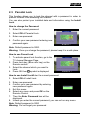
2.3. Parental Lock
This function allows you to lock the channel with a password in order to
prevent children from accessing the channel.
You can also protect your installed data and information using the Install
Lock.
How to change the Password
1. Enter the current password.
2. Select ON of Parental Lock.
3. Enter new password.
4. Confirm your new password entering new
password again.
Note: Default password is 0000.
Warning: Once you change the password, please keep it in a safe place
How to use Parent Lock
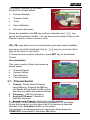
1. To activate parent lock function, go to the
TV channel Manager Page.
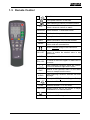
2. Press Lock key (Blue color key) on the
Remote control
3. Select the channel which you want to
Lock.
4. Press OK then
symbol is displayed.
How to use Install LockEnter the current password.
2. Select ON of Install Lock
3. Enter new password
4. Confirm your new password by entering
new password again
5. Exit this menu.
6. Select any menu and press OK on the
Remote Control.
7. Then the Enter Password box will be
displayed.
8. Unless you enter the correct password, you can not run any menu.
Note: Default password is 0000
Warning: Do not forget your password