1
Operating Modes
English
Four main operating modes are available to you when using MADRIX®:
- DMX-OUT via Ethernet network (Art-Net)
- DMX-OUT via USB
- DMX-IN via Ethernet network (Art-Net Remote)
- DMX-IN via USB
Note: DMX-OUT and DMX-IN can be used at the same time.
Using DMX-OUT Via Art-Net
You can connect MADRIX® LUNA via Ethernet network to the network
card of the computer that runs the MADRIX® software. Data is sent to
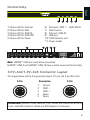
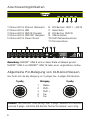
the device over network cabling and distributed to the XLR output ports
(‘DMX 1 – DMX 4/8/16’).
Follow these quick steps to configure Art-Net in MADRIX®:
Step 1) Connect LED controllers/fixtures to the XLR ports of MADRIX® LUNA.
Step 2) Connect MADRIX® LUNA to power.
Step 3) Connect MADRIX® LUNA to your computer using network cabling.
Step 4) Assign correct network settings in the Windows operating system.
(Recommended default settings:
IP address 10.0.0.1 and Subnet mask 255.0.0.0)
Step 5) Start MADRIX® and configure your virtual LED matrix using
‘Preferences...’ à ‘Matrix Generator...’ or à ‘Patch...’.
Step 6) In MADRIX®, go to ‘Preferences...’ à ‘Device Manager...’ à ‘Art-Net’.
‘Enable’ Art-Net and press ‘Find Auto’. The device appears in the list.
Step 7) Go to ‘Preferences...’ à ‘Device Manager...’ à ‘DMX Devices’ to configure DMX output. Activate ‘Enable’ for each required port.
For more information, please read the MADRIX® user manual.
Note: The package contents do not include network cabling.
10