1
Amazon Elastic Compute Cloud
User Guide for Linux Instances
Amazon Elastic Compute Cloud User Guide for Linux
Instances
Amazon Elastic Compute Cloud: User Guide for Linux Instances
Copyright © 2015 Amazon Web Services, Inc. and/or its affiliates. All rights reserved.
Amazon's trademarks and trade dress may not be used in connection with any product or service that is not Amazon's, in any manner
that is likely to cause confusion among customers, or in any manner that disparages or discredits Amazon. All other trademarks not
owned by Amazon are the property of their respective owners, who may or may not be affiliated with, connected to, or sponsored by
Amazon.
Amazon Elastic Compute Cloud User Guide for Linux
Instances
Table of Contents
What Is Amazon EC2? ................................................................................................................... 1
Features of Amazon EC2 ........................................................................................................ 1
How to Get Started with Amazon EC2 ....................................................................................... 2
Related Services ................................................................................................................... 3
Accessing Amazon EC2 ......................................................................................................... 3
Pricing for Amazon EC2 ......................................................................................................... 4
PCI DSS Compliance ............................................................................................................. 4
Instances and AMIs ............................................................................................................... 4
Instances ..................................................................................................................... 5
AMIs ........................................................................................................................... 6
Regions and Availability Zones ................................................................................................ 8
Region and Availability Zone Concepts .............................................................................. 8
Describing Your Regions and Availability Zones ................................................................. 10
Specifying the Region for a Resource .............................................................................. 12
Launching Instances in an Availability Zone ...................................................................... 13
Migrating an Instance to Another Availability Zone ............................................................. 14
Root Device Volume ............................................................................................................. 15
Root Device Storage Concepts ...................................................................................... 15
Choosing an AMI by Root Device Type ............................................................................ 17
Determining the Root Device Type of Your Instance ............................................................ 18
Changing the Root Device Volume to Persist .................................................................... 18
Setting Up .................................................................................................................................. 21
Sign Up for AWS ................................................................................................................. 21
Create an IAM User ............................................................................................................. 22
Create a Key Pair ................................................................................................................ 23
Create a Virtual Private Cloud (VPC) ....................................................................................... 25
Create a Security Group ....................................................................................................... 25
Getting Started ............................................................................................................................ 27
Step 1: Launch an Instance ................................................................................................... 28
Step 2: Connect to Your Instance ............................................................................................ 29
Option 1: Connect Using Your Browser ............................................................................ 30
Option 2: Connect from Windows Using PuTTY ................................................................. 31
Option 3: Connect from Mac or Linux Using an SSH Client .................................................. 32
Step 3: Add a Volume ........................................................................................................... 32
Step 4: Clean Up ................................................................................................................. 35
Best Practices ............................................................................................................................. 37
Tutorials ..................................................................................................................................... 39
Tutorial: Installing a LAMP Web Server on Amazon Linux ............................................................ 39
Tutorial: Hosting a WordPress Blog ......................................................................................... 47
Install WordPress ......................................................................................................... 47
Next Steps ................................................................................................................. 55
Help! My Public DNS Name Changed and now my Blog is Broken ........................................ 55
Tutorial: Configure Apache Web Server on Amazon Linux to use SSL/TLS ..................................... 56
Prerequisites .............................................................................................................. 57
Step 1: Enable SSL/TLS on the Server ............................................................................ 57
Step 2: Obtain a CA-signed Certificate ............................................................................ 58
Step 3: Test and Harden the Security Configuration ........................................................... 61
Amazon Machine Images .............................................................................................................. 65
Using an AMI ...................................................................................................................... 65
Creating Your Own AMI ......................................................................................................... 66
Buying, Sharing, and Selling AMIs .......................................................................................... 66
Deregistering Your AMI ......................................................................................................... 66
Amazon Linux ..................................................................................................................... 66
AMI Types .......................................................................................................................... 67
Launch Permissions ..................................................................................................... 67
iii
Amazon Elastic Compute Cloud User Guide for Linux
Instances
Storage for the Root Device ........................................................................................... 67
Virtualization Types .............................................................................................................. 70
Finding a Linux AMI ............................................................................................................. 71
Finding a Linux AMI Using the Amazon EC2 Console ......................................................... 71
Finding an AMI Using the AWS CLI ................................................................................. 72
Finding an AMI Using the Amazon EC2 CLI ..................................................................... 72
Shared AMIs ....................................................................................................................... 73
Finding Shared AMIs .................................................................................................... 73
Making an AMI Public ................................................................................................... 75
Sharing an AMI with Specific AWS Accounts .................................................................... 77
Using Bookmarks ........................................................................................................ 78
Guidelines for Shared Linux AMIs ................................................................................... 79
Paid AMIs ........................................................................................................................... 83
Selling Your AMI .......................................................................................................... 84
Finding a Paid AMI ....................................................................................................... 84
Purchase a Paid AMI .................................................................................................... 85
Getting the Product Code for Your Instance ...................................................................... 85
Using Paid Support ...................................................................................................... 86
Bills for Paid and Supported AMIs ................................................................................... 86
Managing Your AWS Marketplace Subscriptions ................................................................ 86
Creating an Amazon EBS-Backed Linux AMI ............................................................................ 87
Overview of Creating Amazon EBS-Backed AMIs .............................................................. 87
Creating a Linux AMI from an Instance ............................................................................ 88
Creating a Linux AMI from a Snapshot ............................................................................ 90
Creating an Instance Store-Backed Linux AMI .......................................................................... 91
Overview of the Creation Process for Instance Store-Backed AMIs ....................................... 91
Prerequisites .............................................................................................................. 92
Creating an AMI from an Instance Store-Backed Linux Instance ........................................... 92
Converting your Instance Store-Backed AMI to an Amazon EBS-Backed AMI ......................... 96
AMIs with Encrypted Snapshots ........................................................................................... 100
AMI Scenarios Involving Encrypted EBS Snapshots ......................................................... 100
Copying an AMI ................................................................................................................. 103
Copying an AMI You Own ............................................................................................ 103
Copying an AMI from another AWS Account ................................................................... 103
Copying Across Regions ............................................................................................. 103
Copying to Encrypt ..................................................................................................... 104
AMI-Copying scenarios ............................................................................................... 105
Copying an AMI using the Console or Command Line ...................................................... 106
Stopping a Pending AMI Copy Operation ........................................................................ 107
Deregistering Your AMI ....................................................................................................... 108
Cleaning Up Your Amazon EBS-Backed AMI ................................................................... 108
Cleaning Up Your Instance Store-Backed AMI ................................................................. 109
Amazon Linux ................................................................................................................... 110
Finding the Amazon Linux AMI ..................................................................................... 110
Launching and Connecting to an Amazon Linux Instance .................................................. 110
Identifying Amazon Linux AMI Images ........................................................................... 111
Included AWS Command Line Tools .............................................................................. 111
cloud-init ............................................................................................................. 112
Repository Configuration ............................................................................................. 113
Adding Packages ....................................................................................................... 114
Accessing Source Packages for Reference ..................................................................... 114
Developing Applications .............................................................................................. 115
Instance Store Access ................................................................................................ 115
Product Life Cycle ...................................................................................................... 115
Security Updates ....................................................................................................... 115
Support .................................................................................................................... 116
PV-GRUB ......................................................................................................................... 116
Limitations of PV-GRUB .............................................................................................. 117
iv
Amazon Elastic Compute Cloud User Guide for Linux
Instances
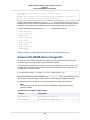
Configuring GRUB .....................................................................................................
Amazon PV-GRUB Kernel Image IDs .............................................................................
Updating PV-GRUB ....................................................................................................
Instances ..................................................................................................................................
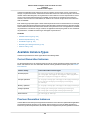
Instance Types ..................................................................................................................
Available Instance Types .............................................................................................
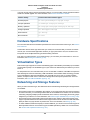
Hardware Specifications ..............................................................................................
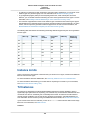
Virtualization Types ....................................................................................................
Networking and Storage Features .................................................................................
Instance Limits ..........................................................................................................
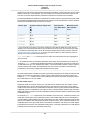
T2 Instances .............................................................................................................
C4 Instances .............................................................................................................
GPU Instances ..........................................................................................................
I2 Instances ..............................................................................................................
D2 Instances .............................................................................................................
HI1 Instances ............................................................................................................
HS1 Instances ...........................................................................................................
T1 Micro Instances .....................................................................................................
Resizing Instances .....................................................................................................
Instance Purchasing Options ...............................................................................................
Spot Instances ..........................................................................................................
Reserved Instances ....................................................................................................
Dedicated Hosts ........................................................................................................
Instance Lifecycle ..............................................................................................................
Instance Launch ........................................................................................................
Instance Stop and Start (Amazon EBS-backed instances only) ..........................................
Instance Reboot ........................................................................................................
Instance Retirement ...................................................................................................
Instance Termination ..................................................................................................
Differences Between Reboot, Stop, and Terminate ...........................................................
Launch .....................................................................................................................
Connect ...................................................................................................................
Stop and Start ...........................................................................................................
Reboot .....................................................................................................................
Retire .......................................................................................................................
Terminate .................................................................................................................
Recover ...................................................................................................................
Configure Instances ...........................................................................................................
Common Configuration Scenarios .................................................................................
Managing Software ....................................................................................................
Managing Users ........................................................................................................
Processor State Control ..............................................................................................
Setting the Time .........................................................................................................
Changing the Hostname ..............................................................................................
Setting Up Dynamic DNS ............................................................................................
Running Commands at Launch ....................................................................................
Instance Metadata and User Data .................................................................................
Importing and Exporting Instances ........................................................................................
Prerequisites .............................................................................................................
Importing a VM into Amazon EC2 as an Image ................................................................
Importing a VM into Amazon EC2 as an Instance ............................................................
Exporting Amazon EC2 Instances .................................................................................
Troubleshooting .........................................................................................................
Monitoring ................................................................................................................................
Automated and Manual Monitoring ........................................................................................
Automated Monitoring Tools .........................................................................................
Manual Monitoring Tools ..............................................................................................
Best Practices for Monitoring ................................................................................................
v
117
118
120
122
122
123
124
124
124
125
125
128
132
135
136
139
140
141
148
152
153
195
217
227
227
228
228
228
228
229
230
240
251
254
254
256
262
263
263
264
272
274
278
282
284
286
289
301
302
309
318
328
330
337
339
339
340
340
Amazon Elastic Compute Cloud User Guide for Linux
Instances
Monitoring the Status of Your Instances ..................................................................................
Instance Status Checks ...............................................................................................
Scheduled Events ......................................................................................................
Monitoring Your Instances with CloudWatch ............................................................................
Enabling or Disabling Detailed Monitoring on an Amazon EC2 Instance ...............................
View Amazon EC2 Metrics ..........................................................................................
Get Statistics for Metrics .............................................................................................
Graphing Metrics .......................................................................................................
Create a CloudWatch Alarm .........................................................................................
Create Alarms That Stop, Terminate, Reboot, or Recover an Instance .................................
Monitoring Memory and Disk Metrics .....................................................................................
Prerequisites .............................................................................................................
Getting Started ..........................................................................................................
mon-put-instance-data.pl .............................................................................................
mon-get-instance-stats.pl ...........................................................................................
Viewing Your Custom Metrics in the Console ...................................................................
Network and Security .................................................................................................................
Key Pairs ..........................................................................................................................
Creating Your Key Pair Using Amazon EC2 .....................................................................
Importing Your Own Key Pair to Amazon EC2 ..................................................................
Retrieving the Public Key for Your Key Pair on Linux .........................................................
Retrieving the Public Key for Your Key Pair on Windows ....................................................
Verifying Your Key Pair's Fingerprint ..............................................................................
Deleting Your Key Pair .................................................................................................
Connecting to Your Linux Instance if You Lose Your Private Key ..........................................
Security Groups .................................................................................................................
Security Groups for EC2-Classic ...................................................................................
Security Groups for EC2-VPC ......................................................................................
Security Group Rules .................................................................................................
Default Security Groups ..............................................................................................
Custom Security Groups .............................................................................................
Creating a Security Group ...........................................................................................
Describing Your Security Groups ...................................................................................
Adding Rules to a Security Group .................................................................................
Deleting Rules from a Security Group ............................................................................
Deleting a Security Group ............................................................................................
API and Command Overview .......................................................................................
Controlling Access .............................................................................................................
Network Access to Your Instance ..................................................................................
Amazon EC2 Permission Attributes ...............................................................................
IAM and Amazon EC2 ................................................................................................
IAM Policies ..............................................................................................................
IAM Roles .................................................................................................................
Network Access .........................................................................................................
Amazon VPC ....................................................................................................................
Benefits of Using a VPC ..............................................................................................
Differences Between EC2-Classic and EC2-VPC .............................................................
Sharing and Accessing Resources Between EC2-Classic and EC2-VPC .............................
Instance Types Available Only in a VPC .........................................................................
Amazon VPC Documentation .......................................................................................
Supported Platforms ...................................................................................................
ClassicLink ...............................................................................................................
Migrating from EC2-Classic to a VPC ............................................................................
Instance IP Addressing .......................................................................................................
Private IP Addresses and Internal DNS Hostnames .........................................................
Public IP Addresses and External DNS Hostnames .........................................................
Elastic IP Addresses ...................................................................................................
Amazon DNS Server ..................................................................................................
vi
341
341
345
349
350
353
359
376
380
387
411
412
414
415
418
419
421
422
423
424
425
426
427
427
428
431
432
432
432
434
435
436
436
437
438
438
438
440
440
440
440
442
482
488
489
490
490
493
495
495
496
497
505
515
515
516
517
517
Amazon Elastic Compute Cloud User Guide for Linux
Instances
IP Address Differences Between EC2-Classic and EC2-VPC .............................................
Determining Your Public, Private, and Elastic IP Addresses ...............................................
Assigning a Public IP Address ......................................................................................
Multiple Private IP Addresses .......................................................................................
Elastic IP Addresses ...........................................................................................................
Elastic IP Addresses in EC2-Classic ..............................................................................
Elastic IP Addresses in a VPC ......................................................................................
Elastic IP Address Differences Between EC2-Classic and EC2-VPC ...................................
Migrating an Elastic IP Address from EC2-Classic to EC2-VPC ..........................................
Working with Elastic IP Addresses ................................................................................
Using Reverse DNS for Email Applications .....................................................................
Elastic IP Address Limit ..............................................................................................
Elastic Network Interfaces ...................................................................................................
Private IP Addresses Per ENI Per Instance Type ..............................................................
Creating a Management Network ..................................................................................
Use Network and Security Appliances in Your VPC ..........................................................
Creating Dual-homed Instances with Workloads/Roles on Distinct Subnets ..........................
Create a Low Budget High Availability Solution ................................................................
Monitoring IP Traffic on Your Network Interface ................................................................
Best Practices for Configuring Elastic Network Interfaces ..................................................
Configuring Your Network Interface Using ec2-net-utils .....................................................
Creating an Elastic Network Interface ............................................................................
Deleting an Elastic Network Interface ............................................................................
Viewing Details about an Elastic Network Interface ..........................................................
Attaching an Elastic Network Interface When Launching an Instance ..................................
Attaching an Elastic Network Interface to a Stopped or Running Instance ............................
Detaching an Elastic Network Interface from an Instance ..................................................
Changing the Security Group of an Elastic Network Interface .............................................
Changing the Source/Destination Checking of an Elastic Network Interface ..........................
Associating an Elastic IP Address with an Elastic Network Interface ....................................
Disassociating an Elastic IP Address from an Elastic Network Interface ...............................
Changing Termination Behavior for an Elastic Network Interface .........................................
Adding or Editing a Description for an Elastic Network Interface .........................................
Adding or Editing Tags for an Elastic Network Interface .....................................................
Placement Groups .............................................................................................................
Placement Group Limitations .......................................................................................
Launching Instances into a Placement Group .................................................................
Deleting a Placement Group ........................................................................................
Network MTU ....................................................................................................................
Jumbo Frames (9001 MTU) .........................................................................................
Path MTU Discovery ...................................................................................................
Check the Path MTU Between Two Hosts .......................................................................
Check and Set the MTU on your Amazon EC2 Instance ....................................................
Troubleshooting .........................................................................................................
Enhanced Networking .........................................................................................................
Instances that Support Enhanced Networking .................................................................
Requirements ............................................................................................................
Testing Whether Enhanced Networking Is Enabled ...........................................................
Enabling Enhanced Networking on Amazon Linux ...........................................................
Enabling Enhanced Networking on Ubuntu .....................................................................
Enabling Enhanced Networking on Other Linux Distributions .............................................
Troubleshooting Connectivity Issues ..............................................................................
Storage ....................................................................................................................................
Amazon EBS ....................................................................................................................
Features of Amazon EBS ............................................................................................
EBS Volumes ............................................................................................................
EBS Snapshots .........................................................................................................
EBS Optimization .......................................................................................................
vii
517
518
520
521
526
526
526
527
528
528
532
532
533
534
536
536
536
537
537
537
537
538
539
539
540
541
542
542
543
544
544
545
545
546
546
547
547
549
549
550
550
551
551
552
552
553
553
553
556
558
561
563
564
565
566
567
607
613
Amazon Elastic Compute Cloud User Guide for Linux
Instances
EBS Encryption .........................................................................................................
EBS Performance ......................................................................................................
Instance Store ...................................................................................................................
Instance Store Lifetime ...............................................................................................
Instance Store Volumes ...............................................................................................
Add Instance Store Volumes ........................................................................................
SSD Instance Store Volumes .......................................................................................
Instance Store Swap Volumes ......................................................................................
Optimizing Disk Performance .......................................................................................
Amazon S3 .......................................................................................................................
Amazon S3 and Amazon EC2 ......................................................................................
Instance Volume Limits .......................................................................................................
Linux-Specific Volume Limits ........................................................................................
Windows-Specific Volume Limits ...................................................................................
Bandwidth vs Capacity ................................................................................................
Device Naming ..................................................................................................................
Available Device Names ..............................................................................................
Device Name Considerations .......................................................................................
Block Device Mapping ........................................................................................................
Block Device Mapping Concepts ...................................................................................
AMI Block Device Mapping ..........................................................................................
Instance Block Device Mapping ....................................................................................
Using Public Data Sets .......................................................................................................
Public Data Set Concepts ............................................................................................
Finding Public Data Sets .............................................................................................
Creating a Public Data Set Volume from a Snapshot ........................................................
Attaching and Mounting the Public Data Set Volume .........................................................
Resources and Tags ...................................................................................................................
Resource Locations ............................................................................................................
Listing and Filtering Your Resources ......................................................................................
Advanced Search .......................................................................................................
Listing Resources Using the Console ............................................................................
Filtering Resources Using the Console ..........................................................................
Listing and Filtering Using the CLI and API .....................................................................
Tagging Your Resources ......................................................................................................
Tag Basics ................................................................................................................
Tag Restrictions .........................................................................................................
Tagging Your Resources for Billing ................................................................................
Working with Tags Using the Console ............................................................................
Working with Tags Using the CLI or API .........................................................................
Service Limits ....................................................................................................................
Viewing Your Current Limits .........................................................................................
Requesting a Limit Increase .........................................................................................
Usage Reports ..................................................................................................................
Available Reports .......................................................................................................
Getting Set Up for Usage Reports .................................................................................
Granting IAM Users Access to the Amazon EC2 Usage Reports ........................................
Instance Usage .........................................................................................................
Reserved Instance Utilization .......................................................................................
Troubleshooting .........................................................................................................................
Launching Your Instance .....................................................................................................
Getting the Reason for Instance Termination ...................................................................
Connecting to Your Instance .................................................................................................
Error connecting to your instance: Connection timed out ...................................................
Error: User key not recognized by server ........................................................................
Error: Host key not found, Permission denied (publickey), or Authentication failed, permission
denied .....................................................................................................................
Error: Unprotected Private Key File ...............................................................................
viii
616
618
630
630
631
633
636
637
639
640
641
642
642
642
643
643
643
644
645
645
648
650
655
655
655
656
657
658
658
659
659
660
661
662
662
663
664
665
665
670
671
671
672
672
673
673
674
675
678
684
684
685
685
686
688
689
690
Amazon Elastic Compute Cloud User Guide for Linux
Instances
Error: Server refused our key or No supported authentication methods available ...................
Error using MindTerm on Safari Browser ........................................................................
Error Using Mac OS X RDP Client ................................................................................
Cannot Ping Instance .................................................................................................
Stopping Your Instance ........................................................................................................
Terminating Your Instance ....................................................................................................
Delayed Instance Termination .......................................................................................
Terminated Instance Still Displayed ...............................................................................
Automatically Launch or Terminate Instances ..................................................................
Instance Recovery Failures ..................................................................................................
Failed Status Checks ..........................................................................................................
Initial Steps You Can Take ............................................................................................
Troubleshooting Instance Status Checks for Linux-Based Instances ....................................
Out of memory: kill process ..........................................................................................
ERROR: mmu_update failed (Memory management update failed) .....................................
I/O error (Block device failure) ......................................................................................
IO ERROR: neither local nor remote disk (Broken distributed block device) ..........................
request_module: runaway loop modprobe (Looping legacy kernel modprobe on older Linux
versions) ..................................................................................................................
"FATAL: kernel too old" and "fsck: No such file or directory while trying to open /dev" (Kernel
and AMI mismatch) ...................................................................................................
"FATAL: Could not load /lib/modules" or "BusyBox" (Missing kernel modules) ........................
ERROR Invalid kernel (EC2 incompatible kernel) .............................................................
request_module: runaway loop modprobe (Looping legacy kernel modprobe on older Linux
versions) ..................................................................................................................
fsck: No such file or directory while trying to open... (File system not found) ..........................
General error mounting filesystems (Failed mount) ...........................................................
VFS: Unable to mount root fs on unknown-block (Root filesystem mismatch) ........................
Error: Unable to determine major/minor number of root device... (Root file system/device
mismatch) ................................................................................................................
XENBUS: Device with no driver... ..................................................................................
... days without being checked, check forced (File system check required) ............................
fsck died with exit status... (Missing device) .....................................................................
GRUB prompt (grubdom>) ...........................................................................................
Bringing up interface eth0: Device eth0 has different MAC address than expected, ignoring.
(Hard-coded MAC address) ........................................................................................
Unable to load SELinux Policy. Machine is in enforcing mode. Halting now. (SELinux
misconfiguration) .......................................................................................................
XENBUS: Timeout connecting to devices (Xenbus timeout) ...............................................
Instance Capacity ..............................................................................................................
Error: InsufficientInstanceCapacity ................................................................................
Error: InstanceLimitExceeded .......................................................................................
General ............................................................................................................................
Instance Reboot ........................................................................................................
Instance Console Output .............................................................................................
Instance Recovery When its Host Computer Fails ............................................................
My Instance is Booting from the Wrong Volume .......................................................................
Making API Requests .................................................................................................................
Document History ......................................................................................................................
AWS Glossary ...........................................................................................................................
ix
690
691
691
691
691
693
693
693
693
693
694
694
695
696
696
697
698
699
700
701
702
703
704
706
708
709
710
711
712
713
715
716
717
718
718
719
719
719
719
720
720
722
723
736
Amazon Elastic Compute Cloud User Guide for Linux
Instances
Features of Amazon EC2
What Is Amazon EC2?
Amazon Elastic Compute Cloud (Amazon EC2) provides scalable computing capacity in the Amazon
Web Services (AWS) cloud. Using Amazon EC2 eliminates your need to invest in hardware up front, so
you can develop and deploy applications faster. You can use Amazon EC2 to launch as many or as few
virtual servers as you need, configure security and networking, and manage storage. Amazon EC2 enables
you to scale up or down to handle changes in requirements or spikes in popularity, reducing your need
to forecast traffic.
For more information about cloud computing, see What is Cloud Computing?
Features of Amazon EC2
Amazon EC2 provides the following features:
• Virtual computing environments, known as instances
• Preconfigured templates for your instances, known as Amazon Machine Images (AMIs), that package
the bits you need for your server (including the operating system and additional software)
• Various configurations of CPU, memory, storage, and networking capacity for your instances, known
as instance types
• Secure login information for your instances using key pairs (AWS stores the public key, and you store
the private key in a secure place)
• Storage volumes for temporary data that's deleted when you stop or terminate your instance, known
as instance store volumes
• Persistent storage volumes for your data using Amazon Elastic Block Store (Amazon EBS), known as
Amazon EBS volumes
• Multiple physical locations for your resources, such as instances and Amazon EBS volumes, known
as regions and Availability Zones
• A firewall that enables you to specify the protocols, ports, and source IP ranges that can reach your
instances using security groups
• Static IP addresses for dynamic cloud computing, known as Elastic IP addresses
• Metadata, known as tags, that you can create and assign to your Amazon EC2 resources
• Virtual networks you can create that are logically isolated from the rest of the AWS cloud, and that you
can optionally connect to your own network, known as virtual private clouds (VPCs)
For more information about the features of Amazon EC2, see the Amazon EC2 product page.
1
Amazon Elastic Compute Cloud User Guide for Linux
Instances
How to Get Started with Amazon EC2
For more information about running your website on AWS, see Websites & Website Hosting.
How to Get Started with Amazon EC2
The first thing you need to do is get set up to use Amazon EC2. After you are set up, you are ready to
complete the Getting Started tutorial for Amazon EC2. Whenever you need more information about a
feature of Amazon EC2, you can read the technical documentation.
Get Up and Running
• Setting Up with Amazon EC2 (p. 21)
• Getting Started with Amazon EC2 Linux Instances (p. 27)
Basics
• Instances and AMIs (p. 4)
• Regions and Availability Zones (p. 8)
• Instance Types (p. 122)
• Tags (p. 662)
Networking and Security
• Amazon EC2 Key Pairs (p. 422)
• Security Groups (p. 431)
• Elastic IP Addresses (p. 526)
• Amazon EC2 and Amazon VPC (p. 489)
Storage
• Amazon EBS (p. 565)
• Instance Store (p. 630)
Working with Linux Instances
• Tutorial: Installing a LAMP Web Server on Amazon Linux (p. 39)
• Tutorial: Configure Apache Web Server on Amazon Linux to use SSL/TLS (p. 56)
• Getting Started with AWS: Hosting a Web App for Linux
If you have questions about whether AWS is right for you, contact AWS Sales. If you have technical
questions about Amazon EC2, use the Amazon EC2 forum.
2
Amazon Elastic Compute Cloud User Guide for Linux
Instances
Related Services
Related Services
You can provision Amazon EC2 resources, such as instances and volumes, directly using Amazon EC2.
You can also provision Amazon EC2 resources using other services in AWS. For more information, see
the following documentation:
• Auto Scaling Developer Guide
• AWS CloudFormation User Guide
• AWS Elastic Beanstalk Developer Guide
• AWS OpsWorks User Guide
To automatically distribute incoming application traffic across multiple instances, use Elastic Load
Balancing. For more information, see Elastic Load Balancing Developer Guide.
To monitor basic statistics for your instances and Amazon EBS volumes, use Amazon CloudWatch. For
more information, see the Amazon CloudWatch Developer Guide.
To monitor the calls made to the Amazon EC2 API for your account, including calls made by the AWS
Management Console, command line tools, and other services, use AWS CloudTrail. For more information,
see the AWS CloudTrail User Guide.
To get a managed relational database in the cloud, use Amazon Relational Database Service (Amazon
RDS) to launch a database instance. Although you can set up a database on an EC2 instance, Amazon
RDS offers the advantage of handling your database management tasks, such as patching the software,
backing up, and storing the backups. For more information, see Amazon Relational Database Service
Developer Guide.
Accessing Amazon EC2
Amazon EC2 provides a web-based user interface, the Amazon EC2 console. If you've signed up for an
AWS account, you can access the Amazon EC2 console by signing into the AWS Management Console
and selecting EC2 from the console home page.
If you prefer to use a command line interface, you have several options:
AWS Command Line Interface (CLI)
Provides commands for a broad set of AWS products, and is supported on Windows, Mac, and Linux.
To get started, see AWS Command Line Interface User Guide. For more information about the
commands for Amazon EC2, see ec2 in the AWS Command Line Interface Reference.
Amazon EC2 Command Line Interface (CLI) Tools
Provides commands for Amazon EC2, Amazon EBS, and Amazon VPC, and is supported on Windows,
Mac, and Linux. To get started, see Setting Up the Amazon EC2 Command Line Interface Tools on
Linux and Commands (CLI Tools) in the Amazon EC2 Command Line Reference.
AWS Tools for Windows PowerShell
Provides commands for a broad set of AWS products for those who script in the PowerShell
environment. To get started, see the AWS Tools for Windows PowerShell User Guide. For more
information about the cmdlets for Amazon EC2, see the AWS Tools for Windows PowerShell
Reference.
Amazon EC2 provides a Query API. These requests are HTTP or HTTPS requests that use the HTTP
verbs GET or POST and a Query parameter named Action. For more information about the API actions
for Amazon EC2, see Actions in the Amazon EC2 API Reference.
3
Amazon Elastic Compute Cloud User Guide for Linux
Instances
Pricing for Amazon EC2
If you prefer to build applications using language-specific APIs instead of submitting a request over HTTP
or HTTPS, AWS provides libraries, sample code, tutorials, and other resources for software developers.
These libraries provide basic functions that automate tasks such as cryptographically signing your requests,
retrying requests, and handling error responses, making it is easier for you to get started. For more
information, see AWS SDKs and Tools.
Pricing for Amazon EC2
When you sign up for AWS, you can get started with Amazon EC2 for free using the AWS Free Tier.
Amazon EC2 provides the following purchasing options for instances:
On-Demand instances
Pay for the instances that you use by the hour, with no long-term commitments or up-front payments.
Reserved Instances
Make a low, one-time, up-front payment for an instance, reserve it for a one- or three-year term, and
pay a significantly lower hourly rate for these instances.
Spot instances
Specify the maximum hourly price that you are willing to pay to run a particular instance type. The
Spot price fluctuates based on supply and demand, but you never pay more than the maximum price
you specified. If the Spot price moves higher than your maximum price, Amazon EC2 shuts down
your Spot instances.
For a complete list of charges and specific prices for Amazon EC2, see Amazon EC2 Pricing.
To calculate the cost of a sample provisioned environment, see AWS Economics Center.
To see your bill, go to your AWS Account Activity page. Your bill contains links to usage reports that
provide details about your bill. To learn more about AWS account billing, see AWS Account Billing.
If you have questions concerning AWS billing, accounts, and events, contact AWS Support.
For an overview of Trusted Advisor, a service that helps you optimize the costs, security, and performance
of your AWS environment, see AWS Trusted Advisor.
PCI DSS Compliance
Amazon EC2 supports the processing, storage, and transmission of credit card data by a merchant or
service provider, and has been validated as being compliant with Payment Card Industry (PCI) Data
Security Standard (DSS). For more information about PCI DSS, including how to request a copy of the
AWS PCI Compliance Package, see PCI DSS Level 1.
Instances and AMIs
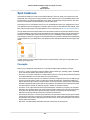
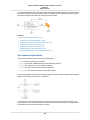
An Amazon Machine Image (AMI) is a template that contains a software configuration (for example, an
operating system, an application server, and applications). From an AMI, you launch an instance, which
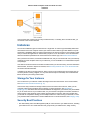
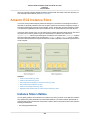
is a copy of the AMI running as a virtual server in the cloud. You can launch multiple instances of an AMI,
as shown in the following figure.
4
Amazon Elastic Compute Cloud User Guide for Linux
Instances
Instances
Your instances keep running until you stop or terminate them, or until they fail. If an instance fails, you
can launch a new one from the AMI.
Instances
You can launch different types of instances from a single AMI. An instance type essentially determines
the hardware of the host computer used for your instance. Each instance type offers different compute
and memory capabilities. Select an instance type based on the amount of memory and computing power
that you need for the application or software that you plan to run on the instance. For more information
about the hardware specifications for each Amazon EC2 instance type, see Amazon EC2 Instances.
After you launch an instance, it looks like a traditional host, and you can interact with it as you would any
computer. You have complete control of your instances; you can use sudo to run commands that require
root privileges.
Your AWS account has a limit on the number of instances that you can have running. For more information
about this limit, and how to request an increase, see How many instances can I run in Amazon EC2 in
the Amazon EC2 General FAQ.
In addition to the limit on running instances, there is a limit on the overall number of instances that you
can have (whether running, stopped, or in any other state except for terminated). This overall instance
limit is two times your running instance limit.
Storage for Your Instance
The root device for your instance contains the image used to boot the instance. For more information,
see Amazon EC2 Root Device Volume (p. 15).
Your instance may include local storage volumes, known as instance store volumes, which you can
configure at launch time with block device mapping. For more information, see Block Device
Mapping (p. 645). After these volumes have been added to and mapped on your instance, they are available
for you to mount and use. If your instance fails, or if your instance is stopped or terminated, the data on
these volumes is lost; therefore, these volumes are best used for temporary data. For important data,
you should use a replication strategy across multiple instances in order to keep your data safe, or store
your persistent data in Amazon S3 or Amazon EBS volumes. For more information, see Storage (p. 564).
Security Best Practices
• Use AWS Identity and Access Management (IAM) to control access to your AWS resources, including
your instances. You can create IAM users and groups under your AWS account, assign security
5
Amazon Elastic Compute Cloud User Guide for Linux
Instances
AMIs
credentials to each, and control the access that each has to resources and services in AWS. For more
information, see Controlling Access to Amazon EC2 Resources (p. 440).
• Restrict access by only allowing trusted hosts or networks to access ports on your instance. For example,
you can restrict SSH access by restricting incoming traffic on port 22. For more information, see Amazon
EC2 Security Groups for Linux Instances (p. 431).
• Review the rules in your security groups regularly, and ensure that you apply the principle of least
privilege—only open up permissions that you require. You can also create different security groups to
deal with instances that have different security requirements. Consider creating a bastion security group
that allows external logins, and keep the remainder of your instances in a group that does not allow
external logins.
• Disable password-based logins for instances launched from your AMI. Passwords can be found or
cracked, and are a security risk. For more information, see Disable Password-Based Remote Logins
for Root (p. 80). For more information about sharing AMIs safely, see Shared AMIs (p. 73).
Stopping, Starting, and Terminating Instances
Stopping an instance
When an instance is stopped, the instance performs a normal shutdown, and then transitions to a stopped
state. All of its Amazon EBS volumes remain attached, and you can start the instance again at a later
time.
You are not charged for additional instance hours while the instance is in a stopped state. A full instance
hour will be charged for every transition from a stopped state to a running state, even if this happens
multiple times within a single hour. If the instance type was changed while the instance was stopped, you
will be charged the rate for the new instance type after the instance is started. All of the associated Amazon
EBS usage of your instance, including root device usage, is billed using typical Amazon EBS prices.
When an instance is in a stopped state, you can attach or detach Amazon EBS volumes. You can also
create an AMI from the instance, and you can change the kernel, RAM disk, and instance type.
Terminating an instance
When an instance is terminated, the instance performs a normal shutdown, then the attached Amazon
EBS volumes are deleted unless the volume's deleteOnTermination attribute is set to false. The
instance itself is also deleted, and you can't start the instance again at a later time.
To prevent accidental termination, you can disable instance termination. If you do so, ensure that the
disableApiTermination attribute is set to true for the instance. To control the behavior of an instance
shutdown, such as shutdown -h in Linux or shutdown in Windows, set the
instanceInitiatedShutdownBehavior instance attribute to stop or terminate as desired. Instances
with Amazon EBS volumes for the root device default to stop, and instances with instance-store root
devices are always terminated as the result of an instance shutdown.
For more information, see Instance Lifecycle (p. 227).
AMIs
Amazon Web Services (AWS) publishes many Amazon Machine Images (AMIs) that contain common
software configurations for public use. In addition, members of the AWS developer community have
published their own custom AMIs. You can also create your own custom AMI or AMIs; doing so enables
you to quickly and easily start new instances that have everything you need. For example, if your application
is a website or a web service, your AMI could include a web server, the associated static content, and
the code for the dynamic pages. As a result, after you launch an instance from this AMI, your web server
starts, and your application is ready to accept requests.
6
Amazon Elastic Compute Cloud User Guide for Linux
Instances
AMIs
All AMIs are categorized as either backed by Amazon EBS, which means that the root device for an
instance launched from the AMI is an Amazon EBS volume, or backed by instance store, which means
that the root device for an instance launched from the AMI is an instance store volume created from a
template stored in Amazon S3.
The description of an AMI indicates the type of root device (either ebs or instance store). This is
important because there are significant differences in what you can do with each type of AMI. For more
information about these differences, see Storage for the Root Device (p. 67).
7
Amazon Elastic Compute Cloud User Guide for Linux
Instances
Regions and Availability Zones
Regions and Availability Zones
Amazon EC2 is hosted in multiple locations world-wide. These locations are composed of regions and
Availability Zones. Each region is a separate geographic area. Each region has multiple, isolated locations
known as Availability Zones. Amazon EC2 provides you the ability to place resources, such as instances,
and data in multiple locations. Resources aren't replicated across regions unless you do so specifically.
Amazon operates state-of-the-art, highly-available data centers. Although rare, failures can occur that
affect the availability of instances that are in the same location. If you host all your instances in a single
location that is affected by such a failure, none of your instances would be available.
Note
Some AWS resources might not be available in all regions and Availability Zones. Ensure that
you can create the resources you need in the desired regions or Availability Zone before deploying
your applications.
Topics
• Region and Availability Zone Concepts (p. 8)
• Describing Your Regions and Availability Zones (p. 10)
• Specifying the Region for a Resource (p. 12)
• Launching Instances in an Availability Zone (p. 13)
• Migrating an Instance to Another Availability Zone (p. 14)
Region and Availability Zone Concepts
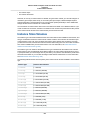
Each region is completely independent. Each Availability Zone is isolated, but the Availability Zones in a
region are connected through low-latency links. The following diagram illustrates the relationship between
regions and Availability Zones.
Amazon EC2 resources are either global, tied to a region, or tied to an Availability Zone. For more
information, see Resource Locations (p. 658).
Regions
Each Amazon EC2 region is designed to be completely isolated from the other Amazon EC2 regions.
This achieves the greatest possible fault tolerance and stability.
Amazon EC2 provides multiple regions so that you can launch Amazon EC2 instances in locations that
meet your requirements. For example, you might want to launch instances in Europe to be closer to your
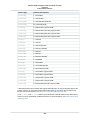
European customers or to meet legal requirements. The following table lists the regions that provide
support for Amazon EC2.
8
Amazon Elastic Compute Cloud User Guide for Linux
Instances
Region and Availability Zone Concepts
Code
Name
ap-northeast-1
Asia Pacific (Tokyo)
ap-southeast-1
Asia Pacific (Singapore)
ap-southeast-2
Asia Pacific (Sydney)
eu-central-1
EU (Frankfurt)
eu-west-1
EU (Ireland)
sa-east-1
South America (Sao Paulo)
us-east-1
US East (N. Virginia)
us-west-1
US West (N. California)
us-west-2
US West (Oregon)
When you view your resources, you'll only see the resources tied to the region you've specified. This is
because regions are isolated from each other, and we don't replicate resources across regions
automatically.
When you work with an instance using the command line interface or API actions, you must specify its
regional endpoint. For more information about the regions and endpoints for Amazon EC2, see Regions
and Endpoints in the Amazon Web Services General Reference. For more information about endpoints
and protocols in AWS GovCloud (US), see AWS GovCloud (US) Endpoints in the AWS GovCloud (US)
User Guide.
When you launch an instance, you must select an AMI that's in the same region. If the AMI is in another
region, you can copy the AMI to the region you're using. For more information, see Copying an AMI (p. 103).
All communications between regions is across the public Internet.Therefore, you should use the appropriate
encryption methods to protect your data. Data transfer between regions is charged at the Internet data
transfer rate for both the sending and the receiving instance. For more information, see Amazon EC2
Pricing - Data Transfer.
Availability Zones
You can list the Availability Zones that are available to your account. For more information, see Describing
Your Regions and Availability Zones (p. 10).
When you launch an instance, you can select an Availability Zone or let us choose one for you. If you
distribute your instances across multiple Availability Zones and one instance fails, you can design your
application so that an instance in another Availability Zone can handle requests.
You can also use Elastic IP addresses to mask the failure of an instance in one Availability Zone by rapidly
remapping the address to an instance in another Availability Zone. For more information, see Elastic IP
Addresses (p. 526).
To ensure that resources are distributed across the Availability Zones for a region, we independently map
Availability Zones to identifiers for each account. For example, your Availability Zone us-east-1a might
not be the same location as us-east-1a for another account. Note that there's no way for you to
coordinate Availability Zones between accounts.
As Availability Zones grow over time, our ability to expand them can become constrained. If this happens,
we might restrict you from launching an instance in a constrained Availability Zone unless you already
have an instance in that Availability Zone. Eventually, we might also remove the constrained Availability
9
Amazon Elastic Compute Cloud User Guide for Linux
Instances
Describing Your Regions and Availability Zones
Zone from the list of Availability Zones for new customers. Therefore, your account might have a different
number of available Availability Zones in a region than another account.
Describing Your Regions and Availability Zones
You can use the AWS Management Console or the command line interface to determine which regions
and Availability Zones are available for your use. For more information about these command line
interfaces, see Accessing Amazon EC2 (p. 3).
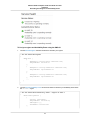
To find your regions and Availability Zones using the AWS Management Console
1.
2.
Open the AWS Management Console.
From the navigation bar, view the options in the region selector.
3.
Open the Amazon EC2 console. Your Availability Zones are listed on the dashboard under Service
Health, under Availability Zone Status.
10
Amazon Elastic Compute Cloud User Guide for Linux
Instances
Describing Your Regions and Availability Zones
To find your regions and Availability Zones using the AWS CLI
1.
Use the describe-regions command as follows to describe your regions.
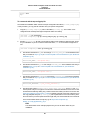
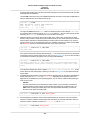
$ aws ec2 describe-regions
{
"Regions": [
{
"Endpoint": "ec2.us-east-1.amazonaws.com",
"RegionName": "us-east-1"
},
{
"Endpoint": "ec2.ap-southeast-1.amazonaws.com",
"RegionName": "ap-southeast-1"
},
{
"Endpoint": "ec2.ap-southeast-2.amazonaws.com",
"RegionName": "ap-southeast-2"
},
...
]
}
2.
Use the describe-availability-zones command as follows to describe your Availability Zones within
the us-east-1 region.
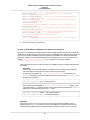
$ aws ec2 describe-availability-zones --region us-east-1
{
"AvailabilityZones": [
{
"State": "available",
"RegionName": "us-east-1",
"Messages": [],
"ZoneName": "us-east-1b"
},
11
Amazon Elastic Compute Cloud User Guide for Linux
Instances
Specifying the Region for a Resource
{
"State": "available",
"RegionName": "us-east-1",
"Messages": [],
"ZoneName": "us-east-1c"
},
{
"State": "available",
"RegionName": "us-east-1",
"Messages": [],
"ZoneName": "us-east-1d"
}
]
}
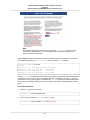
To find your regions and Availability Zones using the Amazon EC2 CLI
1.
Use the ec2-describe-regions command as follows to describe your regions.
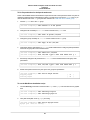
PROMPT> ec2-describe-regions
REGION us-east-1 ec2.us-east-1.amazonaws.com
REGION ap-northeast-1 ec2.ap-northeast-1.amazonaws.com
REGION ap-southeast-1 ec2.ap-southeast-1.amazonaws.com
..
2.
Use the ec2-describe-availability-zones command as follows to describe your Availability Zones
within the us-east-1 region.
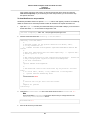
PROMPT> ec2-describe-availability-zones --region us-east-1
AVAILABILITYZONE us-east-1a available us-east-1
AVAILABILITYZONE us-east-1b available us-east-1
AVAILABILITYZONE us-east-1c available us-east-1
AVAILABILITYZONE us-east-1d available us-east-1
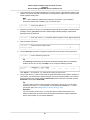
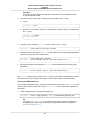
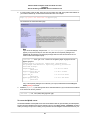
Specifying the Region for a Resource
Every time you create an Amazon EC2 resource, you can specify the region for the resource. You can
specify the region for a resource using the AWS Management Console or the command line.
To specify the region for a resource using the console
1.
2.
Open the Amazon EC2 console.
Use the region selector in the navigation bar.
12
Amazon Elastic Compute Cloud User Guide for Linux
Instances
Launching Instances in an Availability Zone
To specify the default region using the command line
You can set the value of an environment variable to the desired regional endpoint (for example,
https://ec2.us-west-1.amazonaws.com):
• AWS_DEFAULT_REGION (AWS CLI)
• EC2_URL (Amazon EC2 CLI)
Alternatively, you can use the --region command line option with each individual command. For example,
--region us-west-1.
For more information about the endpoints for Amazon EC2, see Amazon Elastic Compute Cloud Endpoints.
Launching Instances in an Availability Zone
When you launch an instance, select a region that puts your instances closer to specific customers, or
meets the legal or other requirements you have. By launching your instances in separate Availability
Zones, you can protect your applications from the failure of a single location.
When you launch an instance, you can optionally specify an Availability Zone in the region that you are
using. If you do not specify an Availability Zone, we select one for you. When you launch your initial
instances, we recommend that you accept the default Availability Zone, because this enables us to select
the best Availability Zone for you based on system health and available capacity. If you launch additional
instances, only specify an Availability Zone if your new instances must be close to, or separated from,
your running instances.
To specify an Availability Zone for your instance using the console
1.
2.
Open the Amazon EC2 console.
On the dashboard, click Launch Instance.
13
Amazon Elastic Compute Cloud User Guide for Linux
Instances
Migrating an Instance to Another Availability Zone
3.
Follow the directions for the wizard. On the Configure Instance Details page, do the following:
• [EC2-Classic] Select one of the Availability Zone options from the list, or select No Preference to
enable us to select the best one for you.
• [EC2-VPC] Select one of the subnet options from the list, or select No preference (default subnet
in any Availability Zone) to enable us to select the best one for you.
To specify an Availability Zone for your instance using the AWS CLI
You can use the run-instances command with one of the following options:
• [EC2-Classic] --placement
• [EC2-VPC] --subnet-id
To specify an Availability Zone for your instance using the Amazon EC2 CLI
You can use the ec2-run-instances command with one of the following options:
• [EC2-Classic] --availability-zone
• [EC2-VPC] --subnet
Migrating an Instance to Another Availability Zone
If you need to, you can migrate an instance from one Availability Zone to another. For example, if you
are trying to modify the instance type of your instance and we can't launch an instance of the new instance
type in the current Availability Zone, you could migrate the instance to an Availability Zone where we can
launch an instance of that instance type.
The migration process involves creating an AMI from the original instance, launching an instance in the
new Availability Zone, and updating the configuration of the new instance, as shown in the following
procedure.
To migrate an instance to another Availability Zone
1.
Create an AMI from the instance. The procedure depends on the operating system and the type of
root device volume for the instance. For more information, see the documentation that corresponds
to your operating system and root device volume:
• Creating an Amazon EBS-Backed Linux AMI (p. 87)
• Creating an Instance Store-Backed Linux AMI (p. 91)
• Creating an Amazon EBS-Backed Windows AMI
• Creating an Instance Store-Backed Windows AMI
2.
[EC2-VPC] If you need to preserve the private IP address of the instance, you must delete the subnet
in the current Availability Zone and then create a subnet in the new Availability Zone with the same
IP address range as the original subnet. Note that you must terminate all instances in a subnet before
you can delete it. Therefore, you should move all instances in the current subnet to the new subnet.
14
Amazon Elastic Compute Cloud User Guide for Linux
Instances
Root Device Volume
3.
4.
5.
6.
Launch an instance from the AMI that you just created, specifying the new Availability Zone or subnet.
You can use the same instance type as the original instance, or select a new instance type. For more
information, see Launching Instances in an Availability Zone (p. 13).
If the original instance has an associated Elastic IP address, associate it with the new instance. For
more information, see Disassociating an Elastic IP Address and Reassociating it with a Different
Instance (p. 530).
If the original instance is a Reserved Instance, change the Availability Zone for your reservation. (If
you also changed the instance type, you can also change the instance type for your reservation.)
For more information, see Submitting Modification Requests (p. 214).
(Optional) Terminate the original instance. For more information, see Terminating an Instance (p. 257).
Amazon EC2 Root Device Volume
When you launch an instance, the root device volume contains the image used to boot the instance.
When we introduced Amazon EC2, all AMIs were backed by Amazon EC2 instance store, which means
the root device for an instance launched from the AMI is an instance store volume created from a template
stored in Amazon S3. After we introduced Amazon EBS, we introduced AMIs that are backed by Amazon
EBS. This means that the root device for an instance launched from the AMI is an Amazon EBS volume
created from an Amazon EBS snapshot.You can choose between AMIs backed by Amazon EC2 instance
store and AMIs backed by Amazon EBS. We recommend that you use AMIs backed by Amazon EBS,
because they launch faster and use persistent storage.
Topics
• Root Device Storage Concepts (p. 15)
• Choosing an AMI by Root Device Type (p. 17)
• Determining the Root Device Type of Your Instance (p. 18)
• Changing the Root Device Volume to Persist (p. 18)
Root Device Storage Concepts
You can launch an instance from one of two types of AMIs: an instance store-backed AMI or an Amazon
EBS-backed AMI. The description of an AMI includes which type of AMI it is; you'll see the root device
referred to in some places as either ebs (for Amazon EBS-backed) or instance store (for instance
store-backed). This is important because there are significant differences between what you can do with
each type of AMI. For more information about these differences, see Storage for the Root Device (p. 67).
Instance Store-backed Instances
Instances that use instance stores for the root device automatically have instance store volumes available,
with one serving as the root device volume. When an instance is launched, the image that is used to boot
the instance is copied to the root volume (typically sda1). Any data on the instance store volumes persists
as long as the instance is running, but this data is deleted when the instance is terminated (instance
store-backed instances do not support the Stop action) or if it fails (such as if an underlying drive has
issues).
15
Amazon Elastic Compute Cloud User Guide for Linux
Instances
Root Device Storage Concepts
After an instance store-backed instance fails or terminates, it cannot be restored. If you plan to use
Amazon EC2 instance store-backed instances, we highly recommend that you distribute the data on your
instance stores across multiple Availability Zones. You should also back up the data on your instance
store volumes to persistent storage on a regular basis.
For more information, see Amazon EC2 Instance Store (p. 630).
Amazon EBS-backed Instances
Instances that use Amazon EBS for the root device automatically have an Amazon EBS volume attached.
When you launch an Amazon EBS-backed instance, we create an Amazon EBS volume for each Amazon
EBS snapshot referenced by the AMI you use. You can optionally use other Amazon EBS volumes or
instance store volumes.
An Amazon EBS-backed instance can be stopped and later restarted without affecting data stored in the
attached volumes. There are various instance– and volume-related tasks you can do when an Amazon
EBS-backed instance is in a stopped state. For example, you can modify the properties of the instance,
you can change the size of your instance or update the kernel it is using, or you can attach your root
volume to a different running instance for debugging or any other purpose.
By default, the root device volume and the other Amazon EBS volumes attached when you launch an
Amazon EBS-backed instance are automatically deleted when the instance terminates. For information
about how to change this behavior when you launch an instance, see Changing the Root Device Volume
to Persist (p. 18).
By default, any Amazon EBS volumes that you attach to a running instance are detached with their data
intact when the instance terminates. You can attach a detached volume to any running instance.
If an Amazon EBS-backed instance fails, you can restore your session by following one of these methods:
• Stop and then start again (try this method first).
16
Amazon Elastic Compute Cloud User Guide for Linux
Instances
Choosing an AMI by Root Device Type
• Automatically snapshot all relevant volumes and create a new AMI. For more information, see Creating
an Amazon EBS-Backed Linux AMI (p. 87).
• Attach the volume to the new instance by following these steps:
1. Create a snapshot of the root volume.
2. Register a new AMI using the snapshot.
3. Launch a new instance from the new AMI.
4. Detach the remaining Amazon EBS volumes from the old instance.
5. Reattach the Amazon EBS volumes to the new instance.
Choosing an AMI by Root Device Type
The AMI that you specify when you launch your instance determines the type of root device volume that
your instance has.
To choose an Amazon EBS-backed AMI using the console
1.
2.
3.
4.
5.
Open the Amazon EC2 console.
In the navigation pane, click AMIs.
From the filter lists, select the image type (such as Public images). In the search bar click Platform
to select the operating system (such as Amazon Linux), and Root Device Type to select EBS
images.
(Optional) To get additional information to help you make your choice, click the Show/Hide Columns
icon, update the columns to display, and click Close.
Choose an AMI and write down its AMI ID.
To choose an instance store-backed AMI using the console
1.
2.
3.
4.
5.
Open the Amazon EC2 console.
In the navigation pane, click AMIs.
From the filter lists, select the image type (such as Public images). In the search bar, click Platform
to select the operating system (such as Amazon Linux), and Root Device Type to select Instance
store.
(Optional) To get additional information to help you make your choice, click the Show/Hide Columns
icon, update the columns to display, and click Close.
Choose an AMI and write down its AMI ID.
To verify the type of the root device volume of an AMI using the command line
You can use one of the following commands. For more information about these command line interfaces,
see Accessing Amazon EC2 (p. 3).
• describe-images (AWS CLI)
• ec2-describe-images (Amazon EC2 CLI)
• Get-EC2Image (AWS Tools for Windows PowerShell)
17
Amazon Elastic Compute Cloud User Guide for Linux
Instances
Determining the Root Device Type of Your Instance
Determining the Root Device Type of Your Instance
To determine the root device type of an instance using the console
1.
Open the Amazon EC2 console.
2.
3.
In the navigation pane, click Instances, and select the instance.
Check the value of Root device type in the Description tab as follows:
• If the value is ebs, this is an Amazon EBS-backed instance.
• If the value is instance store, this is an instance store-backed instance.
To determine the root device type of an instance using the command line
You can use one of the following commands. For more information about these command line interfaces,
see Accessing Amazon EC2 (p. 3).
• describe-instances (AWS CLI)
• ec2-describe-instances (Amazon EC2 CLI)
• Get-EC2Instance (AWS Tools for Windows PowerShell)
Changing the Root Device Volume to Persist
By default, the root device volume for an AMI backed by Amazon EBS is deleted when the instance
terminates. To change the default behavior, set the DeleteOnTermination attribute to false using a
block device mapping.
Changing the Root Volume to Persist Using the Console
Using the console, you can change the DeleteOnTermination attribute when you launch an instance.
To change this attribute for a running instance, you must use the command line.
To change the root device volume of an instance to persist at launch using the console
1.
Open the Amazon EC2 console.
2.
From the Amazon EC2 console dashboard, click Launch Instance.
3.
4.
5.
On the Choose an Amazon Machine Image (AMI) page, choose the AMI to use and click Select.
Follow the wizard to complete the Choose an Instance Type and Configure Instance Details
pages.
On the Add Storage page, deselect the Delete On Termination check box for the root volume.
6.
Complete the remaining wizard pages, and then click Launch.
You can verify the setting by viewing details for the root device volume on the instance's details pane.
Next to Block devices, click the entry for the root device volume. By default, Delete on termination is
True. If you change the default behavior, Delete on termination is False.
18
Amazon Elastic Compute Cloud User Guide for Linux
Instances
Changing the Root Device Volume to Persist
Changing the Root Volume of an Instance to Persist Using
the AWS CLI
Using the AWS CLI, you can change the DeleteOnTermination attribute when you launch an instance
or while the instance is running. The root device is typically /dev/sda1 (Linux) or xvda (Windows).
Example at Launch
Use the run-instances command to preserve the root volume by including a block device mapping that
sets its DeleteOnTermination attribute for to false.
$ aws ec2 run-instances --image-id ami-1a2b3c4d --block-device-mappings
'[{"DeviceName":"/dev/sda1","Ebs":{"DeleteOnTermination":false}}]' other para
meters...
You can confirm that DeleteOnTermination is false by using the describe-instances command and
looking for the BlockDeviceMappings entry for /dev/sda1 in the command output, as shown here.
...
"BlockDeviceMappings": [
{
"DeviceName": "/dev/sda1",
"Ebs": {
"Status": "attached",
"DeleteOnTermination": false,
"VolumeId": "vol-877166c8",
"AttachTime": "2013-07-19T02:42:39.000Z"
}
}
...
Example While the Instance is Running
Use the modify-instance-attribute command to preserve the root volume by including a block device
mapping that sets its DeleteOnTermination attribute to false.
$ aws ec2 modify-instance-attribute --instance-id i-5203422c --block-devicemappings '[{"DeviceName":"/dev/sda1","Ebs":{"DeleteOnTermination":false}}]'
Changing the Root Volume of an Instance to Persist Using
the Amazon EC2 CLI
Using the Amazon EC2 CLI, you can change the DeleteOnTermination attribute when you launch an
instance or while the instance is running. The root device is typically /dev/sda1 (Linux) or xvda
(Windows).
Example at Launch
Use the ec2-run-instances command to include a block device mapping that sets the
DeleteOnTermination flag for the root device to false. Include the -v option to run the command in
verbose mode.
19
Amazon Elastic Compute Cloud User Guide for Linux
Instances
Changing the Root Device Volume to Persist
$ ec2-run-instances ami-1a2b3c4d
-v
-b "/dev/sda1=::false" other parameters...
By running the command in verbose mode, you can see the underlying request and response, and confirm
that DeleteOnTermination is false, as shown here.
...
<blockDeviceMapping>
<item>
<deviceName>/dev/sda1</deviceName>
<ebs>
<deleteOnTermination>false</deleteOnTermination>
</ebs>
</item>
</blockDeviceMapping>
...
Example While the Instance is Running
Use the ec2-modify-instance-attribute command to preserve the root volume by setting its
DeleteOnTermination attribute to false.
$ ec2-modify-instance-attribute i-5203422c -b "/dev/sda1=::false"
20
Amazon Elastic Compute Cloud User Guide for Linux
Instances
Sign Up for AWS
Setting Up with Amazon EC2
If you've already signed up for Amazon Web Services (AWS), you can start using Amazon EC2 immediately.
You can open the Amazon EC2 console, click Launch Instance, and follow the steps in the launch wizard
to launch your first instance.
If you haven't signed up for AWS yet, or if you need assistance launching your first instance, complete
the following tasks to get set up to use Amazon EC2:
1. Sign Up for AWS (p. 21)
2. Create an IAM User (p. 22)
3. Create a Key Pair (p. 23)
4. Create a Virtual Private Cloud (VPC) (p. 25)
5. Create a Security Group (p. 25)
Sign Up for AWS
When you sign up for Amazon Web Services (AWS), your AWS account is automatically signed up for
all services in AWS, including Amazon EC2. You are charged only for the services that you use.
With Amazon EC2, you pay only for what you use. If you are a new AWS customer, you can get started
with Amazon EC2 for free. For more information, see AWS Free Tier.
If you have an AWS account already, skip to the next task. If you don't have an AWS account, use the
following procedure to create one.
To create an AWS account
1.
Open http://aws.amazon.com/, and then choose Create an AWS Account.
2.
Follow the online instructions.
Part of the sign-up procedure involves receiving a phone call and entering a PIN using the phone
keypad.
Note your AWS account number, because you'll need it for the next task.
21
Amazon Elastic Compute Cloud User Guide for Linux
Instances
Create an IAM User
Create an IAM User
Services in AWS, such as Amazon EC2, require that you provide credentials when you access them, so
that the service can determine whether you have permission to access its resources. The console requires
your password. You can create access keys for your AWS account to access the command line interface
or API. However, we don't recommend that you access AWS using the credentials for your AWS account;
we recommend that you use AWS Identity and Access Management (IAM) instead. Create an IAM user,
and then add the user to an IAM group with administrative permissions or and grant this user administrative
permissions. You can then access AWS using a special URL and the credentials for the IAM user.
If you signed up for AWS but have not created an IAM user for yourself, you can create one using the
IAM console. If you aren't familiar with using the console, see Working with the AWS Management Console
for an overview.
To create a group for administrators
1.
2.
3.
4.
5.
Sign in to the AWS Management Console and open the IAM console at https://
console.aws.amazon.com/iam/.
In the navigation pane, choose Groups, and then choose Create New Group.
For Group Name, type a name for your group, such as Administrators, and then choose Next
Step.
In the list of policies, select the check box next to the AdministratorAccess policy. You can use the
Filter menu and the Search box to filter the list of policies.
Choose Next Step, and then choose Create Group.
Your new group is listed under Group Name.
To create an IAM user for yourself, add the user to the administrators group, and create
a password for the user
1.
2.
3.
4.
5.
6.
7.
8.
9.
In the navigation pane, choose Users, and then choose Create New Users.
In box 1, type a user name.
Clear the check box next to Generate an access key for each user.
Choose Create.
In the list of users, choose the name (not the check box) of the user you just created. You can use
the Search box to search for the user name.
Choose the Groups tab and then choose Add User to Groups.
Select the check box next to the administrators group. Then choose Add to Groups.
Choose the Security Credentials tab. Under Sign-In Credentials, choose Manage Password.
Select Assign a custom password. Then type a password in the Password and Confirm Password
boxes. When you are finished, choose Apply.
To sign in as this new IAM user, sign out of the AWS console, then use the following URL, where
your_aws_account_id is your AWS account number without the hyphens (for example, if your AWS
account number is 1234-5678-9012, your AWS account ID is 123456789012):
https://your_aws_account_id.signin.aws.amazon.com/console/
Enter the IAM user name (not your email address) and password that you just created. When you're
signed in, the navigation bar displays "your_user_name @ your_aws_account_id".
22
Amazon Elastic Compute Cloud User Guide for Linux
Instances
Create a Key Pair
If you don't want the URL for your sign-in page to contain your AWS account ID, you can create an account
alias. From the IAM dashboard, click Customize and enter an alias, such as your company name. To
sign in after you create an account alias, use the following URL:
https://your_account_alias.signin.aws.amazon.com/console/
To verify the sign-in link for IAM users for your account, open the IAM console and check under IAM
users sign-in link on the dashboard.
For more information about IAM, see IAM and Amazon EC2 (p. 440).
Create a Key Pair
AWS uses public-key cryptography to secure the login information for your instance. A Linux instance
has no password; you use a key pair to log in to your instance securely. You specify the name of the key
pair when you launch your instance, then provide the private key when you log in using SSH.
If you haven't created a key pair already, you can create one using the Amazon EC2 console. Note that
if you plan to launch instances in multiple regions, you'll need to create a key pair in each region. For
more information about regions, see Regions and Availability Zones (p. 8).
To create a key pair
1.
2.
Sign in to AWS using the URL that you created in the previous section. Open the Amazon EC2
console.
From the navigation bar, select a region for the key pair. You can select any region that's available
to you, regardless of your location. However, key pairs are specific to a region; for example, if you
plan to launch an instance in the US West (Oregon) region, you must create a key pair for the instance
in the US West (Oregon) region.
3.
4.
Click Key Pairs in the navigation pane.
Click Create Key Pair.
23
Amazon Elastic Compute Cloud User Guide for Linux
Instances
Create a Key Pair
5.
Enter a name for the new key pair in the Key pair name field of the Create Key Pair dialog box, and
then click Create. Choose a name that is easy for you to remember, such as your IAM user name,
followed by -key-pair, plus the region name. For example, me-key-pair-uswest2.
6.
The private key file is automatically downloaded by your browser. The base file name is the name
you specified as the name of your key pair, and the file name extension is .pem. Save the private
key file in a safe place.
Important
This is the only chance for you to save the private key file. You'll need to provide the name
of your key pair when you launch an instance and the corresponding private key each time
you connect to the instance.
7.
If you will use an SSH client on a Mac or Linux computer to connect to your Linux instance, use the
following command to set the permissions of your private key file so that only you can read it.
$ chmod 400 your_user_name-key-pair-region_name.pem
For more information, see Amazon EC2 Key Pairs (p. 422).
To connect to your instance using your key pair
To your Linux instance from a computer running Mac or Linux, you'll specify the .pem file to your SSH
client with the -i option and the path to your private key. To connect to your Linux instance from a
computer running Windows, you can use either MindTerm or PuTTY. If you plan to use PuTTY, you'll
need to install it and use the following procedure to convert the .pem file to a .ppk file.
(Optional) To prepare to connect to a Linux instance from Windows using PuTTY
1.
2.
3.
Download and install PuTTY from http://www.chiark.greenend.org.uk/~sgtatham/putty/. Be sure to
install the entire suite.
Start PuTTYgen (for example, from the Start menu, click All Programs > PuTTY > PuTTYgen).
Under Type of key to generate, select SSH-2 RSA.
4.
Click Load. By default, PuTTYgen displays only files with the extension .ppk. To locate your .pem
file, select the option to display files of all types.
5.
Select the private key file that you created in the previous procedure and click Open. Click OK to
dismiss the confirmation dialog box.
Click Save private key. PuTTYgen displays a warning about saving the key without a passphrase.
Click Yes.
6.
7.
Specify the same name for the key that you used for the key pair. PuTTY automatically adds the
.ppk file extension.
24
Amazon Elastic Compute Cloud User Guide for Linux
Instances
Create a Virtual Private Cloud (VPC)
Create a Virtual Private Cloud (VPC)
Amazon VPC enables you to launch AWS resources into a virtual network that you've defined. If you
have a default VPC, you can skip this section and move to the next task, Create a Security Group (p. 25).
To determine whether you have a default VPC, see Supported Platforms in the Amazon EC2
Console (p. 496). Otherwise, you can create a nondefault VPC in your account using the steps below.
Important
If your account supports EC2-Classic in a region, then you do not have a default VPC in that
region. T2 instances must be launched into a VPC.
To create a nondefault VPC
1.
2.
Open the Amazon VPC console at https://console.aws.amazon.com/vpc/.
From the navigation bar, select a region for the VPC. VPCs are specific to a region, so you should
select the same region in which you created your key pair.
3.
4.
On the VPC dashboard, click Start VPC Wizard.
On the Step 1: Select a VPC Configuration page, ensure that VPC with a Single Public Subnet
is selected, and click Select.
On the Step 2: VPC with a Single Public Subnet page, enter a friendly name for your VPC in the
VPC name field. Leave the other default configuration settings, and click Create VPC. On the
confirmation page, click OK.
5.
For more information about Amazon VPC, see What is Amazon VPC? in the Amazon VPC User Guide.
Create a Security Group
Security groups act as a firewall for associated instances, controlling both inbound and outbound traffic
at the instance level. You must add rules to a security group that enable you to connect to your instance
from your IP address using SSH. You can also add rules that allow inbound and outbound HTTP and
HTTPS access from anywhere.
Note that if you plan to launch instances in multiple regions, you'll need to create a security group in each
region. For more information about regions, see Regions and Availability Zones (p. 8).
Prerequisites
You'll need the public IP address of your local computer, which you can get using a service. For example,
we provide the following service: http://checkip.amazonaws.com/. To locate another service that provides
your IP address, use the search phrase "what is my IP address." If you are connecting through an Internet
service provider (ISP) or from behind a firewall without a static IP address, you need to find out the range
of IP addresses used by client computers.
To create a security group with least privilege
1.
Open the Amazon EC2 console.
Tip
Alternatively, you can use the Amazon VPC console to create a security group. However,
the instructions in this procedure don't match the Amazon VPC console. Therefore, if you
switched to the Amazon VPC console in the previous section, either switch back to the
Amazon EC2 console and use these instructions, or use the instructions in Set Up a Security
Group for Your VPC in the Amazon VPC Getting Started Guide.
25
Amazon Elastic Compute Cloud User Guide for Linux
Instances
Create a Security Group
2.
From the navigation bar, select a region for the security group. Security groups are specific to a
region, so you should select the same region in which you created your key pair.
3.
4.
5.
Click Security Groups in the navigation pane.
Click Create Security Group.
Enter a name for the new security group and a description. Choose a name that is easy for you to
remember, such as your IAM user name, followed by _SG_, plus the region name. For example,
me_SG_uswest2.
In the VPC list, select your VPC. If you have a default VPC, it's the one that is marked with an asterisk
(*).
6.
Note
If your account supports EC2-Classic, select the VPC that you created in the previous task.
7.
On the Inbound tab, create the following rules (click Add Rule for each new rule), and then click
Create:
• Select HTTP from the Type list, and make sure that Source is set to Anywhere (0.0.0.0/0).
• Select HTTPS from the Type list, and make sure that Source is set to Anywhere (0.0.0.0/0).
• Select SSH from the Type list. In the Source box, ensure Custom IP is selected, and specify the
public IP address of your computer or network in CIDR notation.To specify an individual IP address
in CIDR notation, add the routing prefix /32. For example, if your IP address is 203.0.113.25,
specify 203.0.113.25/32. If your company allocates addresses from a range, specify the entire
range, such as 203.0.113.0/24.
Caution
For security reasons, we don't recommend that you allow SSH access from all IP addresses
(0.0.0.0/0) to your instance, except for testing purposes and only for a short time.
For more information, see Amazon EC2 Security Groups for Linux Instances (p. 431).
26
Amazon Elastic Compute Cloud User Guide for Linux
Instances
Getting Started with Amazon EC2
Linux Instances
Let's get started with Amazon Elastic Compute Cloud (Amazon EC2) by launching, connecting to, and
using a Linux instance. We'll use the AWS Management Console, a point-and-click web-based interface,
to launch and connect to a Linux instance.
Important
Before you begin, be sure that you've completed the steps in Setting Up with Amazon EC2.
The instance is an Amazon EBS-backed instance (meaning that the root volume is an Amazon EBS
volume). We'll also create and attach an additional Amazon EBS volume. You can either specify the
Availability Zone in which to launch your instance, or let us select an Availability Zone for you. When you
launch your instance, you secure it by specifying a key pair and security group. (You created these when
getting set up.) When you connect to your instance, you must specify the private key of the key pair that
you specified when launching your instance.
To complete this exercise, perform the following tasks:
1. Launch an Amazon EC2 Instance (p. 28)
2. Connect to Your Instance (p. 29)
3. (Optional) Add a Volume to Your Instance (p. 32)
4. Clean Up Your Instance and Volume (p. 35)
27
Amazon Elastic Compute Cloud User Guide for Linux
Instances
Step 1: Launch an Instance
Related Topics
• If you'd prefer to launch a Windows instance, see this tutorial in the Amazon EC2 User Guide for
Microsoft Windows Instances: Getting Started with Amazon EC2 Windows Instances.
• If you'd prefer to use the AWS CLI, see this tutorial in the AWS Command Line Interface User Guide:
Using Amazon EC2 through the AWS CLI.
• If you'd prefer to use the Amazon EC2 CLI, see this tutorial in the Amazon EC2 Command Line
Reference: Launching an Instance Using the Amazon EC2 CLI.
Launch an Amazon EC2 Instance
You can launch a Linux instance using the AWS Management Console as described in this topic. Before
you begin, be sure that you've completed the steps in Get Set Up for Amazon EC2. After you've launched
your instance, you can connect to it and use it. For more information, see Connect to Your Instance (p. 29).
If you'd prefer to launch and connect to a Windows instance, see Getting Started with Amazon EC2
Windows Instances.
Important
When you sign up for AWS, you can get started with Amazon EC2 for free using the AWS Free
Tier. If you created your AWS account less than 12 months ago, and have not already exceeded
the free tier benefits for Amazon EC2 and Amazon EBS, it will not cost you anything to complete
this tutorial, because we help you select options that are within the free tier benefits. Otherwise,
you'll incur the standard Amazon EC2 usage fees from the time that you launch the instance
until you terminate the instance (which is the final task of this tutorial), even if it remains idle.
The total charges to complete this tutorial are minimal (typically only a few dollars).
The following procedure is intended to help you launch your first instance quickly and doesn't go through
all possible options. For more information about the advanced options, see Launching an Instance.
To launch an instance
1.
2.
3.
Open the Amazon EC2 console at https://console.aws.amazon.com/ec2/.
From the console dashboard, click Launch Instance.
The Choose an Amazon Machine Image (AMI) page displays a list of basic configurations, called
Amazon Machine Images (AMIs), that serve as templates for your instance. Select the HVM edition
of the Amazon Linux AMI. Notice that this configuration is marked "Free tier eligible."
4.
On the Choose an Instance Type page, you can select the hardware configuration of your instance.
Select one of the following instance types, which are the only instance types eligible for the free tier.
• t2.micro (which is selected by default)
• t1.micro (select All generations from the filter list instead of Current generation, and
then select t1.micro)
5.
(t2.micro) T2 instances, such as t2.micro, must be launched into a VPC. If your AWS account
supports EC2-Classic and you do not have a VPC in the selected region, the launch wizard creates
a VPC for you and you can continue to the next step in this procedure. Otherwise, if you have one
or more VPCs (such as a default VPC), the Review and Launch button is disabled and you must
do the following:
a.
Click Next: Configure Instance Details.
b.
c.
Select your VPC from the Network list and select a subnet from the Subnet list.
Select Enable from Auto-assign Public IP. Note that Enable is the default only if the VPC is
a default VPC.
28
Amazon Elastic Compute Cloud User Guide for Linux
Instances
Step 2: Connect to Your Instance
6.
7.
Click Review and Launch to let the wizard complete the other configuration settings for you.
On the Review Instance Launch page, under Security Groups, you'll see that the wizard created
and selected a security group for you. Instead, select the security group that you created when getting
set up using the following steps:
a.
b.
c.
8.
9.
Click Edit security groups.
On the Configure Security Group page, ensure the Select an existing security group option
is selected.
Select your security group from the list of existing security groups, and click Review and Launch.
On the Review Instance Launch page, click Launch.
In the Select an existing key pair or create a new key pair dialog box, select Choose an existing
key pair, then select the key pair you created when getting set up.
Alternatively, you can create a new key pair. Select Create a new key pair, enter a name for the
key pair, and then click Download Key Pair. This is the only chance for you to save the private key
file, so be sure to download it. Save the private key file in a safe place. You'll need to provide the
name of your key pair when you launch an instance and the corresponding private key each time
you connect to the instance.
A key pair enables you to connect to a Linux instance through SSH. Therefore, don't select the
Proceed without a key pair option. If you launch your instance without a key pair, then you can't
connect to it.
When you are ready, select the acknowledgment check box, and then click Launch Instances.
10. A confirmation page lets you know that your instance is launching. Click View Instances to close
the confirmation page and return to the console.
11. On the Instances screen, you can view the status of your instance. It takes a short time for an
instance to launch. When you launch an instance, its initial state is pending. After the instance
starts, its state changes to running, and it receives a public DNS name. (If the Public DNS column
is hidden, click the Show/Hide icon and select Public DNS.)
Connect to Your Instance
After you launch your instance, you can connect to it and use it the way that you'd use a computer sitting
in front of you.
Note
After you launch an instance, it can take a few minutes for the instance to be ready so that you
can connect to it. Check that your instance has passed its status checks - you can view this
information in the Status Checks column on the Instances page.
Before you try to connect to your instance, be sure that you've completed the following tasks:
• Get the public DNS name of the instance
You can get the public DNS for your instance using the Amazon EC2 console (check the Public DNS
column; if this column is hidden, click the Show/Hide icon and select Public DNS). If you prefer, you
can use the describe-instances (AWS CLI) or ec2-describe-instances (Amazon EC2 CLI) command.
• Locate the private key
You'll need the fully-qualified path of the .pem file for the key pair that you specified when you launched
the instance.
• Enable inbound SSH traffic from your IP address to your instance
Ensure that the security group associated with your instance allows incoming SSH traffic from your IP
address. For more information, see Authorizing Network Access to Your Instances.
29
Amazon Elastic Compute Cloud User Guide for Linux
Instances
Option 1: Connect Using Your Browser
Important
Your default security group does not allow incoming SSH traffic by default.
There are several ways to connect to a Linux instance. Choose the method that meets your needs:
• Option 1: Connect Using Your Browser (p. 30)
• Option 2: Connect from Windows Using PuTTY (p. 31)
• Option 3: Connect from Mac or Linux Using an SSH Client (p. 32)
Next Step
After you've successfully launched and connected to your instance, you can do any of the following:
• Continue to the next step in this tutorial, Add a Volume to Your Instance (p. 32).
• Continue using this instance with a different tutorial, such as Installing a LAMP Web Server or Hosting
a WordPress Blog.
• Skip to the last step in this tutorial, Clean Up Your Instance and Volume (p. 35), to terminate the instance
so that you don't continue to incur charges.
Option 1: Connect Using Your Browser
You must have Java installed and enabled in the browser. If you don't have Java already, you can contact
your system administrator to get it installed, or follow the steps outlined in the following pages: Install
Java and Enable Java in your web browser.
To connect to your Linux instance using a web browser
1.
2.
3.
4.
From the Amazon EC2 console, click Instances in the navigation pane.
Select the instance, and then click Connect.
Click A Java SSH client directly from my browser (Java required).
Amazon EC2 automatically detects the public DNS name of your instance and populates Public
DNS for you. It also detects the key pair that you specified when you launched the instance. Complete
the following, and then click Launch SSH Client.
a.
In User name, enter ec2-user.
Tip
For Amazon Linux, the user name is ec2-user. For RHEL5, the user name is either
root or ec2-user. For Ubuntu, the user name is ubuntu. For Fedora, the user name
is either fedora or ec2-user. For SUSE Linux, the user name is either root or
ec2-user. Otherwise, if ec2-user and root don't work, check with your AMI provider.
b.
In Private key path, enter the fully qualified path to your private key (.pem) file, including the
key pair name; for example:
C:\KeyPairs\my-key-pair.pem
c.
5.
(Optional) Click Store in browser cache to store the location of the private key in your browser
cache. This enables Amazon EC2 to detect the location of the private key in subsequent browser
sessions, until you clear your browser's cache.
If necessary, click Yes to trust the certificate, and click Run to run the MindTerm client.
30
Amazon Elastic Compute Cloud User Guide for Linux
Instances
Option 2: Connect from Windows Using PuTTY
6.
7.
8.
If this is your first time running MindTerm, a series of dialog boxes asks you to accept the license
agreement, to confirm setup for your home directory, and to confirm setup of the known hosts directory.
Confirm these settings.
A dialog prompts you to add the host to your set of known hosts. If you do not want to store the host
key information on your local computer, click No.
A window opens and you are connected to your instance.
Note
If you clicked No in the previous step, you'll see the following message, which is expected:
Verification of server key disabled in this session.
Option 2: Connect from Windows Using PuTTY
PuTTY doesn't use .pem files, it uses .ppk files. If you haven't already generated a .ppk file, do so now.
For more information, see To prepare to connect to a Linux instance from Windows using PuTTY.
To connect to your Linux instance using PuTTY
1.
2.
Start PuTTY (from the Start menu, click All Programs > PuTTY > PuTTY).
In the Category pane, select Session and complete the following fields:
a.
b.
c.
3.
In the Host Name box, enter ec2-user@public_dns_name.
Under Connection type, select SSH.
Ensure that Port is 22.
In the Category pane, expand Connection, expand SSH, and then select Auth. Complete the
following:
a.
Click Browse.
b.
Select the .ppk file that you generated for your key pair, and then click Open.
c.
Click Open to start the PuTTY session.
31
Amazon Elastic Compute Cloud User Guide for Linux
Instances
Option 3: Connect from Mac or Linux Using an SSH
Client
4.
If this is the first time you have connected to this instance, PuTTY displays a security alert dialog
box that asks whether you trust the host you are connecting to. Click Yes. A window opens and you
are connected to your instance.
Option 3: Connect from Mac or Linux Using an
SSH Client
Your Mac or Linux computer most likely includes an SSH client by default. You can check for an SSH
client by typing ssh at the command line. If your computer doesn't recognize the command, the OpenSSH
project provides a free implementation of the full suite of SSH tools. For more information, see
http://www.openssh.org.
Open your command shell and run the following command:
$
chmod 400 my-key-pair.pem
Next, run the following command:
$
ssh -i /path/my-key-pair.pem ec2-user@public_dns_name
For more information, see Connecting to your Linux Instance.
Tip
For Amazon Linux, the user name is ec2-user. For RHEL5, the user name is either root or
ec2-user. For Ubuntu, the user name is ubuntu. For Fedora, the user name is either fedora
or ec2-user. For SUSE Linux, the user name is either root or ec2-user. Otherwise, if
ec2-user and root don't work, check with your AMI provider.
Add a Volume to Your Instance
Now that you've launched and connected to your Linux instance, you can run the following command on
your instance to view its mounted volumes.
32
Amazon Elastic Compute Cloud User Guide for Linux
Instances
Step 3: Add a Volume
[ec2-user ~]$ df -h
For a micro instance, your output should look something like this.
Filesystem
/dev/xvda1
tmpfs
Size
8.0G
298M
Used
1.1G
0
Avail Use% Mounted on
6.9G 14% /
298M
0% /dev/shm
The /dev/xvda1 volume is the root device volume. It contains the image used to boot the instance.
Notice that there's some room to install additional software on your instance (only 14% of the file system
is being used above). For example, you can use the yum command to download and install packages.
If you need additional storage for your data, a simple solution is to add Amazon EBS volumes to your
instance. An Amazon EBS volume serves as network-attached storage for your instance. Let's add a
volume to the Linux instance that you've launched. First we'll use the EC2 console to create the volume
and attach it to the instance, and then we'll mount the volume to make it available.
To create and attach an Amazon EBS volume
1.
2.
Open the Amazon EC2 console at https://console.aws.amazon.com/ec2/.
In the navigation bar, select the region in which you created your instance, and then click Instances
in the navigation pane.
The console displays the list of current instances in that region. Select your Linux instance. In the
Description tab in the bottom pane note the Availability Zone for the instance.
3.
In the navigation pane, under Elastic Block Store, click Volumes.
4.
Click Create Volume.
5.
Configure the following, and then click Create:
• Select the General Purpose (SSD) volume type to create a General Purpose (SSD) EBS volume.
• Enter the size of the volume you want to create. The free tier benefits for Amazon EBS include up
to 30 GiB of storage; therefore, to avoid being charged for this tutorial, choose a volume size that
will keep you from exceeding that limit. For example, if the boot volume for the instance you created
uses an 8 GiB Amazon EBS volume, then make sure to create a volume that is less than or equal
to 22 GiB.
• Select the same Availability Zone that you used when you created your instance. Otherwise, you
can't attach the volume to your instance.
6.
In the navigation pane, under Elastic Block Store, click Volumes. Notice that your newly created
volume appears there and the state of the volume is available, so it's ready to be attached to an
instance.
7.
Right-click the newly created volume and select Attach Volume.
8.
In the Attach Volume dialog box, configure the following, and then click Attach:
• Start typing in the name or ID of your instance, then select it from the list of suggested options.
• Specify an unused device name for that instance. We'll use /dev/sdf in this tutorial. If you select
a different device name, be sure to note it as you'll need this information in the next procedure.
You'll notice that in the Details pane for your volume, the state of the volume is in-use, and the volume
is attached to your instance with the device name /dev/sdf. However, if you return to your instance and
33
Amazon Elastic Compute Cloud User Guide for Linux
Instances
Step 3: Add a Volume
run the df -h command again, you won't see the volume yet. That's because we need to mount the volume
for df -h to see it. The lsblk command, however, can see all block devices attached to the instance.
Note
Some Linux distributions do not provide the lsblk command by default. If the lsblk command
does not work, you can use sudo fdisk -l | grep Disk instead.
[ec2-user ~]$ lsblk
NAME
MAJ:MIN RM SIZE RO TYPE MOUNTPOINT
xvdf
202:80
0
22G 0 disk
xvda1
202:1
0
8G 0 disk /
In the above example, lsblk reports that there are two block devices attached to the instance; xvda1 is
mounted as the root file system (note the MOUNTPOINT value of /) and xvdf is not mounted at all.
To make a volume available
1.
Identify the device to mount. In the previous procedure, the new volume was attached to /dev/sdf.
Depending on the block device drivers on your instance's operating system, the device may appear
at a different location (such as /dev/xvdf in the previous example) than what you specified in the
console (/dev/sdf); in some cases, even the trailing letter may change (for example, /dev/xvdj).
Amazon Linux instances always create links from the device path that you specified in the console
to the new device path, but other distributions (such as Ubuntu or Red Hat) are not as predictable.
Use the lsblk command to list the available devices.
Note
Some Linux distributions do not provide the lsblk command by default. If the lsblk command
does not work, you can use sudo fdisk -l | grep Disk instead.
[ec2-user ~]$ lsblk
NAME
MAJ:MIN RM SIZE RO TYPE MOUNTPOINT
xvdf
202:80
0
22G 0 disk
xvda1
202:1
0
8G 0 disk /
In the above example, the xvdf device is not mounted. Sometimes when you create a volume from
a snapshot, the data on the volume is contained in a partition (such as /dev/xvdf1) instead of the
root of the volume. In such a case, you would mount the /dev/xvdf1 partition (the lsblk command
output omits the /dev/ portion of the file path). In this example, there is an empty volume with no
partition, so you will mount /dev/xvdf.
2.
Because you created an empty volume instead of restoring a volume from a snapshot in the previous
procedure, you need to format the volume using mkfs before you can mount it. Use the following
command to create an ext4 file system on the volume. Substitute the device name you used if you
did not use /dev/xvdf when you attached the volume.
Caution
This step assumes that you're mounting an empty volume. If you're mounting a volume that
already has data on it (for example, a volume that was restored from a snapshot), don't use
mkfs before mounting the volume (skip to the next step instead). Otherwise, you'll format
the volume and delete the existing data. For more information, see Making the Volume
Available on Linux.
Note
SUSE Linux Enterprise Server 11 does not fully support ext4 file systems. If you chose a
SLES 11 AMI for your instance, use ext3 in the following command instead.
[ec2-user ~]$ sudo mkfs -t ext4 /dev/xvdf
34
Amazon Elastic Compute Cloud User Guide for Linux
Instances
Step 4: Clean Up
3.
To mount the device as /mnt/my-data, run the following commands.
[ec2-user ~]$ sudo mkdir /mnt/my-data
[ec2-user ~]$ sudo mount /dev/xvdf /mnt/my-data
Be sure to specify the device name you identified in Step 1 (p. 34); otherwise, you might receive the
following error when you run this mount command: "mount: you must specify the filesystem
type". If you see this error, repeat Step 1 (p. 34) and use the correct device path (remember to add
the /dev/ to the device name you get from the lsblk command).
4.
Now when you run the df -h command, you'll see output like the following.
[ec2-user ~]$ df -h
Filesystem
/dev/xvda1
tmpfs
/dev/xvdf
5.
Size
7.9G
298M
22G
Used Avail Use% Mounted on
1.1G 6.8G 14% /
0 298M
0% /dev/shm
0
22G
0% /mnt/my-data
To view the contents of the new volume, run the following command.
[ec2-user ~]$ ls /mnt/my-data
At this point, you have completed the example architecture for this tutorial.You can continue to customize
and use your instance for as long as you wish.
Important
Remember, if you stayed within the free tier benefits, there are no charges. Otherwise, as soon
as your instance starts to boot, you're billed for each hour or partial hour that you keep the
instance running, even if the instance is idle. You'll stop incurring charges for a regular instance
as soon as the instance status changes to shutting down or terminated.
When you're finished with your instance, don't forget to clean up any resources you've used and terminate
the instance, as shown in the next step, Clean Up Your Instance and Volume (p. 35).
Clean Up Your Instance and Volume
After you've finished with the instance and the Amazon EBS volume that you created for this tutorial, you
should clean up. First, terminate the instance, which detaches the volume from the instance, and then
delete the volume.
Terminating an instance effectively deletes it because you can't reconnect to an instance after you've
terminated it. This differs from stopping the instance; when you stop an instance, it is shut down and you
are not billed for hourly usage or data transfer (but you are billed for any Amazon EBS volume storage).
Also, you can restart a stopped instance at any time. For more information about the differences between
stopping and terminating an instance, see Stopping Instances.
To terminate the instance
1.
Locate your instance in the list of instances on the Instances page. If you can't find your instance,
verify that you have selected the correct region.
2.
3.
Right-click the instance, select Instance State, and then click Terminate.
Click Yes, Terminate when prompted for confirmation.
35
Amazon Elastic Compute Cloud User Guide for Linux
Instances
Step 4: Clean Up
Amazon EC2 shuts down and terminates your instance. After your instance is terminated, it remains
visible on the console for a short while, and then the entry is deleted.
EBS volumes can persist even after your instance is terminated. If you created and attached an EBS
volume in the previous step, it was detached when you terminated the instance. However, you must
delete the volume, or you'll be charged for volume storage if the storage amount exceeds the benefits of
the free tier. After you delete a volume, its data is gone and the volume can't be attached to any instance.
To delete the volume
1.
2.
3.
4.
Locate the volume that you created in the list of volumes on the Volumes page. If you can't find your
volume, verify that you have selected the correct region.
Right-click the volume, and then click Detach Volume.
Right-click the volume, and then click Delete Volume.
Click Yes, Delete when prompted for confirmation.
Amazon EC2 begins deleting the volume.
36
Amazon Elastic Compute Cloud User Guide for Linux
Instances
Best Practices for Amazon EC2
This checklist is intended to help you get the maximum benefit from and satisfaction with Amazon EC2.
Security and Network
• Manage access to AWS resources and APIs using identity federation, IAM users, and IAM roles.
Establish credential management policies and procedures for creating, distributing, rotating, and revoking
AWS access credentials. For more information, see IAM Best Practices in the IAM User Guide.
• Implement the least permissive rules for your security group. For more information, see Security Group
Rules (p. 432).
• Regularly patch, update, and secure the operating system and applications on your instance. For more
information about updating Amazon Linux, see Managing Software on Your Linux Instance. For more
information about updating your Windows instance, see Updating Your Windows Instance in the Amazon
EC2 User Guide for Microsoft Windows Instances.
• Launch your instances into a VPC instead of EC2-Classic. Note that if you created your AWS account
after 2013-12-04, we automatically launch your instances into a VPC. For more information about the
benefits, see Amazon EC2 and Amazon Virtual Private Cloud (p. 489).
Storage
• Understand the implications of the root device type for data persistence, backup, and recovery. For
more information, see Storage for the Root Device (p. 67).
• Use separate Amazon EBS volumes for the operating system versus your data. Ensure that the volume
with your data persists after instance termination. For more information, see Preserving Amazon EBS
Volumes on Instance Termination (p. 259).
• Use the instance store available for your instance to store temporary data. Remember that the data
stored in instance store is deleted when you stop or terminate your instance. If you use instance store
for database storage, ensure that you have a cluster with a replication factor that ensures fault tolerance.
Resource Management
• Use instance metadata and custom resource tags to track and identify your AWS resources. For more
information, see Instance Metadata and User Data (p. 289) and Tagging Your Amazon EC2
Resources (p. 662).
• View your current limits for Amazon EC2. Plan to request any limit increases in advance of the time
that you'll need them. For more information, see Amazon EC2 Service Limits (p. 671).
37
Amazon Elastic Compute Cloud User Guide for Linux
Instances
Backup and Recovery
• Regularly back up your instance using Amazon EBS snapshots (p. 607) or a backup tool.
• Deploy critical components of your application across multiple Availability Zones, and replicate your
data appropriately.
• Design your applications to handle dynamic IP addressing when your instance restarts. For more
information, see Amazon EC2 Instance IP Addressing (p. 515).
• Monitor and respond to events. For more information, see Monitoring Amazon EC2 (p. 337).
• Ensure that you are prepared to handle failover. For a basic solution, you can manually attach a network
interface or Elastic IP address to a replacement instance. For more information, see Elastic Network
Interfaces (ENI) (p. 533). For an automated solution, you can use Auto Scaling. For more information,
see the Auto Scaling Developer Guide.
• Regularly test the process of recovering your instances and Amazon EBS volumes if they fail.
38
Amazon Elastic Compute Cloud User Guide for Linux
Instances
Tutorial: Installing a LAMP Web Server on Amazon Linux
Tutorials for Amazon EC2
Instances Running Linux
The following tutorials show you how to perform common tasks using EC2 instances running Linux.
Tutorials
• Tutorial: Installing a LAMP Web Server on Amazon Linux (p. 39)
• Tutorial: Hosting a WordPress Blog with Amazon Linux (p. 47)
• Tutorial: Configure Apache Web Server on Amazon Linux to use SSL/TLS (p. 56)
Tutorial: Installing a LAMP Web Server on
Amazon Linux
The following procedures help you install the Apache web server with PHP and MySQL support on your
Amazon Linux instance (sometimes called a LAMP web server or LAMP stack). You can use this server
to host a static website or deploy a dynamic PHP application that reads and writes information to a
database.
Prerequisites
This tutorial assumes that you have already launched an instance with a public DNS name that is reachable
from the Internet. For more information, see Launch an Amazon EC2 Instance (p. 28). You must also
have configured your security group to allow SSH (port 22), HTTP (port 80), and HTTPS (port 443)
connections. For more information about these prerequisites, see Setting Up with Amazon EC2 (p. 21).
Important
These procedures are intended for use with Amazon Linux. For more information about other
distributions, see their specific documentation. If you are trying to set up a LAMP web server
on an Ubuntu instance, this tutorial will not work for you. For information about LAMP web
servers on Ubuntu, go to the Ubuntu community documentation ApacheMySQLPHP topic.
To install and start the LAMP web server on Amazon Linux
1.
Connect to your instance (p. 29).
39
Amazon Elastic Compute Cloud User Guide for Linux
Instances
Tutorial: Installing a LAMP Web Server on Amazon Linux
2.
To ensure that all of your software packages are up to date, perform a quick software update on your
instance. This process may take a few minutes, but it is important to make sure you have the latest
security updates and bug fixes.
Note
The -y option installs the updates without asking for confirmation. If you would like to
examine the updates before installing, you can omit this option.
[ec2-user ~]$ sudo yum update -y
3.
Now that your instance is current, you can install the Apache web server, MySQL, and PHP software
packages. Use the yum install command to install multiple software packages and all related
dependencies at the same time.
[ec2-user ~]$ sudo yum install -y httpd24 php56 mysql55-server php56-mysqlnd
4.
Start the Apache web server.
[ec2-user ~]$ sudo service httpd start
Starting httpd:
5.
[
OK
]
Use the chkconfig command to configure the Apache web server to start at each system boot.
[ec2-user ~]$ sudo chkconfig httpd on
Tip
The chkconfig command does not provide any confirmation message when you successfully
enable a service. You can verify that httpd is on by running the following command.
[ec2-user ~]$ chkconfig --list httpd
httpd
0:off
1:off
2:on
3:on
4:on
5:on
6:off
Here, httpd is on in runlevels 2, 3, 4, and 5 (which is what you want to see).
6.
Test your web server. In a web browser, enter the public DNS address (or the public IP address) of
your instance; you should see the Apache test page. You can get the public DNS for your instance
using the Amazon EC2 console (check the Public DNS column; if this column is hidden, click the
Show/Hide icon and select Public DNS).
Tip
If you are unable to see the Apache test page, check that the security group you are using
contains a rule to allow HTTP (port 80) traffic. For information about adding an HTTP rule to
your security group, see Adding Rules to a Security Group (p. 437).
Important
If you are not using Amazon Linux, you may also need to configure the firewall on your
instance to allow these connections. For more information about how to configure the firewall,
see the documentation for your specific distribution.
40
Amazon Elastic Compute Cloud User Guide for Linux
Instances
Tutorial: Installing a LAMP Web Server on Amazon Linux
Note
This test page appears only when there is no content in /var/www/html. When you add
content to the document root, your content appears at the public DNS address of your
instance instead of this test page.
Apache httpd serves files that are kept in a directory called the Apache document root. The Amazon
Linux Apache document root is /var/www/html, which is owned by root by default.
[ec2-user ~]$ ls -l /var/www
total 16
drwxr-xr-x 2 root root 4096 Jul 12 01:00 cgi-bin
drwxr-xr-x 3 root root 4096 Aug 7 00:02 error
drwxr-xr-x 2 root root 4096 Jan 6 2012 html
drwxr-xr-x 3 root root 4096 Aug 7 00:02 icons
To allow ec2-user to manipulate files in this directory, you need to modify the ownership and permissions
of the directory. There are many ways to accomplish this task; in this tutorial, you add a www group to
your instance, and you give that group ownership of the /var/www directory and add write permissions
for the group. Any members of that group will then be able to add, delete, and modify files for the web
server.
To set file permissions
1.
Add the www group to your instance.
[ec2-user ~]$ sudo groupadd www
2.
Add your user (in this case, ec2-user) to the www group.
[ec2-user ~]$ sudo usermod -a -G www ec2-user
41
Amazon Elastic Compute Cloud User Guide for Linux
Instances
Tutorial: Installing a LAMP Web Server on Amazon Linux
Important
You need to log out and log back in to pick up the new group.You can use the exit command,
or close the terminal window.
3.
Log out and then log back in again, and verify your membership in the www group.
a.
Log out.
[ec2-user ~]$ exit
b.
Reconnect to your instance, and then run the following command to verify your membership in
the www group.
[ec2-user ~]$ groups
ec2-user wheel www
4.
Change the group ownership of /var/www and its contents to the www group.
[ec2-user ~]$ sudo chown -R root:www /var/www
5.
Change the directory permissions of /var/www and its subdirectories to add group write permissions
and to set the group ID on future subdirectories.
[ec2-user ~]$ sudo chmod 2775 /var/www
[ec2-user ~]$ find /var/www -type d -exec sudo chmod 2775 {} +
6.
Recursively change the file permissions of /var/www and its subdirectories to add group write
permissions.
[ec2-user ~]$ find /var/www -type f -exec sudo chmod 0664 {} +
Now ec2_user (and any future members of the www group) can add, delete, and edit files in the Apache
document root. Now you are ready to add content, such as a static website or a PHP application.
To test your LAMP web server
If your server is installed and running, and your file permissions are set correctly, your ec2-user account
should be able to create a simple PHP file in the /var/www/html directory that will be available from
the Internet.
1.
Create a simple PHP file in the Apache document root.
[ec2-user ~]$ echo "<?php phpinfo(); ?>" > /var/www/html/phpinfo.php
Tip
If you get a "Permission denied" error when trying to run this command, try logging out
and logging back in again to pick up the proper group permissions that you configured in
To set file permissions (p. 41).
42
Amazon Elastic Compute Cloud User Guide for Linux
Instances
Tutorial: Installing a LAMP Web Server on Amazon Linux
2.
In a web browser, enter the URL of the file you just created. This URL is the public DNS address of
your instance followed by a forward slash and the file name. For example:
http://my.public.dns.amazonaws.com/phpinfo.php
You should see the PHP information page.
Note
If you do not see this page, verify that the /var/www/html/phpinfo.php file was created
properly in the previous step. You can also verify that all of the required packages were
installed with the following command (the package versions in the second column do not
need to match this example output):
[ec2-user ~]$ sudo yum list installed httpd24 php56 mysql55-server
php56-mysqlnd
Loaded plugins: priorities, update-motd, upgrade-helper
959 packages excluded due to repository priority protections
Installed Packages
httpd24.x86_64
2.4.16-1.62.amzn1
@amzn-main
mysql55-server.x86_64
5.5.45-1.9.amzn1
@amzn-main
php56.x86_64
5.6.13-1.118.amzn1
@amzn-main
php56-mysqlnd.x86_64
5.6.13-1.118.amzn1
@amzn-main
If any of the required packages are not listed in your output, install them with the sudo yum
install package command.
3.
Delete the phpinfo.php file. Although this can be useful information to you, it should not be broadcast
to the Internet for security reasons.
[ec2-user ~]$ rm /var/www/html/phpinfo.php
To secure the MySQL server
The default installation of the MySQL server has several features that are great for testing and development,
but they should be disabled or removed for production servers.The mysql_secure_installation command
walks you through the process of setting a root password and removing the insecure features from your
43
Amazon Elastic Compute Cloud User Guide for Linux
Instances
Tutorial: Installing a LAMP Web Server on Amazon Linux
installation. Even if you are not planning on using the MySQL server, performing this procedure is a good
idea.
1.
Start the MySQL server so that you can run mysql_secure_installation.
[ec2-user ~]$ sudo service mysqld start
Initializing MySQL database: Installing MySQL system tables...
OK
Filling help tables...
OK
To start mysqld at boot time you have to copy
support-files/mysql.server to the right place for your system
PLEASE REMEMBER TO SET A PASSWORD FOR THE MySQL root USER !
...
Starting mysqld:
2.
[
OK
]
Run mysql_secure_installation.
[ec2-user ~]$ sudo mysql_secure_installation
a.
When prompted, enter a password for the root account.
i.
ii.
3.
Enter the current root password. By default, the root account does not have a password
set, so press Enter.
Type Y to set a password, and enter a secure password twice. For more information about
creating a secure password, go to http://www.pctools.com/guides/password/. Make sure to
store this password in a safe place.
b.
c.
Type Y to remove the anonymous user accounts.
Type Y to disable remote root login.
d.
e.
Type Y to remove the test database.
Type Y to reload the privilege tables and save your changes.
(Optional) Stop the MySQL server if you do not plan to use it right away. You can restart the server
when you need it again.
[ec2-user ~]$ sudo service mysqld stop
Stopping mysqld:
4.
[
OK
]
(Optional) If you want the MySQL server to start at every boot, enter the following command.
[ec2-user ~]$ sudo chkconfig mysqld on
You should now have a fully functional LAMP web server. If you add content to the Apache document
root at /var/www/html, you should be able to view that content at the public DNS address for your
instance.
44
Amazon Elastic Compute Cloud User Guide for Linux
Instances
Tutorial: Installing a LAMP Web Server on Amazon Linux
(Optional) Install phpMyAdmin
phpMyAdmin is a web-based database management tool that you can use to view and edit the MySQL
databases on your EC2 instance. Follow the steps below to install and configure phpMyAdmin on your
Amazon Linux instance.
1.
Enable the Extra Packages for Enterprise Linux (EPEL) repository from the Fedora project on your
instance.
[ec2-user ~]$ sudo yum-config-manager --enable epel
2.
Install the phpMyAdmin package.
[ec2-user ~]$ sudo yum install -y phpMyAdmin
Note
Answer y to import the GPG key for the EPEL repository when prompted.
3.
Configure your phpMyAdmin installation to allow access from your local machine. By default,
phpMyAdmin only allows access from the server that it is running on, which is not very useful because
Amazon Linux does not include a web browser.
a.
b.
Find your local IP address by visiting a service such as whatismyip.com.
Edit the /etc/httpd/conf.d/phpMyAdmin.conf file and replace the server IP address
(127.0.0.1) with your local IP address with the following command, replacing your_ip_address
with the local IP address you identified in the previous step.
[ec2-user ~]$ sudo sed -i -e 's/127.0.0.1/your_ip_address/g' /etc/ht
tpd/conf.d/phpMyAdmin.conf
4.
Restart the Apache web server to pick up the new configuration.
[ec2-user ~]$ sudo service httpd restart
Stopping httpd:
Starting httpd:
5.
[
[
OK
OK
]
]
In a web browser, enter the URL of your phpMyAdmin installation. This URL is the public DNS address
of your instance followed by a forward slash and phpmyadmin. For example:
http://my.public.dns.amazonaws.com/phpmyadmin
You should see the phpMyAdmin login page.
45
Amazon Elastic Compute Cloud User Guide for Linux
Instances
Tutorial: Installing a LAMP Web Server on Amazon Linux
Note
If you get a 403 Forbidden error, verify that you have set the correct IP address in the
/etc/httpd/conf.d/phpMyAdmin.conf file. You can view the Apache access log to
see what IP address the Apache server is actually getting your requests from with the
following command:
46
Amazon Elastic Compute Cloud User Guide for Linux
Instances
Tutorial: Hosting a WordPress Blog
[ec2-user ~]$ sudo tail -n 1 /var/log/httpd/access_log | awk '{ print
$1 }'
205.251.233.48
Repeat Step 3.b (p. 45) with the IP address returned here and restart the httpd service
with Step 4 (p. 45).
6.
Log into your phpMyAdmin installation with the root user name the MySQL root password you
created earlier. For more information and help using phpMyAdmin, see the phpMyAdmin User Guide.
Related Topics
For more information on transferring files to your instance or installing a WordPress blog on your web
server, see the following topics:
• Transferring Files to Your Linux Instance Using WinSCP (p. 248)
• Transferring Files to Linux Instances from Linux Using SCP (p. 242)
• Tutorial: Hosting a WordPress Blog with Amazon Linux (p. 47)
For more information about the commands and software used in this topic, go to the following web pages:
•
•
•
•
Apache web server: http://httpd.apache.org/
MySQL database server: http://www.mysql.com/
PHP programming language: http://php.net/
The chmod command: https://en.wikipedia.org/wiki/Chmod
• The chown command: https://en.wikipedia.org/wiki/Chown
If you are interested in registering a domain name for your web server, or transferring an existing domain
name to this host, see Creating and Migrating Domains and Subdomains to Amazon Route 53 in the
Amazon Route 53 Developer Guide.
Tutorial: Hosting a WordPress Blog with Amazon
Linux
The following procedures will help you install, configure, and secure a WordPress blog on your Amazon
Linux instance.
Important
These procedures are intended for use with Amazon Linux. For more information about other
distributions, see their specific documentation. Many steps in this tutorial do not work on Ubuntu
instances. For help installing WordPress on an Ubuntu instance, see WordPress in the Ubuntu
documentation.
Install WordPress
This tutorial is a good introduction to using Amazon EC2 in that you have full control over a web server
that hosts your WordPress blog, which is not typical with a traditional hosting service. Of course, that
means that you are responsible for updating the software packages and maintaining security patches for
your server as well. For a more automated WordPress installation that does not require direct interaction
with the web server configuration, the AWS CloudFormation service provides a WordPress template that
can also get you started quickly. For more information, see Getting Started in the AWS CloudFormation
47
Amazon Elastic Compute Cloud User Guide for Linux
Instances
Install WordPress
User Guide. If you'd prefer to host your WordPress blog on a Windows instance, see Deploying a
WordPress Blog on Your Amazon EC2 Windows Instance in the Amazon EC2 User Guide for Microsoft
Windows Instances.
Prerequisites
This tutorial assumes that you have launched an Amazon Linux instance with a functional web server
with PHP and MySQL support by following all of the steps in Tutorial: Installing a LAMP Web Server on
Amazon Linux (p. 39). This tutorial also has steps for configuring a security group to allow HTTP and
HTTPS traffic, as well as several steps to ensure that file permissions are set properly for your web server.
If you have not already done so, see Tutorial: Installing a LAMP Web Server on Amazon Linux (p. 39) to
meet these prerequisites and then return to this tutorial to install WordPress. For information about adding
rules to your security group, see Adding Rules to a Security Group (p. 437).
Important
We strongly recommend that you associate an Elastic IP address (EIP) to the instance you are
using to host a WordPress blog. This prevents the public DNS address for your instance from
changing and breaking your installation. If you own a domain name and you want to use it for
your blog, you can update the DNS record for the domain name to point to your EIP address
(for help with this, contact your domain name registrar).You can have one EIP address associated
with a running instance at no charge. For more information, see Elastic IP Addresses (p. 526).
If you don't already have a domain name for your blog, you can register a domain name with
Amazon Route 53 and associate your instance's EIP address with your domain name. For more
information, see Registering Domain Names Using Amazon Route 53 in the Amazon Route 53
Developer Guide.
To download and unzip the WordPress installation package
1.
Download the latest WordPress installation package with the wget command.The following command
should always download the latest release.
[ec2-user ~]$ wget https://wordpress.org/latest.tar.gz
--2013-08-09 17:19:01-- https://wordpress.org/latest.tar.gz
Resolving wordpress.org (wordpress.org)... 66.155.40.249, 66.155.40.250
Connecting to wordpress.org (wordpress.org)|66.155.40.249|:443... connected.
HTTP request sent, awaiting response... 200 OK
Length: 4028740 (3.8M) [application/x-gzip]
Saving to: latest.tar.gz
100%[======================================>] 4,028,740
20.1MB/s
in 0.2s
2013-08-09 17:19:02 (20.1 MB/s) - latest.tar.gz saved [4028740/4028740]
2.
Unzip and unarchive the installation package. The installation folder is unzipped to a folder called
wordpress.
[ec2-user ~]$ tar -xzf latest.tar.gz
[ec2-user ~]$ ls
latest.tar.gz wordpress
To create a MySQL user and database for your WordPress installation
Your WordPress installation needs to store information, such as blog post entries and user comments,
in a database. This procedure helps you create a database for your blog and a user that is authorized to
read and save information to that database.
48
Amazon Elastic Compute Cloud User Guide for Linux
Instances
Install WordPress
1.
Start the MySQL server.
[ec2-user ~]$ sudo service mysqld start
2.
Log in to the MySQL server as the root user. Enter your MySQL root password when prompted;
this may be different than your root system password, or it may even be empty if you have not
secured your MySQL server.
Important
If you have not secured your MySQL server yet, it is very important that you do so. For more
information, see To secure the MySQL server (p. 43).
[ec2-user ~]$ mysql -u root -p
Enter password:
3.
Create a user and password for your MySQL database. Your WordPress installation uses these
values to communicate with your MySQL database. Enter the following command, substituting a
unique user name and password.
mysql> CREATE USER 'wordpress-user'@'localhost' IDENTIFIED BY
'your_strong_password';
Query OK, 0 rows affected (0.00 sec)
4.
Make sure that you create a strong password for your user. Do not use the single quote character (
' ) in your password, because this will break the preceding command. For more information about
creating a secure password, go to http://www.pctools.com/guides/password/. Do not reuse an existing
password, and make sure to store this password in a safe place.
Create your database. Give your database a descriptive, meaningful name, such as wordpress-db.
Note
The punctuation marks surrounding the database name in the command below are called
backticks. The backtick (`) key is usually located above the Tab key on a standard keyboard.
Backticks are not always required, but they allow you to use otherwise illegal characters,
such as hyphens, in database names.
mysql> CREATE DATABASE `wordpress-db`;
Query OK, 1 row affected (0.01 sec)
5.
Grant full privileges for your database to the WordPress user that you created earlier.
mysql> GRANT ALL PRIVILEGES ON `wordpress-db`.* TO "wordpress-user"@"local
host";
Query OK, 0 rows affected (0.00 sec)
6.
Flush the MySQL privileges to pick up all of your changes.
mysql> FLUSH PRIVILEGES;
Query OK, 0 rows affected (0.01 sec)
7.
Exit the mysql client.
49
Amazon Elastic Compute Cloud User Guide for Linux
Instances
Install WordPress
mysql> exit
Bye
To create and edit the wp-config.php file
The WordPress installation folder contains a sample configuration file called wp-config-sample.php.
In this procedure, you copy this file and edit it to fit your specific configuration.
1.
Copy the wp-config-sample.php file to a file called wp-config.php. This creates a new
configuration file and keeps the original sample file intact as a backup.
[ec2-user ~]$ cd wordpress/
[ec2-user wordpress]$ cp wp-config-sample.php wp-config.php
2.
Edit the wp-config.php file with your favorite text editor (such as nano or vim) and enter values
for your installation. If you do not have a favorite text editor, nano is much easier for beginners to
use.
[ec2-user wordpress]$ nano wp-config.php
a.
Find the line that defines DB_NAME and change database_name_here to the database name
that you created in Step 4 (p. 49) of To create a MySQL user and database for your WordPress
installation (p. 48).
define('DB_NAME', 'wordpress-db');
b.
Find the line that defines DB_USER and change username_here to the database user that you
created in Step 3 (p. 49) of To create a MySQL user and database for your WordPress
installation (p. 48).
define('DB_USER', 'wordpress-user');
c.
Find the line that defines DB_PASSWORD and change password_here to the strong password
that you created in Step 3 (p. 49) of To create a MySQL user and database for your WordPress
installation (p. 48).
define('DB_PASSWORD', 'your_strong_password');
d.
Find the section called Authentication Unique Keys and Salts. These KEY and SALT
values provide a layer of encryption to the browser cookies that WordPress users store on their
local machines. Basically, adding long, random values here makes your site more secure. Visit
https://api.wordpress.org/secret-key/1.1/salt/ to randomly generate a set of key values that you
can copy and paste into your wp-config.php file. To paste text into a PuTTY terminal, place
the cursor where you want to paste the text and right-click your mouse inside the PuTTY terminal.
For more information about security keys, go to http://codex.wordpress.org/
Editing_wp-config.php#Security_Keys.
Note
The values below are for example purposes only; do not use these values for your
installation.
50
Amazon Elastic Compute Cloud User Guide for Linux
Instances
Install WordPress
define('AUTH_KEY',
' #U$$+[RXN8:b^-L 0(WU_+ c+WFkI~c]o]bHw+)/Aj[wTwSiZ<Qb[mghEXcRh-');
define('SECURE_AUTH_KEY', 'Zsz._P=l/|y.Lq)XjlkwS1y5NJ76E6EJ.AV0pCK
ZZB,*~*r ?6OP$eJT@;+(ndLg');
define('LOGGED_IN_KEY',
'ju}qwre3V*+8f_zOWf?{LlGsQ]Ye@2Jh^,8x>)Y
|;(^[Iw]Pi+LG#A4R?7N`YB3');
define('NONCE_KEY',
'P(g62HeZxEes|LnI^i=H,[XwK9I&[2s|:?0N}VJM%?;v2v]v+;+^9eXUahg@::Cj');
define('AUTH_SALT',
'C$DpB4Hj[JK:?{ql`sRVa:{:7yShy(9A@5wg+`JJVb1fk%_-Bx*M4(qc[Qg%JT!h');
define('SECURE_AUTH_SALT',
'd!uRu#}+q#{f$Z?Z9uFPG.${+S{n~1M&%@~gL>U>NV<zpD-@2-Es7Q1O-bp28EKv');
define('LOGGED_IN_SALT',
';j{00P*owZf)kVD+FVLn-~
>.|Y%Ug4#I^*LVd9QeZ^&XmK|e(76miC+&W&+^0P/');
define('NONCE_SALT',
'-97r*V/cgxLmp?Zy4zUU4r99QQ_rGs2LTd%P;|_e1tS)8_B/,.6[=UK<J_y9?JWG');
e.
Save the file and exit your text editor.
To move your WordPress installation to the Apache document root
Now that you've unzipped the installation folder, created a MySQL database and user, and customized
the WordPress configuration file, you are ready to move your installation files to your web server document
root so you can run the installation script that completes your installation. The location of these files
depends on whether you want your WordPress blog to be available at the root of your web server (for
example, my.public.dns.amazonaws.com) or in a subdirectory or folder (for example,
my.public.dns.amazonaws.com/blog).
•
Choose the location where you want your blog to be available and only run the mv associated with
that location.
Important
•
If you run both sets of commands below, you will get an error message on the second mv
command because the files you are trying to move are no longer there.
To make your blog available at my.public.dns.amazonaws.com, move the files in the
wordpress folder (but not the folder itself) to the Apache document root (/var/www/html on
Amazon Linux instances).
[ec2-user wordpress]$ mv * /var/www/html/
•
OR, to make your blog available at my.public.dns.amazonaws.com/blog instead, create
a new folder called blog inside the Apache document root and move the files in the wordpress
folder (but not the folder itself) to the new blog folder.
[ec2-user wordpress]$ mkdir /var/www/html/blog
[ec2-user wordpress]$ mv * /var/www/html/blog
Important
For security purposes, if you are not moving on to the next procedure immediately, stop the
Apache web server (httpd) now. After you move your installation to the Apache document root,
the WordPress installation script is unprotected and an attacker could gain access to your blog
51
Amazon Elastic Compute Cloud User Guide for Linux
Instances
Install WordPress
if the Apache web server were running. To stop the Apache web server, enter the command
sudo service httpd stop. If you are moving on to the next procedure, you do not need to stop
the Apache web server.
To allow WordPress to use permalinks
WordPress permalinks need to use Apache .htaccess files to work properly, but this is not enabled by
default on Amazon Linux. Use this procedure to allow all overrides in the Apache document root.
1.
Open the httpd.conf file with your favorite text editor (such as nano or vim). If you do not have a
favorite text editor, nano is much easier for beginners to use.
[ec2-user wordpress]$ sudo vim /etc/httpd/conf/httpd.conf
2.
Find the section that starts with <Directory "/var/www/html">.
<Directory "/var/www/html">
#
# Possible values for the Options directive are "None", "All",
# or any combination of:
#
Indexes Includes FollowSymLinks SymLinksifOwnerMatch ExecCGI Mul
tiViews
#
# Note that "MultiViews" must be named *explicitly* --- "Options All"
# doesn't give it to you.
#
# The Options directive is both complicated and important. Please see
# http://httpd.apache.org/docs/2.4/mod/core.html#options
# for more information.
#
Options Indexes FollowSymLinks
#
# AllowOverride controls what directives may be placed in .htaccess
files.
# It can be "All", "None", or any combination of the keywords:
#
Options FileInfo AuthConfig Limit
#
AllowOverride None
#
# Controls who can get stuff from this server.
#
Require all granted
</Directory>
3.
Change the AllowOverride None line in the above section to read AllowOverride All.
Note
There are multiple AllowOverride lines in this file; be sure you change the line in the
<Directory "/var/www/html"> section.
AllowOverride All
4.
Save the file and exit your text editor.
52
Amazon Elastic Compute Cloud User Guide for Linux
Instances
Install WordPress
To fix file permissions for the Apache web server
Some of the available features in WordPress require write access to the Apache document root (such as
uploading media though the Administration screens). The web server runs as the apache user, so you
need to add that user to the www group that was created in the LAMP web server tutorial (p. 39).
1.
Add the apache user to the www group.
[ec2-user wordpress]$ sudo usermod -a -G www apache
2.
Change the file ownership of /var/www and its contents to the apache user.
[ec2-user wordpress]$ sudo chown -R apache /var/www
3.
Change the group ownership of /var/www and its contents to the www group.
[ec2-user wordpress]$ sudo chgrp -R www /var/www
4.
Change the directory permissions of /var/www and its subdirectories to add group write permissions
and to set the group ID on future subdirectories.
[ec2-user wordpress]$ sudo chmod 2775 /var/www
[ec2-user wordpress]$ find /var/www -type d -exec sudo chmod 2775 {} +
5.
Recursively change the file permissions of /var/www and its subdirectories to add group write
permissions.
[ec2-user wordpress]$ find /var/www -type f -exec sudo chmod 0664 {} +
6.
Restart the Apache web server to pick up the new group and permissions.
[ec2-user wordpress]$ sudo service httpd restart
Stopping httpd:
Starting httpd:
[
[
OK
OK
]
]
To run the WordPress installation script
1.
Use the chkconfig command to ensure that the httpd and mysqld services start at every system
boot.
[ec2-user wordpress]$ sudo chkconfig httpd on
[ec2-user wordpress]$ sudo chkconfig mysqld on
2.
Verify that the MySQL server (mysqld) is running.
[ec2-user wordpress]$ sudo service mysqld status
mysqld (pid 4746) is running...
53
Amazon Elastic Compute Cloud User Guide for Linux
Instances
Install WordPress
If the mysqld service is not running, start it.
[ec2-user wordpress]$ sudo service mysqld start
Starting mysqld:
3.
[
OK
]
[
OK
]
Verify that your Apache web server (httpd) is running.
[ec2-user wordpress]$ sudo service httpd status
httpd (pid 502) is running...
If the httpd service is not running, start it.
[ec2-user wordpress]$ sudo service httpd start
Starting httpd:
4.
In a web browser, enter the URL of your WordPress blog (either the public DNS address for your
instance, or that address followed by the blog folder). You should see the WordPress installation
screen.
http://my.public.dns.amazonaws.com
5.
Enter the remaining installation information into the WordPress installation wizard.
Field
Value
Site Title
Enter a name for your WordPress site.
54
Amazon Elastic Compute Cloud User Guide for Linux
Instances
Next Steps
6.
Field
Value
Username
Enter a name for your WordPress administrator.
For security purposes, you should choose a
unique name for this user, because it will be
more difficult to exploit than the default user
name, admin.
Password
Enter a strong password, and then enter it again
to confirm. Do not reuse an existing password,
and make sure to store this password in a safe
place.
Your E-mail
Enter the email address you want to use for notifications.
Click Install WordPress to complete the installation.
Congratulations, you should now be able to log into your WordPress blog and start posting entries.
Next Steps
If you have a domain name associated with your EC2 instance's EIP address, you can configure your
blog to use that name instead of the EC2 public DNS address. For more information, see http://
codex.wordpress.org/Changing_The_Site_URL.
You can configure your blog to use different themes and plugins to offer a more personalized experience
for your readers. However, sometimes the installation process can backfire, causing you to lose your
entire blog. We strongly recommend that you create a backup Amazon Machine Image (AMI) of your
instance before attempting to install any themes or plugins so you can restore your blog if anything goes
wrong during installation. For more information, see Creating Your Own AMI (p. 66).
If your WordPress blog becomes popular and you need more compute power, you might consider migrating
to a larger instance type; for more information, see Resizing Your Instance (p. 148). If your blog requires
more storage space than you originally accounted for, you could expand the storage space on your
instance; for more information, see Expanding the Storage Space of an EBS Volume on Linux (p. 593). If
your MySQL database needs to grow, you might consider moving it to Amazon RDS to take advantage
of the service's ability to scale automatically.
For information about WordPress, see the WordPress Codex help documentation at http://
codex.wordpress.org/. For more information about troubleshooting your installation, go to http://
codex.wordpress.org/Installing_WordPress#Common_Installation_Problems. For information about
making your WordPress blog more secure, go to http://codex.wordpress.org/Hardening_WordPress. For
information about keeping your WordPress blog up-to-date, go to http://codex.wordpress.org/
Updating_WordPress.
Help! My Public DNS Name Changed and now my
Blog is Broken
Your WordPress installation is automatically configured using the public DNS address for your EC2
instance. If you stop and restart the instance, the public DNS address changes (unless it is associated
with an Elastic IP address) and your blog will not work anymore because it references resources at an
address that no longer exists (or is assigned to another EC2 instance). A more detailed description of
55
Amazon Elastic Compute Cloud User Guide for Linux
Instances
Tutorial: Configure Apache Web Server on Amazon Linux
to use SSL/TLS
the problem and several possible solutions are outlined in http://codex.wordpress.org/
Changing_The_Site_URL.
If this has happened to your WordPress installation, you may be able to recover your blog with the
procedure below, which uses the wp-cli command line interface for WordPress.
To change your WordPress site URL with the wp-cli
1.
2.
Connect to your EC2 instance with SSH.
Note the old site URL and the new site URL for your instance. The old site URL is likely the public
DNS name for your EC2 instance when you installed WordPress. The new site URL is the current
public DNS name for your EC2 instance. If you are not sure of your old site URL, you can use curl
to find it with the following command.
[ec2-user ~]$ curl localhost | grep wp-content
You should see references to your old public DNS name in the output, which will look like this (old
site URL in red):
<script type='text/javascript' src='http://ec2-52-8-139-223.us-west-1.com
pute.amazonaws.com/wp-content/themes/twentyfifteen/js/func
tions.js?ver=20150330'></script>
3.
Download the wp-cli with the following command.
[ec2-user ~]$ curl -O https://raw.githubusercontent.com/wp-cli/builds/ghpages/phar/wp-cli.phar
4.
Search and replace the old site URL in your WordPress installation with the following command.
Substitute the old and new site URLs for your EC2 instance and the path to your WordPress installation
(usually /var/www/html or /var/www/html/blog).
[ec2-user ~]$ php wp-cli.phar search-replace 'old_site_url' 'new_site_url'
--path=/path/to/wordpress/installation --skip-columns=guid
5.
In a web browser, enter the new site URL of your WordPress blog to verify that the site is working
properly again. If it is not, see http://codex.wordpress.org/Changing_The_Site_URL and http://
codex.wordpress.org/Installing_WordPress#Common_Installation_Problems for more information.
Tutorial: Configure Apache Web Server on
Amazon Linux to use SSL/TLS
Secure Sockets Layer/Transport Layer Security (SSL/TLS) creates an encrypted channel between a web
server and web client that protects data in transit from being eavesdropped on. This tutorial explains how
to add support for SSL/TLS on a single instance of Amazon Linux running Apache web server.
Note
For historical reasons, web encryption is often referred to as simply SSL. While web browsers
still support SSL, its successor protocol TLS is considered to be less vulnerable to attack. Amazon
Linux disables SSL version 2 by default, and this tutorial recommends disabling SSL version 3
56
Amazon Elastic Compute Cloud User Guide for Linux
Instances
Prerequisites
as well, as described below. For more information about the proposed updated encryption
standard, go to RFC7568.
Important
These procedures are intended for use with Amazon Linux. If you are trying to set up a LAMP
web server on an instance of a different distribution, this tutorial will not work for you. For
information about LAMP web servers on Ubuntu, go to the Ubuntu community documentation
ApacheMySQLPHP topic. For information about Red Hat Enterprise Linux, go to the Customer
Portal topic Web Servers.
Topics
• Prerequisites (p. 57)
• Step 1: Enable SSL/TLS on the Server (p. 57)
• Step 2: Obtain a CA-signed Certificate (p. 58)
• Step 3: Test and Harden the Security Configuration (p. 61)
Prerequisites
Before you begin this tutorial, complete the following steps:
• Launch an Amazon Linux instance. For more information, see Launch an Amazon EC2 Instance (p. 28).
• Configure your security group to allow SSH (port 22), HTTP (port 80), and HTTPS (port 443) connections.
For more information, see Setting Up with Amazon EC2 (p. 21).
• Install Apache web server. For step-by-step instructions, see Tutorial: Installing a LAMP Web Server
on Amazon Linux (p. 39). Only the http24 package and its dependencies are needed; you can ignore
the instructions involving PHP and MySQL.
• The SSL/TLS public key infrastructure (PKI) relies on the Domain Name System (DNS) to identify and
authenticate web sites. If you plan to use your EC2 instance to host a public web site, you need to
register a domain name for your web server or transfer an existing domain name to your Amazon EC2
host. Numerous third-party domain registration and DNS hosting services are available for this, or you
may use Amazon Route 53.
Step 1: Enable SSL/TLS on the Server
This procedure takes you through the process of setting up SSL/TLS on Amazon Linux with a self-signed,
digital certificate.
To enable SSL/TLS on a server
1.
Connect to your instance (p. 29) and confirm that Apache is running.
[ec2-user ~]$ sudo service httpd status
If necessary, start Apache.
[ec2-user ~]$ sudo service httpd start
2.
To ensure that all of your software packages are up to date, perform a quick software update on your
instance. This process may take a few minutes, but it is important to make sure you have the latest
security updates and bug fixes.
57
Amazon Elastic Compute Cloud User Guide for Linux
Instances
Step 2: Obtain a CA-signed Certificate
Note
The -y option installs the updates without asking for confirmation. If you would like to
examine the updates before installing, you can omit this option.
[ec2-user ~]$ sudo yum update -y
3.
Now that your instance is current, add SSL/TLS support by installing the Apache module mod_ssl:
[ec2-user ~]$ sudo yum install -y mod24_ssl
Later in this tutorial you will work with three important files that have been installed:
• /etc/httpd/conf.d/ssl.conf
The configuration file for mod_ssl. It contains "directives" telling Apache where to find encryption
keys and certificates, which SSL/TLS protocols to allow, and what encryption algorithms to use.
• /etc/pki/tls/private/localhost.key
An automatically generated, 2048-bit RSA private key for your Amazon EC2 host. During installation,
OpenSSL used this key to generate a self-signed host certificate, and you can also use it later to
generate a certificate signing request (CSR) to submit to a certificate authority (CA).
• /etc/pki/tls/certs/localhost.crt
An automatically generated, self-signed X.509 certificate for your server host. This certificate is
useful for testing that Apache is properly set up to use SSL/TLS.
4.
Your Apache web server should now support HTTPS (secure HTTP) over port 443. Test it by typing
the IP address or fully qualified domain name of your EC2 instance into a browser URL bar with the
prefix https://. Because you are connecting to a site with a self-signed, untrusted certificate, your
browser may display a series of warnings.
Override these and proceed to the site. If the default Apache welcome page opens, it means that
you have successfully configured SSL/TLS on your server. All data passing between the browser
and server is now safely encrypted, as signalled by the lock icon in the browser's URL bar.
To prevent site visitors from encountering warning screens, you need to obtain a certificate that not
only encrypts, but also publicly authenticates you as the owner of the site.
Step 2: Obtain a CA-signed Certificate
This section describes the process of generating a certificate signing request (CSR) from a private key,
submitting the CSR to a certificate authority (CA), obtaining a signed certificate, and configuring Apache
to use it.
A self-signed SSL/TLS X.509 certificate is cryptologically identical to a CA-signed certificate.The difference
is social, not mathematical; a CA promises to validate, at a minimum, a domain's ownership before issuing
a certificate to an applicant. Each web browser contains a list of CAs trusted by the browser vendor to
do this. An X.509 certificate consists primarily of a public key that corresponds to your private server key,
and a signature by the CA that is cryptographically tied to the public key. When a browser connects to a
web server over HTTPS, the server presents a certificate for the browser to check against its list of trusted
CAs. If the signer is on the list, or accessible through a chain of other trusted signers, the browser
negotiates a fast encrypted data channel with the server and loads the page.
58
Amazon Elastic Compute Cloud User Guide for Linux
Instances
Step 2: Obtain a CA-signed Certificate
Certificates generally cost money because of the labor involved in validating the requests, so it pays to
shop around. A list of well-known CAs can be found at dmoz.org. A few CAs, such as StartCom, offer
basic-level ("Class 1") certificates free of charge.
Underlying the certificate is the key. As of 2013, government and industry groups recommend using a
minimum key (modulus) size of 2048 bits for RSA keys. The default modulus size generated by OpenSSL
in Amazon Linux is 2048 bits, which means that the existing auto-generated key is suitable for use in a
CA-signed certificate. An alternative procedure is described below for those who desire a customized
key, for instance, one with a larger modulus or using a different encryption algorithm.
To obtain a CA-signed certificate
1.
Connect to your instance (p. 29) and navigate to /etc/pki/tls/private/. This is the directory where the
server's private key for SSL/TLS is stored. If you prefer to use your existing host key to generate the
CSR, skip to Step 3.
2.
(Optional) Generate a new private key. As a starting point, here is the command to create a key
resembling the default host key:
[ec2-user ~]$ sudo openssl genrsa -out custom.key 2048
The resulting file, custom.key, is a 2048-bit RSA private key. To create a stronger key with a bigger
modulus and with password protection, use the following command:
[ec2-user ~]$ sudo openssl genrsa -aes128 -passout pass:abcde12345 -out
custom.key 4096
This results in a 4096-bit RSA private key that has been encrypted with the AES-128 cipher. Encryption
provides greater security, but because an encrypted key requires a password, services depending
on it cannot be auto-started. Each time you use this key, you need to supply the password
"abcde12345" over an SSH connection.
RSA cryptography can be relatively slow, because its security relies on the difficulty of factoring the
product of two large two prime numbers. However, it is possible to create keys for SSL/TLS that use
non-RSA ciphers. Keys based on the mathematics of elliptic curves are smaller and faster when
delivering an equivalent level of security. Here is an example:
[ec2-user ~]$ sudo openssl ecparam -name prime256v1 -out custom.key -genkey
The output in this case is a 256-bit elliptic curve private key using prime256v1, a "named curve" that
OpenSSL supports. Its cryptographic strength is slightly greater than a 2048-bit RSA key, according
to NIST.
Note
Not all CAs provide the same level of support for elliptic-curve-based keys as for RSA keys.
Make sure that the new private key has highly restrictive permissions (owner root, group root,
read/write for owner only). The commands would be as follows:
[ec2-user ~]$ sudo chown root.root custom.key
[ec2-user ~]$ sudo chmod 600 custom.key
[ec2-user ~]$ ls -al custom.key
The commands above should yield the following result:
59
Amazon Elastic Compute Cloud User Guide for Linux
Instances
Step 2: Obtain a CA-signed Certificate
-rw------- root root custom.key
3.
After you have created and configured a satisfactory key, you can create a CSR.
Create a CSR using your preferred key; the example below uses private.key:
[ec2-user ~]$ sudo openssl req -new -key private.key -out csr.pem
OpenSSL opens a dialog and prompts you for information shown in the table below. All of the fields
except Common Name are optional for a basic, domain-validated certificate.
Name
Description
Example
Country Name
The two-letter ISO abbreviation for your country.
US (=United States)
State or Province
Name
The name of the state or province where your organ- Washington
ization is located. This name cannot be abbreviated.
Locality Name
The location of your organization, such as a city.
Organization Name
The full legal name of your organization. Do not abbre- Example Corp
viate your organization name.
Organizational Unit
Name
Additional organizational information, if any.
Common Name
This value must exactly match the web address that www.example.com
you expect users to type into a browser. Usually, this
means a domain name with a prefixed host name or
alias in the form www.example.com. In testing with
a self-signed certificate and no DNS resolution, the
common name may consist of the host name alone.
CAs also offer more expensive certificates that accept
wild-card names such as *.example.com.
Email Address
The server administrator's email address.
Seattle
Example Dept
[email protected]
Finally, OpenSSL prompts you for an optional challenge password. This password applies only to
the CSR and to transactions between you and your CA, so follow the CA's recommendations about
this and the other optional field, optional company name. The CSR challenge password has no effect
on server operation.
4.
5.
The resulting file csr.pem contains your public key, your digital signature of your public key, and
the metadata that you entered.
Submit the CSR to a CA. This usually consists of opening your CSR file in a text editor and copying
the contents into a web form. At this time, you may be asked to supply one or more subject alternate
names (SANs) to be placed on the certificate. If www.example.com is the common name, then
example.com would be a good SAN, and vice versa. A user typing in either of the listed names
would see an error-free connection. If your CA web form allows it, include the common name in the
list of SANs. (Some CAs include it automatically.)
After your request has been approved, you will receive a new host certificate signed by the CA. You
may also be instructed to download an intermediate certificate file that contains additional certificates
needed to complete the CA's chain of trust.
Remove the old self-signed host certificate localhost.crt from the /etc/pki/tls/certs directory and
place the new CA-signed certificate there (along with any intermediate certificates).
60
Amazon Elastic Compute Cloud User Guide for Linux
Instances
Step 3: Test and Harden the Security Configuration
From inside the /etc/pki/tls/certs directory, check that the file ownership, group, and permission
settings match the highly restrictive Amazon Linux defaults (owner root, group root, read/write for
owner only). The commands would be as follows:
[ec2-user certs]$ sudo chown root.root custom.crt
[ec2-user certs]$ sudo chmod 600 custom.crt
[ec2-user certs]$ ls -al custom.crt
The commands above should yield the following result:
-rw------- root root custom.crt
The permissions for the intermediate certificate file are less stringent (owner root, group root, owner
can write, world can read). The commands would be:
[ec2-user certs]$ sudo chown root.root intermediate.crt
[ec2-user certs]$ sudo chmod 644 intermediate.crt
[ec2-user certs]$ ls -al intermediate.crt
The commands above should yield the following result:
-rw-r--r-- root root intermediate.crt
6.
The file name of the new CA-signed certificate (custom.crt in this example) probably differs from
the old certificate. Edit /etc/httpd/conf.d/ssl.conf and provide the correct path and file name using
Apache's SSLCertificateFile directive.
SSLCertificateFile /etc/pki/tls/certs/custom.crt
If you received an intermediate certificate file (intermediate.crt in this example), provide its path
and file name using Apache's SSLCertificateChainFile directive.
SSLCertificateChainFile /etc/pki/tls/certs/intermediate.crt
7.
Save /etc/httpd/conf.d/ssl.conf and restart Apache.
[ec2-user ~]$ sudo service httpd restart
Step 3:Test and Harden the Security Configuration
After your SSL/TLS is operational and exposed to the public, you should test how secure it really is. This
is easy to do using online services such as Qualys SSL Labs, which performs a free and thorough analysis
of your security setup. Based on the results, you may decide to harden the default security configuration
by controlling which protocols you accept, which ciphers you prefer, and which you exclude. For more
information, see how Qualys formulates its scores.
Important
Real-world testing is crucial to the security of your server. Small configuration errors may lead
to serious security breaches and loss of data. Because recommended security practices change
61
Amazon Elastic Compute Cloud User Guide for Linux
Instances
Step 3: Test and Harden the Security Configuration
constantly in response to research and emerging threats, periodic security audits are essential
to good server administration.
On the Qualys SSL Labs site, type the fully qualified domain name of your server, in the form
www.example.com. After about two minutes, you will receive a grade (from A to F) for your site and a
detailed breakdown of the findings. The table below summarizes the report for a domain with settings
identical to the default Apache configuration on Amazon Linux:
Overall rating
C
Certificate
100%
Protocol support
90%
Key exchange
90%
Cipher strength
90%
The report shows that the configuration is mostly sound, with acceptable ratings for certificate, protocol
support, key exchange, and cipher strength issues. However, the report also flags three vulnerabilities
that are responsible for lowering the overall grade and should be addressed:
• POODLE vulnerability: The POODLE attack, discovered in 2014, exploits a weakness in SSL version
3 that allows an attacker to impersonate a web site. The fix is straightforward: Disable SSL version 3
support on the server. In the configuration file /etc/httpd/conf.d/ssl.conf, comment out the following by
typing "#" at the beginning of the line:
SSLProtocol all -SSLv2
Then, add the following directive:
SSLProtocol -SSLv2 -SSLv3 +TLSv1 +TLSv1.1 +TLSv1.2
In addition to explicitly disabling SSL version 2, this command also disables SSL version 3 (the one
flagged by the security audit) and explicitly allows all currently existing versions of TLS. The server will
now refuse to accept encrypted connections with clients using anything except TLS. The verbose
wording in the directive communicates more clearly, to a human reader, what the server is configured
to do.
• RC4 cipher support: A cipher is the mathematical core of an encryption algorithm. RC4, a fast cipher
used to encrypt SSL/TLS data-streams, is known to have several serious weaknesses. The fix is to
disable RC4 support in ssl.conf, which we'll do as part of the fix in the next case.
• Missing support for forward secrecy: Forward secrecy is a feature of protocols that encrypt using
temporary (ephemeral) session keys derived from the private key. This means in practice that attackers
cannot decrypt HTTPS data even if they possess a web server's long-term private key. The web
browsers that make up Qualys's list of "reference browsers" all support forward secrecy.
The fix for both RC4 and forward secrecy issues is to customize Apache's list of permitted and forbidden
ciphers, and to enforce a preference for strong ciphers over weaker ones. This requires two configuration
changes.
In the configuration file /etc/httpd/conf.d/ssl.conf, find the section with commented-out examples for
configuring SSLCipherSuite, comment out (but keep) the current list, and add the following directive:
62
Amazon Elastic Compute Cloud User Guide for Linux
Instances
Step 3: Test and Harden the Security Configuration
Note
Though shown here on several lines for readability, the entire directive must be on a single
line without spaces between the cipher names.
SSLCipherSuite ECDHE-RSA-AES256-GCM-SHA384:ECDHE-ECDSA-AES256-GCM-SHA384:ECDHERSA-AES256-SHA384:ECDHE-ECDSA-AES256-SHA384:
ECDHE-RSA-AES128-GCM-SHA256:ECDHE-ECDSA-AES128-GCM-SHA256:ECDHE-RSA-AES128SHA256:ECDHE-ECDSA-AES128-SHA256:
AES128-GCM-SHA256:AES256-GCM-SHA384:AES128-SHA256:AES256SHA256:AES:!aNULL:!eNULL:!EXPORT:!DES:!RC4:!MD5:!PSK:!aECDH:
!EDH-DSS-DES-CBC3-SHA:!EDH-RSA-DES-CBC3-SHA:!KRB5-DES-CBC3-SHA
These ciphers are a subset of the much longer list of supported ciphers in OpenSSL. They were selected
and ordered according to the following criteria:
1. Support for forward secrecy
2.
3.
4.
5.
Strength
Speed
Specific ciphers before cipher families
Allowed ciphers before denied ciphers
Note that the high-ranking ciphers have ECDHE in their names, for Elliptic Curve Diffie-Hellman
Ephemeral ; the ephemeral indicates forward secrecy. Also, RC4 is now among the forbidden ciphers
near the end.
We recommend that you use an explicit list of ciphers instead relying on defaults or terse directives
whose content isn't visible.
Important
The cipher list shown here is just one of many possible lists; for instance, you might want to
optimize a list for speed rather than forward secrecy.
If you anticipate a need to support older clients, you can allow the DES-CBC3-SHA cipher
suite.
Finally, each update to OpenSSL introduces new ciphers and deprecates old ones. Keep your
EC2 Amazon Linux instance up to date, watch for security announcements from OpenSSL,
and be alert to reports of new security exploits in the technical press. For more information,
see Predefined SSL Security Policies for Elastic Load Balancing in the Elastic Load Balancing
Developer Guide.
Uncomment the following line by removing the "#":
#SSLHonorCipherOrder on
This command forces the server to prefer high-ranking ciphers, including (in this case) those that support
forward secrecy. With this directive turned on, the server tries to establish a strongly secure connection
before falling back to allowed ciphers with lesser security.
Restart Apache after saving the edited configuration file.
If you test the domain again on Qualys SSL Labs, you should see that the vulnerabilities are gone and
the summary looks something like this:
Overall rating
A
Certificate
100%
63
Amazon Elastic Compute Cloud User Guide for Linux
Instances
Step 3: Test and Harden the Security Configuration
Protocol support
95%
Key exchange
90%
Cipher strength
90%
For videos, see AWS Instructional Videos and Labs.
64
Amazon Elastic Compute Cloud User Guide for Linux
Instances
Using an AMI
Amazon Machine Images (AMI)
An Amazon Machine Image (AMI) provides the information required to launch an instance, which is a
virtual server in the cloud.You specify an AMI when you launch an instance, and you can launch as many
instances from the AMI as you need. You can also launch instances from as many different AMIs as you
need.
An AMI includes the following:
• A template for the root volume for the instance (for example, an operating system, an application server,
and applications)
• Launch permissions that control which AWS accounts can use the AMI to launch instances
• A block device mapping that specifies the volumes to attach to the instance when it's launched
Using an AMI
The following diagram summarizes the AMI lifecycle. After you create and register an AMI, you can use
it to launch new instances. (You can also launch instances from an AMI if the AMI owner grants you
launch permissions.) You can copy an AMI to the same region or to different regions. When you are
finished launching instance from an AMI, you can deregister the AMI.
You can search for an AMI that meets the criteria for your instance. You can search for AMIs provided
by AWS or AMIs provided by the community. For more information, see AMI Types (p. 67) and Finding
a Linux AMI (p. 71).
When you are connected to an instance, you can use it just like you use any other server. For information
about launching, connecting, and using your instance, see Amazon EC2 Instances (p. 122).
65
Amazon Elastic Compute Cloud User Guide for Linux
Instances
Creating Your Own AMI
Creating Your Own AMI
You can customize the instance that you launch from a public AMI and then save that configuration as a
custom AMI for your own use. Instances that you launch from your AMI use all the customizations that
you've made.
The root storage device of the instance determines the process you follow to create an AMI. The root
volume of an instance is either an Amazon EBS volume or an instance store volume. For information,
see Amazon EC2 Root Device Volume (p. 15).
To create an Amazon EBS-backed AMI, see Creating an Amazon EBS-Backed Linux AMI (p. 87). To
create an instance store-backed AMI, see Creating an Instance Store-Backed Linux AMI (p. 91).
To help categorize and manage your AMIs, you can assign custom tags to them. For more information,
see Tagging Your Amazon EC2 Resources (p. 662).
Buying, Sharing, and Selling AMIs
After you create an AMI, you can keep it private so that only you can use it, or you can share it with a
specified list of AWS accounts. You can also make your custom AMI public so that the community can
use it. Building a safe, secure, usable AMI for public consumption is a fairly straightforward process, if
you follow a few simple guidelines. For information about how to create and use shared AMIs, see Shared
AMIs (p. 73).
You can purchase an AMIs from a third party, including AMIs that come with service contracts from
organizations such as Red Hat. You can also create an AMI and sell it to other Amazon EC2 users. For
more information about buying or selling AMIs, see Paid AMIs (p. 83).
Deregistering Your AMI
You can deregister an AMI when you have finished with it. After you deregister an AMI, you can't use it
to launch new instances. For more information, see Deregistering Your AMI (p. 108).
Amazon Linux
The Amazon Linux AMI is a supported and maintained Linux image provided by AWS. The following are
some of the features of Amazon Linux:
• A stable, secure, and high-performance execution environment for applications running on Amazon
EC2.
• Provided at no additional charge to Amazon EC2 users.
• Repository access to multiple versions of MySQL, PostgreSQL, Python, Ruby, Tomcat, and many more
common packages.
• Updated on a regular basis to include the latest components, and these updates are also made available
in the yum repositories for installation on running instances.
• Includes packages that enable easy integration with AWS services, such as the AWS CLI, Amazon
EC2 API and AMI tools, the Boto library for Python, and the Elastic Load Balancing tools.
For more information, see Amazon Linux (p. 110).
66
Amazon Elastic Compute Cloud User Guide for Linux
Instances
AMI Types
AMI Types
You can select an AMI to use based on the following characteristics:
• Region (see Regions and Availability Zones (p. 8))
• Operating system
• Architecture (32-bit or 64-bit)
• Launch Permissions (p. 67)
• Storage for the Root Device (p. 67)
Launch Permissions
The owner of an AMI determines its availability by specifying launch permissions. Launch permissions
fall into the following categories.
Launch Permission
Description
public
The owner grants launch permissions to all AWS accounts.
explicit
The owner grants launch permissions to specific AWS accounts.
implicit
The owner has implicit launch permissions for an AMI.
Amazon and the Amazon EC2 community provide a large selection of public AMIs. For more information,
see Shared AMIs (p. 73). Developers can charge for their AMIs. For more information, see Paid
AMIs (p. 83).
Storage for the Root Device
All AMIs are categorized as either backed by Amazon EBS or backed by instance store. The former
means that the root device for an instance launched from the AMI is an Amazon EBS volume created
from an Amazon EBS snapshot. The latter means that the root device for an instance launched from the
AMI is an instance store volume created from a template stored in Amazon S3. For more information,
see Amazon EC2 Root Device Volume (p. 15).
This section summarizes the important differences between the two types of AMIs. The following table
provides a quick summary of these differences.
Characteristic
Amazon EBS-Backed
Amazon Instance Store-Backed
Boot time
Usually less than 1 minute
Usually less than 5 minutes
Size limit
16 TiB
10 GiB
Root device volume
Amazon EBS volume
Instance store volume
67
Amazon Elastic Compute Cloud User Guide for Linux
Instances
Storage for the Root Device
Characteristic
Amazon EBS-Backed
Amazon Instance Store-Backed
Data persistence
By default, the root volume is deleted
when the instance terminates.* Data
on any other Amazon EBS volumes
persists after instance termination by
default. Data on any instance store
volumes persists only during the life
of the instance.
Data on any instance store volumes
persists only during the life of the instance. Data on any Amazon EBS
volumes persists after instance termination by default.
Upgrading
The instance type, kernel, RAM disk, Instance attributes are fixed for the life
and user data can be changed while of an instance.
the instance is stopped.
Charges
You're charged for instance usage,
You're charged for instance usage and
Amazon EBS volume usage, and
storing your AMI in Amazon S3.
storing your AMI as an Amazon EBS
snapshot.
AMI creation/bundling
Uses a single command/call
Stopped state
Can be placed in stopped state where Cannot be in stopped state; instances
instance is not running, but the root are running or terminated
volume is persisted in Amazon EBS
Requires installation and use of AMI
tools
* By default, Amazon EBS-backed instance root volumes have the DeleteOnTermination flag set to
true. For information about how to change this flag so that the volume persists after termination, see
Changing the Root Device Volume to Persist (p. 18).
Determining the Root Device Type of Your AMI
To determine the root device type of an AMI using the console
1.
2.
3.
Open the Amazon EC2 console.
In the navigation pane, click AMIs, and select the AMI.
Check the value of Root Device Type in the Details tab as follows:
• If the value is ebs, this is an Amazon EBS-backed AMI.
• If the value is instance store, this is an instance store-backed AMI.
To determine the root device type of an AMI using the command line
You can use one of the following commands. For more information about these command line interfaces,
see Accessing Amazon EC2 (p. 3).
• describe-images (AWS CLI)
• ec2-describe-images (Amazon EC2 CLI)
• Get-EC2Image (AWS Tools for Windows PowerShell)
68
Amazon Elastic Compute Cloud User Guide for Linux
Instances
Storage for the Root Device
Stopped State
You can stop an Amazon EBS-backed instance, but not an Amazon EC2 instance store-backed instance.
Stopping causes the instance to stop running (its status goes from running to stopping to stopped).
A stopped instance persists in Amazon EBS, which allows it to be restarted. Stopping is different from
terminating; you can't restart a terminated instance. Because Amazon EC2 instance store-backed AMIs
can't be stopped, they're either running or terminated. For more information about what happens and
what you can do while an instance is stopped, see Stop and Start Your Instance (p. 251).
Default Data Storage and Persistence
Instances that use an instance store volume for the root device automatically have instance store available
(the root volume contains the root partition and you can store additional data). Any data on an instance
store volume is deleted when the instance fails or terminates (except for data on the root device). You
can add persistent storage to your instance by attaching one or more Amazon EBS volumes.
Instances that use Amazon EBS for the root device automatically have an Amazon EBS volume attached.
The volume appears in your list of volumes like any other. The instances don't use any available instance
store volumes by default.You can add instance storage or additional Amazon EBS volumes using a block
device mapping. For more information, see Block Device Mapping (p. 645). For information about what
happens to the instance store volumes when you stop an instance, see Stop and Start Your
Instance (p. 251).
Boot Times
Amazon EBS-backed AMIs launch faster than Amazon EC2 instance store-backed AMIs. When you
launch an Amazon EC2 instance store-backed AMI, all the parts have to be retrieved from Amazon S3
before the instance is available. With an Amazon EBS-backed AMI, only the parts required to boot the
instance need to be retrieved from the snapshot before the instance is available. However, the performance
of an instance that uses an Amazon EBS volume for its root device is slower for a short time while the
remaining parts are retrieved from the snapshot and loaded into the volume. When you stop and restart
the instance, it launches quickly, because the state is stored in an Amazon EBS volume.
AMI Creation
To create Linux AMIs backed by instance store, you must create an AMI from your instance on the instance
itself using the Amazon EC2 AMI tools.
AMI creation is much easier for AMIs backed by Amazon EBS. The CreateImage API action creates
your Amazon EBS-backed AMI and registers it. There's also a button in the AWS Management Console
that lets you create an AMI from a running instance. For more information, see Creating an Amazon
EBS-Backed Linux AMI (p. 87).
How You're Charged
With AMIs backed by instance store, you're charged for AMI storage and instance usage. With AMIs
backed by Amazon EBS, you're charged for volume storage and usage in addition to the AMI and instance
usage charges.
With Amazon EC2 instance store-backed AMIs, each time you customize an AMI and create a new one,
all of the parts are stored in Amazon S3 for each AMI. So, the storage footprint for each customized AMI
is the full size of the AMI. For Amazon EBS-backed AMIs, each time you customize an AMI and create
a new one, only the changes are stored. So the storage footprint for subsequent AMIs you customize
after the first is much smaller, resulting in lower AMI storage charges.
When an Amazon EBS-backed instance is stopped, you're not charged for instance usage; however,
you're still charged for volume storage. We charge a full instance hour for every transition from a stopped
69
Amazon Elastic Compute Cloud User Guide for Linux
Instances
Virtualization Types
state to a running state, even if you transition the instance multiple times within a single hour. For example,
let's say the hourly instance charge for your instance is $0.10. If you were to run that instance for one
hour without stopping it, you would be charged $0.10. If you stopped and restarted that instance twice
during that hour, you would be charged $0.30 for that hour of usage (the initial $0.10, plus 2 x $0.10 for
each restart).
Linux AMI Virtualization Types
Linux Amazon Machine Images use one of two types of virtualization: paravirtual (PV) or hardware virtual
machine (HVM). The main difference between PV and HVM AMIs is the way in which they boot and
whether they can take advantage of special hardware extensions (CPU, network, and storage) for better
performance.
For the best performance, we recommend that you use current generation instance types and HVM AMIs
when you launch your instances. For more information about current generation instance types, see the
Amazon EC2 Instances detail page. If you are using previous generation instance types and would like
to upgrade, see Upgrade Paths.
For information about the types of the Amazon Linux AMI recommended for each instance type, see the
Amazon Linux AMI Instance Types detail page.
HVM AMIs
HVM AMIs are presented with a fully virtualized set of hardware and boot by executing the master boot
record of the root block device of your image. This virtualization type provides the ability to run an operating
system directly on top of a virtual machine without any modification, as if it were run on the bare-metal
hardware.The Amazon EC2 host system emulates some or all of the underlying hardware that is presented
to the guest.
Unlike PV guests, HVM guests can take advantage of hardware extensions that provide fast access to
the underlying hardware on the host system. For more information on CPU virtualization extensions
available in Amazon EC2, see Server Virtualization on the Intel website. HVM AMIs are required to take
advantage of enhanced networking and GPU processing. In order to pass through instructions to specialized
network and GPU devices, the OS needs to be able to have access to the native hardware platform; HVM
virtualization provides this access. For more information, see Enhanced Networking (p. 552) and Linux
GPU Instances (p. 132).
All current generation instance types support HVM AMIs.The CC2, CR1, HI1, and HS1 previous generation
instance types support HVM AMIs.
To find an HVM AMI, verify that the virtualization type of the AMI is set to hvm, using the console or the
describe-images command.
PV AMIs
PV AMIs boot with a special boot loader called PV-GRUB, which starts the boot cycle and then chain
loads the kernel specified in the menu.lst file on your image. Paravirtual guests can run on host hardware
that does not have explicit support for virtualization, but they cannot take advantage of special hardware
extensions such as enhanced networking or GPU processing. Historically, PV guests had better
performance than HVM guests in many cases, but because of enhancements in HVM virtualization and
the availability of PV drivers for HVM AMIs, this is no longer true. For more information about PV-GRUB
and its use in Amazon EC2, see PV-GRUB (p. 116).
The C3 and M3 current generation instance types support PV AMIs. The C1, HI1, HS1, M1, M2, and T1
previous generation instance types support PV AMIs.
70
Amazon Elastic Compute Cloud User Guide for Linux
Instances
Finding a Linux AMI
To find a PV AMI, verify that the virtualization type of the AMI is set to paravirtual, using the console
or the describe-images command.
PV on HVM
Paravirtual guests traditionally performed better with storage and network operations than HVM guests
because they could leverage special drivers for I/O that avoided the overhead of emulating network and
disk hardware, whereas HVM guests had to translate these instructions to emulated hardware. Now these
PV drivers are available for HVM guests, so operating systems that cannot be ported to run in a
paravirtualized environment (such as Windows) can still see performance advantages in storage and
network I/O by using them. With these PV on HVM drivers, HVM guests can get the same, or better,
performance than paravirtual guests.
Finding a Linux AMI
Before you can launch an instance, you must select an AMI to use. As you select an AMI, consider the
following requirements you might have for the instances that you'll launch:
• The region
• The operating system
• The architecture: 32-bit (i386) or 64-bit (x86_64)
• The root device type: Amazon EBS or instance store
• The provider: Amazon Web Services, Oracle, IBM, Microsoft, or the community
If you need to find a Windows AMI, see Finding a Windows AMI in the Amazon EC2 User Guide for
Microsoft Windows Instances.
Contents
• Finding a Linux AMI Using the Amazon EC2 Console (p. 71)
• Finding an AMI Using the AWS CLI (p. 72)
• Finding an AMI Using the Amazon EC2 CLI (p. 72)
Finding a Linux AMI Using the Amazon EC2
Console
You can find Linux AMIs using the Amazon EC2 console. You can search through all available AMIs
using the Images page, or select from commonly used AMIs on the Quick Launch tab when you use
the console to launch an instance.
To find a Linux AMI using the Images page
1.
2.
3.
4.
Open the Amazon EC2 console.
From the navigation bar, select a region.You can select any region that's available to you, regardless
of your location. This is the region in which you'll launch your instance.
In the navigation pane, click AMIs.
(Optional) Use the Filter options to scope the list of displayed AMIs to see only the AMIs that interest
you. For example, to list all Linux AMIs provided by AWS, select Public images. Click the Search
bar and select Owner from the menu, then select Amazon images. Click the Search bar again to
select Platform and then the operating system from the list provided.
71
Amazon Elastic Compute Cloud User Guide for Linux
Instances
Finding an AMI Using the AWS CLI
5.
6.
7.
(Optional) Click the Show/Hide Columns icon to select which image attributes to display, such as
the root device type. Alternatively, you can select an AMI from the list and view its properties in the
Details tab.
Before you select an AMI, it's important that you check whether it's backed by instance store or by
Amazon EBS and that you are aware of the effects of this difference. For more information, see
Storage for the Root Device (p. 67).
To launch an instance from this AMI, select it and then click Launch. For more information about
launching an instance using the console, see Launching Your Instance from an AMI (p. 232). If you're
not ready to launch the instance now, write down the AMI ID (ami-xxxxxxxx) for later.
To find a Linux AMI when you launch an instance
1.
2.
Open the Amazon EC2 console.
From the console dashboard, click Launch Instance.
3.
On the Choose an Amazon Machine Image (AMI) page, on the Quick Start tab, select from one
of the commonly used AMIs in the list. If you don't see the AMI that you need, select the AWS
Marketplace or Community AMIs tab to find additional AMIs.
Finding an AMI Using the AWS CLI
You can use command line parameters to list only the types of AMIs that interest you. For example, you
can use the describe-images command as follows to find public AMIs owned by you or Amazon.
$ aws ec2 describe-images --owners self amazon
Add the following filter to the previous command to display only AMIs backed by Amazon EBS:
--filters "Name=root-device-type,Values=ebs"
After locating an AMI that meets your needs, write down its ID (ami-xxxxxxxx). You can use this AMI to
launch instances. For more information, see Launching an Instance Using the AWS CLI in the AWS
Command Line Interface User Guide.
Finding an AMI Using the Amazon EC2 CLI
You can use command line parameters to list only the types of AMIs that interest you. For example, you
can use the ec2-describe-images command as follows to find public AMIs owned by you or Amazon.
$ ec2-describe-images -o self -o amazon
Add the following filter to the previous command to display only AMIs backed by Amazon EBS:
--filter "root-device-type=ebs"
After locating an AMI that meets your needs, write down its ID (ami-xxxxxxxx). You can use this AMI to
launch instances. For more information, see Launching an Instance Using the Amazon EC2 CLI in the
Amazon EC2 Command Line Reference.
72
Amazon Elastic Compute Cloud User Guide for Linux
Instances
Shared AMIs
Shared AMIs
A shared AMI is an AMI that a developer created and made available for other developers to use. One
of the easiest ways to get started with Amazon EC2 is to use a shared AMI that has the components you
need and then add custom content. You can also create your own AMIs and share them with others.
You use a shared AMI at your own risk. Amazon can't vouch for the integrity or security of AMIs shared
by other Amazon EC2 users. Therefore, you should treat shared AMIs as you would any foreign code
that you might consider deploying in your own data center and perform the appropriate due diligence.
We recommend that you get an AMI from a trusted source. If you have questions or observations about
a shared AMI, use the AWS forums.
Amazon's public images have an aliased owner, which appears as amazon in the account field. This
enables you to find AMIs from Amazon easily. Other users can't alias their AMIs.
For information about creating an AMI, see Creating an Instance Store-Backed Linux AMI or Creating an
Amazon EBS-Backed Linux AMI . For more information about building, delivering, and maintaining your
applications on the AWS Marketplace, see the AWS Marketplace User Guide and AWS Marketplace
Seller Guide.
Finding Shared AMIs
You can use the Amazon EC2 console or the command line to find shared AMIs.
Finding a Shared AMI (Console)
To find a shared private AMI using the console
1.
2.
3.
Open the Amazon EC2 console at https://console.aws.amazon.com/ec2/.
In the navigation pane, choose AMIs.
In the first filter, choose Private images. All AMIs that have been shared with you are listed. To
granulate your search, choose the Search bar and use the filter options provided in the menu.
To find a shared public AMI using the console
1.
2.
Open the Amazon EC2 console at https://console.aws.amazon.com/ec2/.
In the navigation pane, choose AMIs.
3.
To find shared AMIs, choose Public images from the Filter list. To granulate your search, choose
the Search bar and use the filter options provided in the menu.
Use filters to list only the types of AMIs that interest you. For example, choose Amazon images to
display only Amazon's public images.
4.
Finding a Shared AMI (AWS CLI)
To find a shared public AMI using the command line tools
Use the describe-images command to list AMIs. You can scope the list to the types of AMIs that interest
you, as shown in the following examples.
The following command lists all public AMIs using the --executable-users option. This list includes
any public AMIs that you own.
73
Amazon Elastic Compute Cloud User Guide for Linux
Instances
Finding Shared AMIs
$ aws ec2 describe-images --executable-users all
The following command lists the AMIs for which you have explicit launch permissions. This list excludes
any such AMIs that you own.
$ aws ec2 describe-images -executable-users self
The following command lists the AMIs owned by Amazon. Amazon's public AMIs have an aliased owner,
which appears as amazon in the account field. This enables you to find AMIs from Amazon easily. Other
users can't alias their AMIs.
$ aws ec2 describe-images --owners amazon
The following command lists the AMIs owned by the specified AWS account.
$ aws ec2 describe-images --owners 123456789012
To reduce the number of displayed AMIs, use a filter to list only the types of AMIs that interest you. For
example, use the following filter to display only EBS-backed AMIs.
--filters "Name=root-device-type,Values=ebs"
Finding a Shared AMI (Amazon EC2 CLI)
To find a shared public AMI using the command line tools
Use the ec2-describe-images command to list AMIs. You can scope the list to the types of AMIs that
interest you, as shown in the following examples.
The following command lists all public AMIs using the -x all option. This list includes any public AMIs
that you own.
$ ec2-describe-images -x all
The following command lists the AMIs for which you have explicit launch permissions. This list excludes
any such AMIs that you own.
$ ec2-describe-images -x self
The following command lists the AMIs owned by Amazon. Amazon's public AMIs have an aliased owner,
which appears as amazon in the account field. This enables you to find AMIs from Amazon easily. Other
users can't alias their AMIs.
$ ec2-describe-images -o amazon
The following command lists the AMIs owned by the specified AWS account.
$ ec2-describe-images -o <target_uid>
The <target_uid> is the account ID that owns the AMIs for which you are looking.
74
Amazon Elastic Compute Cloud User Guide for Linux
Instances
Making an AMI Public
To reduce the number of displayed AMIs, use a filter to list only the types of AMIs that interest you. For
example, use the following filter to display only EBS-backed AMIs.
--filter "root-device-type=ebs"
Using Shared AMIs
Before you use a shared AMI, take the following steps to confirm that there are no pre-installed credentials
that would allow unwanted access to your instance by a third party and no pre-configured remote logging
that could transmit sensitive data to a third party. Check the documentation for the Linux distribution used
by the AMI for information about improving the security of the system.
To ensure that you don't accidentally lose access to your instance, we recommend that you initiate two
SSH sessions and keep the second session open until you've removed credentials that you don't recognize
and confirmed that you can still log into your instance using SSH.
1. Identify and disable any unauthorized public SSH keys. The only key in the file should be the key you
used to launch the AMI. The following command locates authorized_keys files:
$ sudo find / -name "authorized_keys" -print -exec cat {} \;
2. Disable password-based authentication for the root user. Open the ssh_config file and edit the
PermitRootLogin line as follows:
PermitRootLogin without-password
Alternatively, you can disable the ability to log into the instance as root:
PermitRootLogin No
Restart the sshd service.
3. Check whether there are any other user accounts that are able to log in to your instance. Accounts
with superuser privileges are particularly dangerous. Remove or lock the password of any unknown
accounts.
4. Check for open ports that you aren't using and running network services listening for incoming
connections.
5. To prevent preconfigured remote logging, you should delete the existing configuration file and restart
the rsyslog service. For example:
$ sudo rm /etc/rsyslog.config
$ sudo service rsyslog restart
6. Verify that all cron jobs are legitimate.
If you discover a public AMI that you feel presents a security risk, contact the AWS security team. For
more information, see the AWS Security Center.
Making an AMI Public
Amazon EC2 enables you to share your AMIs with other AWS accounts. You can allow all AWS accounts
to launch the AMI (make the AMI public), or only allow a few specific accounts to launch the AMI. You
75
Amazon Elastic Compute Cloud User Guide for Linux
Instances
Making an AMI Public
are not billed when your AMI is launched by other AWS accounts; only the accounts launching the AMI
are billed.
To avoid exposing sensitive data when you share an AMI, read the security considerations in Guidelines
for Shared Linux AMIs (p. 79) and follow the recommended actions.
Note
If an AMI has a product code, you can't make it public.You must share the AMI with only specific
AWS accounts.
Sharing a Public AMI (Console)
To share a public AMI using the console
1.
2.
Open the Amazon EC2 console at https://console.aws.amazon.com/ec2/.
In the navigation pane, choose AMIs.
3.
4.
Select your AMI in the list, and then choose Modify Image Permissions from the Actions list.
Choose Public and choose Save.
Sharing a Public AMI (AWS CLI)
Each AMI has a launchPermission property that controls which AWS accounts, besides the owner's,
are allowed to use that AMI to launch instances. By modifying the launchPermission property of an
AMI, you can make the AMI public (which grants launch permissions to all AWS accounts) or share it
with only the AWS accounts that you specify.
You can add or remove account IDs from the list of accounts that have launch permissions for an AMI.
To make the AMI public, specify the all group.You can specify both public and explicit launch permissions.
To make an AMI public
Use the modify-image-attribute command as follows to add the all group to the launchPermission
list for the specified AMI.
$ aws ec2 modify-image-attribute --image-id ami-2bb65342 --launch-permission
"{\"Add\":[{\"Group\":\"all\"}]}"
To verify the launch permissions of the AMI, use the following describe-image-attribute command.
$ aws ec2 describe-image-attribute --image-id ami-2bb65342 --attribute launch
Permission
(Optional) To make the AMI private again, remove the all group from its launch permissions. Note that
the owner of the AMI always has launch permissions and is therefore unaffected by this command.
$ aws ec2 modify-image-attribute --image-id ami-2bb65342 "{\"Re
move\":[{\"Group\":\"all\"}]}"
Sharing a Public AMI (Amazon EC2 CLI)
Each AMI has a launchPermission property that controls which AWS accounts, besides the owner's,
are allowed to use that AMI to launch instances. By modifying the launchPermission property of an
AMI, you can make the AMI public (which grants launch permissions to all AWS accounts or share it with
only the AWS accounts that you specify.
76
Amazon Elastic Compute Cloud User Guide for Linux
Instances
Sharing an AMI with Specific AWS Accounts
You can add or remove account IDs from the list of accounts that have launch permissions for an AMI
To make the AMI public, specify the all group.You can specify both public and explicit launch permissions.
To make an AMI public
Use the ec2-modify-image-attribute command as follows to add the all group to the launchPermission
list for the specified AMI.
$ ec2-modify-image-attribute ami-2bb65342
--launch-permission -a all
To verify the launch permissions of the AMI, use the following command.
$ ec2-describe-image-attribute ami-2bb65342 -l
To make the AMI private again, remove the all group from its launch permissions. Note that the owner
of the AMI always has launch permissions and is therefore unaffected by this command.
$ ec2-modify-image-attribute ami-2bb65342 -l -r all
Sharing an AMI with Specific AWS Accounts
You can share an AMI with specific AWS accounts without making the AMI public. All you need are the
AWS account IDs.
Sharing an AMI (Console)
To grant explicit launch permissions using the console
1.
2.
3.
4.
Open the Amazon EC2 console at https://console.aws.amazon.com/ec2/.
In the navigation pane, choose AMIs.
Select your AMI in the list, and then choose Modify Image Permissions from the Actions list.
Specify the AWS account number of the user with whom you want to share the AMI in the AWS
Account Number field, then choose Add Permission.
To share this AMI with multiple users, repeat the above step until you have added all the required
users.
5.
To allow create volume permissions for snapshots, select Add "create volume" permissions to
the following associated snapshots when creating permissions.
Note
You do not need to share the Amazon EBS snapshots that an AMI references in order to
share the AMI. Only the AMI itself needs to be shared; the system automatically provides
the instance access to the referenced Amazon EBS snapshots for the launch.
6.
Choose Save when you are done.
Sharing an AMI (AWS CLI)
Use the modify-image-attribute command to share an AMI as shown in the following examples.
To grant explicit launch permissions
The following command grants launch permissions for the specified AMI to the specified AWS account.
77
Amazon Elastic Compute Cloud User Guide for Linux
Instances
Using Bookmarks
$ aws ec2 modify-image-attribute --image-id ami-2bb65342 --launch-permission
"{\"Add\":[{\"UserId\":\"123456789012\"}]}"
To remove launch permissions for an account
The following command removes launch permissions for the specified AMI from the specified AWS
account:
$ aws ec2 modify-image-attribute --image-id ami-2bb65342 "{\"Re
move\":[{\"UserId\":\"123456789012\"}]}"
To remove all launch permissions
The following command removes all public and explicit launch permissions from the specified AMI. Note
that the owner of the AMI always has launch permissions and is therefore unaffected by this command.
$ aws ec2 reset-image-attribute --image-id ami-2bb65342 --attribute launchPer
mission
Sharing an AMI (Amazon EC2 CLI)
Use the ec2-modify-image-attribute command to share an AMI as shown in the following examples.
To grant explicit launch permissions
The following command grants launch permissions for the specified AMI to the specified AWS account.
$ ec2-modify-image-attribute ami-2bb65342 -l -a 111122223333
To remove launch permissions for an account
The following command removes launch permissions for the specified AMI from the specified AWS
account:
$ ec2-modify-image-attribute ami-2bb65342 -l -r 111122223333
To remove all launch permissions
The following command removes all public and explicit launch permissions from the specified AMI. Note
that the owner of the AMI always has launch permissions and is therefore unaffected by this command.
$ ec2-reset-image-attribute ami-2bb65342 -l
Using Bookmarks
If you have created a public AMI, or shared an AMI with another AWS user, you can create a bookmark
that allows a user to access your AMI and launch an instance in their own account immediately. This is
an easy way to share AMI references, so users don't have to spend time finding your AMI in order to use
it.
Note that your AMI must be public, or you must have shared it with the user to whom you want to send
the bookmark.
78
Amazon Elastic Compute Cloud User Guide for Linux
Instances
Guidelines for Shared Linux AMIs
To create a bookmark for your AMI
1.
Type a URL with the following information, where <region> is the region in which your AMI resides,
and <ami_id> is the ID of the AMI:
https://console.aws.amazon.com/ec2/v2/home?region=<region>#LaunchInstanceWiz
ard:ami=<ami_id>
For example, this URL launches an instance from the ami-2bb65342 AMI in the us-east-1 region:
https://console.aws.amazon.com/ec2/v2/home?region=us-east-1#LaunchInstanceWiz
ard:ami=ami-2bb65342
2.
Distribute the link to users who want to use your AMI.
3.
To use a bookmark, choose the link or copy and paste it into your browser. The launch wizard opens,
with the AMI already selected.
Guidelines for Shared Linux AMIs
Use the following guidelines to reduce the attack surface and improve the reliability of the AMIs you
create.
Note
No list of security guidelines can be exhaustive. Build your shared AMIs carefully and take time
to consider where you might expose sensitive data.
Topics
• Update the AMI Tools at Boot Time (p. 79)
• Disable Password-Based Remote Logins for Root (p. 80)
• Disable Local Root Access (p. 80)
• Remove SSH Host Key Pairs (p. 80)
• Install Public Key Credentials (p. 81)
• Disabling sshd DNS Checks (Optional) (p. 82)
• Identify Yourself (p. 82)
• Protect Yourself (p. 82)
If you are building AMIs for AWS Marketplace, see Building AMIs for AWS Marketplace for guidelines,
policies and best practices.
For additional information about sharing AMIs safely, see the following articles:
• How To Share and Use Public AMIs in A Secure Manner
• Public AMI Publishing: Hardening and Clean-up Requirements
Update the AMI Tools at Boot Time
For AMIs backed by instance store, we recommend that your AMIs download and upgrade the Amazon
EC2 AMI creation tools during startup. This ensures that new AMIs based on your shared AMIs have the
latest AMI tools.
For Amazon Linux, add the following to /etc/rc.local:
79
Amazon Elastic Compute Cloud User Guide for Linux
Instances
Guidelines for Shared Linux AMIs
# Update the Amazon EC2 AMI tools
echo " + Updating EC2 AMI tools"
yum update -y aws-amitools-ec2
echo " + Updated EC2 AMI tools"
Use this method to automatically update other software on your image.
Note
When deciding which software to automatically update, consider the amount of WAN traffic that
the update will generate (your users will be charged for it) and the risk of the update breaking
other software on the AMI.
For other distributions, make sure you have the latest AMI tools.
Disable Password-Based Remote Logins for Root
Using a fixed root password for a public AMI is a security risk that can quickly become known. Even
relying on users to change the password after the first login opens a small window of opportunity for
potential abuse.
To solve this problem, disable password-based remote logins for the root user.
To disable password-based remote logins for root
1.
Open the /etc/ssh/sshd_config file with a text editor and locate the following line:
#PermitRootLogin yes
2.
Change the line to:
PermitRootLogin without-password
The location of this configuration file might differ for your distribution, or if you are not running
OpenSSH. If this is the case, consult the relevant documentation.
Disable Local Root Access
When you work with shared AMIs, a best practice is to disable direct root logins. To do this, log into your
running instance and issue the following command:
[ec2-user ~]$ sudo passwd -l root
Note
This command does not impact the use of sudo.
Remove SSH Host Key Pairs
If you plan to share an AMI derived from a public AMI, remove the existing SSH host key pairs located
in /etc/ssh. This forces SSH to generate new unique SSH key pairs when someone launches an
instance using your AMI, improving security and reducing the likelihood of "man-in-the-middle" attacks.
Remove all of the following key files that are present on your system.
80
Amazon Elastic Compute Cloud User Guide for Linux
Instances
Guidelines for Shared Linux AMIs
• ssh_host_dsa_key
• ssh_host_dsa_key.pub
• ssh_host_key
• ssh_host_key.pub
• ssh_host_rsa_key
• ssh_host_rsa_key.pub
• ssh_host_ecdsa_key
• ssh_host_ecdsa_key.pub
• ssh_host_ed25519_key
• ssh_host_ed25519_key.pub
You can securely remove all of these files with the following command.
[ec2-user ~]$ sudo shred -u /etc/ssh/*_key /etc/ssh/*_key.pub
Warning
Secure deletion utilities such as shred may not remove all copies of a file from your storage
media. Hidden copies of files may be created by journalling file systems (including Amazon Linux
default ext4), snapshots, backups, RAID, and temporary caching. For more information see the
shred documentation.
Important
If you forget to remove the existing SSH host key pairs from your public AMI, our routine auditing
process notifies you and all customers running instances of your AMI of the potential security
risk. After a short grace period, we mark the AMI private.
Install Public Key Credentials
After configuring the AMI to prevent logging in using a password, you must make sure users can log in
using another mechanism.
Amazon EC2 allows users to specify a public-private key pair name when launching an instance. When
a valid key pair name is provided to the RunInstances API call (or through the command line API tools),
the public key (the portion of the key pair that Amazon EC2 retains on the server after a call to
CreateKeyPair or ImportKeyPair) is made available to the instance through an HTTP query against
the instance metadata.
To log in through SSH, your AMI must retrieve the key value at boot and append it to
/root/.ssh/authorized_keys (or the equivalent for any other user account on the AMI). Users can
launch instances of your AMI with a key pair and log in without requiring a root password.
Many distributions, including Amazon Linux and Ubuntu, use the cloud-init package to inject public
key credentials for a configured user. If your distribution does not support cloud-init, you can add the
following code to a system start-up script (such as /etc/rc.local) to pull in the public key you specified
at launch for the root user.
if [ ! -d /root/.ssh ] ; then
mkdir -p /root/.ssh
chmod 700 /root/.ssh
fi
# Fetch public key using HTTP
curl http://169.254.169.254/latest/meta-data/public-keys/0/openssh-key > /tmp/mykey
if [ $? -eq 0 ] ; then
81
Amazon Elastic Compute Cloud User Guide for Linux
Instances
Guidelines for Shared Linux AMIs
cat /tmp/my-key >> /root/.ssh/authorized_keys
chmod 700 /root/.ssh/authorized_keys
rm /tmp/my-key
fi
This can be applied to any user account; you do not need to restrict it to root.
Note
Rebundling an instance based on this AMI includes the key with which it was launched. To
prevent the key's inclusion, you must clear out (or delete) the authorized_keys file or exclude
this file from rebundling.
Disabling sshd DNS Checks (Optional)
Disabling sshd DNS checks slightly weakens your sshd security. However, if DNS resolution fails, SSH
logins still work. If you do not disable sshd checks, DNS resolution failures prevent all logins.
To disable sshd DNS checks
1. Open the /etc/ssh/sshd_config file with a text editor and locate the following line:
#UseDNS yes
2. Change the line to:
UseDNS no
Note
The location of this configuration file can differ for your distribution or if you are not running
OpenSSH. If this is the case, consult the relevant documentation.
Identify Yourself
Currently, there is no easy way to know who provided a shared AMI, because each AMI is represented
by an account ID.
We recommend that you post a description of your AMI, and the AMI ID, in the Amazon EC2 forum. This
provides a convenient central location for users who are interested in trying new shared AMIs. You can
also post the AMI to the Amazon Machine Images (AMIs) page.
Protect Yourself
The previous sections described how to make your shared AMIs safe, secure, and usable for the users
who launch them. This section describes guidelines to protect yourself from the users of your AMI.
We recommend against storing sensitive data or software on any AMI that you share. Users who launch
a shared AMI might be able to rebundle it and register it as their own. Follow these guidelines to help you
to avoid some easily overlooked security risks:
• We recommend using the --exclude directory option on ec2-bundle-vol to skip any directories
and subdirectories that contain secret information that you would not like to include in your bundle. In
particular, exclude all user-owned SSH public/private key pairs and SSH authorized_keys files when
bundling the image. The Amazon public AMIs store these in /root/.ssh for the root account, and
82
Amazon Elastic Compute Cloud User Guide for Linux
Instances
Paid AMIs
/home/user_name/.ssh/ for regular user accounts. For more information, see ec2-bundle-vol in the
Amazon EC2 Command Line Reference.
• Always delete the shell history before bundling. If you attempt more than one bundle upload in the
same AMI, the shell history contains your secret access key. The following example should be the last
command executed before bundling from within the instance.
[ec2-user ~]$ shred -u ~/.*history
Warning
The limitations of shred described in the warning above apply here as well.
Be aware that bash writes the history of the current session to the disk on exit. If you log out
of your instance after deleting ~/.bash_history, and then log back in, you will find that
~/.bash_history has been re-created and contains all of the commands executed during
your previous session.
Other programs besides bash also write histories to disk, Use caution and remove or exclude
unnecessary dot-files and dot-directories.
• Bundling a running instance requires your private key and X.509 certificate. Put these and other
credentials in a location that is not bundled (such as the instance store).
Paid AMIs
A paid AMI is an AMI that you can purchase from a developer.
Amazon EC2 integrates with AWS Marketplace, enabling developers to charge other Amazon EC2 users
for the use of their AMIs or to provide support for instances.
The AWS Marketplace is an online store where you can buy software that runs on AWS; including AMIs
that you can use to launch your EC2 instance. The AWS Marketplace AMIs are organized into categories,
such as Developer Tools, to enable you to find products to suit your requirements. For more information
about AWS Marketplace, see the AWS Marketplace site.
Launching an instance from a paid AMI is the same as launching an instance from any other AMI. No
additional parameters are required. The instance is charged according to the rates set by the owner of
the AMI, as well as the standard usage fees for the related web services; for example, the hourly rate for
running a m1.small instance type in Amazon EC2. The owner of the paid AMI can confirm whether a
specific instance was launched using that paid AMI.
Important
Amazon DevPay is no longer accepting new sellers or products. AWS Marketplace is now the
single, unified e-commerce platform for selling software and services through AWS. For
information about how to deploy and sell software from AWS Marketplace, see Selling on AWS
Marketplace. AWS Marketplace supports AMIs backed by Amazon EBS.
Topics
• Selling Your AMI (p. 84)
• Finding a Paid AMI (p. 84)
• Purchase a Paid AMI (p. 85)
• Getting the Product Code for Your Instance (p. 85)
• Using Paid Support (p. 86)
• Bills for Paid and Supported AMIs (p. 86)
• Managing Your AWS Marketplace Subscriptions (p. 86)
83
Amazon Elastic Compute Cloud User Guide for Linux
Instances
Selling Your AMI
Selling Your AMI
You can sell your AMI using AWS Marketplace. AWS Marketplace offers an organized shopping experience.
Additionally, AWS Marketplace also supports AWS features such as Amazon EBS-backed AMIs, Reserved
Instances, and Spot instances.
For information about how to sell your AMI on AWS Marketplace, see Selling on AWS Marketplace.
Finding a Paid AMI
There are several ways that you can find AMIs that are available for you to purchase. For example, you
can use AWS Marketplace, the Amazon EC2 console, or the command line. Alternatively, a developer
might let you know about a paid AMI themselves.
Finding a Paid AMI Using the Console
To find a paid AMI using the console
1.
2.
Open the Amazon EC2 console.
In the navigation pane, click AMIs.
3.
Select Public images from the first Filter list. Click the Search bar and select Product Code, then
Marketplace. Click the Search bar again, select Platform and then choose the operating system
from the list.
Finding a Paid AMI Using AWS Marketplace
To find a paid AMI using AWS Marketplace
1.
2.
3.
4.
Open AWS Marketplace.
Enter the name of the operating system in the search box, and click Go.
To scope the results further, use one of the categories or filters.
Each product is labeled with its product type: either AMI or Software as a Service.
Finding a Paid AMI Using the AWS CLI
You can find a paid AMI using the describe-images command as follows.
$ ec2-describe-images --owners aws-marketplace
This command returns numerous details that describe each AMI, including the product code for a paid
AMI. The output from describe-images includes an entry for the product code like the following:
"ProductCodes": [
{
"ProductCodeId": "product_code",
"ProductCodeType": "marketplace"
}
],
84
Amazon Elastic Compute Cloud User Guide for Linux
Instances
Purchase a Paid AMI
Finding a Paid AMI Using the Amazon EC2 CLI
You can find a paid AMI using the ec2-describe-images command as follows.
$ ec2-describe-images -o aws-marketplace
This command returns numerous details that describe each AMI, including the product code for a paid
AMI. The following example output from ec2-describe-images includes a product code.
IMAGE
ami-a5bf59cc
image_source
product_code
x86_64
machine
123456789012
available public
instance-store
Purchase a Paid AMI
You must sign up for (purchase) a paid AMI before you can launch an instance using the AMI.
Typically a seller of a paid AMI presents you with information about the AMI, including its price and a link
where you can buy it. When you click the link, you're first asked to log into AWS, and then you can
purchase the AMI.
Purchasing a Paid AMI Using the Console
You can purchase a paid AMI by using the Amazon EC2 launch wizard. For more information, see
Launching an AWS Marketplace Instance (p. 238).
Subscribing to a Product Using AWS Marketplace
To use the AWS Marketplace, you must have an AWS account.To launch instances from AWS Marketplace
products, you must be signed up to use the Amazon EC2 service, and you must be subscribed to the
product from which to launch the instance. There are two ways to subscribe to products in the AWS
Marketplace:
• AWS Marketplace website:You can launch preconfigured software quickly with the 1-Click deployment
feature.
• Amazon EC2 launch wizard: You can search for an AMI and launch an instance directly from the
wizard. For more information, see Launching an AWS Marketplace Instance (p. 238).
Purchasing a Paid AMI From a Developer
The developer of a paid AMI can enable you to purchase a paid AMI that isn't listed in AWS Marketplace.
The developer provides you with a link that enables you to purchase the product through Amazon. You
can sign in with your Amazon.com credentials and select a credit card that's stored in your Amazon.com
account to use when purchasing the AMI.
Getting the Product Code for Your Instance
You can retrieve the AWS Marketplace product code for your instance using its instance metadata. For
more information about retrieving metadata, see Instance Metadata and User Data (p. 289).
To retrieve a product code, use the following query:
$ GET http://169.254.169.254/latest/meta-data/product-codes
85
Amazon Elastic Compute Cloud User Guide for Linux
Instances
Using Paid Support
If the instance has a product code, Amazon EC2 returns it. For example:
774F4FF8
Using Paid Support
Amazon EC2 also enables developers to offer support for software (or derived AMIs). Developers can
create support products that you can sign up to use. During sign-up for the support product, the developer
gives you a product code, which you must then associate with your own AMI. This enables the developer
to confirm that your instance is eligible for support. It also ensures that when you run instances of the
product, you are charged according to the terms for the product specified by the developer.
Important
You can't use a support product with Reserved Instances. You always pay the price that's
specified by the seller of the support product.
To associate a product code with your AMI, use one of the following commands, where ami_id is the ID
of the AMI and product_code is the product code:
• modify-image-attribute (AWS CLI)
$ aws ec2 modify-image-attribute --image-id ami_id --product-codes
"product_code"
• ec2-modify-image-attribute (Amazon EC2 CLI)
$ ec2-modify-image-attribute ami_id --product-code product_code
After you set the product code attribute, it cannot be changed or removed.
Bills for Paid and Supported AMIs
At the end of each month, you receive an email with the amount your credit card has been charged for
using any paid or supported AMIs during the month. This bill is separate from your regular Amazon EC2
bill. For more information, see Paying For AWS Marketplace Products.
Managing Your AWS Marketplace Subscriptions
On the AWS Marketplace website, you can check your subscription details, view the vendor's usage
instructions, manage your subscriptions, and more.
To check your subscription details
1.
Log in to the AWS Marketplace.
2.
3.
4.
Click Your Account.
Click Manage Your Software Subscriptions.
All your current subscriptions are listed. Click Usage Instructions to view specific instructions for
using the product, for example, a user name for connecting to your running instance.
86
Amazon Elastic Compute Cloud User Guide for Linux
Instances
Creating an Amazon EBS-Backed Linux AMI
To cancel an AWS Marketplace subscription
1.
Ensure that you have terminated any instances running from the subscription.
a.
b.
Open the Amazon EC2 console.
In the navigation pane, click Instances.
c.
Select the instance, click Actions, select Instance State, and select Terminate. When prompted,
click Yes, Terminate.
2.
Log in to the AWS Marketplace, and click Your Account, then Manage Your Software
Subscriptions.
3.
Click Cancel subscription. You are prompted to confirm your cancellation.
Note
After you've canceled your subscription, you are no longer able to launch any instances
from that AMI. To use that AMI again, you need to resubscribe to it, either on the AWS
Marketplace website, or through the launch wizard in the Amazon EC2 console.
Creating an Amazon EBS-Backed Linux AMI
To create an Amazon EBS-backed Linux AMI, start from an instance that you've launched from an existing
Amazon EBS-backed Linux AMI. After you've customized the instance to suit your needs, create and
register a new AMI, which you can use to launch new instances with these customizations. For more
information about creating an Amazon EBS-backed Windows AMI, see Creating an Amazon EBS-Backed
Windows AMI in the Amazon EC2 User Guide for Microsoft Windows Instances.
The procedures described below work for Amazon EC2 instances backed by encrypted Amazon EBS
volumes (including the root volume) as well as for unencrypted volumes.
The AMI creation process is different for instance store-backedAMIs. For more information about the
differences between Amazon EBS-backed and instance store-backed instances, and how to determine
the root device type for your instance, see Storage for the Root Device (p. 67). For more information
about creating an instance store-backed Linux AMI, see Creating an Instance Store-Backed Linux
AMI (p. 91).
Overview of Creating Amazon EBS-Backed AMIs
First, launch an instance from an AMI that's similar to the AMI that you'd like to create. You can connect
to your instance and customize it. When the instance is set up the way you want it, ensure data integrity
by stopping the instance before you create an AMI; then, create the image. When you create an Amazon
EBS-backed AMI, we automatically register it for you.
Amazon EC2 powers down the instance before creating the AMI to ensure that everything on the instance
is stopped and in a consistent state during the creation process. If you're confident that your instance is
in a consistent state appropriate for AMI creation, you can tell Amazon EC2 not to power down and reboot
the instance. Some file systems, such as xfs, can freeze and unfreeze activity, making it safe to create
the image without rebooting the instance.
During the AMI-creation process, Amazon EC2 creates snapshots of your instance's root volume and
any other EBS volumes attached to your instance. If any volumes attached to the instance are encrypted,
the new AMI only launches successfully on instances that support Amazon EBS encryption. For more
information, see Amazon EBS Encryption (p. 616).
Depending on the size of the volumes, it can take several minutes for the AMI-creation process to complete
(sometimes up to 24 hours).You may find it more efficient to create snapshots of your volumes prior to
87
Amazon Elastic Compute Cloud User Guide for Linux
Instances
Creating a Linux AMI from an Instance
creating your AMI. This way, only small, incremental snapshots need to be created when the AMI is
created, and the process completes more quickly (the total time for snapshot creation remains the same).
For more information, see Creating an Amazon EBS Snapshot (p. 608).
After the process completes, you have a new AMI and snapshot created from the root volume of the
instance. When you launch an instance using the new AMI, we create a new EBS volume for its root
volume using the snapshot. Both the AMI and the snapshot incur charges to your account until you delete
them. For more information, see Deregistering Your AMI (p. 108).
If you add instance-store volumes or EBS volumes to your instance in addition to the root device volume,
the block device mapping for the new AMI contains information for these volumes, and the block device
mappings for instances that you launch from the new AMI automatically contain information for these
volumes. The instance-store volumes specified in the block device mapping for the new instance are new
and don't contain any data from the instance store volumes of the instance you used to create the AMI.
The data on EBS volumes persists. For more information, see Block Device Mapping (p. 645).
Creating a Linux AMI from an Instance
You can create an AMI using the AWS Management Console or the command line. The following diagram
summarizes the process for creating an Amazon EBS-backed AMI from a running EC2 instance. Start
with an existing AMI, launch an instance, customize it, create a new AMI from it, and finally launch an
instance of your new AMI. The steps in the following diagram match the steps in the procedure below.
To create an AMI from an instance using the console
1.
2.
3.
Select an appropriate EBS-backed AMI to serve as a starting point for your new AMI, and configure
it as needed prior to launch. For instructions, see Launching an Instance (p. 231).
Click Launch to launch an instance of the EBS-backed AMI that you've selected. Accept the default
values as you step through the wizard. For more informtion, see Launching an Instance (p. 231).
While the instance is running, connect to it.
You can perform any of the following actions on your instance to customize it for you needs:
• Install software and applications.
• Copy data.
• Reduce start time by deleting temporary files, defragmenting your hard drive, and zeroing out free
space.
• Attach additional Amazon EBS volumes
(Optional) Create snapshots of all the volumes attached to your instance. For more information about
creating snapshots, see Creating an Amazon EBS Snapshot (p. 608).
In the navigation pane, choose Instances and select your instance. Choose Actions, Image, and
Create Image.
Tip
If this option is disabled, your instance isn't an Amazon EBS-backed instance.
88
Amazon Elastic Compute Cloud User Guide for Linux
Instances
Creating a Linux AMI from an Instance
4.
In the Create Image dialog box, specify values for the following fields, and then choose Create
Image.
Name
A unique name for the image.
Description
(Optional) A description of the image, up to 255 characters.
By default, Amazon EC2 shuts down the instance, takes snapshots of any attached volumes, creates
and registers the AMI, and then reboots the instance. Choose No reboot if you don't want your
instance to be shut down.
Warning
If you choose No reboot, we can't guarantee the file system integrity of the created image.
You can modify the root volume, Amazon EBS volumes, and instance store volumes as follows:
• To change the size of the root volume, locate the Root volume in the Type column, and fill in the
Size field.
• To suppress an Amazon EBS volume specified by the block device mapping of the AMI used to
launch the instance, locate the EBS volume in the list and choose Delete.
• To add an Amazon EBS volume, choose Add New Volume, Type, and EBS, and fill in the fields.
When you then launch an instance from your new AMI, these additional volumes are automatically
attached to the instance. Empty volumes must be formatted and mounted. Volumes based on a
snapshot must be mounted.
• To suppress an instance store volume specified by the block device mapping of the AMI used to
launch the instance, locate the volume in the list and choose Delete.
• To add an instance store volume, choose Add New Volume, Type, and Instance Store, and
select a device name from the Device list. When you launch an instance from your new AMI, these
additional volumes are automatically initialized and mounted. These volumes don't contain data
from the instance store volumes of the running instance from which you based your AMI.
5.
While your AMI is being created, you can choose AMIs in the navigation pane to view its status.
Initially this will be pending. After a few minutes the status should change to available.
6.
(Optional) Choose Snapshots in the navigation pane to view the snapshot that was created for the
new AMI. When you launch an instance from this AMI, we use this snapshot to create its root device
volume.
Launch an instance from your new AMI. For more information, see Launching an Instance (p. 231).
7.
The new running instance contains all of the customizations you applied in previous steps.
To create an AMI from an instance using the command line
You can use one of the following commands. For more information about these command line interfaces,
see Accessing Amazon EC2 (p. 3).
• create-image (AWS CLI)
• ec2-create-image (Amazon EC2 CLI)
• New-EC2Image (AWS Tools for Windows PowerShell)
89
Amazon Elastic Compute Cloud User Guide for Linux
Instances
Creating a Linux AMI from a Snapshot
Creating a Linux AMI from a Snapshot
If you have a snapshot of the root device volume of an instance, you can create an AMI from this snapshot
using the AWS Management Console or the command line.
Important
Some Linux distributions, such as Red Hat Enterprise Linux (RHEL) and SUSE Linux Enterprise
Server (SLES), use the Amazon EC2 billingProduct code associated with an AMI to verify
subscription status for package updates. Creating an AMI from an EBS snapshot does not
maintain this billing code, and subsequent instances launched from such an AMI will not be able
to connect to package update infrastructure.
Similarly, although you can create a Windows AMI from a snapshot, you can't successfully launch
an instance from the AMI.
In general, AWS advises against manually creating AMIs from snapshots.
For more information about creating Windows AMIs or AMIs for Linux operating systems that
must retain AMI billing codes to work properly, see Creating a Linux AMI from an Instance (p. 88).
To create an AMI from a snapshot using the console
1.
2.
3.
4.
Open the Amazon EC2 console at https://console.aws.amazon.com/ec2/.
In the navigation pane, under Elastic Block Store, choose Snapshots.
Choose the snapshot and choose Actions, Create Image.
In the Create Image from EBS Snapshot dialog box, complete the fields to create your AMI, then
choose Create. If you're re-creating a parent instance, then choose the same options as the parent
instance.
• Architecture: Choose i386 for 32-bit or x86_64 for 64-bit.
• Root device name: Enter the appropriate name for the root volume. For more information, see
Device Naming on Linux Instances (p. 643).
• Virtualization type: Choose whether instances launched from this AMI use paravirtual (PV) or
hardware virtual machine (HVM) virtualization. For more information, see Linux AMI Virtualization
Types (p. 70).
• (PV virtualization type only) Kernel ID and RAM disk ID: Choose the AKI and ARI from the lists.
If you choose the default AKI or don't choose an AKI, you'll be required to specify an AKI every
time you launch an instance using this AMI. In addition, your instance may fail the health checks
if the default AKI is incompatible with the instance.
• (Optional) Block Device Mappings: Add volumes or expand the default size of the root volume
for the AMI. For more information about resizing the file system on your instance for a larger
volume, see Extending a Linux File System (p. 595).
To create an AMI from a snapshot using the command line
You can use one of the following commands. For more information about these command line interfaces,
see Accessing Amazon EC2 (p. 3).
• register-image (AWS CLI)
• ec2-register (Amazon EC2 CLI)
• Register-EC2Image (AWS Tools for Windows PowerShell)
90
Amazon Elastic Compute Cloud User Guide for Linux
Instances
Creating an Instance Store-Backed Linux AMI
Creating an Instance Store-Backed Linux AMI
To create an instance store-backed Linux AMI, start from an instance that you've launched from an existing
instance store-backed Linux AMI. After you've customized the instance to suit your needs, bundle the
volume and register a new AMI, which you can use to launch new instances with these customizations.
If you need to create an instance store-backed Windows AMI, see Creating an Instance Store-Backed
Windows AMI in the Amazon EC2 User Guide for Microsoft Windows Instances.
The AMI creation process is different for instance store-backed AMIs. For more information about the
differences between Amazon EBS-backed and instance store-backed instances, and how to determine
the root device type for your instance, see Storage for the Root Device (p. 67). If you need to create an
Amazon EBS-backed Linux AMI, see Creating an Amazon EBS-Backed Linux AMI (p. 87).
Topics
• Overview of the Creation Process for Instance Store-Backed AMIs (p. 91)
• Prerequisites (p. 92)
• Creating an AMI from an Instance Store-Backed Linux Instance (p. 92)
• Converting your Instance Store-Backed AMI to an Amazon EBS-Backed AMI (p. 96)
Overview of the Creation Process for Instance
Store-Backed AMIs
The following diagram summarizes the process of creating an AMI from an instance store-backed instance.
First, launch an instance from an AMI that's similar to the AMI that you'd like to create. You can connect
to your instance and customize it. When the instance is set up the way you want it, you can bundle it. It
takes several minutes for the bundling process to complete. After the process completes, you have a
bundle, which consists of an image manifest (image.manifest.xml) and files (image.part.xx) that
contain a template for the root volume. Next you upload the bundle to your Amazon S3 bucket and then
register your AMI.
When you launch an instance using the new AMI, we create the root volume for the instance using the
bundle that you uploaded to Amazon S3. The storage space used by the bundle in Amazon S3 incurs
charges to your account until you delete it. For more information, see Deregistering Your AMI (p. 108).
If you add instance store volumes to your instance in addition to the root device volume, the block device
mapping for the new AMI contains information for these volumes, and the block device mappings for
instances that you launch from the new AMI automatically contain information for these volumes. For
more information, see Block Device Mapping (p. 645).
91
Amazon Elastic Compute Cloud User Guide for Linux
Instances
Prerequisites
Prerequisites
Before you can create the AMI, you must complete the following tasks:
• Install the AMI tools. For more information, see Set Up the AMI Tools.
• Install the API tools. For more information, see Setting Up the Amazon EC2 Command Line Interface
Tools on Linux.
• Ensure that you have an Amazon S3 bucket for the bundle. To create an Amazon S3 bucket, open the
Amazon S3 console and click Create Bucket.
Note
You can also use the AWS CLI mb command to create a bucket. To get started with the AWS
CLI, see AWS Command Line Interface User Guide.
• Ensure that you have the following credentials:
• Your AWS account ID. To find your AWS account ID number in the AWS Management Console,
click on Support in the navigation bar in the upper-right, and then click Support Center. Your
currently signed in account ID appears below the Support menu.
• An X.509 certificate and private key. If you need to create an X.509 certificate, see Managing Signing
Certificates in the Amazon EC2 Command Line Reference. The X.509 certificate and private key are
used to encrypt and decrypt your AMI.
• Your AWS account access key ID and secret access key. For more information, see Creating,
Modifying, and Viewing Access Keys in the IAM User Guide.
• Connect to your instance and customize it. For example, you can install software and applications,
copy data, delete temporary files, and modify the Linux configuration.
Creating an AMI from an Instance Store-Backed
Linux Instance
To prepare to use the Amazon EC2 AMI Tools (HVM instances only)
The Amazon EC2 AMI tools require GRUB Legacy to boot properly. Some AMIs (most notably, Ubuntu)
are configured to use GRUB 2. You must check to see that your instance uses GRUB Legacy, and if not,
you need to install and configure it.
HVM instances also require partitioning tools to be installed for the AMI tools to work properly.
1.
Check to see if your instance uses GRUB Legacy.
a.
List the block devices to find the root block device.
[ec2-user ~]$ lsblk
NAME
MAJ:MIN RM SIZE RO TYPE MOUNTPOINT
xvda
202:0
0
8G 0 disk
xvda1 202:1
0
8G 0 part /
xvdb
202:16
0 30G 0 disk /media/ephemeral0
In this example, the root device (indicated by a MOUNTPOINT of /) is /dev/xvda1. The root block
device is its parent, /dev/xvda.
b.
Determine the GRUB version on the root block device.
[ec2-user ~]$ sudo file -s /dev/xvda
/dev/xvda: x86 boot sector; GRand Unified Bootloader, stage1 version
92
Amazon Elastic Compute Cloud User Guide for Linux
Instances
Creating an AMI from an Instance Store-Backed Linux
Instance
0x3, stage2
0x200, GRUB
startsector
code offset
address 0x2000, 1st sector stage2 0x800, stage2 segment
version 0.94; partition 1: ID=0xee, starthead 254,
1, 16777215 sectors, extended partition table (last)\011,
0x48
In the above example, the GRUB version is 0.94, which is GRUB Legacy. If your GRUB version
is 0.9x or less, you may move on to Step 3 (p. 93). If you do not see a GRUB version in this
output, try the grub-install --version command.
ubuntu:~$ grub-install --version
grub-install (GRUB) 1.99-21ubuntu3.10
In this example, the GRUB version is greater than 0.9x, so GRUB Legacy must be installed.
Proceed to Step 2 (p. 93).
2.
Install the grub package using the package manager for your distribution to install GRUB Legacy.
For Ubuntu instances, use the following command.
ubuntu:~$ sudo apt-get install -y grub
You can verify that your instance is using GRUB Legacy with the grub --version command.
ubuntu:~$ grub --version
grub (GNU GRUB 0.97)
3.
Install the following partition management packages using the package manager for your distribution.
• gdisk (some distributions may call this package gptfdisk instead)
• kpartx
For Ubuntu instances, use the following command.
ubuntu:~$ sudo apt-get install -y gdisk kpartx
4.
Check the kernel parameters for your instance.
ubuntu:~$ cat /proc/cmdline
BOOT_IMAGE=/boot/vmlinuz-3.2.0-54-virtual root=UUID=4f392932-ed93-4f8f-aee772bc5bb6ca9d ro console=ttyS0 xen_emul_unplug=unnecessary
Note the options following the kernel and root device parameters, ro, console=ttyS0 and
xen_emul_unplug=unnecessary. Your options may differ.
5.
Check the kernel entries in /boot/grub/menu.lst.
ubuntu:~$ grep ^kernel /boot/grub/menu.lst
kernel /boot/vmlinuz-3.2.0-54-virtual root=LABEL=cloudimg-rootfs ro con
sole=hvc0
kernel /boot/vmlinuz-3.2.0-54-virtual root=LABEL=cloudimg-rootfs ro single
kernel /boot/memtest86+.bin
93
Amazon Elastic Compute Cloud User Guide for Linux
Instances
Creating an AMI from an Instance Store-Backed Linux
Instance
Note that the console parameter is pointing to hvc0 instead of ttyS0 and that the
xen_emul_unplug=unnecessary parameter is missing. Again, your options may differ.
6.
Edit the /boot/grub/menu.lst file with your favorite text editor (such as vim or nano) to change
the console and add the parameters you identified earlier to the boot entries.
title
Ubuntu 12.04.3 LTS, kernel 3.2.0-54-virtual
root
(hd0)
kernel
/boot/vmlinuz-3.2.0-54-virtual root=LABEL=cloudimg-rootfs
ro console=ttyS0 xen_emul_unplug=unnecessary
initrd
/boot/initrd.img-3.2.0-54-virtual
title
Ubuntu 12.04.3 LTS, kernel 3.2.0-54-virtual (recovery mode)
root
(hd0)
kernel
/boot/vmlinuz-3.2.0-54-virtual root=LABEL=cloudimg-rootfs
ro single console=ttyS0 xen_emul_unplug=unnecessary
initrd
/boot/initrd.img-3.2.0-54-virtual
title
root
kernel
7.
Ubuntu 12.04.3 LTS, memtest86+
(hd0)
/boot/memtest86+.bin
Verify that your kernel entries now contain the correct parameters.
ubuntu:~$ grep ^kernel /boot/grub/menu.lst
kernel /boot/vmlinuz-3.2.0-54-virtual root=LABEL=cloudimg-rootfs ro con
sole=ttyS0 xen_emul_unplug=unnecessary
kernel /boot/vmlinuz-3.2.0-54-virtual root=LABEL=cloudimg-rootfs ro single
console=ttyS0 xen_emul_unplug=unnecessary
kernel /boot/memtest86+.bin
8.
(For Ubuntu 14.04 and later only) Starting with Ubuntu 14.04, instance store backed Ubuntu AMIs
use a GPT partition table and a separate EFI partition mounted at /boot/efi. The ec2-bundle-vol
command will not bundle this boot partition, so you need to comment out the /etc/fstab entry for
the EFI partition as shown in the example below.
LABEL=cloudimg-rootfs
/
#LABEL=UEFI
/boot/efi
/dev/xvdb
/mnt
auto
2
ext4
defaults
0 0
vfat
defaults
0 0
defaults,nobootwait,comment=cloudconfig 0
To create an AMI from an instance store-backed Linux instance
This procedure assumes that you have satisfied the prerequisites in Prerequisites (p. 92).
1.
Upload your credentials to your instance. We use these credentials to ensure that only you and
Amazon EC2 can access your AMI.
a.
Create a temporary directory on your instance for your credentials as follows:
[ec2-user ~]$ mkdir /tmp/cert
This enables you to exclude your credentials from the created image.
94
b.
Amazon Elastic Compute Cloud User Guide for Linux
Instances
Creating an AMI from an Instance Store-Backed Linux
Instance
Copy your X.509 certificate and private key from your computer to the /tmp/cert directory on
your instance, using a secure copy tool such as scp (p. 242). The -i my-private-key.pem
option in the following scp command is the private key you use to connect to your instance with
SSH, not the X.509 private key. For example:
you@your_computer:~ $ scp -i my-private-key.pem /path/to/pk-HKZYK
TAIG2ECMXYIBH3HXV4ZBEXAMPLE.pem /path/to/cert-HKZYKTAIG2ECMXY
IBH3HXV4ZBEXAMPLE.pem [email protected]
aws.com:/tmp/cert/
pk-HKZYKTAIG2ECMXYIBH3HXV4ZBEXAMPLE.pem 100% 717
0.7KB/s
00:00
cert-HKZYKTAIG2ECMXYIBH3HXV4ZBEXAMPLE.pem 100% 685
0.7KB/s
00:00
2.
Prepare the bundle to upload to Amazon S3 using the ec2-bundle-vol command. Be sure to specify
the -e option to exclude the directory where your credentials are stored. By default, the bundle
process excludes files that might contain sensitive information. These files include *.sw, *.swo,
*.swp, *.pem, *.priv, *id_rsa*, *id_dsa* *.gpg, *.jks, */.ssh/authorized_keys, and
*/.bash_history. To include all of these files, use the --no-filter option. To include some of
these files, use the --include option.
Important
By default, the AMI bundling process creates a compressed, encrypted collection of files in
the /tmp directory that represent your root volume. If you do not have enough free disk
space in /tmp to store the bundle, you need to specify a different location for the bundle to
be stored with the -d /path/to/bundle/storage option. Some instances have ephemeral
storage mounted at /mnt or /media/ephemeral0 that you can use, or you can also
create (p. 573), attach (p. 577), and mount (p. 578) a new Amazon EBS volume to store the
bundle.
a.
The ec2-bundle-vol command needs to run as root. For most commands, you can use sudo
to gain elevated permissions, but in this case, you should run sudo -E su to keep your
environment variables.
[ec2-user ~]$ sudo -E su
b.
Run the ec2-bundle-vol command with the following arguments. If you do not have enough
available disk space in /tmp to store your bundle, specify a location that has available space
with the -d /path/to/bundle/storage option. For HVM instances, be sure to add the
--partition flag; otherwise, your AMI will not boot. For more information on this command
and its available options, see ec2-bundle-vol in the Amazon EC2 Command Line Reference.
Important
For Ubuntu 14.04 and later HVM instances, add the --partition mbr flag to bundle
the boot instructions properly ; otherwise, your newly-created AMI will not boot.
[root ec2-user]# $EC2_AMITOOL_HOME/bin/ec2-bundle-vol -k /tmp/cert/pkHKZYKTAIG2ECMXYIBH3HXV4ZBEXAMPLE.pem -c /tmp/cert/cert-HKZYKTAIG2ECMXY
IBH3HXV4ZBEXAMPLE.pem -u your_aws_account_id -r x86_64 -e /tmp/cert
It can take a few minutes to create the image. When this command completes, your tmp directory
contains the bundle (image.manifest.xml, plus multiple image.part.xx files).
c.
Exit from the root shell.
[root ec2-user]# exit
95
3.
Amazon Elastic Compute Cloud User Guide for Linux
Instances
Converting your Instance Store-Backed AMI to an
Amazon EBS-Backed AMI
Upload your bundle to Amazon S3 using the ec2-upload-bundle command. Note that if the bundle
prefixes (directories) don't exist in the bucket, this command creates them.
Note
If you specified a path with the -d /path/to/bundle/storage option in Step 2.b (p. 95),
use that same path in the -m option below, instead of /tmp.
[ec2-user ~]$ ec2-upload-bundle -b my-s3-bucket/bundle_folder/bundle_name
-m /tmp/image.manifest.xml -a your_access_key_id -s your_secret_access_key
--region us-west-2
4.
(Optional) After the bundle is uploaded to Amazon S3, you can remove the bundle from the /tmp
directory on the instance using the following rm command:
Note
If you specified a path with the -d /path/to/bundle/storage option in Step 2.b (p. 95),
use that same path below, instead of /tmp.
[ec2-user ~]$ sudo rm /tmp/image.manifest.xml /tmp/image.part.* /tmp/image
5.
Register your AMI using the ec2-register command. Note that you don't need to specify the -O and
-W options if you've set the AWS_ACCESS_KEY and AWS_SECRET_KEY environment variables.
Important
For HVM AMIs, add the --virtualization-type hvm flag.
[ec2-user ~]$ ec2-register my-s3-bucket/bundle_folder/bundle_name/image.mani
fest.xml -n AMI_name -O your_access_key_id -W your_secret_access_key --region
us-west-2
6.
(For Ubuntu 14.04 and later only) Uncomment the EFI entry in /etc/fstab; otherwise, your running
instance will not be able to reboot.
Converting your Instance Store-Backed AMI to an
Amazon EBS-Backed AMI
You can convert an instance store-backed Linux AMI that you own to an Amazon EBS-backed Linux AMI.
Important
You can't convert an instance store-backed Windows AMI to an Amazon EBS-backed Windows
AMI and you cannot convert an AMI that you do not own.
To convert an instance store-backed AMI to an Amazon EBS-backed AMI
1.
Launch an Amazon Linux instance from an Amazon EBS-backed AMI. For more information, see
Launching an Instance (p. 231). Amazon Linux instances have the Amazon EC2 command line and
AMI tools pre-installed.
2.
Upload the X.509 private key that you used to bundle your instance store-backed AMI to your instance.
We use this key to ensure that only you and Amazon EC2 can access your AMI.
a.
Create a temporary directory on your instance for your X.509 private key as follows:
[ec2-user ~]$ mkdir /tmp/cert
96
b.
Amazon Elastic Compute Cloud User Guide for Linux
Instances
Converting your Instance Store-Backed AMI to an
Amazon EBS-Backed AMI
Copy your X.509 private key from your computer to the /tmp/cert directory on your instance,
using a secure copy tool such as scp (p. 242). The my-private-key parameter in the following
command is the private key you use to connect to your instance with SSH. For example:
you@your_computer:~ $ scp -i my-private-key.pem /path/to/pk-HKZYK
TAIG2ECMXYIBH3HXV4ZBEXAMPLE.pem [email protected]:/tmp/cert/
pk-HKZYKTAIG2ECMXYIBH3HXV4ZBEXAMPLE.pem 100% 717
0.7KB/s
00:00
3.
Set environment variables for your AWS access key and secret key.
[ec2-user ~]$ export AWS_ACCESS_KEY=your_access_key_id
[ec2-user ~]$ export AWS_SECRET_KEY=your_secret_access_key
4.
Prepare an Amazon EBS volume for your new AMI.
a.
Create an empty Amazon EBS volume in the same Availability Zone as your instance using the
ec2-create-volume command. Note the volume ID in the command output.
Important
This Amazon EBS volume must be the same size or larger than the original instance
store root volume.
[ec2-user ~]$ ec2-create-volume --size 10 --region us-west-2 --availab
ility-zone us-west-2b
VOLUME volume_id 10 us-west-2b creating 2014-01-24T23:11:45+0000
standard
b.
Attach the volume to your Amazon EBS-backed instance using the ec2-attach-volume command.
[ec2-user ~]$ ec2-attach-volume volume_id -i instance_id --device /dev/sdb
--region us-west-2
ATTACHMENT volume_id instance_id /dev/sdb attaching 2014-0124T23:15:34+0000
5.
Create a folder for your bundle.
[ec2-user ~]$ mkdir /tmp/bundle
6.
Download the bundle for your instance store-based AMI to /tmp/bundle using the
ec2-download-bundle command.
[ec2-user ~]$ ec2-download-bundle -b my-s3-bucket/bundle_folder/bundle_name
-m image.manifest.xml -a $AWS_ACCESS_KEY -s $AWS_SECRET_KEY --privatekey
/path/to/pk-HKZYKTAIG2ECMXYIBH3HXV4ZBEXAMPLE.pem -d /tmp/bundle
7.
Reconstitute the image file from the bundle using the ec2-unbundle command.
a.
Change directories to the bundle folder.
97
Amazon Elastic Compute Cloud User Guide for Linux
Instances
Converting your Instance Store-Backed AMI to an
Amazon EBS-Backed AMI
[ec2-user ~]$ cd /tmp/bundle/
b.
Run the ec2-unbundle command.
[ec2-user bundle]$ ec2-unbundle -m image.manifest.xml --privatekey
/path/to/pk-HKZYKTAIG2ECMXYIBH3HXV4ZBEXAMPLE.pem
8.
Copy the files from the unbundled image to the new Amazon EBS volume.
[ec2-user bundle]$ sudo dd if=/tmp/bundle/image of=/dev/sdb bs=1M
9.
Probe the volume for any new partitions that were unbundled.
[ec2-user bundle]$ sudo partprobe /dev/sdb
10. List the block devices to find the device name to mount.
[ec2-user bundle]$ lsblk
NAME
MAJ:MIN RM SIZE
/dev/sda
202:0
0
8G
/dev/sda1 202:1
0
8G
/dev/sdb
202:80
0 10G
/dev/sdb1 202:81
0 10G
RO TYPE MOUNTPOINT
0 disk
0 part /
0 disk
0 part
In this example, the partition to mount is /dev/sdb1, but your device name will likely be different. If
your volume is not partitioned, then the device to mount will be similar to /dev/sdb (without a device
partition trailing digit).
11. Create a mount point for the new Amazon EBS volume and mount the volume.
[ec2-user bundle]$ sudo mkdir /mnt/ebs
[ec2-user bundle]$ sudo mount /dev/sdb1 /mnt/ebs
12. Open the /etc/fstab file on the EBS volume with your favorite text editor (such as vim or nano)
and remove any entries for instance store (ephemeral) volumes. Because the Amazon EBS volume
is mounted on /mnt/ebs, the fstab file is located at /mnt/ebs/etc/fstab.
[ec2-user bundle]$ sudo nano /mnt/ebs/etc/fstab
#
LABEL=/
/
ext4
defaults,noatime 1
1
tmpfs
/dev/shm
tmpfs
defaults
0
0
devpts
/dev/pts
devpts gid=5,mode=620 0
0
sysfs
/sys
sysfs
defaults
0
0
proc
/proc
proc
defaults
0
0
/dev/sdb
/media/ephemeral0
auto
defaults,comment=cloudconfig
0
2
In the above example, the last line should be removed.
13. Unmount the volume and detach it from the instance.
98
Amazon Elastic Compute Cloud User Guide for Linux
Instances
Converting your Instance Store-Backed AMI to an
Amazon EBS-Backed AMI
[ec2-user bundle]$ sudo umount /mnt/ebs
[ec2-user bundle]$ ec2-detach-volume volume_id --region us-west-2
ATTACHMENT volume_id instance_id /dev/sdb detaching 2014-01-24T23:15:34+0000
14. Create an AMI from the new Amazon EBS volume as follows.
a.
Create a snapshot of the new Amazon EBS volume.
[ec2-user bundle]$ ec2-create-snapshot --region us-west-2 -d
"your_snapshot_description" -O $AWS_ACCESS_KEY -W $AWS_SECRET_KEY
volume_id
SNAPSHOT snapshot_id volume_id pending 2014-01-25T00:18:48+000
1234567891011 10 your_snapshot_description
b.
Check to see that your snapshot is complete.
[ec2-user bundle]$ ec2-describe-snapshots --region us-west-2 snapshot_id
SNAPSHOT snapshot_id volume_id completed 2014-01-25T00:18:48+0000 100%
1234567891011 10 your_snapshot_description
c.
Identify the processor architecture, virtualization type, and the kernel image (aki) used on the
original AMI with the ec2-describe-images command. You need the AMI ID of the original
instance store-backed AMI for this step.
[ec2-user bundle]$ ec2-describe-images --region us-west-2 ami-id
IMAGE ami-8ef297be amazon/amzn-ami-pv-2013.09.2.x86_64-s3 amazon available
public x86_64 machine aki-fc8f11cc
instance-store paravirtual xen
d.
In this example, the architecture is x86_64 and the kernel image ID is aki-fc8f11cc. Use
these values in the following step. If the output of the above command also lists an ari ID, take
note of that as well.
Register your new AMI with the snapshot ID of your new Amazon EBS volume and the values
from the previous step. If the previous command output listed an ari ID, include that in the
following command with --ramdisk ari_id.
[ec2-user bundle]$ ec2-register --region us-west-2 -n your_new_ami_name
-s snapshot_id -a x86_64 --kernel aki-fc8f11cc
IMAGE new-ami-id
15. (Optional) After you have tested that you can launch an instance from your new AMI, you can delete
the Amazon EBS volume that you created for this procedure.
$ ec2-delete-volume volume_id
99
Amazon Elastic Compute Cloud User Guide for Linux
Instances
AMIs with Encrypted Snapshots
AMIs with Encrypted Snapshots
AMIs that are backed by Amazon EBS snapshots can take advantage of Amazon EBS encryption.
Snapshots of both data and root volumes can be encrypted and attached to an AMI.
EC2 instances with encrypted volumes are launched from AMIs in the same way as other instances.
The CopyImage action can be used to create an AMI with encrypted snapshots from an AMI with
unencrypted snapshots. By default, CopyImage preserves the encryption status of source snapshots
when creating destination copies. However, you can configure the parameters of the copy process to
also encrypt the destination snapshots.
Snapshots can be encrypted with either your default AWS Key Management Service customer master
key (CMK), or with a custom key that you specify. You must in all cases have permission to use the
selected key. If you have an AMI with encrypted snapshots, you can choose to re-encrypt them with a
different encryption key as part of the CopyImage action. CopyImage accepts only one key at a time and
encrypts all of an image's snapshots (whether root or data) to that key. However, it is possible to manually
build an AMI with snapshots encrypted to multiple keys.
Support for creating AMIs with encrypted snapshots is accessible through the Amazon EC2 console,
Amazon EC2 API, Amazon EC2 command line, or the AWS CLI.
The encryption parameters of CopyImage are available in all regions where AWS KMS is available.
AMI Scenarios Involving Encrypted EBS Snapshots
You can copy an AMI and simultaneously encrypt its associated EBS snapshots using the AWS
Management Console or the command line.
Copying an AMI with an Encrypted Data Snapshot
In this scenario, an EBS-backed AMI has an unencrypted root snapshot and an encrypted data snapshot,
shown in step 1. The CopyImage action is invoked in step 2 without encryption parameters. As a result,
the encryption status of each snapshot is preserved, so that the destination AMI, in step 3, is also backed
by an unencrypted root snapshot and an encrypted data snapshot. Though the snapshots contain the
same data, they are distinct from each other and you will incur storage costs for the snapshots in both
AMIs, as well as charges for any instances you launch from either AMI.
You can perform a simple copy such as this using either the Amazon EC2 console or the command line.
For more information, see Copying an AMI (p. 103).
Copying an AMI Backed by An Encrypted Root Snapshot
In this scenario, an Amazon EBS-backed AMI has an encrypted root snapshot, shown in step 1. The
CopyImage action is invoked in step 2 without encryption parameters. As a result, the encryption status
of the snapshot is preserved, so that the destination AMI, in step 3, is also backed by an encrypted root
snapshot. Though the root snapshots contain identical system data, they are distinct from each other and
100
Amazon Elastic Compute Cloud User Guide for Linux
Instances
AMI Scenarios Involving Encrypted EBS Snapshots
you will incur storage costs for the snapshots in both AMIs, as well as charges for any instances you
launch from either AMI.
You can perform a simple copy such as this using either the Amazon EC2 console or the command line.
For more information, see Copying an AMI (p. 103).
Creating an AMI with Encrypted Root Snapshot from an
Unencrypted AMI
In this scenario, an Amazon EBS-backed AMI has an unencrypted root snapshot, shown in step 1, and
an AMI is created with an encrypted root snapshot, shown in step 3. The CopyImage action in step 2 is
invoked with two encryption parameters, including the choice of a CMK. As a result, the encryption status
of the root snapshot changes, so that the target AMI is backed by a root snapshot containing the same
data as the source snapshot, but encrypted using the specified key. You will incur storage costs for the
snapshots in both AMIs, as well as charges for any instances you launch from either AMI.
You can perform a copy and encrypt operation such as this using either the Amazon EC2 console or the
command line. For more information, see Copying an AMI (p. 103).
Creating an AMI with an Encrypted Root Snapshot from a
Running Instance
In this scenario, an AMI is created from a running EC2 instance. The running instance in step 1 has an
encrypted root volume, and the created AMI in step 3 has a root snapshot encrypted to the same key as
the source volume. The CreateImage action has exactly the same behavior whether or not encryption
is present.
You can create an AMI from a running Amazon EC2 instance (with or without encrypted volumes) using
either the Amazon EC2 console or the command line. For more information, see Creating an Amazon
EBS-Backed Linux AMI (p. 87).
101
Amazon Elastic Compute Cloud User Guide for Linux
Instances
AMI Scenarios Involving Encrypted EBS Snapshots
Creating an AMI with Unique CMKs for Each Encrypted
Snapshot
This scenario starts with an AMI backed by a root-volume snapshot (encrypted to key #1), and finishes
with an AMI that has two additional data-volume snapshots attached (encrypted to key #2 and key #3).
The CopyImage action cannot apply more than one encryption key in a single operation. However, you
can create an AMI from an instance that has multiple attached volumes encrypted to different keys. The
resulting AMI has snapshots encrypted to those keys and any instance launched from this new AMI also
has volumes encrypted to those keys.
The steps of this example procedure correspond to the following diagram.
1. Start with the source AMI backed by vol. #1 (root) snapshot, which is encrypted with key #1.
2. Launch an EC2 instance from the source AMI.
3. Create EBS volumes vol. #2 (data) and vol. #3 (data), encrypted to key #2 and key #3 respectively.
4. Attach the encrypted data volumes to the EC2 instance.
5. The EC2 instance now has an encrypted root volume as well as two encrypted data volumes, all using
different keys.
6. Use the CreateImage action on the EC2 instance.
7. The resulting target AMI contains encrypted snapshots of the three EBS volumes, all using different
keys.
You can carry out this procedure using either the Amazon EC2 console or the command line. For more
information, see the following topics:
• Launch Your Instance (p. 230)
• Creating an Amazon EBS-Backed Linux AMI (p. 87).
• Amazon EBS Volumes (p. 567)
• AWS Key Management in the AWS Key Management Service Developer Guide
102
Amazon Elastic Compute Cloud User Guide for Linux
Instances
Copying an AMI
Copying an AMI
You can copy (AMIs) within or across AWS region using the AWS Management Console, the command
line, or the Amazon EC2 API, all of which support the CopyImage action. Both Amazon EBS-backed
AMIs and instance store-backed AMIs can be copied.
Copying a source AMI results in an identical but distinct target AMI with its own unique identifier. In the
case of an Amazon EBS-backed AMI, each of the AMI's backing snapshots is, by default, copied to an
identical but distinct target snapshot. (The one exception is when you choose to encrypt the snapshot,
as described below.) The source AMI can be changed or deregistered with no effect on the target AMI.
The reverse is also true.
There are no charges for copying an AMI. However, standard storage and data transfer rates apply.
AWS does not copy launch permissions, user-defined tags, or Amazon S3 bucket permissions from the
source AMI to the new AMI. After the copy operation is complete, you can apply launch permissions,
user-defined tags, and Amazon S3 bucket permissions to the new AMI.
Copying an AMI You Own
You can copy any AMI that you own using the CopyImage action. This includes AMIs with encrypted
snapshots.
Copying an AMI from another AWS Account
If you have the necessary permissions, you can copy an AMI that does not belong to your account. This
includes AMIs with encrypted snapshots. The owner of the account must grant read permissions on the
storage that backs the AMI, whether it is an associated EBS snapshot (for an Amazon EBS-backed AMI)
or an associated Amazon S3 bucket (for an instance-store-backed AMI). To allow other accounts to copy
your AMIs, you must grant read permissions on your associated snapshot or bucket using the Amazon
EBS or Amazon S3 access management tools.
Note
The CopyImage action does not support copying any AMI that has a billingProduct code
associated with it. This includes Windows AMIs and other AMIs from the AWS Marketplace that
are owned and shared by another AWS account. To create a private copy of an AMI that has a
billingProduct code associated with it, we recommend launching an EC2 instance from the
AMI you wish to copy and then creating an image from that running instance. The result will be
a private AMI that you own and can customize like any other AMI you own. For example, if you
have created a private copy of an EBS-backed Red Hat Enterprise Linux AMI, you can now use
CopyImage on that AMI to create a Red Hat Enterprise Linux AMI with an encrypted root volume.
For more information, see Creating an Amazon EBS-Backed Linux AMI (p. 87).
When an AMI is copied, the the owner of the source AMI is charged standard Amazon EBS or Amazon
S3 transfer fees, and the owner of the target AMI is charged for storage in the destination region.
Copying Across Regions
Copying an AMI across geographically diverse regions provides the following benefits:
• Consistent global deployment: Copying an AMI from one region to another enables you to launch
consistent instances based from the same AMI into different regions.
• Scalability: You can more easily design and build world-scale applications that meet the needs of your
users, regardless of their location.
103
Amazon Elastic Compute Cloud User Guide for Linux
Instances
Copying to Encrypt
• Performance: You can increase performance by distributing your application, as well as locating critical
components of your application in closer proximity to your users. You can also take advantage of
region-specific features, such as instance types or other AWS services.
• High availability: You can design and deploy applications across AWS regions, to increase availability.
The following diagram shows the relations among a source AMI and two copied AMIs in different regions,
as well as the EC2 instances launched from each. When you launch an instance from an AMI, it resides
in the same region where the AMI resides. If you make changes to the source AMI and want those changes
to be reflected in the AMIs in the target regions, you must recopy the source AMI to the target regions.
When you first copy an instance store-backed AMI to a region, we create an Amazon S3 bucket for the
AMIs copied to that region. All instance store-backed AMIs that you copy to that region are stored in this
bucket. The names of these buckets have the following format: amis-for-account-in-region-hash. For
example: amis-for-123456789012-in-us-west-2-yhjmxvp6.
Note
Destination regions are limited to 50 concurrent AMI copies at a time, with no more than 25 of
those coming from a single source region. To request an increase to this limit, see Amazon EC2
Service Limits (p. 671).
Prior to copying an AMI, you must ensure that the contents of the source AMI are updated to support
running in a different region. For example, you should update any database connection strings or similar
application configuration data to point to the appropriate resources. Otherwise, instances launched from
the new AMI in the destination region may still use the resources from the source region, which can impact
performance and cost.
Copying to Encrypt
Encrypting during copying applies only to Amazon EBS-backed AMIs. Because an instance-store-backed
AMIs does not rely on snapshots, the CopyImage action cannot be used to change its encryption status.
The CopyImage action can also be used to create a new AMI backed by encrypted Amazon EBS
snapshots. If you invoke encryption while copying an AMI, each snapshot taken of its associated Amazon
EBS volumes—including the root volume—will be encrypted using a key that you specify. For more
information about using AMIs with encrypted snapshots, see AMIs with Encrypted Snapshots (p. 100).
By default, the backing snapshot of an AMI will be copied with its original encryption status. Copying an
AMI backed by an unencrypted snapshot will result in an identical target snapshot that is also unencrypted.
If the source AMI is backed by an encrypted snapshot, copying it will result in a target snapshot encrypted
to the specified key. Copying an AMI backed by multiple snaphots preserves the source encryption status
in each target snapshot. For more information about copying AMIs with multiple snapshots, see AMIs
with Encrypted Snapshots (p. 100).
104
Amazon Elastic Compute Cloud User Guide for Linux
Instances
AMI-Copying scenarios
The following table shows encryption support for various scenarios. Note that while it is possible to copy
an unencrypted snapshot to yield an encrypted snapshot, you cannot copy an encrypted snapshot to
yield an unencrypted one.
Scenario
Description
Supported
1
Unencrypted-to-unencrypted
Yes
2
Encrypted-to-encrypted
Yes
3
Unencrypted-to-encrypted
Yes
4
Encrypted-to-unencrypted
No
AMI-Copying scenarios
This section describes basic scenarios for copying AMIs and provides copy procedures using the Amazon
EC2 console and the command line.
Copy an unencrypted source AMI to an unencrypted target AMI
In the simplest case, a copy of an AMI with an unencrypted single backing snapshot is created in the
specified geographical region (not shown).
Note
Although the diagram above shows an AMI with a single backing snapshot, the CopyImage
action also works for AMIs with multiple snapshots. The encryption status of each snapshot is
preserved.This means that an unencrypted snapshot in the source AMI will cause an unencrypted
snapshot to be created in the target AMI, and an encrypted snapshot in the source AMI will
cause an encrypted snapshot to be created in the target AMI.
Copy an encrypted source AMI to an encrypted target AMI
Although this scenario involves encrypted snapshots, it is functionally equivalent to the previous scenario.
105
Amazon Elastic Compute Cloud User Guide for Linux
Instances
Copying an AMI using the Console or Command Line
Note
If you apply encryption while copying a multi-snapshot AMI, all of the target snapshots are
encrypted using the specified key or the default key if none is specified. For information about
creating an AMI with multiple snapshots encrypted to multiple keys, see AMIs with Encrypted
Snapshots (p. 100).
Copy an unencrypted source AMI to an encrypted target AMI
In this last scenario, the CopyImage action changes the encryption status of the destination image, for
instance, by encrypting an unencrypted snapshot, or re-encrypting an encrypted snapshot with a different
key. To apply encryption during the copy, you must supply encryption parameters: an encryption flag and
a key. Volumes created from the target snapshot are accessible only if you supply this key. For more
information about supported encryption scenarios for AMIs, see AMIs with Encrypted Snapshots (p. 100).
Copying an AMI using the Console or Command
Line
The steps in the following procedure correspond to the three steps in each scenario diagram. Apart from
the configuration of encryption options, the procedure for implementing the CopyImage action is identical
in all cases.
To copy an AMI using the console
1.
2.
Create or obtain an AMI backed by an Amazon EBS snapshot. For more information, see Creating
an Amazon EBS-Backed Linux AMI (p. 87). A wide variety of AWS-supplied AMIs are available
through the Amazon EC2 console.
From the console navigation bar, select the region that contains the AMI you wish to copy. In the
navigation pane, expand Images and select AMIs to display the list of AMIs available to you in the
selected region.
Select the AMI to copy and choose Actions and Copy AMI.
In the AMI Copy page, set the following fields and choose Copy AMI:
• Destination region: Choose the region into which to copy the AMI.
• Name: Provide a name for the new AMI.
• Description: By default, the description includes information about the source AMI so that you
can distinguish a copy from its original. You can change this description as needed.
• Encryption: Select this field to encrypt the target Amazon EBS snapshots, or to re-encrypt them
using a different key.
106
Amazon Elastic Compute Cloud User Guide for Linux
Instances
Stopping a Pending AMI Copy Operation
• Master Key: The KMS key that will be used to encrypt the target Amazon EBS snapshots if
Encryption has been chosen.
3.
We display a confirmation page to let you know that the copy operation has been initiated and to
provide you with the ID of the new AMI.
To check on the progress of the copy operation immediately, follow the provided link. To check on
the progress later, choose Done, and then when you are ready, use the navigation bar to switch to
the target region (if applicable) and locate your AMI in the list of AMIs.
The initial status of the target AMI is pending and the operation is complete when the status is
available.
To copy an AMI using the command line
Copying an AMI using the command line requires that you specify both the source and destination regions.
You specify the source region using the --source-region parameter. For the destination region, you
have two options:
• Use the --region parameter.
• Set an environmental variable. For more information, see Setting Up the CLI Tools (Linux).
When you encrypt a target snapshot during copying, you will need to supply two additional parameters:
• A Boolean, --encrypted
• A string, --kms-key-id, providing the master encryption key ID
You can copy an AMI using one of the following commands. For more information about these command
line interfaces, see Accessing Amazon EC2 (p. 3).
• copy-image (AWS CLI)
• ec2-copy-image (Amazon EC2 CLI)
• Copy-EC2Image (AWS Tools for Windows PowerShell)
Stopping a Pending AMI Copy Operation
You can stop a pending AMI copy using the AWS Management Console or the command line.
To stop an AMI copy operation using the console
1.
Open the Amazon EC2 console at https://console.aws.amazon.com/ec2/.
2.
3.
4.
From the navigation bar, select the destination region from the region selector.
In the navigation pane, choose AMIs.
Select the AMI to stop copying and choose Actions and Deregister.
5.
When asked for confirmation, choose Continue.
To stop an AMI copy operation using the command line
You can use one of the following commands. For more information about these command line interfaces,
see Accessing Amazon EC2 (p. 3).
107
Amazon Elastic Compute Cloud User Guide for Linux
Instances
Deregistering Your AMI
• deregister-image (AWS CLI)
• ec2-deregister (Amazon EC2 CLI)
• Unregister-EC2Image (AWS Tools for Windows PowerShell)
Deregistering Your AMI
You can deregister an AMI when you have finished using it. After you deregister an AMI, you can't use
it to launch new instances.
When you deregister an AMI, it doesn't affect any instances that you've already launched from the AMI.
You'll continue to incur usage costs for these instances. Therefore, if you are finished with these instances,
you should terminate them.
The procedure that you'll use to clean up your AMI depends on whether it is backed by Amazon EBS or
instance store. (Note that the only Windows AMIs that can be backed by instance store are those for
Windows Server 2003.)
Contents
• Cleaning Up Your Amazon EBS-Backed AMI (p. 108)
• Cleaning Up Your Instance Store-Backed AMI (p. 109)
Cleaning Up Your Amazon EBS-Backed AMI
When you deregister an Amazon EBS-backed AMI, it doesn't affect the snapshot that was created for
the root volume of the instance during the AMI creation process. You'll continue to incur storage costs
for this snapshot. Therefore, if you are finished with the snapshot, you should delete it.
The following diagram illustrates the process for cleaning up your Amazon EBS-backed AMI.
To clean up your Amazon EBS-backed AMI
1.
Open the Amazon EC2 console at https://console.aws.amazon.com/ec2/.
2.
In the navigation pane, choose AMIs. Select the AMI, and take note of its ID — this can help you
find the correct snapshot in the next step. Choose Actions, and then Deregister. When prompted
for confirmation, choose Continue.
The AMI status is now unavailable.
108
Amazon Elastic Compute Cloud User Guide for Linux
Instances
Cleaning Up Your Instance Store-Backed AMI
Note
It may take a few minutes before the console changes the status from available to
unavailable, or removes the AMI from the list altogether. Choose Refresh to refresh the
status.
3.
4.
In the navigation pane, choose Snapshots, and select the snapshot (look for the AMI ID in the
Description column). Choose Actions, and then choose Delete Snapshot. When prompted for
confirmation, choose Yes, Delete.
(Optional) If you are finished with an instance that you launched from the AMI, terminate it. In the
navigation pane, choose Instances. Select the instance, choose Actions, then Instance State, and
then Terminate. When prompted for confirmation, choose Yes, Terminate.
Cleaning Up Your Instance Store-Backed AMI
When you deregister an instance store-backed AMI, it doesn't affect the files that you uploaded to Amazon
S3 when you created the AMI.You'll continue to incur usage costs for these files in Amazon S3. Therefore,
if you are finished with these files, you should delete them.
The following diagram illustrates the process for cleaning up your instance store-backed AMI.
To clean up your instance store-backed AMI
1.
Deregister the AMI using the ec2-deregister command as follows.
ec2-deregister ami_id
The AMI status is now unavailable.
2.
Delete the bundle using the ec2-delete-bundle command as follows.
ec2-delete-bundle -b myawsbucket/myami -a your_access_key_id -s
your_secret_access_key -p image
3.
(Optional) If you are finished with an instance that you launched from the AMI, you can terminate it
using the ec2-terminate-instances command as follows.
ec2-terminate-instances instance_id
109
Amazon Elastic Compute Cloud User Guide for Linux
Instances
Amazon Linux
4.
(Optional) If you are finished with the Amazon S3 bucket that you uploaded the bundle to, you can
delete the bucket. To delete an Amazon S3 bucket, open the Amazon S3 console, select the bucket,
choose Actions, and then choose Delete.
Amazon Linux
Amazon Linux is provided by Amazon Web Services (AWS). It is designed to provide a stable, secure,
and high-performance execution environment for applications running on Amazon EC2. It also includes
packages that enable easy integration with AWS, including launch configuration tools and many popular
AWS libraries and tools. AWS provides ongoing security and maintenance updates to all instances running
Amazon Linux.
To launch an Amazon Linux instance, use an Amazon Linux AMI. AWS provides Amazon Linux AMIs to
Amazon EC2 users at no additional cost.
Topics
•
•
•
•
•
•
•
•
•
•
•
•
•
Finding the Amazon Linux AMI (p. 110)
Launching and Connecting to an Amazon Linux Instance (p. 110)
Identifying Amazon Linux AMI Images (p. 111)
Included AWS Command Line Tools (p. 111)
cloud-init (p. 112)
Repository Configuration (p. 113)
Adding Packages (p. 114)
Accessing Source Packages for Reference (p. 114)
Developing Applications (p. 115)
Instance Store Access (p. 115)
Product Life Cycle (p. 115)
Security Updates (p. 115)
Support (p. 116)
Finding the Amazon Linux AMI
For a list of the latest Amazon Linux AMIs, see Amazon Linux AMIs.
Launching and Connecting to an Amazon Linux
Instance
After locating your desired AMI, note the AMI ID. You can use the AMI ID to launch and then connect to
your instance.
Amazon Linux does not allow remote root SSH by default. Also, password authentication is disabled to
prevent brute-force password attacks. To enable SSH logins to an Amazon Linux instance, you must
provide your key pair to the instance at launch. You must also set the security group used to launch your
instance to allow SSH access. By default, the only account that can log in remotely using SSH is ec2-user;
this account also has sudo privileges. If you want to enable remote root log in, please be aware that it is
less secure than relying on key pairs and a secondary user.
For information about launching and using your Amazon Linux instance, see Launch Your Instance (p. 230).
For information about connecting to your Amazon Linux instance, see Connecting to Your Linux
Instance (p. 241).
110
Amazon Elastic Compute Cloud User Guide for Linux
Instances
Identifying Amazon Linux AMI Images
Identifying Amazon Linux AMI Images
Each image contains a unique /etc/image-id that identifies the AMI. This file contains information
about the image.
The following is an example of the /etc/image-id file:
[ec2-user ~]$ cat /etc/image-id
image_name="amzn-ami-hvm"
image_version="2015.09"
image_arch="x86_64"
image_file="amzn-ami-hvm-2015.09.0.x86_64.ext4.gpt"
image_stamp="f819-da48"
image_date="20150916025513"
recipe_name="amzn ami"
recipe_id="b4b7f85d-c9b8-99ae-c1bb-634d-20d8-50a5-3aa92282"
The image_name, image_version, and image_arch items come from the build recipe that Amazon
used to construct the image. The image_stamp is simply a unique random hex value generated during
image creation. The image_date item is in YYYYMMDDhhmmss format, and is the UTC time of image
creation. The recipe_name and recipe_id refer to the name and ID of the build recipe Amazon used
to construct the image, which identifies the current running version of Amazon Linux. This file will not
change as you install updates from the yum repository.
Amazon Linux contains an /etc/system-release file that specifies the current release that is installed.
This file is updated through yum and is part of the system-release RPM.
The following is an example of an /etc/system-release file:
[ec2-user ~]$ cat /etc/system-release
Amazon Linux AMI release 2015.09
Amazon Linux also contains a machine readable version of the /etc/system-release file found in
/etc/system-release-cpe and follows the CPE specification from MITRE (CPE).
Included AWS Command Line Tools
The following popular command line tools for AWS integration and usage have been included in Amazon
Linux or in the default repositories:
• aws-amitools-ec2
• aws-apitools-as
• aws-apitools-cfn
• aws-apitools-ec2
• aws-apitools-elb
• aws-apitools-iam
• aws-apitools-mon
• aws-apitools-rds
• aws-cfn-bootstrap
• aws-cli
• aws-scripts-ses
111
Amazon Elastic Compute Cloud User Guide for Linux
Instances
cloud-init
Although the aws-apitools-* command line tools are included with every Amazon Linux version, the
aws-cli command line tools provide a standard experience across all Amazon Web Services and will
eventually replace the service-specific tool sets.
For instances launched using IAM roles, a simple script has been included to prepare
AWS_CREDENTIAL_FILE, JAVA_HOME, AWS_PATH, PATH, and product-specific environment variables
after a credential file has been installed to simplify the configuration of these tools.
Also, to allow the installation of multiple versions of the API and AMI tools, we have placed symbolic links
to the desired versions of these tools in /opt/aws, as described here:
/opt/aws/bin
Symbolic links to /bin directories in each of the installed tools directories.
/opt/aws/{apitools|amitools}
Products are installed in directories of the form name-version and a symbolic link name that is
attached to the most recently installed version.
/opt/aws/{apitools|amitools}/name/environment.sh
Used by /etc/profile.d/aws-apitools-common.sh to set product-specific environment
variables, such as EC2_HOME.
cloud-init
The cloud-init package is an open source application built by Canonical that is used to bootstrap
Linux images in a cloud computing environment, such as Amazon EC2. Amazon Linux contains a
customized version of cloud-init. It enables you to specify actions that should happen to your instance
at boot time. You can pass desired actions to cloud-init through the user data fields when launching
an instance. This means you can use common AMIs for many use cases and configure them dynamically
at startup. Amazon Linux also uses cloud-init to perform initial configuration of the ec2-user account.
For more information about cloud-init, see http://cloudinit.readthedocs.org/en/latest/.
Amazon Linux uses the following cloud-init actions (configurable in /etc/sysconfig/cloudinit):
• action: INIT (always runs)
• Sets a default locale
• Sets the hostname
• Parses and handles user data
• action: CONFIG_SSH
• Generates host private SSH keys
• Adds a user's public SSH keys to .ssh/authorized_keys for easy login and administration
• action: PACKAGE_SETUP
• Prepares yum repo
• Handles package actions defined in user data
• action: RUNCMD
• Runs a shell command
• action: RUN_USER_SCRIPTS
• Executes user scripts found in user data
• action: CONFIG_MOUNTS
• Mounts ephemeral drives
• action: CONFIG_LOCALE
• Sets the locale in the locale configuration file according to user data
112
Amazon Elastic Compute Cloud User Guide for Linux
Instances
Repository Configuration
Supported User-Data Formats
The cloud-init package supports user-data handling of a variety of formats:
• Gzip
• If user-data is gzip compressed, cloud-init decompresses the data and handles it appropriately.
• MIME multipart
• Using a MIME multipart file, you can specify more than one type of data. For example, you could
specify both a user-data script and a cloud-config type. Each part of the multipart file can be handled
by cloud-init if it is one of the supported formats.
• Base64 decoding
• If user-data is base64-encoded, cloud-init determines if it can understand the decoded data as
one of the supported types. If it understands the decoded data, it decodes the data and handles it
appropriately. If not, it returns the base64 data intact.
• User-Data script
• Begins with #! or Content-Type: text/x-shellscript.
• The script is executed by /etc/init.d/cloud-init-user-scripts during the first boot cycle.
This occurs late in the boot process (after the initial configuration actions are performed).
• Include file
• Begins with #include or Content-Type: text/x-include-url.
• This content is an include file. The file contains a list of URLs, one per line. Each of the URLs is read,
and their content passed through this same set of rules. The content read from the URL can be
gzipped, MIME-multi-part, or plain text.
• Cloud Config Data
• Begins with #cloud-config or Content-Type: text/cloud-config.
• This content is cloud-config data. See the examples for a commented example of supported
configuration formats.
• Cloud Boothook
• Begins with #cloud-boothook or Content-Type: text/cloud-boothook.
• This content is boothook data. It is stored in a file under /var/lib/cloud and then executed
immediately.
• This is the earliest "hook" available. Note that there is no mechanism provided for running it only one
time. The boothook must take care of this itself. It is provided with the instance ID in the environment
variable INSTANCE_ID. Use this variable to provide a once-per-instance set of boothook data.
Repository Configuration
Beginning with the 2011.09 release of Amazon Linux, Amazon Linux AMIs are treated as snapshots in
time, with a repository and update structure that always gives you the latest packages when you run yum
update -y.
The repository structure is configured to deliver a continuous flow of updates that allow you to roll from
one version of Amazon Linux to the next. For example, if you launch an instance from an older version
of the Amazon Linux AMI (such as 2015.03 or earlier) and run yum update -y, you end up with the
latest packages.
You can disable rolling updates for Amazon Linux by enabling the lock-on-launch feature. The
lock-on-launch feature locks your newly launched instance to receive updates only from the specified
release of the AMI. For example, you can launch a 2015.03 AMI and have it receive only the updates
that were released prior to the 2015.09 AMI, until you are ready to migrate to the 2015.09 AMI. To enable
113
Amazon Elastic Compute Cloud User Guide for Linux
Instances
Adding Packages
lock-on-launch in new instances, launch it with the following user data passed to cloud-init, using
either the Amazon EC2 console or the ec2-run-instances command with the -f flag.
#cloud-config
repo_releasever: 2015.03
To lock existing instances to their current AMI release version
1. Edit /etc/yum.conf.
2. Comment out releasever=latest.
3. Run yum clean all to clear the cache.
Adding Packages
Amazon Linux is designed to be used with online package repositories hosted in each Amazon EC2
region. These repositories provide ongoing updates to packages in the Amazon Linux AMI, as well as
access to hundreds of additional common open source server applications. The repositories are available
in all regions and are accessed using yum update tools, as well as on the Amazon Linux AMI packages
site. Hosting repositories in each region enables us to deploy updates quickly and without any data transfer
charges. The packages can be installed by issuing yum commands, such as the following example:
[ec2-user ~]$ sudo yum install httpd
Access to the Extra Packages for Enterprise Linux (EPEL) repository is configured, but it is not enabled
by default. EPEL provides third-party packages in addition to those that are in the Amazon Linux
repositories. The third-party packages are not supported by AWS.
If you find that Amazon Linux does not contain an application you need, you can simply install the
application directly on your Amazon Linux instance. Amazon Linux uses RPMs and yum for package
management, and that is likely the simplest way to install new applications. You should always check to
see if an application is available in our central Amazon Linux repository first, because many applications
are available there. These applications can easily be added to your Amazon Linux instance.
To upload your applications onto a running Amazon Linux instance, use scp or sftp and then configure
the application by logging on to your instance.Your applications can also be uploaded during the instance
launch by using the PACKAGE_SETUP action from the built-in cloud-init package. For more information,
see cloud-init (p. 112).
Important
If your instance is running in a virtual private cloud (VPC), you must attach an Internet Gateway
to the VPC in order to contact the yum repository. For more information, see Internet Gateways
in the Amazon VPC User Guide.
Accessing Source Packages for Reference
You can view the source of packages you have installed on your instance for reference purposes by using
tools provided in Amazon Linux. Source packages are available for all of the packages included in Amazon
Linux and the online package repository. Simply determine the package name for the source package
you want to install and use the get_reference_source command to view source within your running
instance. For example:
[ec2-user ~]$ get_reference_source -p bash
114
Amazon Elastic Compute Cloud User Guide for Linux
Instances
Developing Applications
The following is a sample response:
Requested package: bash
Found package from local RPM database: bash-4.1.2-15.17.amzn1.x86_64
Corresponding source RPM to found package :
bash-4.1.2-15.17.amzn1.src.rpm
Are these parameters correct? Please type 'yes' to continue: yes
Source RPM downloaded to:
/usr/src/srpm/debug/bash-4.1.2-15.17.amzn1.src.rpm
The source RPM is placed in the /usr/src/srpm/debug directory of your instance. From there, it can
be unpacked, and, for reference, you can view the source tree using standard RPM tools. After you finish
debugging, the package is available for use.
Important
If your instance is running in a virtual private cloud (VPC), you must attach an Internet Gateway
to the VPC in order to contact the yum repository. For more information, see Internet Gateways
in the Amazon VPC User Guide.
Developing Applications
A full set of Linux development tools is provided in the yum repository for Amazon Linux. To develop
applications on Amazon Linux, select the development tools you need with yum. Alternatively, many
applications developed on CentOS and other similar distributions should run on Amazon Linux.
Instance Store Access
The instance store drive ephemeral0 is mounted in /media/ephemeral0 only on Amazon instance
store-backed AMIs. This is different than many other images that mount the instance store drive under
/mnt.
Product Life Cycle
The Amazon Linux AMI is updated regularly with security and feature enhancements. If you do not need
to preserve data or customizations on your Amazon Linux instances, you can simply relaunch new
instances with the latest Amazon Linux AMI. If you need to preserve data or customizations for your
Amazon Linux instances, you can maintain those instances through the Amazon Linux yum repositories.
The yum repositories contain all the updated packages. You can chose to apply these updates to your
running instances.
Older versions of the AMI and update packages will continue to be available for use, even as new versions
are released. In some cases, if you're seeking support for an older version of Amazon Linux; through
AWS Support, we might ask you to move to newer versions as part of the support process.
Security Updates
Security updates are provided via the Amazon Linux AMI yum repositories as well as via updated Amazon
Linux AMIs. Security alerts are published in the Amazon Linux AMI Security Center. For more information
on AWS security policies or to report a security problem, go to the AWS Security Center.
Amazon Linux AMIs are configured to download and install security updates at launch time. This is
controlled via a cloud-init setting called repo_upgrade. The following snippet of cloud-init
configuration shows how you can change the settings in the user data text you pass to your instance
initialization:
115
Amazon Elastic Compute Cloud User Guide for Linux
Instances
Support
#cloud-config
repo_upgrade: security
The possible values for the repo_upgrade setting are as follows:
security
Apply outstanding updates that Amazon marks as security updates.
bugfix
Apply updates that Amazon marks as bug fixes. Bug fixes are a larger set of updates, which include
security updates and fixes for various other minor bugs.
all
Apply all applicable available updates, regardless of their classification.
none
Do not apply any updates to the instance on startup.
The default setting for repo_upgrade is security. That is, if you don't specify a different value in your
user data, by default, the Amazon Linux AMI performs the security upgrades at launch for any packages
installed at that time. The Amazon Linux AMI also notifies you of any updates to the installed packages
by listing the number of available updates upon login using the /etc/motd file. To install these updates,
you need to run sudo yum upgrade on the instance.
Important
If your instance is running in a virtual private cloud (VPC), you must attach an Internet Gateway
to the VPC in order to contact the yum repository. For more information, see Internet Gateways
in the Amazon VPC User Guide.
Support
Support for installation and use of the base Amazon Linux AMI is included through subscriptions to AWS
Support. For more information, see AWS Support.
We encourage you to post any questions you have about Amazon Linux to the Amazon EC2 forum.
PV-GRUB
Amazon Machine Images that use paravirtual (PV) virtualization use a system called PV-GRUB during
the boot process. PV-GRUB is a paravirtual boot loader that runs a patched version of GNU GRUB 0.97.
When you start an instance, PV-GRUB starts the boot process and then chain loads the kernel specified
by your image's menu.lst file.
PV-GRUB understands standard grub.conf or menu.lst commands, which allows it to work with all
currently supported Linux distributions. Older distributions such as Ubuntu 10.04 LTS, Oracle Enterprise
Linux or CentOS 5.x require a special "ec2" or "xen" kernel package, while newer distributions include
the required drivers in the default kernel package.
Most modern paravirtual AMIs use a PV-GRUB AKI by default (including all of the paravirtual Linux AMIs
available in the Amazon EC2 Launch Wizard Quick Start menu), so there are no additional steps that
you need to take to use a different kernel on your instance, provided that the kernel you want to use is
compatible with your distribution. The best way to run a custom kernel on your instance is to start with
an AMI that is close to what you want and then to compile the custom kernel on your instance and modify
the menu.lst file as shown in Configuring GRUB (p. 117) to boot with that kernel.
You can verify that the kernel image for an AMI is a PV-GRUB AKI by executing the following command
with the Amazon EC2 command line tools (substituting the kernel image ID you want to check):
116
Amazon Elastic Compute Cloud User Guide for Linux
Instances
Limitations of PV-GRUB
$ ec2-describe-images -a -F image-id=aki-880531cd
IMAGE
aki-880531cd
amazon/pv-grub-hd0_1.04-x86_64.gz ...
The name field of the output should contain pv-grub.
Topics
• Limitations of PV-GRUB (p. 117)
• Configuring GRUB (p. 117)
• Amazon PV-GRUB Kernel Image IDs (p. 118)
• Updating PV-GRUB (p. 120)
Limitations of PV-GRUB
PV-GRUB has the following limitations:
• You can't use the 64-bit version of PV-GRUB to start a 32-bit kernel or vice versa.
• You can't specify an Amazon ramdisk image (ARI) when using a PV-GRUB AKI.
• AWS has tested and verified that PV-GRUB works with these file system formats: EXT2, EXT3, EXT4,
JFS, XFS, and ReiserFS. Other file system formats might not work.
• PV-GRUB can boot kernels compressed using the gzip, bzip2, lzo, and xz compression formats.
• Cluster AMIs don't support or need PV-GRUB, because they use full hardware virtualization (HVM).
While paravirtual instances use PV-GRUB to boot, HVM instance volumes are treated like actual disks,
and the boot process is similar to the boot process of a bare metal operating system with a partitioned
disk and bootloader.
• PV-GRUB versions 1.03 and earlier don't support GPT partitioning; they support MBR partitioning only.
• If you plan to use a logical volume manager (LVM) with Amazon EBS volumes, you need a separate
boot partition outside of the LVM. Then you can create logical volumes with the LVM.
Configuring GRUB
To boot PV-GRUB, a GRUB menu.lst file must exist in the image; the most common location for this
file is /boot/grub/menu.lst.
The following is an example of a menu.lst configuration file for booting an AMI with a PV-GRUB AKI.
In this example, there are two kernel entries to choose from: Amazon Linux 2015.09 (the original
kernel for this AMI), and Vanilla Linux 4.3 (a newer version of the Vanilla Linux kernel from https://
www.kernel.org/). The Vanilla entry was copied from the original entry for this AMI, and the kernel and
initrd paths were updated to the new locations. The default 0 parameter points the boot loader to
the first entry it sees (in this case, the Vanilla entry), and the fallback 1 parameter points the bootloader
to the next entry if there is a problem booting the first.
default 0
fallback 1
timeout 0
hiddenmenu
title Vanilla Linux 4.3
root (hd0)
kernel /boot/vmlinuz-4.3 root=LABEL=/ console=hvc0
initrd /boot/initrd.img-4.3
117
Amazon Elastic Compute Cloud User Guide for Linux
Instances
Amazon PV-GRUB Kernel Image IDs
title Amazon Linux 2015.09 (4.1.10-17.31.amzn1.x86_64)
root (hd0)
kernel /boot/vmlinuz-4.1.10-17.31.amzn1.x86_64 root=LABEL=/ console=hvc0
initrd /boot/initramfs-4.1.10-17.31.amzn1.x86_64.img
You don't need to specify a fallback kernel in your menu.lst file, but we recommend that you have a
fallback when you test a new kernel. PV-GRUB can fall back to another kernel in the event that the new
kernel fails. Having a fallback kernel allows the instance to boot even if the new kernel isn't found.
PV-GRUB checks the following locations for menu.lst, using the first one it finds:
• (hd0)/boot/grub
• (hd0,0)/boot/grub
• (hd0,0)/grub
• (hd0,1)/boot/grub
• (hd0,1)/grub
• (hd0,2)/boot/grub
• (hd0,2)/grub
• (hd0,3)/boot/grub
• (hd0,3)/grub
Note that PV-GRUB 1.03 and earlier only check one of the first two locations in this list.
Amazon PV-GRUB Kernel Image IDs
PV-GRUB AKIs are available in all Amazon EC2 regions. There are AKIs for both 32-bit and 64-bit
architecture types. Most modern AMIs use a PV-GRUB AKI by default.
We recommend that you always use the latest version of the PV-GRUB AKI, as not all versions of the
PV-GRUB AKI are compatible with all instance types. Use the following command to get a list of the
PV-GRUB AKIs for the current region:
$ ec2-describe-images -o amazon --filter "name=pv-grub-*.gz"
Note that PV-GRUB is the only AKI available in the ap-southeast-2 region. You should verify that any
AMI you want to copy to this region is using a version of PV-GRUB that is available in this region.
The following are the current AKI IDs for each region. Register new AMIs using an hd0 AKI.
Note
We continue to provide hd00 AKIs for backward compatibility in regions where they were
previously available.
ap-northeast-1, Asia Pacific (Tokyo) region
Image ID
Image Name
aki-136bf512
pv-grub-hd0_1.04-i386.gz
aki-176bf516
pv-grub-hd0_1.04-x86_64.gz
118
Amazon Elastic Compute Cloud User Guide for Linux
Instances
Amazon PV-GRUB Kernel Image IDs
ap-southeast-1, Asia Pacific (Singapore) region
Image ID
Image Name
aki-ae3973fc
pv-grub-hd0_1.04-i386.gz
aki-503e7402
pv-grub-hd0_1.04-x86_64.gz
ap-southeast-2, Asia Pacific (Sydney) region
Image ID
Image Name
aki-cd62fff7
pv-grub-hd0_1.04-i386.gz
aki-c362fff9
pv-grub-hd0_1.04-x86_64.gz
eu-central-1, EU (Frankfurt) region
Image ID
Image Name
aki-3e4c7a23
pv-grub-hd0_1.04-i386.gz
aki-184c7a05
pv-grub-hd0_1.04-x86_64.gz
eu-west-1, EU (Ireland) region
Image ID
Image Name
aki-68a3451f
pv-grub-hd0_1.04-i386.gz
aki-52a34525
pv-grub-hd0_1.04-x86_64.gz
sa-east-1, South America (Sao Paulo) region
Image ID
Image Name
aki-5b53f446
pv-grub-hd0_1.04-i386.gz
aki-5553f448
pv-grub-hd0_1.04-x86_64.gz
us-east-1, US East (N. Virginia) region
Image ID
Image Name
aki-8f9dcae6
pv-grub-hd0_1.04-i386.gz
aki-919dcaf8
pv-grub-hd0_1.04-x86_64.gz
us-gov-west-1, AWS GovCloud (US)
Image ID
Image Name
aki-1fe98d3c
pv-grub-hd0_1.04-i386.gz
119
Amazon Elastic Compute Cloud User Guide for Linux
Instances
Updating PV-GRUB
Image ID
Image Name
aki-1de98d3e
pv-grub-hd0_1.04-x86_64.gz
us-west-1, US West (N. California) region
Image ID
Image Name
aki-8e0531cb
pv-grub-hd0_1.04-i386.gz
aki-880531cd
pv-grub-hd0_1.04-x86_64.gz
us-west-2, US West (Oregon) region
Image ID
Image Name
aki-f08f11c0
pv-grub-hd0_1.04-i386.gz
aki-fc8f11cc
pv-grub-hd0_1.04-x86_64.gz
Updating PV-GRUB
We recommend that you always use the latest version of the PV-GRUB AKI, as not all versions of the
PV-GRUB AKI are compatible with all instance types. Also, older versions of PV-GRUB are not available
in all regions, so if you copy an AMI that uses an older version to a region that does not support that
version, you will be unable to boot instances launched from that AMI until you update the kernel image.
Use the following procedures to check your instance's version of PV-GRUB and update it if necessary.
To check your PV-GRUB version
1.
Find the kernel ID for your instance.
$ ec2-describe-instance-attribute instance_id --kernel --region region
kernel instance_id aki-fc8f11cc
The kernel ID for this instance is aki-fc8f11cc.
2.
View the version information of that kernel ID.
$ ec2-describe-images aki-fc8f11cc --region region
IMAGE aki-fc8f11cc amazon/pv-grub-hd0_1.04-x86_64.gz ...
This kernel image is PV-GRUB 1.04. If your PV-GRUB version is not the newest version (as shown
in Amazon PV-GRUB Kernel Image IDs (p. 118)), you should update it using the following procedure.
To update your PV-GRUB version
If your instance is using an older version of PV-GRUB, you should update it to the latest version.
1.
Identify the latest PV-GRUB AKI for your region and processor architecture from Amazon PV-GRUB
Kernel Image IDs (p. 118).
2.
Stop your instance. Your instance must be stopped to modify the kernel image used.
120
Amazon Elastic Compute Cloud User Guide for Linux
Instances
Updating PV-GRUB
$ ec2-stop-instances instance_id --region region
INSTANCE instance_id stopped stopped
3.
Modify the kernel image used for your instance.
$ ec2-modify-instance-attribute --kernel kernel_id --region region instance_id
4.
Restart your instance.
$ ec2-start-instances --region region instance_id
121
Amazon Elastic Compute Cloud User Guide for Linux
Instances
Instance Types
Amazon EC2 Instances
If you're new to Amazon EC2, see the following topics to get started:
• What Is Amazon EC2? (p. 1)
• Setting Up with Amazon EC2 (p. 21)
• Getting Started with Amazon EC2 Linux Instances (p. 27)
• Instance Lifecycle (p. 227)
Before you launch a production environment, you need to answer the following questions.
Q. What instance type best meets my needs?
Amazon EC2 provides different instance types to enable you to choose the CPU, memory, storage,
and networking capacity that you need to run your applications. For more information, see Instance
Types (p. 122).
Q. What purchasing option best meets my needs?
Amazon EC2 supports On-Demand instances (the default), Spot instances, and Reserved Instances.
For more information, see Instance Purchasing Options (p. 152).
Q. Which type of root volume meets my needs?
Each instance is backed by Amazon EBS or backed by instance store. Select an AMI based on which
type of root volume you need. For more information, see Storage for the Root Device (p. 67).
Q. Would I benefit from using a virtual private cloud?
If you can launch instances in either EC2-Classic or EC2-VPC, you'll need to decide which platform
meets your needs. For more information, see Supported Platforms (p. 496) and Amazon EC2 and
Amazon Virtual Private Cloud (p. 489).
Instance Types
When you launch an instance, the instance type that you specify determines the hardware of the host
computer used for your instance. Each instance type offers different compute, memory, and storage
capabilities. Select an instance type based on the requirements of the application or software that you
plan to run on your instance.
Amazon EC2 provides each instance with a consistent and predictable amount of CPU capacity, regardless
of its underlying hardware.
122
Amazon Elastic Compute Cloud User Guide for Linux
Instances
Available Instance Types
Amazon EC2 dedicates some resources of the host computer, such as CPU, memory, and instance
storage, to a particular instance. Amazon EC2 shares other resources of the host computer, such as the
network and the disk subsystem, among instances. If each instance on a host computer tries to use as
much of one of these shared resources as possible, each receives an equal share of that resource.
However, when a resource is under-utilized, an instance can consume a higher share of that resource
while it's available.
Each instance type provides higher or lower minimum performance from a shared resource. For example,
instance types with high I/O performance have a larger allocation of shared resources. Allocating a larger
share of shared resources also reduces the variance of I/O performance. For most applications, moderate
I/O performance is more than enough. However, for applications that require greater or more consistent
I/O performance, consider an instance type with higher I/O performance.
Contents
• Available Instance Types (p. 123)
• Hardware Specifications (p. 124)
• Virtualization Types (p. 124)
• Networking and Storage Features (p. 124)
• Instance Limits (p. 125)
Available Instance Types
Amazon EC2 provides the instance types listed in the following tables.
Current Generation Instances
For the best performance, we recommend that you use the current generation instance types when you
launch new instances. For more information about the current generation instance types, see Amazon
EC2 Instances .
Instance Family
Current Generation Instance Types
General purpose
t2.micro | t2.small | t2.medium | t2.large | m4.large |
m4.xlarge | m4.2xlarge | m4.4xlarge | m4.10xlarge | m3.medium | m3.large | m3.xlarge | m3.2xlarge
Compute optimized
c4.large | c4.xlarge | c4.2xlarge | c4.4xlarge | c4.8xlarge
| c3.large | c3.xlarge | c3.2xlarge | c3.4xlarge |
c3.8xlarge
Memory optimized
r3.large | r3.xlarge | r3.2xlarge | r3.4xlarge | r3.8xlarge
Storage optimized
i2.xlarge | i2.2xlarge | i2.4xlarge | i2.8xlarge |
d2.xlarge | d2.2xlarge | d2.4xlarge | d2.8xlarge
GPU instances
g2.2xlarge | g2.8xlarge
Previous Generation Instances
Amazon Web Services offers previous generation instances for users who have optimized their applications
around these instances and have yet to upgrade. We encourage you to use the latest generation of
instances to get the best performance, but we will continue to support these previous generation instances.
123
Amazon Elastic Compute Cloud User Guide for Linux
Instances
Hardware Specifications
If you are currently using a previous generation instance, you can see which current generation instance
would be a suitable upgrade. For more information, see Previous Generation Instances.
Instance Family
Previous Generation Instance Types
General purpose
m1.small | m1.medium | m1.large | m1.xlarge
Compute optimized
c1.medium | c1.xlarge | cc2.8xlarge
Memory optimized
m2.xlarge | m2.2xlarge | m2.4xlarge | cr1.8xlarge
Storage optimized
hi1.4xlarge | hs1.8xlarge
GPU instances
cg1.4xlarge
Micro instances
t1.micro
Hardware Specifications
For more information about the hardware specifications for each Amazon EC2 instance type, see Amazon
EC2 Instances.
To determine which instance type best meets your needs, we recommend that you launch an instance
and use your own benchmark application. Because you pay by the instance hour, it's convenient and
inexpensive to test multiple instance types before making a decision.
Even after you make a decision, if your needs change, you can resize your instance later on. For more
information, see Resizing Your Instance (p. 148).
Virtualization Types
Each instance type supports one or both of the following types of virtualization: paravirtual (PV) or hardware
virtual machine (HVM). The virtualization type of your instance is determined by the AMI that you use to
launch it.
For best performance, we recommend that you use an HVM AMI. In addition, HVM AMIs are required to
take advantage of enhanced networking. HVM virtualization uses hardware-assist technology provided
by the AWS platform. With HVM virtualization, the guest VM runs as if it were on a native hardware
platform, except that it still uses PV network and storage drivers for improved performance. For more
information, see Linux AMI Virtualization Types (p. 70).
Networking and Storage Features
When you select an instance type, this determines which of the following networking and storage features
are available:
• Some instance types are not available in EC2-Classic, so you must launch them in a VPC. By launching
an instance in a VPC, you can leverage features that are not available in EC2-Classic, such as enhanced
networking, assigning multiple private IP addresses to the instance, and changing the security groups
assigned to your instance. For more information, see Instance Types Available Only in a VPC (p. 495).
• Some instance types support EBS volumes and instance store volumes, while other instance types
support only EBS volumes. Some instances that support instance store volumes use solid state drives
(SSD) to deliver very high random I/O performance. For more information, see Storage (p. 564).
• To obtain additional, dedicated capacity for Amazon EBS I/O, you can launch some instance types as
EBS–optimized instances. Some instance types are EBS–optimized by default. For more information,
see Amazon EBS–Optimized Instances (p. 613).
124
Amazon Elastic Compute Cloud User Guide for Linux
Instances
Instance Limits
• To optimize your instances for high performance computing (HPC) applications, you can launch some
instance types in a placement group. For more information, see Placement Groups (p. 546).
• To get significantly higher packet per second (PPS) performance, lower network jitter, and lower
latencies, you can enable enhanced networking for some current generation instance types. For more
information, see Enabling Enhanced Networking on Linux Instances in a VPC (p. 552).
• The maximum supported MTU varies across instance types. All Amazon EC2 instance types support
standard Ethernet V2 1500 MTU frames. All current generation instances support 9001 MTU, or jumbo
frames, and some previous generation instances support them as well. For more information, see
Network Maximum Transmission Unit (MTU) for Your EC2 Instance (p. 549).
The following table summarizes the networking and storage features supported by the current generation
instance types.
VPC only
EBS only
C3
C4
Yes
SSD
volumes
Placement
group
Yes
Yes
Yes
D2
HVM only
Enhanced
networking
Yes
Yes
Yes
Yes
Yes
Yes
Yes
G2
Yes
Yes
Yes
I2
Yes
Yes
Yes
Yes
M3
Yes
Yes
Yes
Yes
Yes
Yes
Yes
M4
Yes
Yes
R3
T2
Yes
Yes
Yes
Yes
Instance Limits
There is a limit on the total number of instances that you can launch in a region, and there are additional
limits on some instance types.
For more information about the default limits, see How many instances can I run in Amazon EC2?
For more information about viewing your current limits or requesting an increase in your current limits,
see Amazon EC2 Service Limits (p. 671).
T2 Instances
T2 instances are designed to provide moderate baseline performance and the capability to burst to
significantly higher performance as required by your workload. They are intended for workloads that don't
use the full CPU often or consistently, but occasionally need to burst. T2 instances are well suited for
general purpose workloads, such as web servers, developer environments, and small databases. For
more information about T2 instance pricing and additional hardware details, see Amazon EC2 Instances.
If your account is less than 12 months old, you can use a t2.micro instance for free within certain usage
limits. For more information, see AWS Free Tier.
Contents
125
Amazon Elastic Compute Cloud User Guide for Linux
Instances
T2 Instances
• Hardware Specifications (p. 126)
• T2 Instance Requirements (p. 126)
• CPU Credits (p. 126)
• Monitoring Your CPU Credits (p. 128)
Hardware Specifications
For more information about the hardware specifications for each Amazon EC2 instance type, see Amazon
EC2 Instances.
T2 Instance Requirements
The following are the requirements for T2 instances:
• You must launch a T2 instance using an HVM AMI.
• You must launch your T2 instances into a virtual private cloud (VPC); they are not supported on the
EC2-Classic platform. Amazon VPC enables you to launch AWS resources into a virtual network that
you've defined. You cannot change the instance type of an existing instance in EC2-Classic to a T2
instance type. For more information about EC2-Classic and EC2-VPC, see Supported Platforms (p. 496)
For more information about launching a VPC-only instance, see Instance Types Available Only in a
VPC (p. 495).
• T2 instance types are available as Amazon EBS-backed instances only.
• T2 instances are available as On-Demand or Reserved Instances, but you can't purchase them as
Spot instances. For more information, see Amazon EC2 Instance Purchasing Options.
• There is a limit on the total number of instances that you can launch in a region, and there are additional
limits on some instance types. By default, you can run up to 20 T2 instances simultaneously. If you
need more T2 instances, you can request them using the Amazon EC2 Instance Request Form.
• You cannot launch a T2 instance as a Dedicated Instance.
CPU Credits
A CPU Credit provides the performance of a full CPU core for one minute. Traditional Amazon EC2
instance types provide fixed performance, while T2 instances provide a baseline level of CPU performance
with the ability to burst above that baseline level. The baseline performance and ability to burst are
governed by CPU credits.
What is a CPU credit?
One CPU credit is equal to one vCPU running at 100% utilization for one minute. Other combinations of
vCPUs, utilization, and time are also equal one CPU credit, such as one vCPU running at 50% utilization
for two minutes, or two vCPUs (on t2.medium and t2.large instances, for example) running at 25%
utilization for two minutes.
How are CPU credits earned?
Each T2 instance starts with a healthy initial CPU credit balance and then continuously (at a
millisecond-level resolution) receives a set rate of CPU credits per hour, depending on instance size. The
accounting process for whether credits are accumulated or spent also happens at a millisecond-level
resolution, so you don't have to worry about overspending CPU credits; a short burst of CPU takes a
small fraction of a CPU credit.
When a T2 instance uses fewer CPU resources than its base performance level allows (such as when it
is idle), the unused CPU credits (or the difference between what was earned and what was spent) are
stored in the credit balance for up to 24 hours, building CPU credits for bursting. When your T2 instance
126
Amazon Elastic Compute Cloud User Guide for Linux
Instances
T2 Instances
requires more CPU resources than its base performance level allows, it uses credits from the CPU credit
balance to burst up to 100% utilization. The more credits your T2 instance has for CPU resources, the
more time it can burst beyond its base performance level when more performance is needed.
The following table lists the initial CPU credit allocation received at launch, the rate at which CPU credits
are received, the baseline performance level as a percentage of a full core performance, and the maximum
earned CPU credit balance that an instance can accrue.
Instance type
n
I-i CPU credits earned per hour
a
til
U
P
C
e
c
d
rit*
Base performMaximum earned
ance (CPU utiliza- CPU credit baltion)
ance***
t2.micro
03 6
10%
144
t2.small
03 12
20%
288
t2.medium
06 24
40%**
576
t2.large
06 36
60%**
864
* There are limits to how many T2 instances will launch or start with the initial CPU credit, which by
default is set to 100 launches or starts of any T2 instance per account, per 24-hour period, per region.
If you'd like to increase this limit, you can file a customer support limit increase request by using the
Amazon EC2 Instance Request Form. If your account does not launch or start more than 100 T2 instances in 24 hours, this limit will not affect you.
** t2.medium and t2.large instances have two vCPUs. The base performance is an aggregate of
the two vCPUs.
*** This maximum does not include the initial CPU credits, which are used first and do not expire. For
example, a t2.micro instance that was launched and then remained idle for over 24 hours could reach
a credit balance of up to 174 (30 initial CPU credits + 144 earned credits). However, once the instance
uses the initial 30 CPU credits, the credit balance can never exceed 144 unless a new initial CPU
credit balance is issued by stopping and starting the instance again.
The initial credit balance is designed to provide a good startup experience. The maximum earned credit
balance for an instance is equal to the number of CPU credits received per hour times 24 hours. For
example, a t2.micro instance earns 6 CPU credits per hour and can accumulate a maximum earned
CPU credit balance of 144 CPU credits.
Do CPU credits expire?
Initial CPU credits do not expire, but they are used first when an instance uses CPU credits. Unused
earned credits from a given 5 minute interval expire 24 hours after they are earned, and any expired
credits are removed from the CPU credit balance at that time, before any newly earned credits are added.
Additionally, the CPU credit balance for an instance does not persist between instance stops and starts;
stopping an instance causes it to lose its credit balance entirely, but when it restarts it will receive its initial
credit balance again.
For example, if a t2.small instance had a CPU utilization of 5% for the hour, it would have used 3 CPU
credits (5% of 60 minutes), but it would have earned 12 CPU credits during the hour, so the difference
of 9 CPU credits would be added to the CPU credit balance. Any CPU credits in the balance that reached
their 24 hour expiration date during that time (which could be as many as 12 credits if the instance was
completely idle 24 hours ago) would also be removed from the balance. If the amount of credits expired
is greater than those earned, the credit balance will go down; conversely, if the amount of credits expired
is fewer than those earned, the credit balance will go up.
127
Amazon Elastic Compute Cloud User Guide for Linux
Instances
C4 Instances
What happens if I use all of my credits?
If your instance uses all of its CPU credit balance, performance remains at the baseline performance
level. If your instance is running low on credits, your instance’s CPU credit consumption (and therefore
CPU performance) is gradually lowered to the base performance level over a 15-minute interval, so you
will not experience a sharp performance drop-off when your CPU credits are depleted. If your instance
consistently uses all of its CPU credit balance, we recommend a larger T2 size or a fixed performance
instance type such as M3 or C3.
Monitoring Your CPU Credits
You can see the credit balance for each T2 instance presented in the Amazon EC2 per-instance metrics
of the CloudWatch console.T2 instances have two metrics, CPUCreditUsage and CPUCreditBalance.
The CPUCreditUsage metric indicates the number of CPU credits used during the measurement period.
The CPUCreditBalance metric indicates the number of unused CPU credits a T2 instance has earned.
This balance is depleted during burst time as CPU credits are spent more quickly than they are earned.
The following table describes the new available CloudWatch metrics; for more information on using these
metrics in CloudWatch, see View Amazon EC2 Metrics (p. 353).
Metric
Description
CPUCreditUsage
(Only valid for T2 instances) The number of CPU credits consumed
during the specified period.
This metric identifies the amount of time during which physical CPUs
were used for processing instructions by virtual CPUs allocated to
the instance.
Note
CPU Credit metrics are available at a 5 minute frequency.
Units: Count
CPUCreditBalance
(Only valid for T2 instances) The number of CPU credits that an instance has accumulated.
This metric is used to determine how long an instance can burst
beyond its baseline performance level at a given rate.
Note
CPU Credit metrics are available at a 5 minute frequency.
Units: Count
C4 Instances
C4 instances are ideal for compute-bound applications that benefit from high performance processors.
C4 instances are well suited for the following applications:
• Batch processing workloads
• Media transcoding
• High-traffic web servers, massively multiplayer online (MMO) gaming servers, and ad serving engines
• High performance computing (HPC) and other compute-intensive applications
Contents
128
Amazon Elastic Compute Cloud User Guide for Linux
Instances
C4 Instances
• Hardware Specifications (p. 129)
• C4 Instance Features (p. 130)
• C4 Instance Requirements (p. 130)
• Support for 36 vCPUs (p. 131)
Hardware Specifications
C4 instances are based on custom 2.9 GHz Intel® Xeon® E5-2666 v3 (Haswell) processors, optimized
specifically for Amazon EC2. With Intel® Turbo Boost Technology, the processor clock speed in C4
instances can reach as high as 3.5Ghz with 1 or 2 core Turbo Boost on c4.8xlarge instances.
The following table highlights the feature set of the Intel® Xeon® E5-2666 v3 processor. For more
information, see Intel and Amazon Web Services.
Feature
Specification
Processor Number
E5-2666 v3
Intel® Smart Cache
25 MiB
Instruction Set
64-bit
Instruction Set Extensions
AVX 2.0
Lithography
22 nm
Processor Base Frequency
2.9 GHz
Max All Core Turbo Frequency
3.2 GHz
Max Turbo Frequency
3.5 GHz (available on c4.8xlarge)
Intel® Turbo Boost Technology
2.0
Intel® vPro Technology
Yes
Intel® Hyper-Threading Technology
Yes
Intel® Virtualization Technology (VT-x)
Yes
Intel® Virtualization Technology for Directed I/O
(VT-d)
Yes
Intel® VT-x with Extended Page Tables (EPT)
Yes
Intel® 64
Yes
Idle States
Yes
Enhanced Intel SpeedStep® Technology
Yes
Thermal Monitoring Technologies
Yes
129
Amazon Elastic Compute Cloud User Guide for Linux
Instances
C4 Instances
Feature
Specification
AES New Instructions
Yes
Secure Key
Yes
Execute Disable Bit
Yes
For more information about the hardware specifications for each Amazon EC2 instance type, see Amazon
EC2 Instances.
C4 Instance Features
The following is a summary of the features for C4 instances:
• C4 instances are EBS-optimized by default, and deliver dedicated block storage throughput to Amazon
EBS ranging from 500 Mbps to 4,000 Mbps at no additional cost. EBS-optimized instances enable you
to get consistently high performance for your EBS volumes by eliminating contention between Amazon
EBS I/O and other network traffic from your C4 instance. For more information, see Amazon
EBS–Optimized Instances (p. 613).
• You can enable enhanced networking capabilities. Enhanced networking provides significantly higher
packet per second (PPS) performance, lower network jitter, and lower latencies. For more information,
see Enabling Enhanced Networking on Linux Instances in a VPC (p. 552).
• You can cluster C4 instances in a placement group. Placement groups provide low latency and
high-bandwidth connectivity between the instances within a single Availability Zone. For more information,
see Placement Groups (p. 546).
• The c4.8xlarge instance type provides the ability to control processor C-states and P-states on Linux.
C-states control the sleep levels that a core can enter when it is inactive, while P-states control the
desired performance (in CPU frequency) from a core. For more information, see Processor State Control
for Your EC2 Instance (p. 274).
C4 Instance Requirements
The following are the requirements for C4 instances:
• C4 instances require 64-bit HVM AMIs. They have high-memory (up to 60 GiB of RAM), and require a
64-bit operating system to take advantage of that capacity. HVM AMIs provide superior performance
in comparison to paravirtual (PV) AMIs on high-memory instance types. In addition, you must use an
HVM AMI to take advantage of enhanced networking.
• You must launch your C4 instances into a virtual private cloud (VPC); they are not supported on the
EC2-Classic platform. Amazon VPC enables you to launch AWS resources into a virtual network that
you've defined. For more information about EC2-Classic and EC2-VPC, see Supported Platforms (p. 496)
For more information about launching a VPC-only instance, see Instance Types Available Only in a
VPC (p. 495).
• There is a limit on the total number of instances that you can launch in a region, and there are additional
limits on some C4 instance types. For more information, see How many instances can I run in Amazon
EC2?
If you need more C4 instances, you can request them using the Amazon EC2 Instance Request Form.
130
Amazon Elastic Compute Cloud User Guide for Linux
Instances
C4 Instances
Support for 36 vCPUs
The c4.8xlarge instance type provides 36 vCPUs, which might cause launch issues in some Linux
operating systems that have a vCPU limit of 32. We strongly recommend that you use the latest AMIs
when you launch c4.8xlarge instances.
The following Linux AMIs support launching c4.8xlarge instances with 36 vCPUs:
• Amazon Linux AMI 2015.09 (HVM)
• Ubuntu Server 14.04 LTS (HVM)
• Red Hat Enterprise Linux 7.1 (HVM)
• SUSE Linux Enterprise Server 12 (HVM)
If you must use a different AMI for your application, and your c4.8xlarge instance launch does not
complete successfully (for example, if your instance status changes to stopped during launch with a
Client.InstanceInitiatedShutdown state transition reason), modify your instance as described in
the following procedure to support more than 32 vCPUs so that you can use the c4.8xlarge instance
type.
To update an instance to support more than 32 vCPUs
1.
Launch a C4 instance using your AMI, choosing any C4 instance type other than c4.8xlarge.
2.
Update the kernel to the latest version by following your operating system-specific instructions. For
example, for RHEL 6, use the sudo yum update -y kernel command.
Stop the instance.
(Optional) Create an AMI from the instance that you can use to launch any additional c4.8xlarge
instances that you need in the future.
Change the instance type of your stopped instance to c4.8xlarge (choose Actions, select Instance
Settings, choose Change Instance Type, and then follow the directions).
Start the instance. If the instance launches properly, you are done. If the instance still does not boot
properly, proceed to the next step.
(Optional) If the instance still does not boot properly, the kernel on your instance may not support
more than 32 vCPUs. However, you may be able to boot the instance if you limit the vCPUs.
3.
4.
5.
6.
7.
a.
b.
Change the instance type of your stopped instance to any C4 instance type other than
c4.8xlarge (choose Actions, select Instance Settings, choose Change Instance Type, and
then follow the directions).
Add the maxcpus=32 option to your boot kernel parameters by following your operating
system-specific instructions. For example, for RHEL 6, edit the /boot/grub/menu.lst file
and add the following option to the most recent and active kernel entry:
default=0
timeout=1
splashimage=(hd0,0)/boot/grub/splash.xpm.gz
hiddenmenu
title Red Hat Enterprise Linux Server (2.6.32-504.3.3.el6.x86_64)
root (hd0,0)
kernel /boot/vmlinuz-2.6.32-504.3.3.el6.x86_64 maxcpus=32 console=ttyS0
ro root=UUID=9996863e-b964-47d3-a33b-3920974fdbd9 rd_NO_LUKS KEYBOARD
TYPE=pc KEYTABLE=us LANG=en_US.UTF-8 xen_blkfront.sda_is_xvda=1 con
sole=ttyS0,115200n8 console=tty0 rd_NO_MD SYSFONT=latarcyrheb-sun16
crashkernel=auto rd_NO_LVM rd_NO_DM
initrd /boot/initramfs-2.6.32-504.3.3.el6.x86_64.img
131
Amazon Elastic Compute Cloud User Guide for Linux
Instances
GPU Instances
c.
d.
e.
f.
Stop the instance.
(Optional) Create an AMI from the instance that you can use to launch any additional c4.8xlarge
instances that you need in the future.
Change the instance type of your stopped instance to c4.8xlarge (choose Actions, select
Instance Settings, choose Change Instance Type, and then follow the directions).
Start the instance.
Linux GPU Instances
If you require high parallel processing capability, you'll benefit from using GPU instances, which provide
access to NVIDIA GPUs with up to 1,536 CUDA cores and 4 GB of video memory. You can use GPU
instances to accelerate many scientific, engineering, and rendering applications by leveraging the Compute
Unified Device Architecture (CUDA) or OpenCL parallel computing frameworks. You can also use them
for graphics applications, including game streaming, 3-D application streaming, and other graphics
workloads.
GPU instances run as HVM-based instances. Hardware virtual machine (HVM) virtualization uses
hardware-assist technology provided by the AWS platform. With HVM virtualization, the guest VM runs
as if it were on a native hardware platform, except that it still uses paravirtual (PV) network and storage
drivers for improved performance. This enables Amazon EC2 to provide dedicated access to one or more
discrete GPUs in each GPU instance.
You can cluster GPU instances into a placement group. Placement groups provide low latency and
high-bandwidth connectivity between the instances within a single Availability Zone. For more information,
see Placement Groups (p. 546).
Contents
• Hardware Specifications (p. 132)
• GPU Instance Limitations (p. 132)
• AMIs for GPU Instances (p. 133)
• Installing the NVIDIA Driver on Linux (p. 133)
For information about Windows GPU Instances, see Windows GPU Instances in the Amazon EC2 User
Guide for Microsoft Windows Instances.
Hardware Specifications
For more information about the hardware specifications for each Amazon EC2 instance type, see Amazon
EC2 Instances.
GPU Instance Limitations
GPU instances have the following limitations:
• You must launch the instance using an HVM AMI.
• They can't access the GPU unless the NVIDIA drivers are installed.
• There is a limit on the number of instances that you can run. For more information, see How many
instances can I run in Amazon EC2? in the Amazon EC2 FAQ. To request an increase in these limits,
use the following form: Request to Increase Amazon EC2 Instance Limit.
132
Amazon Elastic Compute Cloud User Guide for Linux
Instances
GPU Instances
AMIs for GPU Instances
To help you get started, NVIDIA provides AMIs for GPU instances. These reference AMIs include the
NVIDIA driver, which enables full functionality and performance of the NVIDIA GPUs. For a list of AMIs
with the NVIDIA driver, see AWS Marketplace (NVIDIA GRID).
You can launch CG1 and G2 instances using any HVM AMI.
Installing the NVIDIA Driver on Linux
A GPU instance must have the appropriate NVIDIA driver. The NVIDIA driver you install must be compiled
against the kernel that you intend to run on your instance.
Amazon provides AMIs with updated and compatible builds of the NVIDIA kernel drivers for each official
kernel upgrade in the AWS Marketplace. If you decide to use a different NVIDIA driver version than the
one that Amazon provides, or decide to use a kernel that's not an official Amazon build, you must uninstall
the Amazon-provided NVIDIA packages from your system to avoid conflicts with the versions of the drivers
that you are trying to install.
Use this command to uninstall Amazon-provided NVIDIA packages:
[ec2-user ~]$ sudo yum erase nvidia cuda
The Amazon-provided CUDA toolkit package has dependencies on the NVIDIA drivers. Uninstalling the
NVIDIA packages erases the CUDA toolkit.You must reinstall the CUDA toolkit after installing the NVIDIA
driver.
You can download NVIDIA drivers from http://www.nvidia.com/Download/Find.aspx. Select the appropriate
driver for your instance:
G2 Instances
Product Type
GRID
Product Series
GRID Series
Product
GRID K520
Operating System
Linux 64-bit
Recommended/Beta
Recommended/Certified
CG1 Instances
Product Type
Tesla
Product Series
M-Class
Product
M2050
Operating System
Linux 64-bit
Recommended/Beta
Recommended/Certified
For more information about installing and configuring the driver, open the ADDITIONAL INFORMATION
tab on the download page for the driver on the NVIDIA website and click the README link.
133
Amazon Elastic Compute Cloud User Guide for Linux
Instances
GPU Instances
Install the NVIDIA Driver Manually
To install the driver for an Amazon Linux AMI
1.
Run the yum update command to get the latest versions of packages for your instance.
[ec2-user ~]$ sudo yum update -y
2.
Reboot your instance to load the latest kernel version.
[ec2-user ~]$ sudo reboot
3.
Reconnect to your instance after it has rebooted.
4.
Install the "Development tools" package group.
[ec2-user ~]$ sudo yum groupinstall -y "Development tools"
5.
Make sure the kernel-devel package is installed and matches the version of the kernel you are
currently running.
[ec2-user ~]$ sudo yum install kernel-devel-`uname -r`
6.
Download the driver package that you identified earlier. For example, the following command
downloads the 340.46 version of the G2 instance driver.
[ec2-user ~]$ wget http://us.download.nvidia.com/XFree86/Linuxx86_64/340.46/NVIDIA-Linux-x86_64-340.46.run
7.
Run the self-install script to install the NVIDIA driver. For example:
[ec2-user ~]$ sudo /bin/bash ./NVIDIA-Linux-x86_64-340.46.run
8.
9.
Reboot the instance. For more information, see Reboot Your Instance (p. 254).
Confirm that the driver is functional. The response for the following command lists the installed NVIDIA
driver version and details about the GPUs.
[ec2-user ~]$ nvidia-smi -q | head
==============NVSMI LOG==============
Timestamp
Driver Version
: Thu Oct
: 340.46
Attached GPUs
GPU 0000:00:03.0
Product Name
Product Brand
: 1
: GRID K520
: Grid
2 17:28:29 2014
134
Amazon Elastic Compute Cloud User Guide for Linux
Instances
I2 Instances
I2 Instances
I2 instances are optimized to deliver tens of thousands of low-latency, random I/O operations per second
(IOPS) to applications. They are well suited for the following scenarios:
• NoSQL databases (for example, Cassandra and MongoDB)
• Clustered databases
• Online transaction processing (OLTP) systems
Contents
• Hardware Specifications (p. 135)
• I2 Instance Features (p. 135)
• I2 Instance Requirements (p. 135)
• SSD I/O Performance (p. 136)
Hardware Specifications
For more information about the hardware specifications for each Amazon EC2 instance type, see Amazon
EC2 Instances.
I2 Instance Features
The following is a summary of the features for I2 instances:
• The primary data storage is SSD-based instance storage. Like all instance storage, these volumes
persist only for the life of the instance. When you stop or terminate an instance, the applications and
data in its instance store are erased. We recommend that you regularly back up or replicate the data
that you've stored in instance storage. For more information, see SSD Instance Store Volumes (p. 636).
• You can enable enhanced networking capabilities. Enhanced networking provides significantly higher
packet per second (PPS) performance, lower network jitter, and lower latencies. For more information,
see Enabling Enhanced Networking on Linux Instances in a VPC (p. 552).
• You can cluster I2 instances in a placement group. Placement groups provide low latency and
high-bandwidth connectivity between the instances within a single Availability Zone. For more information,
see Placement Groups (p. 546).
• You can enable EBS–optimization to obtain additional, dedicated capacity for Amazon EBS I/O. For
more information, see Amazon EBS–Optimized Instances (p. 613).
I2 Instance Requirements
The following are the requirements for I2 instances:
• You must launch an I2 instance using an HVM AMI.
• To ensure the best IOPS performance from your instance on Linux, we recommend that you use the
most recent version of the Amazon Linux AMI, or another Linux AMI with a kernel version of 3.8 or
later. If you do not use a Linux AMI with a kernel version of 3.8 or later, your instance will not achieve
the maximum IOPS performance available for this instance type. For more information, see SSD I/O
Performance (p. 136).
• There is a limit on the total number of instances that you can launch in a region, and there are additional
limits on some I2 instance types. For more information, see How many instances can I run in Amazon
EC2?
135
Amazon Elastic Compute Cloud User Guide for Linux
Instances
D2 Instances
If you need more I2 instances, you can request them using the Amazon EC2 Instance Request Form.
SSD I/O Performance
If you use a Linux AMI with kernel version 3.8 or later and utilize all the SSD-based instance store volumes
available to the instance, you can get at least the minimum random IOPS (4,096 byte block size) listed
in the following table. Otherwise, you'll get lower IOPS performance than what is shown in the table.
Instance Size
Read IOPS
First Write IOPS
i2.xlarge
35,000
35,000
i2.2xlarge
75,000
75,000
i2.4xlarge
175,000
155,000
i2.8xlarge
365,000
315,000
As you fill the SSD-based instance storage for your instance, the number of write IOPS that you can
achieve decreases. This is due to the extra work the SSD controller must do to find available space,
rewrite existing data, and erase unused space so that it can be rewritten.This process of garbage collection
results in internal write amplification to the SSD, expressed as the ratio of SSD write operations to user
write operations. This decrease in performance is even larger if the write operations are not in multiples
of 4,096 bytes or not aligned to a 4,096-byte boundary. If you write a smaller amount of bytes or bytes
that are not aligned, the SSD controller must read the surrounding data and store the result in a new
location. This pattern results in significantly increased write amplification, increased latency, and
dramatically reduced I/O performance.
SSD controllers can use several strategies to reduce the impact of write amplification. One such strategy
is to reserve space in the SSD instance storage so that the controller can more efficiently manage the
space available for write operations. This is called over-provisioning. The SSD-based instance store
volumes provided to an I2 instance don't have any space reserved for over-provisioning. To reduce write
amplification, you should leave 10% of the volume unpartitioned so that the SSD controller can use it for
over-provisioning. This decreases the storage that you can use, but increases performance.
I2 instance store–backed volumes support TRIM. You can use the TRIM command to notify the SSD
controller whenever you no longer need data that you've written. This provides the controller with more
free space, which can reduce write amplification and increase performance. For more information, see
Instance Store Volume TRIM Support (p. 636).
D2 Instances
D2 instances are designed for workloads that require high sequential read and write access to very large
data sets on local storage. D2 instances are well suited for the following applications:
• Massive parallel processing (MPP) data warehouse
• MapReduce and Hadoop distributed computing
• Log or data processing applications
Contents
• Hardware Specifications (p. 137)
• D2 Instance Features (p. 137)
• D2 Instance Requirements (p. 137)
• Support for 36 vCPUs (p. 138)
136
Amazon Elastic Compute Cloud User Guide for Linux
Instances
D2 Instances
Hardware Specifications
For more information about the hardware specifications for each Amazon EC2 instance type, see Amazon
EC2 Instances.
D2 Instance Features
The following is a summary of the features for D2 instances:
• The primary data storage for D2 instances is HDD-based instance storage. Like all instance storage,
these volumes persist only for the life of the instance. For more information about instance store volumes,
see Amazon EC2 Instance Store (p. 630).
• D2 instances are EBS-optimized by default, and deliver dedicated block storage throughput to Amazon
EBS ranging from 750 Mbps to 4,000 Mbps at no additional cost. EBS-optimized instances enable you
to get consistently high performance for your EBS volumes by eliminating contention between Amazon
EBS I/O and other network traffic from your D2 instance. For more information, see Amazon
EBS–Optimized Instances (p. 613).
• You can enable enhanced networking capabilities. Enhanced networking provides significantly higher
packet per second (PPS) performance, lower network jitter, and lower latencies. For more information,
see Enabling Enhanced Networking on Linux Instances in a VPC (p. 552).
• You can cluster D2 instances in a placement group. Placement groups provide low latency and
high-bandwidth connectivity between the instances within a single Availability Zone. For more information,
see Placement Groups (p. 546).
• The d2.8xlarge instance type provides the ability to control processor C-states and P-states on Linux.
C-states control the sleep levels that a core can enter when it is inactive, while P-states control the
desired performance (in CPU frequency) from a core. For more information, see Processor State Control
for Your EC2 Instance (p. 274).
D2 Instance Requirements
The following are the requirements for D2 instances:
• D2 instances require 64-bit HVM AMIs. They have high-memory (up to 244 GiB of RAM), and require
a 64-bit operating system to take advantage of that capacity. HVM AMIs provide superior performance
in comparison to paravirtual (PV) AMIs on high-memory instance types. In addition, you must use an
HVM AMI to take advantage of enhanced networking.
• There is a limit on the total number of instances that you can launch in a region, and there are additional
limits on some D2 instance types. For more information, see How many instances can I run in Amazon
EC2?
If you need more D2 instances, you can request them using the Amazon EC2 Instance Request Form.
• Your d2.8xlarge instances are capable of providing up to 3.5 GB/s read performance and 3.1 GB/s
write performance with a 2 MiB block size. To ensure the best disk throughput performance from your
D2 instances on Linux, we recommend that you use the most recent version of the Amazon Linux AMI,
or another Linux AMI with a kernel version of 3.8 or later. D2 instances provide the best disk performance
when you use a Linux kernel that supports persistent grants, an extension to the Xen block ring protocol
that significantly improves disk throughput and scalability. For more information about persistent grants,
see this article in the Xen Project Blog.
• The d2.8xlarge instance type has 36 vCPUs, which might cause launch issues in some Linux operating
systems that have a vCPU limit of 32. For more information, see Support for 36 vCPUs (p. 138).
137
Amazon Elastic Compute Cloud User Guide for Linux
Instances
D2 Instances
Support for 36 vCPUs
The d2.8xlarge instance type provides 36 vCPUs, which might cause launch issues in some Linux
operating systems that have a vCPU limit of 32. We strongly recommend that you use the latest AMIs
when you launch d2.8xlarge instances.
The following Linux AMIs support launching d2.8xlarge instances with 36 vCPUs:
• Amazon Linux AMI 2015.09 (HVM)
• Ubuntu Server 14.04 LTS (HVM)
• Red Hat Enterprise Linux 7.1 (HVM)
• SUSE Linux Enterprise Server 12 (HVM)
If you must use a different AMI for your application, and your d2.8xlarge instance launch does not
complete successfully (for example, if your instance status changes to stopped during launch with a
Client.InstanceInitiatedShutdown state transition reason), modify your instance as described in
the following procedure to support more than 32 vCPUs so that you can use the d2.8xlarge instance
type.
To update an instance to support more than 32 vCPUs
1.
Launch a D2 instance using your AMI, choosing any D2 instance type other than d2.8xlarge.
2.
Update the kernel to the latest version by following your operating system-specific instructions. For
example, for RHEL 6, use the sudo yum update -y kernel command.
Stop the instance.
(Optional) Create an AMI from the instance that you can use to launch any additional d2.8xlarge
instances that you need in the future.
Change the instance type of your stopped instance to d2.8xlarge (choose Actions, select Instance
Settings, choose Change Instance Type, and then follow the directions).
Start the instance. If the instance launches properly, you are done. If the instance still does not boot
properly, proceed to the next step.
(Optional) If the instance still does not boot properly, the kernel on your instance may not support
more than 32 vCPUs. However, you may be able to boot the instance if you limit the vCPUs.
3.
4.
5.
6.
7.
a.
b.
Change the instance type of your stopped instance to any D2 instance type other than
d2.8xlarge (choose Actions, select Instance Settings, choose Change Instance Type, and
then follow the directions).
Add the maxcpus=32 option to your boot kernel parameters by following your operating
system-specific instructions. For example, for RHEL 6, edit the /boot/grub/menu.lst file
and add the following option to the most recent and active kernel entry:
default=0
timeout=1
splashimage=(hd0,0)/boot/grub/splash.xpm.gz
hiddenmenu
title Red Hat Enterprise Linux Server (2.6.32-504.3.3.el6.x86_64)
root (hd0,0)
kernel /boot/vmlinuz-2.6.32-504.3.3.el6.x86_64 maxcpus=32 console=ttyS0
ro root=UUID=9996863e-b964-47d3-a33b-3920974fdbd9 rd_NO_LUKS KEYBOARD
TYPE=pc KEYTABLE=us LANG=en_US.UTF-8 xen_blkfront.sda_is_xvda=1 con
sole=ttyS0,115200n8 console=tty0 rd_NO_MD SYSFONT=latarcyrheb-sun16
crashkernel=auto rd_NO_LVM rd_NO_DM
initrd /boot/initramfs-2.6.32-504.3.3.el6.x86_64.img
138
Amazon Elastic Compute Cloud User Guide for Linux
Instances
HI1 Instances
c.
d.
e.
f.
Stop the instance.
(Optional) Create an AMI from the instance that you can use to launch any additional d2.8xlarge
instances that you need in the future.
Change the instance type of your stopped instance to d2.8xlarge (choose Actions, select
Instance Settings, choose Change Instance Type, and then follow the directions).
Start the instance.
HI1 Instances
HI1 instances (hi1.4xlarge) can deliver tens of thousands of low-latency, random I/O operations per
second (IOPS) to applications. They are well suited for the following scenarios:
• NoSQL databases (for example, Cassandra and MongoDB)
• Clustered databases
• Online transaction processing (OLTP) systems
You can cluster HI1 instances in a placement group. For more information, see Placement Groups (p. 546).
By default, you can run up to two hi1.4xlarge instances. If you need more than two hi1.4xlarge
instances, you can request more using the Amazon EC2 Instance Request Form.
Contents
• Hardware Specifications (p. 139)
• Disk I/O Performance (p. 139)
• SSD Storage (p. 139)
Hardware Specifications
The hi1.4xlarge instance type is based on solid-state drive (SSD) technology.
For more information about the hardware specifications for each Amazon EC2 instance type, see Amazon
EC2 Instances.
Disk I/O Performance
Using Linux paravirtual (PV) AMIs, HI1 instances can deliver more than 120,000 4 KB random read IOPS
and between 10,000 and 85,000 4 KB random write IOPS (depending on active logical block addressing
span) to applications across two SSD data volumes. Using hardware virtual machine (HVM) AMIs,
performance is approximately 90,000 4 KB random read IOPS and between 9,000 and 75,000 4 KB
random write IOPS.
HI1 Windows instances deliver approximately 90,000 4 KB random read IOPS and between 9,000 and
75,000 4 KB random write IOPS.
The maximum sequential throughput is approximately 2 GB read per second and 1.1 GB write per second.
SSD Storage
With SSD storage on HI1 instances:
• The primary data source is an instance store with SSD storage.
139
Amazon Elastic Compute Cloud User Guide for Linux
Instances
HS1 Instances
• Read performance is consistent and write performance can vary.
• Write amplification can occur.
• The TRIM command is not currently supported.
Instance Store with SSD Storage
The hi1.4xlarge instances use an Amazon EBS-backed root device. However, their primary data
storage is provided by the SSD volumes in the instance store. Like other instance store volumes, these
instance store volumes persist only for the life of the instance. Because the root device of the hi1.4xlarge
instance is Amazon EBS-backed, you can still start and stop your instance. When you stop an instance,
your application persists, but your production data in the instance store does not persist. For more
information about instance store volumes, see Amazon EC2 Instance Store (p. 630).
Variable Write Performance
Write performance depends on how your applications utilize logical block addressing (LBA) space. If your
applications use the total LBA space, write performance can degrade by about 90 percent. Benchmark
your applications and monitor the queue length (the number of pending I/O requests for a volume) and
I/O size.
Write Amplification
Write amplification refers to an undesirable condition associated with flash memory and SSDs, where
the actual amount of physical information written is a multiple of the logical amount intended to be written.
Because flash memory must be erased before it can be rewritten, the process to perform these operations
results in moving (or rewriting) user data and metadata more than once. This multiplying effect increases
the number of writes required over the life of the SSD, which shortens the time that it can reliably operate.
The hi1.4xlarge instances are designed with a provisioning model intended to minimize write
amplification.
Random writes have a much more severe impact on write amplification than serial writes. If you are
concerned about write amplification, allocate less than the full tebibyte of storage for your application
(also known as over provisioning).
The TRIM Command
The TRIM command enables the operating system to notify an SSD that blocks of previously saved data
are considered no longer in use. TRIM limits the impact of write amplification.
TRIM support is not available for HI1 instances. For information about instances that support TRIM, see
Instance Store Volume TRIM Support (p. 636).
HS1 Instances
HS1 instances (hs1.8xlarge) provide very high storage density and high sequential read and write
performance per instance. They are well suited for the following scenarios:
• Data warehousing
• Hadoop/MapReduce
• Parallel file systems
You can cluster HS1 instances in a placement group. For more information, see Placement Groups (p. 546).
By default, you can run up to two HS1 instances. If you need more than two HS1 instances, you can
request more using the Amazon EC2 Instance Request Form.
140
Amazon Elastic Compute Cloud User Guide for Linux
Instances
T1 Micro Instances
Contents
• Hardware Specifications (p. 141)
• Instance Store (p. 141)
• Disk Initialization (p. 141)
• Setting the Memory Limit (p. 141)
• Setting the User Limit (ulimit) (p. 141)
Hardware Specifications
HS1 instances support both Amazon Elastic Block Store (Amazon EBS)-backed and instance store-backed
Amazon Machine Images (AMIs). HS1 instances support both paravirtual (PV) and hardware virtual
machine (HVM) AMIs.
HS1 instances provide high bandwidth networking and can also be used with Provisioned IOPS (SSD)
volumes for improved consistency and performance.
For more information about the hardware specifications for each Amazon EC2 instance type, see Amazon
EC2 Instances.
Instance Store
HS1 instances support both instance store and Amazon EBS root device volumes. However, even when
using an Amazon EBS-backed instance, primary data storage is provided by the hard disk drives in the
instance store. Like other instance store volumes, these instance store volumes persist only for the life
of the instance. For more information about instance store volumes, see Amazon EC2 Instance
Store (p. 630).
Disk Initialization
If you plan to run an HS1 instance in a steady state for long periods of time, we recommend that you zero
the hard disks first for improved performance. This process can take as long as six hours to complete.
Setting the Memory Limit
Many Linux-based AMIs come with CONFIG_XEN_MAX_DOMAIN_MEMORY set to 70. We recommend that
you set this as appropriate for 117 GiB of memory.
Setting the User Limit (ulimit)
Many Linux-based AMIs come with a default ulimit of 1024. We recommend that you increase the ulimit
to 2048.
T1 Micro Instances
T1 Micro instances (t1.micro) provide a small amount of consistent CPU resources and allow you to
increase CPU capacity in short bursts when additional cycles are available. They are well suited for lower
throughput applications and websites that require additional compute cycles periodically.
Note
The t1.micro is a previous generation instance and it has been replaced by the t2.micro,
which has a much better performance profile. We recommend using the t2.micro instance
type instead of the t1.micro. For more information, see T2 Instances (p. 125).
The t1.micro instance is available as an Amazon EBS-backed instance only.
141
Amazon Elastic Compute Cloud User Guide for Linux
Instances
T1 Micro Instances
This documentation describes how t1.micro instances work so that you can understand how to apply
them. It's not our intent to specify exact behavior, but to give you visibility into the instance's behavior so
you can understand its performance.
Topics
• Hardware Specifications (p. 142)
• Optimal Application of T1 Micro Instances (p. 142)
• Available CPU Resources During Spikes (p. 144)
• When the Instance Uses Its Allotted Resources (p. 144)
• Comparison with the m1.small Instance Type (p. 146)
• AMI Optimization for Micro Instances (p. 148)
Hardware Specifications
For more information about the hardware specifications for each Amazon EC2 instance type, see Amazon
EC2 Instances.
Optimal Application of T1 Micro Instances
A t1.micro instance provides spiky CPU resources for workloads that have a CPU usage profile similar
to what is shown in the following figure.
The instance is designed to operate with its CPU usage at essentially only two levels: the normal low
background level, and then at brief spiked levels much higher than the background level. We allow the
instance to operate at up to 2 EC2 compute units (ECUs) (one ECU provides the equivalent CPU capacity
of a 1.0-1.2 GHz 2007 Opteron or 2007 Xeon processor). The ratio between the maximum level and the
background level is designed to be large. We designed t1.micro instances to support tens of requests
per minute on your application. However, actual performance can vary significantly depending on the
amount of CPU resources required for each request on your application.
Your application might have a different CPU usage profile than that described in the preceding section.
The next figure shows the profile for an application that isn't appropriate for a t1.micro instance. The
application requires continuous data-crunching CPU resources for each request, resulting in plateaus of
CPU usage that the t1.micro instance isn't designed to handle.
142
Amazon Elastic Compute Cloud User Guide for Linux
Instances
T1 Micro Instances
The next figure shows another profile that isn't appropriate for a t1.micro instance. Here the spikes in
CPU use are brief, but they occur too frequently to be serviced by a micro instance.
The next figure shows another profile that isn't appropriate for a t1.micro instance. Here the spikes
aren't too frequent, but the background level between spikes is too high to be serviced by a t1.micro
instance.
143
Amazon Elastic Compute Cloud User Guide for Linux
Instances
T1 Micro Instances
In each of the preceding cases of workloads not appropriate for a t1.micro instance, we recommend
that you consider using a different instance type. For more information about instance types, see Instance
Types (p. 122).
Available CPU Resources During Spikes
When your instance bursts to accommodate a spike in demand for compute resources, it uses unused
resources on the host. The amount available depends on how much contention there is when the spike
occurs. The instance is never left with zero CPU resources, whether other instances on the host are
spiking or not.
When the Instance Uses Its Allotted Resources
We expect your application to consume only a certain amount of CPU resources in a period of time. If
the application consumes more than your instance's allotted CPU resources, we temporarily limit the
instance so it operates at a low CPU level. If your instance continues to use all of its allotted resources,
its performance will degrade. We will increase the time that we limit its CPU level, thus increasing the
time before the instance is allowed to burst again.
If you enable CloudWatch monitoring for your t1.micro instance, you can use the "Avg CPU Utilization"
graph in the AWS Management Console to determine whether your instance is regularly using all its
allotted CPU resources. We recommend that you look at the maximum value reached during each given
period. If the maximum value is 100%, we recommend that you use Auto Scaling to scale out (with
additional t1.micro instances and a load balancer), or move to a larger instance type. For more
information, see the Auto Scaling Developer Guide.
The following figures show the three suboptimal profiles from the preceding section and what it might
look like when the instance consumes its allotted resources and we have to limit its CPU level. If the
instance consumes its allotted resources, we restrict it to the low background level.
The next figure shows the situation with the long plateaus of data-crunching CPU usage. The CPU hits
the maximum allowed level and stays there until the instance's allotted resources are consumed for the
period. At that point, we limit the instance to operate at the low background level, and it operates there
until we allow it to burst above that level again. The instance again stays there until the allotted resources
are consumed and we limit it again (not seen on the graph).
144
Amazon Elastic Compute Cloud User Guide for Linux
Instances
T1 Micro Instances
The next figure shows the situation where the requests are too frequent. The instance uses its allotted
resources after only a few requests and so we limit it. After we lift the restriction, the instance maxes out
its CPU usage trying to keep up with the requests, and we limit it again.
The next figure shows the situation where the background level is too high. Notice that the instance
doesn't have to be operating at the maximum CPU level for us to limit it. We limit the instance when it's
operating above the normal background level and has consumed its allotted resources for the given
period. In this case (as in the preceding one), the instance can't keep up with the work, and we limit it
again.
145
Amazon Elastic Compute Cloud User Guide for Linux
Instances
T1 Micro Instances
Comparison with the m1.small Instance Type
The t1.micro instance provides different levels of CPU resources at different times (up to 2 ECUs). By
comparison, the m1.small instance type provides 1 ECU at all times. The following figure illustrates the
difference.
The following figures compare the CPU usage of a t1.micro instance with an m1.small instance for
the various scenarios we've discussed in the preceding sections.
The first figure that follows shows an optimal scenario for a t1.micro instance (the left graph) and how
it might look for an m1.small instance (the right graph). In this case, we don't need to limit the t1.micro
instance. The processing time on the m1.small instance would be longer for each spike in CPU demand
compared to the t1.micro instance.
146
Amazon Elastic Compute Cloud User Guide for Linux
Instances
T1 Micro Instances
The next figure shows the scenario with the data-crunching requests that used up the allotted resources
on the t1.micro instance, and how they might look with the m1.small instance.
The next figure shows the frequent requests that used up the allotted resources on the t1.micro instance,
and how they might look on the m1.small instance.
The next figure shows the situation where the background level used up the allotted resources on the
t1.micro instance, and how it might look on the m1.small instance.
147
Amazon Elastic Compute Cloud User Guide for Linux
Instances
Resizing Instances
AMI Optimization for Micro Instances
We recommend that you follow these best practices when optimizing an AMI for the t1.micro instance
type:
• Design the AMI to run on 600 MB of RAM
• Limit the number of recurring processes that use CPU time (for example, cron jobs, daemons)
You can optimize performance using swap space and virtual memory (for example, by setting up swap
space in a separate partition from the root file system).
Resizing Your Instance
As your needs change, you might find that your instance is over-utilized (the instance type is too small)
or under-utilized (the instance type is too large). If this is the case, you can change the size of your
instance. For example, if your t2.micro instance is too small for its workload, you can change it to an
m3.medium instance.
If the root device for your instance is an EBS volume, you can change the size of the instance simply by
changing its instance type, which is known as resizing it. If the root device for your instance is an instance
store volume, you must migrate your application to a new instance with the instance type that you want.
For more information about root device volumes, see Storage for the Root Device (p. 67).
When you resize an instance, you must select an instance type that is compatible with the configuration
of the instance. If the instance type that you want is not compatible with the instance configuration you
have, then you must migrate your application to a new instance with the instance type that you want.
Important
When you resize an instance, you can't add instance store volumes; the resized instance has
the same instance store volumes that you specified when you launched it. If you want to add
instance store volumes, you must migrate your application to a new instance with the instance
type and instance store volumes that you want. For more information about instance store
volumes, see Amazon EC2 Instance Store (p. 630).
Contents
• Compatibility for Resizing Instances (p. 149)
• Resizing an Amazon EBS–backed Instance (p. 149)
• Migrating an Instance Store-backed Instance (p. 150)
• Migrating to a New Instance Configuration (p. 151)
148
Amazon Elastic Compute Cloud User Guide for Linux
Instances
Resizing Instances
Compatibility for Resizing Instances
You can resize an instance only if its current instance type and the new instance type that you want are
compatible in the following ways:
• Virtualization type. Linux AMIs use one of two types of virtualization: paravirtual (PV) or hardware virtual
machine (HVM). You can't resize an instance that was launched from a PV AMI to an instance type
that is HVM only. For more information, see Linux AMI Virtualization Types (p. 70).
• Network. Some instance types are not supported in EC2-Classic and must be launched in a VPC.
Therefore, you can't resize an instance in EC2-Classic to a instance type that is available only in a VPC
unless you have a nondefault VPC. For more information, see Instance Types Available Only in a
VPC (p. 495).
• Platform. All Amazon EC2 instance types support 64-bit AMIs, but only the following instance types
support 32-bit AMIs: t2.micro, t2.small, t2.medium, c3.large, t1.micro, m1.small, m1.medium,
and c1.medium. If you are resizing a 32-bit instance, you are limited to these instance types.
For example, T2 instances are not supported in EC2-Classic and they are HVM only. Therefore, you can't
resize a T1 instance to a T2 instance because T1 instances do not support HVM and must be launched
from PV AMIs. If you want to resize a T2 instance to a larger instance type, you can select any current
generation instance type, such as M3, because all current generation instance types support HVM AMIs.
For more information, see Available Instance Types (p. 123).
Resizing an Amazon EBS–backed Instance
You must stop your Amazon EBS–backed instance before you can change its instance type. When you
stop and start an instance, be aware of the following:
• We move the instance to new hardware; however, the instance ID does not change.
• If your instance is running in a VPC and has a public IP address, we release the address and give it a
new public IP address. The instance retains its private IP addresses and any Elastic IP addresses.
• If your instance is running in EC2-Classic, we give it new public and private IP addresses, and
disassociate any Elastic IP address that's associated with the instance. Therefore, to ensure that your
users can continue to use the applications that you're hosting on your instance uninterrupted, you must
re-associate any Elastic IP address after you restart your instance.
• If your instance is in an Auto Scaling group, the Auto Scaling service marks the stopped instance as
unhealthy, and may terminate it and launch a replacement instance. To prevent this, you can suspend
the Auto Scaling processes for the group while you're resizing your instance. For more information,
see Suspend and Resume Auto Scaling Processes in the Auto Scaling Developer Guide.
For more information, see Stop and Start Your Instance (p. 251).
Use the following procedure to resize an Amazon EBS–backed instance using the AWS Management
Console.
To resize an Amazon EBS–backed instance
1.
Open the Amazon EC2 console.
2.
3.
In the navigation pane, choose Instances, and select the instance.
[EC2-Classic] If the instance has an associated Elastic IP address, write down the Elastic IP address
and the instance ID shown in the details pane.
4.
5.
Choose Actions, select Instance State, and then choose Stop.
In the confirmation dialog box, choose Yes, Stop. It can take a few minutes for the instance to stop.
149
Amazon Elastic Compute Cloud User Guide for Linux
Instances
Resizing Instances
[EC2-Classic] When the instance state becomes stopped, the Elastic IP, Public DNS, Private
DNS, and Private IPs fields in the details pane are blank to indicate that the old values are no longer
associated with the instance.
6.
With the instance still selected, choose Actions, select Instance Settings, and then choose Change
Instance Type. Note that this action is disabled if the instance state is not stopped.
7.
In the Change Instance Type dialog box, do the following:
8.
9.
a.
From Instance Type, select the instance type that you want. If the instance type that you want
does not appear in the list, then it is not compatible with the configuration of your instance (for
example, because of virtualization type).
b.
(Optional) If the instance type that you selected supports EBS–optimization, select EBS-optimized
to enable EBS–optimization or deselect EBS-optimized to disable EBS–optimization. Note that
if the instance type that you selected is EBS–optimized by default, EBS-optimized is selected
and you can't deselect it.
c.
Choose Apply to accept the new settings.
To restart the stopped instance, select the instance, choose Actions, select Instance State, and
then choose Start.
In the confirmation dialog box, choose Yes, Start. It can take a few minutes for the instance to enter
the running state.
10. [EC2-Classic] When the instance state is running, the Public DNS, Private DNS, and Private IPs
fields in the details pane contain the new values that we assigned to the instance. If your instance
had an associated Elastic IP address, you must reassociate it as follows:
a.
b.
c.
d.
In the navigation pane, choose Elastic IPs.
Select the Elastic IP address that you wrote down before you stopped the instance.
Choose Actions and then choose Associate Address.
From Instance, select the instance ID that you wrote down before you stopped the instance,
and then choose Associate.
Migrating an Instance Store-backed Instance
When you want to move your application from one instance store-backed instance to an instance
store-backed instance with a different instance type, you must migrate it by creating an image from your
instance, and then launching a new instance from this image with the instance type that you need. To
ensure that your users can continue to use the applications that you're hosting on your instance
uninterrupted, you must take any Elastic IP address that you've associated with your original instance
and associate it with the new instance. Then you can terminate the original instance.
To migrate an instance store-backed instance
1.
2.
3.
[EC2-Classic] If the instance you are migrating has an associated Elastic IP address, record the
Elastic IP address now so that you can associate it with the new instance later.
Back up any data on your instance store volumes that you need to keep to persistent storage. To
migrate data on your EBS volumes that you need to keep, take a snapshot of the volumes (see
Creating an Amazon EBS Snapshot (p. 608)) or detach the volume from the instance so that you can
attach it to the new instance later (see Detaching an Amazon EBS Volume from an Instance (p. 591)).
Create an AMI from your instance store-backed instance by satisfying the prerequisites and following
the procedures in Creating an Instance Store-Backed Linux AMI (p. 91). When you are finished
creating an AMI from your instance, return to this procedure.
150
Amazon Elastic Compute Cloud User Guide for Linux
Instances
Resizing Instances
4.
Open the Amazon EC2 console and in the navigation pane, select AMIs. From the filter lists, select
Owned by me, and select the image that you created in the previous step. Notice that AMI Name
is the name that you specified when you registered the image and Source is your Amazon S3 bucket.
Note
If you do not see the AMI that you created in the previous step, make sure that you have
selected the region in which you created your AMI.
5.
Choose Launch. When you specify options for the instance, be sure to select the new instance type
that you want. If the instance type that you want can't be selected, then it is not compatible with
configuration of the AMI that you created (for example, because of virtualization type). You can also
specify any EBS volumes that you detached from the original instance.
Note that it can take a few minutes for the instance to enter the running state.
6.
[EC2-Classic] If the instance that you started with had an associated Elastic IP address, you must
associate it with the new instance as follows:
a.
b.
c.
d.
7.
In the navigation pane, choose Elastic IPs.
Select the Elastic IP address that you recorded at the beginning of this procedure.
Choose Actions and then choose Associate Address.
From Instance, select the new instance, and then choose Associate.
(Optional) You can terminate the instance that you started with, if it's no longer needed. Select the
instance and verify that you are about to terminate the original instance, not the new instance (for
example, check the name or launch time). Choose Actions, select Instance State, and then choose
Terminate.
Migrating to a New Instance Configuration
If the current configuration of your instance is incompatible with the new instance type that you want, then
you can't resize the instance to that instance type. Instead, you can migrate your application to a new
instance with a configuration that is compatible with the new instance type that you want.
If you want to move from an instance launched from a PV AMI to an instance type that is HVM only, the
general process is as follows:
1.
2.
Back up any data on your instance store volumes that you need to keep to persistent storage. To
migrate data on your EBS volumes that you need to keep, create a snapshot of the volumes (see
Creating an Amazon EBS Snapshot (p. 608)) or detach the volume from the instance so that you can
attach it to the new instance later (see Detaching an Amazon EBS Volume from an Instance (p. 591)).
Launch a new instance, selecting the following:
• An HVM AMI.
• The HVM only instance type.
• [EC2-VPC] If you are using an Elastic IP address, select the VPC that the original instance is
currently running in.
• Any EBS volumes that you detached from the original instance and want to attach to the new
instance, or new EBS volumes based on the snapshots that you created.
• If you want to allow the same traffic to reach the new instance, select the security group that is
associated with the original instance.
3.
Install your application and any required software on the instance.
4.
5.
Restore any data that you backed up from the instance store volumes of the original instance.
If you are using an Elastic IP address, assign it to the newly launched instance as follows:
151
Amazon Elastic Compute Cloud User Guide for Linux
Instances
Instance Purchasing Options
a.
b.
6.
c.
In the navigation pane, choose Elastic IPs.
Select the Elastic IP address that is associated with the original instance, choose Actions, and
then choose Disassociate Address. When prompted for confirmation, choose Yes,
Disassociate.
With the Elastic IP address still selected, choose Actions, and then choose Associate Address.
d.
From Instance, select the new instance, and then choose Associate.
(Optional) You can terminate the original instance if it's no longer needed. Select the instance and
verify that you are about to terminate the original instance, not the new instance (for example, check
the name or launch time). Choose Actions, select Instance State, and then choose Terminate.
For information about migrating an application from an instance in EC2-Classic to an instance in a VPC,
see Migrating from a Linux Instance in EC2-Classic to a Linux Instance in a VPC (p. 505).
Instance Purchasing Options
Amazon EC2 provides different purchasing options that enable you to optimize your costs based on your
needs.
On-Demand instances
Pay for the instances that you use by the hour, with no long-term commitments or up-front payments.
Reserved Instances
Make a low, one-time, up-front payment for an instance, reserve it for a one- or three-year term, and
pay a significantly lower hourly rate for these instances.
Spot instances
Specify the maximum hourly price that you are willing to pay to run a particular instance type. The
Spot price fluctuates based on supply and demand, but you never pay more than the maximum price
you specified. If the Spot price moves higher than your maximum price, Amazon EC2 shuts down
your Spot instances.
Dedicated hosts
Allocate and use physical Amazon EC2 servers to meet the compliance and regulatory requirements
of your existing per-socket, per-core, or per-VM software licenses.
For more information, see Amazon EC2 Instance Purchasing Options.
Contents
• Spot Instances (p. 153)
• Reserved Instances (p. 195)
• Dedicated Hosts (p. 217)
152
Amazon Elastic Compute Cloud User Guide for Linux
Instances
Spot Instances
Spot Instances
Spot instances enable you to bid on unused EC2 instances, which can lower your Amazon EC2 costs
significantly. The hourly price for a Spot instance (of each instance type in each Availability Zone) is set
by Amazon EC2, and fluctuates depending on the supply of and demand for Spot instances. Your Spot
instance runs whenever your bid exceeds the current market price.
Spot instances are a cost-effective choice if you can be flexible about when your applications run and if
your applications can be interrupted. For example, Spot instances are well-suited for data analysis, batch
jobs, background processing, and optional tasks. For more information, see Amazon EC2 Spot Instances.
The key differences between Spot instances and On-Demand instances are that Spot instances might
not start immediately, the hourly price for Spot instances varies based on demand, and Amazon EC2 can
terminate an individual Spot instance as the hourly price for or availability of Spot instances changes.
One strategy is to launch a core group of On-Demand instances to maintain a minimum level of guaranteed
compute resources for your applications, and supplement them with Spot instances when the opportunity
arises.
Another strategy is to launch Spot instances with a required duration, which are not interrupted due to
changes in the Spot price.
Concepts
Before you get started with Spot instances, you should be familiar with the following concepts:
• Spot pool—A set of unused EC2 instances with the same instance type, operating system, Availability
Zone, and network platform (EC2-Classic or EC2-VPC).
• Spot price—The current market price of a Spot instance per hour, which is set by Amazon EC2 based
on the last fulfilled bid. You can also retrieve the Spot price history.
• Spot instance request (or Spot bid)—Provides the maximum price (bid price) that you are willing to pay
per hour for a Spot instance. When your bid price exceeds the Spot price, Amazon EC2 fulfills your
request. Note that a Spot instance request is either one-time or persistent. Amazon EC2 automatically
resubmits a persistent Spot request after the Spot instance associated with the request is terminated.
Your Spot instance request can optionally specify a duration for the Spot instances.
• Spot fleet—A set of Spot instances that is launched based on criteria that you specify. The Spot fleet
selects the Spot pools that meet your needs and launches Spot instances to meet the target capacity
for the fleet. The Spot fleet also maintains the target capacity of the fleet over time by launching
replacement instances after Spot instances in the fleet are terminated.
• Spot instance interruption—Amazon EC2 terminates your Spot instance when the Spot price exceeds
your bid price or there are no longer any unused EC2 instances. Amazon EC2 marks the Spot instance
for termination and provides a Spot instance termination notice, which gives the instance a two-minute
warning before it terminates.
• Bid status—Provides detailed information about the current state of your Spot bid.
153
Amazon Elastic Compute Cloud User Guide for Linux
Instances
Spot Instances
How to Get Started
The first thing you need to do is get set up to use Amazon EC2. It can also be helpful to have experience
launching On-Demand instances before launching Spot instances.
Get Up and Running
• Setting Up with Amazon EC2 (p. 21)
• Getting Started with Amazon EC2 Linux Instances (p. 27)
Spot Basics
• How Spot Instances Work (p. 155)
• How Spot Fleet Works (p. 158)
Working with Spot Instances
• Preparing for Interruptions (p. 190)
• Creating a Spot Instance Request (p. 165)
• Getting Bid Status Information (p. 189)
Working with Spot Fleets
• Spot Fleet Prerequisites (p. 172)
• Creating a Spot Fleet Request (p. 174)
Related Services
You can provision Spot instances directly using Amazon EC2. You can also provision Spot instances
using other services in AWS. For more information, see the following documentation.
Auto Scaling and Spot instances
You can create launch configurations with a bid price so that Auto Scaling can launch Spot instances.
For more information, see Launching Spot instances in Your Auto Scaling Group in the Auto Scaling
Developer Guide.
Amazon EMR and Spot instances
There are scenarios where it can be useful to run Spot instances in an Amazon EMR cluster. For
more information, see Lower Costs with Spot Instances in the Amazon Elastic MapReduce Developer
Guide.
AWS CloudFormation Templates
AWS CloudFormation enables you to create and manage a collection of AWS resources using a
template in JSON format. AWS CloudFormation templates can include a Spot price. For more
information, see EC2 Spot Instance Updates - Auto Scaling and CloudFormation Integration.
AWS SDK for Java
You can use the Java programming language to manage your Spot instances. For more information,
see Tutorial: Amazon EC2 Spot Instances and Tutorial: Advanced Amazon EC2 Spot Request
Management.
AWS SDK for .NET
You can use the .NET programming environment to manage your Spot instances. For more
information, see Tutorial: Amazon EC2 Spot instances.
154
Amazon Elastic Compute Cloud User Guide for Linux
Instances
Spot Instances
Pricing
You pay the Spot price for Spot instances, which is set by Amazon EC2 and fluctuates periodically
depending on the supply of and demand for Spot instances. If your bid price exceeds the current Spot
price, Amazon EC2 fulfills your request and your Spot instances run until either you terminate them or
the Spot price increases above your bid price.
Everyone pays that same Spot price for that period, regardless of whether their bid price was higher. You
never pay more than your bid price per hour, and often pay less per hour. For example, if you bid $0.25
per hour, and the Spot price is $0.20 per hour, you only pay $0.20 per hour. If the Spot price drops, you
pay the new, lower price. If the Spot price rises, you pay the new price if it is equal to or less than your
bid price. If the Spot price rises above your bid price, then your Spot instance is interrupted.
At the start of each instance hour, you are billed based on the Spot price. If your Spot instance is interrupted
in the middle of an instance hour because the Spot price exceeded your bid, you are not billed for the
partial hour of use. If you terminate your Spot instance in the middle of an instance hour, you are billed
for the partial hour of use.
Note that Spot instances with a predefined duration use a fixed hourly price that remains in effect for the
Spot instance while it runs.
To view the current (updated every five minutes) lowest Spot price per region and instance type, see the
Spot Instances Pricing page.
To view the Spot price history for the past three months, use the Amazon EC2 console or the
describe-spot-price-history command (AWS CLI). For more information, see Spot Instance Pricing
History (p. 162).
To review your bill, go to your AWS Account Activity page. Your bill contains links to usage reports that
provide details about your bill. For more information, see AWS Account Billing.
If you have questions concerning AWS billing, accounts, and events, contact AWS Support.
How Spot Instances Work
To use Spot instances, create a Spot instance request or a Spot fleet request. The request includes the
maximum price that you are willing to pay per hour per instance (your bid price), and other constraints
such as the instance type and Availability Zone. If your bid price is greater than the current Spot price for
the specified instance, and the specified instance is available, your request is fulfilled immediately.
Otherwise, the request is fulfilled whenever the Spot price falls below your bid price or the specified
instance becomes available. Spot instances run until you terminate them or until Amazon EC2 must
terminate them (also known as a Spot instance interruption).
When you use Spot instances, you must be prepared for interruptions. Amazon EC2 can interrupt your
Spot instance when the Spot price rises above your bid price, when the demand for Spot instances rises,
or when the supply of Spot instances decreases. When Amazon EC2 marks a Spot instance for termination,
it provides a Spot instance termination notice, which gives the instance a two-minute warning before it
terminates. Note that you can't enable termination protection for Spot instances. For more information,
see Spot Instance Interruptions (p. 190).
Note that you can't stop and start an Amazon EBS-backed instance if it is a Spot instance, but you can
reboot or terminate it.
Contents
• Supply and Demand in the Spot Market (p. 156)
• Launching Spot Instances in a Launch Group (p. 157)
• Launching Spot Instances in an Availability Zone Group (p. 157)
155
Amazon Elastic Compute Cloud User Guide for Linux
Instances
Spot Instances
• Launching Spot Instances in a VPC (p. 158)
Supply and Demand in the Spot Market
AWS continuously evaluates how many Spot instances are available in each Spot pool, monitors the bids
that have been made for each Spot pool, and provisions the available Spot instances to the highest
bidders. The Spot price for a Spot pool is set to the lowest fulfilled bid for that pool. Therefore, the Spot
price is the price above which you must bid to fulfill a Spot request for a single Spot instance immediately.
For example, suppose that you create a Spot instance request, and that the corresponding Spot pool has
only five Spot instances for sale.Your bid price is $0.10, which is also the current Spot price. The following
table shows the current bids, ranked in descending order. Bids 1-5 are fulfilled. Bid 5, being the last fulfilled
bid, sets the Spot price at $0.10. Bid 6 is unfulfilled. Bids 3-5, which share the same bid price of $0.10,
are ranked in random order.
Bid
Bid price
Current Spot price
Notes
1
$1.00
$0.10
2
$1.00
$0.10
3
$0.10
$0.10
4
$0.10
$0.10
Your bid
5
$0.10
$0.10
Last fulfilled bid, which
sets the Spot price.
Everyone pays the same
Spot price for the period.
———
———
6
$0.05
Spot capacity cutoff
Now, let's say that the size of this Spot pool drops to 3. Bids 1-3 are fulfilled. Bid 3, the last fulfilled bid,
sets the Spot price at $0.10. Bids 4-5, which also are $0.10, are unfulfilled. As you can see, even though
the Spot price didn't change, two of the bids, including your bid, are no longer fulfilled because the Spot
supply decreased.
Bid
Bid price
Current Spot price
1
$1.00
$0.10
2
$1.00
$0.10
3
$0.10
$0.10
———
———
Spot capacity cutoff
4
$0.10
Your bid
5
$0.10
6
$0.05
156
Notes
Last fulfilled bid, which
sets the Spot price.
Everyone pays the same
Spot price for the period.
Amazon Elastic Compute Cloud User Guide for Linux
Instances
Spot Instances
To fulfill a Spot request for a single instance from this pool, you must bid above the current Spot price of
$0.10. If you bid $0.101, your request will be fulfilled, the Spot instance for bid 3 would be interrupted,
and the Spot price would become $0.101. If you bid $2.00, the Spot instance for bid 3 would be interrupted
and the Spot price would become $1.00 (the price for bid 2).
Keep in mind that no matter how high you bid, you can never get more than the available number of Spot
instances in the Spot pool. If the size of the pool drops to zero, then all the Spot instances from that pool
would be interrupted.
Launching Spot Instances in a Launch Group
Specify a launch group in your Spot instance request to tell Amazon EC2 to launch a set of Spot instances
only if it can launch them all. In addition, if the Spot service must terminate one of the instances in a
launch group (for example, if the Spot price rises above your bid price), it must terminate them all. However,
if you terminate one or more of the instances in a launch group, Amazon EC2 does not terminate the
remaining instances in the launch group.
Note that although this option can be useful, adding this constraint can lower the chances that your Spot
instance request is fulfilled. It can also increase the chance that your Spot instances will be terminated.
If you create another successful Spot instance request that specifies the same (existing) launch group
as an earlier successful request, then the new instances are added to the launch group. Subsequently,
if an instance in this launch group is terminated, all instances in the launch group are terminated, which
includes instances launched by the first and second requests.
Launching Spot Instances in an Availability Zone Group
Specify an Availability Zone group in your Spot instance request to tell the Spot service to launch a set
of Spot instances in the same Availability Zone. Note that Amazon EC2 need not terminate all instances
in an Availability Zone group at the same time. If Amazon EC2 must terminate one of the instances in an
Availability Zone group, the others remain running.
Note that although this option can be useful, adding this constraint can lower the chances that your Spot
instance request is fulfilled.
If you specify an Availability Zone group but don't specify an Availability Zone in the Spot instance request,
the result depends on whether you specified the EC2-Classic network, a default VPC, or a nondefault
VPC. For more information about EC2-Classic and EC2-VPC, see Supported Platforms (p. 496).
EC2-Classic
Amazon EC2 finds the lowest-priced Availability Zone in the region and launches your Spot instances in
that Availability Zone if the lowest bid for the group is higher than the current Spot price in that Availability
Zone. Amazon EC2 waits until there is enough capacity to launch your Spot instances together, as long
as the Spot price remains lower than the lowest bid for the group.
Default VPC
Amazon EC2 uses the Availability Zone for the specified subnet, or if you don't specify a subnet, it selects
an Availability Zone and its default subnet, but it might not be the lowest-priced Availability Zone. If you
deleted the default subnet for an Availability Zone, then you must specify a different subnet.
Nondefault VPC
Amazon EC2 uses the Availability Zone for the specified subnet.
157
Amazon Elastic Compute Cloud User Guide for Linux
Instances
Spot Instances
Launching Spot Instances in a VPC
To take advantage of the features of EC2-VPC when you use Spot instances, specify in your Spot request
that your Spot instances are to be launched in a VPC. You specify a subnet for your Spot instances the
same way that you specify a subnet for your On-Demand instances.
The process for making a Spot instance request that launches Spot instances in a VPC is the same as
the process for making a Spot instance request that launches Spot instances in EC2-Classic—except for
the following differences:
• You should base your bid on the Spot price history of Spot instances in a VPC.
• [Default VPC] If you want your Spot instance launched in a specific low-priced Availability Zone, you
must specify the corresponding subnet in your Spot instance request. If you do not specify a subnet,
Amazon EC2 selects one for you, and the Availability Zone for this subnet might not have the lowest
Spot price.
• [Nondefault VPC] You must specify the subnet for your Spot instance.
How Spot Fleet Works
A Spot fleet is a collection, or fleet, of Spot instances. The Spot fleet attempts to launch the number of
Spot instances that are required to meet the target capacity that you specified in the Spot fleet request.
The Spot fleet also attempts to maintain its target capacity fleet if your Spot instances are interrupted due
to a change in Spot prices or available capacity.
A Spot pool is a set of unused EC2 instances with the same instance type, operating system, Availability
Zone, and network platform (EC2-Classic or EC2-VPC). When you make a Spot fleet request, you can
include multiple launch specifications, that vary by instance type, AMI, Availability Zone, or subnet. The
Spot fleet selects the Spot pools that are used to fulfill the request, based on the launch specifications
included in your Spot fleet request, and the configuration of the Spot fleet request. The Spot instances
come from the selected Spot pools.
Contents
• Spot Fleet Allocation Strategy (p. 158)
• Spot Price Overrides (p. 159)
• Spot Fleet Instance Weighting (p. 159)
• Walkthrough: Using Spot Fleet with Instance Weighting (p. 160)
Spot Fleet Allocation Strategy
The allocation strategy for your Spot fleet determines how it fulfills your Spot fleet request from the possible
Spot pools represented by its launch specifications. The following are the allocation strategies that you
can specify in your Spot fleet request:
lowestPrice
The Spot instances come from the Spot pool with the lowest price. This is the default strategy.
diversified
The Spot instances are distributed across all Spot pools.
Choosing an Allocation Strategy
You can optimize your Spot fleets based on your use case.
158
Amazon Elastic Compute Cloud User Guide for Linux
Instances
Spot Instances
If your fleet is small or runs for a short time, the probability that your Spot instances will be interrupted is
low, even with all the instances in a single Spot pool. Therefore, the lowestPrice strategy is likely to
meet your needs while providing the lowest cost.
If your fleet is large or runs for a long time, you can improve the availability of your fleet by distributing
the Spot instances across multiple Spot pools. For example, if your Spot fleet request specifies 10 pools
and a target capacity of 100 instances, the Spot fleet launches 10 Spot instances in each pool. If the Spot
price for one pool increases above your bid price for this pool, only 10% of your fleet is affected. Using
this strategy also makes your fleet less sensitive to increases in the Spot price in any one pool over time.
Note that with the diversified strategy, the Spot fleet does not launch Spot instances into any Spot
pools with a Spot price that is higher than the On-Demand price.
Maintaining Target Capacity
After Spot instances are terminated due to a change in the Spot price or available capacity of a Spot pool,
the Spot fleet launches replacement Spot instances. If the allocation strategy is lowestPrice, the Spot
fleet launches replacement instances in the pool where the Spot price is currently the lowest. If the
allocation strategy is diversified, the Spot fleet distributes the replacement Spot instances across the
remaining pools.
Spot Price Overrides
Each Spot fleet request must include a global Spot price. By default, the Spot fleet uses this price as the
bid price for each of its launch specifications.
You can optionally specify a Spot price in one or more launch specifications. This bid price is specific to
the launch specification. If a launch specification includes a specific Spot price, the Spot fleet uses this
price as the bid price for that launch specification, overriding the global Spot price. Note that any other
launch specifications that do not include a specific Spot price still use the global Spot price.
Spot Fleet Instance Weighting
When you request a fleet of Spot instances, you can define the capacity units that each instance type
would contribute to your application's performance, and adjust your bid price for each Spot pool accordingly
using instance weighting.
By default, the Spot price that you specify represents your bid price per instance hour. When you use the
instance weighting feature, the Spot price that you specify represents your bid price per unit hour. You
can calculate your bid price per unit hour by dividing your bid price for an instance type by the number
of units that it represents. The Spot fleet calculates the number of Spot instances to launch by dividing
the target capacity by the instance weight. If the result isn't an integer, the Spot fleet rounds it up to the
next integer, so that the size of your fleet is not below its target capacity.
The following table includes examples of calculations to determine the bid price per unit for a Spot fleet
request with a target capacity of 10.
Instance type Instance
weight
Spot price per Spot price per
instance hour unit hour
Number of instances launched
r3.xlarge
$0.05
.025
5
(.05 divided by
2)
(10 divided by 2)
.0125
2
(.10 divided by
8)
(10 divided by 8, result rounded
up)
r3.8xlarge
2
8
$0.10
159
Amazon Elastic Compute Cloud User Guide for Linux
Instances
Spot Instances
Use Spot fleet instance weighting as follows to provision the target capacity you want in the Spot pools
with the lowest price per unit at the time of fulfillment:
1.
Set the target capacity for your Spot fleet either in instances (the default) or in the units of your choice,
such as virtual CPUs, memory, storage, or throughput.
2.
3.
Set the bid price per unit.
For each launch configuration, specify the weight, which is the number of units that the instance type
represents toward the target capacity.
Instance Weighting Example
Consider a Spot fleet request with the following configuration:
• A target capacity of 24
• A launch specification with an instance type r3.2xlarge and a weight of 6
• A launch specification with an instance type c3.xlarge and a weight of 5
The weights represent the number of units that instance type represents toward the target capacity. If
the first launch specification provides the lowest Spot price per unit (Spot price for r3.2xlarge per
instance hour divided by 6), the Spot fleet would launch four of these instances (24 divided by 6).
If the second launch specification provides the lowest Spot price per unit (Spot price for c3.xlarge per
instance hour divided by 5), the Spot fleet would launch five of these instances (24 divided by 5, result
rounded up).
Instance Weighting and Allocation Strategy
Consider a Spot fleet request with the following configuration:
• A target capacity of 30
• A launch specification with an instance type c3.2xlarge and a weight of 8
• A launch specification with an instance type m3.xlarge and a weight of 8
• A launch specification with an instance type r3.xlarge and a weight of 8
The Spot fleet would launch four instances (30 divided by 8, result rounded up). With the lowestPrice
strategy, all four instances come from the Spot pool that provides the lowest Spot price per unit. With the
diversified strategy, the Spot fleet launches 1 instance in each of the three pools, and the fourth
instance in whichever of the three pools provides the lowest Spot price per unit.
Walkthrough: Using Spot Fleet with Instance Weighting
This walkthrough uses a fictitious company called Example Corp to illustrate the process of bidding for
a Spot fleet using instance weighting.
Objective
Example Corp, a pharmaceutical company, wants to leverage the computational power of Amazon EC2
for screening chemical compounds that might be used to fight cancer.
Planning
Example Corp first reviews Spot Best Practices. Next, Example Corp determines the following requirements
for their Spot fleet.
Instance Types
160
Amazon Elastic Compute Cloud User Guide for Linux
Instances
Spot Instances
Example Corp has a compute- and memory-intensive application that performs best with at least 60 GB
of memory and eight virtual CPUs (vCPUs). They want to maximize these resources for the application
at the lowest possible price. Example Corp decides that any of the following EC2 instance types would
meet their needs:
Instance type
Memory (GiB)
vCPUs
r3.2xlarge
61
8
r3.4xlarge
122
16
r3.8xlarge
244
32
Target Capacity in Units
With instance weighting, target capacity can equal a number of instances (the default) or a combination
of factors such as cores (vCPUs), memory (GiBs), and storage (GBs). By considering the base for their
application (60 GB of RAM and eight vCPUs) as 1 unit, Example Corp decides that 20 times this amount
would meet their needs. So the company sets the target capacity of their Spot fleet request to 20.
Instance Weights
After determining the target capacity, Example Corp calculates instance weights. To calculate the instance
weight for each instance type, they determine the units of each instance type that are required to reach
the target capacity as follows:
• r3.2xlarge (61.0 GB, 8 vCPUs) = 1 unit of 20
• r3.4xlarge (122.0 GB, 16 vCPUs) = 2 units of 20
• r3.8xlarge (244.0 GB, 32 vCPUs) = 4 units of 20
Therefore, Example Corp assigns instance weights of 1, 2, and 4 to the respective launch configurations
in their Spot fleet request.
Bid Price Per Unit Hour
Example Corp uses the On-Demand price per instance hour as a starting point for their bid price. They
could also use recent Spot prices, or a combination of the two. To calculate bid price per unit hour, they
divide their starting bid price per instance hour by the weight. For example:
Instance type
On-Demand price
Instance weight
Price per unit hour
r3.2xLarge
$0.7
1
$0.7
r3.4xLarge
$1.4
2
$0.7
r3.8xLarge
$2.8
4
$0.7
Example Corp could enter a global bid price per unit hour of $0.7 and be competitive for all three instance
types. They could also enter a global bid price per unit hour of $0.7 and a specific bid price per unit hour
of $0.9 in the r3.8xlarge launch specification. Depending on the strategy for provisioning their Spot
fleet, Example Corp could bid lower to further reduce costs, or bid higher to reduce the probability of
interruption.
Verifying Permissions
Before creating a Spot fleet request, Example Corp verifies that it has an IAM role with the required
permissions. For more information, see Spot Fleet Prerequisites (p. 172).
161
Amazon Elastic Compute Cloud User Guide for Linux
Instances
Spot Instances
Creating the Request
Example Corp creates a file, config.json, with the following configuration for its Spot fleet request:
{
"SpotPrice": "0.70",
"TargetCapacity": 20,
"IamFleetRole": "arn:aws:iam::123456789012:role/my-spot-fleet-role",
"LaunchSpecifications": [
{
"ImageId": "ami-1a2b3c4d",
"InstanceType": "r3.2xlarge",
"SubnetId": "subnet-482e4972",
"WeightedCapacity": 1
},
{
"ImageId": "ami-1a2b3c4d",
"InstanceType": "r3.4xlarge",
"SubnetId": "subnet-482e4972",
"WeightedCapacity": 2
}
{
"ImageId": "ami-1a2b3c4d",
"InstanceType": "r3.8xlarge",
"SubnetId": "subnet-482e4972",
"SpotPrice": "0.90",
"WeightedCapacity": 4
}
]
}
Example Corp creates the Spot fleet request using the following request-spot-fleet command:
aws ec2 request-spot-fleet --spot-fleet-request-config file://config.json
For more information, see Spot Fleet Requests (p. 171).
Fulfillment
The allocation strategy determines which Spot pools your Spot instances come from.
With the lowestPrice strategy (which is the default strategy), the Spot instances come from the Spot
pool with the lowest Spot price per unit at the time of fulfillment. To provide 20 units of capacity, the Spot
fleet launches either 20 r3.2xlarge instances (20 divided by 1), 10 r3.4xlarge instances (20 divided
by 2), or 5 r3.8xlarge instances (20 divided by 4).
If Example Corp used the diversified strategy, the Spot instances would come from all three Spot
pools. The Spot fleet would launch 6 r3.2xlarge instances (which provide 6 units), 3 r3.4xlarge
instances (which provide 6 units), and 2 r3.8xlarge instances (which provide 8 units), for a total of 20
units.
Spot Instance Pricing History
The Spot price represents the price above which you have to bid to guarantee that a single Spot request
is fulfilled. When your bid price is above the Spot price, Amazon EC2 launches your Spot instance, and
when the Spot price rises above your bid price, Amazon EC2 terminates your Spot instance. You can bid
above the current Spot price so that your Spot request is fulfilled quickly. However, before you specify a
162
Amazon Elastic Compute Cloud User Guide for Linux
Instances
Spot Instances
bid price for your Spot instance, we recommend that you review the Spot price history. You can view the
Spot price history for the last 90 days, filtering by instance type, operating system, and Availability Zone.
Using the Spot price history as a guide, you can select a bid price that would have met your needs in the
past. For example, you can determine which bid price that would have provided 75 percent uptime in the
time range you viewed. However, keep in mind that the historical trends are not a guarantee of future
results. Spot prices vary based on real-time supply and demand, and the conditions that generated certain
patterns in the Spot price might not occur in the future.
To view the Spot price history using the console
1.
Open the Amazon EC2 console at https://console.aws.amazon.com/ec2/.
2.
3.
In the navigation pane, click Spot Requests.
Click Pricing History. By default, the page displays a graph of the data for Linux t1.micro instances
in all Availability Zones over the past day. Move your mouse over the graph to display the prices at
specific times in the table below the graph.
4.
(Optional) To review the Spot price history for a specific Availability Zone, select an Availability Zone
from the list. You can also select a different product, instance type, or date range.
To view the Spot price history using the command line
You can use one of the following commands. For more information about these command line interfaces,
see Accessing Amazon EC2 (p. 3).
• describe-spot-price-history (AWS CLI)
• ec2-describe-spot-price-history (Amazon EC2 CLI)
• Get-EC2SpotPriceHistory (AWS Tools for Windows PowerShell)
Spot Instance Requests
To use Spot instances, you create a Spot instance request that includes the number of instances, the
instance type, the Availability Zone, and the maximum price that you are willing to pay per instance hour
(your bid). If your bid exceeds the current Spot price, Amazon EC2 fulfills your request immediately.
Otherwise, Amazon EC2 waits until your request can be fulfilled or until you cancel the request.
163
Amazon Elastic Compute Cloud User Guide for Linux
Instances
Spot Instances
The following illustration shows how Spot requests work. Notice that the action taken for a Spot instance
interruption depends on the request type (one-time or persistent). If the request is a persistent request,
the request is opened again after your Spot instance is terminated.
Contents
•
•
•
•
•
•
•
Spot Instance Request States (p. 164)
Creating a Spot Instance Request (p. 165)
Specifying a Duration for Your Spot Instances (p. 167)
Finding Running Spot Instances (p. 167)
Tagging Spot Instance Requests (p. 168)
Canceling a Spot Instance Request (p. 169)
Spot Request Example Launch Specifications (p. 170)
Spot Instance Request States
A Spot instance request can be in one of the following states:
• open—The request is waiting to be fulfilled.
• active—The request is fulfilled and has an associated Spot instance.
• failed—The request has one or more bad parameters.
• closed—The Spot instance was interrupted or terminated.
• canceled—You canceled the request, or the request expired.
The following illustration represents the transitions between the request states. Notice that the transitions
depend on the request type (one-time or persistent).
A one-time Spot instance request remains active until Amazon EC2 launches the Spot instance, the
request expires, or you cancel the request. If the Spot price rises above your bid price, your Spot instance
is terminated and the Spot instance request is closed.
164
Amazon Elastic Compute Cloud User Guide for Linux
Instances
Spot Instances
A persistent Spot instance request remains active until it expires or you cancel it, even if the request is
fulfilled. For example, if you create a persistent Spot instance request for one instance when the Spot
price is $0.25, Amazon EC2 launches your Spot instance if your bid price is above $0.25. If the Spot price
rises above your bid price, your Spot instance is terminated; however, the Spot instance request is open
again and Amazon EC2 launches a new Spot instance when the Spot price falls below your bid price.
You can track the status of your Spot instance requests, as well as the status of the Spot instances
launched, through the bid status. For more information, see Spot Bid Status (p. 186).
Creating a Spot Instance Request
The process for requesting a Spot instance is similar to the process for launching an On-Demand instance.
Note that you can't change the parameters of your Spot request, including the bid price, after you've
submitted the request.
If you request multiple Spot instances at one time, Amazon EC2 creates separate Spot instance requests
so that you can track the status of each request separately. For more information about tracking Spot
requests, see Spot Bid Status (p. 186).
Prerequisites
Before you begin, decide on your bid price, how many Spot instances you'd like, and what instance type
to use.
To create a Spot instance request using the console
1.
2.
3.
4.
5.
6.
7.
Open the Amazon EC2 console at https://console.aws.amazon.com/ec2/.
In the navigation pane, click Spot Requests.
(Optional) To review Spot price trends, click Pricing History. For more information, see Spot Instance
Pricing History (p. 162).
Click Request Spot instances.
On the Choose an Amazon Machine Image page, select an AMI.
On the Choose an Instance Type page, select an instance type and then click Next: Configure
Instance Details.
On the Configure Instance Details page, do the following:
a.
b.
c.
(Optional) By default, the request launches one Spot instance. To launch multiple Spot instances,
update Number of instances with the number of Spot instances to launch.
The purchasing option Request Spot Instances is selected by default.To create a Spot request,
leave this option selected.
In Maximum price, specify the price that you are willing to pay for these Spot instances. If your
bid price exceeds the Spot price, the Spot request launches the Spot instances immediately.
Notice that the current Spot price for each Availability Zones in the region is listed for your
information.
d.
(Optional) By default, the request remains in effect until it is fulfilled or you cancel it. To create
a request that is valid only during a specific time period, specify Request valid from and Request
valid to.
e.
(Optional) By default, the request is a one-time request. To create a persistent Spot request,
select Persistent request.
f.
Your account may support the EC2-Classic and EC2-VPC platforms, or EC2-VPC only. To find
out which platform your account supports, see Supported Platforms (p. 496). If your account
supports EC2-VPC only, you can launch your instance into your default VPC or a nondefault
VPC. Otherwise, you can launch your instance into EC2-Classic or a nondefault VPC.
To launch into EC2-Classic:
165
Amazon Elastic Compute Cloud User Guide for Linux
Instances
Spot Instances
• Network: Select Launch into EC2-Classic.
• Availability Zone: Select the Availability Zone to use. To let AWS choose an Availability Zone
for you, select No preference.
To launch into a VPC:
• Network: Select the VPC, or to create a new VPC, click Create new VPC to go the Amazon
VPC console. When you have finished, return to the wizard and click Refresh to load your
VPC in the list.
• Subnet: Select the subnet into which to launch your instance. If your account is EC2-VPC
only, select No preference to let AWS choose a default subnet in any Availability Zone. To
create a new subnet, click Create new subnet to go to the Amazon VPC console. When you
are done, return to the wizard and click Refresh to load your subnet in the list.
• Auto-assign Public IP: Specify whether your instance receives a public IP address. By default,
instances in a default subnet receive a public IP address and instances in a nondefault subnet
do not. You can select Enable or Disable to override the subnet's default setting.
g.
Specify the remaining options as you would for an On-Demand instance, and then click Review
and Launch. If you are prompted to specify the type of root volume, make your selection and
then click Next.
8.
On the Review Instance Launch page, click Edit security groups. On the Configure Security
Group page, click Select an existing security group, select or create a security group, and then
click Review and Launch.
9. On the Review Instance Launch page, click Launch.
10. In the Select an existing key pair or create a new key pair dialog box, select Choose an existing
key pair, then select or create a key pair. Click the acknowledgment check box, and then click
Request Spot Instances.
11. On the confirmation page, click View Spot Requests. In the Description tab, notice that the request
state is open and the request status is pending-evaluation to start. After the request is fulfilled,
the request state is active and the request status is fulfilled.
To create a Spot instance request using the AWS CLI
Use the following request-spot-instances command to create a one-time request:
aws ec2 request-spot-instances --spot-price "0.05" --instance-count 5 --type
"one-time" --launch-specification file://specification.json
Use the following request-spot-instances command to create a persistent request:
aws ec2 request-spot-instances --spot-price "0.05" --instance-count 5 --type
"persistent" --launch-specification file://specification.json
For example launch specification files, see Spot Request Example Launch Specifications (p. 170).
Amazon EC2 launches your Spot instance when the Spot price is below your bid. The Spot instance runs
until either it is interrupted, or you terminate it yourself. Use the following describe-spot-instance-requests
command to monitor your Spot instance request:
aws ec2 describe-spot-instance-requests --spot-instance-request-ids sir-08b93456
166
Amazon Elastic Compute Cloud User Guide for Linux
Instances
Spot Instances
Specifying a Duration for Your Spot Instances
Amazon EC2 does not terminate Spot instances with a specified duration when the Spot price changes.
This makes them ideal for jobs that take a finite time to complete, such as batch processing, encoding
and rendering, modeling and analysis, and continuous integration.
You can specify a duration of 1, 2, 3, 4, 5, or 6 hours. The price that you pay depends on the specified
duration. To view the current prices for a 1 hour duration or a 6 hour duration, see Spot Instance Prices.
You can use these prices to estimate the cost of the 2, 3, 4, and 5 hour durations. When a request with
a duration is fulfilled, the price for your Spot instance is fixed, and this price remains in effect until the
instance terminates.
When you specify a duration in your Spot request, the duration period for each Spot instance starts as
soon as the instance receives its instance ID. The Spot instance runs until you terminate it or the duration
period ends. At the end of the duration period, Amazon EC2 marks the Spot instance for termination and
provides a Spot instance termination notice, which gives the instance a two-minute warning before it
terminates.
To launch Spot instances with a duration using the AWS CLI
To specify a duration for your Spot instances, include the --block-duration-minutes option with the
request-spot-instances command. For example, the following command creates a Spot request that
launches Spot instances that run for two hours:
aws ec2 request-spot-instances --spot-price "0.050" --instance-count 5 --blockduration-minutes 120 --type "one-time" --launch-specification file://specifica
tion.json
To retrieve the cost for Spot instances with a specified duration using the AWS CLI
Use the describe-spot-instance-requests command to retrieve the fixed cost for your Spot instances with
a specified duration. The information is in the actualBlockHourlyPrice field.
Finding Running Spot Instances
Amazon EC2 launches a Spot instance when the Spot price is below your bid. A Spot instance runs until
either its bid price is no longer higher than the Spot price, or you terminate it yourself. (If your bid price
is exactly equal to the Spot price, there is a chance that your Spot instance will remain running, depending
on demand.)
To find running Spot instances using the console
1.
Open the Amazon EC2 console.
2.
In the navigation pane, click Spot Requests and select the request. If the request has been fulfilled,
the value of the Instance column is the ID of the Spot instance.
Alternatively, in the navigation pane, click Instances. In the top right corner, click the Show/Hide
icon, and then select Lifecycle.The value of the Lifecycle column for each instance is either normal
or spot.
3.
To find running Spot instances using the AWS CLI
To enumerate your Spot instances, use the describe-spot-instance-requests command with the --query
option as follows:
aws ec2 describe-spot-instance-requests --query SpotInstanceRequests[*].{ID:In
stanceId}
167
Amazon Elastic Compute Cloud User Guide for Linux
Instances
Spot Instances
The following is example output:
[
{
"ID": "i-5203422c"
},
{
"ID": "i-43a4412a"
}
]
Alternatively, you can enumerate your Spot instances using the describe-instances command with the
--filters option as follows:
aws ec2 describe-instances --filters "Name=instance-lifecycle,Values=spot"
Tagging Spot Instance Requests
To help categorize and manage your Spot instance requests, you can tag them with metadata of your
choice. You tag your Spot instance requests in the same way that you tag other any other Amazon EC2
resource. For more information, see Tagging Your Amazon EC2 Resources (p. 662).
You can tag your Spot instance request when you first create it, or you can assign a tag to the request
after you create it.
The tags that you create for your Spot instance requests only apply to the requests. These tags are not
added automatically to the Spot instance that the Spot service launches to fulfill the request. You must
add tags to a Spot instance yourself when you create the Spot instance request or after the Spot instance
is launched.
To add a tag when creating a Spot instance request using the console
1.
When creating a Spot instance request, on the Review page, click Edit tags. You can also complete
the tag with the key Name by adding a name for the Spot instance request as the value.
2.
On the Tag Spot Request page, click Create Tag and enter a tag key and tag value.
3.
Click Review and Launch.
To add a tag to an existing Spot instance request using the console
1.
2.
Open the Amazon EC2 console at https://console.aws.amazon.com/ec2/.
In the navigation pane, click Spot Requests and then select the Spot request.
3.
From the Tags tab, click Add/Edit Tags.
168
Amazon Elastic Compute Cloud User Guide for Linux
Instances
Spot Instances
4.
In the Add/Edit Tags dialog box, click Create Tag, specify the key and value for each tag, and then
click Save.
5.
(Optional) You can add tags to the Spot instance launched from the Spot request. On the Spot
Requests page, click the ID of the Spot instance in the Instance column for the Spot request. In the
bottom pane, select the Tags tab and repeat the process that you used to add tags to the Spot
request.
To add a tag to your Spot instance request or Spot instance using the AWS CLI
Use the following create-tags command to tag your resources:
aws ec2 create-tags --resources sir-08b93456 i-5203422c --tags Key=pur
pose,Value=test
Canceling a Spot Instance Request
If you no longer want your Spot request, you can cancel it. You can only cancel Spot instance requests
that are open or active. Your Spot request is open when your request has not yet been fulfilled and no
instances have been launched. Your Spot request is active when your request has been fulfilled, and
Spot instances have launched as a result. If your Spot request is active and has an associated running
Spot instance, canceling the request does not terminate the instance; you must terminate the running
Spot instance manually.
If the Spot request is a persistent Spot request, it returns to the open state so that a new Spot instance
can be launched. To cancel a persistent Spot request and terminate its Spot instances, you must cancel
the Spot request first and then terminate the Spot instances. Otherwise, the Spot request can launch a
new instance.
To cancel a Spot instance request using the console
1.
2.
Open the Amazon EC2 console at https://console.aws.amazon.com/ec2/.
In the navigation pane, click Spot Requests, and then select the Spot request.
3.
4.
Click Cancel.
(Optional) If you are finished with the associated Spot instances, you can terminate them. In the
navigation pane, click Instances, select the instance, click Actions, select Instance State, and then
click Terminate.
To cancel a Spot instance request using the AWS CLI
Use the following cancel-spot-instance-requests command to cancel the specified Spot request:
169
Amazon Elastic Compute Cloud User Guide for Linux
Instances
Spot Instances
aws ec2 cancel-spot-instance-requests --spot-instance-request-ids sir-08b93456
If you are finished with the associated Spot instances, you can terminate them manually using the following
terminate-instances command:
aws ec2 terminate-instances --instance-ids i-5203422c i-43a4412a
Spot Request Example Launch Specifications
The following examples show launch configurations that you can use with the request-spot-instances
command to create a Spot instance request. For more information, see Creating a Spot Instance
Request (p. 165).
1. Launch Spot instances (p. 170)
2. Launch Spot instances in the specified Availability Zone (p. 170)
3. Launch Spot instances in the specified subnet (p. 171)
Example 1: Launch Spot Instances
The following example does not include an Availability Zone or subnet. Amazon EC2 selects an Availability
Zone for you. If your account supports EC2-VPC only, Amazon EC2 launches the instances in the default
subnet of the selected Availability Zone. If your account supports EC2-Classic, Amazon EC2 launches
the instances in EC2-Classic in the selected Availability Zone.
{
"ImageId": "ami-1a2b3c4d",
"KeyName": "my-key-pair",
"SecurityGroupIds": [ "sg-1a2b3c4d" ],
"InstanceType": "m3.medium",
"IamInstanceProfile": {
"Arn": "arn:aws:iam::123456789012:instance-profile/my-iam-role"
}
}
Note that you can specify security groups for EC2-Classic either by ID or by name (using the
SecurityGroups field). You must specify security groups for EC2-VPC by ID.
Example 2: Launch Spot Instances in the Specified Availability Zone
The following example includes an Availability Zone. If your account supports EC2-VPC only, Amazon
EC2 launches the instances in the default subnet of the specified Availability Zone. If your account supports
EC2-Classic, Amazon EC2 launches the instances in EC2-Classic in the specified Availability Zone.
{
"ImageId": "ami-1a2b3c4d",
"KeyName": "my-key-pair",
"SecurityGroupIds": [ "sg-1a2b3c4d" ],
"InstanceType": "m3.medium",
"Placement": {
"AvailabilityZone": "us-west-2a"
},
"IamInstanceProfile": {
"Arn": "arn:aws:iam::123456789012:instance-profile/my-iam-role"
170
Amazon Elastic Compute Cloud User Guide for Linux
Instances
Spot Instances
}
}
Example 3: Launch Spot Instances in the Specified Subnet
The following example includes a subnet. Amazon EC2 launches the instances in the specified subnet.
If the VPC is a nondefault VPC, the instance does not receive a public IP address by default.
{
"ImageId": "ami-1a2b3c4d",
"SecurityGroupIds": [ "sg-1a2b3c4d" ],
"InstanceType": "m3.medium",
"SubnetId": "subnet-1a2b3c4d",
"IamInstanceProfile": {
"Arn": "arn:aws:iam::123456789012:instance-profile/my-iam-role"
}
}
To assign a public IP address to an instance in a nondefault VPC, specify the
AssociatePublicIpAddress field as shown in the following example. Note that when you specify a
network interface, you must include the subnet ID and security group ID using the network interface,
rather than using the SubnetId and SecurityGroupIds fields shown in example 3.
{
"ImageId": "ami-1a2b3c4d",
"KeyName": "my-key-pair",
"InstanceType": "m3.medium",
"NetworkInterfaces": [
{
"DeviceIndex": 0,
"SubnetId": "subnet-1a2b3c4d",
"Groups": [ "sg-1a2b3c4d" ],
"AssociatePublicIpAddress": true
}
],
"IamInstanceProfile": {
"Arn": "arn:aws:iam::123456789012:instance-profile/my-iam-role"
}
}
Spot Fleet Requests
To use a Spot fleet, you create a Spot fleet request that includes the target capacity, one or more launch
specifications for the instances, and the bid price that you are willing to pay. Amazon EC2 attempts to
maintain your Spot fleet's target capacity as Spot prices change. For more information, see How Spot
Fleet Works (p. 158).
Each launch specification includes the information that Amazon EC2 needs to launch an instance—such
as an AMI, an instance type, a subnet or Availability Zone, and one or more security groups.
A Spot fleet request remains active until it expires or you cancel it. When you cancel a Spot fleet request,
you must specify that canceling your Spot fleet request terminates the Spot instances in your Spot fleet.
Contents
• Spot Fleet Request States (p. 172)
171
Amazon Elastic Compute Cloud User Guide for Linux
Instances
Spot Instances
• Spot Fleet Prerequisites (p. 172)
• Planning a Spot Fleet Request (p. 174)
• Creating a Spot Fleet Request (p. 174)
• Monitoring Your Spot Fleet (p. 175)
• Modifying a Spot Fleet Request (p. 176)
• Canceling a Spot Fleet Request (p. 177)
• Spot Fleet Example Configurations (p. 178)
Spot Fleet Request States
A Spot fleet request can be in one of the following states:
• submitted—The Spot fleet request is being evaluated and Amazon EC2 is preparing to launch the
target number of Spot instances.
• active—The Spot fleet has been validated and Amazon EC2 is attempting to maintain the target
number of running Spot instances. The request remains in this state until it is modified or canceled.
• modifying—The Spot fleet request is being modified. The request remains in this state until the
modification is fully processed or the Spot fleet is canceled.
• cancelled_running—The Spot fleet is canceled and will not launch additional Spot instances, but
its existing Spot instances continue to run until they are interrupted or terminated. The request remains
in this state until all instances are interrupted or terminated.
• cancelled_terminating—The Spot fleet is canceled and its Spot instances are terminating. The
request remains in this state until all instances are terminated.
• cancelled—The Spot fleet is canceled and has no running Spot instances. The Spot fleet request is
deleted two days after its instances were terminated.
The following illustration represents the transitions between the request states. Note that if you exceed
your Spot fleet limits, the request is canceled immediately.
Spot Fleet Prerequisites
Before you begin, complete the following:
1.
Create an IAM role that grants the Spot fleet permission to bid on, launch, and terminate instances
on your behalf. You specify this role, by Amazon Resource Name (ARN), when you create a Spot
fleet request.
172
Amazon Elastic Compute Cloud User Guide for Linux
Instances
Spot Instances
a.
b.
Open the IAM console at https://console.aws.amazon.com/iam/.
In the navigation pane, choose Roles, and then choose Create New Role.
c.
d.
e.
On the Set Role Name page, enter a name for the role and then choose Next Step.
On the Select Role Type page, choose Select next to Amazon EC2 Spot Fleet Role.
On the Attach Policy page, select the AmazonEC2SpotFleetRole policy, and then choose
Next Step.
On the Review page, choose Create Role.
f.
2.
Confirm that the user account that you will use to create the Spot fleet request has the required
Amazon EC2 permissions:
a.
b.
c.
Open the IAM console at https://console.aws.amazon.com/iam/.
In the navigation pane, choose Policies, and then choose Create Policy.
On the Create Policy page, choose Select next to Create Your Own Policy.
d.
On the Review Policy page, enter a policy name and copy the following text into the Policy
Document section.
{
"Version": "2012-10-17",
"Statement": [
{
"Effect": "Allow",
"Action": [
"ec2:*"
],
"Resource": "*"
},
{
"Effect": "Allow",
"Action": [
"iam:PassRole",
"iam:ListRoles",
"iam:ListInstanceProfiles"
],
"Resource": "*"
}
]
}
The ec2:* enables an IAM user to call all Amazon EC2 API actions. To limit the user to specific
API actions, specify those actions instead.
The iam:PassRole action enables the user to specify the Spot fleet role in a Spot fleet request.
The iam:ListRoles action enables the user to enumerate existing roles. The
iam:ListInstanceProfiles action enables the user to enumerate existing instance profiles.
The Amazon EC2 console uses iam:ListRoles to populate the IAM role list and
iam:ListInstanceProfiles to populate the IAM instance profile list. To enable the user
to create roles or instance profiles using the console, you must add the following actions:
iam:CreateRole, iam:CreateInstanceProfile, and iam:AddRoleToInstanceProfile.
e.
Choose Create Policy.
f.
g.
In the navigation pane, choose Users, and then choose the user who will submit the Spot fleet
request.
On the Permissions tab, choose Attach Policy.
h.
On the Attach Policy page, select the policy you created above, and choose Attach Policy.
173
Amazon Elastic Compute Cloud User Guide for Linux
Instances
Spot Instances
Planning a Spot Fleet Request
Before you create a Spot fleet request, review Spot Best Practices. Use these best practices when you
plan your Spot fleet request so that you can provision the type of instances you want at the lowest possible
price. We also recommend that you do the following:
• Determine the instance types that meet your application requirements.
• Determine the target capacity for your Spot fleet request. You can set target capacity in instances or
in custom units. For more information, see Spot Fleet Instance Weighting (p. 159).
• Determine your bid price per instance hour. Bidding lower can further reduce costs, while bidding higher
can reduce the probability of interruption.
• Determine your bid price per unit, if you are using instance weighting. To calculate the bid price per
unit, divide the bid price per instance hour by the number of units (or weight) that this instance represents.
(If you are not using instance weighting, the default bid price per unit is the bid price per instance hour.)
• Review the possible options for your Spot fleet request. For more information, see the request-spot-fleet
command in the AWS Command Line Interface Reference. For additional examples, see Spot Fleet
Example Configurations (p. 178).
Creating a Spot Fleet Request
When you create a Spot fleet request, you must specify information about the Spot instances to launch,
such as the instance type and the Spot price.
To create a Spot fleet request using the console
1.
2.
3.
Open the Spot console at https://console.aws.amazon.com/ec2spot.
If you are new to Spot, you see a welcome page; click Get started. Otherwise, click Request Spot
Instances.
On the Find instance types page, do the following:
a.
b.
c.
d.
e.
For AMI, choose one of the basic Amazon Machine Images (AMI) provided by AWS, or choose
Use custom AMI to specify your own AMI.
For Capacity unit, choose the units for your fleet. You can choose instances or performance
characteristics that are important to your application workload, such as vCPUs, memory, and
storage.
For Target capacity, enter the number of units to request.
For Bid price, enter your bid price.You can specify your bid price per unit hour or as a percentage
of the price for On-Demand instances. The Spot fleet launches the requested instances if your
bid price exceeds the Spot price for the instances.
Under Select instance types, select one or more instance types. If the instance type that you
need is not displayed, click view more. Then, you can filter the list to instance types that have
the minimum hardware specifications that you need (vCPUs, memory, and storage).
By default, the bid price for each instance type is determined by the bid price for the Spot fleet
request. You'll see a warning if your bid price is too low for a particular instance type. If needed,
you can override the bid price for each instance type that you selected.
The Weighted capacity column represents the capacity units that each instance type would
contribute to your fleet. The default values in the table are based on the capacity unit that you
selected. For example, if your capacity unit is instances, the default weight for each instance
type is 1. If your capacity unit is vCPUs, the default weight for each instance type is its number
of vCPUs. If you prefer particular instance types, you can change their weights. For more
information, see Spot Fleet Instance Weighting (p. 159).
f.
Click Next.
174
Amazon Elastic Compute Cloud User Guide for Linux
Instances
Spot Instances
4.
On the Configure page, do the following:
a.
For IAM role, specify the IAM role that you created to grant the Spot fleet permission to bid on,
launch, and terminate instances on your behalf.
b.
For Allocation strategy, choose the strategy that meets your needs. For more information, see
Spot Fleet Allocation Strategy (p. 158).
For Network, choose a VPC from the list, or choose Create new VPC to go the Amazon VPC
console and create one. When you have finished, return to the wizard and click Refresh to load
your VPC in the list. If you select a nondefault VPC, select auto-assign at launch from Public
IP to assign a public IP address to your instances.
For Security groups, choose one or more security groups.
(Optional) If you have a preference for particular Availability Zones for your instances, from
Availability Zones, choose Select, and then choose the Availability Zones. If your VPC is a
nondefault VPC, you must select one subnet for each Availability Zone. If your VPC is a default
VPC, we select the default subnet for the Availability Zone.
c.
d.
e.
f.
g.
h.
5.
(Optional) If you need to connect to your instance, specify your key pair in Key pair.
(Optional) By default, the Spot fleet request remains in effect until it is fulfilled or you cancel it.
To create a request that is valid only during a specific time period, under Advanced, under
Request timeframe, specify Valid from and Valid to.
Specify the remaining options you need, and then choose Review.
On the Review page, verify the configuration of your Spot fleet request. To make changes, click
Previous. To download a copy of the launch configuration for use with the AWS CLI, click JSON
config. To create the Spot fleet request, click Launch.
To create a Spot fleet request using the AWS CLI
Use the following request-spot-fleet command to create a Spot fleet request:
aws ec2 request-spot-fleet --spot-fleet-request-config file://config.json
For example configuration files, see Spot Fleet Example Configurations (p. 178).
The following is example output:
{
"SpotFleetRequestId": "sfr-73fbd2ce-aa30-494c-8788-1cee4EXAMPLE"
}
Monitoring Your Spot Fleet
The Spot fleet launches Spot instances when the Spot price is below your bid. The Spot instances run
until either the bid price is no longer higher than the Spot price, or you terminate them yourself.
To monitor your Spot fleet using the console
1.
2.
Open the Spot console at https://console.aws.amazon.com/ec2spot/home/fleet.
Select your Spot fleet request. The configuration details are available in the Description tab.
3.
4.
To list the Spot instances for the Spot fleet, select the Instances tab.
To view the history for the Spot fleet, select the History tab.
To monitor your Spot fleet using the AWS CLI
175
Amazon Elastic Compute Cloud User Guide for Linux
Instances
Spot Instances
Use the following describe-spot-fleet-requests command to describe your Spot fleet requests:
aws ec2 describe-spot-fleet-requests
Use the following describe-spot-fleet-instances command to describe the Spot instances for the specified
Spot fleet:
aws ec2 describe-spot-fleet-instances --spot-fleet-request-id sfr-73fbd2ce-aa30494c-8788-1cee4EXAMPLE
Use the following describe-spot-fleet-request-history command to describe the history for the specified
Spot fleet request:
aws ec2 describe-spot-fleet-request-history --spot-fleet-request-id sfr-73fbd2ceaa30-494c-8788-1cee4EXAMPLE --start-time 2015-05-18T00:00:00Z
Modifying a Spot Fleet Request
You can modify an active Spot fleet request to complete the following tasks:
• Increase the target capacity
• Decrease the target capacity
When you increase the target capacity, the Spot fleet launches the additional Spot instances according
to the allocation strategy for its Spot fleet request. If the allocation strategy is lowestPrice, the Spot
fleet launches the instances from the lowest-priced Spot pool in the Spot fleet request. If the allocation
strategy is diversified, the Spot fleet distributes the instances across the Spot pools in the Spot fleet
request.
When you decrease the target capacity, the Spot fleet cancels any open bids that exceed the new target
capacity. You can request that the Spot fleet terminate Spot instances until the size of the fleet reaches
the new target capacity. If the allocation strategy is lowestPrice, the Spot fleet terminates the instances
with the highest price per unit. If the allocation strategy is diversified, the Spot fleet terminates instances
across the Spot pools. Alternatively, you can request that the Spot fleet keep the fleet at its current size,
but not replace any Spot instances that are interrupted or that you terminate manually.
To modify a Spot fleet request using the console
1.
2.
3.
4.
Open the Spot console at https://console.aws.amazon.com/ec2spot/home/fleet.
Select your Spot fleet request.
Click Actions, and then click Modify target capacity.
In Modify target capacity, do the following:
a.
b.
Enter the new target capacity.
(Optional) If you are decreasing the target capacity but want to keep the fleet at its current size,
deselect Terminate instances.
c.
Click Submit.
To modify a Spot fleet request using the AWS CLI
176
Amazon Elastic Compute Cloud User Guide for Linux
Instances
Spot Instances
Use the following modify-spot-fleet-request command to update the target capacity of the specified Spot
fleet request:
aws ec2 modify-spot-fleet-request --spot-fleet-request-id sfr-73fbd2ce-aa30494c-8788-1cee4EXAMPLE --target-capacity 20
You can modify the previous command as follows to decrease the target capacity of the specified Spot
fleet without terminating any Spot instances as a result:
aws ec2 modify-spot-fleet-request --spot-fleet-request-id sfr-73fbd2ce-aa30494c-8788-1cee4EXAMPLE --target-capacity 10 --excess-capacity-termination-policy
NoTermination
Canceling a Spot Fleet Request
When you are finished using your Spot fleet, you can cancel the Spot fleet request. This cancels all Spot
requests associated with the Spot fleet, so that no new Spot instances are launched for your Spot fleet.
You must specify whether the Spot fleet should terminate its Spot instances. If you terminate the instances,
the Spot fleet request enters the cancelled_terminating state. Otherwise, the Spot fleet request
enters the cancelled_running state and the instances continue to run until they are interrupted or you
terminate them manually.
To cancel a Spot fleet request using the console
1.
2.
3.
4.
Open the Spot console at https://console.aws.amazon.com/ec2spot/home/fleet.
Select your Spot fleet request.
Click Actions, and then click Cancel spot request.
In Cancel spot request, verify that you want to cancel the Spot fleet. To keep the fleet at its current
size, deselect Terminate instances. When you are ready, click Confirm.
To cancel a Spot fleet request using the AWS CLI
Use the following cancel-spot-fleet-requests command to cancel the specified Spot fleet request and
terminate the instances:
aws ec2 cancel-spot-fleet-requests --spot-fleet-request-ids sfr-73fbd2ce-aa30494c-8788-1cee4EXAMPLE --terminate-instances
The following is example output:
{
"SuccessfulFleetRequests": [
{
"SpotFleetRequestId": "sfr-73fbd2ce-aa30-494c-8788-1cee4EXAMPLE",
"CurrentSpotFleetRequestState": "cancelled_terminating",
"PreviousSpotFleetRequestState": "active"
}
],
"UnsuccessfulFleetRequests": []
}
You can modify the previous command as follows to cancel the specified Spot fleet request without
terminating the instances:
177
Amazon Elastic Compute Cloud User Guide for Linux
Instances
Spot Instances
aws ec2 cancel-spot-fleet-requests --spot-fleet-request-ids sfr-73fbd2ce-aa30494c-8788-1cee4EXAMPLE --no-terminate-instances
The following is example output:
{
"SuccessfulFleetRequests": [
{
"SpotFleetRequestId": "sfr-73fbd2ce-aa30-494c-8788-1cee4EXAMPLE",
"CurrentSpotFleetRequestState": "cancelled_running",
"PreviousSpotFleetRequestState": "active"
}
],
"UnsuccessfulFleetRequests": []
}
Spot Fleet Example Configurations
The following examples show launch configurations that you can use with the request-spot-fleet command
to create a Spot fleet request. For more information, see Creating a Spot Fleet Request (p. 174).
1.
2.
3.
4.
5.
6.
Launch Spot instances using the lowest-priced Availability Zone or subnet in the region (p. 178)
Launch Spot instances using the lowest-priced Availability Zone or subnet in a specified list (p. 179)
Launch Spot instances using the lowest-priced instance type in a specified list (p. 180)
Override the Spot price for the request (p. 182)
Launch a Spot fleet using the diversified allocation strategy (p. 183)
Launch a Spot fleet using instance weighting (p. 184)
Example 1: Launch Spot Instances Using the Lowest-priced Availability Zone or Subnet
in the Region
The following example specifies a single launch specification without an Availability Zone or subnet. If
your account supports EC2-VPC only, the Spot fleet launches the instances in the lowest-priced Availability
Zone that has a default subnet. If your account supports EC2-Classic, the Spot fleet launches the instances
in EC2-Classic in the lowest-priced Availability Zone. Note that the price you pay will not exceed the
specified Spot price for the request.
{
"SpotPrice": "0.07",
"TargetCapacity": 20,
"IamFleetRole": "arn:aws:iam::123456789012:role/my-spot-fleet-role",
"LaunchSpecifications": [
{
"ImageId": "ami-1a2b3c4d",
"KeyName": "my-key-pair",
"SecurityGroups": [
{
"GroupId": "sg-1a2b3c4d"
}
],
"InstanceType": "m3.medium",
"IamInstanceProfile": {
"Arn": "arn:aws:iam::123456789012:instance-profile/my-iam-role"
178
Amazon Elastic Compute Cloud User Guide for Linux
Instances
Spot Instances
}
}
]
}
Example 2: Launch Spot Instances Using the Lowest-priced Availability Zone or Subnet
in a Specified List
The following examples specify two launch specifications with different Availability Zones or subnets, but
the same instance type and AMI.
Availability Zones
If your account supports EC2-VPC only, the Spot fleet launches the instances in the default subnet of
the lowest-priced Availability Zone that you specified. If your account supports EC2-Classic, the Spot
fleet launches the instances in the lowest-priced Availability Zone that you specified.
{
"SpotPrice": "0.07",
"TargetCapacity": 20,
"IamFleetRole": "arn:aws:iam::123456789012:role/my-spot-fleet-role",
"LaunchSpecifications": [
{
"ImageId": "ami-1a2b3c4d",
"KeyName": "my-key-pair",
"SecurityGroups": [
{
"GroupId": "sg-1a2b3c4d"
}
],
"InstanceType": "m3.medium",
"Placement": {
"AvailabilityZone": "us-west-2a, us-west-2b"
},
"IamInstanceProfile": {
"Arn": "arn:aws:iam::123456789012:instance-profile/my-iam-role"
}
}
]
}
Subnets
You can specify default subnets or nondefault subnets, and the nondefault subnets can be from a default
VPC or a nondefault VPC. The Spot service launches the instances in whichever subnet is in the
lowest-priced Availability Zone.
Note that you can't specify different subnets from the same Availability Zone in a Spot fleet request.
{
"SpotPrice": "0.07",
"TargetCapacity": 20,
"IamFleetRole": "arn:aws:iam::123456789012:role/my-spot-fleet-role",
"LaunchSpecifications": [
{
"ImageId": "ami-1a2b3c4d",
179
Amazon Elastic Compute Cloud User Guide for Linux
Instances
Spot Instances
"KeyName": "my-key-pair",
"SecurityGroups": [
{
"GroupId": "sg-1a2b3c4d"
}
],
"InstanceType": "m3.medium",
"SubnetId": "subnet-a61dafcf, subnet-65ea5f08",
"IamInstanceProfile": {
"Arn": "arn:aws:iam::123456789012:instance-profile/my-iam-role"
}
}
]
}
If the instances are launched in a default VPC, they receive a public IP address by default. If the instances
are launched in a nondefault VPC, they do not receive a public IP address by default. Use a network
interface in the launch specification to assign a public IP address to instances launched in a nondefault
VPC. Note that when you specify a network interface, you must include the subnet ID and security group
ID using the network interface.
...
{
"ImageId": "ami-1a2b3c4d",
"KeyName": "my-key-pair",
"InstanceType": "m3.medium",
"NetworkInterfaces": [
{
"DeviceIndex": 0,
"SubnetId": "subnet-1a2b3c4d",
"Groups": [ "sg-1a2b3c4d" ],
"AssociatePublicIpAddress": true
}
],
"IamInstanceProfile": {
"Arn": "arn:aws:iam::880185128111:instance-profile/my-iam-role"
}
}
...
Example 3: Launch Spot Instances Using the Lowest-priced Instance Type in a Specified
List
The following examples specify two launch configurations with different instance types, but the same AMI
and Availability Zone or subnet. The Spot fleet launches the instances using the specified instance type
with the lowest price.
Availability Zone
{
"SpotPrice": "2.80",
"TargetCapacity": 20,
"IamFleetRole": "arn:aws:iam::123456789012:role/my-spot-fleet-role",
"LaunchSpecifications": [
{
"ImageId": "ami-1a2b3c4d",
180
Amazon Elastic Compute Cloud User Guide for Linux
Instances
Spot Instances
"SecurityGroups": [
{
"GroupId": "sg-1a2b3c4d"
}
],
"InstanceType": "cc2.8xlarge",
"Placement": {
"AvailabilityZone": "us-west-2b"
}
},
{
"ImageId": "ami-1a2b3c4d",
"SecurityGroups": [
{
"GroupId": "sg-1a2b3c4d"
}
],
"InstanceType": "r3.8xlarge",
"Placement": {
"AvailabilityZone": "us-west-2b"
}
}
]
}
Subnet
{
"SpotPrice": "2.80",
"TargetCapacity": 20,
"IamFleetRole": "arn:aws:iam::123456789012:role/my-spot-fleet-role",
"LaunchSpecifications": [
{
"ImageId": "ami-1a2b3c4d",
"SecurityGroups": [
{
"GroupId": "sg-1a2b3c4d"
}
],
"InstanceType": "cc2.8xlarge",
"SubnetId": "subnet-1a2b3c4d"
},
{
"ImageId": "ami-1a2b3c4d",
"SecurityGroups": [
{
"GroupId": "sg-1a2b3c4d"
}
],
"InstanceType": "r3.8xlarge",
"SubnetId": "subnet-1a2b3c4d"
}
]
}
181
Amazon Elastic Compute Cloud User Guide for Linux
Instances
Spot Instances
Example 4. Override the Spot Price for the Request
The ability to specify Spot prices for individual launch specifications provides you with additional control
over the bidding process. The following examples override the Spot price for the request (0.070) with
individual Spot prices for two of the three launch specifications. Note that the Spot price for the request
is used for any launch specification that does not specify an individual Spot price. The Spot fleet launches
the instances using the instance type with the lowest price.
Availability Zone
{
"SpotPrice": "1.68",
"TargetCapacity": 30,
"IamFleetRole": "arn:aws:iam::123456789012:role/my-spot-fleet-role",
"LaunchSpecifications": [
{
"ImageId": "ami-1a2b3c4d",
"InstanceType": "c3.2xlarge",
"Placement": {
"AvailabilityZone": "us-west-2b"
},
"SpotPrice": "0.04"
},
{
"ImageId": "ami-1a2b3c4d",
"InstanceType": "c3.4xlarge",
"Placement": {
"AvailabilityZone": "us-west-2b"
},
"SpotPrice": "0.06"
},
{
"ImageId": "ami-1a2b3c4d",
"InstanceType": "c3.8xlarge",
"Placement": {
"AvailabilityZone": "us-west-2b"
}
}
]
}
Subnet
{
"SpotPrice": "1.68",
"TargetCapacity": 30,
"IamFleetRole": "arn:aws:iam::123456789012:role/my-spot-fleet-role",
"LaunchSpecifications": [
{
"ImageId": "ami-1a2b3c4d",
"InstanceType": "c3.2xlarge",
"SubnetId": "subnet-1a2b3c4d",
"SpotPrice": "0.04"
},
{
"ImageId": "ami-1a2b3c4d",
"InstanceType": "c3.4xlarge",
182
Amazon Elastic Compute Cloud User Guide for Linux
Instances
Spot Instances
"SubnetId": "subnet-1a2b3c4d",
"SpotPrice": "0.06"
},
{
"ImageId": "ami-1a2b3c4d",
"InstanceType": "c3.8xlarge",
"SubnetId": "subnet-1a2b3c4d"
}
]
}
Example 5: Launch a Spot Fleet Using the Diversified Allocation Strategy
The following example uses the diversified allocation strategy. The launch specifications have different
instance types but the same AMI and Availability Zone or subnet.The Spot fleet distributes the 30 instances
across the 3 launch specifications, such that there are 10 instances of each type. For more information,
see Spot Fleet Allocation Strategy (p. 158).
Availability Zone
{
"SpotPrice": "0.70",
"TargetCapacity": 30,
"AllocationStrategy": "diversified",
"IamFleetRole": "arn:aws:iam::123456789012:role/my-spot-fleet-role",
"LaunchSpecifications": [
{
"ImageId": "ami-1a2b3c4d",
"InstanceType": "c4.2xlarge",
"Placement": {
"AvailabilityZone": "us-west-2b"
}
},
{
"ImageId": "ami-1a2b3c4d",
"InstanceType": "m3.2xlarge",
"Placement": {
"AvailabilityZone": "us-west-2b"
}
},
{
"ImageId": "ami-1a2b3c4d",
"InstanceType": "r3.2xlarge",
"Placement": {
"AvailabilityZone": "us-west-2b"
}
}
]
}
Subnet
{
"SpotPrice": "0.70",
"TargetCapacity": 30,
"AllocationStrategy": "diversified",
183
Amazon Elastic Compute Cloud User Guide for Linux
Instances
Spot Instances
"IamFleetRole": "arn:aws:iam::123456789012:role/my-spot-fleet-role",
"LaunchSpecifications": [
{
"ImageId": "ami-1a2b3c4d",
"InstanceType": "c4.2xlarge",
"SubnetId": "subnet-1a2b3c4d"
},
{
"ImageId": "ami-1a2b3c4d",
"InstanceType": "m3.2xlarge",
"SubnetId": "subnet-1a2b3c4d"
},
{
"ImageId": "ami-1a2b3c4d",
"InstanceType": "r3.2xlarge",
"SubnetId": "subnet-1a2b3c4d"
}
]
}
Example 6: Launch a Spot Fleet Using Instance Weighting
The following examples use instance weighting, which means that the bid price is per unit hour instead
of per instance hour. Each launch configuration lists a different instance type and a different weight. The
Spot fleet selects the instance type with the lowest price per unit hour. The Spot fleet calculates the
number of Spot instances to launch by dividing the target capacity by the instance weight. If the result
isn't an integer, the Spot fleet rounds it up to the next integer, so that the size of your fleet is not below
its target capacity.
If the r3.2xlarge bid is successful, Spot provisions 4 of these instances. (Divide 20 by 6 for a total of
3.33 instances, then round up to 4 instances.)
If the c3.xlarge bid is successful, Spot provisions 7 of these instances. (Divide 20 by 3 for a total of
6.66 instances, then round up to 7 instances.)
For more information, see Spot Fleet Instance Weighting (p. 159).
Availability Zone
{
"SpotPrice": "0.70",
"TargetCapacity": 20,
"IamFleetRole": "arn:aws:iam::123456789012:role/my-spot-fleet-role",
"LaunchSpecifications": [
{
"ImageId": "ami-1a2b3c4d",
"InstanceType": "r3.2xlarge",
"Placement": {
"AvailabilityZone": "us-west-2b"
},
"WeightedCapacity": 6
},
{
"ImageId": "ami-1a2b3c4d",
"InstanceType": "c3.xlarge",
"Placement": {
"AvailabilityZone": "us-west-2b"
184
Amazon Elastic Compute Cloud User Guide for Linux
Instances
Spot Instances
},
"WeightedCapacity": 3
}
]
}
Subnet
{
"SpotPrice": "0.70",
"TargetCapacity": 20,
"IamFleetRole": "arn:aws:iam::123456789012:role/my-spot-fleet-role",
"LaunchSpecifications": [
{
"ImageId": "ami-1a2b3c4d",
"InstanceType": "r3.2xlarge",
"SubnetId": "subnet-1a2b3c4d",
"WeightedCapacity": 6
},
{
"ImageId": "ami-1a2b3c4d",
"InstanceType": "c3.xlarge",
"SubnetId": "subnet-1a2b3c4d",
"WeightedCapacity": 3
}
]
}
Priority
You can also use instance weighting to give priority to an Availability Zone or subnet. For example, the
following launch specifications are nearly identical, except that they specify different subnets and weights.
The Spot fleet finds the specification with the highest value for WeightedCapacity, and attempts to
provision the request in the least expensive Spot pool in that subnet. (Note that the second launch
specification does not include a weight, so it defaults to 1.)
{
"SpotPrice": "0.42",
"TargetCapacity": 40,
"IamFleetRole": "arn:aws:iam::123456789012:role/my-spot-fleet-role",
"LaunchSpecifications": [
{
"ImageId": "ami-1a2b3c4d",
"InstanceType": "c3.2xlarge",
"SubnetId": "subnet-482e4972",
"WeightedCapacity": 2
},
{
"ImageId": "ami-1a2b3c4d",
"InstanceType": "c3.2xlarge",
"SubnetId": "subnet-bb3337d"
}
]
}
185
Amazon Elastic Compute Cloud User Guide for Linux
Instances
Spot Instances
Spot Bid Status
To help you track your Spot instance requests, plan your use of Spot instances, and bid strategically,
Amazon EC2 provides a bid status. For example, a bid status can tell you the reason why your Spot
request isn't fulfilled yet, or list the constraints that are preventing the fulfillment of your Spot request.
At each step of the process—also called the Spot request life cycle, specific events determine successive
request states.
Contents
• Life Cycle of a Spot Request (p. 186)
• Getting Bid Status Information (p. 189)
• Spot Bid Status Codes (p. 189)
Life Cycle of a Spot Request
The following diagram shows you the paths that your Spot request can follow throughout its life cycle,
from submission to termination. Each step is depicted as a node, and the status code for each node
describes the status of the Spot request and Spot instance.
Pending evaluation
As soon as you make a Spot instance request, it goes into the pending-evaluation state unless one
or more request parameters is not valid (bad-parameters).
Status Code
Request State
Instance State
pending-evaluation
open
n/a
bad-parameters
closed
n/a
186
Amazon Elastic Compute Cloud User Guide for Linux
Instances
Spot Instances
Holding
If one or more request constraints are valid but can't be met yet, or if there is not enough capacity, the
request goes into a holding state waiting for the constraints to be met. The request options affect the
likelihood of the request being fulfilled. For example, if you specify a bid price below the current Spot
price, your request stays in a holding state until the Spot price goes below your bid price. If you specify
an Availability Zone group, the request stays in a holding state until the Availability Zone constraint is
met.
Status Code
Request State
Instance State
capacity-not-available
open
n/a
capacity-oversubscribed
open
n/a
price-too-low
open
n/a
not-scheduled-yet
open
n/a
launch-group-constraint
open
n/a
az-group-constraint
open
n/a
placement-group-constraint
open
n/a
constraint-not-fulfillable
open
n/a
Pending evaluation/fulfillment-terminal
Your Spot instance request can go to a terminal state if you create a request that is valid only during
a specific time period and this time period expires before your request reaches the pending fulfillment
phase, you cancel the request, or a system error occurs.
Status Code
Request State
Instance State
schedule-expired
closed
n/a
canceled-before-fulfill- canceled
ment*
n/a
bad-parameters
failed
n/a
system-error
closed
n/a
* If you cancel the request.
Pending fulfillment
When the constraints you specified (if any) are met and your bid price is equal to or higher than the current
Spot price, your Spot request goes into the pending-fulfillment state.
At this point, Amazon EC2 is getting ready to provision the instances that you requested. If the process
stops at this point, it is likely to be because it was canceled by the user before a Spot instance was
launched, or because an unexpected system error occurred.
187
Amazon Elastic Compute Cloud User Guide for Linux
Instances
Spot Instances
Status Code
Request State
Instance State
pending-fulfillment
open
n/a
Fulfilled
When all the specifications for your Spot instances are met, your Spot request is fulfilled. Amazon EC2
launches the Spot instances, which can take a few minutes.
Status Code
Request State
Instance State
fulfilled
active
pending → running
Fulfilled-terminal
Your Spot instances continue to run as long as your bid price is at or above the Spot price, there is spare
Spot capacity for your instance type, and you don't terminate the instance. If a change in Spot price or
available capacity requires Amazon EC2 to terminate your Spot instances, the Spot request goes into a
terminal state. For example, if your bid equals the Spot price but Spot instances are oversubscribed at
that price, the status code is instance-terminated-capacity-oversubscribed. A request also
goes into the terminal state if you cancel the Spot request or terminate the Spot instances.
Status Code
Request State
Instance State
request-canceled-and-in- canceled
stance-running
running
marked-for-termination
closed
running
instance-terminated-byprice
closed (one-time), open (persist- terminated
ent)
instance-terminated-byuser
closed or canceled *
instance-terminated-nocapacity
closed (one-time), open (persist- terminated
ent)
terminated
instance-terminated-capa- closed (one-time), open (persist- terminated
city-oversubscribed
ent)
instance-terminatedlaunch-group-constraint
closed (one-time), open (persist- terminated
ent)
* The request state is closed if you terminate the instance but do not cancel the bid. The request state
is canceled if you terminate the instance and cancel the bid. Note that even if you terminate a Spot
instance before you cancel its request, there might be a delay before Amazon EC2 detects that your Spot
instance was terminated. In this case, the request state can either be closed or canceled.
Persistent requests
When your Spot instances are terminated (either by you or Amazon EC2), if the Spot request is a persistent
request, it returns to the pending-evaluation state and then Amazon EC2 can launch a new Spot
instance when the constraints are met.
188
Amazon Elastic Compute Cloud User Guide for Linux
Instances
Spot Instances
Getting Bid Status Information
You can get bid status information using the AWS Management Console or a command line tool.
To get bid status information using the console
1.
2.
Open the Amazon EC2 console at https://console.aws.amazon.com/ec2/.
In the navigation pane, click Spot Requests, and then select the Spot request.
3.
Check the value of Status in the Description tab.
To get bid status information using the command line
You can use one of the following commands. For more information about these command line interfaces,
see Accessing Amazon EC2 (p. 3).
• describe-spot-instance-requests (AWS CLI)
• ec2-describe-spot-instance-requests (Amazon EC2 CLI)
• Get-EC2SpotInstanceRequest (AWS Tools for Windows PowerShell)
Spot Bid Status Codes
Spot bid status information is composed of a bid status code, the update time, and a status message.
Together, they help you determine the disposition of your Spot request.
The following list describes the Spot bid status codes:
az-group-constraint
Amazon EC2 cannot launch all the instances you requested in the same Availability Zone.
bad-parameters
One or more parameters for your Spot request are not valid (for example, the AMI you specified does
not exist). The bid status message indicates which parameter is not valid.
canceled-before-fulfillment
The user canceled the Spot request before it was fulfilled.
capacity-not-available
There is not enough capacity available for the instances that you requested.
capacity-oversubscribed
The number of Spot requests with bid prices equal to or higher than your bid price exceeds the
available capacity in this Spot pool.
constraint-not-fulfillable
The Spot request can't be fulfilled because one or more constraints are not valid (for example, the
Availability Zone does not exist). The bid status message indicates which constraint is not valid.
fulfilled
The Spot request is active, and Amazon EC2 is launching your Spot instances.
instance-terminated-by-price
The Spot price rose above your bid price. If your request is a persistent bid, the process restarts, so
your bid is pending evaluation.
instance-terminated-by-user or spot-instance-terminated-by-user
You terminated a Spot instance that had been fulfilled, so the bid state is closed (unless it's a
persistent bid) and the instance state is terminated.
instance-terminated-capacity-oversubscribed
Your instance is terminated because the number of Spot requests with bid prices equal to or higher
than your bid price exceeded the available capacity in this Spot pool. (Note that the Spot price might
not have changed.) The Spot service randomly selects instances to be terminated.
189
Amazon Elastic Compute Cloud User Guide for Linux
Instances
Spot Instances
instance-terminated-launch-group-constraint
One or more of the instances in your launch group was terminated, so the launch group constraint
is no longer fulfilled.
instance-terminated-no-capacity
There is no longer enough Spot capacity available for the instance.
launch-group-constraint
Amazon EC2 cannot launch all the instances that you requested at the same time. All instances in
a launch group are started and terminated together.
marked-for-termination
The Spot instance is marked for termination.
not-scheduled-yet
The Spot request will not be evaluated until the scheduled date.
pending-evaluation
After you make a Spot instance request, it goes into the pending-evaluation state while the
system evaluates the parameters of your request.
pending-fulfillment
Amazon EC2 is trying to provision your Spot instances.
placement-group-constraint
The Spot request can't be fulfilled yet because a Spot instance can't be added to the placement group
at this time.
price-too-low
The bid request can't be fulfilled yet because the bid price is below the Spot price. In this case, no
instance is launched and your bid remains open.
request-canceled-and-instance-running
You canceled the Spot request while the Spot instances are still running. The request is canceled,
but the instances remain running.
schedule-expired
The Spot request expired because it was not fulfilled before the specified date.
system-error
There was an unexpected system error. If this is a recurring issue, please contact customer support
for assistance.
Spot Instance Interruptions
Demand for Spot instances can vary significantly from moment to moment, and the availability of Spot
instances can also vary significantly depending on how many unused EC2 instances are available. In
addition, no matter how high you bid, it is still possible that your Spot instance will be interrupted. Therefore,
you must ensure that your application is prepared for a Spot instance interruption. We strongly recommend
that you do not use Spot instances for applications that can't be interrupted.
The following are the possible reasons that Amazon EC2 will terminate your Spot instances:
• Price—The Spot price is greater than your bid price.
• Capacity—If there are not enough unused EC2 instances to meet the demand for Spot instances,
Amazon EC2 terminates Spot instances, starting with those instances with the lowest bid prices. If
there are several Spot instances with the same bid price, the order in which the instances are terminated
is determined at random.
• Constraints—If your request includes a constraint such as a launch group or an Availability Zone group,
these Spot instances are terminated as a group when the constraint can no longer be met.
Preparing for Interruptions
Here are some best practices to follow when you use Spot instances:
190
Amazon Elastic Compute Cloud User Guide for Linux
Instances
Spot Instances
• Choose a reasonable bid price.Your bid price should be high enough to make it likely that your request
will be fulfilled, but not higher than you are willing to pay. This is important because if the supply is low
for an extended period of time, the Spot price can remain high during that period because it is based
on the highest bid prices. We strongly recommend against bidding above the price for On-Demand
instances.
• Ensure that your instance is ready to go as soon as the request is fulfilled by using an Amazon Machine
Image (AMI) that contains the required software configuration. You can also use user data to run
commands at start-up.
• Store important data regularly in a place that won't be affected when the Spot instance terminates. For
example, you can use Amazon S3, Amazon EBS, or DynamoDB.
• Divide the work into small tasks (using a Grid, Hadoop, or queue-based architecture) or use checkpoints
so that you can save your work frequently.
• Use Spot instance termination notices to monitor the status of your Spot instances.
• Test your application to ensure that it handles an unexpected instance termination gracefully. You can
do so by running the application using an On-Demand instance and then terminating the On-Demand
instance yourself.
Spot Instance Termination Notices
The best way to protect against Spot instance interruption is to architect your application to be fault
tolerant. In addition, you can take advantage of Spot instance termination notices, which provide a
two-minute warning before Amazon EC2 must terminate your Spot instance.
This warning is made available to the applications on your Spot instance using an item in the instance
metadata. For example, you can check for this warning in the instance metadata periodically (we
recommend every 5 seconds) using the following query:
$ if curl -s http://169.254.169.254/latest/meta-data/spot/termination-time |
grep -q .*T.*Z; then echo terminated; fi
For information about other ways to retrieve instance metadata, see Retrieving Instance Metadata (p. 290).
If your Spot instance is marked for termination by Amazon EC2, the termination-time item is present
and it specifies the approximate time in UTC when the instance will receive the shutdown signal. For
example:
2015-01-05T18:02:00Z
If Amazon EC2 is not preparing to terminate the instance, or if you terminated the Spot instance yourself,
the termination-time item is either not present (so you receive an HTTP 404 error) or contains a
value that is not a time value.
Note that while we make every effort to provide this warning the moment that your Spot instance is marked
for termination by Amazon EC2, it is possible that your Spot instance will be terminated before Amazon
EC2 can make the warning available. Therefore, you must ensure that your application is prepared to
handle an unexpected Spot instance interruption even if you are checking for Spot instance termination
notices.
If Amazon EC2 fails to terminate the instance, the Spot bid status is set to fulfilled. Note that
termination-time remains in the instance metadata with the original approximate time, which is now
in the past.
191
Amazon Elastic Compute Cloud User Guide for Linux
Instances
Spot Instances
Spot Instance Data Feed
To help you understand the charges for your Spot instances, Amazon EC2 provides a data feed that
describes your Spot instance usage and pricing. This data feed is sent to an Amazon S3 bucket that you
specify when you subscribe to the data feed.
Data feed files arrive in your bucket typically once an hour, and each hour of usage is typically covered
in a single data file. These files are compressed (gzip) before they are delivered to your bucket. Amazon
EC2 can write multiple files for a given hour of usage where files are very large (for example, when file
contents for the hour exceed 50 MB before compression).
Note
If you don't have a Spot instance running during a certain hour, you won't receive a data feed
file for that hour.
Contents
• Data Feed File Name and Format (p. 192)
• Amazon S3 Bucket Permissions (p. 193)
• Subscribing to Your Spot instance Data Feed (p. 193)
• Deleting Your Spot Instance Data Feed (p. 194)
Data Feed File Name and Format
The Spot instance data feed file name uses the following format (with the date and hour in UTC):
bucket-name.s3.amazonaws.com/{optional prefix}/aws-account-id.YYYY-MM-DDHH.n.unique-id.gz
For example, if your bucket name is myawsbucket and your prefix is myprefix, your file names are
similar to the following:
myawsbucket.s3.amazonaws.com/myprefix/111122223333.2014-03-17-20.001.pwBdGTJG.gz
The Spot instance data feed files are tab-delimited. Each line in the data file corresponds to one instance
hour and contains the fields listed in the following table.
Field
Description
Timestamp
The timestamp used to determine the price charged for this instance hour.
UsageType
The type of usage and instance type being charged for. For m1.small Spot instances, this field is set to SpotUsage. For all other instance types, this field is set
to SpotUsage:{instance-type}. For example, SpotUsage:c1.medium.
Operation
The product being charged for. For Linux Spot instances, this field is set to RunInstances. For Microsoft Windows Spot instances, this field is set to RunInstances:0002. Spot usage is grouped according to Availability Zone.
InstanceID
The ID of the Spot instance that generated this instance hour.
MyBidID
The ID for the Spot instance request that generated this instance hour.
MyMaxPrice
The maximum price specified for this Spot instance request.
MarketPrice
The Spot price at the time specified in the Timestamp field.
192
Amazon Elastic Compute Cloud User Guide for Linux
Instances
Spot Instances
Field
Description
Charge
The price charged for this instance hour.
Version
The version included in the data feed file name for this record.
Amazon S3 Bucket Permissions
When you subscribe to the data feed, you must specify an Amazon S3 bucket to store the data feed files.
Before you choose an Amazon S3 bucket for the data feed, consider the following:
• You must have FULL_CONTROL permission to the bucket.
If you're the bucket owner, you have this permission by default. Otherwise, the bucket owner must
grant your AWS account this permission.
• When you create your data feed subscription, Amazon S3 updates the ACL of the specified bucket to
allow the AWS data feed account read and write permissions.
• Removing the permissions for the data feed account does not disable the data feed. If you remove
those permissions but don't disable the data feed, we restore those permissions the next time that the
data feed account needs to write to the bucket.
• Each data feed file has its own ACL (separate from the ACL for the bucket). The bucket owner has
FULL_CONTROL permission to the data files. The data feed account has read and write permissions.
• If you delete your data feed subscription, Amazon EC2 doesn't remove the read and write permissions
for the data feed account on either the bucket or the data files. You must remove these permissions
yourself.
Subscribing to Your Spot instance Data Feed
You can subscribe to your Spot instance data feed using the command line or API.
Subscribe Using the AWS CLI
To subscribe to your data feed, use the following create-spot-datafeed-subscription command:
$ aws ec2 create-spot-datafeed-subscription --bucket myawsbucket [--prefix
myprefix]
The following is example output:
{
"SpotDatafeedSubscription": {
"OwnerId": "111122223333",
"Prefix": "myprefix",
"Bucket": "myawsbucket",
"State": "Active"
}
}
Subscribe Using the Amazon EC2 CLI
To subscribe to your data feed, use the following ec2-create-spot-datafeed-subscription command:
$ ec2-create-spot-datafeed-subscription --bucket myawsbucket [--prefix myprefix]
193
Amazon Elastic Compute Cloud User Guide for Linux
Instances
Spot Instances
The following is example output:
SPOTDATAFEEDSUBSCRIPTION
Active
111122223333
myawsbucket
myprefix
Deleting Your Spot Instance Data Feed
You can delete your Spot instance data feed using the command line or API .
Delete Using the AWS CLI
To delete your data feed, use the following delete-spot-datafeed-subscription command:
$ aws ec2 delete-spot-datafeed-subscription
Delete Using the Amazon EC2 CLI
To delete your data feed, use the following ec2-delete-spot-datafeed-subscription command:
$ ec2-delete-spot-datafeed-subscription
Spot Instance Limits
Spot instance requests are subject to the following limits:
Limits
• Unsupported Instance Types (p. 194)
• Overall Spot Request Limit (p. 194)
• Spot Bid Price Limit (p. 195)
• Spot Fleet Limits (p. 195)
• Amazon EBS Encryption Unsupported (p. 195)
Unsupported Instance Types
The following instance types are not supported for Spot:
• T2
• HS1
Some Spot instance types aren't available in every region. To view the supported instance types for a
region, go to Spot Instance Pricing and select the region.
Overall Spot Request Limit
The overall limit applies to active or open Spot instance requests. If you terminate your Spot instance but
do not cancel the request, your overall limit can include the request until Amazon EC2 detects the
termination and closes your request.
The following table lists the overall request limit for Spot instances. Note that new AWS accounts might
have lower limits.
194
Amazon Elastic Compute Cloud User Guide for Linux
Instances
Reserved Instances
Resource
Limit
The total number of Spot instance requests
20 per region
MaxSpotInstanceCountExceeded Error
If you submit a Spot instance request and you receive the error Max spot instance count exceeded,
your account has exceeded either its overall limit for the region, or the limit for the specific instance type
for the region. To submit a limit increase request, go to AWS Support Center and complete the request
form. In the Use Case Description field, indicate that you are requesting an increase to the request limit
for Spot instances.
Spot Bid Price Limit
The bid price limit is designed to protect you from incurring unexpected charges.
The following table lists the bid price limit for Spot instances.
Resource
Limit
Bid price
Ten times the On-Demand price
Spot Fleet Limits
The usual Amazon EC2 limits apply to instances launched by a Spot fleet, such as Spot bid price limits,
instance limits, and volume limits. In addition, the following limits apply:
•
•
•
•
•
•
•
The number of active Spot fleets per region: 1,000
The number of launch specifications per fleet: 50
The size of the user data in a launch specification: 16 KB
The number of instances per Spot fleet: 3,000
The number of instances in all Spot fleets in a region: 3,000
A Spot fleet request can't span regions.
A Spot fleet request can't span different subnets from the same Availability Zone.
Amazon EBS Encryption Unsupported
You can specify encrypted EBS volumes in the launch specification for your Spot instances, but these
volumes are not encrypted.
Reserved Instances
Reserved instances are a billing discount and capacity reservation that is applied to instances to lower
hourly running costs. A Reserved instance is not a physical instance. The discounted usage price is fixed
for as long as you own the Reserved instance, allowing you to predict compute costs over the term of
the reservation. If you are expecting consistent, heavy, use, Reserved instances can provide substantial
savings over owning your own hardware or running only On-Demand instances. For more information,
see Choosing a Reserved Instance Payment Option (p. 198).
When you purchase a Reserved instance, the reservation is automatically applied to running instances
that match your specified parameters. Alternatively, you can launch an On-Demand EC2 instance with
the same configuration as the purchased reserved capacity. No Upfront and Partial Upfront Reserved
195
Amazon Elastic Compute Cloud User Guide for Linux
Instances
Reserved Instances
instances are billed for usage on an hourly basis, regardless of whether or not they are being used. All
Upfront Reserved instances have no additional hourly charges.
Reserved instances do not renew automatically; you can continue using the EC2 instance without
interruption, but you will be charged On-Demand rates. New Reserved instances can have the same
parameters as the expired ones, or you can purchase Reserved instances with different parameters.
You can use Auto Scaling or other AWS services to launch the On-Demand instances that use your
Reserved instance benefits. For information about launching On-Demand instances, see Launch Your
Instance. For information about launching instances using Auto Scaling, see the Auto Scaling Developer
Guide.
For product pricing information, see the following pages:
• AWS Service Pricing Overview
• Amazon EC2 On-Demand Instances Pricing
• Amazon EC2 Reserved Instance Pricing
• For information about the Reserved Instances pricing tiers, see Understanding Reserved Instance
Discount Pricing Tiers (p. 200).
Note
Light, Medium, and Heavy Utilization Reserved instances are no longer available for purchase.
For more information about how these instances are affected by changes to the Reserved
Instances pricing model, see Reserved Instance FAQ.
Topics
• How Reserved Instances Work (p. 196)
• Billing Benefits and Payment Options (p. 198)
• Buying Reserved Instances (p. 202)
• Selling in the Reserved Instance Marketplace (p. 205)
• Modifying Your Reserved Instances (p. 211)
• Troubleshooting Modification Requests (p. 216)
How Reserved Instances Work
Amazon EC2 Reserved instances and the Reserved Instance Marketplace can be a powerful and
cost-saving strategy for running your business. However, before you use Reserved instances or the
Reserved Instance Marketplace, ensure that you meet the requirements for purchase and sale. You also
must understand the details and restrictions on certain elements of Reserved instances and the Reserved
Instance Marketplace—including seller registration, banking, using the AWS free tier, dealing with cancelled
instances, and so on. Use this topic as a checklist for buying and selling Reserved instances, and for
buying and selling in the Reserved Instance Marketplace.
Note
To purchase and modify Reserved instances, ensure that your IAM user account has the
appropriate permissions, such as the ability to describe Availability Zones. For information, see
the IAM Best Practices and the Permissions and Policies sections in the IAM User Guide guide.
Getting Started
• AWS account—You need to have an AWS account in order to purchase Reserved instances. If you
don't have an AWS account, you should read and complete the instructions described in Getting Started
with Amazon EC2 Linux Instances (p. 27), which provides information on signing up for your Amazon
EC2 account and credentials.
196
Amazon Elastic Compute Cloud User Guide for Linux
Instances
Reserved Instances
• AWS free tier—The AWS free usage tier is available for new AWS accounts. If you are using the AWS
free usage tier to run Amazon EC2 instances, and then you purchase a Reserved instance, you will
be charged for the Reserved instance under standard pricing guidelines. For information about the free
tier and the applicable services and usage amounts, see AWS Free Usage Tier.
Buying Reserved Instances
• Usage fee—With Reserved instances, you pay for the entire term regardless of whether or not you
use it.
• Tiered discounts on purchases—The Reserved instance pricing tier discounts only apply to purchases
made from AWS. These discounts do not apply to purchases of third-party Reserved instances. For
information, see Understanding Reserved Instance Discount Pricing Tiers (p. 200).
• Cancellation of purchase—Before you confirm your purchase, review the details of the Reserved
instances that you plan to buy, and make sure that all the parameters are accurate. After you purchase
a Reserved instance (either from a third-party seller in the Reserved Instance Marketplace or from
AWS), you cannot cancel your purchase. However, you may be able to sell the Reserved instance if
your needs change. For information, see Listing Your Reserved Instances (p. 208).
Selling Reserved Instances and the Reserved Instance Marketplace
• Seller requirement—To become a seller in the Reserved Instance Marketplace, you must register as
a seller. For information, see Listing Your Reserved Instances (p. 208).
• Bank requirement—AWS must have your bank information in order to disburse funds collected when
you sell your Reserved instance. The bank you specify must have a US address. For more information,
see Bank Accounts (p. 206).
• Tax requirement—Sellers who have 50 or more transactions or who plan to sell $20,000 or more in
Reserved instances will have to provide additional information about their business for tax reasons.
For information, see Tax Information (p. 207).
• Minimum selling price—The minimum price allowed in the Reserved Instance Marketplace is $0.00.
• When Reserved instances can be sold—Reserved instances can be sold only after AWS has received
the upfront payment and the Reserved instance has been active (you've owned it) for at least 30 days.
In addition, there must be at least one month remaining in the term of the Reserved instance you are
listing.
• Modifying your listing—It is not possible to modify your listing in the Reserved Instance Marketplace
directly. However, you can change your listing by first cancelling it and then creating another listing
with new parameters. For information, see Pricing Your Reserved Instances (p. 211). You can also
change your Reserved instances before listing them. For information, see Modifying Your Reserved
Instances (p. 211).
• Selling discounted Reserved instances—Amazon EC2 Reserved instances purchased at a reduced
cost resulting from a tiering discount cannot be sold in the Reserved Instance Marketplace. For more
information, see Reserved Instance Marketplace (p. 198).
• Service fee—AWS charges a service fee of 12 percent of the total upfront price of each Reserved
instance you sell in the Reserved Instance Marketplace. (The upfront price is the price the seller is
charging for the Reserved instance.)
• Other AWS Reserved instances—Only Amazon EC2 Reserved instances can be sold in the Reserved
Instance Marketplace. Other AWS Reserved instances, such as Amazon Relational Database Service
(Amazon RDS) and Amazon ElastiCache Reserved instances cannot be sold in the Reserved Instance
Marketplace.
197
Amazon Elastic Compute Cloud User Guide for Linux
Instances
Reserved Instances
Using Reserved Instances in Amazon VPC
To launch instances that utilize Reserved instances benefits in Amazon Virtual Private Cloud (Amazon
VPC), you must either have an account that supports a default VPC or you must purchase an Amazon
VPC Reserved instance.
If your account does not support a default VPC, you must purchase an Amazon VPC Reserved instance
by selecting a platform that includes Amazon VPC in its name. For more information, see Detecting Your
Supported Platforms and Whether You Have a Default VPC. For information about Amazon VPC, see
What is Amazon VPC? in the Amazon VPC User Guide.
If your account supports a default VPC, the list of platforms available does not include Amazon VPC in
its name because all platforms have default subnets. In this case, if you launch an instance with the same
configuration as the capacity you reserved and paid for, that instance is launched in your default VPC
and the capacity reservation and billing benefits are applied to your instance. For information about default
VPCs, see Your Default VPC and Subnets in the Amazon VPC User Guide.
You can also choose to purchase Reserved instances that are physically isolated at the host hardware
level by specifying dedicated as the instance tenancy. For more information about Dedicated instances,
see Using EC2 Dedicated Instances Within Your VPC in the Amazon VPC User Guide.
Reserved Instance Marketplace
Note
Only Amazon EC2 Reserved instances can be sold in the Reserved Instance Marketplace. Other
types, such as Amazon RDS and Amazon ElastiCache Reserved instances, cannot be sold on
the Reserved Instance Marketplace.
The Reserved Instance Marketplace is a platform that supports the sale of third-party and AWS customers'
unused Reserved instances, which will vary in term lengths and pricing options. For example, an AWS
customer may want to sell capacity after moving instances to a new AWS region, changing to a new
instance type, or ending projects before the term expiration.The Reserved Instance Marketplace provides
increased selection and flexibility by allowing you to address your specific business and searching for
Reserved instances that most closely match your preferred combination of instance type, region, and
duration. Amazon EC2 instances purchased on the Reserved Instance Marketplace offer the same
capacity reservations as Reserved instances purchased directly from AWS.
Billing Benefits and Payment Options
The billing benefit of Reserved instances is automatically applied to matching running instances.You can
also purchase Reserved instances and then launch On-Demand instances with matching
specifications—the pricing benefit is automatically applied to those instances. The capacity reservation
ensures that you will always be able to launch instances with those specifications. You also can sell your
unused Reserved instances in the Reserved Instance Marketplace.
Choosing a Reserved Instance Payment Option
There are three payment options for Reserved instances:
• No Upfront: This option provides access to a Reserved instance without requiring an upfront payment.
Your No Upfront Reserved instance will bill a discounted hourly rate for every hour within the term,
regardless of usage, and no upfront payment is required. This option is only available as a 1-year
reservation.
Note
No Upfront Reserved instances are based on a contractual obligation to pay monthly for the
entire term of the reservation. For this reason, a successful billing history is required before
an account is eligible to purchase No Upfront Reserved instances.
198
Amazon Elastic Compute Cloud User Guide for Linux
Instances
Reserved Instances
• Partial Upfront: This option requires a part of the Reserved instance to be paid upfront and the
remaining hours in the term are billed at a discounted hourly rate, regardless of usage.
• All Upfront: Full payment is made at the start of the term, with no other costs incurred for the remainder
of the term regardless of the number of hours used.
Understanding hourly billing
Reserved instances are billed for every hour during the term that you select, regardless of whether the
instance is running or not.
Below is an example scenario where a customer has purchased the following On-Demand instances:
• 4 x m1.small instances in Availability Zone us-east-1a
• 4 x c1.medium instances in Availability Zone us-east-1b
• 2 x c1.xlarge instances in Availability Zone us-east-1b
The customer then purchases the following reservations:
• 2 x m1.small in Availability Zone us-east-1a
• 3 x c1.medium in Availability Zone us-east-1a
• 1 x c1.xlarge in Availability Zone us-east-1b
The pricing benefit is applied in the following way:
• The discount for the two m1.small reservations is applied to to two of the four running m1.small
instances in Availability Zone us-east-1a.
The other two instances in Availability Zone us-east-1a will continue to be charged at the current
On-Demand rate.
• The three c1.medium reservations don't match the Availability Zone of the running c1.medium
instances. The four running c1.medium instances continue to be charged at the current On-Demand
rate.
If the customer launches a c1.medium instance in Availability Zone us-east-1a, then the discounted
usage fee will be applied to that instance.
• The discounted usage fee rate for one c1.xlarge reservation is applied to one of the two running
c1.xlarge instances in Availability Zone us-east-1b.
The other c1.xlarge instance in Availability Zone us-east-1b will continue to be charged at the current
On-Demand rate.
In this example the hourly usage discount is immediately applied to the the hourly fee for the two m1.small
and one c1.xlarge On-Demand instances that were already running; and the customer is assured of
the capacity to run the remaining four instances when they are needed.
It's important to note that even if the m1.small instance is only used for 15 days in a month, the reservation
is still charged per hour regardless of usage. If an instance is run for half a month but stopped and started
three times during the first hour of the reservation, the first hour is charged at the discounted rate, but
the subsequent hours are charged at On-Demand rate. The reason for this is because reservations only
apply to one instance-hour per hour. If the instance is stopped after that hour, the subsequent two hours
are outside of the instance-hour and are not covered by the reservation. In this situation, On-Demand
rates are charged, as well as the cost of the reservation. If the instance is started again, and is not stopped
after an hour, the lower price is applied to the hourly cost.
199
Amazon Elastic Compute Cloud User Guide for Linux
Instances
Reserved Instances
The Reserved Instance Utilization Reports (p. 678) section includes sample reports which illustrate the
savings against running On-Demand instances. The Reserved Instances FAQ includes a sample list
value calculation.
How to apply a Reserved instance to a running instance
To cover a running instance with an Reserved instance, you can either modify an existing Reserved
instance or purchase a Reserved instance by selecting the Availability Zone (such as us-east-1a), instance
type (such as m3.large), platform (such as Linux Amazon VPC), and tenancy (such as default) to match
the configuration of the running instance.
Understanding Reserved Instance Discount Pricing Tiers
When your account qualifies for a discount pricing tier, it automatically receives discounts on upfront and
hourly usage fees for all Reserved instance purchases that you make within that tier level from that point
on. To qualify for a discount, the list value of your Reserved instances in the region must be $500,000
USD or more.
This section introduces you to Reserved instance pricing tiers.
Topics
• Calculating Reserved Instance Pricing Discounts (p. 200)
• Consolidated Billing for Pricing Tiers (p. 200)
• Buying with a Discount Tier (p. 201)
• Current Pricing Tier Limits (p. 201)
• Crossing Pricing Tiers (p. 201)
Calculating Reserved Instance Pricing Discounts
You can determine the pricing tier for your account by calculating the list value for all of your Reserved
instances in a region. Multiply the hourly recurring price for each reservation by the hours left in each
term and add the undiscounted upfront price (known as the fixed price) listed on the AWS marketing
website at the time of purchase. Because the list value is based on undiscounted (public) pricing, it is not
affected if you qualify for a volume discount or if the price drops after you buy your Reserved instances.
List value = fixed price + (undiscounted recurring hourly price * hours in term)
To view the fixed price values for Reserved instances using the console
1. Open the Amazon EC2 console at https://console.aws.amazon.com/ec2/.
2. Turn on the display of the Fixed Price column by choosing Show/Hide in the top right corner.
To view the fixed price values for Reserved instances using the command line
• Using the AWS CLI, see describe-reserved-instances
• Using the Amazon EC2 CLI, see ec2-describe-reserved-instances
• Using the Amazon EC2 API, see DescribeReservedInstances
Consolidated Billing for Pricing Tiers
A consolidated billing account aggregates the list value of member accounts within a region. When the
list value of all active Reserved instances for the consolidated billing account reaches a discount pricing
tier, any Reserved instances purchased after this point by any member of the consolidated billing account
are charged at the discounted rate (as long as the list value for that consolidated account stays above
200
Amazon Elastic Compute Cloud User Guide for Linux
Instances
Reserved Instances
the discount pricing tier threshold). For more information about how benefits of Reserved instances apply
to consolidated billing accounts see Reserved Instances and Consolidated Billing (p. 202).
Buying with a Discount Tier
When you buy Reserved instances, Amazon EC2 automatically applies any discounts to the part of your
purchase that falls within a discount pricing tier. You don't need to do anything differently, and you can
buy using any of the Amazon EC2 tools. For more information, see Buying in the Reserved Instance
Marketplace (p. 204).
Note
Reserved instance purchases are the only purchases that determine your discount pricing tiers,
and the discounts apply only to Amazon EC2 Reserved instance purchases.
After the list value of your active Reserved instances in a region crosses into a discount pricing tier, any
future purchase of Reserved instances in that region are charged at a discounted rate. If a single purchase
of Reserved instances in a region takes you over the threshold of a discount tier, then the portion of the
purchase that is above the price threshold is charged at the discounted rate. For more information about
temporary Reserved instance IDs created during the purchase process, see Crossing Pricing Tiers (p. 201).
If your list value falls below the price point for that discount pricing tier—for example, if some of your
Reserved instances expire—future purchases of Reserved instances in the region are not discounted.
However, you continue to get the discount applied against any Reserved instances that were originally
purchased within the discount pricing tier.
When you buy Reserved instances, one of four possible scenarios occurs:
• No discount—Your purchase of within a region is still below the discount threshold.
• Partial discount—Your purchase within a region crosses the threshold of the first discount tier. For
this purchase, the Reserved instances service purchases Reserved instances for you at two different
rates: one or more Reserved instances at the undiscounted rate, up to the discount threshold, and the
remaining instances at the discounted rate.
• Full discount—Your entire purchase within a region falls within one discount tier. For this purchase,
the Reserved instances service purchases Reserved instances at the appropriate discount level.
• Two discount rates—Your purchase of within a region crosses from a lower discount tier to a higher
discount tier. For this purchase, the Reserved instances service purchases Reserved instances for you
at two different rates: one or more Reserved instances at the first, or lower discounted rate, and the
remaining instances at the higher discounted rate.
Current Pricing Tier Limits
The following limitations currently apply to Reserved instances pricing tiers:
• Reserved instance pricing tiers and related discounts apply only to purchases of Reserved instances.
• Reserved instance pricing tiers do not apply to Reserved instances for Windows with SQL Server
Standard or Windows with SQL Server Web.
• Reserved instances purchased as part of a tiered discount cannot be sold in the Reserved Instance
Marketplace. For more information about the Reserved Instance Marketplace, visit the Reserved
Instance Marketplace (p. 198) page.
Crossing Pricing Tiers
If your purchase crosses into a discounted pricing tier, you see multiple entries for that purchase: one for
that part of the purchase charged at the regular Reserved instance price, and another for that part of the
purchase charged at the applicable discounted rate.
201
Amazon Elastic Compute Cloud User Guide for Linux
Instances
Reserved Instances
The Reserved instance service generates several Reserved instance IDs because your purchase crossed
from an undiscounted tier, or from one discounted tier to another. There is an ID for each set of reservations
in a tier. Consequently, the ID returned by your purchase CLI command or API action will be different
from the actual ID of the new Reserved instances.
Reserved Instances and Consolidated Billing
The pricing benefits of Reserved instances are shared when the purchasing account is part of a set of
accounts billed under one consolidated billing payer account. The hourly usage across all sub-accounts
is aggregated in the payer account every month. This is typically useful for companies in which there are
different functional teams or groups. Then the normal Reserved instance logic is applied to calculate the
bill. For more information on consolidated billing, see Consolidated Billing in AWS Billing and Cost
Management User Guide.
For more information about how the discounts of the Reserved instance pricing tiers apply to consolidated
billing accounts, see Amazon EC2 Reserved Instances.
Reading Your Statement (Invoice)
You can find out about the charges and fees to your account by viewing the Billing & Cost Management
page in the AWS Management Console. Choose the drop-down arrow beside your account name to
access it.
• The Dashboard page displays charges against your account—such as upfront and one-time fees, and
recurring charges. You can get both a summary or detailed list of your charges.
• The upfront charges from your purchase of third-party Reserved instances in the Reserved Instance
Marketplace are listed in the AWS Marketplace Charges section, with the name of the seller displayed
beside it. All recurring or usage charges for these Reserved instances are listed in the AWS Service
Charges section.
• The Detail section contains information about the Reserved instance—such as the Availability Zone,
instance type, cost, and number of instances.
You can view the charges online, and you can also download a PDF rendering of the charge information.
Buying Reserved Instances
You can search for specific types of Reserved instances to buy, adjusting your parameters until you find
the exact match you're looking for.
It's important to note the following for any Reserved instance purchase:
• Usage fee—With Reserved instances, you pay for the entire term regardless of whether you use it or
not.
• Tiered discounts on purchases—The Reserved instance pricing tier discounts only apply to purchases
made from AWS. These discounts do not apply to purchases of third-party Reserved instances. For
information, see Understanding Reserved Instance Discount Pricing Tiers (p. 200).
• Cancellation of purchase—Before you confirm your purchase, review the details of the Reserved
instances that you plan to buy, and make sure that all the parameters are accurate. After the purchase
is confirmed, it cannot be cancelled. However, you may be able to sell the Reserved instance if your
needs change and you meet the requirements. For more information, see Selling in the Reserved
Instance Marketplace (p. 205).
After you select Reserved instances to buy, you receive a quote on the total cost of your selections. When
you decide to proceed with the purchase, AWS automatically places a limit price on the purchase price,
so that the total cost of your Reserved instances does not exceed the amount you were quoted.
202
Amazon Elastic Compute Cloud User Guide for Linux
Instances
Reserved Instances
If the price rises or changes for any reason, you are returned to the previous screen and the purchase is
not completed. If, at the time of purchase, there are offerings similar to your choice but at a lower price,
AWS sells you the offerings at the lower price instead of the higher-priced choice.
Applying Reserved Instances
Reserved instances are automatically applied to running, or potential, On-Demand instances provided
the specifications match. You can use the AWS Management Console, the Amazon EC2 CLI tools, or
the Amazon EC2 API to perform any of these tasks.
Note
To purchase and modify Reserved instances, ensure that your IAM user account has the
appropriate permissions, such as the ability to describe Availability Zones. For information, see
the IAM Best Practices and the Permissions and Policies sections in the IAM User Guide guide.
Purchase—Determine how much capacity you want to reserve. Specify the following criteria:
• Platform (for example, Linux).
Note
When you want your Reserved instance to run on a specific Linux platform, you must identify
the platform when you purchase the reserved capacity. Then, when you launch your instance
with the intention of using the reserved capacity you purchased, you must choose the Amazon
Machine Image (AMI) that runs that specific Linux platform, along with any other specifications
you identified during the purchase.
• Instance type (for example, m1.small).
• Availability Zone where you want to run the instance.
• Term (time period) over which you want to reserve capacity.
• Tenancy. You can reserve capacity for your instance to run in single-tenant hardware (dedicated
tenancy, as opposed to shared). The tenancy you select must match the tenancy of the On-Demand
instance you're applying, or plan to apply, the Reserved instance to. For information, see Dedicated
Instances.
• Offering (No Upfront, Partial Upfront, All Upfront).
Use—To use your Reserved instance, launch an On-Demand instance with the same specifications as
the reservation you purchased. The pricing benefits and capacity reservations automatically apply to any
matching instances you have that aren't already covered by a reservation.
For more information, see Launch Your Instance (p. 230).
Reserved Instance States
Reserved instances can be in one of the following states:
• active—The Reserved instance is available for use.
• payment-pending—Amazon Web Services (AWS) is processing your payment for the Reserved
instance. You will be able to use the Reserved instance when the state becomes active.
• retired—The Reserved instance has been terminated. It could have reached this state because of any
of the following reasons:
• AWS did not receive your payment. For example, the credit card transaction did not go through.
• The Reserved instance term expired.
• The Reserved instance was cancelled.
It's important to note that status information displayed in the State column in the Reserved Instance
page is different from the status information displayed in the Listing State in the My Listings tab.
203
Amazon Elastic Compute Cloud User Guide for Linux
Instances
Reserved Instances
The State column displays the current status of the Reserved instance. The My Listings tab shows
information only if you are a seller in the Reserved Instance Marketplace in which case the Listing State
displays the status of a reservation that's been listed in the Reserved Instance Marketplace. For more
information, see Reserved Instance Listing States (p. 209).
Buying in the Reserved Instance Marketplace
You can purchase Amazon EC2 Reserved instances from AWS or you can purchase from third-party
sellers who own Reserved instances that they no longer need.
For a buyer, the Reserved Instance Marketplace provides increased selection and flexibility by allowing
you to search for Reserved instances that most closely match your preferred combination of instance
type, region, and duration.
For more information about the Reserved Instance Marketplace, see Selling in the Reserved Instance
Marketplace (p. 205).
There are a few differences between Reserved instances purchased in the Reserved Instance Marketplace
and Reserved instances purchased directly from AWS:
• Term—Reserved instances that you purchase from third-party sellers have less than a full standard
term remaining. Full standard terms from AWS run for one year or three years.
• Upfront price—Third-party Reserved instances can be sold at different upfront prices. The usage or
recurring fees remain the same as the fees set when the Reserved instances were originally purchased
from AWS.
Basic information about you is shared with the seller, for example, your ZIP code and country information.
This information enables sellers to calculate any necessary transaction taxes that they have to remit to
the government (such as sales tax or value-added tax) and is provided in the form of a disbursement
report. In rare circumstances, AWS might have to provide the seller with your email address, so that they
can contact you regarding questions related to the sale (for example, tax questions).
For similar reasons, AWS shares the legal entity name of the seller on the buyer's purchase invoice. If
you need additional information about the seller for tax or related reasons, you can contact AWS Support.
Buying Reserved Instances using the AWS Management Console
To buy Reserved instances using the AWS Management Console
1.
Open the Amazon EC2 console at https://console.aws.amazon.com/ec2/.
2.
3.
4.
In the Navigation pane, choose Reserved Instances.
On the Reserved Instances page, choose Purchase Reserved Instances.
Specify details for the Reserved instances to purchase, and choose Search.
Note
The Seller column in the search results indicates whether the seller is a third party. If so,
the Term column displays non-standard terms.
5.
6.
Select the Reserved instances that you want, enter the quantity, and choose Add to Cart.
To see a summary of the Reserved instances that you have selected, choose View Cart.
7.
To complete the order, choose Purchase.
Note
If, at the time of purchase, there are offerings similar to your choice but with a lower price, AWS
will sell you the offerings at the lower price.
204
Amazon Elastic Compute Cloud User Guide for Linux
Instances
Reserved Instances
To apply your reservation, launch an On-Demand instance, ensuring that you match the same criteria
that you specified for your Reserved instance. AWS automatically charges you the lower hourly rate. You
do not have to restart your instance.
To view transaction status using the AWS Management Console
1.
Open the Amazon EC2 console at https://console.aws.amazon.com/ec2/.
2.
Choose the Reserved instances page. The status of your purchase is listed in the State column.
When your order is complete, the State value changes from payment-pending to active.
Buying Reserved Instances Using the Command Line Interface or API
To buy Reserved instances using the command line or API
1. Using the AWS CLI, see purchase-reserved-instances-offering
2. Using the Amazon EC2 CLI, see ec2-describe-reserved-instances-offerings
3. Using the Amazon EC2 API, see PurchaseReservedInstancesOffering
To view transaction status using the command line or API
1. Using the AWS CLI, see describe-reserved-instances
2. Using the Amazon EC2 CLI, see ec2-describe-reserved-instances
3. Using the Amazon EC2 API, see DescribeReservedInstances
Selling in the Reserved Instance Marketplace
Selling unused reservations in the Reserved Instance Marketplace provides you with the flexibility to
move to new configurations when your business needs change or if you have capacity you no longer
need.
As soon as you list your Reserved instances in the Reserved Instance Marketplace, they are available
for potential buyers to find. All Reserved instances are grouped according to the duration of the term
remaining and the hourly price.
To fulfill a buyer's request, AWS first sells the Reserved instance with the lowest upfront price in the
specified grouping; then it sells the Reserved instance with the next lowest price, until the buyer’s entire
order is fulfilled. AWS then processes the transactions and transfers ownership of the Reserved instances
to the buyer.
You own your Reserved instance until it's sold. After the sale, you've given up the capacity reservation
and the discounted recurring fees. If you continue to use your instance, AWS charges you the On-Demand
price starting from the time that your Reserved instance was sold. You can buy more reserved capacity,
or terminate your instances when your capacity reservation is sold.
Contents
• Getting Paid (p. 206)
• Registering as a Seller (p. 206)
• Listing Your Reserved Instances (p. 208)
• Pricing Your Reserved Instances (p. 211)
205
Amazon Elastic Compute Cloud User Guide for Linux
Instances
Reserved Instances
Getting Paid
As soon as AWS receives funds from the buyer, a message is sent to the email address associated with
the account that is registered as owner of the Reserved instance that was sold.
AWS sends an Automated Clearing House (ACH) wire transfer to your specified bank account. Typically,
this transfer occurs between one to three days after your Reserved instance has been sold.You can view
the state of this disbursement by viewing your Reserved instance disbursement report. Disbursements
take place once a day. Keep in mind that you will not be able to receive disbursements until AWS has
received verification from your bank. This period can take up to two weeks.
The Reserved instance you sold will continue to appear in the results of DescribeReservedInstances
calls you make.
You receive a cash disbursement for your Reserved instances through a wire transfer directly into your
bank account. AWS charges a service fee of 12 percent of the total upfront price of each Reserved
instance you sell in the Reserved Instance Marketplace.
Note
Only Amazon EC2 Reserved instances can be sold in the Reserved Instance Marketplace. Other
types, such as Amazon RDS and Amazon ElastiCache Reserved Instances, cannot be sold on
the Reserved Instance Marketplace.
The following are important limits to note:
• Reserved instances can be sold after 30 days—Reserved instances can only be sold when you've
owned them for at least 30 days. In addition, there must be at least a month remaining in the term of
the Reserved instance you are listing.
• Listings cannot be modified—You cannot modify your listing in the Reserved Instance Marketplace.
However, you can change your listing by first cancelling it and then creating another listing with new
parameters. For information, see Listing Your Reserved Instances (p. 208). You can also modify your
Reserved instances before listing them. For information, see Modifying Your Reserved Instances (p. 211).
• Discounted Reserved instances cannot be sold—Reserved instances purchased at a reduced cost
resulting from a tiering discount cannot be sold in the Reserved Instance Marketplace. For more
information, see Reserved Instance Marketplace (p. 198).
Registering as a Seller
To be able to sell in the Reserved Instance Marketplace, your first task is to register as a seller. During
registration, you need to provide the name of your business, information about your bank, and your
business's tax identification number.
After AWS receives your completed seller registration, you will receive an email confirming your registration
and informing you that you can get started selling in the Reserved Instance Marketplace.
Topics
• Bank Accounts (p. 206)
• Tax Information (p. 207)
• Sharing Information with the Buyer (p. 208)
Bank Accounts
AWS must have your bank information in order to disburse funds collected when you sell your Reserved
instance. The bank you specify must have a US address.
To register a default bank account for disbursements
206
Amazon Elastic Compute Cloud User Guide for Linux
Instances
Reserved Instances
1. On the Reserved Instance Marketplace Seller Registration page, sign in. If you do not yet have an
AWS account you can also create one via this page.
2. On the Manage Bank Account page, provide the following information about the bank through which
you will receive payment:
• Bank account holder name
• Routing number
• Account number
• Bank account type
Note
If you are using a corporate bank account, you are prompted to send the information about
the bank account via fax (1-206-765-3424).
After registration, the bank account provided is set as the default, pending verification with the bank. It
can take up to two weeks to verify a new bank account, during which time you will not be able to receive
disbursements. For an established account, it usually takes about two days for disbursements to complete.
To change the default bank account for disbursement
1. On the Reserved Instance Marketplace Seller Registration page, sign in with the account you used
when you registered.
2. On the Manage Bank Account page, add a new bank account or modify the default bank account as
needed.
Tax Information
Your sale of Reserved instances might be subject to a transactional tax, such as sales tax or value-added
tax. You should check with your business's tax, legal, finance, or accounting department to determine if
transaction-based taxes are applicable. You are responsible for collecting and sending the
transaction-based taxes to the appropriate tax authority.
As part of the seller registration process, you have the option of completing a tax interview. We encourage
you to complete this process if any of the following apply:
• You want AWS to generate a Form 1099-K.
• You anticipate having either 50 or more transactions or $20,000 or more in sales of Reserved instances
in a calendar year. A transaction can involve one or more Reserved instances. If you choose to skip
this step during registration, and later you reach transaction 49, you will get a message saying, "You
have reached the transaction limit for pre-tax. Please complete the tax interview in the Seller Registration
Portal.
• You are a non-US seller. In this case, you must electronically complete Form W-8BEN.
For more information about IRS requirements and the Form 1099-K, go to the IRS website.
The tax information you enter as part of the tax interview will differ depending on whether your business
is a US or non-US legal entity. As you fill out the tax interview, keep in mind the following:
• Information provided by AWS, including the information in this topic, does not constitute tax, legal, or
other professional advice. To find out how the IRS reporting requirements might affect your business,
or if you have other questions, please contact your tax, legal, or other professional advisor.
• To fulfill the IRS reporting requirements as efficiently as possible, answer all questions and enter all
information requested during the interview.
207
Amazon Elastic Compute Cloud User Guide for Linux
Instances
Reserved Instances
• Check your answers. Avoid misspellings or entering incorrect tax identification numbers. They can
result in an invalidated tax form.
After you complete the tax registration process, AWS files Form 1099-K. You will receive a copy of it
through the US mail on or before January 31 in the year following the year that your tax account reaches
the threshold levels. For example, if your tax account reaches the threshold in 2015, you will receive the
form in 2016.
Sharing Information with the Buyer
When you sell in the Reserved Instance Marketplace, AWS shares your company’s legal name on the
buyer’s statement in accordance with US regulations. In addition, if the buyer calls AWS Customer Support
because the buyer needs to contact you for an invoice or for some other tax-related reason, AWS may
need to provide the buyer with your email address so that the buyer can contact you directly.
For similar reasons, the buyer’s ZIP code and country information are provided to the seller in the
disbursement report. As a seller, you might need this information to accompany any necessary transaction
taxes that you remit to the government (such as sales tax and value-added tax).
AWS cannot offer tax advice, but if your tax specialist determines that you need specific additional
information, contact AWS Support.
Listing Your Reserved Instances
As a registered seller, you can choose to sell one or more of your Reserved instances, and you can
choose to sell all of them in one listing or in portions. In addition, you can list any type of Reserved
instance—including any configuration of instance type, platform, region, and Availability Zone.
When all the instances in your listing are matched and sold, your total instance count matches the count
listed as sold, there are no available instances left for your listing, and the status is closed.
When only a portion of your listing is sold, AWS retires the Reserved instances in the listing and creates
the number of Reserved instances equal to the Reserved instances remaining in the count. The listing
ID and the listing that it represents, which now has an instance count of fewer instances for sale, is still
active.
If you decide to cancel your listing and a portion of that listing has already been sold, the cancellation is
not effective on the portion that has been sold. Only the portion of the listing not yet sold will no longer
be available in the Reserved Instance Marketplace.
Lifecycle of a Listing
Now that you have created a listing, let's walk through what happens when your listing sells.
When all the instances in your listing are matched and sold, the My Listings tab shows that your Total
instance count matches the count listed under Sold, there are no Available instances left for your listing,
and its Status is closed.
When only a portion of your listing is sold, AWS retires the Reserved instances in the listing and creates
the number of Reserved instances equal to the Reserved instances remaining in the count. So, the listing
ID and the listing that it represents, which now has an instance count of fewer instances for sale, is still
active.
Any future sales of Reserved instances in this listing are processed this way. When all the Reserved
instances in the listing are sold, AWS marks the listing as closed.
For example, let's say you created a listing Reserved instances listing ID
5ec28771-05ff-4b9b-aa31-9e57dexample with an instance count of 5.
208
Amazon Elastic Compute Cloud User Guide for Linux
Instances
Reserved Instances
Your My Listings tab in the Reserved Instance page of the AWS Management Console will display the
listing this way:
Reserved Instance listing ID 5ec28771-05ff-4b9b-aa31-9e57dexample
• Total instance count = 5
• Sold = 0
• Available = 5
• Status = active
Let's say that a buyer purchases two of the instances, which leaves a count of three instances still available
for sale. As a result of this partial sale, AWS creates a new reservation with an instance count of three
to represent the remaining three that are still for sale.
This is how your listing will look in your My Listings tab:
Reserved Instance listing ID 5ec28771-05ff-4b9b-aa31-9e57dexample
•
•
•
•
Total instance count = 5
Sold = 2
Available = 3
Status = active
If you decide to cancel your listing and a portion of that listing has already sold, the cancellation is not
effective on the portion that has been sold. Only the portion of the listing not yet sold will no longer be
available in the Reserved Instance Marketplace.
After Your Reserved Instance Is Sold
When your Reserved instance is sold, AWS will send you an email notification. Each day that there is
any kind of activity (for example, you create a listing; you sell a listing; or AWS sends funds to your
account), you will receive one email notification capturing all the activities of the day.
You can track the status of your Reserved instance listings by looking at the My Listings tab of the
selected Reserved instance on the Reserved Instance page in the AWS Management Console. The tab
contains the Listing State as well as information about the term, listing price, and a breakdown of how
many instances in the listing are available, pending, sold, and cancelled. You can also use the
ec2-describe-reserved-instances-listings CLI command or the
DescribeReservedInstancesListings API call, with the appropriate filter to obtain information about
your listings.
Reserved Instance Listing States
Listing State displays the current status of your Reserved instance listings:
The information displayed by Listing State is about the status of your listing in the Reserved Instance
Marketplace. It is different from the status information that is displayed by the State column in the Reserved
Instances page. This State information is about your reservation. For more information, see Reserved
Instance States (p. 203).
Listing your Reserved Instances using the Amazon EC2 CLI
To list a Reserved instance in the Reserved Instance Marketplace using the Amazon EC2 CLI
1. Get a list of your Reserved instances by calling ec2-describe-reserved-instances.
209
Amazon Elastic Compute Cloud User Guide for Linux
Instances
Reserved Instances
2. Specify the ID of the Reserved instance you want to list and call
ec2-create-reserved-instances-listing.You have to specify the following required parameters:
• Reserved instance ID
• Instance count
• MONTH:PRICE
To view your listing
• Run ec2-describe-reserved-instances-listings to get details about your listing.
To cancel and change your listing
• Run ec2-cancel-reserved-instances-listings to cancel your listing.
Listing Your Reserved Instances using the Amazon EC2 API
To list a Reserved instance in the Reserved Instance Marketplace using the Amazon EC2 API
1. Get a list of your Reserved instances by calling DescribeReservedInstances. Note the ID of the
Reserved instance to list in the Reserved Instance Marketplace.
2. Create a listing using CreateReservedInstancesListing.
To view your listing
1. Call DescribeReservedInstancesListings to get details about your listing.
To cancel your listing
1. Run CancelReservedInstancesListing.
2. Confirm that it's cancelled by calling DescribeReservedInstancesListings.
Listing Your Reserved Instance using the AWS Management Console
You can list the Reserved instances you want to sell in the Reserved Instance Marketplace by using the
AWS Management Console.
To list a Reserved instance in the Reserved Instance Marketplace using the AWS
Management Console
1.
2.
Open the Amazon EC2 console at https://console.aws.amazon.com/ec2/.
In the navigation pane, choose Reserved Instances.
3.
4.
Select the Reserved Instances to list, and choose Sell Reserved Instances.
On the Configure Your Reserved Instance Listing page, set the number of instances to sell and
the upfront price for the remaining term in the relevant columns. You can see how the value of your
reservation will change over the remainder of the term by clicking the arrow next to the Months
Remaining column.
If you are an advanced user and you want to customize the pricing, you can enter different values
for the subsequent months. To return to the default linear price drop, choose Reset.
Choose Continue when you are finished configuring your listing.
5.
6.
210
Amazon Elastic Compute Cloud User Guide for Linux
Instances
Reserved Instances
7.
Confirm the details of your listing, on the Confirm Your Reserved Instance Listing page and if
you're satisfied, choose List Reserved Instance.
Listing State displays the current status of your listings:
• active—The listing is available for purchase.
• cancelled—The listing is cancelled and won't be available for purchase in the Reserved Instance
Marketplace.
• closed—The Reserved instance is not listed. A Reserved instance might be Closed because the sale
of the listing was completed.
Pricing Your Reserved Instances
The upfront fee is the only fee that you can specify for the Reserved instance that you're selling. The
upfront fee is the one-time fee that the buyer pays when they purchase a Reserved instance. You cannot
specify the usage fee or the recurring fee; The buyer will pay the same usage or recurring fees that were
set when the reservations were originally purchased.
The following are important limits to note:
• You can sell up to $50,000 in Reserved instances per year. If you need to sell more, complete the
Request to Raise Sales Limit on Amazon EC2 Reserved Instances form.
• The minimum price is $0. The minimum allowed price allowed in the Reserved Instance Marketplace
is $0.00.
You cannot modify your listing directly. However, you can change your listing by first canceling it and
then creating another listing with new parameters.
You can cancel your listing at any time, as long as it's in the activestate. You cannot cancel the listing
if it's already matched or being processed for a sale. If some of the instances in your listing are matched
and you cancel the listing, only the remaining unmatched instances are removed from the listing.
Setting a Pricing Schedule
Because the value of Reserved instances decreases over time, by default AWS can set prices to decrease
in equal increments month over month. However, you can set different upfront prices based on when
your reservation sells.
For example, if your Reserved instance has nine months of its term remaining, you can specify the amount
you would accept if a customer were to purchase that Reserved instance with nine months remaining,
and you could set another price with five months remaining, and yet another price with one month
remaining.
Modifying Your Reserved Instances
When your computing needs change, you can modify your Reserved instances and continue to benefit
from your capacity reservation. Modification does not change the remaining term of your Reserved
instances; their end dates remain the same. There is no fee, and you do not receive any new bills or
invoices. Modification is separate from purchasing and does not affect how you use, purchase, or sell
Reserved instances. You can modify your whole reservation, or just a subset, in one or more of the
following ways:
• Switch Availability Zones within the same region
• Change between EC2-VPC and EC2-Classic
• Change the instance type within the same instance family
211
Amazon Elastic Compute Cloud User Guide for Linux
Instances
Reserved Instances
Availability Zone and network platform modifications are supported for all product platform types. Instance
type modifications are supported only for the Linux platform types. However, due to licensing differences,
Linux Reserved instances cannot be modified to RedHat or SUSE Linux Reserved instances. For more
information about RedHat and SUSE pricing, see Amazon EC2 Reserved Instance Pricing.
After modification, the pricing benefit of the Reserved instances is applied only to instances that match
the new parameters. Instances that no longer match the new parameters are charged at the On-Demand
rate unless your account has other applicable reservations.
Note
When you modify a subset of your reservation, Amazon EC2 splits your original Reserved
instances into two or more new Reserved instances. For example, if you have reservations for
10 instances in us-east-1a, and decide to move 5 instances to us-east-1b, the modification
request results in two new reservations—one for 5 instances in us-east-1a (the original Availability
Zone), and the other for 5 instances in us-east-1b.
The following topics guide you through the modification process:
Topics
• Requirements for Modification (p. 212)
• Changing the Instance Type of Your Reservations (p. 213)
• Submitting Modification Requests (p. 214)
Requirements for Modification
Amazon EC2 processes your modification request if there is sufficient capacity for your target configuration,
and if the following conditions are met.
Your modified Reserved instances must be:
•
•
•
•
Active
Not pending another modification request
Not listed in the Reserved Instance Marketplace
Terminating in the same hour (but not minutes or seconds)
Your modification request must be:
• A unique combination of Availability Zone, instance type, and network platform attributes
• A match between the instance size footprint of the original reservation and the target configuration
If your Reserved instances are not in the active state or cannot be modified, an API call returns an error
and the Modify Reserved Instances button in the AWS Management Console is not enabled. If you
select multiple Reserved instances for modification and one or more are for a product platform that does
not allow instance type modification, the Modify Reserved Instances page does not show the option of
changing the instance type of any of the selected Reserved instances. For more information, see Changing
the Instance Type of Your Reservations (p. 213).
You may modify your reservations as frequently as you like; however, you cannot submit a modification
request for reservations that are pending a previous modification request. Also, you cannot change or
cancel a pending modification request after you submit it. After the modification has completed successfully,
you can submit another modification request to roll back any changes you made. For more information,
see Determining the Status of Your Modification (p. 215).
212
Amazon Elastic Compute Cloud User Guide for Linux
Instances
Reserved Instances
To modify Reserved instances that are listed in the Reserved Instance Marketplace, cancel the listing,
request modification, and then list them again. In addition,you cannot modify an offering before or at the
same time that you purchase it. For more information, see Reserved Instance Marketplace (p. 198).
Note
To purchase and modify Reserved instances, ensure that your IAM user account has the
appropriate permissions, such as the ability to describe Availability Zones. For information, see
the IAM Best Practices and the Permissions and Policies sections in the IAM User Guide guide.
Changing the Instance Type of Your Reservations
You can adjust the instance type of your Reserved instances if you have Amazon Linux reservations in
instance families with multiple instance sizes. Keep in mind that instance type modifications are allowed
only if other attributes—such as region, utilization type, tenancy, product, end date and hour—match and
if capacity is available.
The following instance type sizes cannot be modified because there are no other sizes in their families.
•
•
•
•
•
•
•
•
t1.micro
cc1.4xlarge
cc2.8xlarge
cg1.8xlarge
cr1.8xlarge
hi1.4xlarge
hs1.8xlarge
g2.2xlarge
Your request proceeds successfully if the capacity exists and the modification does not change the
instance size footprint of your Reserved instances. Instance size footprints are determined by the
normalization factor of the instance type and the number of instances in the reservation. For example,
you can divide a reservation for one m1.large instance into four m1.small instances, or you can combine
a reservation for four m1.small instances into one m1.large instance. In either case, the instance size
footprint of the reservation does not change. However, you cannot change your reservation for two
m1.small instances into one m1.large instance because the existing instance size footprint of your
current reservation is smaller than the proposed reservation.
Understanding the Instance Size Footprint
Each Reserved instance has an instance size footprint, which is determined by the normalization factor
of the instance type and the number of instances in the reservation. A modification request is not processed
if the footprint of the target configuration does not match the size of the original configuration. In the
Amazon EC2 console, the footprint is measured in units.
The normalization factor is based on the type's size within the instance family (e.g., the M1 instance
family), and is only meaningful within the same instance family; instance types cannot be modified from
one family to another. The following table illustrates the normalization factor that applies within an instance
family.
Instance size
Normalization factor
micro
0.5
small
1
medium
2
213
Amazon Elastic Compute Cloud User Guide for Linux
Instances
Reserved Instances
Instance size
Normalization factor
large
4
xlarge
8
2xlarge
16
4xlarge
32
8xlarge
64
10xlarge
80
To calculate the instance size footprint of a Reserved instance, multiply the number of instances by the
normalization factor. For example, an m1.medium has a normalization factor of 2 so a reservation for
four m1.medium instances has a footprint of 8 units.
You can allocate your reservations into different instance sizes across the same instance family as long
as the instance size footprint of your reservation remains the same. If you have a reservation covering
four m1.medium instances (4 x 2), you can turn it into a reservation for eight m1.small instances (8 x
1). However, you cannot convert a reservation for a single m1.small instance (1 x 1) into a reservation
for an m1.large instance (1 x 4). The two footprints are not equal.
For more information about Amazon EC2 instance families, see Instance Types.
Submitting Modification Requests
AWS provides you with several ways to view and work with modification requests: You can use the AWS
Management Console, interact directly with the Amazon EC2 API, or use the command line interface.
Topics
• AWS Management Console (p. 214)
• Command Line Interface (p. 215)
• Amazon EC2 API (p. 215)
• Determining the Status of Your Modification (p. 215)
AWS Management Console
Each target configuration row on the Modify Reserved Instances page keeps track of the number of
instances for the current instance type (Count) and the instance size footprint of your reservation relative
to its instance family (Units). For more information, see Understanding the Instance Size Footprint (p. 213).
The allocated total is displayed in red if you have specified either more or fewer Reserved instances than
are available for modification. The total changes to green and you can choose Continue after you have
specified changes for all the Reserved instances that were available for modification.
To modify your Reserved instances using the AWS Management Console
1.
2.
Open the Amazon EC2 console at https://console.aws.amazon.com/ec2/.
On the Reserved Instances page, select one or more Reserved Instances to modify, and choose
Modify Reserved Instances.
Note
The first entry in the modification table is the original, unmodified reservation. To modify the
attributes of all reservations, choose new specifications from the menus. To modify or split
only some of your reservations, add an additional line for each change.
214
Amazon Elastic Compute Cloud User Guide for Linux
Instances
Reserved Instances
3.
4.
Choose Add for each additional attribute change and enter the number of reservations to modify in
the Count field.
•
To change the Availability Zone, select a value in the Availability Zone list.
•
To change the network platform, select a value in the Network list.
•
To change the instance type, select a value in the Instance Type list.
To delete a specified attribute, select X for that row.
Note
If the Modify Reserved Instances page contains only one row for attribute changes, you
cannot delete that row. To modify multiple Reserved instance attributes, first add a row for
the new specifications and then delete the original row.
5.
6.
Choose Continue.
To confirm your modification choices when you finish specifying your target configurations, choose
Submit Modifications. If you change your mind at any point, choose Cancel to exit the wizard.
Command Line Interface
You can complete modification tasks programmatically by using the AWS CLI (modify-reserved-instances),
Amazon EC2 CLI (ec2-modify-reserved-instances), Amazon EC2 API (ModifyReservedInstances), and
the AWS SDK for Java.
Amazon EC2 API
You can use the ModifyReservedInstances action to modify your Reserved instances. For more information,
see Amazon EC2 API Reference.
Determining the Status of Your Modification
You can determine the status of your modification request by looking at the state of the Reserved Instances
that you are modifying. The state returned shows your request as in-progress, fulfilled, or failed.
Use the following resources to get this information:
• The State field in the AWS Management Console
• The DescribeReservedInstancesModifications API action
• The ec2-describe-reserved -instances-modifications CLI command
The following table illustrates the possible State values in the AWS Management Console.
State
Description
active (pending modification)
Transition state for original Reserved instances.
retired (pending modification)
Transition state for original Reserved instances
while new Reserved instances are being created.
retired
Reserved instances successfully modified and replaced.
active
New Reserved instances created from a successful
modification request.
-OrOriginal Reserved instances after a failed modification request.
215
Amazon Elastic Compute Cloud User Guide for Linux
Instances
Reserved Instances
Note
If you use the DescribeReservedInstancesModifications API action, the status of your modification
request should show processing, fulfilled, or failed.
If your modification request succeeds:
• The modified reservation becomes effective immediately and the pricing benefit is applied to the new
instances beginning at the hour of the modification request. For example, if you successfully modify
your reservations at 9:15PM, the pricing benefit transfers to your new instance at 9:00PM. (You can
get the effective date of the modified Reserved instances by using the DescribeReservedInstances
API action or the ec2-describe- reserved-instances CLI command.)
• The original reservation is retired. Its end date is the start date of the new reservation, and the end
date of the new reservation is the same as the end date of the original Reserved instance. If you modify
a three-year reservation that had 16 months left in its term, the resulting modified reservation is a
16-month reservation with the same end date as the original one.
• The modified reservation lists a $0 fixed price and not the fixed price of the original reservation.
Note
The fixed price of the modified reservation does not affect the discount pricing tier calculations
applied to your account, which are based on the fixed price of the original reservation.
If your modification request fails:
• Your Reserved instances maintain their original configuration.
• Your Reserved instances are immediately available for another modification request.
For more information about why some Reserved instances cannot be modified, see Requirements for
Modification (p. 212).
Troubleshooting Modification Requests
If the target configuration settings that you requested were unique, you receive a message that your
request is being processed. At this point, Amazon EC2 has only determined that the parameters of your
modification request are valid.Your modification request can still fail during processing due to unavailable
capacity.
In some situations, you might get a message indicating incomplete or failed modification requests instead
of a confirmation. Use the information in such messages as a starting point for resubmitting another
modification request.
Not all selected Reserved instances can be processed for modification
Amazon EC2 identifies and lists the Reserved instances that cannot be modified. If you receive a message
like this, go to the Reserved Instances page in the AWS Management Console and check the information
details about these capacity reservations.
Error in processing your modification request
You submitted one or more Reserved instances for modification and none of your requests can be
processed. Depending on the number of reservations you are modifying, you can get different versions
of the message.
Amazon EC2 displays the reasons why your request cannot be processed. For example, you might have
specified the same target configuration—a combination of Availability Zone and platform—for one or more
subsets of the Reserved instances you are modifying. Try submitting these modification requests again,
but ensure that instance details of the reservations match, and that the target configurations for all subsets
being modified are unique.
216
Amazon Elastic Compute Cloud User Guide for Linux
Instances
Dedicated Hosts
Dedicated Hosts
An Amazon EC2 Dedicated host is a physical server with EC2 instance capacity fully dedicated to your
use. Dedicated hosts allow you to use your existing per-socket, per-core, or per-VM software licenses,
including Microsoft Windows Server, Microsoft SQL Server, SUSE, Linux Enterprise Server, and so on.
Contents
• Differences between Dedicated Hosts and Dedicated Instances (p. 217)
• Pricing and Billing (p. 217)
• Dedicated Hosts Limitations and Restrictions (p. 217)
• Dedicated Host Configurations (p. 218)
• Supported Instance Types (p. 218)
• How to Use Dedicated Hosts (p. 218)
• Monitoring Dedicated Hosts (p. 226)
Differences between Dedicated Hosts and Dedicated
Instances
Dedicated hosts and Dedicated instances can both be used to launch Amazon EC2 instances onto
physical servers that are dedicated for your use.
There are no performance, security, or physical differences between Dedicated instances and instances
on Dedicated hosts. However, Dedicated hosts give you additional visibility and control over how instances
are placed on a physical server.
For more information about the differences between Dedicated hosts and Dedicated instances, see:
Amazon EC2 Dedicated Hosts.
For more information about working with Dedicated hosts and Dedicated instances, see Modifying Instance
Tenancy (p. 223).
Pricing and Billing
On-Demand billing is automatically activated when you allocate a Dedicated host to your account.
You are billed an hourly On-Demand rate. Rates vary based on the instance type that the Dedicated
hosts supports and the region in which the Dedicated host is running. The instance type size and/or the
number of instances that are running on the Dedicated host do not have an impact on the cost of the
host.
To terminate On-Demand billing, you must first stop instances running on the Dedicated host and then
release it. For more information, see Managing and Releasing Dedicated Hosts (p. 223).
For Dedicated hosts pricing, see Dedicated Hosts Pricing.
Dedicated Hosts Limitations and Restrictions
• RHEL, SUSE Linux, or Windows AMIs offered by AWS or on the AWS Marketplace cannot be used
with Dedicated hosts.
• Up to two On-Demand Dedicated hosts per instance family, per region can be allocated. To increase
your limit, request a limit increase: Request to Raise Allocation Limit on Amazon EC2 Dedicated Hosts.
• The instances that run on a Dedicated host can only be launched in a VPC.
217
Amazon Elastic Compute Cloud User Guide for Linux
Instances
Dedicated Hosts
• Host limits are independent from instance limits. Instances that you are running on Dedicated hosts do
not count towards your instance limits.
• Auto Scaling groups are not supported.
• RDS instances are not supported.
• The AWS free usage tier is not available for Dedicated hosts.
• Instance placement control refers to managing instance launches in Dedicated hosts. Placement groups
are not supported for Dedicated hosts.
Dedicated Host Configurations
Dedicated hosts are configured to support a single instance type capacity. The number of instances you
can launch onto a Dedicated host depends on the instance type that the Dedicated host is configured to
support. For example, if you allocated a c3.xlarge Dedicated host, you'd have the right to launch up to 8
c3.xlarge instances on the Dedicated host. To determine the number of instance type sizes that you can
run on a particular Dedicated host, see Supported Instance Types (p. 218).
Supported Instance Types
Each Dedicated host supports a single instance type (for example, c3.xlarge). It is possible to change
the tenancy of a running instance to host but it must be a supported instance type.
Instance
Type
Sockets Physical
Cores
medium large
xlarge
2xlarge
4xlarge
8xlarge
10xlarge
C3
2
20
-
16
8
4
2
1
-
C4
2
20
-
16
8
4
2
1
-
G2
2
20
-
-
-
4
-
1
-
M3
2
20
32
16
8
4
-
-
-
D2
2
24
-
-
8
4
2
1
-
R3
2
20
-
16
8
4
2
1
-
M4
2
24
-
22
11
5
2
-
1
I2
2
20
-
-
8
4
2
1
-
How to Use Dedicated Hosts
To use a Dedicated host, you first allocate hosts for use in your account. You then launch instances onto
the hosts by specifying a host tenancy for the instance. The auto-placement setting allows you to control
whether an instance can launch onto a particular host. When an instance is stopped and restarted, the
affinity setting determines whether it's restarted on the same, or a different, host. If you no longer need
a host, you can stop the instances running on the host, direct them to launch on a different host, and then
release the host.
Contents
• Bring Your Own License (p. 219)
• Allocating Dedicated Hosts (p. 219)
• Understanding Instance Placement (p. 220)
218
Amazon Elastic Compute Cloud User Guide for Linux
Instances
Dedicated Hosts
• Launching Instances on Dedicated Hosts (p. 222)
• Modifying Instance Tenancy (p. 223)
• Managing and Releasing Dedicated Hosts (p. 223)
• API and CLI Command Overview (p. 224)
• Tracking Configuration Changes with AWS Config (p. 225)
Bring Your Own License
You can use your software licenses on Dedicated hosts. These are the general steps you need to follow
in order to bring your own volume licensed machine image into Amazon EC2.
1. Verify that the license terms controlling the use of your machine images (AMIs) allow the usage of a
machine image in a virtualized cloud environment. For more information about Microsoft Licensing,
see Amazon Web Services and Microsoft Licensing.
2. After you have verified that your machine image can be used within Amazon EC2, import your machine
images using the ImportImage API operation made available by the VM Import/Export tools. For
information about restrictions and limitations, see VM Import/Export Prerequisites. For information
about how to import your VM using ImportImage, see Importing a VM into Amazon EC2 Using
ImportImage.
3. If you need a mechanism to track how your images were used in AWS, enable host recording in the
AWS Config service. You can use AWS Config to record configuration changes to a Dedicated host
and use the output as a data source for license reporting. For more information, see Tracking
Configuration Changes with AWS Config (p. 225).
4. After you've imported your machine image, you can launch instances from this image onto Dedicated
hosts.
5. When you run these instances, depending on the operating system, you may be required to activate
these instances against your own KMS server (for example, Windows Server or Windows SQL Server).
You cannot activate your imported Windows AMI against the Amazon Windows KMS server.
Allocating Dedicated Hosts
To begin using Dedicated hosts, they need to be allocated to your account. You can use the AWS
Management Console, interact directly with the API, or use the command line interface to perform these
tasks. These steps can be followed every time you allocate a Dedicated host.
To allocate Dedicated hosts
1.
Open the Amazon EC2 console at https://console.aws.amazon.com/ec2/.
2.
3.
On the Dedicated Hosts page, choose Allocate hosts.
Configure your host using the options provided:
a.
b.
Instance type—Instance type that will be available on the Dedicated host.
Availability Zone—The Availability Zone for the Dedicated host.
c.
Allow instance auto-placement—The default setting is On. This means that AWS can
automatically launch instances with the tenancy host onto these Dedicated hosts (if capacity
is available).Turning auto-placement off requires you to launch your instances onto the Dedicated
hosts by using the host ID as a target.
Quantity—The number of hosts you'd like to allocate with these settings.
d.
4.
Choose Allocate host.
The Dedicated host capacity is made available in your account immediately.
219
Amazon Elastic Compute Cloud User Guide for Linux
Instances
Dedicated Hosts
If you launch instances with tenancy host but do not have any active Dedicated hosts in your account,
you will receive an error.
Understanding Instance Placement
Instance placement refers to the ability to control the physical server that runs your instances. Depending
on the placement settings of a Dedicated host, you can let Amazon EC2 manage the placement of
instances on Dedicated hosts automatically (auto-placement) or you can manually select the Dedicated
host you want to use (targeted placement).
Contents
• Auto Placement (p. 220)
• Targeted Placement (p. 220)
• Affinity (p. 220)
• Working with Instance Placement Controls (p. 220)
Auto Placement
Auto-placement is the default placement setting enabled when you allocate a Dedicated host. This setting
means that AWS automatically places instances that you launch with a tenancy of host onto your
Dedicated host (provided you have host capacity) without a specified host ID (also called an untargeted
launch).
Targeted Placement
Each Dedicated host is assigned a globally unique host ID. You can launch instances onto a specific
Dedicated host by specifying the host ID. This action is also known as targeted placement. Instances
launched in this way inherit an affinity to the host by default. It is important to remember that if a Dedicated
host has auto-placement disabled, it will only accept targeted placement launches (including the start of
an instance with an affinity to a host). You can also target a launch at a Dedicated host, even if it has
auto-placement turned on.
Affinity
Affinity is an instance property for instances with the tenancy of host. It establishes a launch relationship
between an instance and a host, ensuring that instances launched onto a specific host always restart (if
stopped) on the same host. This is useful for a bring-your-own-license scenario where you need to
minimize the number of physical servers that are licensed at any point in time.
You can set the instance affinity to host regardless of whether you are specifying a targeted launch or
not but want the instance to have a persistent relationship with the host it lands on.
If affinity is set to default, and you stop and restart an instance, it can be restarted on any available
host that has auto-placement enabled, but will try to launch back onto the last Dedicated host it ran on
(on a best-effort basis).
You can modify the relationship between Dedicated host and instance by changing the affinity from host
to default. For more information, see Modifying Instance Tenancy (p. 223).
Working with Instance Placement Controls
You can manage instance placement controls using the Amazon EC2 console, the API, or CLI.
To launch a new instance onto a specific Dedicated host without host affinity
Launching instances in this way means that the instance will land on the specified Dedicated host but, if
the instance is stopped it will not necessarily restart on the same host.
220
Amazon Elastic Compute Cloud User Guide for Linux
Instances
Dedicated Hosts
1.
2.
3.
4.
5.
Open the Amazon EC2 console at https://console.aws.amazon.com/ec2/.
On the Dedicated Hosts page, right-click on a Dedicated host and select Launch Instance(s) onto
Host.
Select an AMI from the list. If you have imported your own AMI, choose My AMIs and select the
imported image. Not all AMIs can be used with Dedicated hosts.
Select the type of instance you want to launch. Not all instance types can be used with Dedicated
hosts.
On the Configure Instance Details page the Dedicated host settings are:
• Tenancy—Dedicated host — Launch this instance on a Dedicated host.
• Host—The host ID, number of available slots, and instance type that the host supports are listed.
• Affinity—Off.
If you are unable to see these options, check that you have selected a VPC in the Network menu.
The subnet you select must be the same Availability Zone as your Dedicated host.
6.
7.
8.
Complete the rest of the steps.
Choose Launch to launch your instance.
Select an existing key pair, or create a new one. Then choose Launch Instances.
To launch a new instance using auto-placement with host affinity
Launching instances in this way means that the instance will land on any available Dedicated host in your
account. The affinity setting means that if the instance is stopped it will restart on the same host.
1.
2.
3.
4.
5.
Open the Amazon EC2 console at https://console.aws.amazon.com/ec2/.
On the Instances page, choose Launch Instance.
Select an AMI from the list. If you have imported your own AMI, choose My AMIs and select the
imported image. Not all AMIs can be used with Dedicated hosts.
Select the type of instance you want to launch. Not all instance types can be used with Dedicated
hosts.
On the Configure Instance Details page, take note of the following configuration options:
• Network—Select a VPC and subnet. The subnet you select must be the same Availability Zone
as your Dedicated host.
Tenancy—Dedicated host — Launch this instance on a Dedicated host.
• Host—Do not select a host from the drop-down list, otherwise Amazon EC2 tries to launch on that
host.
• Affinity—On.
6.
7.
8.
Complete the rest of the configuration steps. Choose Review and Launch.
Choose Launch to launch your instance.
Select an existing key pair, or create a new one. Then choose Launch Instances.
If you have selected an incompatible AMI or instance type, you will not be able to launch your instances
onto the Dedicated host and will receive a Launch Failed error. Choose Back to Review Screen to
confirm that you have chosen a supported AMI and/or instance type.
221
Amazon Elastic Compute Cloud User Guide for Linux
Instances
Dedicated Hosts
To modify the instance placement settings of running instances
You can modify the instance placement settings of your existing instances so that a stopped instance
can be restarted onto a specific host, or delete the affinity between an instance and a host.
1.
2.
Open the Amazon EC2 console at https://console.aws.amazon.com/ec2/.
On the Instances page, select the instance to edit.
3.
4.
5.
Choose Actions, then choose Instance State and Stop.
Right-click on the instance, select Instance Settings and then Modify Instance Placement.
Change the instance tenancy to Launch this instance on a Dedicated host.
6.
Choose the required Affinity setting.
7.
a.
If you select This instance can run on any one of my Hosts, the instance will launch onto any
Dedicated host that has auto-placement enabled. Choose Save to continue.
b.
If you select This instance can only run on the selected Host you can select the Target Host
and choose whether you want the instance to be placed on any available host, or a specific host.
Choose Save to continue.
Right-click on the instance, select Instance State and then Start.
If you chose to launch the instance onto any available Dedicated host, it will land on any available host
in your account. If the instance is stopped and restarted, it is not guaranteed to restart on the same host.
If you chose a target host, the instance is launched onto the specified Dedicated host and affinity between
that instance and the Dedicated host is set. If the instance is stopped and restarted, it will restart on the
same Dedicated host. If you no longer want the instance to have affinity with the host you can stop the
instance, and change its affinity to default. Although this removes the persistence between the instance
and the host, when you restart the instance it might launch back onto the same Dedicated host (depending
on Dedicated host availablity in your account)—but if it is stopped again, it will not restart on that host.
Launching Instances on Dedicated Hosts
After you have allocated a Dedicated host, you can launch instances onto it. Instances with the tenancy
host can be launched onto a specific Dedicated host (targeted launch) or Amazon EC2 can select the
Dedicated hosts for you (auto-placement). You cannot launch instances with the tenancy host if you do
not have active Dedicated hosts in your account with available capacity matching the instance type
configuration of the instances you are launching.
Note
The instances launched onto Dedicated hosts can only be launched in a VPC. For more
information about using a VPC, see Introduction to VPC.
To launch instances on a Dedicated host from the Dedicated hosts page
1.
Open the Amazon EC2 console at https://console.aws.amazon.com/ec2/.
2.
On the Dedicated Hosts page, select a host, choose Actions and then choose Launch Instance(s)
onto Hosts.
3.
Select the AMI to use. If you have imported your own AMI (e.g., a BYOL AMI), choose My AMIs on
the left sidebar and select the relevant AMI.
Choose the instance type for the Dedicated host; this is the only instance type you can launch onto
the host.
4.
5.
On the Configure Instance Details page, the Tenancy and Host options are pre-selected. You can
change the Affinity setting to On. This ensures that your instance will only be launched onto a specific
Dedicated host.
222
Amazon Elastic Compute Cloud User Guide for Linux
Instances
Dedicated Hosts
6.
Complete the rest of the steps and choose Launch Instances.
The instance is automatically allocated to a Dedicated host. To view instances on a Dedicated host, go
to the Dedicated Hosts page, and select the Dedicated host you specified when you launched the
instance.
Modifying Instance Tenancy
You first need to stop your Dedicated instance in order to change the tenancy.
Instances launched with dedicated tenancy are launched as a Dedicated instance. You can modify the
tenancy in order to move them onto a Dedicated host. Instances launched with default tenancy cannot
be modified to host or dedicated tenancy.
You can modify the tenancy of a Dedicated instance from dedicated to host, and vice versa, if it is not
using a Windows, SUSE, or RHEL AMI provided by Amazon EC2.
To modify Dedicated instance tenancy
1.
2.
3.
4.
5.
6.
7.
Open the Amazon EC2 console at https://console.aws.amazon.com/ec2/.
Choose Instances, then select the Dedicated instances that you want to move onto a Dedicated
host.
Choose Actions, then Instance State and select Stop.
Right-click on the instance, choose Instance Settings, then select Modify Instance Placement.
Select Launch this instance on a Dedicated host from the drop-down menu.
Choose Save.
Restart the instance. This is considered an untargeted launch request and Amazon EC2 places your
instance on host capacity that is available in your account.
Managing and Releasing Dedicated Hosts
You can view details about individual instances on a host, view details about your Dedicated hosts, and
release a Dedicated host.
You can use the console, interact directly with the API, or use the command line interface to perform
these tasks. These steps can be followed every time you allocate a Dedicated host.
To view details about the instances and the Dedicated host
1.
Open the Amazon EC2 console at https://console.aws.amazon.com/ec2/.
2.
3.
On the Dedicated Hosts page, select the host you'd like more information about.
Choose the Description tab for information about the host. Choose the Instances tab for information
about instances running on your host.
To release a Dedicated host
Any running instances on the Dedicated host need to be stopped before you can release the host. After
you release a Dedicated host, you cannot reuse the same host or host ID again.
1.
2.
Open the Amazon EC2 console at https://console.aws.amazon.com/ec2/.
On the Dedicated Hosts page, select the Dedicated host to release.
3.
4.
Choose Actions and Release Hosts.
Confirm your choice by choosing Release.
223
Amazon Elastic Compute Cloud User Guide for Linux
Instances
Dedicated Hosts
When the Dedicated host is released you are no longer charged On-Demand billing rates for it. The
Dedicated host status is changed to released you will not be able to launch any instances onto that
host.
If you've recently released Dedicated hosts, it may take some time for them to stop counting towards your
limit. You may experience LimitExceeded errors. If this is the case try allocating new hosts again after
a few minutes.
The instances that were stopped are still available for use and are listed on the Instances page. They
retain their hosttenancy setting. You can change the instance placement setting on those instances so
that when they are restarted they can be launched onto a specific Dedicated host, or use any available
host.
API and CLI Command Overview
You can perform the tasks described in this section using an API or the command line.
Using an API
To allocate Dedicated hosts to your account
• AllocateHosts
To describe your Dedicated hosts
• DescribeHosts
To modify your Dedicated hosts
• ModifyHosts
To modify instance placement onto your Dedicated hosts
• ModifyInstancePlacement
To release your Dedicated hosts
• ReleaseHosts
Using the AWS CLI
To allocate Dedicated hosts to your account
• allocate-hosts
To describe your Dedicated hosts
• describe-hosts
To modify your Dedicated hosts
• modify-hosts
224
Amazon Elastic Compute Cloud User Guide for Linux
Instances
Dedicated Hosts
To modify instance placement onto your Dedicated hosts
• modify-instance-placement
To release your Dedicated hosts
• release-hosts
Tracking Configuration Changes with AWS Config
You can use AWS Config to record configuration changes for Dedicated hosts, and instances that are
launched, stopped, or terminated on them. You can then use the information captured by AWS Config
as a data source for license reporting.
AWS Config records configuration information for Dedicated hosts and instances individually and pairs
this information through relationships. There are three reporting conditions.
• AWS Config recording status—When On, AWS Config is recording one or more AWS resource types,
which can include Dedicated hosts and instances. To capture the information required for license
reporting, verify that Dedicated hosts and instances are being recorded with the following fields.
• Host recording status—When Enabled, the configuration information for Dedicated hosts is recorded
• Instance recording status—When Enabled, the configuration information for instances is recorded.
If any of these three conditions is disabled, the icon in the Edit Config Recording button is red. To derive
the full benefit of this tool, ensure that all three recording methods are enabled. When all three are enabled,
the icon is green. To edit the settings, choose Edit Config Recording. You will be directed to the Set
up AWS Config page in the AWS Config console, where you can set up AWS Config and start recording
for your hosts, instances, and other supported resource types. For instructions to use this page, see
Setting up AWS Config using the Console in the AWS Config Developer Guide.
Note
AWS Config will record your resources after it discovers them, which might take several minutes.
After AWS Config starts recording configuration changes to your hosts and instances, you can get the
configuration history of any host that you have allocated or released and any instance that you have
launched, stopped, or terminated. For example, at any point in the configuration history of a Dedicated
host, you can look up how many instances are launched on that host alongside the number of sockets
and cores on the host. For any of those instances, you can also look up the ID of its Amazon Machine
Image (AMI). You can use this information to report on licensing for your own server-bound software that
is licensed per-socket or per-core.
You can view configuration histories in any of the following ways.
• By using the AWS Config console. For each recorded resource, you can view a timeline page, which
provides a history of configuration details. To view this page, choose the grey icon in the Config
Timeline column of the Dedicated Hosts page. For more information, see Viewing Configuration
Details in the AWS Config Console in the AWS Config Developer Guide.
• By running AWS CLI commands. First, you can use the list-discovered-resources command to get a
list of all hosts and instances. Then, you can use the get-resource-config-history command to get the
configuration details of a host or instance for a specific time interval. For more information, see View
Configuration Details Using the CLI in the AWS Config Developer Guide.
• By using the AWS Config API in your applications. First, you can use the ListDiscoveredResources
action to get a list of all hosts and instances. Then, you can use the GetResourceConfigHistory action
to get the configuration details of a host or instance for a specific time interval.
225
Amazon Elastic Compute Cloud User Guide for Linux
Instances
Dedicated Hosts
For example, to get a list of all of your Dedicated hosts from AWS Config, you would run a CLI command
such as the following:
aws configservice list-discovered-resources --resource-type AWS::EC2::Host
To obtain the configuration history of a Dedicated host from AWS Config, you would run a CLI command
such as the following:
aws configservice get-resource-config-history --resource type AWS::EC2::Instance
--resource-id i-36a47fdf
To manage AWS Config settings using the AWS Management Console
1.
2.
Open the Amazon EC2 console at https://console.aws.amazon.com/ec2/.
On the Dedicated Hosts page, choose the Edit Config Recording button.
3.
In the AWS Config console, follow the steps provided to turn on recording. For more information,
see Setting up AWS Config using the Console.
For more information about the AWS Config console, see Viewing Configuration Details in the AWS
Config Console.
To activate AWS Config using the command line or API
• Using the AWS CLI, see see Viewing Configuration Details in the AWS Config Console in the AWS
Config Developer Guide.
• Using the Amazon EC2 API, see GetResourceConfigHistory.
Monitoring Dedicated Hosts
Amazon EC2 constantly monitors the state of your Dedicated hosts; updates are communicated on the
Amazon EC2 console. You can also obtain information about your Dedicated hosts using the CLI or API.
The following table illustrates the possible State values in the console.
State
Description
available
AWS hasn't detected an issue with the Dedicated
host; no maintenance or repairs are scheduled.
Instances can be launched onto this Dedicated
host.
released
The Dedicated host has been released. The host
ID is no longer in use. Released hosts cannot be
reused.
under-assessment
AWS is exploring a possible issue with the Dedicated host. If action needs to be taken, you will be
notified via the AWS Management Console or
email. Instances cannot be launched onto a Dedicated host in this state.
226
Amazon Elastic Compute Cloud User Guide for Linux
Instances
Instance Lifecycle
State
Description
permanent-failure
An unrecoverable failure has been detected. You
will receive an eviction notice through your instances and by email.Your instances may continue
to run. If you stop or terminate all instances on a
Dedicated host with this state, AWS retires the host.
Instances cannot be launched onto Dedicated hosts
in this state.
released-permanent-failure
AWS permanently released Dedicated hosts that
have failed and no longer have running instances
on them. The Dedicated host ID is no longer available for use.
Instance Lifecycle
By working with Amazon EC2 to manage your instances from the moment you launch them through their
termination, you ensure that your customers have the best possible experience with the applications or
sites that you host on your instances.
The following illustration represents the transitions between instance states. Notice that you can't stop
and start an instance store-backed instance. For more information about instance store-backed instances,
see Storage for the Root Device (p. 67).
Instance Launch
When you launch an instance, it enters the pending state. The instance type that you specified at launch
determines the hardware of the host computer for your instance. We use the Amazon Machine Image
(AMI) you specified at launch to boot the instance. After the instance is ready for you, it enters the running
state. You can connect to your running instance and use it the way that you'd use a computer sitting in
front of you.
As soon as your instance transitions to the running state, you're billed for each hour or partial hour that
you keep the instance running; even if the instance remains idle and you don't connect to it.
For more information, see Launch Your Instance (p. 230) and Connect to Your Linux Instance (p. 240).
227
Amazon Elastic Compute Cloud User Guide for Linux
Instances
Instance Stop and Start (Amazon EBS-backed instances
only)
Instance Stop and Start (Amazon EBS-backed
instances only)
If your instance fails a status check or is not running your applications as expected, and if the root volume
of your instance is an Amazon EBS volume, you can stop and start your instance to try to fix the problem.
When you stop your instance, it enters the stopping state, and then the stopped state. We don't charge
hourly usage or data transfer fees for your instance after you stop it, but we do charge for the storage for
any Amazon EBS volumes. While your instance is in the stopped state, you can modify certain attributes
of the instance, including the instance type.
When you start your instance, it enters the pending state, and we move the instance to a new host
computer. Therefore, when you stop and start your instance, you'll lose any data on the instance store
volumes on the previous host computer.
If your instance is running in EC2-Classic, it receives a new private IP address, which means that an
Elastic IP address (EIP) associated with the private IP address is no longer associated with your instance.
If your instance is running in EC2-VPC, it retains its private IP address, which means that an EIP associated
with the private IP address or network interface is still associated with your instance.
Each time you transition an instance from stopped to running, we charge a full instance hour, even if
these transitions happen multiple times within a single hour.
For more information, see Stop and Start Your Instance (p. 251).
Instance Reboot
You can reboot your instance using the Amazon EC2 console, the Amazon EC2 CLI, and the Amazon
EC2 API. We recommend that you use Amazon EC2 to reboot your instance instead of running the
operating system reboot command from your instance.
Rebooting an instance is equivalent to rebooting an operating system; the instance remains on the same
host computer and maintains its public DNS name, private IP address, and any data on its instance store
volumes. It typically takes a few minutes for the reboot to complete, but the time it takes to reboot depends
on the instance configuration.
Rebooting an instance doesn't start a new instance billing hour.
For more information, see Reboot Your Instance (p. 254).
Instance Retirement
An instance is scheduled to be retired when AWS detects irreparable failure of the underlying hardware
hosting the instance. When an instance reaches its scheduled retirement date, it is stopped or terminated
by AWS. If your instance root device is an Amazon EBS volume, the instance is stopped, and you can
start it again at any time. If your instance root device is an instance store volume, the instance is terminated,
and cannot be used again.
For more information, see Instance Retirement (p. 254).
Instance Termination
When you've decided that you no longer need an instance, you can terminate it. As soon as the status
of an instance changes to shutting-down or terminated, you stop incurring charges for that instance.
228
Amazon Elastic Compute Cloud User Guide for Linux
Instances
Differences Between Reboot, Stop, and Terminate
Note that if you enable termination protection, you can't terminate the instance using the console, CLI,
or API.
After you terminate an instance, it remains visible in the console for a short while, and then the entry is
deleted. You can also describe a terminated instance using the CLI and API. You can't connect to or
recover a terminated instance.
Each Amazon EBS-backed instance supports the InstanceInitiatedShutdownBehavior attribute,
which controls whether the instance stops or terminates when you initiate a shutdown from within the
instance itself (for example, by using the shutdown command on Linux). The default behavior is to stop
the instance. You can modify the setting of this attribute while the instance is running or stopped.
Each Amazon EBS volume supports the DeleteOnTermination attribute, which controls whether the
volume is deleted or preserved when you terminate the instance it is attached to. The default is to delete
the root device volume and preserve any other EBS volumes.
For more information, see Terminate Your Instance (p. 256).
Differences Between Reboot, Stop, and Terminate
The following table summarizes the key differences between rebooting, stopping, and terminating your
instance.
Characteristic
Reboot
Stop/start (Amazon EBS- Terminate
backed instances only)
Host computer
The instance stays on the
same host computer
The instance runs on a new None
host computer
Private and These addresses stay the
public IP ad- same
dresses
EC2-Classic: The instance None
gets new private and public
IP addresses
EC2-VPC: The instance
keeps its private IP address. The instance gets a
new public IP address, unless it has an Elastic IP address (EIP), which doesn't
change during a stop/start.
Elastic IP
addresses
(EIP)
The EIP remains associated EC2-Classic: The EIP is
with the instance
disassociated from the instance
The EIP is disassociated
from the instance
EC2-VPC:The EIP remains
associated with the instance
Instance
store
volumes
The data is preserved
The data is erased
The data is erased
Root device
volume
The volume is preserved
The volume is preserved
The volume is deleted by
default
229
Amazon Elastic Compute Cloud User Guide for Linux
Instances
Launch
Characteristic
Reboot
Stop/start (Amazon EBS- Terminate
backed instances only)
Billing
The instance billing hour
doesn't change.
You stop incurring charges
for an instance as soon as
its state changes to stopping. Each time an instance transitions from
stopped to pending, we
start a new instance billing
hour.
You stop incurring charges
for an instance as soon as
its state changes to shutting-down.
Note that operating system shutdown commands always terminate an instance store-backed instance.
You can control whether operating system shutdown commands stop or terminate an Amazon EBS-backed
instance. For more information, see Changing the Instance Initiated Shutdown Behavior (p. 259).
Launch Your Instance
An instance is a virtual server in the AWS cloud.You launch an instance from an Amazon Machine Image
(AMI). The AMI provides the operating system, application server, and applications for your instance.
When you sign up for AWS, you can get started with Amazon EC2 for free using the AWS Free Tier. You
can either leverage the free tier to launch and use a micro instance for free for 12 months. If you launch
an instance that is not within the free tier, you incur the standard Amazon EC2 usage fees for the instance.
For more information, see the Amazon EC2 Pricing.
You can launch an instance using the following methods.
Method
Documentation
Use the Amazon EC2 console with an AMI that you Launching an Instance (p. 231)
select
Use the Amazon EC2 console to launch an instance using an existing instance as a template
Launching an Instance Using an Existing Instance
as a Template (p. 236)
Use the Amazon EC2 console with an Amazon
EBS snapshot that you created
Launching a Linux Instance from a Backup (p. 237)
Use the Amazon EC2 console with an AMI that you Launching an AWS Marketplace Instance (p. 238)
purchased from the AWS Marketplace
Use the AWS CLI with an AMI that you select
Using Amazon EC2 through the AWS CLI
Use the Amazon EC2 CLI with an AMI that you
select
Launching an Instance Using the Amazon EC2 CLI
Use the AWS Tools for Windows PowerShell with
an AMI that you select
Amazon EC2 from the AWS Tools for Windows
PowerShell
After you launch your instance, you can connect to it and use it. To begin, the instance state is pending.
When the instance state is running, the instance has started booting. There might be a short time before
you can connect to the instance. The instance receives a public DNS name that you can use to contact
the instance from the Internet. The instance also receives a private DNS name that other instances within
the same Amazon EC2 network (EC2-Classic or EC2-VPC) can use to contact the instance. For more
information about connecting to your instance, see Connect to Your Linux Instance (p. 240).
230
Amazon Elastic Compute Cloud User Guide for Linux
Instances
Launch
When you are finished with an instance, be sure to terminate it. For more information, see Terminate
Your Instance (p. 256).
Launching an Instance
Before you launch your instance, be sure that you are set up. For more information, see Setting Up with
Amazon EC2 (p. 21).
Your AWS account might support both the EC2-Classic and EC2-VPC platforms, depending on when
you created your account and which regions you've used.To find out which platform your account supports,
see Supported Platforms (p. 496). If your account supports EC2-Classic, you can launch an instance into
either platform. If your account supports EC2-VPC only, you can launch an instance into a VPC only.
Important
When you launch an instance that's not within the AWS Free Tier, you are charged for the time
that the instance is running, even if it remains idle.
Launching Your Instance from an AMI
When you launch an instance, you must select a configuration, known as an Amazon Machine Image
(AMI). An AMI contains the information required to create a new instance. For example, an AMI might
contain the software required to act as a web server: for example, Linux, Apache, and your web site.
To launch an instance
1.
2.
Open the Amazon EC2 console at https://console.aws.amazon.com/ec2/.
In the navigation bar at the top of the screen, the current region is displayed. Select the region for
the instance.This choice is important because some Amazon EC2 resources can be shared between
regions, while others can't. Select the region that meets your needs. For more information, see
Resource Locations (p. 658).
3.
4.
From the Amazon EC2 console dashboard, choose Launch Instance.
On the Choose an Amazon Machine Image (AMI) page, choose an AMI as follows:
a.
Select the type of AMI to use in the left pane:
231
Amazon Elastic Compute Cloud User Guide for Linux
Instances
Launch
Quick Start
A selection of popular AMIs to help you get started quickly. To ensure that you select an
AMI that is eligible for the free tier, choose Free tier only in the left pane. (Notice that these
AMIs are marked Free tier eligible.)
My AMIs
The private AMIs that you own, or private AMIs that have been shared with you.
AWS Marketplace
An online store where you can buy software that runs on AWS, including AMIs. For more
information about launching an instance from the AWS Marketplace, see Launching an
AWS Marketplace Instance (p. 238).
Community AMIs
The AMIs that AWS community member have made available for others to use. To filter the
list of AMIs by operating system, choose the appropriate check box under Operating system.
You can also filter by architecture and root device type.
b.
c.
d.
5.
Check the Root device type listed for each AMI. Notice which AMIs are the type that you need,
either ebs (backed by Amazon EBS) or instance-store (backed by instance store). For more
information, see Storage for the Root Device (p. 67).
Check the Virtualization type listed for each AMI. Notice which AMIs are the type that you
need, either hvm or paravirtual. For example, some instance types require HVM. For more
information, see Linux AMI Virtualization Types (p. 70).
Choose an AMI that meets your needs, and then choose Select.
On the Choose an Instance Type page, select the hardware configuration and size of the instance
to launch. Larger instance types have more CPU and memory. For more information, see Instance
Types (p. 122).
To remain eligible for the free tier, choose the t2.micro instance type. For more information, see T2
Instances (p. 125).
By default, the wizard displays current generation instance types, and selects the first available
instance type based on the AMI that you selected. To view previous generation instance types,
choose All generations from the filter list.
Note
If you are new to AWS and would like to set up an instance quickly for testing purposes,
you can choose Review and Launch at this point to accept default configuration settings,
and launch your instance. Otherwise, to configure your instance further, choose Next:
Configure Instance Details.
6.
On the Configure Instance Details page, change the following settings as necessary (expand
Advanced Details to see all the settings), and then choose Next: Add Storage:
• Number of instances: Enter the number of instances to launch.
Note
To help ensure that you maintain the correct number of instances to handle your
application, you can choose Launch into Auto Scaling Group to create a launch
configuration and an Auto Scaling group. Auto Scaling scales the number of instances in
the group according to your specifications. For more information, see the Auto Scaling
Developer Guide.
• Purchasing option: Select Request Spot Instances to launch a Spot instance. For more
information, see Spot Instances (p. 153).
• Your account may support the EC2-Classic and EC2-VPC platforms, or EC2-VPC only. To find
out which platform your account supports, see Supported Platforms (p. 496). If your account supports
232
Amazon Elastic Compute Cloud User Guide for Linux
Instances
Launch
EC2-VPC only, you can launch your instance into your default VPC or a nondefault VPC. Otherwise,
you can launch your instance into EC2-Classic or a nondefault VPC.
Note
You must launch a T2 instance into a VPC. If you don't have a VPC, you can let the wizard
create one for you.
To launch into EC2-Classic:
• Network: Select Launch into EC2-Classic.
• Availability Zone: Select the Availability Zone to use. To let AWS choose an Availability Zone
for you, select No preference.
To launch into a VPC:
• Network: Select the VPC, or to create a new VPC, choose Create new VPC to go the Amazon
VPC console. When you have finished, return to the wizard and choose Refresh to load your
VPC in the list.
•
•
•
•
•
•
• Subnet: Select the subnet into which to launch your instance. If your account is EC2-VPC only,
select No preference to let AWS choose a default subnet in any Availability Zone. To create a
new subnet, choose Create new subnet to go to the Amazon VPC console. When you are
done, return to the wizard and choose Refresh to load your subnet in the list.
• Auto-assign Public IP: Specify whether your instance receives a public IP address. By default,
instances in a default subnet receive a public IP address and instances in a nondefault subnet
do not. You can select Enable or Disable to override the subnet's default setting. For more
information, see Public IP Addresses and External DNS Hostnames (p. 516).
IAM role: If applicable, select an AWS Identity and Access Management (IAM) role to associate
with the instance. For more information, see IAM Roles for Amazon EC2 (p. 482).
Shutdown behavior: Select whether the instance should stop or terminate when shut down. For
more information, see Changing the Instance Initiated Shutdown Behavior (p. 259).
Enable termination protection: Select this check box to prevent accidental termination. For more
information, see Enabling Termination Protection for an Instance (p. 258).
Monitoring: Select this check box to enable detailed monitoring of your instance using Amazon
CloudWatch. Additional charges apply. For more information, see Monitoring Your Instances with
CloudWatch (p. 349).
EBS-Optimized instance: An Amazon EBS-optimized instance uses an optimized configuration
stack and provides additional, dedicated capacity for Amazon EBS I/O. If the instance type supports
this feature, select this check box to enable it. Additional charges apply. For more information, see
Amazon EBS–Optimized Instances (p. 613).
Tenancy: If you are launching your instance into a VPC, you can choose to run your instance on
isolated, dedicated hardware (Dedicated) or on a Dedicated host (Dedicated host). Additional
charges may apply. For more information, see Dedicated Instances in the Amazon VPC User
Guide and Dedicated Hosts (p. 217).
• Network interfaces: If you are launching an instance into a VPC and you did not select No
Preference for your subnet, you can specify up to two network interfaces in the wizard. Choose
Add IP to assign more than one IP address to the selected interface. For more information about
network interfaces, see Elastic Network Interfaces (ENI) (p. 533). If you selected the Public IP
check box above, you can only assign a public IP address to a single, new network interface with
the device index of eth0. For more information, see Assigning a Public IP Address (p. 520).
• Kernel ID: (Only valid for paravirtual (PV) AMIs) Select Use default unless you want to use a
specific kernel.
• RAM disk ID: (Only valid for paravirtual (PV) AMIs) Select Use default unless you want to use a
specific RAM disk. If you have selected a kernel, you may need to select a specific RAM disk with
the drivers to support it.
• Placement group: A placement group is a logical grouping for your cluster instances. Select an
existing placement group, or create a new one. This option is only available if you've selected an
instance type that supports placement groups. For more information, see Placement Groups (p. 546).
233
Amazon Elastic Compute Cloud User Guide for Linux
Instances
Launch
• User data: You can specify user data to configure an instance during launch, or to run a
configuration script. To attach a file, select the As file option and browse for the file to attach.
7.
On the Add Storage page, you can specify volumes to attach to the instance besides the volumes
specified by the AMI (such as the root device volume). You can change the following options, then
choose Next: Tag Instance when you have finished:
• Type: Select instance store or Amazon EBS volumes to associate with your instance. The type of
volume available in the list depends on the instance type you've chosen. For more information,
see Amazon EC2 Instance Store (p. 630) and Amazon EBS Volumes (p. 567).
• Device: Select from the list of available device names for the volume.
• Snapshot: Enter the name or ID of the snapshot from which to restore a volume. You can also
search for public snapshots by typing text into the Snapshot field. Snapshot descriptions are
case-sensitive.
• Size: For Amazon EBS-backed volumes, you can specify a storage size. Note that even if you
have selected an AMI and instance that are eligible for the free tier, you need to keep under 30
GiB of total storage to stay within the free tier.
Note
Linux AMIs require GPT partition tables and GRUB 2 for boot volumes 2 TiB (2048 GiB)
or larger. Many Linux AMIs today use the MBR partitioning scheme, which only supports
up to 2047 GiB boot volumes. If your instance does not boot with a boot volume that is 2
TiB or larger, the AMI you are using may be limited to a 2047 GiB boot volume size.
Non-boot volumes do not have this limitation on Linux instances.
Note
If you increase the size of your root volume at this point (or any other volume created
from a snapshot), you need to extend the file system on that volume in order to use the
extra space. For more information about extending your file system after your instance
has launched, see Expanding the Storage Space of an EBS Volume on Linux (p. 593).
• Volume Type: For Amazon EBS volumes, select either a General Purpose (SSD), Provisioned
IOPS (SSD), or Magnetic volume. For more information, see Amazon EBS Volume Types (p. 569).
Note
If you select a Magnetic boot volume, you'll be prompted when you complete the wizard
to make General Purpose (SSD) volumes the default boot volume for this instance and
future console launches. (This preference persists in the browser session, and does not
affect AMIs with Provisioned IOPS (SSD) boot volumes.) We recommended that you
make General Purpose (SSD) volumes the default because they provide a much faster
boot experience and they are the optimal volume type for most workloads. For more
information, see Amazon EBS Volume Types (p. 569).
Note
Some AWS accounts created before 2012 might have access to Availability Zones in
us-east-1, us-west-1, or ap-northeast-1 that do not support Provisioned IOPS (SSD)
volumes. If you are unable to create a Provisioned IOPS (SSD) volume (or launch an
instance with a Provisioned IOPS (SSD) volume in its block device mapping) in one of
these regions, try a different Availability Zone in the region. You can verify that an
Availability Zone supports Provisioned IOPS (SSD) volumes by creating a 4 GiB
Provisioned IOPS (SSD) volume in that zone.
• IOPS: If you have selected a Provisioned IOPS (SSD) volume type, then you can enter the number
of I/O operations per second (IOPS) that the volume can support.
• Delete on Termination: For Amazon EBS volumes, select this check box to delete the volume
when the instance is terminated. For more information, see Preserving Amazon EBS Volumes on
Instance Termination (p. 259).
234
Amazon Elastic Compute Cloud User Guide for Linux
Instances
Launch
• Encrypted: Select this check box to encrypt new Amazon EBS volumes. Amazon EBS volumes
that are restored from encrypted snapshots are automatically encrypted. Encrypted volumes may
only be attached to supported instance types (p. 617).
8.
9.
On the Tag Instance page, specify tags (p. 662) for the instance by providing key and value
combinations. Choose Create Tag to add more than one tag to your resource. Choose Next:
Configure Security Group when you are done.
On the Configure Security Group page, use a security group to define firewall rules for your instance.
These rules specify which incoming network traffic is delivered to your instance. All other traffic is
ignored. (For more information about security groups, see Amazon EC2 Security Groups for Linux
Instances (p. 431).) Select or create a security group as follows, and then choose Review and Launch.
To select an existing security group:
1.
Choose Select an existing security group. Your security groups are displayed. (If you are
launching into EC2-Classic, these are security groups for EC2-Classic. If you are launching into
a VPC, these are security group for that VPC.)
2.
3.
Select a security group from the list.
(Optional) You can't edit the rules of an existing security group, but you can copy them to a new
group by clicking Copy to new. Then you can add rules as described in the next procedure.
To create a new security group:
1.
2.
3.
Choose Create a new security group. The wizard automatically defines the launch-wizard-x
security group.
(Optional) You can edit the name and description of the security group.
The wizard automatically defines an inbound rule to allow to you connect to your instance over
SSH (port 22) for Linux or RDP (port 3389) for Windows.
Caution
This rule enables all IP addresses (0.0.0.0/0) to access your instance over the
specified port. This is acceptable for this short exercise, but it's unsafe for production
environments. You should authorize only a specific IP address or range of addresses
to access your instance.
4.
You can add rules to suit your needs. For example, if your instance is a web server, open ports
80 (HTTP) and 443 (HTTPS) to allow Internet traffic.
To add a rule, choose Add Rule, select the protocol to open to network traffic, and then specify
the source. Select My IP from the Source list to let the wizard add your computer's public IP
address. However, if you are connecting through an ISP or from behind your firewall without a
static IP address, you need to find out the range of IP addresses used by client computers.
10. On the Review Instance Launch page, check the details of your instance, and make any necessary
changes by clicking the appropriate Edit link.
When you are ready, choose Launch.
11. In the Select an existing key pair or create a new key pair dialog box, you can choose an existing
key pair, or create a new one. For example, select Choose an existing key pair, then select the
key pair you created when getting set up.
To launch your instance, select the acknowledgment check box, then choose Launch Instances.
Important
If you select the Proceed without key pair option, you won't be able to connect to the
instance unless you choose an AMI that is configured to allow users another way to log in.
235
Amazon Elastic Compute Cloud User Guide for Linux
Instances
Launch
12. (Optional) You can create a status check alarm for the instance (additional fees may apply). (If you're
not sure, you can always add one later.) On the confirmation screen, choose Create status check
alarms and follow the directions. For more information, see Creating and Editing Status Check
Alarms (p. 344).
13. If the instance state immediately goes to terminated instead of running, you can get information
about why the instance didn't launch. For more information, see What To Do If An Instance Immediately
Terminates (p. 684).
Launching an Instance Using an Existing Instance as a
Template
The Amazon EC2 console provides a Launch More Like This wizard option that enables you to use a
current instance as a template for launching other instances. This option automatically populates the
Amazon EC2 launch wizard with certain configuration details from the selected instance.
Note
The Launch More Like This wizard option does not clone your selected instance; it only replicates
some configuration details. To create a copy of your instance, first create an AMI from it, then
launch more instances from the AMI.
The following configuration details are copied from the selected instance into the launch wizard:
•
•
•
•
•
•
•
•
•
•
•
•
AMI ID
Instance type
Availability Zone, or the VPC and subnet in which the selected instance is located
Public IP address. If the selected instance currently has a public IP address, the new instance receives
a public IP address - regardless of the selected instance's default public IP address setting. For more
information about public IP addresses, see Public IP Addresses and External DNS Hostnames (p. 516).
Placement group, if applicable
IAM role associated with the instance, if applicable
Shutdown behavior setting (stop or terminate)
Termination protection setting (true or false)
CloudWatch monitoring (enabled or disabled)
Amazon EBS-optimization setting (true or false)
Tenancy setting, if launching into a VPC (shared or dedicated)
Kernel ID and RAM disk ID, if applicable
• User data, if specified
• Tags associated with the instance, if applicable
• Security groups associated with the instance
The following configuration details are not copied from your selected instance; instead, the wizard applies
their default settings or behavior:
• (VPC only) Number of network interfaces: The default is one network interface, which is the primary
network interface (eth0).
• Storage: The default storage configuration is determined by the AMI and the instance type.
To use your current instance as a template
1.
2.
On the Instances page, select the instance you want to use.
Choose Actions, and then Launch More Like This.
236
Amazon Elastic Compute Cloud User Guide for Linux
Instances
Launch
3.
The launch wizard opens on the Review Instance Launch page. You can check the details of your
instance, and make any necessary changes by clicking the appropriate Edit link.
When you are ready, choose Launch to select a key pair and launch your instance.
Launching a Linux Instance from a Backup
With an Amazon EBS-backed Linux instance, you can back up the root device volume of the instance by
creating a snapshot. When you have a snapshot of the root device volume of an instance, you can
terminate that instance and then later launch a new instance from the snapshot. This can be useful if you
don't have the original AMI that you launched an instance from, but you need to be able to launch an
instance using the same image.
Important
Some Linux distributions, such as Red Hat Enterprise Linux (RHEL) and SUSE Linux Enterprise
Server (SLES), use the EC2 billingProduct code associated with an AMI to verify subscription
status for package updates. Creating an AMI from an EBS snapshot does not maintain this billing
code, and subsequent instances launched from such an AMI will not be able to connect to
package update infrastructure.
Similarly, although you can create a Windows AMI from a snapshot, you can't successfully launch
an instance from the AMI.
To create Windows AMIs or AMIs for Linux operating systems that must retain AMI billing codes
to work properly, see Creating an Amazon EBS-Backed Linux AMI (p. 87) or Creating an Instance
Store-Backed Linux AMI (p. 91).
Use the following procedure to create an AMI from the root volume of your instance using the console.
If you prefer, you can use the register-image (AWS CLI) or ec2-register (Amazon EC2 CLI) command
instead.
To create an AMI from your root volume using the console
1.
2.
3.
4.
5.
6.
Open the Amazon EC2 console at https://console.aws.amazon.com/ec2/.
In the navigation pane, under Elastic Block Store, choose Snapshots.
Choose Create Snapshot.
In the Volumes field, start typing the name or ID of the root volume, and then select it from the list
of options.
Choose the snapshot that you just created, and then choose Create Image from the Actions list.
In the Create Image from EBS Snapshot dialog box, complete the fields to create your AMI, then
choose Create. If you're re-creating a parent instance, then choose the same options as the parent
instance.
• Architecture: Choose i386 for 32-bit or x86_64 for 64-bit.
• Root device name: Enter the appropriate name for the root volume. For more information, see
Device Naming on Linux Instances (p. 643).
• Virtualization type: Choose whether instances launched from this AMI use paravirtual (PV) or
hardware virtual machine (HVM) virtualization. For more information, see Linux AMI Virtualization
Types (p. 70).
• (PV virtualization type only) Kernel ID and RAM disk ID: Choose the AKI and ARI from the lists.
If you choose the default AKI or don't choose an AKI, you'll be required to specify an AKI every
time you launch an instance using this AMI. In addition, your instance may fail the health checks
if the default AKI is incompatible with the instance.
• (Optional) Block Device Mappings: Add volumes or expand the default size of the root volume
for the AMI. For more information about resizing the file system on your instance for a larger
volume, see Extending a Linux File System (p. 595).
237
Amazon Elastic Compute Cloud User Guide for Linux
Instances
Launch
7.
8.
In the navigation pane, choose AMIs.
Choose the AMI that you just created, and then choose Launch. Follow the wizard to launch your
instance. For more information about how to configure each step in the wizard, see Launching an
Instance (p. 231).
Launching an AWS Marketplace Instance
You can subscribe to an AWS Marketplace product and launch an instance from the product's AMI using
the Amazon EC2 launch wizard. For more information about paid AMIs, see Paid AMIs (p. 83). To cancel
your subscription after launch, you first have to terminate all instances running from it. For more information,
see Managing Your AWS Marketplace Subscriptions (p. 86).
To launch an instance from the AWS Marketplace using the launch wizard
1.
2.
3.
4.
Open the Amazon EC2 console at https://console.aws.amazon.com/ec2/.
From the Amazon EC2 dashboard, click Launch Instance.
On the Choose an Amazon Machine Image (AMI) page, select the AWS Marketplace category
on the left. Find a suitable AMI by browsing the categories, or using the search functionality. Click
Select to choose your product.
A dialog displays an overview of the product you've selected. You can view the pricing information,
as well as any other information that the vendor has provided. When you're ready, click Continue.
Note
You are not charged for using the product until you have launched an instance with the AMI.
Take note of the pricing for each supported instance type, as you will be prompted to select
an instance type on the next page of the wizard.
5.
6.
On the Choose an Instance Type page, select the hardware configuration and size of the instance
to launch. When you're done, click Next: Configure Instance Details.
On the next pages of the wizard, you can configure your instance, add storage, and add tags. For
more information about the different options you can configure, see Launching an Instance (p. 231).
Click Next until you reach the Configure Security Group page.
The wizard creates a new security group according to the vendor's specifications for the product.
The security group may include rules that allow all IP addresses (0.0.0.0/0) access on SSH (port
22) on Linux or RDP (port 3389) on Windows. We recommend that you adjust these rules to allow
only a specific address or range of addresses to access your instance over those ports.
When you are ready, click Review and Launch.
7.
8.
On the Review Instance Launch page, check the details of the AMI from which you're about to
launch the instance, as well as the other configuration details you set up in the wizard. When you're
ready, click Launch to choose or create a key pair, and launch your instance.
Depending on the product you've subscribed to, the instance may take a few minutes or more to
launch. You are first subscribed to the product before your instance can launch. If there are any
problems with your credit card details, you will be asked to update your account details. When the
launch confirmation page displays, click View Instances to go to the Instances page.
Note
You are charged the subscription price as long as your instance is running, even if it is idle.
If your instance is stopped, you may still be charged for storage.
9.
When your instance is in the running state, you can connect to it. To do this, select your instance
in the list and click Connect. Follow the instructions in the dialog. For more information about
connecting to your instance, see Connect to Your Linux Instance (p. 240).
238
Amazon Elastic Compute Cloud User Guide for Linux
Instances
Launch
Important
Check the vendor's usage instructions carefully, as you may need to use a specific user
name to log in to the instance. For more information about accessing your subscription
details, see Managing Your AWS Marketplace Subscriptions (p. 86).
Launching an AWS Marketplace AMI Instance Using the API and CLI
To launch instances from AWS Marketplace products using the API or command line tools, first ensure
that you are subscribed to the product. You can then launch an instance with the product's AMI ID using
the following methods:
Method
Documentation
AWS CLI
Use the run-instances command, or see the following topic for more
information: Launching an Instance.
Amazon EC2 CLI
Use the ec2-run-instances command, or see the following topic for
more information: Launching an Instance Using the Amazon EC2 CLI.
AWS Tools for Windows
PowerShell
Use the New-EC2Instance command, or see the following topic for
more information: Launch an Amazon EC2 Instance Using Windows
PowerShell
Query API
Use the RunInstances request.
239
Amazon Elastic Compute Cloud User Guide for Linux
Instances
Connect
Connect to Your Linux Instance
Learn how to connect to the Linux instances that you launched and transfer files between your local
computer and your instance.
If you need to connect to a Windows instance, see Connecting to Your Windows Instance in the Amazon
EC2 User Guide for Microsoft Windows Instances.
Your Computer
Topic
Linux
Connecting to Your Linux Instance Using SSH (p. 240)
Windows
Connecting to Your Linux Instance from Windows Using
PuTTY (p. 244)
All
Connecting to Your Linux Instance Using MindTerm (p. 249)
After you connect to your instance, you can try one of our tutorials, such as Tutorial: Installing a LAMP
Web Server on Amazon Linux (p. 39) or Tutorial: Hosting a WordPress Blog with Amazon Linux (p. 47).
Connecting to Your Linux Instance Using SSH
After you launch your instance, you can connect to it and use it the way that you'd use a computer sitting
in front of you.
Note
After you launch an instance, it can take a few minutes for the instance to be ready so that you
can connect to it. Check that your instance has passed its status checks - you can view this
information in the Status Checks column on the Instances page.
The following instructions explain how to connect to your instance using an SSH client. If you receive an
error while attempting to connect to your instance, see Troubleshooting Connecting to Your Instance.
Prerequisites
Before you connect to your Linux instance, complete the following prerequisites:
• Install an SSH client
Your Linux computer most likely includes an SSH client by default. You can check for an SSH client
by typing ssh at the command line. If your computer doesn't recognize the command, the OpenSSH
project provides a free implementation of the full suite of SSH tools. For more information, see
http://www.openssh.org.
• Install the Amazon EC2 CLI Tools
(Optional) If you're using a public AMI from a third party, you can use the command line tools to verify
the fingerprint. For more information about installing the AWS CLI, see Getting Set Up in the AWS
Command Line Interface User Guide. For more information about installing the Amazon EC2 CLI, see
Setting Up the Tools in the Amazon EC2 Command Line Reference.
• Get the ID of the instance
You can get the ID of your instance using the Amazon EC2 console (from the Instance ID column). If
you prefer, you can use the describe-instances (AWS CLI) or ec2-describe-instances (Amazon EC2
CLI) command.
• Get the public DNS name of the instance
You can get the public DNS for your instance using the Amazon EC2 console (check the Public DNS
column; if this column is hidden, click the Show/Hide icon and select Public DNS). If you prefer, you
can use the describe-instances (AWS CLI) or ec2-describe-instances (Amazon EC2 CLI) command.
240
Amazon Elastic Compute Cloud User Guide for Linux
Instances
Connect
• Locate the private key
You'll need the fully-qualified path of the .pem file for the key pair that you specified when you launched
the instance.
• Enable inbound SSH traffic from your IP address to your instance
Ensure that the security group associated with your instance allows incoming SSH traffic from your IP
address. For more information, see Authorizing Network Access to Your Instances.
Important
Your default security group does not allow incoming SSH traffic by default.
Connecting to Your Linux Instance
Use the following procedure to connect to your Linux instance using an SSH client. If you receive an error
while attempting to connect to your instance, see Troubleshooting Connecting to Your Instance.
To connect to your instance using SSH
1.
(Optional) You can verify the RSA key fingerprint on your instance by using one of the following
commands on your local system (not on the instance). This is useful if you've launched your instance
from a public AMI from a third party. Locate the SSH HOST KEY FINGERPRINTS section, and note
the RSA fingerprint (for example, 1f:51:ae:28:bf:89:e9:d8:1f:25:5d:37:2d:7d:b8:ca:9f:f5:f1:6f) and
compare it to the fingerprint of the instance.
• get-console-output (AWS CLI)
aws ec2 get-console-output --instance-id instance_id
• ec2-get-console-output (Amazon EC2 CLI)
ec2-get-console-output instance_id
Note
The SSH HOST KEY FINGERPRINTS section is only available after the first boot of the
instance.
2.
In a command line shell, change directories to the location of the private key file that you created
when you launched the instance.
3.
Use the chmod command to make sure your private key file isn't publicly viewable. For example, if
the name of your private key file is my-key-pair.pem, use the following command:
chmod 400 /path/my-key-pair.pem
4.
Use the ssh command to connect to the instance. You'll specify the private key (.pem) file and
user_name@public_dns_name. For Amazon Linux, the user name is ec2-user. For RHEL5, the
user name is either root or ec2-user. For Ubuntu, the user name is ubuntu. For Fedora, the user
name is either fedora or ec2-user. For SUSE Linux, the user name is either root or ec2-user.
Otherwise, if ec2-user and root don't work, check with your AMI provider.
ssh -i /path/my-key-pair.pem [email protected]
You'll see a response like the following.
241
Amazon Elastic Compute Cloud User Guide for Linux
Instances
Connect
The authenticity of host 'ec2-198-51-100-1.compute-1.amazonaws.com
(10.254.142.33)'
can't be established.
RSA key fingerprint is
1f:51:ae:28:bf:89:e9:d8:1f:25:5d:37:2d:7d:b8:ca:9f:f5:f1:6f.
Are you sure you want to continue connecting (yes/no)?
5.
(Optional) Verify that the fingerprint in the security alert matches the fingerprint that you obtained in
step 1. If these fingerprints don't match, someone might be attempting a "man-in-the-middle" attack.
If they match, continue to the next step.
6.
Enter yes.
You'll see a response like the following.
Warning: Permanently added 'ec2-198-51-100-1.compute-1.amazonaws.com' (RSA)
to the list of known hosts.
Transferring Files to Linux Instances from Linux Using SCP
One way to transfer files between your local computer and a Linux instance is to use Secure Copy (SCP).
This section describes how to transfer files with SCP. The procedure is very similar to the procedure for
connecting to an instance with SSH.
Prerequisites
• Install an SCP client
Most Linux, Unix, and Apple computers include an SCP client by default. If yours doesn't, the OpenSSH
project provides a free implementation of the full suite of SSH tools, including an SCP client. For more
information, go to http://www.openssh.org.
• Get the ID of the instance
You can get the ID of your instance using the Amazon EC2 console (from the Instance ID column). If
you prefer, you can use the describe-instances (AWS CLI) or ec2-describe-instances (Amazon EC2
CLI) command.
• Get the public DNS name of the instance
You can get the public DNS for your instance using the Amazon EC2 console (check the Public DNS
column; if this column is hidden, click the Show/Hide icon and select Public DNS). If you prefer, you
can use the describe-instances (AWS CLI) or ec2-describe-instances (Amazon EC2 CLI) command.
• Locate the private key
You'll need the fully-qualified path of the .pem file for the key pair that you specified when you launched
the instance.
• Enable inbound SSH traffic from your IP address to your instance
Ensure that the security group associated with your instance allows incoming SSH traffic from your IP
address. For more information, see Authorizing Network Access to Your Instances.
Important
Your default security group does not allow incoming SSH traffic by default.
The following procedure steps you through using SCP to transfer a file. If you've already connected to
the instance with SSH and have verified its fingerprints, you can start with the step that contains the SCP
command (step 4).
242
Amazon Elastic Compute Cloud User Guide for Linux
Instances
Connect
To use SCP to transfer a file
1.
(Optional) You can verify the RSA key fingerprint on your instance by using one of the following
commands on your local system (not on the instance). This is useful if you've launched your instance
from a public AMI from a third party. Locate the SSH HOST KEY FINGERPRINTS section, and note
the RSA fingerprint (for example, 1f:51:ae:28:bf:89:e9:d8:1f:25:5d:37:2d:7d:b8:ca:9f:f5:f1:6f) and
compare it to the fingerprint of the instance.
• get-console-output (AWS CLI)
aws ec2 get-console-output --instance-id instance_id
• ec2-get-console-output (Amazon EC2 CLI)
ec2-get-console-output instance_id
Note
The SSH HOST KEY FINGERPRINTS section is only available after the first boot of the
instance.
2.
3.
In a command shell, change directories to the location of the private key file that you specified when
you launched the instance.
Use the chmod command to make sure your private key file isn't publicly viewable. For example, if
the name of your private key file is my-key-pair.pem, use the following command:
chmod 400 /path/my-key-pair.pem
4.
Transfer a file to your instance using the instance's public DNS name. For example, if the name of
the private key file is my-key-pair, the file to transfer is SampleFile.txt, and the public DNS
name of the instance is ec2-198-51-100-1.compute-1.amazonaws.com, use the following
command to copy the file to the ec2-user home directory.
scp -i /path/my-key-pair.pem SampleFile.txt [email protected]:~
Tip
For Amazon Linux, the user name is ec2-user. For RHEL5, the user name is either root
or ec2-user. For Ubuntu, the user name is ubuntu. For Fedora, the user name is either
fedora or ec2-user. For SUSE Linux, the user name is either root or ec2-user.
Otherwise, if ec2-user and root don't work, check with your AMI provider.
You'll see a response like the following.
The authenticity of host 'ec2-198-51-100-1.compute-1.amazonaws.com
(10.254.142.33)'
can't be established.
RSA key fingerprint is
1f:51:ae:28:bf:89:e9:d8:1f:25:5d:37:2d:7d:b8:ca:9f:f5:f1:6f.
Are you sure you want to continue connecting (yes/no)?
243
Amazon Elastic Compute Cloud User Guide for Linux
Instances
Connect
5.
6.
(Optional) Verify that the fingerprint in the security alert matches the fingerprint that you obtained in
step 1. If these fingerprints don't match, someone might be attempting a "man-in-the-middle" attack.
If they match, continue to the next step.
Enter yes.
You'll see a response like the following.
Warning: Permanently added 'ec2-198-51-100-1.compute-1.amazonaws.com' (RSA)
to the list of known hosts.
Sending file modes: C0644 20 SampleFile.txt
Sink: C0644 20 SampleFile.txt
SampleFile.txt
100%
20
0.0KB/s
00:00
Note
If you receive a "bash: scp: command not found" error, you must first install scp on
your Linux instance. For some operating systems, this is located in the openssh-clients
package. For Amazon Linux variants, such as the Amazon ECS-optimized AMI, use the
following command to install scp.
[ec2-user ~]$ sudo yum install -y openssh-clients
To transfer files in the other direction (from your Amazon EC2 instance to your local computer), simply
reverse the order of the host parameters. For example, to transfer the SampleFile.txt file from your EC2
instance back to the home directory on your local computer as SampleFile2.txt, use the following command
on your local computer.
scp -i /path/my-key-pair.pem [email protected]
aws.com:~/SampleFile.txt ~/SampleFile2.txt
Connecting to Your Linux Instance from Windows Using
PuTTY
After you launch your instance, you can connect to it and use it the way that you'd use a computer sitting
in front of you.
Note
After you launch an instance, it can take a few minutes for the instance to be ready so that you
can connect to it. Check that your instance has passed its status checks - you can view this
information in the Status Checks column on the Instances page.
The following instructions explain how to connect to your instance using PuTTY, a free SSH client for
Windows. If you receive an error while attempting to connect to your instance, see Troubleshooting
Connecting to Your Instance.
Prerequisites
Before you connect to your Linux instance using PuTTY, complete the following prerequisites:
• Install PuTTY
Download and install PuTTY from the PuTTY download page. Be sure to install the entire suite.
• Get the ID of the instance
244
Amazon Elastic Compute Cloud User Guide for Linux
Instances
Connect
You can get the ID of your instance using the Amazon EC2 console (from the Instance ID column). If
you prefer, you can use the describe-instances (AWS CLI) or ec2-describe-instances (Amazon EC2
CLI) command.
• Get the public DNS name of the instance
You can get the public DNS for your instance using the Amazon EC2 console (check the Public DNS
column; if this column is hidden, click the Show/Hide icon and select Public DNS). If you prefer, you
can use the describe-instances (AWS CLI) or ec2-describe-instances (Amazon EC2 CLI) command.
• Locate the private key
You'll need the fully-qualified path of the .pem file for the key pair that you specified when you launched
the instance.
• Enable inbound SSH traffic from your IP address to your instance
Ensure that the security group associated with your instance allows incoming SSH traffic from your IP
address. For more information, see Authorizing Network Access to Your Instances.
Important
Your default security group does not allow incoming SSH traffic by default.
Converting Your Private Key Using PuTTYgen
PuTTY does not natively support the private key format (.pem) generated by Amazon EC2. PuTTY has
a tool named PuTTYgen, which can convert keys to the required PuTTY format (.ppk). You must convert
your private key into this format (.ppk) before attempting to connect to your instance using PuTTY.
To convert your private key
1.
2.
Start PuTTYgen (for example, from the Start menu, click All Programs > PuTTY > PuTTYgen).
Under Type of key to generate, select SSH-2 RSA.
3.
Click Load. By default, PuTTYgen displays only files with the extension .ppk. To locate your .pem
file, select the option to display files of all types.
4.
Select your .pem file for the key pair that you specified when you launch your instance, and then
click Open. Click OK to dismiss the confirmation dialog box.
5.
Click Save private key to save the key in the format that PuTTY can use. PuTTYgen displays a
warning about saving the key without a passphrase. Click Yes.
Note
A passphrase on a private key is an extra layer of protection, so even if your private key is
discovered, it can't be used without the passphrase. The downside to using a passphrase
is that it makes automation harder because human intervention is needed to log on to an
instance, or copy files to an instance.
6.
Specify the same name for the key that you used for the key pair (for example, my-key-pair).
PuTTY automatically adds the .ppk file extension.
245
Amazon Elastic Compute Cloud User Guide for Linux
Instances
Connect
Your private key is now in the correct format for use with PuTTY. You can now connect to your instance
using PuTTY's SSH client.
Starting a PuTTY Session
Use the following procedure to connect to your Linux instance using PuTTY. You'll need the .ppk file
that you created for your private key. If you receive an error while attempting to connect to your instance,
see Troubleshooting Connecting to Your Instance.
To start a PuTTY session
1.
(Optional) You can verify the RSA key fingerprint on your instance by using one of the following
commands on your local system (not on the instance). This is useful if you've launched your instance
from a public AMI from a third party. Locate the SSH HOST KEY FINGERPRINTS section, and note
the RSA fingerprint (for example, 1f:51:ae:28:bf:89:e9:d8:1f:25:5d:37:2d:7d:b8:ca:9f:f5:f1:6f) and
compare it to the fingerprint of the instance.
• get-console-output (AWS CLI)
aws ec2 get-console-output --instance-id instance_id
• ec2-get-console-output (Amazon EC2 CLI)
ec2-get-console-output instance_id
Note
The SSH HOST KEY FINGERPRINTS section is only available after the first boot of the
instance.
2.
3.
Start PuTTY (from the Start menu, click All Programs > PuTTY > PuTTY).
In the Category pane, select Session and complete the following fields:
a.
In the Host Name box, enter user_name@public_dns_name. Be sure to specify the appropriate
user name for your AMI. For example:
• For an Amazon Linux AMI, the user name is ec2-user.
• For a RHEL5 AMI, the user name is either root or ec2-user.
• For an Ubuntu AMI, the user name is ubuntu.
• For a Fedora AMI, the user name is either fedora or ec2-user.
• For SUSE Linux, the user name is either root or ec2-user.
• Otherwise, if ec2-user and root don't work, check with the AMI provider.
b.
Under Connection type, select SSH.
c.
Ensure that Port is 22.
246
Amazon Elastic Compute Cloud User Guide for Linux
Instances
Connect
4.
In the Category pane, expand Connection, expand SSH, and then select Auth. Complete the
following:
a.
b.
Click Browse.
Select the .ppk file that you generated for your key pair, and then click Open.
c.
(Optional) If you plan to start this session again later, you can save the session information for
future use. Select Session in the Category tree, enter a name for the session in Saved Sessions,
and then click Save.
Click Open to start the PuTTY session.
d.
5.
If this is the first time you have connected to this instance, PuTTY displays a security alert dialog
box that asks whether you trust the host you are connecting to.
6.
(Optional) Verify that the fingerprint in the security alert matches the fingerprint that you obtained in
step 1. If these fingerprints don't match, someone might be attempting a "man-in-the-middle" attack.
If they match, continue to the next step.
7.
Click Yes. A window opens and you are connected to your instance.
247
Amazon Elastic Compute Cloud User Guide for Linux
Instances
Connect
Note
If you specified a passphrase when you converted your private key to PuTTY's format, you
must provide that passphrase when you log in to the instance.
If you receive an error while attempting to connect to your instance, see Troubleshooting Connecting to
Your Instance.
Transferring Files to Your Linux Instance Using the PuTTY Secure Copy
Client
The PuTTY Secure Copy client (PSCP) is a command-line tool that you can use to transfer files between
your Windows computer and your Linux instance. If you prefer a graphical user interface (GUI), you can
use an open source GUI tool named WinSCP. For more information, see Transferring Files to Your Linux
Instance Using WinSCP (p. 248).
To use PSCP, you'll need the private key you generated in Converting Your Private Key Using
PuTTYgen (p. 245). You'll also need the public DNS address of your Linux instance.
The following example transfers the file Sample_file.txt from a Windows computer to the /usr/local
directory on a Linux instance:
C:\> pscp -i C:\Keys\my-key-pair.ppk C:\Sample_file.txt user_name@pub
lic_dns:/usr/local/Sample_file.txt
Transferring Files to Your Linux Instance Using WinSCP
WinSCP is a GUI-based file manager for Windows that allows you to upload and transfer files to a remote
computer using the SFTP, SCP, FTP, and FTPS protocols. WinSCP allows you to drag and drop files
from your Windows machine to your Linux instance or synchronize entire directory structures between
the two systems.
To use WinSCP, you'll need the private key you generated in Converting Your Private Key Using
PuTTYgen (p. 245). You'll also need the public DNS address of your Linux instance.
1.
2.
3.
Download and install WinSCP from http://winscp.net/eng/download.php. For most users, the default
installation options are OK.
Start WinSCP.
At the WinSCP login screen, for Host name, enter the public DNS address for your instance.
4.
For User name, enter the default user name for your AMI. For Amazon Linux AMIs, the user name
is ec2-user. For Red Hat AMIs the user name is root, and for Ubuntu AMIs the user name is
ubuntu.
5.
Specify the private key for your instance. For Private key, enter the path to your private key, or click
the "…" button to browse for the file. For newer versions of WinSCP, you need to click Advanced
to open the advanced site settings and then under SSH, click Authentication to find the Private
key file setting.
Note
WinSCP requires a PuTTY private key file (.ppk). You can convert a .pem security key file
to the .ppk format using PuTTYgen. For more information, see Converting Your Private
Key Using PuTTYgen (p. 245).
6.
7.
(Optional) In the left panel, click Directories, and then, for Remote directory, enter the path for the
directory you want to add files to. For newer versions of WinSCP, you need to click Advanced to
open the advanced site settings and then under Environment, click Directories to find the Remote
directory setting.
Click Login to connect, and click Yes to add the host fingerprint to the host cache.
248
Amazon Elastic Compute Cloud User Guide for Linux
Instances
Connect
8.
After the connection is established, in the connection window your Linux instance is on the right and
your local machine is on the left. You can drag and drop files directly into the remote file system from
your local machine. For more information on WinSCP, see the project documentation at http://
winscp.net/eng/docs/start.
Note
If you receive a "Cannot execute SCP to start transfer" error, you must first install
scp on your Linux instance. For some operating systems, this is located in the
openssh-clients package. For Amazon Linux variants, such as the Amazon
ECS-optimized AMI, use the following command to install scp.
[ec2-user ~]$ sudo yum install -y openssh-clients
Connecting to Your Linux Instance Using MindTerm
After you launch your instance, you can connect to it and use it the way that you'd use a computer sitting
in front of you.
Note
After you launch an instance, it can take a few minutes for the instance to be ready so that you
can connect to it. Check that your instance has passed its status checks - you can view this
information in the Status Checks column on the Instances page.
The following instructions explain how to connect to your instance using MindTerm through the Amazon
EC2 console. If you receive an error while attempting to connect to your instance, see Troubleshooting
Connecting to Your Instance.
Prerequisites
• Install Java
249
Amazon Elastic Compute Cloud User Guide for Linux
Instances
Connect
Your Linux computer most likely includes Java. If not, see How do I enable Java in my web browser?
On a Windows or Mac client, you must run your browser using administrator credentials. For Linux,
additional steps may be required if you are not logged in as root.
• Enable Java in your browser
For instructions, see https://java.com/en/download/help/enable_browser.xml.
• Locate the private key
You'll need the fully-qualified path of the .pem file for the key pair that you specified when you launched
the instance.
• Enable inbound SSH traffic from your IP address to your instance
Ensure that the security group associated with your instance allows incoming SSH traffic from your IP
address. For more information, see Authorizing Network Access to Your Instances.
Important
Your default security group does not allow incoming SSH traffic by default.
Starting MindTerm
To connect to your instance using a web browser with MindTerm
1.
2.
3.
4.
In the Amazon EC2 console, click Instances in the navigation pane.
Select the instance, and then click Connect.
Click A Java SSH client directly from my browser (Java required).
Amazon EC2 automatically detects the public DNS name of your instance and the name of the
populates Public DNS for you. It also detects name of the key pair that you specified when you
launched the instance. Complete the following, and then click Launch SSH Client.
a.
In User name, enter the user name to log in to your instance.
Tip
For Amazon Linux, the user name is ec2-user. For RHEL5, the user name is either
root or ec2-user. For Ubuntu, the user name is ubuntu. For Fedora, the user name
is either fedora or ec2-user. For SUSE Linux, the user name is either root or
ec2-user. Otherwise, if ec2-user and root don't work, check with your AMI provider.
b.
In Private key path, enter the fully-qualified path to your private key (.pem) file, including the
key pair name; for example:
C:\KeyPairs\my-key-pair.pem
c.
(Optional) Click Store in browser cache to store the location of the private key in your browser
cache. This enables Amazon EC2 to detect the location of the private key in subsequent browser
sessions, until your clear your browser's cache.
5.
6.
If necessary, click Yes to trust the certificate, and click Run to run the MindTerm client.
If this is your first time running MindTerm, a series of dialog boxes asks you to accept the license
agreement, to confirm setup for your home directory, and to confirm setup of the known hosts directory.
Confirm these settings.
7.
A dialog prompts you to add the host to your set of known hosts. If you do not want to store the host
key information on your local computer, click No.
A window opens and you are connected to your instance.
8.
Note
If you clicked No in the previous step, you'll see the following message, which is expected:
Verification of server key disabled in this session.
250
Amazon Elastic Compute Cloud User Guide for Linux
Instances
Stop and Start
Stop and Start Your Instance
You can stop and restart your instance if it has an Amazon EBS volume as its root device. The instance
retains its instance ID, but can change as described in the Overview section.
When you stop an instance, we shut it down. We don't charge hourly usage for a stopped instance, or
data transfer fees, but we do charge for the storage for any Amazon EBS volumes. Each time you start
a stopped instance we charge a full instance hour, even if you make this transition multiple times within
a single hour.
While the instance is stopped, you can treat its root volume like any other volume, and modify it (for
example, repair file system problems or update software). You just detach the volume from the stopped
instance, attach it to a running instance, make your changes, detach it from the running instance, and
then reattach it to the stopped instance. Make sure that you reattach it using the storage device name
that's specified as the root device in the block device mapping for the instance.
If you decide that you no longer need an instance, you can terminate it. As soon as the state of an instance
changes to shutting-down or terminated, we stop charging for that instance. For more information,
see Terminate Your Instance (p. 256).
Contents
• Overview (p. 251)
• Stopping and Starting Your Instances (p. 252)
• Modifying a Stopped Instance (p. 253)
• Troubleshooting (p. 254)
Overview
You can only stop an Amazon EBS-backed instance. To verify the root device type of your instance,
describe the instance and check whether the device type of its root volume is ebs (Amazon EBS-backed
instance) or instance store (instance store-backed instance). For more information, see Determining
the Root Device Type of Your AMI (p. 68).
When you stop a running instance, the following happens:
• The instance performs a normal shutdown and stops running; its status changes to stopping and
then stopped.
• Any Amazon EBS volumes remain attached to the instance, and their data persists.
• Any data stored in the RAM of the host computer or the instance store volumes of the host computer
is gone.
• EC2-Classic: We release the public and private IP addresses for the instance when you stop the
instance, and assign new ones when you restart it.
EC2-VPC: The instance retains its private IP addresses when stopped and restarted. We release the
public IP address and assign a new one when you restart it.
• EC2-Classic: We disassociate any Elastic IP address that's associated with the instance.You're charged
for Elastic IP addresses that aren't associated with an instance. When you restart the instance, you
must associate the Elastic IP address with the instance; we don't do this automatically.
EC2-VPC: The instance retains its associated Elastic IP addresses. You're charged for any Elastic IP
addresses associated with a stopped instance.
• When you stop and restart a Windows instance, by default, we change the instance host name to match
the new IP address and initiate a reboot. By default, we also change the drive letters for any attached
Amazon EBS volumes. For more information about these defaults and how you can change them, see
251
Amazon Elastic Compute Cloud User Guide for Linux
Instances
Stop and Start
Configuring a Windows Instance Using the EC2Config Service in the Amazon EC2 User Guide for
Microsoft Windows Instances.
• If you've registered the instance with a load balancer, it's likely that the load balancer won't be able to
route traffic to your instance after you've stopped and restarted it. You must de-register the instance
from the load balancer after stopping the instance, and then re-register after starting the instance. For
more information, see De-Register and Register EC2 Instances with Your Load Balancer in the Elastic
Load Balancing Developer Guide.
• If your instance is in an Auto Scaling group, the Auto Scaling service marks the stopped instance as
unhealthy, and may terminate it and launch a replacement instance. For more information, see Health
Checks for Auto Scaling Instances in the Auto Scaling Developer Guide.
• When you stop a ClassicLink instance, it's unlinked from the VPC to which it was linked. You must link
the instance to the VPC again after restarting it. For more information about ClassicLink, see
ClassicLink (p. 497).
For more information, see Differences Between Reboot, Stop, and Terminate (p. 229).
You can modify the following attributes of an instance only when it is stopped:
• Instance type
• User data
• Kernel
• RAM disk
If you try to modify these attributes while the instance is running, Amazon EC2 returns the
IncorrectInstanceState error.
Stopping and Starting Your Instances
You can start and stop your Amazon EBS-backed instance using the console or the command line.
By default, when you initiate a shutdown from an Amazon EBS-backed instance (using the shutdown,
halt, or poweroff command), the instance stops. You can change this behavior so that it terminates
instead. For more information, see Changing the Instance Initiated Shutdown Behavior (p. 259).
To stop and start an Amazon EBS-backed instance using the console
1.
In the navigation pane, choose Instances, and select the instance.
2.
[EC2-Classic] If the instance has an associated Elastic IP address, write down the Elastic IP address
and the instance ID shown in the details pane.
Choose Actions, select Instance State, and then choose Stop. If Stop is disabled, either the instance
is already stopped or its root device is an instance store volume.
3.
Warning
When you stop an instance, the data on any instance store volumes is erased. Therefore,
if you have any data on instance store volumes that you want to keep, be sure to back it up
to persistent storage.
4.
5.
In the confirmation dialog box, choose Yes, Stop. It can take a few minutes for the instance to stop.
[EC2-Classic] When the instance state becomes stopped, the Elastic IP, Public DNS, Private
DNS, and Private IPs fields in the details pane are blank to indicate that the old values are no longer
associated with the instance.
While your instance is stopped, you can modify certain instance attributes. For more information,
see Modifying a Stopped Instance (p. 253).
252
Amazon Elastic Compute Cloud User Guide for Linux
Instances
Stop and Start
6.
7.
8.
To restart the stopped instance, select the instance, choose Actions, select Instance State, and
then choose Start.
In the confirmation dialog box, choose Yes, Start. It can take a few minutes for the instance to enter
the running state.
[EC2-Classic] When the instance state becomes running, the Public DNS, Private DNS, and
Private IPs fields in the details pane contain the new values that we assigned to the instance.
[EC2-Classic] If your instance had an associated Elastic IP address, you must reassociate it as
follows:
a.
b.
In the navigation pane, choose Elastic IPs.
Select the Elastic IP address that you wrote down before you stopped the instance.
c.
d.
Choose Actions, and then select Associate Address.
Select the instance ID that you wrote down before you stopped the instance, and then choose
Associate.
To stop and start an Amazon EBS-backed instance using the command line
You can use one of the following commands. For more information about these command line interfaces,
see Accessing Amazon EC2 (p. 3).
• stop-instances and start-instances (AWS CLI)
• ec2-stop-instances and ec2-start-instances (Amazon EC2 CLI)
• Stop-EC2Instance and Start-EC2Instance (AWS Tools for Windows PowerShell)
Modifying a Stopped Instance
You can change the instance type, user data, and EBS-optimization attributes of a stopped instance using
the AWS Management Console or the command line interface. You can't use the AWS Management
Console to modify the kernel or RAM disk attributes.
To change the instance type for a stopped instance using the console
For information about the limitations, and step-by-step directions, see Resizing Your Instance (p. 148).
To change the user data for a stopped instance using the console
For information about the limitations, and step-by-step directions, see Adding User Data (p. 293).
To enable or disable EBS–optimization for your instance using the console
For more information and step-by-step directions, see Modifying EBS–Optimization (p. 615).
To modify an instance attribute using the command line
You can use one of the following commands. For more information about these command line interfaces,
see Accessing Amazon EC2 (p. 3).
• modify-instance-attribute (AWS CLI)
• ec2-modify-instance-attribute (Amazon EC2 CLI)
• Edit-EC2InstanceAttribute (AWS Tools for Windows PowerShell)
253
Amazon Elastic Compute Cloud User Guide for Linux
Instances
Reboot
Troubleshooting
If you have stopped your Amazon EBS-backed instance and it appears "stuck" in the stopping state,
you can forcibly stop it. For more information, see Troubleshooting Stopping Your Instance (p. 691).
Reboot Your Instance
An instance reboot is equivalent to an operating system reboot. In most cases, it takes only a few minutes
to reboot your instance. When you reboot an instance, it remains on the same physical host, so your
instance keeps its public DNS name, private IP address, and any data on its instance store volumes.
Rebooting an instance doesn't start a new instance billing hour, unlike stopping and restarting your
instance.
We might schedule your instance for a reboot for necessary maintenance, such as to apply updates that
require a reboot. No action is required on your part; we recommend that you wait for the reboot to occur
within its scheduled window. For more information, see Scheduled Events for Your Instances (p. 345).
We recommend that you use Amazon EC2 to reboot your instance instead of running the operating system
reboot command from your instance. If you use Amazon EC2 to reboot your instance, we perform a hard
reboot if the instance does not cleanly shut down within four minutes. If you use AWS CloudTrail, then
using Amazon EC2 to reboot your instance also creates an API record of when your instance was rebooted.
To reboot an instance using the console
1.
2.
3.
4.
Open the Amazon EC2 console.
In the navigation pane, click Instances.
Select the instance, click Actions, select Instance State, and then click Reboot.
Click Yes, Reboot when prompted for confirmation.
To reboot an instance using the command line
You can use one of the following commands. For more information about these command line interfaces,
see Accessing Amazon EC2 (p. 3).
• reboot-instances (AWS CLI)
• ec2-reboot-instances (Amazon EC2 CLI)
• Restart-EC2Instance (AWS Tools for Windows PowerShell)
Instance Retirement
An instance is scheduled to be retired when AWS detects irreparable failure of the underlying hardware
hosting the instance. When an instance reaches its scheduled retirement date, it is stopped or terminated
by AWS. If your instance root device is an Amazon EBS volume, the instance is stopped, and you can
start it again at any time. Starting the stopped instance migrates it to new hardware. If your instance root
device is an instance store volume, the instance is terminated, and cannot be used again.
Topics
• Identifying Instances Scheduled for Retirement (p. 255)
• Working with Instances Scheduled for Retirement (p. 255)
For more information about types of instance events, see Scheduled Events for Your Instances (p. 345).
254
Amazon Elastic Compute Cloud User Guide for Linux
Instances
Retire
Identifying Instances Scheduled for Retirement
If your instance is scheduled for retirement, you'll receive an email prior to the event with the instance ID
and retirement date. This email is sent to the address that's associated with your account; the same email
address that you use to log in to the AWS Management Console. If you use an email account that you
do not check regularly, then you can use the Amazon EC2 console or the command line to determine if
any of your instances are scheduled for retirement. To update the contact information for your account,
go to the Account Settings page.
To identify instances scheduled for retirement using the console
1.
Open the Amazon EC2 console.
2.
In the navigation pane, click EC2 Dashboard. Under Scheduled Events, you can see the events
associated with your Amazon EC2 instances and volumes, organized by region.
3.
If you have an instance with a scheduled event listed, click its link below the region name to go to
the Events page.
The Events page lists all resources with events associated with them. To view instances that are
scheduled for retirement, select Instance resources from the first filter list, and then Instance
retirement from the second filter list.
If the filter results show that an instance is scheduled for retirement, select it, and note the date and
time in the Start time field in the details pane. This is your instance retirement date.
4.
5.
To identify instances scheduled for retirement using the command line
You can use one of the following commands. For more information about these command line interfaces,
see Accessing Amazon EC2 (p. 3).
• describe-instance-status (AWS CLI)
• ec2-describe-instance-status (Amazon EC2 CLI)
• Get-EC2InstanceStatus (AWS Tools for Windows PowerShell)
Working with Instances Scheduled for Retirement
There are a number of actions available to you when your instance is scheduled for retirement. The action
you take depends on whether your instance root device is an Amazon EBS volume, or an instance store
volume. If you do not know what your instance root device type is, you can find out using the Amazon
EC2 console or the command line.
Determining Your Instance Root Device Type
To determine your instance root device type using the console
1.
In the navigation pane, click Events. Use the filter lists to identify retiring instances, as demonstrated
in the procedure above, Identifying instances scheduled for retirement (p. 255).
2.
In the Resource ID column, click the instance ID to go to the Instances page.
255
Amazon Elastic Compute Cloud User Guide for Linux
Instances
Terminate
3.
Select the instance and locate the Root device type field in the Description tab. If the value is ebs,
then your instance is EBS-backed. If the value is instance-store, then your instance is instance
store-backed.
To determine your instance root device type using the command line
You can use one of the following commands. For more information about these command line interfaces,
see Accessing Amazon EC2 (p. 3).
• describe-instances (AWS CLI)
• ec2-describe-instances (Amazon EC2 CLI)
• Get-EC2Instance (AWS Tools for Windows PowerShell)
Managing Instances Scheduled for Retirement
You can perform one of the actions listed below in order to preserve the data on your retiring instance.
It's important that you take this action before the instance retirement date, to prevent unforeseen downtime
and data loss.
Warning
If your instance store-backed instance passes its retirement date, it's terminated and you cannot
recover the instance or any data that was stored on it. Regardless of the root device of your
instance, the data on instance store volumes is lost when the instance is retired, even if they
are attached to an EBS-backed instance.
Instance Root Device
Type
Action
EBS
Wait for the scheduled retirement date - when the instance is stopped - or
stop the instance yourself before the retirement date. You can start the instance again at any time. For more information about stopping and starting
your instance, and what to expect when your instance is stopped, such as
the effect on public, private and Elastic IP addresses associated with your
instance, see Stop and Start Your Instance (p. 251).
EBS
Create an EBS-backed AMI from your instance, and launch a replacement
instance. For more information, see Creating an Amazon EBS-Backed Linux
AMI (p. 87).
Instance store
Create an instance store-backed AMI from your instance using the AMI tools,
and launch a replacement instance. For more information, see Creating an
Instance Store-Backed Linux AMI (p. 91).
Instance store
Convert your instance to an EBS-backed instance by transferring your data
to an EBS volume, taking a snapshot of the volume, and then creating an
AMI from the snapshot. You can launch a replacement instance from your
new AMI. For more information, see Converting your Instance Store-Backed
AMI to an Amazon EBS-Backed AMI (p. 96).
Terminate Your Instance
When you've decided that you no longer need an instance, you can terminate it. As soon as the state of
an instance changes to shutting-down or terminated, you stop incurring charges for that instance.
256
Amazon Elastic Compute Cloud User Guide for Linux
Instances
Terminate
You can't connect to or restart an instance after you've terminated it. However, you can launch additional
instances using the same AMI. If you'd rather stop and restart your instance, see Stop and Start Your
Instance (p. 251). For more information, see Differences Between Reboot, Stop, and Terminate (p. 229).
Topics
• Instance Termination (p. 257)
• Terminating an Instance (p. 257)
• Enabling Termination Protection for an Instance (p. 258)
• Changing the Instance Initiated Shutdown Behavior (p. 259)
• Preserving Amazon EBS Volumes on Instance Termination (p. 259)
• Troubleshooting (p. 261)
Instance Termination
After you terminate an instance, it remains visible in the console for a short while, and then the entry is
automatically deleted. You cannot delete the terminated instance entry yourself.
When an instance terminates, the data on any instance store volumes associated with that instance is
deleted.
By default, Amazon EBS root device volumes are automatically deleted when the instance terminates.
However, by default, any additional EBS volumes that you attach at launch, or any EBS volumes that
you attach to an existing instance persist even after the instance terminates. This behavior is controlled
by the volume's DeleteOnTermination attribute, which you can modify. For more information, see
Preserving Amazon EBS Volumes on Instance Termination (p. 259).
You can prevent an instance from being terminated accidentally by someone using the AWS Management
Console, the CLI, and the API. This feature is available for both Amazon EC2 instance store-backed and
Amazon EBS-backed instances. Each instance has a DisableApiTermination attribute with the default
value of false (the instance can be terminated through Amazon EC2). You can modify this instance
attribute while the instance is running or stopped (in the case of Amazon EBS-backed instances). For
more information, see Enabling Termination Protection for an Instance (p. 258).
You can control whether an instance should stop or terminate when shutdown is initiated from the instance
using an operating system command for system shutdown. For more information, see Changing the
Instance Initiated Shutdown Behavior (p. 259).
If you run a script on instance termination, your instance might have an abnormal termination, because
we have no way to ensure that shutdown scripts run. Amazon EC2 attempts to shut an instance down
cleanly and run any system shutdown scripts; however, certain events (such as hardware failure) may
prevent these system shutdown scripts from running.
Terminating an Instance
You can terminate an instance using the AWS Management Console or the command line.
To terminate an instance using the console
1.
2.
Before you terminate the instance, verify that you won't lose any data by checking that your Amazon
EBS volumes won't be deleted on termination and that you've copied any data that you need from
your instance store volumes to Amazon EBS or Amazon S3.
Open the Amazon EC2 console.
3.
4.
In the navigation pane, click Instances.
Select the instance, click Actions, select Instance State, and then click Terminate.
5.
Click Yes, Terminate when prompted for confirmation.
257
Amazon Elastic Compute Cloud User Guide for Linux
Instances
Terminate
To terminate an instance using the command line
You can use one of the following commands. For more information about these command line interfaces,
see Accessing Amazon EC2 (p. 3).
• terminate-instances (AWS CLI)
• ec2-terminate-instances (Amazon EC2 CLI)
• Stop-EC2Instance (AWS Tools for Windows PowerShell)
Enabling Termination Protection for an Instance
By default, you can terminate your instance using the Amazon EC2 console, command line interface, or
API. If you want to prevent your instance from being accidentally terminated using Amazon EC2, you can
enable termination protection for the instance. The DisableApiTermination attribute controls whether
the instance can be terminated using the console, CLI, or API. By default, termination protection is disabled
for your instance. You can set the value of this attribute when you launch the instance, while the instance
is running, or while the instance is stopped (for Amazon EBS-backed instances).
The DisableApiTermination attribute does not prevent you from terminating an instance by initiating
shutdown from the instance (using an operating system command for system shutdown) when the
InstanceInitiatedShutdownBehavior attribute is set. For more information, see Changing the
Instance Initiated Shutdown Behavior (p. 259).
You can't prevent instances that are part of an Auto Scaling group from terminating using termination
protection. However, you can specify which instances should terminate first. For more information, see
Choosing a Termination Policy in the Auto Scaling Developer Guide.
You can't enable termination protection for Spot instances — a Spot instance is terminated when the
Spot price exceeds your bid price. However, you can prepare your application to handle Spot instance
interruptions. For more information, see Spot Instance Interruptions (p. 190).
You can enable or disable termination protection using the AWS Management Console or the command
line.
To enable termination protection for an instance at launch time
1.
On the dashboard of the Amazon EC2 console, click Launch Instance and follow the directions in
the wizard.
2.
On the Configure Instance Details page, select the Enable termination protection check box.
To enable termination protection for a running or stopped instance
1.
Select the instance, click Actions, and then click Change Termination Protection.
2.
Click Yes, Enable.
To disable termination protection for a running or stopped instance
1.
Select the instance, click Actions, select Instance Settings, and then click Change Termination
Protection.
2.
Click Yes, Disable.
258
Amazon Elastic Compute Cloud User Guide for Linux
Instances
Terminate
To enable or disable termination protection using the command line
You can use one of the following commands. For more information about these command line interfaces,
see Accessing Amazon EC2 (p. 3).
• modify-instance-attribute (AWS CLI)
• ec2-modify-instance-attribute (Amazon EC2 CLI)
• Edit-EC2InstanceAttribute (AWS Tools for Windows PowerShell)
Changing the Instance Initiated Shutdown Behavior
By default, when you initiate a shutdown from an Amazon EBS-backed instance (using a command such
as shutdown, halt, or poweroff), the instance stops. You can change this behavior using the
InstanceInitiatedShutdownBehavior attribute for the instance so that it terminates instead. You
can update this attribute while the instance is running or stopped.
You can update the InstanceInitiatedShutdownBehavior attribute using the AWS Management
Console or the command line.
To change the shutdown behavior of an instance using the console
1.
2.
3.
4.
Open the Amazon EC2 console.
In the navigation pane, click Instances.
Select the instance, click Actions, select Instance Settings, and then click Change Shutdown
Behavior. The current behavior is already selected.
To change the behavior, select an option from the Shutdown behavior list, and then click Apply.
To change the shutdown behavior of an instance using the command line
You can use one of the following commands. For more information about these command line interfaces,
see Accessing Amazon EC2 (p. 3).
• modify-instance-attribute (AWS CLI)
• ec2-modify-instance-attribute (Amazon EC2 CLI)
• Edit-EC2InstanceAttribute (AWS Tools for Windows PowerShell)
Preserving Amazon EBS Volumes on Instance Termination
By default, we do the following:
• Preserve any non-root device volumes that you attach at launch, and any volumes that you attach to
an existing instance, even after the instance terminates
259
Amazon Elastic Compute Cloud User Guide for Linux
Instances
Terminate
• Preserve any attached EBS volumes when you stop and restart an instance
• Delete the root device volume when you terminate the instance
You can change this behavior using the DeleteOnTermination attribute for the volume. If the value of
this attribute is true, we delete the volume after the instance terminates; if the DeleteOnTermination
attribute is false, the volume persists in its current state. You can take a snapshot of the volume, and
you can attach it to another instance.
Any time you attach an EBS volume to an existing instance, its DeleteOnTermination attribute is set
to false.
You can see the value for the DeleteOnTermination attribute on the volumes attached to an instance
by looking at the instance's block device mapping. For more information, see Viewing the EBS Volumes
in an Instance Block Device Mapping (p. 653).
You can update the DeleteOnTermination attribute using the AWS Management Console or the
command line.
Changing the Root Volume to Persist Using the Console
Using the console, you can change the DeleteOnTermination attribute when you launch an instance.
To change this attribute for a running instance, you must use the command line.
To change the root volume of an instance to persist at launch using the console
1.
2.
3.
4.
5.
6.
Open the Amazon EC2 console.
From the console dashboard, click Launch Instance.
On the Choose an Amazon Machine Image (AMI) page, choose an AMI and click Select.
Follow the wizard to complete the Choose an Instance Type and Configure Instance Details
pages.
On the Add Storage page, deselect the Delete On Termination check box for the root volume.
Complete the remaining wizard pages, and then click Launch.
You can verify the setting by viewing details for the root device volume on the instance's details pane.
Next to Block devices, click the entry for the root device volume. By default, Delete on termination is
True. If you change the default behavior, Delete on termination is False.
Changing the Root Volume of a Running Instance to Persist Using the
Command Line
You can use one of the following commands to change the root device volume of a running instance to
persist.The root device is typically /dev/sda1. For more information about these command line interfaces,
see Accessing Amazon EC2 (p. 3).
• modify-instance-attribute (AWS CLI)
• ec2-modify-instance-attribute (Amazon EC2 CLI)
• Edit-EC2InstanceAttribute (AWS Tools for Windows PowerShell)
Example for AWS CLI
The following command preserves the root volume by setting its DeleteOnTermination attributes to
false.
260
Amazon Elastic Compute Cloud User Guide for Linux
Instances
Terminate
$ aws ec2 modify-instance-attribute --instance-id i-5203422c --block-devicemappings '[{"DeviceName":"/dev/sda1","Ebs":{"DeleteOnTermination":false}}]'
You can confirm that deleteOnTermination is false by using the describe-instances command and
looking for the BlockDeviceMappings entry for /dev/sda1 in the command output.
Example for Amazon EC2 CLI
The following command preserves the root volume by setting its DeleteOnTermination attribute to
false.
$ ec2-modify-instance-attribute i-5203422c -b /dev/sda1=::false
Changing the Root Volume of an Instance to Persist at Launch Using the
Command Line
When you launch an instance, you can use one of the following commands to change the root device
volume to persist. The root device is typically /dev/sda1. For more information about these command
line interfaces, see Accessing Amazon EC2 (p. 3).
• run-instances (AWS CLI)
• ec2-run-instances (Amazon EC2 CLI)
• New-EC2Instance (AWS Tools for Windows PowerShell)
Example for AWS CLI
The following command preserves the root volume by setting its DeleteOnTermination attributes to
false.
$ aws ec2 run-instances --image-id ami-1a2b3c4d --block-device-mappings
'[{"DeviceName":"/dev/sda1","Ebs":{"DeleteOnTermination":false}}]" other para
meters...
You can confirm that deleteOnTermination is false by using the describe-instances command and
looking for the BlockDeviceMappings entry for /dev/sda1 in the command output.
Example for Amazon EC2 CLI
The following command preserves the root volume by setting its DeleteOnTermination attribute to
false.
$ ec2-run-instances ami-1a2b3c4d
-b /dev/sda1=::false other parameters... -v
Troubleshooting
If your instance is in the shutting-down state for longer than usual, it will eventually be cleaned up
(terminated) by automated processes within the Amazon EC2 service. For more information, see
Troubleshooting Terminating (Shutting Down) Your Instance (p. 693).
261
Amazon Elastic Compute Cloud User Guide for Linux
Instances
Recover
Recover Your Instance
You can create an Amazon CloudWatch alarm that monitors an Amazon EC2 instance and automatically
recovers the instance if it becomes impaired due to an underlying hardware failure or a problem that
requires AWS involvement to repair. A recovered instance is identical to the original instance, including
the instance ID, private IP addresses, Elastic IP addresses, and all instance metadata. For more information
about using Amazon CloudWatch alarms to recover an instance, see Create Alarms That Stop, Terminate,
Reboot, or Recover an Instance (p. 387). To troubleshoot issues with instance recovery failures, see
Troubleshooting Instance Recovery Failures in the Amazon EC2 User Guide for Linux Instances.
When the StatusCheckFailed_System alarm is triggered, and the recover action is initiated, you will
be notified by the Amazon SNS topic that you selected when you created the alarm and associated the
recover action. During instance recovery, the instance is migrated during an instance reboot, and any
data that is in-memory is lost. When the process is complete, you'll receive an email notification that
includes the status of the recovery attempt and any further instructions.You will notice an instance reboot
on the recovered instance.
Examples of problems that cause system status checks to fail include:
•
•
•
•
Loss of network connectivity
Loss of system power
Software issues on the physical host
Hardware issues on the physical host
Important
The recover action is only supported on:
• C3, C4, M3, M4, R3, and T2 instance types.
• Instances in the Asia Pacific (Singapore), Asia Pacific (Sydney), Asia Pacific (Tokyo), EU
(Ireland), EU (Frankfurt), South America (Sao Paulo), US East (N. Virginia), US West (N.
California) and US West (Oregon) regions.
• Instances in a VPC.
Note
If your instance has a public IP address, it receives a new public IP address after
recovery (if your subnet setting allows it). To retain the public IP address, use an
Elastic IP address instead.
• Instances with shared tenancy (where the tenancy attribute of the instance is set to default).
• Instances that use Amazon EBS storage exclusively.
Currently, the recover action is not supported for EC2-Classic instances, dedicated tenancy
instances, instances running on Dedicated hosts, and instances that use any instance store
volumes, including instances launched with block device mappings for instance store volumes.
Note
If you are using an AWS Identity and Access Management (IAM) account to create or modify
an alarm, you must have the following Amazon EC2 permissions:
• ec2:DescribeInstanceStatus and ec2:DescribeInstances for all alarms on Amazon
EC2 instance status metrics.
• ec2:StopInstances for alarms with stop actions.
• ec2:TerminateInstances for alarms with terminate actions.
• ec2:DescribeInstanceRecoveryAttribute, and ec2:RecoverInstances for alarms
with recover actions.
262
Amazon Elastic Compute Cloud User Guide for Linux
Instances
Configure Instances
If you have read/write permissions for Amazon CloudWatch but not for Amazon EC2, you can
still create an alarm but the stop or terminate actions won’t be performed on the Amazon EC2
instance. However, if you are later granted permission to use the associated Amazon EC2 APIs,
the alarm actions you created earlier will be performed. For more information about IAM
permissions, see Permissions and Policies in the IAM User Guide.
If you are using an IAM role (e.g., an Amazon EC2 instance profile), you cannot stop or terminate
the instance using alarm actions. However, you can still see the alarm state and perform any
other actions such as Amazon SNS notifications or Auto Scaling policies.
If you are using temporary security credentials granted using the AWS Security Token Service
(AWS STS), you cannot stop or terminate an Amazon EC2 instance using alarm actions.
Configuring Your Amazon Linux Instance
After you have successfully launched and logged into your Amazon Linux instance, you can make changes
to it. There are many different ways you can configure an instance to meet the needs of a specific
application. The following are some common tasks to help get you started.
Contents
• Common Configuration Scenarios (p. 263)
• Managing Software on Your Linux Instance (p. 264)
• Managing User Accounts on Your Linux Instance (p. 272)
• Processor State Control for Your EC2 Instance (p. 274)
• Setting the Time for Your Linux Instance (p. 278)
• Changing the Hostname of Your Linux Instance (p. 282)
• Setting Up Dynamic DNS on Your Linux Instance (p. 284)
• Running Commands on Your Linux Instance at Launch (p. 286)
• Instance Metadata and User Data (p. 289)
Common Configuration Scenarios
The base distribution of Amazon Linux contains many software packages and utilities that are required
for basic server operations. However, many more software packages are available in various software
repositories, and even more packages are available for you to build from source code. For more information
on installing and building software from these locations, see Managing Software on Your Linux
Instance (p. 264).
Amazon Linux instances come pre-configured with an ec2-user account, but you may want to add other
user accounts that do not have super-user privileges. For more information on adding and removing user
accounts, see Managing User Accounts on Your Linux Instance (p. 272).
The default time configuration for Amazon Linux instances uses Network Time Protocol to set the system
time on an instance. The default time zone is UTC. For more information on setting the time zone for an
instance or using your own time server, see Setting the Time for Your Linux Instance (p. 278).
If you have your own network with a domain name registered to it, you can change the hostname of an
instance to identify itself as part of that domain. You can also change the system prompt to show a more
meaningful name without changing the hostname settings. For more information, see Changing the
Hostname of Your Linux Instance (p. 282). You can configure an instance to use a dynamic DNS service
provider. For more information, see Setting Up Dynamic DNS on Your Linux Instance (p. 284).
When you launch an instance in Amazon EC2, you have the option of passing user data to the instance
that can be used to perform common configuration tasks and even run scripts after the instance starts.
263
Amazon Elastic Compute Cloud User Guide for Linux
Instances
Managing Software
You can pass two types of user data to Amazon EC2, cloud-init directives, and shell scripts. For more
information, see Running Commands on Your Linux Instance at Launch (p. 286).
Managing Software on Your Linux Instance
The base distribution of Amazon Linux contains many software packages and utilities that are required
for basic server operations. However, many more software packages are available in various software
repositories, and even more packages are available for you to build from source code.
Contents
• Updating Instance Software (p. 264)
• Adding Repositories (p. 268)
• Finding Software Packages (p. 269)
• Installing Software Packages (p. 270)
• Preparing to Compile Software (p. 271)
It is important to keep software up-to-date. Many packages in a Linux distribution are updated frequently
to fix bugs, add features, and protect against security exploits. For more information, see Updating Instance
Software (p. 264).
By default, Amazon Linux instances launch with two repositories enabled: amzn-main and amzn-updates.
While there are many packages available in these repositories that are updated by Amazon Web Services,
there may be a package that you wish to install that is contained in another repository. For more information,
see Adding Repositories (p. 268). For help finding packages in enabled repositories, see Finding Software
Packages (p. 269). For information about installing software on an Amazon Linux instance, see Installing
Software Packages (p. 270).
Not all software is available in software packages stored in repositories; some software must be compiled
on an instance from its source code. For more information, see Preparing to Compile Software (p. 271).
Amazon Linux instances manage their software using the yum package manager. The yum package
manager can install, remove, and update software, as well as manage all of the dependencies for each
package. Debian-based Linux distributions, like Ubuntu, use the apt-get command and dpkg package
manager, so the yum examples in the following sections do not work for those distributions.
Updating Instance Software
It is important to keep software up-to-date. Many packages in a Linux distribution are updated frequently
to fix bugs, add features, and protect against security exploits. When you first launch and connect to an
Amazon Linux instance, you may see a message asking you to update software packages for security
purposes. This section shows how to update an entire system, or just a single package.
Important
These procedures are intended for use with Amazon Linux. For more information about other
distributions, see their specific documentation.
__| __|_ )
_| (
/
___|\___|___|
Amazon Linux AMI
https://aws.amazon.com/amazon-linux-ami/2013.03-release-notes/
There are 12 security update(s) out of 25 total update(s) available
Run "sudo yum update" to apply all updates.
[ec2-user ~]$
264
Amazon Elastic Compute Cloud User Guide for Linux
Instances
Managing Software
To update all packages on an Amazon Linux instance
1.
(Optional) Start a screen session in your shell window. Sometimes you may experience a network
interruption that can disconnect the SSH connection to your instance. If this happens during a long
software update, it can leave the instance in a recoverable, although confused state. A screen
session allows you to continue running the update even if your connection is interrupted, and you
can reconnect to the session later without problems.
a.
Execute the screen command to begin the session.
[ec2-user ~]$ screen
b.
If your session is disconnected, log back into your instance and list the available screens.
[ec2-user ~]$ screen -ls
There is a screen on:
17793.pts-0.ip-12-34-56-78 (Detached)
1 Socket in /var/run/screen/S-ec2-user.
c.
Reconnect to the screen using the screen -r command and the process ID from the previous
command.
[ec2-user ~]$ screen -r 17793
d.
When you are finished using screen, use the exit command to close the session.
[ec2-user ~]$ exit
[screen is terminating]
2.
Run the yum update command. Optionally, you can add the --security flag to apply only security
updates.
[ec2-user ~]$ sudo yum update
Loaded plugins: priorities, security, update-motd, upgrade-helper
amzn-main
| 2.1 kB
00:00
amzn-updates
| 2.3 kB
00:00
Setting up Update Process
Resolving Dependencies
--> Running transaction check
---> Package aws-apitools-ec2.noarch 0:1.6.8.1-1.0.amzn1 will be updated
---> Package aws-apitools-ec2.noarch 0:1.6.10.0-1.0.amzn1 will be an update
---> Package gnupg2.x86_64 0:2.0.18-1.16.amzn1 will be updated
---> Package gnupg2.x86_64 0:2.0.19-8.21.amzn1 will be an update
---> Package libgcrypt.i686 0:1.4.5-9.10.amzn1 will be updated
---> Package libgcrypt.x86_64 0:1.4.5-9.10.amzn1 will be updated
---> Package libgcrypt.i686 0:1.4.5-9.12.amzn1 will be an update
---> Package libgcrypt.x86_64 0:1.4.5-9.12.amzn1 will be an update
---> Package openssl.x86_64 1:1.0.1e-4.53.amzn1 will be updated
---> Package openssl.x86_64 1:1.0.1e-4.54.amzn1 will be an update
---> Package python-boto.noarch 0:2.9.9-1.0.amzn1 will be updated
---> Package python-boto.noarch 0:2.13.3-1.0.amzn1 will be an update
--> Finished Dependency Resolution
265
Amazon Elastic Compute Cloud User Guide for Linux
Instances
Managing Software
Dependencies Resolved
================================================================================
Package
Arch
Version
Repository
Size
================================================================================
Updating:
aws-apitools-ec2
noarch
1.6.10.0-1.0.amzn1
amzn-updates
14 M
gnupg2
x86_64
2.0.19-8.21.amzn1
amzn-updates
2.4 M
libgcrypt
i686
1.4.5-9.12.amzn1
amzn-updates
248 k
libgcrypt
x86_64
1.4.5-9.12.amzn1
amzn-updates
262 k
openssl
x86_64
1:1.0.1e-4.54.amzn1
amzn-updates
1.7 M
python-boto
noarch
2.13.3-1.0.amzn1
amzn-updates
1.6 M
Transaction Summary
================================================================================
Upgrade
6 Package(s)
Total download size: 20 M
Is this ok [y/N]:
3.
Review the packages listed, and type y and Enter to accept the updates. Updating all of the packages
on a system can take several minutes. The yum output shows the status of the update while it is
running.
Downloading Packages:
(1/6): aws-apitools-ec2-1.6.10.0-1.0.amzn1.noarch.rpm
| 14 MB
00:00
(2/6): gnupg2-2.0.19-8.21.amzn1.x86_64.rpm
| 2.4 MB
00:00
(3/6): libgcrypt-1.4.5-9.12.amzn1.i686.rpm
| 248 kB
00:00
(4/6): libgcrypt-1.4.5-9.12.amzn1.x86_64.rpm
| 262 kB
00:00
(5/6): openssl-1.0.1e-4.54.amzn1.x86_64.rpm
| 1.7 MB
00:00
(6/6): python-boto-2.13.3-1.0.amzn1.noarch.rpm
| 1.6 MB
00:00
------------------------------------------------------------------------------Total
28 MB/s | 20 MB
00:00
Running rpm_check_debug
Running Transaction Test
Transaction Test Succeeded
Running Transaction
Updating
: libgcrypt-1.4.5-9.12.amzn1.x86_64
1/12
Updating
: gnupg2-2.0.19-8.21.amzn1.x86_64
2/12
Updating
: aws-apitools-ec2-1.6.10.0-1.0.amzn1.noarch
3/12
Updating
: 1:openssl-1.0.1e-4.54.amzn1.x86_64
4/12
...
266
Amazon Elastic Compute Cloud User Guide for Linux
Instances
Managing Software
Complete!
4.
(Optional) Reboot your instance to ensure that you are using the latest packages and libraries from
your update; kernel updates are not loaded until a reboot occurs. Updates to any glibc libraries
should also be followed by a reboot. For updates to packages that control services, it may be sufficient
to restart the services to pick up the updates, but a system reboot ensures that all previous package
and library updates are complete.
To update a single package on an Amazon Linux instance
Use this procedure to update a single package (and its dependencies) and not the entire system.
1.
Run the yum update command with the name of the package you would like to update.
[ec2-user ~]$ sudo yum update openssl
Loaded plugins: priorities, security, update-motd, upgrade-helper
amzn-main
| 2.1 kB
amzn-updates
| 2.3 kB
Setting up Update Process
Resolving Dependencies
--> Running transaction check
---> Package openssl.x86_64 1:1.0.1e-4.53.amzn1 will be updated
---> Package openssl.x86_64 1:1.0.1e-4.54.amzn1 will be an update
--> Finished Dependency Resolution
00:00
00:00
Dependencies Resolved
================================================================================
Package
Arch
Version
Repository
Size
================================================================================
Updating:
openssl
x86_64
1:1.0.1e-4.54.amzn1
amzn-updates
1.7 M
Transaction Summary
================================================================================
Upgrade
1 Package(s)
Total download size: 1.7 M
Is this ok [y/N]:
2.
Review the package information listed, and type y and Enter to accept the update or updates.
Sometimes there will be more than one package listed if there are package dependencies that must
be resolved. The yum output shows the status of the update while it is running.
Downloading Packages:
openssl-1.0.1e-4.54.amzn1.x86_64.rpm
Running rpm_check_debug
Running Transaction Test
Transaction Test Succeeded
Running Transaction
Updating
: 1:openssl-1.0.1e-4.54.amzn1.x86_64
267
| 1.7 MB
00:00
Amazon Elastic Compute Cloud User Guide for Linux
Instances
Managing Software
1/2
Cleanup
2/2
Verifying
1/2
Verifying
2/2
: 1:openssl-1.0.1e-4.53.amzn1.x86_64
: 1:openssl-1.0.1e-4.54.amzn1.x86_64
: 1:openssl-1.0.1e-4.53.amzn1.x86_64
Updated:
openssl.x86_64 1:1.0.1e-4.54.amzn1
Complete!
3.
(Optional) Reboot your instance to ensure that you are using the latest packages and libraries from
your update; kernel updates are not loaded until a reboot occurs. Updates to any glibc libraries
should also be followed by a reboot. For updates to packages that control services, it may be sufficient
to restart the services to pick up the updates, but a system reboot ensures that all previous package
and library updates are complete.
Adding Repositories
By default, Amazon Linux instances launch with two repositories enabled: amzn-main and amzn-updates.
While there are many packages available in these repositories that are updated by Amazon Web Services,
there may be a package that you wish to install that is contained in another repository.
Important
These procedures are intended for use with Amazon Linux. For more information about other
distributions, see their specific documentation.
To install a package from a different repository with yum, you need to add the repository information to
the /etc/yum.conf file or to its own repository.repo file in the /etc/yum.repos.d directory. You
can do this manually, but most yum repositories provide their own repository.repo file at their repository
URL.
To add a yum repository to /etc/yum.repos.d
1.
Find the location of the .repo file. This will vary depending on the repository you are adding. In this
example, the .repo file is at https://www.example.com/repository.repo.
2.
Add the repository with the yum-config-manager command.
[ec2-user ~]$ sudo yum-config-manager --add-repo https://www.example.com/re
pository.repo
Loaded plugins: priorities, update-motd, upgrade-helper
adding repo from: https://www.example.com/repository.repo
grabbing file https://www.example.com/repository.repo to /etc/yum.repos.d/re
pository.repo
repository.repo
| 4.0 kB
00:00
repo saved to /etc/yum.repos.d/repository.repo
To enable a yum repository in /etc/yum.repos.d
•
Use the yum-config-manager command with the --enable repository flag. The following
command enables the Extra Packages for Enterprise Linux (EPEL) repository from the Fedora project.
268
Amazon Elastic Compute Cloud User Guide for Linux
Instances
Managing Software
By default, this repository is present in /etc/yum.repos.d on Amazon Linux instances, but it is
not enabled.
[ec2-user ~]$ sudo yum-config-manager --enable epel
Note
For information on enabling the EPEL repository on other distributions, such as Red Hat and
CentOS, see the EPEL documentation at https://fedoraproject.org/wiki/EPEL.
Finding Software Packages
You can use the yum search command to search the descriptions of packages that are available in your
configured repositories. This is especially helpful if you don't know the exact name of the package you
want to install. Simply append the keyword search to the command; for multiple word searches, wrap the
search query with quotation marks.
Important
These procedures are intended for use with Amazon Linux. For more information about other
distributions, see their specific documentation.
Multiple word search queries in quotation marks only return results that match the exact query. If you
don't see the expected package, simplify your search to one keyword and then scan the results. You can
also try keyword synonyms to broaden your search.
[ec2-user ~]$ sudo yum search "find"
Loaded plugins: priorities, security, update-motd, upgrade-helper
============================== N/S Matched: find ===============================
findutils.x86_64 : The GNU versions of find utilities (find and xargs)
perl-File-Find-Rule.noarch : Perl module implementing an alternative interface
: to File::Find
perl-Module-Find.noarch : Find and use installed modules in a (sub)category
libpuzzle.i686 : Library to quickly find visually similar images (gif, png,
jpg)
libpuzzle.x86_64 : Library to quickly find visually similar images (gif, png,
: jpg)
mlocate.x86_64 : An utility for finding files by name
The yum package manager also combines several packages into groups that you can install with one
command to perform a particular task, such as installing a web server or build tools for software compilation.
To list the groups that are already installed on your system and the available groups that you can install,
use the yum grouplist command.
[ec2-user ~]$ sudo yum grouplist
Loaded plugins: priorities, security, update-motd, upgrade-helper
Setting up Group Process
Installed Groups:
Development Libraries
Development tools
Editors
Legacy UNIX compatibility
Mail Server
MySQL Database
Network Servers
269
Amazon Elastic Compute Cloud User Guide for Linux
Instances
Managing Software
Networking Tools
PHP Support
Perl Support
System Tools
Web Server
Available Groups:
Console internet tools
DNS Name Server
FTP Server
Java Development
MySQL Database client
NFS file server
Performance Tools
PostgreSQL Database client (version 8)
PostgreSQL Database server (version 8)
Scientific support
TeX support
Technical Writing
Web Servlet Engine
Done
You can see the different packages in a group by using the yum groupinfo "Group Name" command,
replacing Group Name with the name of the group to get information about. This command lists all of the
mandatory, default, and optional packages that can be installed with that group.
If you cannot find the software you need in the default amzn-main and amzn-updates repositories, you
can add more repositories, such as the Extra Packages for Enterprise Linux (EPEL) repository. For more
information, see Adding Repositories (p. 268).
Installing Software Packages
The yum package manager is a great tool for installing software, because it can search all of your enabled
repositories for different software packages and also handle any dependencies in the software installation
process.
Important
These procedures are intended for use with Amazon Linux. For more information about other
distributions, see their specific documentation.
To install a package from a repository, use the yum install package command, replacing package with
the name of the software to install. For example, to install the links text-based web browser, enter the
following command.
[ec2-user ~]$ sudo yum install links
To install a group of packages, use the yum groupinstall Group Name command, replacing Group
Name with the name of the group you would like to install. For example, to install the "Performance Tools"
group, enter the following command.
[ec2-user@ip-10-161-113-54 ~]$ sudo yum groupinstall "Performance Tools"
By default, yum will only install the mandatory and default packages in the group listing. If you would like
to install the optional packages in the group also, you can set the group_package_types configuration
parameter in the command when you execute it that adds the optional packages.
270
Amazon Elastic Compute Cloud User Guide for Linux
Instances
Managing Software
[ec2-user ~]$ sudo yum --setopt=group_package_types=mandatory,default,optional
groupinstall "Performance Tools"
You can also use yum install to install RPM package files that you have downloaded from the Internet.
To do this, simply append the path name of an RPM file to the installation command instead of a repository
package name.
[ec2-user ~]$ sudo yum install my-package.rpm
Preparing to Compile Software
There is a wealth of open-source software available on the Internet that has not been pre-compiled and
made available for download from a package repository.You may eventually discover a software package
that you need to compile yourself, from its source code. For your system to be able to compile software,
you need to install several development tools, such as make, gcc, and autoconf.
Important
These procedures are intended for use with Amazon Linux. For more information about other
distributions, see their specific documentation.
Because software compilation is not a task that every Amazon EC2 instance requires, these tools are
not installed by default, but they are available in a package group called "Development Tools" that is
easily added to an instance with the yum groupinstall command.
[ec2-user ~]$ sudo yum groupinstall "Development Tools"
Software source code packages are often available for download (from web sites such as https://github.com/
and http://sourceforge.net/) as a compressed archive file, called a tarball. These tarballs will usually have
the .tar.gz file extension. You can decompress these archives with the tar command.
[ec2-user ~]$ tar -xzf software.tar.gz
After you have decompressed and unarchived the source code package, you should look for a README
or INSTALL file in the source code directory that can provide you with further instructions for compiling
and installing the source code.
To retrieve source code for Amazon Linux packages
Amazon Web Services provides the source code for maintained packages. You can download the source
code for any installed packages with the get_reference_source command.
•
Run the get_reference_source -p package command to download the source code for package.
For example, to download the source code for the htop package, enter the following command.
[ec2-user ~]$ get_reference_source -p htop
Requested package: htop
Found package from local RPM database: htop-1.0.1-2.3.amzn1.x86_64
Corresponding source RPM to found package : htop-1.0.1-2.3.amzn1.src.rpm
Are these parameters correct? Please type 'yes' to continue: yes
Source RPM downloaded to: /usr/src/srpm/debug/htop-1.0.1-2.3.amzn1.src.rpm
271
Amazon Elastic Compute Cloud User Guide for Linux
Instances
Managing Users
The command output lists the location of the source RPM, in this case
/usr/src/srpm/debug/htop-1.0.1-2.3.amzn1.src.rpm.
Managing User Accounts on Your Linux Instance
Each Linux instance type launches with a default Linux system user account. For Amazon Linux, the user
name is ec2-user. For RHEL5, the user name is either root or ec2-user. For Ubuntu, the user name
is ubuntu. For Fedora, the user name is either fedora or ec2-user. For SUSE Linux, the user name
is either root or ec2-user. Otherwise, if ec2-user and root don't work, check with your AMI provider.
Note
Linux system users should not be confused with AWS Identity and Access Management (IAM)
users. For more information, see IAM Users and Groups in the IAM User Guide.
Using the default user account is adequate for many applications, but you may choose to add user
accounts so that individuals can have their own files and workspaces. Creating user accounts for new
users is much more secure than granting multiple (possibly inexperienced) users access to the ec2-user
account, since that account can cause a lot of damage to a system when used improperly.
To add a new user to the system
Effectively adding users to a Linux instance involves two basic operations: adding the user to the system,
and providing that user with a way to log in remotely.
1.
To add a new user to the system, use the adduser command followed by any relevant options and
the name of the user you wish to create.
Important
If you are adding a user to an Ubuntu system, you should add the --disabled-password
option to avoid adding a password to the account.
[ec2-user ~]$ sudo adduser newuser
This command adds the newuser account to the system (with an entry in the /etc/passwd file),
creates a newuser group, and creates a home directory for the account in /home/newuser.
2.
To provide remote access to this account, you must create a .ssh directory in the newuser home
directory and create a file within it named "authorized_keys" that contains a public key.
a.
Switch to the new account so that newly created files have the proper ownership.
[ec2-user ~]$ sudo su - newuser
[newuser ~]$
b.
Note that the prompt now says newuser instead of ec2-user; you have switched the shell
session to the new account.
Create a .ssh directory for the authorized_keys file.
[newuser ~]$ mkdir .ssh
c.
Change the file permissions of the .ssh directory to 700 (this means only the file owner can
read, write, or open the directory).
Important
This step is very important; without these exact file permissions, you will not be able to
log into this account using SSH.
272
Amazon Elastic Compute Cloud User Guide for Linux
Instances
Managing Users
[newuser ~]$ chmod 700 .ssh
d.
Create a file named "authorized_keys" in the .ssh directory.
[newuser ~]$ touch .ssh/authorized_keys
e.
Change the file permissions of the authorized_keys file to 600 (this means only the file owner
can read or write to the file).
Important
This step is very important; without these exact file permissions, you will not be able to
log into this account using SSH.
[newuser ~]$ chmod 600 .ssh/authorized_keys
f.
Edit the authorized_keys file with your favorite text editor and paste the public key for your
key pair into the file, for example:
ssh-rsa AAAAB3NzaC1yc2EAAAADAQABAAABAQClKsfkNkuSevGj3eYhCe53pcjqP3maAhD
FcvBS7O6V
hz2ItxCih+PnDSUaw+WNQn/mZphTk/a/gU8jEzoOWbkM4yxyb/wB96xbiFveSFJuOp/d6RJh
JOI0iBXr
lsLnBItntckiJ7FbtxJMXLvvwJryDUilBMTjYtwB+QhYXUMOzce5Pjz5/i8Se
JtjnV3iAoG/cQk+0FzZ
qaeJAAHco+CY/5WrUBkrHmFJr6HcXkvJdWPkYQS3xqC0+FmUZofz221CBt5IMucxXP
kX4rWi+z7wB3Rb
BQoQzd8v7yeb7OzlPnWOyN0qFU0XA246RA8QFYiCNYwI3f05p6KLxEXAMPLE
Note
For more information about creating a key pair, see Creating Your Key Pair Using
Amazon EC2 (p. 423). For more information about retrieving a public key from an existing
key pair, see Retrieving the Public Key for Your Key Pair on Linux (p. 425).
You should now be able to log into the newuser account on your instance via SSH using the private key
that matches the public key from Step 2.f (p. 273).
To remove a user from the system
If a user account is no longer needed, you can remove that account so that it may no longer be used.
•
To delete a user account, the user's home directory, and the user's mail spool, execute the userdel
-r command followed by the user name you wish to delete.
[ec2-user ~]$ sudo userdel -r olduser
Note
To keep the user's home directory and mail spool, omit the -r option.
273
Amazon Elastic Compute Cloud User Guide for Linux
Instances
Processor State Control
Processor State Control for Your EC2 Instance
C-states control the sleep levels that a core can enter when it is idle. C-states are numbered starting with
C0 (the shallowest state where the core is totally awake and executing instructions) and go to C6 (the
deepest idle state where a core is powered off). P-states control the desired performance (in CPU
frequency) from a core. P-states are numbered starting from P0 (the highest performance setting where
the core is allowed to use Intel® Turbo Boost Technology to increase frequency if possible), and they go
from P1 (the P-state that requests the maximum baseline frequency) to P15 (the lowest possible frequency).
The following instance types provide the ability for an operating system to control processor C-states and
P-states:
• c4.8xlarge
• d2.8xlarge
• m4.10xlarge
You might want to change the C-state or P-state settings to increase processor performance consistency,
reduce latency, or tune your instance for a specific workload. The default C-state and P-state settings
provide maximum performance, which is optimal for most workloads. However, if your application would
benefit from reduced latency at the cost of higher single- or dual-core frequencies, or from consistent
performance at lower frequencies as opposed to bursty Turbo Boost frequencies, consider experimenting
with the C-state or P-state settings that are available to these instances.
The following sections describe the different processor state configurations and how to monitor the effects
of your configuration. These procedures were written for, and apply to Amazon Linux; however, they may
also work for other Linux distributions with a Linux kernel version of 3.9 or newer. For more information
about other Linux distributions and processor state control, see your system-specific documentation.
Note
The examples on this page use the turbostat utility (which is available on Amazon Linux by
default) to display processor frequency and C-state information, and the stress command (which
can be installed by running sudo yum install -y stress) to simulate a workload.
Contents
• Highest Performance with Maximum Turbo Boost Frequency (p. 274)
• High Performance and Low Latency by Limiting Deeper C-states (p. 275)
• Baseline Performance with the Lowest Variability (p. 277)
Highest Performance with Maximum Turbo Boost Frequency
This is the default processor state control configuration for the Amazon Linux AMI, and it is recommended
for most workloads. This configuration provides the highest performance with lower variability. Allowing
inactive cores to enter deeper sleep states provides the thermal headroom required for single or dual
core processes to reach their maximum Turbo Boost potential.
The following example shows a c4.8xlarge instance with two cores actively performing work reaching
their maximum processor Turbo Boost frequency.
[ec2-user ~]$ sudo turbostat stress -c 2 -t 10
stress: info: [30680] dispatching hogs: 2 cpu, 0 io, 0 vm, 0 hdd
stress: info: [30680] successful run completed in 10s
pk cor CPU
%c0 GHz TSC SMI
%c1
%c3
%c6
%c7
%pc2
%pc6
%pc7 Pkg_W RAM_W PKG_% RAM_%
5.54 3.44 2.90
0
9.18
0.00 85.28
0.00
0.00
274
%pc3
0.00
Amazon Elastic Compute Cloud User Guide for Linux
Instances
Processor State Control
0.00
0.00 94.04 32.70 54.18 0.00
0
0
0
0.12 3.26 2.90
0
3.61
0.00
0.00 48.12 18.88 26.02 0.00
0
0 18
0.12 3.26 2.90
0
3.61
0
1
1
0.12 3.26 2.90
0
4.11
0
1 19
0.13 3.27 2.90
0
4.11
0
2
2
0.13 3.28 2.90
0
4.45
0
2 20
0.11 3.27 2.90
0
4.47
0
3
3
0.05 3.42 2.90
0 99.91
0
3 21 97.84 3.45 2.90
0
2.11
...
1
1 10
0.06 3.33 2.90
0 99.88
1
1 28 97.61 3.44 2.90
0
2.32
...
10.002556 sec
0.00
96.27
0.00
0.00
95.77
0.00
0.00
95.42
0.00
0.00
0.05
0.00
0.01
0.06
0.00
0.00
0.00
In this example, vCPUs 21 and 28 are running at their maximum Turbo Boost frequency because the
other cores have entered the C6 sleep state to save power and provide both power and thermal headroom
for the working cores. vCPUs 3 and 10 (each sharing a processor core with vCPUs 21 and 28) are in the
C1 state, waiting for instruction.
In the following example, all 18 cores are actively performing work, so there is no headroom for maximum
Turbo Boost, but they are all running at the "all core Turbo Boost" speed of 3.2 GHz.
[ec2-user ~]$ sudo turbostat stress -c 36 -t 10
stress: info: [30685] dispatching hogs: 36 cpu, 0 io, 0 vm, 0 hdd
stress: info: [30685] successful run completed in 10s
pk cor CPU
%c0 GHz TSC SMI
%c1
%c3
%c6
%c7
%pc2
%pc6
%pc7 Pkg_W RAM_W PKG_% RAM_%
99.27 3.20 2.90
0
0.26
0.00
0.47
0.00
0.00
0.00
0.00 228.59 31.33 199.26 0.00
0
0
0 99.08 3.20 2.90
0
0.27
0.01
0.64
0.00
0.00
0.00
0.00 114.69 18.55 99.32 0.00
0
0 18 98.74 3.20 2.90
0
0.62
0
1
1 99.14 3.20 2.90
0
0.09
0.00
0.76
0.00
0
1 19 98.75 3.20 2.90
0
0.49
0
2
2 99.07 3.20 2.90
0
0.10
0.02
0.81
0.00
0
2 20 98.73 3.20 2.90
0
0.44
0
3
3 99.02 3.20 2.90
0
0.24
0.00
0.74
0.00
0
3 21 99.13 3.20 2.90
0
0.13
0
4
4 99.26 3.20 2.90
0
0.09
0.00
0.65
0.00
0
4 22 98.68 3.20 2.90
0
0.67
0
5
5 99.19 3.20 2.90
0
0.08
0.00
0.73
0.00
0
5 23 98.58 3.20 2.90
0
0.69
0
6
6 99.01 3.20 2.90
0
0.11
0.00
0.89
0.00
0
6 24 98.72 3.20 2.90
0
0.39
...
%pc3
0.00
0.00
High Performance and Low Latency by Limiting Deeper
C-states
C-states control the sleep levels that a core may enter when it is inactive.You may want to control C-states
to tune your system for latency versus performance. Putting cores to sleep takes time, and although a
sleeping core allows more headroom for another core to boost to a higher frequency, it takes time for that
sleeping core to wake back up and perform work. For example, if a core that is assigned to handle network
packet interrupts is asleep, there may be a delay in servicing that interrupt. You can configure the system
275
Amazon Elastic Compute Cloud User Guide for Linux
Instances
Processor State Control
to not use deeper C-states, which reduces the processor reaction latency, but that in turn also reduces
the headroom available to other cores for Turbo Boost.
A common scenario for disabling deeper sleep states is a Redis database application, which stores the
database in system memory for the fastest possible query response time.
To limit deeper sleep states on Amazon Linux
1.
Open the /boot/grub/grub.conf file with your editor of choice.
[ec2-user ~]$ sudo vim /boot/grub/grub.conf
2.
Edit the kernel line of the first entry and add the intel_idle.max_cstate=1 option to set C1 as
the deepest C-state for idle cores.
# created by imagebuilder
default=0
timeout=1
hiddenmenu
title Amazon Linux 2014.09 (3.14.26-24.46.amzn1.x86_64)
root (hd0,0)
kernel /boot/vmlinuz-3.14.26-24.46.amzn1.x86_64 root=LABEL=/ console=ttyS0
intel_idle.max_cstate=1
initrd /boot/initramfs-3.14.26-24.46.amzn1.x86_64.img
3.
4.
Save the file and exit your editor.
Reboot your instance to enable the new kernel option.
[ec2-user ~]$ sudo reboot
The following example shows a c4.8xlarge instance with two cores actively performing work at the "all
core Turbo Boost" core frequency.
[ec2-user ~]$ sudo turbostat stress -c 2 -t 10
stress: info: [5322] dispatching hogs: 2 cpu, 0 io, 0 vm, 0 hdd
stress: info: [5322] successful run completed in 10s
pk cor CPU
%c0 GHz TSC SMI
%c1
%c3
%c6
%c7
%pc2
%pc6
%pc7 Pkg_W RAM_W PKG_% RAM_%
5.56 3.20 2.90
0 94.44
0.00
0.00
0.00
0.00
0.00
0.00 131.90 31.11 199.47 0.00
0
0
0
0.03 2.08 2.90
0 99.97
0.00
0.00
0.00
0.00
0.00
0.00 67.23 17.11 99.76 0.00
0
0 18
0.01 1.93 2.90
0 99.99
0
1
1
0.02 1.96 2.90
0 99.98
0.00
0.00
0.00
0
1 19 99.70 3.20 2.90
0
0.30
...
1
1 10
0.02 1.97 2.90
0 99.98
0.00
0.00
0.00
1
1 28 99.67 3.20 2.90
0
0.33
1
2 11
0.04 2.63 2.90
0 99.96
0.00
0.00
0.00
1
2 29
0.02 2.11 2.90
0 99.98
...
276
%pc3
0.00
0.00
Amazon Elastic Compute Cloud User Guide for Linux
Instances
Processor State Control
In this example, the cores for vCPUs 19 and 28 are running at 3.2 GHz, and the other cores are in the
C1 C-state, awaiting instruction. Although the working cores are not reaching their maximum Turbo Boost
frequency, the inactive cores will be much faster to respond to new requests than they would be in the
deeper C6 C-state.
Baseline Performance with the Lowest Variability
You can reduce the variability of processor frequency with P-states. P-states control the desired
performance (in CPU frequency) from a core. Most workloads perform better in P0, which requests Turbo
Boost. But you may want to tune your system for consistent performance rather than bursty performance
that can happen when Turbo Boost frequencies are enabled.
Intel Advanced Vector Extensions (AVX or AVX2) workloads can perform well at lower frequencies, and
AVX instructions can use more power. Running the processor at a lower frequency, by disabling Turbo
Boost, can reduce the amount of power used and keep the speed more consistent. For more information
about optimizing your instance configuration and workload for AVX, see http://www.intel.com/content/
dam/www/public/us/en/documents/white-papers/
performance-xeon-e5-v3-advanced-vector-extensions-paper.pdf.
This section describes how to limit deeper sleep states and disable Turbo Boost (by requesting the P1
P-state) to provide low-latency and the lowest processor speed variability for these types of workloads.
To limit deeper sleep states and disable Turbo Boost on Amazon Linux
1.
Open the /boot/grub/grub.conf file with your editor of choice.
[ec2-user ~]$ sudo vim /boot/grub/grub.conf
2.
Edit the kernel line of the first entry and add the intel_idle.max_cstate=1 option to set C1 as
the deepest C-state for idle cores.
# created by imagebuilder
default=0
timeout=1
hiddenmenu
title Amazon Linux 2014.09 (3.14.26-24.46.amzn1.x86_64)
root (hd0,0)
kernel /boot/vmlinuz-3.14.26-24.46.amzn1.x86_64 root=LABEL=/ console=ttyS0
intel_idle.max_cstate=1
initrd /boot/initramfs-3.14.26-24.46.amzn1.x86_64.img
3.
Save the file and exit your editor.
4.
Reboot your instance to enable the new kernel option.
[ec2-user ~]$ sudo reboot
5.
When you need the low processor speed variability that the P1 P-state provides, execute the following
command to disable Turbo Boost.
[ec2-user ~]$ sudo sh -c "echo 1 > /sys/devices/system/cpu/in
tel_pstate/no_turbo"
6.
When your workload is finished, you can re-enable Turbo Boost with the following command.
277
Amazon Elastic Compute Cloud User Guide for Linux
Instances
Setting the Time
[ec2-user ~]$ sudo sh -c "echo 0 > /sys/devices/system/cpu/in
tel_pstate/no_turbo"
The following example shows a c4.8xlarge instance with two vCPUs actively performing work at the
baseline core frequency, with no Turbo Boost.
[ec2-user ~]$ sudo turbostat stress -c 2 -t 10
stress: info: [5389] dispatching hogs: 2 cpu, 0 io, 0 vm, 0 hdd
stress: info: [5389] successful run completed in 10s
pk cor CPU
%c0 GHz TSC SMI
%c1
%c3
%c6
%c7
%pc2
%pc6
%pc7 Pkg_W RAM_W PKG_% RAM_%
5.59 2.90 2.90
0 94.41
0.00
0.00
0.00
0.00
0.00
0.00 128.48 33.54 200.00 0.00
0
0
0
0.04 2.90 2.90
0 99.96
0.00
0.00
0.00
0.00
0.00
0.00 65.33 19.02 100.00 0.00
0
0 18
0.04 2.90 2.90
0 99.96
0
1
1
0.05 2.90 2.90
0 99.95
0.00
0.00
0.00
0
1 19
0.04 2.90 2.90
0 99.96
0
2
2
0.04 2.90 2.90
0 99.96
0.00
0.00
0.00
0
2 20
0.04 2.90 2.90
0 99.96
0
3
3
0.05 2.90 2.90
0 99.95
0.00
0.00
0.00
0
3 21 99.95 2.90 2.90
0
0.05
...
1
1 28 99.92 2.90 2.90
0
0.08
1
2 11
0.06 2.90 2.90
0 99.94
0.00
0.00
0.00
1
2 29
0.05 2.90 2.90
0 99.95
%pc3
0.00
0.00
The cores for vCPUs 21 and 28 are actively performing work at the baseline processor speed of 2.9 GHz,
and all inactive cores are also running at the baseline speed in the C1 C-state, ready to accept instructions.
Setting the Time for Your Linux Instance
A consistent and accurate time reference is crucial for many server tasks and processes. Most system
logs include a time stamp that you can use to determine when problems occur and in what order the
events take place. If you use the AWS CLI, EC2 CLI, or an AWS SDK to make requests from your instance,
these tools sign requests on your behalf. If your instance's date and time are not set correctly, the date
in the signature may not match the date of the request, and AWS rejects the request. Network Time
Protocol (NTP) is configured by default on Amazon Linux instances, and the system time is synchronized
with a load-balanced pool of public servers on the Internet and set to the UTC time zone. For more
information about NTP, go to http://www.ntp.org/.
Tasks
• Changing the Time Zone (p. 278)
• Configuring Network Time Protocol (NTP) (p. 279)
Important
These procedures are intended for use with Amazon Linux. For more information about other
distributions, see their specific documentation.
Changing the Time Zone
Amazon Linux instances are set to the UTC (Coordinated Universal Time) time zone by default, but you
may wish to change the time on an instance to the local time or to another time zone in your network.
278
Amazon Elastic Compute Cloud User Guide for Linux
Instances
Setting the Time
To change the time zone on an instance
1.
Identify the time zone to use on the instance. The /usr/share/zoneinfo directory contains a
hierarchy of time zone data files. Browse the directory structure at that location to find a file for your
time zone.
[ec2-user ~]$ ls /usr/share/zoneinfo
Africa
Chile
GB
Indian
America
CST6CDT GB-Eire
Iran
Antarctica Cuba
GMT
iso3166.tab
Arctic
EET
GMT0
Israel
...
Mideast
MST
MST7MDT
Navajo
posixrules
PRC
PST8PDT
right
US
UTC
WET
W-SU
Some of the entries at this location are directories (such as America), and these directories contain
time zone files for specific cities. Find your city (or a city in your time zone) to use for the instance.
In this example, you can use the time zone file for Los Angeles,
/usr/share/zoneinfo/America/Los_Angeles.
2.
Update the /etc/sysconfig/clock file with the new time zone.
a.
Open the /etc/sysconfig/clock file with your favorite text editor (such as vim or nano).
You need to use sudo with your editor command because /etc/sysconfig/clock is owned
by root.
b.
Locate the ZONE entry, and change it to the time zone file (omitting the /usr/share/zoneinfo
section of the path). For example, to change to the Los Angeles time zone, change the ZONE
entry to the following.
ZONE="America/Los_Angeles"
c.
Locate the UTC entry, and change it to false.
UTC=false
d.
3.
Save the file and exit the text editor.
Create a symbolic link between /etc/localtime and your time zone file so that the instance finds
the time zone file when it references local time information.
[ec2-user ~]$ sudo ln -sf /usr/share/zoneinfo/America/Los_Angeles /etc/loc
altime
4.
Reboot the system to pick up the new time zone information in all services and applications.
[ec2-user ~]$ sudo reboot
Configuring Network Time Protocol (NTP)
Network Time Protocol (NTP) is configured by default on Amazon Linux instances; however, an instance
needs access to the Internet for the standard NTP configuration to work. Your instance's security group
must also allow outbound UDP traffic on port 123 (NTP). The procedures in this section show how to
verify that the default NTP configuration is working correctly. If your instance does not have access to
279
Amazon Elastic Compute Cloud User Guide for Linux
Instances
Setting the Time
the Internet, you need to configure NTP to query a different server in your private network to keep accurate
time.
To verify that NTP is working properly
1.
Use the ntpstat command to view the status of the NTP service on the instance.
[ec2-user ~]$ ntpstat
If your output resembles the output below, then NTP is working properly on the instance.
synchronised to NTP server (12.34.56.78) at stratum 3
time correct to within 399 ms
polling server every 64 s
If your output states, "unsynchronised", wait a minute and try again. The first synchronization may
take a minute to complete.
2.
If your output states, "Unable to talk to NTP daemon. Is it running?", you probably need
to start the NTP service and enable it to automatically start at boot time.
(Optional) You can use the ntpq -p command to see a list of peers known to the NTP server and a
summary of their state.
[ec2-user ~]$ ntpq -p
remote
refid
st t when poll reach
delay
offset
jitter
==============================================================================
+lttleman.deekay 204.9.54.119
2 u
15 128 377
88.649
5.946
6.876
-bittorrent.tomh 91.189.94.4
3 u 133 128 377 182.673
8.001
1.278
*ntp3.junkemailf 216.218.254.202 2 u
68 128 377
29.377
4.726
11.887
+tesla.selinc.co 149.20.64.28
2 u
31 128 377
28.586
-1.215
1.435
If the output of this command shows no activity, check whether your security groups, network ACLs,
or firewalls block access to the NTP port.
To start and enable NTP
1.
Start the NTP service with the following command.
[ec2-user ~]$ sudo service ntpd start
Starting ntpd:
2.
Enable NTP to start at boot time with the chkconfig command.
[ec2-user ~]$ sudo chkconfig ntpd on
3.
Verify that NTP is enabled with the following command.
280
[
OK
]
Amazon Elastic Compute Cloud User Guide for Linux
Instances
Setting the Time
[ec2-user ~]$ sudo chkconfig --list ntpd
ntpd
0:off 1:off 2:on 3:on 4:on 5:on 6:off
Here ntpd is on in runlevels 2, 3, 4, and 5, which is correct.
To change NTP servers
You may decide not to use the standard NTP servers or you may need to use your own NTP server within
your private network for instances that do not have Internet access.
1.
Open the /etc/ntp.conf file in your favorite text editor (such as vim or nano). You need to use
sudo with the editor command because /etc/ntp.conf is owned by root.
2.
Find the server section, which defines the servers to poll for NTP configuration.
# Use public servers from the pool.ntp.org project.
# Please consider joining the pool (http://www.pool.ntp.org/join.html).
server 0.amazon.pool.ntp.org iburst
server 1.amazon.pool.ntp.org iburst
server 2.amazon.pool.ntp.org iburst
server 3.amazon.pool.ntp.org iburst
Note
The n.amazon.pool.ntp.org DNS records are intended to load balance NTP traffic from
AWS. However, these are public NTP servers in the pool.ntp.org project, and they are
not owned or managed by AWS. There is no guarantee that they are geographically located
near your instances, or even within the AWS network. For more information, see http://
www.pool.ntp.org/en/.
3.
Comment out the servers you don't want to use by adding a "#" character to the beginning of those
server definitions.
# Use public servers from the
# Please consider joining the
#server 0.amazon.pool.ntp.org
#server 1.amazon.pool.ntp.org
#server 2.amazon.pool.ntp.org
#server 3.amazon.pool.ntp.org
4.
pool.ntp.org project.
pool (http://www.pool.ntp.org/join.html).
iburst
iburst
iburst
iburst
Add an entry for each server to poll for time synchronization. You can use a DNS name for this entry
or a dotted quad IP address (such as 10.0.0.254).
server my-ntp-server.my-domain.com iburst
5.
Restart the NTP service to pick up the new servers.
[ec2-user ~]$ sudo service ntpd start
Starting ntpd:
6.
Verify that your new settings work and that NTP is functioning.
281
[
OK
]
Amazon Elastic Compute Cloud User Guide for Linux
Instances
Changing the Hostname
[ec2-user ~]$ ntpstat
synchronised to NTP server (64.246.132.14) at stratum 2
time correct to within 99 ms
Changing the Hostname of Your Linux Instance
When you launch an instance, it is assigned a hostname that is a form of the private, internal IP address.
A typical Amazon EC2 private DNS name looks something like this:
ip-12-34-56-78.us-west-2.compute.internal, where the name consists of the internal domain,
the service (in this case, compute), the region, and a form of the private IP address. Part of this hostname
is displayed at the shell prompt when you log into your instance (for example, ip-12-34-56-78). Each
time you stop and restart your Amazon EC2 instance (unless you are using an Elastic IP address), the
public IP address changes, and so does your public DNS name, system hostname, and shell prompt.
Instances launched into EC2-Classic also receive a new private IP address, private DNS hostname, and
system hostname when they're stopped and restarted; instances launched into a VPC don't.
Important
These procedures are intended for use with Amazon Linux. For more information about other
distributions, see their specific documentation.
Changing the System Hostname
If you have a public DNS name registered for the IP address of your instance (such as
webserver.mydomain.com), you can set the system hostname so your instance identifies itself as a
part of that domain. This also changes the shell prompt so that it displays the first portion of this name
instead of the hostname supplied by AWS (for example, ip-12-34-56-78). If you do not have a public
DNS name registered, you can still change the hostname, but the process is a little different.
To change the system hostname to a public DNS name
Follow this procedure if you already have a public DNS name registered.
1.
Open the /etc/sysconfig/network configuration file in your favorite text editor and change the
HOSTNAME entry to reflect the fully qualified domain name (such as webserver.mydomain.com).
HOSTNAME=webserver.mydomain.com
2.
Reboot the instance to pick up the new hostname.
[ec2-user ~]$ sudo reboot
3.
Log into your instance and verify that the hostname has been updated. Your prompt should show
the new hostname (up to the first ".") and the hostname command should show the fully qualified
domain name.
[ec2-user@webserver ~]$ hostname
webserver.mydomain.com
282
Amazon Elastic Compute Cloud User Guide for Linux
Instances
Changing the Hostname
To change the system hostname without a public DNS name
1.
Open the /etc/sysconfig/network configuration file in your favorite text editor and change the
HOSTNAME entry to reflect the desired system hostname (such as webserver).
HOSTNAME=webserver.localdomain
2.
Open the /etc/hosts file in your favorite text editor and change the entry beginning with 127.0.0.1
to match the example below, substituting your own hostname.
127.0.0.1 webserver.localdomain webserver localhost localhost.localdomain
3.
Reboot the instance to pick up the new hostname.
[ec2-user ~]$ sudo reboot
4.
Log into your instance and verify that the hostname has been updated. Your prompt should show
the new hostname (up to the first ".") and the hostname command should show the fully qualified
domain name.
[ec2-user@webserver ~]$ hostname
webserver.localdomain
Changing the Shell Prompt Without Affecting the Hostname
If you do not want to modify the hostname for your instance, but you would like to have a more useful
system name (such as webserver) displayed than the private name supplied by AWS (for example,
ip-12-34-56-78), you can edit the shell prompt configuration files to display your system nickname
instead of the hostname.
To change the shell prompt to a host nickname
1.
Create a file in /etc/profile.d that sets the environment variable called NICKNAME to the value
you want in the shell prompt. For example, to set the system nickname to webserver, execute the
following command.
[ec2-user ~]$ sudo sh -c 'echo "export NICKNAME=webserver" > /etc/pro
file.d/prompt.sh'
2.
Open the /etc/bashrc file in your favorite text editor (such as vim or nano).You need to use sudo
with the editor command because /etc/bashrc is owned by root.
3.
Edit the file and change the shell prompt variable (PS1) to display your nickname instead of the
hostname. Find the following line that sets the shell prompt in /etc/bashrc (several surrounding
lines are shown below for context; look for the line that starts with [ "$PS1"):
# Turn on checkwinsize
shopt -s checkwinsize
[ "$PS1" = "\\s-\\v\\\$ " ] && PS1="[\u@\h \W]\\$ "
# You might want to have e.g. tty in prompt (e.g. more virtual machines)
# and console windows
283
Amazon Elastic Compute Cloud User Guide for Linux
Instances
Setting Up Dynamic DNS
And change the \h (the symbol for hostname) in that line to the value of the NICKNAME variable.
# Turn on checkwinsize
shopt -s checkwinsize
[ "$PS1" = "\\s-\\v\\\$ " ] && PS1="[\u@$NICKNAME \W]\\$ "
# You might want to have e.g. tty in prompt (e.g. more virtual machines)
# and console windows
4.
(Optional) To set the title on shell windows to the new nickname, complete the following steps.
a.
Create a file called /etc/sysconfig/bash-prompt-xterm.
[ec2-user ~]$ sudo touch /etc/sysconfig/bash-prompt-xterm
b.
Make the file executable with the following command.
[ec2-user ~]$ sudo chmod +x /etc/sysconfig/bash-prompt-xterm
c.
Open the /etc/sysconfig/bash-prompt-xterm file in your favorite text editor (such as vim
or nano). You need to use sudo with the editor command because
/etc/sysconfig/bash-prompt-xterm is owned by root.
d.
Add the following line to the file.
echo -ne "\033]0;${USER}@${NICKNAME}:${PWD/#$HOME/~}\007"
5.
Log out and then log back in to pick up the new nickname value.
Setting Up Dynamic DNS on Your Linux Instance
When you launch an Amazon EC2 instance, it is assigned a public IP address and a public DNS (Domain
Name System) name that you can use to reach it from the Internet. Because there are so many hosts in
the Amazon Web Services domain, these public names must be quite long for each name to remain
unique. A typical Amazon EC2 public DNS name looks something like this:
ec2-12-34-56-78.us-west-2.compute.amazonaws.com, where the name consists of the Amazon
Web Services domain, the service (in this case, compute), the region, and a form of the public IP address.
Dynamic DNS services provide custom DNS host names within their domain area that can be easy to
remember and that can also be more relevant to your host's use case; some of these services are also
free of charge. You can use a dynamic DNS provider with Amazon EC2 and configure the instance to
update the IP address associated with a public DNS name each time the instance starts. There are many
different providers to choose from, and the specific details of choosing a provider and registering a name
with them are outside the scope of this guide. A simple web search of "dynamic DNS" should return
multiple results for service providers, many of whom provide this service for free.
Important
These procedures are intended for use with Amazon Linux. For more information about other
distributions, see their specific documentation.
284
Amazon Elastic Compute Cloud User Guide for Linux
Instances
Setting Up Dynamic DNS
To use dynamic DNS with Amazon EC2
1.
Sign up with a dynamic DNS service provider and register a public DNS name with their service. In
this procedure, you can use the free service from no-ip.com/free.
2.
Configure the dynamic DNS update client. After you have a dynamic DNS service provider and a
public DNS name registered with their service, point the DNS name to the IP address for your instance.
Many providers allow you to do this manually from your account page on their website, but many
also allow you to do this automatically with a software update client. In this example, you can use
the noip2 client, which only works with the service provided by no-ip.com.
Note
Other service providers may offer their own client, or you may be able to configure the
ddclient update utility to work with their service. For more information, see the specific
documentation for your service provider and http://sourceforge.net/p/ddclient/wiki/Home/.
a.
Enable the Extra Packages for Enterprise Linux (EPEL) repository to gain access to the noip
client. The ddclient package is also available in this repository, but the configuration steps
that follow are different.
Note
Amazon Linux instances have the GPG keys and repository information for the EPEL
repository installed by default; however, Red Hat and CentOS instances must first install
the epel-release package before you can enable the EPEL repository. For more
information and to download the latest version of this package, see https://
fedoraproject.org/wiki/EPEL.
[ec2-user ~]$ sudo yum-config-manager --enable epel
b.
Install the noip package.
[ec2-user ~]$ sudo yum install -y noip
c.
Create the noip2 configuration file. Enter the login and password information for when prompted
and answer the subsequent questions to configure the client.
[ec2-user ~]$ sudo noip2 -C
3.
Enable the noip service with the chkconfig command.
[ec2-user ~]$ sudo chkconfig noip on
You can verify that the service is enabled with the chkconfig --list command.
[ec2-user ~]$ chkconfig --list noip
noip
0:off 1:off 2:on 3:on 4:on 5:on 6:off
Here, noip is on in runlevels 2, 3, 4, and 5 (which is correct). Now the update client starts at every
boot and updates the public DNS record to point to the IP address of the instance.
4.
Start the noip service.
285
Amazon Elastic Compute Cloud User Guide for Linux
Instances
Running Commands at Launch
[ec2-user ~]$ sudo service noip start
Starting noip2:
[
OK
]
This command starts the client, which reads the configuration file (/etc/no-ip2.conf) that you
created earlier and updates the IP address for the public DNS name that you chose.
5.
Verify that the update client has set the correct IP address for your dynamic DNS name. Allow a few
minutes for the DNS records to update, and then try to connect to your instance via SSH with the
public DNS name that you configured in this procedure.
Running Commands on Your Linux Instance at
Launch
When you launch an instance in Amazon EC2, you have the option of passing user data to the instance
that can be used to perform common automated configuration tasks and even run scripts after the instance
starts. You can pass two types of user data to Amazon EC2: shell scripts and cloud-init directives.
You can also pass this data into the launch wizard as plain text, as a file (this is useful for launching
instances via the command line tools), or as base64-encoded text (for API calls).
If you are interested in more complex automation scenarios, consider using AWS CloudFormation and
AWS OpsWorks. For more information, see the AWS CloudFormation User Guide and the AWS OpsWorks
User Guide.
For information about running commands on your Windows instance at launch, see Executing User Data
and Managing Windows Instance Configuration in the Amazon EC2 User Guide for Microsoft Windows
Instances.
In the following examples, the commands from the Installing a LAMP Web Server tutorial (p. 39) are
converted to a shell script and a set of cloud-init directives that executes when the instance launches.
In each example, the following tasks are executed by the user data:
• The distribution software packages are updated.
• The necessary web server, php, and mysql packages are installed.
• The httpd service is started and turned on via chkconfig.
• The www group is added, and the ec2-user is added to that group.
• The appropriate ownership and file permissions are set for the web directory and the files contained
within it.
• A simple web page is created to test the web server and php engine.
Contents
• Prerequisites (p. 286)
• User Data and Shell Scripts (p. 287)
• User Data and cloud-init Directives (p. 288)
• API and CLI Overview (p. 289)
Prerequisites
The following examples assume that your instance has a public DNS name that is reachable from the
Internet. For more information, see Launch an Amazon EC2 Instance (p. 28). You must also configure
your security group to allow SSH (port 22), HTTP (port 80), and HTTPS (port 443) connections. For more
information about these prerequisites, see Setting Up with Amazon EC2 (p. 21).
286
Amazon Elastic Compute Cloud User Guide for Linux
Instances
Running Commands at Launch
Also, these instructions are intended for use with Amazon Linux, and the commands and directives may
not work for other Linux distributions. For more information about other distributions, such as their support
for cloud-init, see their specific documentation.
User Data and Shell Scripts
If you are familiar with shell scripting, this is the easiest and most complete way to send instructions to
an instance at launch, and the cloud-init log file (/var/log/cloud-init.log) captures console
output so it is easy to debug your scripts following a launch if the instance does not behave the way you
intended.
Important
User data scripts and cloud-init directives only run during the first boot cycle when an instance
is launched.
User data shell scripts must start with the #! characters and the path to the interpreter you want to read
the script (commonly /bin/bash). For a great introduction on shell scripting, see the BASH Programming
HOW-TO at the Linux Documentation Project (tldp.org).
Scripts entered as user data are executed as the root user, so do not use the sudo command in the
script. Remember that any files you create will be owned by root; if you need non-root users to have
file access, you should modify the permissions accordingly in the script. Also, because the script is not
run interactively, you cannot include commands that require user feedback (such as yum update without
the -y flag).
Adding these tasks at boot time adds to the amount of time it takes to boot the instance.You should allow
a few minutes of extra time for the tasks to complete before you test that the user script has finished
successfully.
To pass a shell script to an instance with user data
1.
Follow the procedure for launching an instance at Launching Your Instance from an AMI (p. 231), but
when you get to Step 6 (p. 232), paste the user data script text into the User data field and then
complete the launch procedure. For the example below, the script creates and configures our web
server.
#!/bin/bash
yum update -y
yum install -y httpd24 php56 mysql55-server php56-mysqlnd
service httpd start
chkconfig httpd on
groupadd www
usermod -a -G www ec2-user
chown -R root:www /var/www
chmod 2775 /var/www
find /var/www -type d -exec chmod 2775 {} +
find /var/www -type f -exec chmod 0664 {} +
echo "<?php phpinfo(); ?>" > /var/www/html/phpinfo.php
2.
Allow enough time for the instance to launch and execute the commands in your script, and then
check to see that your script has completed the tasks that you intended. For our example, in a web
browser, enter the URL of the PHP test file the script created. This URL is the public DNS address
of your instance followed by a forward slash and the file name.
http://my.public.dns.amazonaws.com/phpinfo.php
You should see the PHP information page.
287
Amazon Elastic Compute Cloud User Guide for Linux
Instances
Running Commands at Launch
Tip
If you are unable to see the PHP information page, check that the security group you are
using contains a rule to allow HTTP (port 80) traffic. For information about adding an HTTP
rule to your security group, see Adding Rules to a Security Group (p. 437).
3.
(Optional) If your script did not accomplish the tasks you were expecting it to, or if you just want to
verify that your script completed without errors, examine the cloud-init log file at
/var/log/cloud-init.log and look for error messages in the output.
For additional debugging information, you can create a Mime multipart archive that includes a
cloud-init data section with the following directive:
output : { all : '| tee -a /var/log/cloud-init-output.log' }
This directive sends command output from your script to /var/log/cloud-init-output.log.
For more information on cloud-init data formats and creating Mime multi part archive, see
cloud-init Formats.
User Data and cloud-init Directives
The cloud-init package configures specific aspects of a new Amazon Linux instance when it is
launched; most notably, it configures the .ssh/authorized_keys file for the ec2-user so you can log
in with your own private key.
The cloud-init user directives can be passed to an instance at launch the same way that a script is
passed, although the syntax is different. For more information about cloud-init, go to http://
cloudinit.readthedocs.org/en/latest/index.html.
Important
User data scripts and cloud-init directives only run during the first boot cycle when an instance
is launched.
The Amazon Linux version of cloud-init does not support all of the directives that are available in the
base package, and some of the directives have been renamed (such as repo_update instead of
apt-upgrade).
Adding these tasks at boot time adds to the amount of time it takes to boot an instance. You should allow
a few minutes of extra time for the tasks to complete before you test that your user data directives have
completed.
To pass cloud-init directives to an instance with user data
1.
Follow the procedure for launching an instance at Launching Your Instance from an AMI (p. 231), but
when you get to Step 6 (p. 232), paste your cloud-init directive text into the User data field and
then complete the launch procedure. For the example below, the directives create and configure a
web server.
#cloud-config
repo_update: true
repo_upgrade: all
packages:
- httpd24
- php56
- mysql55
- server
288
Amazon Elastic Compute Cloud User Guide for Linux
Instances
Instance Metadata and User Data
- php56-mysqlnd
runcmd:
- service httpd start
- chkconfig httpd on
- groupadd www
- [ sh, -c, "usermod -a -G www ec2-user" ]
- [ sh, -c, "chown -R root:www /var/www" ]
- chmod 2775 /var/www
- [ find, /var/www, -type, d, -exec, chmod, 2775, {}, + ]
- [ find, /var/www, -type, f, -exec, chmod, 0664, {}, + ]
- [ sh, -c, 'echo "<?php phpinfo(); ?>" > /var/www/html/phpinfo.php' ]
2.
Allow enough time for the instance to launch and execute the directives in your user data, and then
check to see that your directives have completed the tasks you intended. For our example, in a web
browser, enter the URL of the PHP test file the directives created. This URL is the public DNS address
of your instance followed by a forward slash and the file name.
http://my.public.dns.amazonaws.com/phpinfo.php
You should see the PHP information page.
Tip
If you are unable to see the PHP information page, check that the security group you are
using contains a rule to allow HTTP (port 80) traffic. For information about adding an HTTP
rule to your security group, see Adding Rules to a Security Group (p. 437).
3.
(Optional) If your directives did not accomplish the tasks you were expecting them to, or if you just
want to verify that your directives completed without errors, examine the cloud-init log file at
/var/log/cloud-init.log and look for error messages in the output. For additional debugging
information, you can add the following line to your directives:
output : { all : '| tee -a /var/log/cloud-init-output.log' }
This directive sends runcmd output to /var/log/cloud-init-output.log.
API and CLI Overview
You can pass user data to your instance during launch using one of the following commands. For more
information about these command line interfaces, see Accessing Amazon EC2 (p. 3).
• AWS CLI: Use the --user-data parameter with the run-instances command.
• AWS Tools for Windows PowerShell: Use the -UserData parameter with the New-EC2Instance
command.
• Amazon EC2 CLI: Use the --user-data parameter with the ec2-run-instances command.
• Amazon EC2 Query API: Use the UserData parameter with the RunInstances command.
Instance Metadata and User Data
Instance metadata is data about your instance that you can use to configure or manage the running
instance. Instance metadata is divided into categories. For more information, see Instance Metadata
Categories (p. 296).
289
Amazon Elastic Compute Cloud User Guide for Linux
Instances
Instance Metadata and User Data
EC2 instances can also include dynamic data, such as an instance identity document that is generated
when the instance is launched. For more information, see Dynamic Data Categories (p. 300).
You can also access the user data that you supplied when launching your instance. For example, you
can specify parameters for configuring your instance, or attach a simple script.You can also use this data
to build more generic AMIs that can be modified by configuration files supplied at launch time. For example,
if you run web servers for various small businesses, they can all use the same AMI and retrieve their
content from the Amazon S3 bucket you specify in the user data at launch. To add a new customer at
any time, simply create a bucket for the customer, add their content, and launch your AMI. If you launch
more than one instance at the same time, the user data is available to all instances in that reservation.
Important
Although you can only access instance metadata and user data from within the instance itself,
the data is not protected by cryptographic methods. Anyone who can access the instance can
view its metadata.Therefore, you should take suitable precautions to protect sensitive data (such
as long-lived encryption keys). You should not store sensitive data, such as passwords, as user
data.
Contents
• Retrieving Instance Metadata (p. 290)
• Adding User Data (p. 293)
• Retrieving User Data (p. 293)
• Retrieving Dynamic Data (p. 294)
• Example: AMI Launch Index Value (p. 294)
• Instance Metadata Categories (p. 296)
Retrieving Instance Metadata
Because your instance metadata is available from your running instance, you do not need to use the
Amazon EC2 console or the AWS CLI. This can be helpful when you're writing scripts to run from your
instance. For example, you can access the local IP address of your instance from instance metadata to
manage a connection to an external application.
To view all categories of instance metadata from within a running instance, use the following URI:
http://169.254.169.254/latest/meta-data/
Note that you are not billed for HTTP requests used to retrieve instance metadata and user data.
You can use a tool such as cURL, or if your instance supports it, the GET command; for example:
$ curl http://169.254.169.254/latest/meta-data/
$ GET http://169.254.169.254/latest/meta-data/
You can also download the Instance Metadata Query tool, which allows you to query the instance metadata
without having to type out the full URI or category names:
http://aws.amazon.com/code/1825
All metadata is returned as text (content type text/plain). A request for a specific metadata resource returns
the appropriate value, or a 404 - Not Found HTTP error code if the resource is not available.
290
Amazon Elastic Compute Cloud User Guide for Linux
Instances
Instance Metadata and User Data
A request for a general metadata resource (the URI ends with a /) returns a list of available resources,
or a 404 - Not Found HTTP error code if there is no such resource. The list items are on separate
lines, terminated by line feeds (ASCII 10).
Examples of Retrieving Instance Metadata
This example gets the available versions of the instance metadata. These versions do not necessarily
correlate with an Amazon EC2 API version. The earlier versions are available to you in case you have
scripts that rely on the structure and information present in a previous version.
$ curl http://169.254.169.254/
1.0
2007-01-19
2007-03-01
2007-08-29
2007-10-10
2007-12-15
2008-02-01
2008-09-01
2009-04-04
2011-01-01
2011-05-01
2012-01-12
2014-02-25
latest
This example gets the top-level metadata items. Some items are only available for instances in a VPC.
For more information about each of these items, see Instance Metadata Categories (p. 296).
$ curl http://169.254.169.254/latest/meta-data/
ami-id
ami-launch-index
ami-manifest-path
block-device-mapping/
hostname
instance-action
instance-id
instance-type
kernel-id
local-hostname
local-ipv4
mac
network/
placement/
public-hostname
public-ipv4
public-keys/
reservation-id
security-groups
services/
These examples get the value of some of the metadata items from the preceding example.
$ curl http://169.254.169.254/latest/meta-data/ami-id
ami-2bb65342
291
Amazon Elastic Compute Cloud User Guide for Linux
Instances
Instance Metadata and User Data
$ curl http://169.254.169.254/latest/meta-data/reservation-id
r-fea54097
$ curl http://169.254.169.254/latest/meta-data/hostname
ec2-203-0-113-25.compute-1.amazonaws.com
This example gets the list of available public keys.
$ curl http://169.254.169.254/latest/meta-data/public-keys/
0=my-public-key
This example shows the formats in which public key 0 is available.
$ curl http://169.254.169.254/latest/meta-data/public-keys/0/
openssh-key
This example gets public key 0 (in the OpenSSH key format).
$ curl http://169.254.169.254/latest/meta-data/public-keys/0/openssh-key
ssh-rsa MIICiTCCAfICCQD6m7oRw0uXOjANBgkqhkiG9w0BAQUFADCBiDELMAkGA1UEBhMC
VVMxCzAJBgNVBAgTAldBMRAwDgYDVQQHEwdTZWF0dGxlMQ8wDQYDVQQKEwZBbWF6
b24xFDASBgNVBAsTC0lBTSBDb25zb2xlMRIwEAYDVQQDEwlUZXN0Q2lsYWMxHzAd
BgkqhkiG9w0BCQEWEG5vb25lQGFtYXpvbi5jb20wHhcNMTEwNDI1MjA0NTIxWhcN
MTIwNDI0MjA0NTIxWjCBiDELMAkGA1UEBhMCVVMxCzAJBgNVBAgTAldBMRAwDgYD
VQQHEwdTZWF0dGxlMQ8wDQYDVQQKEwZBbWF6b24xFDASBgNVBAsTC0lBTSBDb25z
b2xlMRIwEAYDVQQDEwlUZXN0Q2lsYWMxHzAdBgkqhkiG9w0BCQEWEG5vb25lQGFt
YXpvbi5jb20wgZ8wDQYJKoZIhvcNAQEBBQADgY0AMIGJAoGBAMaK0dn+a4GmWIWJ
21uUSfwfEvySWtC2XADZ4nB+BLYgVIk60CpiwsZ3G93vUEIO3IyNoH/f0wYK8m9T
rDHudUZg3qX4waLG5M43q7Wgc/MbQITxOUSQv7c7ugFFDzQGBzZswY6786m86gpE
Ibb3OhjZnzcvQAaRHhdlQWIMm2nrAgMBAAEwDQYJKoZIhvcNAQEFBQADgYEAtCu4
nUhVVxYUntneD9+h8Mg9q6q+auNKyExzyLwaxlAoo7TJHidbtS4J5iNmZgXL0Fkb
FFBjvSfpJIlJ00zbhNYS5f6GuoEDmFJl0ZxBHjJnyp378OD8uTs7fLvjx79LjSTb
NYiytVbZPQUQ5Yaxu2jXnimvw3rrszlaEXAMPLE my-public-key
This example shows the information available for a specific network interface (indicated by the MAC
address) on an NAT instance in the EC2-Classic platform.
$ curl http://169.254.169.254/latest/meta-data/network/inter
faces/macs/02:29:96:8f:6a:2d/
device-number
local-hostname
local-ipv4s
mac
owner-id
public-hostname
public-ipv4s
This example gets the subnet ID for an instance launched into a VPC.
$ curl http://169.254.169.254/latest/meta-data/network/inter
faces/macs/02:29:96:8f:6a:2d/subnet-id
subnet-be9b61d7
292
Amazon Elastic Compute Cloud User Guide for Linux
Instances
Instance Metadata and User Data
Adding User Data
When you specify user data, note the following:
• User data is treated as opaque data: what you give is what you get back. It is up to the instance to be
able to interpret it.
• User data is limited to 16 KB. This limit applies to the data in raw form, not base64-encoded form.
• User data must be base64-encoded before being submitted to the API. The EC2 command line tools
perform the base64 encoding for you. The data is decoded before being presented to the instance. For
more information about base64 encoding, see http://tools.ietf.org/html/rfc4648.
• User data is executed only at launch. If you stop an instance, modify the user data, and start the
instance, the new user data is not executed automatically.
To specify user data when you launch an instance
You can specify user data when you launch an instance. For more information, see Launching an
Instance (p. 231), cloud-init (p. 112), and Running Commands on Your Linux Instance at Launch (p. 286).
To modify the user data for an Amazon EBS-backed instance
1.
2.
3.
Open the Amazon EC2 console at https://console.aws.amazon.com/ec2/.
In the navigation pane, click Instances, and select the instance.
Click Actions, select Instance State, and then click Stop.
Warning
When you stop an instance, the data on any instance store volumes is erased. Therefore,
if you have any data on instance store volumes that you want to keep, be sure to back it up
to persistent storage.
4.
5.
6.
In the confirmation dialog box, click Yes, Stop. It can take a few minutes for the instance to stop.
With the instance still selected, click Actions, select Instance Settings, and then click View/Change
User Data. Note that you can't change the user data if the instance is running, but you can view it.
In the View/Change User Data dialog box, update the user data, and then click Save.
Retrieving User Data
To retrieve user data, use the following URI:
http://169.254.169.254/latest/user-data
Requests for user data returns the data as it is (content type application/x-octetstream).
This shows an example of returning comma-separated user data.
$ curl http://169.254.169.254/latest/user-data
1234,john,reboot,true | 4512,richard, | 173,,,
This shows an example of returning line-separated user data.
$ curl http://169.254.169.254/latest/user-data
[general]
instances: 4
293
Amazon Elastic Compute Cloud User Guide for Linux
Instances
Instance Metadata and User Data
[instance-0]
s3-bucket: <user_name>
[instance-1]
reboot-on-error: yes
Retrieving Dynamic Data
To retrieve dynamic data from within a running instance, use the following URI:
http://169.254.169.254/latest/dynamic/
This example shows how to retrieve the high-level instance identity categories:
$ curl http://169.254.169.254//latest/dynamic/instance-identity/
pkcs7
signature
document
Example: AMI Launch Index Value
This example demonstrates how you can use both user data and instance metadata to configure your
instances.
Alice wants to launch four instances of her favorite database AMI, with the first acting as master and the
remaining three acting as replicas. When she launches them, she wants to add user data about the
replication strategy for each replicant. She is aware that this data will be available to all four instances,
so she needs to structure the user data in a way that allows each instance to recognize which parts are
applicable to it. She can do this using the ami-launch-index instance metadata value, which will be
unique for each instance.
Here is the user data that Alice has constructed:
replicate-every=1min | replicate-every=5min | replicate-every=10min
The replicate-every=1min data defines the first replicant's configuration, replicate-every=5min
defines the second replicant's configuration, and so on. Alice decides to provide this data as an ASCII
string with a pipe symbol (|) delimiting the data for the separate instances.
Alice launches four instances, specifying the user data:
$ ec2-run-instances ami-2bb65342 -n 4 -d "replicate-every=1min | replicateevery=5min | replicate-every=10min"
RESERVATION
r-fea54097
598916040194
default
INSTANCE i-10a64379 ami-2bb65342 pending 0 m1.small 2010-03-19T13:59:03+0000
us-east-1a aki-94c527fd ari-96c527ff monitoring-disabled ebs
INSTANCE i-10a64380 ami-2bb65342 pending 0 m1.small 2010-03-19T13:59:03+0000
us-east-1a aki-94c527fd ari-96c527ff monitoring-disabled ebs
INSTANCE i-10a64381 ami-2bb65342 pending 0 m1.small 2010-03-19T13:59:03+0000
us-east-1a aki-94c527fd ari-96c527ff monitoring-disabled ebs
INSTANCE i-10a64382 ami-2bb65342 pending 0 m1.small 2010-03-19T13:59:03+0000
us-east-1a aki-94c527fd ari-96c527ff monitoring-disabled ebs
294
Amazon Elastic Compute Cloud User Guide for Linux
Instances
Instance Metadata and User Data
After they're launched, all instances have a copy of the user data and the common metadata shown here:
• AMI id: ami-2bb65342
• Reservation ID: r-fea54097
• Public keys: none
• Security group name: default
• Instance type: m1.small
However, each instance has certain unique metadata.
Instance 1
Metadata
Value
instance-id
i-10a64379
ami-launch-index
0
public-hostname
ec2-203-0-113-25.compute-1.amazonaws.com
public-ipv4
67.202.51.223
local-hostname
ip-10-251-50-12.ec2.internal
local-ipv4
10.251.50.35
Instance 2
Metadata
Value
instance-id
i-10a64380
ami-launch-index
1
public-hostname
ec2-67-202-51-224.compute-1.amazonaws.com
public-ipv4
67.202.51.224
local-hostname
ip-10-251-50-36.ec2.internal
local-ipv4
10.251.50.36
Instance 3
Metadata
Value
instance-id
i-10a64381
ami-launch-index
2
public-hostname
ec2-67-202-51-225.compute-1.amazonaws.com
public-ipv4
67.202.51.225
local-hostname
ip-10-251-50-37.ec2.internal
local-ipv4
10.251.50.37
295
Amazon Elastic Compute Cloud User Guide for Linux
Instances
Instance Metadata and User Data
Instance 4
Metadata
Value
instance-id
i-10a64382
ami-launch-index
3
public-hostname
ec2-67-202-51-226.compute-1.amazonaws.com
public-ipv4
67.202.51.226
local-hostname
ip-10-251-50-38.ec2.internal
local-ipv4
10.251.50.38
Alice can use the ami-launch-index value to determine which portion of the user data is applicable to a
particular instance.
1. She connects to one of the instances, and retrieves the ami-launch-index for that instance to ensure
it is one of the replicants:
$ curl http://169.254.169.254/latest/meta-data/ami-launch-index
2
2. She saves the ami-launch-index as a variable:
$ ami_launch_index=`curl http://169.254.169.254/latest/meta-data/ami-launchindex`
3. She saves the user data as a variable:
$ user_data=`curl http://169.254.169.254/latest/user-data/`
4. Finally, Alice uses the cut command to extract the portion of the user data that is applicable to that
instance:
$ echo $user_data | cut -d"|" -f"$ami_launch_index"
replicate-every=5min
Instance Metadata Categories
The following table lists the categories of instance metadata.
Data
Description
Version Introduced
ami-id
The AMI ID used to launch the instance.
1.0
296
Amazon Elastic Compute Cloud User Guide for Linux
Instances
Instance Metadata and User Data
Data
Description
Version Introduced
ami-launch-index
If you started more than one instance 1.0
at the same time, this value indicates
the order in which the instance was
launched. The value of the first instance launched is 0.
ami-manifest-path
The path to the AMI's manifest file in
Amazon S3. If you used an Amazon
EBS-backed AMI to launch the instance, the returned result is unknown.
ancestor-ami-ids
The AMI IDs of any instances that
2007-10-10
were rebundled to create this AMI.
This value will only exist if the AMI
manifest file contained an ancestoramis key.
block-device-mapping/ami
The virtual device that contains the
root/boot file system.
block-device-mapping/ebs
N
The virtual devices associated with
2007-12-15
Amazon EBS volumes, if any are
present. Amazon EBS volumes are
only available in metadata if they were
present at launch time or when the instance was last started. The N indicates the index of the Amazon EBS
volume (such as ebs1 or ebs2).
1.0
2007-12-15
block-device-mapping/ephem- The virtual devices associated with
2007-12-15
eral
ephemeral devices, if any are present.
N
The N indicates the index of the ephemeral volume.
block-device-mapping/root
The virtual devices or partitions asso- 2007-12-15
ciated with the root devices, or partitions on the virtual device, where the
root (/ or C:) file system is associated
with the given instance.
block-device-mapping/swap
The virtual devices associated with
swap. Not always present.
hostname
The private hostname of the instance. 1.0
In cases where multiple network interfaces are present, this refers to the
eth0 device (the device for which the
device number is 0).
iam/info
If there is an IAM role associated with 2012-01-12
the instance at launch, contains information about the last time the instance
profile was updated, including the instance's LastUpdated date, InstanceProfileArn, and InstanceProfileId.
Otherwise, not present.
297
2007-12-15
Amazon Elastic Compute Cloud User Guide for Linux
Instances
Instance Metadata and User Data
Data
Description
iam/security-credentials
/role-name
If there is an IAM role associated with 2012-01-12
the instance at launch, role-name is
the name of the role, and role-name
contains the temporary security credentials associated with the role (for more
information, see Retrieving Security
Credentials from Instance
Metadata (p. 483)). Otherwise, not
present.
instance-action
Notifies the instance that it should re- 2008-09-01
boot in preparation for bundling. Valid
values: none | shutdown | bundlepending.
instance-id
The ID of this instance.
instance-type
The type of instance. For more inform- 2007-08-29
ation, see Instance Types (p. 122).
kernel-id
The ID of the kernel launched with this 2008-02-01
instance, if applicable.
local-hostname
The private DNS hostname of the in- 2007-01-19
stance. In cases where multiple network interfaces are present, this refers
to the eth0 device (the device for
which the device number is 0).
local-ipv4
The private IP address of the instance. 1.0
In cases where multiple network interfaces are present, this refers to the
eth0 device (the device for which the
device number is 0).
mac
The instance's media access control 2011-01-01
(MAC) address. In cases where multiple network interfaces are present,
this refers to the eth0 device (the
device for which the device number is
0).
network/interfaces/macs/
mac/device-number
The unique device number associated 2011-01-01
with that interface. The device number
corresponds to the device name; for
example, a device-number of 2 is
for the eth2 device. This category corresponds to the DeviceIndex and
device-index fields that are used
by the Amazon EC2 API, the Amazon
EC2 CLI, and the EC2 commands for
the AWS CLI.
network/interfaces/macs/
mac/ipv4-associations/pu
blic-ip
The private IPv4 addresses that are
2011-01-01
associated with each public-ip address and assigned to that interface.
298
Version Introduced
1.0
Amazon Elastic Compute Cloud User Guide for Linux
Instances
Instance Metadata and User Data
Data
Description
Version Introduced
network/interfaces/macs/
mac/local-hostname
The interface's local hostname.
2011-01-01
network/interfaces/macs/
mac/local-ipv4s
The private IP addresses associated
with the interface.
2011-01-01
network/interfaces/macs/
mac/mac
The instance's MAC address.
2011-01-01
network/interfaces/macs/
mac/owner-id
The ID of the owner of the network in- 2011-01-01
terface. In multiple-interface environments, an interface can be attached
by a third party, such as Elastic Load
Balancing. Traffic on an interface is
always billed to the interface owner.
network/interfaces/macs/
mac/public-hostname
The interface's public DNS. If the in2011-01-01
stance is in a VPC, this category is
only returned if the enableDnsHostnames attribute is set to true. For
more information, see Using DNS with
Your VPC.
network/interfaces/macs/
mac/public-ipv4s
The Elastic IP addresses associated
with the interface. There may be multiple IP addresses on an instance.
network/interfaces/macs/
mac/security-groups
Security groups to which the network 2011-01-01
interface belongs. Returned only for
instances launched into a VPC.
network/interfaces/macs/
mac/security-group-ids
IDs of the security groups to which the 2011-01-01
network interface belongs. Returned
only for instances launched into a
VPC. For more information on security
groups in the EC2-VPC platform, see
Security Groups for Your VPC.
network/interfaces/macs/
mac/subnet-id
The ID of the subnet in which the inter- 2011-01-01
face resides. Returned only for instances launched into a VPC.
network/interfaces/macs/
mac/subnet-ipv4-cidr-block
The CIDR block of the subnet in which 2011-01-01
the interface resides. Returned only
for instances launched into a VPC.
network/interfaces/macs/
mac/vpc-id
The ID of the VPC in which the interface resides. Returned only for instances launched into a VPC.
2011-01-01
network/interfaces/macs/
mac/vpc-ipv4-cidr-block
The CIDR block of the VPC in which
the interface resides. Returned only
for instances launched into a VPC.
2011-01-01
placement/availability-zone The Availability Zone in which the instance launched.
2008-02-01
299
2011-01-01
Amazon Elastic Compute Cloud User Guide for Linux
Instances
Instance Metadata and User Data
Data
Description
product-codes
Product codes associated with the in- 2007-03-01
stance, if any.
public-hostname
The instance's public DNS. If the in2007-01-19
stance is in a VPC, this category is
only returned if the enableDnsHostnames attribute is set to true. For
more information, see Using DNS with
Your VPC.
public-ipv4
The public IP address. If an Elastic IP 2007-01-19
address is associated with the instance, the value returned is the
Elastic IP address.
public-keys/0/openssh-key
Public key. Only available if supplied
at instance launch time.
1.0
ramdisk-id
The ID of the RAM disk specified at
launch time, if applicable.
2007-10-10
reservation-id
The ID of the reservation.
1.0
security-groups
The names of the security groups ap- 1.0
plied to the instance.
After launch, you can only changes
the security groups of instances running in a VPC. Such changes are reflected here and in network/interfaces/macs/mac/security-groups.
services/domain
The domain for AWS resources for the 2014-02-25
region; for example, amazonaws.com
for us-east-1.
spot/termination-time
The approximate time, in UTC, that
2015-01-05
the operating system for your Spot instance will receive the shutdown signal. This item is present and contains
a time value (for example, 2015-0105T18:02:00Z) only if the Spot instance has been marked for termination by Amazon EC2.The terminationtime item is not set to a time if you
terminated the Spot instance yourself.
Dynamic Data Categories
The following table lists the categories of dynamic data.
300
Version Introduced
Amazon Elastic Compute Cloud User Guide for Linux
Instances
Importing and Exporting Instances
Data
Description
Version introduced
fws/instance-monitor- Value showing whether the customer has enabled detailed 2009-04-04
ing
one-minute monitoring in CloudWatch. Valid values: enabled | disabled
instance-identity/document
JSON containing instance attributes, such as instance-id,
private IP address, etc.
2009-04-04
instance-identity/pkcs7
Used to verify the document's authenticity and content
against the signature.
2009-04-04
instance-identity/signature
Data that can be used by other parties to verify its origin
and authenticity.
2009-04-04
Importing and Exporting Instances
You can use the Amazon Web Services (AWS) VM Import/Export tools to import virtual machine (VM)
images from your local environment into AWS and convert them into ready-to-use Amazon EC2 Amazon
machine images (AMIs) or instances. Later, you can export the VM images back to your local environment
as an instance. VM Import/Export allows you to leverage your existing investments in the VMs that you
have built to meet your IT security, configuration management, and compliance requirements by bringing
those VMs into Amazon Elastic Compute Cloud (Amazon EC2) as ready-to-use AMIs or instances. VM
Import/Export is compatible with Citrix Xen, Microsoft Hyper-V, or VMware vSphere virtualization
environments. If you're using VMware vSphere, you can also use the AWS Connector for vCenter to
export a VM from VMware and import it into Amazon EC2. For more information, see Migrating Your
Virtual Machine to Amazon EC2 Using AWS Connector for vCenter in the AWS Management Portal for
vCenter User Guide. If you use Microsoft Systems Center, you can also use AWS Systems Manager for
Microsoft SCVMM to import Windows VMs from SCVMM to Amazon EC2. For more information, see
Importing Your Virtual Machine Using AWS Systems Manager for Microsoft SCVMM in the Amazon EC2
User Guide for Microsoft Windows Instances.
VM Import/Export can be used to migrate applications and workloads, copy your VM image catalog, or
create a disaster recovery repository for VM images.
• Migrate existing applications and workloads to Amazon EC2—You can migrate your VM-based
applications and workloads to Amazon EC2 and preserve their software and configuration settings.
When you import a VM using VM Import, you can convert an existing VM into an Amazon EC2 instance
or an Amazon Machine Image (AMI) that you can run on Amazon EC2. When you create an AMI from
your VM, you can run multiple instances based on the same imported VM. You can also use the AMI
to replicate your applications and workloads around the world using AMI Copy. For more information,
see Copying an AMI (p. 103).
• Import your VM image catalog to Amazon EC2—You can import your existing VM image catalog
into Amazon EC2. If you maintain a catalog of approved VM images, you can copy your image catalog
to Amazon EC2 and create AMIs from the imported VM images. Your existing software, including
products that you have installed such as anti-virus software, intrusion detection systems, and so on,
can be imported along with your VM images. You can use the AMIs you have created as your Amazon
EC2 image catalog.
• Create a disaster recovery repository for VM images—You can import your local VM images into
Amazon EC2 for backup and disaster recovery purposes. You can import your VMs and store them as
AMIs. The AMIs you create will be ready to launch in Amazon EC2 when you need them. If your local
environment suffers an event, you can quickly launch your instances to preserve business continuity
while simultaneously exporting them to rebuild your local infrastructure.
301
Amazon Elastic Compute Cloud User Guide for Linux
Instances
Prerequisites
Contents
• VM Import/Export Prerequisites (p. 302)
• Importing a VM into Amazon EC2 as an Image (p. 309)
• Importing a VM into Amazon EC2 as an Instance (p. 318)
• Exporting Amazon EC2 Instances (p. 328)
• Troubleshooting VM Import/Export (p. 330)
VM Import/Export Prerequisites
Before you begin the process of exporting a VM from your virtualization environment or importing and
exporting a VM from Amazon EC2, you must be aware of the operating systems and image formats that
AWS supports, and understand the limitations on exporting instances and volumes.
To import or export a VM from Amazon EC2, you must also install the CLI tools:
• For more information about installing the Amazon EC2 CLI, see the Amazon EC2 Command Line
Reference.
• For more information about installing the AWS CLI, see the AWS Command Line Interface User Guide.
For more information about the Amazon EC2 commands in the AWS CLI, see ec2 in the AWS Command
Line Interface Reference.
Contents
• Operating Systems (p. 302)
• Image Formats (p. 303)
• Instance Types (p. 304)
• Volume Types and Filesystems (p. 304)
• VM Import Service Role (p. 304)
• IAM Permissions (p. 306)
• Requirements and Limitations (p. 307)
Operating Systems
The following operating systems can be imported into and exported from Amazon EC2.
Windows (32- and 64-bit)
• Microsoft Windows Server 2003 (Standard, Datacenter, Enterprise) with Service Pack 1 (SP1) or later
• Microsoft Windows Server 2003 R2 (Standard, Datacenter, Enterprise)
• Microsoft Windows Server 2008 (Standard, Datacenter, Enterprise)
• Microsoft Windows Server 2008 R2 (Standard, Datacenter, Enterprise)
• Microsoft Windows Server 2012 (Standard, Datacenter)
• Microsoft Windows Server 2012 R2 (Standard, Datacenter)
Note
The 32-bit versions Microsoft Windows Server 2012 R2 are not supported.
• Microsoft Windows 7 (Professional, Enterprise, Ultimate)
Note
VM Import currently supports importing VMs running US English versions of Microsoft Windows
7 (Professional, Enterprise, Ultimate). When importing these operating systems, you must
comply with the Requirements and Limitations (p. 307).
302
Amazon Elastic Compute Cloud User Guide for Linux
Instances
Prerequisites
• Microsoft Windows 8 (Professional, Enterprise)
Note
VM Import currently supports importing VMs running US English versions of Microsoft Windows
8 (Professional, Enterprise). When importing these operating systems, you must comply with
the Requirements and Limitations (p. 307).
• Microsoft Windows 8.1 (Professional, Enterprise)
Note
The 32-bit versions of Microsoft Windows 8.1 are not supported.
VM Import currently supports importing VMs running US English versions of Microsoft Windows
8.1 (Professional, Enterprise). When importing these operating systems, you must comply
with the Requirements and Limitations (p. 307).
• Microsoft Windows 10 (Home, Professional, Enterprise, Education)
Note
The 32-bit versions of Microsoft Windows 10 are not supported.
VM Import currently supports importing VMs running US English versions of Microsoft Windows
10 (Home, Professional, Enterprise, Education). When importing these operating systems,
you must comply with the Requirements and Limitations (p. 307).
Linux/Unix (64-bit)
• Red Hat Enterprise Linux (RHEL) 5.1-5.11, 6.1-6.6, 7.0-7.1
Note
RHEL 6.0 is unsupported because it lacks the drivers required to run on Amazon EC2.
VM Import supports license portability for RHEL instances. Your existing RHEL licenses are
imported along with their associated RHEL instance. For more information about eligibility for
Red Hat Cloud Access, see Eligibility at the Red Hat website.
• SUSE Linux Enterprise Server 11-12
• Ubuntu 12.04, 12.10, 13.04, 13.10, 14.04, 14.10, 15.04
• CentOS 5.1-5.11, 6.1-6.6, 7.0-7.1
Note
CentOS 6.0 is unsupported because it lacks the drivers required to run on Amazon EC2.
• Debian 6.0.0-6.0.8, 7.0.0-7.8.0, 8.0.0
• Oracle Enterprise Linux 6.1-6.6, 7.0-7.1
• Fedora Server 19-21
Image Formats
The following formats can be imported into and exported from Amazon EC2.
Importing Image Formats into Amazon EC2
AWS supports the following image formats for importing both disks and VMs into Amazon EC2:
• RAW format for importing disks and VMs.
• Dynamic Virtual Hard Disk (VHD) image formats, which are compatible with Microsoft Hyper-V and
Citrix Xen virtualization products. VHDX images are not currently supported.
• Stream-optimized ESX Virtual Machine Disk (VMDK) image format, which is compatible with VMware
ESX and VMware vSphere virtualization products.
303
Amazon Elastic Compute Cloud User Guide for Linux
Instances
Prerequisites
Note
You can only import VMDK files into Amazon EC2 that were created through the OVF export
process in VMware.
• Open Virtual Appliance (OVA) image format, which supports importing images with multiple hard disks.
Exporting Image Formats from Amazon EC2
AWS supports the following image formats for exporting both volumes and instances from Amazon EC2.
Make sure that you convert your output file to the format that your VM environment supports:
• Open Virtual Appliance (OVA) image format, which is compatible with VMware vSphere versions 4 and
5.
• Virtual Hard Disk (VHD) image format, which is compatible with Citrix Xen and Microsoft Hyper-V
virtualization products.
• Stream-optimized ESX Virtual Machine Disk (VMDK) image format, which is compatible with VMware
ESX and VMware vSphere versions 4 and 5 virtualization products.
Instance Types
AWS supports importing Windows instances into most instance types. Microsoft Windows BYOL instances
must be launched as a dedicated instance and therefore cannot use the t2 instance type because it
doesn't support dedicated instances.
Linux instances can be imported into the following instance types:
• General purpose: t2.micro | t2.small | t2.medium | m3.medium | m3.large | m3.xlarge |
m3.2xlarge
• Compute optimized: c3.large | c3.xlarge | c3.2xlarge | c3.4xlarge | cc2.8xlarge
• Memory optimized: cr1.8xlarge
• Storage optimized: hi1.4xlarge | hs1.8xlarge | i2.xlarge | i2.2xlarge | i2.4xlarge
• GPU: cg1.4xlarge
Volume Types and Filesystems
AWS supports importing Windows and Linux instances with the following filesystems:
Windows (32- and 64-bit)
VM Import/Export supports MBR-partitioned volumes that are formatted using the NTFS filesystem. GUID
Partition Table (GPT) partitioned volumes are not supported.
Linux/Unix (64-bit)
VM Import/Export supports MBR-partitioned volumes that are formatted using ext2, ext3, ext4, Btrfs, JFS,
or XFS filesystem. GUID Partition Table (GPT) partitioned volumes are not supported.
VM Import Service Role
VM Import uses a role in your AWS account to perform certain operations (e.g: downloading disk images
from an Amazon S3 bucket). You must create a role with the name vmimport with the following policy
and trusted entities. Create a file named trust-policy.json with the following policy:
304
Amazon Elastic Compute Cloud User Guide for Linux
Instances
Prerequisites
{
"Version":"2012-10-17",
"Statement":[
{
"Sid":"",
"Effect":"Allow",
"Principal":{
"Service":"vmie.amazonaws.com"
},
"Action":"sts:AssumeRole",
"Condition":{
"StringEquals":{
"sts:ExternalId":"vmimport"
}
}
}
]
}
Use the aws iam create-role command to create a role named vmimport and give VM Import/Export
access to it.
Note
The external id must be named vmimport.
aws iam create-role --role-name vmimport --assume-role-policy-document
file://trust-policy.json
Note
You must include file:// before the policy document name (e.g., file://trust-policy.json), or the
command will return the error "A client error (MalformedPolicyDocument) occurred when calling
the CreateRole operation: Syntax errors in policy."
Creating a policy for the service role
Create a file named role-policy.json with the following policy:
{
"Version":"2012-10-17",
"Statement":[
{
"Effect":"Allow",
"Action":[
"s3:ListBucket",
"s3:GetBucketLocation"
],
"Resource":[
"arn:aws:s3:::<disk-image-file-bucket>"
]
},
{
"Effect":"Allow",
"Action":[
"s3:GetObject"
],
"Resource":[
305
Amazon Elastic Compute Cloud User Guide for Linux
Instances
Prerequisites
"arn:aws:s3:::<disk-image-file-bucket>/*"
]
},
{
"Effect":"Allow",
"Action":[
"ec2:ModifySnapshotAttribute",
"ec2:CopySnapshot",
"ec2:RegisterImage",
"ec2:Describe*"
],
"Resource":"*"
}
]
}
Replace <disk-image-file-bucket> with the appropriate Amazon S3 bucket where the disk files are
stored. Run the following command to attach the policy to the role created above:
aws iam put-role-policy --role-name vmimport --policy-name vmimport --policydocument file://role-policy.json
For more information about IAM roles, see IAM Roles (Delegation and Federation) in the IAM User Guide.
IAM Permissions
If you're logged on as an AWS Identity and Access Management (IAM) user, you'll need the following
permissions in your IAM policy to import or export a VM:
{
"Version": "2012-10-17",
"Statement": [
{
"Effect": "Allow",
"Action": [
"s3:ListAllMyBuckets"
],
"Resource": "*"
},
{
"Effect": "Allow",
"Action": [
"s3:CreateBucket",
"s3:DeleteBucket",
"s3:DeleteObject",
"s3:GetBucketLocation",
"s3:GetObject",
"s3:ListBucket",
"s3:PutObject"
],
"Resource": ["arn:aws:s3:::mys3bucket","arn:aws:s3:::mys3bucket/*"]
},
{
"Effect": "Allow",
"Action": [
306
Amazon Elastic Compute Cloud User Guide for Linux
Instances
Prerequisites
"ec2:CancelConversionTask",
"ec2:CancelExportTask",
"ec2:CreateImage",
"ec2:CreateInstanceExportTask",
"ec2:CreateTags",
"ec2:DeleteTags",
"ec2:DescribeConversionTasks",
"ec2:DescribeExportTasks",
"ec2:DescribeInstanceAttribute",
"ec2:DescribeInstanceStatus",
"ec2:DescribeInstances",
"ec2:DescribeTags",
"ec2:ImportInstance",
"ec2:ImportVolume",
"ec2:StartInstances",
"ec2:StopInstances",
"ec2:TerminateInstances",
"ec2:ImportImage",
"ec2:ImportSnapshot",
"ec2:DescribeImportImageTasks",
"ec2:DescribeImportSnapshotTasks",
"ec2:CancelImportTask"
],
"Resource": "*"
}
]
}
For more information about IAM users and policies, see IAM Users and Groups and Managing IAM
Policies in the IAM User Guide.
Requirements and Limitations
Known Limitations for Importing a VM into Amazon EC2 Using ImportImage
Importing AMIs and snapshots is subject to the following limitations:
• You can have up to twenty import image or snapshots tasks per region in progress at the same time.
To request an increase to this limit, contact AWS Support. Tasks must complete within 7 days of the
start date.
• Imported VMs create Amazon EC2 AMIs that use Hardware Virtual Machine (HVM) virtualization.
Creating AMIs that use Paravirtual (PV) virtualization using VM Import is not supported. Linux PVHVM
drivers are supported within imported instances.
• Imported Red Hat Enterprise Linux (RHEL) instances must use Cloud Access (BYOL) licenses.
• Imported Linux instances must use 64-bit images. Importing 32-bit Linux images is not supported.
• Imported Linux instances should use default kernels for best results. VMs that use custom Linux kernels
might not import successfully.
• Typically, you import a compressed version of a disk image; the expanded disk image cannot exceed
1 TiB.
• Make sure that you have at least 250 MB of available disk space for installing drivers and other software
on any VM you want to import into an Amazon EC2 AMI running Microsoft Windows or Linux.
• Multiple network interfaces are not currently supported. When converted and imported, your instance
will have a single virtual NIC using DHCP for address assignment.
• Internet Protocol version 6 (IPv6) IP addresses are not supported.
307
Amazon Elastic Compute Cloud User Guide for Linux
Instances
Prerequisites
• For vCenter 4.0 and vSphere 4.0 users, remove any attached CD-ROM images or ISOs from the virtual
machine.
• VMs that are created as the result of a P2V conversion are not supported by Amazon EC2 VM import.
A P2V conversion occurs when a disk image is created by performing a Linux or Windows installation
process on a physical machine and then importing a copy of that Linux or Windows installation into a
VM.
• Amazon VM Import does not install the single root I/O virtualization (SR-IOV) drivers except for imports
of Microsoft Windows Server 2012 R2 VMs. These drivers are not required unless you plan to use
enhanced networking, which provides higher performance (packets per second), lower latency, and
lower jitter. To enable enhanced networking on a c3 or i2 instance type after you import your VM, see
Enabling Enhanced Networking on Linux Instances in a VPC (p. 552). For Microsoft Windows Server
2012 R2 VMs, SR-IOV driver are automatically installed as a part of the import process.
• In connection with your use of your own Microsoft licenses, such as through MSDN or Windows Software
Assurance Per User, to run Microsoft Software on AWS through a bring your own license (BYOL)
model:
1. Your BYOL instances will be priced at the prevailing Amazon EC2 Linux instance pricing (set out at
Amazon EC2 Instance Purchasing Options), provided that you (a) run on a Dedicated Instance (For
more information, see Dedicated Instances); (b) launch from VMs sourced from software binaries
provided by you using VM Import/Export, which will be subject to the then-current terms and abilities
of VM Import/Export; (c) designate the instances as BYOL instances (i.e., declare the appropriate
platform type flag in the services); (d) run the instances within your designated AWS regions, and
where AWS offers the BYOL model; and (e) activate using Microsoft keys that you provide or are
used in your Key Management System.
2. You must account for the fact that when you start an Amazon EC2 instance, it can run on any one
of many servers within an Availability Zone. This means that each time you start an Amazon EC2
instance (including a stop/start), it may run on a different server within an Availability Zone.You must
account for this fact in light of the limitations on license reassignment as described in the Microsoft
Volume Licensing Product Use Rights (PUR)/Product Terms (PT) available at Volume Licensing for
Microsoft Products and Online Services, or consult your specific use rights to determine if your rights
are consistent with this usage.
3. You must be eligible to use the BYOL program for the applicable Microsoft software under your
agreement(s) with Microsoft, for example, under your MSDN user rights or under your Windows
Software Assurance Per User Rights. You are solely responsible for obtaining all required licenses
and for complying with all applicable Microsoft licensing requirements, including the PUR/PT. Further,
you must have accepted Microsoft's End User License Agreement (Microsoft EULA), and by using
the Microsoft Software under the BYOL program, you agree to the Microsoft EULA.
4. AWS recommends that you consult with your own legal and other advisers to understand and comply
with the applicable Microsoft licensing requirements. Usage of the Services (including usage of the
licenseType parameter and BYOL flag) in violation of your agreement(s) with Microsoft is not
authorized or permitted.
Known Limitations for Importing a VM into Amazon EC2 Using ImportInstance
Importing instances and volumes is subject to the following limitations:
• You can have up to five import tasks per region in progress at the same time. To request an increase
to this limit, contact AWS Support. Tasks must complete within 7 days of the start date.
• Imported instances create EC2 instances that use Hardware Virtual Machine (HVM) virtualization.
Creating instances that use Paravirtual (PV) virtualization using VM Import is not supported. Linux
PVHVM drivers are supported within imported instances.
• Imported Red Hat Enterprise Linux (RHEL) instances must use Cloud Access (BYOL) licenses.
• Imported Linux instances must use 64-bit images. Importing 32-bit Linux images is not supported.
• Imported Linux instances should use default kernels for best results. VMs that use custom Linux kernels
might not import successfully.
308
Amazon Elastic Compute Cloud User Guide for Linux
Instances
Importing a VM into Amazon EC2 as an Image
• Typically, you import a compressed version of a disk image; the expanded disk image cannot exceed
1 TiB.
• Make sure your VM only uses a single disk. Importing a VM with more than one disk is not supported.
For Linux VMs, /boot and / can be located in different partitions, but they need to be on the same disk.
We suggest that you import the VM with only the boot volume, and import any additional disks using
the ec2-import-volume command. After the ImportInstance task is complete, use the
ec2-attach-volume command to associate the additional volumes with your instance.
• Virtual Hard Disk (VHD) images must be dynamic.
• Make sure that you have at least 250 MB of available disk space for installing drivers and other software
on any VM you want to import into an Amazon EC2 instance running Microsoft Windows or Linux.
• Imported instances automatically have access to the Amazon EC2 instance store, which is temporary
disk storage located on disks that are physically attached to the host computer. You cannot disable
this during import. For more information about instance storage, see Amazon EC2 Instance Store (p. 630).
• Multiple network interfaces are not currently supported. When converted and imported, your instance
will have a single virtual NIC using DHCP for address assignment.
• Internet Protocol version 6 (IPv6) IP addresses are not supported.
• For vCenter 4.0 and vSphere 4.0 users, remove any attached CD-ROM images or ISOs from the virtual
machine.
• Amazon VM Import does not install the single root I/O virtualization (SR-IOV) drivers on the c3 and i2
instance types, except for imports of Microsoft Windows Server 2012 R2 VMs. These drivers are not
required unless you plan to use enhanced networking, which provides higher performance (packets
per second), lower latency, and lower jitter. To enable enhanced networking on a c3 or i2 instance type
after you import your VM, see Enabling Enhanced Networking on Linux Instances in a VPC (p. 552).
For Microsoft Windows Server 2012 R2 VMs, SR-IOV driver are automatically installed as a part of the
import process.
• You cannot import Microsoft Windows instances that use the bring your own license (BYOL) model.
To import these instance types, see Importing a VM into Amazon EC2 as an Image (p. 309).
Known Limitations for Exporting a VM from Amazon EC2
Exporting instances and volumes is subject to the following limitations:
•
•
•
•
•
You can have up to five export tasks per region in progress at the same time.
You cannot export Amazon Elastic Block Store (Amazon EBS) data volumes.
You cannot export an instance or AMI that has more than one virtual disk.
You cannot export an instance or AMI that has more than one network interface.
You cannot export an instance or AMI from Amazon EC2 unless you previously imported it into Amazon
EC2 from another virtualization environment.
• You cannot export an instance or AMI from Amazon EC2 if you've shared it from another AWS account.
Importing a VM into Amazon EC2 as an Image
You can import a virtual machine (VM) from your virtualization environment such as Citrix Xen, Microsoft
Hyper-V, or VMware vSphere, and import it as an AMI in Amazon EC2. For more information about how
to launch an Amazon EC2 instance from an AMI, see Launch Your Instance.
To use your VM in Amazon EC2, you must first export it from the virtualization environment, and then
import it into Amazon EC2 using the AWS Command Line Interface (AWS CLI) or API tools.
The following diagram shows the process of exporting a VM from your on-premises virtualization
environment to AWS.
309
Amazon Elastic Compute Cloud User Guide for Linux
Instances
Importing a VM into Amazon EC2 as an Image
Whether you use the CLI or the API, you will follow the same steps for importing VMs or volumes into
Amazon EC2. This is the process for using the CLI.
To import a VM into Amazon EC2
1.
2.
3.
4.
5.
Install the AWS CLI. For more information, see Step 1: Install the AWS CLI (p. 310).
Prepare the VM for import to Amazon EC2. For more information, see Step 2: Prepare Your VM (p. 311).
Export the VM from the virtualization environment. For more information, see Step 3: Export Your
VM from Its Virtual Environment (p. 312).
Import the VM into Amazon EC2. For information, see Step 4: Importing Your VM into Amazon
EC2 (p. 312).
Launch the instance in Amazon EC2. For more information, see Step 5: Launch the instance in
Amazon EC2 (p. 318).
Step 1: Install the AWS CLI
You can install the AWS CLI to import your Citrix, Microsoft Hyper-V, or VMware vSphere virtual machines
into Amazon EC2. For more information about installing the AWS CLI, see Configuring the AWS Command
Line Interface in the AWS Command Line Interface User Guide.
You'll use the following commands in the AWS CLI to import VMs in the supported formats:
Command
Description
import-image
Creates a new import image task using metadata
from the specified disk image(s) and creates an
Amazon Machine Image (AMI).
import-snapshot
Creates a new import snapshot task using
metadata from the specified disk image and imports
the snapshot into Amazon EBS.
describe-import-image-tasks
Lists and describes your import tasks.
describe-import-snapshot-tasks
Lists and describes your snapshot import tasks.
cancel-import-task
Cancels an active import task.
310
Amazon Elastic Compute Cloud User Guide for Linux
Instances
Importing a VM into Amazon EC2 as an Image
Step 2: Prepare Your VM
Use the following guidelines to configure your VM before exporting it from the virtualization environment.
• Review the prerequisites. For more information, see VM Import/Export Prerequisites (p. 302).
• Disable any antivirus or intrusion detection software on your VM. These services can be re-enabled
after the import process is complete.
• Uninstall the VMware Tools from your VMware VM.
• Disconnect any CD-ROM drives (virtual or physical).
• Set your network to DHCP instead of a static IP address. If you want to assign a static private IP
address, be sure to use a non-reserved private IP address in your VPC subnet. Amazon Virtual Private
Cloud (Amazon VPC) reserves the first four private IP addresses in a VPC subnet.
• Shut down your VM before exporting it from your virtualization environment.
Windows
• Enable Remote Desktop (RDP) for remote access.
• Make sure that your host firewall (Windows firewall or similar), if configured, allows access to RDP.
Otherwise, you will not be able to access your instance after the import is complete.
• Make sure that the administrator account and all other user accounts use secure passwords. All accounts
must have passwords or the importation might fail.
• Make sure that your Windows VM has .NET Framework 3.5 or later installed, as required by Amazon
Windows EC2Config Service.
• You can run System Preparation (Sysprep) on your Windows Server 2008 or Windows Server 2012
VM images before or after they are imported. If you run Sysprep before importing your VM, the
importation process adds an answer file (unattend.xml) to the VM that automatically accepts the End
User License Agreement (EULA) and sets the locale to EN-US. If you choose to run Sysprep after
importation, we recommend that you use the Amazon EC2 Config service to run Sysprep.
To include your own answer file instead of the default (unattend.xml):
1. Copy the sample unattend.xml file below and set the processorArchitecture parameter to x86 or
amd64, depending on your OS architecture:
<?xml version='1.0' encoding='UTF-8'?>
<unattend xmlns:wcm='http://schemas.microsoft.com/WMIConfig/2002/State' xm
lns='urn:schemas-microsoft-com:unattend'>
<settings pass='oobeSystem'>
<component versionScope='nonSxS' processorArchitecture='x86 or amd64'
name='Microsoft-Windows-International-Core' publicKeyToken='31bf3856ad364e35'
language='neutral'>
<InputLocale>en-US</InputLocale>
<SystemLocale>en-US</SystemLocale>
<UILanguage>en-US</UILanguage>
<UserLocale>en-US</UserLocale>
</component>
<component versionScope='nonSxS' processorArchitecture='x86 or amd64'
name='Microsoft-Windows-Shell-Setup' publicKeyToken='31bf3856ad364e35' lan
guage='neutral'>
<OOBE>
<HideEULAPage>true</HideEULAPage>
<SkipMachineOOBE>true</SkipMachineOOBE>
<SkipUserOOBE>true</SkipUserOOBE>
</OOBE>
</component>
311
Amazon Elastic Compute Cloud User Guide for Linux
Instances
Importing a VM into Amazon EC2 as an Image
</settings>
</unattend>
2. Save the file in the C:\Windows\Panther directory with the name unattend.xml.
3. Run Sysprep with the /oobe and /generalize options.
Note
The /oobe and /generlize options strip all unique system information from the Microsoft
Windows installation and will prompt you to reset the administrator password.
4. Shutdown the VM and export it from your virtualization environment.
• Disable Autologon on your Windows VM.
• Open Control Panel > System and Security > Windows Update. In the left pane, choose Change
settings. Choose the desired setting. Be aware that if you choose Download updates but let me
choose whether to install them (the default value) the update check can temporarily consume between
50% and 99% of CPU resources on the instance. The check usually occurs several minutes after the
instance starts. Make sure that there are no pending Microsoft updates, and that the computer is not
set to install software when it reboots.
• Apply the following hotfixes:
• You cannot change system time if RealTimeIsUniversal registry entry is enabled in Windows
• High CPU usage during DST changeover in Windows Server 2008, Windows 7, or Windows Server
2008 R2
• Enable the RealTimeIsUniversal registry.
Linux
• Enable Secure Shell (SSH) for remote access.
• Make sure that your host firewall (such as Linux iptables) allows access to SSH. Otherwise, you will
not be able to access your instance after the import is complete.
• Make sure that you have configured a non-root user to use public key-based SSH to access your
instance after it is imported. The use of password-based SSH and root login over SSH are both possible,
but not recommended. The use of public keys and a non-root user is recommended because it is more
secure. VM Import will not configure an ec2-user account as part of the import process.
• Make sure that your Linux VM uses GRUB (GRUB legacy) or GRUB 2 as its bootloader.
• Make sure that your Linux VM uses a root filesystem is one of the following: EXT2, EXT3, EXT4, Btrfs,
JFS, or XFS.
Step 3: Export Your VM from Its Virtual Environment
After you have prepared your VM for export, you can export it from your virtualization environment. For
information about how to export a VM from your virtualization environment, see the documentation for
Citrix, Microsoft Hyper-V, or VMware vCenter virtualization environment.
Citrix: For more information, see Export VMs as OVF/OVA at the Citrix website.
Microsoft Hyper-V: For more information, see Hyper-V - Export & Import at the Microsoft website.
VMware: For more information, see Export an OVF Template at the VMware website.
Step 4: Importing Your VM into Amazon EC2
After exporting your VM from your virtualization environment, you can import it into Amazon EC2. The
import process is the same regardless of the origin of the VM.
312
Amazon Elastic Compute Cloud User Guide for Linux
Instances
Importing a VM into Amazon EC2 as an Image
Here are some important things to know about your VM instance, as well as some security and storage
recommendations:
• Amazon EC2 automatically assigns a private DHCP IP address to your instance. The DNS name and
IP address are available through the ec2-describe-instances command when the instance starts
running. If the instance is imported into a VPC, it will not get a public IP address, though the subnet
has auto-assign public IP enabled, for security reasons. However, you may create an Elastic IP address
(EIP) and attach it to the imported instance.
• Your instance will have only one Ethernet network interface.
• We recommend that your Windows instances contain strong passwords for all user accounts. We
recommend that your Linux instances use public keys for SSH.
• For Windows instances, we recommend that you install the latest version of the Amazon Windows
EC2Config Service after you import your virtual machine into Amazon EC2.
To import a VM in OVA format into Amazon EC2
You can upload your VMs in OVA format to your Amazon S3 bucket using the upload tool of your choice.
After you upload your VM to Amazon S3, you can use the AWS CLI to import your OVA image. These
tools accept either a URL (public Amazon S3 file, a signed GET URL for private Amazon S3 files) or the
Amazon S3 bucket and path to the disk file.
Use aws ec2 import-image to create a new import instance task.
The syntax of the command is as follows:
$ aws ec2 import-image --cli-input-json "{ \"Description\": \"Windows 2008
OVA\", \"DiskContainers\": [ { \"Description\": \"First CLI task\", \"UserBuck
et\": { \"S3Bucket\": \"my-import-bucket\", \"S3Key\" : \"my-windows-2008vm.ova\" } } ]}"
Example response
<ImportImageResponse xmlns="http://ec2.amazonaws.com/doc/2015-03-01/">
<progress>2</progress>
<importTaskId>import-ami-fgxn195v</importTaskId>
<status>active</status>
<description>Windows 2008 OVA</description>
<snapshotTaskDetailSet>
<item>
<diskImageSize>0.0</diskImageSize>
<userBucket>
<s3Bucket>my-import-bucket</s3Bucket>
<s3Key>my-windows-2008-vm.ova</s3Key>
</userBucket>
</item>
</snapshotTaskDetailSet>
<licenseType>AWS</licenseType>
<statusMessage>pending</statusMessage>
<requestId>1571e127-d6d8-4984-b4f1-3a21e9dbdcb5</requestId>
</ImportImageResponse>
To import a VM with multiple explicit disks into Amazon EC2
After you upload your VM disk images to Amazon S3, you can use the AWS CLI to import your disk
images or snapshots. These tools accept either a URL (public Amazon S3 file, a signed GET URL for
313
Amazon Elastic Compute Cloud User Guide for Linux
Instances
Importing a VM into Amazon EC2 as an Image
private Amazon S3 files) or the Amazon S3 bucket and path to the disk file. You can also use Amazon
EBS snapshots as input to the ImportImage API.
Example using the aws ec2 import-image command with multiple explicit disks
Use aws ec2 import-image command to a new import instance task.
$ aws ec2 import-image --cli-input-json "{ \"Description\": \"Windows 2008
VMDKs\", \"DiskContainers\": [ { \"Description\": \"Second CLI task\", \"User
Bucket\": { \"S3Bucket\": \"my-import-bucket\", \"S3Key\" : \"my-windows-2008vm-disk1.vmdk\" } }, { \"Description\": \"First CLI task\", \"UserBucket\": {
\"S3Bucket\": \"my-import-bucket\", \"S3Key\" : \"my-windows-2008-vm-disk2.vmdk\"
} } ] }"
Example response
<ImportImageResponse xmlns="http://ec2.amazonaws.com/doc/2015-03-01/">
<progress>2</progress>
<importTaskId>import-ami-fgxn591c</importTaskId>
<status>active</status>
<description>Windows 2008 VMDKs</description>
<snapshotTaskDetailSet>
<item>
<diskImageSize>0.0</diskImageSize>
<userBucket>
<s3Bucket>my-import-bucket</s3Bucket>
<s3Key>my-windows-2008-vm-disk1.vmdk</s3Key>
</userBucket>
</item>
<item>
<diskImageSize>0.0</diskImageSize>
<userBucket>
<s3Bucket>my-import-bucket</s3Bucket>
<s3Key>my-windows-2008-vm-disk2.vmdk</s3Key>
</userBucket>
</item>
</snapshotTaskDetailSet>
<licenseType>AWS</licenseType>
<statusMessage>pending</statusMessage>
<requestId>1571e127-d6d8-4984-b4f1-3a21e9dbdcb5</requestId>
</ImportImageResponse>
Checking on the Status of Your Import Image Task
The aws ec2 describe-import-image-tasks command returns the status of an import task. Status
values include the following:
• active—Your task is active and currently in progress.
• deleting—Your task is currently being cancelled.
• deleted—Your task is canceled.
• completed—Your task is complete and the AMI is ready to use.
To check the status of your import task
Use the aws ec2 describe-import-image-tasks command to return the status of the task. The
syntax of the command is as follows:
314
Amazon Elastic Compute Cloud User Guide for Linux
Instances
Importing a VM into Amazon EC2 as an Image
Example using the aws ec2 describe-import-image-tasks command:
The following example enables you to see the status of your import task.
$ aws ec2 describe-import-image-tasks --cli-input-json "{ \"ImportTaskIds\":
[\"import-ami-fgxn195v\"], \"NextToken\": \"abc\", \"MaxResults\": 10 } "
Example Response
The following response shows the output from the aws ec2 describe-import-image-tasks command.
<DescribeImportImageTasksResponse xmlns="http://ec2.amazonaws.com/doc/2015-0301/">
<importImageTaskSet>
<item>
<platform>Windows</platform>
<importTaskId>import-ami-fgs8im0c</importTaskId>
<imageId>ami-4a6c2722</imageId>
<status>completed</status>
<description>Linux OVA</description>
<architecture>x86_64</architecture>
<snapshotTaskDetailSet>
<item>
<diskImageSize>3.115815424E9</diskImageSize>
<deviceName>/dev/sda1</deviceName>
<description>First CLI task</description>
<format>VMDK</format>
<url>https://mys3bucket/vms/my-linux-vm.ova?AWSAccessKey
Id=myAccessKeyId&Expires=expirationDate&Signature=mySignature</url>
</item>
</snapshotTaskDetailSet>
<licenseType>AWS</licenseType>
</item>
</importImageTaskSet>
<requestId>377ec1ca-6a47-42f5-8b84-aa07ff87f7b0</requestId>
</DescribeImportImageTasksResponse>
Importing Your Disk Images into Amazon EBS
This section describes how to import your disks into Amazon EBS snapshots, and then create Amazon
EBS volumes later. Amazon EC2 supports importing RAW, Virtual Hard Disk (VHD), and ESX Virtual
Machine Disk (VMDK) disk formats.
After you have exported your virtual machine from the virtualization environment, importing the volume
to Amazon EBS is a single-step process. You create an upload task to upload the disk image to Amazon
S3 and then create an import task to use the volume.
To import a disk image into Amazon EBS
1.
Use the aws ec2 import-snapshot command to upload your volume into Amazon EBS.
Example using the aws ec2 import-snapshot command.
$ aws ec2 import-snapshot --cli-input-json "{ \"Description\": \"Windows
2008 VMDK\", \"DiskContainer\": { \"Description\": \"First CLI snap\",
\"Url\": \"https://mys3bucket/vms/Win_2008_Server_Enterprise_R2_64-bit.vm
315
Amazon Elastic Compute Cloud User Guide for Linux
Instances
Importing a VM into Amazon EC2 as an Image
dk?AWSAccessKeyId=myaccesskey&Expires=expirationdate&Signature=signature\"
}, \"ClientToken\": \"abc\" }"
Example response
<ImportSnapshotResponse xmlns="http://ec2.amazonaws.com/doc/2015-03-01/">
<snapshotTaskDetail>
<diskImageSize>0.0</diskImageSize>
<progress>3</progress>
<status>active</status>
<description>Windows 2008 VMDK</description>
<url>https://mys3bucket/vms/Win_2008_Server_Enterprise_R2_64bit.vmdk?AWSAccessKeyId=myaccesskey&Expires=expirationdate&Signature=signa
ture\</url>
<statusMessage>pending</statusMessage>
</snapshotTaskDetail>
<importTaskId>import-snap-ffy5pvea</importTaskId>
<description>Windows 2008 VMDK</description>
<requestId>2ef5652d-6816-4c20-89b2-a4bbb0560190</requestId>
</ImportSnapshotResponse>
2.
Use the aws ec2 describe-import-snapshot-tasks command to confirm that your snapshot
imported successfully.
Example using the aws ec2 describe-import-snapshot-tasks command
$ aws ec2 describe-import-snapshot-tasks --cli-input-json "{ \"Import
TaskIds\": [\"import-snap-fgr1mmg7\"], \"NextToken\": \"abc\", \"MaxResults\":
10 } "
Example response
<DescribeImportSnapshotTasksResponse xmlns="http://ec2.amazonaws.com/doc/201503-01/">
<importSnapshotTaskSet>
<item>
<snapshotTaskDetail>
<diskImageSize>3.115815424E9</diskImageSize>
<progress>22</progress>
<status>active</status>
<description>Windows 2008 VMDK</description>
<format>VMDK</format>
<url>https://mys3bucket/vms/Win_2008_Server_Enterprise_R2_64bit.vmdk?AWSAccessKeyId=myaccesskey&Expires=expirationdate&Signature=signa
ture\</url>
<statusMessage>validated</statusMessage>
</snapshotTaskDetail>
<importTaskId>import-snap-fgr1mmg7</importTaskId>
<description>Windows 2008 VMDK</description>
</item>
</importSnapshotTaskSet>
<requestId>3ec7adc5-001a-454f-abc3-820c8a91c353</requestId>
</DescribeImportSnapshotTasksResponse>
The status in this example is active, which means the import is still ongoing.
316
Amazon Elastic Compute Cloud User Guide for Linux
Instances
Importing a VM into Amazon EC2 as an Image
3.
Use aws ec2 create-volume to create a volume from the Amazon EBS snapshot. The following
example creates a volume from a snapshot. Make sure you select an availability zone where the
instance resides so that the Amazon EBS volume can be attached to the Amazon EC2 instance.
$ aws ec2 create-volume --availability-zone us-east-1a –snapshot-id snapabcd1234
Example output
{
"AvailabilityZone": "us-east-1a",
"VolumeId": "vol-1234abcd",
"State": "creating",
"SnapshotId": "snap-abcd1234"
}
4.
Use aws ec2 attach-volume to attach the Amazon EBS volume to one of your existing Amazon
EC2 instances. The following example attaches the volume, vol-1234abcd, to the i-abcd1234 instance
on the device, /dev/sdf.
$ aws ec2 attach-volume --volume-id vol-1234abcd --instance-id i-abcd1234
--device /dev/sdf
Example output
{
"AttachTime": "YYYY-MM-DDTHH:MM:SS.000Z",
"InstanceId": "i-abcd1234",
"VolumeId": "vol-1234abcd",
"State": "attaching",
"Device": "/dev/sdf"
}
Canceling an Import Task
Use the aws ec2 cancel-import-task command to cancel an active import task. The task can be
the import of an AMI or snapshot.
To cancel an import task
Use the task ID of the import you want to cancel with the aws ec2 cancel-import-task command.
Example using the aws ec2 cancel-import-task command
The following example cancels the upload associated with the task ID import-ami-fg4z7c9h.
$ aws ec2 cancel-import-task --import-task-id "import-ami-fg4z7c9h"
Example response
317
Amazon Elastic Compute Cloud User Guide for Linux
Instances
Importing a VM into Amazon EC2 as an Instance
<CancelImportTaskResponse xmlns="http://ec2.amazonaws.com/doc/2015-03-01/">
<importTaskId>import-ami-fg4z7c9h</importTaskId>
<state>active</state>
<previousState>deleting</previousState>
<requestId>1e5abd4c-b8de-4b3c-8c1a-73d93b006c1f</requestId>
</CancelImportTaskResponse>
Step 5: Launch the instance in Amazon EC2
After the aws ec2 import-image task is complete, you will see your AMI in the Amazon EC2 console.
You can select this AMI and then launch an Amazon EC2 instance based on this AMI.
To launch an Amazon EC2 instance based on your AMI
1.
2.
Open the Amazon EC2 console at https://console.aws.amazon.com/ec2/.
If necessary, change the region. From the navigation bar, select the region where your instance is
running. For more information, see Regions and Endpoints.
3.
4.
In the navigation pane, click AMIs.
In the content pane, select the AMI, and then click Launch.
Importing a VM into Amazon EC2 as an Instance
There are two ways you can launch an instance in Amazon EC2. You can launch an instance from an
Amazon Machine Image (AMI), or, you can launch an instance from a virtual machine (VM) that you
imported from a virtualization environment such as Citrix Xen, Microsoft Hyper-V, or VMware vSphere.
This section covers importing a VM and launching it as an Amazon EC2 instance. This method only
supports single-volume VMs. To import VMs with multiple volumes, see Importing a VM into Amazon
EC2 as an Image (p. 309). For more information about how to launch an Amazon EC2 instance from an
AMI, see Launch Your Instance (p. 230).
To use your VM as an instance in Amazon EC2, you must first export it from the virtualization environment,
and then import it to Amazon EC2 using the Amazon EC2 command line interface (CLI) or API tools. If
you're importing a VM from VMware vCenter, you can also use the AWS Connector for vCenter to export
a VM from VMware and import it into Amazon EC2. For more information, see Migrating Your Virtual
Machine to Amazon EC2 Using AWS Connector for vCenter in the AWS Management Portal for vCenter
User Guide.
Important
You cannot use ImportInstance to import Microsoft Windows instances that use the bring your
own license (BYOL) model. To import these instance types, see Importing a VM into Amazon
EC2 as an Image (p. 309).
The following diagram shows the process of exporting a VM from your on-premises virtualization
environment to AWS.
318
Amazon Elastic Compute Cloud User Guide for Linux
Instances
Importing a VM into Amazon EC2 as an Instance
Whether you use the CLI or the API, you will follow the same steps for importing VMs or volumes into
Amazon EC2. This is the process for using the CLI.
To import a VM into Amazon EC2
1.
2.
3.
4.
5.
Install the CLI. For more information, see Step 1: Install the Amazon EC2 CLI (p. 319).
Prepare the VM for import to Amazon EC2. For more information, see Step 2: Prepare Your VM (p. 320).
Export the VM from the virtualization environment. For more information, see Step 3: Export Your
VM from Its Virtual Environment (p. 322).
Import the VM into Amazon EC2. For information, see Step 4: Importing Your VM into Amazon
EC2 (p. 322).
Launch the instance in Amazon EC2. For more information, see Step 5: Launch the instance in
Amazon EC2 (p. 328).
Step 1: Install the Amazon EC2 CLI
You need to install the Amazon EC2 CLI to import your Citrix, Microsoft Hyper-V, or VMware vSphere
virtual machines into Amazon EC2 or to export them from Amazon EC2. If you haven't already installed
the Amazon EC2 CLI, see Setting Up the Amazon EC2 Tools.
You'll use the following Amazon EC2 commands to import or export a VM.
Command
Description
ec2-import-instance
Creates a new import instance task using metadata
from the specified disk image and imports the instance to Amazon EC2.
ec2-import-volume
Creates a new import volume task using metadata
from the specified disk image and imports the
volume to Amazon EC2.
ec2-resume-import
Resumes the upload of a disk image associated
with an import instance or import volume task ID.
ec2-describe-conversion-tasks
Lists and describes your import tasks.
319
Amazon Elastic Compute Cloud User Guide for Linux
Instances
Importing a VM into Amazon EC2 as an Instance
Command
Description
ec2-cancel-conversion-task
Cancels an active import task. The task can be the
import of an instance or volume.
ec2-delete-disk-image
Deletes a partially or fully uploaded disk image for
import from an Amazon S3 bucket.
ec2-create-image-export-task
Exports a running or stopped instance to an
Amazon S3 bucket.
ec2-cancel-export-task
Cancels an active export task.
ec2-describe-export-tasks
Lists and describes your export tasks, including the
most recent canceled and completed tasks.
For information about these commands and other Amazon EC2 commands, see the Amazon EC2
Command Line Reference.
Step 2: Prepare Your VM
Use the following guidelines to configure your VM before exporting it from the virtualization environment.
• Review the prerequisites. For more information, see VM Import/Export Prerequisites (p. 302).
• Disable any antivirus or intrusion detection software on your VM. These services can be re-enabled
after the import process is complete.
• Uninstall the VMware Tools from your VMware VM.
• Disconnect any CD-ROM drives (virtual or physical).
• Set your network to DHCP instead of a static IP address. If you want to assign a static private IP
address, be sure to use a non-reserved private IP address in your VPC subnet. Amazon Virtual Private
Cloud (Amazon VPC) reserves the first four private IP addresses in a VPC subnet.
• Shut down your VM before exporting it.
Windows
• Enable Remote Desktop (RDP) for remote access.
• Make sure that your host firewall (Windows firewall or similar), if configured, allows access to RDP.
Otherwise, you will not be able to access your instance after the import is complete.
• Make sure that the administrator account and all other user accounts use secure passwords. All accounts
must have passwords or the importation might fail.
• Make sure that your Windows VM has .NET Framework 3.5 or later installed, as required by Amazon
Windows EC2Config Service.
• You can run System Preparation (Sysprep) on your Windows Server 2008 or Windows Server 2012
VM images before or after they are imported. If you run Sysprep before importing your VM, the
importation process adds an answer file (unattend.xml) to the VM that automatically accepts the End
User License Agreement (EULA) and sets the locale to EN-US. If you choose to run Sysprep after
importation, we recommend that you use the Amazon EC2 Config service to run Sysprep.
To include your own answer file instead of the default (unattend.xml):
1. Copy the sample unattend.xml file below and set the processorArchitecture parameter to x86 or
amd64, depending on your OS architecture:
320
Amazon Elastic Compute Cloud User Guide for Linux
Instances
Importing a VM into Amazon EC2 as an Instance
<?xml version='1.0' encoding='UTF-8'?>
<unattend xmlns:wcm='http://schemas.microsoft.com/WMIConfig/2002/State' xm
lns='urn:schemas-microsoft-com:unattend'>
<settings pass='oobeSystem'>
<component versionScope='nonSxS' processorArchitecture='x86 or amd64'
name='Microsoft-Windows-International-Core' publicKeyToken='31bf3856ad364e35'
language='neutral'>
<InputLocale>en-US</InputLocale>
<SystemLocale>en-US</SystemLocale>
<UILanguage>en-US</UILanguage>
<UserLocale>en-US</UserLocale>
</component>
<component versionScope='nonSxS' processorArchitecture='x86 or amd64'
name='Microsoft-Windows-Shell-Setup' publicKeyToken='31bf3856ad364e35' lan
guage='neutral'>
<OOBE>
<HideEULAPage>true</HideEULAPage>
<SkipMachineOOBE>true</SkipMachineOOBE>
<SkipUserOOBE>true</SkipUserOOBE>
</OOBE>
</component>
</settings>
</unattend>
2. Save the file in the C:\Windows\Panther directory with the name unattend.xml.
3. Run Sysprep with the /oobe and /generalize options.
Note
The /oobe and /generlize options strip all unique system information from the Microsoft
Windows installation and will prompt you to reset the administrator password.
4. Shutdown the VM and export it from your virtualization environment.
• Disable Autologon on your Windows VM.
• Make sure that there are no pending Microsoft updates, and that the computer is not set to install
software when it reboots.
• Apply the following hotfixes:
• You cannot change system time if RealTimeIsUniversal registry entry is enabled in Windows
• High CPU usage during DST changeover in Windows Server 2008, Windows 7, or Windows Server
2008 R2
• Enable the RealTimeIsUniversal registry.
Linux
• Enable Secure Shell (SSH) for remote access.
• Make sure that your host firewall (such as Linux iptables) allows access to SSH. Otherwise, you will
not be able to access your instance after the import is complete.
• Make sure that you have configured a non-root user to use public key-based SSH to access your
instance after it is imported. The use of password-based SSH and root login over SSH are both possible,
but not recommended. The use of public keys and a non-root user is recommended because it is more
secure. VM Import will not configure an ec2-user account as part of the import process.
• Make sure that your Linux VM uses GRUB (GRUB legacy) or GRUB 2 as its bootloader.
• Make sure that your Linux VM uses a root filesystem is one of the following: EXT2, EXT3, EXT4, Btrfs,
JFS, or XFS.
321
Amazon Elastic Compute Cloud User Guide for Linux
Instances
Importing a VM into Amazon EC2 as an Instance
Step 3: Export Your VM from Its Virtual Environment
After you have prepared your VM for export, you can export it from your virtualization environment. For
information about how to export a VM from your virtualization environment, see the documentation for
Citrix, Microsoft Hyper-V, or VMware vCenter virtualization environment.
Citrix: For more information, see Export VMs as OVF/OVA at the Citrix website.
Microsoft Hyper-V: For more information, see Hyper-V - Export & Import at the Microsoft website.
VMware: For more information, see Export an OVF Template at the VMware website.
Step 4: Importing Your VM into Amazon EC2
After exporting your VM from your virtualization environment, you can import it into Amazon EC2. The
import process is the same regardless of the origin of the VM.
Here are some important things to know about your VM instance, as well as some security and storage
recommendations:
• Amazon EC2 automatically assigns a private DHCP IP address to your instance. The DNS name and
IP address are available through the ec2-describe-instances command when the instance starts
running. If the instance is imported into a VPC, it will not get a public IP address, though the subnet
has auto-assign public IP enabled, for security reasons. However, you may create an Elastic IP address
(EIP) and attach it to the imported instance.
• Your instance has only one Ethernet network interface.
• To specify a subnet to use when you create the import task, use the --subnet subnet_id option
with the ec2-import-instance command; otherwise, your instance will use a public IP address. We
recommend that you use a restrictive security group to control access to your instance.
• We recommend that your Windows instances contain strong passwords for all user accounts. We
recommend that your Linux instances use public keys for SSH.
• For Windows instances, we recommend that you install the latest version of the Amazon Windows
EC2Config Service after you import your virtual machine into Amazon EC2.
• In addition to providing the -o and -w options to specify the Amazon S3 bucket owner and secret key,
you must also include the -O and -W options if the AWS_ACCESS_KEY and AWS_SECRET_KEY
environment variables are not set.
To import a VM into Amazon EC2
Use ec2-import-instance to create a new import instance task.
The syntax of the command is as follows:
ec2-import-instance disk_image_filename -f file_format -t instance_type -a ar
chitecture -b s3_bucket_name -o owner -w secret_key -p platform_name -O
your_access_key -W your_secret_key
If the import of the VM is interrupted, you can use the ec2-resume-import command to resume the
import from where it stopped. For more information, see Resuming an Upload (p. 326).
Example (Windows)
The following command creates an import instance task that imports a Windows Server 2008 SP2 (32-bit)
VM.
322
Amazon Elastic Compute Cloud User Guide for Linux
Instances
Importing a VM into Amazon EC2 as an Instance
C:\> ec2-import-instance ./WinSvr8-2-32-disk1.vmdk –f VMDK -t m1.small -a i386
-b myawsbucket -o AKIAIOSFODNN7EXAMPLE -w wJalrXUtnFEMI/K7MDENG/bPxRfi
CYEXAMPLEKEY -p Windows -O AKIAI44QH8DHBEXAMPLE -W je7MtGbCl
wBF/2Zp9Utk/h3yCo8nvbEXAMPLEKEY
This request uses the VMDK file, WinSvr8-2-32-disk1.vmdk, to create the import task. (Note that
you can alternatively use VHD or RAW format.) If you do not specify a size for the requesting volume
using the -s parameter, a volume size based on the disk image file is used. The output is similar to the
following.
Requesting volume size: 25 GB
Disk image format: Stream-optimized VMDK
Converted volume size: 26843545600 bytes (25.00 GiB)
Requested EBS volume size: 26843545600 bytes (25.00 GiB)
TaskType
IMPORTINSTANCE TaskId import-i-fhbx6hua
ExpirationTime
2011-09-09T15:03:38+00:00
Status active StatusMessage
Pending In
stanceID
i-6ced060c
DISKIMAGE
DiskImageFormat VMDK
DiskImageSize
5070303744
VolumeSize
25
AvailabilityZone
us-east-1c
Approximate
BytesConverted
0
Status active StatusMessage
Pending
Creating new manifest at testImport/9cba4345-b73e-4469-81062756a9f5a077/Win_2008_R1_EE_64.vmdkmanifest.xml
Uploading the manifest file
Uploading 5070303744 bytes across 484 parts
0% |--------------------------------------------------| 100%
|==================================================|
Done
Example (Linux)
The following example creates an import instance task that imports a 64-bit Linux VM.
$ ec2-import-instance rhel6.4-64bit-disk.vhd -f vhd -t m3.xlarge -a x86_64 -b
myawsbucket -o AKIAIOSFODNN7EXAMPLE –w wJalrXUtnFEMI/K7MDENG/bPxRfiCYEXAMPLEKEY
-p Linux
This request uses the VHD file, rhel6.4-64bit-disk.vhd, to create the import task. The output is similar
to the following.
Requesting volume size: 8 GB
TaskType
IMPORTINSTANCE TaskId import-i-ffnzq636
ExpirationTime
2013-12-12T22:55:18Z
Status
active StatusMessage
Pending InstanceID
i-a56ab6dd
DISKIMAGE
DiskImageFormat VHD
DiskImageSize
861055488
VolumeSize
8
AvailabilityZone
us-east-1d
ApproximateBytesCon
verted
0
Status active StatusMessage
Pending
Creating new manifest at myawsbucket/b73bae14-7ec5-4122-89584234028e1d9f/rhel6.4-64bit-disk.vhdmanifest.xml
Uploading the manifest file
Uploading 861055488 bytes across 83 parts
0% |--------------------------------------------------| 100%
|==================================================|
Done
323
Amazon Elastic Compute Cloud User Guide for Linux
Instances
Importing a VM into Amazon EC2 as an Instance
Average speed was 11.054 MBps
The disk image for import-i-ffnzq636 has been uploaded to Amazon S3 where it
is being converted into
an EC2 instance. You may monitor the progress of this task by running ec2-de
scribe-conversion-tasks.
When the task is completed, you may use ec2-delete-disk-image to remove the
image from S3.
Checking on the Status of Your Import Task
The ec2-describe-conversion-tasks command returns the status of an import task. Status values include
the following:
• active—Your instance or volume is still importing.
• cancelling—Your instance or volume is still being canceled.
• cancelled—Your instance or volume is canceled.
• completed—Your instance or volume is ready to use.
The imported instance is in the stopped state. You use ec2-start-instance to start it. For more
information, see ec2-start-instances in the Amazon EC2 Command Line Reference.
To check the status of your import task
Use ec2-describe-conversion-tasks to return the status of the task. The syntax of the command is as
follows:
ec2-describe-conversion-tasks task_id
Example
The following example enables you to see the status of your import instance task.
$ ec2-describe-conversion-tasks import-i-ffvko9js
Response 1
The following response shows that the IMPORTINSTANCE status is active, and 73747456 bytes out of
893968896 have been converted.
TaskType
IMPORTINSTANCE TaskId import-i-ffvko9js
ExpirationTime
2011-06-07T13:30:50+00:00
Status active StatusMessage
Pending In
stanceID
i-17912579
DISKIMAGE
DiskImageFormat VMDK
DiskImageSize
893968896 VolumeSize
12
AvailabilityZone
us-east-1
ApproximateBytesConverted
73747456
Status active StatusMessage
Pending
Response 2
The following response shows that the IMPORTINSTANCE status is active, at 7% progress, and the
DISKIMAGE is completed.
324
Amazon Elastic Compute Cloud User Guide for Linux
Instances
Importing a VM into Amazon EC2 as an Instance
TaskType
IMPORTINSTANCE TaskId import-i-ffvko9js
ExpirationTime
2011-06-07T13:30:50+00:00
Status active StatusMessage
Progress: 7%
InstanceID
i-17912579
DISKIMAGE
DiskImageFormat VMDK
DiskImageSize
893968896 VolumeId
vol-9b59daf0
VolumeSize
12
AvailabilityZone
us-east-1
ApproximateBytesConverted
893968896 Status completed
Response 3
The following response shows that the IMPORTINSTANCE status is completed.
TaskType
IMPORTINSTANCE TaskId import-i-ffvko9js
ExpirationTime
2011-06-07T13:30:50+00:00
Status completed
InstanceID
i-17912579
DISKIMAGE
DiskImageFormat VMDK
DiskImageSize
893968896 VolumeId
vol-9b59daf0
VolumeSize
12
AvailabilityZone
us-east-1
ApproximateBytesConverted
893968896 Status completed
Note
The IMPORTINSTANCE status is what you use to determine the final status. The DISKIMAGE
status will be completed for a period of time before the IMPORTINSTANCE status is completed.
You can now use commands such as ec2-stop-instance, ec2-start-instance,
ec2-reboot-instance, and ec2-terminate-instance to manage your instance. For more information,
see the Amazon EC2 Command Line Reference
Importing Your Volumes into Amazon EBS
This section describes how to import your data storage into Amazon EBS, and then attach it to one of
your existing EC2 instances. Amazon EC2 supports importing RAW, Virtual Hard Disk (VHD), and ESX
Virtual Machine Disk (VMDK) disk formats.
Important
We recommend using Amazon EC2 security groups to limit network access to your imported
instance. Configure a security group to allow only trusted EC2 instances and remote hosts to
connect to RDP and other service ports. For more information about security groups, see Amazon
EC2 Security Groups for Linux Instances (p. 431).
After you have exported your virtual machine from the virtualization environment, importing the volume
to Amazon EBS is a single-step process. You create an import task and upload the volume.
To import a volume into Amazon EBS
1.
Use ec2-import-volume to create a task that allows you to upload your volume into Amazon EBS.
The syntax of the command is as follows:
ec2-import-volume disk_image -f file_format -s volume_size -z availabil
ity_zone -b s3_bucket_name -o Amazon S3 bucket owner -w Amazon S3 bucket
secret_acess_key --region region_name -O your_access_key -W your_secret_key
The following example creates an import volume task for importing a volume to the us-east-1 region
in the d availability zone.
$ ec2-import-volume Win_2008_R1_EE_64.vmdk –f vmdk –s 25 -z us-east-1d -b
myawsbucket -o AKIAIOSFODNN7EXAMPLE -w wJalrXUtnFEMI/K7MDENG/bPxRfi
325
Amazon Elastic Compute Cloud User Guide for Linux
Instances
Importing a VM into Amazon EC2 as an Instance
CYEXAMPLEKEY --region us-east-1 -O AKIAI44QH8DHBEXAMPLE -W je7MtGbCl
wBF/2Zp9Utk/h3yCo8nvbEXAMPLEKEY
The following is an example response.
Requesting volume size: 25 GB
Disk image format: Stream-optimized VMDK
Converted volume size: 26843545600 bytes (25.00 GiB)
Requested EBS volume size: 26843545600 bytes (25.00 GiB)
TaskType
IMPORTVOLUME
TaskId import-vol-ffut5xv4
ExpirationTime
2011-09-09T15:22:30+00:00
Status active StatusMessage
Pending
DISKIMAGE
DiskImageFormat VMDK
DiskImageSize
5070303744
VolumeSize
25
AvailabilityZone
us-east-1d
Approximate
BytesConverted
0
Creating new manifest at myawsbucket/0fd8fcf5-04d8-44ae-981f3c9f56d04520/Win_2008_R1_EE_64.vmdkmanifest.xml
Uploading the manifest file
Uploading 5070303744 bytes across 484 parts
0% |--------------------------------------------------| 100%
|==================================================|
Done
Amazon EC2 returns a task ID that you use in the next step. In this example, the ID is
import-vol-ffut5xv4.
2.
Use ec2-describe-conversion-tasks to confirm that your volume imported successfully.
$ ec2-describe-conversion-tasks import-vol-ffut5xv4
TaskType
IMPORTVOLUME
TaskId import-vol-ffut5xv4
ExpirationTime
2011-09-09T15:22:30+00:00
Status completed
DISKIMAGE
DiskImageFormat VMDK
DiskImageSize
5070303744
VolumeId
vol-365a385c
VolumeSize
25
AvailabilityZone
us-east-1d
ApproximateBytesConverted
5070303744
The status in this example is completed, which means the import succeeded.
3.
Use ec2-attach-volume to attach the Amazon EBS volume to one of your existing EC2 instances.
The following example attaches the volume, vol-2540994c, to the i-a149ec4a instance on the
device, /dev/sde.
$ ec2-attach-volume vol-2540994c -i i-a149ec4a -d /dev/sde
ATTACHMENT vol-2540994c i-a149ec4a /dev/sde attaching 2010-0323T15:43:46+00:00
Resuming an Upload
Connectivity problems can interrupt an upload. When you resume an upload, Amazon EC2 automatically
starts the upload from where it stopped. The following procedure steps you through determining how
much of an upload succeeded and how to resume it.
To resume an upload
Use the task ID with ec2-resume-import to continue the upload. The command uses the HTTP HEAD
action to determine where to resume.
326
Amazon Elastic Compute Cloud User Guide for Linux
Instances
Importing a VM into Amazon EC2 as an Instance
ec2-resume-import disk_image -t task_id -o owner -w secret_key
Example
The following example resumes an import instance task.
$ ec2-resume-import Win_2008_R1_EE_64.vmdk -t import-i-ffni8aei -o AKIAIOSFOD
NN7EXAMPLE -w wJalrXUtnFEMI/K7MDENG/bPxRfiCYEXAMPLEKEY
The following shows the output when the import instance task is complete:
Disk image size: 5070303744 bytes (4.72 GiB)
Disk image format: Stream-optimized VMDK
Converted volume size: 26843545600 bytes (25.00 GiB)
Requested EBS volume size: 26843545600 bytes (25.00 GiB)
Uploading 5070303744 bytes across 484 parts
0% |--------------------------------------------------| 100%
|==================================================|
Done
Average speed was 10.316 MBps
The disk image for import-i-ffni8aei has been uploaded to Amazon S3
where it is being converted into an EC2 instance. You may monitor the
progress of this task by running ec2-describe-conversion-tasks. When
the task is completed, you may use ec2-delete-disk-image to remove the
image from S3.
Canceling an Upload
Use ec2-cancel-conversion-task to cancel an active import task. The task can be the upload of an instance
or a volume. The command removes all artifacts of the import, including uploaded volumes or instances.
If the import is complete or still transferring the final disk image, the command fails and returns an exception
similar to the following:
Client.CancelConversionTask Error: Failed to cancel conversion task import-ifh95npoc
To cancel an upload task
Use the task ID of the upload you want to delete with ec2-cancel-conversion-task.
Example
The following example cancels the upload associated with the task ID import-i-fh95npoc.
$ ec2-cancel-conversion-task import-i-fh95npoc
The output for a successful cancellation is similar to the following:
CONVERSION-TASK import-i-fh95npoc
You can use the ec2-describe-conversion-tasks command to check the status of the cancellation as in
the following example:
327
Amazon Elastic Compute Cloud User Guide for Linux
Instances
Exporting Amazon EC2 Instances
$ ec2-describe-conversion-tasks import-i-fh95npoc
TaskType
IMPORTINSTANCE TaskId import-i-fh95npoc
ExpirationTime
2010-12-20T18:36:39+00:00
Status cancelled
InstanceID
i-825063ef
DISKIMAGE
DiskImageFormat VMDK
DiskImageSize
2671981568
VolumeSize
40
AvailabilityZone
us-east-1c ApproximateBytesCon
verted
0
Status cancelled
In this example, the status is cancelled. If the upload were still in process, the status would be
cancelling.
Cleaning Up After an Upload
You can use ec2-delete-disk-image to remove the image file after it is uploaded. If you do not delete it,
you will be charged for its storage in Amazon S3.
To delete a disk image
Use the task ID of the disk image you want to delete with ec2-delete-disk-image.
Example
The following example deletes the disk image associated with the task ID, import-i-fh95npoc.
$ ec2-delete-disk-image -t import-i-fh95npoc
The output for a successful cancellation is similar to the following:
DELETE-TASK import-i-fh95npoc
Step 5: Launch the instance in Amazon EC2
After you upload the VM to Amazon S3, the VM Import process automatically converts it into an Amazon
EC2 instance and launches it as a stopped instance in the Amazon EC2 console. Before you can begin
using the instance, you must start it. For more information about working with an Amazon EC2 instance,
see Instance Lifecycle (p. 227).
To start the instance
1.
2.
Open the Amazon EC2 console at https://console.aws.amazon.com/ec2/.
If necessary, change the region. From the navigation bar, select the region where your instance is
running. For more information, see Regions and Endpoints.
3.
4.
In the navigation pane, click Instances.
In the content pane, right-click the instance, select Instance State, and then click Start.
Exporting Amazon EC2 Instances
If you have previously imported an instance into Amazon EC2, you can use the command line tools to
export that instance to Citrix Xen, Microsoft Hyper-V, or VMware vSphere. Exporting an instance that you
previously imported is useful when you want to deploy a copy of your EC2 instance in your on-site
virtualization environment.
328
Amazon Elastic Compute Cloud User Guide for Linux
Instances
Exporting Amazon EC2 Instances
If you're using VMware vSphere, you can also use the AWS Connector for vCenter to export a VM from
Amazon EC2. For more information, see Exporting a Migrated Amazon EC2 Instance in the AWS
Management Portal for vCenter User Guide.
Contents
• Export an Instance (p. 329)
• Cancel or Stop the Export of an Instance (p. 330)
Export an Instance
You can use the Amazon EC2 CLI to export an instance. If you haven't installed the CLI already, see
Setting Up the Amazon EC2 Tools.
The ec2-create-instance-export-task command gathers all of the information necessary (e.g., instance
ID; name of the Amazon S3 bucket that will hold the exported image; name of the exported image; VMDK,
OVA, or VHD format) to properly export the instance to the selected virtualization format. The exported
file is saved in the Amazon S3 bucket that you designate.
Note
When you export an instance, you are charged the standard Amazon S3 rates for the bucket
where the exported VM is stored. In addition, a small charge reflecting temporary use of an
Amazon EBS snapshot might appear on your bill. For more information about Amazon S3 pricing,
see Amazon Simple Storage Service (S3) Pricing.
To export an instance
1.
Create an Amazon S3 bucket for storing the exported instances. The Amazon S3 bucket must grant
Upload/Delete and View Permissions access to the [email protected] account.
For more information, see Creating a Bucket and Editing Bucket Permissions in the Amazon Simple
Storage Service Console User Guide.
Note
Instead of the [email protected] account, you can use region-specific
canonical IDs. The Amazon S3 bucket for the destination image must exist and must have
WRITE and READ_ACP permissions granted to the following region-specific accounts using
their canonical ID:
• China (Beijing):
834bafd86b15b6ca71074df0fd1f93d234b9d5e848a2cb31f880c149003ce36f
• AWS GovCloud (US) :
af913ca13efe7a94b88392711f6cfc8aa07c9d1454d4f190a624b126733a5602
For more information, see Amazon Elastic Compute Cloud (Amazon EC2) in the AWS
GovCloud (US) User Guide.
• All other regions:
c4d8eabf8db69dbe46bfe0e517100c554f01200b104d59cd408e777ba442a322
2.
At a command prompt, type the following command:
ec2-create-instance-export-task instance_id –e target_environment –f
disk_image_format -c container_format –b s3_bucket
instance_id
The ID of the instance you want to export.
329
Amazon Elastic Compute Cloud User Guide for Linux
Instances
Troubleshooting
target_environment
VMware, Citrix, or Microsoft.
disk_image_format
VMDK for VMware or VHD for Microsoft Hyper-V and Citrix Xen.
container_format
Optionally set to OVA when exporting to VMware.
s3_bucket
The name of the Amazon S3 bucket to which you want to export the instance.
3.
To monitor the export of your instance, at the command prompt, type the following command, where
task_id is the ID of the export task:
ec2-describe-export-tasks task_id
Cancel or Stop the Export of an Instance
You can use the Amazon EC2 CLI to cancel or stop the export of an instance up to the point of completion.
The ec2-cancel-export-task command removes all artifacts of the export, including any partially created
Amazon S3 objects. If the export task is complete or is in the process of transferring the final disk image,
the command fails and returns an error.
To cancel or stop the export of an instance
At the command prompt, type the following command, where task_id is the ID of the export task:
ec2-cancel-export-task task_id
Troubleshooting VM Import/Export
When importing or exporting a VM, most errors occur when you attempt to do something that isn't
supported. To avoid these errors, read VM Import/Export Prerequisites (p. 302) before you begin an import
or an export.
Errors
• AWS Error Code: InvalidParameter, AWS Error Message: Parameter disk-image-size=0 has an invalid
format. (p. 331)
• Client.NotExportable: Only imported instances can be exported. (Service: AmazonEC2; Status Code:
400; Error Code: NotExportable; Request ID: <RequestID>). (p. 331)
• Client.Unsupported: No bootable partition found. (Service: AmazonEC2; Status Code: 400; Error
Code: Unsupported; Request ID: <RequestID>) (p. 331)
• Client.UnsupportedOperation: This instance has multiple volumes attached. Please remove additional
volumes. (p. 331)
• ClientError: Booter Networking failure/instance not reachable. Please retry after installation of .Net
framework 3.5 SP1 or greater. (p. 332)
• ClientError: Footers not identical (p. 332)
• ClientError: Invalid configuration - Could not read fstab. (p. 332)
• ClientError: Uncompressed data has invalid length. (p. 332)
• ClientError: Unsupported configuration: Multiple directories found. (p. 332)
• ERROR: Bucket <MyBucketName> is not in the <RegionName> region, it's in <RegionName>. (p. 332)
330
Amazon Elastic Compute Cloud User Guide for Linux
Instances
Troubleshooting
• ERROR: File uses unsupported compression algorithm 0. (p. 333)
• Error starting instances: Invalid value <instance ID> for instanceId. Instance does not have a volume
attached at root (/dev/sda1). (p. 333)
• Invalid S3 source location (p. 333)
• java.lang.OutOfMemoryError: Java heap space (p. 333)
• Service.InternalError: An internal error has occurred. Status Code: 500, AWS Service:
AmazonEC2 (p. 333)
• A client error (MalformedPolicyDocument) occurred when calling the CreateRole operation: Syntax
errors in policy. (p. 334)
• The given S3 bucket is not local to the region. (p. 334)
• The service role <vmimport> does not exist or does not have sufficient permissions for the service
to continue. (p. 334)
• FirstBootFailure: This import request failed because the Windows instance failed to boot and establish
network connectivity. (p. 334)
• Linux is not supported on the requested instance (p. 336)
AWS Error Code: InvalidParameter, AWS Error Message:
Parameter disk-image-size=0 has an invalid format.
The image format you used is not supported.
Resolution
Retry using one of the supported image formats: RAW, VHD, or VMDK.
Client.NotExportable: Only imported instances can be
exported. (Service: AmazonEC2; Status Code: 400; Error
Code: NotExportable; Request ID: <RequestID>).
You can only export an instance or an image that you previously imported into Amazon EC2.
Resolution
Export an instance or image that you previously imported into Amazon EC2.
Client.Unsupported: No bootable partition found. (Service:
AmazonEC2; Status Code: 400; Error Code: Unsupported;
Request ID: <RequestID>)
The VM has a root volume that is GUID Partition Table (GPT) partitioned.
Resolution
GPT partitioned volumes are not supported by the VM Import/Export tools. Convert your VM's root volume
to an MBR partition and then try importing the VM again.
Client.UnsupportedOperation: This instance has multiple
volumes attached. Please remove additional volumes.
The VM has multiple attached disks.
331
Amazon Elastic Compute Cloud User Guide for Linux
Instances
Troubleshooting
Resolution
Detach the extra drives and try again. If you need the data on the other volumes, copy the data to the
root volume and try to export the VM again.
ClientError: Booter Networking failure/instance not
reachable. Please retry after installation of .Net framework
3.5 SP1 or greater.
Windows VMs require the Microsoft .NET Framework 3.5 Service Pack 1 or later to support the EC2
Config Service.
Resolution
Install the Microsoft .NET Framework 3.5 Service Pack 1 or later on your Windows VM before you attempt
to import it.
ClientError: Footers not identical
You attempted to import a fixed or differencing VHD, or there was an error in creating the VHD.
Resolution
Export your VM again and retry importing it into Amazon EC2.
ClientError: Invalid configuration - Could not read fstab.
Linux VMs with multi-boot volumes or multiple /etc directories are not supported.
Resolution
Configure your VM to have only one boot volume or /etc directory.
ClientError: Uncompressed data has invalid length.
The VMDK file is corrupted.
Resolution
You can try repairing or recreating the VMDK file, or use another one for your import.
ClientError: Unsupported configuration: Multiple directories
found.
Linux VMs with multi-boot volumes or multiple /etc directories are not supported.
Resolution
Configure your VM to have only one boot volume or /etc directory.
ERROR: Bucket <MyBucketName> is not in the <RegionName> region, it's
in <RegionName>.
The Amazon S3 bucket is not in the same region as the instance you want to import.
332
Amazon Elastic Compute Cloud User Guide for Linux
Instances
Troubleshooting
Resolution
Try adding the --ignore-region-affinity option, which ignores whether the bucket's region matches
the region where the import task is created.You can also create an Amazon S3 bucket using the Amazon
Simple Storage Service console and set the region to the region where you want to import the VM. Run
the command again and specify the new bucket you just created.
ERROR: File uses unsupported compression algorithm 0.
The VMDK was created using OVA format instead of OVF format.
Resolution
Create the VMDK in OVF format.
Error starting instances: Invalid value <instance ID> for
instanceId. Instance does not have a volume attached at root
(/dev/sda1).
You attempted to start the instance before the VM import process and all conversion tasks were complete.
Resolution
Wait for the VM import process and all conversion tasks to completely finish, and then start the instance.
Invalid S3 source location
The command syntax or Amazon S3 bucket name is incorrect.
Resolution
Create a new Amazon S3 bucket in the appropriate region solely for VM Import and upload the VM files
to the root of the bucket.
java.lang.OutOfMemoryError: Java heap space
There is not enough virtual memory available to launch Java, or the image you are trying to import is too
large.
Resolution
If you allocate extra memory to Java, the extra memory will only apply to JVM, but if that setting is specified
(explicitly for the EC2 command line tools) it will override the global settings. For example, you can use
the following command to allocate 512 MB of extra memory to Java 'set EC2_JVM_ARGS=-Xmx512m'.
Service.InternalError: An internal error has occurred. Status
Code: 500, AWS Service: AmazonEC2
You tried to import an instance that does not have a default VPC without specifying the subnet and
Availability Zone.
Resolution
If you're importing an instance without a default VPC, be sure to specify the subnet and Availability Zone.
333
Amazon Elastic Compute Cloud User Guide for Linux
Instances
Troubleshooting
A client error (MalformedPolicyDocument) occurred when
calling the CreateRole operation: Syntax errors in policy.
You forgot to include file:// before the policy document name.
Resolution
Include file:// before the policy document name (e.g., file://trust-policy.json).
The given S3 bucket is not local to the region.
The Amazon S3 Bucket used for VM Import must reside in the same AWS region where you want to
import the VM.
Resolution
Create the S3 bucket in the region where you want to import your VM.
The service role <vmimport> does not exist or does not have
sufficient permissions for the service to continue.
The VM import service role is missing or incorrect. You may also receive this error if the IAM user trying
to start the import does not have sufficient privileges to Amazon EC2 resources.
Resolution
Ensure that the service role exists and that it has all of the appropriate permissions.
FirstBootFailure: This import request failed because the
Windows instance failed to boot and establish network
connectivity.
When you import a VM using the ec2-import-instance command, the import task might stop before
its completed, and then fail.To investigate what went wrong, you can use the ec2-describe-conversion-tasks
command to describe the instance.
When you receive the FirstBootFailure error message, it means that your virtual disk image was unable
to perform one of the following steps:
• Boot up and start Windows.
• Install Amazon EC2 networking and disk drivers.
• Use a DHCP-configured network interface to retrieve an IP address.
• Activate Windows using the Amazon EC2 Windows volume license.
The following best practices can help you to avoid Windows first boot failures:
• Disable anti-virus and anti-spyware software and firewalls. These types of software can prevent
installing new Windows services or drivers or prevent unknown binaries from running. Software and
firewalls can be re-enabled after importing.
• Do not harden your operating system. Security configurations, sometimes called hardening, can
prevent unattended installation of Amazon EC2 drivers. There are numerous Windows configuration
settings that can prevent import. These settings can be reapplied once imported.
334
Amazon Elastic Compute Cloud User Guide for Linux
Instances
Troubleshooting
• Disable or delete multiple bootable partitions. If your virtual machine boots and requires you to
choose which boot partition to use, the import may fail.
This inability of the virtual disk image to boot up and establish network connectivity could be due to any
of the following causes.
Causes
• TCP/IP networking and DHCP are not enabled (p. 335)
• A volume that Windows requires is missing from the virtual machine (p. 335)
• Windows always boots into System Recovery Options (p. 335)
• The virtual machine was created using a physical-to-virtual (P2V) conversion process (p. 335)
• Windows activation fails (p. 336)
• No bootable partition found (p. 336)
TCP/IP networking and DHCP are not enabled
Cause: For any Amazon EC2 instance, including those in Amazon VPC, TCP/IP networking and DHCP
must be enabled. Within a VPC, you can define an IP address for the instance either before or after
importing the instance. Do not set a static IP address before exporting the instance.
Resolution: Ensure that TCP/IP networking is enabled. For more information, see Setting up TCP/IP
(Windows Server 2003) or Configuring TCP/IP (Windows Server 2008) at the Microsoft TechNet website.
Ensure that DHCP is enabled. For more information, see What is DHCP at the Microsoft TechNet web
site.
A volume that Windows requires is missing from the virtual machine
Cause: Importing a VM into Amazon EC2 only imports the boot disk, all other disks must be detached
and Windows must able to boot before importing the virtual machine. For example, Active Directory often
stores the Active Directory database on the D:\ drive. A domain controller cannot boot if the Active
Directory database is missing or inaccessible.
Resolution: Detach any secondary and network disks attached to the Windows VM before exporting.
Move any Active Directory databases from secondary drives or partitions onto the primary Windows
partition. For more information, see "Directory Services cannot start" error message when you start your
Windows-based or SBS-based domain controller at the Microsoft Support website.
Windows always boots into System Recovery Options
Cause: Windows can boot into System Recovery Options for a variety of reasons, including when Windows
is pulled into a virtualized environment from a physical machine, also known as P2V.
Resolution: Ensure that Windows boots to a login prompt before exporting and preparing for import.
Do not import virtualized Windows instances that have come from a physical machine.
The virtual machine was created using a physical-to-virtual (P2V) conversion
process
Cause: A P2V conversion occurs when a disk image is created by performing the Windows installation
process on a physical machine and then importing a copy of that Windows installation into a VM. VMs
that are created as the result of a P2V conversion are not supported by Amazon EC2 VM import. Amazon
EC2 VM import only supports Windows images that were natively installed inside the source VM.
335
Amazon Elastic Compute Cloud User Guide for Linux
Instances
Troubleshooting
Resolution: Install Windows in a virtualized environment and migrate your installed software to that new
VM.
Windows activation fails
Cause: During boot, Windows will detect a change of hardware and attempt activation. During the import
process we attempt to switch the licensing mechanism in Windows to a volume license provided by
Amazon Web Services. However, if the Windows activation process does not succeed, then the import
will not succeed.
Resolution: Ensure that the version of Windows you are importing supports volume licensing. Beta or
preview versions of Windows might not.
No bootable partition found
Cause: During the import process of a virtual machine, we could not find the boot partition.
Resolution: Ensure that the disk you are importing has the boot partition. We do not support multi-disk
import.
Linux is not supported on the requested instance
Cause: Linux import is only supported on specific instance types.You attempted to import an unsupported
instance type.
Resolution: Retry using one of the supported instance types.
• General purpose: t2.micro | t2.small | t2.medium | m3.medium | m3.large | m3.xlarge |
m3.2xlarge
• Compute optimized: c3.large | c3.xlarge | c3.2xlarge | c3.4xlarge | cc2.8xlarge
• Memory optimized: cr1.8xlarge
• Storage optimized: hi1.4xlarge | hs1.8xlarge | i2.xlarge | i2.2xlarge | i2.4xlarge
• GPU: cg1.4xlarge
336
Amazon Elastic Compute Cloud User Guide for Linux
Instances
Monitoring Amazon EC2
Monitoring is an important part of maintaining the reliability, availability, and performance of your Amazon
Elastic Compute Cloud (Amazon EC2) instances and your AWS solutions. You should collect monitoring
data from all of the parts in your AWS solutions so that you can more easily debug a multi-point failure if
one occurs. Before you start monitoring Amazon EC2, however, you should create a monitoring plan that
should include:
•
•
•
•
•
•
What are your goals for monitoring?
What resources you will monitor?
How often you will monitor these resources?
What monitoring tools will you use?
Who will perform the monitoring tasks?
Who should be notified when something goes wrong?
After you have defined your monitoring goals and have created your monitoring plan, the next step is to
establish a baseline for normal Amazon EC2 performance in your environment. You should measure
Amazon EC2 performance at various times and under different load conditions. As you monitor Amazon
EC2, you should store a history of monitoring data that you've collected.You can compare current Amazon
EC2 performance to this historical data to help you to identify normal performance patterns and performance
anomalies, and devise methods to address them. For example, you can monitor CPU utilization, disk I/O,
and network utilization for your Amazon EC2 instances. When performance falls outside your established
baseline, you might need to reconfigure or optimize the instance to reduce CPU utilization, improve disk
I/O, or reduce network traffic.
To establish a baseline you should, at a minimum, monitor the following items:
Item to Monitor
Amazon EC2 Metric
CPU utilization
CPUUtilization (p. 353)
Memory utilization
Monitoring Script/CloudWatch
Logs
(Linux instances) Monitoring
Memory and Disk Metrics for
Amazon EC2 Linux Instances
(Windows instances) Sending
Performance Counters to CW; and
Logs to CloudWatch Logs
337
Amazon Elastic Compute Cloud User Guide for Linux
Instances
Item to Monitor
Amazon EC2 Metric
Memory used
Monitoring Script/CloudWatch
Logs
(Linux instances) Monitoring
Memory and Disk Metrics for
Amazon EC2 Linux Instances
(Windows instances) Sending
Performance Counters to CW; and
Logs to CloudWatch Logs
Memory available
(Linux instances) Monitoring
Memory and Disk Metrics for
Amazon EC2 Linux Instances
(Windows instances) Sending
Performance Counters to CW; and
Logs to CloudWatch Logs
Network utilization
NetworkIn (p. 353)
NetworkOut (p. 353)
Disk performance
DiskReadOps (p. 353)
DiskWriteOps (p. 353)
Disk Swap utilization (Linux instances only)
Monitoring Memory and Disk
Metrics for Amazon EC2 Linux Instances
Swap used (Linux instances
only)
Page File utilization (Windows
instances only)
Sending Performance Counters
to CW; and Logs to CloudWatch
Logs
Page File used (Windows instances only)
Page File available (Windows instances only)
Disk Reads/Writes
DiskReadBytes (p. 353)
DiskWriteBytes (p. 353)
Disk Space utilization (Linux instances only)
Monitoring Memory and Disk
Metrics for Amazon EC2 Linux Instances
Disk Space used (Linux instances only)
Monitoring Memory and Disk
Metrics for Amazon EC2 Linux Instances
Disk Space available (Linux instances only)
Monitoring Memory and Disk
Metrics for Amazon EC2 Linux Instances
338
Amazon Elastic Compute Cloud User Guide for Linux
Instances
Automated and Manual Monitoring
Automated and Manual Monitoring
AWS provides various tools that you can use to monitor Amazon EC2. You can configure some of these
tools to do the monitoring for you, while some of the tools require manual intervention.
Topics
• Automated Monitoring Tools (p. 339)
• Manual Monitoring Tools (p. 340)
Automated Monitoring Tools
You can use the following automated monitoring tools to watch Amazon EC2 and report back to you when
something is wrong:
• System Status Checks - monitor the AWS systems required to use your instance to ensure they are
working properly. These checks detect problems with your instance that require AWS involvement to
repair. When a system status check fails, you can choose to wait for AWS to fix the issue or you can
resolve it yourself (for example, by stopping and restarting or terminating and replacing an instance).
Examples of problems that cause system status checks to fail include:
• Loss of network connectivity
• Loss of system power
• Software issues on the physical host
• Hardware issues on the physical host
For more information, see Status Checks for Your Instances (p. 341).
• Instance Status Checks - monitor the software and network configuration of your individual instance.
These checks detect problems that require your involvement to repair. When an instance status check
fails, typically you will need to address the problem yourself (for example by rebooting the instance or
by making modifications in your operating system). Examples of problems that may cause instance
status checks to fail include:
• Failed system status checks
• Misconfigured networking or startup configuration
• Exhausted memory
• Corrupted file system
• Incompatible kernel
For more information, see Status Checks for Your Instances (p. 341).
• Amazon CloudWatch Alarms - watch a single metric over a time period you specify, and perform one
or more actions based on the value of the metric relative to a given threshold over a number of time
periods. The action is a notification sent to an Amazon Simple Notification Service (Amazon SNS) topic
or Auto Scaling policy. Alarms invoke actions for sustained state changes only. CloudWatch alarms
will not invoke actions simply because they are in a particular state, the state must have changed and
been maintained for a specified number of periods. For more information, see Monitoring Your Instances
with CloudWatch (p. 349).
• Amazon CloudWatch Logs - monitor, store, and access your log files from Amazon EC2 instances,
AWS CloudTrail, or other sources. For more information, see Monitoring Log Files.
• Amazon EC2 Monitoring Scripts - Perl scripts that can monitor memory, disk, and swap file usage
in your instances. For more information, see Monitoring Memory and Disk Metrics for Amazon EC2
Linux Instances.
• AWS Management Pack for Microsoft System Center Operations Manager - links Amazon EC2
instances and the Microsoft Windows or Linux operating systems running inside them. The AWS
Management Pack is an extension to Microsoft System Center Operations Manager. It uses a designated
339
Amazon Elastic Compute Cloud User Guide for Linux
Instances
Manual Monitoring Tools
computer in your datacenter (called a watcher node) and the Amazon Web Services APIs to remotely
discover and collect information about your AWS resources. For more information, see AWS
Management Pack for Microsoft System Center.
Manual Monitoring Tools
Another important part of monitoring Amazon EC2 involves manually monitoring those items that the
monitoring scripts, status checks, and CloudWatch alarms don't cover.The Amazon EC2 and CloudWatch
console dashboards provide an at-a-glance view of the state of your Amazon EC2 environment.
• Amazon EC2 Dashboard shows:
• Service Health and Scheduled Events by region
• Instance state
• Status checks
• Alarm status
• Instance metric details (In the navigation pane click Instances, select an instance, and then click
the Monitoring tab)
• Volume metric details (In the navigation pane click Volumes, select a volume, and then click the
Monitoring tab)
• Amazon CloudWatch Dashboard shows:
• Current alarms and status
• Graphs of alarms and resources
• Service health status
In addition, you can use CloudWatch to do the following:
• Graph Amazon EC2 monitoring data to troubleshoot issues and discover trends
• Search and browse all your AWS resource metrics
• Create and edit alarms to be notified of problems
• See at-a-glance overviews of your alarms and AWS resources
Best Practices for Monitoring
Use the following best practices for monitoring to help you with your Amazon EC2 monitoring tasks.
• Make monitoring a priority to head off small problems before they become big ones.
• Create and implement a monitoring plan that collects monitoring data from all of the parts in your AWS
solution so that you can more easily debug a multi-point failure if one occurs. Your monitoring plan
should address, at a minimum, the following questions:
• What are your goals for monitoring?
• What resources you will monitor?
• How often you will monitor these resources?
• What monitoring tools will you use?
• Who will perform the monitoring tasks?
• Who should be notified when something goes wrong?
• Automate monitoring tasks as much as possible.
• Check the log files on your EC2 instances.
340
Amazon Elastic Compute Cloud User Guide for Linux
Instances
Monitoring the Status of Your Instances
Monitoring the Status of Your Instances
You can monitor the status of your instances by viewing status checks and scheduled events for your
instances. A status check gives you the information that results from automated checks performed by
Amazon EC2. These automated checks detect whether specific issues are affecting your instances. The
status check information, together with the data provided by Amazon CloudWatch, gives you detailed
operational visibility into each of your instances.
You can also see status on specific events scheduled for your instances. Events provide information
about upcoming activities such as rebooting or retirement that are planned for your instances, along with
the scheduled start and end time of each event.
Contents
• Status Checks for Your Instances (p. 341)
• Scheduled Events for Your Instances (p. 345)
Status Checks for Your Instances
With instance status monitoring, you can quickly determine whether Amazon EC2 has detected any
problems that might prevent your instances from running applications. Amazon EC2 performs automated
checks on every running EC2 instance to identify hardware and software issues.You can view the results
of these status checks to identify specific and detectable problems. This data augments the information
that Amazon EC2 already provides about the intended state of each instance (such as pending, running,
stopping) as well as the utilization metrics that Amazon CloudWatch monitors (CPU utilization, network
traffic, and disk activity).
Status checks are performed every minute and each returns a pass or a fail status. If all checks pass,
the overall status of the instance is OK. If one or more checks fail, the overall status is impaired. Status
checks are built into Amazon EC2, so they cannot be disabled or deleted. You can, however create or
delete alarms that are triggered based on the result of the status checks. For example, you can create
an alarm to warn you if status checks fail on a specific instance. For more information, see Creating and
Editing Status Check Alarms (p. 344).
Contents
• Types of Status Checks (p. 341)
• Viewing Status Checks (p. 342)
• Reporting Instance Status (p. 343)
• Creating and Editing Status Check Alarms (p. 344)
Types of Status Checks
There are two types of status checks: system status checks and instance status checks.
System Status Checks
Monitor the AWS systems required to use your instance to ensure they are working properly. These
checks detect problems with your instance that require AWS involvement to repair. When a system status
check fails, you can choose to wait for AWS to fix the issue, or you can resolve it yourself (for example,
by stopping and starting an instance, or by terminating and replacing an instance).
The following are examples of problems that can cause system status checks to fail:
• Loss of network connectivity
341
Amazon Elastic Compute Cloud User Guide for Linux
Instances
Instance Status Checks
• Loss of system power
• Software issues on the physical host
• Hardware issues on the physical host
Instance Status Checks
Monitor the software and network configuration of your individual instance. These checks detect problems
that require your involvement to repair. When an instance status check fails, typically you will need to
address the problem yourself (for example, by rebooting the instance or by making instance configuration
changes).
The following are examples of problems that can cause instance status checks to fail:
• Failed system status checks
• Incorrect networking or startup configuration
• Exhausted memory
• Corrupted file system
• Incompatible kernel
Viewing Status Checks
Amazon EC2 provides you with several ways to view and work with status checks.
Viewing Status Using the Console
You can view status checks using the AWS Management Console.
To view status checks using the console
1.
2.
3.
4.
Open the Amazon EC2 console at https://console.aws.amazon.com/ec2/.
In the navigation pane, choose Instances.
On the Instances page, the Status Checks column lists the operational status of each instance.
To view the status of a specific instance, select the instance, and then choose the Status Checks
tab.
5.
If you have an instance with a failed status check and the instance has been unreachable for over
20 minutes, choose AWS Support to submit a request for assistance. To troubleshoot system or
instance status check failures yourself, see Troubleshooting Instances with Failed Status
Checks (p. 694).
342
Amazon Elastic Compute Cloud User Guide for Linux
Instances
Instance Status Checks
Viewing Status Using the AWS CLI
You can view status checks using the describe-instance-status command.
To view the status of all instances, use the following command:
aws ec2 describe-instance-status
To get the status of all instances with a instance status of impaired:
aws ec2 describe-instance-status --filters Name=instance-status.status,Values=im
paired
To get the status of a single instance, use the following command:
aws ec2 describe-instance-status --instance-ids i-15a4417c
If you have an instance with a failed status check, see Troubleshooting Instances with Failed Status
Checks (p. 694).
API
You can use the DescribeInstanceStatus action to retrieve the status of your instances. For more
information, see DescribeInstanceStatus in the Amazon EC2 API Reference.
Reporting Instance Status
You can provide feedback if you are having problems with an instance whose status is not shown as
impaired, or want to send AWS additional details about the problems you are experiencing with an impaired
instance.
We use reported feedback to identify issues impacting multiple customers, but do not respond to individual
account issues. Providing feedback does not change the status check results that you currently see for
the instance.
Reporting Status Feedback Using the Console
To report instance status using the console
1.
2.
Open the Amazon EC2 console at https://console.aws.amazon.com/ec2/.
In the navigation pane, choose Instances.
3.
4.
Select the instance.
Select the Status Checks tab, and then choose Submit feedback.
5.
Complete the Report Instance Status form, and then choose Submit.
Reporting Status Feedback Using the AWS CLI
Use the following report-instance-status command to send feedback about the status of an impaired
instance:
aws ec2 report-instance-status --instances i-15a4417c --status impaired -reason-codes code
343
Amazon Elastic Compute Cloud User Guide for Linux
Instances
Instance Status Checks
Reporting Status Feedback Using the API
Use the ReportInstanceStatus action to send feedback about the status of an instance. If your
experience with the instance differs from the instance status returned by the DescribeInstanceStatus
action, use ReportInstanceStatus to report your experience with the instance. Amazon EC2 collects
this information to improve the accuracy of status checks. For more information, see ReportInstanceStatus
in the Amazon EC2 API Reference.
Creating and Editing Status Check Alarms
You can create instance status and system status alarms to notify you when an instance has a failed
status check.
Creating a Status Check Alarm Using the Console
You can create status check alarms for an existing instance to monitor instance status or system status.
You can configure the alarm to send you a notification by email or stop, terminate, or recover an instance
when it fails an instance status check or system status check.
To create a status check alarm
1.
2.
3.
4.
5.
6.
7.
Open the Amazon EC2 console at https://console.aws.amazon.com/ec2/.
In the navigation pane, choose Instances.
Select the instance.
Select the Status Checks tab, and then choose Create Status Check Alarm.
Select Send a notification to. Choose an existing SNS topic, or click create topic to create a new
one. If creating a new topic, in With these recipients, enter your email address and the addresses
of any additional recipients, separated by commas.
(Optional) Choose Take the action, and then select the action that you'd like to take.
In Whenever, select the status check that you want to be notified about.
Note
If you selected Recover this instance in the previous step, select Status Check Failed
(System).
8.
In For at least, set the number of periods you want to evaluate and in consecutive periods, select
the evaluation period duration before triggering the alarm and sending an email.
9. (Optional) In Name of alarm, replace the default name with another name for the alarm.
10. Choose Create Alarm.
Important
If you added an email address to the list of recipients or created a new topic, Amazon SNS
sends a subscription confirmation email message to each new address. Each recipient must
confirm the subscription by clicking the link contained in that message. Alert notifications
are sent only to confirmed addresses.
If you need to make changes to an instance status alarm, you can edit it.
To edit a status check alarm
1.
2.
Open the Amazon EC2 console at https://console.aws.amazon.com/ec2/.
In the navigation pane, choose Instances.
3.
Select the instance, choose Actions, select CloudWatch Monitoring, and then choose Add/Edit
Alarms.
In the Alarm Details dialog box, choose the name of the alarm.
4.
344
Amazon Elastic Compute Cloud User Guide for Linux
Instances
Scheduled Events
5.
In the Edit Alarm dialog box, make the desired changes, and then choose Save.
Creating a Status Check Alarm Using the AWS CLI
In the following example, the alarm publishes a notification to an SNS topic,
arn:aws:sns:us-west-2:111122223333:my-sns-topic, when the instance fails either the instance
check or system status check for at least two consecutive periods. The metric is StatusCheckFailed.
To create a status check alarm using the CLI
1.
2.
Select an existing SNS topic or create a new one. For more information, see Using the AWS CLI
with Amazon SNS in the AWS Command Line Interface User Guide.
Use the following list-metrics command to view the available Amazon CloudWatch metrics for Amazon
EC2:
aws cloudwatch list-metrics --namespace AWS/EC2
3.
Use the following put-metric-alarm command to create the alarm:
aws cloudwatch put-metric-alarm --alarm-name StatusCheckFailed-Alarm-for-iab12345 --metric-name StatusCheckFailed --namespace AWS/EC2 --statistic
Maximum --dimensions Name=InstanceId,Value=i-ab12345 --unit Count --period
300 --evaluation-periods 2 --threshold 1 --comparison-operator GreaterThanOr
EqualToThreshold --alarm-actions arn:aws:sns:us-west-2:111122223333:my-snstopic
Note
• --period is the time frame, in seconds, in which Amazon CloudWatch metrics are collected. This
example uses 300, which is 60 seconds multiplied by 5 minutes.
• --evaluation-periods is the number of consecutive periods for which the value of the metric
must be compared to the threshold. This example uses 2.
• --alarm-actions is the list of actions to perform when this alarm is triggered. Each action is
specified as an Amazon Resource Name (ARN). This example configures the alarm to send an
email using Amazon SNS.
Scheduled Events for Your Instances
AWS can schedule events for your instances, such as a reboot, stop/start, or retirement. These events
do not occur frequently. If one of your instances will be affected by a scheduled event, AWS sends an
email to the email address that's associated with your AWS account prior to the scheduled event, with
details about the event, including the start and end date. Depending on the event, you might be able to
take action to control the timing of the event.
To update the contact information for your account so that you can be sure to be notified about scheduled
events, go to the Account Settings page.
Contents
• Types of Scheduled Events (p. 346)
• Viewing Scheduled Events (p. 346)
• Working with Instances Scheduled for Retirement (p. 347)
345
Amazon Elastic Compute Cloud User Guide for Linux
Instances
Scheduled Events
• Working with Instances Scheduled for Reboot (p. 348)
• Working with Instances Scheduled for Maintenance (p. 349)
Types of Scheduled Events
Amazon EC2 supports the following types of scheduled events for your instances:
• Instance stop: The instance will be stopped and started to migrate it to a new host computer. Applies
only to instances backed by Amazon EBS.
• Instance retirement: The instance will be terminated.
• Reboot: Either the instance will be rebooted (instance reboot) or the host computer for the instance
will be rebooted (system reboot).
• System maintenance: The instance might be temporarily affected by network maintenance or power
maintenance.
Viewing Scheduled Events
In addition to receiving notification of scheduled events in email, you can check for scheduled events.
To view scheduled events for your instances using the console
1.
2.
Open the Amazon EC2 console at https://console.aws.amazon.com/ec2/.
In the navigation pane, click Events. Any resources with an associated event are displayed. You
can filter by resource type, or by specific event types. You can select the resource to view details.
3.
Alternatively, in the navigation pane, choose EC2 Dashboard. Any resources with an associated
event are displayed under Scheduled Events.
4.
Note that events are also shown for affected resource. For example, in the navigation pane, choose
Instances, and then select an instance. If the instance has an associated event, it is displayed in
the lower pane.
346
Amazon Elastic Compute Cloud User Guide for Linux
Instances
Scheduled Events
To view scheduled events for your instances using the AWS CLI
Use the following describe-instance-status command:
aws ec2 describe-instance-status --instance-id i-1a2b3c4d
The following is example output showing an instance retirement event:
{
"InstanceStatuses": [
{
"InstanceStatus": {
"Status": "ok",
"Details": [
{
"Status": "passed",
"Name": "reachability"
}
]
},
"AvailabilityZone": "us-west-2a",
"InstanceId": "i-1a2b3c4d",
"InstanceState": {
"Code": 16,
"Name": "running"
},
"SystemStatus": {
"Status": "ok",
"Details": [
{
"Status": "passed",
"Name": "reachability"
}
]
},
"Events": [
{
"Code": "instance-stop",
"Description": "The instance is running on degraded hard
ware",
"NotBefore": "2015-05-23T00:00:00.000Z"
}
]
}
]
}
Working with Instances Scheduled for Retirement
When AWS detects irreparable failure of the underlying host computer for your instance, it schedules the
instance to stop or terminate, depending on the type of root device for the instance. If the root device is
347
Amazon Elastic Compute Cloud User Guide for Linux
Instances
Scheduled Events
an EBS volume, the instance is scheduled to stop. If the root device is an instance store volume, the
instance is scheduled to terminate. For more information, see Instance Retirement (p. 254).
Important
Any data stored on instance store volumes is lost when an instance is stopped or terminated.
This includes instance store volumes that are attached to an instance that has an EBS volume
as the root device. Be sure to save data from your instance store volumes that you will need
later before the instance is stopped or terminated.
Actions for Instances Backed by Amazon EBS
You can wait for the instance to stop as scheduled. Alternatively, you can stop and start the instance
yourself, which migrates it to a new host computer. For more information about stopping your instance,
as well as information about the changes to your instance configuration when it's stopped, see Stop and
Start Your Instance (p. 251).
Actions for Instances Backed by Instance Store
We recommend that you launch a replacement instance from your most recent AMI and migrate all
necessary data to the replacement instance before the instance is scheduled to terminate. Then, you can
terminate the original instance, or wait for it to terminate as scheduled.
Working with Instances Scheduled for Reboot
When AWS needs to perform tasks such as installing updates or maintaining the underlying host computer,
it can schedule an instance or the underlying host computer for the instance for a reboot.You can determine
whether the reboot event is an instance reboot or a system reboot.
To view the type of scheduled reboot event using the console
1.
2.
3.
4.
Open the Amazon EC2 console at https://console.aws.amazon.com/ec2/.
In the navigation pane, choose Events.
Select Instance resources from the filter list, and then select your instance.
In the bottom pane, locate Event type. The value is either system-reboot or instance-reboot.
To view the type of scheduled reboot event using the AWS CLI
Use the following describe-instance-status command:
aws ec2 describe-instance-status --instance-ids i-15a4417c
Actions for Instance Reboot
You can wait for the reboot to occur within its scheduled maintenance window. Alternatively, you can
reboot your instance yourself at a time that is convenient for you. For more information, see Reboot Your
Instance (p. 254).
After you reboot your instance, the scheduled event for the instance reboot is canceled immediately and
the event's description is updated.The pending maintenance to the underlying host computer is completed,
and you can begin using your instance again after it has fully booted.
Actions for System Reboot
No action is required on your part; the system reboot occurs during its scheduled maintenance window.
A system reboot typically completes in a matter of minutes. To verify that the reboot has occurred, check
that there is no longer a scheduled event for the instance. We recommend that you check whether the
software on your instance is operating as you expect.
348
Amazon Elastic Compute Cloud User Guide for Linux
Instances
Monitoring Your Instances with CloudWatch
Working with Instances Scheduled for Maintenance
When AWS needs to maintain the underlying host computer for an instance, it schedules the instance
for maintenance. There are two types of maintenance events: network maintenance and power
maintenance.
During network maintenance, scheduled instances lose network connectivity for a brief period of time.
Normal network connectivity to your instance will be restored after maintenance is complete.
During power maintenance, scheduled instances are taken offline for a brief period, and then rebooted.
When a reboot is performed, all of your instance's configuration settings are retained.
After your instance has rebooted (this normally takes a few minutes), verify that your application is working
as expected. At this point, your instance should no longer have a scheduled event associated with it, or
the description of the scheduled event begins with [Completed]. It sometimes takes up to 1 hour for this
instance status to refresh. Completed maintenance events are displayed on the Amazon EC2 console
dashboard for up to a week.
Actions for Instances Backed by Amazon EBS
You can wait for the maintenance to occur as scheduled. Alternatively, you can stop and start the instance,
which migrates it to a new host computer. For more information about stopping your instance, as well as
information about the changes to your instance configuration when it's stopped, see Stop and Start Your
Instance (p. 251).
Actions for Instances Backed by Instance Store
You can wait for the maintenance to occur as scheduled. Alternatively, if you want to maintain normal
operation during a scheduled maintenance window, you can launch a replacement instance from your
most recent AMI, migrate all necessary data to the replacement instance before the scheduled maintenance
window, and then terminate the original instance.
Monitoring Your Instances with CloudWatch
You can monitor your Amazon EC2 instances using Amazon CloudWatch, which collects and processes
raw data from Amazon EC2 into readable, near real-time metrics. These statistics are recorded for a
period of two weeks, so that you can access historical information and gain a better perspective on how
your web application or service is performing. By default, Amazon EC2 metric data is automatically sent
to CloudWatch in 5-minute periods. You can, however, enable detailed monitoring on an Amazon EC2
instance, which sends data to CloudWatch in 1-minute periods. For more information about Amazon
CloudWatch, see the Amazon CloudWatch Developer Guide.
The following table describes basic and detailed monitoring for Amazon EC2 instances.
Type
Description
Basic
Data is available automatically in 5-minute periods
at no charge.
349
Amazon Elastic Compute Cloud User Guide for Linux
Instances
Enabling or Disabling Detailed Monitoring on an Amazon
EC2 Instance
Type
Description
Detailed
Data is available in 1-minute periods at an additional cost. To get this level of data, you must specifically enable it for the instance. For the instances
where you've enabled detailed monitoring, you can
also get aggregated data across groups of similar
instances.
For information about pricing, see the Amazon
CloudWatch product page.
You can get monitoring data for your Amazon EC2 instances using either the Amazon CloudWatch API
or the AWS Management Console. The console displays a series of graphs based on the raw data from
the Amazon CloudWatch API. Depending on your needs, you might prefer to use either the data from
the API or the graphs in the console.
Contents
• Enabling or Disabling Detailed Monitoring on an Amazon EC2 Instance (p. 350)
• View Amazon EC2 Metrics (p. 353)
• Get Statistics for Metrics (p. 359)
• Graphing Metrics (p. 376)
• Create a CloudWatch Alarm (p. 380)
• Create Alarms That Stop, Terminate, Reboot, or Recover an Instance (p. 387)
Enabling or Disabling Detailed Monitoring on an
Amazon EC2 Instance
This section describes how to enable or disable detailed monitoring on either a new instance (as you
launch it) or on a running or stopped instance. After you enable detailed monitoring, the Amazon EC2
console displays monitoring graphs with a 1-minute period for the instance. You can enable or disable
detailed monitoring using the console or the command line interface (CLI).
AWS Management Console
To enable detailed monitoring of an existing EC2 instance
You can enable detailed monitoring of your EC2 instances, which provides data about your instance in
1-minute periods. (There is an additional charge for 1-minute monitoring.) Detailed data is then available
for the instance in the AWS Management Console graphs or through the API. To get this level of data,
you must specifically enable it for the instance. For the instances on which you've enabled detailed
monitoring, you can also get aggregated data across groups of similar instances. An instance must be
running or stopped to enable detailed monitoring.
1.
2.
Open the Amazon EC2 console at https://console.aws.amazon.com/ec2/.
In the navigation pane, click Instances.
3.
In the list of instances, select a running or stopped instance, click Actions, select CloudWatch
Monitoring, and then click Enable Detailed Monitoring.
4.
5.
In the Enable Detailed Monitoring dialog box, click Yes, Enable.
In the Enable Detailed Monitoring confirmation dialog box, click Close.
350
Amazon Elastic Compute Cloud User Guide for Linux
Instances
Enabling or Disabling Detailed Monitoring on an Amazon
EC2 Instance
Detailed data (collected with a 1-minute period) is then available for the instance in the AWS
Management Console graphs or through the API.
To enable detailed monitoring when launching an EC2 instance
When launching an instance with the AWS Management Console, select the Monitoring check box on
the Configure Instance Details page of the launch wizard.
After the instance is launched, you can select the instance in the console and view its monitoring graphs
on the instance's Monitoring tab in the lower pane.
To disable detailed monitoring of an EC2 instance
When you no longer want to monitor your instances at 1-minute intervals, you can disable detailed
monitoring and use basic monitoring instead. Basic monitoring provides data in 5-minute periods at no
charge.
1.
2.
3.
4.
5.
Open the Amazon EC2 console at https://console.aws.amazon.com/ec2/.
In the navigation pane, click Instances.
In the list of instances, select a running or stopped instance, click Actions, select CloudWatch
Monitoring, and then click Disable Detailed Monitoring.
In the Disable Detailed Monitoring dialog box, click Yes, Disable.
In the Disable Detailed Monitoring confirmation dialog box, click Close.
For information about launching instances, see Launch Your Instance (p. 230).
Command Line Interface
To enable detailed monitoring on an existing instance
Use the monitor-instances command with one or more instance IDs. For more information about
using the monitor-instances command, see monitor-instances in the AWS Command Line Interface
Reference.
$ aws ec2 monitor-instances --instance-ids i-570e5a28
{
"InstanceMonitorings": [
{
"InstanceId": "i-570e5a28",
"Monitoring": {
"State": "pending"
}
}
]
}
Detailed data (collected with a 1-minute period) is then available for the instance in the AWS Management
Console graphs or through the API.
To enable detailed monitoring when launching an instance
Use the run-instances command with the --monitoring flag. For more information about using the
run-instances command, see run-instances in the AWS Command Line Interface Reference.
351
Amazon Elastic Compute Cloud User Guide for Linux
Instances
Enabling or Disabling Detailed Monitoring on an Amazon
EC2 Instance
$ aws ec2 run-instances --image-id ami-09092360 --key-name MyKeyPair --monitoring
Enabled=value
Amazon EC2 returns output similar to the following example. The status of monitoring is listed as pending.
{
"OwnerId": "111122223333",
"ReservationId": "r-25fad905",
"Groups": [
{
"GroupName": "default",
"GroupId": "sg-eafe1b82"
}
],
"Instances": [
{
"Monitoring": {
"State": "pending"
},
"PublicDnsName": null,
"Platform": "windows",
"State": {
"Code": 0,
"Name": "pending"
},
"EbsOptimized": false,
"LaunchTime": "2014-02-24T18:02:49.000Z",
"ProductCodes": [],
"StateTransitionReason": null,
"InstanceId": "i-31283b11",
"ImageId": "ami-09092360",
"PrivateDnsName": null,
"KeyName": "MyKeyPair",
"SecurityGroups": [
{
"GroupName": "default",
"GroupId": "sg-eafe1b82"
}
],
"ClientToken": null,
"InstanceType": "m1.small",
"NetworkInterfaces": [],
"Placement": {
"Tenancy": "default",
"GroupName": null,
"AvailabilityZone": "us-east-1b"
},
"Hypervisor": "xen",
"BlockDeviceMappings": [],
"Architecture": "x86_64",
"StateReason": {
"Message": "pending",
"Code": "pending"
},
"VirtualizationType": "hvm",
"RootDeviceType": "instance-store",
"AmiLaunchIndex": 0
352
Amazon Elastic Compute Cloud User Guide for Linux
Instances
View Amazon EC2 Metrics
}
]
}
After the instance is running, detailed data (collected with a 1-minute period) is then available for the
instance in the AWS Management Console graphs or through the API.
To disable detailed monitoring of an instance
Use the unmonitor-instances command with one or more instance IDs. For more information about
using the unmonitor-instances command, see unmonitor-instances in the AWS Command Line Interface
Reference.
$ aws ec2 unmonitor-instances --instance-ids i-570e5a28
{
"InstanceMonitorings": [
{
"InstanceId": "i-570e5a28",
"Monitoring": {
"State": "disabling"
}
}
]
}
View Amazon EC2 Metrics
Only those services in AWS that you're using send metrics to Amazon CloudWatch. You can use the
Amazon CloudWatch console, the mon-list-metrics command, or the ListMetrics API to view the
metrics that Amazon EC2 sends to CloudWatch. If you've enabled detailed monitoring, each data point
covers the instance's previous 1 minute of activity. Otherwise, each data point covers the instance's
previous 5 minutes of activity.
Metric
Description
CPUCreditUsage
(Only valid for T2 instances) The number of CPU credits consumed
during the specified period.
This metric identifies the amount of time during which physical CPUs
were used for processing instructions by virtual CPUs allocated to
the instance.
Note
CPU Credit metrics are available at a 5 minute frequency.
Units: Count
CPUCreditBalance
(Only valid for T2 instances) The number of CPU credits that an instance has accumulated.
This metric is used to determine how long an instance can burst
beyond its baseline performance level at a given rate.
Note
CPU Credit metrics are available at a 5 minute frequency.
Units: Count
353
Amazon Elastic Compute Cloud User Guide for Linux
Instances
View Amazon EC2 Metrics
Metric
Description
CPUUtilization
The percentage of allocated EC2 compute units that are currently in
use on the instance. This metric identifies the processing power required to run an application upon a selected instance.
Note
Depending on your Amazon EC2 instance type, tools in your
operating system may show a lower percentage than
CloudWatch when the instance is not allocated a full processor core.
Units: Percent
DiskReadOps
Completed read operations from all ephemeral disks available to the
instance in a specified period of time. If your instance uses Amazon
EBS volumes, see Amazon EBS Metrics (p. 582).
Note
To calculate the average I/O operations per second (IOPS)
for the period, divide the total operations in the period by
the number of seconds in that period.
Units: Count
DiskWriteOps
Completed write operations to all ephemeral disks available to the
instance in a specified period of time. If your instance uses Amazon
EBS volumes, see Amazon EBS Metrics (p. 582).
Note
To calculate the average I/O operations per second (IOPS)
for the period, divide the total operations in the period by
the number of seconds in that period.
Units: Count
DiskReadBytes
Bytes read from all ephemeral disks available to the instance (if your
instance uses Amazon EBS, see Amazon EBS Metrics (p. 582).)
This metric is used to determine the volume of the data the application
reads from the hard disk of the instance. This can be used to determine the speed of the application.
Units: Bytes
DiskWriteBytes
Bytes written to all ephemeral disks available to the instance (if your
instance uses Amazon EBS, see Amazon EBS Metrics (p. 582).)
This metric is used to determine the volume of the data the application
writes onto the hard disk of the instance. This can be used to determine the speed of the application.
Units: Bytes
NetworkIn
The number of bytes received on all network interfaces by the instance. This metric identifies the volume of incoming network traffic
to an application on a single instance.
Units: Bytes
354
Amazon Elastic Compute Cloud User Guide for Linux
Instances
View Amazon EC2 Metrics
Metric
Description
NetworkOut
The number of bytes sent out on all network interfaces by the instance. This metric identifies the volume of outgoing network traffic
to an application on a single instance.
Units: Bytes
StatusCheckFailed
A combination of StatusCheckFailed_Instance and StatusCheckFailed_System that reports if either of the status checks has failed.
Values for this metric are either 0 (zero) or 1 (one.) A zero indicates
that the status check passed. A one indicates a status check failure.
Note
Status check metrics are available at 1 minute frequency.
For a newly launched instance, status check metric data
will only be available after the instance has completed the
initialization state. Status check metrics will become available within a few minutes of being in the running state.
Units: Count
StatusCheckFailed_Instance
Reports whether the instance has passed the EC2 instance status
check in the last minute. Values for this metric are either 0 (zero) or
1 (one.) A zero indicates that the status check passed. A one indicates
a status check failure.
Note
Status check metrics are available at 1 minute frequency.
For a newly launched instance, status check metric data
will only be available after the instance has completed the
initialization state. Status check metrics will become available within a few minutes of being in the running state.
Units: Count
StatusCheckFailed_System Reports whether the instance has passed the EC2 system status
check in the last minute. Values for this metric are either 0 (zero) or
1 (one.) A zero indicates that the status check passed. A one indicates
a status check failure.
Note
Status check metrics are available at 1 minute frequency.
For a newly launched instance, status check metric data
will only be available after the instance has completed the
initialization state. Status check metrics will become available within a few minutes of being in the running state.
Units: Count
You can use the dimensions in the following table to refine the metrics returned for your instances.
355
Amazon Elastic Compute Cloud User Guide for Linux
Instances
View Amazon EC2 Metrics
Dimension
Description
AutoScalingGroupName
This dimension filters the data you request for all instances in a
specified capacity group. An AutoScalingGroup is a collection of instances you define if you're using the Auto Scaling service. This dimension is available only for EC2 metrics when the instances are in
such an AutoScalingGroup. Available for instances with Detailed or
Basic Monitoring enabled.
ImageId
This dimension filters the data you request for all instances running
this EC2 Amazon Machine Image (AMI). Available for instances with
Detailed Monitoring enabled.
InstanceId
This dimension filters the data you request for the identified instance
only. This helps you pinpoint an exact instance from which to monitor
data.
InstanceType
This dimension filters the data you request for all instances running
with this specified instance type. This helps you categorize your data
by the type of instance running. For example, you might compare
data from an m1.small instance and an m1.large instance to determine which has the better business value for your application. Available
for instances with Detailed Monitoring enabled.
For more information about using the GetMetricStatistics action, see GetMetricStatistics in the
Amazon CloudWatch API Reference.
AWS Management Console
To view available metrics by category
You can view metrics by category. Metrics are grouped first by Namespace, and then by the various
Dimension combinations within each Namespace. For example, you can view all EC2 metrics, or EC2
metrics grouped by instance ID, instance type, image (AMI) ID, or Auto Scaling Group.
1.
2.
Open the CloudWatch console at https://console.aws.amazon.com/cloudwatch/.
If necessary, change the region. From the navigation bar, select the region that meets your needs.
For more information, see Regions and Endpoints.
3.
In the navigation pane, click Metrics.
356
Amazon Elastic Compute Cloud User Guide for Linux
Instances
View Amazon EC2 Metrics
4.
In the CloudWatch Metrics by Category pane, under EC2 Metrics, select Per-Instance Metrics,
and then in the upper pane, scroll down to view the full list of metrics.
Command Line Interface
To list available metrics across multiple Amazon EC2 instances
Enter the list-metrics command and specify the AWS/EC2 namespace to limit the results to Amazon
EC2. For more information about the list-metrics command, see list-metrics in the AWS Command
Line Interface Reference.
$ aws cloudwatch list-metrics --namespace AWS/EC2
357
Amazon Elastic Compute Cloud User Guide for Linux
Instances
View Amazon EC2 Metrics
CloudWatch returns the following (partial listing):
{
"Namespace": "AWS/EC2",
"Dimensions": [
{
"Name": "InstanceType",
"Value": "t1.micro"
}
],
"MetricName": "CPUUtilization"
},
{
"Namespace": "AWS/EC2",
"Dimensions": [
{
"Name": "InstanceId",
"Value": "i-570e5a28"
}
],
"MetricName": "DiskWriteOps"
},
{
"Namespace": "AWS/EC2",
"Dimensions": [
{
"Name": "InstanceType",
"Value": "t1.micro"
}
],
"MetricName": "NetworkOut"
},
{
"Namespace": "AWS/EC2",
"Dimensions": [
{
"Name": "ImageId",
"Value": "ami-6cb90605"
}
],
"MetricName": "CPUUtilization"
},
{
"Namespace": "AWS/EC2",
"Dimensions": [
{
"Name": "ImageId",
"Value": "ami-6cb90605"
}
],
"MetricName": "NetworkIn"
},
{
"Namespace": "AWS/EC2",
"Dimensions": [
{
"Name": "InstanceType",
"Value": "t1.micro"
358
Amazon Elastic Compute Cloud User Guide for Linux
Instances
Get Statistics for Metrics
}
],
"MetricName": "DiskReadBytes"
},
{
"Namespace": "AWS/EC2",
"Dimensions": [
{
"Name": "InstanceId",
"Value": "i-570e5a28"
}
],
"MetricName": "StatusCheckFailed_System"
},
{
"Namespace": "AWS/EC2",
"Dimensions": [
{
"Name": "InstanceId",
"Value": "i-570e5a28"
}
],
"MetricName": "NetworkOut"
},
{
"Namespace": "AWS/EC2",
"Dimensions": [
{
"Name": "InstanceId",
"Value": "i-0c986c72"
}
],
"MetricName": "DiskWriteBytes"
}
]
}
Get Statistics for Metrics
This set of scenarios shows you how you can use the AWS Management Console, the
get-metric-statistics command, or the GetMetricStatistics API to get a variety of statistics.
Note
Start and end times must be within the last 14 days.
Contents
• Get Statistics for a Specific EC2 Instance (p. 360)
• Aggregating Statistics Across Instances (p. 364)
• Get Statistics Aggregated by Auto Scaling Group (p. 368)
• Get Statistics Aggregated by Image (AMI) ID (p. 371)
359
Amazon Elastic Compute Cloud User Guide for Linux
Instances
Get Statistics for Metrics
Get Statistics for a Specific EC2 Instance
The following scenario walks you through how to use the AWS Management Console or the
get-metric-statistics command to determine the maximum CPU utilization of a specific EC2
instance.
Note
Start and end times must be within the last 14 days.
For this example, we assume that you have an EC2 instance ID. You can get an active EC2 instance ID
through the AWS Management Console or with the describe-instances command.
AWS Management Console
To display the average CPU utilization for a specific instance
1.
Open the CloudWatch console at https://console.aws.amazon.com/cloudwatch/.
2.
If necessary, change the region. From the navigation bar, select the region that meets your needs.
For more information, see Regions and Endpoints.
3.
4.
In the navigation pane, click Metrics.
In the CloudWatch Metrics by Category pane, select EC2: Metrics.
5.
The metrics available for individual instances appear in the upper pane.
Select a row that contains CPUUtilization for a specific InstanceId.
A graph showing average CPUUtilization for a single instance appears in the details pane.
360
Amazon Elastic Compute Cloud User Guide for Linux
Instances
Get Statistics for Metrics
6.
To change the Statistic, e.g., Average, for the metric, choose a different value from the pop-up list.
7.
To change the Period, e.g., 5 Minutes, to view data in more granular detail, choose a different value
from the pop-up list.
361
Amazon Elastic Compute Cloud User Guide for Linux
Instances
Get Statistics for Metrics
Command Line Interface
To get the CPU utilization per EC2 instance
Enter the get-metric-statistics command with the following parameters. For more information
about the get-metric-statistics command, see get-metric-statistics in the AWS Command Line
Interface Reference.
$ aws cloudwatch get-metric-statistics --metric-name CPUUtilization --starttime 2014-02-18T23:18:00 --end-time 2014-02-19T23:18:00 --period 3600 --namespace
AWS/EC2 --statistics Maximum --dimensions Name=InstanceId,Value=<your-instanceid>
The AWS CLI returns the following:
{
"Datapoints": [
{
"Timestamp": "2014-02-19T00:18:00Z",
"Maximum": 0.33000000000000002,
"Unit": "Percent"
},
{
"Timestamp": "2014-02-19T03:18:00Z",
"Maximum": 99.670000000000002,
"Unit": "Percent"
},
{
"Timestamp": "2014-02-19T07:18:00Z",
"Maximum": 0.34000000000000002,
"Unit": "Percent"
},
{
"Timestamp": "2014-02-19T12:18:00Z",
"Maximum": 0.34000000000000002,
"Unit": "Percent"
},
{
"Timestamp": "2014-02-19T02:18:00Z",
"Maximum": 0.34000000000000002,
"Unit": "Percent"
},
{
"Timestamp": "2014-02-19T01:18:00Z",
"Maximum": 0.34000000000000002,
"Unit": "Percent"
},
{
"Timestamp": "2014-02-19T17:18:00Z",
"Maximum": 3.3900000000000001,
"Unit": "Percent"
},
{
"Timestamp": "2014-02-19T13:18:00Z",
"Maximum": 0.33000000000000002,
"Unit": "Percent"
},
362
Amazon Elastic Compute Cloud User Guide for Linux
Instances
Get Statistics for Metrics
{
"Timestamp": "2014-02-18T23:18:00Z",
"Maximum": 0.67000000000000004,
"Unit": "Percent"
},
{
"Timestamp": "2014-02-19T06:18:00Z",
"Maximum": 0.34000000000000002,
"Unit": "Percent"
},
{
"Timestamp": "2014-02-19T11:18:00Z",
"Maximum": 0.34000000000000002,
"Unit": "Percent"
},
{
"Timestamp": "2014-02-19T10:18:00Z",
"Maximum": 0.34000000000000002,
"Unit": "Percent"
},
{
"Timestamp": "2014-02-19T19:18:00Z",
"Maximum": 8.0,
"Unit": "Percent"
},
{
"Timestamp": "2014-02-19T15:18:00Z",
"Maximum": 0.34000000000000002,
"Unit": "Percent"
},
{
"Timestamp": "2014-02-19T14:18:00Z",
"Maximum": 0.34000000000000002,
"Unit": "Percent"
},
{
"Timestamp": "2014-02-19T16:18:00Z",
"Maximum": 0.34000000000000002,
"Unit": "Percent"
},
{
"Timestamp": "2014-02-19T09:18:00Z",
"Maximum": 0.34000000000000002,
"Unit": "Percent"
},
{
"Timestamp": "2014-02-19T04:18:00Z",
"Maximum": 2.0,
"Unit": "Percent"
},
{
"Timestamp": "2014-02-19T08:18:00Z",
"Maximum": 0.68000000000000005,
"Unit": "Percent"
},
{
"Timestamp": "2014-02-19T05:18:00Z",
"Maximum": 0.33000000000000002,
363
Amazon Elastic Compute Cloud User Guide for Linux
Instances
Get Statistics for Metrics
"Unit": "Percent"
},
{
"Timestamp": "2014-02-19T18:18:00Z",
"Maximum": 6.6699999999999999,
"Unit": "Percent"
}
],
"Label": "CPUUtilization"
}
The returned statistics are six-minute values for the requested two-day time interval. Each value represents
the maximum CPU utilization percentage for a single EC2 instance.
Aggregating Statistics Across Instances
Aggregate statistics are available for the instances that have detailed monitoring enabled. Instances that
use basic monitoring are not included in the aggregates. In addition, Amazon CloudWatch does not
aggregate data across Regions. Therefore, metrics are completely separate between Regions. Before
you can get statistics aggregated across instances, you must enable detailed monitoring (at an additional
charge), which provides data in 1-minute periods.This scenario shows you how to use detailed monitoring
with either the AWS Management Console, the GetMetricStatistics API, or the
get-metric-statistics command to get the average CPU usage for your EC2 instances. Because
no dimension is specified, CloudWatch returns statistics for all dimensions in the AWS/EC2 namespace.
To get statistics for other metrics, see Amazon CloudWatch Namespaces, Dimensions, and Metrics
Reference.
Important
This technique for retrieving all dimensions across an AWS namespace does not work for custom
namespaces that you publish to Amazon CloudWatch. With custom namespaces, you must
specify the complete set of dimensions that are associated with any given data point to retrieve
statistics that include the data point.
AWS Management Console
To display average CPU utilization for your Amazon EC2 instances
1.
2.
Open the CloudWatch console at https://console.aws.amazon.com/cloudwatch/.
If necessary, change the region. From the navigation bar, select the region that meets your needs.
For more information, see Regions and Endpoints.
3.
In the navigation pane, click Metrics.
4.
In the CloudWatch Metrics by Category pane, under EC2 Metrics, select Across All Instances.
364
Amazon Elastic Compute Cloud User Guide for Linux
Instances
Get Statistics for Metrics
5.
The metrics available across all instances are displayed in the upper pane.
In the upper pane, select the row that contains CPUUtilization.
A graph showing CPUUtilization for your EC2 instances is displayed in the details pane.
6.
To change the Statistic, e.g., Average, for the metric, choose a different value from the pop-up list.
365
Amazon Elastic Compute Cloud User Guide for Linux
Instances
Get Statistics for Metrics
7.
To change the Period, e.g., 5 Minutes, to view data in more granular detail, choose a different value
from the pop-up list.
Command Line Interface
To get average CPU utilization across your Amazon EC2 instances
Enter the get-metric-statistics command with the following parameters. For more information
about the get-metric-statistics command, see get-metric-statistics in the AWS Command Line
Interface Reference.
$ aws cloudwatch get-metric-statistics --metric-name CPUUtilization --starttime 2014-02-11T23:18:00 --end-time 2014-02-12T23:18:00 --period 3600 --namespace
AWS/EC2 --statistics "Average" "SampleCount"
The AWS CLI returns the following:
{
"Datapoints": [
{
"SampleCount": 238.0,
"Timestamp": "2014-02-12T07:18:00Z",
"Average": 0.038235294117647062,
"Unit": "Percent"
},
{
"SampleCount": 240.0,
"Timestamp": "2014-02-12T09:18:00Z",
"Average": 0.16670833333333332,
"Unit": "Percent"
},
{
"SampleCount": 238.0,
"Timestamp": "2014-02-11T23:18:00Z",
"Average": 0.041596638655462197,
"Unit": "Percent"
},
{
"SampleCount": 240.0,
"Timestamp": "2014-02-12T16:18:00Z",
"Average": 0.039458333333333345,
"Unit": "Percent"
},
{
"SampleCount": 239.0,
"Timestamp": "2014-02-12T21:18:00Z",
"Average": 0.041255230125523033,
"Unit": "Percent"
},
{
"SampleCount": 240.0,
"Timestamp": "2014-02-12T01:18:00Z",
"Average": 0.044583333333333336,
"Unit": "Percent"
},
{
366
Amazon Elastic Compute Cloud User Guide for Linux
Instances
Get Statistics for Metrics
"SampleCount": 239.0,
"Timestamp": "2014-02-12T18:18:00Z",
"Average": 0.043054393305439344,
"Unit": "Percent"
},
{
"SampleCount": 240.0,
"Timestamp": "2014-02-12T13:18:00Z",
"Average": 0.039458333333333345,
"Unit": "Percent"
},
{
"SampleCount": 238.0,
"Timestamp": "2014-02-12T15:18:00Z",
"Average": 0.041260504201680689,
"Unit": "Percent"
},
{
"SampleCount": 240.0,
"Timestamp": "2014-02-12T19:18:00Z",
"Average": 0.037666666666666668,
"Unit": "Percent"
},
{
"SampleCount": 240.0,
"Timestamp": "2014-02-12T06:18:00Z",
"Average": 0.037541666666666675,
"Unit": "Percent"
},
{
"SampleCount": 240.0,
"Timestamp": "2014-02-12T20:18:00Z",
"Average": 0.039333333333333338,
"Unit": "Percent"
},
{
"SampleCount": 240.0,
"Timestamp": "2014-02-12T08:18:00Z",
"Average": 0.039250000000000014,
"Unit": "Percent"
},
{
"SampleCount": 239.0,
"Timestamp": "2014-02-12T03:18:00Z",
"Average": 0.037740585774058588,
"Unit": "Percent"
},
{
"SampleCount": 240.0,
"Timestamp": "2014-02-12T11:18:00Z",
"Average": 0.039500000000000007,
"Unit": "Percent"
},
{
"SampleCount": 238.0,
"Timestamp": "2014-02-12T02:18:00Z",
"Average": 0.039789915966386563,
"Unit": "Percent"
367
Amazon Elastic Compute Cloud User Guide for Linux
Instances
Get Statistics for Metrics
},
{
"SampleCount": 238.0,
"Timestamp": "2014-02-12T22:18:00Z",
"Average": 0.039705882352941181,
"Unit": "Percent"
},
{
"SampleCount": 240.0,
"Timestamp": "2014-02-12T14:18:00Z",
"Average": 0.082458333333333328,
"Unit": "Percent"
},
{
"SampleCount": 240.0,
"Timestamp": "2014-02-12T05:18:00Z",
"Average": 0.04287500000000001,
"Unit": "Percent"
},
{
"SampleCount": 240.0,
"Timestamp": "2014-02-12T17:18:00Z",
"Average": 0.039458333333333345,
"Unit": "Percent"
},
{
"SampleCount": 240.0,
"Timestamp": "2014-02-12T10:18:00Z",
"Average": 0.083416666666666667,
"Unit": "Percent"
},
{
"SampleCount": 236.0,
"Timestamp": "2014-02-12T00:18:00Z",
"Average": 0.036567796610169498,
"Unit": "Percent"
},
{
"SampleCount": 240.0,
"Timestamp": "2014-02-12T12:18:00Z",
"Average": 0.039541666666666676,
"Unit": "Percent"
},
{
"SampleCount": 240.0,
"Timestamp": "2014-02-12T04:18:00Z",
"Average": 0.043000000000000003,
"Unit": "Percent"
}
],
"Label": "CPUUtilization"
}
Get Statistics Aggregated by Auto Scaling Group
Aggregate statistics are available for the instances that have detailed monitoring enabled. Instances that
use basic monitoring are not included in the aggregates. In addition, Amazon CloudWatch does not
368
Amazon Elastic Compute Cloud User Guide for Linux
Instances
Get Statistics for Metrics
aggregate data across Regions. Therefore, metrics are completely separate between Regions. Before
you can get statistics aggregated across instances, you must enable detailed monitoring (at an additional
charge), which provides data in 1-minute periods.
This scenario shows you how to use the AWS Management Console, the get-metric-statistics
command, or the GetMetricStatistics API with the DiskWriteBytes metric to retrieve the total bytes
written to disk for one Auto Scaling group. The total is computed for one-minute periods for a 24-hour
interval across all EC2 instances in the specified AutoScalingGroupName.
Note
Start and end times must be within the last 14 days.
We assume for this example that an EC2 application is running and has an Auto Scaling group named
test-group-1.
AWS Management Console
To display total DiskWriteBytes for an Auto-Scaled EC2 application
1.
2.
Open the CloudWatch console at https://console.aws.amazon.com/cloudwatch/.
If necessary, change the region. From the navigation bar, select the region that meets your needs.
For more information, see Regions and Endpoints.
3.
4.
In the navigation pane, click Metrics.
In the CloudWatch Metrics by Category pane, under EC2 Metrics, select By Auto Scaling Group.
The metrics available for Auto Scaling groups are displayed in the upper pane.
5.
Select the row that contains DiskWriteBytes.
A graph showing DiskWriteBytes for all EC2 instances appears in the details pane.
369
Amazon Elastic Compute Cloud User Guide for Linux
Instances
Get Statistics for Metrics
6.
To change the Statistic, e.g., Average, for the metric, choose a different value from the pop-up list.
7.
To change the Period, e.g., 5 Minutes, to view data in more granular detail, choose a different value
from the pop-up list.
370
Amazon Elastic Compute Cloud User Guide for Linux
Instances
Get Statistics for Metrics
Command Line Interface
To get total DiskWriteBytes for an auto-scaled EC2 application
Enter the get-metric-statistics command with the following parameters. For more information
about the get-metric-statistics command, see get-metric-statistics in the AWS Command Line
Interface Reference.
$ aws cloudwatch get-metric-statistics --metric-name DiskWriteBytes --starttime 2014-02-16T23:18:00 --end-time 2014-02-18T23:18:00 --period 360 --namespace
AWS/EC2 --statistics "Sum" "SampleCount" --dimensions Name=AutoScalingGroup
Name,Value=test-group-1
The AWS CLI returns the following:
{
"Datapoints": [
{
"SampleCount": 18.0,
"Timestamp": "2014-02-19T21:36:00Z",
"Sum": 0.0,
"Unit": "Bytes"
},
{
"SampleCount": 5.0,
"Timestamp": "2014-02-19T21:42:00Z",
"Sum": 0.0,
"Unit": "Bytes"
}
],
"Label": "DiskWriteBytes"
}
Get Statistics Aggregated by Image (AMI) ID
Aggregate statistics are available for the instances that have detailed monitoring enabled. Instances that
use basic monitoring are not included in the aggregates. In addition, Amazon CloudWatch does not
aggregate data across Regions. Therefore, metrics are completely separate between Regions. Before
you can get statistics aggregated across instances, you must enable detailed monitoring (at an additional
charge), which provides data in 1-minute periods.
This scenario shows you how to use the AWS Management Console, the get-metric-statistics
command, or the GetMetricStatistics API to determine average CPU utilization for all instances
that match a given image ID. The average is over 60-second time intervals for a one-day period.
Note
Start and end times must be within the last 14 days.
In this scenario, the EC2 instances are running an image ID of ami-c5e40dac.
AWS Management Console
To display the average CPU utilization for an image ID
1.
Open the CloudWatch console at https://console.aws.amazon.com/cloudwatch/.
371
Amazon Elastic Compute Cloud User Guide for Linux
Instances
Get Statistics for Metrics
2.
If necessary, change the region. From the navigation bar, select the region that meets your needs.
For more information, see Regions and Endpoints.
3.
4.
In the navigation pane, click Metrics.
In the CloudWatch Metrics by Category pane, under EC2 Metrics, select By Image (AMI) Id.
5.
The metrics available for image IDs appear in the upper pane.
Select a row that contains CPUUtilization and an image ID.
A graph showing average CPUUtilization for all EC2 instances based on the ami-c5e40dac
image ID appears in the details pane.
6.
To change the Statistic, e.g., Average, for the metric, choose a different value from the pop-up list.
372
Amazon Elastic Compute Cloud User Guide for Linux
Instances
Get Statistics for Metrics
7.
To change the Period, e.g., 5 Minutes, to view data in more granular detail, choose a different value
from the pop-up list.
Command Line Interface
To get the average CPU utilization for an image ID
Enter the get-metric-statistics command as in the following example. For more information about
the get-metric-statistics command, see get-metric-statistics in the AWS Command Line Interface
Reference.
$ aws cloudwatch get-metric-statistics --metric-name CPUUtilization --starttime 2014-02-10T00:00:00 --end-time 2014-02-11T00:00:00 --period 3600 --statist
ics Average --namespace AWS/EC2 --dimensions Name="ImageId",Value=ami-3c47a355"
The AWS CLI returns the following:
{
"Datapoints": [
{
"Timestamp": "2014-02-10T07:00:00Z",
"Average": 0.041000000000000009,
"Unit": "Percent"
},
{
"Timestamp": "2014-02-10T14:00:00Z",
"Average": 0.079579831932773085,
"Unit": "Percent"
},
373
Amazon Elastic Compute Cloud User Guide for Linux
Instances
Get Statistics for Metrics
{
"Timestamp": "2014-02-10T06:00:00Z",
"Average": 0.036000000000000011,
"Unit": "Percent"
},
{
"Timestamp": "2014-02-10T13:00:00Z",
"Average": 0.037625000000000013,
"Unit": "Percent"
},
{
"Timestamp": "2014-02-10T18:00:00Z",
"Average": 0.042750000000000003,
"Unit": "Percent"
},
{
"Timestamp": "2014-02-10T21:00:00Z",
"Average": 0.039705882352941188,
"Unit": "Percent"
},
{
"Timestamp": "2014-02-10T20:00:00Z",
"Average": 0.039375000000000007,
"Unit": "Percent"
},
{
"Timestamp": "2014-02-10T02:00:00Z",
"Average": 0.041041666666666671,
"Unit": "Percent"
},
{
"Timestamp": "2014-02-10T01:00:00Z",
"Average": 0.041083333333333354,
"Unit": "Percent"
},
{
"Timestamp": "2014-02-10T23:00:00Z",
"Average": 0.038016877637130804,
"Unit": "Percent"
},
{
"Timestamp": "2014-02-10T15:00:00Z",
"Average": 0.037666666666666668,
"Unit": "Percent"
},
{
"Timestamp": "2014-02-10T12:00:00Z",
"Average": 0.039291666666666676,
"Unit": "Percent"
},
{
"Timestamp": "2014-02-10T03:00:00Z",
"Average": 0.036000000000000004,
"Unit": "Percent"
},
{
"Timestamp": "2014-02-10T04:00:00Z",
"Average": 0.042666666666666672,
374
Amazon Elastic Compute Cloud User Guide for Linux
Instances
Get Statistics for Metrics
"Unit": "Percent"
},
{
"Timestamp": "2014-02-10T19:00:00Z",
"Average": 0.038305084745762719,
"Unit": "Percent"
},
{
"Timestamp": "2014-02-10T22:00:00Z",
"Average": 0.039291666666666676,
"Unit": "Percent"
},
{
"Timestamp": "2014-02-10T09:00:00Z",
"Average": 0.17126050420168065,
"Unit": "Percent"
},
{
"Timestamp": "2014-02-10T08:00:00Z",
"Average": 0.041166666666666678,
"Unit": "Percent"
},
{
"Timestamp": "2014-02-10T11:00:00Z",
"Average": 0.082374999999999962,
"Unit": "Percent"
},
{
"Timestamp": "2014-02-10T17:00:00Z",
"Average": 0.037625000000000013,
"Unit": "Percent"
},
{
"Timestamp": "2014-02-10T10:00:00Z",
"Average": 0.039458333333333345,
"Unit": "Percent"
},
{
"Timestamp": "2014-02-10T05:00:00Z",
"Average": 0.039250000000000007,
"Unit": "Percent"
},
{
"Timestamp": "2014-02-10T00:00:00Z",
"Average": 0.037625000000000013,
"Unit": "Percent"
},
{
"Timestamp": "2014-02-10T16:00:00Z",
"Average": 0.041512605042016815,
"Unit": "Percent"
}
],
"Label": "CPUUtilization"
}
The operation returns statistics that are one-minute values for the one-day interval. Each value represents
an average CPU utilization percentage for EC2 instances running the specified machine image.
375
Amazon Elastic Compute Cloud User Guide for Linux
Instances
Graphing Metrics
Graphing Metrics
After you launch an instance, you can go to the Amazon EC2 console and view the instance's monitoring
graphs. They're displayed when you select the instance on the Instances page in the EC2 Dashboard.
A Monitoring tab is displayed next to the instance's Description tab. The following graphs are available:
• Average CPU Utilization (Percent)
• Average Disk Reads (Bytes)
• Average Disk Writes (Bytes)
• Maximum Network In (Bytes)
• Maximum Network Out (Bytes)
• Summary Disk Read Operations (Count)
• Summary Disk Write Operations (Count)
• Summary Status (Any)
• Summary Status Instance (Count)
• Summary Status System (Count)
Each graph is based on one of the available Amazon EC2 metrics. For more information about the metrics
and the data they provide to the graphs, see View Amazon EC2 Metrics (p. 353).
You can also use the CloudWatch console to graph metric data generated by Amazon EC2 and other
AWS services to make it easier to see what's going on. You can use the following procedures to graph
metrics in CloudWatch.
Contents
• Graph a Metric (p. 376)
• Graph a Metric Across Resources (p. 377)
Graph a Metric
You can select a metric and create a graph of the data in CloudWatch. For example, you can select the
CPUUtilization metric for an Amazon EC2 instance and display a graph of CPU usage over time for that
instance.
To graph a metric
1.
2.
Open the CloudWatch console at https://console.aws.amazon.com/cloudwatch/.
If necessary, change the region. From the navigation bar, select the region that meets your needs.
For more information, see Regions and Endpoints in the Amazon Web Services General Reference.
376
Amazon Elastic Compute Cloud User Guide for Linux
Instances
Graphing Metrics
3.
4.
In the navigation pane, click Metrics.
In the CloudWatch Metrics by Category pane, use the Search Metrics box and categories to find
a metric by metric name, AWS resource, or other metadata.
5.
Use the scroll bar and next and previous arrows above the metrics list to page through the full list of
metrics
Select the metric to view, for example, CPUUtilization. A graph appears in the details pane.
6.
7.
To save this graph and access it later, in the details pane, under Tools, click Copy URL, and then
in the Copy Graph URL dialog box, select the URL and paste it into your browser.
Graph a Metric Across Resources
You can graph a metric across all resources to see everything on one graph. For example, you can graph
the CPUUtilization metric for all Amazon EC2 instances on one graph.
To graph a metric across resources
1.
Open the CloudWatch console at https://console.aws.amazon.com/cloudwatch/.
377
Amazon Elastic Compute Cloud User Guide for Linux
Instances
Graphing Metrics
2.
If necessary, change the region. From the navigation bar, select the region that meets your needs.
For more information, see Regions and Endpoints.
3.
In the navigation pane, click Metrics.
4.
In the CloudWatch Metrics by Category pane, select a metric category. For example, under EC2
Metrics, select Per-Instance Metrics.
378
Amazon Elastic Compute Cloud User Guide for Linux
Instances
Graphing Metrics
5.
6.
In the metric list, in the Metric Name column, click a metric. For example CPUUtilization.
At the top of the metric list, click Select All.
The graph shows all data for all occurrences of the selected metric. In the example below,
CPUUtilization for all Amazon EC2 instances is shown.
7.
To save this graph and access it later, in the details pane, under Tools, click Copy URL, and then
in the Copy Graph URL dialog box, select the URL and paste it into your browser.
379
Amazon Elastic Compute Cloud User Guide for Linux
Instances
Create a CloudWatch Alarm
Create a CloudWatch Alarm
You can create an Amazon CloudWatch alarm that monitors any one of your Amazon EC2 instance's
CloudWatch metrics. CloudWatch will automatically send you a notification when the metric reaches a
threshold you specify. You can create a CloudWatch alarm on the Amazon EC2 console of the AWS
Management Console, or you can use the CloudWatch console and configure more advanced options.
Contents
• Send Email Based on CPU Usage Alarm (p. 380)
• Send Email Based on Load Balancer Alarm (p. 382)
• Send Email Based on Storage Throughput Alarm (p. 384)
Send Email Based on CPU Usage Alarm
This scenario walks you through how to use the AWS Management Console or the command line interface
to create an Amazon CloudWatch alarm that sends an Amazon Simple Notification Service email message
when the alarm changes state from OK to ALARM.
In this scenario, you configure the alarm to change to the ALARM state when the average CPU use of
an EC2 instance exceeds 70 percent for two consecutive five-minute periods.
AWS Management Console
To create an alarm that sends email based on CPU usage
1.
2.
Open the CloudWatch console at https://console.aws.amazon.com/cloudwatch/.
If necessary, change the region. From the navigation bar, select the region that meets your needs.
For more information, see Regions and Endpoints.
3.
4.
In the navigation pane, click Alarms.
Click Create Alarm, and then in CloudWatch Metrics by Category, select a metric category, for
example, EC2 Metrics.
In the list of metrics, select a row that contains CPUUtilization for a specific instance ID.
5.
A graph showing average CPUUtilization for a single instance appears in the lower pane.
380
Amazon Elastic Compute Cloud User Guide for Linux
Instances
Create a CloudWatch Alarm
6.
7.
Select Average from the Statistic drop-down list.
Select a period from the Period drop-down list, for example: 5 minutes.
8.
Click Next, and then under Alarm Threshold, in the Name field, enter a unique name for the alarm,
for example: myHighCpuAlarm.
9.
In the Description field, enter a description of the alarm, for example: CPU usage exceeds 70
percent.
10. In the is drop-down list, select >.
11. In the box next to the is drop-down list, enter 70 and in the for field, enter 10.
A graphical representation of the threshold is shown under Alarm Preview.
12. Under Actions, in the Whenever this alarm drop-down list, select State is ALARM.
13. In the Send notification to drop-down list, select an existing Amazon SNS topic or create a new
one.
14. To create a new Amazon SNS topic, select New list.
In the Send notification to field, enter a name for the new Amazon SNS topic for example:
myHighCpuAlarm, and in the Email list field, enter a comma-separated list of email addresses to
be notified when the alarm changes to the ALARM state.
15. Click Create Alarm to complete the alarm creation process.
381
Amazon Elastic Compute Cloud User Guide for Linux
Instances
Create a CloudWatch Alarm
Command Line Interface
To send an Amazon Simple Notification Service email message when CPU utilization
exceeds 70 percent
1.
Set up an Amazon Simple Notification Service topic or retrieve the Topic Resource Name of the topic
you intend to use. For help on setting up an Amazon Simple Notification Service topic, see Set Up
Amazon Simple Notification Service.
2.
Create an alarm with the put-metric-alarm command. For more information about the
put-metric-alarm command, see put-metric-alarm in the AWS Command Line Interface Reference.
Use the values from the following example, but replace the values for InstanceID and
alarm-actions with your own values.
$ aws cloudwatch
put-metric-alarm --alarm-name cpu-mon --alarm-description
"Alarm when CPU exceeds 70%" --metric-name CPUUtilization --namespace AWS/EC2
--statistic Average --period 300
--threshold 70 --comparison-operator GreaterThanThreshold -dimensions Name=InstanceId,Value=i-12345678 --evaluation-periods 2 --alarmactions arn:aws:sns:us-east-1:111122223333:MyTopic --unit Percent
3.
The AWS CLI returns to the command prompt if the command succeeds.
Test the alarm by forcing an alarm state change with the set-alarm-state command.
a.
Change the alarm state from INSUFFICIENT_DATA to OK:
$ aws cloudwatch set-alarm-state
"initializing" --state-value OK
b.
--alarm-name cpu-mon --state-reason
The AWS CLI returns to the command prompt if the command succeeds.
Change the alarm state from OK to ALARM:
$ aws cloudwatch set-alarm-state --alarm-name cpu-mon --state-reason
"initializing" --state-value ALARM
c.
The AWS CLI returns to the command prompt if the command succeeds.
Check that an email has been received.
Send Email Based on Load Balancer Alarm
This scenario walks you through how to use the AWS Management Console or the command line interface
to set up an Amazon Simple Notification Service notification and configure an alarm that monitors load
balancer latency exceeding 100 ms.
AWS Management Console
To create a load balancer alarm that sends email
1.
2.
Open the CloudWatch console at https://console.aws.amazon.com/cloudwatch/.
If necessary, change the region. From the navigation bar, select the region that meets your needs.
For more information, see Regions and Endpoints.
382
Amazon Elastic Compute Cloud User Guide for Linux
Instances
Create a CloudWatch Alarm
3.
4.
In the navigation pane, click Alarms.
Click Create Alarm, and then in the CloudWatch Metrics by Category pane, select a metric category,
for example, ELB Metrics.
5.
In the list of metrics, select a row that contains Latency for a specific load balancer.
A graph showing average Latency for a single load balancer appears in the lower pane.
6.
Select Average from the Statistic drop-down list.
7.
8.
Select 1 Minute from the Period drop-down list.
Click Next, and then under Alarm Threshold, in the Name field, enter a unique name for the alarm,
for example: myHighCpuAlarm.
9.
In the Description field, enter a description of the alarm, for example: Alarm when Latency
exceeds 100ms.
383
Amazon Elastic Compute Cloud User Guide for Linux
Instances
Create a CloudWatch Alarm
10. In the is drop-down list, select >.
11. In the box next to the is drop-down list, enter 0.1 and in the for field, enter 3.
A graphical representation of the threshold is shown under Alarm Preview.
12. Under Actions, in the Whenever this alarm drop-down list, select State is ALARM.
13. In the Send notification to drop-down list, select an existing Amazon SNS topic or create a new
one.
14. To create a new Amazon SNS topic, select New list.
In the Send notification to field, enter a name for the new Amazon SNS topic for example:
myHighCpuAlarm, and in the Email list field, enter a comma-separated list of email addresses to
be notified when the alarm changes to the ALARM state.
15. Click Create Alarm to complete the alarm creation process.
Command Line Interface
To send an Amazon Simple Notification Service email message when LoadBalancer Latency
Exceeds 100 milliseconds
1.
2.
Create an Amazon Simple Notification Service topic. See instructions for creating an Amazon SNS
topic in Set Up Amazon Simple Notification Service.
Use the put-metric-alarm command to create an alarm. For more information about the
put-metric-alarm command, see put-metric-alarm in the AWS Command Line Interface Reference.
$ aws cloudwatch put-metric-alarm --alarm-name lb-mon --alarm-description
"Alarm when Latency exceeds 100ms" --metric-name Latency --namespace AWS/ELB
--statistic Average --period 60 --threshold 100 --comparison-operator
GreaterThanThreshold --dimensions Name=LoadBalancerName,Value=my-server -evaluation-periods 3 --alarm-actions arn:aws:sns:us-east-1:1234567890:mytopic --unit Milliseconds
3.
The AWS CLI returns to the command prompt if the command succeeds.
Test the alarm.
• Force an alarm state change to ALARM:
$ aws cloudwatch set-alarm-state --alarm-name lb-mon --state-reason "ini
tializing" --state OK
$ aws cloudwatch set-alarm-state --alarm-name lb-mon --state-reason "ini
tializing" --state ALARM
The AWS CLI returns to the command prompt if the command succeeds.
• Check that an email has been received.
Send Email Based on Storage Throughput Alarm
This scenario walks you through how to use the AWS Management Console or the command line interface
to set up an Amazon Simple Notification Service notification and to configure an alarm that sends email
when EBS exceeds 100 MB throughput.
384
Amazon Elastic Compute Cloud User Guide for Linux
Instances
Create a CloudWatch Alarm
AWS Management Console
To create a storage throughput alarm that sends email
1.
2.
Open the CloudWatch console at https://console.aws.amazon.com/cloudwatch/.
If necessary, change the region. From the navigation bar, select the region that meets your needs.
For more information, see Regions and Endpoints.
3.
4.
In the navigation pane, click Alarms.
Click Create Alarm, and then in the CloudWatch Metrics by Category pane, select a metric category,
for example, EBS Metrics.
In the list of metrics, select a row that contains VolumeWriteBytes for a specific VolumeId.
5.
A graph showing average VolumeWriteBytes for a single volume appears in the lower pane.
385
Amazon Elastic Compute Cloud User Guide for Linux
Instances
Create a CloudWatch Alarm
6.
7.
Select Average from the Statistic drop-down list.
Select 5 Minutes from the Period drop-down list.
8.
Click Next, and then under Alarm Threshold, in the Name field, enter a unique name for the alarm,
for example: myHighWriteAlarm.
9.
In the Description field, enter a description of the alarm, for example: VolumeWriteBytes exceeds
100,000 KiB/s.
10. In the is drop-down list, select >.
11. In the box next to the is drop-down list, enter 100000 and in the for field, enter 15.
A graphical representation of the threshold is shown under Alarm Preview.
12. Under Actions, in the Whenever this alarm drop-down list, select State is ALARM.
13. In the Send notification to drop-down list, select an existing Amazon SNS topic or create a new
one.
14. To create a new Amazon SNS topic, select New list.
In the Send notification to field, enter a name for the new Amazon SNS topic for example:
myHighCpuAlarm, and in the Email list field, enter a comma-separated list of email addresses to
be notified when the alarm changes to the ALARM state.
15. Click Create Alarm to complete the alarm creation process.
Command Line Interface
To send an Amazon Simple Notification Service email message when EBS exceeds 100
MB throughput
1.
2.
Create an Amazon Simple Notification Service topic. See instructions for creating an Amazon SNS
topic in Set Up Amazon Simple Notification Service.
Use the put-metric-alarm command to create an alarm. For more information about the
put-metric-alarm command, see put-metric-alarm in the AWS Command Line Interface Reference.
$ aws cloudwatch put-metric-alarm --alarm-name ebs-mon --alarm-description
"Alarm when EBS volume exceeds 100MB throughput" --metric-name VolumeRead
Bytes --namespace AWS/EBS --statistic Average --period 300 --threshold
100000000 --comparison-operator GreaterThanThreshold --dimensions
Name=VolumeId,Value=my-volume-id --evaluation-periods 3 --alarm-actions
arn:aws:sns:us-east-1:1234567890:my-alarm-topic --insufficient-data-actions
arn:aws:sns:us-east-1:1234567890:my-insufficient-data-topic
3.
The AWS CLI returns to the command prompt if the command succeeds.
Test the alarm.
• Force an alarm state change to ALARM.
$ aws cloudwatch set-alarm-state --alarm-name lb-mon --state-reason "ini
tializing" --state-value OK
$ aws cloudwatch set-alarm-state --alarm-name lb-mon --state-reason "ini
tializing" --state-value ALARM
$ aws cloudwatch set-alarm-state --alarm-name lb-mon --state-reason "ini
tializing" --state-value INSUFFICIENT_DATA
• Check that two emails have been received.
386
Amazon Elastic Compute Cloud User Guide for Linux
Instances
Create Alarms That Stop,Terminate, Reboot, or Recover
an Instance
Create Alarms That Stop, Terminate, Reboot, or
Recover an Instance
Using Amazon CloudWatch alarm actions, you can create alarms that automatically stop, terminate,
reboot, or recover your Amazon Elastic Compute Cloud (Amazon EC2) instances. You can use the stop
or terminate actions to help you save money when you no longer need an instance to be running. You
can use the reboot and recover actions to automatically reboot those instances or recover them onto new
hardware if a system impairment occurs.
Every alarm action you create uses alarm action ARNs. One set of ARNs is more secure because it
requires you to have the EC2ActionsAccess IAM role in your account. This IAM role enables you to
perform stop, terminate, or reboot actions--previously you could not execute an action if you were using
an IAM role. Existing alarms that use the previous alarm action ARNs do not require this IAM role, however
it is recommended that you change the ARN and add the role when you edit an existing alarm that uses
these ARNs.
The EC2ActionsAccess IAM role enables AWS to perform alarm actions on your behalf. When you create
an alarm action for the first time using the Amazon EC2 or Amazon CloudWatch consoles, AWS
automatically creates this role for you. In addition, you must create the EC2ActionsAccess role using
either console before it's available for use from the CLI.
There are a number of scenarios in which you might want to automatically stop or terminate your instance.
For example, you might have instances dedicated to batch payroll processing jobs or scientific computing
tasks that run for a period of time and then complete their work. Rather than letting those instances sit
idle (and accrue charges), you can stop or terminate them which can help you to save money. The main
difference between using the stop and the terminate alarm actions is that you can easily restart a stopped
instance if you need to run it again later, and you can keep the same instance ID and root volume.
However, you cannot restart a terminated instance. Instead, you must launch a new instance.
You can create an alarm that automatically recovers an Amazon EC2 instance when the instance becomes
impaired due to an underlying hardware failure a problem that requires AWS involvement to repair.
Examples of problems that cause system status checks to fail include:
•
•
•
•
Loss of network connectivity
Loss of system power
Software issues on the physical host
Hardware issues on the physical host
Important
The recover action is only supported on:
• C3, C4, M3, M4, R3, and T2 instance types.
• Instances in the Asia Pacific (Singapore), Asia Pacific (Sydney), Asia Pacific (Tokyo), EU
(Ireland), EU (Frankfurt), South America (Sao Paulo), US East (N. Virginia), US West (N.
California) and US West (Oregon) regions.
• Instances in a VPC.
Note
If your instance has a public IP address, it receives a new public IP address after
recovery (if your subnet setting allows it). To retain the public IP address, use an
Elastic IP address instead.
• Instances with shared tenancy (where the tenancy attribute of the instance is set to default).
• Instances that use Amazon EBS storage exclusively.
387
Amazon Elastic Compute Cloud User Guide for Linux
Instances
Create Alarms That Stop,Terminate, Reboot, or Recover
an Instance
Currently, the recover action is not supported for EC2-Classic instances, dedicated tenancy
instances, instances running on Dedicated hosts, and instances that use any instance store
volumes.
You can add the stop, terminate, reboot, or recover actions to any alarm that is set on an Amazon EC2
per-instance metric, including basic and detailed monitoring metrics provided by Amazon CloudWatch
(in the AWS/EC2 namespace), as well as any custom metrics that include the “InstanceId=” dimension,
as long as the InstanceId value refers to a valid running Amazon EC2 instance.
Contents
• Adding Stop Actions to Amazon CloudWatch Alarms (p. 388)
• Adding Terminate Actions to Amazon CloudWatch Alarms (p. 391)
• Adding Reboot Actions to Amazon CloudWatch Alarms (p. 394)
• Adding Recover Actions to Amazon CloudWatch Alarms (p. 396)
• Using the Amazon CloudWatch Console to View the History of Triggered Alarms and Actions (p. 400)
• Using the CLI or the API to Create an Alarm to Stop, Terminate, Reboot, or Recover an Instance (p. 401)
• Amazon CloudWatch Alarm Action Scenarios (p. 406)
Adding Stop Actions to Amazon CloudWatch Alarms
You can configure the stop alarm action using the Amazon EC2 console, the Amazon CloudWatch console,
the Amazon CloudWatch command line interface (CLI), the CloudWatch API, or the AWS SDKs. For
information about using the Amazon CloudWatch API with the AWS SDKs, see Sample Code & Libraries.
Using the Amazon EC2 Console to Create an Alarm to Stop an Instance
You can create an alarm that stops an Amazon EC2 instance when a certain threshold has been met.
For example, you may run development or test instances and occasionally forget to shut them off. You
can create an alarm that is triggered when the average CPU utilization percentage has been lower than
10 percent for 24 hours, signaling that it is idle and no longer in use.You can adjust the threshold, duration,
and period to suit your needs, plus you can add an Amazon Simple Notification Service (Amazon SNS)
notification, so that you will receive an email when the alarm is triggered.
Amazon EC2 instances that use an Amazon Elastic Block Store volume as the root device can be stopped
or terminated, whereas instances that use the instance store as the root device can only be terminated.
Note
If you are using an AWS Identity and Access Management (IAM) account to create or modify
an alarm, you must have the following Amazon EC2 permissions:
• ec2:DescribeInstanceStatus and ec2:DescribeInstances for all alarms on Amazon
EC2 instance status metrics.
• ec2:StopInstances for alarms with stop actions.
• ec2:TerminateInstances for alarms with terminate actions.
• ec2:DescribeInstanceRecoveryAttribute, and ec2:RecoverInstances for alarms
with recover actions.
If you have read/write permissions for Amazon CloudWatch but not for Amazon EC2, you can
still create an alarm but the stop or terminate actions won't be performed on the Amazon EC2
instance. However, if you are later granted permission to use the associated Amazon EC2 APIs,
the alarm actions you created earlier will be performed. For more information about IAM
permissions, see Permissions and Policies in the IAM User Guide.
If you want to use an IAM role to stop or terminate an instance using an alarm action, you can
only use the EC2ActionsAccess role. Other IAM roles are not supported. If you are using another
388
Amazon Elastic Compute Cloud User Guide for Linux
Instances
Create Alarms That Stop,Terminate, Reboot, or Recover
an Instance
IAM role, you cannot stop or terminate the instance. However, you can still see the alarm state
and perform any other actions such as Amazon SNS notifications or Auto Scaling policies.
If you are using temporary security credentials granted using the AWS Security Token Service
(AWS STS), you cannot recover an Amazon EC2 instance using alarm actions.
To create an alarm to stop an idle instance
1.
2.
Open the Amazon EC2 console at https://console.aws.amazon.com/ec2/.
If necessary, change the region. From the navigation bar, select the region where your instance is
running. For more information, see Regions and Endpoints.
3.
4.
In the navigation pane, under INSTANCES, click Instances.
In the contents pane, right-click an instance, select CloudWatch Monitoring, and then click Add/Edit
Alarms.
5.
6.
Or, you can also select the instance, and then in the lower pane on the Monitoring tab, click Create
Alarm.
In the Alarm Details for dialog box, click Create Alarm.
If you want to receive an email when the alarm is triggered, in the Create Alarm for dialog box, in
the Send a notification to box, select an existing Amazon SNS topic, or click Create Topic to create
a new one.
If you create a new topic, in the Send a notification to box type a name for the topic, and then in
the With these recipients box, type the email addresses of the recipients (separated by commas).
Later, after you create the alarm, you will receive a subscription confirmation email that you must
accept before you will get email for this topic.
7. Select the Take the action check box, and then choose the Stop this instance radio button.
8. If prompted, select the Create IAM role: EC2ActionsAccess check box to automatically create an
IAM role so that AWS can automatically stop the instance on your behalf when the alarm is triggered.
9. In the Whenever boxes, choose the statistic you want to use and then select the metric. In this
example, choose Average and CPU Utilization.
10. In the Is boxes, define the metric threshold. In this example, enter 10 percent.
11. In the For at least box, choose the sampling period for the alarm. In this example, enter 24 consecutive
periods of one hour.
12. To change the name of the alarm, in the Name this alarm box, type a new name.
If you don't type a name for the alarm, Amazon CloudWatch will automatically create one for you.
Note
You can adjust the alarm configuration based on your own requirements before creating
the alarm, or you can edit them later. This includes the metric, threshold, duration, action,
and notification settings. However, after you create an alarm, you cannot edit its name later.
13. Click Create Alarm.
Using the Amazon CloudWatch Console to Create an Alarm that Stops an
Instance
You can create an alarm that stops an Amazon EC2 instance when a certain threshold has been met.
For example, you may run development or test instances and occasionally forget to shut them off. You
can create an alarm that is triggered when the average CPU utilization percentage has been lower than
10 percent for 24 hours, signaling that it is idle and no longer in use.You can adjust the threshold, duration,
and period to suit your needs, plus you can add an Amazon Simple Notification Service (Amazon SNS)
notification, so that you will receive an email when the alarm is triggered.
389
Amazon Elastic Compute Cloud User Guide for Linux
Instances
Create Alarms That Stop,Terminate, Reboot, or Recover
an Instance
Amazon CloudWatch alarm actions can stop an EBS-backed Amazon EC2 instances but they cannot
stop instance store-backed Amazon EC2 instances. However, Amazon CloudWatch alarm actions can
terminate either type of Amazon EC2 instance.
Note
If you are using an AWS Identity and Access Management (IAM) account to create or modify
an alarm, you must have the following Amazon EC2 permissions:
• ec2:DescribeInstanceStatus and ec2:DescribeInstances for all alarms on Amazon
EC2 instance status metrics.
• ec2:StopInstances for alarms with stop actions.
• ec2:TerminateInstances for alarms with terminate actions.
• ec2:DescribeInstanceRecoveryAttribute, and ec2:RecoverInstances for alarms
with recover actions.
If you have read/write permissions for Amazon CloudWatch but not for Amazon EC2, you can
still create an alarm but the stop or terminate actions won't be performed on the Amazon EC2
instance. However, if you are later granted permission to use the associated Amazon EC2 APIs,
the alarm actions you created earlier will be performed. For more information about IAM
permissions, see Permissions and Policies in the IAM User Guide.
If you want to use an IAM role to stop or terminate an instance using an alarm action, you can
only use the EC2ActionsAccess role. Other IAM roles are not supported. If you are using another
IAM role, you cannot stop or terminate the instance. However, you can still see the alarm state
and perform any other actions such as Amazon SNS notifications or Auto Scaling policies.
If you are using temporary security credentials granted using the AWS Security Token Service
(AWS STS), you cannot recover an Amazon EC2 instance using alarm actions.
To create an alarm to stop an idle instance
1.
2.
3.
4.
5.
Open the CloudWatch console at https://console.aws.amazon.com/cloudwatch/.
If necessary, change the region. From the navigation bar, select the region where your instance is
running. For more information, see Regions and Endpoints.
In the navigation pane, click Alarms.
Click Create Alarm, and then in CloudWatch Metrics by Category, under EC2 Metrics, select
Per-Instance Metrics.
In the list of metrics, select the instance and metric you want to create an alarm for. You can also
type an instance ID in the search box to go the instance that you want.
6.
7.
Select Average from the Statistic drop-down list.
Select a period from the Period drop-down list, for example: 1 Day.
8.
Click Next, and then under Alarm Threshold, in the Name field, enter a unique name for the alarm,
for example: Stop EC2 instance.
9.
In the Description field, enter a description of the alarm, for example: Stop EC2 instance when
CPU is idle for too long.
10. In the is drop-down list, select <.
11. In the box next to the is drop-down list, enter 10 and in the for field, enter 1440.
A graphical representation of the threshold is shown under Alarm Preview.
12. Under Actions, click EC2 Action.
13. In the Whenever this alarm drop-down list, select State is ALARM.
14. In the Take this action drop-down list, select Stop this instance.
15. If prompted, select the Create IAM role: EC2ActionsAccess check box to automatically create an
IAM role so that AWS can automatically stop the instance on your behalf when the alarm is triggered.
390
Amazon Elastic Compute Cloud User Guide for Linux
Instances
Create Alarms That Stop,Terminate, Reboot, or Recover
an Instance
16. Click Notification, and then in the Send notification to drop-down list, select an existing Amazon
SNS topic or create a new one.
17. To create a new Amazon SNS topic, select New list.
In the Send notification to field, enter a name for the new Amazon SNS topic for example:
Stop_EC2_Instance, and in the Email list field, enter a comma-separated list of email addresses
to be notified when the alarm changes to the ALARM state.
Important
If you are creating a new topic or adding email addresses to an existing topic, each email
address that you add will be sent a topic subscription confirmation email. You must confirm
the subscription by clicking the included link before notifications will be sent to a new email
address.
18. In the navigation pane, click Create Alarm to complete the alarm creation process.
Adding Terminate Actions to Amazon CloudWatch Alarms
You can configure the terminate alarm action using the Amazon EC2 console, the Amazon CloudWatch
console, the Amazon CloudWatch command line interface (CLI), the CloudWatch API, or the AWS SDKs.
For information about using the Amazon CloudWatch API with the AWS SDKs, see Sample Code &
Libraries.
Using the Amazon EC2 Console to Create an Alarm that Terminates an
Instance
You can create an alarm that terminates an EC2 instance automatically when a certain threshold has
been met (as long as termination protection is not enabled for the instance). For example, you might want
to terminate an instance when it has completed its work, and you don’t need the instance again. If you
might want to use the instance later, you should stop the instance instead of terminating it. For information
on enabling and disabling termination protection for an instance, see Enabling Termination Protection for
an Instance in the Amazon EC2 User Guide for Linux Instances.
Note
If you are using an AWS Identity and Access Management (IAM) account to create or modify
an alarm, you must have the following Amazon EC2 permissions:
• ec2:DescribeInstanceStatus and ec2:DescribeInstances for all alarms on Amazon
EC2 instance status metrics.
• ec2:StopInstances for alarms with stop actions.
• ec2:TerminateInstances for alarms with terminate actions.
• ec2:DescribeInstanceRecoveryAttribute, and ec2:RecoverInstances for alarms
with recover actions.
If you have read/write permissions for Amazon CloudWatch but not for Amazon EC2, you can
still create an alarm but the stop or terminate actions won't be performed on the Amazon EC2
instance. However, if you are later granted permission to use the associated Amazon EC2 APIs,
the alarm actions you created earlier will be performed. For more information about IAM
permissions, see Permissions and Policies in the IAM User Guide.
If you want to use an IAM role to stop or terminate an instance using an alarm action, you can
only use the EC2ActionsAccess role. Other IAM roles are not supported. If you are using another
IAM role, you cannot stop or terminate the instance. However, you can still see the alarm state
and perform any other actions such as Amazon SNS notifications or Auto Scaling policies.
If you are using temporary security credentials granted using the AWS Security Token Service
(AWS STS), you cannot recover an Amazon EC2 instance using alarm actions.
391
Amazon Elastic Compute Cloud User Guide for Linux
Instances
Create Alarms That Stop,Terminate, Reboot, or Recover
an Instance
To create an alarm to terminate an idle instance
1.
Open the Amazon EC2 console at https://console.aws.amazon.com/ec2/.
2.
If necessary, change the region. From the navigation bar, select the region where your instance is
running. For more information, see Regions and Endpoints.
In the navigation pane, under INSTANCES, click Instances.
In the upper pane, right-click an instance, select CloudWatch Monitoring, and then click Add/Edit
Alarms.
3.
4.
5.
6.
Or, select the instance and then in the lower pane, on the Monitoring tab, click Create Alarm.
In the Alarm Details for dialog box, click Create Alarm.
If you want to receive an email when the alarm is triggered, in the Create Alarm for dialog box, in
the Send a notification to box, select an existing Amazon SNS topic, or click Create Topic to create
a new one.
If you create a new topic, in the Send a notification to box type a name for the topic, and then in
the With these recipients box, type the email addresses of the recipients (separated by commas).
Later, after you create the alarm, you will receive a subscription confirmation email that you must
accept before you will get email for this topic.
7. Select the Take the action check box, and then choose the Terminate this instance radio button.
8. If prompted, select the Create IAM role: EC2ActionsAccess check box to automatically create an
IAM role so that AWS can automatically stop the instance on your behalf when the alarm is triggered.
9. In the Whenever boxes, choose the statistic you want to use and then select the metric. In this
example, choose Average and CPU Utilization.
10. In the Is boxes, define the metric threshold. In this example, enter 10 percent.
11. In the For at least box, choose the sampling period for the alarm. In this example, enter 24 consecutive
periods of one hour.
12. To change the name of the alarm, in the Name this alarm box, type a new name.
If you don't type a name for the alarm, Amazon CloudWatch will automatically create one for you.
Note
You can adjust the alarm configuration based on your own requirements before creating
the alarm, or you can edit them later. This includes the metric, threshold, duration, action,
and notification settings. However, after you create an alarm, you cannot edit its name later.
13. Click Create Alarm.
Using the Amazon CloudWatch Console to Create an Alarm to Terminate
an Idle Instance
You can create an alarm that terminates an Amazon EC2 instance automatically when a certain threshold
has been met, as long as termination protection is disabled on the instance. For example, you might want
to terminate an instance when it has completed its work, and you don’t need the instance again. If you
might want to use the instance later, you should stop the instance instead of terminating it. For information
on disabling termination protection on an instance, see Enabling Termination Protection for an Instance
in the Amazon EC2 User Guide for Linux Instances.
Note
If you are using an AWS Identity and Access Management (IAM) account to create or modify
an alarm, you must have the following Amazon EC2 permissions:
• ec2:DescribeInstanceStatus and ec2:DescribeInstances for all alarms on Amazon
EC2 instance status metrics.
• ec2:StopInstances for alarms with stop actions.
392
Amazon Elastic Compute Cloud User Guide for Linux
Instances
Create Alarms That Stop,Terminate, Reboot, or Recover
an Instance
• ec2:TerminateInstances for alarms with terminate actions.
• ec2:DescribeInstanceRecoveryAttribute, and ec2:RecoverInstances for alarms
with recover actions.
If you have read/write permissions for Amazon CloudWatch but not for Amazon EC2, you can
still create an alarm but the stop or terminate actions won't be performed on the Amazon EC2
instance. However, if you are later granted permission to use the associated Amazon EC2 APIs,
the alarm actions you created earlier will be performed. For more information about IAM
permissions, see Permissions and Policies in the IAM User Guide.
If you want to use an IAM role to stop or terminate an instance using an alarm action, you can
only use the EC2ActionsAccess role. Other IAM roles are not supported. If you are using another
IAM role, you cannot stop or terminate the instance. However, you can still see the alarm state
and perform any other actions such as Amazon SNS notifications or Auto Scaling policies.
If you are using temporary security credentials granted using the AWS Security Token Service
(AWS STS), you cannot recover an Amazon EC2 instance using alarm actions.
To create an alarm to terminate an idle instance
1.
2.
3.
4.
5.
6.
7.
Open the CloudWatch console at https://console.aws.amazon.com/cloudwatch/.
If necessary, change the region. From the navigation bar, select the region where your instance is
running. For more information, see Regions and Endpoints.
In the navigation pane, click Alarms.
Click Create Alarm, and then in CloudWatch Metrics by Category, under EC2 Metrics, select
Per-Instance Metrics.
In the list of metrics, select the instance and metric you want to create an alarm for. You can also
type an instance ID in the search box to go the instance that you want.
Select Average from the Statistic drop-down list.
Select a period from the Period drop-down list, for example: 1 Day.
8.
Click Next, and then under Alarm Threshold, in the Name field, enter a unique name for the alarm,
for example: Terminate EC2 instance.
9.
In the Description field, enter a description of the alarm, for example: Terminate EC2 instance
when CPU is idle for too long.
10. In the is drop-down list, select <.
11. In the box next to the is drop-down list, enter 10 and in the for field, enter 1440.
A graphical representation of the threshold is shown under Alarm Preview.
12. Under Actions, click EC2 Action.
13. In the Whenever this alarm drop-down list, select State is ALARM.
14. In the Take this action drop-down list, select Terminate this instance.
15. If prompted, select the Create IAM role: EC2ActionsAccess check box to automatically create an
IAM role so that AWS can automatically stop the instance on your behalf when the alarm is triggered.
16. Click Notification, and then in the Send notification to drop-down list, select an existing Amazon
SNS topic or create a new one.
17. To create a new Amazon SNS topic, select New list.
In the Send notification to field, enter a name for the new Amazon SNS topic for example:
Terminate_EC2_Instance, and in the Email list field, enter a comma-separated list of email
addresses to be notified when the alarm changes to the ALARM state.
Important
If you are creating a new topic or adding email addresses to an existing topic, each email
address that you add will be sent a topic subscription confirmation email. You must confirm
the subscription by clicking the included link before notifications will be sent to a new email
address.
393
Amazon Elastic Compute Cloud User Guide for Linux
Instances
Create Alarms That Stop,Terminate, Reboot, or Recover
an Instance
18. In the navigation pane, click Create Alarm to complete the alarm creation process.
Adding Reboot Actions to Amazon CloudWatch Alarms
You can configure the reboot alarm action using the Amazon EC2 console, the Amazon CloudWatch
console, the Amazon CloudWatch command line interface (CLI), the CloudWatch API, or the AWS SDKs.
For information about using the Amazon CloudWatch API with the AWS SDKs, see Sample Code &
Libraries.
Using the Amazon EC2 Console to Create an Alarm to Reboot an Instance
You can create an Amazon CloudWatch alarm that monitors an Amazon EC2 instance and automatically
reboots the instance. The reboot alarm action is recommended for Instance Health Check failures (as
opposed to the recover alarm action, which is suited for System Health Check failures). An instance
reboot is equivalent to an operating system reboot. In most cases, it takes only a few minutes to reboot
your instance. When you reboot an instance, it remains on the same physical host, so your instance
keeps its public DNS name, private IP address, and any data on its instance store volumes.
Rebooting an instance doesn't start a new instance billing hour, unlike stopping and restarting your
instance. For more information about rebooting an instance, see Reboot Your Instance in the Amazon
EC2 User Guide for Linux Instances.
Note
If you are using an AWS Identity and Access Management (IAM) account to create or modify
an alarm, you must have the following Amazon EC2 permissions:
• ec2:DescribeInstanceStatus and ec2:DescribeInstances for all alarms on Amazon
EC2 instance status metrics.
• ec2:StopInstances for alarms with stop actions.
• ec2:TerminateInstances for alarms with terminate actions.
• ec2:DescribeInstanceRecoveryAttribute, and ec2:RecoverInstances for alarms
with recover actions.
If you have read/write permissions for Amazon CloudWatch but not for Amazon EC2, you can
still create an alarm but the stop or terminate actions won't be performed on the Amazon EC2
instance. However, if you are later granted permission to use the associated Amazon EC2 APIs,
the alarm actions you created earlier will be performed. For more information about IAM
permissions, see Permissions and Policies in the IAM User Guide.
If you want to use an IAM role to stop or terminate an instance using an alarm action, you can
only use the EC2ActionsAccess role. Other IAM roles are not supported. If you are using another
IAM role, you cannot stop or terminate the instance. However, you can still see the alarm state
and perform any other actions such as Amazon SNS notifications or Auto Scaling policies.
If you are using temporary security credentials granted using the AWS Security Token Service
(AWS STS), you cannot recover an Amazon EC2 instance using alarm actions.
To create an alarm to reboot an instance
1.
Open the Amazon EC2 console at https://console.aws.amazon.com/ec2/.
2.
If necessary, change the region. From the navigation bar, select the region where your instance is
running. For more information, see Regions and Endpoints.
3.
4.
In the navigation pane, under INSTANCES, click Instances.
In the upper pane, right-click an instance, select CloudWatch Monitoring, and then click Add/Edit
Alarms.
Or, select the instance and then in the lower pane, on the Monitoring tab, click Create Alarm.
394
5.
6.
Amazon Elastic Compute Cloud User Guide for Linux
Instances
Create Alarms That Stop,Terminate, Reboot, or Recover
an Instance
In the Alarm Details for dialog box, click Create Alarm.
If you want to receive an email when the alarm is triggered, in the Create Alarm for dialog box, in
the Send a notification to box, select an existing Amazon SNS topic, or click Create Topic to create
a new one.
If you create a new topic, in the Send a notification to box type a name for the topic, and then in
the With these recipients box, type the email addresses of the recipients (separated by commas).
Later, after you create the alarm, you will receive a subscription confirmation email that you must
accept before you will get email for this topic.
7.
8.
9.
Select the Take the action check box, and then choose the Reboot this instance radio button.
If prompted, select the Create IAM role: EC2ActionsAccess check box to automatically create an
IAM role so that AWS can automatically stop the instance on your behalf when the alarm is triggered.
In the Whenever box, choose Status Check Failed (Instance).
10. In the For at least field, enter 2.
11. In the consecutive period(s) of box, select 1 minute.
12. To change the name of the alarm, in the Name of alarm box, type a new name.
If you don't type a name for the alarm, Amazon CloudWatch will automatically create one for you.
13. Click Create Alarm.
Using the Amazon CloudWatch Console to Create an Alarm to Reboot an
Instance
You can create an Amazon CloudWatch alarm that monitors an Amazon EC2 instance and automatically
reboots the instance. The reboot alarm action is recommended for Instance Health Check failures (as
opposed to the recover alarm action, which is suited for System Health Check failures). An instance
reboot is equivalent to an operating system reboot. In most cases, it takes only a few minutes to reboot
your instance. When you reboot an instance, it remains on the same physical host, so your instance
keeps its public DNS name, private IP address, and any data on its instance store volumes.
Rebooting an instance doesn't start a new instance billing hour, unlike stopping and restarting your
instance. For more information about rebooting an instance, see Reboot Your Instance in the Amazon
EC2 User Guide for Linux Instances.
Note
If you are using an AWS Identity and Access Management (IAM) account to create or modify
an alarm, you must have the following Amazon EC2 permissions:
• ec2:DescribeInstanceStatus and ec2:DescribeInstances for all alarms on Amazon
EC2 instance status metrics.
• ec2:StopInstances for alarms with stop actions.
• ec2:TerminateInstances for alarms with terminate actions.
• ec2:DescribeInstanceRecoveryAttribute, and ec2:RecoverInstances for alarms
with recover actions.
If you have read/write permissions for Amazon CloudWatch but not for Amazon EC2, you can
still create an alarm but the stop or terminate actions won't be performed on the Amazon EC2
instance. However, if you are later granted permission to use the associated Amazon EC2 APIs,
the alarm actions you created earlier will be performed. For more information about IAM
permissions, see Permissions and Policies in the IAM User Guide.
If you want to use an IAM role to stop or terminate an instance using an alarm action, you can
only use the EC2ActionsAccess role. Other IAM roles are not supported. If you are using another
IAM role, you cannot stop or terminate the instance. However, you can still see the alarm state
and perform any other actions such as Amazon SNS notifications or Auto Scaling policies.
395
Amazon Elastic Compute Cloud User Guide for Linux
Instances
Create Alarms That Stop,Terminate, Reboot, or Recover
an Instance
If you are using temporary security credentials granted using the AWS Security Token Service
(AWS STS), you cannot recover an Amazon EC2 instance using alarm actions.
To create an alarm to reboot an instance
1.
Open the CloudWatch console at https://console.aws.amazon.com/cloudwatch/.
2.
If necessary, change the region. From the navigation bar, select the region where your instance is
running. For more information, see Regions and Endpoints.
In the navigation pane, click Alarms.
Click Create Alarm, and then in CloudWatch Metrics by Category, under EC2 Metrics, select
Per-Instance Metrics.
3.
4.
5.
In the list of metrics, select the instance and StatusCheckFailed_Instance metric you want to
create an alarm for. You can also type an instance ID in the search box to go the instance that you
want.
6.
Select Minimum from the Statistic drop-down list.
Note
This is the only statistic that is currently supported.
7.
Select a period from the Period drop-down list, for example: 1 Minute.
8.
Click Next, and then under Alarm Threshold, in the Name field, enter a unique name for the alarm,
for example: Reboot EC2 instance.
9.
In the Description field, enter a description of the alarm, for example: Reboot EC2 instance
when health checks fail.
10. In the is drop-down list, select >.
11. In the box next to the is drop-down list, enter 0 and in the for field, enter 2.
12.
13.
14.
15.
16.
A graphical representation of the threshold is shown under Alarm Preview.
Under Actions, click EC2 Action.
In the Whenever this alarm drop-down list, select State is ALARM.
In the Take this action drop-down list, select Reboot this instance.
Click Notification, and then in the Send notification to drop-down list, select an existing Amazon
SNS topic or create a new one.
To create a new Amazon SNS topic, select New list.
In the Send notification to field, enter a name for the new Amazon SNS topic for example:
Reboot_EC2_Instance, and in the Email list field, enter a comma-separated list of email addresses
to be notified when the alarm changes to the ALARM state.
Important
If you are creating a new topic or adding email addresses to an existing topic, each email
address that you add will be sent a topic subscription confirmation email. You must confirm
the subscription by clicking the included link before notifications will be sent to a new email
address.
17. In the navigation pane, click Create Alarm to complete the alarm creation process.
Adding Recover Actions to Amazon CloudWatch Alarms
You can configure the recover alarm action using the Amazon EC2 console, the Amazon CloudWatch
console, the Amazon CloudWatch command line interface (CLI), the CloudWatch API, or the AWS SDKs.
For information about using the Amazon CloudWatch API with the AWS SDKs, see Sample Code &
Libraries.
396
Amazon Elastic Compute Cloud User Guide for Linux
Instances
Create Alarms That Stop,Terminate, Reboot, or Recover
an Instance
Using the Amazon EC2 Console to Create an Alarm to Recover an Instance
You can create an Amazon CloudWatch alarm that monitors an Amazon EC2 instance and automatically
recovers the instance if it becomes impaired due to an underlying hardware failure or a problem that
requires AWS involvement to repair. A recovered instance is identical to the original instance, including
the instance ID, private IP addresses, Elastic IP addresses, and all instance metadata.
When the StatusCheckFailed_System alarm is triggered, and the recover action is initiated, you will
be notified by the Amazon SNS topic that you selected when you created the alarm and associated the
recover action. During instance recovery, the instance is migrated during an instance reboot, and any
data that is in-memory is lost. When the process is complete, you'll receive an email notification that
includes the status of the recovery attempt and any further instructions.You will notice an instance reboot
on the recovered instance.
Examples of problems that cause system status checks to fail include:
• Loss of network connectivity
• Loss of system power
• Software issues on the physical host
• Hardware issues on the physical host
Important
The recover action is only supported on:
• C3, C4, M3, M4, R3, and T2 instance types.
• Instances in the Asia Pacific (Singapore), Asia Pacific (Sydney), Asia Pacific (Tokyo), EU
(Ireland), EU (Frankfurt), South America (Sao Paulo), US East (N. Virginia), US West (N.
California) and US West (Oregon) regions.
• Instances in a VPC. Dedicated instances or instances running on Dedicated hosts are not
supported.
Note
If your instance has a public IP address, it receives a new public IP address after
recovery. To retain the public IP address, use an Elastic IP address instead.
• Instances that use EBS-backed storage. Instance storage is not supported. Automatic recovery
of the instance will fail if any instance storage is attached.
Note
If you are using an AWS Identity and Access Management (IAM) account to create or modify
an alarm, you must have the following Amazon EC2 permissions:
• ec2:DescribeInstanceStatus and ec2:DescribeInstances for all alarms on Amazon
EC2 instance status metrics.
• ec2:StopInstances for alarms with stop actions.
• ec2:TerminateInstances for alarms with terminate actions.
• ec2:DescribeInstanceRecoveryAttribute, and ec2:RecoverInstances for alarms
with recover actions.
If you have read/write permissions for Amazon CloudWatch but not for Amazon EC2, you can
still create an alarm but the stop or terminate actions won't be performed on the Amazon EC2
instance. However, if you are later granted permission to use the associated Amazon EC2 APIs,
the alarm actions you created earlier will be performed. For more information about IAM
permissions, see Permissions and Policies in the IAM User Guide.
397
Amazon Elastic Compute Cloud User Guide for Linux
Instances
Create Alarms That Stop,Terminate, Reboot, or Recover
an Instance
If you want to use an IAM role to stop or terminate an instance using an alarm action, you can
only use the EC2ActionsAccess role. Other IAM roles are not supported. If you are using another
IAM role, you cannot stop or terminate the instance. However, you can still see the alarm state
and perform any other actions such as Amazon SNS notifications or Auto Scaling policies.
If you are using temporary security credentials granted using the AWS Security Token Service
(AWS STS), you cannot recover an Amazon EC2 instance using alarm actions.
To create an alarm to recover an instance
1.
2.
Open the Amazon EC2 console at https://console.aws.amazon.com/ec2/.
If necessary, change the region. From the navigation bar, select the region where your instance is
running. For more information, see Regions and Endpoints.
3.
4.
In the navigation pane, under INSTANCES, click Instances.
In the upper pane, right-click an instance, select CloudWatch Monitoring, and then click Add/Edit
Alarms.
5.
6.
Or, select the instance and then in the lower pane, on the Monitoring tab, click Create Alarm.
In the Alarm Details for dialog box, click Create Alarm.
If you want to receive an email when the alarm is triggered, in the Create Alarm for dialog box, in
the Send a notification to box, select an existing Amazon SNS topic, or click Create Topic to create
a new one.
If you create a new topic, in the Send a notification to box type a name for the topic, and then in
the With these recipients box, type the email addresses of the recipients (separated by commas).
Later, after you create the alarm, you will receive a subscription confirmation email that you must
accept before you will get email for this topic.
7. Select the Take the action check box, and then choose the Recover this instance radio button.
8. If prompted, select the Create IAM role: EC2ActionsAccess check box to automatically create an
IAM role so that AWS can automatically stop the instance on your behalf when the alarm is triggered.
9. In the Whenever box, choose Status Check Failed (System).
10. In the For at least field, enter 2.
11. In the consecutive period(s) of box, select 1 minute.
12. To change the name of the alarm, in the Name of alarm box, type a new name.
If you don't type a name for the alarm, Amazon CloudWatch will automatically create one for you.
13. Click Create Alarm.
Using the Amazon CloudWatch Console to Create an Alarm to Recover an
Instance
You can create an Amazon CloudWatch alarm that monitors an Amazon EC2 instance and automatically
recovers the instance if it becomes impaired due to an underlying hardware failure or a problem that
requires AWS involvement to repair. A recovered instance is identical to the original instance, including
the instance ID, private IP addresses, Elastic IP addresses, and all instance metadata.
When the StatusCheckFailed_System alarm is triggered, and the recover action is initiated, you will
be notified by the Amazon SNS topic that you selected when you created the alarm and associated the
recover action. During instance recovery, the instance is migrated during an instance reboot, and any
data that is in-memory is lost. When the process is complete, you'll receive an email notification that
includes the status of the recovery attempt and any further instructions.You will notice an instance reboot
on the recovered instance.
Examples of problems that cause system status checks to fail include:
• Loss of network connectivity
398
Amazon Elastic Compute Cloud User Guide for Linux
Instances
Create Alarms That Stop,Terminate, Reboot, or Recover
an Instance
• Loss of system power
• Software issues on the physical host
• Hardware issues on the physical host
Important
The recover action is only supported on:
• C3, C4, M3, M4, R3, and T2 instance types.
• Instances in the Asia Pacific (Singapore), Asia Pacific (Sydney), Asia Pacific (Tokyo), EU
(Ireland), EU (Frankfurt), South America (Sao Paulo), US East (N. Virginia), US West (N.
California) and US West (Oregon) regions.
• Instances in a VPC. Dedicated instances or instances running on Dedicated hosts are not
supported.
Note
If your instance has a public IP address, it receives a new public IP address after
recovery. To retain the public IP address, use an Elastic IP address instead.
• Instances that use EBS-backed storage. Instance storage is not supported. Automatic recovery
of the instance will fail if any instance storage is attached.
Note
If you are using an AWS Identity and Access Management (IAM) account to create or modify
an alarm, you must have the following Amazon EC2 permissions:
• ec2:DescribeInstanceStatus and ec2:DescribeInstances for all alarms on Amazon
EC2 instance status metrics.
• ec2:StopInstances for alarms with stop actions.
• ec2:TerminateInstances for alarms with terminate actions.
• ec2:DescribeInstanceRecoveryAttribute, and ec2:RecoverInstances for alarms
with recover actions.
If you have read/write permissions for Amazon CloudWatch but not for Amazon EC2, you can
still create an alarm but the stop or terminate actions won't be performed on the Amazon EC2
instance. However, if you are later granted permission to use the associated Amazon EC2 APIs,
the alarm actions you created earlier will be performed. For more information about IAM
permissions, see Permissions and Policies in the IAM User Guide.
If you want to use an IAM role to stop or terminate an instance using an alarm action, you can
only use the EC2ActionsAccess role. Other IAM roles are not supported. If you are using another
IAM role, you cannot stop or terminate the instance. However, you can still see the alarm state
and perform any other actions such as Amazon SNS notifications or Auto Scaling policies.
If you are using temporary security credentials granted using the AWS Security Token Service
(AWS STS), you cannot recover an Amazon EC2 instance using alarm actions.
To create an alarm to recover an instance
1.
Open the CloudWatch console at https://console.aws.amazon.com/cloudwatch/.
2.
If necessary, change the region. From the navigation bar, select the region where your instance is
running. For more information, see Regions and Endpoints.
3.
4.
In the navigation pane, click Alarms.
Click Create Alarm, and then in CloudWatch Metrics by Category, under EC2 Metrics, select
Per-Instance Metrics.
399
5.
6.
Amazon Elastic Compute Cloud User Guide for Linux
Instances
Create Alarms That Stop,Terminate, Reboot, or Recover
an Instance
In the list of metrics, select the instance and StatusCheckFailed_System metric you want to
create an alarm for. You can also type an instance ID in the search box to go the instance that you
want.
Select Minimum from the Statistic drop-down list.
Note
This is the only statistic that is currently supported.
7.
Select a period from the Period drop-down list, for example: 1 Minute.
8.
Click Next, and then under Alarm Threshold, in the Name field, enter a unique name for the alarm,
for example: Recover EC2 instance.
9.
In the Description field, enter a description of the alarm, for example: Recover EC2 instance
when health checks fail.
10. In the is drop-down list, select >.
11. In the box next to the is drop-down list, enter 0 and in the for field, enter 2.
A graphical representation of the threshold is shown under Alarm Preview.
12.
13.
14.
15.
Under Actions, click EC2 Action.
In the Whenever this alarm drop-down list, select State is ALARM.
In the Take this action drop-down list, select Recover this instance.
Click Notification, and then in the Send notification to drop-down list, select an existing Amazon
SNS topic or create a new one.
16. To create a new Amazon SNS topic, select New list.
In the Send notification to field, enter a name for the new Amazon SNS topic for example:
Recover_EC2_Instance, and in the Email list field, enter a comma-separated list of email addresses
to be notified when the alarm changes to the ALARM state.
Important
If you are creating a new topic or adding email addresses to an existing topic, each email
address that you add will be sent a topic subscription confirmation email. You must confirm
the subscription by clicking the included link before notifications will be sent to a new email
address.
17. In the navigation pane, click Create Alarm to complete the alarm creation process.
Using the Amazon CloudWatch Console to View the History
of Triggered Alarms and Actions
You can view alarm and action history in the Amazon CloudWatch console. Amazon CloudWatch keeps
the last two weeks’ worth of alarm and action history.
To view the history of triggered alarms and actions
1.
2.
Open the CloudWatch console at https://console.aws.amazon.com/cloudwatch/.
If necessary, change the region. From the navigation bar, select the region where your instance is
running. For more information, see Regions and Endpoints.
3.
4.
5.
In the navigation pane, click Alarms.
In the upper pane, select the alarm with the history that you want to view.
In the lower pane, the Details tab shows the most recent state transition along with the time and
metric values.
Click the History tab to view the most recent history entries.
6.
400
Amazon Elastic Compute Cloud User Guide for Linux
Instances
Create Alarms That Stop,Terminate, Reboot, or Recover
an Instance
Using the CLI or the API to Create an Alarm to Stop,
Terminate, Reboot, or Recover an Instance
If you are using either the AWS CLI or the Amazon CloudWatch API, or if you are using the AWS SDKs
with the API, you can create a CloudWatch alarm using an Amazon EC2 per-instance metric, and then
add an action using the action’s dedicated Amazon Resource Name (ARN). You can add the action to
any alarm state, and you can specify the region for each action. The region must match the region to
which you send the put-metric-alarm request.
Action
ARN (with region)
ARN (for use with IAM role)
Stop
arn:aws:automate:us-east1:ec2:stop
arn:aws:swf:us-east-1:{customer-account}:action/actions/AWS_EC2.InstanceId.Stop/1.0
Note
You must create at least
one stop alarm using the
Amazon EC2 or CloudWatch console to create
the EC2ActionsAccess
IAM role. After this IAM
role is created, you can
create stop alarms using
the CLI.
Terminate
arn:aws:automate:us-east1:ec2:terminate
arn:aws:swf:us-east-1:{customer-account}:action/actions/AWS_EC2.InstanceId.Terminate/1.0
Note
You must create at least
one terminate alarm using the Amazon EC2 or
CloudWatch console to
create the EC2ActionsAccess IAM role. After
this IAM role is created,
you can create terminate
alarms using the CLI.
Reboot
n/a
arn:aws:swf:us-east-1:{customer-account}:action/actions/AWS_EC2.InstanceId.Reboot/1.0
Note
You must create at least
one reboot alarm using
the Amazon EC2 or
CloudWatch console to
create the EC2ActionsAccess IAM role. After
this IAM role is created,
you can create reboot
alarms using the CLI.
401
Amazon Elastic Compute Cloud User Guide for Linux
Instances
Create Alarms That Stop,Terminate, Reboot, or Recover
an Instance
Action
ARN (with region)
ARN (for use with IAM role)
Recover
arn:aws:automate:us-east1:ec2:recover
n/a
For information about using the Amazon CloudWatch API with the AWS SDKs, see Sample Code &
Libraries.
Note
If you are using an AWS Identity and Access Management (IAM) account to create or modify
an alarm, you must have the following Amazon EC2 permissions:
• ec2:DescribeInstanceStatus and ec2:DescribeInstances for all alarms on Amazon
EC2 instance status metrics.
• ec2:StopInstances for alarms with stop actions.
• ec2:TerminateInstances for alarms with terminate actions.
• ec2:DescribeInstanceRecoveryAttribute, and ec2:RecoverInstances for alarms
with recover actions.
If you have read/write permissions for Amazon CloudWatch but not for Amazon EC2, you can
still create an alarm but the stop or terminate actions won't be performed on the Amazon EC2
instance. However, if you are later granted permission to use the associated Amazon EC2 APIs,
the alarm actions you created earlier will be performed. For more information about IAM
permissions, see Permissions and Policies in the IAM User Guide.
If you want to use an IAM role to stop or terminate an instance using an alarm action, you can
only use the EC2ActionsAccess role. Other IAM roles are not supported. If you are using another
IAM role, you cannot stop or terminate the instance. However, you can still see the alarm state
and perform any other actions such as Amazon SNS notifications or Auto Scaling policies.
If you are using temporary security credentials granted using the AWS Security Token Service
(AWS STS), you cannot recover an Amazon EC2 instance using alarm actions.
To create an alarm to stop an instance using the CLI
You can use the arn:aws:automate:us-east-1:ec2:stop ARN to stop an Amazon EC2 instance.
The following example shows how to stop an instance if the average CPU utilization is less than 10 percent
over a 24 hour period.
•
At a command prompt, type:
% aws cloudwatch put-metric-alarm --alarm-name my-Alarm --alarm-description
"Stop the instance when it is idle for a day" --namespace "AWS/EC2" --di
mensions Name=InstanceId,Value="i-abc123" --statistic Average --metric-name
CPUUtilization --comparison-operator LessThanThreshold --threshold 10 -period 86400 --evaluation-periods 4 --alarm-actions arn:aws:automate:useast-1:ec2:stop
To create an alarm to terminate an instance using the CLI
•
At a command prompt, type:
% aws cloudwatch put-metric-alarm --alarm-name my-Alarm --alarm-description
"Terminate the instance when it is idle for a day" --namespace "AWS/EC2"
--dimensions Name=InstanceId,Value="i-abc123" --statistic Average --metric-
402
Amazon Elastic Compute Cloud User Guide for Linux
Instances
Create Alarms That Stop,Terminate, Reboot, or Recover
an Instance
name CPUUtilization --comparison-operator LessThanThreshold --threshold 1
--period 86400 --evaluation-periods 4 -- alarm-actions arn:aws:automate:useast-1:ec2:terminate
To create an alarm to reboot an instance using the CLI
•
At a command prompt, type:
% aws cloudwatch put-metric-alarm --alarm-name my-Alarm --alarm-description
"Reboot the instance" --namespace "AWS/EC2" --dimensions Name=In
stanceId,Value="i-abc123" --statistic Minimum --metric-name StatusCheck
Failed_Instance --comparison-operator GreaterThanThreshold --threshold 0 -period 60 --evaluation-periods 2 --alarm-actions arn:aws:swf:us-east1:{customer-account}:action/actions/AWS_EC2.InstanceId.Reboot/1.0
To create an alarm to recover an instance using the CLI
•
At a command prompt, type:
% aws cloudwatch put-metric-alarm --alarm-name my-Alarm --alarm-description
"Recover the instance" --namespace "AWS/EC2" --dimensions Name=In
stanceId,Value="i-abc123" --statistic Average --metric-name StatusCheck
Failed_System --comparison-operator GreaterThanThreshold --threshold 0 -period 60 --evaluation-periods 2 --alarm-actions arn:aws:automate:us-east1:ec2:recover
To create an alarm to stop an instance using the API
The following example request shows how to create an alarm that stops an Amazon EC2 instance:
•
http://monitoring.amazonaws.com/
?SignatureVersion=2
&Action=PutMetricAlarm
&Version=2009-05-15
&Namespace=AWS/EC2
&MetricName=CPUUtilization
&Dimension.member.1.Name=instance-id
&Dimension.member.1.Value=i-abc123
&Period=86400
&Statistic=Average
403
Amazon Elastic Compute Cloud User Guide for Linux
Instances
Create Alarms That Stop,Terminate, Reboot, or Recover
an Instance
&AlarmName=Stop-EC2-Instance
&ComparisonOperator=LessThanThreshold
&Threshold=10
&EvaluationPeriods=4
&StartTime=2009-01-16T00:00:00
&EndTime=2009-01-16T00:02:00
&Timestamp=2009-01-08-18
&AWSAccessKeyId=XXX YOUR ACCESS KEY XXX
&Signature=%XXX YOUR SIGNATURE XXX%3D
&AlarmActions.member.1=arn:aws:automate:us-east-1:ec2:stop
To create an alarm to terminate an instance using the API
The following example request shows how to create an alarm that terminates an Amazon EC2 instance:
•
http://monitoring.amazonaws.com/
?SignatureVersion=2
&Action=PutMetricAlarm
&Version=2009-05-15
&Namespace=AWS/EC2
&MetricName=CPUUtilization
&Dimension.member.1.Name=instance-id
&Dimension.member.1.Value=i-abc123
&Period=86400
&Statistic=Average
&AlarmName=Terminate-EC2-Instance
&ComparisonOperator=LessThanThreshold
&Threshold=10
&EvaluationPeriods=4
&StartTime=2009-01-16T00:00:00
&EndTime=2009-01-16T00:02:00
404
Amazon Elastic Compute Cloud User Guide for Linux
Instances
Create Alarms That Stop,Terminate, Reboot, or Recover
an Instance
&Timestamp=2009-01-08-18
&AWSAccessKeyId=XXX YOUR ACCESS KEY XXX
&Signature=%XXX YOUR SIGNATURE XXX%3D
&AlarmActions.member.1=arn:aws:automate:us-east-1:ec2:terminate
To create an alarm to reboot an instance using the API
The following example request shows how to create an alarm that reboots an Amazon EC2 instance:
•
http://monitoring.amazonaws.com/
?SignatureVersion=2
&Action=PutMetricAlarm
&Version=2009-05-15
&Namespace=AWS/EC2
&MetricName=StatusCheckFailed_Instance
&Dimension.member.1.Name=instance-id
&Dimension.member.1.Value=i-abc123
&Period=60
&Statistic=Average
&AlarmName=Reboot-EC2-Instance
&ComparisonOperator=GreaterThanThreshold
&Threshold=0
&EvaluationPeriods=2
&StartTime=2009-01-16T00:00:00
&EndTime=2009-01-16T00:02:00
&Timestamp=2009-01-08-18
&AWSAccessKeyId=XXX YOUR ACCESS KEY XXX
&Signature=%XXX YOUR SIGNATURE XXX%3D
&AlarmActions.member.1=arn:aws:aws:swf:us-east-1:{customer-account}:action/ac
tions/AWS_EC2.InstanceId.Reboot/1.0
405
Amazon Elastic Compute Cloud User Guide for Linux
Instances
Create Alarms That Stop,Terminate, Reboot, or Recover
an Instance
To create an alarm to recover an instance using the API
The following example request shows how to create an alarm that recovers an Amazon EC2 instance:
•
http://monitoring.amazonaws.com/
?SignatureVersion=2
&Action=PutMetricAlarm
&Version=2009-05-15
&Namespace=AWS/EC2
&MetricName=StatusCheckFailed_System
&Dimension.member.1.Name=instance-id
&Dimension.member.1.Value=i-abc123
&Period=60
&Statistic=Average
&AlarmName=Terminate-EC2-Instance
&ComparisonOperator=GreaterThanThreshold
&Threshold=0
&EvaluationPeriods=2
&StartTime=2009-01-16T00:00:00
&EndTime=2009-01-16T00:02:00
&Timestamp=2009-01-08-18
&AWSAccessKeyId=XXX YOUR ACCESS KEY XXX
&Signature=%XXX YOUR SIGNATURE XXX%3D
&AlarmActions.member.1=arn:aws:automate:us-east-1:ec2:recover
Amazon CloudWatch Alarm Action Scenarios
You can use the Amazon Elastic Compute Cloud (Amazon EC2) console to create alarm actions that
stop or terminate an Amazon EC2 instance when certain conditions are met. In the following screen
capture of the console page where you set the alarm actions, we’ve numbered the settings. We’ve also
numbered the settings in the scenarios that follow, to help you create the appropriate actions.
406
Amazon Elastic Compute Cloud User Guide for Linux
Instances
Create Alarms That Stop,Terminate, Reboot, or Recover
an Instance
Scenario 1: Stop Idle Development and Test Instances
Create an alarm that stops an instance used for software development or testing when it has been idle
for at least an hour.
Set- Value
ting
Stop
Maximum
CPUUtilization
<=
10%
60 minutes
1
Scenario 2: Stop Idle Instances
Create an alarm that stops an instance and sends an email when the instance has been idle for 24 hours.
407
Amazon Elastic Compute Cloud User Guide for Linux
Instances
Create Alarms That Stop,Terminate, Reboot, or Recover
an Instance
Set- Value
ting
Stop and email
Average
CPUUtilization
<=
5%
60 minutes
24
Scenario 3: Send Email About Web Servers with Unusually High Traffic
Create an alarm that sends email when an instance exceeds 10 GB of outbound network traffic per day.
Set- Value
ting
Email
Sum
NetworkOut
>
10 GB
1 day
1
Scenario 4: Stop Web Servers with Unusually High Traffic
Create an alarm that stops an instance and send a text message (SMS) if outbound traffic exceeds 1 GB
per hour.
408
Amazon Elastic Compute Cloud User Guide for Linux
Instances
Create Alarms That Stop,Terminate, Reboot, or Recover
an Instance
Set- Value
ting
Stop and send SMS
Sum
NetworkOut
>
1 GB
1 hour
1
Scenario 5: Stop an Instance Experiencing a Memory Leak
Create an alarm that stops an instance when memory utilization reaches or exceeds 90%, so that
application logs can be retrieved for troubleshooting.
Note
The MemoryUtilization metric is a custom metric. In order to use the MemoryUtilization metric,
you must install the Perl scripts for Linux instances. For more information, see Monitoring Memory
and Disk Metrics for Amazon EC2 Linux Instances.
Set- Value
ting
Stop
Maximum
MemoryUtilization
>=
90%
1 minute
1
409
Amazon Elastic Compute Cloud User Guide for Linux
Instances
Create Alarms That Stop,Terminate, Reboot, or Recover
an Instance
Scenario 6: Stop an Impaired Instance
Create an alarm that stops an instance that fails three consecutive status checks (performed at 5-minute
intervals).
Set- Value
ting
Stop
Average
StatusCheckFailed_System
>=
1
15 minutes
1
Scenario 7:Terminate Instances When Batch Processing Jobs Are Complete
Create an alarm that terminates an instance that runs batch jobs when it is no longer sending results
data.
Set- Value
ting
Terminate
Maximum
NetworkOut
<=
100,000 bytes
5 minutes
1
410
Amazon Elastic Compute Cloud User Guide for Linux
Instances
Monitoring Memory and Disk Metrics
The previous scenarios can also be performed using the Amazon CloudWatch console. We’ve numbered
the settings on the console to match the numbered settings in the Amazon EC2 console and the scenarios
that we covered earlier, so you can make a comparison and create an alarm with the appropriate actions.
Monitoring Memory and Disk Metrics for Amazon
EC2 Linux Instances
The Amazon CloudWatch Monitoring Scripts for Amazon Elastic Compute Cloud (Amazon EC2)
Linux-based instances demonstrate how to produce and consume Amazon CloudWatch custom metrics.
These sample Perl scripts comprise a fully functional example that reports memory, swap, and disk space
utilization metrics for a Linux instance. You can download the Amazon CloudWatch Monitoring Scripts
for Linux from the AWS sample code library.
Important
These scripts are examples only. They are provided "as is" and are not supported.
These monitoring scripts are intended for use with Amazon EC2 instances running Linux operating
systems. The scripts have been tested on the following Amazon Machine Images (AMIs) for both 32-bit
and 64-bit versions:
• Amazon Linux 2014.09.2
• Red Hat Enterprise Linux 6.6
• SUSE Linux Enterprise Server 12
• Ubuntu Server 14.04
411
Amazon Elastic Compute Cloud User Guide for Linux
Instances
Prerequisites
Note
Standard Amazon CloudWatch free tier quantities and usage charges for custom metrics apply
to your use of these scripts. For more information, see the Amazon CloudWatch pricing page.
You can use EC2Config on Amazon EC2 instances running Microsoft Windows to monitor memory and
disk metrics by sending this data to CloudWatch Logs. To get started with CloudWatch Logs on an Amazon
EC2 instance running Microsoft Windows, see Sending Performance Counters to CloudWatch and Logs
to CloudWatch Logs in the Amazon EC2 User Guide for Microsoft Windows Instances.
Contents
• Prerequisites (p. 412)
• Getting Started (p. 414)
• mon-put-instance-data.pl (p. 415)
• mon-get-instance-stats.pl (p. 418)
• Viewing Your Custom Metrics in the Console (p. 419)
Prerequisites
You must perform additional steps on some versions of Linux.
Note
The CloudWatchClient.pm module included in the script package locally caches instance
metadata. If you create an AMI from an instance where you have run the scripts, any instances
launched from this AMI within the cache TTL (default: six hours, 24 hours for Auto Scaling groups)
will emit metrics using the original instance's ID. After the cache TTL time period passes, the
script will retrieve fresh data and the scripts will use the current instance's ID. To immediately
correct this, remove the cached data using: $ rm /var/tmp/aws-mon/instance-id.
Amazon Linux AMI
If you are running Amazon Linux AMI, version 2014.03 or later, you’ll need to add some additional Perl
modules in order for the monitoring scripts to work. Use the following procedures to configure your server.
To upgrade from a previous version of the scripts
•
Log on to your Amazon Linux AMI instance and install the following package:
$ sudo yum install perl-DateTime
To install the scripts for the first time
•
Log on to your Amazon Linux AMI instance and install the following package:
$ sudo yum install perl-DateTime perl-Sys-Syslog perl-LWP-Protocol-https
Red Hat Enterprise Linux
If you are running Red Hat Enterprise Linux, you’ll need to add some additional Perl modules in order for
the monitoring scripts to work. Use the following procedures to configure your server.
412
Amazon Elastic Compute Cloud User Guide for Linux
Instances
Prerequisites
To upgrade from a previous version of the scripts
1.
Log on to your Red Hat Enterprise Linux instance.
2.
At a command prompt, install the following package:
$ sudo yum install perl-DateTime
3.
Type sudo perl -MCPAN -e shell, and then type yes at every prompt.
4.
At the cpan[1]> prompt, type install Bundle::LWP6 LWP to install the LWP bundle and update
to LWP version 6.13. Type yes at every prompt.
5.
Install the following package.
$ sudo yum install perl-DateTime perl-Sys-Syslog
To install the scripts for the first time
1.
2.
Log on to your Red Hat Enterprise Linux instance.
At a command prompt, type sudo perl -MCPAN -e shell, and then type yes at every prompt.
3.
At the cpan[1]> prompt, type install Bundle::LWP6 LWP to install the LWP bundle and update
to LWP version 6.13. Type yes at every prompt.
4.
Install the following package.
$ sudo yum install perl-DateTime perl-Sys-Syslog
SUSE Linux Enterprise Server
If you are running SUSE Linux Enterprise Server, you’ll need to add some additional Perl modules in
order for the monitoring scripts to work. Use the following procedures to configure your server.
To upgrade from a previous version of the scripts
•
Log on to your SUSE Linux Enterprise Server instance and install the following package:
$ sudo zypper install perl-DateTime
To install the scripts for the first time
•
Log on to your SUSE Linux Enterprise Server instance and install the following packages:
$ sudo zypper install perl-DateTime
$ sudo zypper install –y "perl(LWP::Protocol::https)"
Ubuntu Server
413
Amazon Elastic Compute Cloud User Guide for Linux
Instances
Getting Started
If you are running Ubuntu Server, use the following procedures to configure your server.
To upgrade from a previous version of the scripts
•
Log on to your Ubuntu Server instance and install the following package:
$ sudo apt-get install libdatetime-perl
To install the scripts for the first time
•
Log on to your Ubuntu Server instance and install the following packages:
$ sudo apt-get update
$ sudo apt-get install unzip
$ sudo apt-get install libwww-perl libdatetime-perl
For information about connecting to Amazon EC2 Linux instances, see Connect to Your Linux
Instance (p. 240).
Getting Started
The following steps show you how to download, uncompress, and configure the CloudWatch Monitoring
Scripts on an EC2 Linux instance.
To download, install, and configure the script
1.
Open a command prompt, move to a folder where you want to store the scripts and then type the
following:
wget http://aws-cloudwatch.s3.amazonaws.com/downloads/CloudWatchMonitoring
Scripts-1.2.1.zip
unzip CloudWatchMonitoringScripts-1.2.1.zip
rm CloudWatchMonitoringScripts-1.2.1.zip
cd aws-scripts-mon
The CloudWatchMonitoringScripts-1.2.1.zip package contains these files:
• CloudWatchClient.pm—Shared Perl module that simplifies calling Amazon CloudWatch from
other scripts.
• mon-put-instance-data.pl—Collects system metrics on an Amazon EC2 instance (memory, swap,
disk space utilization) and sends them to Amazon CloudWatch.
• mon-get-instance-stats.pl—Queries Amazon CloudWatch and displays the most recent utilization
statistics for the EC2 instance on which this script is executed.
• awscreds.template—File template for AWS credentials that stores your access key ID and secret
access key.
• LICENSE.txt—Text file containing the Apache 2.0 license.
• NOTICE.txt—copyright notice.
414
Amazon Elastic Compute Cloud User Guide for Linux
Instances
mon-put-instance-data.pl
2.
If you already have an AWS Identity and Access Management (IAM) role associated with your
instance, make sure that it has permissions to perform the following operations:
• cloudwatch:PutMetricData
• cloudwatch:GetMetricStatistics
• cloudwatch:ListMetrics
• ec2:DescribeTags
Otherwise, you can create a new IAM role with permissions to perform CloudWatch operations and
associate that role when you launch a new instance. For more information, see Controlling User
Access to Your AWS Account.
3.
Optional: If you aren't using an IAM role, update the awscreds.template file that you downloaded
earlier. The content of this file should use the following format:
AWSAccessKeyId=YourAccessKeyID
AWSSecretKey=YourSecretAccessKey
Note
This step is optional if you have already created a file for credentials.You can use an existing
file by specifying its location on the command line when you call the scripts. Alternatively,
you can set the environment variable AWS_CREDENTIAL_FILE to point to the file with your
AWS credentials.
For instructions on how to access your credentials, see Creating, Modifying, and Viewing
User Security Credentials in the IAM User Guide.
mon-put-instance-data.pl
This script collects memory, swap, and disk space utilization data on the current system. It then makes
a remote call to Amazon CloudWatch to report the collected data as custom metrics.
Options
Name
Description
--mem-util
Collects and sends the MemoryUtilization metrics in percentages.
This option reports only memory allocated by applications and the
operating system, and excludes memory in cache and buffers.
--mem-used
Collects and sends the MemoryUsed metrics, reported in megabytes.
This option reports only memory allocated by applications and the
operating system, and excludes memory in cache and buffers.
--mem-avail
Collects and sends the MemoryAvailable metrics, reported in megabytes. This option reports memory available for use by applications
and the operating system.
--swap-util
Collects and sends SwapUtilization metrics, reported in percentages.
--swap-used
Collects and sends SwapUsed metrics, reported in megabytes.
415
Amazon Elastic Compute Cloud User Guide for Linux
Instances
mon-put-instance-data.pl
Name
Description
--disk-path=PATH
Selects the disk on which to report.
PATH can specify a mount point or any file located on a mount point
for the filesystem that needs to be reported. For selecting multiple
disks, specify a --disk-path=PATH for each one of them.
To select a disk for the filesystems mounted on / and /home, use
the following parameters:
--disk-path=/ --disk-path=/home
--disk-space-util
Collects and sends the DiskSpaceUtilization metric for the selected
disks. The metric is reported in percentages.
--disk-space-used
Collects and sends the DiskSpaceUsed metric for the selected disks.
The metric is reported by default in gigabytes.
Due to reserved disk space in Linux operating systems, disk space
used and disk space available might not accurately add up to the
amount of total disk space.
--disk-space-avail
Collects and sends the DiskSpaceAvailable metric for the selected
disks. The metric is reported in gigabytes.
Due to reserved disk space in the Linux operating systems, disk
space used and disk space available might not accurately add up to
the amount of total disk space.
--memory-units=UNITS
Specifies units in which to report memory usage. If not specified,
memory is reported in megabytes. UNITS may be one of the following:
bytes, kilobytes, megabytes, gigabytes.
--disk-space-units=UNITS Specifies units in which to report disk space usage. If not specified,
disk space is reported in gigabytes. UNITS may be one of the following: bytes, kilobytes, megabytes, gigabytes.
--aws-credentialfile=PATH
Provides the location of the file containing AWS credentials.
This parameter cannot be used with the --aws-access-key-id
and --aws-secret-key parameters.
--aws-access-key-id=VALUE Specifies the AWS access key ID to use to identify the caller. Must
be used together with the --aws-secret-key option. Do not use
this option with the --aws-credential-file parameter.
--aws-secret-key=VALUE
Specifies the AWS secret access key to use to sign the request to
CloudWatch. Must be used together with the --aws-access-keyid option. Do not use this option with --aws-credential-file
parameter.
--aws-iam-role=VALUE
Specifies the IAM role used to provide AWS credentials. The value
=VALUE is required. If no credentials are specified, the default IAM
role associated with the EC2 instance is applied. Only one IAM role
can be used. If no IAM roles are found, or if more than one IAM role
is found, the script will return an error.
Do not use this option with the --aws-credential-file, --awsaccess-key-id, or --aws-secret-key parameters.
416
Amazon Elastic Compute Cloud User Guide for Linux
Instances
mon-put-instance-data.pl
Name
Description
--aggregated[=only]
Adds aggregated metrics for instance type, AMI ID, and overall for
the region. The value =only is optional; if specified, the script reports
only aggregated metrics.
--auto-scaling[=only]
Adds aggregated metrics for the Auto Scaling group.The value =only
is optional; if specified, the script reports only Auto Scaling metrics.
The IAM policy associated with the IAM account or role using the
scripts need to have permissions to call the EC2 action DescribeTags.
--verify
Performs a test run of the script that collects the metrics, prepares
a complete HTTP request, but does not actually call CloudWatch to
report the data. This option also checks that credentials are provided.
When run in verbose mode, this option outputs the metrics that will
be sent to CloudWatch.
--from-cron
Use this option when calling the script from cron. When this option
is used, all diagnostic output is suppressed, but error messages are
sent to the local system log of the user account.
--verbose
Displays detailed information about what the script is doing.
--help
Displays usage information.
--version
Displays the version number of the script.
Examples
The following examples assume that you have already updated the awscreds.conf file with valid AWS
credentials. If you are not using the awscreds.conf file, provide credentials using the
--aws-access-key-id and --aws-secret-key arguments.
To perform a simple test run without posting data to CloudWatch
•
Run the following command:
./mon-put-instance-data.pl --mem-util --verify --verbose
To collect all available memory metrics and send them to CloudWatch
•
Run the following command:
./mon-put-instance-data.pl --mem-util --mem-used --mem-avail
To set a cron schedule for metrics reported to CloudWatch
1.
Start editing the crontab using the following command:
crontab -e
417
Amazon Elastic Compute Cloud User Guide for Linux
Instances
mon-get-instance-stats.pl
2.
Add the following command to report memory and disk space utilization to CloudWatch every five
minutes:
*/5 * * * * ~/aws-scripts-mon/mon-put-instance-data.pl --mem-util --diskspace-util --disk-path=/ --from-cron
If the script encounters an error, the script will write the error message in the system log.
To collect aggregated metrics for an Auto Scaling group and send them to Amazon
CloudWatch without reporting individual instance metrics
•
Run the following command:
./mon-put-instance-data.pl --mem-util --mem-used --mem-avail --auto-scal
ing=only
To collect aggregated metrics for instance type, AMI ID and region, and send them to
Amazon CloudWatch without reporting individual instance metrics
•
Run the following command:
./mon-put-instance-data.pl --mem-util --mem-used --mem-avail --aggregated=only
mon-get-instance-stats.pl
This script queries CloudWatch for statistics on memory, swap, and disk space metrics within the time
interval provided using the number of most recent hours. This data is provided for the Amazon EC2
instance on which this script is executed.
Options
Name
Description
--recent-hours=N
Specifies the number of recent hours to report on, as represented
by N where N is an integer.
--aws-credentialfile=PATH
Provides the location of the file containing AWS credentials.
--aws-access-key-id=VALUE Specifies the AWS access key ID to use to identify the caller. Must
be used together with the --aws-secret-key option. Do not use
this option with the --aws-credential-file option.
--aws-secret-key=VALUE
Specifies the AWS secret access key to use to sign the request to
CloudWatch. Must be used together with the --aws-access-keyid option. Do not use this option with --aws-credential-file
option.
418
Amazon Elastic Compute Cloud User Guide for Linux
Instances
Viewing Your Custom Metrics in the Console
Name
Description
--aws-iam-role=VALUE
Specifies the IAM role used to provide AWS credentials. The value
=VALUE is required. If no credentials are specified, the default IAM
role associated with the EC2 instance is applied. Only one IAM role
can be used. If no IAM roles are found, or if more than one IAM role
is found, the script will return an error.
Do not use this option with the --aws-credential-file, --awsaccess-key-id, or --aws-secret-key parameters.
--verify
Performs a test run of the script that collects the metrics, prepares
a complete HTTP request, but does not actually call CloudWatch to
report the data. This option also checks that credentials are provided.
When run in verbose mode, this option outputs the metrics that will
be sent to CloudWatch.
--verbose
Displays detailed information about what the script is doing.
--help
Displays usage information.
--version
Displays the version number of the script.
Examples
To get utilization statistics for the last 12 hours
•
Run the following command:
./mon-get-instance-stats.pl --recent-hours=12
The returned response will be similar to the following example output:
Instance metric statistics for the last 12 hours.
CPU Utilization
Average: 1.06%, Minimum: 0.00%, Maximum: 15.22%
Memory Utilization
Average: 6.84%, Minimum: 6.82%, Maximum: 6.89%
Swap Utilization
Average: N/A, Minimum: N/A, Maximum: N/A
Disk Space Utilization on /dev/xvda1 mounted as /
Average: 9.69%, Minimum: 9.69%, Maximum: 9.69%
Viewing Your Custom Metrics in the Console
If you successfully call the mon-put-instance-data.pl script, you can use the AWS Management
Console to view your posted custom metrics in the Amazon CloudWatch console.
419
Amazon Elastic Compute Cloud User Guide for Linux
Instances
Viewing Your Custom Metrics in the Console
To view custom metrics
1.
Execute mon-put-instance-data.pl, as described earlier.
2.
Sign in to the AWS Management Console and open the CloudWatch console at https://
console.aws.amazon.com/cloudwatch/.
3.
4.
Click View Metrics.
In the Viewing list, your custom metrics posted by the script are displayed with the prefix System/Linux.
420
Amazon Elastic Compute Cloud User Guide for Linux
Instances
Network and Security
Amazon EC2 provides the following network and security features.
Features
• Amazon EC2 Key Pairs (p. 422)
• Amazon EC2 Security Groups for Linux Instances (p. 431)
• Controlling Access to Amazon EC2 Resources (p. 440)
• Amazon EC2 and Amazon Virtual Private Cloud (p. 489)
• Amazon EC2 Instance IP Addressing (p. 515)
• Elastic IP Addresses (p. 526)
• Elastic Network Interfaces (ENI) (p. 533)
• Placement Groups (p. 546)
• Network Maximum Transmission Unit (MTU) for Your EC2 Instance (p. 549)
• Enabling Enhanced Networking on Linux Instances in a VPC (p. 552)
If you access Amazon EC2 using the command line tools or an API, you'll need your access key ID and
secret access key. For more information, see How Do I Get Security Credentials? in the Amazon Web
Services General Reference.
You can launch an instance into one of two platforms: EC2-Classic or EC2-VPC. An instance that's
launched into EC2-Classic or a default VPC is automatically assigned a public IP address. An instance
that's launched into a nondefault VPC can be assigned a public IP address on launch. For more information
about EC2-Classic and EC2-VPC, see Supported Platforms (p. 496).
Instances can fail or terminate for reasons outside of your control. If an instance fails and you launch a
replacement instance, the replacement has a different public IP address than the original. However, if
your application needs a static IP address, you can use an Elastic IP address.
You can use security groups to control who can access your instances. These are analogous to an inbound
network firewall that enables you to specify the protocols, ports, and source IP ranges that are allowed
to reach your instances.You can create multiple security groups and assign different rules to each group.
You can then assign each instance to one or more security groups, and we use the rules to determine
which traffic is allowed to reach the instance. You can configure a security group so that only specific IP
addresses or specific security groups have access to the instance.
421
Amazon Elastic Compute Cloud User Guide for Linux
Instances
Key Pairs
Amazon EC2 Key Pairs
Amazon EC2 uses public–key cryptography to encrypt and decrypt login information. Public–key
cryptography uses a public key to encrypt a piece of data, such as a password, then the recipient uses
the private key to decrypt the data. The public and private keys are known as a key pair.
To log in to your instance, you must create a key pair, specify the name of the key pair when you launch
the instance, and provide the private key when you connect to the instance. Linux instances have no
password, and you use a key pair to log in using SSH. With Windows instances, you use a key pair to
obtain the administrator password and then log in using RDP.
Creating a Key Pair
You can use Amazon EC2 to create your key pair. For more information, see Creating Your Key Pair
Using Amazon EC2 (p. 423).
Alternatively, you could use a third-party tool and then import the public key to Amazon EC2. For more
information, see Importing Your Own Key Pair to Amazon EC2 (p. 424).
Each key pair requires a name. Be sure to choose a name that is easy to remember. Amazon EC2
associates the public key with the name that you specify as the key name.
Amazon EC2 stores the public key only, and you store the private key. Anyone who possesses your
private key can decrypt your login information, so it's important that you store your private keys in a secure
place.
The keys that Amazon EC2 uses are 2048-bit SSH-2 RSA keys. You can have up to five thousand key
pairs per region.
Launching and Connecting to Your Instance
When you launch an instance, you should specify the name of the key pair you plan to use to connect to
the instance. If you don't specify the name of an existing key pair when you launch an instance, you won't
be able to connect to the instance. When you connect to the instance, you must specify the private key
that corresponds to the key pair you specified when you launched the instance. Amazon EC2 doesn't
keep a copy of your private key; therefore, if you lose a private key, there is no way to recover it. If you
lose the private key for an instance store-backed instance, you can't access the instance; you should
terminate the instance and launch another instance using a new key pair. If you lose the private key for
an EBS-backed Linux instance, you can regain access to your instance. For more information, see
Connecting to Your Linux Instance if You Lose Your Private Key (p. 428).
Key Pairs for Multiple Users
If you have several users that require access to a single instance, you can add user accounts to your
instance. For more information, see Managing User Accounts on Your Linux Instance (p. 272). You can
create a key pair for each user, and add the public key information from each key pair to the
.ssh/authorized_keys file for each user on your instance. You can then distribute the private key
files to your users. That way, you do not have to distribute the same private key file that's used for the
root account to multiple users.
Contents
• Creating Your Key Pair Using Amazon EC2 (p. 423)
• Importing Your Own Key Pair to Amazon EC2 (p. 424)
• Retrieving the Public Key for Your Key Pair on Linux (p. 425)
• Retrieving the Public Key for Your Key Pair on Windows (p. 426)
• Verifying Your Key Pair's Fingerprint (p. 427)
• Deleting Your Key Pair (p. 427)
422
Amazon Elastic Compute Cloud User Guide for Linux
Instances
Creating Your Key Pair Using Amazon EC2
• Connecting to Your Linux Instance if You Lose Your Private Key (p. 428)
Creating Your Key Pair Using Amazon EC2
You can create a key pair using the Amazon EC2 console or the command line. After you create a key
pair, you can specify it when you launch your instance. You can also add the key pair to a running instance
to enable another user to connect to the instance. For more information, see Managing User Accounts
on Your Linux Instance (p. 272).
To create your key pair using the console
1.
2.
Open the Amazon EC2 console at https://console.aws.amazon.com/ec2/.
From the navigation bar, select a region for the key pair. You can select any region that's available
to you, regardless of your location. This choice is important because some Amazon EC2 resources
can be shared between regions, but key pairs can't. For example, if you create a key pair in the US
West (Oregon) region, you can't see or use the key pair in another region.
3.
4.
In the navigation pane, under NETWORK & SECURITY, choose Key Pairs.
Choose Create Key Pair.
5.
Enter a name for the new key pair in the Key pair name field of the Create Key Pair dialog box, and
then choose Create.
The private key file is automatically downloaded by your browser. The base file name is the name
you specified as the name of your key pair, and the file name extension is .pem. Save the private
key file in a safe place.
6.
Important
This is the only chance for you to save the private key file. You'll need to provide the name
of your key pair when you launch an instance and the corresponding private key each time
you connect to the instance.
7.
If you will use an SSH client on a Mac or Linux computer to connect to your Linux instance, use the
following command to set the permissions of your private key file so that only you can read it.
423
Amazon Elastic Compute Cloud User Guide for Linux
Instances
Importing Your Own Key Pair to Amazon EC2
$ chmod 400 my-key-pair.pem
To create your key pair using the command line
You can use one of the following commands. For more information about these command line interfaces,
see Accessing Amazon EC2 (p. 3).
• create-key-pair (AWS CLI)
• ec2-create-keypair (Amazon EC2 CLI)
• New-EC2KeyPair (AWS Tools for Windows PowerShell)
Importing Your Own Key Pair to Amazon EC2
If you used Amazon EC2 to create your key pair, as described in the previous section, you are ready to
launch an instance. Otherwise, instead of using Amazon EC2 to create your key pair, you can create an
RSA key pair using a third-party tool and then import the public key to Amazon EC2. For example, you
can use ssh-keygen (a tool provided with the standard OpenSSH installation) to create a key pair.
Alternatively, Java, Ruby, Python, and many other programming languages provide standard libraries
that you can use to create an RSA key pair.
Amazon EC2 accepts the following formats:
• OpenSSH public key format (the format in ~/.ssh/authorized_keys)
• Base64 encoded DER format
• SSH public key file format as specified in RFC4716
Amazon EC2 does not accept DSA keys. Make sure your key generator is set up to create RSA keys.
Supported lengths: 1024, 2048, and 4096.
To create a key pair using a third-party tool
1.
2.
Generate a key pair with a third-party tool of your choice.
Save the public key to a local file. For example, ~/.ssh/my-key-pair.pub (Linux) or
C:\keys\my-key-pair.pub (Windows). The file name extension for this file is not important.
3.
Save the private key to a different local file that has the .pem extension. For example,
~/.ssh/my-key-pair.pem (Linux) or C:\keys\my-key-pair.pem (Windows). Save the private
key file in a safe place.You'll need to provide the name of your key pair when you launch an instance
and the corresponding private key each time you connect to the instance.
Use the following steps to import your key pair using the Amazon EC2 console. (If you prefer, you can
use the ec2-import-keypair command or the ImportKeyPair action to import the public key.)
To import the public key
1.
2.
Open the Amazon EC2 console at https://console.aws.amazon.com/ec2/.
From the navigation bar, select the region for the key pair. This choice is important because key pair
resources cannot be shared between regions. For example, if you import a key pair into the US West
(Oregon) region, you won't be able to see or use the key pair in another region.
424
Amazon Elastic Compute Cloud User Guide for Linux
Instances
Retrieving the Public Key for Your Key Pair on Linux
3.
4.
5.
In the navigation pane, under NETWORK & SECURITY, choose Key Pairs.
Choose Import Key Pair.
In the Import Key Pair dialog box, choose Browse, and select the public key file that you saved
previously. Enter a name for the key pair in the Key pair name field, and choose Import.
After the public key file is imported, you can verify that the key pair was imported successfully using the
Amazon EC2 console as follows. (If you prefer, you can use the ec2-describe-keypairs command or the
DescribeKeyPairs action to list your key pairs.)
To verify that your key pair was imported
1.
2.
3.
Open the Amazon EC2 console at https://console.aws.amazon.com/ec2/.
From the navigation bar, select the region in which you created the key pair.
In the navigation pane, under NETWORK & SECURITY, choose Key Pairs.
4.
Verify that the key pair that you imported is in the displayed list of key pairs.
Retrieving the Public Key for Your Key Pair on
Linux
On a Linux instance, the public key content is placed in an entry within ~/.ssh/authorized_keys.
This is done at boot time and enables you to securely access your instance without passwords. You can
open this file in an editor to view the public key for your key pair. The following is an example entry for
the key pair named my-key-pair. It consists of the public key followed by the name of the key pair. For
example:
ssh-rsa AAAAB3NzaC1yc2EAAAADAQABAAABAQClKsfkNkuSevGj3eYhCe53pcjqP3maAhDFcvBS7O6V
hz2ItxCih+PnDSUaw+WNQn/mZphTk/a/gU8jEzoOWbkM4yxyb/wB96xbiFveSFJuOp/d6RJhJOI0iBXr
lsLnBItntckiJ7FbtxJMXLvvwJryDUilBMTjYtwB+QhYXUMOzce5Pjz5/i8SeJtjnV3iAoG/cQk+0FzZ
425
Amazon Elastic Compute Cloud User Guide for Linux
Instances
Retrieving the Public Key for Your Key Pair on Windows
qaeJAAHco+CY/5WrUBkrHmFJr6HcXkvJdWPkYQS3xqC0+FmUZofz221CBt5IMucxXPkX4rWi+z7wB3Rb
BQoQzd8v7yeb7OzlPnWOyN0qFU0XA246RA8QFYiCNYwI3f05p6KLxEXAMPLE my-key-pair
You can use ssh-keygen to get the public key for your key pair. Run the following command on a computer
to which you've downloaded your private key:
$ ssh-keygen -y
When prompted to enter the file in which the key is, specify the path to your .pem file; for example:
/path_to_key_pair/my-key-pair.pem
The command returns the public key:
ssh-rsa AAAAB3NzaC1yc2EAAAADAQABAAABAQClKsfkNkuSevGj3eYhCe53pcjqP3maAhDFcvBS7O6V
hz2ItxCih+PnDSUaw+WNQn/mZphTk/a/gU8jEzoOWbkM4yxyb/wB96xbiFveSFJuOp/d6RJhJOI0iBXr
lsLnBItntckiJ7FbtxJMXLvvwJryDUilBMTjYtwB+QhYXUMOzce5Pjz5/i8SeJtjnV3iAoG/cQk+0FzZ
qaeJAAHco+CY/5WrUBkrHmFJr6HcXkvJdWPkYQS3xqC0+FmUZofz221CBt5IMucxXPkX4rWi+z7wB3Rb
BQoQzd8v7yeb7OzlPnWOyN0qFU0XA246RA8QFYiCNYwI3f05p6KLxEXAMPLE
If this command fails, ensure that you've changed the permissions on your key pair file so that only you
can view it by running the following command:
$ chmod 400 my-key-pair.pem
The public key that you specified when you launched an instance is also available to you through its
instance metadata. To view the public key that you specified when launching the instance, use the following
command from your instance:
$ GET http://169.254.169.254/latest/meta-data/public-keys/0/openssh-key
ssh-rsa AAAAB3NzaC1yc2EAAAADAQABAAABAQClKsfkNkuSevGj3eYhCe53pcjqP3maAhDFcvBS7O6V
hz2ItxCih+PnDSUaw+WNQn/mZphTk/a/gU8jEzoOWbkM4yxyb/wB96xbiFveSFJuOp/d6RJhJOI0iBXr
lsLnBItntckiJ7FbtxJMXLvvwJryDUilBMTjYtwB+QhYXUMOzce5Pjz5/i8SeJtjnV3iAoG/cQk+0FzZ
qaeJAAHco+CY/5WrUBkrHmFJr6HcXkvJdWPkYQS3xqC0+FmUZofz221CBt5IMucxXPkX4rWi+z7wB3Rb
BQoQzd8v7yeb7OzlPnWOyN0qFU0XA246RA8QFYiCNYwI3f05p6KLxEXAMPLE my-key-pair
For more information, see Retrieving Instance Metadata (p. 290).
Note that if you change the key pair that you use to connect to the instance, as shown in the last section
on this page, we don't update the instance metadata to show the new public key; you'll continue to see
the public key for the key pair you specified when you launched the instance in the instance metadata.
Retrieving the Public Key for Your Key Pair on
Windows
On Windows, you can use PuTTYgen to get the public key for your key pair. Start PuTTYgen, click Load,
and select the .ppk or .pem file. PuTTYgen displays the public key.
The public key that you specified when you launched an instance is also available to you through its
instance metadata. To view the public key that you specified when launching the instance, use the following
command from your instance:
426
Amazon Elastic Compute Cloud User Guide for Linux
Instances
Verifying Your Key Pair's Fingerprint
$ GET http://169.254.169.254/latest/meta-data/public-keys/0/openssh-key
ssh-rsa AAAAB3NzaC1yc2EAAAADAQABAAABAQClKsfkNkuSevGj3eYhCe53pcjqP3maAhDFcvBS7O6V
hz2ItxCih+PnDSUaw+WNQn/mZphTk/a/gU8jEzoOWbkM4yxyb/wB96xbiFveSFJuOp/d6RJhJOI0iBXr
lsLnBItntckiJ7FbtxJMXLvvwJryDUilBMTjYtwB+QhYXUMOzce5Pjz5/i8SeJtjnV3iAoG/cQk+0FzZ
qaeJAAHco+CY/5WrUBkrHmFJr6HcXkvJdWPkYQS3xqC0+FmUZofz221CBt5IMucxXPkX4rWi+z7wB3Rb
BQoQzd8v7yeb7OzlPnWOyN0qFU0XA246RA8QFYiCNYwI3f05p6KLxEXAMPLE my-key-pair
For more information, see Retrieving Instance Metadata (p. 290).
Verifying Your Key Pair's Fingerprint
On the Key Pairs page in the Amazon EC2 console, the Fingerprint column displays the fingerprints
generated from your key pairs. AWS calculates the fingerprint differently depending on whether the key
pair was generated by AWS or a third-party tool. If you created the key pair using AWS, the fingerprint
is calculated using an SHA-1 hash function. If you created the key pair with a third-party tool and uploaded
the public key to AWS, or if you generated a new public key from an existing AWS-created private key
and uploaded it to AWS, the fingerprint is calculated using an MD5 hash function.
You can use the fingerprint that's displayed on the Key Pairs page to verify that the private key you have
on your local machine matches the public key that's stored in AWS.
If you created your key pair using AWS, you can use the ec2-fingerprint-key command in the Amazon
EC2 CLI to generate a fingerprint from the private key file on your local machine. The output should match
the fingerprint that's displayed in the console. Alternatively, you can use the OpenSSL tools to generate
a fingerprint from the private key file:
$ openssl pkcs8 -in path_to_private_key -inform PEM -outform DER -topk8 -nocrypt
| openssl sha1 -c
If you created your key pair using a third-party tool and uploaded the public key to AWS, you can use the
OpenSSL tools to generate a fingerprint from the private key file on your local machine:
$ openssl rsa -in path_to_private_key -pubout -outform DER | openssl md5 -c
The output should match the fingerprint that's displayed in the console.
Deleting Your Key Pair
When you delete a key pair, you are only deleting Amazon EC2's copy of the public key. Deleting a key
pair doesn't affect the private key on your computer or the public key on any instances already launched
using that key pair. You can't launch a new instance using a deleted key pair, but you can continue to
connect to any instances that you launched using a deleted key pair, as long as you still have the private
key (.pem) file.
Note
If you're using an Auto Scaling group (for example, in an Elastic Beanstalk environment), ensure
that the key pair you're deleting is not specified in your launch configuration. Auto Scaling launches
a replacement instance if it detects an unhealthy instance; however, the instance launch fails if
the key pair cannot be found.
You can delete a key pair using the Amazon EC2 console or the command line.
To delete your key pair using the console
1.
Open the Amazon EC2 console at https://console.aws.amazon.com/ec2/.
427
2.
3.
4.
Amazon Elastic Compute Cloud User Guide for Linux
Instances
Connecting to Your Linux Instance if You Lose Your
Private Key
In the navigation pane, under NETWORK & SECURITY, choose Key Pairs.
Select the key pair and choose Delete.
When prompted, choose Yes.
To delete your key pair using the command line
You can use one of the following commands. For more information about these command line interfaces,
see Accessing Amazon EC2 (p. 3).
• delete-key-pair (AWS CLI)
• ec2-delete-keypair (Amazon EC2 CLI)
• Remove-EC2KeyPair (AWS Tools for Windows PowerShell)
Note
If you create a Linux AMI from an instance, and then use the AMI to launch a new instance in a
different region or account, the new instance includes the public key from the original instance.
This enables you to connect to the new instance using the same private key file as your original
instance. You can remove this public key from your instance by removing its entry from the
.ssh/authorized_keys file using a text editor of your choice. For more information about
managing users on your instance and providing remote access using a specific key pair, see
Managing User Accounts on Your Linux Instance (p. 272).
Connecting to Your Linux Instance if You Lose
Your Private Key
If you lose the private key for an EBS-backed instance, you can regain access to your instance. You must
stop the instance, detach its root volume and attach it to another instance as a data volume, modify the
authorized_keys file, move the volume back to the original instance, and restart the instance. For
more information about launching, connecting to, and stopping instances, see Instance Lifecycle (p. 227).
This procedure isn't supported for instance store-backed instances. To determine the root device type of
your instance, open the Amazon EC2 console, choose Instances, select the instance, and check the
value of Root device type in the details pane. The value is either ebs or instance store. If the root
device is an instance store volume, you must have the private key in order to connect to the instance.
Prerequisites
Create a new key pair using either the Amazon EC2 console or a third-party tool.
To connect to an EBS-backed instance with a different key pair
1.
Open the Amazon EC2 console at https://console.aws.amazon.com/ec2/.
2.
Choose Instances in the navigation pane, and then select the instance that you'd like to connect to.
(We'll refer to this as the original instance.)
3.
Save the following information that you'll need to complete this procedure.
• Write down the instance ID (i-xxxxxxxx), AMI ID (ami-xxxxxxxx), and Availability Zone of the original
instance.
• Choose the entry for sda1 (the root volume) under Block devices in the details pane and write
down the volume ID in the EBS ID field (vol-xxxxxxxx).
• [EC2-Classic] If the original instance has an associated Elastic IP address, write down the Elastic
IP address shown in the Elastic IP field in the details pane.
428
4.
Amazon Elastic Compute Cloud User Guide for Linux
Instances
Connecting to Your Linux Instance if You Lose Your
Private Key
Choose Actions, select Instance State, and then select Stop. If Stop is disabled, either the instance
is already stopped or its root device is an instance store volume.
Warning
When you stop an instance, the data on any instance store volumes is erased. Therefore,
if you have any data on instance store volumes that you want to keep, be sure to back it up
to persistent storage.
5.
Choose Launch Instance, and then use the launch wizard to launch a temporary instance with the
following options:
• On the Choose an AMI page, select the same AMI that you used to launch the original instance.
If this AMI is unavailable, you can create an AMI that you can use from the stopped instance. For
more information, see Creating an Amazon EBS-Backed Linux AMI (p. 87) .
• On the Choose an Instance Type page, leave the default instance type that the wizard selects
for you.
• On the Configure Instance Details page, specify the same Availability Zone as the instance you'd
like to connect to. If you're launching an instance in a VPC, select a subnet in this Availability Zone.
• On the Tag Instance page, add the tag Name=Temporary to the instance to indicate that this is
a temporary instance.
• On the Review page, choose Launch. Create a new key pair, download it to a safe location on
your computer, and then choose Launch Instances.
6.
7.
8.
9.
In the navigation pane, choose Volumes and select the root device volume for the original instance
(you wrote down its volume ID in a previous step). Choose Actions, and then select Detach Volume.
Wait for the state of the volume to become available. (You might need to choose the Refresh
icon.)
With the volume still selected, choose Actions, and then select Attach Volume. Select the instance
ID of the temporary instance, write down the device name specified under Device (for example,
/dev/sdf), and then choose Yes, Attach.
Connect to the temporary instance.
From the temporary instance, mount the volume that you attached to the instance so that you can
access its file system. For example, if the device name is /dev/sdf, use the following commands
to mount the volume as /mnt/tempvol.
Note
The device name may appear differently on your instance. For example, devices mounted
as /dev/sdf may show up as /dev/xvdf on the instance. Some versions of Red Hat (or
its variants, such as CentOS) may even increment the trailing letter by 4 characters, where
/dev/sdf becomes /dev/xvdk.
a.
Use the lsblk command to determine if the volume is partitioned.
[ec2-user ~]$ lsblk
NAME
MAJ:MIN RM SIZE RO TYPE MOUNTPOINT
xvda
202:0
0
8G 0 disk
xvda1 202:1
0
8G 0 part /
xvdf
202:80
0 101G 0 disk
xvdf1 202:81
0 101G 0 part
xvdg
202:96
0
30G 0 disk
In the above example, /dev/xvda and /dev/xvdf are partitioned volumes, and /dev/xvdg
is not. If your volume is partitioned, you mount the partition (/dev/xvdf1) instead of the raw
device (/dev/xvdf) in the next steps.
b.
Create a temporary directory to mount the volume.
429
Amazon Elastic Compute Cloud User Guide for Linux
Instances
Connecting to Your Linux Instance if You Lose Your
Private Key
[ec2-user ~]$ sudo mkdir /mnt/tempvol
c.
Mount the volume (or partition) at the temporary mount point, using the volume name or device
name you identified earlier.
[ec2-user ~]$ sudo mount /dev/xvdf1 /mnt/tempvol
10. From the temporary instance, use the following command to update authorized_keys on the
mounted volume with the new public key from the authorized_keys for the temporary instance
(you may need to substitute a different user name in the following command, such as ubuntu for
Ubuntu instances):
[ec2-user ~]$ cp .ssh/authorized_keys /mnt/tempvol/home/ec2-user/.ssh/author
ized_keys
If this copy succeeded, you can go to the next step.
(Optional) Otherwise, if you don't have permission to edit files in /mnt/tempvol, you'll need to
update the file using sudo and then check the permissions on the file to verify that you'll be able to
log into the original instance. Use the following command to check the permissions on the file:
[ec2-user ~]$ sudo ls -l /mnt/tempvol/home/ec2-user/.ssh
total 4
-rw------- 1 222 500 398 Sep 13 22:54 authorized_keys
In this example output, 222 is the user ID and 500 is the group ID. Next, use sudo to re-run the copy
command that failed:
[ec2-user ~]$ sudo cp .ssh/authorized_keys /mnt/tempvol/home/ec2user/.ssh/authorized_keys
Run the following command again to determine whether the permissions changed:
[ec2-user ~]$ sudo ls -l /mnt/tempvol/home/ec2-user/.ssh
If the user ID and group ID have changed, use the following command to restore them:
[ec2-user ~]$ sudo chown 222:500 /mnt/tempvol/home/ec2-user/.ssh/author
ized_keys
11. From the temporary instance, unmount the volume that you attached so that you can reattach it to
the original instance. For example, use the following command to unmount the volume at
/mnt/tempvol:
[ec2-user ~]$ sudo umount /mnt/tempvol
12. From the Amazon EC2 console, select the volume with the volume ID that you wrote down, choose
Actions, and then select Detach Volume. Wait for the state of the volume to become available.
(You might need to choose the Refresh icon.)
430
Amazon Elastic Compute Cloud User Guide for Linux
Instances
Security Groups
13. With the volume still selected, choose Actions, and then select Attach Volume. Select the instance
ID of the original instance, specify the device name /dev/sda1, and then choose Yes, Attach.
Warning
If you don't specify sda1 as the device name, you'll be unable to start the original instance.
This is because Amazon EC2 expects the root device volume at sda1.
14. Select the original instance, choose Actions, select Instance State, and then choose Start. After
the instance enters the running state, you can connect to it using the private key file for your new
key pair.
15. [EC2-Classic] If the original instance had an associated Elastic IP address before you stopped it,
you must re-associate it with the instance as follows:
a.
b.
In the navigation pane, choose Elastic IPs.
Select the Elastic IP address that you wrote down at the beginning of this procedure.
c.
d.
Choose Actions, and then select Associate Address.
Select the ID of the original instance, and then choose Associate.
16. (Optional) You can terminate the temporary instance if you have no further use for it. Select the
temporary instance, choose Actions, select Instance State, and then choose Terminate.
Amazon EC2 Security Groups for Linux
Instances
A security group acts as a virtual firewall that controls the traffic for one or more instances. When you
launch an instance, you associate one or more security groups with the instance. You add rules to each
security group that allow traffic to or from its associated instances. You can modify the rules for a security
group at any time; the new rules are automatically applied to all instances that are associated with the
security group. When we decide whether to allow traffic to reach an instance, we evaluate all the rules
from all the security groups that are associated with the instance.
If you need to allow traffic to a Windows instance, see Amazon EC2 Security Groups for Windows Instances
in the Amazon EC2 User Guide for Microsoft Windows Instances.
Topics
• Security Groups for EC2-Classic (p. 432)
• Security Groups for EC2-VPC (p. 432)
• Security Group Rules (p. 432)
• Default Security Groups (p. 434)
• Custom Security Groups (p. 435)
• Creating a Security Group (p. 436)
• Describing Your Security Groups (p. 436)
• Adding Rules to a Security Group (p. 437)
• Deleting Rules from a Security Group (p. 438)
• Deleting a Security Group (p. 438)
• API and Command Overview (p. 438)
If you have requirements that aren't met by security groups, you can maintain your own firewall on any
of your instances in addition to using security groups.
431
Amazon Elastic Compute Cloud User Guide for Linux
Instances
Security Groups for EC2-Classic
Security Groups for EC2-Classic
If you're using EC2-Classic, you must use security groups created specifically for EC2-Classic. When
you launch an instance in EC2-Classic, you must specify a security group in the same region as the
instance. You can't specify a security group that you created for a VPC when you launch an instance in
EC2-Classic.
After you launch an instance in EC2-Classic, you can't change its security groups. However, you can add
rules to or remove rules from a security group, and those changes are automatically applied to all instances
that are associated with the security group.
Note
In EC2-Classic, you can associate an instance with up to 500 security groups and add up to 100
rules to a security group.
Security Groups for EC2-VPC
If you're using EC2-VPC, you must use security groups created specifically for your VPC. When you
launch an instance in a VPC, you must specify a security group for that VPC. You can't specify a security
group that you created for EC2-Classic when you launch an instance in a VPC.
After you launch an instance in a VPC, you can change its security groups. Security groups are associated
with network interfaces. Changing an instance's security groups changes the security groups associated
with the primary network interface (eth0). For more information, see Changing an Instance's Security
Groups in the Amazon VPC User Guide. You can also change the security groups associated with any
other network interface. For more information, see Changing the Security Group of an Elastic Network
Interface (p. 542).
You can change the rules of a security group, and those changes are automatically applied to all instances
that are associated with the security group.
Note
In EC2-VPC, you can associate a network interface with up to 5 security groups and add up to
50 rules to a security group.
When you specify a security group for a nondefault VPC to the CLI or the API actions, you must use the
security group ID and not the security group name to identify the security group.
Security groups for EC2-VPC have additional capabilities that aren't supported by security groups for
EC2-Classic. For more information about security groups for EC2-VPC, see Security Groups for Your
VPC in the Amazon VPC User Guide.
Security Group Rules
The rules of a security group control the inbound traffic that's allowed to reach the instances that are
associated with the security group and the outbound traffic that's allowed to leave them.
The following are the characteristics of security group rules:
• By default, security groups allow all outbound traffic.
• Security group rules are always permissive; you can't create rules that deny access.
• You can add and remove rules at any time. You can't change the outbound rules for EC2-Classic. If
you're using the Amazon EC2 console, you can modify existing rules, and you can copy the rules from
an existing security group to a new security group.
• When you add or remove rules, your changes are automatically applied to the instances associated
with the security group after a short period, depending on the connection tracking for the traffic. For
more information, see Connection Tracking (p. 434).
432
Amazon Elastic Compute Cloud User Guide for Linux
Instances
Security Group Rules
• Security groups are stateful — if you send a request from your instance, the response traffic for that
request is allowed to flow in regardless of inbound security group rules. For VPC security groups, this
also means that responses to allowed inbound traffic are allowed to flow out, regardless of outbound
rules. For more information, see Connection Tracking (p. 434).
Note
If your instance (host A) initiates traffic to host B and uses a protocol other than TCP, UDP,
or ICMP, your instance’s firewall only tracks the IP address and protocol number for the purpose
of allowing response traffic from host B. If host B initiates traffic to your instance in a separate
request within 600 seconds of the original request or response, your instance accepts it
regardless of inbound security group rules, because it’s regarded as response traffic. For VPC
security groups, you can control this by modifying your security group’s outbound rules to
permit only certain types of outbound traffic. Alternatively, you can use a network ACL for your
subnet — network ACLs are stateless and therefore do not automatically allow response traffic.
For more information, see Network ACLs in the Amazon VPC User Guide.
For each rule, you specify the following:
•
•
•
•
The protocol to allow (such as TCP, UDP, or ICMP)
TCP and UDP, or a custom protocol: The range of ports to allow
ICMP: The ICMP type and code
One or the following options for the source (inbound rules) or destination (outbound rules):
• An individual IP address, in CIDR notation. Be sure to use the /32 prefix after the IP address; if you
use the /0 prefix after the IP address, this opens the port to everyone. For example, specify the IP
address 203.0.113.1 as 203.0.113.1/32.
• An IP address range, in CIDR notation (for example, 203.0.113.0/24).
• The name (EC2-Classic) or ID (EC2-Classic or EC2-VPC) of a security group. This allows instances
associated with the specified security group to access instances associated with this security group.
(Note that this does not add rules from the source security group to this security group.) You can
specify one of the following security groups:
• The current security group.
• EC2-Classic: A different security group for EC2-Classic in the same region
• EC2-VPC: A different security group for the same VPC
• EC2-Classic: A security group for another AWS account in the same region (add the AWS account
ID as a prefix; for example, 111122223333/sg-edcd9784)
When you specify a security group as the source or destination for a rule, the rule affects all instances
associated with the security group. Incoming traffic is allowed based on the private IP addresses of the
instances that are associated with the source security group (and not the public IP or Elastic IP addresses).
For more information about IP addresses, see Amazon EC2 Instance IP Addressing (p. 515).
If there is more than one rule for a specific port, we apply the most permissive rule. For example, if you
have a rule that allows access to TCP port 22 (SSH) from IP address 203.0.113.1 and another rule
that allows access to TCP port 22 from everyone, everyone has access to TCP port 22.
When you associate multiple security groups with an instance, the rules from each security group are
effectively aggregated to create one set of rules. We use this set of rules to determine whether to allow
access.
Caution
Because you can assign multiple security groups to an instance, an instance can have hundreds
of rules that apply. This might cause problems when you access the instance. Therefore, we
recommend that you condense your rules as much as possible.
433
Amazon Elastic Compute Cloud User Guide for Linux
Instances
Default Security Groups
For more information about creating security group rules to ensure that Path MTU Discovery can function
correctly, see Path MTU Discovery (p. 550).
Connection Tracking
Your security groups use connection tracking to track information about traffic to and from the instance.
Rules are applied based on the connection state of the traffic to determine if the traffic is allowed or
denied. This allows security groups to be stateful — responses to inbound traffic are allowed to flow out
of the instance regardless of outbound security group rules, and vice versa. For example, if you initiate
an ICMP ping command to your instance from your home computer, and your inbound security group
rules allow ICMP traffic, information about the connection (including the port information) is tracked.
Response traffic from the instance for the ping command is not tracked as new request, but rather as
an established connection and is allowed to flow out of the instance, even if your outbound security group
rules restrict outbound ICMP traffic.
Not all flows of traffic are tracked. If a security group rule permits TCP or UDP flows for all traffic (0.0.0.0/0)
and there is a corresponding rule in the other direction that permits the response traffic, then that flow of
traffic is not tracked. The response traffic is therefore allowed to flow based on the inbound or outbound
rule that permits the response traffic, and not on tracking information.
An existing flow of traffic that is tracked may not be interrupted when you remove the security group rule
that enables that flow. Instead, the flow is interrupted when it's stopped by you or the other host for at
least a few minutes (or up to 5 days for TCP connections). For UDP, this may require terminating actions
on the remote side of the flow. An untracked flow of traffic is immediately interrupted if the rule that enables
the flow is removed or modified. For example, if you remove a rule that allows all inbound SSH traffic
(0.0.0.0/0) to the instance, then your existing SSH connections to the instance are immediately dropped.
If you want to ensure that traffic is immediately interrupted when you remove a security group rule, you
can use a network ACL for your subnet — network ACLs are stateless and therefore do not automatically
allow response traffic. For more information, see Network ACLs in the Amazon VPC User Guide.
Default Security Groups
Your AWS account automatically has a default security group per region for EC2-Classic. When you
create a VPC, we automatically create a default security group for the VPC. If you don't specify a different
security group when you launch an instance, the instance is automatically associated with the appropriate
default security group.
A default security group is named default, and it has an ID assigned by AWS. The following are the
initial settings for each default security group:
• Allow inbound traffic only from other instances associated with the default security group
• Allow all outbound traffic from the instance
The default security group specifies itself as a source security group in its inbound rules. This is what
allows instances associated with the default security group to communicate with other instances associated
with the default security group.
You can change t