1
Backups
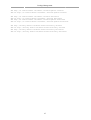
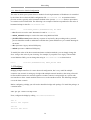
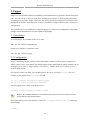
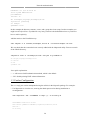
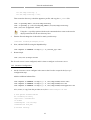
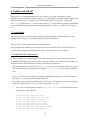
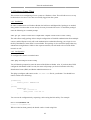
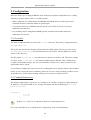
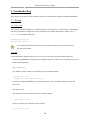
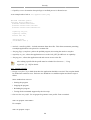
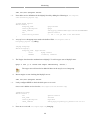
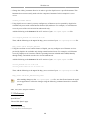
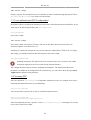
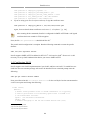
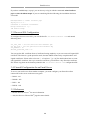
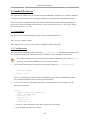
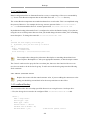
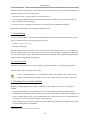
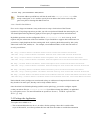
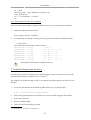
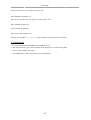
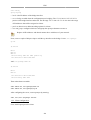
# m h dom mon dow
command
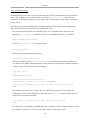
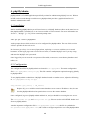
• m: minute the command executes on between 0 and 59.
• h: hour the command executes on between 0 and 23.
• dom: day of month the command executes on.
• mon: the month the command executes on between 1 and 12.
• dow: the day of the week the command executes on between 0 and 7. Sunday may be specified by
using 0 or 7, both values are valid.
• command: the command to execute.
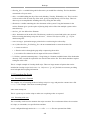
To add or change entries in a crontab file the crontab -e command should be used. Also, the contents
of a crontab file can be viewed using the crontab -l command.
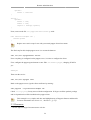
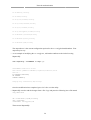
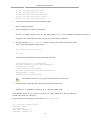
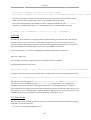
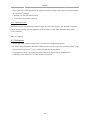
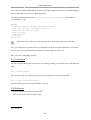
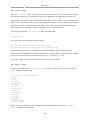
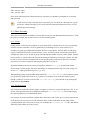
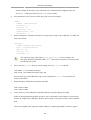
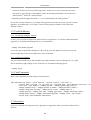
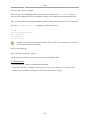
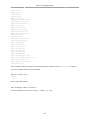
To execute the backup.sh script listed above using cron. Enter the following from a terminal prompt:
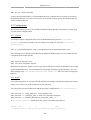
sudo crontab -e
Using sudo with the crontab -e command edits the root user's crontab. This is necessary if
you are backing up directories only the root user has access to.
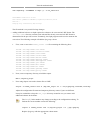
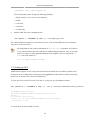
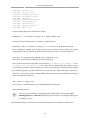
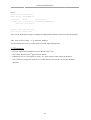
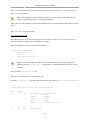
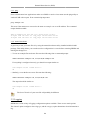
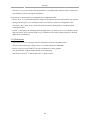
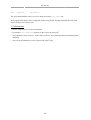
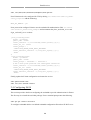
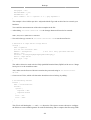
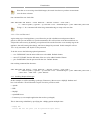
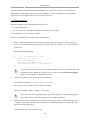
Add the following entry to the crontab file:
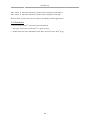
# m h dom mon dow
command
0 0 * * * bash /usr/local/bin/backup.sh
The backup.sh script will now be executed every day at 12:00 am.
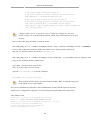
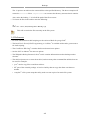
The backup.sh script will need to be copied to the /usr/local/bin/ directory in order for
this entry to execute properly. The script can reside anywhere on the file system simply
change the script path appropriately.
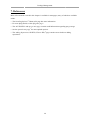
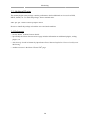
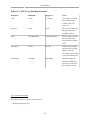
For more in depth crontab options see Section 1.4, “References” [p. 247].
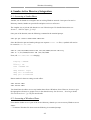
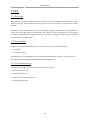
1.3. Restoring from the Archive
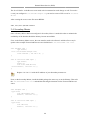
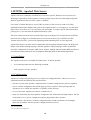
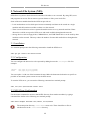
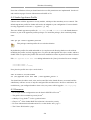
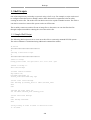
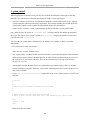
Once an archive has been created it is important to test the archive. The archive can be tested by
listing the files it contains, but the best test is to restore a file from the archive.
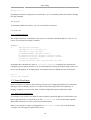
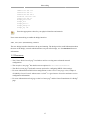
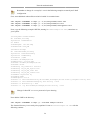
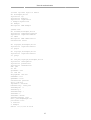
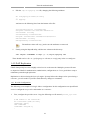
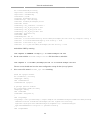
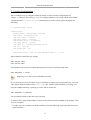
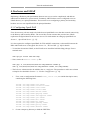
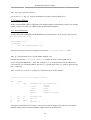
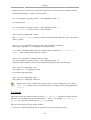
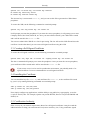
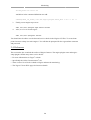
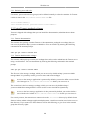
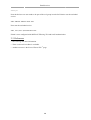
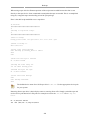
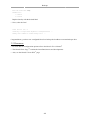
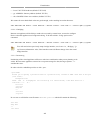
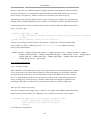
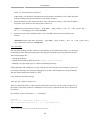
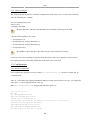
• To see a listing of the archive contents. From a terminal prompt:
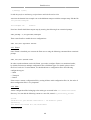
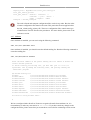
tar -tzvf /mnt/backup/host-Monday.tgz
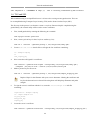
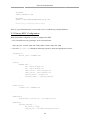
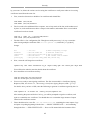
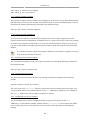
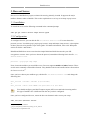
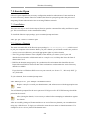
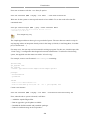
• To restore a file from the archive to a different directory enter:
tar -xzvf /mnt/backup/host-Monday.tgz -C /tmp etc/hosts
246