1
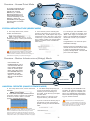
Overview : Access Point Mode
wired connection
In Access Point Mode, the
HOD45B broadcasts WiFi
Signal from a wired
Network (i.e. a wired
Router) and allows your
WiFi enabled devices to
connect wirelessly to your
Network. Note: The
HOD45B must be plugged
into the router or network
after setup.
wireless
connection
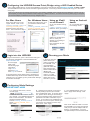
STATION INFRASTRUCTURE (BRIDGE MODE)
A. In the drop down menu, choose
“Station (Infrastructure)”
(
)
B. Click on “Select Site Survey” A new
window will pop up. Select your network,
click “Done”.
C. If the network you are selecting has
security, it will prompt you to put in a wireless security key. It will skip this step if your
network has no key. (Be sure to type in the
correct key! If you are unsure of what your
key is, please contact your network administrator or wireless router manufacturer.
Click “Next”.)
D. The setup of your HOD45B is now
complete. To make any changes, click
“Back”. Click “Apply” to complete your
setup. The HOD45B will automatically
reboot and connect to your wireless
network.
Congratulations! You have set up the
HOD45B as a Bridge.
Please connect the HOD45B into your
network devices with an ethernet cable
in order for the HOD45B to function
properly in Bridge Mode. Use the LAN
port on the PoE adapter.
i The 2.4GHz networks will appear in blue and 5GHz
networks will appear in orange. While you can select a
2.4GHz network, if available we recommend connecting to a
5GHz network to optimize your speed and throughput.
Overview : Station Infrastructure (Bridge) Mode
In this mode, the
HOD45B allows you to
connect wired devices
to an existing wireless
router or access point.
Note: Using this mode,
the HOD45B does not
broadcast any WiFi
signal. It can only link
directly to the wireless
source.
wireless
connection
Ethernet switch
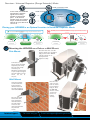
UNIVERSAL REPEATER (RANGE EXTENDER MODE)
A. In the drop down menu, choose “Universal
Repeater”
B. Click ‘Scan’ to find your wireless Internet
connection. Select a network you would like
to extend, 2.4GHz or 5GHz. It should
appear in the SSID field below.
i The 2.4GHz networks will appear in blue and 5GHz
networks will appear in orange. While you can select a 2.4GHz
network, if available we recommend connecting to a 5GHz
network to optimize your speed and throughput. (If the signal
strength is low or your network does not appear, you may need
to adjust the location of your HOD45B. Click ‘Scan’ to try again.)
C. The Quick Setup will prompt you
to enter a security key only if the
network you are connecting to is
encrypted. Enter the key if prompted
and click ‘Next’.
Note: If there is no security on the
original network, just click ‘Next’
D. The setup of your HOD45B is now
complete. To make any changes, click
“Back”. Click “Apply” to complete your
setup. The HOD45B will automatically
reboot and start repeating and extending your wireless network.
If you do not know the security key of
the network you are connecting to,
please consult your network administrator.
i After the reboot, the HOD45B will join the
original network. It will automatically be renamed to
your original wireless network, unless it was specified
during the set up process. If you wish to modify this
name, please refer to the user’s manual.