1
KUMO Installation and Operation Manual — Setup and Control from a
1
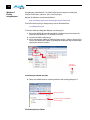
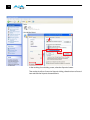
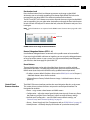
Check this Box
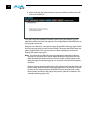
3. In the Windows Components Wizard, click Networking Services and then click the
Details button below. You’ll see a Networking Services dialog: locate the UPnP
User Interface checkbox and click in it to check the box and enable UPnP service.
4. Click the OK button and then click Next in the Windows Components Wizard. You
may need to provide your Windows XP installation CD.
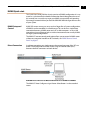
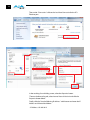
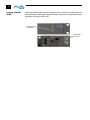
5. Go to Start > My Network Places again and look for the KUMO icon as shown
previously. UPnP devices on your local network will be displayed there, including
KUMO. Whenever a KUMO is connected, a notifying icon will appear briefly in the
System Tray. When you see the icon, go to My Network Places to find the KUMO
icon and double-click it to launch KUMO’s web interface for control and setup.
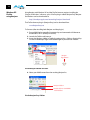
Bonjour sidebar
Double-click to view KUMO web interface
15