1
Salon Connection 1.0
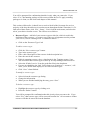
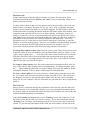
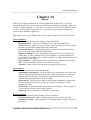
Spa options
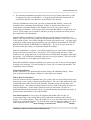
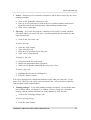
Select a resource from the list on the left by clicking on it once. Then place a
checkmark next to each employee’s name on the right that will be able to use that
resource. Repeat the procedure for each of the resources in the list.
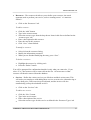
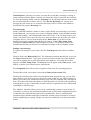
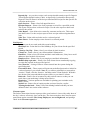
Manicure options
Select a resource from the list on the left by clicking on it once. Then place a
checkmark next to each employee’s name on the right that will be able to use that
resource. Repeat the procedure for each of the resources in the list.
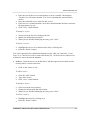
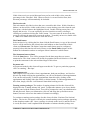
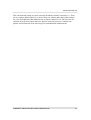
Pedicure options
Select a resource from the list on the left by clicking on it once. Then place a
checkmark next to each employee’s name on the right that will be able to use that
resource. Repeat the procedure for each of the resources in the list.
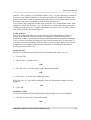
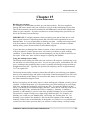
Hair Style options
Select a resource from the list on the left by clicking on it once. Then place a
checkmark next to each employee’s name on the right that will be able to use that
resource. Repeat the procedure for each of the resources in the list.
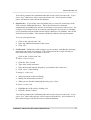
Invoice Tab
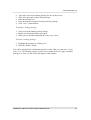
Tax Registration Number: Show tax registration number; Don’t show tax
registration number – Some international municipalities require that the business’ tax
registration number appear on the sales invoice. If your municipality requires your tax
number to appear, enter the tax number here and select the ‘Show tax number on invoice’
option button.
Currency wording for printing – The entries into these fields will appear on the gift
certificates. Depending on your country, enter the appropriate denomination value here.
Invoice Title – Some international municipalities require a specific title for the invoice.
If you would like to change the name of the invoice to something more suitable for your
business, enter that title here. This title will only appear on the invoice.
Tax title – Some international municipalities require specific tax titles on their invoices.
If you have a certain way the tax title (instead of ‘Sales tax’) needs to be printed on your
invoice, enter the wording in this box.
Discount title – If you don’t want the word ‘Discount’ to appear on the printed invoice,
or would like the word changed, enter that change here.
Invoice footer – If you want a message to appear at the bottom of the invoice besides the
standard “Thank you!” enter that message here for printing on each of your invoices.
©2008 BLUE CRYSTAL SOFTWARE CORPORATION
26