1
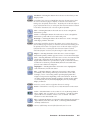
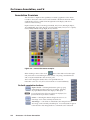
Freehand — Selecting this button allows the user to draw freely on the
display screen.
N For Freehand, Line, Arrow, and Highlighter functions, the start point is where
the screen is touched (by finger or stylus), or where the cursor starts when
holding down the primary mouse button. The finish point is where the stylus or
finger is lifted from the screen, or at the point where the mouse button is released.
For all drawn annotations, line color and weight are adjustable.
Line — Selecting this button allows the user to create a straight line
between two points.
Arrow — Selecting this button allows the user to create a straight line
between two points with an arrow at the end point.
Rectangle — Selecting this button allows the user to create a rectangle
with edges parallel to the raster.
N For Rectangle and Ellipse functions, the primary corner is where the screen is
first touched (by finger or stylus), or where the cursor starts when holding down
the primary mouse button. The opposite corner is where the stylus or finger is
lifted from the screen, or at the point where the mouse button is released.
Unless the fill option is selected, only the rectangle or ellipse outline is drawn.
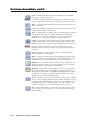
Ellipse — Selecting this button allows the user to create an ellipse
between the primary and the opposite corners of a non-drawn rectangle.
Text — Selecting this button allows the user to create on-screen text with
a keyboard connected to the rear USB or PS/2 port. Text insertion
begins either at the mouse operated cursor point, or where the screen is
touched. If no insertion point is defined, then text is inserted at the
previous active function's end point.
Highlighter — Selecting this button allows the user to highlight the
video information, not the annotation.
Size — Select this button to adjust size of text and/or line weight
(not linked), after selecting a drawing or text function, such as line,
rectangle, or text. A secondary palette opens displaying either line
weight or text point size depending on the active function. From the
secondary palette select the desired size button. Functions this applies
to are Text, Line, Arrow, Freehand, Highlighter, Arrows, Rectangle,
Ellipse, and Eraser.
N Eraser size, text size, and line weight have discrete size settings.
Eraser — Select this to erase any (non saved) annotations on the screen.
Color — Select this button to choose the color of any drawing function
(fill or outline), text, or pointer color. On selection, a secondary palette
opens with 16 color swatches. Select a color as desired. The active
function now uses the selected color.
Fill — Selecting this button in conjunction with selecting the rectangle or
ellipse button, allows the user to draw a solid shape, filled with the
currently selected color.
N A drawn, unfilled shape cannot be filled afterwards, and vice versa.
Annotator • On Screen Annotation
4-5