1
7
Traktor Pro: Loading,
Playing, Mixing, and
Syncing
A
t this point, you should have an understanding of Traktor’s foundations:
setup configuration, the GUI, layouts, playlists, preparation, collection maintenance, and so on. It’s fairly easy to see how the DJ culture’s proliferation
influenced Traktor’s appearance and workflow patterns. As soon as you load and start
mixing some tracks, you will see just how digital software lets DJs expand beyond
hardware limitations.
Hopefully, you’ve been breaking up the reading with a bit of your own Traktor noodling. If not, it’s that time.…
Intro to Loading Tracks
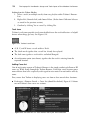
Traktor provides several straightforward methods to load music into the four Decks.
Select a track within the Browser List using your mouse or the up/down keys on your
computer keyboard and then perform one of the following:
n
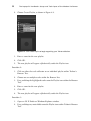
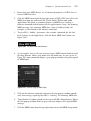
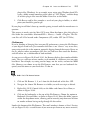
Click and drag a track from the Browser List to Deck A, B, C, or D.
n
Press Ctrlþ< or > on the computer keyboard to load the track into Deck A or B,
respectively.
n
Right-click (Control-click) on any track within the Browser List and choose Load
Track into Deck A, B, C, or D.
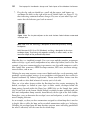
Tip: You can easily assign Deck Load to any external MIDI control device under
Preferences > Controller Manager. For more information, check the Controller
Manager section further along.
When navigating from the Browser to the Decks and back becomes second nature, you
may want to look into some of Traktor’s Deck Loading configurations. The various
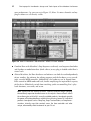
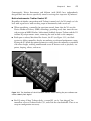
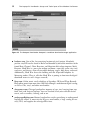
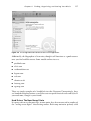
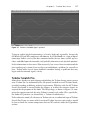
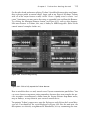
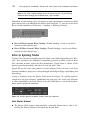
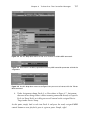
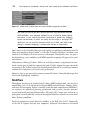
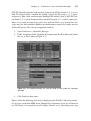
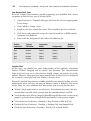
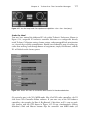
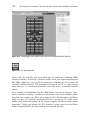
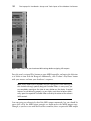
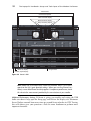
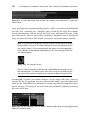
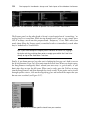
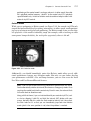
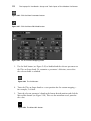
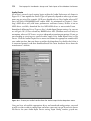
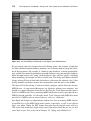
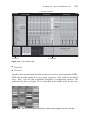
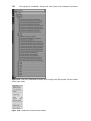
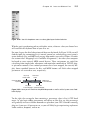
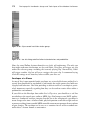
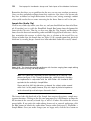
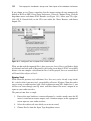
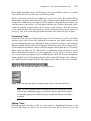
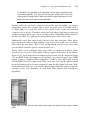
playback and loading functions, as shown in Figure 7.1, are adjusted within the Preferences to augment as well as streamline your workflow. Open Preferences > Loading
> Loading.
119