1
User’s Manual
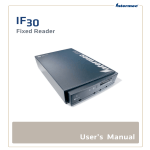
IF30 Fixed Reader
Intermec Technologies Corporation
Worldwide Headquarters
6001 36th Ave.W.
Everett, WA 98203
U.S.A.
www.intermec.com
The information contained herein is provided solely for the purpose of allowing customers to
operate and service Intermec-manufactured equipment and is not to be released, reproduced, or
used for any other purpose without written permission of Intermec Technologies Corporation.
Information and specifications contained in this document are subject to change without prior
noticed and do not represent a commitment on the part of Intermec Technologies Corporation.
© 2007 by Intermec Technologies Corporation. All rights reserved.
The word Intermec, the Intermec logo, Norand, ArciTech, Beverage Routebook, CrossBar,
dcBrowser, Duratherm, EasyADC, EasyCoder, EasySet, Fingerprint, i-gistics, INCA (under
license), Intellitag, Intellitag Gen2, JANUS, LabelShop, MobileLAN, Picolink, Ready-to-Work,
RoutePower, Sabre, ScanPlus, ShopScan, Smart Mobile Computing, SmartSystems, TE 2000,
Trakker Antares, and Vista Powered are either trademarks or registered trademarks of Intermec
Technologies Corporation.
There are U.S. and foreign patents as well as U.S. and foreign patents pending.
ii
IF30 Fixed Reader User’s Manual
Contents
Contents
Before You Begin. . . . . . . . . . . . . . . . . . . . . . . . . . . . . . . . . . . . . . . . . . . . . . . . . . . . vii
Safety Information . . . . . . . . . . . . . . . . . . . . . . . . . . . . . . . . . . . . . . . . . . . vii
Global Services and Support . . . . . . . . . . . . . . . . . . . . . . . . . . . . . . . . . . . . vii
Warranty Information . . . . . . . . . . . . . . . . . . . . . . . . . . . . . . . . . vii
Web Support . . . . . . . . . . . . . . . . . . . . . . . . . . . . . . . . . . . . . . . . vii
Telephone Support . . . . . . . . . . . . . . . . . . . . . . . . . . . . . . . . . . viii
Who Should Read This Manual . . . . . . . . . . . . . . . . . . . . . . . . . . . . . . . . . ix
Related Documents . . . . . . . . . . . . . . . . . . . . . . . . . . . . . . . . . . . . . . . . . . ix
Patent Information . . . . . . . . . . . . . . . . . . . . . . . . . . . . . . . . . . . . . . . . . . . . x
1 Getting Started
. . . . . . . . . . . . . . . . . . . . . . . . . . . . . . . . . . . . . . . . . . . . . . . . .1
Overview of the IF30 . . . . . . . . . . . . . . . . . . . . . . . . . . . . . . . . . . . . . . . . . . . . . . . . . 2
Unpacking the IF30 . . . . . . . . . . . . . . . . . . . . . . . . . . . . . . . . . . . . . . . . . . . . . . . . . . 3
What You Need . . . . . . . . . . . . . . . . . . . . . . . . . . . . . . . . . . . . . . . . . . . . . . 3
Learning About the IF30 . . . . . . . . . . . . . . . . . . . . . . . . . . . . . . . . . . . . . . . . . . . . . . 4
Understanding the Front Panel Ports . . . . . . . . . . . . . . . . . . . . . . . . . . . . . . 4
Understanding the LEDs . . . . . . . . . . . . . . . . . . . . . . . . . . . . . . . . . . . . . . . 6
Learning About the Intermec Ready-To-Work Indicator . . . . . . . . . . . . . . . . 7
Understanding the Rear Panel Ports . . . . . . . . . . . . . . . . . . . . . . . . . . . . . . . 8
How the IF30 Fits in Your Network . . . . . . . . . . . . . . . . . . . . . . . . . . . . . . . . . . . . . . 9
Configuring the IF30 (Setting the IP Address) . . . . . . . . . . . . . . . . . . . . . . . . . . . . . . 9
Using a Communications Program . . . . . . . . . . . . . . . . . . . . . . . . . . . . . . . 10
Configuring the IF30 for an Ethernet Connection . . . . . . . . . . . . . . . . . . . 11
Using the Web Browser Interface . . . . . . . . . . . . . . . . . . . . . . . . . . . . . . . . 14
Saving Configuration Changes . . . . . . . . . . . . . . . . . . . . . . . . . . . . . . . . . . . . . . . . . 15
Installing the IF30 . . . . . . . . . . . . . . . . . . . . . . . . . . . . . . . . . . . . . . . . . . . . . . . . . . 18
Choosing a Mounting Location . . . . . . . . . . . . . . . . . . . . . . . . . . . . . . . . . 18
Connecting the IF30 to Your Network . . . . . . . . . . . . . . . . . . . . . . . . . . . . 19
Setting the Date and Time . . . . . . . . . . . . . . . . . . . . . . . . . . . . . . . . . . . . . . . . . . . . 20
Using the IF30 Securely . . . . . . . . . . . . . . . . . . . . . . . . . . . . . . . . . . . . . . . . . . . . . . 21
IF30 Fixed Reader User’s Manual
iii
Contents
2 Configuring Network Settings
. . . . . . . . . . . . . . . . . . . . . . . . . . . . . . 23
Configuration Settings For Your Network . . . . . . . . . . . . . . . . . . . . . . . . . . . . . . . . 24
Configuring Ethernet Settings . . . . . . . . . . . . . . . . . . . . . . . . . . . . . . . . . . . . . . . . . 24
Enabling IPv6 . . . . . . . . . . . . . . . . . . . . . . . . . . . . . . . . . . . . . . . . . . . . . . 27
Configuring Network Services . . . . . . . . . . . . . . . . . . . . . . . . . . . . . . . . . . . . . . . . . 28
Configuring SNTP Client Settings . . . . . . . . . . . . . . . . . . . . . . . . . . . . . . 30
Configuring Security . . . . . . . . . . . . . . . . . . . . . . . . . . . . . . . . . . . . . . . . . . . . . . . .
Controlling Access to IF30 Menus . . . . . . . . . . . . . . . . . . . . . . . . . . . . . .
Setting Up Logins . . . . . . . . . . . . . . . . . . . . . . . . . . . . . . . . . . . . . . . . . . .
Configuring the IF30 to Use a Password Server . . . . . . . . . . . . .
Changing the Default Login . . . . . . . . . . . . . . . . . . . . . . . . . . . .
30
31
33
34
35
About Certificates . . . . . . . . . . . . . . . . . . . . . . . . . . . . . . . . . . . . . . . . . . . . . . . . . .
Viewing Certificates . . . . . . . . . . . . . . . . . . . . . . . . . . . . . . . . . . . . . . . . .
Installing and Uninstalling Certificates . . . . . . . . . . . . . . . . . . . . . . . . . . .
Rejecting Expired Certificates . . . . . . . . . . . . . . . . . . . . . . . . . . . . . . . . . .
37
37
38
39
3 Creating and Using RFID Applications
. . . . . . . . . . . . . . . . . . . . . 41
RFID Applications and the IF30 . . . . . . . . . . . . . . . . . . . . . . . . . . . . . . . . . . . . . . . 42
Creating Applications for the IF30. . . . . . . . . . . . . . . . . . . . . . . . . . . . . . . . . . . . . . 42
Configuring RFID Settings . . . . . . . . . . . . . . . . . . . . . . . . . . . . . . . . . . . . . . . . . . .
About RFID Module Settings . . . . . . . . . . . . . . . . . . . . . . . . . . . . . . . . . .
Supported Tag Type . . . . . . . . . . . . . . . . . . . . . . . . . . . . . . . . . .
Supported Tag Type (Gen 2) . . . . . . . . . . . . . . . . . . . . . . . . . . .
Dense Reader Mode . . . . . . . . . . . . . . . . . . . . . . . . . . . . . . . . . .
LBT Channel . . . . . . . . . . . . . . . . . . . . . . . . . . . . . . . . . . . . . . .
LBT Scan Enable . . . . . . . . . . . . . . . . . . . . . . . . . . . . . . . . . . . .
Field Separator . . . . . . . . . . . . . . . . . . . . . . . . . . . . . . . . . . . . . .
ID Report . . . . . . . . . . . . . . . . . . . . . . . . . . . . . . . . . . . . . . . . . .
No Tag Report . . . . . . . . . . . . . . . . . . . . . . . . . . . . . . . . . . . . . .
Timeout Configuration Mode . . . . . . . . . . . . . . . . . . . . . . . . . .
ID Tries . . . . . . . . . . . . . . . . . . . . . . . . . . . . . . . . . . . . . . . . . . .
Antenna Tries . . . . . . . . . . . . . . . . . . . . . . . . . . . . . . . . . . . . . . .
Read Tries. . . . . . . . . . . . . . . . . . . . . . . . . . . . . . . . . . . . . . . . . .
Write Tries . . . . . . . . . . . . . . . . . . . . . . . . . . . . . . . . . . . . . . . . .
Initialization Tries. . . . . . . . . . . . . . . . . . . . . . . . . . . . . . . . . . . .
iv
42
44
44
44
44
44
45
45
45
45
45
46
46
46
46
46
IF30 Fixed Reader User’s Manual
Contents
Lock Tries . . . . . . . . . . . . . . . . . . . . . . . . . . . . . . . . . . . . . . . . . . 47
Select Tries. . . . . . . . . . . . . . . . . . . . . . . . . . . . . . . . . . . . . . . . . . 47
Unselect Tries . . . . . . . . . . . . . . . . . . . . . . . . . . . . . . . . . . . . . . . 47
Initial Queue . . . . . . . . . . . . . . . . . . . . . . . . . . . . . . . . . . . . . . . . 47
Session . . . . . . . . . . . . . . . . . . . . . . . . . . . . . . . . . . . . . . . . . . . . . 47
Field Strength . . . . . . . . . . . . . . . . . . . . . . . . . . . . . . . . . . . . . . . 47
Enable Antenna Port n. . . . . . . . . . . . . . . . . . . . . . . . . . . . . . . . . 48
Configuring the Data Collection Engine. . . . . . . . . . . . . . . . . . . . . . . . . . . . . . . . . . 48
Viewing the DCE Events Log. . . . . . . . . . . . . . . . . . . . . . . . . . . . . . . . . . . 50
Viewing DCE Statistics . . . . . . . . . . . . . . . . . . . . . . . . . . . . . . . . . . . . . . . 51
4 Managing, Upgrading, and Troubleshooting the IF30
. . 53
Managing the IF30 . . . . . . . . . . . . . . . . . . . . . . . . . . . . . . . . . . . . . . . . . . . . . . . . . . 54
Using Intermec SmartSystems Foundation . . . . . . . . . . . . . . . . . . . . . . . . . . . . . . . . 54
Configuring the IF30 with Intermec Settings . . . . . . . . . . . . . . . . . . . . . . . 54
Using Wavelink Avalanche . . . . . . . . . . . . . . . . . . . . . . . . . . . . . . . . . . . . . . . . . . . . 55
Enabling Simple Network Management Protocol (SNMP) . . . . . . . . . . . . . . . . . . . . 57
Maintaining the IF30 . . . . . . . . . . . . . . . . . . . . . . . . . . . . . . . . . . . . . . . . . . . . . . . . 60
Viewing Port Statistics . . . . . . . . . . . . . . . . . . . . . . . . . . . . . . . . . . . . . . . . 60
Viewing the Events Log . . . . . . . . . . . . . . . . . . . . . . . . . . . . . . . . . . . . . . . 61
Viewing the About This IF30 RFID Reader Screen . . . . . . . . . . . . . . . . . . 62
Viewing the IF30 Configuration Summary . . . . . . . . . . . . . . . . . 63
Restoring the IF30 to the Default Configuration . . . . . . . . . . . . . . . . . . . . 65
Upgrading Firmware . . . . . . . . . . . . . . . . . . . . . . . . . . . . . . . . . . . . . . . . . . . . . . . . . 66
Troubleshooting the IF30 . . . . . . . . . . . . . . . . . . . . . . . . . . . . . . . . . . . . . . . . . . . . . 68
Problems While Working With RFID . . . . . . . . . . . . . . . . . . . . . . . . . . . . 68
Problems With Network Connectivity . . . . . . . . . . . . . . . . . . . . . . . . . . . . 69
Calling Intermec Product Support . . . . . . . . . . . . . . . . . . . . . . . . . . . . . . . . . . . . . . 70
IF30 Fixed Reader User’s Manual
v
5 Using the IF30 GPIO Interfaces
. . . . . . . . . . . . . . . . . . . . . . . . . . . . . 71
About the GPIO Interfaces . . . . . . . . . . . . . . . . . . . . . . . . . . . . . . . . . . . . . . . . . . . 72
Accessing the GPIO Interfaces . . . . . . . . . . . . . . . . . . . . . . . . . . . . . . . . . . . . . . . . . 72
Using the Input Interfaces . . . . . . . . . . . . . . . . . . . . . . . . . . . . . . . . . . . . . . . . . . . .
IF30 Powered Input . . . . . . . . . . . . . . . . . . . . . . . . . . . . . . . . . . . . . . . . .
Isolated Input Interface . . . . . . . . . . . . . . . . . . . . . . . . . . . . . . . . . . . . . . .
Open Collector Interface. . . . . . . . . . . . . . . . . . . . . . . . . . . . . . . . . . . . . .
73
73
74
74
Using the Output Interfaces. . . . . . . . . . . . . . . . . . . . . . . . . . . . . . . . . . . . . . . . . . .
Switching the High Side Using IF30 Power . . . . . . . . . . . . . . . . . . . . . . . .
Switching the Low Side Using IF30 Power . . . . . . . . . . . . . . . . . . . . . . . .
Switching the High Side Using External Power . . . . . . . . . . . . . . . . . . . . .
Driving a DC Relay to Control an AC Load . . . . . . . . . . . . . . . . . . . . . . .
75
76
76
77
78
Using the Power Interface . . . . . . . . . . . . . . . . . . . . . . . . . . . . . . . . . . . . . . . . . . . . 78
A Specifications
. . . . . . . . . . . . . . . . . . . . . . . . . . . . . . . . . . . . . . . . . . . . . . . . . 79
IF30 Specifications . . . . . . . . . . . . . . . . . . . . . . . . . . . . . . . . . . . . . . . . . . . . . . . . . 80
RFID Specifications. . . . . . . . . . . . . . . . . . . . . . . . . . . . . . . . . . . . . . . . . . . . . . . . . 81
Port Pin Assignments . . . . . . . . . . . . . . . . . . . . . . . . . . . . . . . . . . . . . . . . . . . . . . . .
Control Port . . . . . . . . . . . . . . . . . . . . . . . . . . . . . . . . . . . . . . . . . . . . . . .
Serial Port . . . . . . . . . . . . . . . . . . . . . . . . . . . . . . . . . . . . . . . . . . . . . . . . .
Ethernet Port. . . . . . . . . . . . . . . . . . . . . . . . . . . . . . . . . . . . . . . . . . . . . . .
82
82
83
83
Index . . . . . . . . . . . . . . . . . . . . . . . . . . . . . . . . . . . . . . . . . . . . . . . . . . . . . . . . . . . . . . .
85
vi
IF30 Fixed Reader User’s Manual
Before You Begin
Before You Begin
This section provides you with safety information, technical
support information, and sources for additional product
information.
Safety Information
Your safety is extremely important. Read and follow all warnings
and cautions in this document before handling and operating
Intermec equipment. You can be seriously injured, and
equipment and data can be damaged if you do not follow the
cautions.
This section explains how to identify and understand warnings,
cautions, and notes that are in this document.
A warning alerts you of an operating procedure, practice,
condition, or statement that must be strictly observed to avoid
death or serious injury to the persons working on the
equipment.
A caution alerts you to an operating procedure, practice,
condition, or statement that must be strictly observed to
prevent equipment damage or destruction, or corruption or
loss of data.
Note: Notes either provide extra information about a topic or
contain special instructions for handling a particular condition or
set of circumstances.
Global Services and Support
Warranty Information
To understand the warranty for your Intermec product, visit the
Intermec web site at www.intermec.com and click Service &
Support > Warranty.
Web Support
Visit the Intermec web site at www.intermec.com to download
our current manuals (in PDF). To order printed versions of the
Intermec manuals, contact your local Intermec representative or
distributor.
IF30 Fixed Reader User’s Manual
vii
Before You Begin
Visit the Intermec technical knowledge base (Knowledge
Central) at intermec.custhelp.com to review technical
information or to request technical support for your Intermec
product.
Telephone Support
These services are available from Intermec.
Services
In the USA and
Canada call 1-800755-5505 and
choose this option
Description
Order Intermec • Place an order.
products
• Ask about an existing
order.
1 and then choose 2
Order Intermec Order printer labels and
media
ribbons.
1 and then choose 1
Order spare
parts
Order spare parts.
1 or 2 and then
choose 4
Technical
Support
Talk to technical support
about your Intermec
product.
2 and then choose 2
Service
• Get a return authorization 2 and then choose 1
number for authorized
service center repair.
• Request an on-site repair
technician.
Service contracts • Ask about an existing
contract.
• Renew a contract.
• Inquire about repair
billing or other service
invoicing questions.
1 or 2 and then
choose 3
Outside the U.S.A. and Canada, contact your local Intermec
representative. To search for your local representative, from the
Intermec web site, click Contact.
viii
IF30 Fixed Reader User’s Manual
Before You Begin
Who Should Read This Manual
This manual is for the person who is responsible for installing,
configuring, and maintaining the IF30.
This manual provides you with information about the features of
the IF30, and how to install, configure, operate, maintain, and
troubleshoot it.
Before you work with the IF30, you should be familiar with your
network and general networking terms, such as IP address. You
should also be familiar with your RFID system.
Related Documents
This table contains a list of related Intermec documents and their
part numbers.
Document Title
Part Number
IF30 Fixed Reader Quick Start Guide
930-188-xxx
Basic Reader Interface Programmer’s Reference Manual 937-000-xxx
IF30 Compliance Insert
933-056-xxx
IM5 Compliance Insert
075231-xxx
The Intermec web site at www.intermec.com contains our
documents (as PDF files) that you can download for free.
To download documents
1 Visit the Intermec web site at www.intermec.com.
2 Click Service & Support > Manuals.
3 In the Select a Product field, choose the product whose
documentation you want to download.
To order printed versions of the Intermec manuals, contact your
local Intermec representative or distributor.
IF30 Fixed Reader User’s Manual
ix
Before You Begin
Patent Information
Product is covered by one or more of the following patents:
4,999,636; 5,030,807; 5,055,659; 5,070,536; 5,280,159;
5,295,154; 5,349,678; 5,394,436; 5,425,051; 5,428,636;
5,483,676; 5,504,485; 5,504,746; 5,521,601; 5,546,397;
5,550,547; 5,574,979; 5,592,512; 5,673,037; 5,680,633;
5,682,299; 5,696,903; 5,740,366; 5,763,867; 5,777,561;
5,790,536; 5,825,045; 5,828,318; 5,828,693; 5,844,893;
5,850,181; 5,850,187; 5,862,171; 5,940,771; 5,942,987;
5,960,344; 5,995,019; 6,078,251; 6,121,878; 6,122,329;
6,172,596; 6,195,053; 6,249,227; 6,280,544; 6,286,762;
6,286,763; 6,288,629; 6,360,208; 6,384,712; 6,404,325;
6,429,775; 6,486,769; 6,501,807; 6,525,648; 6,639,509;
6,645,327; 6,677,852; 6,768,414; 6,784,789; 6,816,063.
There may be other U.S. and foreign patents pending.
x
IF30 Fixed Reader User’s Manual
1
Getting Started
This chapter introduces the IF30 Fixed Reader. It explains the
ports and LEDs, and explains how the reader fits into your
network. It contains these topics:
• Overview of the IF30
• Unpacking the IF30
• Learning About the IF30
• How the IF30 Fits in Your Network
• Configuring the IF30 (Setting the IP Address)
• Saving Configuration Changes
• Installing the IF30
• Setting the Date and Time
• Using the IF30 Securely
IF30 Fixed Reader User’s Manual
1
Chapter 1 — Getting Started
Overview of the IF30
The IF30 Fixed Reader is an RFID reader that provides
connectivity between tag data and an enterprise system.
The IF30 Fixed Reader
The IF30 Fixed Reader uses an EPCglobal Gen 2-certified IM5
Module (86x MHz RFID frequency band).
The IF30 Fixed Reader uses an EPCglobal Gen 2-certified IM5
Module (915 MHz RFID frequency band).
2
IF30 Fixed Reader User’s Manual
Chapter 1 — Getting Started
Unpacking the IF30
When you unpack the IF30, save the box and shipping material
in case you need to ship or store the IF30. The reader comes with
a documentation packet that includes a quick start guide and a
safety and compliance statement.
The IF30 Out of the Box
Note: The IF30 does not ship with RFID antennas. For more
information on these accessories, contact your Intermec sales
representative.
What You Need
To install and connect the IF30, you need these items:
• An appropriate AC power cord
• Appropriate RFID antennas and cables
• An Ethernet cable
IF30 Fixed Reader User’s Manual
3
Chapter 1 — Getting Started
Learning About the IF30
This section explains the ports and LEDs on the IF30.
Understanding the Front Panel Ports
The IF30 front panel has four ports. To access three of the ports,
you need to remove the cable access door.
To remove the access door
• On the underside of the IF30, unscrew the two thumbscrews
on the cable access door and remove the door.
Cable access
door
Control port
AC power port
Ethernet port
Serial port
IF30 Front Panel Ports: This illustration shows how to remove the cable
access door and where the ports are located.
4
IF30 Fixed Reader User’s Manual
Chapter 1 — Getting Started
IF30 Front Panel Port Descriptions
Port
Description
AC Power
Used with an appropriate power cable, this port
connects the reader to an AC power source.
10BaseT/100BaseTx port. Used with an appropriate
cable, this port connects the reader to your Ethernet
network. The reader auto-negotiates with the device it
is communicating with so that the data rate is set at the
highest rate at which both devices can communicate.
Used with an RS-232 null modem cable (P/N
059167), this port connects the reader to a terminal or
PC to perform configuration.
General purpose input/output (GPIO) port. This port
connects the reader to industrial controls such as relays
or indicators. The port includes optically-isolated
inputs, optically-isolated low voltage DC outputs, and
access to 12 VDC.
For more information on the IF30 GPIO interfaces,
see “About the GPIO Interfaces” on page 72..
Ethernet
Serial
Control
For more information, see “Port Pin Assignments” on page 82.
IF30 Fixed Reader User’s Manual
5
Chapter 1 — Getting Started
Understanding the LEDs
The IF30 has three LEDs that show you the operating status of
the reader.
LEDs
IF30 LEDs
LED Descriptions
LED Icon
6
LED Name
Description
Power
Remains on after the IF30 boots.
Wired LAN
Flashes when a frame is transmitted
or received on the Ethernet port.
Intermec
Ready-to-Work ™
Indicator
Blue LED remains on when an
application is communicating with
the data collection engine (DCE) on
the IF30. Blinks when no application
is communicating with the DCE. For
more information, see the next
section.
IF30 Fixed Reader User’s Manual
Chapter 1 — Getting Started
Learning About the Intermec Ready-To-Work Indicator
The blue Ready-to-Work Indicator shows when an application is
communicating with the data collection engine (DCE) on the
IF30. The next table explains the different states of the ReadyTo-Work indicator.
Ready-to-Work Indicator Status Descriptions
Status
Description
Off
Blinking
The IF30 is not yet ready for operation.
The BRI server is running but no applications have
connected to the BRI TCP port.
An application is communicating with the BRI server.
Or, your custom application is communicating with the
DCE.
Steady
For more information on the DCE, see “Configuring the Data
Collection Engine” on page 48.
IF30 Fixed Reader User’s Manual
7
Chapter 1 — Getting Started
Understanding the Rear Panel Ports
The ports on the rear panel are used for connecting the IF30 to
RFID antennas.
RFID antenna
ports (4 places)
Terminators
IF30 Rear Panel Ports: This illustration shows the ports on the rear panel. The
IF30 ships with antenna terminators mounted on RFID antenna ports 2, 3, and
4.
The IF30 RFID antenna ports use these connectors:
• 865-869 MHz: SMA
• 915 MHz: Reverse SMA
Make sure you have appropriate antennas and cables for your
IF30. For help, contact your Intermec sales representative.
Government regulatory agencies require that this RFID reader
only use approved antennas. Therefore, this reader uses a
custom antenna connector. Do not use antennas not approved
for use with this reader.
Note: The IF30 ships with antenna terminators installed on
RFID antenna ports 2, 3, and 4. Do not remove the terminator
from any port unless you are installing an antenna or antenna
cable on that port.
8
IF30 Fixed Reader User’s Manual
Chapter 1 — Getting Started
How the IF30 Fits in Your Network
In general, the reader forwards RFID tag data to the wired
Ethernet network. The next illustrations show how the IF30 fits
in your network.
RFID
antenna
Container
with RFID tag
IF30 with
Ethernet
connection
tion
IF30 in a Wired Ethernet Network:This illustration shows the IF30 in a wired
Ethernet network. The IF30 sends and receives RFID tag data to the RFID server
through the wired network.
Configuring the IF30 (Setting the IP Address)
By default, the IF30 is configured to be a DHCP client and
accepts offers from any DHCP server. Therefore, the IF30 will
work directly out of the box.
However, if you are not using a DHCP server to assign an IP
address you need to use a communications program, such as
HyperTerminal, for the initial configuration. For help, see “Using
a Communications Program” on page 10.
After the IF30 has been assigned an IP address, you can
configure, manage, and troubleshoot the IF30 from a remote
location using a web browser interface. For help, see “Using the
Web Browser Interface” on page 14.
Note:This manual assumes that you are using a communications
program for your initial configuration, and then using a web
browser interface to perform all other configurations. You can
also continue to use a communications program to configure the
IF30.
IF30 Fixed Reader User’s Manual
9
Chapter 1 — Getting Started
Using a Communications Program
You can use a communications program (such as HyperTerminal)
to set the initial IP address for the IF30. After you configure the
IP address, you can continue to use the communications program
to set other parameters or you can use a web browser to complete
the configuration.
To use a communications program, you must have:
• a terminal or PC with an open serial port and the
communications program.
• an RS-232 null-modem cable (P/N 059167). One end of this
cable must be a 9-pin socket connector to connect to the
serial port on the IF30. To order this cable, contact your local
Intermec representative.
Note: If you have Microsoft ActiveSync running on your desktop
PC, you may need to disable ActiveSync to make the serial port
available.
To use a communications program
1 Use the RS-232 null-modem cable to connect the serial port
on the IF30 to a serial port on your PC.
2 Start the communications program and configure the serial
port communications parameters on your PC, and then click
OK. You should configure the serial port communications
parameters to:
Bits per second
Data bits
Parity
Stop bit
Flow control
9600
8
None
1
None
3 Connect the IF30 to AC power. The IF30 boots as soon as
you apply power.
10
IF30 Fixed Reader User’s Manual
Chapter 1 — Getting Started
4 Press Enter when the message “Starting system” appears on
your screen. The Username field appears.
5 In the Username field type the default user name intermec,
and then press Enter.
6 In the Password field type the default password intermec,
and then press Enter. The IF30 RFID Reader Configuration
menu appears.
To configure the IF30 for your Ethernet connection, continue
with the next procedure.
Configuring the IF30 for an Ethernet Connection
Follow this procedure to configure the IF30 for your Ethernet
connection that does not use a DHCP server. If your wired
network uses a DHCP server, you can skip this procedure and
continue with “Connecting the IF30 to Your Network” on
page 19.
To configure the IF30 for a wired Ethernet connection
1 Connect to the IF30 using a communications program. For
help, see “Using a Communications Program” on page 10.
IF30 Fixed Reader User’s Manual
11
Chapter 1 — Getting Started
2 With Ethernet selected in the IF30 RFID Reader
Configuration menu, press the right arrow. The Ethernet
menu appears.
3 Configure these settings:
DHCP Mode
IP Address
IP Subnet
Mask
IP Router
(Gateway)
Set to Disable DHCP.
A unique IP address.
The subnet mask that matches the other
devices in your network.
If the IF30 will communicate with devices on
another subnet, enter the address of the router
that will forward frames.
Or, press the down arrow key to select IPv6 Configuration,
and then press the right arrow key to configure these IPv6
settings:
Enable
Autoconfiguration
IPv6 Address
IPv6 Subnet Mask
IPv6 Router
(Gateway)
Enables automatic assignment of a
unique address to this IF30.
A unique 128-bit IPv6 address.
The IPv6 subnet mask. Range is 1 to
128 bits.
A unique 128-bit address for an IPv6
router.
4 (Optional) To configure DNS settings, choose Network
Services and press Enter. The Network Settings screen
appears.
12
IF30 Fixed Reader User’s Manual
Chapter 1 — Getting Started
Configure the DNS settings as needed:
Hostname Hostname for this IF30. The default is IF30 prepended to the serial number of the unit.
This can be a simple hostname or a fully qualified
domain name (FQDN). If this device obtains its IP
address via DHCP, this parameter is also sent to the
DHCP server. If the DHCP server supports it, this
field will be used for dynamic DNS (DDNS) updates.
DNS
IP address of a domain name server that the IF30 uses
Address 1 to resolve DNS names.
DNS
IP address of a domain name server that the IF30 uses
Address 2 to resolve DNS names if the DNS server at DNS
Address 1 is not responding.
DNS
Domain name suffix that will be appended to DNS
names that cannot be resolved.
Suffix 1
DNS
Domain name suffix that will be appended to DNS
names that cannot be resolved either by themselves or
Suffix 2
using DNS suffix 1.
5 Press the left arrow key to return to the main reader
configuration menu.
6 Press the down arrow key to select Save Configuration and
then press Enter. The new settings are saved.
7 Press the down arrow key to select Reboot and then press
Enter. The IF30 reboots. When the boot process is finished,
you see “Starting system…” at the bottom of the
HyperTerminal screen.
8 Disconnect the null-modem cable and AC power cable from
the IF30.
IF30 Fixed Reader User’s Manual
13
Chapter 1 — Getting Started
The IF30 is now ready to be connected to your network. See
“Connecting the IF30 to Your Network” on page 19.
Using the Web Browser Interface
After you have set the initial IP address, you can configure and
manage the IF30 remotely using the web browser interface. The
IF30 web browser interface has been tested using Internet
Explorer 6.0. Using other browsers may provide unpredictable
results.
To use the web browser interface, the IF30 must be connected to
your wired Ethernet.
If your session terminates abruptly or a new login screen appears,
someone else may have accessed the IF30. When using the web
browser interface, remember that your session terminates if you
do not use it for 15 minutes.
Note: If you access the Internet using a proxy server, add the IF30
IP address to your Exceptions list. The Exceptions list contains
the addresses that you do not want to use with a proxy server.
To use the IF30 web browser interface
1 Determine the IP address of the IF30. If a DHCP server
assigned the IP address, you need to get the IP address from
that server.
2 Start Internet Explorer.
3 In the Address field, enter the IP address, and press Enter.
The IF30 login screen appears.
14
IF30 Fixed Reader User’s Manual
Chapter 1 — Getting Started
Or, for a secure session, click A secure session is available.
The secure login screen appears.
4 If necessary, enter a user name and password. The default user
name is intermec and the default password is intermec. You
can define the user name and password. For help, see “Setting
Up Logins” on page 33.
5 Click Login. The Ethernet screen appears.
Your web browser session is established.
Note: Although you can use several methods to manage the IF30
remotely, this manual assumes you are using the web browser.
Saving Configuration Changes
When you are done configuring the IF30, you may want to
activate your changes immediately or you may want to save the
changes now and activate them later. If you choose to activate the
changes later, they will become active the next time the IF30 is
booted.
Note: If you made changes to RFID module settings, you need to
reboot the IF30 to activate those changes.
IF30 Fixed Reader User’s Manual
15
Chapter 1 — Getting Started
IF30 Configuration Files
Configuration File
Description
Default
This configuration file is the factory default
configuration. For help, see “Restoring the
IF30 to the Default Configuration” on
page 65.
When you click Submit Changes, the IF30
updates the current configuration file. The
IF30 does not change the active
configuration file. You can see a list of
pending changes when you click Save/
Discard Changes. Having separate files for
the current and active configurations lets you
make changes while the IF30 is running
without interrupting communication.
When you click Save/Discard Changes >
Save Changes and Reboot, the IF30 copies
the current configuration file to the active
configuration file. The active configuration
file is the file that the IF30 uses.
Current
Active
16
IF30 Fixed Reader User’s Manual
Chapter 1 — Getting Started
To save or discard configuration changes
1 On the menu bar, click Save/Discard Changes.
The Save/Discard Changes screen appears.
2 To discard changes, click Discard Pending Changes.
To save changes, continue with the next step.
3 Verify that all your configuration changes appear in the
Pending Changes list.
4 Click Save Changes and Reboot to reboot the IF30 and
immediately use your new active configuration.
Or, click Save Changes without Reboot. The IF30 saves the
changes to its current configuration and continues to run its
active configuration. You will need to reboot the IF30 when
you want the current configuration to become the active
configuration.
IF30 Fixed Reader User’s Manual
17
Chapter 1 — Getting Started
Installing the IF30
This section explains how to choose a mounting location for the
IF30 and connect the IF30 to your wired Ethernet network.
Choosing a Mounting Location
You can place the IF30 horizontally or vertically on a stable
surface. You can also mount the IF30 to a wall or a beam using
one of these mounting bracket kits:
• Mounting bracket kit (P/N 068918)
• Rotating mounting bracket kit (P/N 068751)
For more information, contact your local Intermec
representative.
Wall
Mounting the IF30: This illustration shows the ways you can install the IF30
on a horizontal or vertical surface.
The next table includes environmental requirements for the
IF30. Choose a location that meets these requirements.
IF30 Environmental Requirements
18
Type
Minimum
Maximum
Operating temperature
Storage temperature
Humidity (non-condensing)
-25ºC (-13ºF)
-30ºC (-22ºF)
10%
55ºC (131ºF)
75ºC (167ºF)
90%
IF30 Fixed Reader User’s Manual
Chapter 1 — Getting Started
Connecting the IF30 to Your Network
After you configure the IF30 for your network and choose a
mounting location, you can place the IF30 in its mounting
location and connect it to your network.
For help with configuring the IF30, see “Configuring the IF30
(Setting the IP Address)” on page 9.
Note: If there is no DHCP server available at boot time, the IF30
will not be able to communicate on the network while searching
for DHCP lease offers.
To install the IF30
1 Remove the cable access door. For help, see “Understanding
the Front Panel Ports” on page 4.
2 Attach one to four RFID antennas to the RFID antenna
ports, starting with port 1. Do not remove the terminators
from unused antenna ports. For help, see “Understanding the
Rear Panel Ports” on page 8.
Each port must have either an antenna or a terminator
connected. Do not apply power to the reader unless an
antenna or terminator is installed on each antenna port.
3 Connect an Ethernet cable to the IF30 Ethernet port.
4 Connect the AC power cord to the power port on the IF30.
Note: The IF30 does not support power over Ethernet (POE).
5 Install the cable access door and route the cables through the
openings in the door seam. Make sure the cables are not
caught in the seam.
6 Place the IF30 in its mounting location. For more
information, see “Choosing a Mounting Location” on
page 18.
7 Connect the Ethernet cable to your network.
IF30 Fixed Reader User’s Manual
19
Chapter 1 — Getting Started
8 Connect the AC power cord to an AC outlet. As soon as you
apply power, the IF30 boots and the green Power LED turns
on.
The IF30 is now ready to communicate in your network.
Setting the Date and Time
After you have installed the IF30, you can set the date and time
via the web browser interface.
To set the date and time
1 Connect to the IF30 via the web browser interface. For help,
see “Using the Web Browser Interface” on page 14.
2 On the web browser screen, click the date and time in the
upper right-hand corner.
The Set Clock screen appears.
3 In the Date field, enter the current date using the format
MM/DD/YYYY, where:
MM is the month.
DD is the date.
YYYY is the year.
20
IF30 Fixed Reader User’s Manual
Chapter 1 — Getting Started
4 In the Time field, enter the current time using the format
HH:MM:SS, where:
HHis the correct hour in UTC (24-hour) format.
MM is the correct minute.
SS is the correct second.
5 Click Set. The IF30 date and time are set.
Using the IF30 Securely
You can protect the integrity and security of your data on the
IF30 by using a secure web browser session (HTTPS) to access
the IF30. For help, see “Using the Web Browser Interface” on
page 14.
IF30 Fixed Reader User’s Manual
21
Chapter 1 — Getting Started
22
IF30 Fixed Reader User’s Manual
2
Configuring Network
Settings
This chapter describes how to configure network settings for the
IF30 and includes these topics:
• Configuration Settings For Your Network
• Configuring Ethernet Settings
• Configuring Network Services
• Configuring Security
• About Certificates
IF30 Fixed Reader User’s Manual
23
Chapter 2 — Configuring Network Settings
Configuration Settings For Your Network
This chapter assumes that you are using the IF30 web browser
interface to configure network settings on the IF30. For help,
“Using the Web Browser Interface” on page 14.
You can also configure network settings by:
• using a communications program to access the IF30. For
help, see “Using a Communications Program” on page 10.
• using Intermec Settings from within the Intermec
SmartSystems Console. For help, see “Using Intermec
SmartSystems Foundation” on page 54.
Configuring Ethernet Settings
This section explains how to configure the wired Ethernet
settings using the web browser interface:
• DHCP mode
• (If DHCP is enabled) DHCP server name, user class, and
vendor class
• IP address
• IP subnet mask
• IP router (gateway)
• Link speed
Note: If you are using a DHCP server, you may not need to
configure Ethernet settings. For more information, contact your
network administrator.
For help with enabling IPv6 and configuring settings, see
“Enabling IPv6” on page 27.
24
IF30 Fixed Reader User’s Manual
Chapter 2 — Configuring Network Settings
To configure Ethernet settings
1 From the menu, click Ethernet. The Ethernet screen appears.
2 Configure the Ethernet settings. For help, see the next table.
Note: Different settings appear in this screen depending on
the current DHCP mode for the IF30.
If you need to configure DNS/Network Services settings, such
as DNS addresses or suffixes, or a SYSLOG destination, see
“Configuring Network Services” on page 28.
3 Click Submit Changes to save your changes. To activate your
changes, from the menu bar click Save/Discard Changes,
and then click Save Change and Reboot. For help, see
“Saving Configuration Changes” on page 15.
IF30 Fixed Reader User’s Manual
25
Chapter 2 — Configuring Network Settings
Ethernet Setting Descriptions
Parameter
Description
DHCP Mode
Sets the DHCP mode for the IF30:
• Choose Always Use DHCP if you want the
IF30 to get its IP address from a DHCP server.
• Choose Use DHCP if IP Address is Zero if
you want the IF30 to use DHCP whenever its
IP address is set to 0.0.0.0. If you choose this
option, make sure the IP address is set to
0.0.0.0.
• Choose Disable DHCP if you want to assign a
static IP address to the IF30.
DHCP
Name of the DHCP server. The IF30 accepts lease
Server Name
offers from only this server.
DHCP User Class (Optional) User class for this DHCP server.
DHCP
(Optional) Vendor class for this DHCP server.
Vendor Class
IP Address
IP address of the IF30 Ethernet connection. The
IP address has the form x.x.x.x, where x is a
number from 0 to 255.
Set this value to 0.0.0.0 if you set the DHCP
Mode to Use DHCP if IP Address is Zero.
Set this value to a static IP address for the Ethernet
connection if you disabled DHCP.
IP Subnet Mask
Subnet mask for this network. The subnet mask
has the form x.x.x.x, where x is a number from 0 to
255.
IP Router
IP address of the router. The IP address has the
(Gateway)
form x.x.x.x, where x is the number from 0 to 255.
Link Speed
Choose the speed and duplex mode you want the
IF30 to use when it communicates with the
Ethernet network.
If you want the IF30 to auto-negotiate this field,
choose Auto Select. Auto Select should work for
most networks.
26
IF30 Fixed Reader User’s Manual
Chapter 2 — Configuring Network Settings
Enabling IPv6
1 To enable IPv6 for your Ethernet connection, in the menu
click Ethernet > IPv6 Configuration.
2 Check the check box to enable IPv6, or uncheck the check
box to disable IPv6.
3 Click Submit Changes to save your changes. The IPv6
Configuration screen appears.
4 If you want to enable IPv6 autoconfiguration, click Enable
Autoconfiguration and continue with Step 5.
If you do not want to enable IPv6 autoconfiguration:
a Click Submit Changes. The screen refreshes with a list of
IPv6 configuration settings.
b Configure IPv6 settings. For help, see the next table.
5 Click Submit Changes. To activate your changes, from the
menu bar click Save/Discard Changes, and then click Save
Changes and Reboot. For help,“Saving Configuration
Changes” on page 15.
IPv6 Settings Descriptions
Parameter
Description
IPv6 Address
A unique 128-bit IPv6 address.
IPv5 Subnet Mask The IPv6 subnet mask. Range is 1 to 128 bits.
IPv6 Router
A unique 128-bit address for an IPv6 router.
(Gateway)
IF30 Fixed Reader User’s Manual
27
Chapter 2 — Configuring Network Settings
Configuring Network Services
This section explains how to configure these network service
settings using the web browser interface:
• Hostname
• Domain Name Server (DNS) addresses 1 and 2
• DNS suffixes 1 and 2
• SYSLOG destination
To configure network services
1 From the menu, click Network Services. The Network
Services screen appears.
2 Configure settings. For help, see the next table.
3 Click Submit Changes to save your changes. To activate your
changes, from the menu bar click Save/Discard Changes,
and then click Save Changes and Reboot. For help, see
“Saving Configuration Changes” on page 15.
28
IF30 Fixed Reader User’s Manual
Chapter 2 — Configuring Network Settings
IPv6 Settings Descriptions
Parameter
Description
Hostname
Name for this device. The default is the
configuration string for this IF30.
The hostname can be either a simple hostname, or
a qualified domain name (FQDN). If this device
obtains its IP address via DHCP, this parameter is
sent to the DHCP server. If the server supports it,
this field is used for dynamic DNS updates.
Enter the IP address of a domain name server that
the IF30 uses to resolve DNS names.
Enter the IP address of a domain name server that
the IF30 uses to resolve DNS names if the DNS
server at DNS Address 1 is not responding.
Enter a domain name suffix that will be appended
to DNS names that cannot be resolved.
Enter a domain name suffix that will be appended
to DNS names that cannot be resolved either by
themselves or using DNS suffix 1.
Domain name or IP address of the SYSLOG
server. In Unix networks, system messages are
logged to this server.
DNS Address 1
DNS Address 2
DNS Suffix 1
DNS Suffix 2
SYSLOG
Destination
IF30 Fixed Reader User’s Manual
29
Chapter 2 — Configuring Network Settings
Configuring SNTP Client Settings
This section explains how to configure Simple Network Time
Protocol (SNTP) client parameters. For information on public
NTP servers, see http://ntp.isc.org.
To configure SNTP settings
1 From the menu, click Network Services > SNTP
Configuration. The SNTP Configuration screen appears.
2 Enter SNTP information: In the SNTP Server Name 1 and
SNTP Server Name 2 fields, enter the DNS name or the IP
address of an SNTP or NTP server.
3 Click Submit Changes to save your changes. To activate your
changes, from the menu bar click Save/Discard Changes,
and then click Save Changes and Reboot. For help, see
“Saving Configuration Changes” on page 15.
Configuring Security
The IF30 supports security features to help maintain the integrity
of your secure network. You can:
• enable/disable access methods. For help see the next section
“Controlling Access to IF30 Menus.”
• change the default user name and password. For help, see
“Setting Up Logins” on page 33.
30
IF30 Fixed Reader User’s Manual
Chapter 2 — Configuring Network Settings
• use a password server to maintain a list of authorized users
who can configure and manage the IF30. For help, see
“Setting Up Logins” on page 33.
Controlling Access to IF30 Menus
You can enable or disable the web browser interface (HTTP or
HTTPS) depending on how you want users to be able to
configure or manage the IF30. For help, see “Access Method
Descriptions” on page 32.
To enable or disable the web browser interface
1 From the menu, click Security. The Security menu appears.
2 Enable or disable the web browser interface
3 Click Submit Changes to save your changes. To activate your
changes, from the menu bar click Save/Discard Changes,
and then click Save Changes and Reboot. For help, see
“Saving Configuration Changes” on page 15.
IF30 Fixed Reader User’s Manual
31
Chapter 2 — Configuring Network Settings
Access Method Descriptions
Method
Description
Browser Access
Determines if users can use a web browser to
configure or manage the IF30. Browser access is
through port 80 or port 443.
Choose Secure-Only if you want users to log in only
using the secure web browser (HTTPS) interface.
Secure-Only access is through port 443.
If you disable browser access to the IF30, you may
need to use a communications program to configure
and manage the IF30. For help, see “Using a
Communications Program” on page 10.
Check this check box if you want the IF30 to reject
certificates that have expired. For help, see “Rejecting
Expired Certificates” on page 39.
Reject Expired
Certificates
32
IF30 Fixed Reader User’s Manual
Chapter 2 — Configuring Network Settings
Setting Up Logins
To ensure login security for configuring or maintaining the IF30,
you should use a password server or change the default user name
and password.
A password server is typically an embedded authentication server
(EAS) or other RADIUS server. To use a password server, you
must have a password server on the network that contains the
user name/password database. On the IF30, you need to enable
RADIUS for login authorization.
When a user attempts to log in to the IF30, the user must enter a
user name and password. This login is sent to the RADIUS
server, which compares the login to its list of authorized logins. If
a match is found, the user can log in to the IF30 with read/write
privileges.
If no RADIUS server is available when the user tries a login and
the Allow Service Password check box is checked, the server
checks the service password. If the login does not match the
service password, the login fails.
For help, see the next section, “Configuring the IF30 to Use a
Password Server.”
If you do not want to use a password server, you should change
the default login user name and password, and create a read-only
password. For help, see “Changing the Default Login” on
page 35.
IF30 Fixed Reader User’s Manual
33
Chapter 2 — Configuring Network Settings
Configuring the IF30 to Use a Password Server
If you use a password server to manage users who can log in to
this IF30, you need to tell the IF30 how to communicate with
the password server and then you need to configure the password
server.
To configure the IF30 to use a password server
1 From the menu, click Security > Passwords. The passwords
screen appears.
2 Check the Use RADIUS for Login Authorization check
box.
3 Click Submit Changes to save your changes.
4 Click Select a RADIUS Server for Login Authorization.
The RADIUS Server List screen appears.
34
IF30 Fixed Reader User’s Manual
Chapter 2 — Configuring Network Settings
5 For each password server, enter the IP address or the DNS
name, enter the shared secret key and port number.
Note: If you enter more than one password server, the other
password servers act as backup servers. The IF30 uses the first
password server (starting with Server 1) whose IP address/
DNS name and secret key are the same as the one in the list.
6 Configure the password server database. For help, see the
documentation that came with your server.
Changing the Default Login
If you are not using a password server to authorize user logins,
Intermec recommends that you change the default user name and
password and create a read-only password.
To set up logins
1 From the main menu, click Security > Passwords. The
Passwords screen appears.
2 Clear the Use RADIUS for Login Authorization check box.
3 Click Submit Changes to save your changes.
4 Configure the parameters. For help, see the next table.
5 Click Submit Changes to save your changes. To activate your
changes, from the menu bar click Save/Discard Changes,
and then click Save Changes and Reboot.
For help, see “Saving Configuration Changes” on page 15.
IF30 Fixed Reader User’s Manual
35
Chapter 2 — Configuring Network Settings
Password Parameter Descriptions
Parameter
Descriptions
Use RADIUS for
Login Authorization
Determines if you are using a password server
to authenticate logins to this IF30. Uncheck
this check box if you are not using a password
server.
Enter the user name you need to use to log in
to this IF30. The user name can be from 0 to
32 characters long.
If you leave the user name and password fields
blank, a user will not need to log in to the
IF30.
Enter the password you use to log in to this
IF30. This password gives you read and write
access to the IF30 configuration. The
password can be from 0 to 32 characters long.
If you leave the user name and password fields
blank, a user will not need to log in to the
IF30.
Enter the password you need to use to log in
to this IF30. This password gives the user
read-only access to the IF30. This user can
view the configuration and execute diagnostics
but cannot perform any tasks that affect IF30
operation, such as changing configuration
options or downloading software.
To disable this password, delete it.
If the user enters a login that does not match
either the user name and password or the read
only password, this setting (enabled by
default) allows the login to be checked against
the service password. Intermec Product
Support may use this service password if they
need to troubleshoot this IF30.
If this feature violates your security guidelines,
you may disable the service password by
unchecking the check box. If you disable the
service password and forget your normal
password, you will need to contact Product
Support for instructions on resetting all
passwords to default values.
User Name
Password
Read Only Password
Allow Service
Password
36
IF30 Fixed Reader User’s Manual
Chapter 2 — Configuring Network Settings
About Certificates
The default server certificate on the IF30
(ValidForHTTPSONLY) supports the secure web browser
interface. You can use a third-party CA to issue unique client
certificates and a root certificate.
Viewing Certificates
You can use the web browser interface to view the certificates
loaded on the IF30.
To view certificates
• From the menu, click Security > Certificate Details. The
Certificate Details screen appears.
The Server Certificate table lists the server certificate that is
installed, and the CA certificate table lists the trusted CA
certificate that is installed.
IF30 Fixed Reader User’s Manual
37
Chapter 2 — Configuring Network Settings
Installing and Uninstalling Certificates
Once you have determined that you need to install or uninstall a
certificate, use this procedure.
Note: If you uninstall all certificates, you lose the unique server
certificate and the trusted CA certificate. You need to contact
your local Intermec representative to purchase new certificates.
To install certificates
1 Click Install certificates in the certificates store. The
Certificate Import screen appears.
Note: If you are not using a secure web browser, you will be
prompted to log in again. Click A secure session is available
and log in to the IF30. If a Security Alert dialog box appears,
click Yes to proceed. Repeat the above procedure.
2 Click Server Certificate or Trusted CA Certificate.
3 In the Enter or select the name of the certificate file to
import field, enter the path to and filename of the server
certificate. Or click Browse to find the certificate.
4 (Server Certificate only) In the Enter the associated
passphrase for this certificate field, carefully enter the
passphrase for the certificate.
5 Click Import Certificate. If a Security Alert dialog box
appears, click Yes to proceed.
To uninstall certificates
1 From the main menu, click Security > Certificate Details.
The Certificate Details screen appears.
2 To uninstall certificates, click Uninstall all certificates. The
unique server certificate and the trusted CA certificate are
deleted. You can still use the secure web browser interface and
install new certificates using the default certificate
(ValidForHTTPSOnly).
38
IF30 Fixed Reader User’s Manual
Chapter 2 — Configuring Network Settings
Rejecting Expired Certificates
By default, when you install a certificate the IF30 does not
validate the certificate dates against the date currently set in the
IF30 operating system. Follow the next procedure to set the IF30
to reject expired certificates.
To set the IF30 to reject expired certificates
1 From the menu, click Security. The Security screen appears.
2 Check the Rejected Expired Certificates check box.
3 Click Submit Changes to save your changes. To activate your
changes, from the menu bar click Save/Discard Changes,
and then click Save Changes and Reboot. For help, see
“Saving Configuration Changes” on page 15.
IF30 Fixed Reader User’s Manual
39
Chapter 2 — Configuring Network Settings
40
IF30 Fixed Reader User’s Manual
3
Creating and Using RFID
Applications
This chapter explains how you can use RFID applications for the
IF30 and includes these topics:
• RFID Applications and the IF30
• Creating Applications for the IF30
• Configuring RFID Settings
• Configuring the Data Collection Engine
IF30 Fixed Reader User’s Manual
41
Chapter 3 — Creating and Using RFID Applications
RFID Applications and the IF30
An RFID application communicates with the IF30 through the
Data Collection Engine (DCE), and controls the reader by
issuing Basic Reader Interface (BRI) commands.
• For more information on the DCE, see “Configuring the
Data Collection Engine” on page 48.
• For more information on the BRI, see the Basic Reader
Interface Programmer’s Reference Manual (P/N 937-000-xxx).
Creating Applications for the IF30
An RFID application can communicate directly with the IF30
DCE using the BRI protocol. For more information, see
“Configuring the Data Collection Engine” on page 48.
To develop RFID applications for the IF30, you will need to
write and test your RFID applications on a development
workstation (your desktop PC). The application can access the
IF30 via TCP on port 2189.
Configuring RFID Settings
This section explains how you use the web browser interface to
change the settings for the IF30 RFID module. As you install and
test applications, you can configure the RFID settings for the best
system performance.
To change RFID module settings
1 From the menu, click RFID Module. The RFID Module
screen appears.
42
IF30 Fixed Reader User’s Manual
Chapter 3 — Creating and Using RFID Applications
2 Change RFID settings as needed. For help, see the next
section.
3 Click Submit Changes to save your changes. To activate your
changes, from the menu bar click Save/Discard Changes,
and then click Save Changes and Reboot. For help, see
“Saving Configuration Changes” on page 15.
Note: If you make changes to RFID settings, you need to
reboot the IF30 to activate the changes.
IF30 Fixed Reader User’s Manual
43
Chapter 3 — Creating and Using RFID Applications
About RFID Module Settings
This section explains the module settings. Most settings have BRI
attribute equivalents. For more information, see the Basic Reader
Interface Programmer’s Reference Manual (P/N 937-000-xxx).
Supported Tag Type
Sets the type of tag for RFID operations. Certain performance
improvements can be realized if you choose the best setting for
your system. The more specific the selection, the better the
performance. See the next table for more information.
Tag Type Descriptions
Tag Type
Description
Phillips v1.19
ISO6B/G1
ISO6B/G2
EPC Class 1 Gen 2 (default)
Phillips v1.19
ISO6B Generation 1
ISO6B Generation 2
EPCglobal Class 1 Gen 2
This setting is equivalent to the TAGTYPE BRI attribute.
Supported Tag Type (Gen 2)
Enables or disables Gen 2 tag support for RFID operations.
Choose EPC Class 1 Gen 2 (default) to enable Gen 2 support, or
None to disable Gen 2 support.
Dense Reader Mode
Check this check box to enable Dense Reader mode, which is
only supported by EPC Class 1 Gen 2 tags. When dense reader
mode is enabled, these tags respond with Miller Sub carrier
encoded data instead of FM0 encoded data.
This setting is equivalent to the DENSEREADERMODE BRI
attribute.
LBT Channel
(Supported only by 865 MHz readers) Sets the default transmit
channel (of the 10 ETSI 302-208 channels) when the Listen
Before Talk algorithm is enabled. Range is 1 to 10. Default
channel is 5. The setting is used only when the LBT Scan Enable
check box is not checked.
This setting is equivalent to the LBTCHANNEL BRI attribute.
44
IF30 Fixed Reader User’s Manual
Chapter 3 — Creating and Using RFID Applications
LBT Scan Enable
(Supported only by 865 MHz readers) Enables ETSI 302-208
channel scanning when the Listen Before Talk algorithm is
enabled.
When this check box is checked, the LBT algorithm looks for a
free transmit channel among the 10 available ETSI 302-208
channels. When this check box is not checked, the transmit
channel is set by LBT Channel.
This setting is equivalent to the LBTSCANENABLE BRI
attribute.
Field Separator
Sets the space character to be used for separating fields in tag
data. Choose either space ( ) or comma (,). Default is space.
This setting is equivalent to the FIELDSEP BRI attribute.
ID Report
Enables or disables tag ID reporting after a Read, Write, or Lock
command is executed:
• For ISO tags, the tag identifier corresponds to TAGID.
• For EPC tags, the tag identifier corresponds to EPCID.
Check the check box to enable tag ID reporting.
This setting is equivalent to the IDREPORT BRI attribute.
No Tag Report
Enables or disables a NOTAG message, which is sent when no
tags are found during execution of a Read, Write, or Lock
command. Check the check box to enable the message.
This setting is equivalent to the NOTAGRPT BRI attribute, and
is enabled by default.
Timeout Configuration Mode
Enables a timeout mode. Instead of specifying the number of
antenna or ID tries, you specify a timeout value. If the IF30 does
not find any tags after an antenna or ID try, the reader waits for
the specified time before starting the next antenna or ID try.
This setting is equivalent to the TIMEOUTMODE BRI
attribute, and is disabled by default.
IF30 Fixed Reader User’s Manual
45
Chapter 3 — Creating and Using RFID Applications
To enable Timeout Configuration Mode
1 Check the check box and then click Save Changes. The
screen refreshes. The Antenna Tries setting is replaced by
Antenna Timeout, and the ID Tries setting is replaced by the
ID Timeout.
2 Specify the value (in ms) for the timeout in the entry fields
and then click Save Changes.
ID Tries
Sets the maximum number of times the reader executes the
identify algorithm before a response is returned to a Read or
Write command.
In practice, this is the number of times a tag ID attempt is made
for each antenna being used. Valid range is 1 to 254. Default is 3.
This setting is equivalent to the IDTRIES BRI attribute.
Antenna Tries
Sets the maximum number of ID Tries that the reader executes
per antenna. Valid range is 1 (default) to 254.
This setting is equivalent to the ANTTRIES BRI attribute.
Read Tries
Sets the maximum number of times the read algorithm is
executed before a response is returned to a Read command.
In practice, this is the number of times an identified tag will be
read until the read is successful. Valid range is 1 (default) to 254.
This setting is equivalent to the RDTRIES BRI attribute.
Write Tries
Sets the maximum number of times the write algorithm is
executed before a response is returned to a Write command.
In practice, this is the number of times an identified tag will be
written until the write is successful. Valid range is 1 to 254. The
default is 3.
This setting is equivalent to the WRTRIES BRI attribute.
Initialization Tries
Sets the maximum number of times the reader attempts to
initialize a tag. Valid range is 1 (default) to 254.
This setting is equivalent to the INITTRIES BRI attribute.
46
IF30 Fixed Reader User’s Manual
Chapter 3 — Creating and Using RFID Applications
Lock Tries
Sets the maximum number of times the lock algorithm is
executed before a response is returned to a Lock command. Valid
range is 1 to 254. The default is 3.
This setting is equivalent to the LOCKTRIES BRI attribute.
Select Tries
(Not supported by EPCglobal Class 1 Gen 2 tags) Sets the
number of times a group select is attempted. A group select is the
command that starts the identity process. Valid range is 1
(default) to 254.
This setting is equivalent to the SELTRIES BRI attribute.
Unselect Tries
(Not supported by EPCglobal Class 1 Gen 2 tags) Sets the
number of times a group unselects is attempted. Valid range is 1
(default) to 254.
This setting is equivalent to the UNSELTRIES BRI attribute.
Initial Queue
(EPCglobal Class 1 Gen 2 tags only) Sets the initial Q parameter
value used by the Query command. Valid range is 0 to 15. The
default is 4. If you know there is only one tag in the field, set this
attribute to 0 for best performance.
This setting is equivalent to the INITIALQ BRI attribute.
Session
(EPCglobal Class 1 Gen 2 tags only) Sets the command session
parameter to the corresponding EPCglobal Class 1 Gen 2 air
protocol command (default is QueryAdjust).
This setting is equivalent to the SESSION BRI attribute. For
more information on this setting, see the EPCglobal Class 1 Gen
2 documentation.
Field Strength
Sets the RF power level (measured as a percentage of maximum
power) for all antennas. Valid range is 1 to 100 (default).
Use this setting to antennuate the antenna field strength. In some
situations, full output power can cause unnecessary interference.
For example, if the tag is close to the antenna, full output power
might overload the tag and cause unreliable behavior.
IF30 Fixed Reader User’s Manual
47
Chapter 3 — Creating and Using RFID Applications
This setting is equivalent to the FIELDSTRENGTH BRI
attribute.
Enable Antenna Port n
Enables or disables the antenna connected to antenna port n.
Check the check box to enable that antenna. Antenna Port 1 is
enabled by default.
If more than one antenna is enabled, the antennas always fire in
sequence numerically (1, 2, 3, 4). To change this sequence, you
need to set the ANTS BRI attribute. For more information, see
the BRI programmer’s reference manual.
Configuring the Data Collection Engine
The IF30 data collection engine (DCE) handles communication
between your application and the RFID module. It allows up to
10 applications to use the same reader simultaneously.
When your application is communicating with the DCE, the
blue Intermec Ready-to-Work Indicator on the IF30 front panel
turns on and stays on. For help, see “Learning About the
Intermec Ready-To-Work Indicator” on page 7.
You can configure many settings for the DCE. For help, see the
next procedure.
To configure DCE settings
1 From the menu, click RFID Module > DCE Configuration.
The DCE Configuration screen appears.
2 Change DCE settings as needed. For help, see the next table.
48
IF30 Fixed Reader User’s Manual
Chapter 3 — Creating and Using RFID Applications
3 Click Submit Changes to save your changes. To activate your
changes, from the menu bar click Save/Discard Changes,
and then click Save Changes and Reboot. For help, see
“Saving Configuration Changes” on page 15.
DCE Configuration Parameter Descriptions
Parameter
Description
Allows External
BRI
Connections
BRI TCP Port
Enables/disables external TCP connections to the
DCE BRI server.
BRI Heartbeat
Trigger
Management
Allow External
EPC
Connections
EPC TCP Port
Enable Logging
IF30 Fixed Reader User’s Manual
Specifies the TCP port used for incoming BRI
connections to the DCE. This port must be unique
for all TCP services running on the IF30. Valid
range is 0 to 65535. Default is 2189.
Enables/disables asynchronous heartbeat event
(EVT: HEARTBEAT BRI STRING). When
enabled, the IF30 sends the heartbeat event every 30
seconds, enhancing the IF30’s ability to detect TCP
sessions that were not closed cleanly.
Enables DCE control of trigger states.
When Trigger Management is enabled, the DCE
manages the triggers so your application never needs
to issue a TRIGGERREADY command.
When Trigger Management is disabled, your
application must manage issuance of the
TRIGGERREADY command.
Enables/disables external TCP connections to the
DCE EPC server. When this box is not checked, the
DCE accepts EPC connections only from
applications residing on the IF30.
Specifies the TCP port used for incoming EPC
Reader Protocol connections to the DCE. This port
number must be unique for all TCP services
running on the IF30. Valid ranges is 0 to 65535.
Default is 4684.
Enables/disables logging of commands sent and
received through the DCE.
49
Chapter 3 — Creating and Using RFID Applications
Viewing the DCE Events Log
If you enable DCE logging, you can see a list of commands sent
and received through the DCE. You can save the logfile as a .txt
file.
To enable DCE logging and view the logfile
1 From the menu, click RFID Module > DCE Configuration.
the DCE Configuration screen appears.
2 Check the Enable Logging check box.
3 Click Submit Changes to save your changes. To activate your
changes, from the menu bar click Save/Discard Changes,
and then click Save Changes and Reboot. For help, see
“Saving Configuration Changes” on page 15.
4 After the IF30 reboots, click Refresh in the browser menu.
The login screen appears.
5 Enter your user name and password, and then click Login.
The TCP/IP Settings screen appears.
6 From the menu, click RFID Module > DCE Configuration.
The DCE configuration screen appears.
7 Click Display Log, the DCE Configuration/Display Log
screen appears with a list of command events.
8 To save the log file, click Download Logfile and then choose
File > Save As. Follow the prompts to save the log file to your
desktop PC.
50
IF30 Fixed Reader User’s Manual
Chapter 3 — Creating and Using RFID Applications
DCE Log Command Event Descriptions
Event Name
Description
Time/Date
Connection
Time and date of the event.
TCP port of the event. 0 indicates a serial
connection.
Message type of the event, generally indicating
which system sent the message:
1 - Message from the RFID module to the DCE.
2 - Message from the DCE to the RFID Module.
3 - Message from the application to the DCE.
4 - Messages from the DCE to the application.
Types 1 and 2 are suffixed by the message checksum
value used by the reader module to detect errors.
Text of the message, including responses.
Type
Message
Viewing DCE Statistics
You can use the web browser interface to view a list of DCE
statistics.
To view DCE statistics
1 From the menu, click RFID Module > DCE Configuration.
The DCE Configuration screen appears.
2 Click Display > Statistics. The DCE Configuration/Display
Statistics screen appears with a list of DCE statistics.
IF30 Fixed Reader User’s Manual
51
Chapter 3 — Creating and Using RFID Applications
3 To save the list, click Download Statistics File and then
choose File > Save As in the browser menu. Follow the
prompts to save the list to your desktop PC as a .txt file.
52
IF30 Fixed Reader User’s Manual
4
Managing, Upgrading, and
Troubleshooting the IF30
This chapter includes information on managing the IF30 and
includes these topics:
• Managing the IF30
• Using Intermec SmartSystems Foundation
• Using Wavelink Avalanche
• Enabling Simple Network Management Protocol (SNMP)
• Maintaining the IF30
• Upgrading Firmware
• Troubleshooting the IF30
• Calling Intermec Product Support
IF30 Fixed Reader User’s Manual
53
Chapter 4 — Managing, Upgrading, and Troubleshooting the IF30
Managing the IF30
There are several methods you can use to manage the IF30. You
can use:
• a web browser. For help, see “Using the Web Browser
Interface” on page 14. This manual assumes that you are
using this method for all procedures.
• Intermec SmartSystems Foundation. For help, see the next
section.
• the Wavelink Avalanche client management system. For help,
see “Using Wavelink Avalanche” on page 55.
• an SNMP management station. For help, see “Enabling
Simple Network Management Protocol (SNMP)” on
page 57.
Using Intermec SmartSystems Foundation
The IF30 ships with a SmartSystems Client, which means you
can manage it from a central host PC using Intermec’s
SmartSystems Foundation. The SmartSystems Console displays
all SmartSystems-enabled devices in your network.
SmartSystems Foundation is available for free from the Intermec
web site. To download SmartSystems Foundation, go to
www.intermec.com/SmartSystems. For information on using the
SmartSystems Console, in the Console choose SmartSystems >
Help.
Configuring the IF30 with Intermec Settings
• In the console, right-click an IF30 and choose Intermec
Settings from the menu. The Intermec Settings browser
appears.
For help with using Intermec Settings, in the Intermec Settings
browser choose Help > Online Manual.
54
IF30 Fixed Reader User’s Manual
Chapter 4 — Managing, Upgrading, and Troubleshooting the IF30
Using Wavelink Avalanche
The Wavelink Avalanche client management system uses three
main components to help you easily manage your wireless
network.
Avalanche Component Descriptions
Component
Description
Enabler
Installed on all devices that can be managed
by the Avalanche system. It communicates
information about the device to the Avalanche
Agent and manages software applications on
the device.
Automatically detects and upgrades all devices
in the Avalanche system and manages the
daily processing functions.
The administrative user interface that lets you
configure and communicate with the
Avalanche Agent. From the console, you can
configure and monitor devices and build and
install software packages and software
collections.
Agent
Console
Avalanche uses a hierarchical file system organized into software
packages and software collections:
• Software packages are groups of files for an application that
resides on the device.
• Software collections are logical groups of software packages.
For more information, see the Wavelink Avalanche
documentation and online help. Or, visit the Wavelink web site
at www.wavelink.com.
IF30 Fixed Reader User’s Manual
55
Chapter 4 — Managing, Upgrading, and Troubleshooting the IF30
To configure the IF30 to use Avalanche
1 From the menu, click Network Management. The Network
Management screen appears.
2 Configure Avalanche settings. For help, see the next table.
3 Click Submit Changes to save your changes. To activate your
changes, from the menu bar click Save/Discard Changes,
and then click Save Changes and Reboot. For help, see
“Saving Configuration Changes” on page 15.
Wavelink Avalanche Parameter Descriptions
56
Parameter
Description
Allow Avalanche
Access
Avalanche Agent
Name
Enables/disables the Avalanche client
management system.
Specifies the IP address or DNS name of the
Avalanche console.
Or, leave this field blank and the IF30 sends out
a broadcast request looking for any available
agent.
IF30 Fixed Reader User’s Manual
Chapter 4 — Managing, Upgrading, and Troubleshooting the IF30
Enabling Simple Network Management Protocol (SNMP)
You can access and manage the IF30 from a Simple Network
Management Protocol (SNMP) station. Contact a representative
if you need to obtain a copy of the management information base
(MIB).
Before you can use an SNMP management station, you must
define the IF30 SNMP community strings.
To configure the SNMP community strings
1 From the menu, click Network Management. The Network
Management screen appears.
2 Configure the SNMP community parameters. For help, see
the table on the next page.
3 If you enabled SNMPv3, click Network Management >
SNMPv3 Configuration. The SNMPv3 Configuration
screen appears.
If you did not enable SNMPv3, continue with Step 5.
IF30 Fixed Reader User’s Manual
57
Chapter 4 — Managing, Upgrading, and Troubleshooting the IF30
4 Change settings for SNMPv3. For help, see the next table.
5 Click Submit Changes to save your changes. To activate your
changes, from the menu bar click Save/Discard Changes,
and then click Save Changes and Reboot. For help, see
“Saving Configuration Changes” on page 15.
SNMP Community Parameter Descriptions
Parameter
Description
Enable SNMPv3
Enables SNMPv1/
SNMPv2c
SNMP Community
(Read-Only)
Enables/disables SNMPv3.
Enables/disables SNMPv1 and SNMPv2c.
SNMP Community
(Read/Write)
SNMP Community
(Secret)
SNMPv3 Read-Only
User
58
Specifies a password that provides read-only
access. This password can be from 1 to 15
characters and is case-sensitive. The default is
public.
Specifies a password that provides read and
write access. This password can be from 1 to
15 characters and is case-sensitive. The
default is CR52401.
Specifies a password that provides read and
write access and lets the user change the
community strings. This password can be
from 1 to 15 characters and is case-sensitive.
The default is secret.
Specifies a password that provides read-only
access. This password can be from 1 to 15
characters and is case-sensitive.
IF30 Fixed Reader User’s Manual
Chapter 4 — Managing, Upgrading, and Troubleshooting the IF30
SNMP Community Parameter Descriptions (continued)
Parameter
Description
SNMPv3 Read-Write
User
Specifies a password that provides read and
write access. This password can be from 1 to
15 characters and is case sensitive.
Specifies the protocol for authenticated
SNMPv3 messages. This must match a
supported authentication protocol on the
SNMP management station.
Specifies the protocol for encrypted SNMPv3
messages. This must match a supported
encryption protocol on the SNMP
management station.
Authentication
Protocol
Data Privacy Protocol
IF30 Fixed Reader User’s Manual
59
Chapter 4 — Managing, Upgrading, and Troubleshooting the IF30
Maintaining the IF30
The Maintenance menu lets you view IF30 parameters and
characteristics, including:
• port statistics.
• a list of logged events.
• a configuration summary.
You may need this information when you call Intermec Product
Support.
Viewing Port Statistics
The Port Statistics screen shows the total number of packets and
bytes the IF30 has received and transmitted since it was last
booted.
To view port statistics
• From the menu, click Maintenance > Port Statistics. The
Port Statistics screen appears.
60
IF30 Fixed Reader User’s Manual
Chapter 4 — Managing, Upgrading, and Troubleshooting the IF30
Viewing the Events Log
The Events Log screen shows the events that have been logged by
the IF30. These events are cleared when the IF30 loses power or
is rebooted.
To view the events log
• From the menu, click Maintenance > Events Log. The
Events Log screen appears.
IF30 Fixed Reader User’s Manual
61
Chapter 4 — Managing, Upgrading, and Troubleshooting the IF30
Viewing the About This IF30 RFID Reader Screen
The About This IF30 RFID Reader screen summarizes the
configuration settings for the IF30 and includes a list of software
versions, serial numbers, and other IF30-specific information.
Any changes from the default configuration that have been made
to the IF30 appear in blue.
To view the About This IF30 RFID Reader screen
• From the menu, click Maintenance > About This IF30
RFID Reader. The About This IF30 RFID Reader screen
appears.
•
You can use the LEDs to help locate a specific IF30 in your
location.
To locate the IF30
• On the About This IF30 RFID Reader screen, click Find
This IF30. The middle three LEDs on the IF30 start flashing,
while the two LEDs on the end are unchanged. The LEDs
flash until you click Finished Finding IF30.
62
IF30 Fixed Reader User’s Manual
Chapter 4 — Managing, Upgrading, and Troubleshooting the IF30
Viewing the IF30 Configuration Summary
The About This IF30 RFID Reader screen includes a summary
that shows basic parameter settings. Parameters that have been
changed from the default configuration appear in blue.
Follow the next procedure to see a complete list of settings.
IF30 Fixed Reader User’s Manual
63
Chapter 4 — Managing, Upgrading, and Troubleshooting the IF30
To view all IF30 configuration settings
• In the About This IF30 RFID Reader Screen, scroll down and
click Display All Configuration Settings. The screen
refreshes and shows a list of complete settings.
To hide parameter settings that have not been changed
• Click Display only Differences From Defaults. The screen
refreshes and shows only parameters changed from the default
values.
64
IF30 Fixed Reader User’s Manual
Chapter 4 — Managing, Upgrading, and Troubleshooting the IF30
Restoring the IF30 to the Default Configuration
1 From the menu, click Save/Discard Changes. The Save/
Discard Changes screen appears.
2 Click Restore Factory Defaults. A list of parameters that will
be changed appears in the Pending Changes list.
3 Click Save Changes and Reboot. The IF30 reboots and the
default configuration is restored.
IF30 Fixed Reader User’s Manual
65
Chapter 4 — Managing, Upgrading, and Troubleshooting the IF30
Upgrading Firmware
This section explains how to import and install the IF30 and
RFID firmware upgrades to the IF30.
Note: To upgrade the firmware, use only files provided by
Intermec. Be sure to contact your Intermec RFID system
consultant before upgrading.
Make sure the IF30 is connected to a reliable AC power source
before you upgrade the firmware. Do not cycle power to the
IF30 during the upgrade. If AC power is lost during the
upgrade, the IF30 may require factory repair.
To upgrade the firmware
1 From the menu, click Upgrade Software. The Upgrade
Software. The Upgrade Software screen appears.
2 Click Browse to browse to the location of the upgrade file,
and then double-click the filename. The name of the file
appears in the Enter or select the name of the firmware
upgrade file: entry field.
3 Click Upgrade. The file is imported to the IF30. When the
file has been imported, the Save/Discard Changes screen
appears. The new firmware version appears under Pending
Upgrade. You may need to scroll to see this part of the screen.
66
IF30 Fixed Reader User’s Manual
Chapter 4 — Managing, Upgrading, and Troubleshooting the IF30
4 To continue the upgrade, click Save Changes and Reboot.
The Rebooting screen appears, the IF30 reboots, and the
upgrade begins. This process can take several minutes. Do not
cycle power to the IF30 during the upgrade. When the
upgrade process is complete, the IF30 reboots.
To cancel the upgrade, click Discard Pending Changes.
IF30 Fixed Reader User’s Manual
67
Chapter 4 — Managing, Upgrading, and Troubleshooting the IF30
Troubleshooting the IF30
This section includes lists of problems and possible solutions.
Problems While Working With RFID
Many problems you may encounter when working with your
RFID system can be solved by carefully checking the RFID
settings and changing them accordingly. For help, see
“Configuring RFID Settings” on page 42.
RFID Problems and Solutions
Problem
Solution
The IF30 is unable read RFID tags, Check these conditions:
or seems to read tags slowly or
• Your RFID antennas must be connected correctly to
inconsistently.
the IF30 and mounted in optimum locations. Make
sure all antenna connections are tight and that the
cables are in good condition. For help, contact your
Intermec RFID system consultant.
• Terminators must be installed on all unused RFID
antenna ports. If you have operated the IF30 without
terminators on all unused antenna ports, the RFID
module may be damaged. For help, contact Intermec
Product Support.
• To maximize IF30 performance, make sure you have
chosen the correct Tag Type for your application. For
help, see “Configuring RFID Settings” on page 42.
68
IF30 Fixed Reader User’s Manual
Chapter 4 — Managing, Upgrading, and Troubleshooting the IF30
Problems With Network Connectivity
When troubleshooting problems with network connectivity,
make sure you know and understand these network-specific
settings:
• TCP/IP settings
• COM port settings for serial connections
You should also make sure all physical network connectors and
cables are in good working order.
Connectivity Problems and Solutions
Problem
Solution
You have assigned a static IP address
to the IF30 but cannot connect to
the IF30 over your network.
You cannot load a security
certificate.
Make sure that DHCP is disabled and that your TCP/IP
parameters are set correctly. For help, see “Configuring
the IF30 (Setting the IP Address)” on page 9.
You must use a secure web browser connection to load
certificates. For help, see “Using the Web Browser
Interface” on page 14.
1 Verify if you are using the correct null modem cable.
2 Verify that you ar communicating through the correct
serial port.
3 Verify that your PC is set to 9600, N, 8, 1, no flow
control.
1 Verify that you are not using a crossover cable if you
are connected to a hub or switch. Verify that you are
using a crossover cable if connected directly to the
server or PC.
2 Open a HyperTerminal session to the IF30, and verify
that you did not enable web browser access in the
Security screen.
3 If you access the Internet through a proxy server, be
sure you have added the IP address of the IF30 to the
Exceptions list.
You cannot connect the IF30 using
the serial port.
You cannot connect to the IF30
using a web browser.
IF30 Fixed Reader User’s Manual
69
Chapter 4 — Managing, Upgrading, and Troubleshooting the IF30
Calling Intermec Product Support
You may need to call Intermec Product Support if you have
problems operating the IF30. Before calling, be sure you can
answer the following questions:
• What kind of network are you using?
• What were you doing when the error occured?
• What error message did you see?
• Can you reproduce the problem?
• What version of the IF30 and RFID software are you using?
For help, see “Viewing the About This IF30 RFID Reader
Screen” on page 62.
When you have these answers, call Intermec Product Support at
1-800-755-5505.
70
IF30 Fixed Reader User’s Manual
5
Using the IF30 GPIO
Interfaces
This chapter explains how to access the IF30 general purpose
input/output (GPIO) interfaces and how to connect industrial
controls such as motion sensors or indicator lamps to the IF30
Fixed Reader. This chapter includes these topics:
• About the GPIO Interfaces
• Accessing the GPIO Interfaces
• Using the Input Interfaces
• Using the Output Interfaces
• Using the Power Interfaces
IF30 Fixed Reader User’s Manual
71
Chapter 5 — Using the IF30 GPIO Interfaces
About the GPIO Interfaces
The IF30 has four general purpose input and output (GPIO)
interfaces. You connect external controls such as motion sensors
or indicator lamps to the GPIO interfaces, which can then trigger
IF30 operations.
Each interface is electrically isolated from the IF30 and designed
for low voltage DC loads. The IF30 can also supply 12VDC at
0.5A to external devices.
How the inputs and outputs are used depends on the RFID
application software being used in the system. You need to
coordinate input and output control wiring with the software
developer.
Accessing the GPIO Interfaces
You can access the GPIO interfaces through the control port on
the front panel of the IF30. The control port uses a standard 25pin serial cable. For port pin assignments, see “Port Pin
Assignments” on page 82.
You can also use the GPIO Terminal Block accessory to connect
devices to the IF30 GPIO interfaces. The block provides access to
the IF30 GPIO interfaces via standard screw terminals.
GPIO Terminal Block Accessory
For more information on the terminal block, contact your local
Intermec distributor.
72
IF30 Fixed Reader User’s Manual
Chapter 5 — Using the IF30 GPIO Interfaces
Using the Input Interfaces
Each of the four inputs is compatible with input signals of 10 to
48 VDC. Both of the high and low signal contacts are exposed
and isolated to 1500V. Input impedance is 1.8K minimum.
GPIO Signal Input Descriptions
Signal
Description
Min.
Vin (High) High input voltage 10V
Vin (Low) Low input voltage -1V
Typical
Max.
24V
0V
48V
1V
In a typical application, the IF30 senses input from an external
control like a switch and then starts a tag read operation.
There are three basic ways to connect input controls to the IF30
input interfaces:
• Supply the input interface with power from the IF30.
• Isolate the IF30 from the input power source.
• Use an open collector solid state drive from a remote device to
control the inputs.
IF30 Powered Input
This is the simplest way to connect a control to an IF30 input
interface. If the external control device is a switch, you can
connect one side of the switch to an IF30 +Input pin, and the
other side of the switch to one of the +12 VDC sources, then
ground the corresponding -Input pin.
+12V
+Input
External
input
switch
- Input
Ground
IF30 Powered Input
IF30 Fixed Reader User’s Manual
73
Chapter 5 — Using the IF30 GPIO Interfaces
Isolated Input Interface
This method is used to minimize noise induced by distance or
grounding. The isolated input avoids induced noise by
referencing a remote input to chassis return of the IF30. The
illustration below shows how to wire in this method.
External
input
switch
+Input
- +
-Input
10-48 VDC
Twisted
pair
Isolated Input Interface
Open Collector Interface
The input can be connected to an open collector interface of an
external device. This implies that the grounds are tied together
for two systems. The common ground can be a source of noise,
so you should follow good grounding practices for both the IF30
and the input device.
In this situation, the IF30 provides power to the pull-up resistor
for the open collector. Connect the +Input pin to the +12 VDC
source as shown in the next illustration.
+12V
+Input
- Input
Ground
Open Collector Interface
74
IF30 Fixed Reader User’s Manual
Chapter 5 — Using the IF30 GPIO Interfaces
Using the Output Interfaces
Each IF30 output interface is optically isolated, polarized, and
rated for 5 to 48 VDC at 0.25A. All IF30 outputs include
internal thermal fuses that trip if the load exceeds 0.25A, and the
fuses are self-recovering once the excessive load is removed. The
high and low contacts are exposed and isolated from the ground.
Transient suppression limits output voltage spikes to 65 VDC.
GPIO Output Specifications
Signal
Description
Min.
Leakage
current
(High)
Vsat (Low)
Switch output,
0 mA
high leakage
current
Switch output on, 0V
saturation voltage
with .25A load
Typical
Max.
1 mA
10 mA
1V
1.5V
Since the outputs are optically isolated, each of the outputs can
be configured to switch the high or low side of the load. You can
power the load directly from the IF30 or from an external power
supply.
In a typical application, the outputs control indicator lamps that
signal good reads or errors. These are the basic methods for
connecting external devices to the GPIO outputs:
• Switching the high side, with the load powered by the IF30.
• Switching the low side, with the load powered by the IF30.
• Switching the high side, with the load powered externally.
• Driving a DC relay that controls an AC load.
IF30 Fixed Reader User’s Manual
75
Chapter 5 — Using the IF30 GPIO Interfaces
Switching the High Side Using IF30 Power
In this example, an external indicator lamp with a 0.25A
maximum current is connected to the -Output and Ground pins,
and the corresponding +Output pin is connected to the +12
VDC source.
+12V
+Output
External
indicator lamp
0.25A maximum
- Output
Ground
Switching the High Side
Switching the Low Side Using IF30 Power
For low side switching applications, the lamp is routed to all the
lamps in common and the low side of the load is routed to the
switch.
In this method, connect the external indicator lamp to the
+Output and +12 VDC pins, and short the corresponding
-Output pin to ground as shown.
External
indicator lamp
0.25A maximum
+12V
+Output
- Output
Ground
Switching the Low Side
76
IF30 Fixed Reader User’s Manual
Chapter 5 — Using the IF30 GPIO Interfaces
Switching the High Side Using External Power
To use external power (5 to 48 VDC) to switch the high side,
connect the Ground pin to the ground system of the external
power supply, and connect the positive side of the external supply
to the +Output pin. The external indicator lamp is connected to
the corresponding -Output and Ground pins as shown below.
+ External
power
5-48 VDC
+Output
- Output
Ground
External
indicator
lamp
Switching the High Side With External Power
IF30 Fixed Reader User’s Manual
77
Chapter 5 — Using the IF30 GPIO Interfaces
Driving a DC Relay to Control an AC Load
While the IF30 outputs are designed to switch DC loads, they
can drive relays that control AC loads. The illustration on the
next page shows how to connect such a system to an IF30 output.
AC motor
+ 12V
+ Output
- Output
120-230
VAC
Ground
External
relay
Driving a DC Relay: The external relay provides dry contacts for controlling
the AC motor.
Note: In many installations, the relay and AC wiring must be
placed in an enclosure that meets local fire code regulations.
Using the Power Interface
The IF30 GPIO interface provides 12 VDC at 0.5A for powering
external inputs and loads, eliminating the need for an external
DC supply and simplifying the system installation.
The GPIO interface power has an internal thermal fuse that trips
if the load exceeds 0.5A. The fuse is self-recovering once excessive
load is removed.
The total load on the GPIO interface power must stay within the
0.5A limit.When you design a system that uses the GPIO
interface power, be sure to complete a power budget assessment
to ensure that the supply is adequate for the system.
If your system needs more than +12 VDC at 0.5A, you can
connect to an external power supply to the +12V and Ground
pins. The external supply powers the external loads, and that
power will be available at all +12V pins on the control port.
78
IF30 Fixed Reader User’s Manual
A
Specifications
This appendix includes physical and electrical specifications for
the IF30 and information about the port pin assignments.
IF30 Fixed Reader User’s Manual
79
Appendix A — Specifications
IF30 Specifications
Height
Length
Width
Weight
AC electrical rating
Operating temperature
Storage temperature
Humidity (noncondensing)
Ethernet interfaces
Ethernet compatibility
Ethernet data rate
Serial port maximum
data rate
SNMP agent
Linux version
80
9.5 cm (3.8 in)
35.5 cm (14.0 in)
23.6 cm (9.3 in)
2.63 kg (5.8 lb)
v 100 to 240V, 1.0 to 0.5A, 50 to 60 Hz
-25ºC to +70ºC (-13ºF to +158ºF)
-40ºC to +70ºC (-22ºF to +158ºF)
10 to 90%
10BaseT/100BaseTx (twisted-pair)
Ethernet frame types and Ethernet
addressing
10 Mbps/100 Mbps
115,200 bps
RFC 1213 (MIB-2), RFC 1398 (dot3)
2.6.11.5
IF30 Fixed Reader User’s Manual
Appendix A — Specifications
RFID Specifications
Protocols Supported
Frequency Range
Usable channels
Output power
865-867 MHz, 915 MHz
869 MHz
Occupied frequency
bandwidth
Tag data rate
Dispatch rates
Tag ID rate
Tag data exchange rate
Write range
Transmitter type
Frequency stability
Number of antennas
Antenna port isolation
Antenna connectors
IF30 Fixed Reader User’s Manual
EPCglobal Class 1 Gen 2
ISO 18000-6B Generation 1
ISO 18000-6B Generation 2
Phillips v1.19
865-868 MHz, 869 MHz, or 915 MHz
1
Minimum: 28.5 dBm
Typical: 29.5 dBm
Maximum: 30.0 dBm
Minimum: 25.5 dBm
Typical: 26.5 dBm
Maximum: 27.0 dBm
<250 KHz
32 kbps/160 kbps
70 tags per second
Reads a tag containing 8 bytes of data
within 12 ms. Performs a verified write to
a tag at an average rate of 31 mS per byte
per tag.
Up to 70% of the read distance under
similar conditions
90% amplitude modulation index
<±100 ppm from -25°C to +55°C
(-13°F to 131°F)
Up to 4, electronically switched
22 dB
865-867 MHz: SMA
915 MHz: Reverse SMA
81
Appendix A — Specifications
Port Pin Assignments
Control Port
Pin 14
Pin 25
Pin 1
Pin 13
Control Port Pin Assignments
82
Pin
Description
Active Polarity
1
2
3
4
5
6
7
8
9
10
11
12
13
14
15
16
17
18
19
20
21
22
23
24
25
-Input 1
-Input 2
-Input 3
-Input 4
Ground
Ground
+Output 1
Ground
+Output 2
Ground
+Output 3
Ground
+Output 4
+Input 1
+Input 2
+Input 3
+Input 4
12VDC
-Output 1
12VDC
-Output 2
12VDC
-Output 3
12VDC
-Output 4
Low-RTN
Low-RTN
Low-RTN
Low-RTN
High (10-48V)
High (10-48V)
High (10-48V)
High (10-48V)
High (10-48V)
High (10-48V)
High (10-48V)
High (10-48V)
Low-RTN
Low-RTN
Low-RTN
Low-RTN
IF30 Fixed Reader User’s Manual
Appendix A — Specifications
Serial Port
Pin 1
Pin 9
Serial Port Pin Assignments
Pin
Description
1
2
3
4
5
6
7
8
9
NC
Receive data (RXD)
Transmit data (TXD)
NC
Signal ground
NC
NC
NC
NC
Active Polarity
High
High
Ethernet Port
Pin 1
Ethernet Port Pin Assignments
Pin
Description
Pin
Description
1
2
3
4
LAN_RX+
LAN_RXLAN_TX+
VDC_A
5
6
7
8
VDC_A
LAN_TXVDC_B
VDC_B
Note: The IF30 does not support power over Ethernet (POE).
IF30 Fixed Reader User’s Manual
83
Appendix A — Specifications
84
IF30 Fixed Reader User’s Manual
I
Index
IF30 Fixed Reader User’s Manual
85
Index
A
About This IF30 RFID Reader screen, 62
AC power port
described, 5
location, 4
access via menus, controlling, 31
Allow External EPC Connection
setting, 49
Allow Service Password check box, 36
Always Use DHCP setting, 26
antenna firing sequence, for RFID,
described, 48
ANTTRIES equivalent, 46
applications
configuring data collection engine, 48
how to develop, 42
Avalanche, See Wavelink Avalanche
B
Basic Reader Interface
attribute equivalents for RFID module
settings, 44
blue LED, described, 7
Heartbeat setting, 49
TCP Port setting, for DCE, 49
blue LED, described, 7
bracket, mounting, described, 18
BRI Heartbeat setting, 49
BRI TCP Port setting, for DCE, 49
Browser Access setting, described, 32
BRI. See Basic Reader Interface
C
cable access door, removing, 4
cautions, described, vii
Certificate Details screen, illustrated, 37
configuring the IF30
active configuration file, described, 16
connecting via Ethernet, 11
connecting with communications
program, 10
current configuration file, described, 16
data collection engine, 48
default configuration file, described, 16
default configuration, restoring, 65
DHCP settings, 26
DNS settings, 28
86
configuring the IF30 (continued)
Ethernet link speed, 24
Ethernet settings, 24
firmware, upgrading, 66
Intermec Settings, using, 54
IP address, 9
network services, 28
network settings, 24
password server, 34
saving changes, 17
security, 30
setting IP address, described, 9
SNTP client settings, 30
SYSLOG destination, 28
username and password, setting, 33
using web browser interface, 14
viewing summary, 62
control port
location, 4
pin assignments, 82
D
data collection engine, 49
Allow External BRI Connection, 49
BRI TCP Port, 49
configuring, 48
Enable Logging, 49
EPC TCP Port, 49
log, enable and viewing, 50
logfile command event descriptions, 51
settings, described, 49
statistics, viewing, 51
trigger, managing, 49
using with Intermec Ready-To-Work
indicator, 7
Data Privacy Protocol setting, for
SNMPv3, 58, 59
date and time
setting with web browser interface, 20
SNTP client settings, 30
DCE Configuration screen, illustrated, 48
default configuration, restoring, 65
default login, changing, 35
defaults, restoring, 65
DHCP Mode setting, 26
DHCP settings, configuring, 26
Disable DHCP setting, 26
IF30 Fixed Reader User’s Manual
Index
Display Log screen, for DCE,
illustrated, 50
DNS settings, configuring, 28
E
electrical specifications, 80
Enable Antenna Port check box, 48
Enable Logging check box, for DCE, 49
Enabling Autoconfiguration, for IPv6, 27
EPC TCP Port setting, 49
EPCglobal Class 1 Gen 2
certification, 2
tags, choosing in RFID Module
Settings, 44
Ethernet, 26
IF30 in wired network, illustrated, 9
port
described, 5
pin assignments, 83
settings, configuring with web browser
interface, 24
troubleshooting problems, 69
Ethernet port
location, 4
Events Log screen, illustrated, 61
events log, viewing in Maintenance
menu, 61
external controls, using with IF30, 72
F
Field Separator setting, 45
Field Strength setting, 47
fields, in tags, separating, 45
FIELDSEP equivalent, 45
FIELDSTRENGTH equivalent, 48
firmware upgrades, 66
front panel ports
accessing, 4
described, 5
G
general purpose input/output
interfaces, 72
accessing, 72
described, 72
inputs, using, 73
isolated input, 74
open collector input, 74
IF30 Fixed Reader User’s Manual
general purpose input/output interfaces
(continued)
output, switching the high side using
external power, 76
output, switching the low side, 76
power, using, 78
powered input, 73
relay, driving to control AC load, 78
switching the high side using external
power, 77
GPIO. See general purpose input/output
interfaces
H
HyperTerminal, using to configure
IF30, 10
I
ID Report check box, 45
ID Tries setting, 46
IDTRIES equivalent, 46
IF30
configuration summary, viewing, 63
connecting to network, 19
connecting with communications
program, 10
default configuration, restoring, 65
described, 2
DHCP state, describe, 9
dimensions, 80
Ethernet network, described and
illustrated, 9
firmware, upgrading, 66
installing, 18
IP address, setting, 9
learning about, 4
locating with LEDs, 62
maintaining, 60
managing, 54
mounting location, choosing, 18
overview, 2
related documents, list of, ix
RFID settings, configuring, 42
SNMP, managing with, 57
specifications, 80
troubleshooting, 68
unpacking, 3
87
Index
IF30 (continued)
using securely, 21
Init Tries setting, 46
Initial Queue, 47
initialize tags setting, 46
INITIALQ equivalent, 47
INITTRIES equivalent, 46
input interface
isolated, 74
open collector, 74
powered, 73
signal descriptions, 73
installing
IF30, 18
RFID antennas, 19
Intermec
Global Sales and Service, vii
Knowledge Central, vii
manuals, how to download from web, ix
Product Support, what to know when
calling, 70
Settings, application, 54
SmartSystems Console, 54
Internet Protocol version 6
enabling in communications
program, 12
enabling in web browser interface, 27
IP address
saving changes, 15
setting, 9
with communications program, 10
with web browser interface, 24
IPv6. See Internet Protocol version 6
L
LEDs
described, 6
Intermec Ready-to-Work Indicator, 6
location, 6
power, 6
wired LAN, 6
location, choosing for IF30, 18
Lock Tries setting, 47
LOCKTRIES equivalent, 47
login screen, 14
login, changing default, 35
88
M
maintaining the IF30, 60
Maintenance menu
About this IF30 RFID Reader
screen, 62
configuration summary, 63
events log, viewing, 61
port statistics, viewing, 60
using LEDs to locate the IF30, 62
managing the IF30
defaults, restoring, 65
firmware, upgrading, 66
methods, 54
SmartSystems Foundation, 54
SNMP, 57
using securely, 21
manuals, Intermec, how to download from
web, ix
motion sensors
using with the IF30, 72
mounting location, choosing, 18
N
network, 19
connecting IF30 to, 19
DNS settings, configuring, 28
Ethernet connection, in
communications program, 11
IF30 illustrated in, 9
SNTP client settings, configuring, 30
SYSLOG destination, configuring, 28
No Tag Report check box, 45
NOTAGRPT equivalent, 45
NOTAGS message, enabling or
disabling, 45
notes, described, vii
O
output interface
driving external DC relay, 78
high side switching, 76
high side switching with eternal
power, 77
low side switching, 76
output interfaces, 75
signal descriptions, 73
overview of the IF30, 2
IF30 Fixed Reader User’s Manual
Index
P
Password
user login, 36
password settings, described, 36
Passwords screen
illustrated, 34
patent information, x
pin assignments, for ports, 82
pinouts, 82
port pin assignments
control, 82
Ethernet, 83
serial, 83
ports
AC power, 5
control, 5
Ethernet, 5
front panel, accessing, 4
front panel, described, 5
pin assignments, 82
rear panel, described, 8
RFID antenna, 8
serial, 5
power interface, 78
power port, described, 5
problems with IF30, solving, 68
Product Support, calling Intermec, 70
proxy server, using to access Internet, 14
R
RADIUS authentication server,
described, 33
RDTRIES equivalent, 46
Read Only Password setting, 36
Read Tries setting, 46
reader module, settings, 42
Ready-to-Work indicator, described, 7
rear panel ports, described and
illustrated, 8
Reject Expired Certificates check box, 32,
39
RFID
antenna firing sequence, described, 48
antenna port locations, 8
applications, how to develop, 42
IF30 settings, described, 44
module, configuring, 42
IF30 Fixed Reader User’s Manual
RFID (continued)
RFID Module screen, illustrated, 43
specifications, 81
troubleshooting problems, 68
S
safety information, vii
Saving Configuration Changes, 15
securely using the IF30, 21
security
certificates described, 37
configuring, 30
controlling menu access, 31
default login, changing, 35
password server, using with IF30, 34
supported methods, 30
Select Tries setting, 47
SELTRIES equivalent, 47
serial port
location, 4
pin assignments, 83
service password, described, 36
SESSION equivalent, 47
Session settings, 47
Set Clock screen, 20
Simple Network Time Protocol (SNTP)
client settings, configuring, 30
SmartSystems Foundation, Intermec, using
to manage IF30, 54
SNMP
Community settings, described, 58
parameters, described, 58
using to manage IF30, 57
SNMPv3
Authentication Protocol, 58, 59
Data Privacy Protocol, 59
enabling, 57
settings, described, 58
specifications
electrical and physical, 80
RFID, 81
summary of configuration settings in
Maintenance menu, 63
summary of settings, viewing, 63
support, calling Intermec, 70
SYSLOG destination
configuring, 28
89
Index
SYSLOG (continued)
defined, 29
SYSLOG server, 29
T
Tag Type setting, 44
tags, RFID
choosing type, 44
ID reporting, enabling or disabling, 45
TAGTYPE equivalent, 44
TCP/IP screen, illustrated, 25
TCP/IP settings, configuring, 24
terminators, location, 8
time and date
setting with web browser interface, 20
SNTP client settings, 30
Timeout Configuration mode,
enabling, 45
TIMEOUTMODE equivalent, 45
trigger, managing with data collection
engine, 49
TRIGGERREADY coommand, from
DCE, 49
troubleshooting the IF30, 68
connectivity problems, 69
default configuration, restoring, 65
Intermec Product Support, calling, 70
port statistics, viewing, 60
RFID problems, 68
U
Unpacking the IF30, 2
IF30 Fixed Reader User’s Manual
Unselect Tries setting, 47
UNSELTRIES equivalent, 47
upgrade files, where to find, 66
Upgrade Software screen, illustrated, 66
upgrading firmware, 66
Use DHCP if IP Address is Zero
setting, 26
Use RADIUS for Login Authorization
check box, 36
User Name setting, for passwords, 36
Using the IF30 Securely, 21
W
warnings, described, vii
Wavelink Avalanche
parameters, described, 56
using to manage IF30, 56
web browser interface, 14
data collection engine, changing
settings, 48
date and time, setting, 20
defaults, restoring, 65
enabling or disabling, 31
Maintenance menu, 60
RFID module, changing settings, 42
secure, 14, 15
SNMP, enabling, 57
upgrading firmware, 66
Wavelink Avalanche, enabling, 55
Write Tries setting, 46
WRTRIES equivalent, 46
90
Index
IF30 Fixed Reader User’s Manual
91
Index
92
IF30 Fixed Reader User’s Manual