1
User Manual
BluLink
Wireless Cell Phone
and Music Adapter
www.pilot-usa.com
www.pilotblulink.com
™
Thank you for purchasing
BluLink
™
At Pilot Communications USA we have been instrumental in bringing
cutting edge technology to the aviation market. In 2001 we introduced
the first aviation headset with a cell phone input. Today we are very
proud to present BluLink, the world’s first wireless cell phone and
music adapter for general aviation! BluLink reduces the need for extra
cables and adapters, creating a safer and more trouble free cockpit.
Use your GA headset along with BluLink to wirelessly connect to your
cell phone and music player. BluLink even allows you to wirelessly
control the music. Just use the buttons on the device to select songs
on your Bluetooth music streaming cell phone or portable music
player such as an iPod (NOTE: a Bluetooth dongle may be required
and are available at www.pilot-usa.com)
The manual provides step by step usage instructions for your BluLink
device, however if you have any further questions, please call us at
1-888-GO-PILOT. Also note the warranty information on page 8.
2
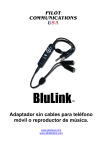
POWER INDICATOR LED
REDIAL / VOICE DIAL
VOLUME UP
on / off
forward
play / pause / HOLD
Answer / REJECT /
end call
VOLUME down
PREVIOUS
BLUETOOTH INDICATOR LED
BLUETOOTH PAIRING / REQUEST
Introduction
BluLink allows you to have a wearable link to your Bluetooth enabled
mobile phone with no cords or wires to get in the way. BluLink along
with your existing aviation headset, works like stereo headphones
allowing you to stream digital music and even lets you control the
music wirelessly. Just use a mobile phone with music streaming
capability or add a Bluetooth dongle to your portable music player.
Make sure the Bluetooth enabled phone or adapter has Bluetooth
A2DP (Advanced Audio Distribution Profile) and Bluetooth AVRCP
(Audio/Video Remote Control Profile). These Bluetooth technologies
allow the device to work with BluLink.
3
Directions
• Insert 2 AA alkaline batteries (panel power version of BluLink does
not require batteries except in “stand alone” mode).
• Plug the cord for headset into headset labeled jack.
• Plug the cord for intercom/panel into airplane labeled jack.
• Connect headset to BluLink.
• Connect BluLink to aircraft panel or intercom system.
• Turn unit on by pushing and holding
button for 4 seconds.
Green light will come on and then fade away.
• To turn unit off, press and hold
red light comes on.
button for 3 seconds until
• The BluLink is equipped with Auto Shutoff. BluLink will turn
off automatically in 30 minutes when not connected to a
Bluetooth device.
Note: In the battery compartment are 2 switches. The top switch
(A) is a Mono/Stereo switch. If aircraft intercom system is Mono, put
switch in right (2) position. (If you hear from only 1 side of headset, put
switch in right (2) position.)
The bottom switch (B) is for Auto Mute. When the switch is to the
left (1) position BluLink will mute your music source when anyone,
including ATC, speaks over the intercom. When the switch is to the
right (2) position BluLink will not mute the music source.
4
Pairing with your phone and/or music device
What is pairing?
Bluetooth devices need to be “paired” with each other beforehand.
Once Bluetooth devices are paired, there is usually no need for
pairing again.
Before you can use BluLink to make a call or listen to music, it must
be paired with your Bluetooth enabled phone and/or music device.
Note: Once you have paired one device (i.e. cell phone) BluLink must
be turned off and back on before another device (i.e. iPod, music
player) can be paired.
To pair BluLink with your phone or music player
• On your phone, be sure the Bluetooth feature is turned on. For
more information, consult the user’s guide that came with your
phone.
• If using a Bluetooth dongle with your music player please consult
. the user guide that came with it.
• With BluLink turned on, enter “pairing in process” mode by
pressing and holding
button until BT indicator light begins
flashing Red/Blue.
• Have your phone search for Bluetooth devices. Once the phone
finds BluLink, pair with it. If your phone prompts you to enter a pass
code, enter 0000.
• Connect to BluLink.
Note: Passcode of this unit is fixed at “0000”, “1234”, or “8888”
Passcode may be called “Passkey”, “PIN code”, “PIN number”
or “Password”
5
Reconnecting previously paired devices
to BluLink
Once a device has been paired with BluLink, you can reestablish
a connection to the device by turning BluLink on and holding the
button until the blue light begins to flash.
Making and Receiving Calls
You can make and receive phone calls even when not connected to
the aircraft intercom/radio. BluLink will provide “side-tone” in stand
alone mode.
Using the answer/reject/end call button
• Push
button once to answer incoming phone call
• To reject the call hold
• Push
button for about 4 seconds
button once during call to end phone call
Using redial/ voice dial button
• Press
button twice briefly to redial last number
• Press and hold
button for about 4 seconds then speak the
name or command (only works if you have voice activation set up
in your phone)
Note: Some phones do not support all the features listed.
Using hold button during phone call
• Press and hold
button for 2 seconds to put phone call on hold.
While in hold mode, you will not hear caller nor will they hear you.
• Push
button once to release hold and resume phone
conversation.
6
Controlling Music
Use BluLink to wirelessly control music from your Bluetooth musicstreaming phone or music player. If a call comes in while music is
playing, the music will pause and you can answer the call by pressing
the
button. After the call is ended, the music will begin to play
automatically.
Using the Multi Function audio controls
• To go to the next song press the
• To repeat song press the
button
button
• To go to the previous song press the
button twice quickly
• To play or Pause the music push the
button
• To increase the volume push the
• To decrease the volume push the
button
button
Troubleshooting:
Symptom
Cause / Remedy
I hear 3 audible beeps in my
headset every minute or so.
Also the On/off LED has turned
red on BluLink.
Replace BluLink batteries as
voltage is below 2.1v.
BluLink will turn on but only stay
on for a minute or two.
Replace BluLink batteries as
voltage is below 1.9v.
I cannot change the music
volume on my iPod when I use a
dongle.
Use the volume controls on the
BluLink adapter to adjust the
music/phone volume.
7
Warranty:
Your BluLink has a 1 year warranty from the purchase date. The
warranty only covers manufacture defects. Any damage done to the
product by misuse or negligence, such as dropping or breaking it, will
not be covered under the warranty. Any modifications made to the unit
or cable assemblies by anyone other than Pilot Communications USA
will void warranty.
Specifications:
Bluetooth Specifications .................................................. BT 2.1+EDR*
Bluetooth Profiles ........................ Handsfree, Headsets, A2DP, AVRCP
Music Frequency Response . .................................... 20Hz – 20,000 Hz
(Dependable on headset used)
Telephony Frequency Response .............................. 300 Hz – 3,000 Hz
Battery Life ...................................................................... 15-20 hours**
Battery Type ...................................................................... 2 AA alkaline
Standby Time ........................ Over 100 hours connected to BT device
Auto Shutoff Time ......... 30 minutes when not connected to BT device
Weight ......................................................... 4.2 oz (including batteries)
* Enhanced Data Rate
**Battery life depends on numerous factors including volume level and
BT music streaming
For more info or FAQ, please go to
www.pilotblulink.com
70 Maxwell, Irvine, CA 92618
1-888-GO-PILOT, (949) 748-8880 • Fax: (949) 748-8881
www.pilot-usa.com
Visit our website to see our full line of headsets, intercoms and accessories
©Pilot Communications USA. Specifications subject to change without notice
8