1
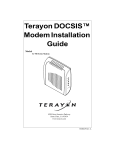
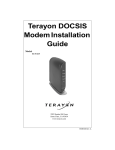
TeraJet DOCSIS
Modem Installation
Guide
Model:
ECM 210
2952 Bunker Hill Lane
Santa Clara, CA 95054
www.terayon.com
PN 8500122B
Table of Contents
Table of Contents
Congratulations . . . . . . . . . . . . . . . . . . . . . . . . . . . . . . . . . . . . . . . . . . . . . . 1
Getting Started . . . . . . . . . . . . . . . . . . . . . . . . . . . . . . . . . . . . . . . . . . . . . . 1
Package Contents . . . . . . . . . . . . . . . . . . . . . . . . . . . . . . . . . . . . . . . . . 1
System Requirements . . . . . . . . . . . . . . . . . . . . . . . . . . . . . . . . . . . . . . 3
Installation Overview . . . . . . . . . . . . . . . . . . . . . . . . . . . . . . . . . . . . . . 3
Connecting the Modem. . . . . . . . . . . . . . . . . . . . . . . . . . . . . . . . . . . . . . . . 4
Modem Connectors. . . . . . . . . . . . . . . . . . . . . . . . . . . . . . . . . . . . . . . . 4
Connecting the Coaxial Cable to the Modem . . . . . . . . . . . . . . . . . . . . 5
Connecting the Power Adapter to the Modem . . . . . . . . . . . . . . . . . . . 6
Connecting the Modem to your PC . . . . . . . . . . . . . . . . . . . . . . . . . . . 7
Starting the Modem . . . . . . . . . . . . . . . . . . . . . . . . . . . . . . . . . . . . . . 12
Reading Your Modem Lights . . . . . . . . . . . . . . . . . . . . . . . . . . . . . . . 13
Troubleshooting . . . . . . . . . . . . . . . . . . . . . . . . . . . . . . . . . . . . . . . . . . . . 14
Technical Support and General Inquires. . . . . . . . . . . . . . . . . . . . . . . . . . 16
Warranty . . . . . . . . . . . . . . . . . . . . . . . . . . . . . . . . . . . . . . . . . . . . . . . . . . 17
Modem Intallation Guide
Congratulations
Installation Guide
READ ME FIRST!
Congratulations
Congratulations on your purchase of a TeraJet DOCSIS Cable Modem. The Terayon TeraJet ECM 210 DOCSIS Cable Modem is the perfect choice for connecting your personal computer to a lightning fast broadband internet connection.
Getting Started
This installation guide is designed for anyone who wants all the “how-to” information about installing the TeraJet ECM 210 Data-Over-Cable Service Interface
Specification (DOCSIS) Cable Modem. You have probably heard of online help.
Well, think of this installation guide as onside help. For best results, read each procedure beforehand — reviewing each procedure may answer some questions that
could come up during the installation process. So let’s get started.
Package Contents
Please take a moment to unpack your modem and familiarize yourself with the all
cables and components included in the box. Use the list below and Figure 1 to verify the contents of the box.
TeraJet ECM 210 Cable Modem Package Contents
•
•
•
•
•
TeraJet Model 210 DOCSIS Cable Modem
Cable Modem Power Adaptor
RJ-45 Ethernet Cable
Universal Serial Bus (USB) Cable
CD-ROM with USB Drivers
TeraJet 210 DOCSIS Cable Modem Installation Guide
1
Getting Started
TERAJET DOCSIS
CABLE MODEM
MODEL ECM 210
POWER ADAPTER
NOTE: The appropriate Power Adapter is
included with your modem.
n r
yo to
ra ap
Te Ad
C
A
CA
UT
IO
RIS
K OF
ELE
DR
CTR
YLO
IC
CA
SH
TIO
OC
N US
K
E ON
LY
N
AC SWITC
AD HIN
AP G
TER
R
WE
PO
E
BL
CA
PC
TA
DA
ST
TE
POWER CORD
RJ-45 ETHERNET CABLE
CD-ROM
WITH USB DRIVERS
USB CABLE
Figure 1 Contents of Cable Modem Box
2
TeraJet 210 DOCSIS Cable Modem Installation Guide
Getting Started
System Requirements
Before you begin installing your new TeraJet cable modem, make sure your computer system has the following hardware and software.
Hardware/Software
IBM PC or Compatible
Apple/Macintosh
CPU
Pentium class microprocessor
or equivalent
Power PC 601 or later;
iMac®
Memory (RAM)
32 MB
24 MB
Available Disk Space
50 MB
50 MB
Operating System
Windows® 95, 98, 2000, Windows NT® 4.0 Workstation
OS 7.5.1 or later
Network Connectivity
Must have (any one):
Must have (any one):
•
•
•
•
USB Port
Network Interface Card
(NIC)
• PCMCIA Card (laptop)
NOTE
NOTE:
USB Port
Network Interface
Card (NIC)
• PCMCIA Card (laptop)
Computers using Windows 95, NT 4.0, or a Macintosh
operating system must use an ethernet port to connect
to the TeraJet ECM 210 Modem.
Installation Overview
As you follow the self-installation process, you may be asked to perform some
tasks you have not previously attempted. You will be guided through the following steps:
• Connecting the Coaxial Data Cable to the Modem
• Connecting the Power Adaptor to the Modem
• Connecting the Modem to your Computer
• Starting the Modem.
What You Will Need
The following is a list of items you will need to install your new Terayon cable
modem:
• This installation guide
• Your computer user manual
• The cable modem
TeraJet 210 DOCSIS Cable Modem Installation Guide
3
Connecting the Modem
INSTALLING THE MODEM
Connecting the Modem
To install your new cable modem, perform the following procedures in order.
Modem Connectors
Before you begin installing your new cable modem, take a moment to familiarize
yourself with the modem connectors identified in Figure 2. An explanation of
each connector follows the illustration.
E-T
S
BA
10
B
US
IN
DC 1A
V
12
1
2
3
RF
4
Figure 2 Modem Connectors
1 - RJ-45 Ethernet Port
Connects the modem to the Ethernet port on your
computer NIC card.
2 - USB Serial Port
Connects the modem to the USB port on your
computer.
3 - DC Input-jack
Connects the modem to the Modem Power
Adapter.
4 - RF Cable Connector
Connects the modem to the coax cable supplied
by your cable company.
4
TeraJet 210 DOCSIS Cable Modem Installation Guide
Connecting the Modem
Connecting the Coaxial Cable to the Modem
To connect your new cable modem to the coaxial cable, do the following:
1. Remove your new cable modem from its box and place it near your computer.
2. Locate the coaxial data cable supplied by your cable company.
3. Connect the end of the coax cable to the RF connector on the modem as
shown in Figure 3. Tighten the connection with a suitable spanner.
TERAJET DOCSIS CABLE MODEM
MODEL ECM 210
E-T
S
BA
10
B
US
IN
DC 1A
V
12
RF CONNECTOR
RF
COAX CABLE
(Signal from Cable Co.)
Figure 3 Connecting the Data Cable to the Modem
TeraJet 210 DOCSIS Cable Modem Installation Guide
5
Connecting the Modem
Connecting the Power Adapter to the Modem
Power for your cable modem is generated by the Power Adapter unit that comes
with the modem. The Power Adapter shipped with your ECM 210 modem is one
of the adapters shown in Figure 4, in compliance with the requirements of your
country.
n r
yo to
ra ap
Te Ad
C
A
CA
UT
IO
G
IN R
CH E
IT APT
SW AD
AC
RI
SK
OF
DR
EL
YL
EC
OC
TR
AT
IC
IO
SH
N
OC
US
E ON K
LY
N
POWER CORD
Figure 4 Power Adapters
To connect the Power Adapter to the modem, do the following:
1. Remove the modem Power Adapter from the modem cable box.
2. Using Figure 5 as a guide, insert the Power Adaptor output connector into the
DC Power input jack on the back of the modem.
TERAJET DOCSIS CABLE MODEM
MODEL ECM 210
E-T
S
BA
10
SB
U
IN
DC 1A
V
12
RF
POWER ADAPTER
OUTPUT CONNECTOR
DC POWER
INPUT JACK
Figure 5 Connecting the Power Adapter to the Modem
IMPORTANT: Do not connect the adapter AC power cord to an
AC outlet at this time.
6
TeraJet 210 DOCSIS Cable Modem Installation Guide
Connecting the Modem
Connecting the Modem to your PC
In order for your computer to communicate with your new modem and the internet, it must be equipped with a network interface. Today’s computers are typically
equipped with either a 10 Base-T Ethernet card or a Universal Serial Bus (USB)
port. The TeraJet ECM 210 modem comes equipped with RJ-45 ethernet and USB
connectors, allowing the modem to connect to either an Ethernet port or a USB
serial port.
To connect your new modem to your PC, do the following:
1.
Before you begin connecting the modem to your PC, look in your computer
user manual or look at the back of your PC to see what kind of network interface your PC is equipped with.
IMPORTANT: If you do not have a network interface pre
installed in your computer, you will need to purchase one from a retailer, and install it according
to manufacturer instructions. After installing the
network interface card, you must configure your
computer for TCP/IP protocol. Refer to your
operating system user manual for setup instructions.
2.
If your PC is equipped with a 10 Base-T Ethernet card, proceed to the “Connecting the 10-Base-T- Ethernet Cable” procedure. If your PC is equipped
with a USB Serial Port, proceed to “Connecting the USB Cable” on page 10.
IMPORTANT: Do not connect the modem to both the PC Ethernet and the USB port. Use either the USB or the
Ethernet port, not both.
TeraJet 210 DOCSIS Cable Modem Installation Guide
7
Connecting the Modem
Connecting the 10 Base-T Ethernet Cable
To connect the 10 Base-T Ethernet cable, follow these steps:
1. Retrieve the 10 Base-T Ethernet cable from the box the modem came in.
Use Figure 1 on page 2 to identify the cable.
2. Using Figure 6 as a guide, connect one end of the 10 Base-T Ethernet cable to
the RJ-45 Ethernet port on the back of the modem.
TERAJET DOCSIS MODEM
MODEL ECM 210
E-T
S
BA
10
RJ-45 ETHERNET PORT
B
US
IN
DC 1A
V
12
10 BASE-T
ETHERNET CABLE
RF
TO ETHERNET PORT ON COMPUTER
ETHERNET INTERFACE CARD
Figure 6 Connecting the Ethernet Cable to the Modem
3.
Connect the remaining end of the 10 Base-T Ethernet cable into the RJ-45
Ethernet port on the Network Interface Card (NIC) as shown in Figure 7.
NOTE
4.
8
NOTE:
Your computer may be a desktop model or a tower
model in which case it will look different than the illustration shown in Figure 7.
Proceed to “Starting the Modem” on page 12.
TeraJet 210 DOCSIS Cable Modem Installation Guide
Connecting the Modem
PC TOWER
REAR VIEW
ETHERNET
INTERFACE CARD
ETHERNET PORT
10 BASE-T ETHERNET CABLE
FROM MODEM ETHERNET PORT
Figure 7 Connecting the Ethernet Cable to the NIC
TeraJet 210 DOCSIS Cable Modem Installation Guide
9
Connecting the Modem
Connecting the USB Cable
In order for your computer USB Interface to pass data back and forth to the TeraJet ECM 210 Modem, you must connect a USB cable to the modem USB port and
the USB port on the back of the computer.
To connect the USB cable, follow these steps:
1. Retrieve the USB cable from the box the modem came in.
Use Figure 1 on page 2 to identify the cable. Notice that the USB cable has
two types of connectors, an “A” type, and a “B” type. Figure 8 identifies the
connector types.
B CONNECTOR
A CONNECTOR
Figure 8 USB Cable Connectors
2.
Using Figure 9 as a guide, insert the USB cable “B” connector into the USB
Serial port on the back of the TeraJet ECM 210 modem.
TERAJET DOCSIS MODEM
MODEL ECM 210
E-T
S
BA
10
USB SERIAL PORT
B
US
B CONNECTOR
IN
DC 1A
V
12
USB CABLE
RF
A CONNECTOR
Figure 9 Connecting the USB Cable
10
TeraJet 210 DOCSIS Cable Modem Installation Guide
Connecting the Modem
3.
Insert the USB cable “A” connector into the computer USB Serial port on the
back of your computer as shown in Figure 10.
NOTE
NOTE:
Your computer may be a desktop model or a tower
model in which case it will look different than the illustration shown in Figure 10.
PC TOWER
REAR VIEW
USB PORT
A CONNECTOR
USB CABLE
FROM
MODEL ECM 210 MODEM
Figure 10 Connecting the USB Cable to the Computer
USB Serial Port
4.
Proceed to “Starting the Modem” on page 12.
TeraJet 210 DOCSIS Cable Modem Installation Guide
11
Connecting the Modem
Starting the Modem
To start operating your new TeraJet ECM 210 cable modem, do the following:
1. Power on your computer and wait until it completes the boot-up process.
2. Plug the Power Adaptor power cord into an appropriate AC power outlet.
NOTE
NOTE:
If you have connected the TeraJet ECM 210 modem to
your computer using the USB port, your computer will
prompt you to load a USB driver as soon as you apply
power to the modem. Load the USB Drivers CD that
came with the modem into your CD-ROM drive and
follow the on-line instructions. You may have to tell the
computer what drive your CD-ROM drive is.
Once your TeraJet ECM 210 cable modem is properly connected and the
Power Adapter is connected to an AC power outlet, it will automatically bootup and start scanning for the active cable modem channel from your cable
company server.
IMPORTANT: When you power up the TeraJet ECM 210 DOCSIS cable modem for the first time, it can take up
to 10 minutes for the modem to complete its bootup and scanning sequence. Do not turn modem
power off during the boot-up and scanning
sequence, unless your cable operator instructs
you to do so.
3.
Verify the Cable and PC Link LED indicators on the modem front panel are
turned ON.
If the Cable and PC Link LEDs are turned ON and not blinking, you have successfully installed your new TeraJet ECM 210 cable modem. If the Cable and
PC Link LEDs are not turned ON or are blinking, see “Troubleshooting” on
page 14.
12
TeraJet 210 DOCSIS Cable Modem Installation Guide
Connecting the Modem
Reading Your Modem Lights
The indicator LEDs on the front panel of the TeraJet ECM 210 cable modem tell
you what’s happening during a communications session. The table below tells you
what each LED indicator means.
LED
Indicator
Color
Power
Green
Dark for power OFF.
Solid for power ON or Online.
Cable
Green
Dark for no downstream RF carrier present or power
OFF.
Flashing slowly for downstream carrier present and
ranging in process.
Flashing rapidly for registration in process.
Solid for modem on line and operational.
PC Link
Green
Solid for USB/Ethernet link established.
Dark if USB/Ethernet link not established.
Data
Green
Flashing for data passing through modem.
Dark for no data passing through modem or power off.
Test
Green
Solid during ranging and registration operations.
Dark when ranging and registration is complete and
modem is on line and operational.
Definition
TeraJet 210 DOCSIS Cable Modem Installation Guide
13
Troubleshooting
TROUBLESHOOTING
Troubleshooting
Problem:
I cannot access my E-mail or Internet Service.
Possible solution:
Check all connections. Make sure the cable line is securely connected to the cable
jack on the back of the modem. Verify the Ethernet or USB cable is securely
plugged into both the modem and your network interface card or USB network
interface. Make sure your Power Adapter is properly plugged into both the
modem and a wall outlet or surge protector. If your cable modem is properly connected, the Cable and PC Link indicator lights on the modem front panel should
be a solid color.
If the Cable and PC Link indicator lights (LED's) are solid green (not blinking),
your cable modem is operating properly. Try shutting down and powering off your
computer and then turning it back on. This will cause your computer to re-establish communications with your cable company server.
1.
Your network interface card may be malfunctioning. Refer to the Manufacturer's documentation for troubleshooting information.
2.
Call your cable company to verify their service is two-way. This modem is
designed for use with two-way cable plants. Verify your account is activated.
Problem:
The Cable LED never stops blinking.
Possible Solution:
The signal from your cable company equipment may be too weak or the cable line
may not be properly attached to the modem. If the cable line is properly connected
14
TeraJet 210 DOCSIS Cable Modem Installation Guide
Troubleshooting
to the modem, call your cable company to verify whether or not a weak signal
may be the problem.
Problem:
The power on my modem goes on and off sporadically. The Cable light never
stops blinking.
Possible Solution:
You may be using the wrong power supply. Check that the power supply you are
using is the one that came with your cable modem. If you cannot connect to the
Internet at all, use this checklist to help identify possible problems:
• Make sure your computer and monitor are turned on.
• Make sure all power plugs are completely inserted into their sockets.Your
computer and cable modem should be plugged into grounded outlets.
• If you are using a power strip, make sure it is turned on.
• Make sure all data cables are firmly connected at both ends.
• If you still do not have a connection, call your cable service to confirm
they have properly set you up for service. If so instructed, reset your
modem.
TeraJet 210 DOCSIS Cable Modem Installation Guide
15
Technical Support and General Inquires
TECHNICAL SUPPORT
Technical Support and General Inquires
Welcome to Terayon DOCSIS Cable Modem Support. Terayon provides service
and support in the following ways:
E-mail Support
[email protected]
During regular business hours, we will respond within 1 to 4 hours. After hours,
we will respond the morning of the next day.
Find Terayon Support on the Terayon Web Site
Visit our web site at:
http://www.terayon.com
Talk to a Technical Support Agent
To speak directly with a support agent who specializes in Terayon DOCSIS cable
modem information, call this toll-free number: 1-888-859-3242 (chargeable to
customers outside U. S. A.). Hours of operation are Monday through Friday
8:00AM - 5:00 PM, Pacific Time.
Return Policy
Terayon will only accept a package with a valid Return Authorization Number.
Please contact your Terayon Technical Support representative (1-888-859-3242).
If the support representative determines that you need to return the modem, you
will receive a Return Authorization Number and shipping instructions.
Product Registration
When you register your Terayon DOCSIS cable modem, you are eligible to
receive technical support, to track your proof of ownership, and to stay informed
about upgrades and special offers. Be sure to fill out your registration information
on the Terayon web site.
http://www.terayon.com Click Support, then follow the links to the registration
page.
16
TeraJet 210 DOCSIS Cable Modem Installation Guide
Warranty
WARRANTY
Warranty
Terayon warrants that for a period of three (3) years from the date of purchase
from Terayon or an authorized reseller the product will be free from defects in
material and workmanship under normal use. If this product is not in good working order as warranted, the sole and exclusive remedy shall be, at Terayon's option
and expense, to repair the defective product or to provide an equivalent replacement product. All products that are replaced will become the property of Terayon.
Replacement products may be new or products reconditioned to a like-new condition.
Restrictions - This warranty does not apply if the product (a) has been altered,
except by Terayon, (b) has not been installed, operated, repaired, or maintained in
accordance with instructions supplied by Terayon, (c) has been subjected to
abnormal physical or electrical stress, misuse, negligence, or accident, or (d) used
in ultra hazardous activities.
DISCLAIMER OF WARRANTY. EXCEPT AS SPECIFIED IN THIS WARRANTY, ALL EXPRESSED OR IMPLIED CONDITIONS, REPRESENTATIONS, AND WARRANTIES INCLUDING WITHOUT LIMITATION, ANY
IMPLIED WARRANTY OR MERCHANTABILITY, FITNESS FOR A PARTICULAR PURPOSE, NONINFRINGEMENT OR ARISING FROM A COURSE
OF DEALING, USAGE, OR TRADE PRACTICE, ARE HEREBY EXCLUDED
TO THE EXTENT ALLOWED BY APPLICABLE LAW.
IN NO EVENT WILL TERAYON OR ITS SUPPLIERS BE LIABLE FOR ANY
LOST REVENUE, PROFIT, OR DATA, OR FOR SPECIAL, INDIRECT, CONSEQUENTIAL, INCIDENTAL, OR PUNITIVE DAMAGES HOWEVER
CAUSED AND REGARDLESS OF THE THEORY OF LIABILITY ARISING
OUT OF THE USE OF OR INABILITY TO USE THE PRODUCT, EVEN IF
TERAYON OR ITS SUPPLIERS HAVE BEEN ADVISED OF THE POSSIBILITY OF SUCH DAMAGES. In no event shall Terayon's or its suppliers' liability
of the Customer, whether in contract, tort (including negligence), or otherwise,
exceed the price paid by Customer for the product. The foregoing limitations shall
apply even if the above-stated warranty fails of its essential purpose.
TeraJet 210 DOCSIS Cable Modem Installation Guide
17