1
User Manual
DriveStation
HD-RQSSU2/R5
www.buffalotech.com
v1.0
Introduction
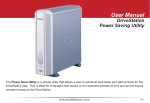
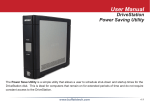
Congratulations on your new DriveStation! The DriveStation uses four separate hard drives
for greater reliability and security. In RAID 1 mode, redundancy protects your data from
drive failure, while RAID 5 offers a good balance between storage capacity and security.
Those who need a maximum of storage can choose RAID 0. The DriveStation also includes
simple Plug-n-Play connectivity using USB 2.0 and eSATA Connections. With the latest
eSATA hard drive technology this DriveStation supports high transfer rates - up to 100 MB/
s! DriveStation lets you store, backup, or easily transport large files that you never thought
you could store on an external storage device. It supports RAID technology, ensuring that
your data stays safe. This guide will help you configure it.
Because we’re constantly updating our product, the images and text in this manual may vary
slightly from the images and text displayed by your DriveStation. These changes are minor
and should not affect the ease of setup adversely. As time passes, future user interfaces,
updated software, and later versions of this manual may be available for download at our
web site: www.buffalotech.com.
If you run into difficulties or need additional help, feel free to contact our technical support.
Contact information for Buffalo Technology and our technical support is available on pages
25 and 26.
2
Table of Contents
DriveStation Layout ..........................................................4
Installation .......................................................................7
Troubleshooting .............................................................. 17
Replacing a Hard Drive ................................................... 19
Technical Specifications .................................................. 24
Technical Support ........................................................... 25
3
Layout
Front Panel lock
(Turn counter-clockwise to release)
4
Layout
Hard Drives
(Squeeze tabs to release)
5
Layout
Auto On/Off
Manual On/Off
eSATA
Power Cable
Power
Switch
USB in
6
Installation
Congratulations on your new DriveStation! With four separate hard drives inside, the
DriveStation gives you many options for large, economical capacity and easy-to-use redundancy.
To begin, insert the DriveNavigator CD in your PC. The setup program will run. Follow the steps
to connect your DriveStation.
If the setup program doesn’t run automatically, click Start, then Run,
and then type “d:\drivenavi.exe” in the Open window. Click OK.
Click Begin Installation to begin.
7
Installation
Click Setup. The wizard will step you through setting
up your DriveStation, configuring your RAID settings,
and reformatting if desired.
The DriveStation may be connected to your computer
with either a USB connection or an eSATA connection.
The eSATA connection will usually give higher
performance. If you you will be changing RAID modes
or reformating the drives during setup, use the USB
cable to connect the DriveStation to your PC, at least
until setup is complete. You may switch to the eSATA
connection after setup is complete.
Use either the eSATA cable or the USB cable to
connect the DriveStation to your computer at any given
time. Do not connect both at once!
8
Installation
After completing the setup wizard, your DriveStation is
installed and ready to use!
By default, your DriveStation is configured in RAID 5
Mode.
If you would prefer a different RAID configuration, you may use the RAID Utility to change your
DriveStation’s RAID settings. Turn to the next page for instructions on using the RAID Utility.
Out of the box, the DriveStation is formatted with FAT32, allowing it to be used with most common
operating systems. If you’re going to use it with programs that generate filesizes larger than 4GB,
such as backup software, reformat the DriveStation as an NTFS drive.
9
Using the RAID Utility
The RAID Utility allows you to configure your DriveStation in several modes:
Normal Mode - Appears to your computer as four separate hard drives.
Spanning Mode - Appears to your computer as one large hard drive.
RAID 0 Mode - Appears to your computer as a single drive. Higher performance than Spanning
Mode.
RAID 1 Mode - Appears to your computer as a single drive. The third and fourth drives keep an
exact copy of the first and second drives, for redundancy.
RAID 5 Mode - Appears to your computer as a single drive. Approximately 3/4 of your total space
is usable, yet you still have full redundancy.
Note that changing the mode of the drives in your DriveStation will erase all data on them! Back
up any important data before using the RAID utility.
You should be connected to the DriveStation with a USB cable while running the RAID utility. You
may switch to an eSATA connection for normal use after the utility has run.
10
Using the RAID Utility
You may launch the RAID Utility by clicking on RAID Setup Utility in the DriveStation program
group.
Or, you can launch the program from the Start menu:
11
Using the RAID Utility
Once launched, the RAID Utility will briefly scan for your DriveStation. This may take a few
seconds.
The initial screen will show your current configuration.
To change the RAID mode, click Configuration and choose Change Disk Structure.
12
Using the RAID Utility
Select the drive structure that you’d like
to use.
13
Using the RAID Utility
After rebuilding the disk structure, the disk will be
formatted with FAT32 or NTFS. Select the format
that you prefer. FAT32 is compatible with most
Windows PCs, Macs, and Linux. NTFS offers the best
performance with Windows 2000 and XP machines,
but isn’t compatible with other operating systems.
NTFS is recommended for use with backup, video
editing and other programs that may need filesizes
larger than 4GB.
Click Yes, and Yes again. Understand that this will
erase any data on the drive!
14
Support Tray Installation
If your equipment rack supports equipment from the front
only, use the mounting tray to provide the support your
DriveStation needs. Screw the tray into into the rack with the
four screws provided and a #2 phillips-head screwdriver.
15
Support Tray Installation
Slide the DriveStation into the tray. Secure it with the two
thumbscrews; one on each side. You may use a flathead
screwdriver to snug down the thumbscrews, but do not
overtighten.
Your DriveStation is now
secure and stable in the rack!
16
Troubleshooting
FAQ
The following is a list of common issues with the DriveStation. Following each issue are
possible resolutions.
I see the DriveStation in My Computer but I cannot access it.
The drive requires formatting. Try using the Disk Formatter Utility on the
DriveNavigator CD-ROM. Consult the manual for the Disk Formatter Utility for
more help. The manual can also be found on the DriveNavigator CD-ROM.
I cannot see the DriveStation in My Computer.
Verify that the POWER light is on. If it is not, then ensure that the power switch is
in the ON position.
Try toggling the POWER MODE switch right below the power switch. The POWER
MODE switch toggles whether the device is powered up via a USB signal (“Auto”)
or purely based on the power switch’s position (“Manual”).
If you have installed the Power Save Utility, then verify that the DriveStation was
not put into power saving mode. Consult the manual for the Power Save Utility for
additional help. The manual can be found on the DriveNavigator CD-ROM.
17
Troubleshooting
Verify that the hard drive inside the DriveStation is spinning. This can be verified
by placing your hand on the sides of the case and feeling for a slight vibration.
Also, after the DriveStation has been powered on for fifteen minutes or more it will
begin to get warm. If neither of the proceeding tests verified that the hard drive is
spinning, then please contact technical support for further assistance.
My backup program can’t save files to the DriveStation.
Reformat your DriveStation with NTFS. FAT32 is limited to 4GB filesizes.
18
Replacing a Hard Drive
Turn the key counterclockwise to unlock the front panel.
Pull on the right hand side of the front panel to remove
it.
19
Replacing a Hard Drive
Squeeze the tabs gently and swing the tray latch
upward.
Slide out the drive tray.
20
Replacing a Hard Drive
Lower the drive carefully to the work surface.
Pull the plug straight out.
21
Replacing a Hard Drive
To remove the hard drive from its
cage, set the assembly on a soft
surface and remove these four screws.
22
Replacing a Hard Drive
Install a new hard drive by doing the same steps in reverse order:
Begin by screwing the new hard drive into the cage.
Plug the power/data connector into the hard drive.
Slide the hard drive cage back into the DriveStation.
Press the latch down to lock the hard drive cage in place.
Reattach the front cover to the DriveStation.
23
Technical Specifications
Standard Compliance:
USB 2.0; eSATA
Seek Time:
Max. 11 milliseconds
Transmission Speed:
Max. 1.5 Gbps (eSATA), Max. 480 Mbps (USB 2.0)
Power Consumption:
Max. 86W
Power Supply:
AC100~240V 50/60Hz
Dimensions:
16.9” x 3.3” x 16.7” (430 x 85 x 423 mm)
Weight:
22.0 lbs. (10.0 kgs)
Operating Environment:
41 - 95° F (5 - 35° C)
20-80% humidity (non-condensing)
PC OS Compatibility:
Windows 2000, XP, Vista, Mac OS X
24
Contact Information (North America)
Buffalo Technology USA Inc.
11100 Metric Blvd, Suite 750
Austin, TX 78758
GENERAL INQUIRIES
Monday through Friday
8:30am-5:30pm CST
Direct: 512-794-8533 | Toll-free: 800-456-9799 | Fax: 512-794-8520 | Email: sales@
buffalotech.com
TECHNICAL SUPPORT
North American Technical Support by phone is available 24 hours a day, 7 days a week. (USA
and Canada).
Toll-free: (866) 752-6210 | Email: [email protected]
25
Contact Information (Europe)
Buffalo Technology UK Ltd.
2 Bracknell Beeches, Old Bracknell Lane
Bracknell Berkshire, RG12 7BW
United Kingdom
GENERAL INQUIRIES
Email: [email protected]
TECHNICAL SUPPORT
Buffalo Technology provides technical support in English, German, French, Italian, and
Spanish. For opening hours and relevant telephone numbers, please go to
www.buffalo-technology.com/contact
26
www.buffalotech.com
©2005-2008, Buffalo Technology Inc.