1
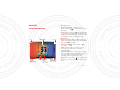
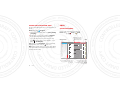
• Add accounts: Touch Apps
>
Settings
> Accounts, then touch Add account in the top right.
For Microsoft® Exchange work accounts, choose
Corporate and enter settings from your IT department.
Tips & tricks
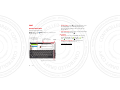
Receive & open email attachments
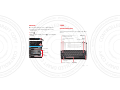
When you open a message with an attachment, touch
the Attachment tab just above the message text. Then
touch VIEW or SAVE.
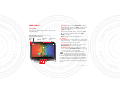
• Keypad: Touch a text field to open the keypad.
Tip: To send and receive large attachments faster, use a
Wi-Fi connection, in “Wi-Fi Networks” on page 26.
• Drag or flick: When you flick a long list of contacts or
emails, touch the screen to stop it from scrolling.
Set up email
Read & reply to email messages
The first time you turned on your tablet, you logged in to
your Gmail account.
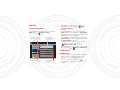
Find it: Apps
>
Gmail
To add other email accounts, touch Apps
Settings > Add account.
>
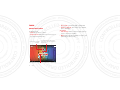
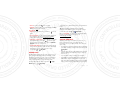
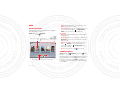
Touch a message to open it and all of its replies.
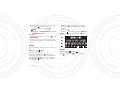
• Respond to a message: Touch
reply to all.
to reply or
• Forward a message: Touch
• Open options: Touch Menu
to
.
.
• View attachments: Touch View.
Create email messages
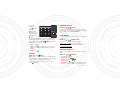
Find it: Apps
Touch
Touch
>
Email
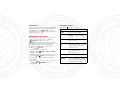
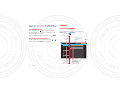
• Corporate is for Exchange server work
accounts. Enter details from your IT administrator.
Tip: You might need to enter your domain name with
your user name (like domain/username).
Email accounts. For
• Email is for most personal
account details, contact the account provider.
• Google is for adding another
Gmail account.
Gmail
, then enter the recipient and message.
to add attachments.
Tip: When you enter text in the To: field, your tablet
shows possible matches from your Contacts list, if any
exist.
Email
19