1
Personalize
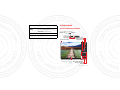
Quick start: Personalize
Change your widgets, wallpaper, and more—make it
yours.
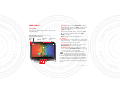
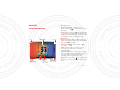
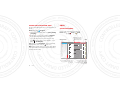
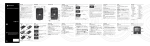
Touch & hold, then drag widgets
or shortcuts to a new spot or
Remove at the top of the
screen.
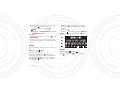
• Home screen: To move or delete a shortcut or
widget, touch and hold it, then drag it to a new spot or
to Remove (at the top of the screen). To add shortcuts
or widgets, touch Apps
and flick left to scroll (or
touch WIDGETS at the top). Touch and hold an app
shortcut or widget to add.
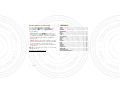
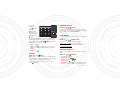
• Sound and Display: Touch the clock in the bottom
right, then touch
> Settings to adjust Display,
Sound, and more.
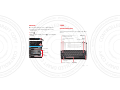
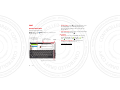
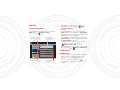
Open the menu, then touch &
hold items to add to your home
screen.
4:00
SATURDAY
DECEMBER 1, 2012
Verizon Wireless
Airplane mode
100%
OFF
Wi-Fi
Auto-rotate screen
ON
Tips & tricks
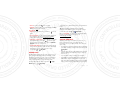
• Resize widgets: You can resize some
widgets—touch and hold a widget until you feel a
vibration, then release. Drag the blue diamonds at the
edges to resize.
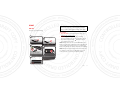
• Shortcut folders: To create a shortcut folder, touch
and hold a shortcut on your home screen, then drag it
on top of another shortcut to put them both in a
folder. To add other shortcuts, drag them to the new
folder icon. Touch the folder to open it, then touch the
folder name to rename it.
AUTO
Places
People
Browser
Google
Settings
Notifications
ON
Settings
4:00
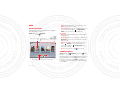
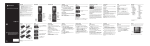
To add a Shortcut, open your
app menu, touch & hold an icon,
then drag it where you want.
6
Personalize
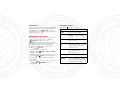
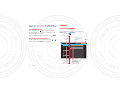
Touch the status indicators, then
touch
for quick settings (for
screen, sound, or other settings,
touch Settings at the bottom).
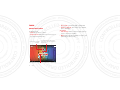
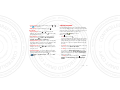
• Wallpaper: To change wallpaper, touch and hold a
blank spot on the home screen.
• Settings app: To open settings from the app list,
Settings.
touch Apps
>