1
Instruction Manual
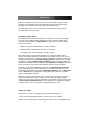
to adjust the image (see Panel controls and OSD functions) or press the Auto button
on the right hand side of the monitor.
Note: If the unit does not power up when the panel is pulled up, try pushing the soft
power on/off button on the left side of the monitor panel to power up the unit.
Note: You can adjust the horizontal and vertical position, contrast, and brightness to
better suit your video card and your personal preference.
Before you begin, make sure that power to all of the devices you will be connecting to the
console have been turned off. To prevent damage to your installation due to ground
potential difference, make sure that all of the devices being installed are properly
grounded. Once all peripherals have been connected, please power them on.
Panel controls and OSD functions
The following controls are located on the left side of the the console monitor:
Controls
Descriptions
Soft power on/off. Adjacent LED is lit when on
Auto
Auto-synchronize and scale down display to any valid factory preset timings
Up
Press to scroll to the function you want to adjust.
Down
Press to scroll to the function you want to adjust.
Menu
To access the main menu. This button also acts as the Enter button.
Auto tune
Press the “Auto tune” button. The panel will adjust the display size automatically and
also tune the panel to its optimized state.
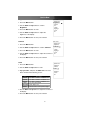
Input Source
1. Press the Menu button.
2. Use the Down and Up buttons to scroll.
3. Press the Menu button to enter, and you will see: VGA/DVI
4. Use the Down and Up buttons to select the input signal source.
5. Press the Menu button to save your selection
6