1
38 | Syncro SVN Client | Syncro SVN Client
automatically merge the incoming file content into the existing locally one. In this case, the pseudo-conflict marker
is removed. This marker is used only as a warning which should prevent you to run into a real conflict.
Note:
•
•
•
A conflicting resource cannot be committed to repository. You have to resolve it first, by using Mark Resolved
action (after manually editing/merging file contents) or by using Mark as Merged action (for pseudo-conflicts).
and
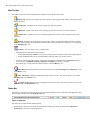
decorators are presented only when one of the following view modes is selected: Modified,
Incoming, Outgoing, Conflicts.
The
marker is used also for folders to signal that they contain a file in real conflict or pseudo-conflict state.
Content Conflicts vs Property Conflicts
A Content conflict appears in the content of a file. A merge occurs for every inbound change to a file which is also
modified in the working copy. In some cases, if the local change and the incoming change intersect each other, Subversion
cannot merge these changes without intervention. So if the conflict is real when updating the file in question the conflicting
area is marked like this:
<<<<<<< filename
your changes
=======
code merged from repository
>>>>>>> revision
Also, for every conflicted file Subversion places three additional temporary files in your directory:
•
•
•
filename.ext.mine - This is your file as it existed in your working copy before you updated your working
copy, that is without conflict markers. This file has your latest changes in it and nothing else.
filename.ext.rOLDREV - This is the file that was the BASE revision before you updated your working copy,
that is the file revision that you updated before you made your latest edits.
filename.ext.rNEWREV - This is the file that Subversion client just received from the server when you updated
your working copy. This file corresponds to the HEAD revision of the repository.
OLDREV and NEWREV are revision numbers. If you have conflicts with binary files, Subversion does not attempt to
merge the files by itself. The local file remains unchanged (exactly as you last changed it) and you will get
filename.ext.r* files also.
A Property conflict is obtained when two people modify the same property of the same file or folder. When updating
such a resource a file named filename.ext.prej is created in your working copy containing the nature of the
conflict. Your local file property that is in conflict will not be changed. After resolving the conflict you should use the
Mark resolved action in order to be able to commit the file. Note that the Mark resolved action does not really resolve
the conflict. It just removes the conflicted flag of the file and deletes the temporary files.
Edit Real Content Conflicts
The conflicts of a file in the conflicted state (a file with the red double arrow icon) can be edited visually with the
Compare view (the built-in file diff tool) or with an external diff application. Resolving the conflict means deciding
for each conflict if the local version of the change will remain or the remote one instead of the special conflict markers
inserted in the file by the SVN server.
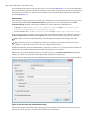
The Compare view (or the external diff application set in Preferences) is opened with the action Edit Conflict which
is available on the contextual menus of the Working Copy view and is enabled only for files in the conflicted state (an
update operation was executed but the differences could not be merged without conflicts). The external diff application
is called with 3 parameters because it is a 3-way diff operation between the local version of the file from the working
copy and the HEAD version from the SVN repository with the BASE version from the working copy as common
ancestor.
If the option Show warning dialog when edit conflicts is enabled you will be warned at the beginning of the operation
that the operation will overwrite the conflict version of the file received from the SVN server (the version which contains