1
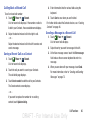
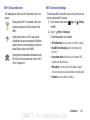
Creating a New Group
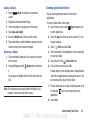
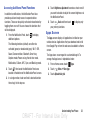
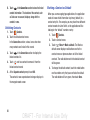
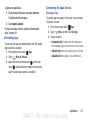
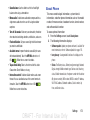
1. Touch
Contacts.
2. Touch
Groups ➔
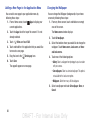
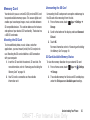
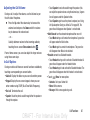
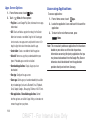
7. Touch Add member to add contacts to the new group.
Menu ➔ Create.
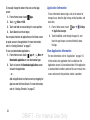
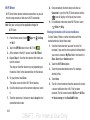
3. Touch the Group name field and use the on-screen
keyboard to enter a new group name. Touch Done to
remove the keyboard.
4. Touch Group ringtone to choose a ringtone for
assignment to this new group. Touch a ringtone to hear
how it sounds, then touch OK.
– or –
Touch Add to select a ringtone from your music files.
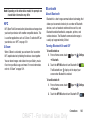
5. Touch Message alert to choose an alert tone for
assignment to this new group, then touch OK.
6. Touch Vibration pattern to choose a vibration audio file
for assignment to this new group, then touch OK.
– or –
Touch each contact you want to add to create a check
mark. You can also touch Select all.
Touch Done to add the members.
8. Touch Save to save the new contact Group.
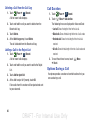
Adding a Contact to a Group
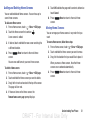
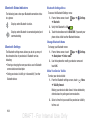
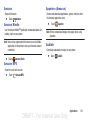
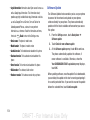
1. Touch
Contacts.
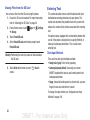
2. Touch and hold the contact that you want to add to
a group.
3. Touch Add to group.
4. Touch one or more group entries.
5. Touch Save.
The contact is added to the group or groups.
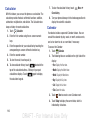
Touch Create and follow the on-screen instructions to
create your own vibration pattern.
Contacts and Accounts
DRAFT - For Internal Use Only
53