1
Controls
Controls
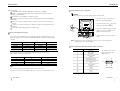
"ON SCREEN DISPLAY MENU" controls include the following extended controls such as Size,
Position, Geometry, Color Adjust, Brightness and Contrast Utilities. Adjustments are saved
instantly. The currently addressed control can be reset to factory settings by pressing the Reset
button.
EXIT
DO
OSD MENU
DO
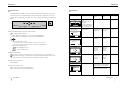
1. NO OSD
Proceeds to NO.2
Proceeds to
NO.3
2. MAIN MENU
The function with RED
ICON is
- Performed : Recall,
Degauss
- Selected and blinked
: Color Adjust, Zoom
- Proceeded : Others
Moves to function you want.
Exit to No.1
Moves to No.2
Decreases the Increases the
brightness
brightness
Exit to No.1
Moves to No.2
Decreases the Increases the
contrast
contrast
Exit to No.1
Proceeds to NO.6
Moves the
image down or
left in the
selected
function.
Moves the
image up or
right in the
selected
function.
Exit to No.2
Proceeds to NO.5
Shrinks the
image in the
selected
function.
Expands the
image in the
selected
function.
Exit to No.2
No meaning
Controls the amount of the
Exit to No.2
Selected funcion. (Refer to Geometry controls menu in detail)
POSITION
PRESS MENU KEY
3. BRIGHTNESS
31.5KHz
60Hz
PP
Proceeds to
NO.4
No meaning
Function of OSD buttons on the front of the monitor
DO : Displays OSD main Menu.
1) When Main menu is displayed. : Selects function with RED ICON.
2) When Submenu is displayed. : Selects function with RED ICON.
BRIGHTNESS
50
4. CONTRAST
31.5KHz
1) When no OSD on the Screen,
In the main menu, move the function to select one of the controls.
In submenu, adjust the bar to increase or decreases the adjustment.
2) When no OSD on the Screen,
/ : Direct Brightness access.
/
: Direct Contrast access.
60Hz
CONTRAST
50
5.H/V-POSITION
H. POSITION
Additional front controls
Power Switch : Turns the monitor power on or off. When the power is on, the LED is on.
LED Power indicator Light : Located up side of the power switch and indicates the monitor's
power mode. Each mode reduces the amount of power used by the monitor.
PP
50
6. H/V-SIZE
H. SIZE
Accessing on screen menu
50
Press DO Button.
7.GEOMETRY
Turning off on screen menu
When in the main menu, press the EXIT button.
When in submenus, press the EXIT button twice.
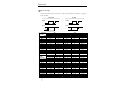
GEOMETRY
PINCUSHION
PARALLELOGRAM
Moves to function you want.
TRAPEZOID
PINBALANCE
ROTATION
50%
50
8
User’s Manual
User’s Manual
9
ENGLISH
OSD Menu
OSD controls