1
Smart TV Function
Smart TV Function
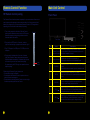
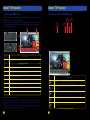
Browser
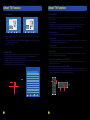
To open Browser click on HOME - > Browser
Website can be entered by(keyboard on the Remote Control / keyboard on the TV
screen / external keyboard), you can view the website on the TV.
HOME
Button
Up or Down Buttons
Note: When DEMO Mode is executed, please first press EXIT Button to
exit then follow the above operation by going to Settings then enter
Environment selection for closing.
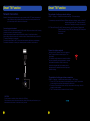
File Explorer
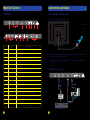
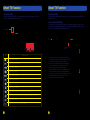
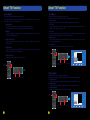
To enter File Explorer interface by HOME - > All Apps - > File Explorer
1. Click on the Menu Icon at the top right of the screen or
MENU Button on the Remote Control to display the
edit menu; then continue with the related operation.
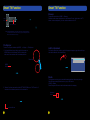
Add the Bookmark
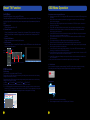
Click on the (Star Icon) at the top right of the page to display a page, from which you
can add bookmarks, view visited history.
Bookmark this page
Menu Icon
Label
Google
Address
http://www.google.co.in/
Account
Local
Add to
Bookmarks
MENU
Button
Cancel
OK
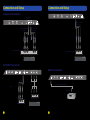
Media:
2. Select a file, then press and hold the LEFT MOUSE Button or “OK” Button for 2
seconds to have related operation on the selected file.
This function can allow you to view the shared media from the memory storage.
Note: Before operating Media function, plug in USB device.
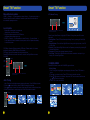
HOME - > Media
Press Navigation Button to view the shared media in the category.
Navigation
Button
Left Mouse Button
25
26