1
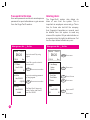
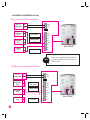
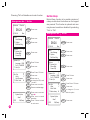
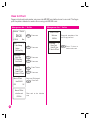
Password Verification
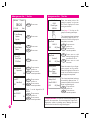
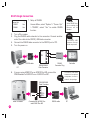
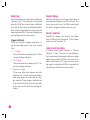
User with password enrollment can always use
password to report attendance or gain access
from the FingerTec® readers.
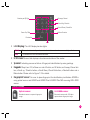
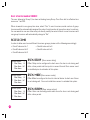
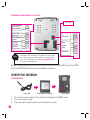
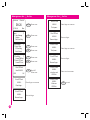
When you see this
Welcome
Check-In
User ID 00003
ESC
OK
Pwd Affirm
User ID 00003
OK[PWD]
Pwd Affirm
User ID 00003
OK
Press once to confirm
Key in the matching password
by using keypads
OK
Press once to confirm
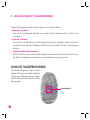
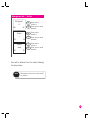
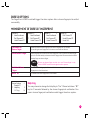
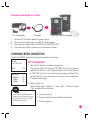
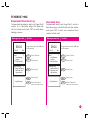
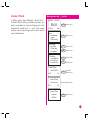
The FingerTec® fingerprint
reader verifies that user ID
user ID is 00003
| Do this
Check-In
08:24
07-01-08
Press OK to confirm that it is
the correct ID.
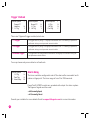
1:1 FP Match
20
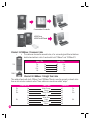
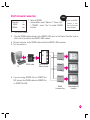
When you see this
Welcome
Mon
Verified!
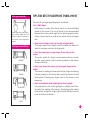
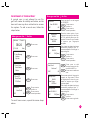
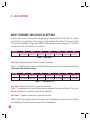
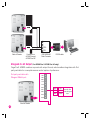
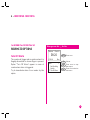
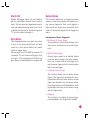
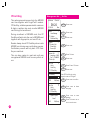
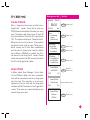
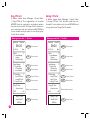
The FingerTec® system also allows deletion of user from the system. This is
important as employees come and go. Therefore, for those who had left the company,
their fingerprint templates or records must
be deleted from the system to avoid any
misuse of the system. Only an administrator or
a supervisor has the rights to delete user. Follow the steps below to delete any user:
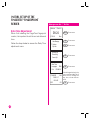
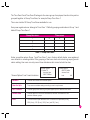
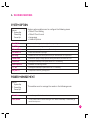
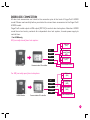
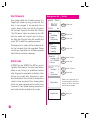
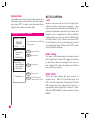
Key in the user ID by using
keypad
08:24
07-01-08
ESC
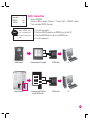
| Do this
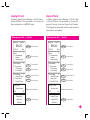
Deleting Users
MENU
Press once
OK
Press once
6
Press 2 times
OK
Press once
Mon
4 User Manage
Options
Sys Info
Enroll User
Enroll Admin
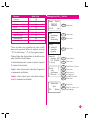
4 Delete
Delete
Key in user ID
User ID 00001
ESC
OK
OK
Press once