1
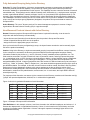
5.1 Set Report Preferences
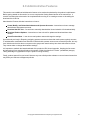
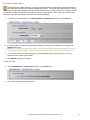
To let you further customize your reports, this product contains several options that will affect how your reports
will look and what information will be included in them. These options are explained below.
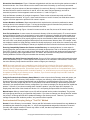
5.1.1 Language Settings
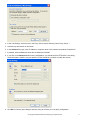
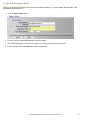
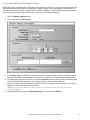
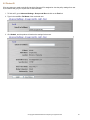
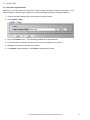
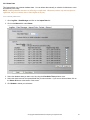
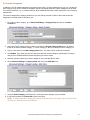
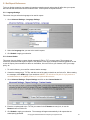
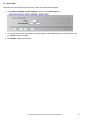
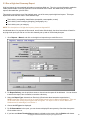
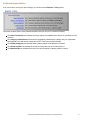
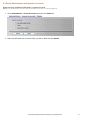
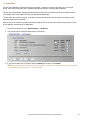
This screen lets you select the language to be used in reports.
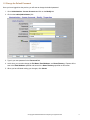
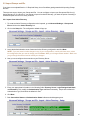
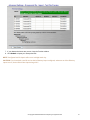
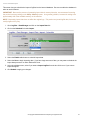
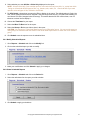
1. Go to Advanced Settings – Language Settings.
2. Select the Language that you want to be used in reports.
3. Click Submit to apply your selection.
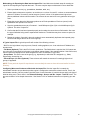
5.1.2 Custom Header
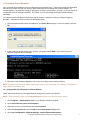
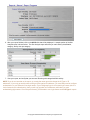
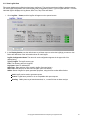
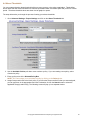
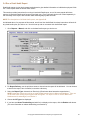
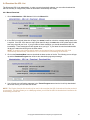
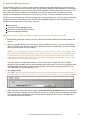
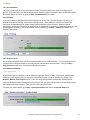
This screen lets you display a custom header message (HTML or TXT) on every report. The message can
contain any information that might be helpful to the recipient of the report. Examples include suggestions on how
to use the report, phone numbers for advice or clarification, link to an FAQ on your Intranet, link to your usage
policy, etc
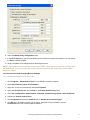
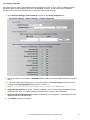
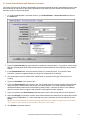
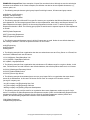
1. To use this feature, you must first create a header message.
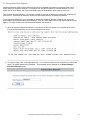
2. Create the message as a .TXT file, and take note of the path you decide to use for the file. When creating
the message, utilize HTML tags if you need them. NOTE: The default text file path for Cyfin products is
wc/cf/db/custom.txt; for CyBlock products, it is wc/cyblock/db/custom.txt.
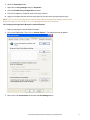
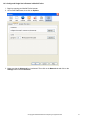
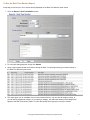
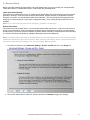
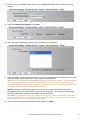
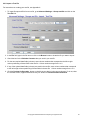
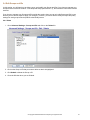
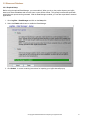
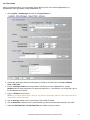
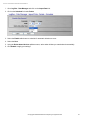
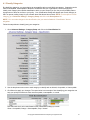
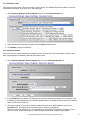
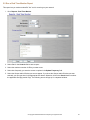
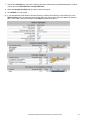
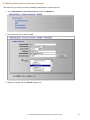
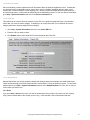
3. Go to Advanced Settings – Report Settings and click on the Custom Header link.
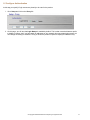
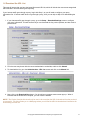
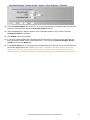
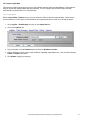
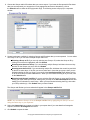
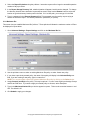
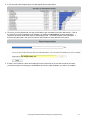
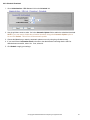
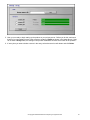
4. Enter the complete path to the .TXT file you created in the Filename text entry box, or use the
Browse button to find the file.
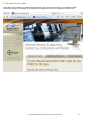
5. Click Submit to apply your selection. The message will appear automatically in all reports that are
subsequently generated.
© Copyright 1996-2008 Wavecrest Computing. All rights reserved.
59