1
DeviceAnywhereTM QuickStart Guide
6.1.1
Export the Current Frame to Your Desktop
The following procedure outlines how to export the current frame to your desktop with the file
Save dialog.
How to Export the Current Frame:
1.
Navigate to the frame you want to export by using the Device Video Controls below
the device.
1.
Right click the device in the workspace. The Device menu appears.
2.
Select Export.
3.
Select Current Frame. The Save File dialog box is displayed.
4.
Select the folder where to save the frame on your computer.
5.
Enter the name of the frame.
6.
Click the Save button.
6.1.2
Upload Frames
Use the Upload Frames option to upload a set of frames (in the DVR memory) to your MyDeviceAnywhere website. This action is useful to save test data and share it with team members.
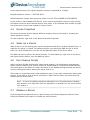
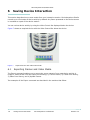
To upload frames to your account, you’ll need to become familiar with the Frame Viewer.
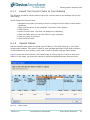
Figure 8 shows the Frame Viewer. The Frame Viewer is used to export a Frame or Video from
History. In this mode, you select the frames to upload by highlighting them with the cursor.
Figure 8
Frame Viewer
Revision 1.4
DeviceAnywhere Confidential
Saving Device Interaction
19