1
Adabas D: Access Plus
The Upsizing Wizard
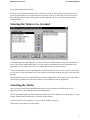
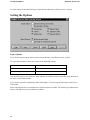
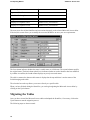
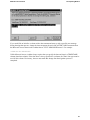
On the left-hand side of the dialog box you will find the list of Microsoft Access tables. Enter all the
Microsoft Access tables that you wish to export to Adabas on the right-hand side. You must select at least
one Microsoft Access table to start the migration process.
Use the arrow buttons to move individual tables or all tables from the list on the left to the list on the right
or vice versa. Use the Add button to move the currently selected entry from the list on the left to the list on
the right.
The Info button lets you view the definition of a selected Microsoft Access table. This is useful if you
wish to know what fields are contained in a table before you export it to Adabas.
Once you have finished your selection, click on the Next button.
Converting Identifiers
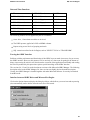
In the Microsoft Access tables that you have selected, the system checks the identifiers (table names, field
names) to determine whether they are valid ODBC identifiers. If not, they are automatically converted to
valid ODBC identifiers.
A valid ODBC identifier can contain uppercase and lowercase letters (A-Z, a-z), digits (0-9) and the
underline character. All identifiers must begin with a letter.
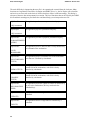
In addition, the identifiers are adapted to whatever options are set, e.g. they might be converted to
uppercase letters and shortened to the maximum length selected.
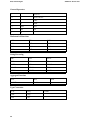
If the conversion procedure results in duplicate identifiers, these identifiers are numbered consecutively.
Example:
17