1
BSD SpecLink – Evaluation Notes
Learning about SpecLink
SpecLink is designed to be as intuitive as possible. If you are familiar with other Windows programs, it should be
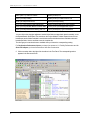
easy to learn SpecLink’s basic operations. At a minimum, you should understand how to open several windows
concurrently and display and re-size them for greater productivity.
On-Line Help
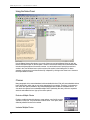
On-line Help will get you answers fast, without having to read through a lot of instructions. A table of contents, an
index of all topics, and the ability to search through all topics for any keyword offer powerful assistance in using
the software.
User Manual
The user manual is available on CD and the chapter names below can help you find information quickly. Check
out the table of contents and the index for more detailed topics. The user manual is also available on our
website. Go to http://www.bsdsoftlink.com/support/sl_manual.htm .
Chapter 1 - Introduction
Chapter 2 - Using SpecLink Effectively
Chapter 3 - Software Orientation
Chapter 4 - Starting a New Project
Chapter 5 - Editing a Project
Chapter 6 - Understanding Links
Chapter 7 - Comparing Projects
Chapter 8 - Printing
Chapter 9 - Managing Projects
Chapter 10 - Creating a Master Project File
Chapter 11 - Updating
Appendix A - A listing of PerSpective (first tab) Documents.
Appendix B - Comprises content summaries for PerSpective sections.
Appendix C - A listing and content summaries for Short Form specs (second tab).
Appendix D - A description of the CSI 3-part section format for SpecLink (third tab).
Appendix E - Documents the terms and conditions of the BSD SpecLink license agreement.
Technical Support
Your paid SpecLink license includes unlimited technical support. In order for you to fully evaluate the software,
we encourage you to also evaluate our excellent product support team. They can be reached by phone, fax, or
email and are available Monday – Friday, 8:30 to 5:30, Eastern time zone. In the event that all support staff are
engaged, please leave a voice mail and your call will be returned.
Phone: 800-266-SPEC (800-266-7732)
Fax: 404-365-8912
Email: [email protected]
4