1
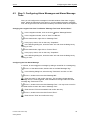
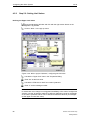
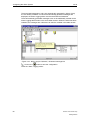
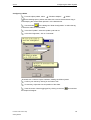
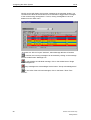
03.04
Contents
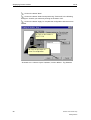
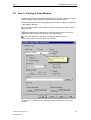
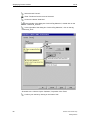
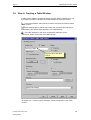
Contents
1
Preparation and Installation ............................................................... 1
1.1
1.2
1.3
1.4
1.5
1.5.1
1.5.2
1.5.3
1.5.4
1.6
2
The first WinCC Project..................................................................... 17
2.1
2.2
2.3
2.4
2.4.1
2.4.2
2.4.3
2.5
2.5.1
2.5.2
2.5.3
2.5.4
2.5.5
2.5.6
2.5.7
2.6
2.7
2.8
3
Step 1: Starting WinCC ........................................................................... 18
Step 2: Creating a new Project................................................................ 19
Step 3: Adding a Communication Driver ................................................. 21
Tags and Tag Groups.............................................................................. 24
Step 4: Creating an Internal Tag ............................................................. 25
Step 4a: Creating a Tag Group ............................................................... 27
Step 4b: Creating a Process Tag ............................................................ 29
Editing Process Screens ......................................................................... 33
Step 5.1: Creating Process Screens ....................................................... 33
The Graphics Designer............................................................................ 35
The Process Screen ................................................................................ 37
Step 5.2: Creating a Button ..................................................................... 38
Step 5.3: Configuring the Process Screen .............................................. 40
Step 5.4: Making the Fill Level Display dynamic..................................... 42
Step 5.5: Creating an I/O Field and making it dynamic........................... 46
Step 6: Defining the Runtime Properties ................................................. 48
Step 7: Activating the Project .................................................................. 49
Step 8: Using the Simulator..................................................................... 50
Displaying Process Values ............................................................... 53
3.1
3.2
3.3
3.4
3.5
3.6
3.7
3.8
4
Hardware Requirements for the Installation.............................................. 3
Software Requirements for the Installation ............................................... 4
How to install the MS Message Queuing Services ................................... 6
How to install the Microsoft SQL Server 2000 .......................................... 8
WinCC Installation and Setup ................................................................... 9
WinCC Installation: User Registration ..................................................... 10
Installation: Select Languages ................................................................ 11
Installation: Select Components.............................................................. 12
Installation: Authorization ........................................................................ 14
How to perform a Deinstallation .............................................................. 15
Step 1: Opening Tag Logging ................................................................. 54
Step 2: Configuring Timers...................................................................... 55
Step 3: Creating an Archive .................................................................... 57
Step 4: Configuring an Archive................................................................ 59
Step 5: Creating a Trend Window ........................................................... 61
Step 6: Creating a Table Window............................................................ 63
Step 7: Defining the Runtime Properties ................................................. 66
Step 8: Activating the Project .................................................................. 67
Configuring the Alarm System ......................................................... 69
4.1
4.2
4.3
4.4
4.5
4.5.1
4.5.2
Printout of the Online Help
Getting Started
Step 1: Opening Alarm Logging .............................................................. 70
Step 2: Starting the System Wizard ........................................................ 71
Step 3: Configuring Alarm Messages and Alarm Message Texts........... 73
Step 4: Configuring the Alarm Message Colors ...................................... 76
Analog Alarm ........................................................................................... 78
Step 5.1: Configuring the AnalogAlarm of a Tag..................................... 78
Step 5.2: Setting Limit Values ................................................................. 82
i
Contents
03.04
4.6
4.7
4.8
5
Outputting an Alarm Message Sequence Report............................ 91
5.1
5.2
5.3
5.4
5.5
5.6
6
Step 1: Creating a Page Layout .............................................................. 92
The Page Layout Editor........................................................................... 93
Step 2: Editing the Page Layout.............................................................. 95
Step 3: Configuring the Print Job ............................................................ 98
Step 4: Defining the Runtime Properties ............................................... 100
Step 5: Activating the Project ................................................................ 101
Outputting a Tag Logging Runtime Report ................................... 103
6.1
6.1.1
6.1.2
6.2
6.3
ii
Step 6: Creating an Alarm Message Screen........................................... 85
Step 7: Defining the Runtime Properties ................................................. 88
Step 8: Activating the Project .................................................................. 89
Editing the Page Layout ........................................................................ 104
Step 1: Editing the Static Section .......................................................... 104
Step 2: Editing the Dynamic Section ..................................................... 105
Step 3: Defining the Print Job Parameters ............................................ 109
Step 4: Activating the Project ................................................................ 110
Printout of the Online Help
Getting Started
03.04
Introduction
Introduction
Welcome to WinCC - the Windows Control Center for Windows XP Professional
and Windows 2000.
WinCC is powerful HMI system for use under Microsoft Windows 2000 and
Windows XP. HMI stands for "Human Machine Interface", i.e. the interface
between the human (the operator) and the machine (the process). The actual
control over the process is performed by the automation system. WinCC
communicates with both the operator and the automation system(s).
The WinCC Project Development/Configuration Environment
To develop and configure projects, special editors are provided that can be
accessed from the WinCC Explorer. With each editor, a specific subsystem of
WinCC is configured.
The major subsystems of WinCC are:
•
The graphics system - the editor for creating the screens is the Graphics
Designer.
•
The alarm system - the editor for configuring the alarms is named Alarm
Logging.
•
The archiving system - the editor for specifying the data to be archived is
named Tag Logging.
•
The report system - the editor for creating the report layouts is the Report
Designer.
•
The communication system is configured directly in the WinCC Explorer.
All configuration data is stored in the CS database.
The WinCC Runtime
With the runtime software, the operator can run and monitor the process. In
particular, the runtime software has the following tasks:
•
Reading of the data stored in the CS database.
•
Displaying of the screens.
•
Communication with the automation systems.
•
Archiving of the current runtime data such as process values and alarm events.
•
Running of the process, e.g. through specified set-points or
activation/deactivation.
Printout of the Online Help
Getting Started
iii
Introduction
03.04
Notation
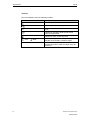
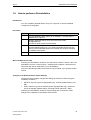
This documentation uses the following notation:
Symbol
Description
Indicates a click with the left mouse button.
Indicates a click with the right mouse button.
Indicates a double-click with the left mouse
button.
Indicates an operation while the left mouse
button is kept pressed.
Indicates an input via the keyboard.
"File"
#1
iv
"New"
All menus and input fields that have to be
selected are enclosed in quotation marks.
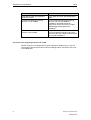
In the texts accompanying the illustrations, "# n"
indicates the order in which the steps are to be
performed.
Printout of the Online Help
Getting Started
03.04
1
Preparation and Installation
Preparation and Installation
This chapter describes the WinCC hardware and software requirements as well as
the installation procedure from the CD-ROM.
For the Getting Started, you will create a single-user project. The project runs on a
computer that functions as the server for processing the data and as the operator
station. Other computers cannot access the project.
Requirements for the Installation of WinCC
For the installation of WinCC, certain hardware and software is required. These
requirements are outlined in the chapters "Hardware Requirements for the
Installation" and "Software Requirements for the Installation".
During the installation of WinCC, it will be checked, whether certain requirements
have been met. The following will be checked:
•
Operating System
•
User Rights
•
Video Resolution
•
Internet Explorer
•
MS Message Queuing Services
•
SQL Server
•
Required Restart
Error Messages
If one of these requirements is not satisfied, the WinCC installation will be
cancelled and an error message displayed. The following table contains
information about the various error messages.
Error Message
Explanation
To perform a proper installation, the
computer has to be restarted
You have installed software on the
computer that requires a restart. Before
WinCC can be installed, the computer has
to be restarted.
Win XP / Win 2000 SP3 operating
system required
Upgrade the operating system to Windows
XP SP1 or Windows 2000 SP3,
respectively. Microsoft Hotfix KB828748 is
required for Windows 2000 SP4. The CDs
required are contained with the WinCC
supplied..
This application requires VGA or
higher resolution
Check the settings of the connected
monitor and upgrade the video card if
necessary.
Printout of the Online Help
Getting Started
1
Preparation and Installation
03.04
Error Message
Explanation
Administrator rights are required to
install this product
Log in again as a user with administrator
rights.
The Microsoft Message Queuing
Services are not installed
Install the Microsoft Message Queuing
Services. For this, the Windows
installations CD-ROM is required.
Instructions can be found in the chapter
"MS Message Queuing Services
Installation".
The required SQL Server 2000 SP3
instance is not installed
Install the Microsoft SQL Server 2000 SP3
from the supplied CD-ROM. Instructions
can be found in the chapter "Microsoft SQL
Server 2000 Installation".
The icons of the program group are not visible
WinCC employs a user-dependent program manager to display icons. If you are
not logged in with the same name used for installing WinCC, the WinCC icons will
not be displayed.
2
Printout of the Online Help
Getting Started
03.04
1.1
Preparation and Installation
Hardware Requirements for the Installation
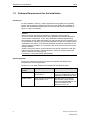
WinCC supports all current IBM/AT-compatible PC platforms. In order to be able to
work efficiently with WinCC, a configuration should be set up according to the
recommended values below. For a single-user system, the following requirements
apply:
Minimum
Recommended
CPU
Intel Pentium III,
800 MHz
Intel Pentium 4,
1400 MHz
Main Memory
Server: 512 MB
Server: 1 GB (1024 MB)
700 MB
1 GB
1.5 GB
10 GB
Available Hard Disk Space
- for the Installation of
WinCC1)
- for Working with WinCC2)
3)
Virtual Memory
1.5 x Main Memory
1.5 x Main Memory
Memory for the Window Printer 100 MB
Spooler4)
> 100 MB
Video Card
16 MB
32 MB
Color Depth
256
True Color
Resolution
800 * 600
1024 * 768
1)
The hard disk on which the operating system is installed must have a minimum of
100 MB of available space for additional system files. In most cases, the operating
system is located on drive "C:".
2)
Depending on the project size as well as the size of the archives and packages.
For the activation of a project, a minimum of 100 MB must be available in addition.
3)
As the "Paging file size for a selected drive" use the recommended value from
the field "Total paging file size for all drives". Enter the recommended value in the
fields "Initial size" and "Maximum size".
4)
WinCC requires the Windows printer spooler to detect printer errors. For this
reason, no other printer spooler must be installed.
Printout of the Online Help
Getting Started
3
Preparation and Installation
1.2
03.04
Software Requirements for the Installation
Introduction
For the installation of WinCC, certain requirements with regard to the operating
system and the software configuration have to be met. Before the installation of
WinCC, the MS Message Queuing Services and the SQL Server 2000 instance
"WinCC" need to be installed.
Caution
WinCC has been approved for operation in a domain or working group.
However, please note that the domain group guidelines and domain restrictions
could hinder the installation. In this case, delete Microsoft Message Queuing,
Microsoft SQL Server 2000 and WinCC from the domains from the computer prior
to the installation. Following a successful installation, the WinCC computer can be
readmitted to the domain. If the domain guidelines and domain restrictions do not
interfere with the installation, the computer need no be removed from the domain
during installation.
Please note that the domain group guidelines and domain restrictions could also
interfere with the operation. If these restrictions cannot be cleared, operate the
WinCC computer in a working group.
If necessary, contact the domain administrator.
Operating System
Single-user systems of a project must either be operated with Windows XP
Professional or with Windows 2000.
WinCC V6.0 runs under Windows XP Professional and Windows 2000.
4
Operating
System
Configuration
Comments
Windows XP
Windows XP Professional
Service Pack 1
Internet Explorer V6.0 Service
Pack 1 is installed along with the
installation of Windows XP SP1.
Windows 2000
Windows 2000 Professional Windows 2000 Professional
Service Pack 4 also requires
Service Pack 3 or 4
Microsoft Hotfix KB828748. The
Hotfix is available on the
"Microsoft Tools" CD.
Printout of the Online Help
Getting Started
03.04
Preparation and Installation
Internet Explorer Requirements
WinCC V6.0 requires the Microsoft Internet Explorer 6.0 Service Pack 1 or higher.
The Internet Explorer 6.0 SP1 can be installed from the supplied CD-ROM.
For the Internet Explorer, the following options should be selected:
•
Installation Option: Standard Installation
•
Update of the Windows Desktop: No
•
Active Channel Selection: None
If you want to use the HTML Help of WinCC to its full extent, Java scripts have to
be enabled on the Internet Explorer under "Internet Options".
Adjust Security Policies
The operating system must permit the installation of unsigned drivers and files.
Detailed information about this can be found in the WinCC Information
System/Installation Notes, chapter "Adjusting Security Policies under Windows".
Microsoft Message Queuing Services
WinCC V6.0 requires the Microsoft Message Queuing Services. Detailed
information about this can be found in the chapter "Microsoft Message Queuing
Services Installation".
Microsoft SQL Server 2000
WinCC V6.0 requires the Microsoft SQL Server 2000 SP3. Detailed information
about this can be found in the chapter "Microsoft SQL Server 2000 Installation".
Printout of the Online Help
Getting Started
5
Preparation and Installation
1.3
03.04
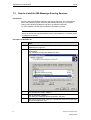
How to install the MS Message Queuing Services
Introduction
WinCC employs the Message Queuing Services of Microsoft. This component is
part of the operating system. However, MS Message Queuing is not a default
setting of the Windows installation and has to be added if necessary.
For the installation, the Windows installation CD-ROM is required.
Caution
WinCC as well as the required software must not be installed on a computer which
is operated in a domain.
Procedure in Windows XP
Steps
6
1
From the Windows "Start" menu, go to "Settings" > "Control Panel" >
"Add/Remove Programs".
2
In the left menu bar, click on the button "Add/Remove Windows
Components".
The "Windows Components Wizard" will open.
3
Select the component "Message Queuing Services".
This activates the button "Details...".
4
Click on the button "Details..." .
The dialog box "Message Queuing Services" will open.
5
Select the subcomponent "Common". Deselect all other subcomponents
and acknowledge with "OK".
Printout of the Online Help
Getting Started
03.04
Preparation and Installation
Steps
6
If the dialog box "Files Needed" opens, insert the requested Windows
installations CD-ROM. Click on the button "OK".
The MS Message Queuing Services will be installed.
7
Close the Wizard by clicking on the button "Finish".
Procedure in Windows 2000
Steps
1
From the Windows "Start" menu, go to "Settings" > "Control Panel" >
"Add/Remove Programs".
2
In the left menu bar, click on the button "Add/Remove Windows
Components".
The "Windows Components Wizard" will open.
3
Select the component "Message Queuing Services" and click on the
button "Next".
4
Select the MSMQ type "Independent Client". Click on the button "Next".
5
Select the setting "Message Queuing Services do not access the active
directory". Click on the button "Next".
6
If the dialog box "Files Needed" opens, insert the requested Windows
installations CD-ROM. Click on the button "OK".
The MS Message Queuing Services will be installed.
7
Close the Wizard by clicking on the button "Finish".
Printout of the Online Help
Getting Started
7
Preparation and Installation
1.4
03.04
How to install the Microsoft SQL Server 2000
Introduction
This chapter describes how the Microsoft SQL Server 2000 SP3 is installed for
WinCC V6.0. For this, use the supplied CD-ROM.
During the installation, a new SQL Server instance ("WinCC") with the required
settings will be created.
SQL Server Instance "WinCC"
During the installation, the instance "WinCC" will be created. This instance is
always installed in English. The language with which already existing SQL server
instances have been installed has no effect on this.
The instance "WinCC" is created with the Microsoft SQL Server 2000 Service Pack
3. Service Pack 3 has no effect on existing instances.
Microsoft SQL Server 2000 already installed
The SQL Server instance "WinCC" still needs to be installed, even if another
Microsoft SQL Server instance has already been installed.
Requirements
•
For the installation, administrator rights are required.
•
There must be no manually installed SQL Server instance named "WinCC".
Procedure
Steps
1
Start the CD-ROM Microsoft SQL Server 2000 SP3.
2
Select "Install SQL Server 2000".
3
Follow the instructions displayed onscreen.
Deinstallation of the SQL Server 2000
When deinstalling WinCC, the SQL Server instance "WinCC" remains and has to
be deinstalled manually due to license issues.
Once the SQL Server instance "WinCC" has been deinstalled and you wish to
reinstall it, then WinCC V6.0 must be reinstalled as well.
8
Printout of the Online Help
Getting Started
03.04
1.5
Preparation and Installation
WinCC Installation and Setup
WinCC is delivered on a CD-ROM equipped with an Autorun program. To start the
installation, simply insert the CD-ROM into the drive. If the Autorun program does
not start, run the "Start.exe" on the CD-ROM.
After a brief loading time, the following installation dialog will be displayed:
Illustration 1.1: Installation of WinCC; Welcome Screen
To install WinCC, click on the text "Install SIMATIC WinCC". The Installation
Wizard will then guide you step-by-step through the installation procedure.
In the following dialog window, click on the button "Next" to go to the next
steps.
Read and accept the license conditions by clicking on "Yes".
Printout of the Online Help
Getting Started
9
Preparation and Installation
1.5.1
03.04
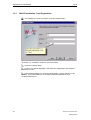
WinCC Installation: User Registration
In the dialog box "User Information", enter the required data.
Illustration 1.2: Installation of WinCC; User Information
Click on the button "Next".
Confirm your entries displayed in the dialog box "Registration Confirmation"
by clicking on "Yes".
In the following dialog box, select the target folder, in which WinCC is to be
installed. The preset folders are "C:\Program Files\Siemens\WinCC" and
"C:\Siemens\Common".
10
Printout of the Online Help
Getting Started
03.04
1.5.2
Preparation and Installation
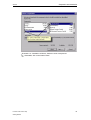
Installation: Select Languages
In the next dialog box, select the languages that you want to install. English is
always installed by the system.
Illustration 1.3: Installation of WinCC; Selection of the Languages
Afterwards, click on the button "Next".
Printout of the Online Help
Getting Started
11
Preparation and Installation
1.5.3
03.04
Installation: Select Components
The WinCC setup program offers you three basic options for the WinCC
installation. For a maximum installation (all components can be selected), please
choose the "User-defined" installation.
Illustration 1.4: Installation of WinCC; User-defined Installation
In the dialog box "Select Components", choose the components that you want
to install. For this, click on the desired component in the left window - their
elements will then be displayed in the right window. In the right window, the
individual elements can then be selected. To select components/elements, click on
the check-box in front of the desired component/element. Selected
components/elements are indicated by a check-mark. The required space will be
displayed as well as the available space.
12
Printout of the Online Help
Getting Started
03.04
Preparation and Installation
Illustration 1.5: Installation of WinCC; Selection of the Components
Afterwards, click on the button "Next".
Printout of the Online Help
Getting Started
13
Preparation and Installation
1.5.4
03.04
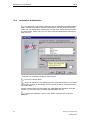
Installation: Authorization
The dialog box "Authorization" displays a list of required authorizations based
on the selected components. Since the authorization can also be performed later,
select "No, the authorization is performed at a later time". Please note that without
an authorization, WinCC only runs in a demo mode and automatically shuts down
after one hour.
Illustration 1.6: Installation of WinCC; Authorization
Click on the button "Next".
In the next dialog box, the settings you have made will be shown. If you would
like to make changes to the settings, click on the button "Back", otherwise click on
the button "Next".
WinCC will then begin with the transfer of the files.After the completion of the file
transfer, you have the option of reading the "README.TXT" file.
To finish the installation, click on "Yes, restart computer now" in the final
dialog box.
14
Printout of the Online Help
Getting Started
03.04
1.6
Preparation and Installation
How to perform a Deinstallation
Introduction
You can completely deinstall WinCC from your computer or remove individual
components or languages.
Procedure
Steps
1
From the Windows "Start" menu, go to "Settings" > "Control Panel" >
"Add/Remove Programs".
2
Highlight "SIMATIC WinCC V6.0" and click on the button
"Change/Remove".
The WinCC setup program will be started.
3
Select whether you want to deinstall WinCC completely or individual
components/languages only. If you want to deinstall components, the
WinCC product CD-ROM needs to be inserted into the drive to display
the installed components.
4
Follow the instructions displayed onscreen.
Microsoft SQL Server 2000
Following the deinstallation of WinCC, the SQL Server instance "WinCC" has to be
deinstalled. From the "Control Panel" > "Add/Remove Programs", select the entry
"Microsoft SQL Server 2000 (WinCC)" for deinstallation.
The use of the Microsoft SQL Server 2000 is only permitted, if you possess a valid
license.
Changes to the Windows Event Viewer Settings
The WinCC setup program changes the settings of the Event Viewer during the
installation of WinCC:
•
Maximum log size (system log/application log): 1024 KB (default setting: 512
KB)
•
When maximum log size is reached (system log/application log): "Overwrite
events as needed" (default setting: Overwrite events older than 7 days)
Following the deinstallation of WinCC, these settings are not restored. These
settings can be adjusted in the Window Event Viewer.
Printout of the Online Help
Getting Started
15
Preparation and Installation
03.04
From the Windows "Start" menu, go to "Settings" > "Control Panel" >
"Administrative Tools" > "Event Viewer". In the left side of the window, right-click on
the logs "System" and "Application" (Windows XP) or "System Log" and
"Application Log" (Windows 2000).
From the pop-up menu, select the entry "Properties" and restore the old settings.
16
Printout of the Online Help
Getting Started
03.04
2
The first WinCC Project
The first WinCC Project
This chapter introduces you to the basic components of WinCC and explains how
to set up and edit a WinCC project by means of simple examples.
Components of WinCC
The basic components are the configuration software and the runtime software.
The WinCC Explorer is the core of the configuration software. In the WinCC
Explorer, the entire project structure is displayed and the project managed. To
develop and configure projects, special editors are provided that can be accessed
from the WinCC Explorer. With each editor, a specific subsystem of WinCC is
configured.
With the runtime software, the operator can run and monitor the process.
Project Development/Configuration in WinCC
To set up a project in WinCC, proceed as follows:
1. Start WinCC.
2. Create a project.
3. Select and install a communication driver.
4. Define the tags.
5. Create and edit your process screens.
6. Specify the WinCC runtime properties.
7. Activate your screens in WinCC Runtime.
8. Use the simulator to test your process screens.
Printout of the Online Help
Getting Started
17
The first WinCC Project
2.1
03.04
Step 1: Starting WinCC
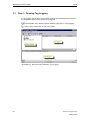
To activate WinCC, click on the "Start" button on the Windows taskbar.
Start WinCC via "SIMATIC"
"WinCC"
"Windows Control Center
6.0".
Illustration 2.1: WinCC Project "Qckstart"; Starting WinCC from the Windows
"Start" Menu
18
Printout of the Online Help
Getting Started
03.04
2.2
The first WinCC Project
Step 2: Creating a new Project
If you are opening WinCC for the first time, a dialog box will offer you three options
for creating a project:
•
Create a "Single-User Project" (default selection)
•
Create a "Multi-User Project"
•
Create a "Client Project"
•
"Open an existing Project"
Creating the "Qckstart" Project:
Select "Single-User Project" and click on "OK".
Enter "Qckstart" as the project name and select a project path. You can
rename the subfolder if necessary, otherwise it will be given the project name.
If you want to open an existing project, the displayed "Open" dialog box will allow
you to search for ".mcp" files. The next time WinCC is started, the last project
worked on will automatically be opened. If the project was activated when WinCC
was exited, it will be reopened in the activated state.
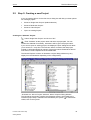
The WinCC Explorer is shown in Illustration 2.2 (the dialog window may vary
slightly from the illustration depending on the configuration).
Illustration 2.2: WinCC Project "Qckstart"; WinCC Explorer Dialog Window
The left side of the window contains the navigation window, which leads to the
individual project steps. Subfolders are indicated by the symbol . To make them
visible, click on this symbol.
Printout of the Online Help
Getting Started
19
The first WinCC Project
03.04
The right side of the window shows the elements belonging to the selected editor
or folder.
In the left side of the WinCC Explorer window, click on the icon "Computer"
. In the right side of the window, you should then see a server computer with your
computer name (the NetBIOS name). Right-click on this computer and select
"Properties" from the displayed pop-up menu. In the following dialog box, you can
set the properties of the WinCC runtime, including which runtime components are
to be started upon project activation, which language is to be used, which buttons
are to be deactivated, etc.
Note
If your computer does not possess a NetBIOS name, the name "DEFAULT" will be
used.
20
Printout of the Online Help
Getting Started
03.04
2.3
The first WinCC Project
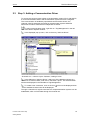
Step 3: Adding a Communication Driver
To access the current process values of the automation system (PLC) with WinCC,
a connection between WinCC and the automation system has to be configured.
The communication is handled by specialized communication drivers, the
channels. WinCC possesses channels for the automation systems SIMATIC
S5/S7/505 as well as manufacturer-independent channels.
To add a communication driver, right-click on "Tag Management" in the left
side of the WinCC Explorer window.
In the displayed pop-up menu, click on the entry "Add new Driver".
Illustration 2.3.1: WinCC Project "Qckstart"; Adding a Driver
In the dialog box "Add new Driver", select one of the displayed drivers (e.g.
"SIMATIC S7 Protocol Suite") and click on the button "Open". The selected driver
will then be displayed in the subfolder of Tag Management.
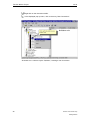
To create a new connection, click on the icon
- all the available channel units will be displayed.
in front of the displayed driver
Through a channel unit, logical connections to multiple automation systems can be
established, which communicate through this channel unit.
Printout of the Online Help
Getting Started
21
The first WinCC Project
03.04
Right-click on the channel unit MPI.
In the displayed pop-up menu, click on the entry "New Connection".
Illustration 2.3.2: WinCC Project "Qckstart"; Creating a new Connection
22
Printout of the Online Help
Getting Started
03.04
The first WinCC Project
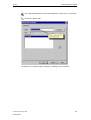
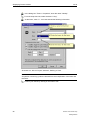
In the following dialog box "Connection Properties", enter "PLC1" in the name
field.
Click on the button "OK".
Illustration 2.3.3: WinCC Project "Qckstart"; Creating a new Connection
Printout of the Online Help
Getting Started
23
The first WinCC Project
2.4
03.04
Tags and Tag Groups
The tags used in WinCC represent either real values - such as the fill level of a
water tank - or internal values that are calculated or simulated within WinCC.
The connecting links for the exchange of data between WinCC and the automation
systems are process tags ("external tags"). Each process tag in WinCC
corresponds to a certain process value in the memory of one of the connected
automation systems. In runtime, WinCC reads the data area in which this process
value is stored from the automation system and thus determines the value of the
process tag. For example, the fill level of a water tank is determined by a fill level
sensor and stored in the PLC. Via a connection - the communication channel - the
value of the fill level is transmitted to WinCC.
Tags not supplied with values by the process are created in the folder "internal
tags".
Tag groups are used to organize tags. All tags can be assigned to tag groups for
improved clarity.
Note
In this project, only internal tags are used. Steps 4a and 4b are not mandatory for
this project. In these steps, the configuration of tag groups and process tags is
shown.
Tag Management Hierarchy with regard to Process Tags
Tag Management
SIMATIC S7 PROTOCOL SUITE
MPI
PLC1
Tag Group
Tag
Tag Management Hierarchy with regard to Internal Tags
Tag Management
Tag Group
Tag
24
Printout of the Online Help
Getting Started
03.04
2.4.1
The first WinCC Project
Step 4: Creating an Internal Tag
If the node "Tag Management" in the WinCC Explorer has not been
expanded, do so by double-clicking on it.
Right-click on the line "Internal Tags".
In the displayed pop-up menu, click on the entry "New Tag".
Illustration 2.4.1: WinCC Project "Qckstart"; Creating an Internal Tag
Printout of the Online Help
Getting Started
25
The first WinCC Project
03.04
In the dialog box "Tag Properties", name the tag "TankLevel".
From the list of data types, select "Unsigned 16-Bit Value".
Confirm your entries by clicking on the button "OK".
Illustration 2.4.2: WinCC Project "Qckstart"; Properties of an Internal Tag
All internal tags created will be listed in the right side of the WinCC Explorer
window.
This is how easy a tag can be created. For each additional tag required, simply
repeat these steps. You can also "copy", "cut" and "paste" tags. These commands
can be accessed from the pop-up menu (right-click on the desired tag) or called
using standard Microsoft key combinations (<CTRL+C> = copy, <CTRL+V> =
paste).
26
Printout of the Online Help
Getting Started
03.04
2.4.2
The first WinCC Project
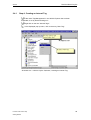
Step 4a: Creating a Tag Group
Tag groups, for example, can be arranged below the logical connection. To
create a new group, right-click on the connection you created previously.
In the displayed pop-up menu, click on the entry "New Group".
Illustration 2.4.3: WinCC Project "Qckstart"; Creating a new Tag Group
Printout of the Online Help
Getting Started
27
The first WinCC Project
03.04
In the dialog box "Tag Group Properties", enter a group name in the name
field.
Illustration 2.4.4: WinCC Project "Qckstart"; Tag Group Properties
Confirm your entries by clicking on the button "OK".
The tag group will then be displayed below the connection.
28
Printout of the Online Help
Getting Started
03.04
2.4.3
The first WinCC Project
Step 4b: Creating a Process Tag
Before you can create process tags, you must have installed a driver and
configured a connection.
Already created internal tags can be copied and pasted into a connection. Note
that tags can only be placed in a connection via the commands "copy" and "paste".
Tags cannot be dragged into a connection.
To create a process tag, right-click on the connection you created previously.
In the displayed pop-up menu, click on the entry "New Tag".
Illustration 2.4.5: WinCC Project "Qckstart"; Creating a Process Tag
Printout of the Online Help
Getting Started
29
The first WinCC Project
03.04
In the dialog box "Tag Properties", give the tag a name.
From the list of data types, select a data type.
The data type of a tag in WinCC can differ from the data type used in the PLC.
The format adaptation can convert the data format of a PLC into a WinCC format.
Illustration 2.4.6: WinCC Project "Qckstart"; Process Tag Properties
30
Printout of the Online Help
Getting Started
03.04
The first WinCC Project
Specifying the Address in the PLC
WinCC tags are assigned to data areas in the PLC and have to be addressed in a
certain way. The addressing type depends on the type of communication partner.
Click on the button "Select" (located next to the addressing field) to display the
dialog box "Address Properties".
From the list-box for the data area of the tag, select the data area "Flag".
Check whether the addressing type "Word" and the address "0" have been
set.
Illustration 2.4.7: WinCC Project "Qckstart"; Specifying the Address
Click on the button "OK".
Printout of the Online Help
Getting Started
31
The first WinCC Project
03.04
Specifying Linear Scaling
Linear scaling is used, if you want to display a process value differently than it is
supplied by the PLC. The process value itself is not changed. Linear scaling can
only be used for process tags.
Select the check-box "Linear Scaling". This enables the input fields "Process
Value Range" and "Tag Value Range".
Specify the process value range (e.g. from -20 to 20) and the tag value range
(e.g. from 0 to 100).
Illustration 2.4.8: WinCC Project "Qckstart"; Specifying Linear Scaling
Note
If you want to use positive and negative numbers for the process value range, a
signed tag must be specified as the data type and "Signed" be selected in the field
"Format Adaptation".
32
Printout of the Online Help
Getting Started
03.04
2.5
2.5.1
The first WinCC Project
Editing Process Screens
Step 5.1: Creating Process Screens
The screens depicting the process in runtime are created with the graphics system.
In this section, you will design a process screen - and can let your creativity run
free.
To create a new screen and open the Graphics Designer, proceed as follows.
Creating a Process Screen
In the left side of the WinCC Explorer window, right-click on the "Graphics
Designer" to access its pop-up menu.
In the pop-up menu, click on the entry "New Picture". A picture file (".pdl" =
"Picture Description File") named "NewPdl0.pdl" will be created and displayed in
the right side of the WinCC Explorer window.
Illustration 2.5.1: WinCC Project "Qckstart"; Creating a new Screen
Printout of the Online Help
Getting Started
33
The first WinCC Project
03.04
In the right side of the WinCC Explorer window, right-click on "NewPdl0.pdl".
In the pop-up menu, click on the entry "Rename Picture".
In the following dialog box, enter "START.pdl".
Creating a second Process Screen
Create a second screen and name it "SAMPLE.pdl". To do so, simply follow the
above steps.
Opening the Graphics Designer
To view the screen "START.pdl" and open the Graphics Designer, doubleclick on "START.pdl" in the right side of the WinCC Explorer window.
As an alternative, you can also right-click on "START.pdl" and select the entry
"Open Picture" from the pop-up menu.
34
Printout of the Online Help
Getting Started
03.04
2.5.2
The first WinCC Project
The Graphics Designer
Once you have opened the Graphics Designer, it will look similar to the illustration
below.
Illustration 2.5.2: WinCC Project "Qckstart"; The Graphics Designer
To optimize your workspace, we recommend the above arrangement of the menu
bars and palettes.
To resize the object and style palettes, drag them into the drawing space
while keeping the left mouse button pressed. For this, the mouse pointer has to be
on the palette frame.
With the mouse pointer still on the palette frame - it will change to a black
double-arrow - drag the palette frame to the desired size while keeping the mouse
button pressed.
Color Palette
Assignment of colors to selected objects. In addition to the 16 standard colors, you
can also define custom colors.
Object Palette
Contains the Standard Objects (Polygon, Ellipse, Rectangle, etc.), Smart Objects
(OLE Control, OLE Element, I/O Field, etc.) and Windows Objects (Button, CheckBox, etc.).
Printout of the Online Help
Getting Started
35
The first WinCC Project
03.04
Style Palette
Changes the appearance of a selected object. Depending on the object, you can
change the line or border type, the line or border width, the line end style, or the fill
pattern.
Alignment Palette
Allows you to change the absolute position of one or more objects, change the
position of selected objects relative to each other or unify the height and width of
several objects.
Zoom Palette
Sets the zoom factor (in percent) for the active window. Via buttons, several default
zoom factors can be set.
Menu Bar
Contains all available menu commands of the Graphics Designers. Commands
that can currently not be activated are grayed out.
Toolbar
Contains buttons to quickly perform common commands.
Font Palette
Changes the font type, size and color of text objects as well as the line color of
standard objects.
Layer Bar
Selects which of the 32 layers will be visible. Layer 0 is selected by default.
To learn more about the displayed objects, first click on the icon
and then on
the desired object. For additional information, please refer to the WinCC
Information System or the WinCC V6 user manual.
Note
To specify which bars or palettes are to be displayed in the Graphics Designer,
click on the menu bar commands "View"
"Toolbars". In the dialog box
"Toolbars", mark which bars/palettes you want to have displayed and then click on
the button "OK".
36
Printout of the Online Help
Getting Started
03.04
2.5.3
The first WinCC Project
The Process Screen
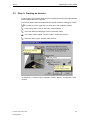
For our first project, we will create a tank representing the water supply of Atlanta.
All graphical objects needed for our process screen can be found in the WinCC
library. We will also need a button, a static text and an input/output field.
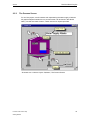
Illustration 2.5.3: WinCC Project "Qckstart"; The Process Screen
Printout of the Online Help
Getting Started
37
The first WinCC Project
2.5.4
03.04
Step 5.2: Creating a Button
First, we will configure a button that enables you to switch to another screen in
runtime. To create a button that toggles between the two screens "START.pdl" and
"SAMPLE.pdl", proceed as follows:
In the screen "START.pdl", select "Windows Objects"
object palette.
"Button" from the
In the drawing space, position the button with a mouse click and then drag it while keeping the mouse button pressed - to the desired size.
After releasing the mouse button, the dialog box "Button Configuration" will
open. In the field "Text", enter a name. For example, the name of the screen you
wish to switch to: "SAMPLE".
To select the screen you wish to switch to, click on the icon
field "Change Picture on Mouse Click".
next to the
In the following dialog box, double-click on the screen "SAMPLE.pdl".
Illustration 2.5.4: WinCC Project "Qckstart"; Button Configuration
Close the dialog box "Button Configuration" and save the screen "START.pdl"
by clicking on the button
38
.
Printout of the Online Help
Getting Started
03.04
The first WinCC Project
Creating a second Button
To be able in runtime to switch back to the start screen from the screen
"SAMPLE.pdl", configure a button in the screen "SAMPLE.pdl" that switches to the
screen "START.pdl". You can open the screen "SAMPLE.pdl" by clicking on the
icon
or from the WinCC Explorer.
Note
Use the arrow keys to move an object in small steps.
Use SHIFT + arrow keys to move an object in large steps.
Printout of the Online Help
Getting Started
39
The first WinCC Project
2.5.5
03.04
Step 5.3: Configuring the Process Screen
Creating the Water Tank
In the menu bar of the Graphics Designer, click on "View"
click on the toolbar icon
folders will be displayed.
"Library", or
. The Object Library with its own toolbar and object
Double-click on "Global Library" and then - in the right side of the window - on
the folder "Plant Elements".
Double-click on the folder "Tanks".
Click on the library toolbar icon
to see a preview of the available tanks.
Note
Via the buttons
can be changed.
and
on the library's toolbar, the size of the preview items
Click on "Tank 1" and drag it into the drawing space while keeping the left
mouse button pressed.
The black blocks surrounding the tank allow it to be resized. Position the
mouse pointer on one of the black blocks and drag the tank to the desired size
while keeping the left mouse button pressed.
Creating the Piping
From the "Global Library"
"Plant Elements"
place the required pipe segments in the drawing space.
"Pipes - Smart Objects",
From the "Global Library"
"Plant Elements"
"Valves - Smart
Objects", place the required valves in the drawing space.
Note
Objects such as bend pipe segments do not have to be picked from the library
every single time. An object can be duplicated with the commands "Copy", "Paste"
and "Duplicate" (available from the "Edit" menu or the pop-up menu). An object
can also be adjusted with the commands "Rotate" and "Mirror" available from the
"Arrange" menu.
40
Printout of the Online Help
Getting Started
03.04
The first WinCC Project
Creating a Static Text
From the object palette, select "Standard Objects"
"Static Text".
Position the object in the upper, right corner of the drawing space and drag it
to the desired size while keeping the mouse button pressed.
Enter the title "Atlanta Water Supply".
Set the font size to "20". To do so, click on the toolbar arrow button next to the
current font size
and select "20" from the drop-down list.
To adjust the frame to the text, click on the text and drag the black blocks until
the desired size is reached.
Printout of the Online Help
Getting Started
41
The first WinCC Project
2.5.6
03.04
Step 5.4: Making the Fill Level Display dynamic
An object is made dynamic by - for example - linking one of its properties to a tag.
To display or change the properties of an object, right-click on the desired
object.
In the pop-up menu, click on the entry "Properties".
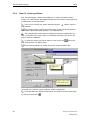
Illustration 2.5.5: WinCC Project "Qckstart"; Displaying Object Properties
Note
With the "Pin"
icon located on the toolbar of the object properties window, this
window can be permanently pinned down in the Graphics Designer. If you now
select a different object, its properties will be automatically be shown in the
window. To turn this function off, click on the "Pin"
icon again.
In the object properties window, attributes can be defined or changed. You can, for
example, change colors and geometric properties (such as the width and the
height), and set the minimum or maximum value.
42
Printout of the Online Help
Getting Started
03.04
The first WinCC Project
In the left side of the window, click on "Tag Assignment".
In our project, the tag "TankLevel" created by you will set (make dynamic) the
fill level of the tank. In the right side of the window, right-click on the transparent
light bulb next to "Fill Level".
From the pop-up menu, select "Tag".
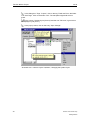
Illustration 2.5.6: WinCC Project "Qckstart"; Connecting a Tag
Printout of the Online Help
Getting Started
43
The first WinCC Project
03.04
In the dialog box "Tags - Project", click on the tag "TankLevel" from the folder
"List of all Tags". Click on the button "OK". The transparent light bulb will turn
green.
In the column "Update Cycle (Current)" and the row "Fill Level", right-click on
the displayed cycle (2 sec.).
In the pop-up menu, click on the entry "Upon Change".
Illustration 2.5.7: WinCC Project "Qckstart"; Changing the Update Cycle
44
Printout of the Online Help
Getting Started
03.04
The first WinCC Project
The default settings for the minimum and maximum values of the fill level display
are 0 and 100 respectively.
Note
A green light bulb indicates that a tag is linked to this attribute. In our project, the
tag "TankLevel" was linked to the attribute "Fill Level".
A property shown in bold indicates that a tag is linked to an attribute of this
property.
Illustration 2.5.8: WinCC Project "Qckstart"; Identification of Dynamic Objects
Printout of the Online Help
Getting Started
45
The first WinCC Project
2.5.7
03.04
Step 5.5: Creating an I/O Field and making it dynamic
The process screen includes an I/O field at the top of the fill level display. This field
is not only used for displaying the value of a tag, but also for changing the value of
a tag.
Creating an I/O Field
From the object palette, select "Smart Objects"
"I/O Field".
Position the "I/O Field" in the drawing space and drag it to the desired size
while keeping the mouse button pressed. Afterwards, the dialog box "I/O Field
Configuration" will be displayed.
To select a tag, click on the icon
and, in the following dialog box, select
the tag "TankLevel" from the folder of internal tags.
Select "500 ms" as the update cycle. To do so, click on the arrow icon next to
the field "Update" and select "500 ms" from the drop-down list.
Illustration 2.5.9: WinCC Project "Qckstart"; Configuring an I/O Field
46
Printout of the Online Help
Getting Started
03.04
The first WinCC Project
Click on the button "OK".
Note
If you accidentally exit the I/O field configuration dialog box - or any other object
configuration dialog box - before completing all settings, proceed as follows:
Right-click on the I/O field and select "Configuration Dialog" from the displayed
pop-up menu.
Making an I/O Field dynamic
The properties of the I/O field can be changed in the object properties window.
Right-click on the just created "I/O Field".
In the pop-up menu, click on the entry "Properties".
In the left side of the window, click on the property "Limits".
In the right side of the window, double-click on "Low Limit Value".
In the following dialog box, enter "0". Click on the button "OK".
In the right side of the window, double-click on "High Limit Value".
In the following dialog box, enter "100". Click on the button "OK".
Note that a tag is linked to the property "Input/Output" (indicated by the bold type).
If you click on the property "Input/Output", you will see that the tag "TankLevel" with
an update cycle of "500 ms" has been linked to it. You made these settings in the
"I/O Field Configuration Dialog".
Save the screen "START.pdl" by clicking on the icon
Graphics Designer.
Printout of the Online Help
Getting Started
and minimize the
47
The first WinCC Project
2.6
03.04
Step 6: Defining the Runtime Properties
Next, you will define the runtime properties for the project. Among other things, this
includes the look of the runtime display. Proceed as follows:
In the left side of the WinCC Explorer window, click on "Computer".
In the right side of the WinCC Explorer window, right-click on the name of your
computer.
In the pop-up menu, click on the entry "Properties".
Click on the tab "Graphics Runtime". In here, you can define the look of the
runtime display.
To select a start screen, click on the "Browse" button and select the screen
"START.pdl". Click on the button "OK".
At "Window Attributes", activate the check-boxes "Title", "Maximize",
"Minimize" and "Adapt Picture".
Illustration 2.6: WinCC Project "Qckstart"; Defining the Runtime Properties
Click on "OK" to close the properties window. You are now ready to work in
runtime!
48
Printout of the Online Help
Getting Started
03.04
2.7
The first WinCC Project
Step 7: Activating the Project
To see how the project looks in runtime, click on the WinCC Explorer menu
bar commands "File"
"Activate". A check-mark next to "Activate" indicates that
the runtime is active.
As an alternative, you can also use the "Activate"
of the WinCC Explorer.
button located on the toolbar
Note
Click on the "Activate" toolbar button of the Graphics Designer to immediately view
changes that you have made to a screen.
After a brief loading time, you should see the following:
Illustration 2.7: WinCC Project "Qckstart"; Runtime Display
Printout of the Online Help
Getting Started
49
The first WinCC Project
2.8
03.04
Step 8: Using the Simulator
If no PLC is connected to WinCC, you can use the simulator to test your project.
To activate the simulator, go to the Windows taskbar and click on "Start"
"SIMATIC"
"WinCC"
"Tools"
"WinCC Tag Simulator".
Note
A project has to be active (in runtime) for the simulator to function properly.
In the simulator dialog window, select the tag that you want to simulate. For
this, click on "Edit"
"New Tag".
In the dialog box "Tags - Project", select the internal tag "TankLevel" and click
on "OK".
In the tab "Properties", click on the simulation mode "Inc".
Enter a start value of "0" and a stop value of "100".
Select the check-box "active".
In the tab "Tags", click on the button "Start Simulation". The table "Tags" will
then display the tag "TankLevel" with its changing values.
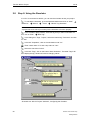
Illustration 2.8: WinCC Project "Qckstart"; Configuring the Simulator
50
Printout of the Online Help
Getting Started
03.04
The first WinCC Project
If you go back to the runtime window, you will see how the simulator supplies your
screen with "real" values.
Deactivate your WinCC project by clicking on the WinCC Explorer menu bar
commands "File"
"Activate". The check-mark next to "Activate" will disappear.
Printout of the Online Help
Getting Started
51
The first WinCC Project
52
03.04
Printout of the Online Help
Getting Started
03.04
3
Displaying Process Values
Displaying Process Values
This chapter introduces you to the basic components of the archiving system and
describes the configuration with the Tag Logging editor. In runtime, the
progression of the process values is displayed in table and trend windows.
Tasks of the Archiving System
You can display current process values at any time. However, if you want to
display the chronological progression of a process value, e.g. in a diagram or table,
you will need access to past process values. These values are stored in process
value archives.
Components of the Archiving System
The process value archiving system consists of configuration and runtime
components:
The configuration component of the archiving system is the Tag Logging editor. In
there, you can configure process value and compressed archives, define
acquisition and archiving cycles and select the process values to be archived.
The runtime component of the archiving system is responsible for writing the
process values to be archived to the process value archive during runtime. Vice
versa, Tag Logging Runtime is also responsible for reading the archived process
values from the process value archive, if - for example - the chronological
progression of the process values is to be graphed or shown in table form in a
screen.
Configuring the Archiving System
To configure the Tag Logging, proceed as follows:
1. Open the Tag Logging editor.
2. Configure a timer.
3. Create an archive using the Archive Wizard.
4. Configure the created archive.
5. Create a trend window in the Graphics Designer.
6. Create a table window in the Graphics Designer.
7. Define the startup parameters.
8. Activate the project.
Printout of the Online Help
Getting Started
53
Displaying Process Values
3.1
03.04
Step 1: Opening Tag Logging
In Tag Logging, the archives, the process values to be archived and the timers for
the acquisition and archiving cycles are configured.
In the left side of the WinCC Explorer window, right-click on "Tag Logging".
In the pop-up menu, click on the entry "Open".
Illustration 3.1: WinCC Project "Qckstart"; Tag Logging
54
Printout of the Online Help
Getting Started
03.04
3.2
Displaying Process Values
Step 2: Configuring Timers
The timer object is located in second line of the navigation window (the left side of
the window). Timers can be configured with either acquisition or archiving cycles.
Note
Acquisition cycles are time intervals in which the process value of a process tag is
read.
Archiving cycles are time intervals in which a process value is stored in the archive
database. The archiving cycle is always an integer multiple of the set acquisition
cycle. The value stored at each archiving cycle is always the latest one. The first
value belongs to the previous interval.
If you click on the object "Timers", all default timers will be displayed in the data
window (the right side of the window). Under no circumstances should these
default timers be changed. If you want to use a timer that differs from the available
default ones, you can configure a new timer.
To, for example, set up a weekly time interval, proceed as follows:
Right-click on the object "Timers".
In the pop-up menu, click on the entry "New".
Printout of the Online Help
Getting Started
55
Displaying Process Values
03.04
In the dialog box "Timers - Properties", enter the name "Weekly".
From the drop-down list, select the base "1 Day".
As the factor, enter "7". You have entered the following information:
Illustration 3.2: WinCC Project "Qckstart"; Defining a Timer
Note
Acquisition or archiving cycles are derived from the multiplication of the base and
the factor.
Confirm your entries by clicking on the button "OK".
56
Printout of the Online Help
Getting Started
03.04
3.3
Displaying Process Values
Step 3: Creating an Archive
In Tag Logging, the process value archive is created and the process tags selected
with the help of the Archive Wizard.
The Archive Wizard offers an automated and simple method of creating an archive.
To create an archive, right-click on "Archives" in the navigation window.
In the pop-up menu, click on the entry "Archive Wizard...".
In the first dialog box displayed, click on the button "Next".
In the field "Archive Name", enter the name "TankLevel_Archive".
Select the archive type "Process Value Archive".
Illustration 3.3.1: WinCC Project "Qckstart"; Archive Wizard - Configuration of the
Archive
Printout of the Online Help
Getting Started
57
Displaying Process Values
03.04
Click on the button "Next".
Click on the button "Select" and pick the tag "TankLevel" in the following
dialog box. Confirm your entries by clicking on the button "OK".
Click on the button "Apply" to complete the configuration with the Archive
Wizard.
Illustration 3.3.2: WinCC Project "Qckstart"; Archive Wizard - Tag Selection
58
Printout of the Online Help
Getting Started
03.04
3.4
Displaying Process Values
Step 4: Configuring an Archive
In this step, you will configure the process value archive and the archive tag. For
the archive tag, you will define when a process value is to be archived.
To change the properties of the archive tag selected in the table window,
right-click on the table window. Should no tag be selected, the first tag in the table
window will be picked.
In the pop-up menu, click on the entry "Properties".
Illustration 3.4.1: WinCC Project "Qckstart"; Displaying Tag Properties
Change the name of the archive tag to "TankLevel_Arch".
In the "Cycle" area, specify the following values: Acquisition = 1 second;
Archiving = 1 * 1 second.
Confirm your entries by clicking on the button "OK".
For this project, the process value archive will only be used in runtime. Thus, it is
best to store the values in the main memory.
Printout of the Online Help
Getting Started
59
Displaying Process Values
03.04
In the data window of Tag Logging, double-click on the process value archive
"TankLevel_Archive". The dialog box "Process Value Archive Properties" will be
opened.
Click on the tab "Memory Location".
Click on "In the Main Memory".
Change the size of the data records to "30". In this project, this size is useful
for the later output of a Tag Logging runtime report.
Confirm your entries by clicking on the button "OK".
Illustration 3.4.2: WinCC Project "Qckstart"; Setting the Memory Location
This concludes the configuration of the process value archive. The tag "TankLevel"
will be acquired every second and archived as the tag "TankLevel_Arch". The
archiving takes place in the main memory and the archived process values are
only available while runtime is active.
Click on the button
to save the configuration. The settings will become
effective the next time runtime is activated.
Close the Tag Logging editor.
60
Printout of the Online Help
Getting Started
03.04
3.5
Displaying Process Values
Step 5: Creating a Trend Window
A trend window makes it possible to display process values in trend form. For this,
WinCC provides a Control that can be inserted into a process screen.
Create a new screen named "TagLogging.pdl" in the WinCC Explorer and open it
in the Graphics Designer.
In the object palette, select the tab "Controls" and then the "WinCC Online
Trend Control".
In the drawing space, position the Control with a mouse click and drag it while keeping the mouse button pressed - to the desired size.
In the tab "General" of the quick configuration dialog box, enter
"TankLevel_Trends" as the title of the trend window.
Illustration 3.5.1: WinCC Project "Qckstart"; General Properties of the Trend
Control
Printout of the Online Help
Getting Started
61
Displaying Process Values
03.04
Select the tab "Curves".
Enter "TankLevel" as the name of the trend.
Click on the button "Selection".
In the left side of the dialog box "Archive/Tag Selection", double-click on the
archive "TankLevel_Archive".
In the right side of the dialog box "Archive/Tag Selection", click on the tag
"TankLevel_Arch".
Illustration 3.5.2: WinCC Project "Qckstart"; Properties of the Trend
Confirm your entries by clicking on the button "OK".
62
Printout of the Online Help
Getting Started
03.04
3.6
Displaying Process Values
Step 6: Creating a Table Window
A table window makes it possible to display process values in tabular form. For
this, WinCC provides a Control that can be inserted into a process screen.
In the object palette, select the tab "Controls" and then the "WinCC Online
Table Control".
In the drawing space, position the Control with a mouse click and drag it while keeping the mouse button pressed - to the desired size.
In the tab "General" of the quick configuration dialog box, enter
"TankLevel_Tables" as the title of the table window.
Illustration 3.6.1: WinCC Project "Qckstart"; General Properties of the Table
Control
Printout of the Online Help
Getting Started
63
Displaying Process Values
03.04
Select the tab "Columns".
Enter "TankLevel" as the name of the column.
Click on the button "Selection".
In the left side of the dialog box "Archive/Tag Selection", double-click on the
archive "TankLevel_Archive".
In the right side of the dialog box "Archive/Tag Selection", click on the tag
"TankLevel_Arch".
Confirm your entries by clicking on the button "OK".
Illustration 3.6.2: WinCC Project "Qckstart"; Properties of the Table
64
Printout of the Online Help
Getting Started
03.04
Displaying Process Values
Confirm your entries by clicking on the button "OK".
Save the screen "TagLogging.pdl" by clicking on the icon
the Graphics Designer.
Printout of the Online Help
Getting Started
and minimize
65
Displaying Process Values
3.7
03.04
Step 7: Defining the Runtime Properties
Next, we will define the runtime properties to allow Tag Logging to be started in
runtime.
In the left side of the WinCC Explorer window, click on "Computer".
In the right side of the WinCC Explorer window, right-click on the name of your
computer.
In the pop-up menu, click on the entry "Properties".
Click on the tab "Startup".
Activate the check-box "Tag Logging Runtime".
Illustration 3.7: WinCC Project "Qckstart"; Defining the Runtime Properties
Click on the tab "Graphics Runtime".
To select a start screen, click on the "Browse" button and select the screen
"TagLogging.pdl".
Confirm your entries by clicking on the button "OK".
66
Printout of the Online Help
Getting Started
03.04
3.8
Displaying Process Values
Step 8: Activating the Project
To see how the trend and table windows look in runtime, click on the WinCC
Explorer toolbar button "Activate".
To activate the simulator, go to the Windows taskbar and click on "Start"
"SIMATIC"
"WinCC"
"Tools"
"WinCC Tag Simulator".
Click on "Edit"
"New Tag".
In the dialog box "Tags - Project", select the internal tag "TankLevel" and click
on "OK".
In the tab "Properties", click on the simulation mode "Inc".
Enter a start value of "0" and a stop value of "10".
Select the check-box "active".
In the tab "Tags", click on the button "Start Simulation". The table "Tags" will
then display the tag "TankLevel" with its changing values.
Printout of the Online Help
Getting Started
67
Displaying Process Values
03.04
In WinCC runtime, the trend and table windows will now display the progression of
the tag "TankLevel".
Illustration 3.8: WinCC Project "Qckstart"; Trend and Table Windows in Runtime
Deactivate your WinCC project by clicking on the WinCC Explorer menu bar
commands "File"
"Activate". The check-mark next to "Activate" will disappear.
68
Printout of the Online Help
Getting Started
03.04
4
Configuring the Alarm System
Configuring the Alarm System
This chapter introduces you to the basic components of the alarm system and
describes the configuration of an alarm system with the Alarm Logging editor.
Tasks of the Alarm System
Alarms inform the operator about process malfunctions and errors. They help to
detect critical situations early and to avoid downtimes.
Components of the Alarm System
The alarm system consists of configuration and runtime components:
The configuration component of the alarm system is the Alarm Logging editor.
Alarm Logging is used to define when and what type of an alarm is to be displayed
with what content. To display alarms, the Graphics Designer provides the WinCC
Alarm Control.
The runtime component of the alarm system is responsible for monitoring the
process, controlling the output of alarms and managing their acknowledgements.
Alarms are displayed in tabular form.
During the configuration, you will define which events trigger alarms. An event, for
example, can be that a certain Bit in a PLC is set or that a process value exceeds a
defined limit value.
Configuring the Alarm System
To configure the Alarm Logging, proceed as follows:
1. Open the Alarm Logging editor.
2. Start the System Wizard to create an alarm system.
3. Configure the alarms and the alarm texts.
4. Define the colors for the various states of an alarm.
5. Configure the limit value monitoring of a tag.
6. Insert the alarm window in a process screen.
7. Define the startup parameters.
8. Activate the project.
Printout of the Online Help
Getting Started
69
Configuring the Alarm System
4.1
03.04
Step 1: Opening Alarm Logging
In the left side of the WinCC Explorer window, right-click on "Alarm Logging".
In the pop-up menu, click on the entry "Open".
Illustration 4.1: WinCC Project "Qckstart"; Alarm Logging
70
Printout of the Online Help
Getting Started
03.04
4.2
Configuring the Alarm System
Step 2: Starting the System Wizard
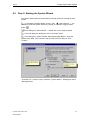
The System Wizard offers an automated and simple method of creating an alarm
system.
To activate the System Wizard, click on "File"
"Select Wizard ...". You
can also activate the System Wizard by clicking on the Alarm Logging toolbar
button
.
In the dialog box "Select Wizard...", double-click on the System Wizard.
In the first dialog box displayed, click on the button "Next".
In the dialog box "System Wizard: Selecting Message Blocks", select the
system block "Date, Time, Number" and the user text block "Msg Txt, Error
Location".
Illustration 4.2.1: WinCC Project "Qckstart"; System Wizard - Selecting the Alarm
Message Blocks
Printout of the Online Help
Getting Started
71
Configuring the Alarm System
03.04
Click on the button "Next".
In the dialog box "System Wizard: Presetting Classes", select the setting
"Class of Error with Types Alarm, Failure and Warning (Incoming
Acknowledgement)".
Illustration 4.2.2: WinCC Project "Qckstart"; System Wizard - Presetting Classes
Click on the button "Next".
In the final dialog box of the System Wizard, a summary of the elements to be
created by the Wizard is displayed.
Click on the button "Apply".
72
Printout of the Online Help
Getting Started
03.04
4.3
Configuring the Alarm System
Step 3: Configuring Alarm Messages and Alarm Message
Texts
Next, you will configure the messages in the table window of the Alarm Logging
editor. Within the framework of this project, you will create three alarm messages.
First, the length of the user text blocks created by the Wizard needs to be adjusted.
Changing the Length of the User Text Blocks "Message Text" and "Point of Error"
In the navigation window, click on the icon
before "Message Blocks".
In the navigation window, click on "User Text Blocks".
In the data window, right-click on "Message Text".
In the pop-up menu, click on the entry "Properties".
In the following dialog box, enter the value "30" and close the dialog box by
clicking on "OK".
In the data window, right-click on "Point of Error".
In the pop-up menu, click on the entry "Properties".
In the following dialog box, enter the value "25" and close the dialog box by
clicking on "OK".
Configuring the first Alarm Message
In runtime, an event triggers a message by setting a certain Bit of a message tag.
In line 1 of the table window, double-click on the field "Message Tag".
In the following dialog box, select the tag "TankLevel" and click on "OK".
In line 1, double-click on the field "Message Bit".
Enter the value "2" and confirm the entry. This number indicates that the
message in line 1 will be triggered, if the third Bit from the right within the 16-Bit
message tag "TankLevel" is set.
In line 1, double-click on the field "Message Text". You may have to scroll in
the table window to reach the column "Message Text".
Enter the text "Fill Level exceeded" and confirm the entry.
In line 1, double-click on the field "Point of Error".
Enter the text "Tank" and confirm the entry.
Printout of the Online Help
Getting Started
73
Configuring the Alarm System
03.04
Configuring the second Alarm Message
In the first column of the table window, right-click on the number "1".
In the pop-up menu, click on the entry "Add new Line".
In line 2, double-click on the field "Message Tag".
In the following dialog box, select the tag "TankLevel" and click on "OK".
In line 2, double-click on the field "Message Bit".
Enter the value "3" and confirm the entry. This number indicates that the
message in line 2 will be triggered, if the fourth Bit from the right within the 16-Bit
message tag "TankLevel" is set.
In line 2, double-click on the field "Message Text".
Enter the text "Tank empty" and confirm the entry.
In line 2, double-click on the field "Point of Error".
Enter the text "Tank" and confirm the entry.
Configuring the third Message
In the first column of the table window, right-click on the number "2".
In the pop-up menu, click on the entry "Add new Line".
In line 3, double-click on the field "Message Tag".
In the following dialog box, select the tag "TankLevel" and click on "OK".
In line 3, double-click on the field "Message Bit".
Enter the value "4" and confirm the entry. This number indicates that the
message in line 3 will be triggered, if the fifth Bit from the right within the 16-Bit
message tag "TankLevel" is set.
In line 3, double-click on the field "Message Text".
Enter the text "Pump failed" and confirm the entry.
In line 3, double-click on the field "Point of Error".
Enter the text "Pump" and confirm the entry.
Note
A newly created alarm in WinCC will be archived by default. Instead of editing
each text individually as described above, you can also edit the message texts in
the dialog box "Single Message". This dialog box is opened via the entry
"Properties" from the pop-up menu of an alarm.
74
Printout of the Online Help
Getting Started
03.04
Configuring the Alarm System
Illustration 4.3: WinCC Project "Qckstart"; Configuring Alarm Message Texts
Printout of the Online Help
Getting Started
75
Configuring the Alarm System
4.4
03.04
Step 4: Configuring the Alarm Message Colors
The states of an alarm can be shown in different colors in runtime. This allows for a
quick identification of the alarm by means of the displayed color.
In the navigation window, click on the icon
before "Message Classes".
Click on the message class "Error".
In the data window, right-click on "Alarm".
In the pop-up menu, click on the entry "Properties".
Illustration 4.4.1: WinCC Project "Qckstart"; Configuring the Alarm Message
Colors
In the following dialog box, the text and background colors of your alarm messages
can be configured based on the state of the alarm.
Configure these colors for your messages of the message type "Alarm":
In the preview area, click on "Came in" (alarm has been activated).
Click on the button "Text Color".
In the color selection dialog box, select the color "White" and click on "OK".
Click on the button "Background Color".
In the color selection dialog box, select the color "Red" and click on "OK".
In the preview area, click on "Went out" (alarm has been deactivated).
Click on the button "Text Color".
76
Printout of the Online Help
Getting Started
03.04
Configuring the Alarm System
In the color selection dialog box, select the color "Black" and click on "OK".
Click on the button "Background Color".
In the color selection dialog box, select the color "Yellow" and click on "OK".
In the preview area, click on "Acknowledged" (alarm has been
acknowledged).
Click on the button "Text Color".
In the color selection dialog box, select the color "White" and click on "OK".
Click on the button "Background Color".
In the color selection dialog box, select the color "Blue" and click on "OK".
Illustration 4.4.2: WinCC Project "Qckstart"; Assigning Alarm Message Colors
Confirm your entries by clicking on the button "OK".
Printout of the Online Help
Getting Started
77
Configuring the Alarm System
4.5
4.5.1
03.04
Analog Alarm
Step 5.1: Configuring the AnalogAlarm of a Tag
With the limit value monitoring, tags can be monitored to ensure that their values
stay within the assigned limits.
On the menu bar of the Alarm Logging editor, click on "Tools"
Ins...".
"Add
In the following dialog box, activate the check-box of the component
"AnalogAlarm".
Illustration 4.5.1: WinCC Project "Qckstart";AnalogAlarm
78
Printout of the Online Help
Getting Started
03.04
Configuring the Alarm System
The AnalogAlarm component will be displayed in the navigation window below the
"Message Classes".
In the data window, right-click on "AnalogAlarm".
In the pop-up menu, click on the entry "New".
Illustration 4.5.2: WinCC Project "Qckstart"; AnalogAlarm
Printout of the Online Help
Getting Started
79
Configuring the Alarm System
03.04
In the dialog box "Properties", the tag to be monitored and the type of monitoring
will be defined.
To select a tag, click on the button
.
Illustration 4.5.3: WinCC Project "Qckstart"; Configuring the AnalogAlarm
Note
If you activate the check-box "a message for all limit values", the same message
will be displayed in runtime regardless of whether the upper or lower limit is
violated (you must then specify a message number).
In the delay time field, a delay can be set. An alarm message will then only be
displayed after the delay time has expired (this prevents alarms from being
displayed, if the limit value violations are only of a very brief duration).
80
Printout of the Online Help
Getting Started
03.04
Configuring the Alarm System
In the dialog box "Tag Selection", select an existing tag or create a new one. For
our project, we will create a new tag.
In the left side of the tag selection dialog box, click on "Internal Tags" and then
on the button
to create a new internal tag.
In the dialog box "Tag Properties", enter "AnalogAlarm" as the name of the
new tag.
In the dialog box "Tag Properties", select "Unsigned 16-Bit Value" as the data
type.
Confirm your entries by clicking on the button "OK".
In the right side of the tag selection dialog box, click on "AnalogAlarm".
Illustration 4.5.4: WinCC Project "Qckstart"; AnalogAlarm - Tag Selection
Confirm your entries by clicking on the button "OK".
Close the dialog box "Properties" by clicking on the button "OK".
Printout of the Online Help
Getting Started
81
Configuring the Alarm System
4.5.2
03.04
Step 5.2: Setting Limit Values
Defining the Upper Limit Value
Open the Navigation Window and click with the right mouse button on the
"AnalogAlarm" tag created.
Click on "New.." in the pop-up menu.
Figure 4.5.5: WinCC project "Qckstart"; configuring the limit value
Activate the "Upper Limit" item in the "Properties"dialog.
Enter "90" as the limit value.
Activate the "Effective for both" item under Hysteresis.
Enter "4" as the message number.
Note:
In order that a color change is not triggered immediately in the case of a slight limit
violation, use the "Hysteresis" attribute to define a distribution range for the display
of the value. Hysteresis values can be defined as absolute values or percentages
(of the upper or lower limit value).
82
Printout of the Online Help
Getting Started
03.04
Configuring the Alarm System
Figure 4.5.6: WinCC project "Qckstart"; Configuring the upper limit
Confirm the input by clicking the "OK" button.
Defining the Lower Limit Value
Open the Navigation Window and click with the right mouse button on the
"AnalogAlarm" tag created.
Click on "New.." in the pop-up menu.
Activate the "Lower Limit" item in the "Properties"dialog.
Enter "10" as the limit value.
Activate the "Effective for both" item under Hysteresis.
Enter "5" as the message number.
Confirm the input by clicking the "OK" button.
Printout of the Online Help
Getting Started
83
Configuring the Alarm System
03.04
The associated messages 4 and 5 are automatically generated by WinCC if they
are not already available. In order that automatically generated messages are
displayed, the Alarm Logging editor must be terminated and restarted.
These automatically generated messages must not be additionally created via the
Alarm Logging table window in the same editor session. When the editor has been
restarted, the messages are visible and can then be modified in the table window.
Figure 4.5.7: WinCC project "Qckstart"; Generated message line
Click on the
button to save the configuration.
Close the "Alarm Logging" editor.
84
Printout of the Online Help
Getting Started
03.04
4.6
Configuring the Alarm System
Step 6: Creating an Alarm Message Screen
Configuring an Alarm Message Window
In runtime, the alarm messages are displayed in tabular form by a message
window. Inserting a message window into a screen is similar to inserting a trend or
table display.
Open the Graphics Designer and create a new screen named "AlarmLogging.pdl".
Then follow these steps:
In the object palette, select the tab "Controls" and then the "WinCC Alarm
Trend Control".
In the drawing space, position the Control with a mouse click and drag it while keeping the mouse button pressed - to the desired size.
In the quick configuration dialog box, enter "Atlanta Water Supply" as the title
of the message window.
Activate the check-box "Display".
Illustration 4.6.1: WinCC Project "Qckstart"; Quick Configuration WinCC Alarm
Control
Confirm your entries by clicking on the button "OK".
Double-click on the "WinCC Alarm Control" and select the tab "Message
Blocks" from the displayed properties dialog box.
Click on the type "User Text Blocks". Check whether "Message Text" and
"Point of Error" have been activated in the right selection list. If not, activate these
check-boxes.
Select the tab "Message Line".
Select the existing message blocks and transfer them to the "Elements of the
Message Line" list via the move button
.
Confirm your entries by clicking on the button "OK".
Printout of the Online Help
Getting Started
85
Configuring the Alarm System
03.04
Configuring an I/O Field
For the message screen, configure an I/O field and a slider. With them, you can
change the value of the tag "AnalogAlarm" in runtime to trigger an alarm for
violating the upper or lower limit.
From the object palette, select
"Smart Objects"
"I/O Field".
In the drawing space, position the I/O field with a mouse click and then drag it
- while keeping the mouse button pressed - to the desired size.
Use the button
in the dialog box "I/O Field Configuration" to select the
tag to which the I/O field should be linked.
In the field "Update", select the update cycle 500 ms.
Illustration 4.6.2: WinCC Project "Qckstart"; Making the I/O Field dynamic
Confirm your entries by clicking on the button "OK".
If necessary, adjust the size and position of the I/O field.
86
Printout of the Online Help
Getting Started
03.04
Configuring the Alarm System
Configuring a Slider
From the object palette, select
"Windows Objects"
"Slider".
In the drawing space, position the slider with a mouse click and then drag it while keeping the mouse button pressed - to the desired size.
Use the button
in the dialog box "Slider Configuration" to select the tag
to which the slider should be linked.
In the field "Update", select the update cycle 500 ms.
In the field "Alignment", click on "horizontal".
Illustration 4.6.3: WinCC Project "Qckstart"; Making the Slider dynamic
Confirm your entries by clicking on the button "OK".
If necessary, adjust the size and position of the slider.
Save the screen "AlarmLogging.pdl" by clicking on the icon
the Graphics Designer.
Printout of the Online Help
Getting Started
and minimize
87
Configuring the Alarm System
4.7
03.04
Step 7: Defining the Runtime Properties
Next, we will define the runtime properties to allow Alarm Logging to be started in
runtime.
In the left side of the WinCC Explorer window, click on "Computer".
In the right side of the WinCC Explorer window, right-click on the name of your
computer.
In the pop-up menu, click on the entry "Properties".
Click on the tab "Startup".
Activate the check-box "Alarm Logging Runtime". This will also automatically
activate the check-box "Text Library Runtime".
Illustration 4.7: WinCC Project "Qckstart"; Defining the Runtime Properties
Click on the tab "Graphics Runtime".
To select a start screen, click on the "Browse" button and select the screen
"AlarmLogging.pdl".
Confirm your entries by clicking on the button "OK".
88
Printout of the Online Help
Getting Started
03.04
4.8
Configuring the Alarm System
Step 8: Activating the Project
To see how the alarm message window looks in runtime, click on the WinCC
Explorer toolbar button "Activate".
To activate the simulator, go to the Windows taskbar and click on "Start"
"SIMATIC"
"WinCC"
"Tools"
"WinCC Tag Simulator".
Click on "Edit"
"New Tag".
In the dialog box "Tags - Project", select the internal tag "TankLevel" and click
on "OK".
In the tab "Properties", click on the simulation mode "Random".
Enter a minimum value of "0" and a maximum value of "100".
Select the check-box "active".
If you do not want to control the limit value monitoring of the tag "AnalogAlarm" via
the I/O field or the slider, connect this tag to the simulator as well.
Click on "Edit"
"New Tag".
Select the internal tag "AnalogAlarm" and click on "OK".
In the tab "Properties", click on the simulation mode "Inc".
Enter a start value of "0" and a stop value of "100".
Select the check-box "active".
In the tab "Tags", click on the button "Start Simulation". The table "Tags" will
then display the tags "TankLevel" and "AnalogAlarm" with their changing values.
Printout of the Online Help
Getting Started
89
Configuring the Alarm System
03.04
WinCC runtime will display the incoming messages in the message window. You
can also enter values in the I/O field or move the slider to trigger alarm messages
of the monitored tag "AnalogAlarm". For this, the tag "AnalogAlarm" has to be
deleted from the "Edit" menu.
Illustration 4.8: WinCC Project "Qckstart"; Alarm Message Window in Runtime
In runtime, the incoming messages can be viewed by clicking on the message
window toolbar button "Message List".
To acknowledge an individual message, click on the toolbar button "Single
Acknowledgement".
Group messages are acknowledged via the button "Group Acknowledgement".
To view a list of the archived messages, click on the button "Short-Term
Archive".
90
Printout of the Online Help
Getting Started
03.04
5
Outputting an Alarm Message Sequence Report
Outputting an Alarm Message Sequence
Report
This chapter introduces you to the basic components of the Report Designer and
describes the creation of an alarm message sequence report aided by a template.
The subject of issuing print jobs will also be addressed.
Tasks of the Report System
Message events can be archived on paper in the form of a message sequence
report. The printout can take place by page or by line. Preconfigured reports are
available. For this project, you will create a new project. The layout for the report is
created with the page layout editor of the Report Designer.
Components of the Report System
The report system consists of configuration and runtime components:
The configuration component of the report system is the Report Designer. The
Report Designer is used to adapt ready-made default layouts to your requirements
or to create new layouts. For the output, each layout has to be linked to a print job.
With the Report Designer, the print jobs initiating the output are configured as well.
The runtime component of the report system fetches the data to be printed from
the archives or Controls and manages the printer output.
Configuring an Alarm Message Sequence Report
To publish a message sequence report, proceed as follows:
1. Create a page layout.
2. Edit the page layout.
3. Configure the print job.
4. Define the startup parameters.
5. Activate the project.
Printout of the Online Help
Getting Started
91
Outputting an Alarm Message Sequence Report
5.1
03.04
Step 1: Creating a Page Layout
In the left side of the WinCC Explorer window, right-click on "Report
Designer".
In the pop-up menu, click on the entry "New page layout".
Illustration 5.1.1: WinCC Project "Qckstart"; Opening a Page Layout
A new layout named "NewRPL0.RPL" will be created in the folder "Layouts".
In the right side of the WinCC Explorer window, double-click on entry
"Layouts". The new layout can be found at the end of the list.
To rename the layout, right-click on "NewRPL0.rpl".
In the pop-up menu, click on the entry "Rename Layout".
In the following dialog box, enter the name "MessageSequenceReport.rpl".
92
Printout of the Online Help
Getting Started
03.04
5.2
Outputting an Alarm Message Sequence Report
The Page Layout Editor
Introduction
The page layout editor is a component of the Report Designer and provides objects
and tools for creating page layouts.
Structure of the Page Layout Editor
The page layout editor follows the conventions set by Windows. It possesses a
workspace, toolbars, menu bar, status bar and various palettes. After opening the
page layout editor, the workspace is displayed with the default settings. You can
arrange the palettes and bars to your liking and also hide them.
Illustration 5.1.2: WinCC Project "Qckstart"; Page Layout Editor
(1) The Workspace
The gray area represents the printable area, the white area the page body. Each
screen in the workspace represents a layout and is saved as a separate rpl-file.
The layouts can be enlarged and reduced according to the Windows standard.
Printout of the Online Help
Getting Started
93
Outputting an Alarm Message Sequence Report
03.04
(2) The Menu Bar
The menu bar is always visible. Depending on the context, the functions in the
menus are active or inactive.
(3) The Toolbar
The toolbar provides buttons to quickly perform common commands of the page
layout editor. The toolbar can be hidden if required or moved to any location on the
screen.
(4) The Font Palette
The font palette is used to change font type, size and color of text objects as well
as the line color of standard objects.
(5) The Object Palette
The object palette contains the standard objects, objects for the runtime
documentation, COM server objects and objects for the project documentation.
The objects are used to form a layout.
(6) The Style Palette
The style palette is used to change the appearance of a selected object.
Depending on the object, the line type, line strength or fill pattern can be changed.
(7) The Alignment Palette
The alignment palette is used to change the absolute position of one or more
objects, change the position of selected objects relative to each other or unify the
height and width of several objects.
(8) The Zoom Palette
The zoom palette offers two options to enlarge or reduce the objects of the active
layout: either via buttons of default zoom factors or via a slider.
(9) The Color Palette
The color palette is used to color selected objects. In addition to the 16 standard
colors, custom colors can be defined.
(10) The Status Bar
The status bar is located at the bottom of the screen and can be hidden if required.
Among other things, it displays tips, information about the position of the selected
objects and the keyboard setting.
94
Printout of the Online Help
Getting Started
03.04
5.3
Outputting an Alarm Message Sequence Report
Step 2: Editing the Page Layout
The layouts contain a static and a dynamic layer. The static layer contains the
header and the footer of the layout for outputting the company name, page
number, time, etc. The dynamic layer contains the dynamic objects for outputting
the configuration and runtime data.
In the static layer, only static and system objects can be inserted. In the dynamic
layer, static and dynamic objects can be inserted.
In the right side of the WinCC Explorer window, double-click on the just
created layout "MessageSequenceReport.rpl".
The page layout editor will open with a blank page. When creating the layout, you
are not bound to a predetermined order.
In the tab "Runtime Documentation" of the object palette, select the object
"Message Report" from the folder "Alarm Logging RT".
In the dynamic section of the page layout, drag the object to the desired size.
Open the object properties dialog box by double-clicking on the object and
select the tab "Connect".
In the list of possible actions, double-click on the entry "Selection". The dialog
box "Alarm Logging Runtime: Report Table Selection" will open.
Illustration 5.2.1: WinCC Project "Qckstart"; Connecting a dynamic Table
Printout of the Online Help
Getting Started
95
Outputting an Alarm Message Sequence Report
03.04
Make sure that the field "Current Column Sequence" contains all message
blocks that are to be printed in the message sequence report.
To make the width of the message blocks fit onto a DIN A4 page, we will need to
change the column width of the message blocks "Number" and "Point of Error".
Select the message block "Number" and then click on the button "Properties".
Enter the value "9" in the field "Number of Places". Do the same for the message
block "Point of Error". Enter the value "20" in the field "Length".
Click on the button "OK".
Illustration 5.2.2: WinCC Project "Qckstart"; Selecting the Message Blocks
96
Printout of the Online Help
Getting Started
03.04
Outputting an Alarm Message Sequence Report
In the dialog box "Object Properties", click on the tab "Properties".
Click on the icon
to pin down the dialog box.
To edit the properties of the layout, click on a blank space outside of the table.
In the left side of the dialog box, click on "Geometry" and make sure that the
page format "A4" is selected in the right side.
Illustration 5.2.3: WinCC Project "Qckstart"; Properties of the Layout
If this is not the case, double-click on "Page Format".
In the following dialog box, select the paper size "A4" and click on "OK".
Save the layout by clicking on the icon
.
Close the page layout editor.
Printout of the Online Help
Getting Started
97
Outputting an Alarm Message Sequence Report
5.4
03.04
Step 3: Configuring the Print Job
To print out the report in runtime, the print job needs to be configured in the WinCC
Explorer.
In the left side of the WinCC Explorer window, click on the entry "Print Jobs".
The right side of the window will then display a list of preconfigured print jobs.
In the right side of the window, double-click on the print job "@Report Alarm
Logging RT Message Sequence". The dialog box "Print Job Properties" will open.
Select the layout "MessageSequenceReport.rpl" from the drop-down list.
Illustration 5.3.1: WinCC Project "Qckstart"; Defining the Print Job Properties
Note
If the check-box "Line Layout for Line Printer" is activated, the above layout cannot
be selected. Deactivate the check-box to output the message sequence report for
this project in page format.
98
Printout of the Online Help
Getting Started
03.04
Outputting an Alarm Message Sequence Report
Select the tab "Printer Setup".
Select your printer from the drop-down list.
Confirm your entries by clicking on the button "OK".
Now, the message window needs to be linked to the configured print job. Your
configured layout will then be used in runtime, if the toolbar button "Print" is clicked
on.
Open the screen "AlarmLogging.pdl" in the Graphics Designer.
Double-click on the "WinCC Alarm Control" and select the tab "General" from
the displayed properties dialog box.
Click on
to select the print job from the list.
Illustration 5.3.2: WinCC Project "Qckstart"; Defining the Print Job
Confirm your entries by clicking on the button "OK".
Save the screen "AlarmLogging.pdl" by clicking on the icon
the Graphics Designer.
Printout of the Online Help
Getting Started
and minimize
99
Outputting an Alarm Message Sequence Report
5.5
03.04
Step 4: Defining the Runtime Properties
Next, we will define the runtime properties to allow the Report Designer to be
started in runtime.
In the left side of the WinCC Explorer window, click on "Computer".
In the right side of the WinCC Explorer window, right-click on the name of your
computer.
In the pop-up menu, click on the entry "Properties".
Click on the tab "Startup".
Activate the check-box "Report Runtime".
Illustration 5.4: WinCC Project "Qckstart"; Defining the Runtime Properties
Confirm your entries by clicking on the button "OK".
100
Printout of the Online Help
Getting Started
03.04
5.6
Outputting an Alarm Message Sequence Report
Step 5: Activating the Project
To print out the alarm message sequence report in runtime, click on the
WinCC Explorer toolbar button "Activate".
To activate the simulator, go to the Windows taskbar and click on "Start"
"SIMATIC"
"WinCC"
"Tools"
"WinCC Tag Simulator".
Click on "Edit"
"New Tag".
In the dialog box "Tags - Project", select the internal tag "TankLevel" and click
on "OK".
In the tab "Properties", click on the simulation mode "Random".
Enter a minimum value of "0" and a maximum value of "100".
Select the check-box "active".
In the tab "Tags", click on the button "Start Simulation". The table "Tags" will
then display the tag "TankLevel" with its changing values.
In the message window, click on the button "Message List" to view the list of
incoming messages.
Enter appropriate values in the I/O field to also trigger alarm messages of the
monitored tag "AnalogAlarm".
To start the printout of the messages displayed in the message window, click
on the button
. The print job you have set up will start.
Illustration 5.5: WinCC Project "Qckstart"; Alarm Message Window in Runtime
Printout of the Online Help
Getting Started
101
Outputting an Alarm Message Sequence Report
102
03.04
Printout of the Online Help
Getting Started
03.04
6
Outputting a Tag Logging Runtime Report
Outputting a Tag Logging Runtime Report
This chapter shows you how to create a report that outputs Tag Logging runtime
data in a table. In runtime, you will use the "Preview Print Job" function.
Configuring a Tag Logging Runtime Report
In runtime, you can print out the Tag Logging runtime data from the table window.
If you click on the runtime toolbar button "Print", the preconfigured layout
"@CCTableControlContents.rpl" will be used. For this project, however, you will
create a user-defined page layout with a header and a footer.
To create a Tag Logging runtime report, proceed as follows:
1. Edit the static section of the layout.
2. Edit the dynamic section of the layout.
3. Define the print job parameters.
4. Activate the project.
Printout of the Online Help
Getting Started
103
Outputting a Tag Logging Runtime Report
6.1
6.1.1
03.04
Editing the Page Layout
Step 1: Editing the Static Section
Create a new page layout and name it "TagLogging.rpl". Proceed as described in
the chapter "Creating a Page Layout".
In the right side of the WinCC Explorer window, double-click on the just
created layout "TagLogging.rpl".
The page layout editor will open with a blank page.
First, we will add the elements of the static section - the date/time, page number,
layout name and project name.
Click on the toolbar button
to edit the static section of the layout.
To display the date and the time in the layout, click on the object palette's
"System Objects"
"Date/Time".
Position the object in the upper left corner drag it to the desired size while
keeping the mouse button pressed.
Right-click on the object "Date/Time".
In the pop-up menu, click on the entry "Properties".
Click on the icon
to pin down the dialog box.
Make sure that you are in the tab "Properties". In the left side of the window,
click on "Font".
In the right side of the window, double-click on "X Alignment" and select "Left".
In the right side of the window, double-click on "Y Alignment" and select
"Centered".
Follow the above steps and add the system object "Project Name". With regard to
the alignment, make the same changes as for the object "Date/Time".
Continue by adding the system objects "Page Number" and "Layout Name" to the
upper right corner. Change the "X Alignment" to "Right" and the "Y Alignment" to
"Centered".
You can change more attributes to improve the appearance. For example, you can
remove the frame around the inserted system objects.
Select the system object to be changed and click on "Styles" in the left side of
the tab "Properties".
In the right side, double-click on "Line Type" and select "Without Line" from
the drop-down list.
104
Printout of the Online Help
Getting Started
03.04
6.1.2
Outputting a Tag Logging Runtime Report
Step 2: Editing the Dynamic Section
Click on the toolbar button
to edit the dynamic section of the layout.
In the tab "Runtime Documentation" of the object palette, select the object
"Tag Table" from the folder "Tag Logging RT".
In the dynamic section of the page layout, drag the object to the desired size.
Open the object properties dialog box by double-clicking on the object and
select the tab "Connect".
In the right side of the tab "Connect", click on "Tag Selection" and then on the
button "Edit".
Illustration 6.2.1: WinCC Project "Qckstart"; Connecting a Tag
Printout of the Online Help
Getting Started
105
Outputting a Tag Logging Runtime Report
03.04
In the dialog box "Tag Logging Runtime: Tag Selection for Reporting", click on
the button "Add...".
In the left side of the dialog box "Archive Selection", click on the icon
"Qckstart" or the computer name.
before
In the left side, select the archive "TankLevel_Archive".
In the right side, select the tag "TankLevel_Arch".
Illustration 6.2.2: WinCC Project "Qckstart"; Adding a Tag
106
Printout of the Online Help
Getting Started
03.04
Outputting a Tag Logging Runtime Report
Confirm your entries by clicking on the button "OK".
For the output of the runtime data, the values of the tag need to be formatted.
In the dialog box "Tag Logging Runtime: Tag Selection for Reporting", click on
the added archive tag.
Click on the button "Properties".
Select the format "Integer". For the number of digits, enter the value "3", and
for the decimal places, the value "0".
Illustration 6.2.3: WinCC Project "Qckstart"; Tag Properties
Printout of the Online Help
Getting Started
107
Outputting a Tag Logging Runtime Report
03.04
Confirm your entries by clicking on the button "OK".
Confirm your entries by clicking on the button "OK".
Select the tab "Properties".
Click on the icon
.
To edit the properties of the layout, right-click on a blank space outside of the
table.
In the left side of the dialog box, click on "Geometry" and make sure that the
page format "A4" is selected in the right side.
Illustration 6.2.3: WinCC Project "Qckstart"; Properties of the Layout
If this is not the case, double-click on "Page Format".
In the following dialog box, select the paper size "A4" and click on "OK".
Save the layout by clicking on the icon
.
Close the page layout editor.
108
Printout of the Online Help
Getting Started
03.04
6.2
Outputting a Tag Logging Runtime Report
Step 3: Defining the Print Job Parameters
To print out the Tag Logging runtime report, the print job parameters need to be
defined in the WinCC Explorer.
In the left side of the WinCC Explorer window, right-click on "Print Jobs".
In the right side of the WinCC Explorer window, right-click on the print job
"Report Tag Logging RT Tables New".
In the pop-up menu, click on the entry "Properties".
Select the layout "TagLogging.rpl" from the drop-down list.
Activate the check-box "Start Time".
Illustration 6.3: WinCC Project "Qckstart"; Defining the Print Job Properties
Select the tab "Printer Setup".
Select your printer from the drop-down list.
Confirm your entries by clicking on the button "OK".
Printout of the Online Help
Getting Started
109
Outputting a Tag Logging Runtime Report
6.3
03.04
Step 4: Activating the Project
Before activating the project, the screen with the process values has to be set as
the start screen of the runtime.
In the left side of the WinCC Explorer window, click on "Computer".
In the right side of the WinCC Explorer window, right-click on the name of your
computer.
In the pop-up menu, click on the entry "Properties".
Click on the tab "Graphics Runtime".
To select the start screen, click on the "Browse" button and select the screen
"TagLogging.pdl".
Confirm your entries by clicking on the button "OK".
To output the report in runtime, click on the WinCC Explorer toolbar button
"Activate".
To activate the simulator, go to the Windows taskbar and click on "Start"
"SIMATIC"
"WinCC"
"Tools"
"WinCC Tag Simulator".
Select the internal tag "TankLevel" as the tag to be simulated and click on
"OK".
In the tab "Properties", click on the simulation mode "Inc".
Enter a start value of "0" and a stop value of "10".
Select the check-box "active".
In the tab "Tags", click on the button "Start Simulation". The table "Tags" will
then display the tag "TankLevel" with its changing values.
In WinCC runtime, the trend and table windows will now display the progression of
the tag "TankLevel".
Click on the WinCC Explorer on the Windows taskbar.
Right-click on the print job "@Report Tag Logging RT Tables New" that you
have configured previously.
In the pop-up menu, click on the entry "Preview Print Job".
110
Printout of the Online Help
Getting Started
03.04
Outputting a Tag Logging Runtime Report
Illustration 6.4.1: WinCC Project "Qckstart"; Preview of a Print Job
In the preview, you can change the display via the buttons "Zoom In", "Zoom Out"
or "Two Pages".
Illustration 6.4.2: WinCC Project "Qckstart"; Preview of a Print Job
To print out the print job, click on the button "Print".
Printout of the Online Help
Getting Started
111
Outputting a Tag Logging Runtime Report
112
03.04
Printout of the Online Help
Getting Started
03.04
Index
Index
A
E
Activating
49
Activating the Project
49, 67, 110
Adding a Communication Driver
21
Adding a PLC Driver
21
Alarm Control
85
Alarm Logging
69, 70
Opening Alarm Logging
70
Analog Alarm
78
Monitored Tag
78
Setting Limit Values
82
Authorization
14
Installation
14
Editing the Layout
Editing the Page Layout
Event Viewer
C
Communication Drivers
Configuring a Slider
Configuring Acquisition Timers
Configuring Alarm Message Colors
Configuring Alarm Message Texts
Configuring Alarms
Configuring Archiving Timers
Configuring User Text Blocks
Connecting the Dynamic Table
Creating a Button
Creating a Page Layout
Creating a Process Tag
Creating a Project
Creating a Static Text
Creating an Alarm Message Window
Creating an Alarm System
Creating an Archive
Creating an Internal Tag
4
85
55
76
73
69
55
73
105
38
92
29
19
40
85
71
57
25
D
Defining the Print Job Parameters
Defining the Runtime Propertie
Defining the Runtime Properties
Deinstallation
Perform
Printout of the Online Help
Getting Started
109
48
66
15
15
95, 104, 105
95
15
G
Graphics Designer
Alignment Palette
Color Palette
Font Palette
Layer Bar
Menu Bar
Object Palette
Opening
Style Palette
Toolbar
Toolbars displayed
Zoom Palette
35
35
35
35
35
35
35
33
35
35
35
35
H
Hardware
Requirements
1
1
I
I/O Field
Configuring an I/O Field
Creating an I/O Field
Making an I/O Field dynamic
Installation
Authorization
Database System
Microsoft SQL Server 2000
Perform Deinstallation
Requirements
Select Components
Select Languages
User Registration
Installation of WinCC
Internet Explorer
46
85
46
46
8, 9
14
8
8
15
4
12
11
10
9
4
Index-1
Index
03.04
M
R
Making an Object dynamic
42
Making the Fill Level Display dynamic 42
Message
71
Message Archive
71
Long-Term Archive
71
Short-Term Archive
71
Message Class
71
Microsoft Message Queuing Services
6
Microsoft SQL Server 2000
8, 15
MS Message Queuing Services
6
Report Designer
Alignment Palette
Color Palette
Font Palette
Menu Bar
Object Palette
Style Palette
Toolbar
Zoom Palette
Requirements
Operating System
Software
93
93
93
93
93
93
93
93
93
1
4
4
O
Online Table Control
Online Trend Control
Opening the Page Layout
Operating System
Requirements
Outputting a Tag Logging
Runtime Report
63
61
95, 104
1, 4
1
103
P
Pinning down the Object Properties
Window
42
Print
109
Print Job
Preview
110
Printing out Process Values
103
Process Screen
17, 37
Configuring the Process Screen
40
Creating Process Screens
33
Process Screen Creation
17
Process Value
53
Creating a Table Window
63
Creating a Trend Window
61
Displaying Process Values
53
Process Value Archive
57
Creating an Archive
57
Program Group
1
Icons of the Program Group
1
Index-2
S
Scaling
Select Components
Installation
Select Languages
Installation
Simulator
Single-User Project
Software
SQL Database
SQL Server
SQL Server Instance
Starting the System Wizard
Starting WinCC
21
12
12
11
11
50
19
4
8
8
8
71
18
T
Table Window
Creating a Table Window
Preview
Tag
Creating a Process Tag
Creating an Internal Tag
Linear Scaling
Tag Properties
Tag Groups
Tag Logging
Opening Tag Logging
Tag Management
Tag Simulator
Using the Simulator
Tags
Trend Window
Creating a Trend Window
Preview
63
63
63
24
29
25
29
21, 25
24, 27
53, 54
54
21, 25
50
50
24
61
61
61
Printout of the Online Help
Getting Started
03.04
Index
U
User Registration
Installation
10
10
W
WinCC
v
Microsoft SQL Server 2000 Installation 8
Perform Deinstallation
15
Requirements for the Installation
4
WinCC Instance
8
Windows
4
Microsoft Message Queuing Services 6
Windows 2000
4
Windows Event Viewer
15
Windows XP
4
Printout of the Online Help
Getting Started
Index-3
Index
Index-4
03.04
Printout of the Online Help
Getting Started