1
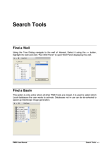
Figure 1 - Well Panel Display and Options
1.
Wells and Well Group list (for X-sections).
2.
Toggle Wells/Well Group list on/off with this selector bar.
3.
Create a new well group for correlation. Opens New Well Group Wizard.
4.
Edit an existing well group. Opens Edit Well Group Wizard.
5.
Delete a well group. N.B. the wells themselves are not deleted – only the well
group list.
6.
Line function: For displaying correlation lines. Options are for floating line tied to
the mouse pointer (Correlation ruler), or fixed lines on selected stratigraphic
boundaries (such as stages, sequences etc.).
7.
Select and activate links: This pointer will select/activate links such as Maps etc. It
is also used for picking/altering tops.
8.
Reset the display: Either display the whole well or the active interval. The active
interval is set in “Options”.
9.
Reload the well from the database.
10. Open the Options dialog for changing
The following options can be changed:
the
display
of
the
data.
a)
Visible columns. Add or remove columns displayed, and alter the display
properties of the visible columns.
b)
Active interval. Select the Top and Base sequence for your display (or use
Top & Base to display entire well / well X-section).
FMB User Manual
Well Panel • 2