1
GOVERNOR’S OFFICE OF
PLANNING AND BUDGET
BUDGETTOOL
USER MANUAL
Section I – Getting Started Guide
270 Washington Street, SW, 8th Floor
Atlanta, Georgia, 30334
404-656-3820
www.opb.georgia.gov
Page 1 of 21
G O V E R N O R ’ S O F F I C E O F P L A N N I N G A N D B U D G E T
B U D G E T T O O L U S E R M A N U A L
S E C T I O N I – G E T T I N G S T A R T E D
Preface
The purpose of this BudgetTool User Manual is to provide detailed instructions for using the BudgetTool
application. All agencies will use BudgetTool to submit their budget requests to the Governor’s Office of
Planning and Budget (OPB). The manual is organized by sections:
Section I: Getting Started – This section contains general orientation and instructions on:
Technical Requirements
Application Setup
Access
Navigation Overview
It is anticipated that Section I will be read first as these instructions are not repeated in the
following sections and apply to all users of the application.
Section II.A: Agency User’s Guide – This section contains detailed instructions on the
business processes and how to use the application to develop an agency’s budget request,
submission by the agency, and workflow through the Governor’s Recommendation to the
General Assembly.
Section II.B: OPB Budget Development Guide – This section contains detailed instructions
for the OPB Analysts to be used in developing the OPB Recommendation.
Section III: Performance Measures – this section contains instructions for agencies to enter
and update performance measures in BudgetTool. These will appear in the Governor’s
Budget Report.
Overview
BudgetTool is an application developed by the Governor’s Office of Planning and Budget (OPB) to be used by
all state agencies to submit their Amended and General budget requests. OPB will use BudgetTool to develop
the Governor’s budget recommendations to the legislature. BudgetTool is written in a relatively new
technology and is intended to provide better information management, functionality, faster speed, and user
friendly report writing tools.
BudgetTool’s security model will enable agencies to setup their own users and maintain their fund source and
object class program associations. Much less detailed data entry will be required than in the past. Instead,
word documents, spreadsheets, and/or templates can be attached to explain the specific details of the
agency budget request. Program fund source and object class entries will be made on the same screen at the
same time.
Note that on the right side of the BudgetTool homepage (http://budgettool.opb.state.ga.us/) are links to the
documents you will ned to prepare your budget request:
AFY and FY Budget Instructions
BudgetTool Manual – Section 1 – Getting Started (this section)
BudgetTool Manual – Section II.A – Agency User’s Guide
Page 2 of 21
G O V E R N O R ’ S O F F I C E O F P L A N N I N G A N D B U D G E T
B U D G E T T O O L U S E R M A N U A L
S E C T I O N I – G E T T I N G S T A R T E D
BudgetTool Manual – Section II.B – OPB Budget Development Guide
BudgetTool Manual – Section III – Measures
Section I: Getting Started
Purpose
The purpose of this section of the BudgetTool User Manual is to provide all users with orientation and
instructions for the following areas:
Technical Requirements
Application Setup
Accessing the Application
Navigation Overview
It is anticipated that Section I will be read first. The topics covered here are common topics that apply to all
users and are not repeated in the other sections. It is necessary to read this section before reading the other
sections.
Section I. A: Technical Requirements
This section defines the technical requirements for BudgetTool - such as, browser version, display settings,
operating system, administrative rights to install, etc.
Technology
BudgetTool was developed as a Microsoft “Smart Client” application using the Microsoft “.Net”
development platform. Smart Client applications combine capabilities of desktop client applications
with the power and reach of web based “thin client” applications. Smart Client applications are
deployed and automatically maintained through the use of a web browser.
BudgetTool Prerequisites
Browser - Microsoft Internet Explorer 6.0 or higher
Operating System -
Windows XP with the latest service pack(s), or
Windows 2000 workstation with the latest Service pack(s)
Prerequisites - MS .Net Framework version 4.0 or higher with latest service pack
(Note: instructions for installing the MS .NET framework are in Section I.B.2 below.)
Display resolution - Minimum 1024 x 768
Page 3 of 21
G O V E R N O R ’ S O F F I C E O F P L A N N I N G A N D B U D G E T
B U D G E T T O O L U S E R M A N U A L
S E C T I O N I – G E T T I N G S T A R T E D
Section I. B: Setup
BudgetTool is only compatible with Internet Explorer which is already installed on most computers. The
MS.NET Framework is an application which must be installed on your computer to enable BudgetTool to
function. You may already have .Net installed, but if you do not, the detailed instructions on how to
complete this task are described below. (See Section I.B.2 below) This installation is necessary only
once.
Section I.B.1: Starting BudgetTool
Start your Internet Explorer browser and copy this link to your browser:
http://budgettool.opb.state.ga.us Alternatively, BudgetTool can be accessed from the OPB
public web site home page (www.opb.georgia.gov) under “Links – OPB Applications.”
If this screen appears, the .NET Framework is If this screen appears, the .NET Framework is
already installed. Please proceed to the Step 1. NOT installed on your computer.
Please see installation instructions (Section I.B.2)
for instructions on installing the .NET Framework.
1. Select Start BudgetTool and allow it to launch on your desktop.
2. The Launching Application dialog box appears. BudgetTool is verifying from the server if there
are any updates for the application.
2. This dialog box will appear for new users.
3. Click Run to install the BudgetTool application.
Page 4 of 21
G O V E R N O R ’ S O F F I C E O F P L A N N I N G A N D B U D G E T
B U D G E T T O O L U S E R M A N U A L
S E C T I O N I – G E T T I N G S T A R T E D
Click
4. A dialog box will indicate the progression of the launcher.
.
5. On successful completion of the launch, the Login Screen of the
BudgetTool application will appear.
6. User ID requests and Password resets.
If you have forgotten your User ID select Log In Help and Forgot UserName. Enter your email
address and your User ID will be emailed to you.
If you have forgotten your password select Log In Help and Forgot/Reset Password and enter
your User ID. A password reset email will be sent to you.
Page 5 of 21
G O V E R N O R ’ S O F F I C E O F P L A N N I N G A N D B U D G E T
B U D G E T T O O L U S E R M A N U A L
S E C T I O N I – G E T T I N G S T A R T E D
Page 6 of 21
G O V E R N O R ’ S O F F I C E O F P L A N N I N G A N D B U D G E T
B U D G E T T O O L U S E R M A N U A L
S E C T I O N I – G E T T I N G S T A R T E D
Section I.B.2: MS .NET Framework Installation
1. Select
Select the hyperlink Click here to install .Net Framework. The .NET Framework only needs to be
installed one time.
1. You will be directed to the Microsoft Download center. Select Download to install the .NET
framework.
2. Select “No thanks” and continue for any Microsoft recommendations.
3. Internet Explorer may block the installation of the .Net framework. If this happens click on the
ribbon and select “Download File…”
Page 7 of 21
G O V E R N O R ’ S O F F I C E O F P L A N N I N G A N D B U D G E T
B U D G E T T O O L U S E R M A N U A L
S E C T I O N I – G E T T I N G S T A R T E D
Select
.
4. The download dialog box should appear. If the box does not appear select “Click here”.
Select
5. Select “Run” to start the Download.
Select
6. Select “Run” to start the Framework setup wizard.
Select
Page 8 of 21
G O V E R N O R ’ S O F F I C E O F P L A N N I N G A N D B U D G E T
B U D G E T T O O L U S E R M A N U A L
S E C T I O N I – G E T T I N G S T A R T E D
7. The Framework will then begin to install.
8. If the error ‘…No administrative privileges were detected” is received, the computer may not be
able to download .NET Framework at this time due to agency policies. Contact your agency IT Help
Desk or IT staff who will contact OPB to resolve this issue.
9. If no errors, the install dialog box appears.
10. Select the check box to accept the terms of the License Agreement and
Click the Install Button to install the Framework.
Select
11. On successful completion, the Installation Complete dialog box appears.
Close the browser and go back to Section I.B.1. to start BudgetTool.
Page 9 of 21
G O V E R N O R ’ S O F F I C E O F P L A N N I N G A N D B U D G E T
B U D G E T T O O L U S E R M A N U A L
S E C T I O N I – G E T T I N G S T A R T E D
Section I. C: Access
Agencies must complete the Agency Agreement form for access to the BudgetTool application. This form
must be signed by the Fiscal Officer or Agency Head. Return the form via fax to OPB.
Page 10 of 21
G O V E R N O R ’ S O F F I C E O F P L A N N I N G A N D B U D G E T
B U D G E T T O O L U S E R M A N U A L
S E C T I O N I – G E T T I N G S T A R T E D
After completing the Agency Agreement Form, agencies must request that their Agency Administrators and
Agency Submitters have their access set up in BudgetTool.
These BudgetTool forms can be found on the OPB homepage link: http://www.opb.georgia.gov.
Select “Links – OPB Applications,” then select ‘BudgetTool’.
In the paragraph below the ‘Start BudgetTool’ button there is a link to download the access forms.
Return the form via fax to OPB.
Page 11 of 21
G O V E R N O R ’ S O F F I C E O F P L A N N I N G A N D B U D G E T
B U D G E T T O O L U S E R M A N U A L
S E C T I O N I – G E T T I N G S T A R T E D
Section I. D: Navigation
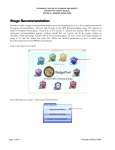
Below is the BudgetTool homepage from which navigation is accomplished to all the different functional
areas of the application. Although all users will see all of the shields as displayed below, many of the shields
will not be active for the various types of users that are in BudgetTool. Below is a high level narrative which
explains the functionality of each shield and what tasks can be accomplished by clicking on a specific shield.
BudgetTool Homepage for Navigation
Section I. D. 1: Meta Data Setup
The OPB IT administrator uses the Meta Data Setup to make application level changes. Stage initiation and
high level maintenance changes are also done using this section. This section is maintained by the OPB IT
Administrator.
Page 12 of 21
G O V E R N O R ’ S O F F I C E O F P L A N N I N G A N D B U D G E T
B U D G E T T O O L U S E R M A N U A L
S E C T I O N I – G E T T I N G S T A R T E D
Section I. D. 2: Agency Setup
The OPB Division Administrator can use the Agency Setup section to associate Fund Sources and Object
Classes to Agencies.
The Agency Administrator will use this Agency Setup section to associate Fund Sources and Object
Classes to Programs.
Page 13 of 21
G O V E R N O R ’ S O F F I C E O F P L A N N I N G A N D B U D G E T
B U D G E T T O O L U S E R M A N U A L
S E C T I O N I – G E T T I N G S T A R T E D
Section I. D. 3: Change Selection
The Change Selection area allows the user to view a detailed summary of the agency at the program and
subprogram levels. Changes are made by adding new change entries or editing existing change entries.
Section I. D. 4: Update Business Event
Pre-checks are done in this area. This allows users to determine that entries are in balance:
Federal Funds, Recovery Funds and Other Funds detail equals the total amount entered and the object class
totals equals the sum of the fund sources. The submission review, approval, and advancement of agency
requests are also done in this section. Please see Section II.A – Security Model - Application Tasks for a
detailed explanation of role assignments for each stage.
Page 14 of 21
G O V E R N O R ’ S O F F I C E O F P L A N N I N G A N D B U D G E T
B U D G E T T O O L U S E R M A N U A L
S E C T I O N I – G E T T I N G S T A R T E D
Section I. D. 5: Statewide Setup
Statewide descriptors can be added and edited in this area. The ability to make these changes is based upon
the user’s assigned role. Only OPB Executive users can set up Statewide descriptors. Use of these descriptors
is covered in Section II of the User’s Guide.
Section I. D. 6: Update Current
This section is used only by OPB to make stage recommendations, to set up descriptor groupings, and to
assign the grouping to programs. Functionality has also been added in this area to permit OPB Analysts to
enter historical costs by parent program and fund source.
Page 15 of 21
G O V E R N O R ’ S O F F I C E O F P L A N N I N G A N D B U D G E T
B U D G E T T O O L U S E R M A N U A L
S E C T I O N I – G E T T I N G S T A R T E D
Section I. D. 7: Reports
The user will generate reports using this section. Most reports can be easily customized for each user’s
specific needs. Reports can be printed or exported as an Excel, PDF, JPEG, HTML or Tiff image.
Section I. D. 8: Security Setup
This section will be used by the IT division for maintenance.
Page 16 of 21
G O V E R N O R ’ S O F F I C E O F P L A N N I N G A N D B U D G E T
B U D G E T T O O L U S E R M A N U A L
S E C T I O N I – G E T T I N G S T A R T E D
Section I. D. 9: Exit
Click the Exit Shield if you would like to leave the BudgetTool application.
Log Out
Click Log Out if you are leaving BudgetTool for a short period of time. The Login screen will appear which will
allow you to login to the system quickly when you return. Clicking the Exit shield closes the application.
Section I. E. 1: Technical Assistance
ITS Ticket
If you have any difficulty accessing the system or run into system errors, you can request technical assistance
by using the ITS Ticket button on the BudgetTool Homepage http://budgettool.opb.state.ga.us/
A. Generating an ITS Ticket
1. Select Click here to create an ITS Ticket.
Page 17 of 21
G O V E R N O R ’ S O F F I C E O F P L A N N I N G A N D B U D G E T
B U D G E T T O O L U S E R M A N U A L
S E C T I O N I – G E T T I N G S T A R T E D
2. Complete the ITS ticket with as much detail as possible
a. Reported By (Required Field): Enter your name.
b. Your email (Required Field): Enter your email address.
c. Phone #: Enter your phone number.
d. Subject (Required Field): Provide a brief statement of the issue.
e. Description of Issue (Required Field): Type in your question, suggestion
or issue. Please be as detailed as possible.
f. A document can also be attached by clicking the Attachment icon in the
top right corner of the screen.
3. Click the Save/Exit icon in the bottom right corner of the screen to generate the ticket
number and submit the ticket. BudgetTool generates the ticket number automatically.
Page 18 of 21
G O V E R N O R ’ S O F F I C E O F P L A N N I N G A N D B U D G E T
B U D G E T T O O L U S E R M A N U A L
S E C T I O N I – G E T T I N G S T A R T E D
I. F. 1: BudgetTool Navigation Tools
a
b
c
Minimizes the screen currently being
used.
b. Creates a bar of the screen being
used so that it can be easily
compared to other screens when
maximized.
c. Closes the screen you are currently
using.
a.
Hourglass
- A very helpful lookup tool used to do quick searches for items in a list.
If you see the hourglass you can use the following techniques to do quick searches.
Type in one or more letters or numbers to
search for a particular name or number.
Type in “..” and one or more letters or
numbers to search for the occurrence of
this sequence of letters or numbers within
an item in the list.
Individual Selections
(7/161) 7 selections have
been made from the list of
161
Page 19 of 21
Click the house
to return to the
list of all the
items.
Click inside this box
to get a list of the
selected items.
G O V E R N O R ’ S O F F I C E O F P L A N N I N G A N D B U D G E T
B U D G E T T O O L U S E R M A N U A L
S E C T I O N I – G E T T I N G S T A R T E D
Question Mark Pointer
The question mark is shown whenever a selection can be made in a drop down menu.
Title Bar
The Title Bar in BudgetTool will indicate the mode you are working in on most screens.
Example: The following is View mode. No changes, additions or deletions can be made on this screen
Title Bar
Pin It
Selecting “Pin It” allows the user to move between shields and pages without selecting the Agency
each time. Deselect the “Pin It” box to change the Agency selection.
Pin It
Page 20 of 21
G O V E R N O R ’ S O F F I C E O F P L A N N I N G A N D B U D G E T
B U D G E T T O O L U S E R M A N U A L
S E C T I O N I – G E T T I N G S T A R T E D
Example: Pin It was selected in the Change Selection. The Agency remains selected when the user chooses the
Agency Setup and the Update Business Event shields or when you return to the change selection window from
another window.
Preview
Many windows have a button at the bottom titled ‘Preview’. This button allows the user to generate a report for
the information displayed on the screen. Clicking the downward arrow produces a dropdown menu with two
options:
Preview – provides a report of the screen that is not customizable but can be formatted like any other report.
Customize - provides a report of the screen that can be customized and formatted like any other report.
Page 21 of 21