1
QMBox75 series devices:
QMBox75-8, QMBox75-16,
QMBox75-24, QMBox75-64
Technical Description and User Manual.
Revision 2.1.
1.
GENERAL INFORMATION .......................................................................................................................................2
2.
SPECIFICATIONS........................................................................................................................................................3
3.
ARCHITECTURE.........................................................................................................................................................4
4.
CONNECTING THE DEVICE ....................................................................................................................................5
4.1.
4.2.
5.
CONNECTING THE DEVICE TO THE PC FOR THE FIRST TIME ......................................................................................6
CONNECTING TO THE OBJECT ...................................................................................................................................8
SOFTWARE.................................................................................................................................................................10
5.1.
5.2.
QMLAB SOFTWARE SUITE ......................................................................................................................................10
SOFTWARE DEVELOPMENT KIT ...............................................................................................................................10
Contacts:
http://www.RTechElectronics.com
[email protected]
- Common questions
[email protected]
- Sales department
[email protected] - Technical support
1. General information
The QMBox75 series devices are relay switching devices with USB 2.0 interface.
Depending on their model, the devices may feature 8 to 64 independent, galvanically isolated
relays. The devices are designed for the commutation of signals and for discrete control of power
equipment: heaters, lighting systems, high-voltage switchers, etc.
The QMBox75 series devices are controlled by the PC connected via USB 2.0.
Features
•
Max. switching voltage/current: up to 400V / 5A (per channel);
•
High-voltage galvanic isolation of relays: 3 kV;
•
Channel-to-channel galvanic isolation;
•
Free PC software (Windows OS).
QMBox75 User manual
Rev. 2.1.
2 of 10
2. Specifications
Model
Number of relays
QMBox75-8
QMBox75-16
QMBox75-24
QMBox75-64
8
16
24
32 to 64
Design
Relay type
Electromagnetic
Max. switching current
Max. switching voltage
3 A (5 A for 1 sec)
±250 V (allowable inductive load switching at overshoot of up to
±400 V)
Galvanic isolation of
relay channels from
USB
Channel-to-channel
galvanic isolation
PC interface
3 kV
750 V
USB 2.0
Power supply
External environment
Dimensions, mm
QMBox75 User manual
100–240 V AC or 24 V DC
from +5°С up to +55°С with relative moisture from 5% up to 90%
140x190x40
140x190x60
Rev. 2.1.
140x190x80
260x260x160
3 of 10
3. Architecture
The basic components of QMBox75 devices are 8-channel QMS75 relay switching modules that
are installed into one case. Depending on the number of modules installed, a QMBox75 device can
have 1-, 2-, 3- or 8-module configurations, thus, different models of the device differ in the number of
relays.
Model
Number of the
QMS75 modules
installed
Number of
relays
Dimensions
QMBox75-8
QMBox75-16
QMBox75-24
QMBox75-64
1
2
3
4 to 8
8
16
24
32 to 64
140x190x40 mm
140x190x60 mm
140x190x80 mm
260x260x160 mm
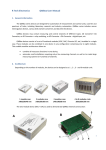
The two-module device QMBox75-16 is used to demonstrate QMBox75 internal construction:
A – the assembled device;
В – the same device with the cover removed;
1 – Bottom shell
2, 3 – QMS75 relay switching modules – 2 pieces
4 – Interface board that controls operation of the modules and ensures connection of the device to the
computer via USB
5 – Interconnect board that ensures electric connection of the modules to the interface board.
Inside the case the QMS75 modules are plugged into the slots of the interconnect board. This
board joins the modules into a single device and ensures electric connection of the modules to the
interface USB board. The interface board controls operation of the modules and ensures connection
of the device to the PC via USB.
*
This scalable modular architecture allows to combine modules of different types (ADC, DAC, Discrete
I/O, etc.) in a single device. These modules can be combined in one device in any configuration. For
detailed information about Combined devices, see
http://www.rtechelectronics.com/products/qmbox/index.php
QMBox75 User manual
Rev. 2.1.
4 of 10
4. Connecting the device
The figure shows the rear panel of a QMBox75 device:
“Link” LED
USB Port
Power Supply Port
“Link” LED — turns on when the device is connected to USB and signals that the USB port of the
computer has identified the device correctly.
USB port — type B. A standard connector for connecting the device to the PC via USB with an
standard USB A-B cable.
Power Supply Port — it is used for supplying power from an external supply included in the
delivery set.
The procedure of connecting the QMBox series devices is as follows:
1.
Connect the power supply from the delivery set of the device to the Power Supply Port of
the device.
2.
Connect the power supply from the delivery set of the device to AC network.
3.
Connect the device to the PC via a USB cable. At this the “Link” LED should turn on. When
the device is connected for the first time, driver installation might be required. For further
information see Connecting the device to the PC for the first time.
4.
Connect the signal sources to the device — see Connecting to the object.
The procedure of disconnecting the the QMBox series devices is as follows:
1. Disconnect the object (signal sources) from the device.
2. Disconnect the device from the PC.
3. Disconnect the power supply from the AC network.
4. Disconnect the power supply from the device.
QMBox75 User manual
Rev. 2.1.
5 of 10
4.1.
Connecting the device to the PC for the first time
When the QMBox series device is connected to a Windows PC for the first time, it is necessary to
specify the location of the device driver.
Before connecting the device to the PC for the first time you should first insert the included CD
into the CD-ROM drive of your PC and only then connect the device to the PC via a USB cable.
As a rule, having detected a new device, Windows starts the Found New Hardware Wizard. In this
case you should follow its instructions, choosing not to go to the Windows Update site and specifying
the “\DRV” folder on the included CD as the location of the driver.
Windows might not start the Found New Hardware Wizard automatically, returning a driver error
message in the notification area (in the right bottom corner of the screen):
In this case you should start the Device Manager. In different Windows OS versions the Device
Manager is started differently. For example, in Windows 7 it can be started by right-clicking the
Computer icon, then – Properties, and then – Device Manager.
In the Device Manager QMBox device will appear as Unknown device. You should right-click on it
and select “Update Driver Software”:
QMBox75 User manual
Rev. 2.1.
6 of 10
After this the Found New Hardware Wizard will start up:
You should select “Browse my computer for driver software” and specify the “\DRV” folder on the
included CD as the location of the driver.
Then you should follow the instructions of the Wizard. Once the driver is successfully installed, the
“RT USB30K QMSystem Crate Controller USB” device should appear in the Device Manager:
This means that the device’s Interface board has been identified correctly by the PC, the driver is
installed and the device is ready to work.
Afterwards, when the QMBox device is connected to another USB port of the PC, Windows might
once again detect the QMBox device as “unknown device”. In this case you will have to repeat the
driver installation procedure as described above.
QMBox75 User manual
Rev. 2.1.
7 of 10
4.2.
Connecting to the object
The figure shows the front panel of a QMBox75 device (QMBox75-16 model, consists of 2 QMS75
modules):
37
19
20
1
37
19
20
1
Input Ports
Every QMS75 module which is a part of the QMBox75 device has its own input port for the signals
connection.
QMBox75 User manual
Rev. 2.1.
8 of 10
Default contact configuration (after power on) of each relay:
The port of the QMS75 module is described in the table, where NC — the pin is reserved.
Pin
num.
1
2
3
4
5
6
7
8
9
10
11
12
13
14
15
16
17
18
19
Description
К1, Relay #7
К2, Relay #7
К3, Relay #7
К1, Relay #6
К2, Relay #6
К3, Relay #6
К1, Relay #5
К2, Relay #5
К3, Relay #5
К1, Relay #4
К2, Relay #4
К3, Relay #4
К1, Relay #3
К2, Relay #3
К3, Relay #3
К1, Relay #2
К2, Relay #2
К3, Relay #2
NC
QMBox75 User manual
Pin
num.
20
21
22
23
24
25
26
27
28
29
30
31
32
33
34
35
36
37
Rev. 2.1.
Description
К1, Relay #8
К2, Relay #8
К3, Relay #8
NC
NC
NC
NC
NC
NC
NC
NC
NC
NC
NC
NC
К1, Relay #1
К2, Relay #1
К3, Relay #1
9 of 10
5. Software
Software of the QMBox75 devices consists of the following components:
- QMLab software suite
- Software development kit (SDK package)
5.1.
QMLab software suite
The QMLab software suite is a universal software tool for working with QMBox devices. It allows
performing most standard tasks within measurement automation.
A detailed description of the QMLab suite is given in the “QMLab User Manual” document that
can be found on the site www.RTechElectronics.com and on the CD supplied with the device.
5.2.
Software development kit
Apart from the complete QMLab software suite, the QMBox75 delivery set includes an SDK
package, which is software and documentation designed for users who would like to create their own
applications for working with the device. This software consists of function libraries (API) and
examples of software development.
The user has a possibility to create full-blown applications using just a limited number of library
functions. These library functions are written so that even an inexperienced programmer who is not
well-versed in multithreaded and object-oriented programming can work with the device. A more
detailed description of the software development kit is given in the “QMBox Programming Guide”
document that can be found on the site www.RTechElectronics.com and on the CD supplied with the
device.
QMBox75 User manual
Rev. 2.1.
10 of 10