1
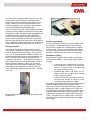
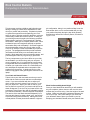
2 Title your elbows are at a near 90 degree angle with your forearms parallel to the floor and your wrists are straight. Measure the height from the floor to the bottom of your hands. Subtract 1 inch from this measurement (to account for the height of your keyboard) in order to determine the ideal keyboard work surface height. If the work surface is too low, it may be able to be raised by placing a sturdy object such as a block of wood under each leg of the table. Otherwise a keyboard platform can be added to the work surface to achieve the proper height. If the work surface is too high, adjust the chair height to make up the difference and use a foot rest so that your knees and hips can remain at a near 90 degree angle. Otherwise a keyboard tray should be obtained that is compatible with the work surface that you are using. Working in Neutral The forearms should be level and parallel to the floor when using the keyboard and mouse. The wrists should be flat or slightly declined when keying. The keyboard tray (if one is used) should allow sufficient clearance for the knees and be wide enough to accommodate the keyboard, mouse and palm rests, with enough room for movement of the mouse. The keyboard tray (again, if one is used) should have enough adjustability so that it can be moved as necessary to allow you to remain in your comfort zone while performing data entry, with the wrist straight and a right angle at the elbows with your upper arms hanging loosely beside your torso. See Figure 3. & 4 Figure 3 & 4. Working in comfort. Positioning the Monitor Sit at your workstation so that you can comfortably reach the keyboard. The monitor should be 18 to 30 inches away with the top edge of the viewing area at or slightly below eye level. The size of the characters and objects you look at will also determine where the monitor can be placed, but it should be no closer than 18 inches away. Workstation Lighting Step back from your work area and take a look around, focusing on the lighting. Look for nuisance light sources such as: A desk lamp that is positioned in such a way that it shines on or reflects off of the monitor screen or is close enough to compete with the monitor as a light source; Overhead light fixtures that reflect off of a monitor screen that is “tipped back” enough to pick up that light source; Minimize stress, maintain a right angle at the elbows during data entry. Outside light sources that enter the work environment and are able to reflect off of the monitor screen that faces the window. Eye irritation and eyestrain are among the most frequently reported complaints that computer operators make. Some of the causes are improper area lighting (both too much and too little), outside sunlight from a nearby window, reflections of light from overhead or windows on the computer monitor and glare from the screen itself. Most users refer to annoying light on their monitor screens as “glare”. Users will then buy a glare screen, only to find out that the “glare” is still present; this time on the glare screen itself. 2