1
CHAPTER 18
Presets
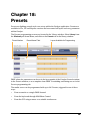
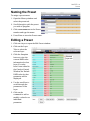
Creating a Preset
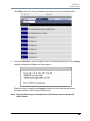
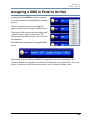
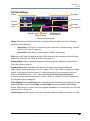
Note: Before programming Presets without a DMX desk, check that DMX is turned
OFF in the Catalyst Control Window DMX In panel for every affected layer.
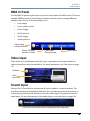
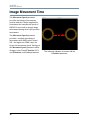
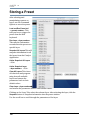
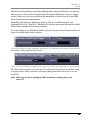
A Yellow ring designates
that DMX In is ON
Catalyst Control Window
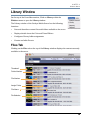
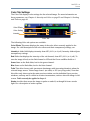
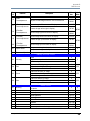
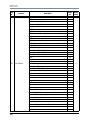
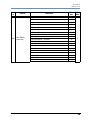
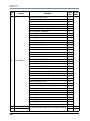
Each layer has a panel in the Catalyst Control window with File, Position, Color and FX
(Visual effects) tabs. Three mechanisms are used to select and adjust layer settings:
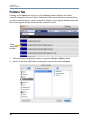
Menu A pop-up menu lets you scroll through the list to the desired file or setting. The
library and file selection menus under the File tab, color effects under the Color tab, and
FX effect under the FX tab all use menus.
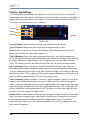
Slider Moving a slider left or right, or up or down, changes the parameters. Intensity
adjustments on the Color tab, and all the adjustments on the Position tab, use sliders.
Numerical Slider Where numerical values appear on the screen, such as playback speed
under the File tab, or the red, blue and green settings under the Color tab, click the field
while holding down the mouse button. Then move the mouse up and down to raise or
lower value. The strobe effect under the Color tab also uses this method to select a range
of alphanumerical settings.
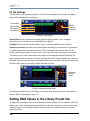
Editing DMX Values in the Layer Panels
The following sections describing the settings on each of the Layer Panel’s tabs used to
set DMX values for a Preset. All DMX parameters can be set using the Catalyst Control
Window interface. For general information regarding the File Layer components, see
General Layer Panel Information on page 119.
Note: These values cannot be entered from the keyboard.
144
Catalyst® V3 Media Server User Manual