1
FPV VIDEO RECORDING/PICTURES
EA
&
USH
P
REL
PUS
E
EAS
EL
&R
H
PUS STARTS
RECORD
H&
PUS
REL
EAS
E
RSTOPS
ELE
ASE
RECORD
H&
D
LOA
N
DOW
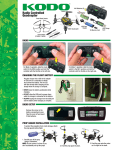
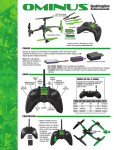
1. To activate the “record” function, simply push and release the Video
On/Picture Button on the back/right hand side of the controller.
2. While recording, you can take a still photo. Push and hold the Video
On/Picture Button for 2 seconds.
3. To stop recording video push the Video Off Button on the back/left
hand side of the controller.
5. To download the videos or photos to your computer, remove the
memory card from the camera, install it into the USB card reader. Then
insert the card reader into a USB port on your computer. Open the
removable disk folder and drag and drop the files onto your computer.
NOTE: You can also take pictures and stop/start videos directly from
the app. Access the controls by tapping on the screen.
6. Once videos/pictures are downloaded, they can be viewed in the
“picture” folder and be shared through social media.
4. Once you are done recording video or photos, click the download
button from the main screen. NOTE: The quad must still be plugged
in for this to work. This will download the video to your phone.
NOTE: If your computer doesn’t recognize .flv video formats, download
“VLC Media Player” from http://www.videolan.org
DELETING FILES
1. Files can be deleted from the memory card while the USB adapter is still installed into your computer by selecting the desired file(s) and deleting them.
2. If the memory card is installed in the camera you can delete the videos or photos by simply pushing and holding the desired video or photo for one
second. A box will appear with a trash can. Simply push the trash can icon and the video or photo will be deleted. You can select more than one file at
a time to be deleted. This can be done before or after they have been downloaded to your phone.
TROUBLESHOOTING
PROBLEM: The quadcopter will not respond to the radio.
SOLUTION: (1) Charge or change the battery on the quadcopter. (2) Turn off
the radio and disconnect the battery for the Ominus. Re-link the
quadcopter and radio.
PROBLEM: Gyro not working properly.
SOLUTION: (1) Battery voltage low. (2) Re-link. (3) Land onto the ground for 3
seconds and take off again.
PROBLEM: Red radio LED light flashing after linking.
SOLUTION: Replace with new AA batteries.
PROBLEM: Will not take off.
SOLUTION: Rotor blades incorrectly installed. See Rotor Blade Replacement
section.
PROBLEM: Unable to flip.
SOLUTION: Battery voltage too low.
PROBLEM: Quadcopter is shaking.
SOLUTION: Check the canopy, chassis, motors and rotor blades for damage.
BLADE REPLACEMENT
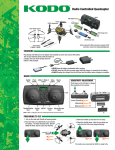
1. Remove screw that secures the rotor blade to the gear shaft.
2. Pull prop off the gear shaft.
3. Install new rotor blade and secure with screw.
Note: The rotor blades have arrows that indicate which direction they rotate. Please
refer to this diagram to verify that the correct replacement rotor blade is installed.
FRONT
Color Blades,
Color LEDs
REAR
Black Blades,
White LEDs