1
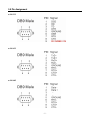
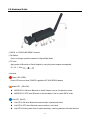
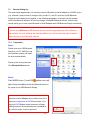
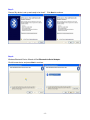
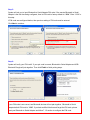
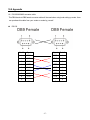
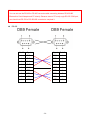
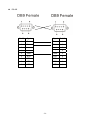
7.0 Configure Bluetooth to Serial Adapter This chapter explains how to configure the Bluetooth-to-Serial Adapter and pair it with a Bluetooth USB Dongle. Please note that Bluetooth USB Dongle is NOT included in the package. We assume that you have already installed Bluetooth USB Dongle and bound software in your PC successfully. The following demonstration is the process of pairing steps with Microsoft embedded Bluetooth driver on Windows XP Service Pack 2. All the Bluetooth to Serial Adapter must be configured first before they can be used. The purpose of configuration is to pair two Bluetooth devices for an exclusive connection between them, and pairing is done by utilizing Bluetooth Address and PIN code. After pairing process is done and power is on, Bluetooth to Serial Adapter will AUTOMATICALLY try to link (Master) or to be linked (Slave) with another paired Bluetooth device wirelessly, just like there is a cable connected between them. There are two ways to configure your Bluetooth to Serial Adapter : Local Setting Up Remote Setting Up 7.1 Local Setting Up Local setting up can be done by connecting a Bluetooth to Serial Adapter to your PC. You can connect PC COM port to a Bluetooth to Serial Adapter directly or through a RS-232 or RS-422/485 converter cable as shown in Appendix (page 26). If you forgot any setting which was done before, local setting up is also the only way which allows you to recreate the setting again. 7.1.1 Preparation : Step 1 : Connect this Bluetooth to Serial Adapter to your PC COM Port, such as COM1, COM2 or any other. Step 2 : Apply power to Bluetooth to Serial Adapter by using the accompanied 5V Power Adapter. -8-