1
Operating the Presentation Switcher / Scaler
Activate the PIP Feature by:
Pressing the PIP front panel button
Switching on the PIP functionality via the OSD Menu (see section 8.1.4)
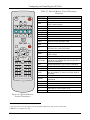
Pressing the PIP key on the remote control transmitter (see section 8.3)
Toggle between the PIP and screen source by:
Pressing the SWAP key on the remote control transmitter (see section
8.3)
Resize the PIP by:
Using the OSD menu (see section 8.1.4)
Pressing the PIP Size key on the remote control transmitter (see section 8.3)
Move the position of the PIP by:
Using the OSD menu (see section 8.1.4)
Choose a new PIP source by:
Pressing the "PIP Source" button on the remote control transmitter
followed by the button of the desired PIP input
Pressing and holding down the PIP front panel button and then pressing
the button of the desired PIP input (while the PIP button is still pressed)
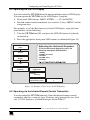
7.3 Locking and Unlocking the Front Panel
To prevent accidental changes to settings or unauthorized tampering with the
front panel, you can lock the front panel.
To lock the front panel, press and hold the ENTER front panel button1 for
about 3 seconds.
The front panel buttons are locked2 (except for the ENTER button on the
front panel).
The LCD displays: Keypad Lock On.
To unlock the front panel buttons (releasing the protection mechanism), press
and hold the ENTER front panel button for about 3 seconds.
1 Does not apply to the ENTER key on the infrared remote control transmitter
2 However, operation via the infrared remote transmitter or RS-232 serial commands (remote controller or PC) and/or
ETHERNET is still available
17