1
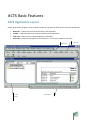
Menu Bar
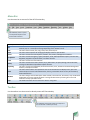
Use the menu bar to access all of the ACTS functionality.
The availability of menu options
and dropdowns depend on the
windowBar
that isOptions
selected.
Menu
Menu Options
File
Edit
View
Assets
Compliance
Land
Safety
Reporting
Tools
Window
Help
Description
This menu contains basic options, such as New, Open, Copy, Delete, Close, Save, Save As, Print, Print
Preview, Exit, etc. These options change depending on the window in view.
This menu contains Undo, Cut, Copy, Paste, Clear, Select All, etc.
This menu contains options for changing the display within an open window.
This menu accesses the Asset Explorer, Portfolio, Area, Facility and Equipment windows.
This menu accesses the Agency, Agency Exception, Audit, Audit Spreadsheet Import, Emission Data,
Regulation, Regulation Synchronization, and Tasks windows
This menu accesses the Lease Window.
This menu accesses the Incident, Hazard, Injury, Observation, Property Damage, Vehicle Accident,
Training and Attendance Spreadsheet Import windows.
This menu accesses the Dashboard, Document Generator, Form, Procedures and Best Management
Practices, and Report windows.
This menu contains basic user implements such as File Attachment and Display Filters, plus more
advanced options such as Code Maintenance, Security, and Utilities which can only be accessed by
ACTS Administrators.
This menu changes the window layout. Select Cascade, Tile Horizontal, Tile Vertical, Layer or Minimize
All Windows to arrange multiple windows or change window views by selecting from a list of all
windows currently open within ACTS.
This window accesses various resources to assist in using ACTS.
Toolbar
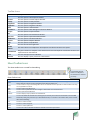
Use the toolbar as a shortcut tool to directly access ACTS functionality.
The availability of the sheet toolbar icons depend on
the window that is selected (or active).
4