1
Teledyne LeCroy Corporation
5.23.1
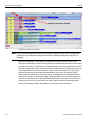
Spreadsheet View
Columns
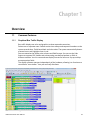
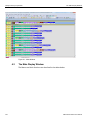
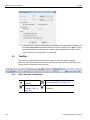
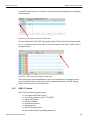
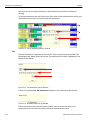
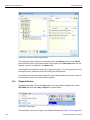
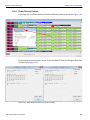
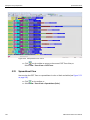
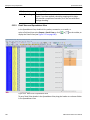
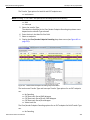
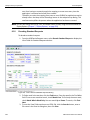
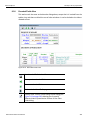
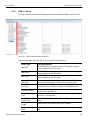
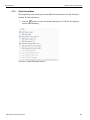
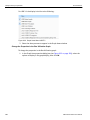
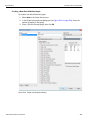
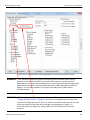
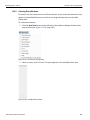
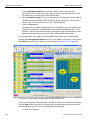
To add a column, right‐click a column header, select Add Column, and then select the column name. You can also add a column by dragging the attribute field (in the left column) from the Detail View into the Spreadsheet View.
To delete a column, right‐click a column header and then select Remove Column.
To reposition a column, drag the column header to the new position.
To resize columns, select the column divider and drag the divider to the right or left.
5.23.2
Rows
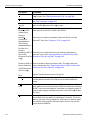
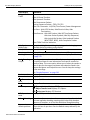
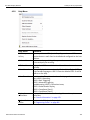
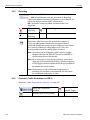
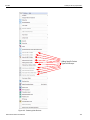
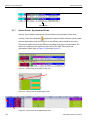
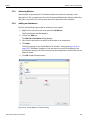
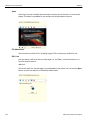
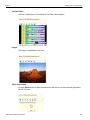
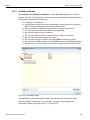
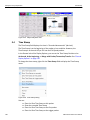
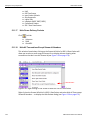
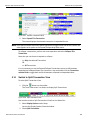
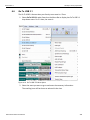
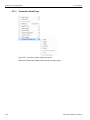
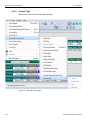
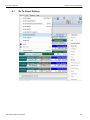
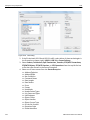
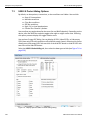
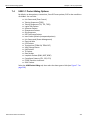
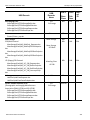
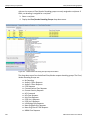
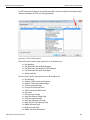
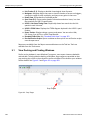
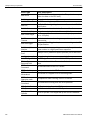
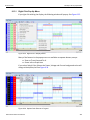
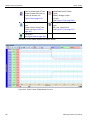
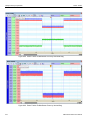
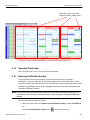
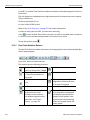
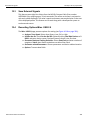
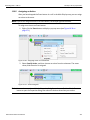
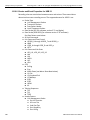
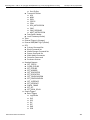
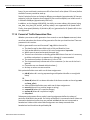
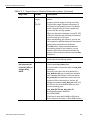
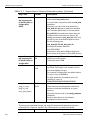
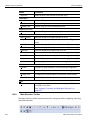
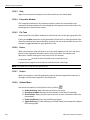
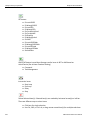
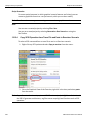
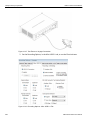
To manipulate rows, right‐click the left‐most column gray area to display the following commands:
Display Options
CATC Walk
Real‐time Statistics
USB 3.1 Electrical Test
Trace Views
Unhide cells
Zoom In
Zoom Out
Wrap
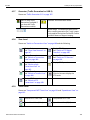
Hide All USB 2.0 Traffic
Hide All USB 3.1 Traffic
Hide All Power Delivery Traffic
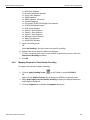
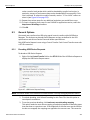
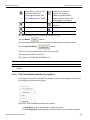
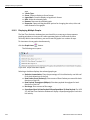
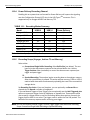
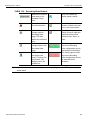
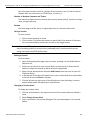
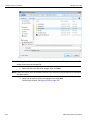
Hiding USB 2.0 Traffic
194
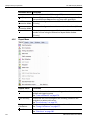
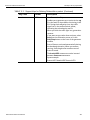
Opens the Display Options menu (see “Display Options” on page 229).
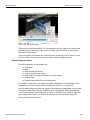
See and manage playlists.
(see “CATC Walk Playlist” on page 162).
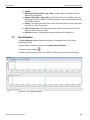
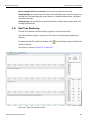
Allows you to view traffic statistics as they occur.
See “Real Time Monitoring” on page 321.
Displays the USB3 Electrical Test dialog.
(see “USB 3.1 Electrical Test Modes” on page 457).
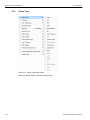
Displays CATC Trace, Compressed CATC Trace, Spreadsheet (Color), or Spreadsheet (B/W).
Unhide previously hidden Traffic, VBus Power, or ALL
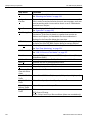
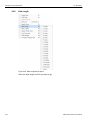
Increases the size of the displayed elements.
Decreases the size of the displayed elements.
Wraps displayed packets within the window.
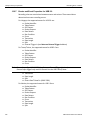
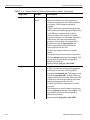
Hides all the USB 2.0 traffic (low speed, full speed, and high speed).
Hides all the SuperSpeed and SuperSpeed+ traffic.
Hides all the power delivery traffic.
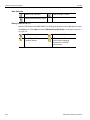
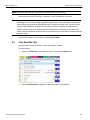
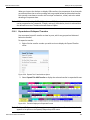
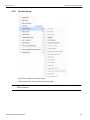
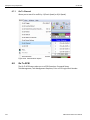
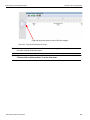
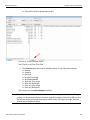
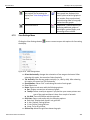
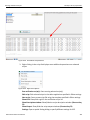
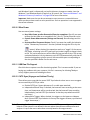
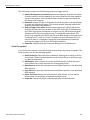
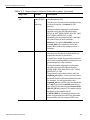
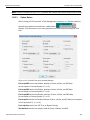
Hides.
SOF’s: Start of Frames
NAK’s: NAK’ed Transactions
Devices: Packets belonging to specified devices by address and endpoint
Chirps: Chirp‐K and Chirp‐J Bus conditions (these are recorded only) USB Protocol Suite User Manual