1
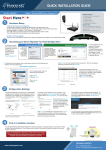
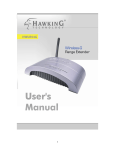
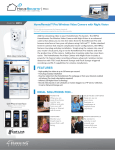
Hi-Gain ™ Wireless-N Dual Radio Smart Repeater MODEL: HW2R1 HAWKING TECHNOLOGIES, INC. 35 HAMMOND SUITE 150 IR VINE, C A 92618 SALES: (888) 662-8828 E-MAIL: [email protected] SPECIFICATIONS: Modem Specifications: RJ-45 Ethernet 10/100M WAN Port 802.11n 150M Wireless WAN Dedicated RJ-SMA Antenna Port Real Time LED Signal Strength Display Supports WPA, WPA2, WEP Wi-Fi Security Network Bridging Mode: FAX: (949) 206-9072 TECHNICAL SUPPORT: [email protected] SCAN, CONNECT, & GO! It’s easy to install, it’s easy to use! Everyone can do it. STEP 1: Power on the Smart Repeater Find the optimal location (an area where the Smart Repeater can get the best signal from a wireless source and redistribute it locally) to power on your Smart Repeater. Pass through Settings from a wireless Internet connection Local Network Specifications: 4 Port 10/100M Auto Sensing Hub 802.11n 300Mbps Wireless LAN 2 x Dedicated RJ-SMA Antenna Ports Supports WPA, WPA2, WPS (Wi-Fi Protected Setup) WEP Wi-Fi Security Broadband Router Features DHCP Server Firewall Demilitarized Zone (DMZ) Port Forwarding Quality of Service Virtual Servers / Port Forwarding Network Address Translation Access Control Mac Address Filtering IP Address Filtering URL Blocking Denial of Service (DoS) Remote Management Hardware Specifications: Connectors/Ports/Switches 3 x RJ-SMA Antenna Jacks 2 x WLAN, 1 x WWAN 4 x 10/100M Ethernet Ports (LAN) 1 x 10/100M Ethernet Port (WAN) 1 x 12v 1A Power Adapter Port 1 x Reset/WPS Button 1 x WLAN On/Off Switch STEP 2: Connect to the Smart Repeater Using an Ethernet cable or Wi-Fi, connect to the Smart Repeater and open the web based Setup Wizard. STEP 3: Scan and Connect to outside Wireless Networks Scan for nearby wireless networks and connect to your desired network. Its that easy. SUPPORT UTILITY: The included Windows based Smart Repeater Support Utility is a powerful tool for administrators to configure and troubleshoot wireless connections for multiple Smart Repeaters. The Support Utility allows administrators to upgrade firmware, reset devices to factory settings, adjust IP settings, scan and connect to wireless Internet networks and view current system settings. The Utility uses a proprietary communication protocol to connect to the Smart Repeater without having to know the correct IP settings.